World Wide Web
Invented by Tim Berners-Lee at CERN, the European
Laboratory for Particle Physics in Geneva, Switzerland
(roughly 1989)
Wanted researchers to be able to “link” or cross-
reference each others research papers
By mid 1980s we had DNS – domain name service to
map domain names to IP address
WWW (cont.)
• Berners-Lee developed a simple protocol, HTTP –
HyperText Transfer Protocol for exchanging
information via hypertext links
• The documents themselves were to be marked up
using HTML – HyperText Markup Language
• HTML based on SGML - Standard Generalized Mark-
up Language which was widely used in publishing
industry
WWW (cont.)
Early 1990s World Wide Web ramped up
1993 – NCSA - National Center for Supercomputers
(University of Illinois) released Mosaic browser
1994 – Netscape was formed
Important Web Programs
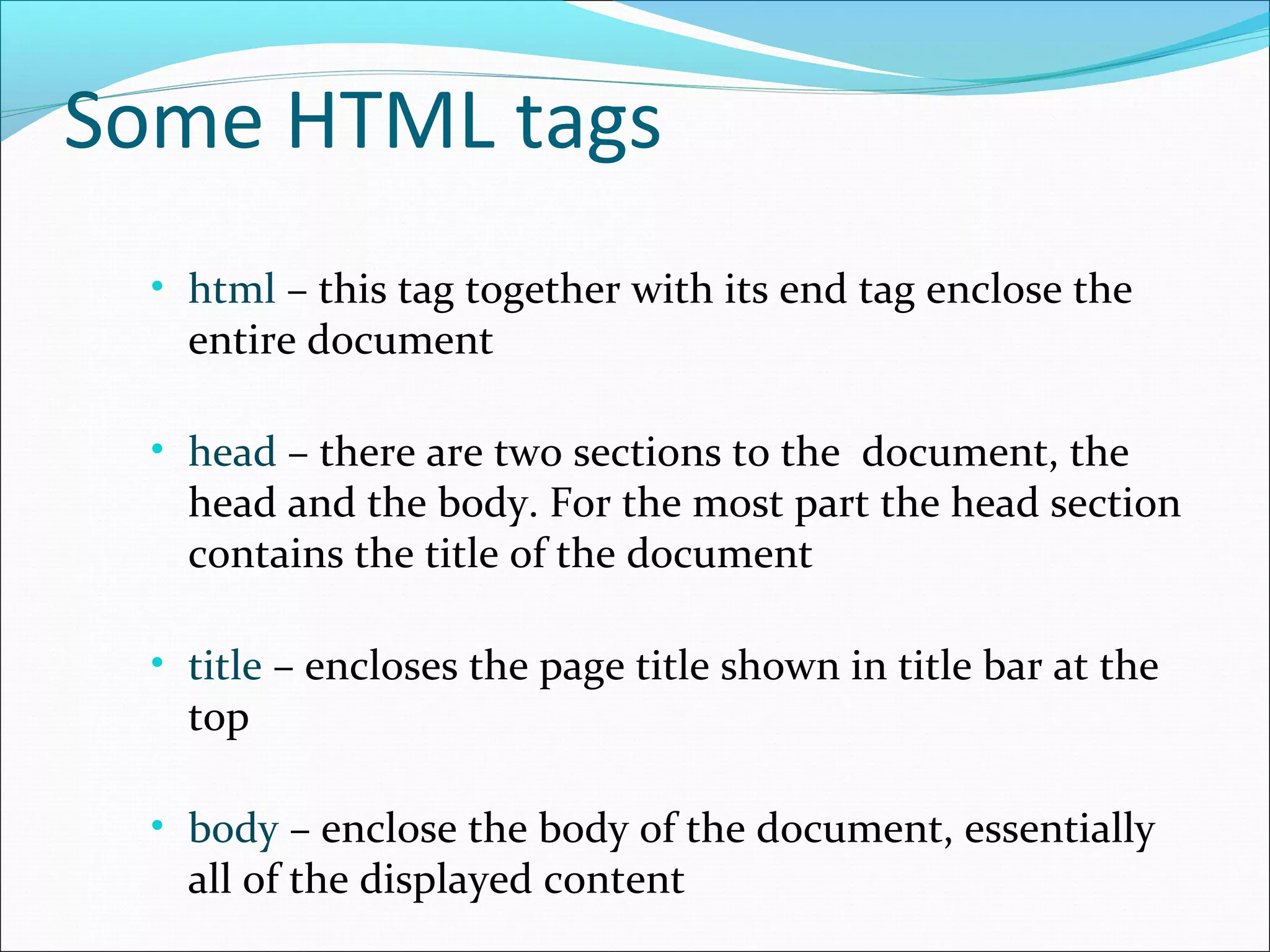
• Web Server: This is a program that manages web
sites on server computers. The web server accepts
requests from other programs (clients) asking for
pages from the web sites.
• Browsers: Programs like Internet Explorer and
Firefox that act as clients for web servers
requesting pages for the user and displaying the
returned pages.
HTML
• HyperText Markup Language – HTML is used to
mark up a document to tell browser how it should
be displayed, nothing about content
• Allows us to markup up text with special tags that
inform the web browsers how the content should
be displayed
• For the most part HTML tags are placed in “angle
brackets” like <b> and occur in pairs like
<b> Here is some text </b>
Some HTML tags
• html – this tag together with its end tag enclose the
entire document
• head – there are two sections to the document, the
head and the body. For the most part the head section
contains the title of the document
• title – encloses the page title shown in title bar at the
top
• body – enclose the body of the document, essentially
all of the displayed content
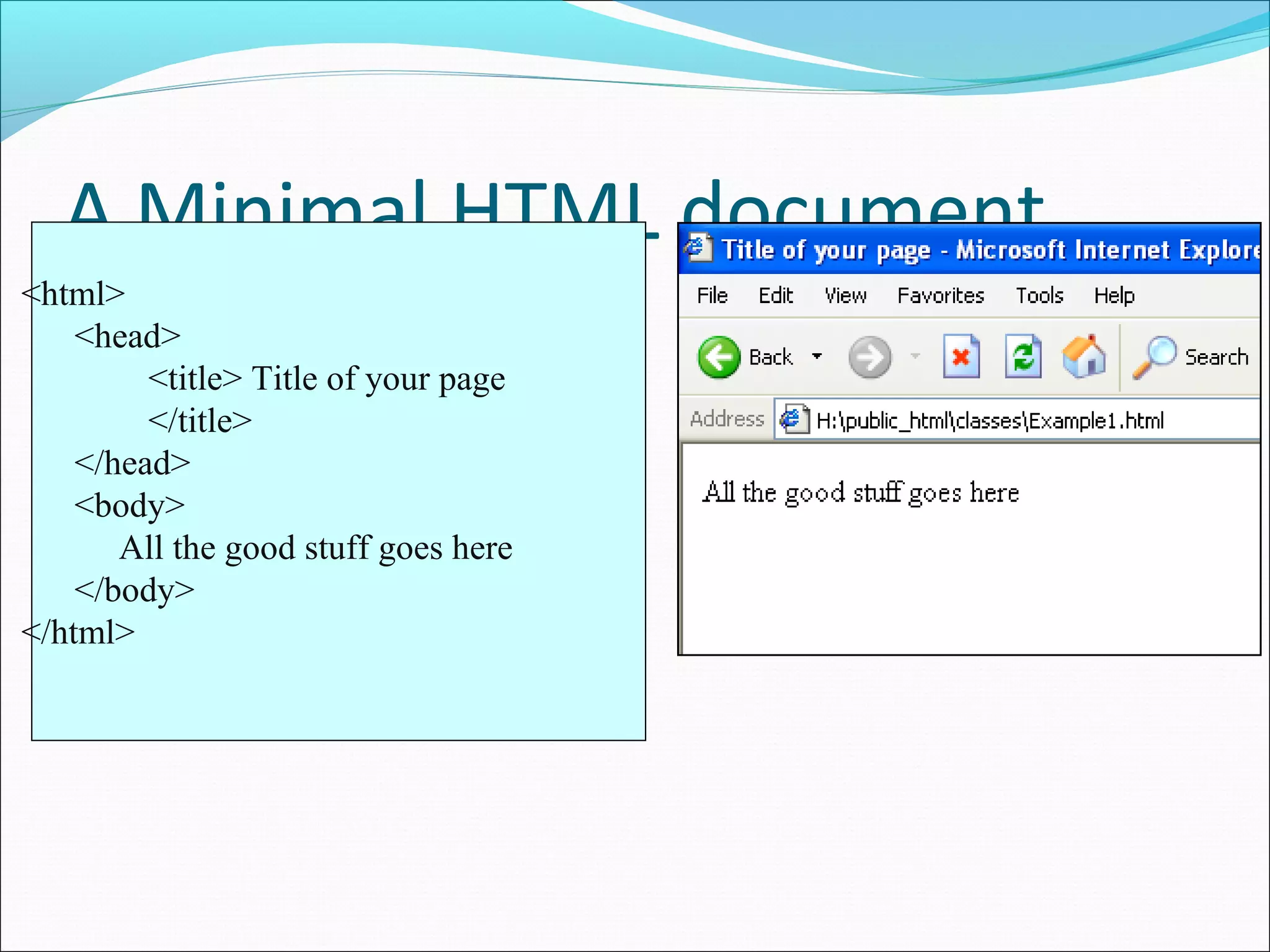
A Minimal HTML document
<html>
<head>
<title> Title of your page
</title>
</head>
<body>
All the good stuff goes here
</body>
</html>
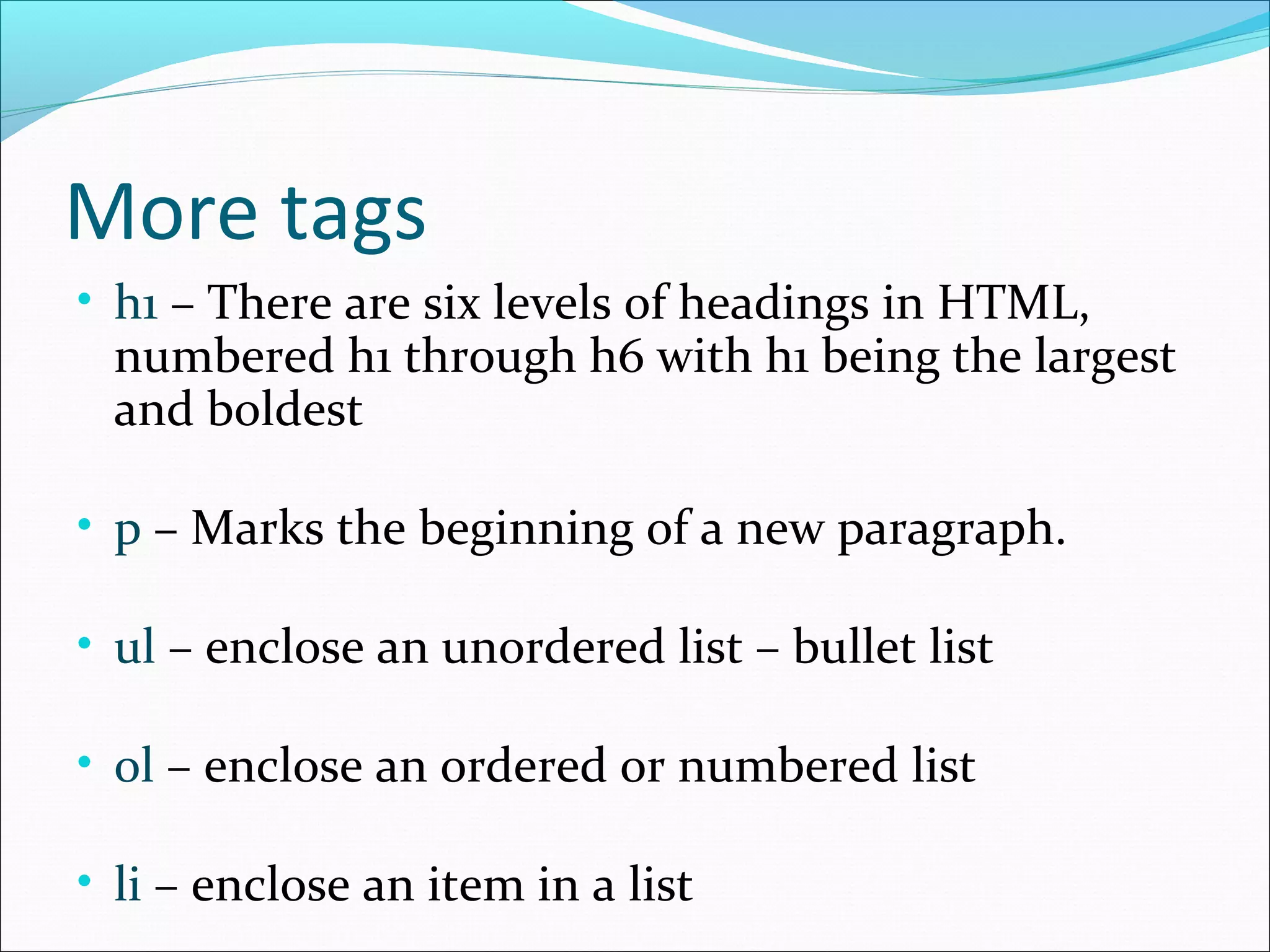
More tags
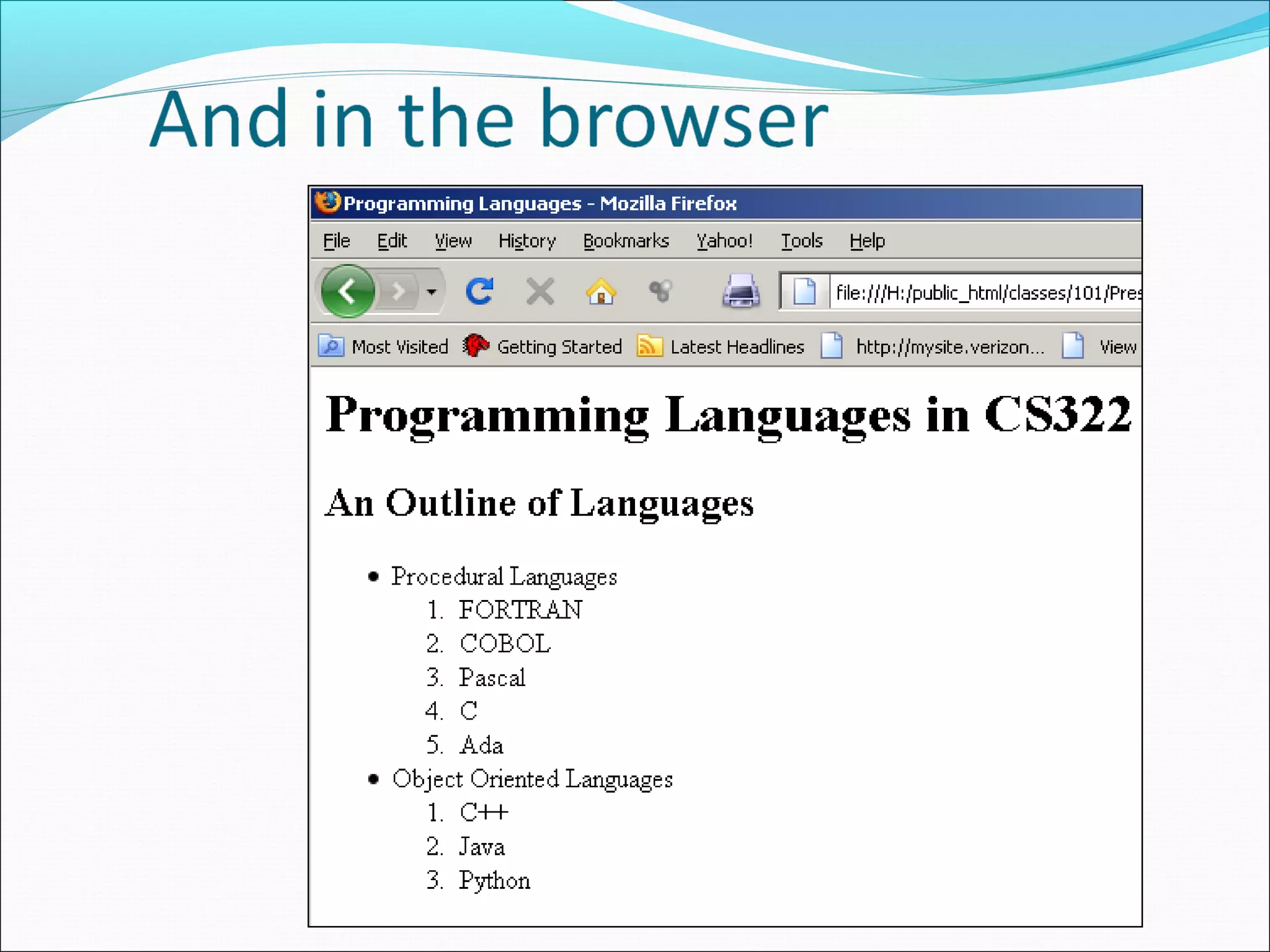
• h1 – There are six levels of headings in HTML,
numbered h1 through h6 with h1 being the largest
and boldest
• p – Marks the beginning of a new paragraph.
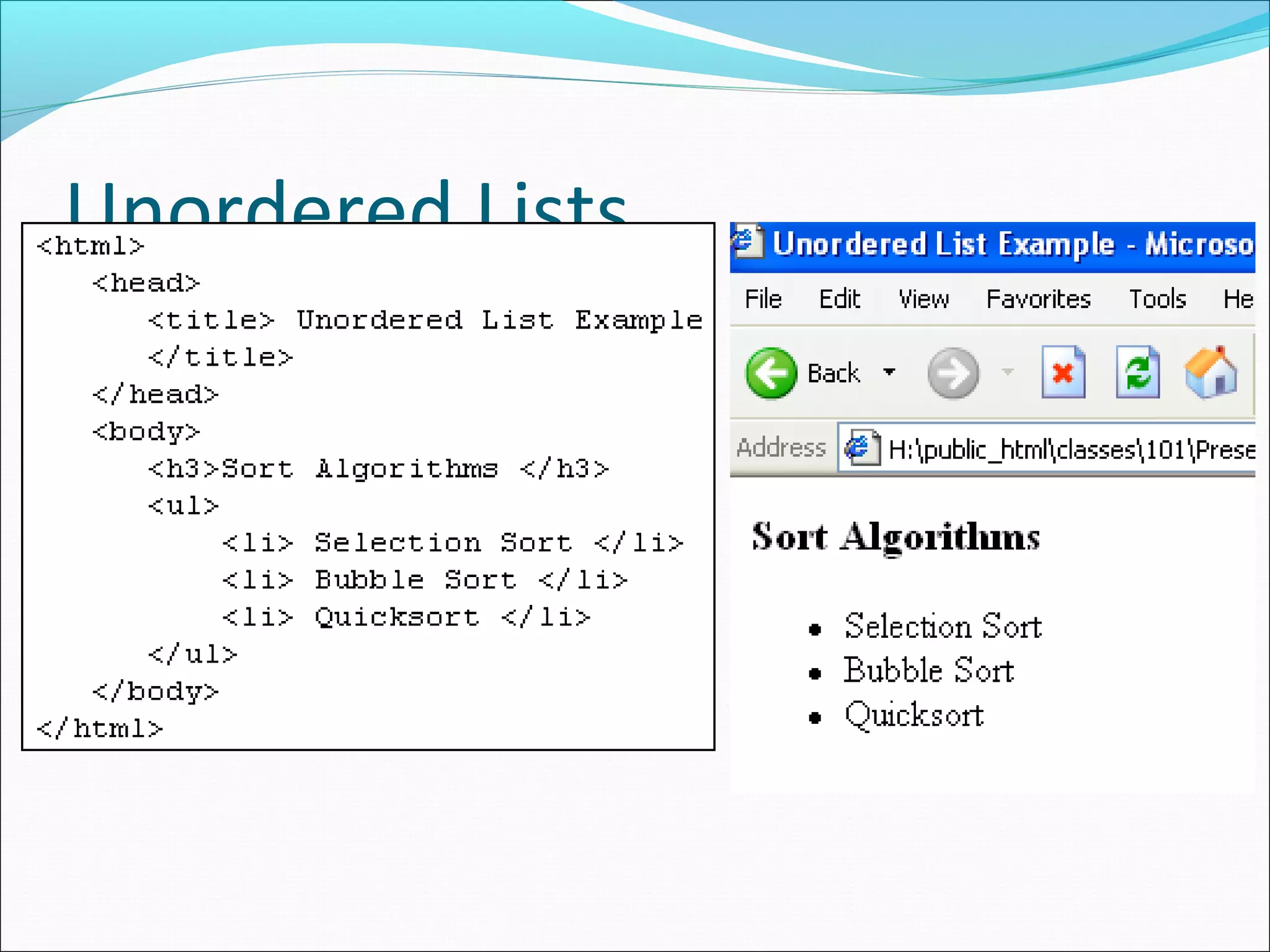
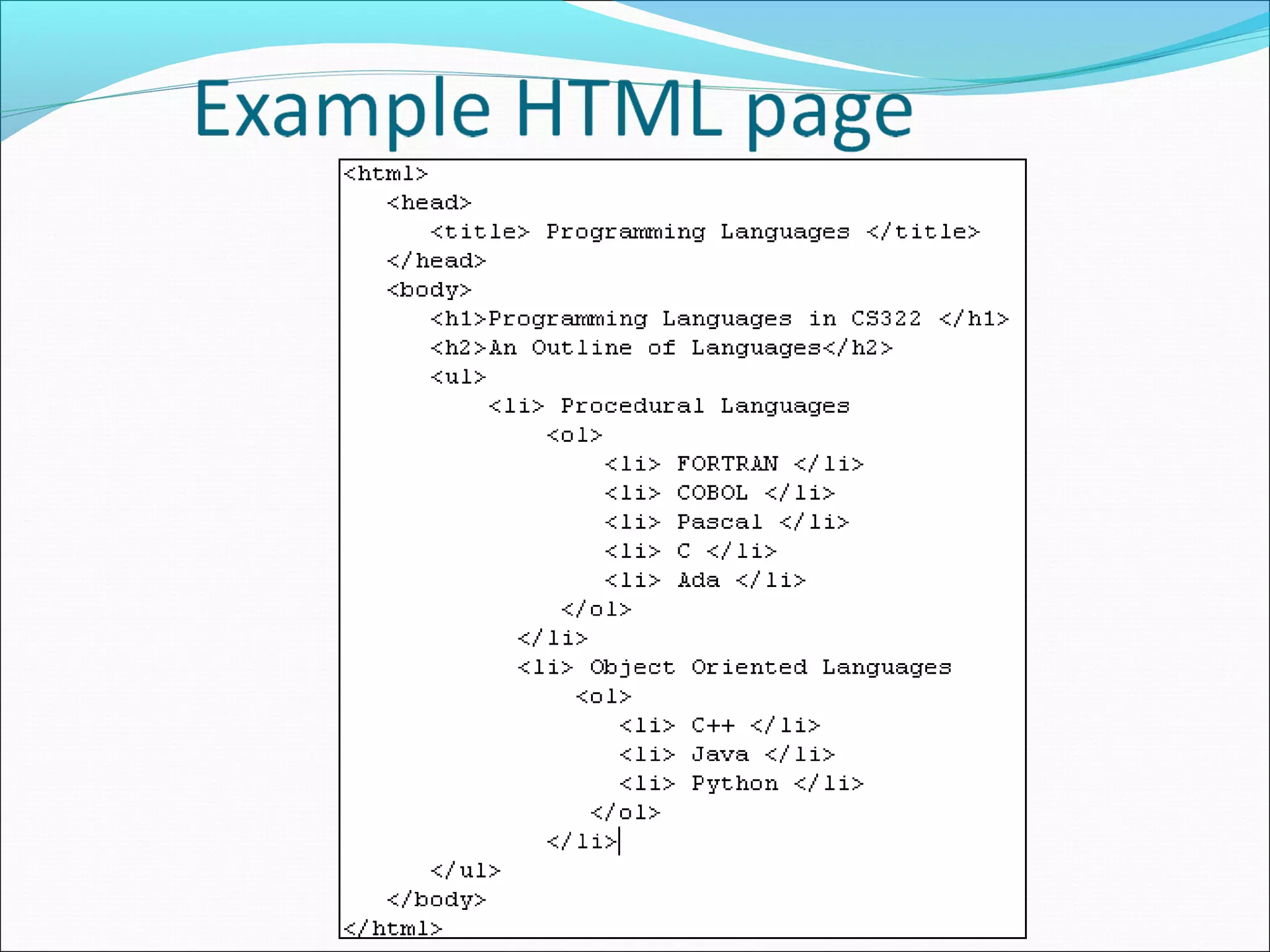
• ul – enclose an unordered list – bullet list
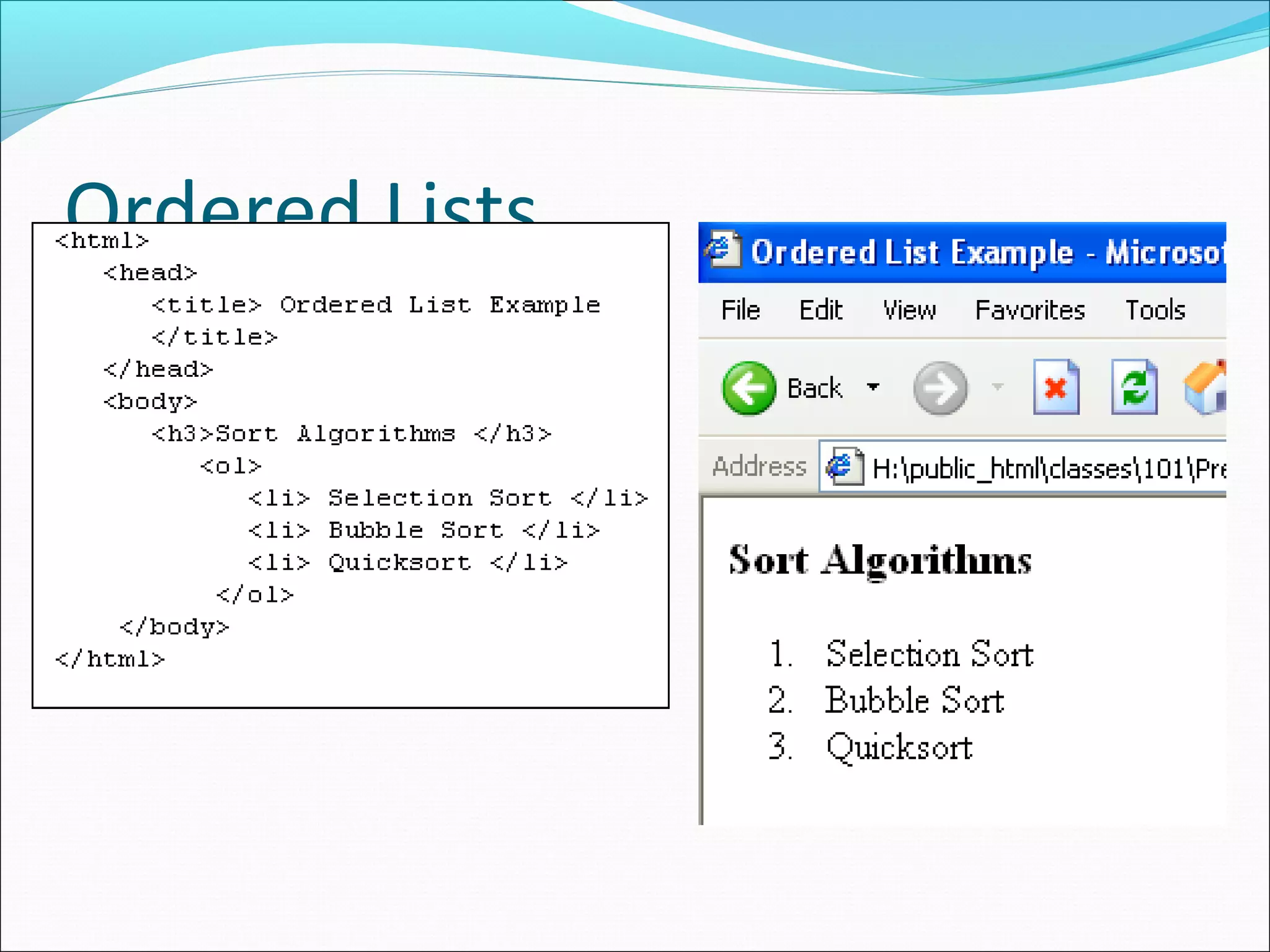
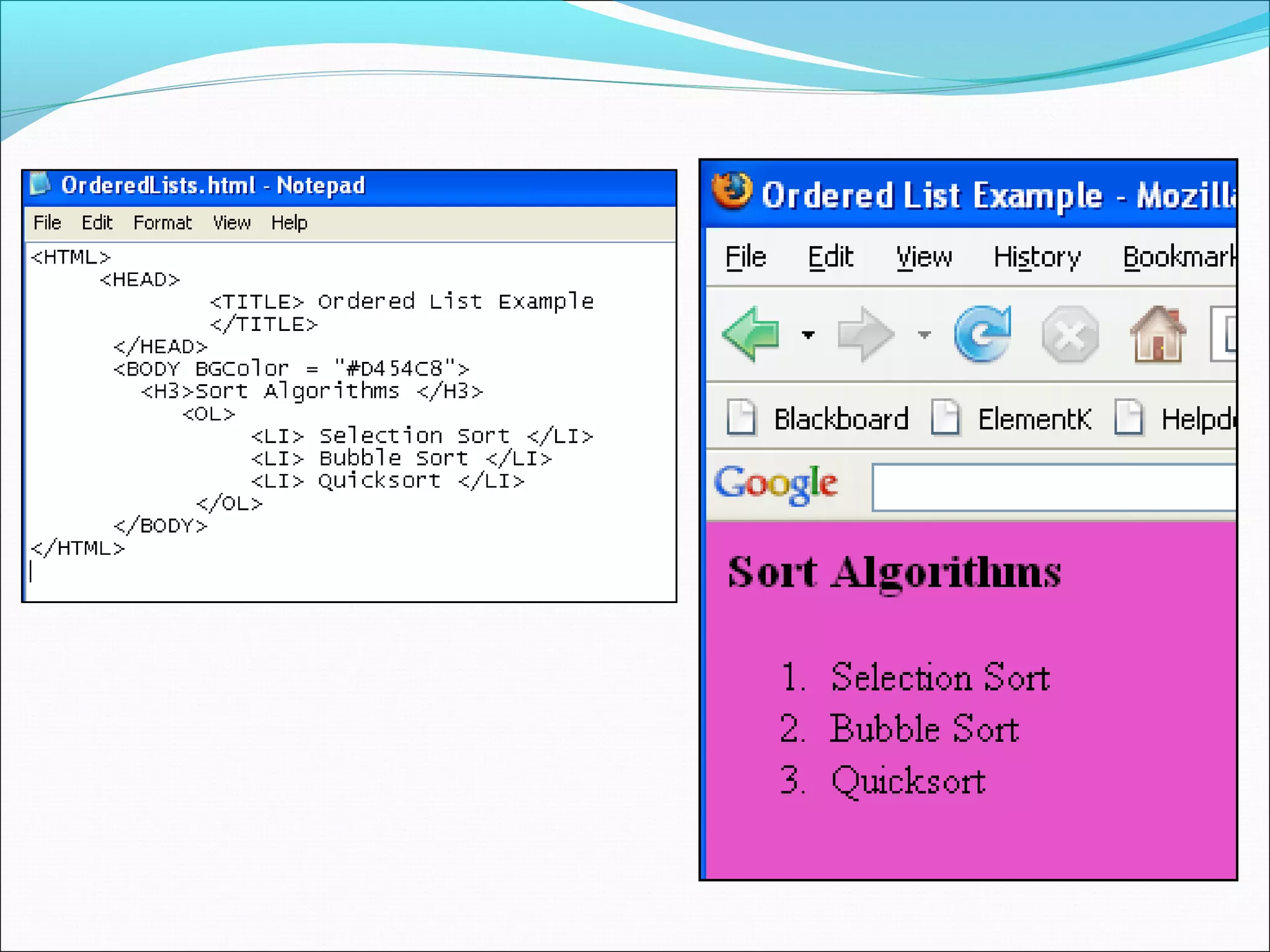
• ol – enclose an ordered or numbered list
• li – enclose an item in a list
Unordered Lists
Ordered Lists
More tags
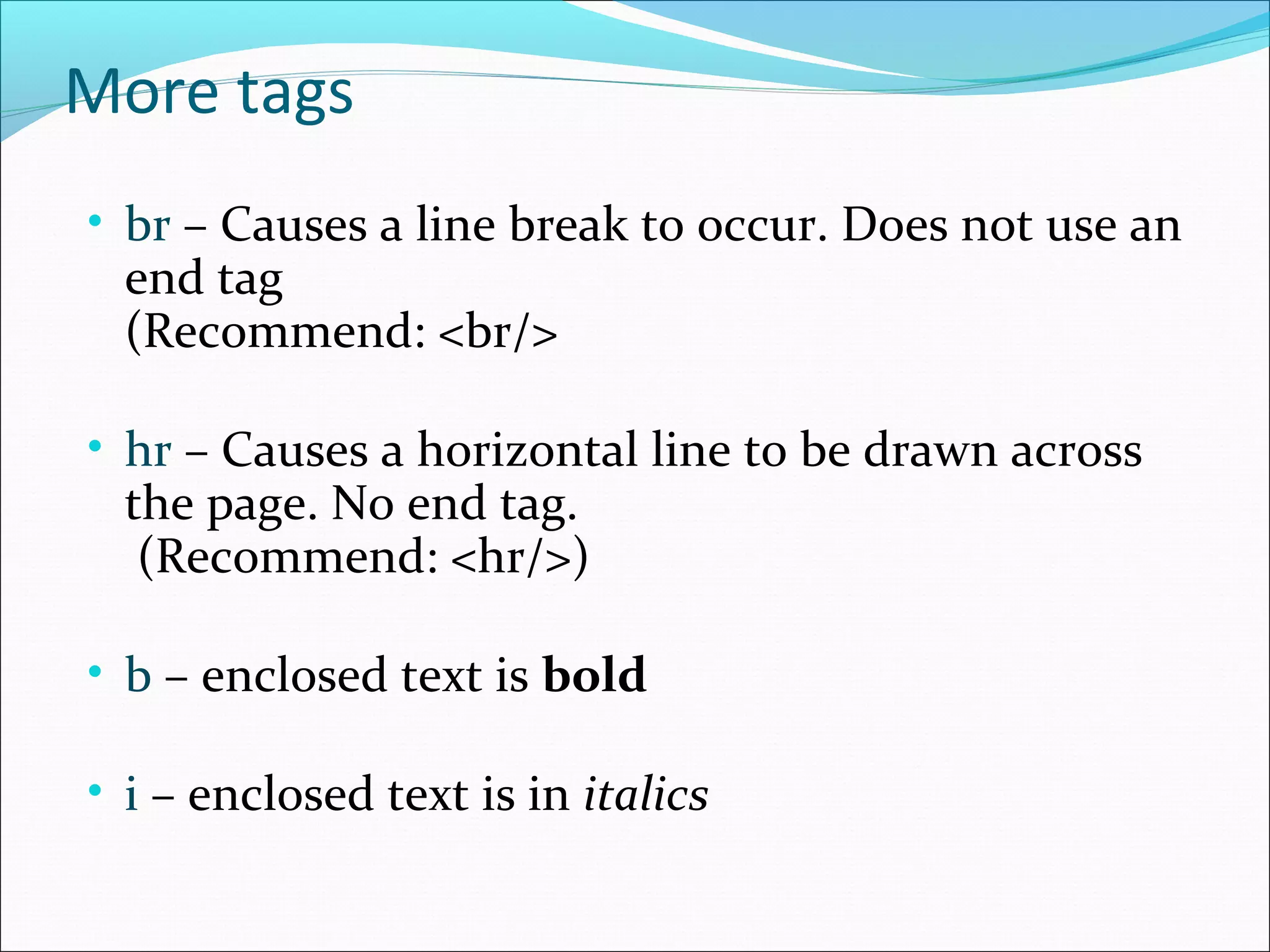
• br – Causes a line break to occur. Does not use an
end tag
(Recommend: <br/>
• hr – Causes a horizontal line to be drawn across
the page. No end tag.
(Recommend: <hr/>)
• b – enclosed text is bold
• i – enclosed text is in italics
The anchor tag
• The anchor tags, <a> and </a>, are used with links.
– To specify a link from a location in your page to a
location in current page or another page on the web.
– To specify a location in your page that can be linked to
from another location in the current page or from
another page.
Making links – HREF Attribute
• General form is
<a href = “URL”> link-phrase</a>
– URL (Uniform Resource Locator) is the web
address to link to
– link-phrase is the phrase to appear on your page
for the user to click in order to execute the link.
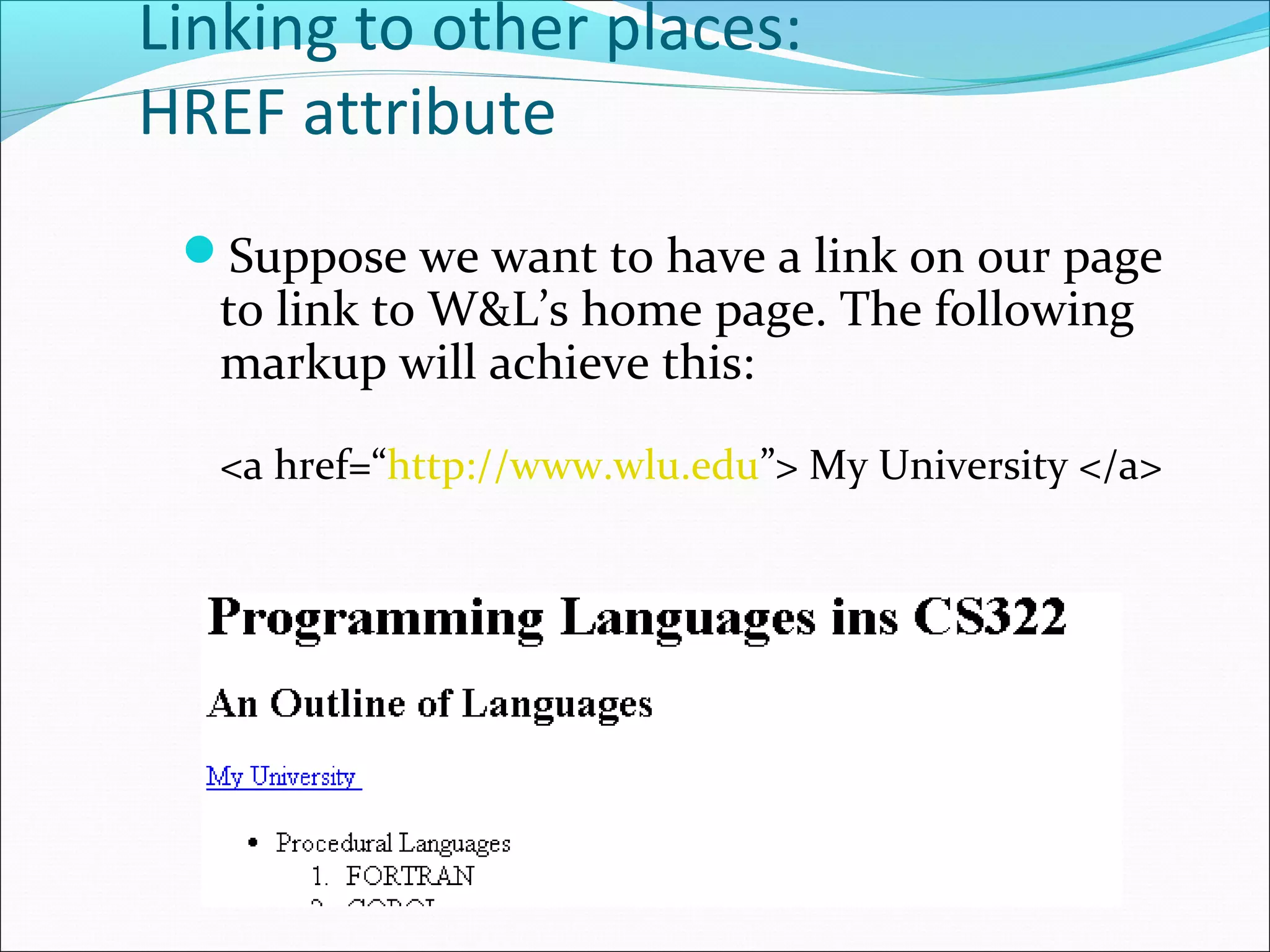
Linking to other places:
HREF attribute
Suppose we want to have a link on our page
to link to W&L’s home page. The following
markup will achieve this:
<a href=“http://www.wlu.edu”> My University </a>
Locations that can be linked to:
Name attribute
In order to link to specific locations within a
page, these locations must first be given names
that are recognized by HTML.
To do this we use the anchor tag again, but
now using the NAME attribute rather than the
HREF attribute.
Linking to locations in same
page
General form is
<a name = “location-name”> Location-title</a>
where location-name is the name that will be
used in anchors that link to this location, and
Location-title will appear at the position
where the Name anchor is placed.
Linking to named locations in same
page
Example:
<a name=“Ch2”>Chapter 2 – Tree Algorithms</a>
Suppose we put the above tag at the
beginning of the Chapter 2 section of our page.
Then to link from another location to Chapter
2, we could use any of the following:
<a href= “#Ch2”> Chapter 2</a>
<a href = “#Ch2”> Tree Algorithms</a>
<a href = “#Ch2”> Chapter 2 – Tree Algorithms</a>
Here the # indicates that we are linking to an
anchor location within the page.
Linking to named locations in
another page
Example:
<a name=“Ch2”>Chapter 2 – Tree Algorithms</a>
Suppose the named location above occurs in
“MyReport.html” and that we would like to place a link
to that location in “MyWork.html”. At the place where
we want the link, we could have
<a href = “MyWork.html#Ch2”> See Chapter 2 </a>
assuming these files are in same location. Otherwise, use
the full web address to MyWork.html.
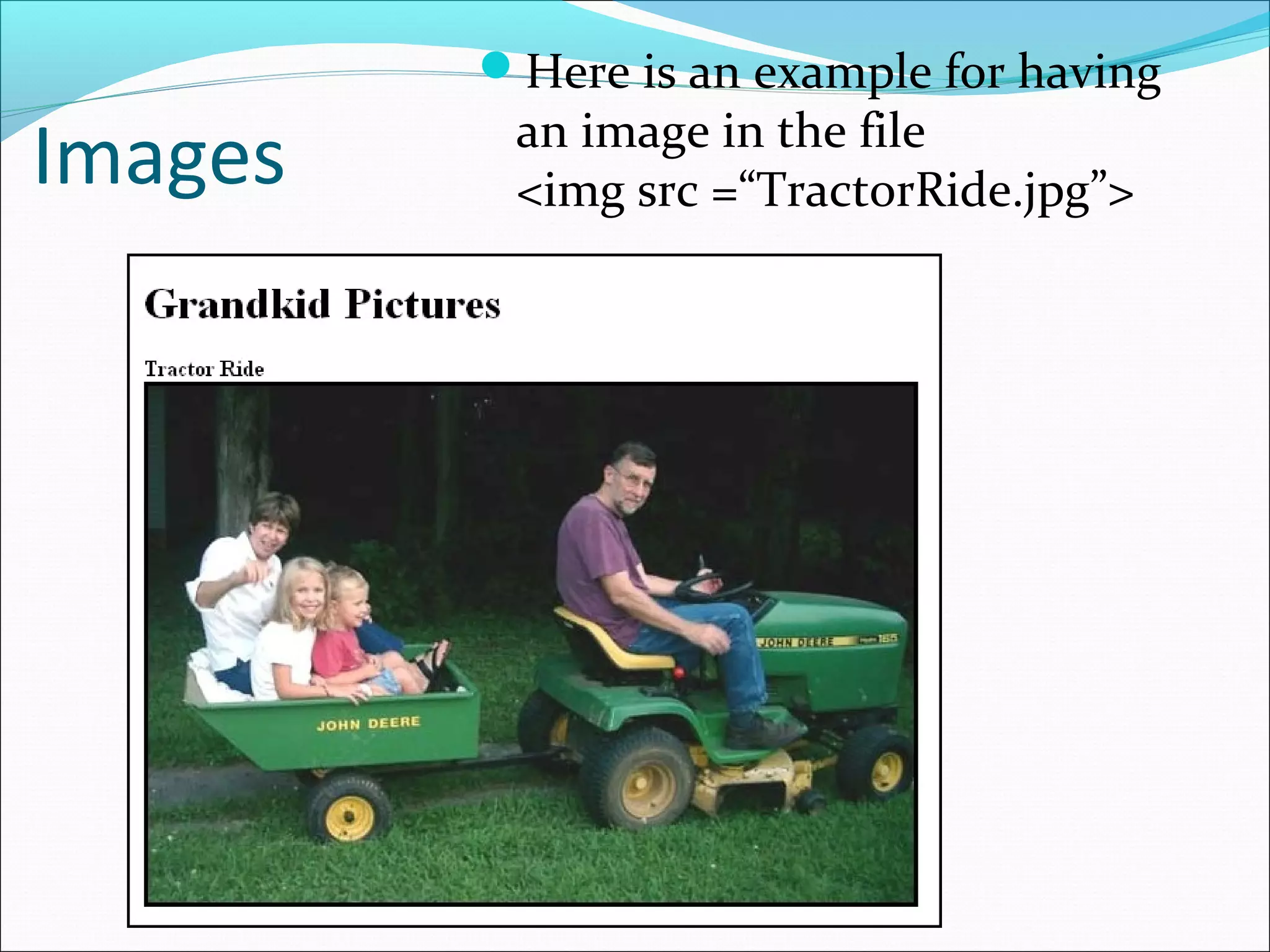
Images
Here is an example for having
an image in the file
<img src =“TractorRide.jpg”>
Background Color
• We can add a background color to our web page by
adding a bgcolor attribute to the Body tag:
<body bgcolor = “value”>
• The value can be either a “known” color
or a color specified with the 6 hex digit system.
Background Color (cont.)
• There is a long list of “known” colors, but only 16 that
are guaranteed to validate with all browsers:
aqua, black, blue, fuchsia, gray, green, lime, maroon, navy,
olive, purple, red, silver, teal, white, and yellow
• To specify a background color with hex digits use the
form
<body bgcolor = “#D454C8”>
for example
Internet with HTML

Internet with HTML

  • 2.
    World Wide Web Inventedby Tim Berners-Lee at CERN, the European Laboratory for Particle Physics in Geneva, Switzerland (roughly 1989) Wanted researchers to be able to “link” or cross- reference each others research papers By mid 1980s we had DNS – domain name service to map domain names to IP address
  • 3.
    WWW (cont.) • Berners-Leedeveloped a simple protocol, HTTP – HyperText Transfer Protocol for exchanging information via hypertext links • The documents themselves were to be marked up using HTML – HyperText Markup Language • HTML based on SGML - Standard Generalized Mark- up Language which was widely used in publishing industry
  • 4.
    WWW (cont.) Early 1990sWorld Wide Web ramped up 1993 – NCSA - National Center for Supercomputers (University of Illinois) released Mosaic browser 1994 – Netscape was formed
  • 5.
    Important Web Programs •Web Server: This is a program that manages web sites on server computers. The web server accepts requests from other programs (clients) asking for pages from the web sites. • Browsers: Programs like Internet Explorer and Firefox that act as clients for web servers requesting pages for the user and displaying the returned pages.
  • 6.
    HTML • HyperText MarkupLanguage – HTML is used to mark up a document to tell browser how it should be displayed, nothing about content • Allows us to markup up text with special tags that inform the web browsers how the content should be displayed • For the most part HTML tags are placed in “angle brackets” like <b> and occur in pairs like <b> Here is some text </b>
  • 7.
    Some HTML tags •html – this tag together with its end tag enclose the entire document • head – there are two sections to the document, the head and the body. For the most part the head section contains the title of the document • title – encloses the page title shown in title bar at the top • body – enclose the body of the document, essentially all of the displayed content
  • 8.
    A Minimal HTMLdocument <html> <head> <title> Title of your page </title> </head> <body> All the good stuff goes here </body> </html>
  • 9.
    More tags • h1– There are six levels of headings in HTML, numbered h1 through h6 with h1 being the largest and boldest • p – Marks the beginning of a new paragraph. • ul – enclose an unordered list – bullet list • ol – enclose an ordered or numbered list • li – enclose an item in a list
  • 10.
  • 11.
  • 14.
    More tags • br– Causes a line break to occur. Does not use an end tag (Recommend: <br/> • hr – Causes a horizontal line to be drawn across the page. No end tag. (Recommend: <hr/>) • b – enclosed text is bold • i – enclosed text is in italics
  • 15.
    The anchor tag •The anchor tags, <a> and </a>, are used with links. – To specify a link from a location in your page to a location in current page or another page on the web. – To specify a location in your page that can be linked to from another location in the current page or from another page.
  • 16.
    Making links –HREF Attribute • General form is <a href = “URL”> link-phrase</a> – URL (Uniform Resource Locator) is the web address to link to – link-phrase is the phrase to appear on your page for the user to click in order to execute the link.
  • 17.
    Linking to otherplaces: HREF attribute Suppose we want to have a link on our page to link to W&L’s home page. The following markup will achieve this: <a href=“http://www.wlu.edu”> My University </a>
  • 18.
    Locations that canbe linked to: Name attribute In order to link to specific locations within a page, these locations must first be given names that are recognized by HTML. To do this we use the anchor tag again, but now using the NAME attribute rather than the HREF attribute.
  • 19.
    Linking to locationsin same page General form is <a name = “location-name”> Location-title</a> where location-name is the name that will be used in anchors that link to this location, and Location-title will appear at the position where the Name anchor is placed.
  • 20.
    Linking to namedlocations in same page Example: <a name=“Ch2”>Chapter 2 – Tree Algorithms</a> Suppose we put the above tag at the beginning of the Chapter 2 section of our page. Then to link from another location to Chapter 2, we could use any of the following: <a href= “#Ch2”> Chapter 2</a> <a href = “#Ch2”> Tree Algorithms</a> <a href = “#Ch2”> Chapter 2 – Tree Algorithms</a> Here the # indicates that we are linking to an anchor location within the page.
  • 21.
    Linking to namedlocations in another page Example: <a name=“Ch2”>Chapter 2 – Tree Algorithms</a> Suppose the named location above occurs in “MyReport.html” and that we would like to place a link to that location in “MyWork.html”. At the place where we want the link, we could have <a href = “MyWork.html#Ch2”> See Chapter 2 </a> assuming these files are in same location. Otherwise, use the full web address to MyWork.html.
  • 22.
    Images Here is anexample for having an image in the file <img src =“TractorRide.jpg”>
  • 23.
    Background Color • Wecan add a background color to our web page by adding a bgcolor attribute to the Body tag: <body bgcolor = “value”> • The value can be either a “known” color or a color specified with the 6 hex digit system.
  • 24.
    Background Color (cont.) •There is a long list of “known” colors, but only 16 that are guaranteed to validate with all browsers: aqua, black, blue, fuchsia, gray, green, lime, maroon, navy, olive, purple, red, silver, teal, white, and yellow • To specify a background color with hex digits use the form <body bgcolor = “#D454C8”> for example