Introduction to UNIX
• UNIX is a computer Operating System which is capable
of handling activities from multiple users at the same
time. Unix was originated around in 1969 at AT&T Bell
Labs by Ken Thompson and Dennis Ritchie.
• The UNIX operating system is a set of programs that act
as a link between the computer and the user
• A user can also run multiple programs at the same
time; hence UNIX is called multitasking.
Introduction to UNIX
 Unix became the leading O/S for commercial
enterprises during the 1980s and 1990s.
 Although IBM Mainframe still perform well
for extremely large databases (Multi Terabyte )
Databases , most medium to large firms have
moved to UNIX for its economy, versatility,
power and stability
Introduction to UNIX
 Users communicate with the kernel
through a program known as the shell.
 The shell is a command line interpreter;
it translates commands entered by the
user and converts them into a language
that is understood by the kernel.
Introduction to UNIX
 Unix was originally developed in 1969 by a
group of AT&T employees at Bell Labs,
including Ken Thompson, Dennis Ritchie,
Douglas McIlroy, and Joe Ossanna.
 There are various Unix variants available in
the market. Solaris Unix, AIX, HP Unix and BSD
are few examples.
Introduction to UNIX
 The basic commands do not vary much
between them nevertheless , the basis of the
packaged utilities differ. Linux is also a flavor of
Unix which is freely available.
 Several people can use a UNIX computer at
the same time; hence UNIX is called a multiuser
system. Unix is used for mission-critical
databases. While Linux is used for services .
Introduction to Unix
Unix can be a viable alternative for eg. Sun
Servers with soft partitioning, high-amounts of
memory, hot - spare processors and capacity-on-
demand features
 The Choice of the particular O/S depends on the
requirements like Availability, Reliability and
response time
Introduction to UNIX
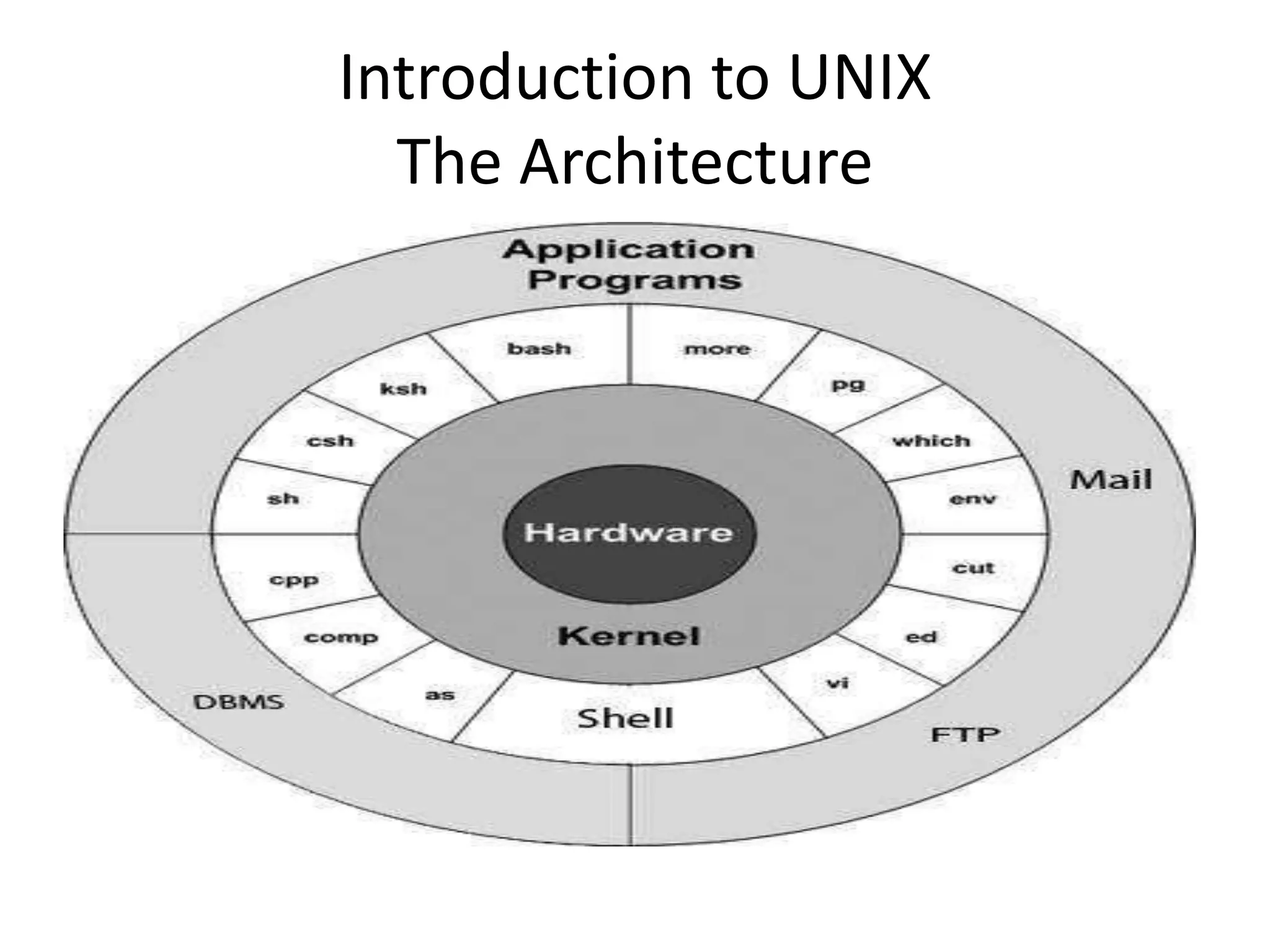
The Architecture
The UNIX Architecture
• Kernel : The kernel is the heart of the operating
system. It interacts with hardware and most of the
tasks like memory management, task scheduling and
file management.
• Shell : The Shell is a command-line interpreter which
translates and passes our commands to the Kernel ‘s
understanding format . The commands issued by the
user are called shell commands and the scripts are
called shell scripts.
The Architecture
The Architecture
• Shell: The shell is the utility that processes our
requests.
• When we type in a command at our terminal, the shell
interprets the command and calls the program that we
want.
• The shell uses standard syntax for all commands. C
Shell, Bourne Shell , Bash Shell and Korn Shell are most
famous shells which are available with most of the Unix
variants.
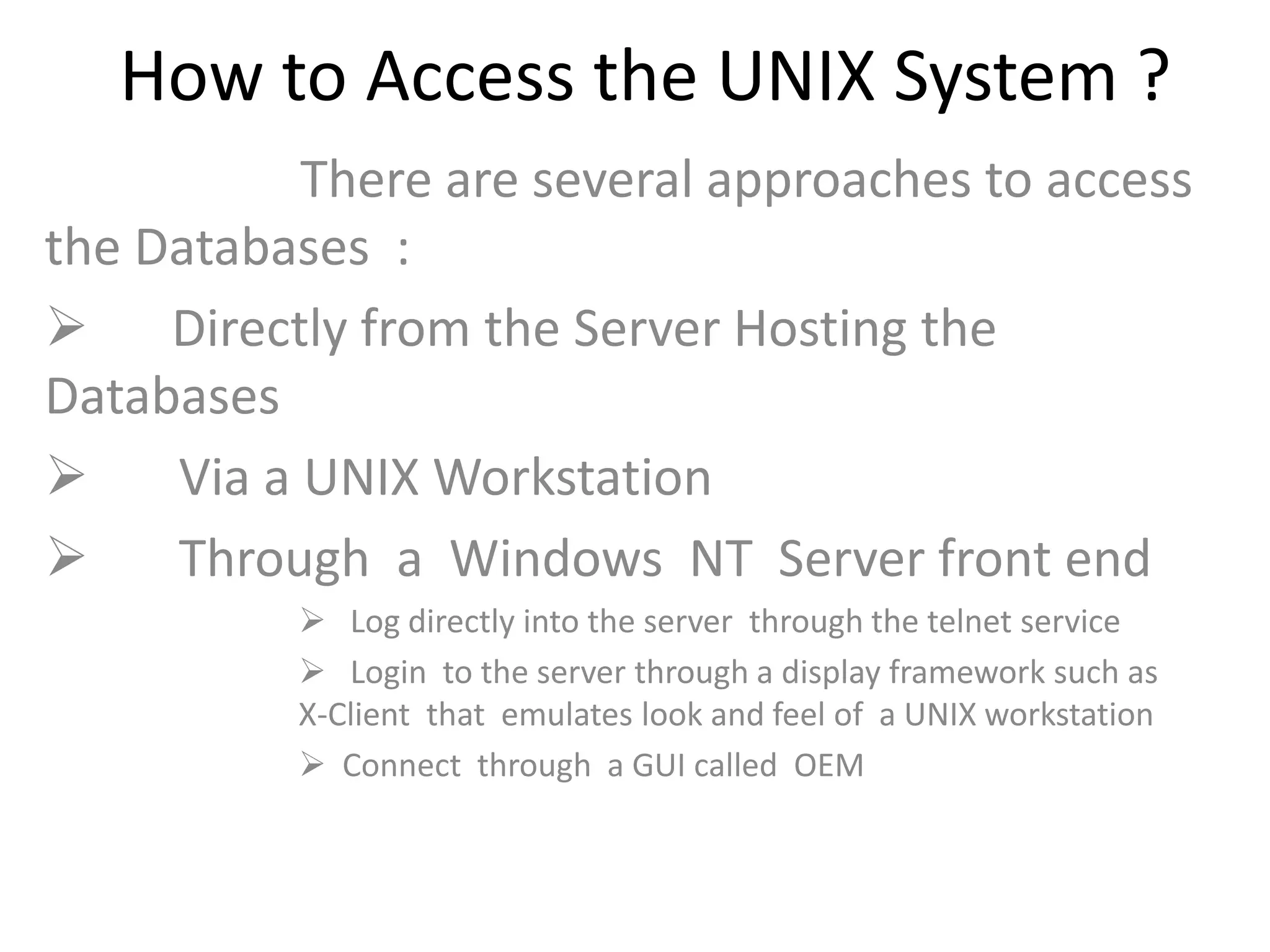
How to Access the UNIX System ?
There are several approaches to access
the Databases :
 Directly from the Server Hosting the
Databases
 Via a UNIX Workstation
 Through a Windows NT Server front end
 Log directly into the server through the telnet service
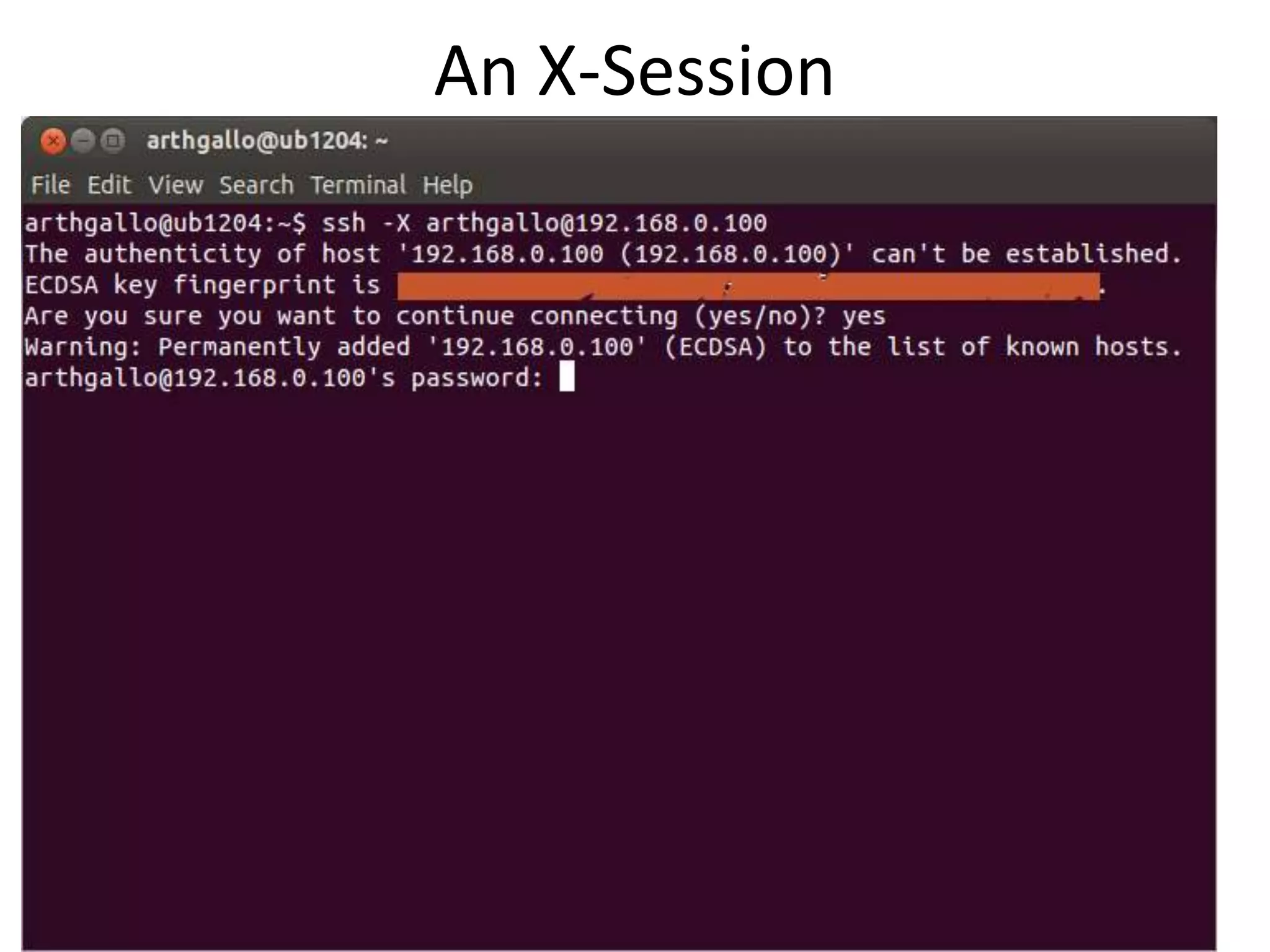
 Login to the server through a display framework such as
X-Client that emulates look and feel of a UNIX workstation
 Connect through a GUI called OEM
An X-Session
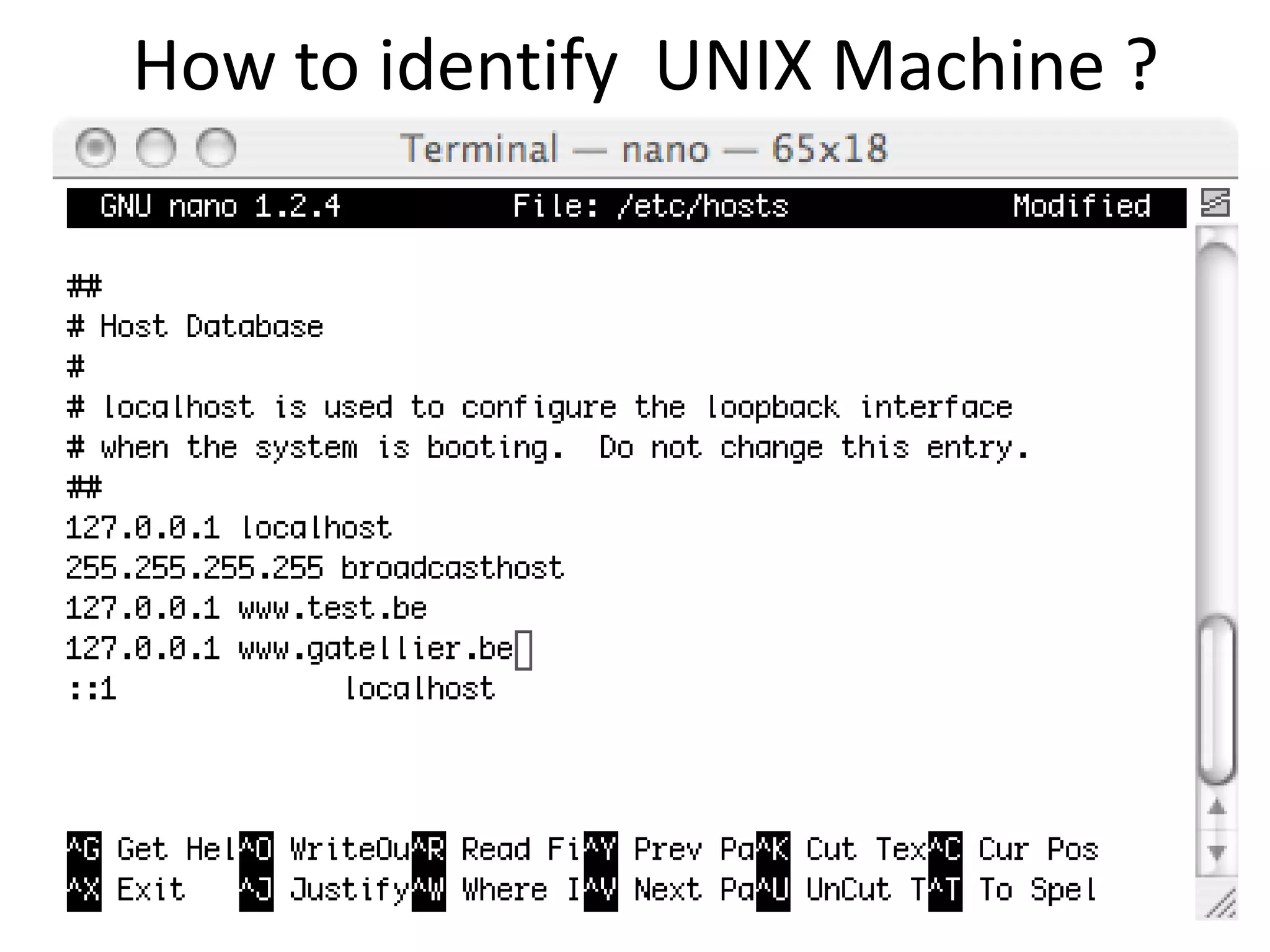
How to identify UNIX Machine ?
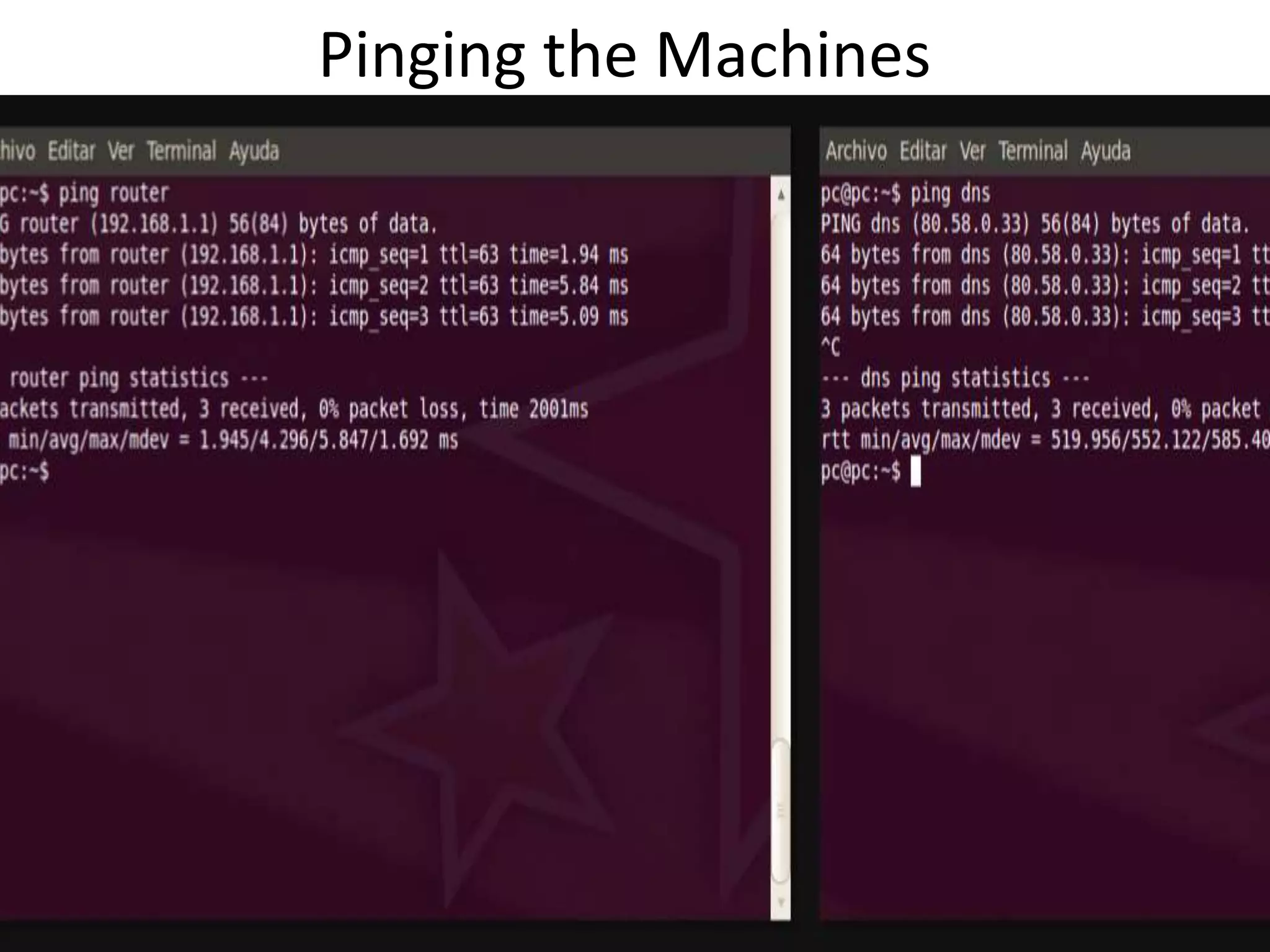
Pinging the Machines
Types of UNIX Systems
Ultrix (DEC - Digital Equipment Corporation)
BSD unix (Berkeley Software Distribution - FreeBSD,
OpenBSD)
SCO unix (SCO Group Inc.)
AIX (IBM - International Business Machines
Corporation)
IRIX (SGI - Silicon Graphics Incorporated)
Solaris (Sun - Sun Microsystems)
Mac OS X (Macintosh - Apple Computer, Inc.)
Types of Files
 Ordinary Files − An ordinary file is a file on the
system that contains data, text, or program
instructions.
 Directories − Directories store both special and
ordinary files. For users familiar with Windows or
Mac OS, UNIX directories are equivalent to
folders.
 Special Files − Some special files provide access
to hardware such as hard drives, CD-ROM drives,
modems, and Ethernet adapters.
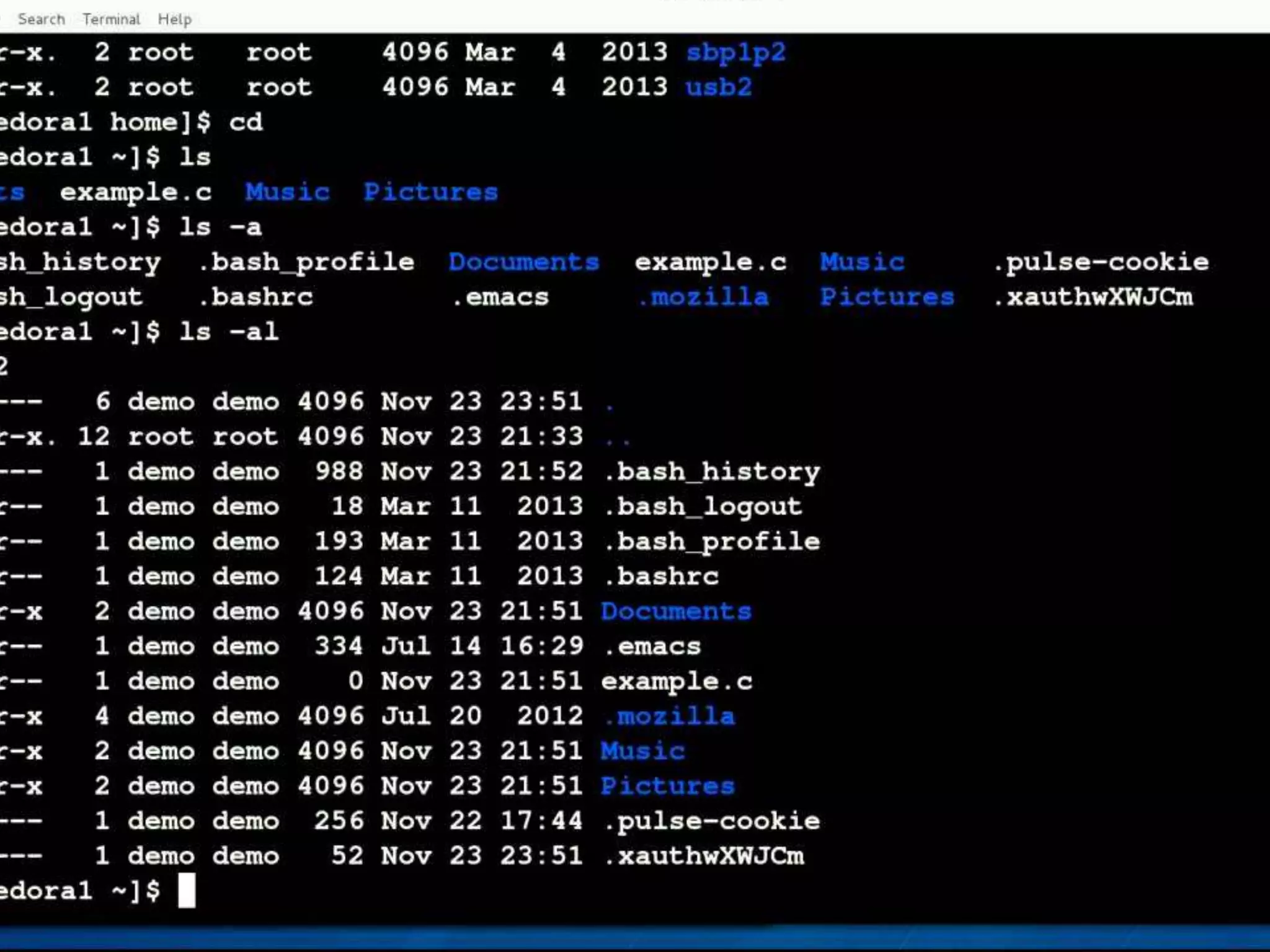
Listing the directory contents
First Column: represents file type and permission given on the file. Below is the
description of all type of files.
Second Column: represents the number of memory blocks taken by the file or
directory.
Third Column: represents owner of the file. This is the Unix user who created
this file.
Fourth Column: represents group of the owner. Every Unix user would have an
associated group.
Fifth Column: represents file size in bytes.
Sixth Column: represents date and time when this file was created or modified
last time.
Seventh Column: represents file or directory name.
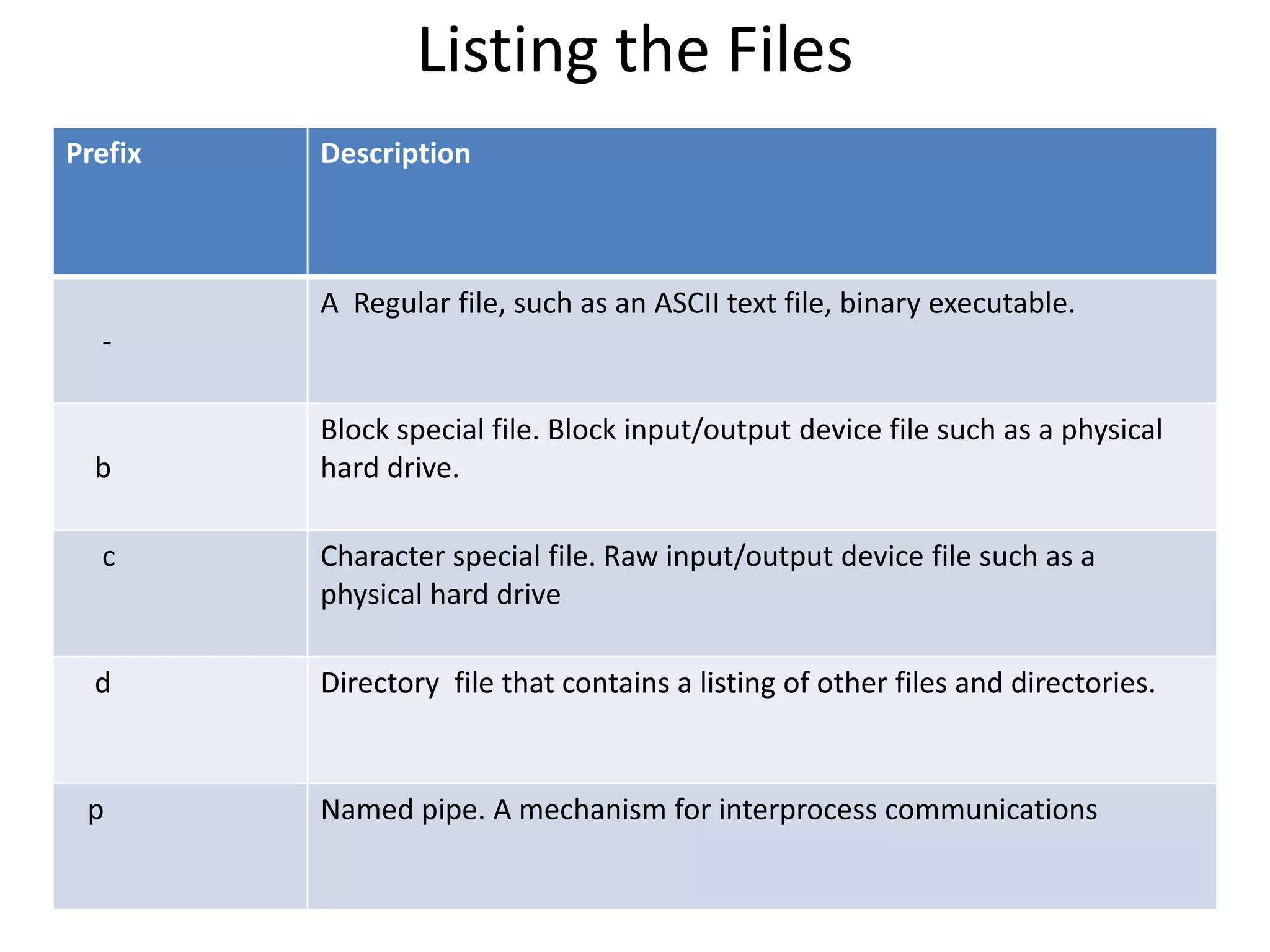
Listing the Files
Prefix Description
-
A Regular file, such as an ASCII text file, binary executable.
b
Block special file. Block input/output device file such as a physical
hard drive.
c Character special file. Raw input/output device file such as a
physical hard drive
d Directory file that contains a listing of other files and directories.
p Named pipe. A mechanism for interprocess communications
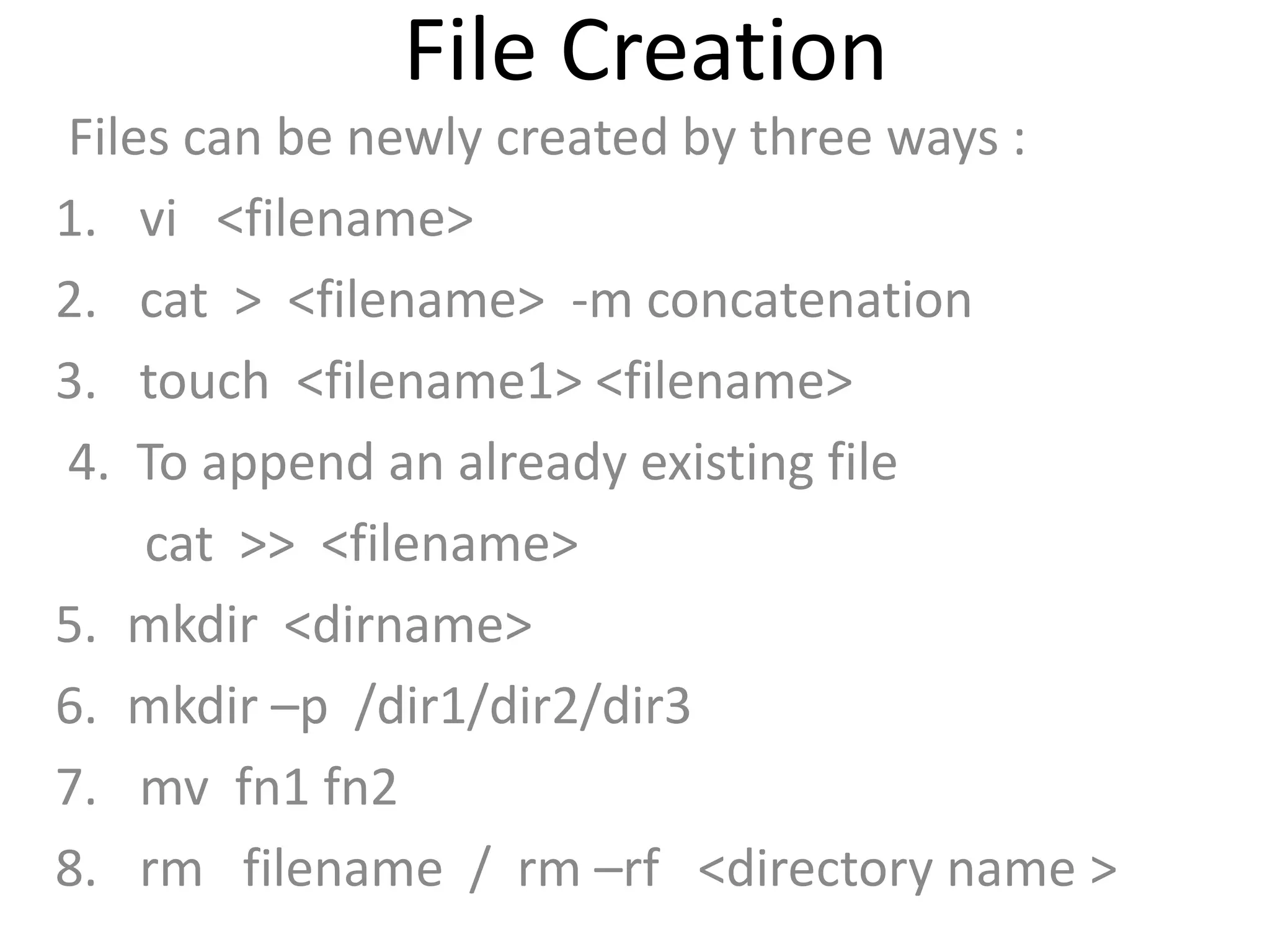
File Creation
Files can be newly created by three ways :
1. vi <filename>
2. cat > <filename> -m concatenation
3. touch <filename1> <filename>
4. To append an already existing file
cat >> <filename>
5. mkdir <dirname>
6. mkdir –p /dir1/dir2/dir3
7. mv fn1 fn2
8. rm filename / rm –rf <directory name >
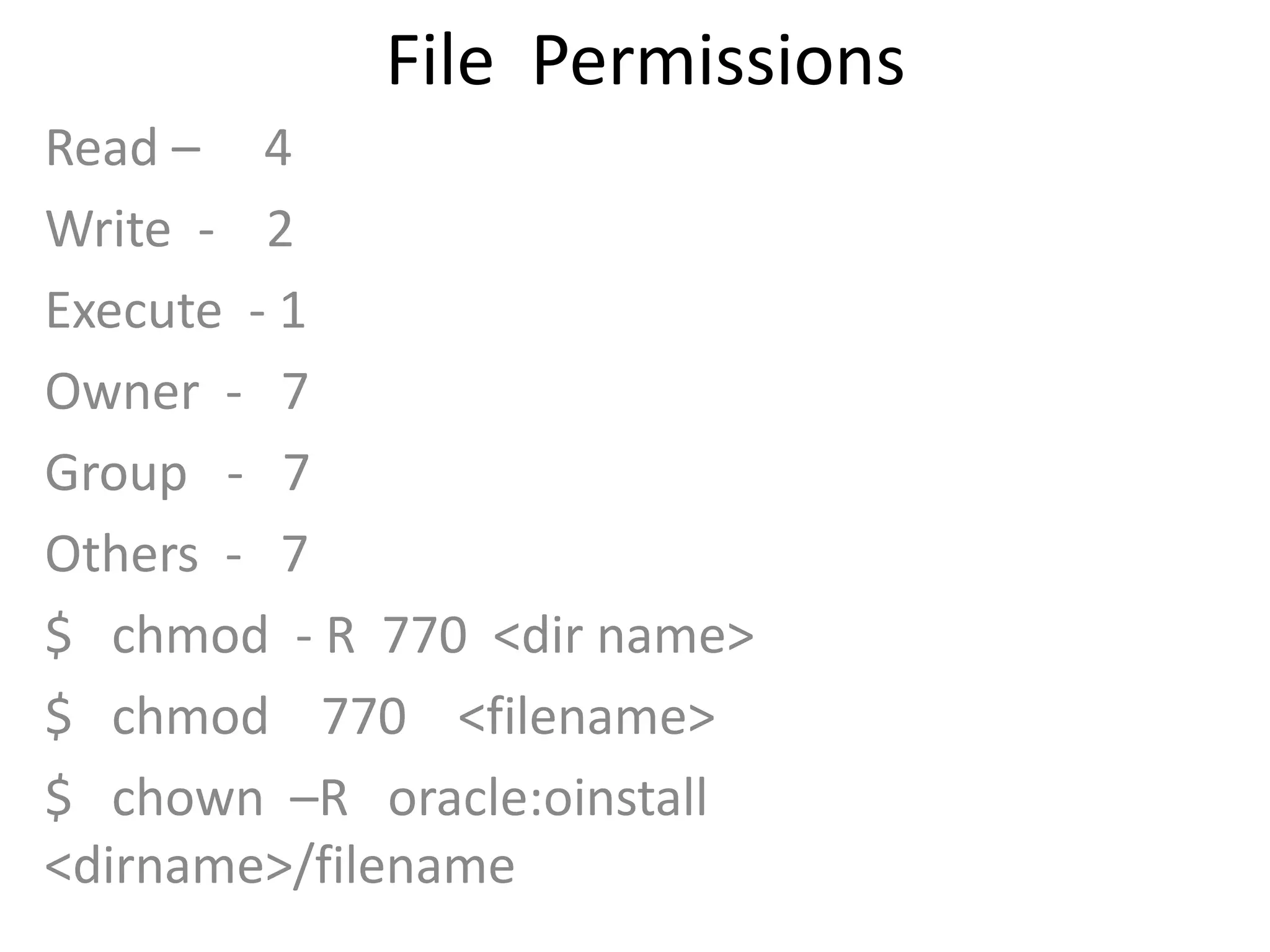
File Permissions
Read – 4
Write - 2
Execute - 1
Owner - 7
Group - 7
Others - 7
$ chmod - R 770 <dir name>
$ chmod 770 <filename>
$ chown –R oracle:oinstall
<dirname>/filename
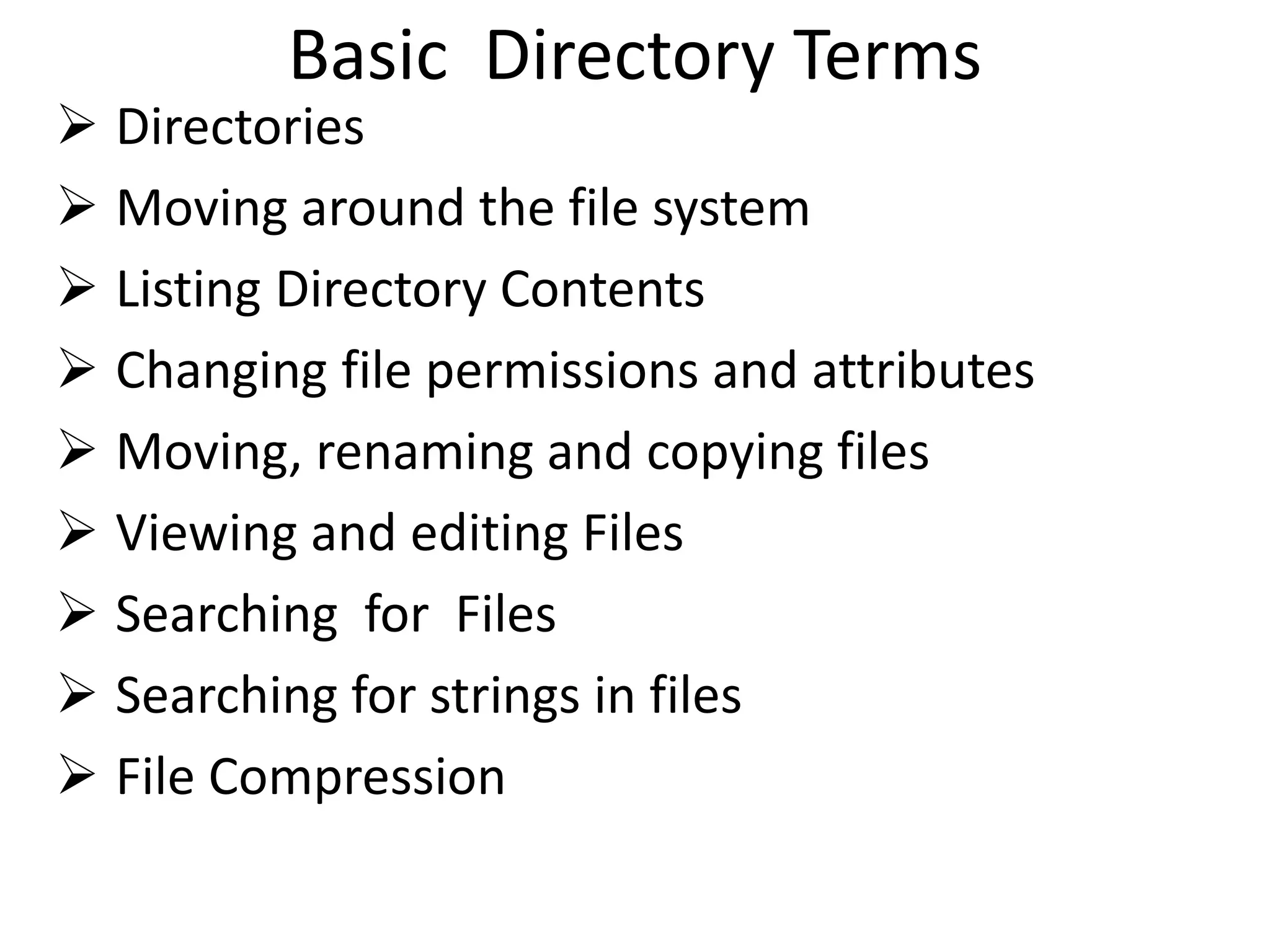
Basic Directory Terms
 Directories
 Moving around the file system
 Listing Directory Contents
 Changing file permissions and attributes
 Moving, renaming and copying files
 Viewing and editing Files
 Searching for Files
 Searching for strings in files
 File Compression
Important Unix Commands
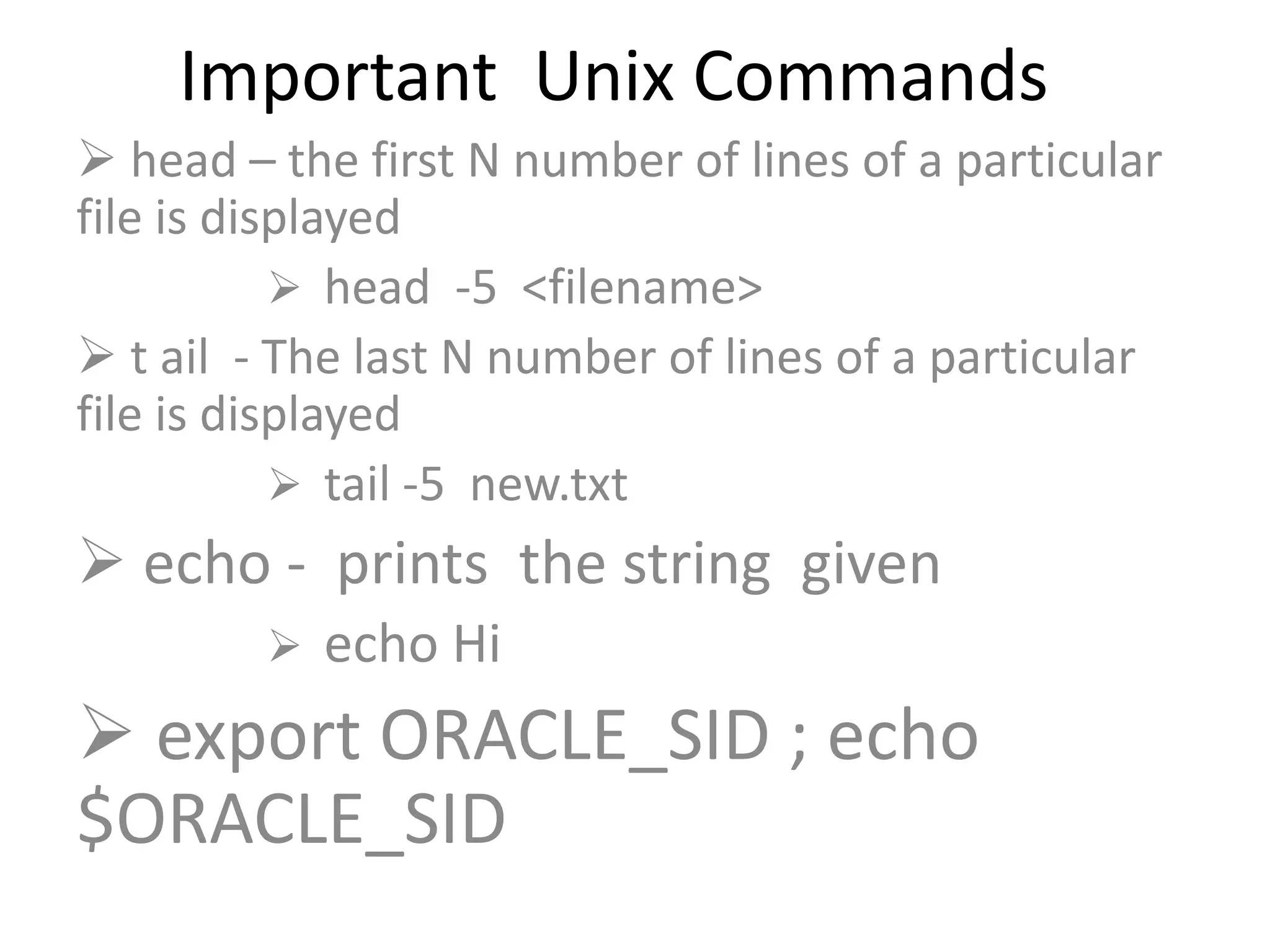
 head – the first N number of lines of a particular
file is displayed
 head -5 <filename>
 t ail - The last N number of lines of a particular
file is displayed
 tail -5 new.txt
 echo - prints the string given
 echo Hi
 export ORACLE_SID ; echo
$ORACLE_SID
Important Unix Commands
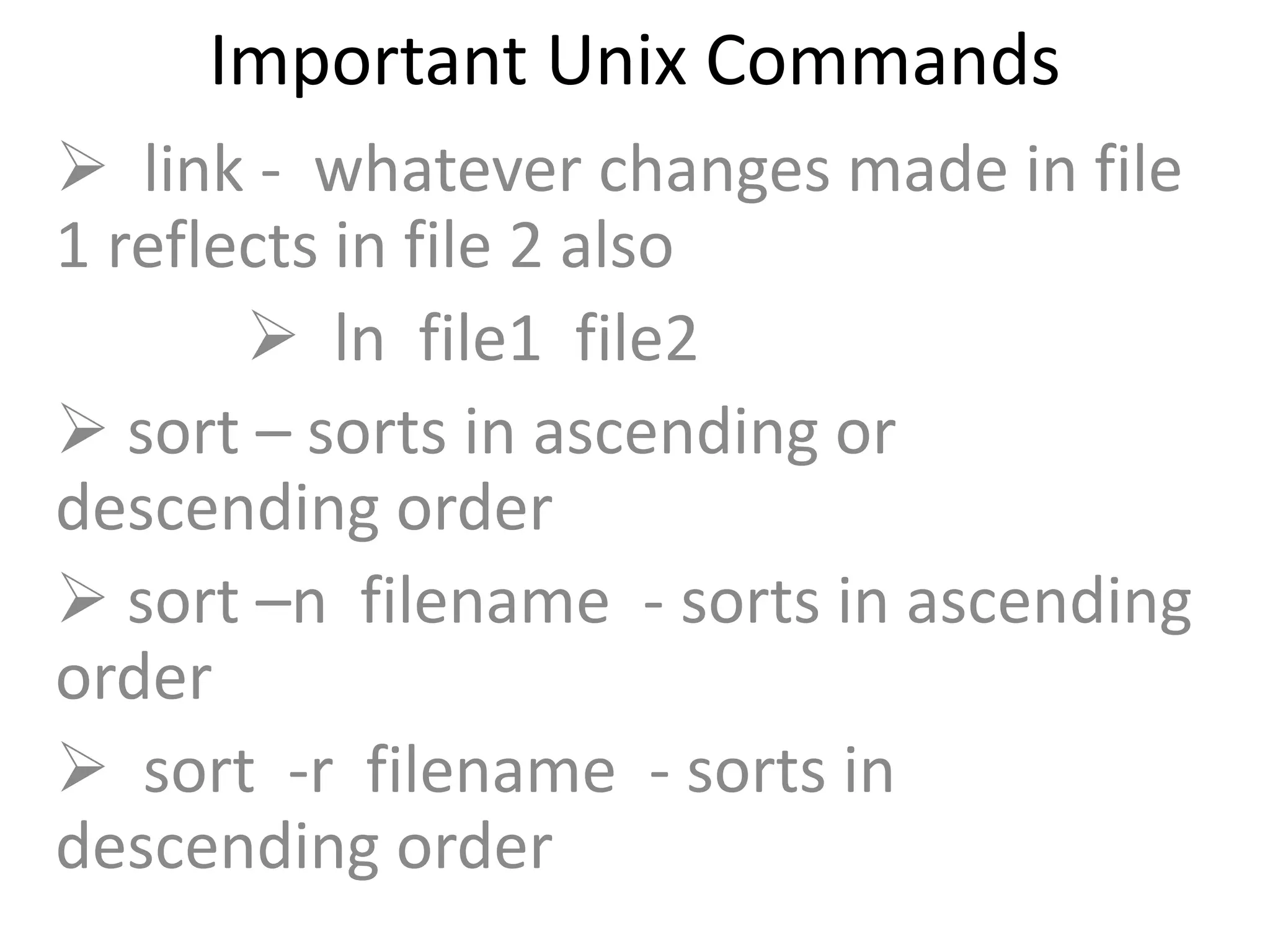
 link - whatever changes made in file
1 reflects in file 2 also
 ln file1 file2
 sort – sorts in ascending or
descending order
 sort –n filename - sorts in ascending
order
 sort -r filename - sorts in
descending order
Important Unix Commands
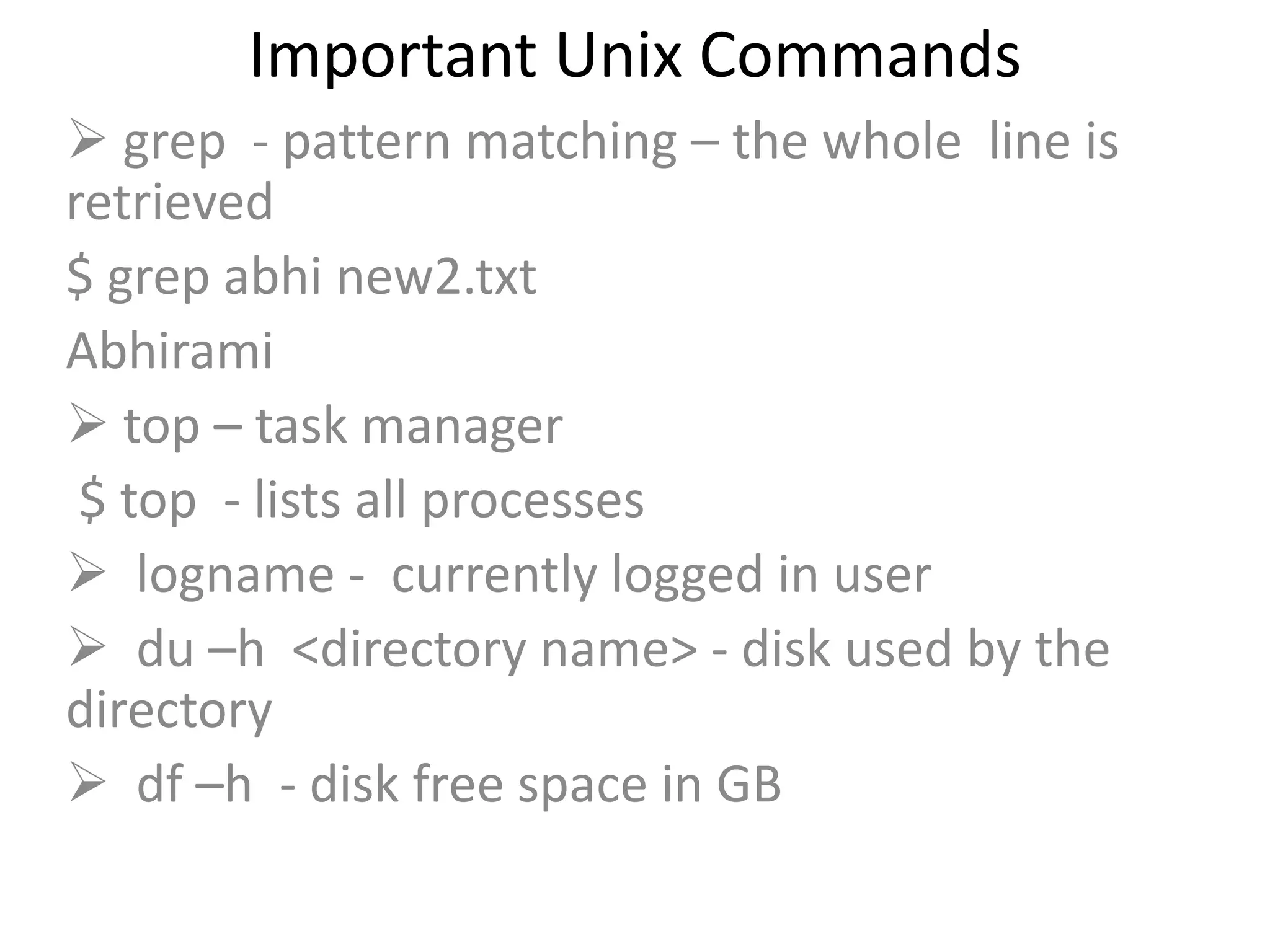
 grep - pattern matching – the whole line is
retrieved
$ grep abhi new2.txt
Abhirami
 top – task manager
$ top - lists all processes
 logname - currently logged in user
 du –h <directory name> - disk used by the
directory
 df –h - disk free space in GB
Important Unix Commands
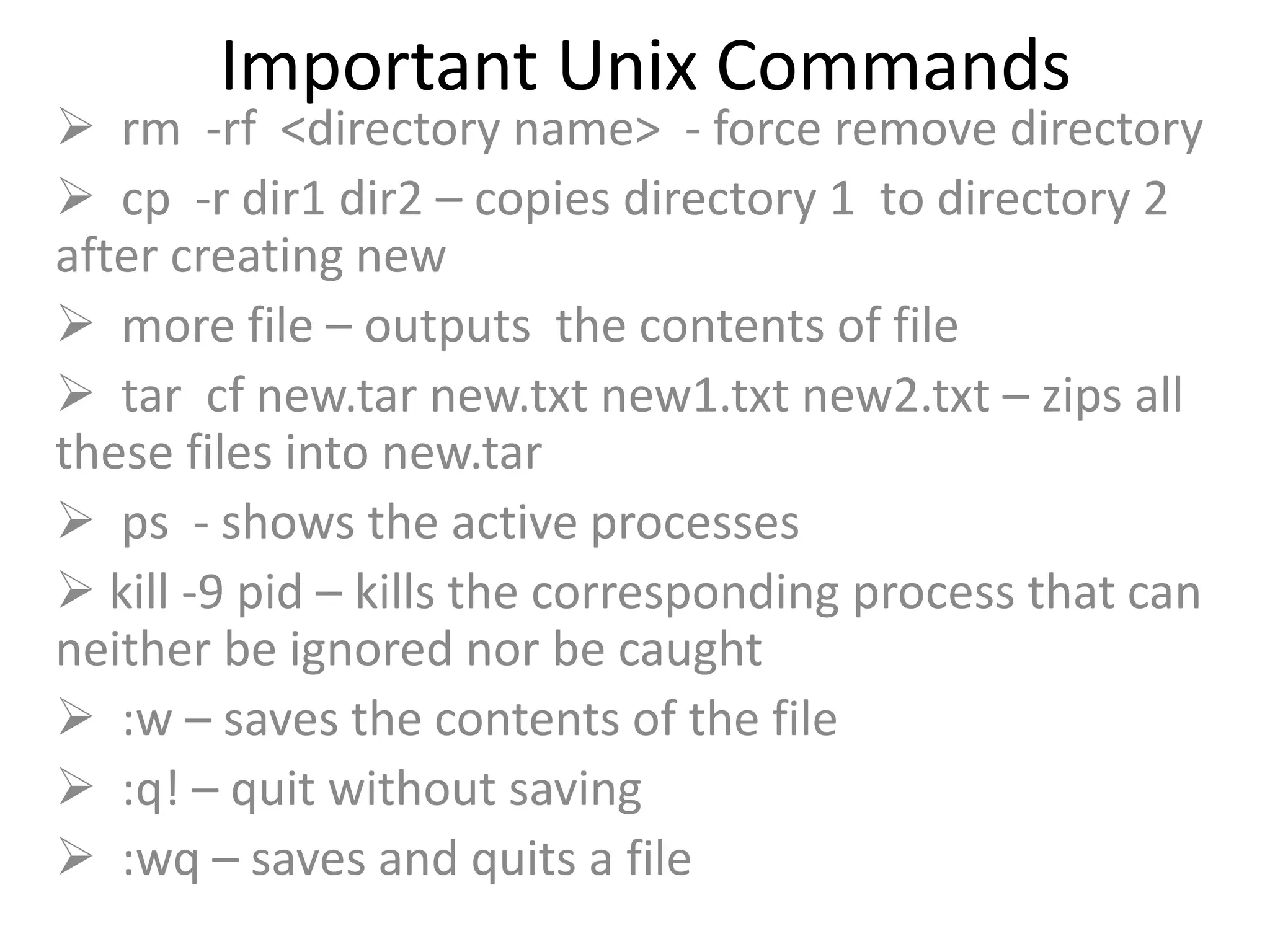
 rm -rf <directory name> - force remove directory
 cp -r dir1 dir2 – copies directory 1 to directory 2
after creating new
 more file – outputs the contents of file
 tar cf new.tar new.txt new1.txt new2.txt – zips all
these files into new.tar
 ps - shows the active processes
 kill -9 pid – kills the corresponding process that can
neither be ignored nor be caught
 :w – saves the contents of the file
 :q! – quit without saving
 :wq – saves and quits a file
Important Unix Commands
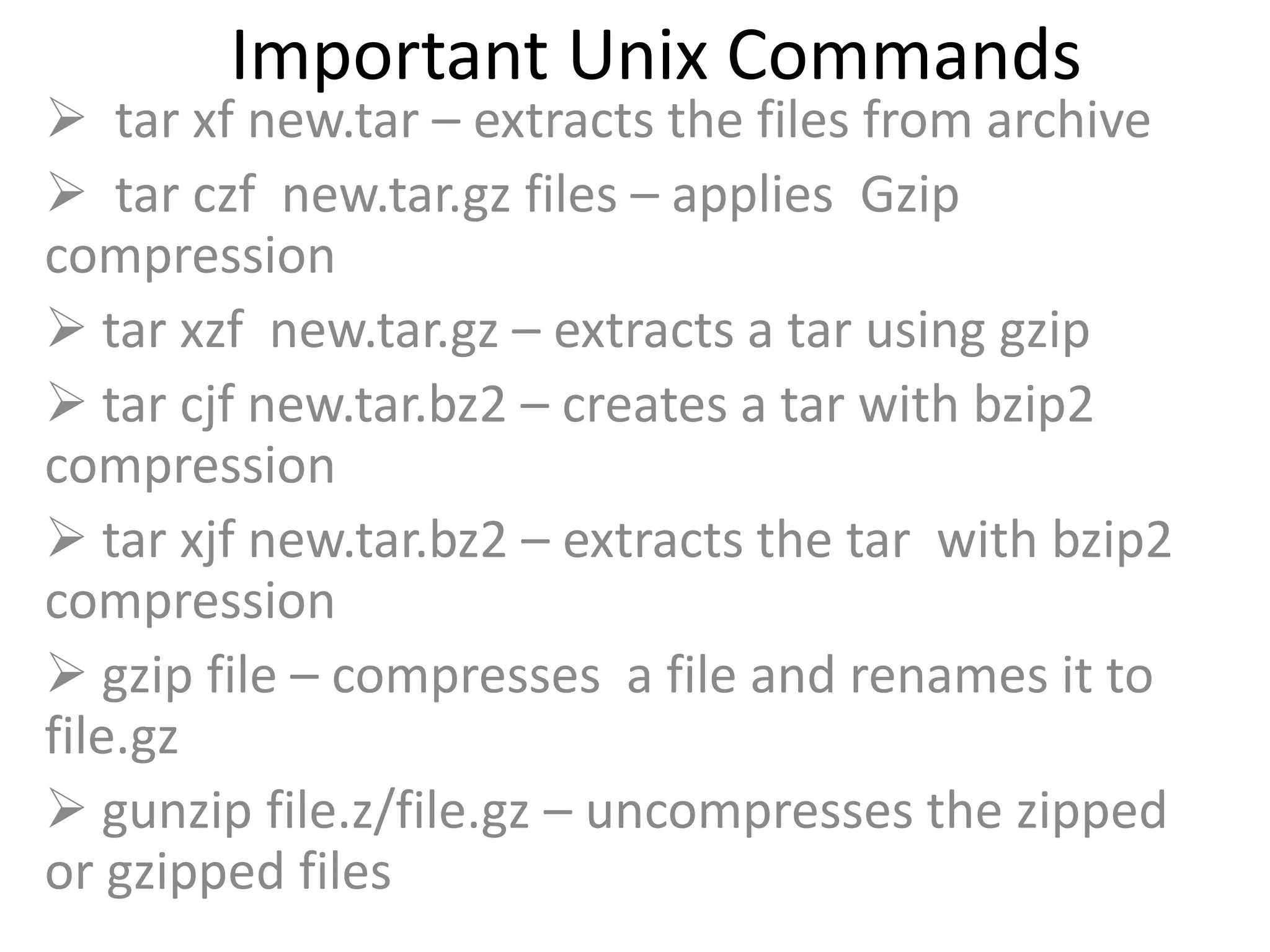
 tar xf new.tar – extracts the files from archive
 tar czf new.tar.gz files – applies Gzip
compression
 tar xzf new.tar.gz – extracts a tar using gzip
 tar cjf new.tar.bz2 – creates a tar with bzip2
compression
 tar xjf new.tar.bz2 – extracts the tar with bzip2
compression
 gzip file – compresses a file and renames it to
file.gz
 gunzip file.z/file.gz – uncompresses the zipped
or gzipped files
File Systems
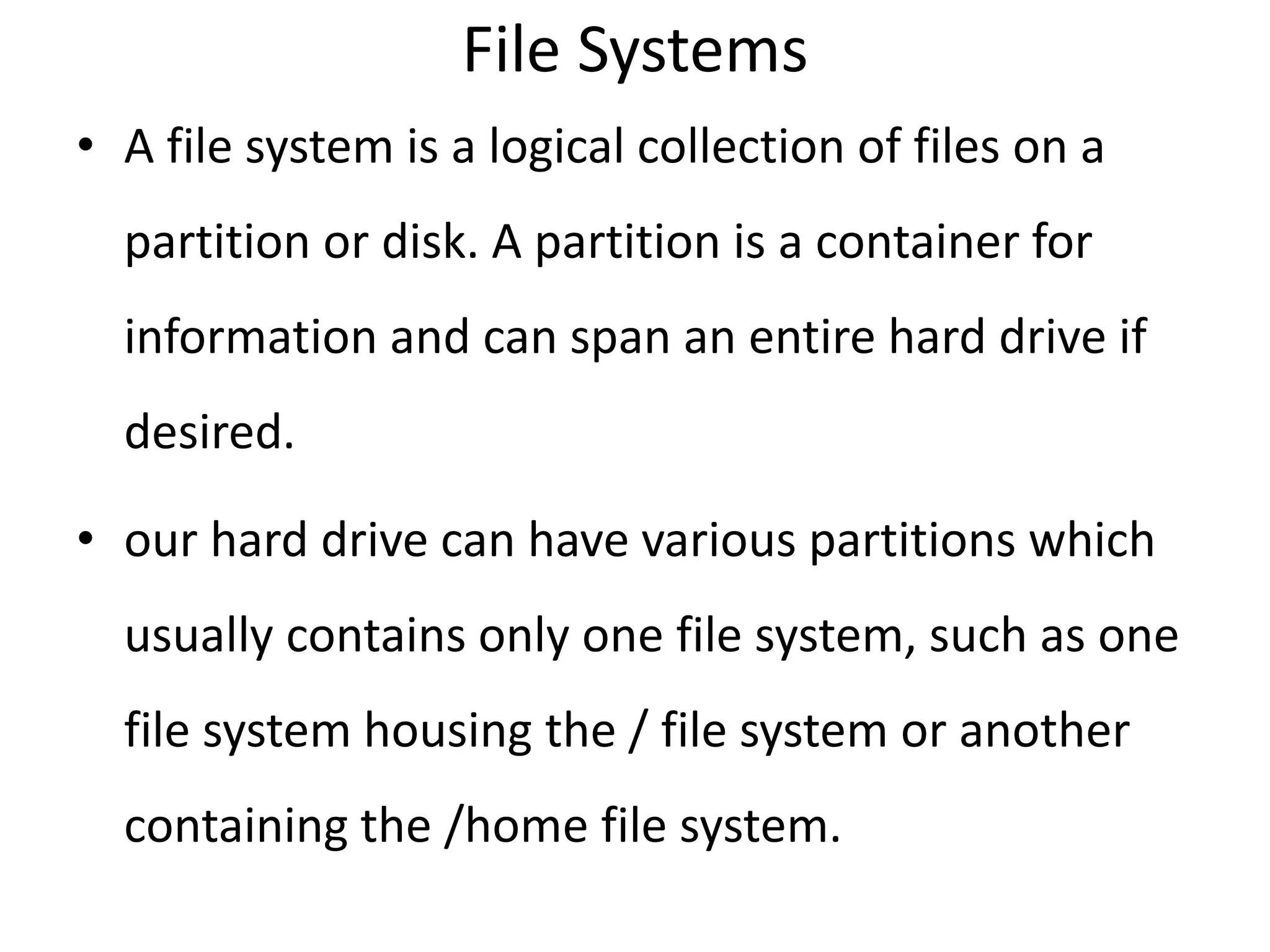
• A file system is a logical collection of files on a
partition or disk. A partition is a container for
information and can span an entire hard drive if
desired.
• our hard drive can have various partitions which
usually contains only one file system, such as one
file system housing the / file system or another
containing the /home file system.
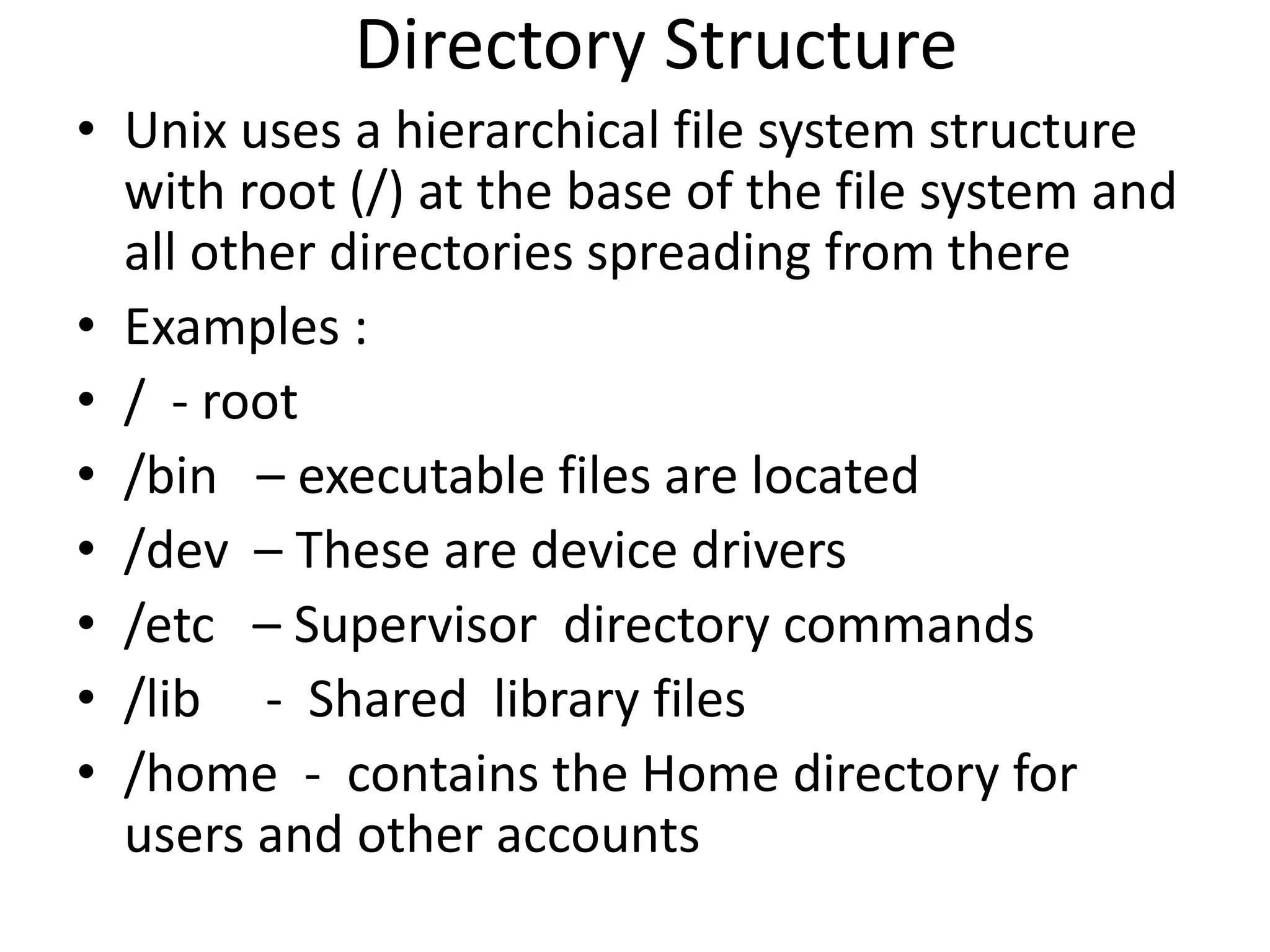
Directory Structure
• Unix uses a hierarchical file system structure
with root (/) at the base of the file system and
all other directories spreading from there
• Examples :
• / - root
• /bin – executable files are located
• /dev – These are device drivers
• /etc – Supervisor directory commands
• /lib - Shared library files
• /home - contains the Home directory for
users and other accounts
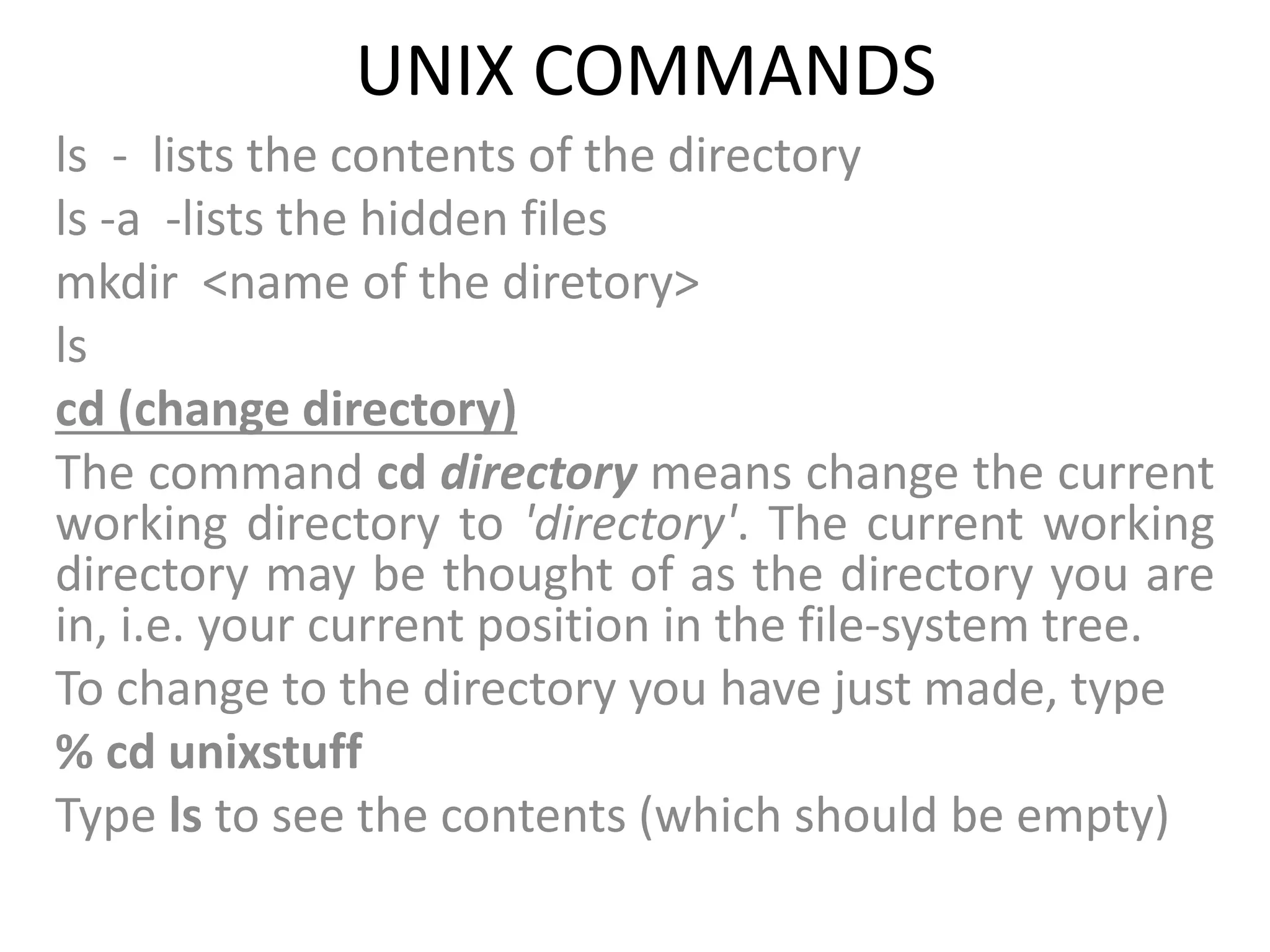
UNIX COMMANDS
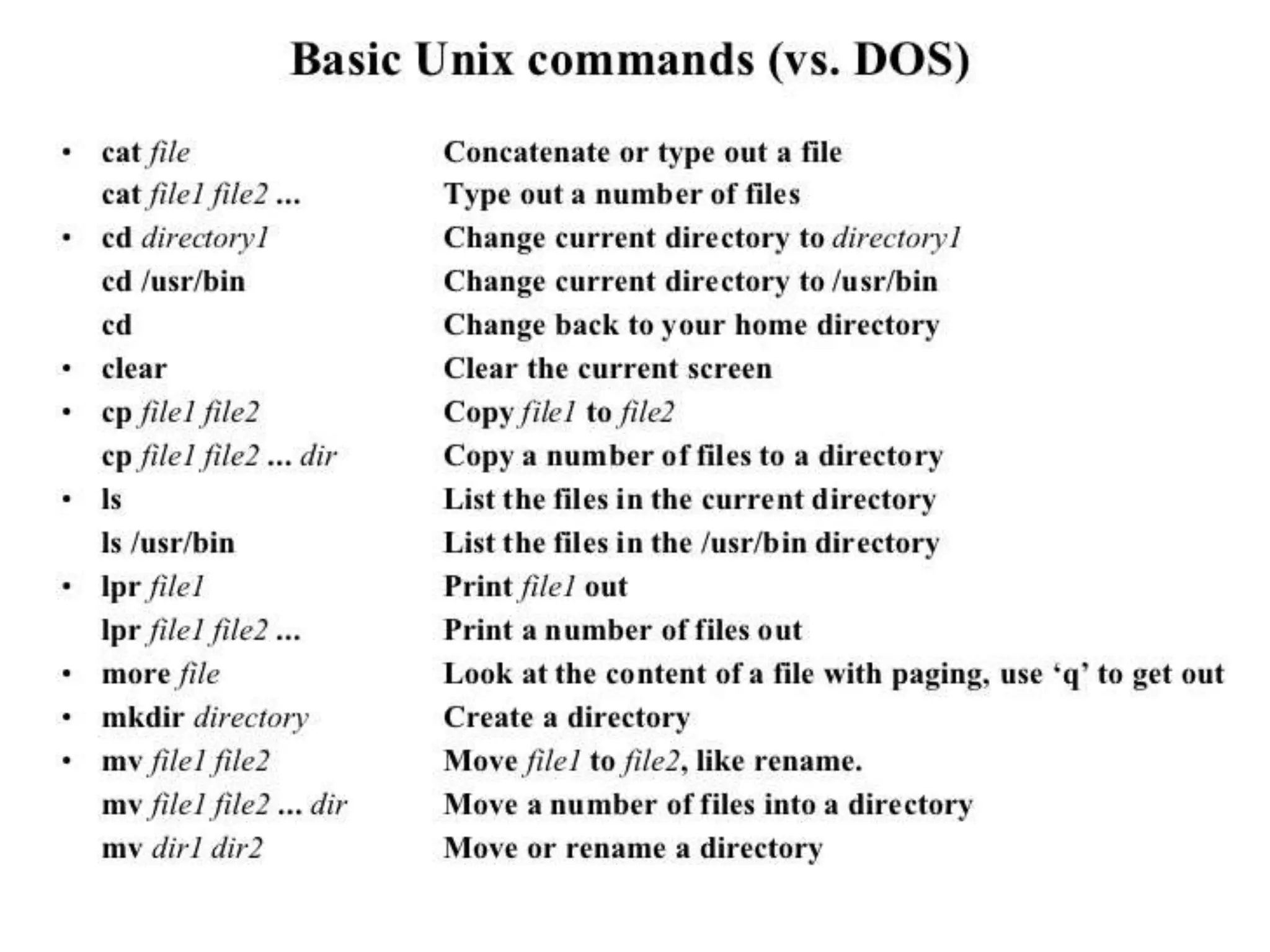
ls - lists the contents of the directory
ls -a -lists the hidden files
mkdir <name of the diretory>
ls
cd (change directory)
The command cd directory means change the current
working directory to 'directory'. The current working
directory may be thought of as the directory you are
in, i.e. your current position in the file-system tree.
To change to the directory you have just made, type
% cd unixstuff
Type ls to see the contents (which should be empty)
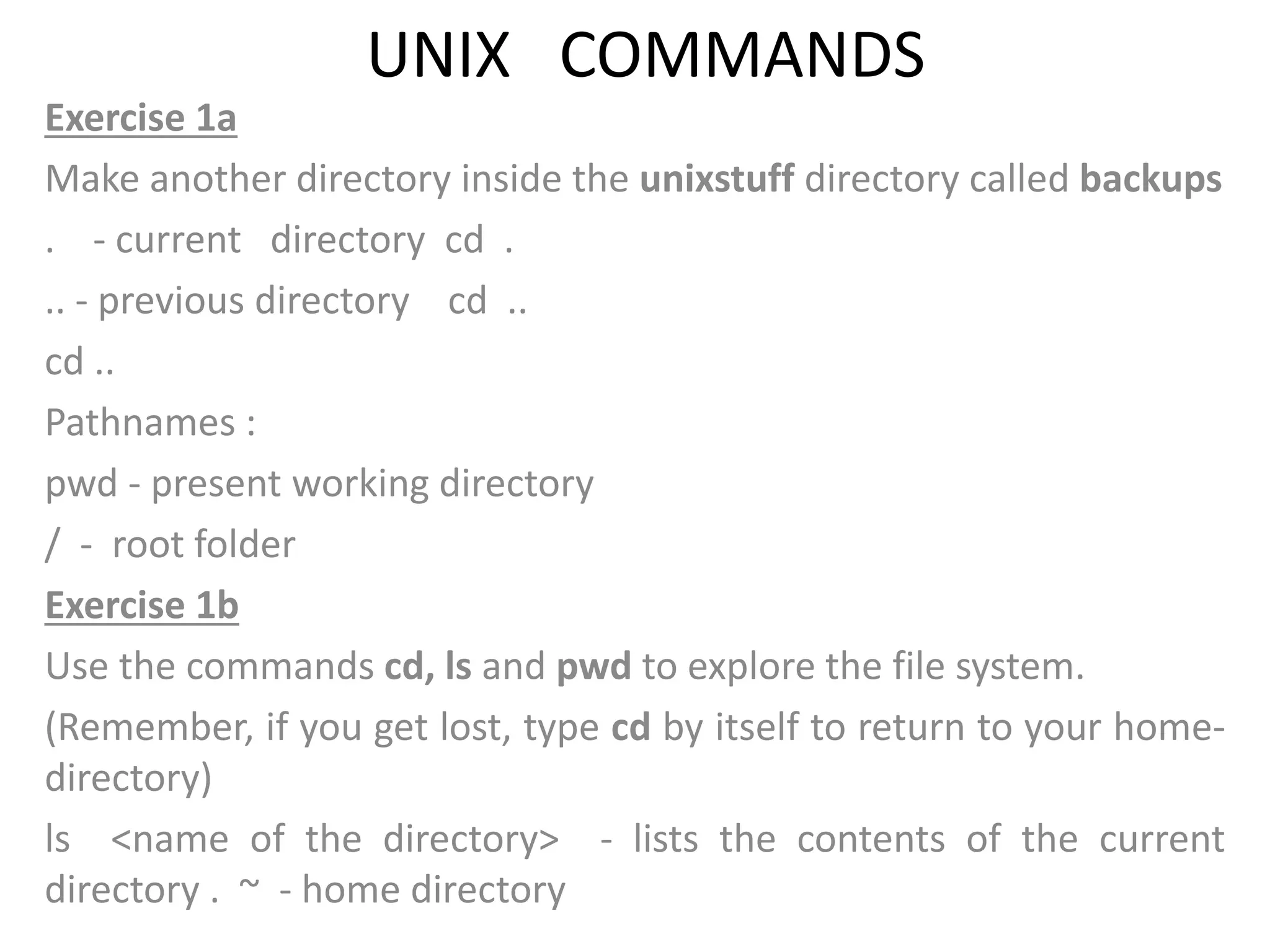
UNIX COMMANDS
Exercise 1a
Make another directory inside the unixstuff directory called backups
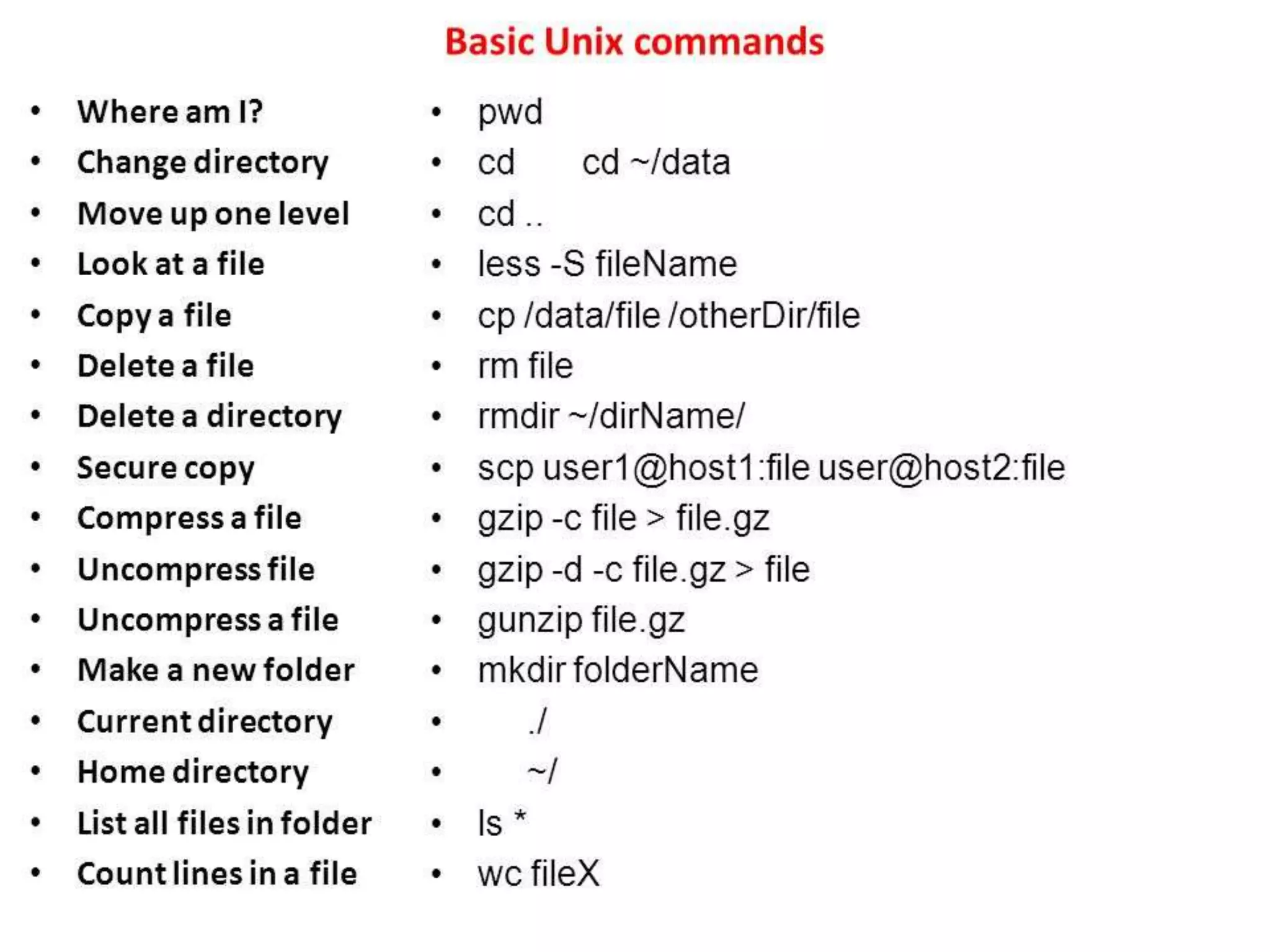
. - current directory cd .
.. - previous directory cd ..
cd ..
Pathnames :
pwd - present working directory
/ - root folder
Exercise 1b
Use the commands cd, ls and pwd to explore the file system.
(Remember, if you get lost, type cd by itself to return to your home-
directory)
ls <name of the directory> - lists the contents of the current
directory . ~ - home directory
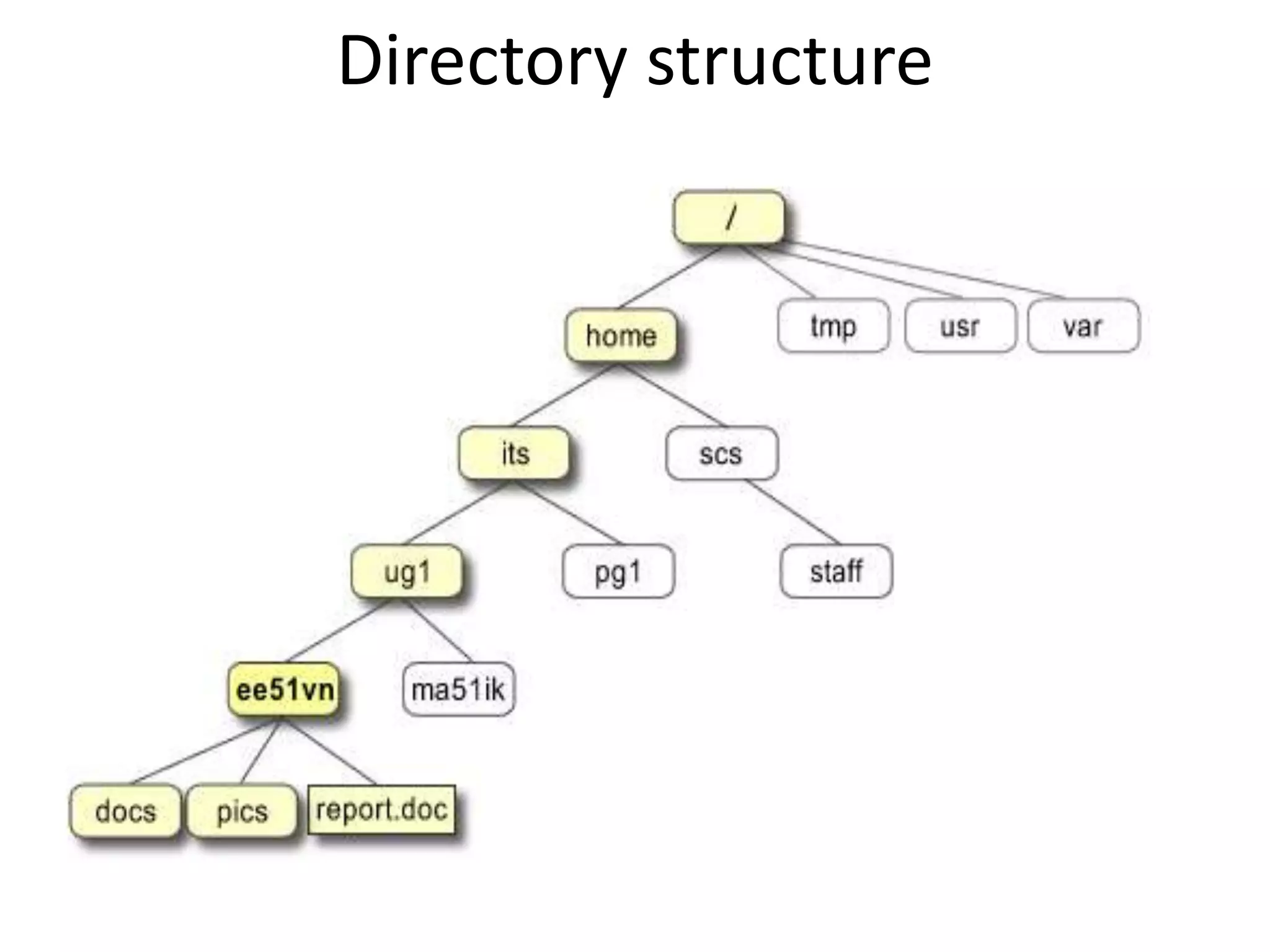
Directory structure
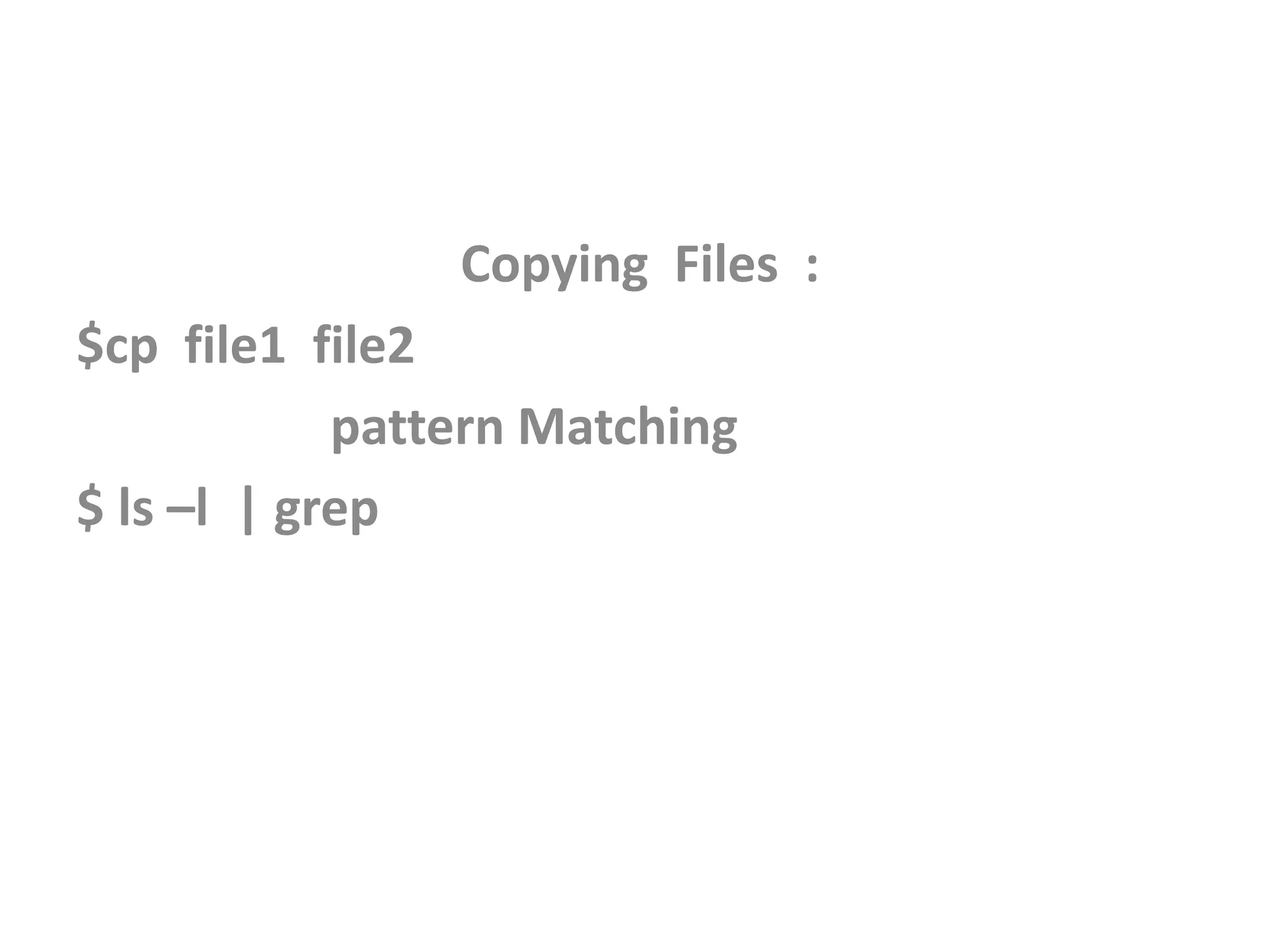
Copying Files :
$cp file1 file2
pattern Matching
$ ls –l | grep
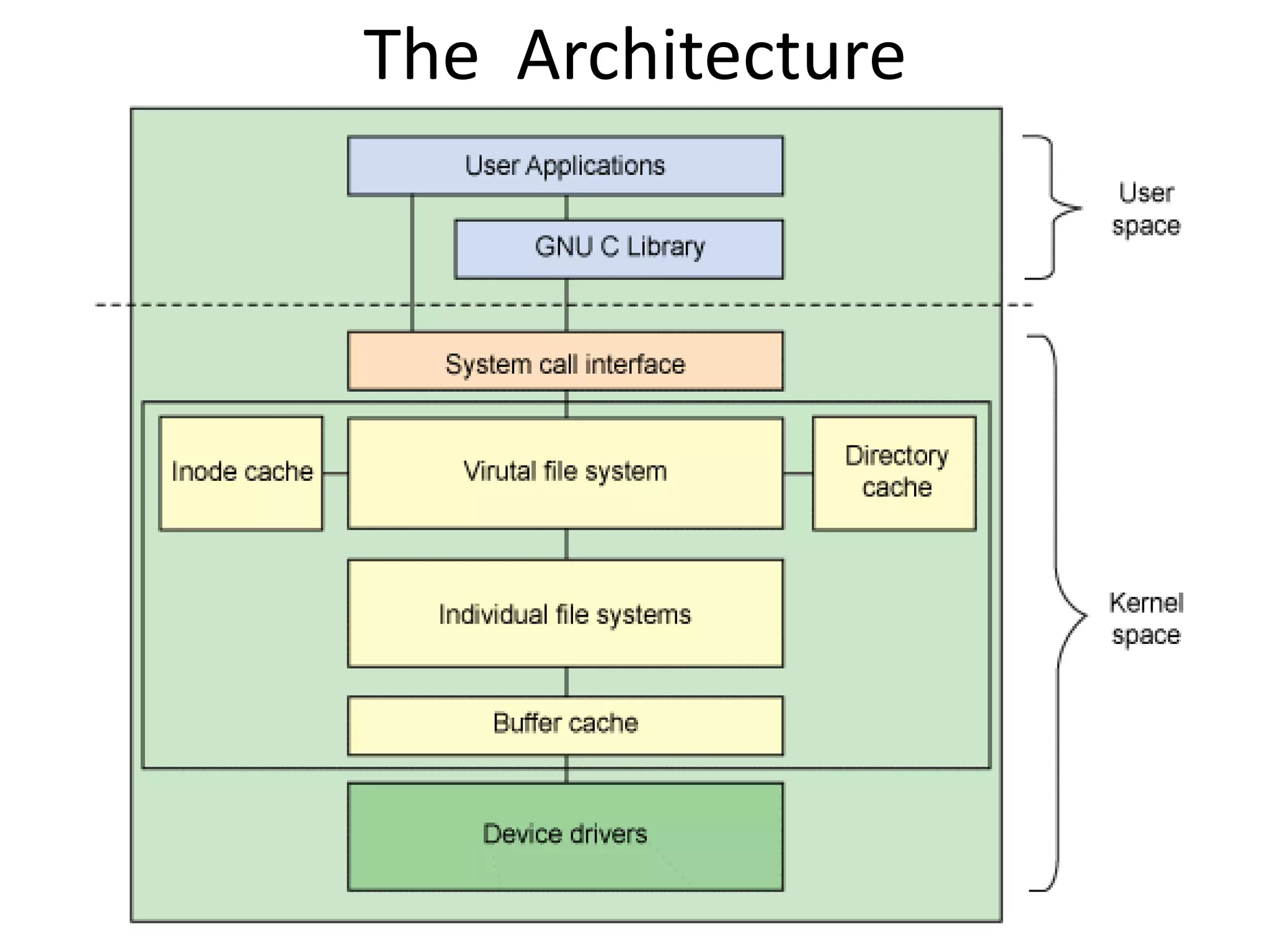
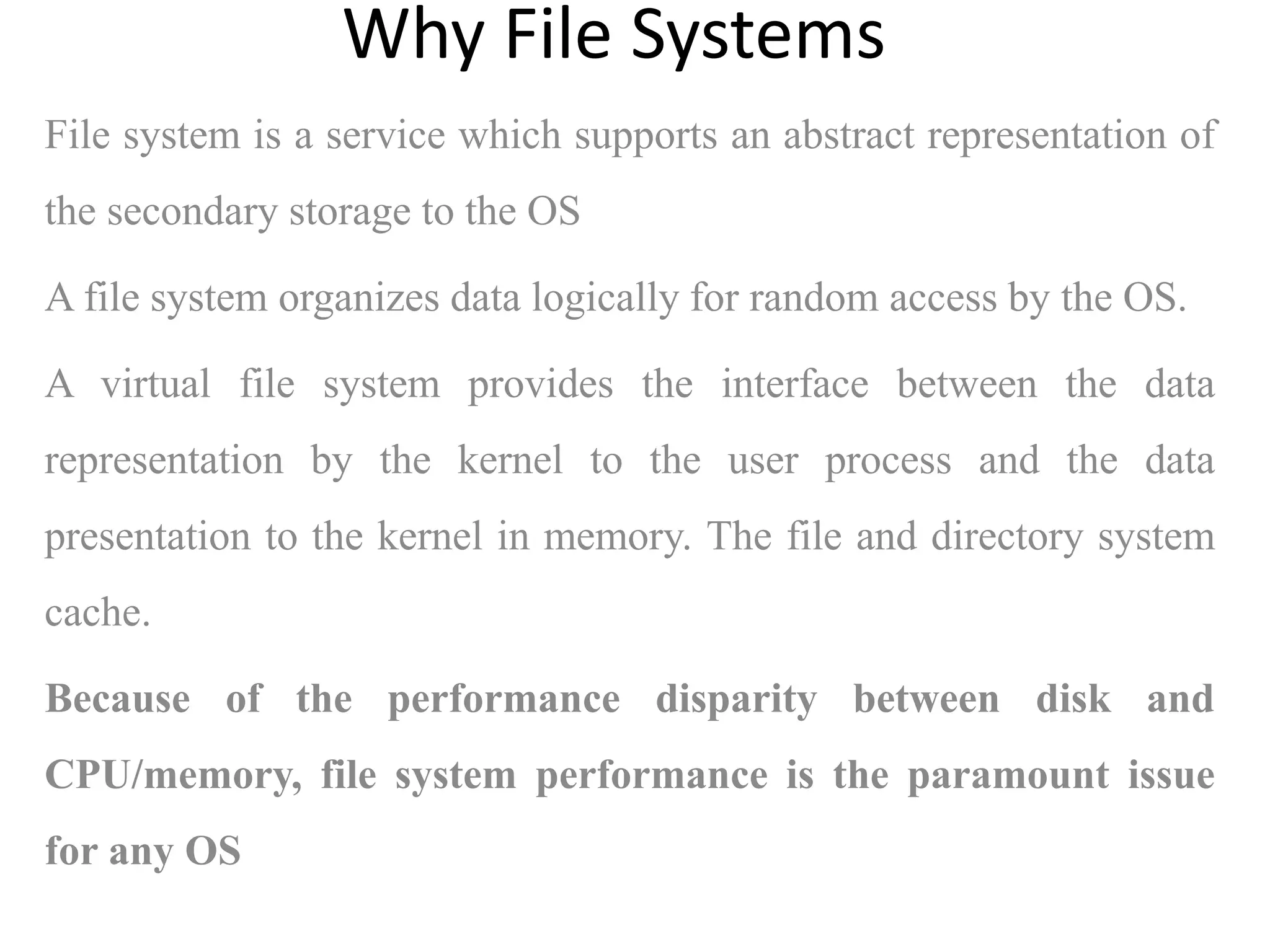
File system is a service which supports an abstract representation of
the secondary storage to the OS
A file system organizes data logically for random access by the OS.
A virtual file system provides the interface between the data
representation by the kernel to the user process and the data
presentation to the kernel in memory. The file and directory system
cache.
Because of the performance disparity between disk and
CPU/memory, file system performance is the paramount issue
for any OS
Why File Systems
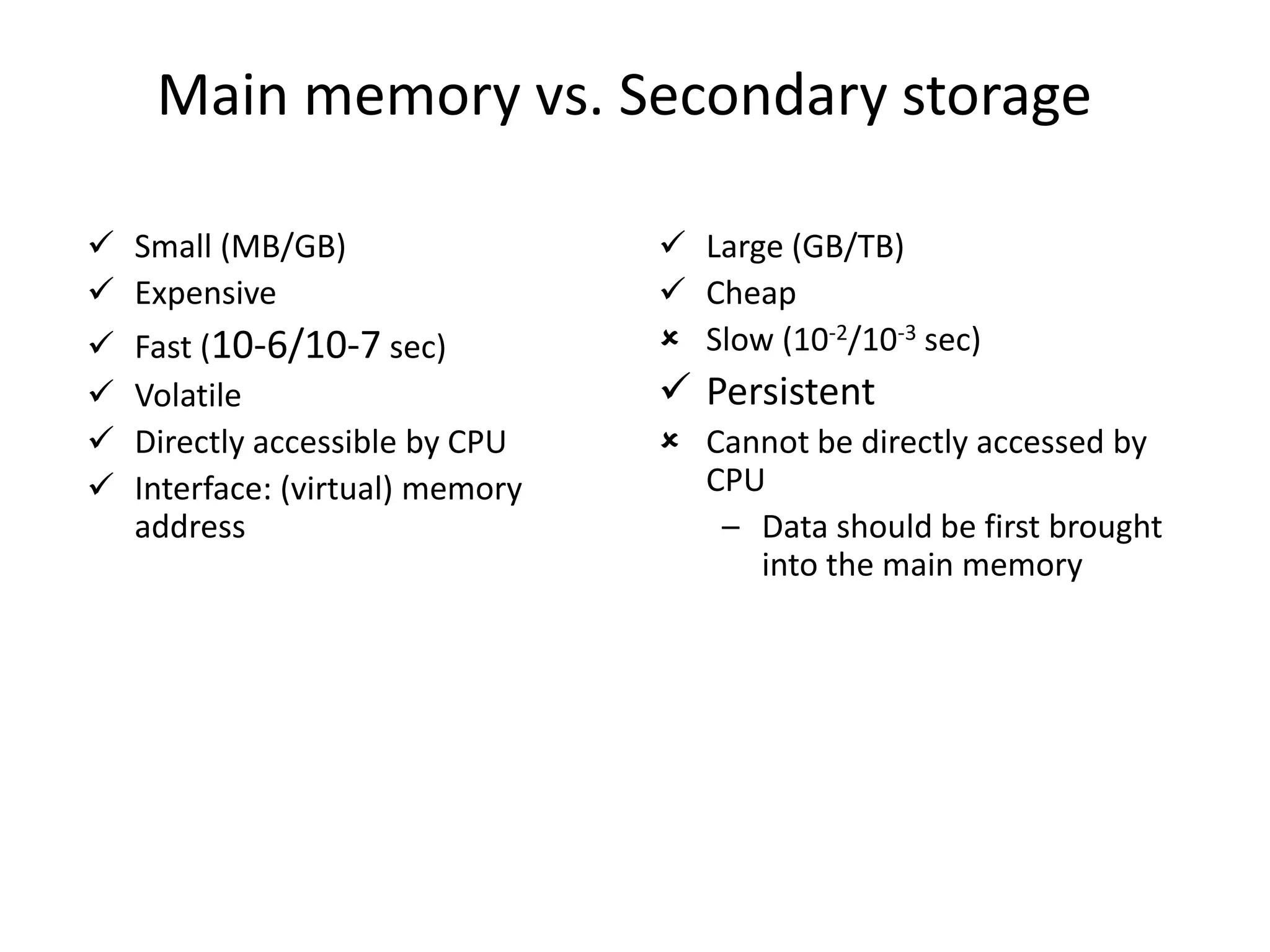
Main memory vs. Secondary storage
 Small (MB/GB)
 Expensive
 Fast (10-6/10-7 sec)
 Volatile
 Directly accessible by CPU
 Interface: (virtual) memory
address
 Large (GB/TB)
 Cheap
 Slow (10-2/10-3 sec)
 Persistent
 Cannot be directly accessed by
CPU
– Data should be first brought
into the main memory
Catalog Organization (Directories)
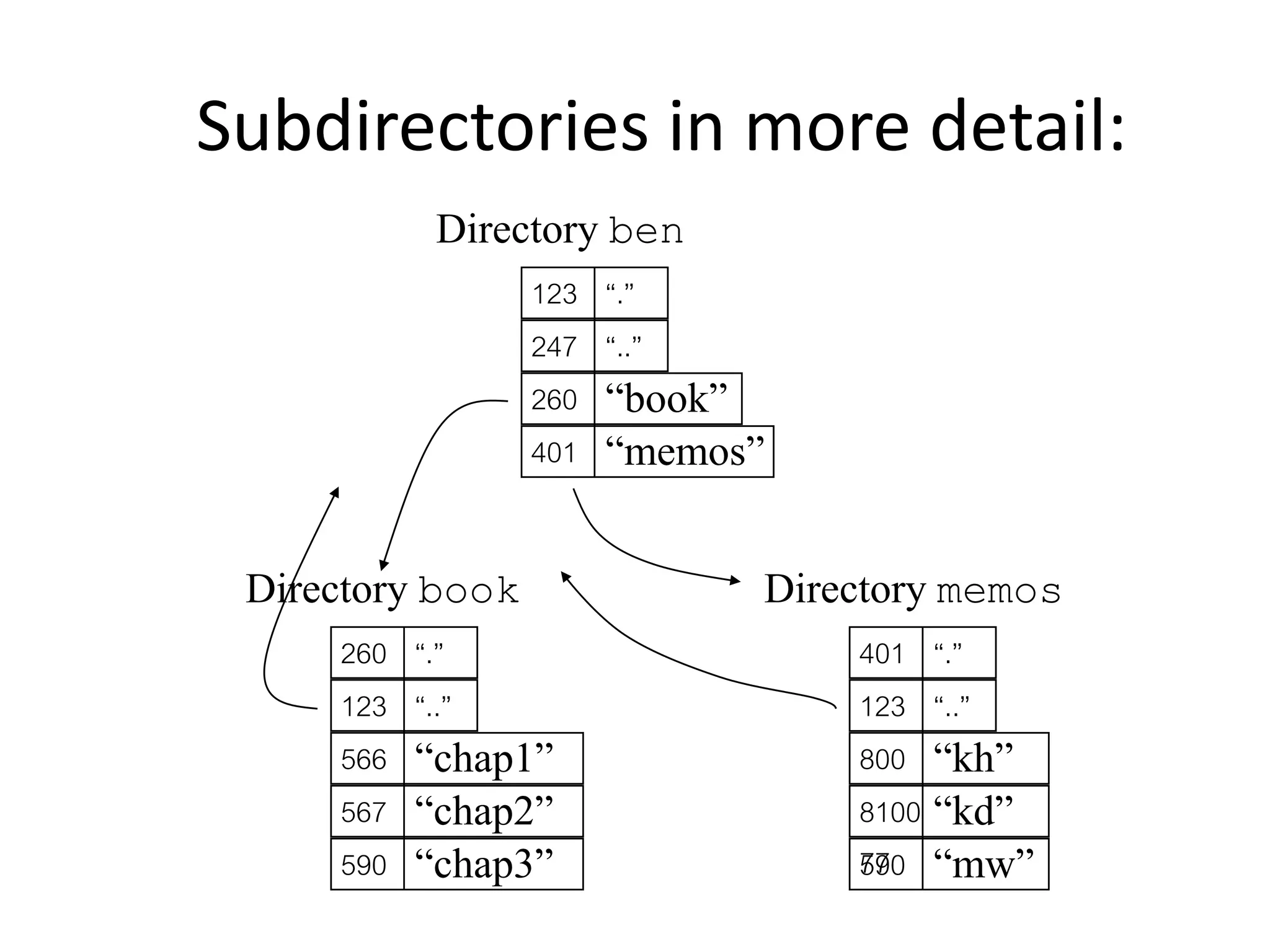
In UNIX, special files (not special device files) called directories contain information about other
files. A UNIX directory is a file whose data is an array or list of (filename, i-node#) pairs.
it has an owner, group owner, size, access permissions, etc.
many file operations can be used on directories
As a file, a directory has an I-node type structure.
A flag in the structure indicates its type.
Unlike other files, the kernel imposes a structure on directory files using mkdir.
A directory is a sequence of lines , a sequence of directory entries of variable length where each
line contains an i-node number and a file name mapping: <filename, inode #>
Directory data is stored as binary, cannot use cat. But some older UNIXs allow: od -c dir-name.
Although directories are files, UNIX permissions – rwx- have slightly different meanings:
- r, lists directoy contents
- w, add a file to the directory
- x, cd to the directory
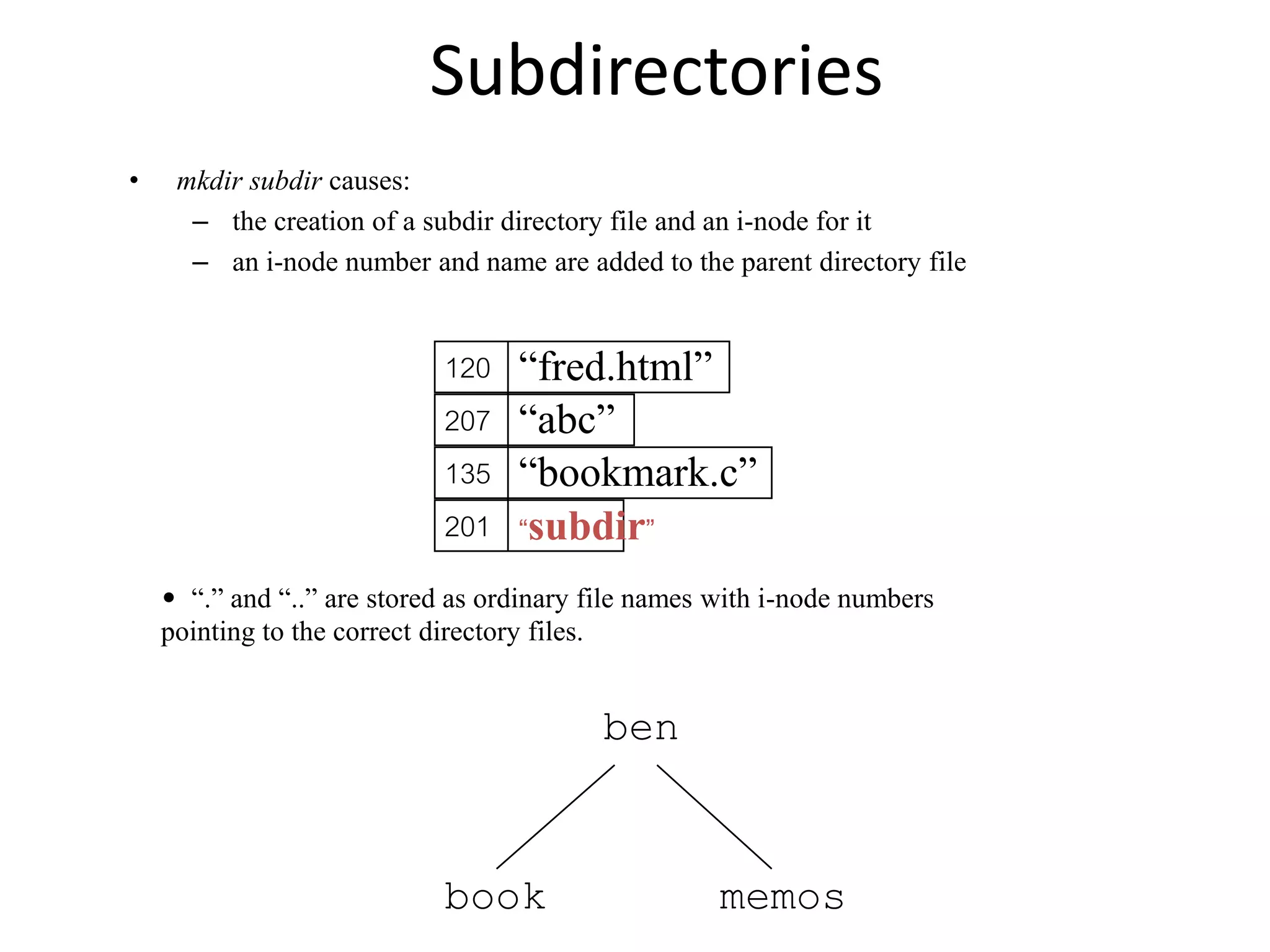
Subdirectories
• mkdir subdir causes:
– the creation of a subdir directory file and an i-node for it
– an i-node number and name are added to the parent directory file
120
207
135
“fred.html”
“abc”
“bookmark.c”
201 “subdir”
• “.” and “..” are stored as ordinary file names with i-node numbers
pointing to the correct directory files.
ben
book memos
Subdirectories in more detail:
123
247
260
“.”
“..”
“book”
401 “memos”
Directory ben
260
123
566
“.”
“..”
“chap1”
567 “chap2”
Directory book
“chap3”
590
401
123
800
“.”
“..”
“kh”
8100
77
“kd”
Directory memos
“mw”
590
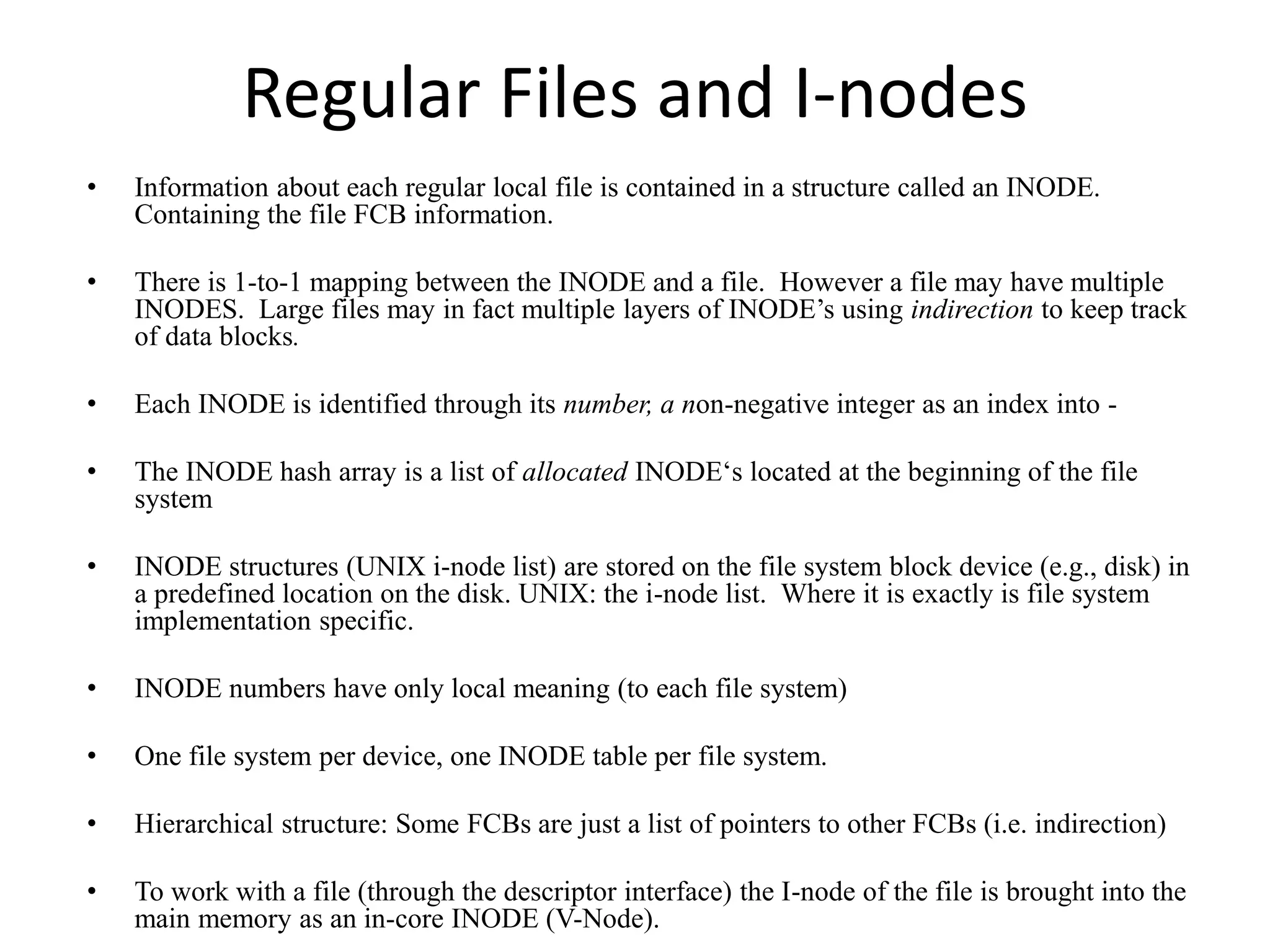
Regular Files and I-nodes
• Information about each regular local file is contained in a structure called an INODE.
Containing the file FCB information.
• There is 1-to-1 mapping between the INODE and a file. However a file may have multiple
INODES. Large files may in fact multiple layers of INODE’s using indirection to keep track
of data blocks.
• Each INODE is identified through its number, a non-negative integer as an index into -
• The INODE hash array is a list of allocated INODE‘s located at the beginning of the file
system
• INODE structures (UNIX i-node list) are stored on the file system block device (e.g., disk) in
a predefined location on the disk. UNIX: the i-node list. Where it is exactly is file system
implementation specific.
• INODE numbers have only local meaning (to each file system)
• One file system per device, one INODE table per file system.
• Hierarchical structure: Some FCBs are just a list of pointers to other FCBs (i.e. indirection)
• To work with a file (through the descriptor interface) the I-node of the file is brought into the
main memory as an in-core INODE (V-Node).
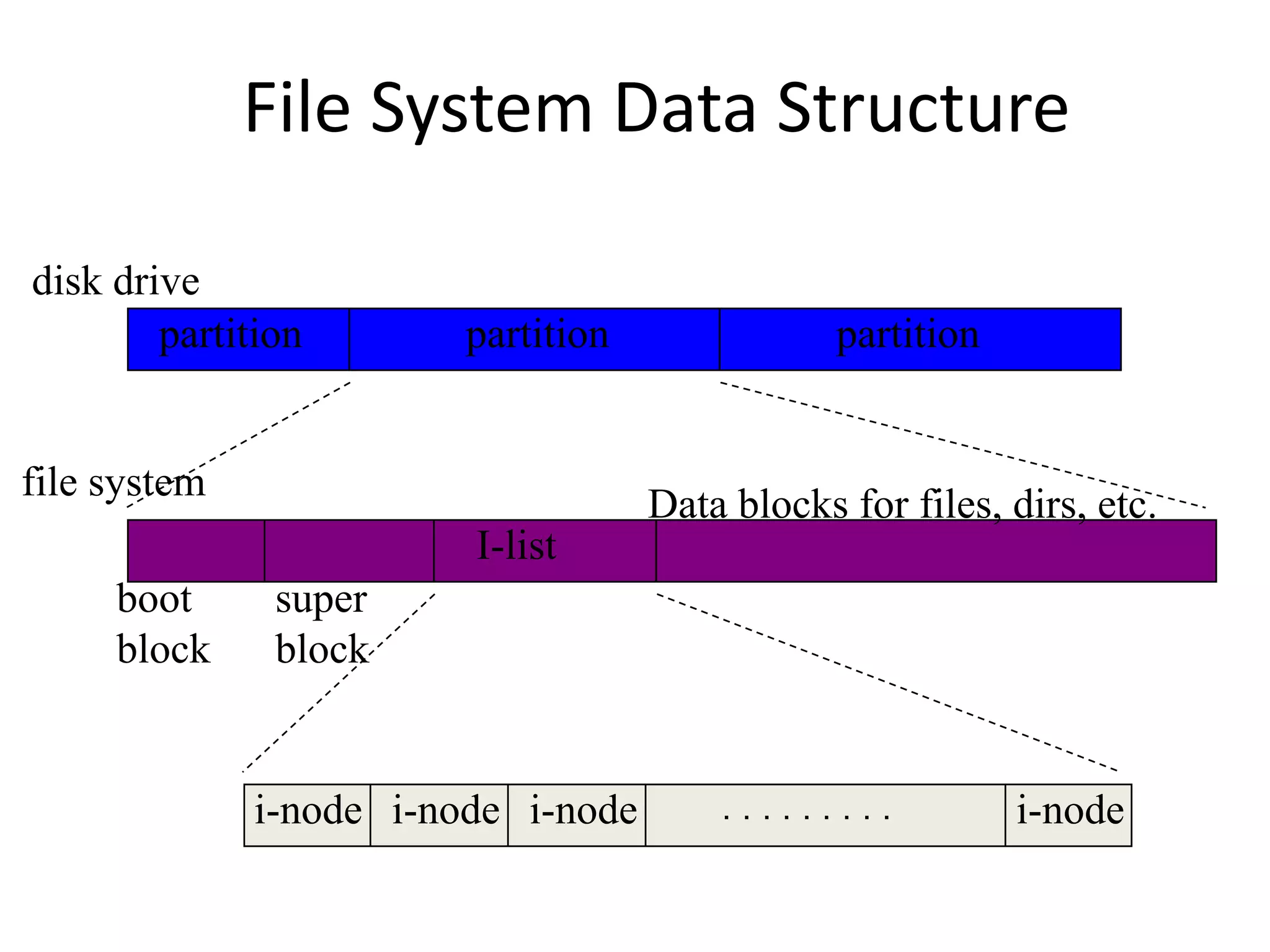
File System Data Structure
partition partition partition
disk drive
file system
super
block
boot
block
I-list
Data blocks for files, dirs, etc.
. . . . . . . . .
i-node i-node i-node i-node
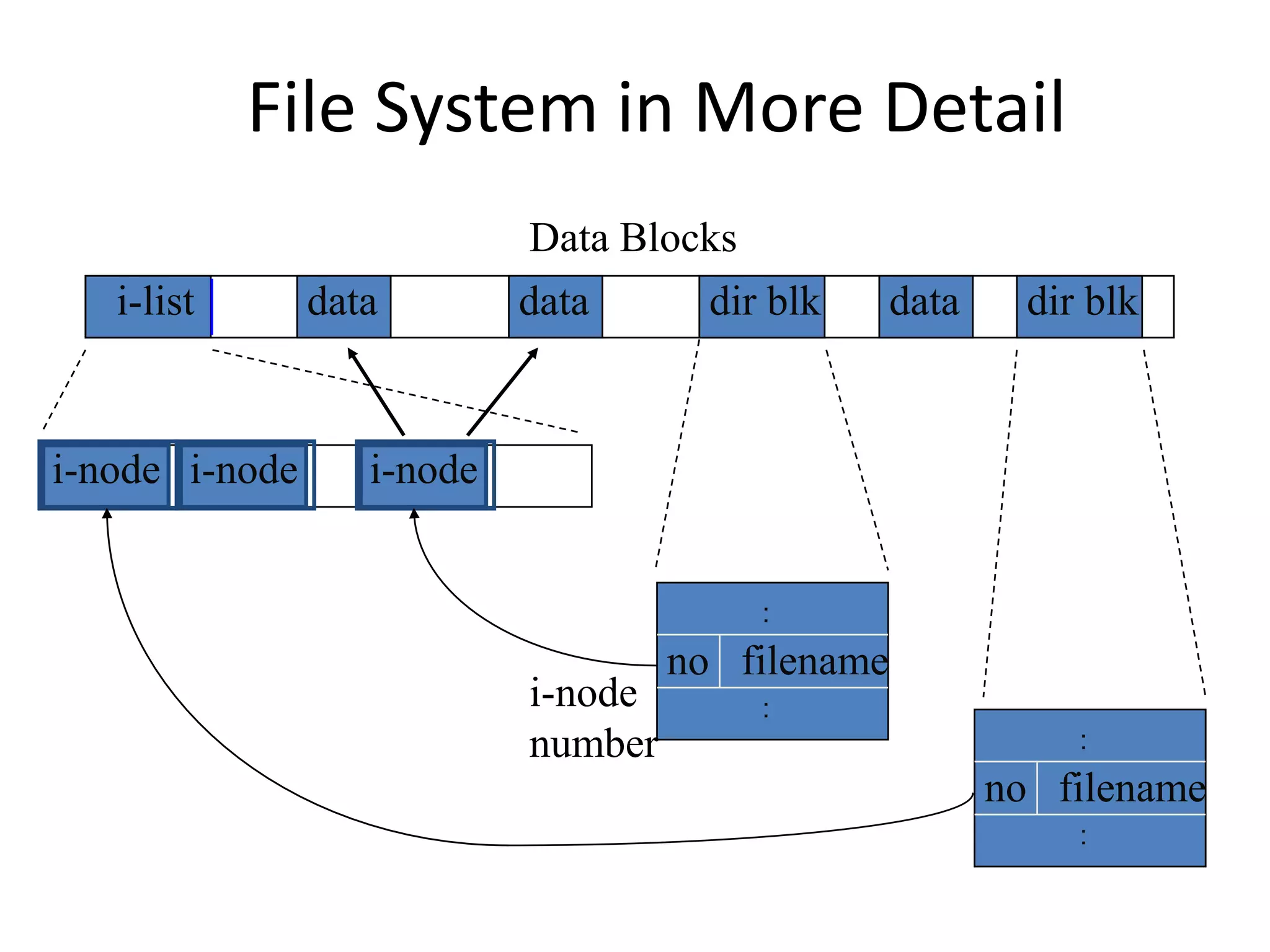
File System in More Detail
data dir blk
i-list data data dir blk
Data Blocks
i-node i-node i-node
filename
i-node
number
no
:
:
filename
no
:
:
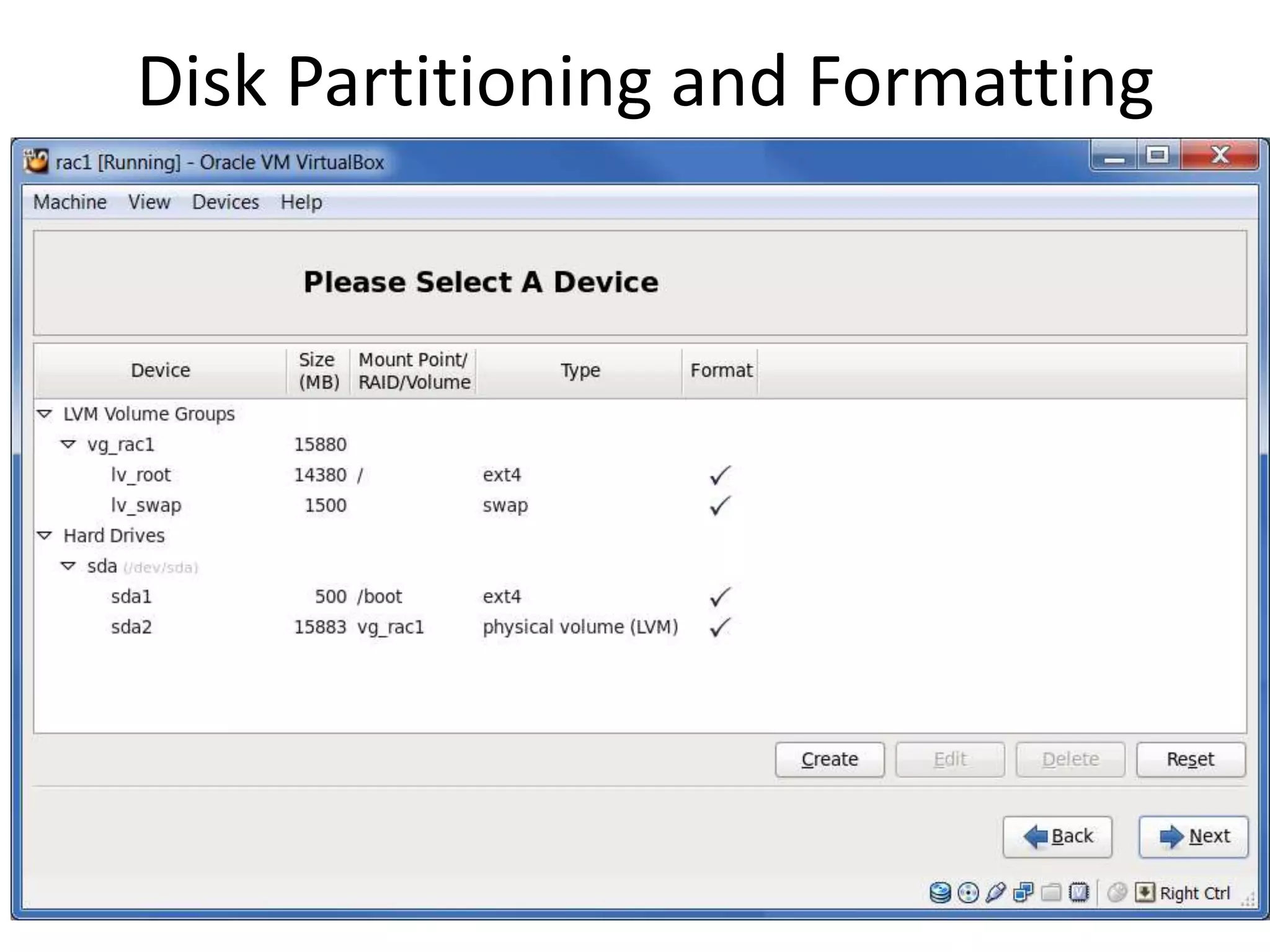
Disk partitioning and Formatting
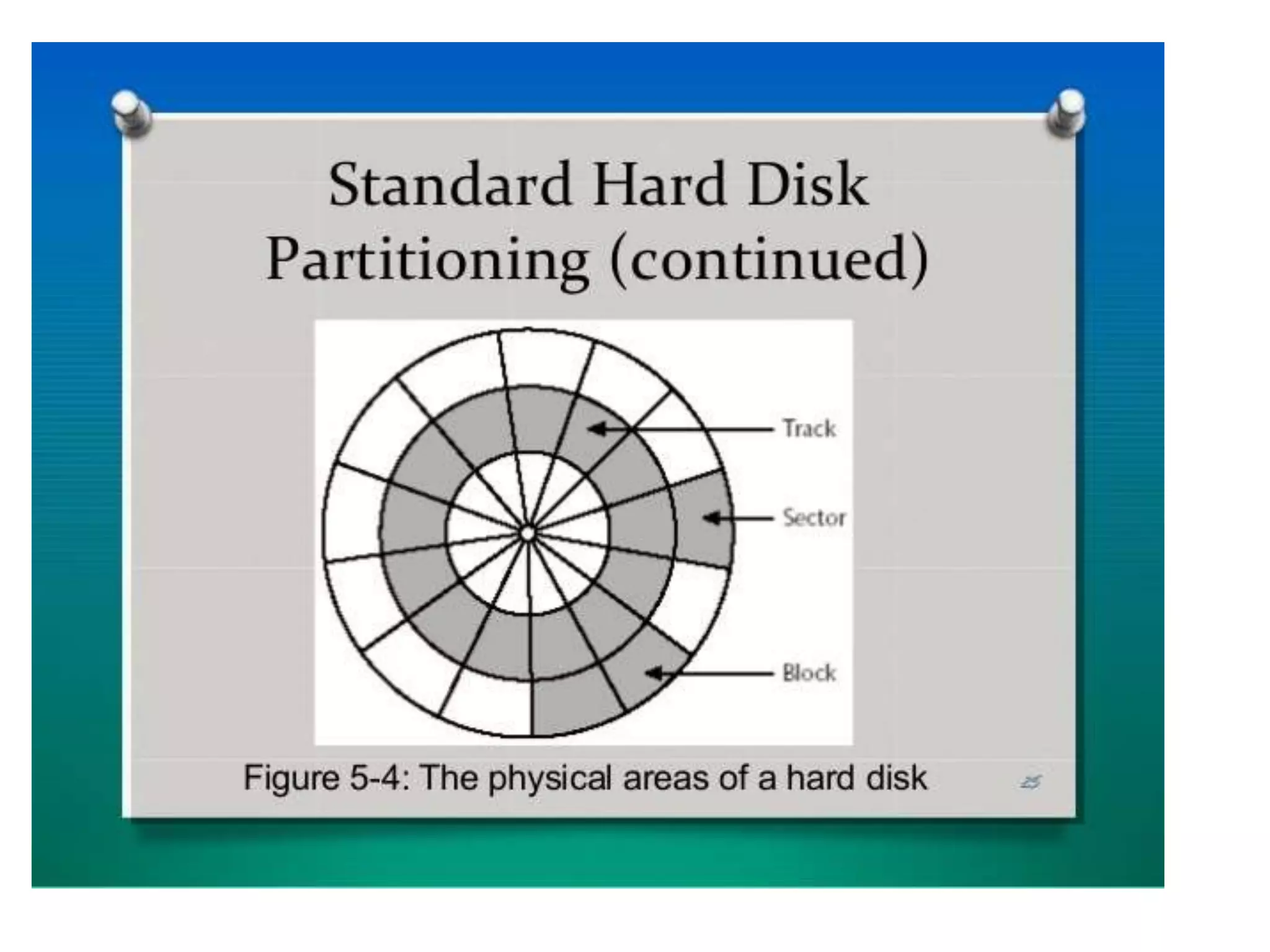
Sometimes it is desirable to segment, or partition
a physical disk into multiple logical disks.
Sometimes the OS buffering routines provide better
performance if the disk is partitioned.
It is generally desirable to partition files such that
system files, application files, and user files are on
separate partitions.
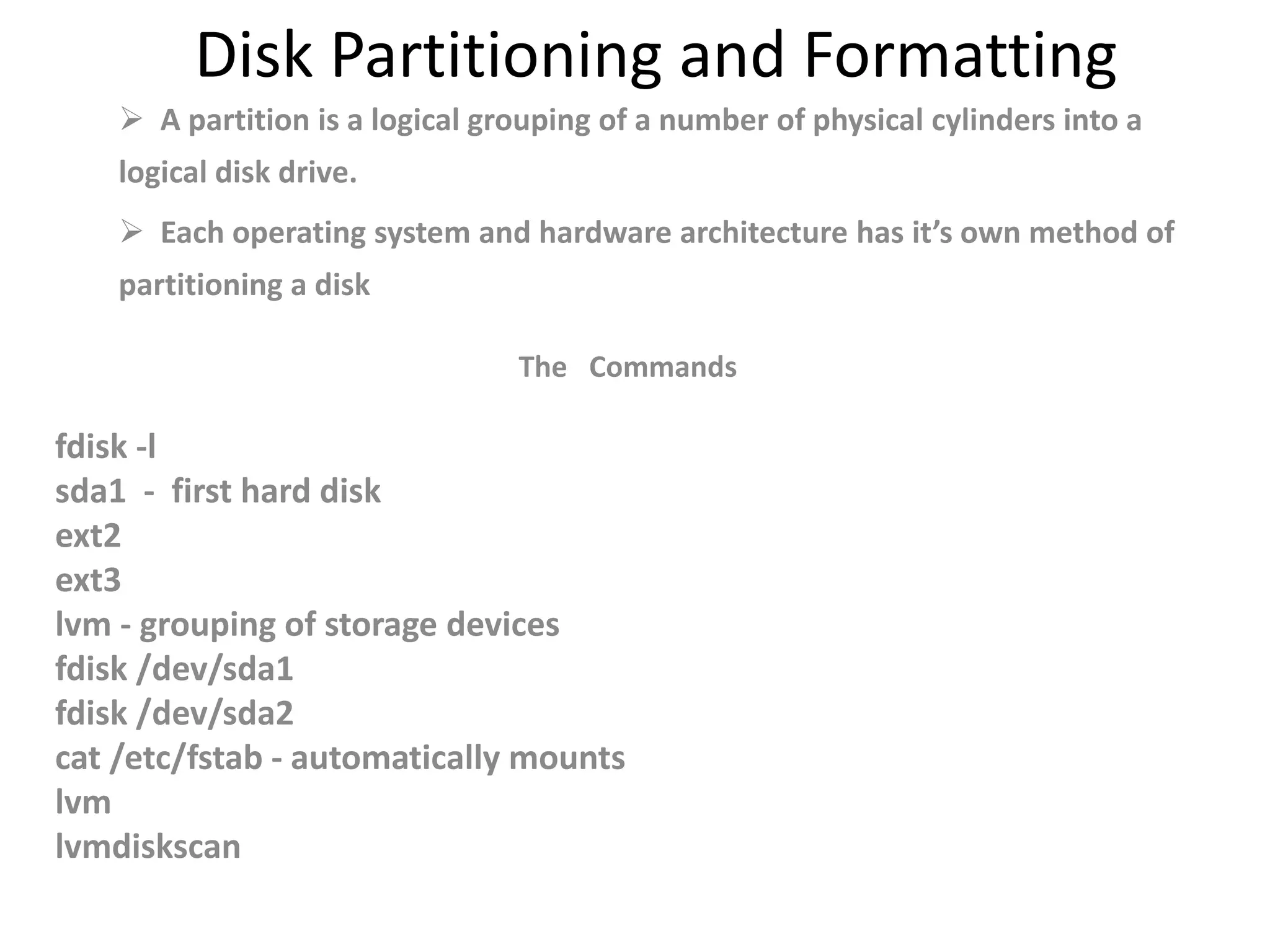
Disk Partitioning and Formatting
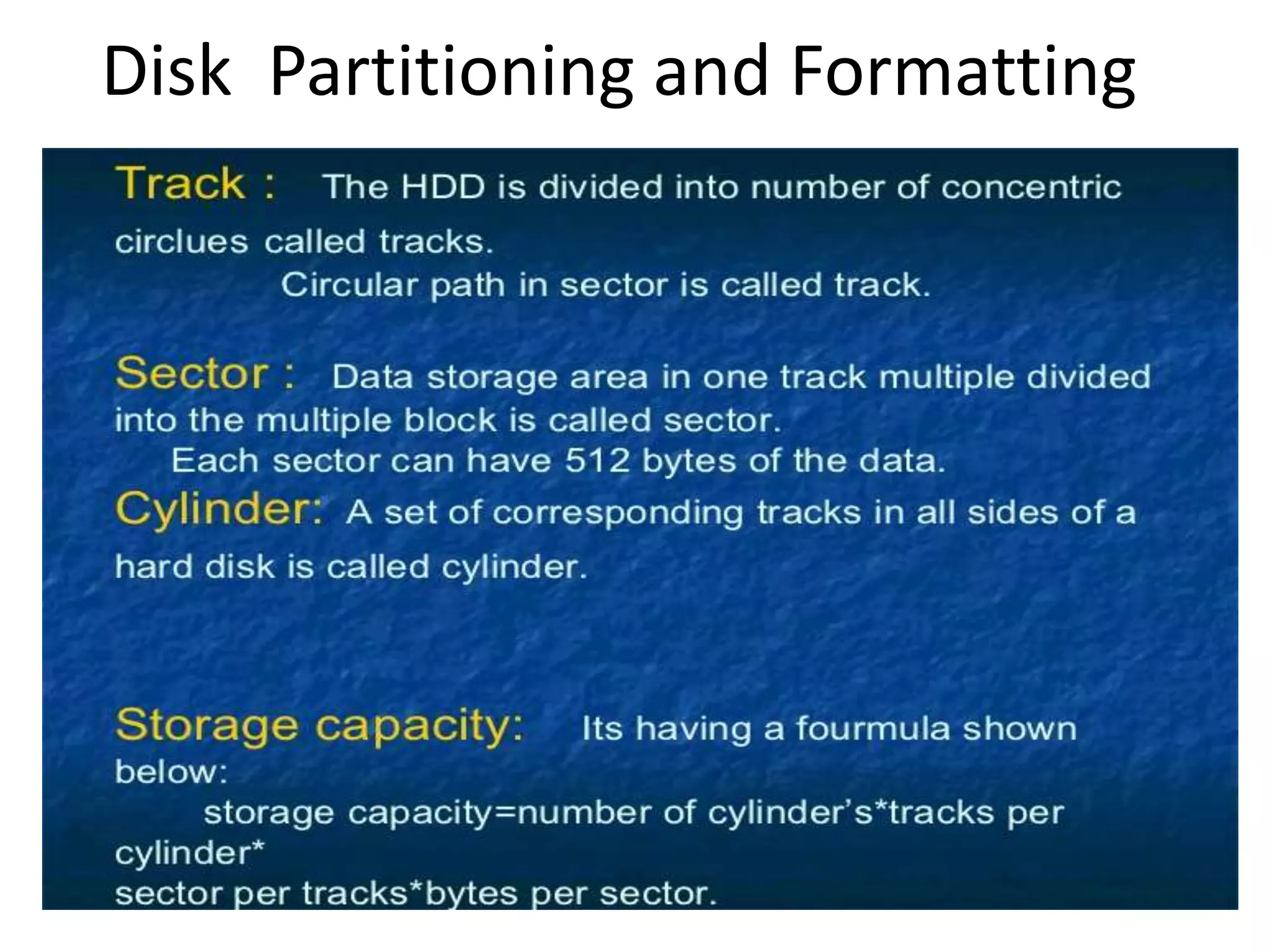
 A partition is a logical grouping of a number of physical cylinders into a
logical disk drive.
 Each operating system and hardware architecture has it’s own method of
partitioning a disk
The Commands
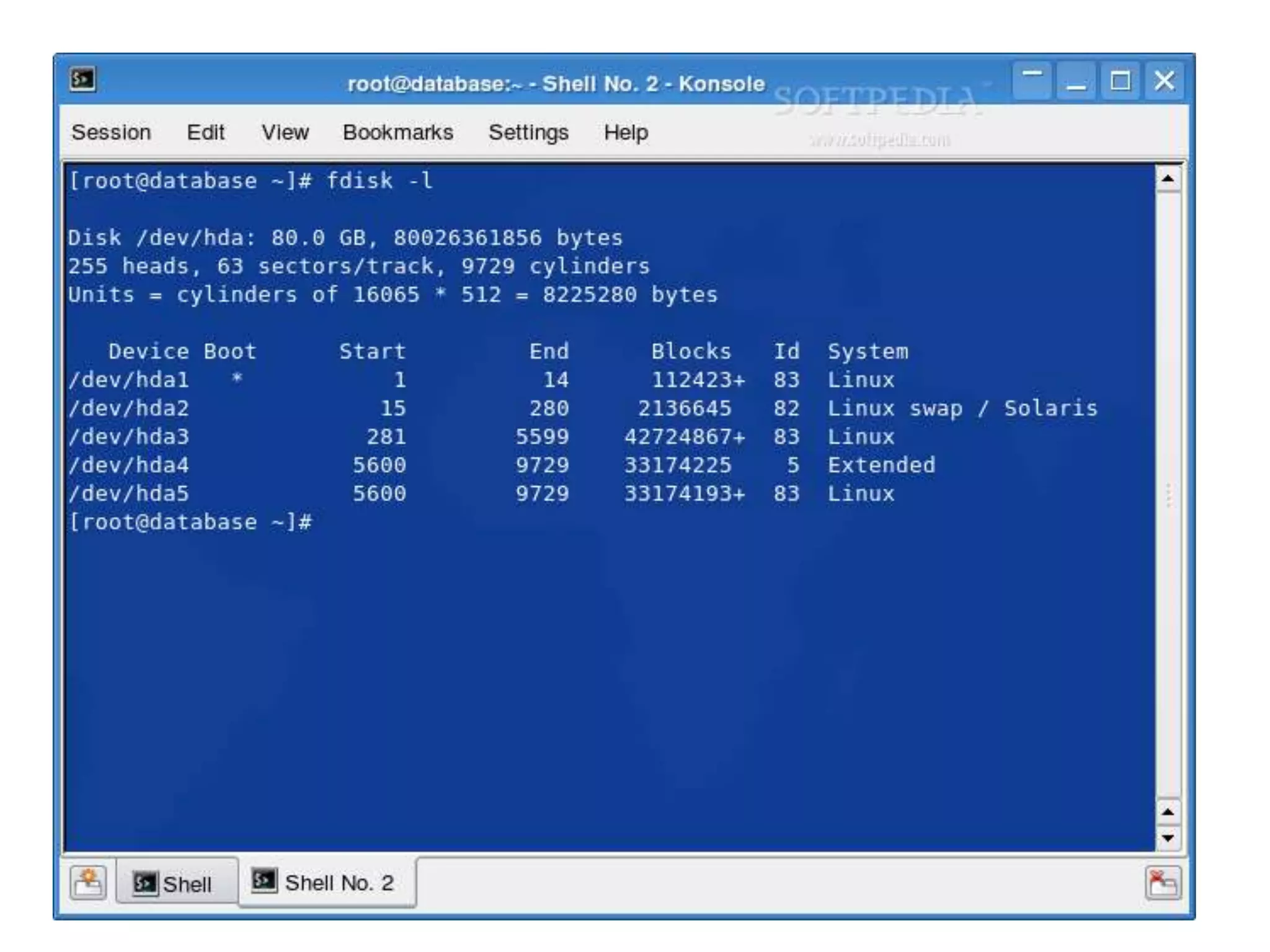
fdisk -l
sda1 - first hard disk
ext2
ext3
lvm - grouping of storage devices
fdisk /dev/sda1
fdisk /dev/sda2
cat /etc/fstab - automatically mounts
lvm
lvmdiskscan
Disk Partitioning and Formatting
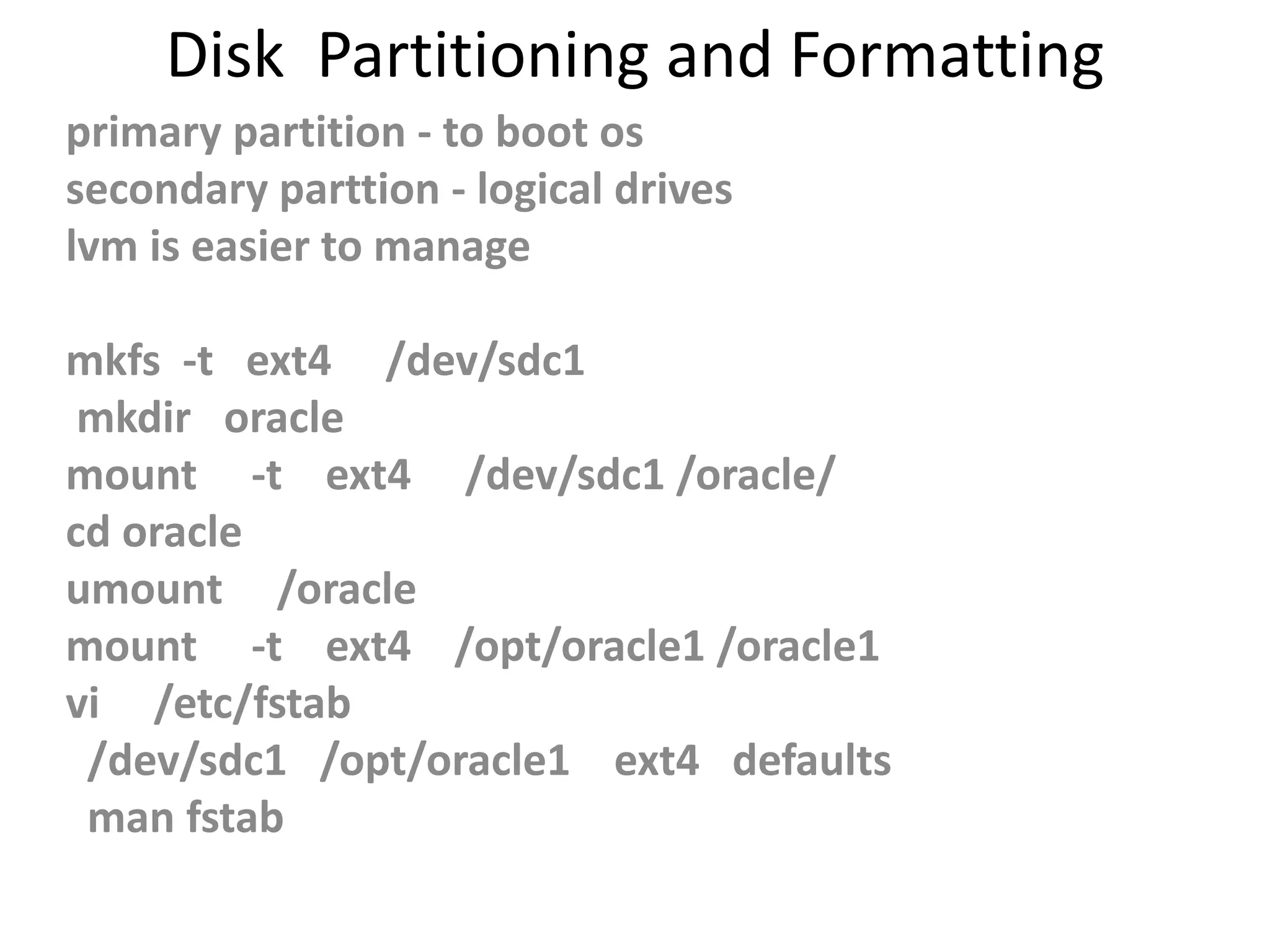
primary partition - to boot os
secondary parttion - logical drives
lvm is easier to manage
mkfs -t ext4 /dev/sdc1
mkdir oracle
mount -t ext4 /dev/sdc1 /oracle/
cd oracle
umount /oracle
mount -t ext4 /opt/oracle1 /oracle1
vi /etc/fstab
/dev/sdc1 /opt/oracle1 ext4 defaults
man fstab
Disk Partitioning and Formatting
UNIX.pptx

UNIX.pptx

  • 1.
    Introduction to UNIX •UNIX is a computer Operating System which is capable of handling activities from multiple users at the same time. Unix was originated around in 1969 at AT&T Bell Labs by Ken Thompson and Dennis Ritchie. • The UNIX operating system is a set of programs that act as a link between the computer and the user • A user can also run multiple programs at the same time; hence UNIX is called multitasking.
  • 2.
    Introduction to UNIX Unix became the leading O/S for commercial enterprises during the 1980s and 1990s.  Although IBM Mainframe still perform well for extremely large databases (Multi Terabyte ) Databases , most medium to large firms have moved to UNIX for its economy, versatility, power and stability
  • 3.
    Introduction to UNIX Users communicate with the kernel through a program known as the shell.  The shell is a command line interpreter; it translates commands entered by the user and converts them into a language that is understood by the kernel.
  • 4.
    Introduction to UNIX Unix was originally developed in 1969 by a group of AT&T employees at Bell Labs, including Ken Thompson, Dennis Ritchie, Douglas McIlroy, and Joe Ossanna.  There are various Unix variants available in the market. Solaris Unix, AIX, HP Unix and BSD are few examples.
  • 5.
    Introduction to UNIX The basic commands do not vary much between them nevertheless , the basis of the packaged utilities differ. Linux is also a flavor of Unix which is freely available.  Several people can use a UNIX computer at the same time; hence UNIX is called a multiuser system. Unix is used for mission-critical databases. While Linux is used for services .
  • 6.
    Introduction to Unix Unixcan be a viable alternative for eg. Sun Servers with soft partitioning, high-amounts of memory, hot - spare processors and capacity-on- demand features  The Choice of the particular O/S depends on the requirements like Availability, Reliability and response time
  • 7.
  • 8.
    The UNIX Architecture •Kernel : The kernel is the heart of the operating system. It interacts with hardware and most of the tasks like memory management, task scheduling and file management. • Shell : The Shell is a command-line interpreter which translates and passes our commands to the Kernel ‘s understanding format . The commands issued by the user are called shell commands and the scripts are called shell scripts.
  • 9.
  • 10.
    The Architecture • Shell:The shell is the utility that processes our requests. • When we type in a command at our terminal, the shell interprets the command and calls the program that we want. • The shell uses standard syntax for all commands. C Shell, Bourne Shell , Bash Shell and Korn Shell are most famous shells which are available with most of the Unix variants.
  • 11.
    How to Accessthe UNIX System ? There are several approaches to access the Databases :  Directly from the Server Hosting the Databases  Via a UNIX Workstation  Through a Windows NT Server front end  Log directly into the server through the telnet service  Login to the server through a display framework such as X-Client that emulates look and feel of a UNIX workstation  Connect through a GUI called OEM
  • 12.
  • 13.
    How to identifyUNIX Machine ?
  • 14.
  • 15.
    Types of UNIXSystems Ultrix (DEC - Digital Equipment Corporation) BSD unix (Berkeley Software Distribution - FreeBSD, OpenBSD) SCO unix (SCO Group Inc.) AIX (IBM - International Business Machines Corporation) IRIX (SGI - Silicon Graphics Incorporated) Solaris (Sun - Sun Microsystems) Mac OS X (Macintosh - Apple Computer, Inc.)
  • 16.
    Types of Files Ordinary Files − An ordinary file is a file on the system that contains data, text, or program instructions.  Directories − Directories store both special and ordinary files. For users familiar with Windows or Mac OS, UNIX directories are equivalent to folders.  Special Files − Some special files provide access to hardware such as hard drives, CD-ROM drives, modems, and Ethernet adapters.
  • 17.
    Listing the directorycontents First Column: represents file type and permission given on the file. Below is the description of all type of files. Second Column: represents the number of memory blocks taken by the file or directory. Third Column: represents owner of the file. This is the Unix user who created this file. Fourth Column: represents group of the owner. Every Unix user would have an associated group. Fifth Column: represents file size in bytes. Sixth Column: represents date and time when this file was created or modified last time. Seventh Column: represents file or directory name.
  • 19.
    Listing the Files PrefixDescription - A Regular file, such as an ASCII text file, binary executable. b Block special file. Block input/output device file such as a physical hard drive. c Character special file. Raw input/output device file such as a physical hard drive d Directory file that contains a listing of other files and directories. p Named pipe. A mechanism for interprocess communications
  • 20.
    File Creation Files canbe newly created by three ways : 1. vi <filename> 2. cat > <filename> -m concatenation 3. touch <filename1> <filename> 4. To append an already existing file cat >> <filename> 5. mkdir <dirname> 6. mkdir –p /dir1/dir2/dir3 7. mv fn1 fn2 8. rm filename / rm –rf <directory name >
  • 21.
    File Permissions Read –4 Write - 2 Execute - 1 Owner - 7 Group - 7 Others - 7 $ chmod - R 770 <dir name> $ chmod 770 <filename> $ chown –R oracle:oinstall <dirname>/filename
  • 22.
    Basic Directory Terms Directories  Moving around the file system  Listing Directory Contents  Changing file permissions and attributes  Moving, renaming and copying files  Viewing and editing Files  Searching for Files  Searching for strings in files  File Compression
  • 23.
    Important Unix Commands head – the first N number of lines of a particular file is displayed  head -5 <filename>  t ail - The last N number of lines of a particular file is displayed  tail -5 new.txt  echo - prints the string given  echo Hi  export ORACLE_SID ; echo $ORACLE_SID
  • 24.
    Important Unix Commands link - whatever changes made in file 1 reflects in file 2 also  ln file1 file2  sort – sorts in ascending or descending order  sort –n filename - sorts in ascending order  sort -r filename - sorts in descending order
  • 25.
    Important Unix Commands grep - pattern matching – the whole line is retrieved $ grep abhi new2.txt Abhirami  top – task manager $ top - lists all processes  logname - currently logged in user  du –h <directory name> - disk used by the directory  df –h - disk free space in GB
  • 26.
    Important Unix Commands rm -rf <directory name> - force remove directory  cp -r dir1 dir2 – copies directory 1 to directory 2 after creating new  more file – outputs the contents of file  tar cf new.tar new.txt new1.txt new2.txt – zips all these files into new.tar  ps - shows the active processes  kill -9 pid – kills the corresponding process that can neither be ignored nor be caught  :w – saves the contents of the file  :q! – quit without saving  :wq – saves and quits a file
  • 27.
    Important Unix Commands tar xf new.tar – extracts the files from archive  tar czf new.tar.gz files – applies Gzip compression  tar xzf new.tar.gz – extracts a tar using gzip  tar cjf new.tar.bz2 – creates a tar with bzip2 compression  tar xjf new.tar.bz2 – extracts the tar with bzip2 compression  gzip file – compresses a file and renames it to file.gz  gunzip file.z/file.gz – uncompresses the zipped or gzipped files
  • 30.
    File Systems • Afile system is a logical collection of files on a partition or disk. A partition is a container for information and can span an entire hard drive if desired. • our hard drive can have various partitions which usually contains only one file system, such as one file system housing the / file system or another containing the /home file system.
  • 31.
    Directory Structure • Unixuses a hierarchical file system structure with root (/) at the base of the file system and all other directories spreading from there • Examples : • / - root • /bin – executable files are located • /dev – These are device drivers • /etc – Supervisor directory commands • /lib - Shared library files • /home - contains the Home directory for users and other accounts
  • 32.
    UNIX COMMANDS ls -lists the contents of the directory ls -a -lists the hidden files mkdir <name of the diretory> ls cd (change directory) The command cd directory means change the current working directory to 'directory'. The current working directory may be thought of as the directory you are in, i.e. your current position in the file-system tree. To change to the directory you have just made, type % cd unixstuff Type ls to see the contents (which should be empty)
  • 33.
    UNIX COMMANDS Exercise 1a Makeanother directory inside the unixstuff directory called backups . - current directory cd . .. - previous directory cd .. cd .. Pathnames : pwd - present working directory / - root folder Exercise 1b Use the commands cd, ls and pwd to explore the file system. (Remember, if you get lost, type cd by itself to return to your home- directory) ls <name of the directory> - lists the contents of the current directory . ~ - home directory
  • 34.
  • 35.
    Copying Files : $cpfile1 file2 pattern Matching $ ls –l | grep
  • 36.
    File system isa service which supports an abstract representation of the secondary storage to the OS A file system organizes data logically for random access by the OS. A virtual file system provides the interface between the data representation by the kernel to the user process and the data presentation to the kernel in memory. The file and directory system cache. Because of the performance disparity between disk and CPU/memory, file system performance is the paramount issue for any OS Why File Systems
  • 37.
    Main memory vs.Secondary storage  Small (MB/GB)  Expensive  Fast (10-6/10-7 sec)  Volatile  Directly accessible by CPU  Interface: (virtual) memory address  Large (GB/TB)  Cheap  Slow (10-2/10-3 sec)  Persistent  Cannot be directly accessed by CPU – Data should be first brought into the main memory
  • 38.
    Catalog Organization (Directories) InUNIX, special files (not special device files) called directories contain information about other files. A UNIX directory is a file whose data is an array or list of (filename, i-node#) pairs. it has an owner, group owner, size, access permissions, etc. many file operations can be used on directories As a file, a directory has an I-node type structure. A flag in the structure indicates its type. Unlike other files, the kernel imposes a structure on directory files using mkdir. A directory is a sequence of lines , a sequence of directory entries of variable length where each line contains an i-node number and a file name mapping: <filename, inode #> Directory data is stored as binary, cannot use cat. But some older UNIXs allow: od -c dir-name. Although directories are files, UNIX permissions – rwx- have slightly different meanings: - r, lists directoy contents - w, add a file to the directory - x, cd to the directory
  • 39.
    Subdirectories • mkdir subdircauses: – the creation of a subdir directory file and an i-node for it – an i-node number and name are added to the parent directory file 120 207 135 “fred.html” “abc” “bookmark.c” 201 “subdir” • “.” and “..” are stored as ordinary file names with i-node numbers pointing to the correct directory files. ben book memos
  • 40.
    Subdirectories in moredetail: 123 247 260 “.” “..” “book” 401 “memos” Directory ben 260 123 566 “.” “..” “chap1” 567 “chap2” Directory book “chap3” 590 401 123 800 “.” “..” “kh” 8100 77 “kd” Directory memos “mw” 590
  • 41.
    Regular Files andI-nodes • Information about each regular local file is contained in a structure called an INODE. Containing the file FCB information. • There is 1-to-1 mapping between the INODE and a file. However a file may have multiple INODES. Large files may in fact multiple layers of INODE’s using indirection to keep track of data blocks. • Each INODE is identified through its number, a non-negative integer as an index into - • The INODE hash array is a list of allocated INODE‘s located at the beginning of the file system • INODE structures (UNIX i-node list) are stored on the file system block device (e.g., disk) in a predefined location on the disk. UNIX: the i-node list. Where it is exactly is file system implementation specific. • INODE numbers have only local meaning (to each file system) • One file system per device, one INODE table per file system. • Hierarchical structure: Some FCBs are just a list of pointers to other FCBs (i.e. indirection) • To work with a file (through the descriptor interface) the I-node of the file is brought into the main memory as an in-core INODE (V-Node).
  • 42.
    File System DataStructure partition partition partition disk drive file system super block boot block I-list Data blocks for files, dirs, etc. . . . . . . . . . i-node i-node i-node i-node
  • 43.
    File System inMore Detail data dir blk i-list data data dir blk Data Blocks i-node i-node i-node filename i-node number no : : filename no : :
  • 44.
    Disk partitioning andFormatting Sometimes it is desirable to segment, or partition a physical disk into multiple logical disks. Sometimes the OS buffering routines provide better performance if the disk is partitioned. It is generally desirable to partition files such that system files, application files, and user files are on separate partitions.
  • 45.
    Disk Partitioning andFormatting  A partition is a logical grouping of a number of physical cylinders into a logical disk drive.  Each operating system and hardware architecture has it’s own method of partitioning a disk The Commands fdisk -l sda1 - first hard disk ext2 ext3 lvm - grouping of storage devices fdisk /dev/sda1 fdisk /dev/sda2 cat /etc/fstab - automatically mounts lvm lvmdiskscan
  • 47.
    Disk Partitioning andFormatting primary partition - to boot os secondary parttion - logical drives lvm is easier to manage mkfs -t ext4 /dev/sdc1 mkdir oracle mount -t ext4 /dev/sdc1 /oracle/ cd oracle umount /oracle mount -t ext4 /opt/oracle1 /oracle1 vi /etc/fstab /dev/sdc1 /opt/oracle1 ext4 defaults man fstab
  • 48.
  • 50.

Editor's Notes

  • #14 Each UNIX Machine would have a machine name called IP address such as 192.168.56.71 etc ., We have to store the ip address in the /etc/hosts file