1
Introduction to
Unix & Linux Essentials
2
Course Objectives
This course provides you:
• The basic UNIX/LINUX skills and knowledge to successfully perform simple tasks
in an Oracle Linux environment
– Work with files and directories
– Use the vim editor
– Use features within the bash shell
– View and modify file and directory permissions
– Use Basic shell features in shell scripts
• Some meaningful practices around the areas covered in this course
3
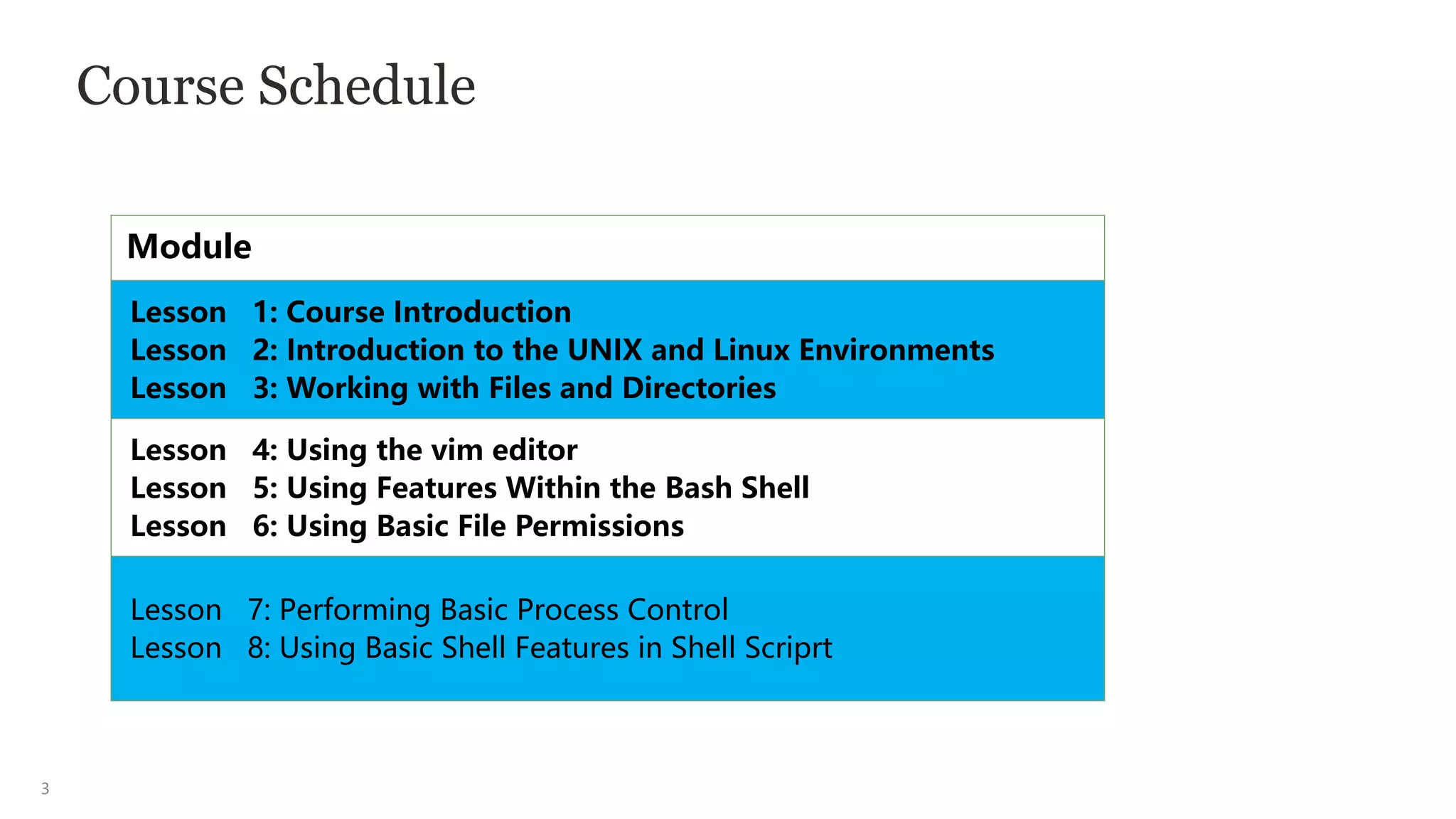
Course Schedule
Module
Lesson 1: Course Introduction
Lesson 2: Introduction to the UNIX and Linux Environments
Lesson 3: Working with Files and Directories
Lesson 4: Using the vim editor
Lesson 5: Using Features Within the Bash Shell
Lesson 6: Using Basic File Permissions
Lesson 7: Performing Basic Process Control
Lesson 8: Using Basic Shell Features in Shell Scriprt
4
Practice Environment
• Your practice environment consists of Oracle Linux systems
5
Lesson Agenda
• Describing the UNIX and Linux operating systems
• Executing commands from the command line
6
Multiuser, Multitasking, Time-Sharing
Operating Systems
• In 1965, Multics was being developed by MIT, Bell Labs (AT&T) and GE.
• In 1969, Bell Labs withdrew from the Multics Project and began work on its
own UNIX OS.
• In 1977, programmers at the University of California, Berkeley made
significant enhancements, including networking capability resulting in
Berkeley Software Distribution (BSD UNIX).
• In 1983, Richard Stallman, formerly of MIT’s AI Lab, began the GNU Project to
develop a free UNIX-like OS called GNU (GNU’s Not UNIX).
7
Multiuser, Multitasking, Time-Sharing
Operating Systems
• In 1987, AT&T UNIX, BSD UNIX, and other UNIX OSes were folded into
System V Release 4 (SVR4) UNIX, that became an industry standard for the
UNIX OS.
• In 1991,while the GNU OS was still in need of a kernel, Linus Torvalds, a
Finnish Computer Science student, offered to create a kernel for the GNU
OS.
– In September, the Linux Kernel and the GNU userspace programs were
released as the Linux OS.
8
UNIX and Linux OS Structure
The UNIX and Linux OSes are structured around the following parts:
• Kernel
• File system
• Processes
• Shell
9
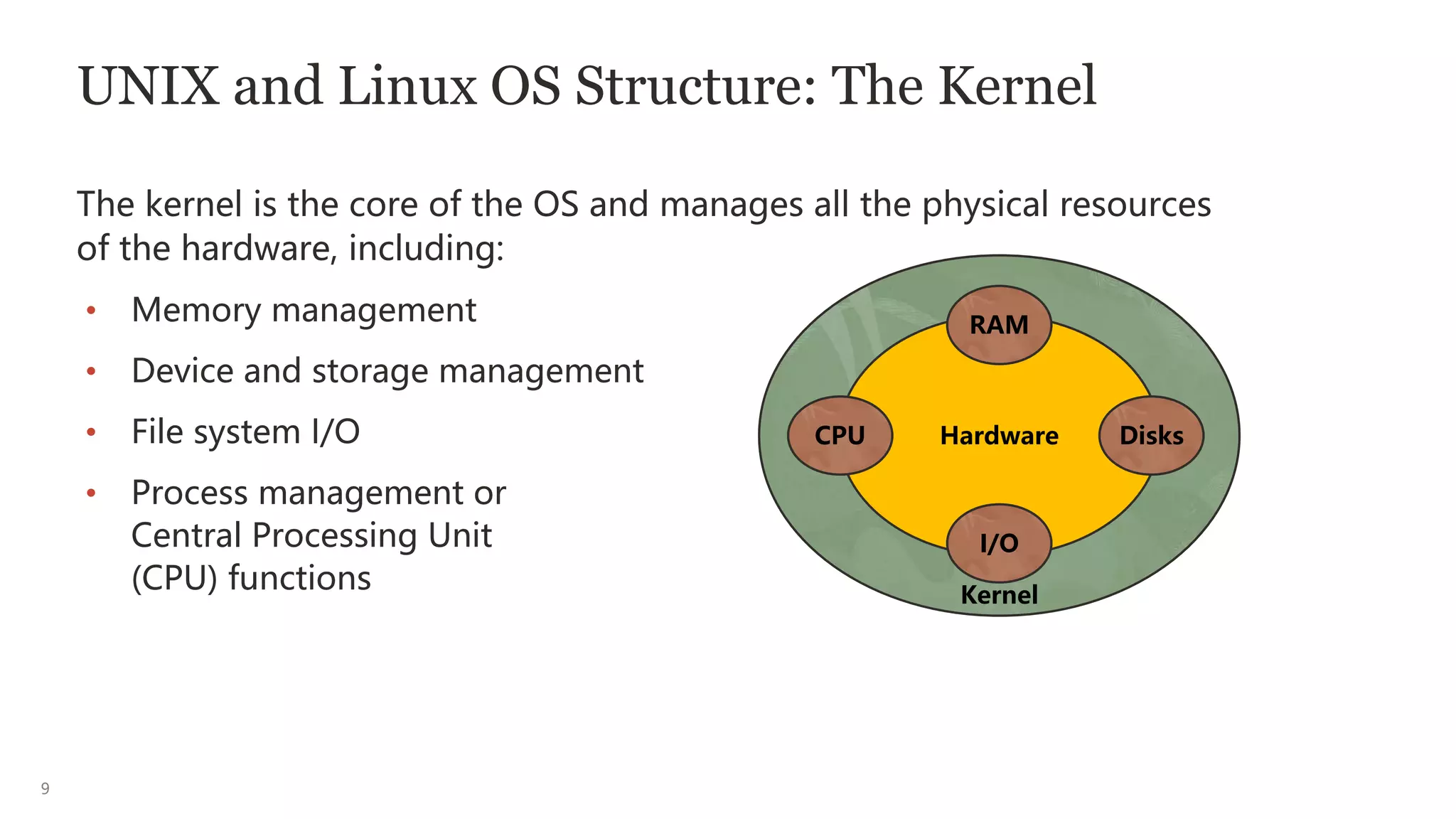
UNIX and Linux OS Structure: The Kernel
The kernel is the core of the OS and manages all the physical resources
of the hardware, including:
• Memory management
• Device and storage management
• File system I/O
• Process management or
Central Processing Unit
(CPU) functions
RAM
Hardware Disks
I/O
CPU
Kernel
10
UNIX and Linux OS Structure: The File System
• All data in UNIX and Linux is organized into files.
• All files are organized into directories.
• These directories are organized into a file system.
11
The File System
• A file system is a logical collection of files on a partition, slice, or disk.
• The UNIX and Linux file systems are a collection of files and directories that
has the following properties:
– It has a root directory (/) that contains other files and directories.
– It has a boot directory (/boot), short for bootstrap, which is used to boot up
the operating system.
– Each file or directory is identified by its name, the directory in which it
resides, and a unique identifier, called an inode.
– Each file system is self-contained, in that there are no dependencies
between one file system and another.
12
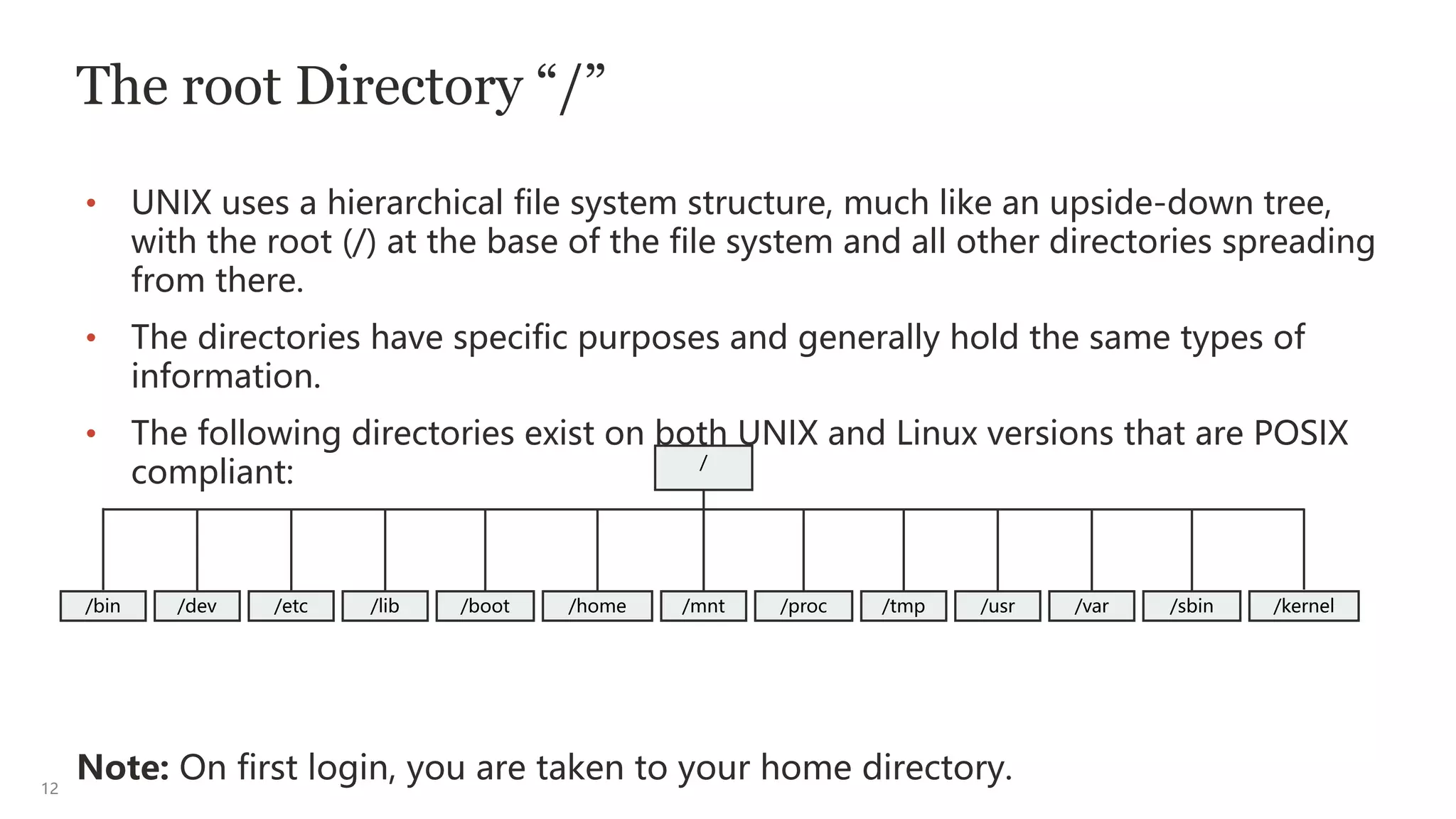
The root Directory “/”
• UNIX uses a hierarchical file system structure, much like an upside-down tree,
with the root (/) at the base of the file system and all other directories spreading
from there.
• The directories have specific purposes and generally hold the same types of
information.
• The following directories exist on both UNIX and Linux versions that are POSIX
compliant:
Note: On first login, you are taken to your home directory.
/bin /dev /etc /lib /boot /home /mnt /proc /tmp /kernel
/usr /var /sbin
/
13
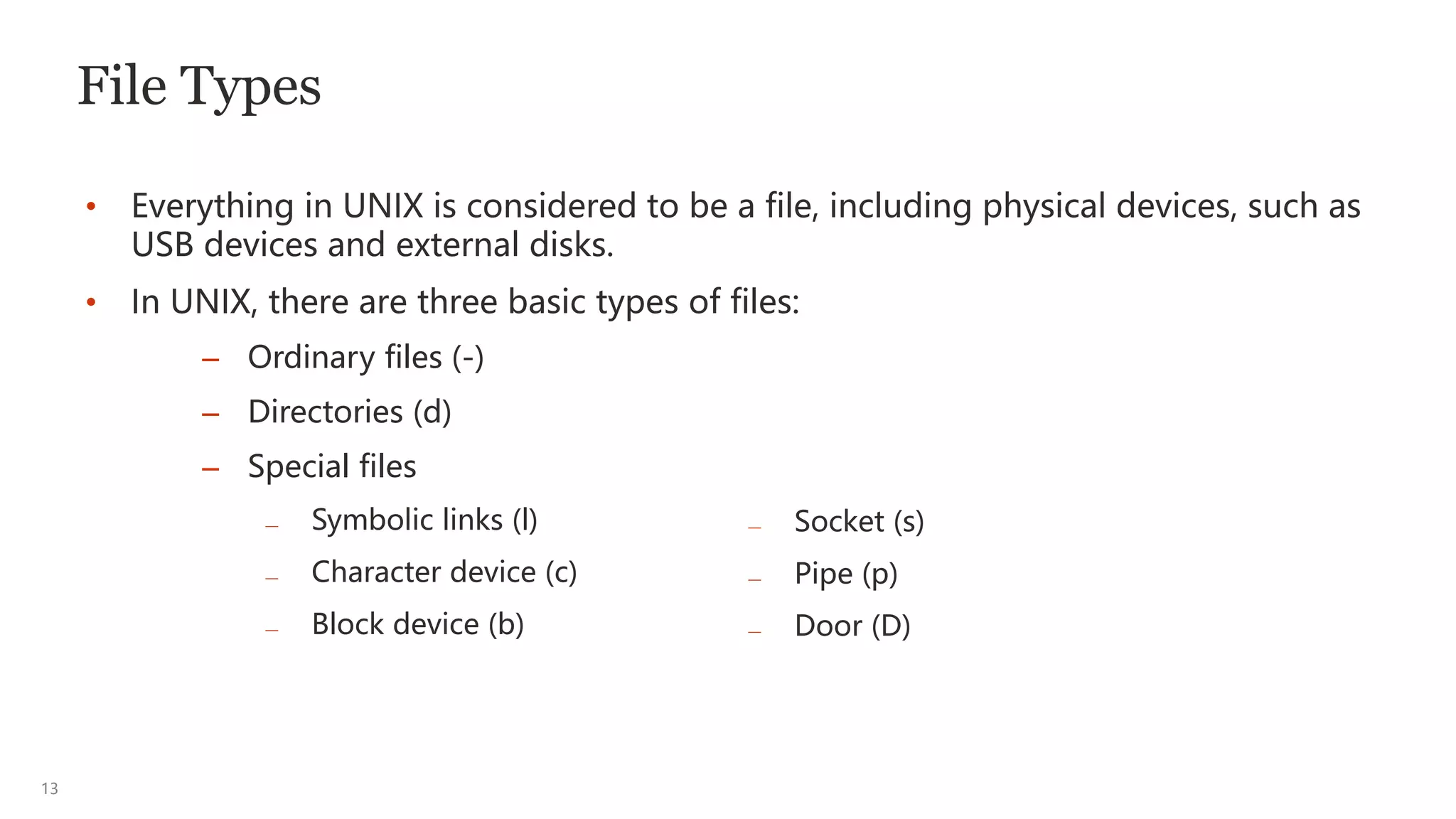
File Types
• Everything in UNIX is considered to be a file, including physical devices, such as
USB devices and external disks.
• In UNIX, there are three basic types of files:
— Socket (s)
— Pipe (p)
— Door (D)
– Ordinary files (-)
– Directories (d)
– Special files
— Symbolic links (l)
— Character device (c)
— Block device (b)
14
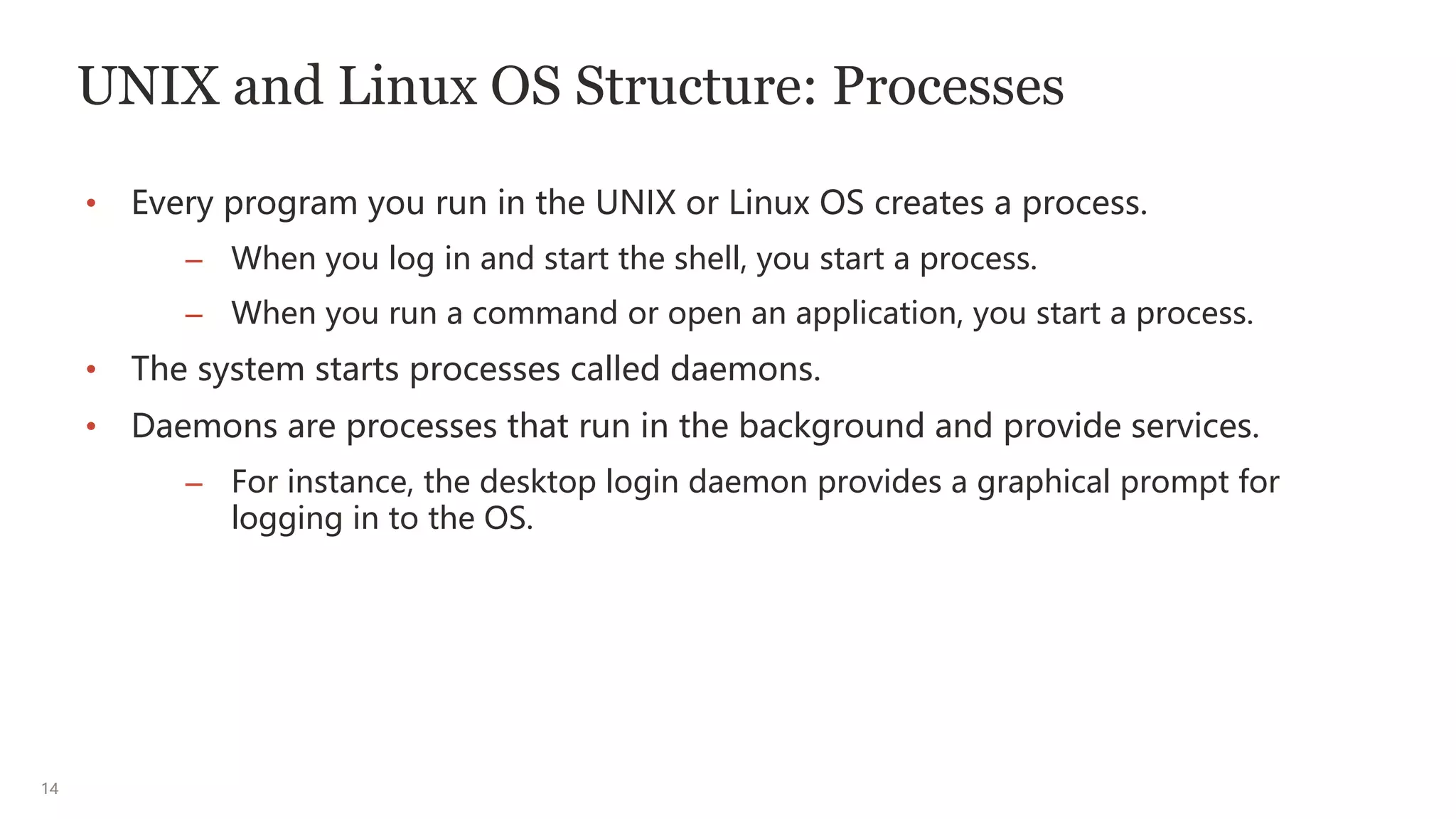
UNIX and Linux OS Structure: Processes
• Every program you run in the UNIX or Linux OS creates a process.
– When you log in and start the shell, you start a process.
– When you run a command or open an application, you start a process.
• The system starts processes called daemons.
• Daemons are processes that run in the background and provide services.
– For instance, the desktop login daemon provides a graphical prompt for
logging in to the OS.
15
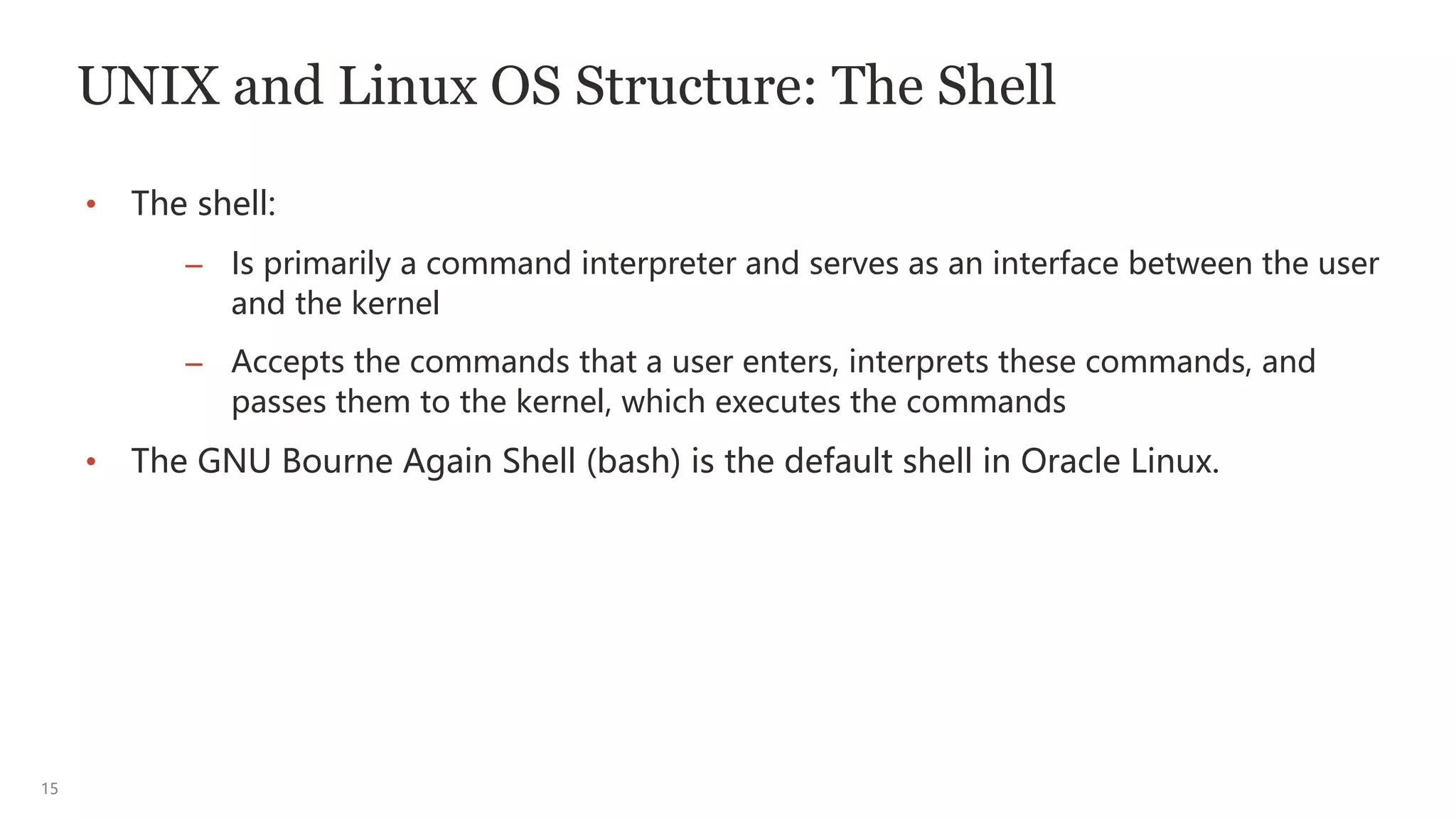
UNIX and Linux OS Structure: The Shell
• The shell:
– Is primarily a command interpreter and serves as an interface between the user
and the kernel
– Accepts the commands that a user enters, interprets these commands, and
passes them to the kernel, which executes the commands
• The GNU Bourne Again Shell (bash) is the default shell in Oracle Linux.
16
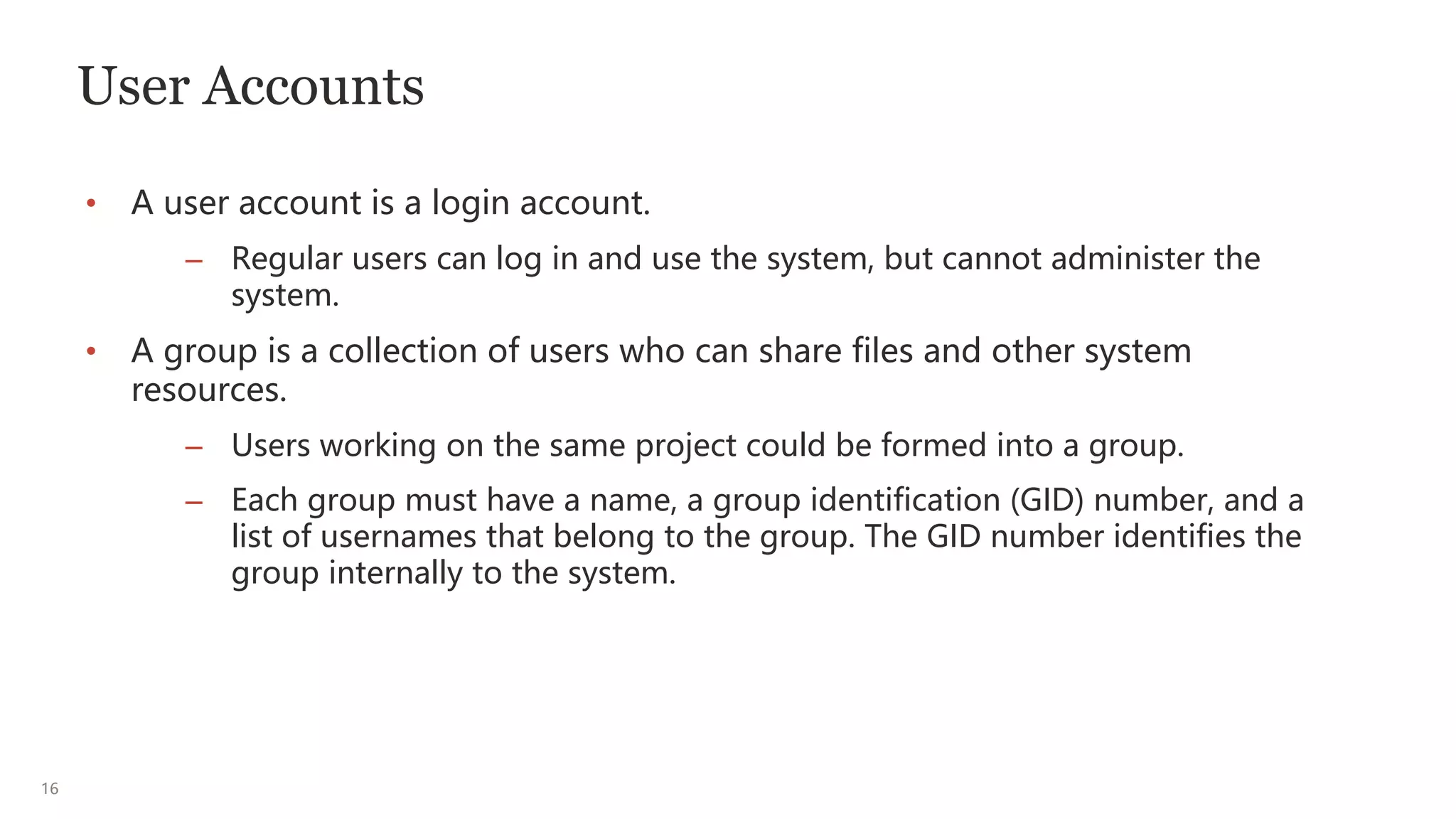
User Accounts
• A user account is a login account.
– Regular users can log in and use the system, but cannot administer the
system.
• A group is a collection of users who can share files and other system
resources.
– Users working on the same project could be formed into a group.
– Each group must have a name, a group identification (GID) number, and a
list of usernames that belong to the group. The GID number identifies the
group internally to the system.
17
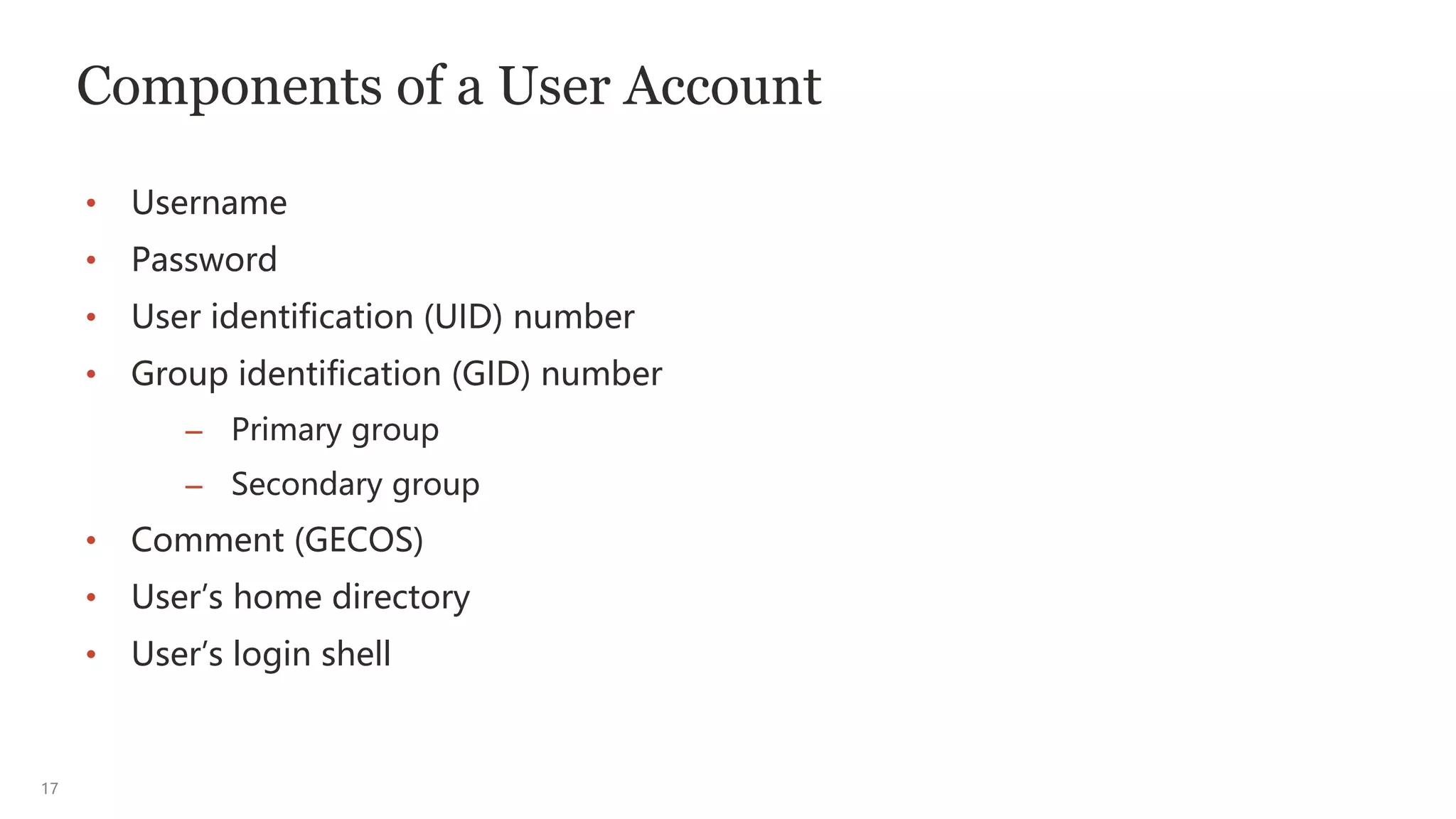
Components of a User Account
• Username
• Password
• User identification (UID) number
• Group identification (GID) number
– Primary group
– Secondary group
• Comment (GECOS)
• User’s home directory
• User’s login shell
18
Changing User Account Login Credentials
• As a matter of course, a user’s password expires on a regular basis.
• The passwd command enables you to update your password when it
expires or on an as-needed basis.
• When changing a password, there can be new password requirements:
– The number of characters, numbers, and symbols that can be used
– The minimum length of the password
– Password reusability
19
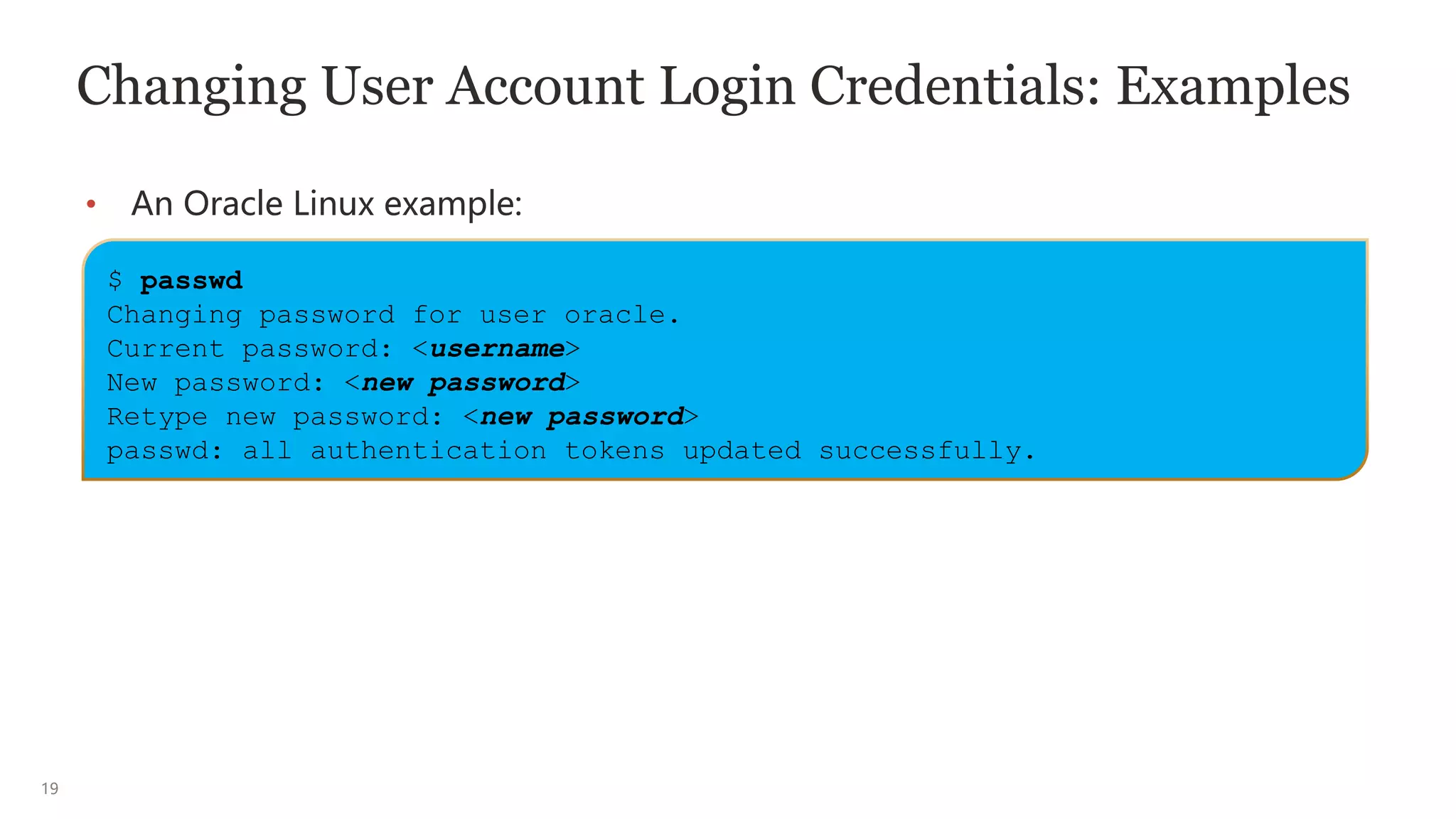
Changing User Account Login Credentials: Examples
• An Oracle Linux example:
$ passwd
Changing password for user oracle.
Current password: <username>
New password: <new password>
Retype new password: <new password>
passwd: all authentication tokens updated successfully.
20
Changing Ownership of a Login Session to Another
User or Role
• You can use the su command to change the ownership of the current login
session to another user or role.
• The su command is commonly used to switch to the root user in Linux:
• The - (dash) is used to instantiate the home directory and environment
variables of the switched-to user.
• If the [username] attribute is omitted, then the root username is the default.
$ su [-] [username]
$ su -
21
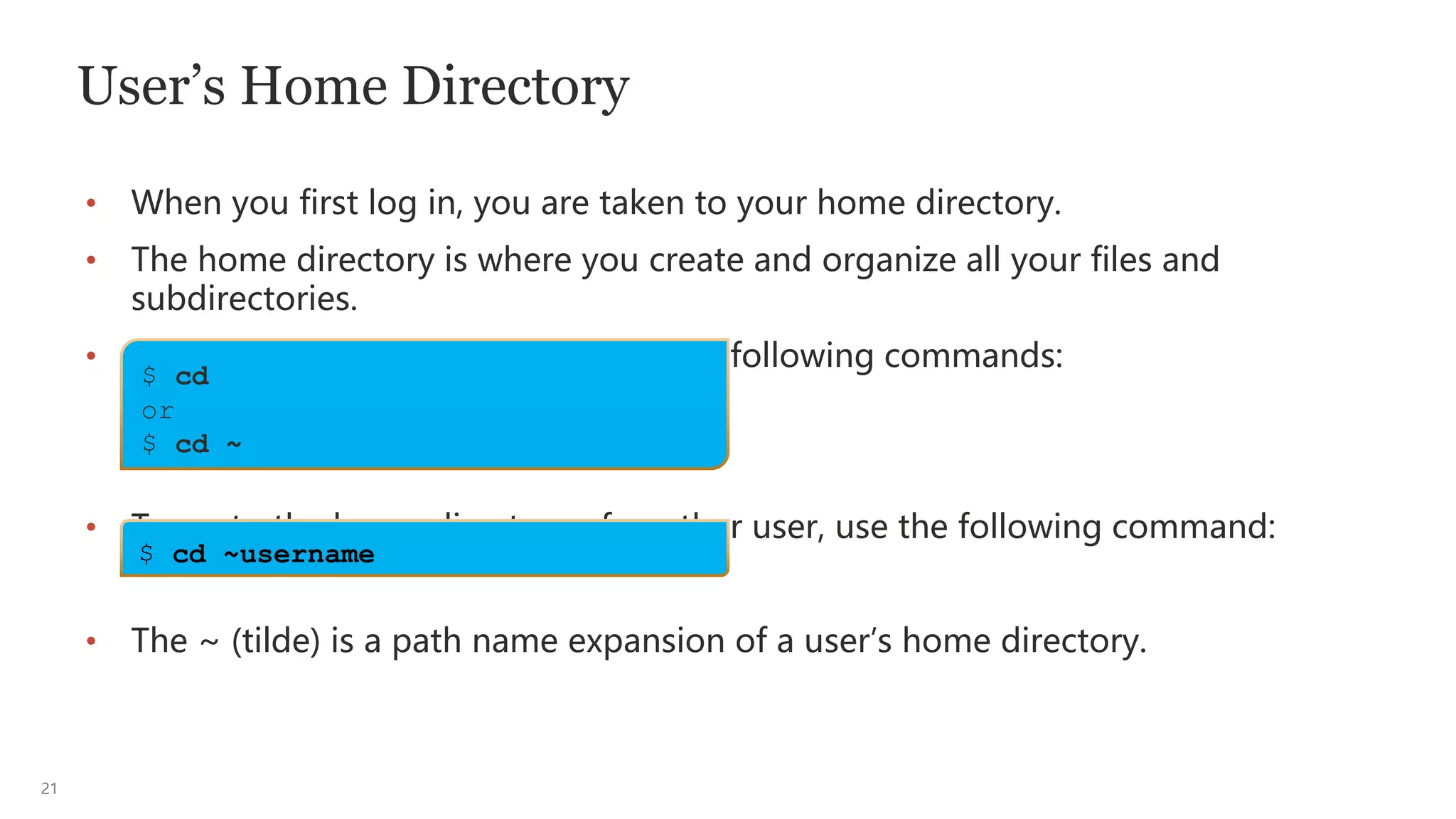
User’s Home Directory
• When you first log in, you are taken to your home directory.
• The home directory is where you create and organize all your files and
subdirectories.
• To go to your home directory, use the following commands:
• To go to the home directory of another user, use the following command:
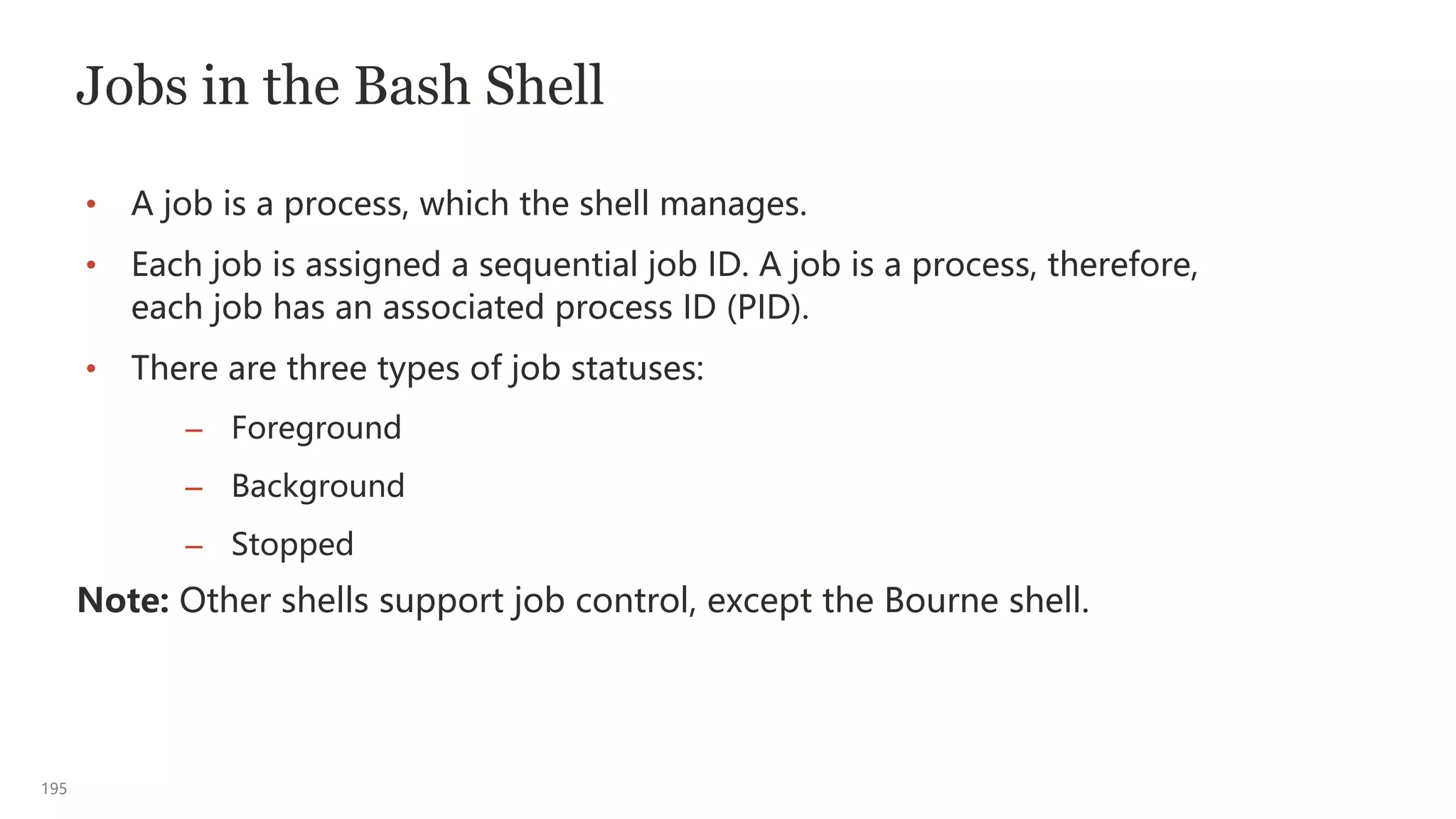
• The ~ (tilde) is a path name expansion of a user’s home directory.
$ cd
or
$ cd ~
$ cd ~username
22
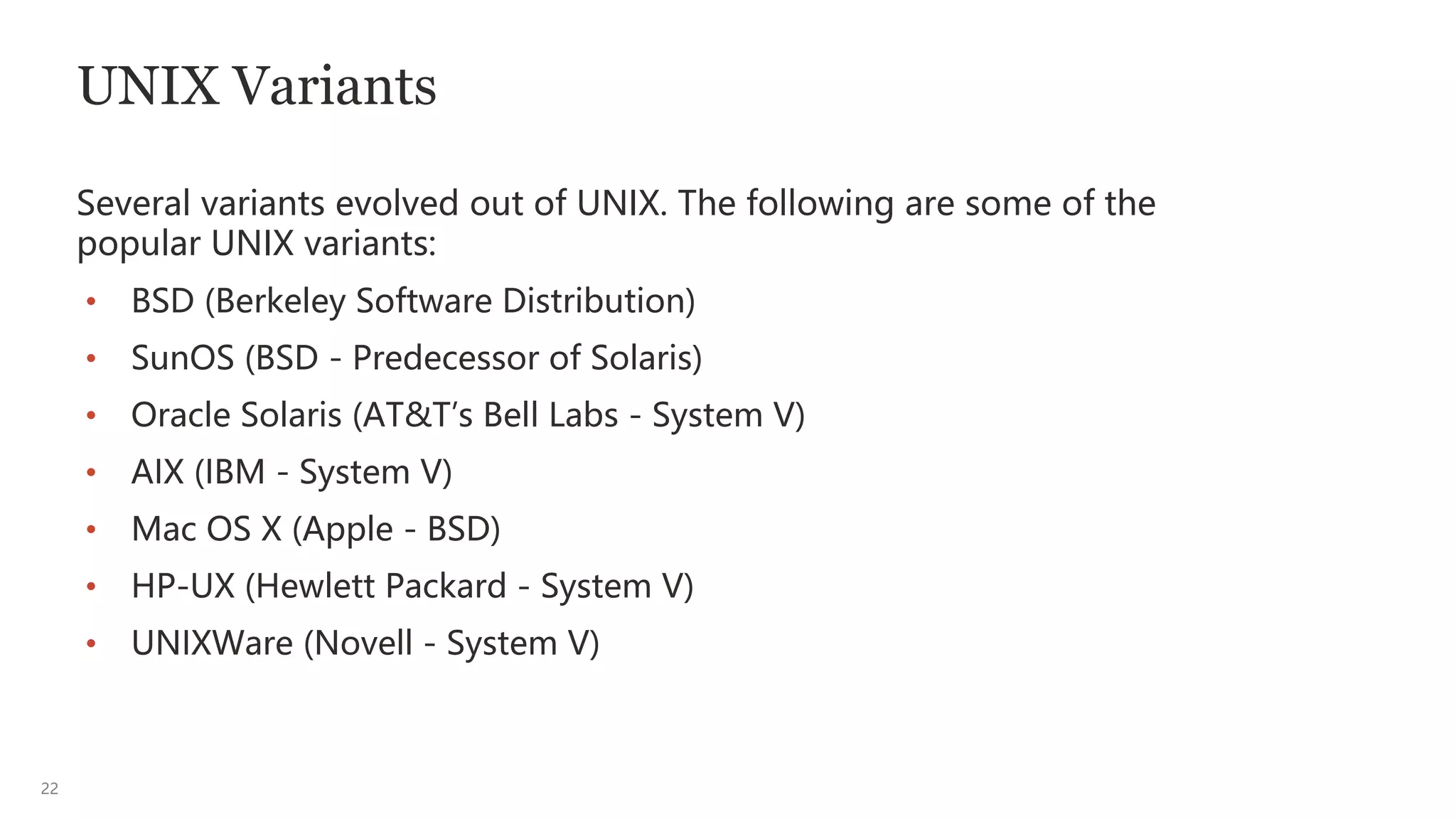
UNIX Variants
Several variants evolved out of UNIX. The following are some of the
popular UNIX variants:
• BSD (Berkeley Software Distribution)
• SunOS (BSD - Predecessor of Solaris)
• Oracle Solaris (AT&T’s Bell Labs - System V)
• AIX (IBM - System V)
• Mac OS X (Apple - BSD)
• HP-UX (Hewlett Packard - System V)
• UNIXWare (Novell - System V)
23
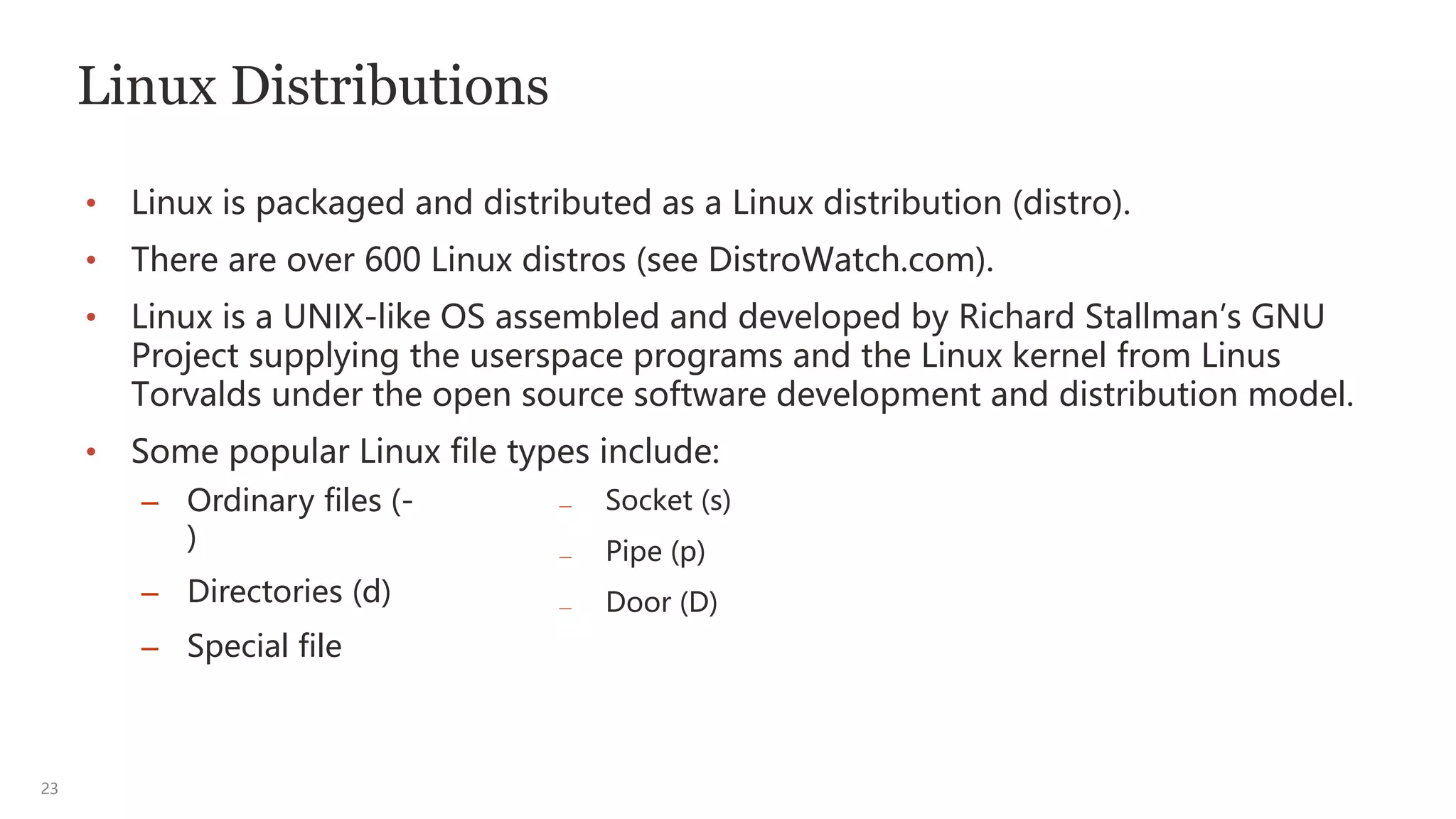
Linux Distributions
• Linux is packaged and distributed as a Linux distribution (distro).
• There are over 600 Linux distros (see DistroWatch.com).
• Linux is a UNIX-like OS assembled and developed by Richard Stallman’s GNU
Project supplying the userspace programs and the Linux kernel from Linus
Torvalds under the open source software development and distribution model.
• Some popular Linux file types include:
— Socket (s)
— Pipe (p)
— Door (D)
– Ordinary files (-
)
– Directories (d)
– Special file
24
The Desktop Environment
The desktop environment is a graphical user interface (GUI) that allows
you to perform a range of activities, such as:
• Securing and selecting sessions
• Adding and deleting workspaces
• Changing backgrounds
• Managing files
25
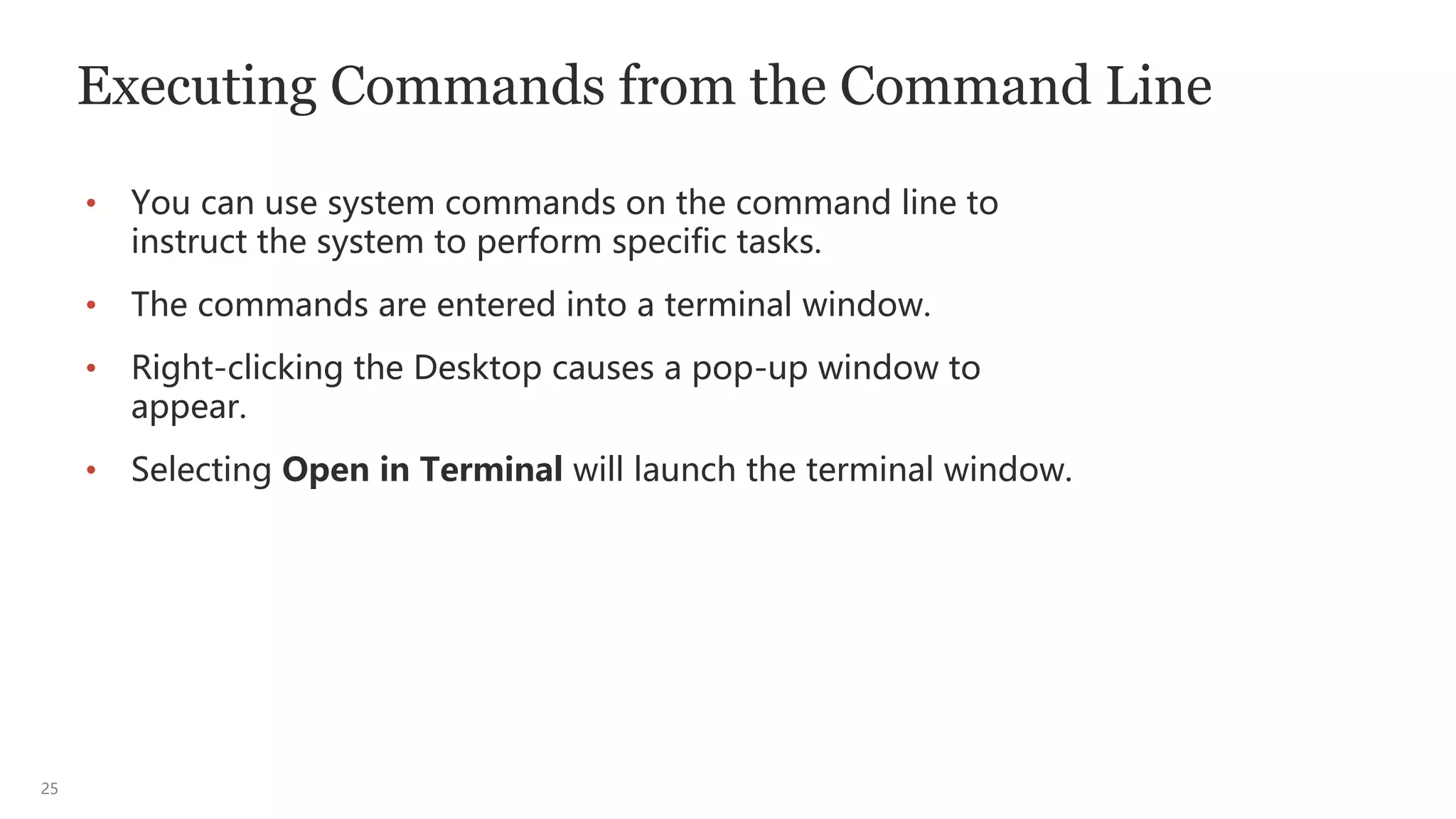
Executing Commands from the Command Line
• You can use system commands on the command line to
instruct the system to perform specific tasks.
• The commands are entered into a terminal window.
• Right-clicking the Desktop causes a pop-up window to
appear.
• Selecting Open in Terminal will launch the terminal window.
26
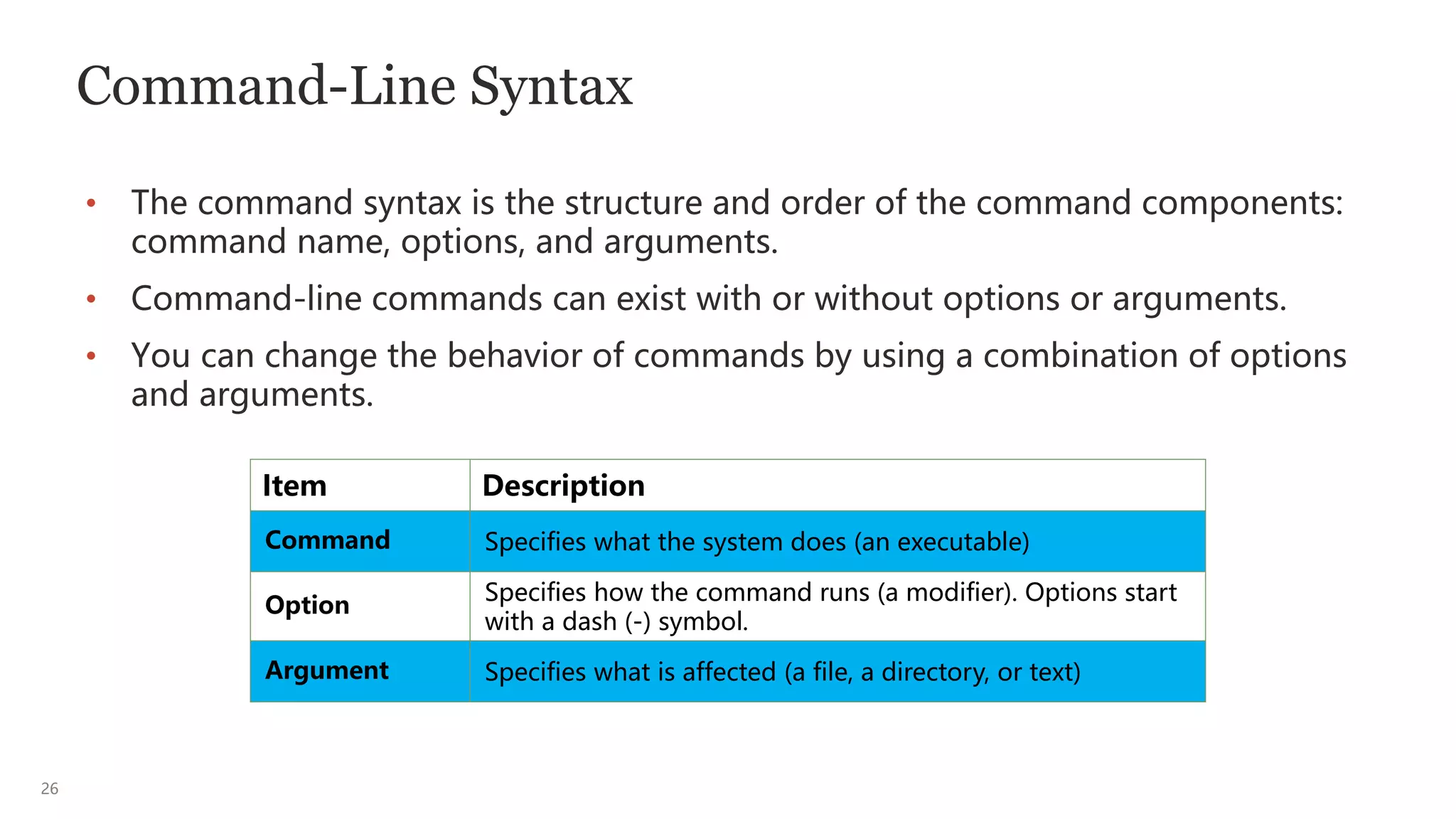
Command-Line Syntax
• The command syntax is the structure and order of the command components:
command name, options, and arguments.
• Command-line commands can exist with or without options or arguments.
• You can change the behavior of commands by using a combination of options
and arguments.
Item Description
Command Specifies what the system does (an executable)
Option
Specifies how the command runs (a modifier). Options start
with a dash (-) symbol.
Argument Specifies what is affected (a file, a directory, or text)
27
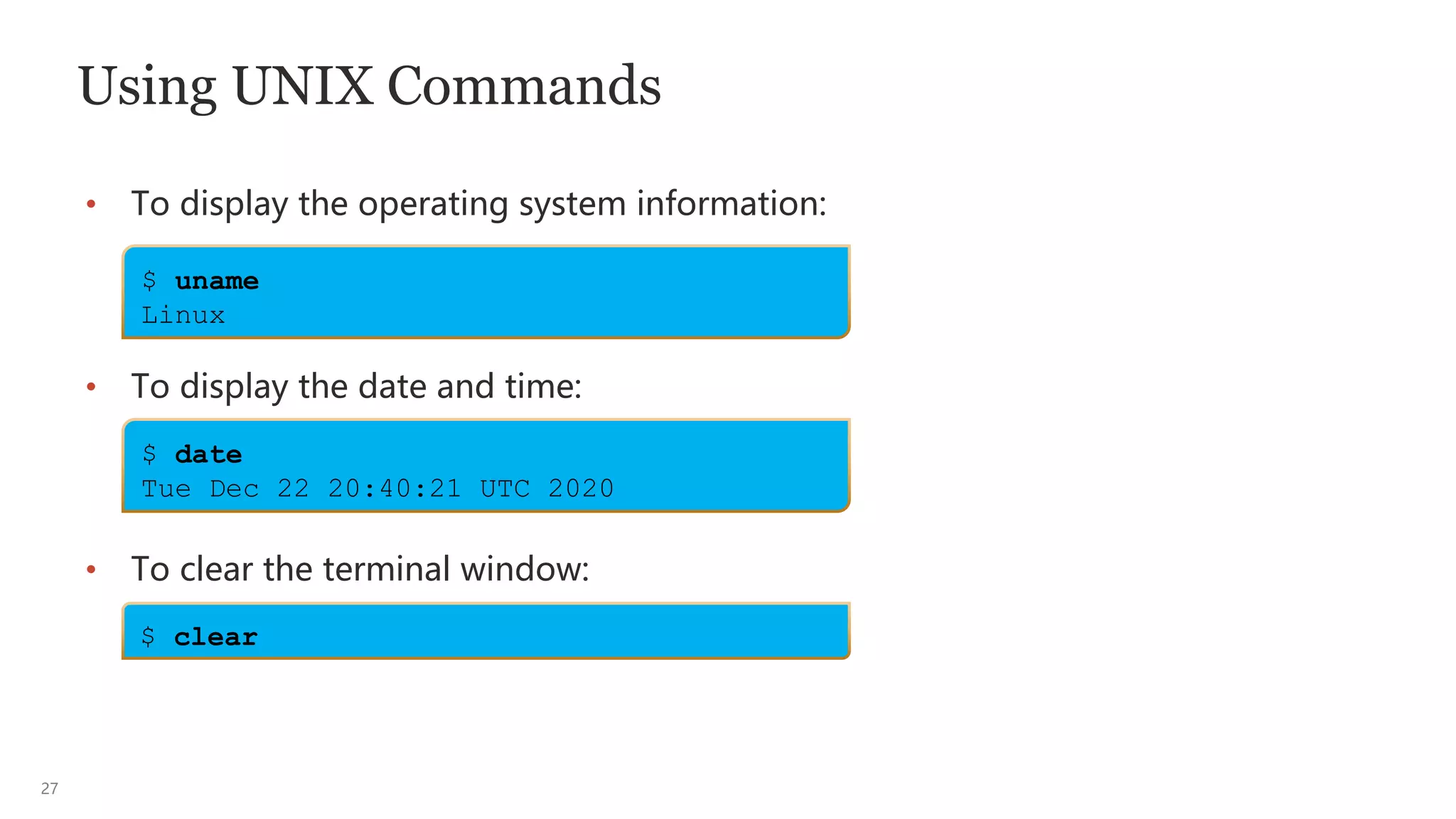
Using UNIX Commands
• To display the operating system information:
• To display the date and time:
• To clear the terminal window:
$ uname
Linux
$ date
Tue Dec 22 20:40:21 UTC 2020
$ clear
28
Using Commands with Options
• Adding options to a command alters the information displayed.
• You can use more than one option with a command.
• You can also list multiple options separately or they can be combined after a
dash (-).
• Use of a dash (-) preceding an option is command specific. Also, options are
command specific.
• To get help with any specific command, you can enter <command> --help as
an option.
29
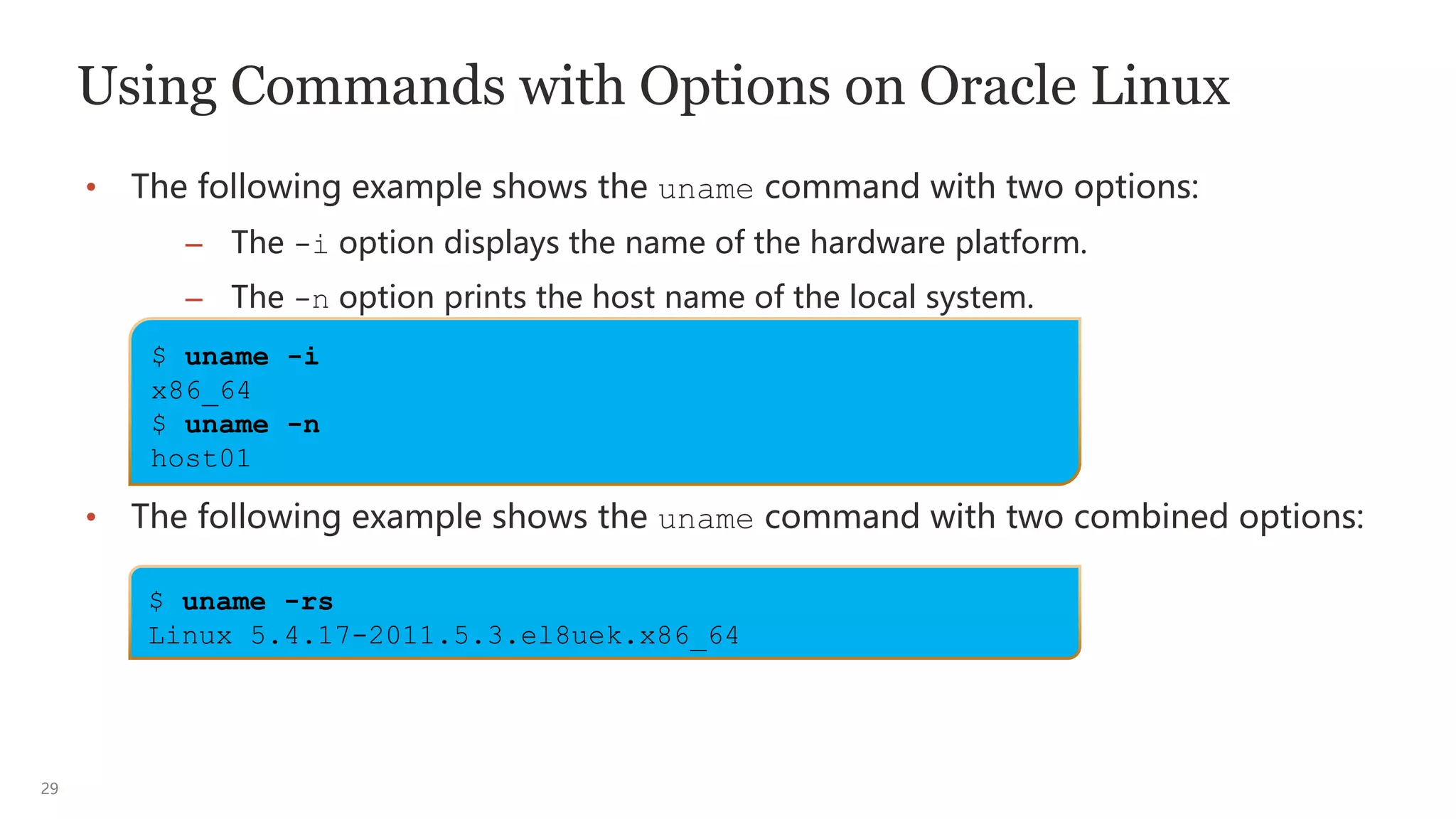
Using Commands with Options on Oracle Linux
• The following example shows the uname command with two options:
– The -i option displays the name of the hardware platform.
– The -n option prints the host name of the local system.
• The following example shows the uname command with two combined options:
$ uname -i
x86_64
$ uname -n
host01
$ uname -rs
Linux 5.4.17-2011.5.3.el8uek.x86_64
30
Using Commands with Arguments
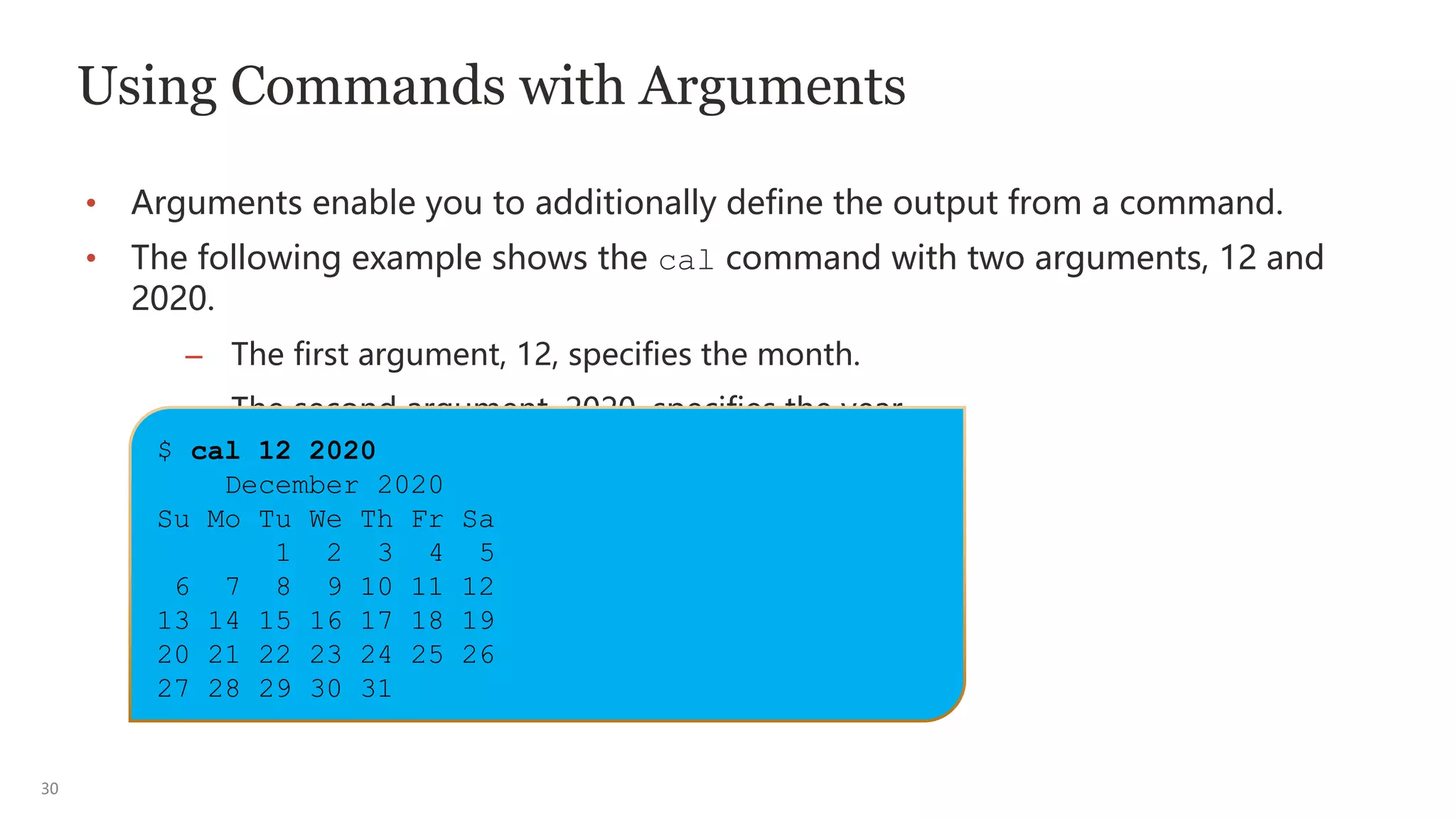
• Arguments enable you to additionally define the output from a command.
• The following example shows the cal command with two arguments, 12 and
2020.
– The first argument, 12, specifies the month.
– The second argument, 2020, specifies the year.
$ cal 12 2020
December 2020
Su Mo Tu We Th Fr Sa
1 2 3 4 5
6 7 8 9 10 11 12
13 14 15 16 17 18 19
20 21 22 23 24 25 26
27 28 29 30 31
31
Using Commands with Options and Arguments
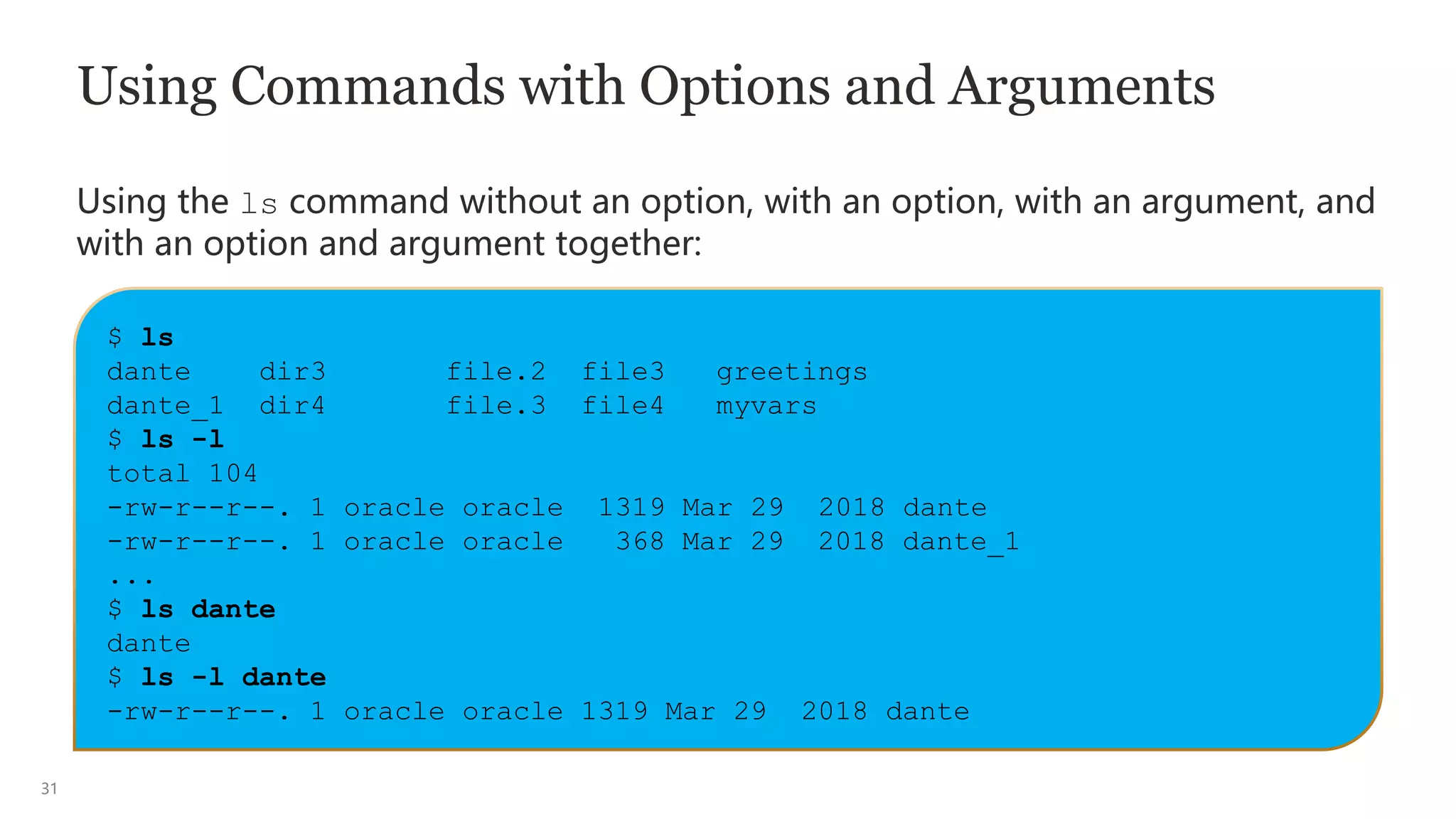
Using the ls command without an option, with an option, with an argument, and
with an option and argument together:
$ ls
dante dir3 file.2 file3 greetings
dante_1 dir4 file.3 file4 myvars
$ ls -l
total 104
-rw-r--r--. 1 oracle oracle 1319 Mar 29 2018 dante
-rw-r--r--. 1 oracle oracle 368 Mar 29 2018 dante_1
...
$ ls dante
dante
$ ls -l dante
-rw-r--r--. 1 oracle oracle 1319 Mar 29 2018 dante
32
Using Multiple Commands on the Command Line
• You can enter multiple commands on a single command line by using a
semicolon (;) to separate each command.
• The shell recognizes the semicolon (;) as a command separator.
• The following example shows two commands separated by a semicolon:
• The shell executes each command from left to right when you press
Enter/Return.
$ command [options] [argument]; command [options] [argument]
$ date; uname
Tue Dec 22 20:24:47 UTC 2020
Linux
33
Using the Man Pages
• The online technical reference manual (man) pages provide detailed syntax,
descriptions, and usage of the commands.
• You can use the man command to display the man page entry that explains a
given command.
• For more information about the man command options, see the man page.
$ man command
$ man [options] command
$ man [options] filename
34
Displaying the man Pages
To display the man pages for the uname command using the man command:
UNAME(1) User Commands
UNAME(1)
NAME
uname - print system information
SYNOPSIS
uname [OPTION]...
DESCRIPTION
Print certain system information. With no OPTION, same as -s.
...
35
Scrolling Through the Man Pages
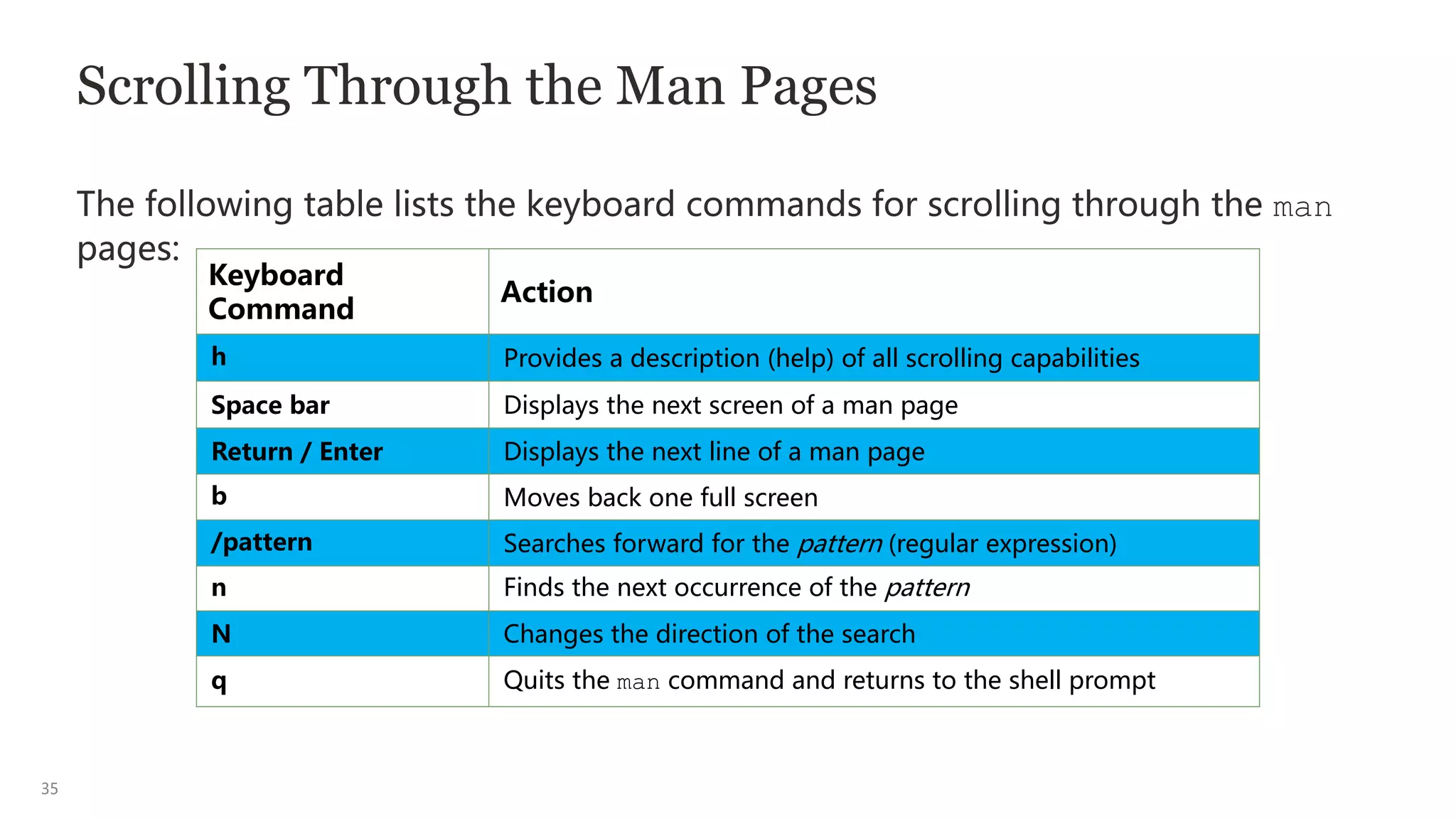
The following table lists the keyboard commands for scrolling through the man
pages:
Keyboard
Command
Action
h Provides a description (help) of all scrolling capabilities
Space bar Displays the next screen of a man page
Return / Enter Displays the next line of a man page
b Moves back one full screen
/pattern Searches forward for the pattern (regular expression)
n Finds the next occurrence of the pattern
N Changes the direction of the search
q Quits the man command and returns to the shell prompt
36
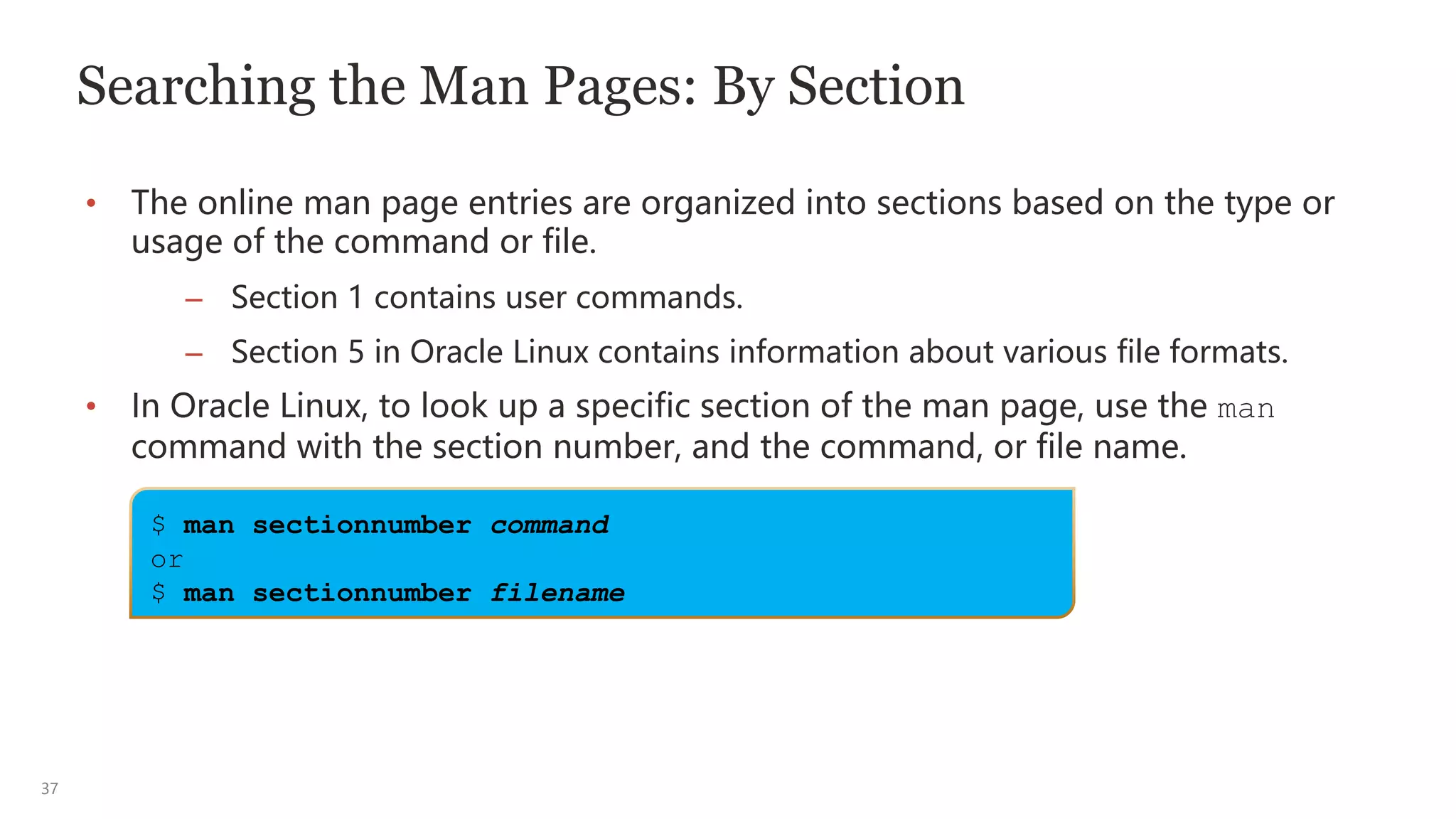
Searching the Man Pages
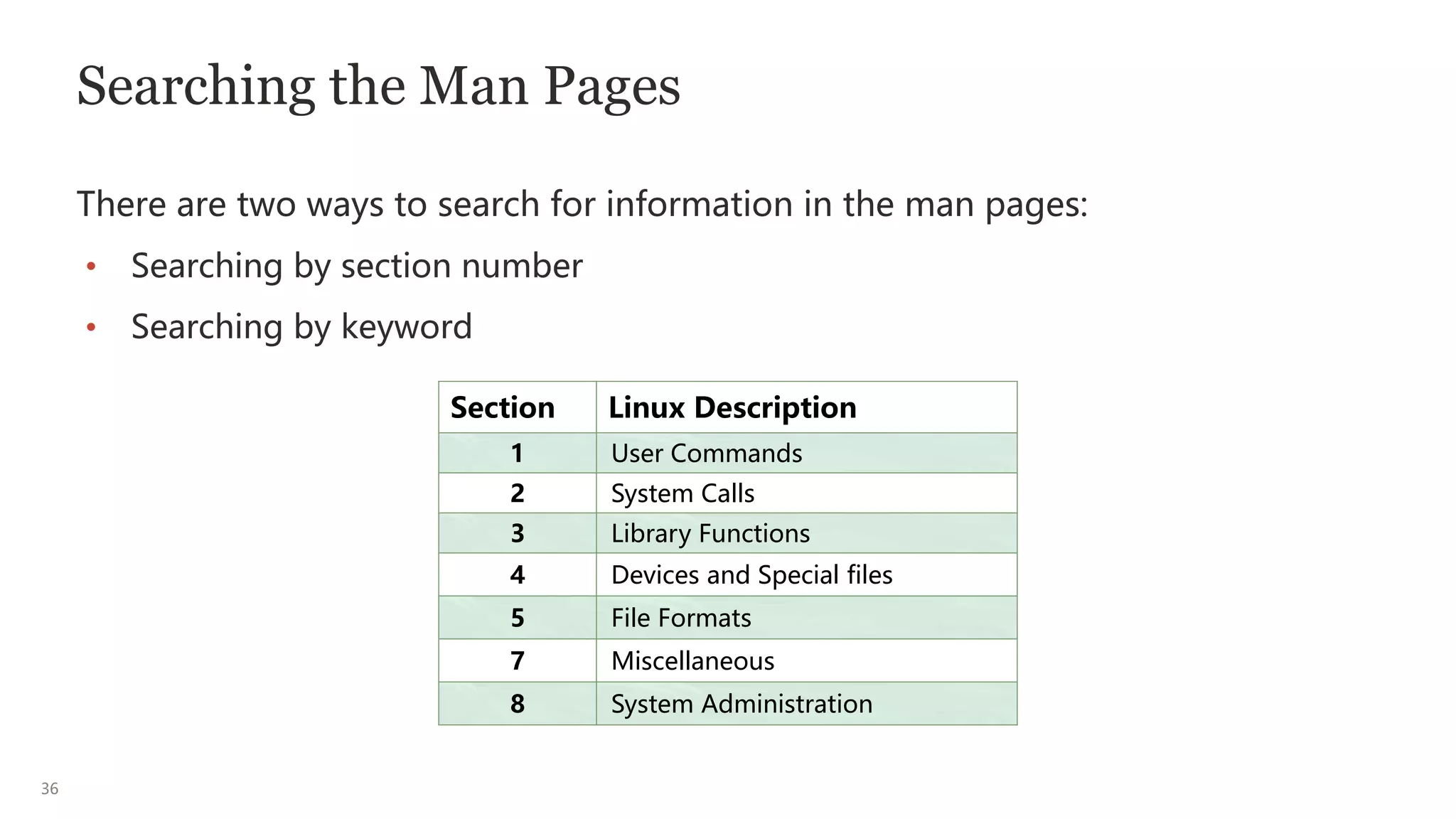
There are two ways to search for information in the man pages:
• Searching by section number
• Searching by keyword
Section Linux Description
1 User Commands
2 System Calls
3 Library Functions
4 Devices and Special files
5 File Formats
7 Miscellaneous
8 System Administration
37
Searching the Man Pages: By Section
• The online man page entries are organized into sections based on the type or
usage of the command or file.
– Section 1 contains user commands.
– Section 5 in Oracle Linux contains information about various file formats.
• In Oracle Linux, to look up a specific section of the man page, use the man
command with the section number, and the command, or file name.
$ man sectionnumber command
or
$ man sectionnumber filename
38
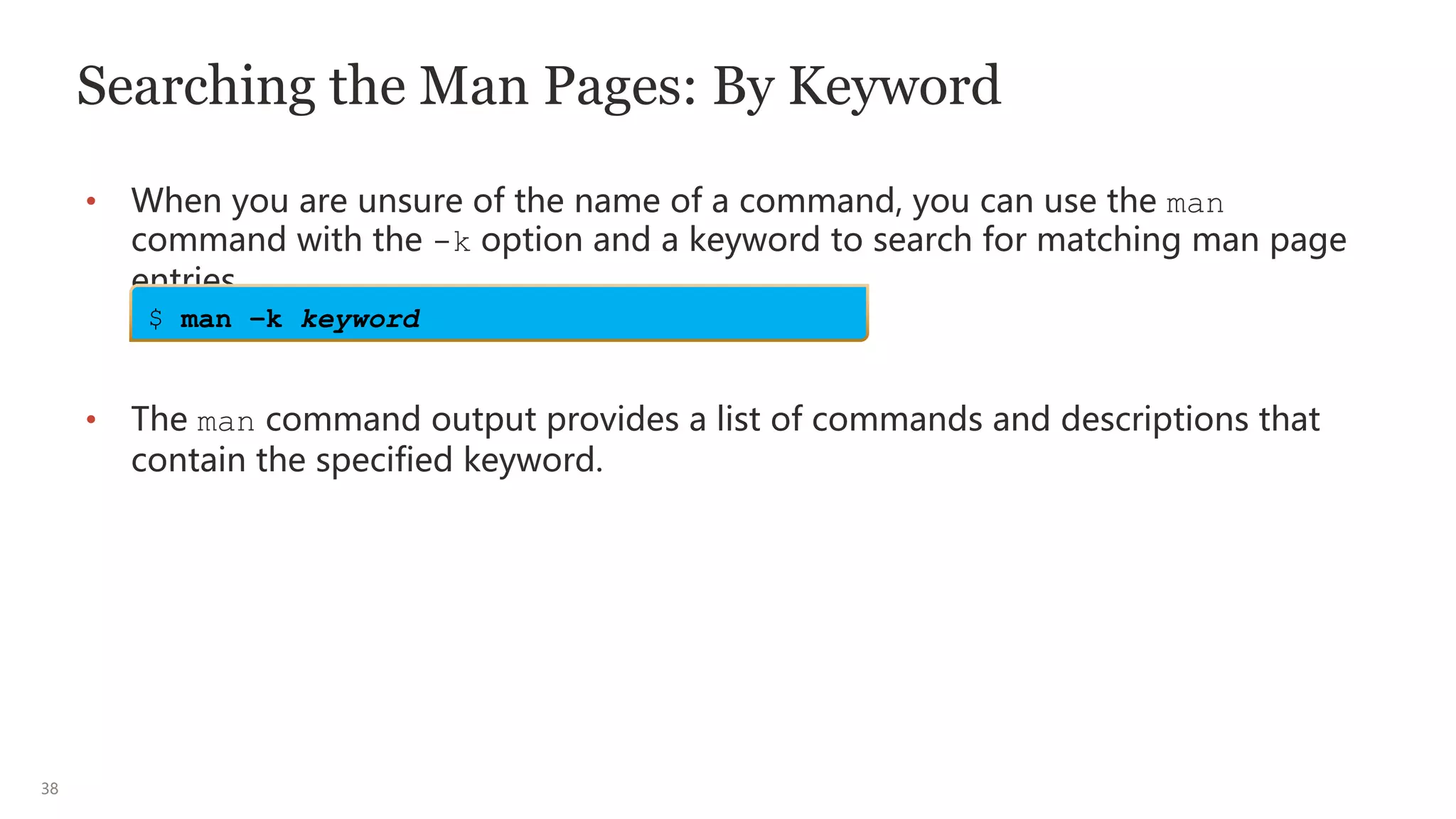
Searching the Man Pages: By Keyword
• When you are unsure of the name of a command, you can use the man
command with the -k option and a keyword to search for matching man page
entries.
• The man command output provides a list of commands and descriptions that
contain the specified keyword.
$ man –k keyword
1
Working with Files and Directories
40
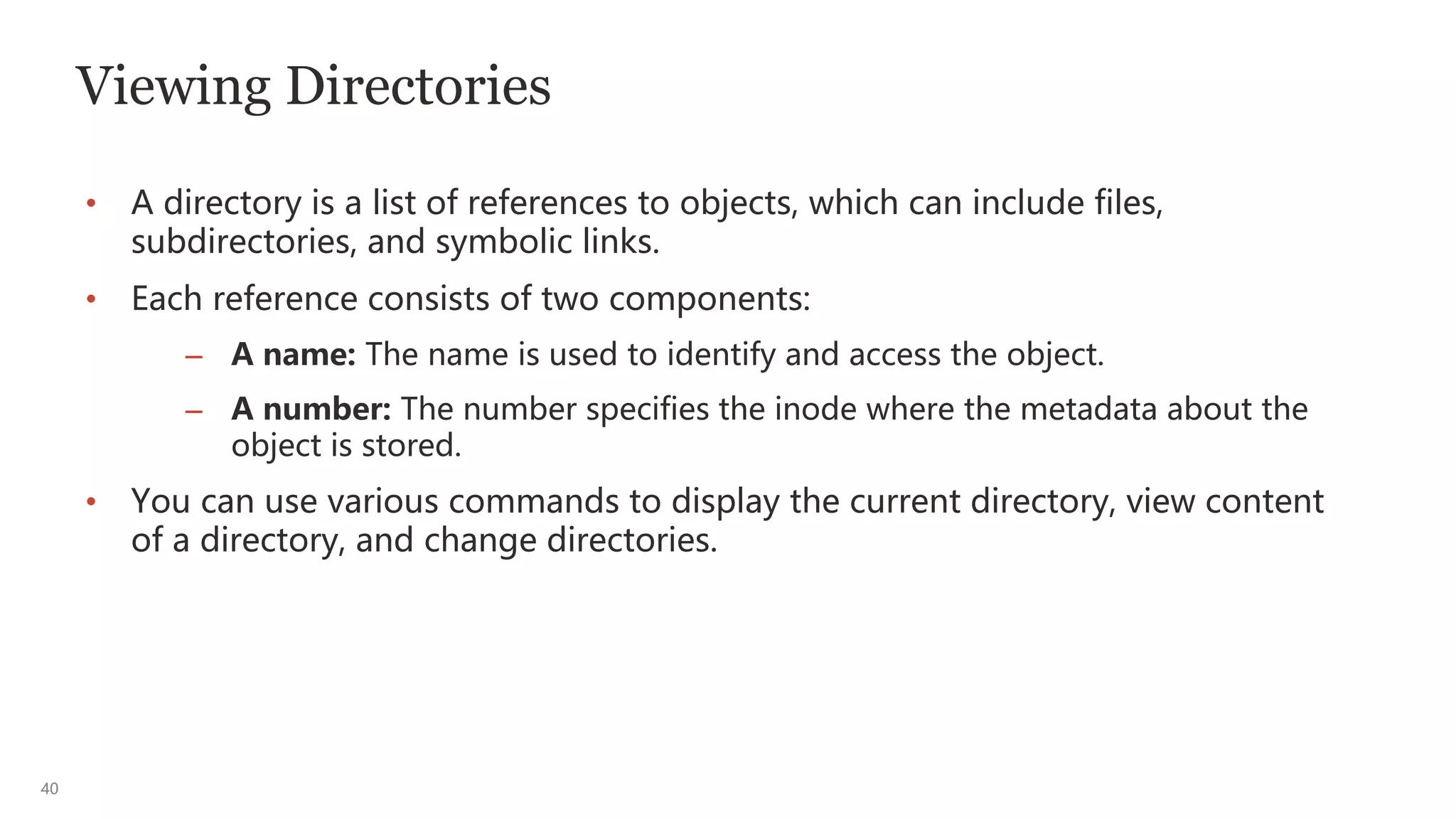
Viewing Directories
• A directory is a list of references to objects, which can include files,
subdirectories, and symbolic links.
• Each reference consists of two components:
– A name: The name is used to identify and access the object.
– A number: The number specifies the inode where the metadata about the
object is stored.
• You can use various commands to display the current directory, view content
of a directory, and change directories.
41
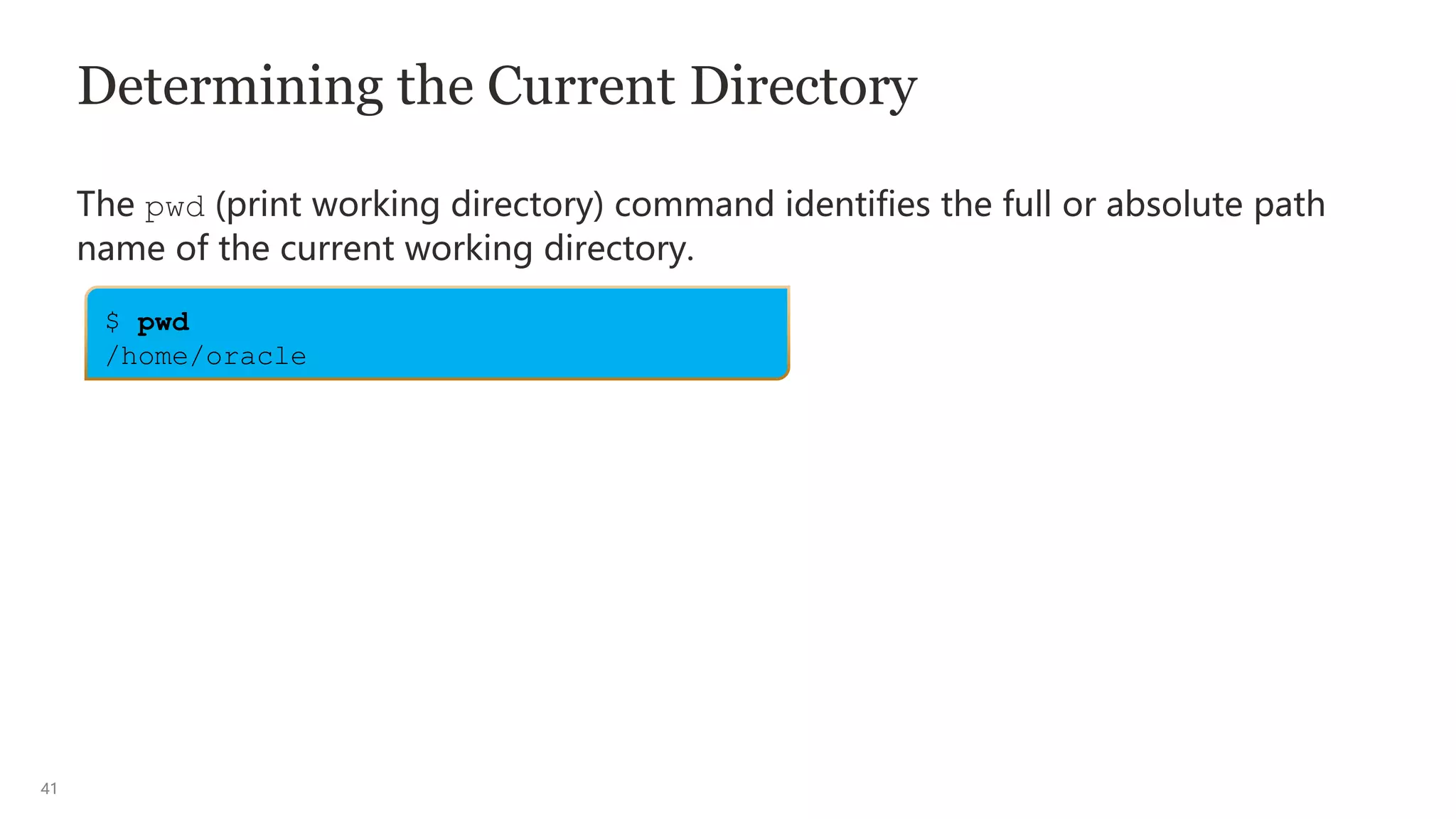
Determining the Current Directory
The pwd (print working directory) command identifies the full or absolute path
name of the current working directory.
$ pwd
/home/oracle
42
Displaying the Directory Content
• The ls command displays the content of a directory.
• To display the contents of the /home/oracle/lab directory:
• To display the contents of the dir1 subdirectory:
• To display the contents of a directory by specifying its full path name:
$ ls [options] … [filename]
$ ls
dante dante_1 ... dir1 ... file1 ... fruit ... Practice
$ ls dir
coffees fruit trees
$ ls /home/oracle/lab/dir2
beans notes recipes
43
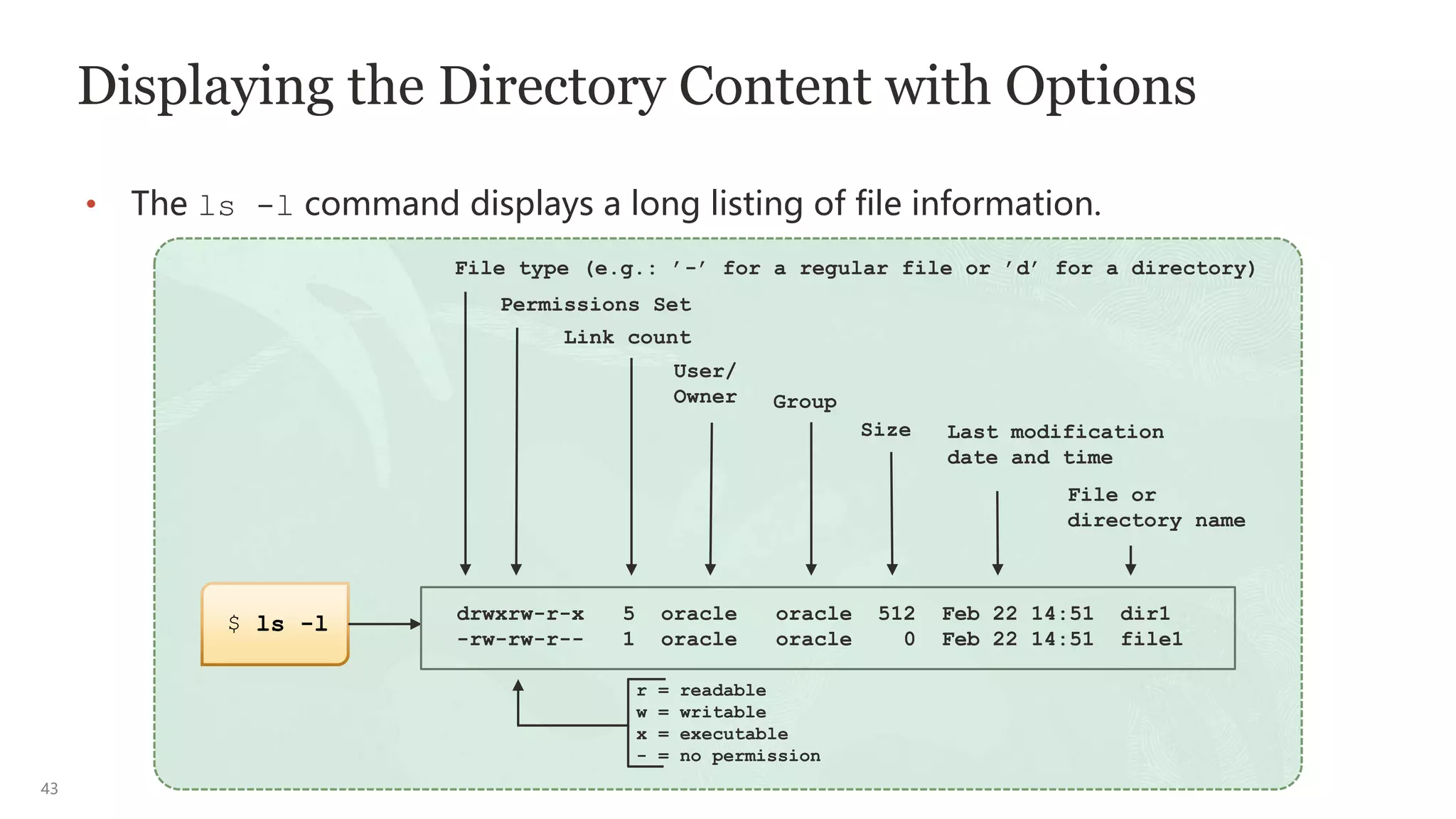
Displaying the Directory Content with Options
• The ls -l command displays a long listing of file information.
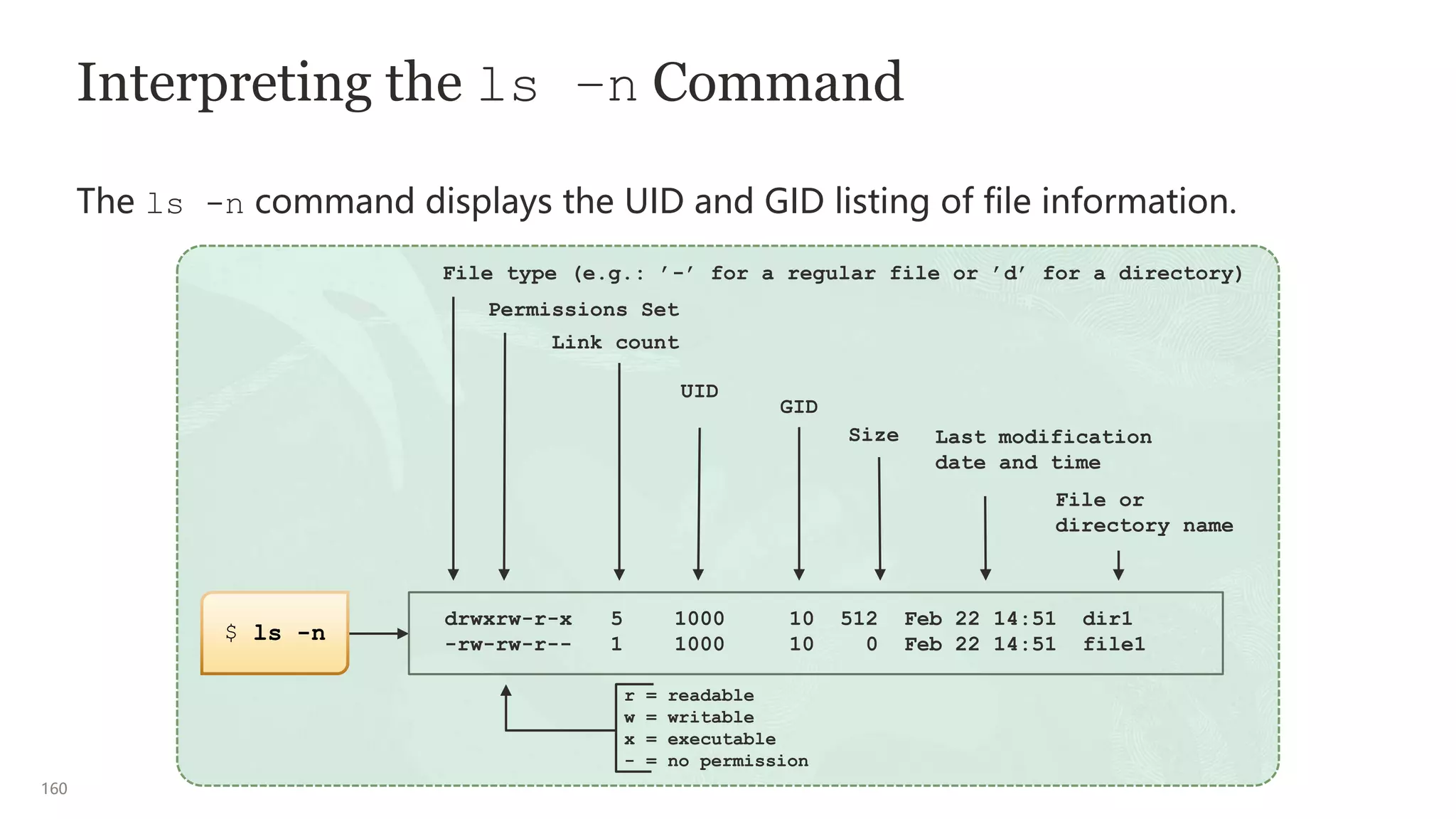
drwxrw-r-x 5 oracle oracle 512 Feb 22 14:51 dir1
-rw-rw-r-- 1 oracle oracle 0 Feb 22 14:51 file1
File type (e.g.: ’-’ for a regular file or ’d’ for a directory)
Permissions Set
Link count
User/
Owner Group
Size Last modification
date and time
File or
directory name
r = readable
w = writable
x = executable
- = no permission
$ ls -l
44
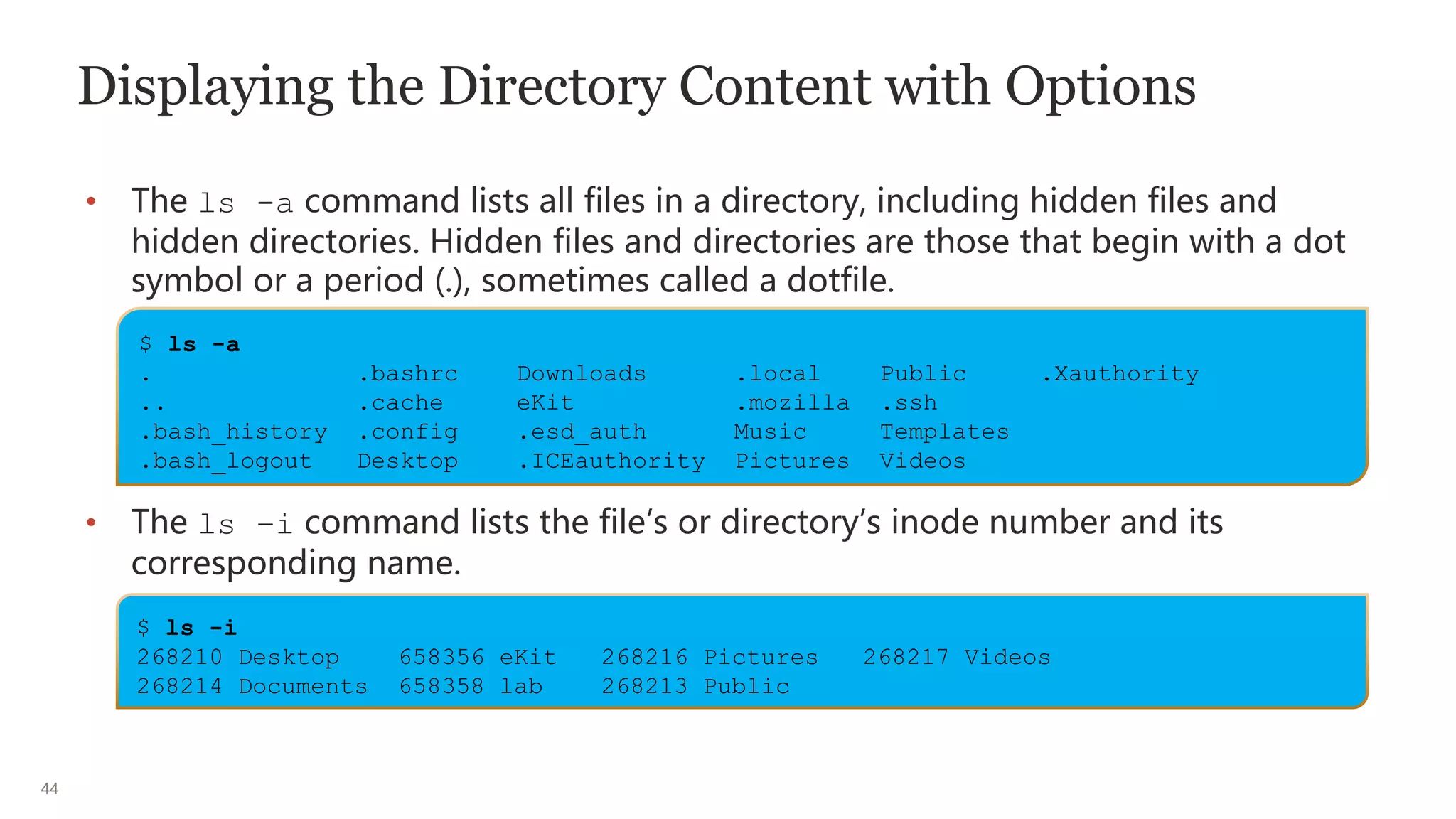
Displaying the Directory Content with Options
• The ls -a command lists all files in a directory, including hidden files and
hidden directories. Hidden files and directories are those that begin with a dot
symbol or a period (.), sometimes called a dotfile.
• The ls –i command lists the file’s or directory’s inode number and its
corresponding name.
$ ls -a
. .bashrc Downloads .local Public .Xauthority
.. .cache eKit .mozilla .ssh
.bash_history .config .esd_auth Music Templates
.bash_logout Desktop .ICEauthority Pictures Videos
$ ls -i
268210 Desktop 658356 eKit 268216 Pictures 268217 Videos
268214 Documents 658358 lab 268213 Public
45
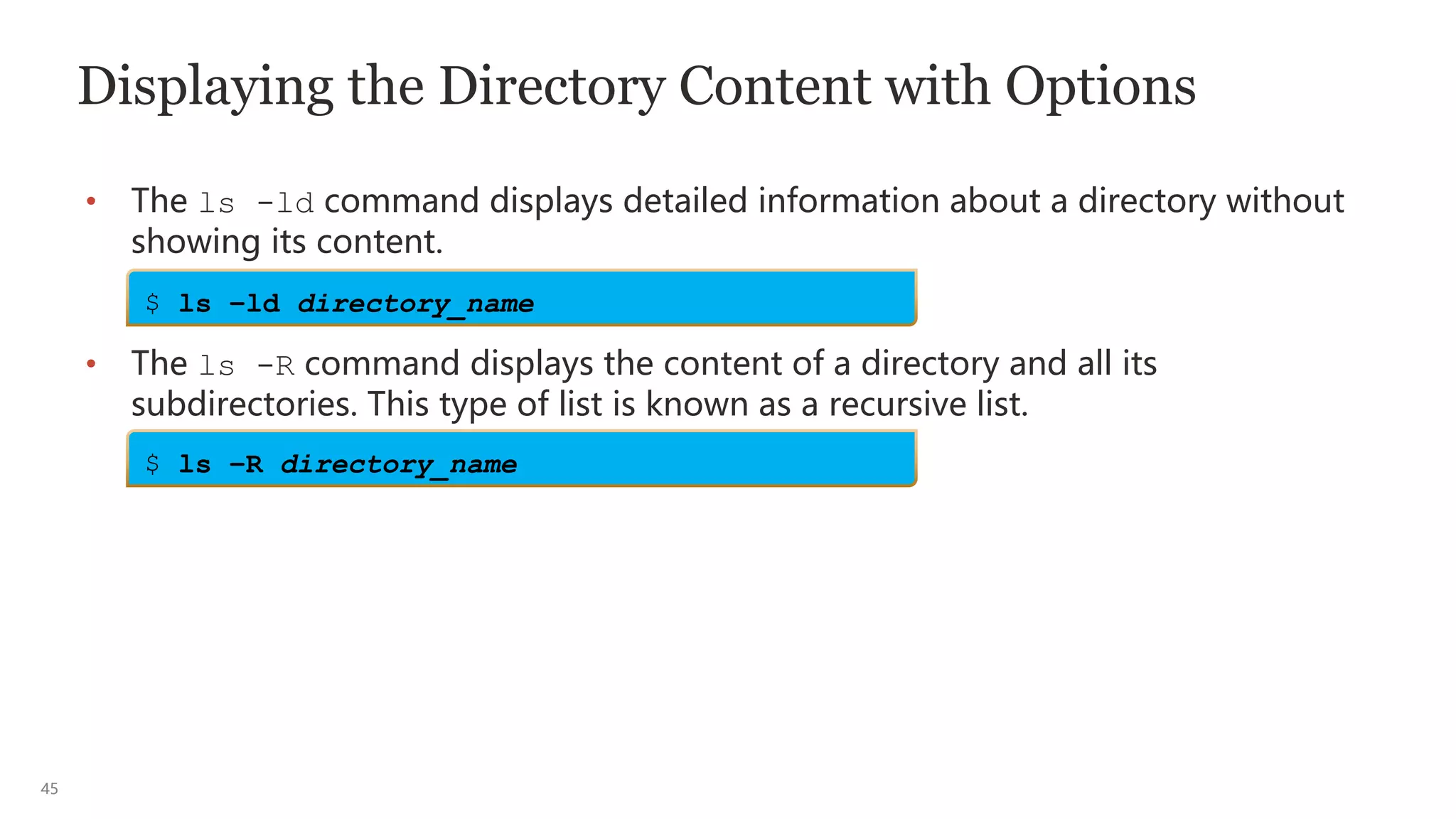
Displaying the Directory Content with Options
• The ls -ld command displays detailed information about a directory without
showing its content.
• The ls -R command displays the content of a directory and all its
subdirectories. This type of list is known as a recursive list.
$ ls –ld directory_name
$ ls –R directory_name
46
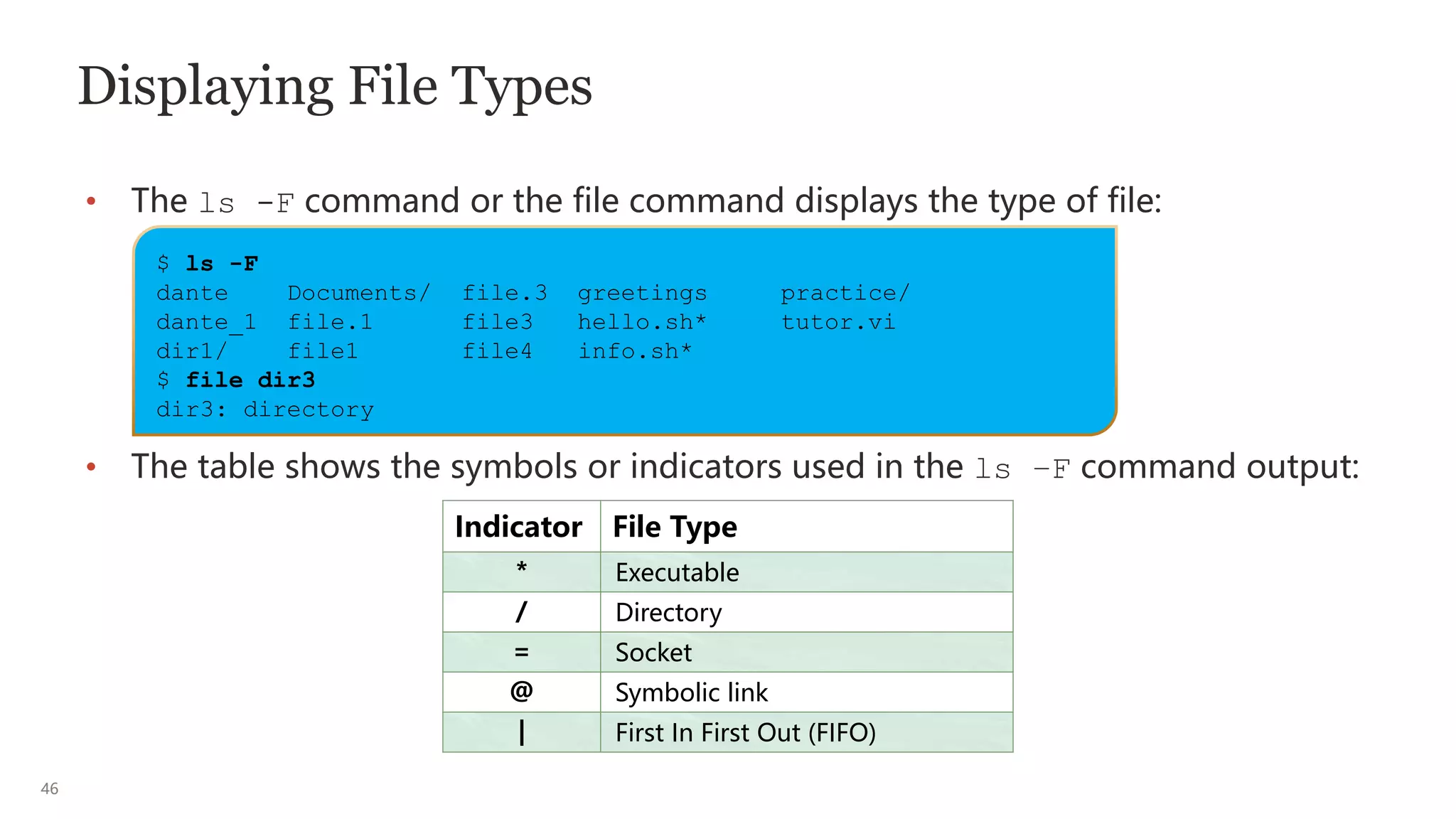
Displaying File Types
• The ls -F command or the file command displays the type of file:
• The table shows the symbols or indicators used in the ls –F command output:
Indicator File Type
* Executable
/ Directory
= Socket
@ Symbolic link
| First In First Out (FIFO)
$ ls -F
dante Documents/ file.3 greetings practice/
dante_1 file.1 file3 hello.sh* tutor.vi
dir1/ file1 file4 info.sh*
$ file dir3
dir3: directory
47
Displaying File Types
• The file command also helps to determine certain file types.
• To view the file type for the dante file, enter the file command and specify the
name of the file.
• To view the file type for the /usr/bin/passwd executable, enter the file
command and specify the name of the file.
$ file [options] filename
$ file dante
dante: ASCII text
$ file /usr/bin/passwd
/usr/bin/passwd: setuid ELF 64-bit LSB shared object, x86-64, version 1 (SYSV),
dynamically linked, interpreter /lib64/ld-linux-x86-64.so.2, for GNU/Linux
3.2.0, BuildID[sha1]=bba2dbb97651c59c107478797c3cdfb9348357cd, stripped
48
Changing Directories
• When working within the directory hierarchy, you always have a current working
directory.
• When you initially log in to the system, the current directory is set to your home
directory.
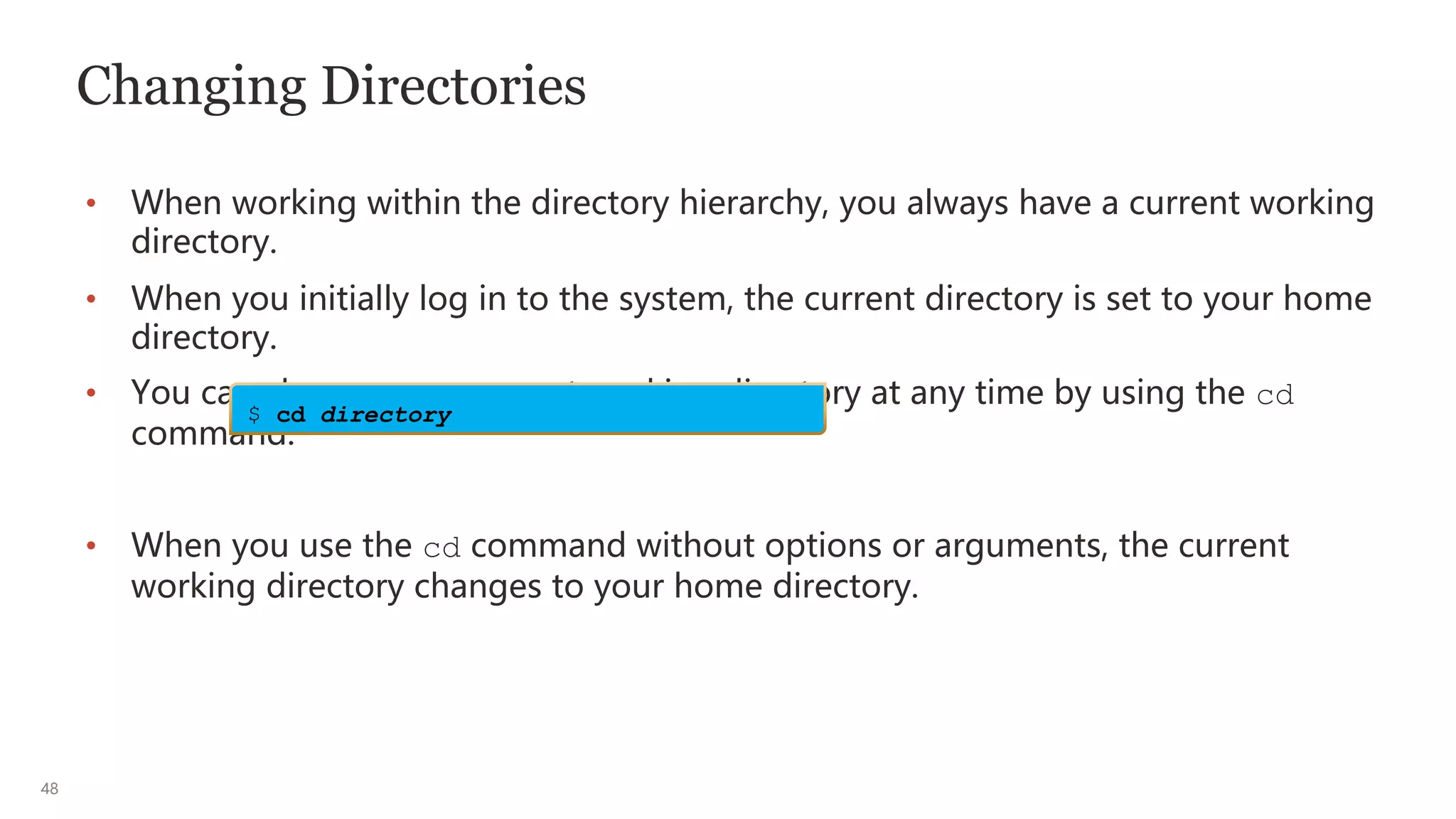
• You can change your current working directory at any time by using the cd
command:
• When you use the cd command without options or arguments, the current
working directory changes to your home directory.
$ cd directory
49
Changing Directories by Using Relative or Absolute
Path Name
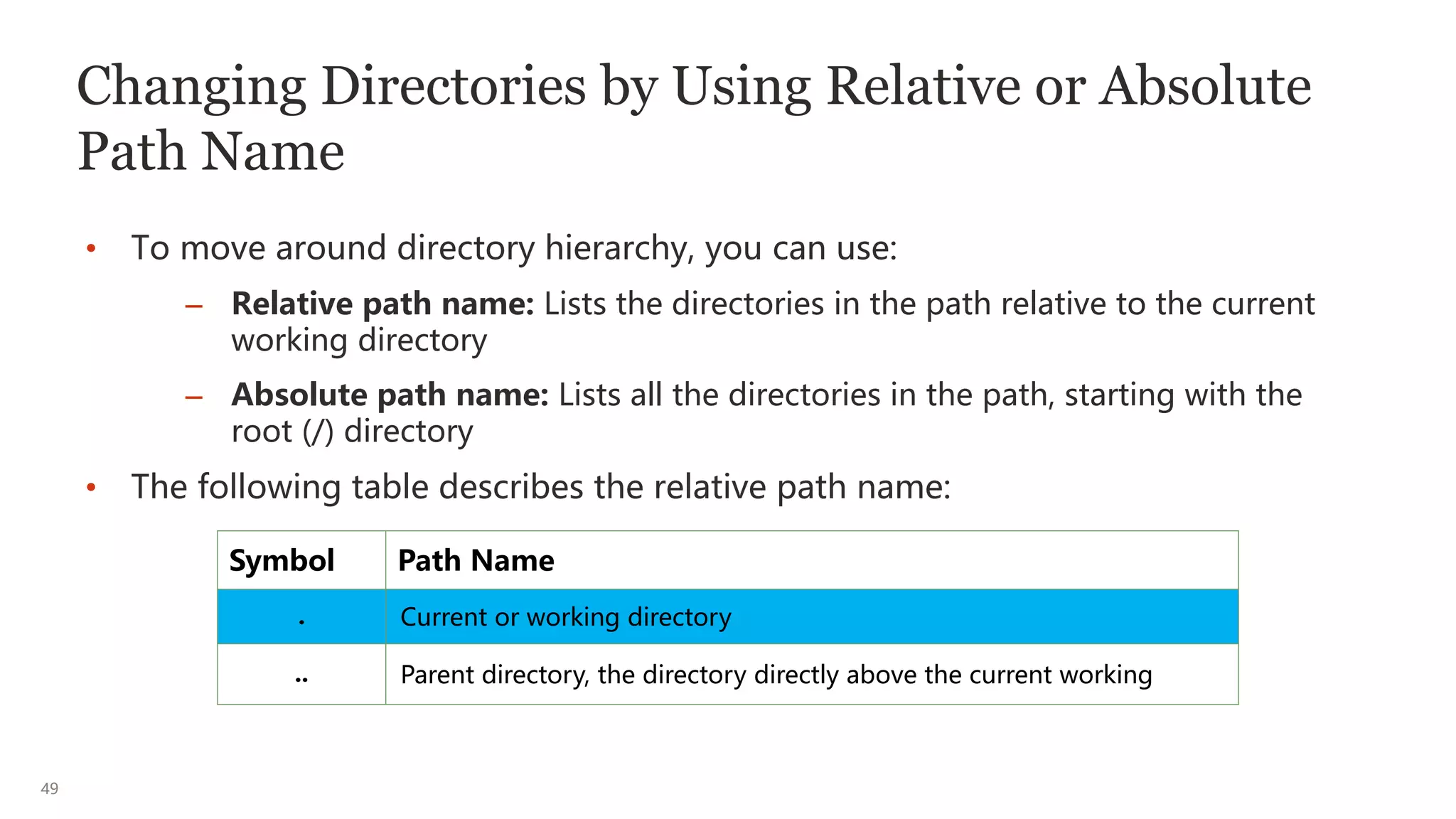
• To move around directory hierarchy, you can use:
– Relative path name: Lists the directories in the path relative to the current
working directory
– Absolute path name: Lists all the directories in the path, starting with the
root (/) directory
• The following table describes the relative path name:
Symbol Path Name
. Current or working directory
.. Parent directory, the directory directly above the current working
50
Home Directory
• The home directory of a regular user is where the user is placed after logging in.
• The user can create and store files in the home directory.
• Often the name of a user’s home directory is the same as the user’s login name.
– If your user login name is oracle, your home directory on Oracle Linux would
be /home/oracle.
51
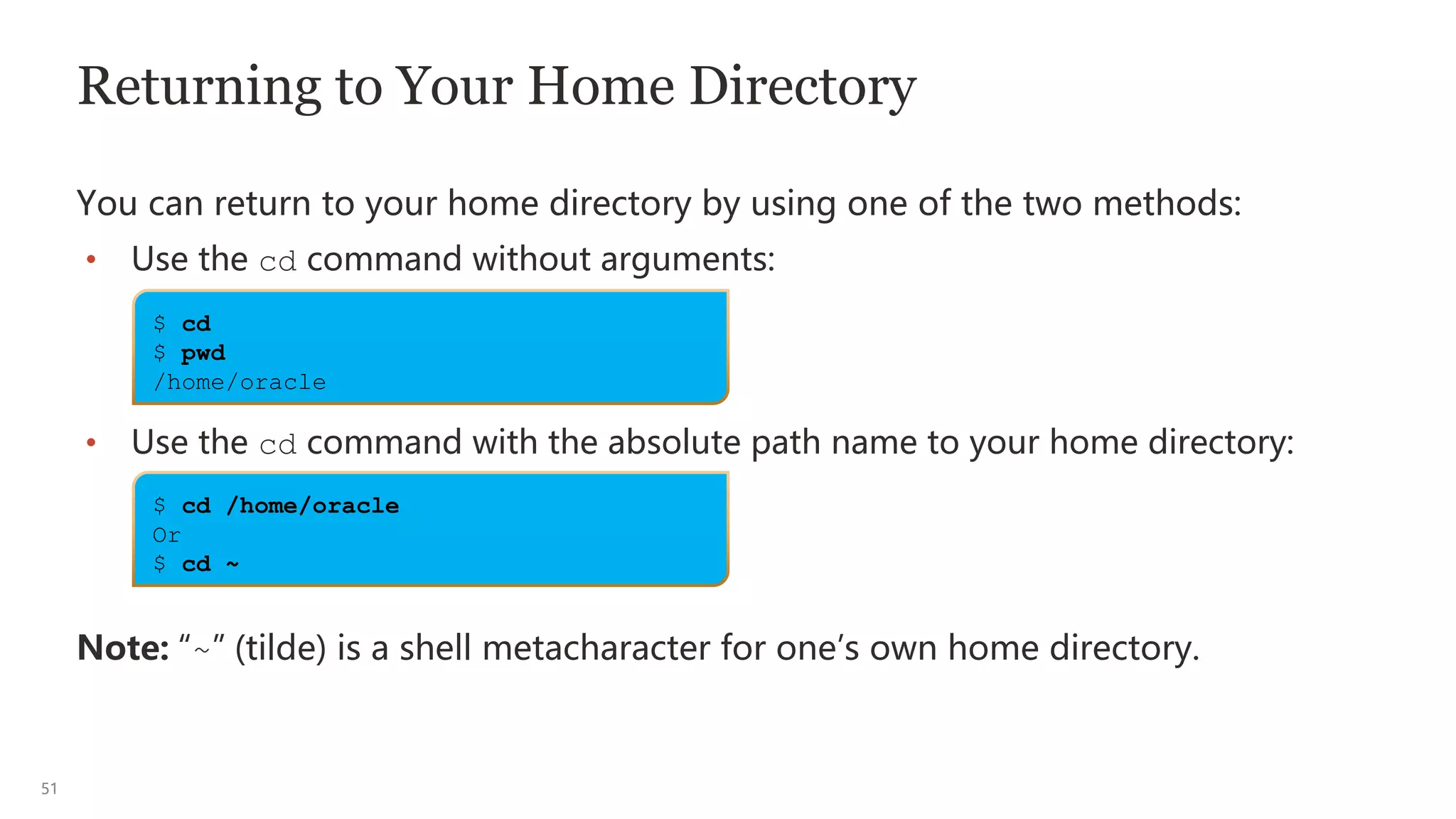
Returning to Your Home Directory
You can return to your home directory by using one of the two methods:
• Use the cd command without arguments:
• Use the cd command with the absolute path name to your home directory:
Note: “~” (tilde) is a shell metacharacter for one’s own home directory.
$ cd
$ pwd
/home/oracle
$ cd /home/oracle
Or
$ cd ~
52
Viewing File Contents
To display the content of a text file in read-only format, you can use:
• cat: Concatenates several files into a single file. This command is most
commonly used to display the contents of relatively small text files.
• more: Helps display the contents of a text file, one screen or page, at a time
• less: Helps display, navigate, and search contents of text files, one screen or
page, at a time
• tail: Displays lines of text at the end of the text file
• head: Displays lines of text at the beginning of the text file
• wc: Counts newlines, words, bytes, and characters in a text file
• diff: Displays the differences between two text files
53
Viewing File Content: cat Command
• The cat command is most commonly used to display the content of text files.
• Use the cat command to display the contents of the dante text file.
Note: Before you attempt to open a file by using the cat command, it is
recommended that you first run the file command to determine the file type.
$ cat [options] ... [filename]
$ cat dante
The Life and Times of Dante
by Dante Pocai
Mention "Alighieri" and few may know about whom you are talking. Say
"Dante," instead, and the whole world knows whom you mean. For
...
54
Viewing File Content: more Command
• The more command displays the content of a text file one screen at a time.
• The --More--(n%) message appears at the bottom of each screen, where n% is
the percentage of the file that has been displayed.
• When the entire file has been displayed, the shell prompt appears.
$ more [options] filename
55
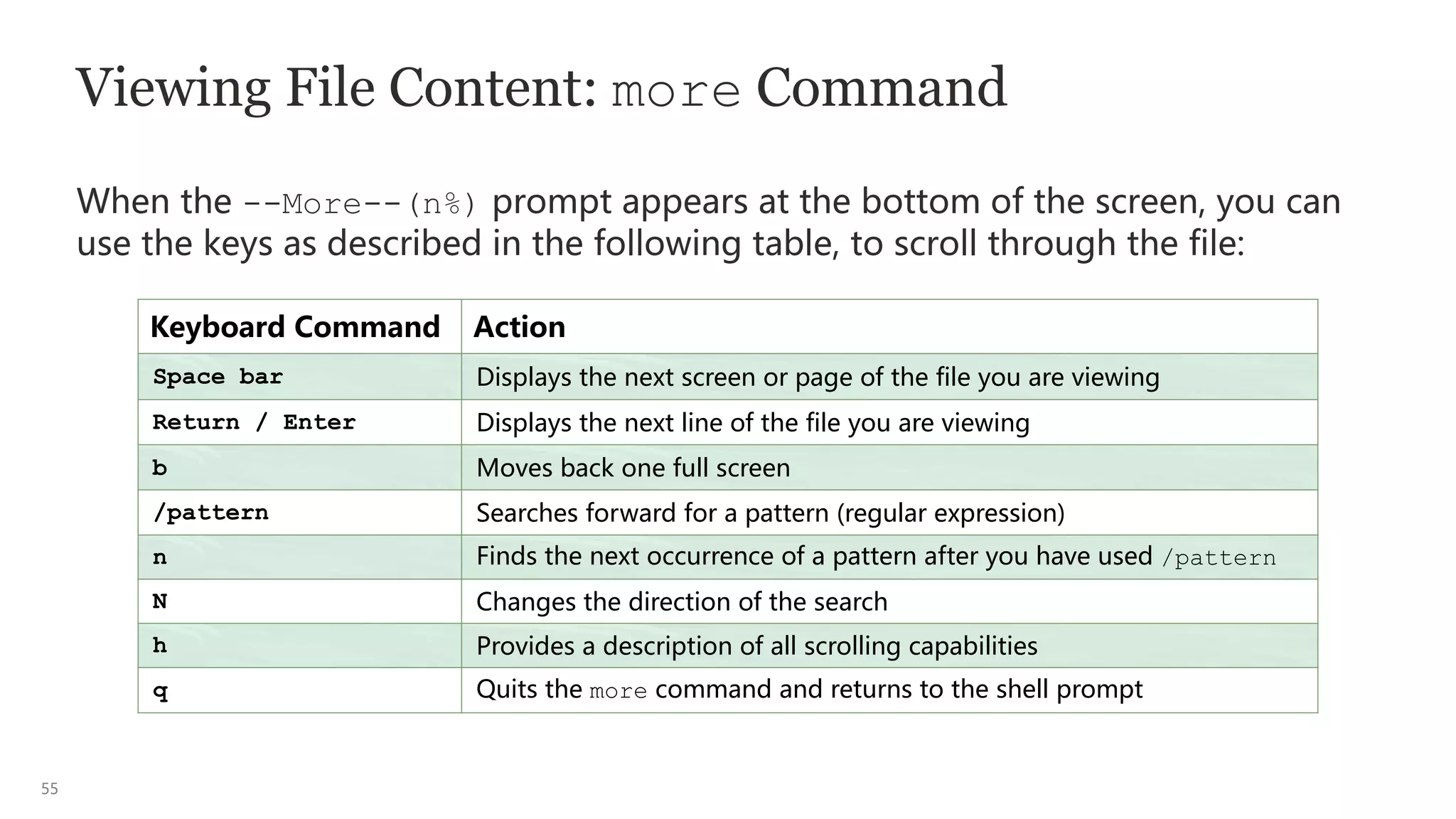
Viewing File Content: more Command
When the --More--(n%) prompt appears at the bottom of the screen, you can
use the keys as described in the following table, to scroll through the file:
Keyboard Command Action
Space bar Displays the next screen or page of the file you are viewing
Return / Enter Displays the next line of the file you are viewing
b Moves back one full screen
/pattern Searches forward for a pattern (regular expression)
n Finds the next occurrence of a pattern after you have used /pattern
N Changes the direction of the search
h Provides a description of all scrolling capabilities
q Quits the more command and returns to the shell prompt
56
Viewing File Content: less Command
The GNU Project created less as a response to more, but with more features and
actions. The table in the previous slide details not only more options but some of
the less options also. For a more thorough list of features, entering less -? will
yield greater details.
• The following is a snippet from the less man pages:
...
SYNOPSIS
less -?
less --help
less -V
less --version
less [-[+]aABcCdeEfFgGiIJKLmMnNqQrRsSuUVwWX~]
[-b space] [-h lines] [-j line] [-k keyfile]
...
57
Viewing File Content: head Command
• The head command displays the first 10 lines of a file.
• You can change the number of lines displayed by using the -n option.
• To display the first five lines of the /usr/share/dict/words file in Linux, enter
the head command with the -n option set to 5.
$ head [–n] filename
$ head -5 /usr/share/dict/words
1080
10-point
10th
11-point
12-point
58
Viewing File Content: tail Command
• The tail command displays the last 10 lines of a file.
• You can change the number of lines displayed by using the -n or +n option.
– The -n option displays n lines from the end of the file.
– The +n option displays the file from line n to the end of the file.
• Possibly one of the more popular options is -f, which allows you to follow the
data that is being appended to the file.
$ tail [options] filename
59
Viewing File Content: wc Command
• The wc (word count) command displays the number of lines, words, and
characters contained in a file.
• You can use the following options with the wc command.
Option Description
-l Line count
-w Word count
-c Byte count
-m Character count
$ wc [options] filename
60
Viewing File Content Differences: diff Command
• The diff command displays the differences between two ASCII text files.
• When the output of the diff command is displayed, the lines that are unique to
filename1 are identified by the < (less than) symbol, while lines that are unique
to filename2 are identified by the > (greater than) symbol. Lines that are
identical in both files are not displayed.
$ diff [options] filename1 filename2
61
Copying Files and Directories
The cp command copies single or multiple files and directories.
• To copy a file name to a new file name in the same directory, use the cp
command with the name of the source file and the target file.
$ cp [options] source(s) target/destination, where source(s) can be multiple
files(s) and target/destination can be a single file or directory
$ cp filename newfilename
62
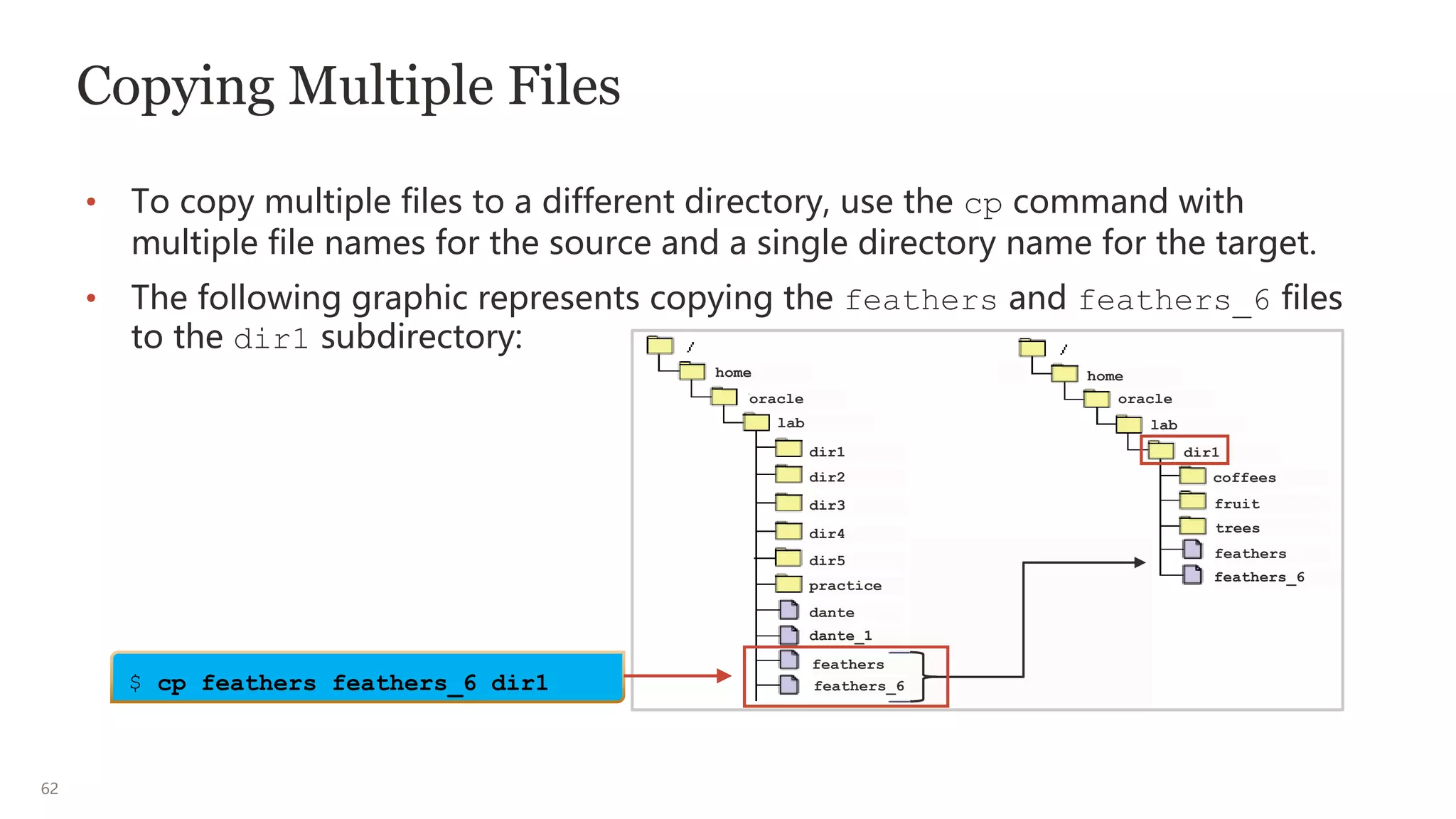
Copying Multiple Files
• To copy multiple files to a different directory, use the cp command with
multiple file names for the source and a single directory name for the target.
• The following graphic represents copying the feathers and feathers_6 files
to the dir1 subdirectory:
$ cp feathers feathers_6 dir1
home
oracle oracle
lab lab
feathers
feathers_6
coffees
fruit
trees
dir1
dir1
dir2
dir3
dir4
dir5
practice
dante
dante_1
feathers
feathers_6
home
63
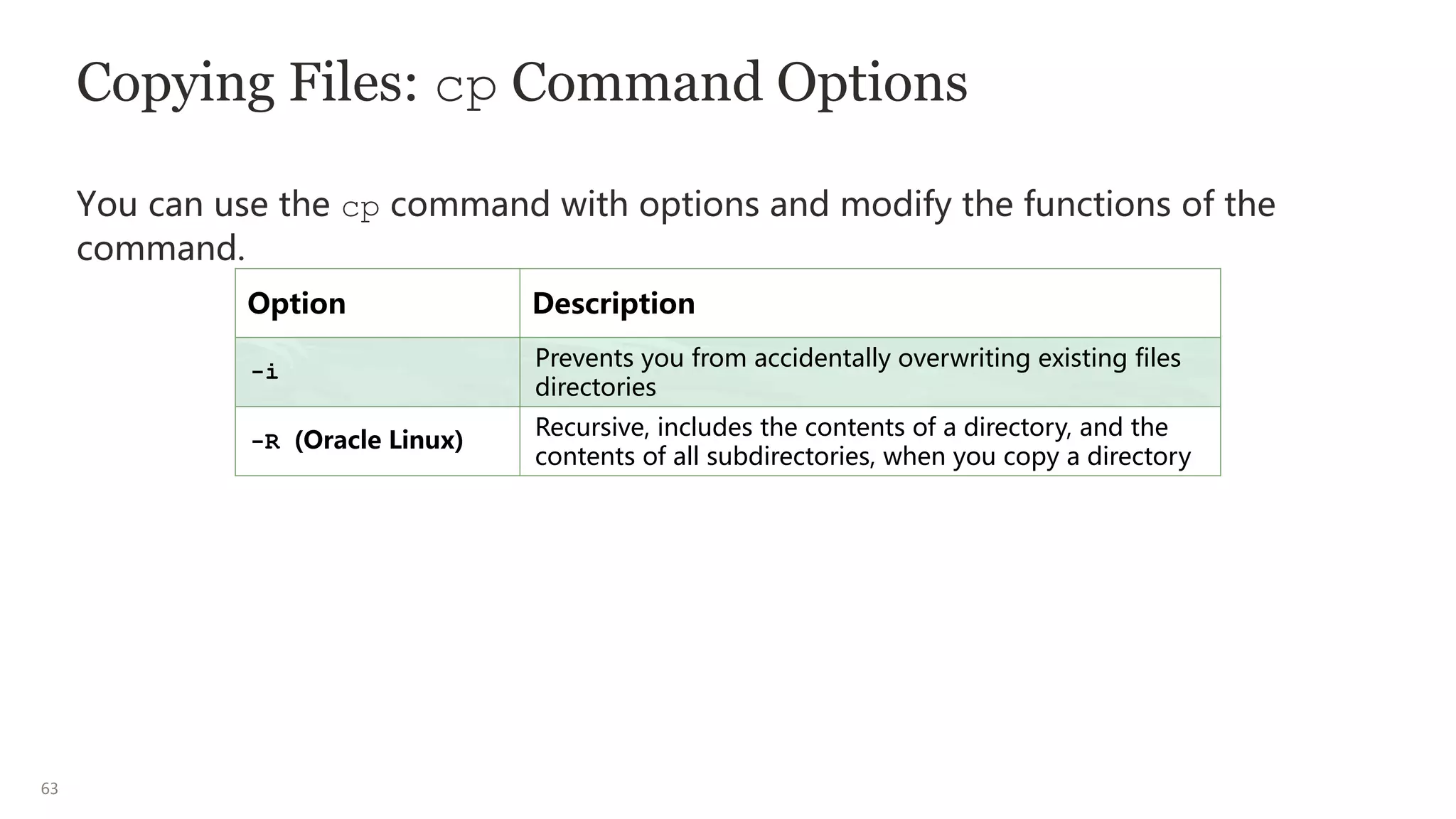
Copying Files: cp Command Options
You can use the cp command with options and modify the functions of the
command.
Option Description
-i
Prevents you from accidentally overwriting existing files
directories
-R (Oracle Linux)
Recursive, includes the contents of a directory, and the
contents of all subdirectories, when you copy a directory
64
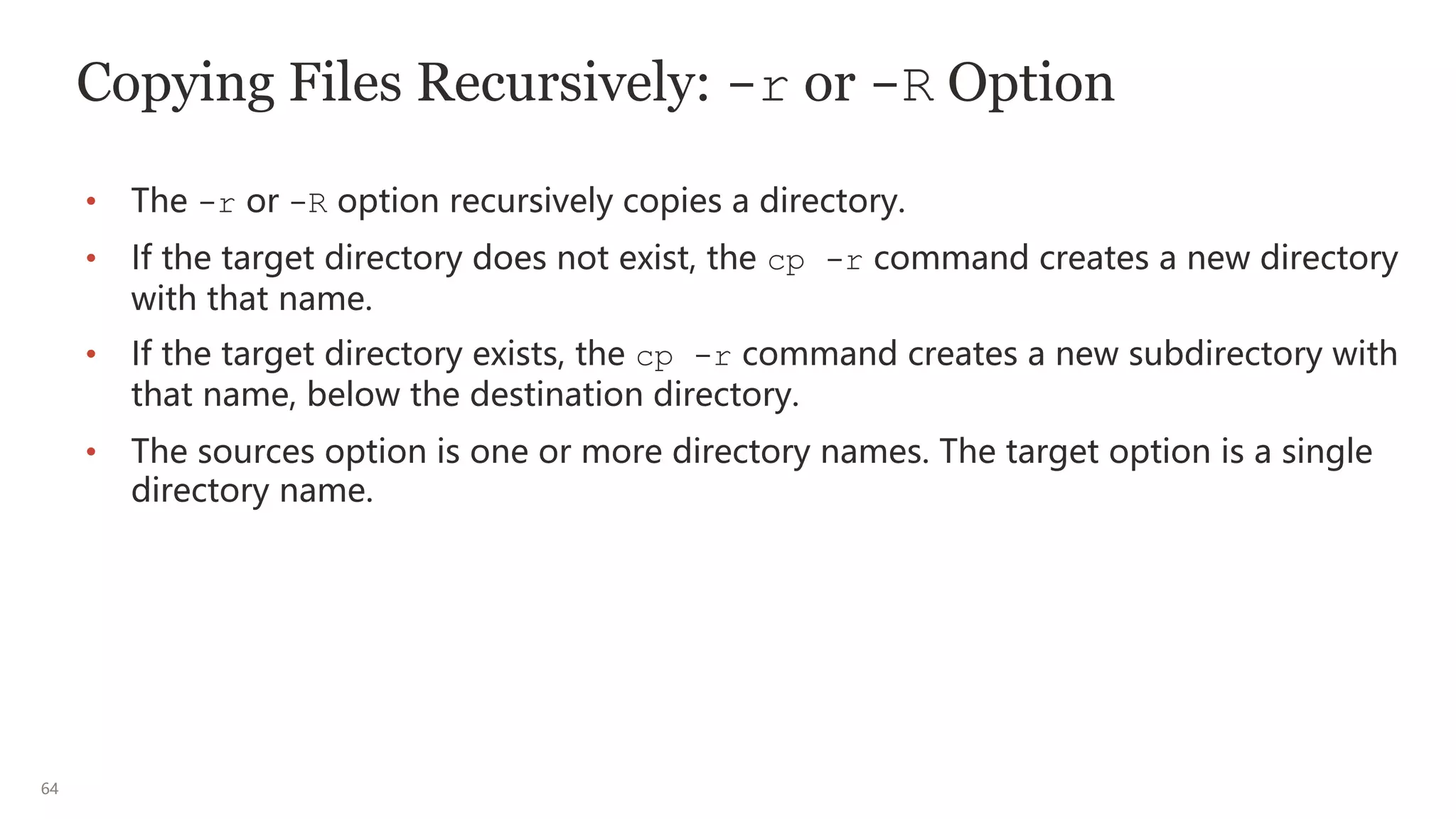
Copying Files Recursively: -r or -R Option
• The -r or -R option recursively copies a directory.
• If the target directory does not exist, the cp -r command creates a new directory
with that name.
• If the target directory exists, the cp -r command creates a new subdirectory with
that name, below the destination directory.
• The sources option is one or more directory names. The target option is a single
directory name.
65
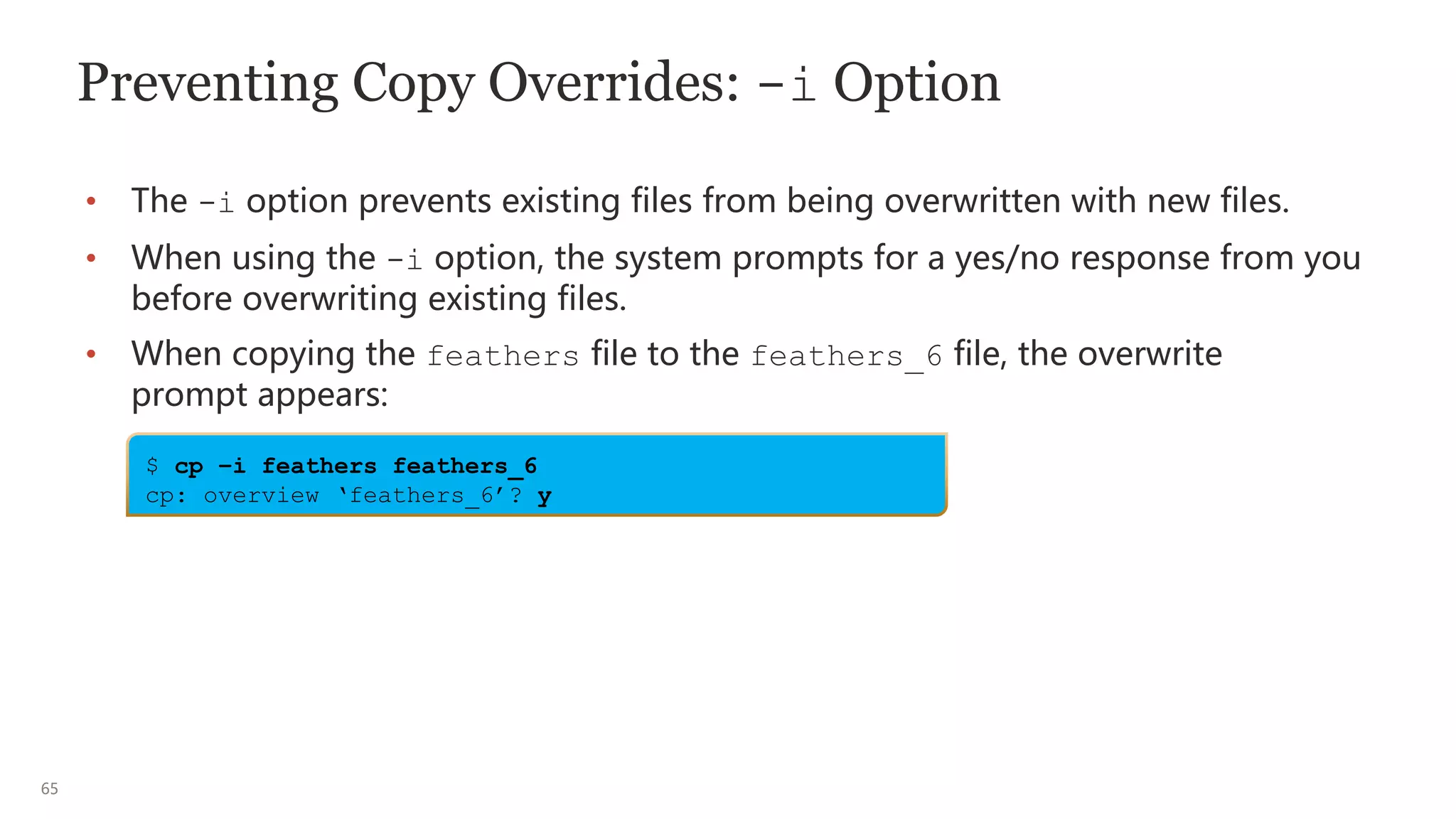
Preventing Copy Overrides: -i Option
• The -i option prevents existing files from being overwritten with new files.
• When using the -i option, the system prompts for a yes/no response from you
before overwriting existing files.
• When copying the feathers file to the feathers_6 file, the overwrite
prompt appears:
$ cp –i feathers feathers_6
cp: overview ‘feathers_6’? y
66
Moving and Renaming Files and Directories
• The mv command helps to move and rename files and directories within the
directory hierarchy.
• The mv command does not affect the content of the files or directories being
moved or renamed.
• The moved/renamed file maintains its original inode number.
• For more information about mv command options, see the mv man page.
Caution: mv is a destructive command if not used with the correct options.
$ mv [options] source(s) target/destination, where source(s) is the current filename or directory and
target/destination is the new filename or directory.
67
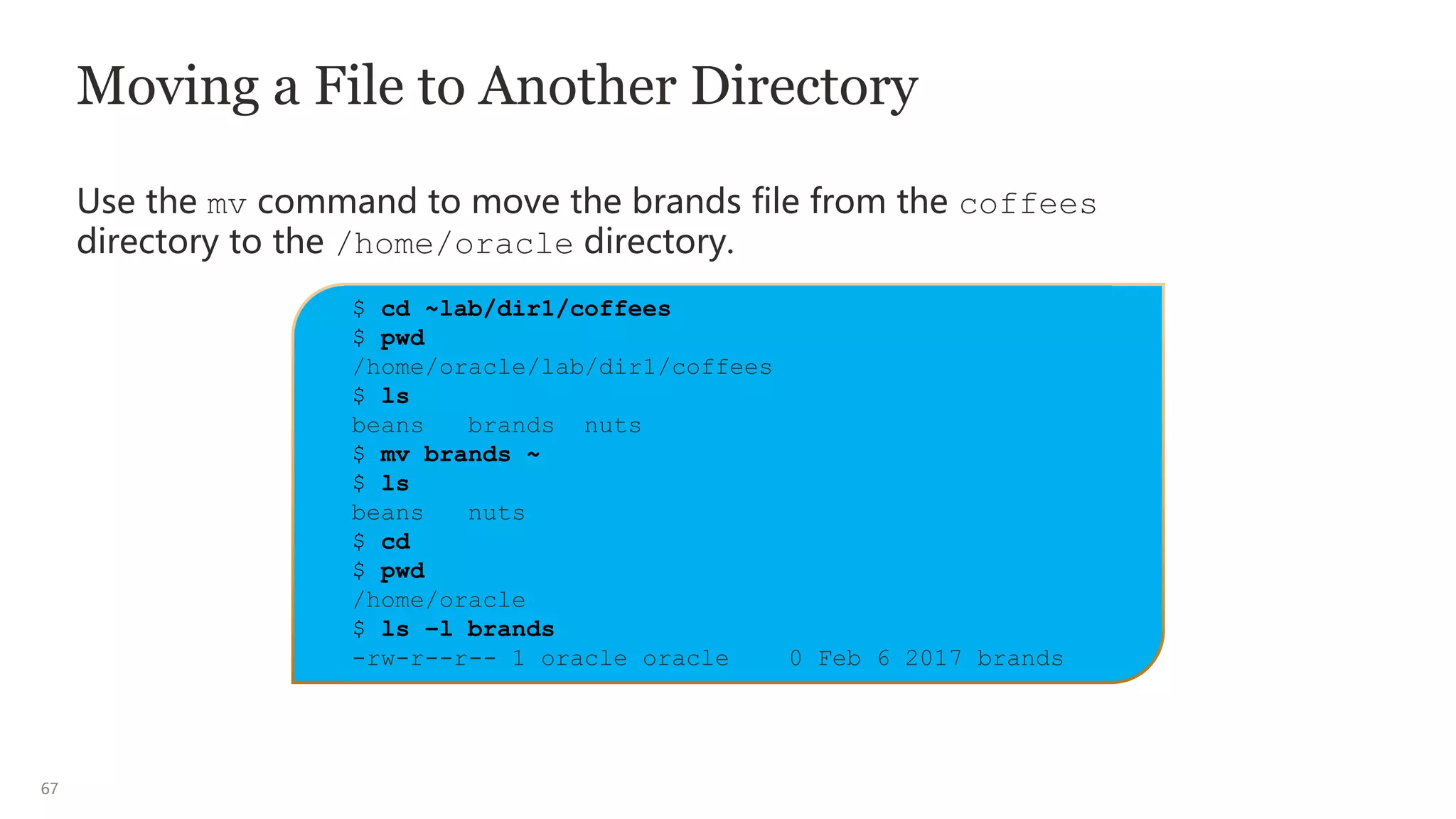
Moving a File to Another Directory
Use the mv command to move the brands file from the coffees
directory to the /home/oracle directory.
$ cd ~lab/dir1/coffees
$ pwd
/home/oracle/lab/dir1/coffees
$ ls
beans brands nuts
$ mv brands ~
$ ls
beans nuts
$ cd
$ pwd
/home/oracle
$ ls –l brands
-rw-r--r-- 1 oracle oracle 0 Feb 6 2017 brands
68
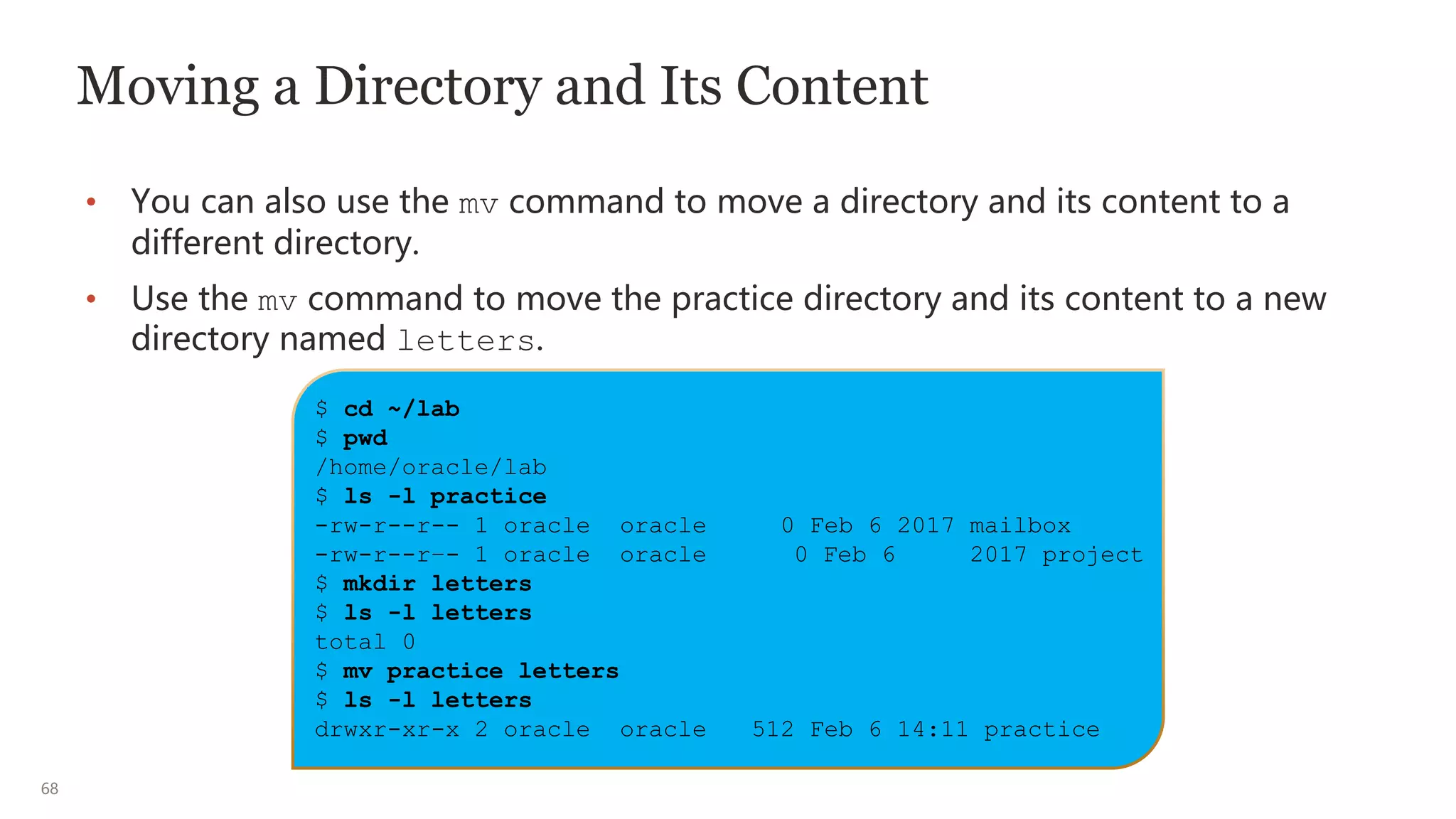
Moving a Directory and Its Content
• You can also use the mv command to move a directory and its content to a
different directory.
• Use the mv command to move the practice directory and its content to a new
directory named letters.
$ cd ~/lab
$ pwd
/home/oracle/lab
$ ls -l practice
-rw-r--r-- 1 oracle oracle 0 Feb 6 2017 mailbox
-rw-r--r–- 1 oracle oracle 0 Feb 6 2017 project
$ mkdir letters
$ ls -l letters
total 0
$ mv practice letters
$ ls -l letters
drwxr-xr-x 2 oracle oracle 512 Feb 6 14:11 practice
69
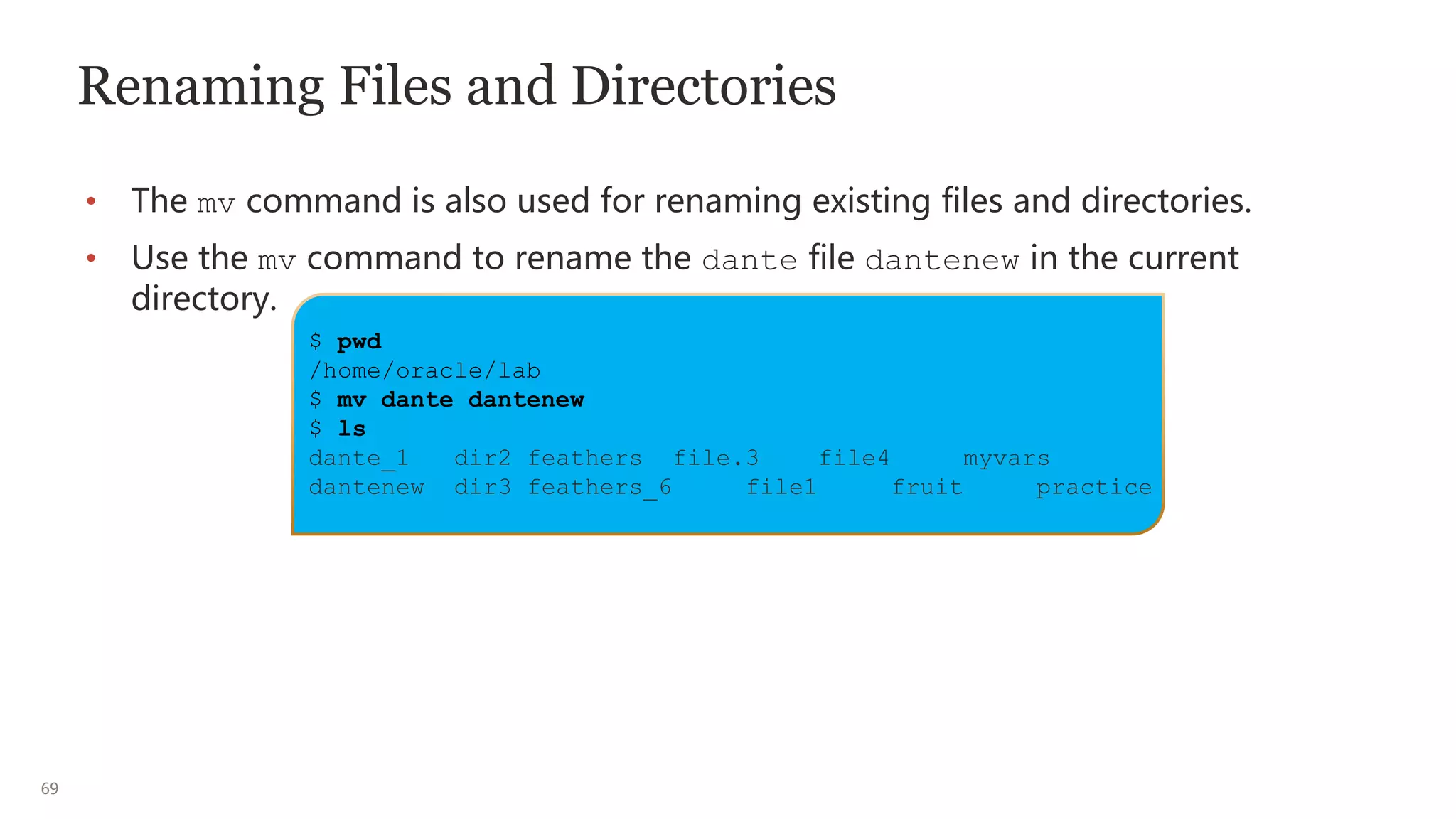
Renaming Files and Directories
• The mv command is also used for renaming existing files and directories.
• Use the mv command to rename the dante file dantenew in the current
directory.
$ pwd
/home/oracle/lab
$ mv dante dantenew
$ ls
dante_1 dir2 feathers file.3 file4 myvars
dantenew dir3 feathers_6 file1 fruit practice
70
Creating Files
• The touch command creates a new empty file.
• You can create multiple files with the same command.
• You can also use the touch command to create .hiddenfilenames.
• If the file name or directory name already exists, the touch command updates
the modification time and access time to the current date and time.
• You can use absolute or relative path names on the command line when
creating new files.
• For more information about touch command options, see the touch man
page.
$ touch [options] filename
71
Creating Directories
• The mkdir command creates new directories.
• Include the –p option if the directory name includes a path name, and the
intermediate directories will also be created.
• You can use absolute or relative path names on the command line when
creating new directories.
• For more information about mkdir command options, see the mkdir man page.
$ mkdir [options] directory_name
and
$ mkdir –p directory_name
72
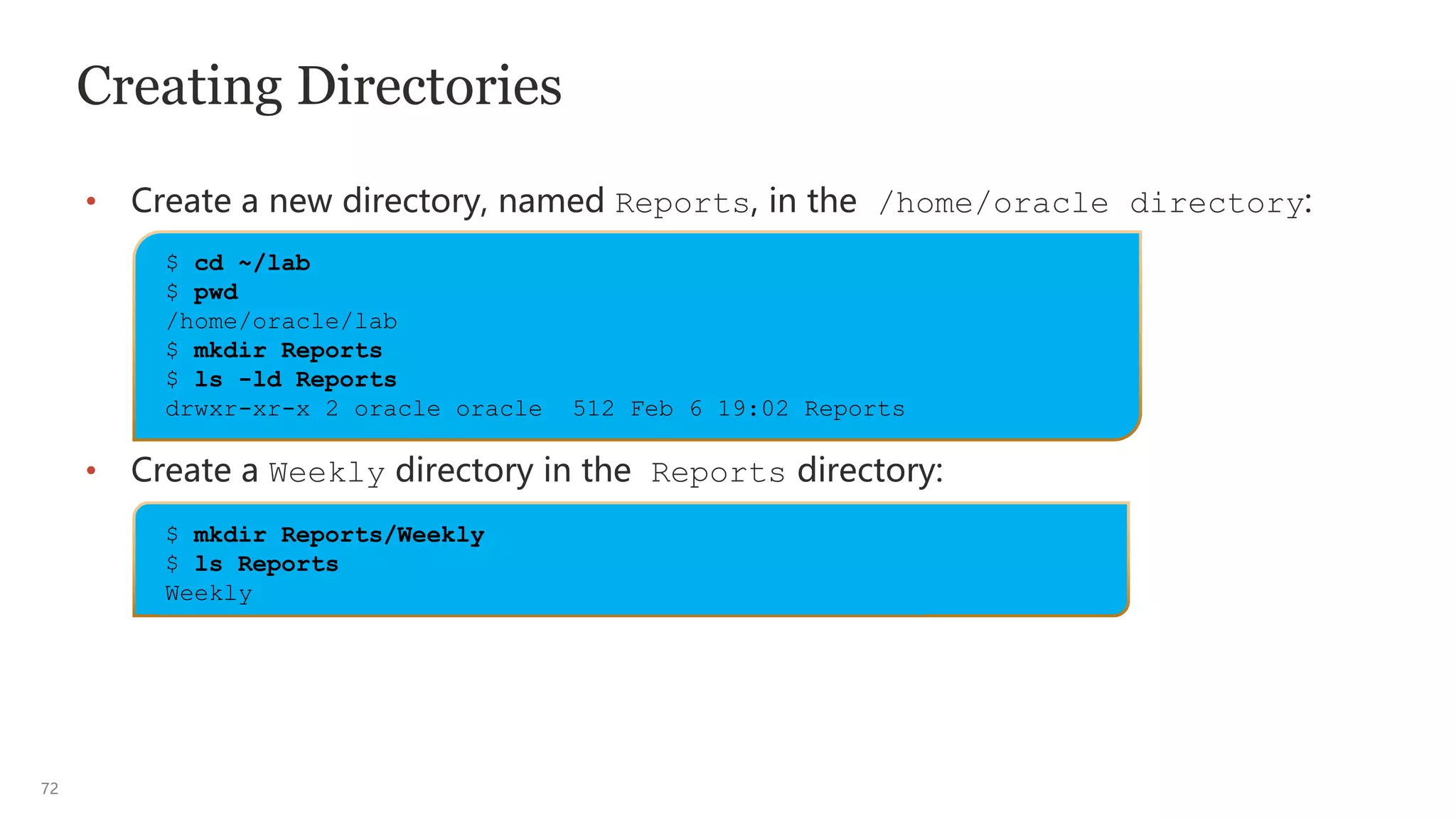
Creating Directories
• Create a new directory, named Reports, in the /home/oracle directory:
• Create a Weekly directory in the Reports directory:
$ cd ~/lab
$ pwd
/home/oracle/lab
$ mkdir Reports
$ ls -ld Reports
drwxr-xr-x 2 oracle oracle 512 Feb 6 19:02 Reports
$ mkdir Reports/Weekly
$ ls Reports
Weekly
73
Removing Files
• You can permanently remove files from the directory hierarchy by using the rm
command.
• The rm command is a destructive command.
• The following table describes some of the options that you can use with the rm
command when removing files and directories.
• For more information about rm command options, see the rm man page.
Option Description
-r or –R Recursive, includes the contents of a directory and the contents of
subdirectories when you remove a directory
-i Prevents the accidental removal of existing files or directories by
prompting for a ‘yes’ or a ‘no’
-f, --force Forces the removal of existing files and directories (the opposite of
–i) without prompting
$ rm [options] filename
74
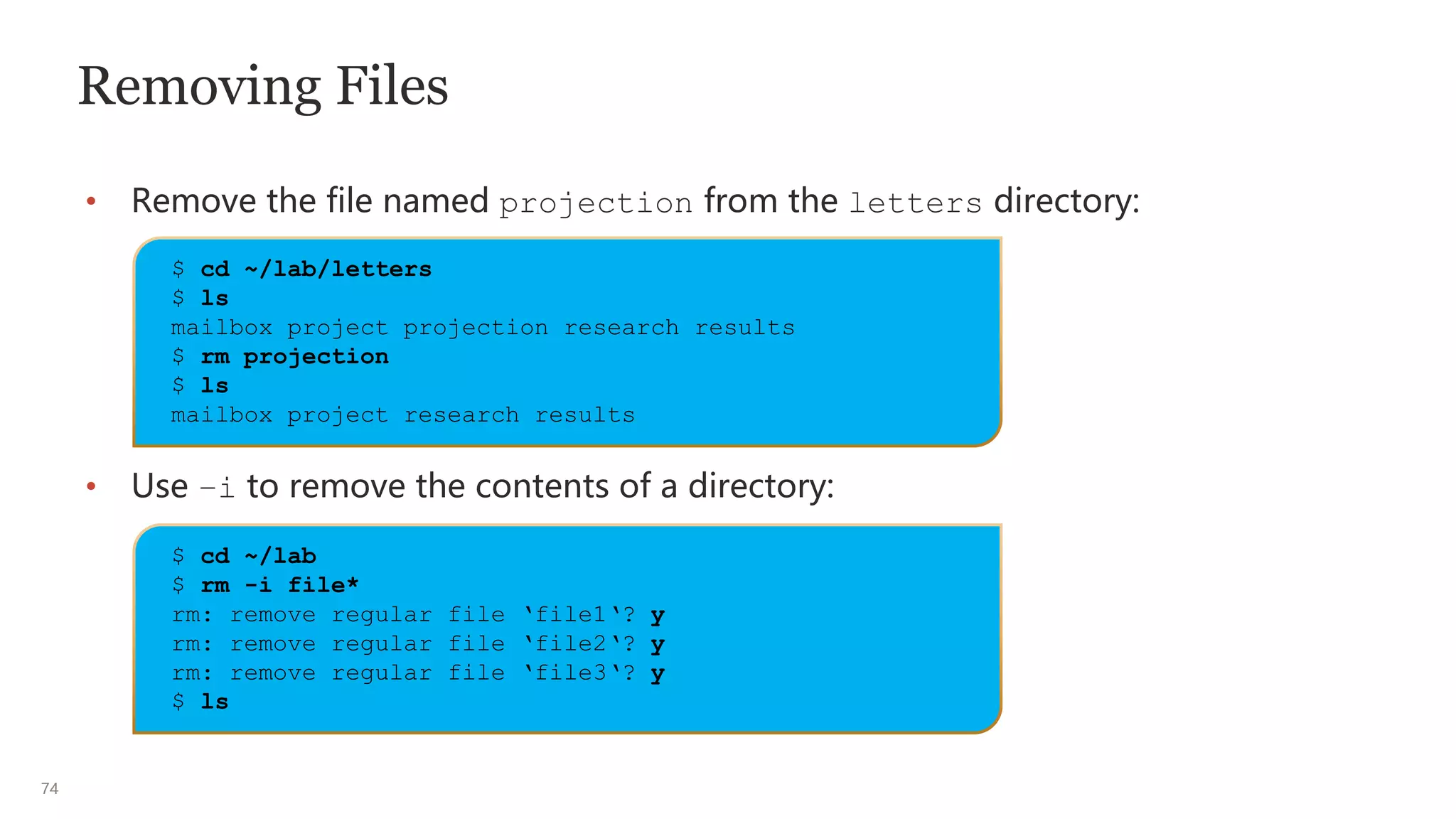
Removing Files
• Remove the file named projection from the letters directory:
• Use –i to remove the contents of a directory:
$ cd ~/lab/letters
$ ls
mailbox project projection research results
$ rm projection
$ ls
mailbox project research results
$ cd ~/lab
$ rm -i file*
rm: remove regular file ‘file1‘? y
rm: remove regular file ‘file2‘? y
rm: remove regular file ‘file3‘? y
$ ls
75
Removing Directories
• You can use the rm command with the -r option to remove directories that
contain files and subdirectories.
• Remove the letters directory and its content by using the rm –r command.
$ rm [options] directory
$ cd ~/lab
$ pwd
/home/oracle/lab
$ ls letters
mailbox results
$ rm -r letters
$ ls letters
ls: cannot access letters: No such file or directory
76
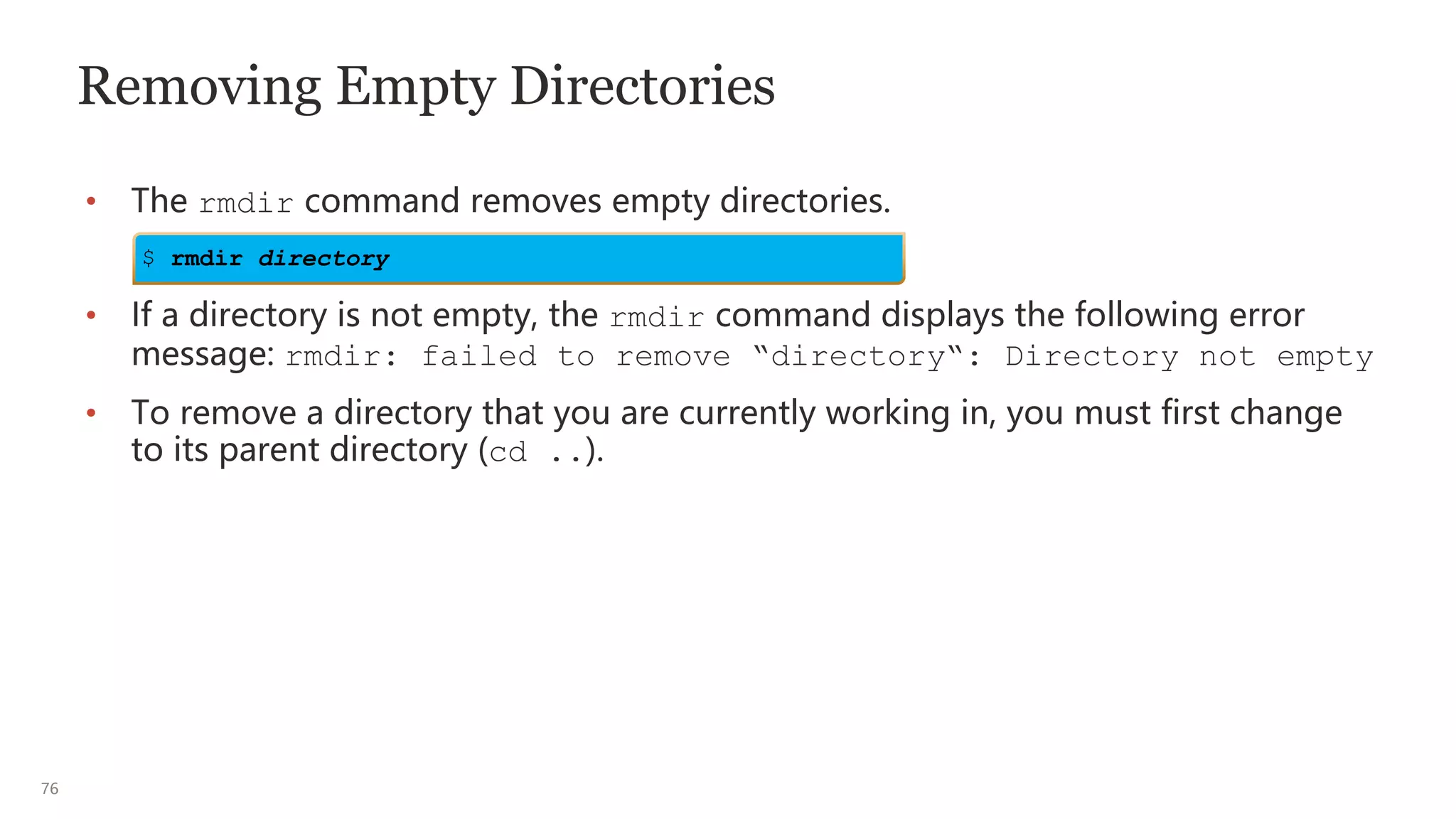
Removing Empty Directories
• The rmdir command removes empty directories.
• If a directory is not empty, the rmdir command displays the following error
message: rmdir: failed to remove “directory“: Directory not empty
• To remove a directory that you are currently working in, you must first change
to its parent directory (cd ..).
$ rmdir directory
77
Types of Links: Symbolic and Hard
• A symbolic link (sometimes called a symlink or a soft link) is a pointer that
contains the full path name to another file or directory.
• Symbolic links can link files and directories located across different file
systems. The symlink makes the file or directory easier to access if it has a
long path name.
• Symlinks become “broken” if the linked to file is removed.
• A symbolic link file is identified by the letter l in the file-type field. To view
symbolic link files, use the ls -l command.
• A hard link shares the inode of another file and increases the link count of the
linked to file.
• Hard links must be on the same file system and hard links persist even if the
other file is removed.
• To view hard link files, use the ls -li command and compare inode
numbers and link counts.
78
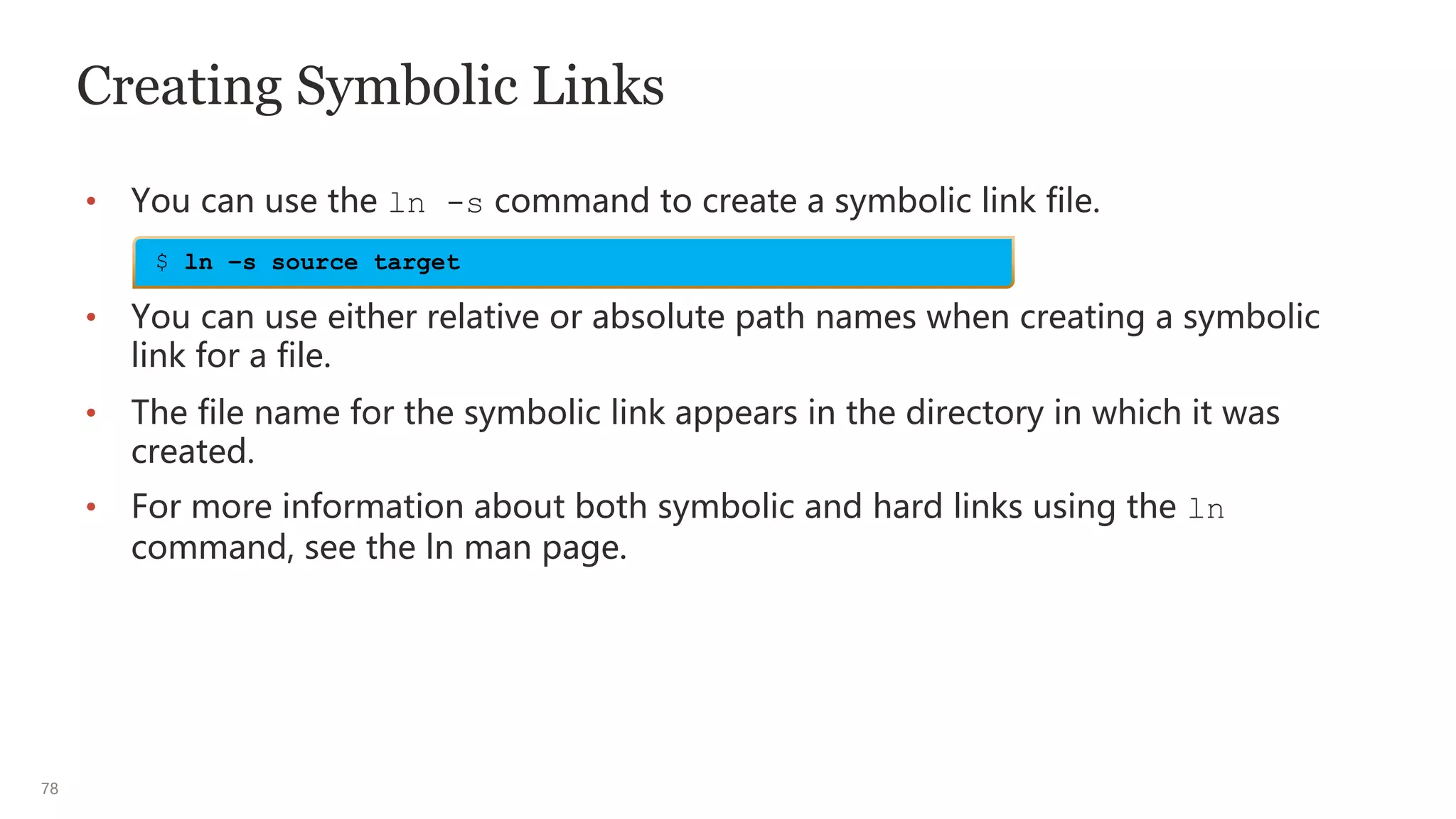
Creating Symbolic Links
• You can use the ln -s command to create a symbolic link file.
• You can use either relative or absolute path names when creating a symbolic
link for a file.
• The file name for the symbolic link appears in the directory in which it was
created.
• For more information about both symbolic and hard links using the ln
command, see the ln man page.
$ ln –s source target
79
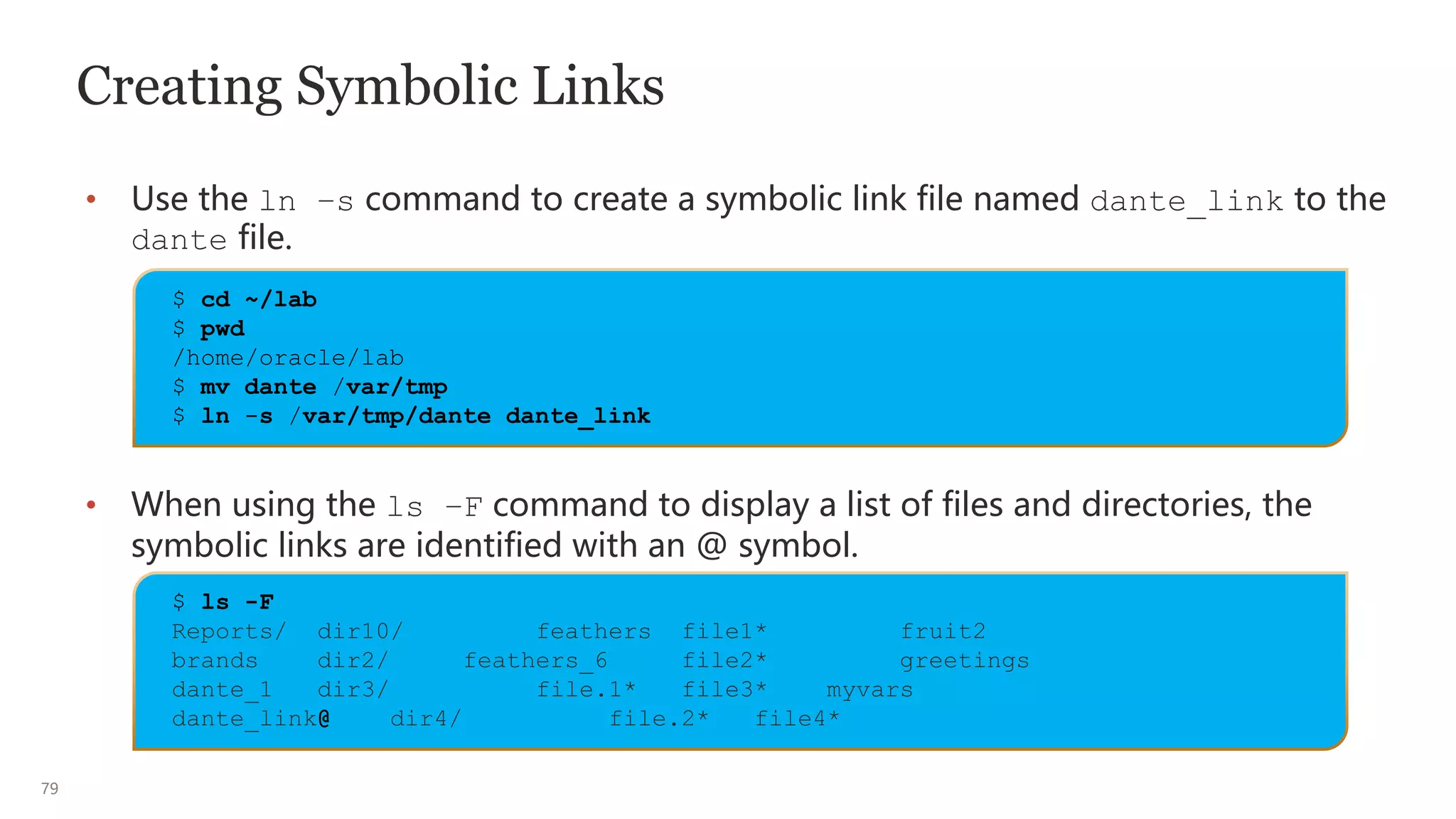
Creating Symbolic Links
• Use the ln –s command to create a symbolic link file named dante_link to the
dante file.
• When using the ls –F command to display a list of files and directories, the
symbolic links are identified with an @ symbol.
$ cd ~/lab
$ pwd
/home/oracle/lab
$ mv dante /var/tmp
$ ln -s /var/tmp/dante dante_link
$ ls -F
Reports/ dir10/ feathers file1* fruit2
brands dir2/ feathers_6 file2* greetings
dante_1 dir3/ file.1* file3* myvars
dante_link@ dir4/ file.2* file4*
80
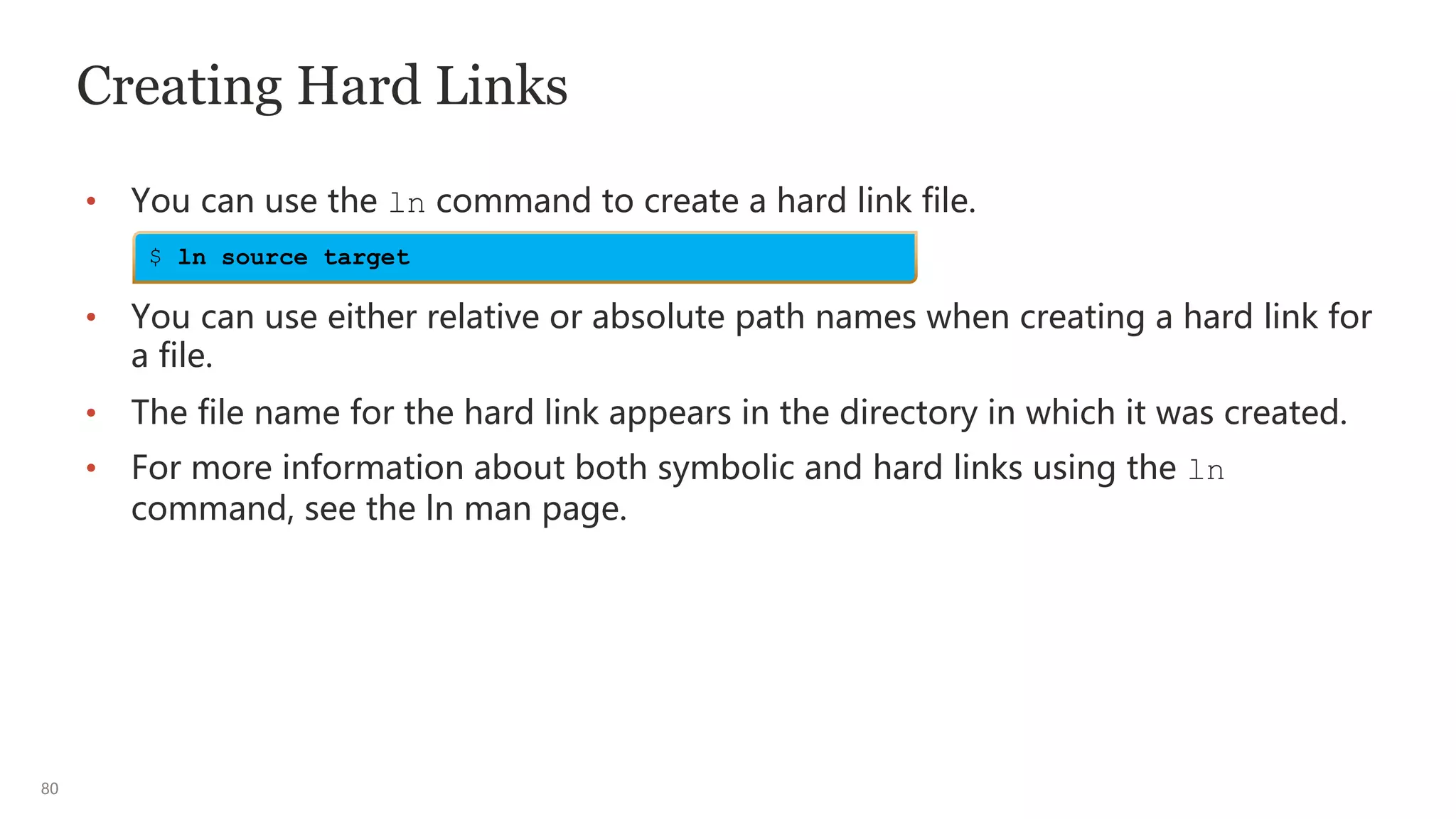
Creating Hard Links
• You can use the ln command to create a hard link file.
• You can use either relative or absolute path names when creating a hard link for
a file.
• The file name for the hard link appears in the directory in which it was created.
• For more information about both symbolic and hard links using the ln
command, see the ln man page.
$ ln source target
81
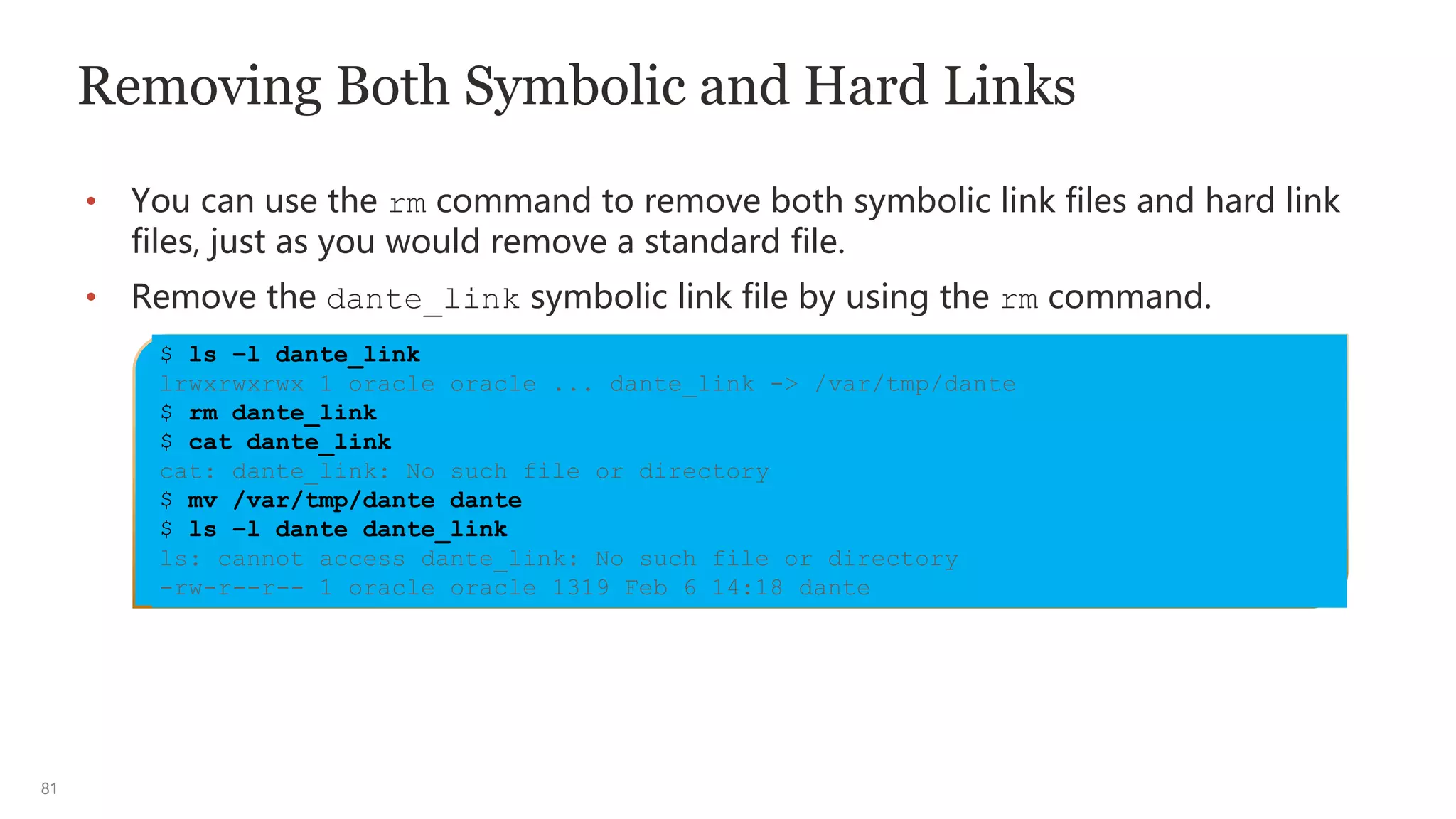
Removing Both Symbolic and Hard Links
• You can use the rm command to remove both symbolic link files and hard link
files, just as you would remove a standard file.
• Remove the dante_link symbolic link file by using the rm command.
$ ls –l dante_link
lrwxrwxrwx 1 oracle oracle ... dante_link -> /var/tmp/dante
$ rm dante_link
$ cat dante_link
cat: dante_link: No such file or directory
$ mv /var/tmp/dante dante
$ ls –l dante dante_link
ls: cannot access dante_link: No such file or directory
-rw-r--r-- 1 oracle oracle 1319 Feb 6 14:18 dante
82
Regular Expressions
• Usually, when searching in UNIX and Linux, a simple text string is all you need.
However, when the pattern is more complex, you need wild cards.
• Regular Expressions (sometimes called regex or regexp) is a way to build those
wild card patterns.
• Virtually, any userspace program that performs searches uses regex_patterns:
– Example: grep, more, less, vi, vim, emacs, sed, awk, tcl, ls, find, Microsoft
Office, and many more
• In addition, many languages, such as Perl, Java, PHP (Hypertext Preprocessor),
Python, and Microsoft C and C++, use regex_patterns.
83
Regular Expressions Wild Cards
Wild cards (metacharacters)
• * Asterisk (glob) matches zero or more characters.
• ? Question mark matches zero or a single character.
• . Period matches a single character.
• ^ Caret at the beginning of the line
• $ Dollar at the end of the line
• [ ] Brackets (a character class). The characters inside the brackets match
one character position.
• ‘ ‘ Single quotation marks (apostrophe) tell the shell to ignore any enclosed
metacharacters.
• “ “ Double quotation marks enclose a space.
•  Backslash escapes the following metacharacter.
84
Creating Patterns Using Regular Expressions
• The ls command lists all the files in the current directory.
• If you want to list only file2 and file4, you can build a regex_pattern
file[24](also called a character class):
• Another example: If you want all files that end in 2 numerals, but the last
numeral has to be a 3; one pattern could be file[0-9][3]:
$ ls
file1 file11 file2 file23 file3 file32 file4 file45
$ ls file[24]
file2 file4
$ ls file[0-9][3]
file23
85
Searching Files and Directories
• The find command searches for files that match the filename_pattern, (could be
a regex_pattern) starting in the location specified by path name.
• The find command also searches for subdirectories recursively.
• When a file matches the filename_pattern specified in the find command, its
full directory path is printed.
• You can search by –name, -type of file, -perm permissions, -empty or -size,
-group name, -user username, and many others.
• For more information about find command options, see the find man page.
$ find [pathname] –name filename_pattern
86
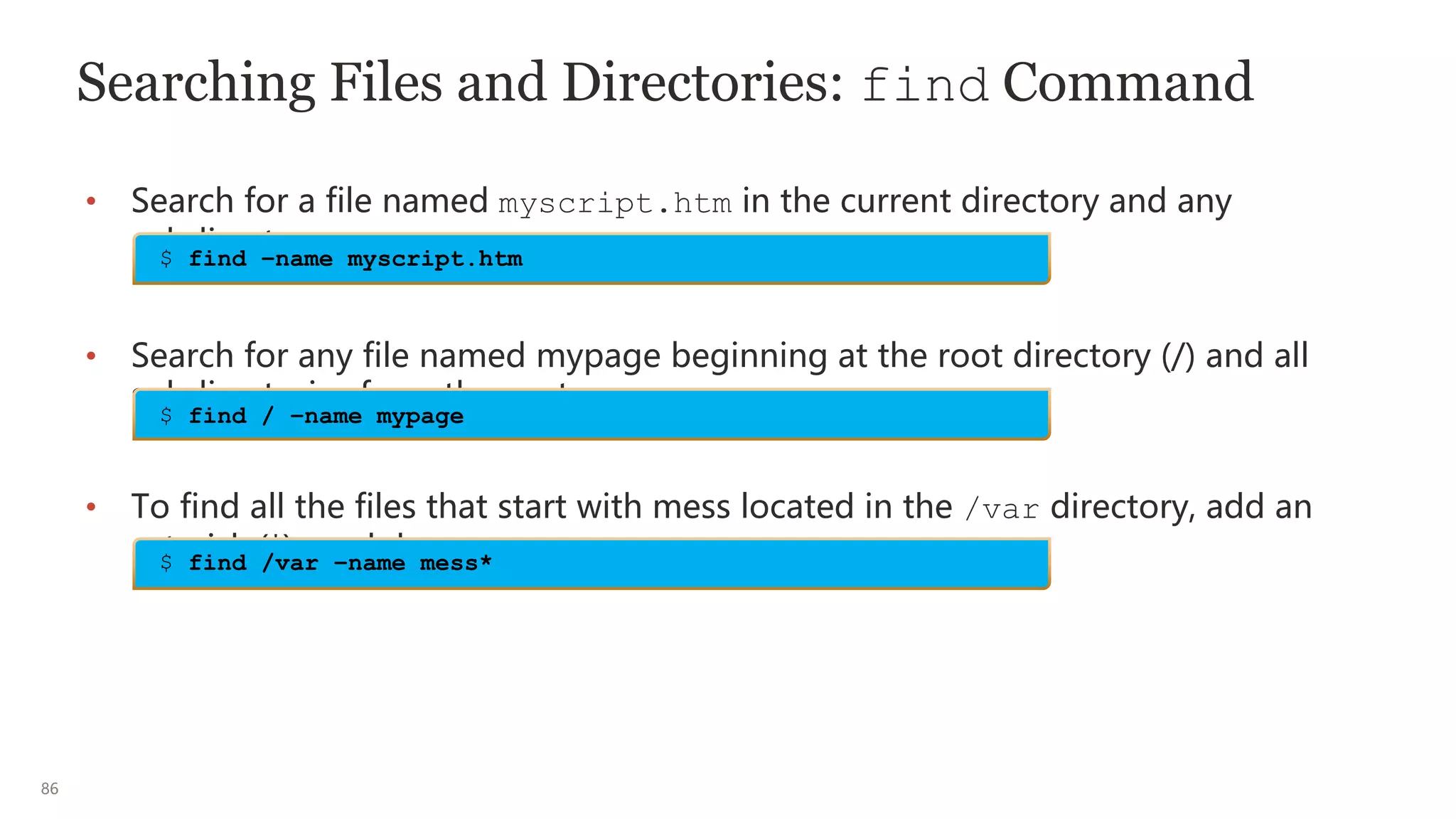
Searching Files and Directories: find Command
• Search for a file named myscript.htm in the current directory and any
subdirectory.
• Search for any file named mypage beginning at the root directory (/) and all
subdirectories from the root.
• To find all the files that start with mess located in the /var directory, add an
asterisk (*) or glob.
$ find –name myscript.htm
$ find / –name mypage
$ find /var –name mess*
87
Using Expressions with the find Command
• After the find command has found the files that you were searching for, often
you may want to do something with those files. That’s where expression comes
in.
• An expression could be the following:
– Instead of getting only the full directory path for the files which were found,
you may want to execute an ls –l to get a long listing of the found files.
– Alternatively, you want to cp or mv the files.
– The expression syntax can take many forms. You will explore two: the -exec
and
-ok that require y or Y acknowledgment.
$ find [pathname] <what you’re searching for> -exec <command> {} ;
$ find [pathname] [expression]
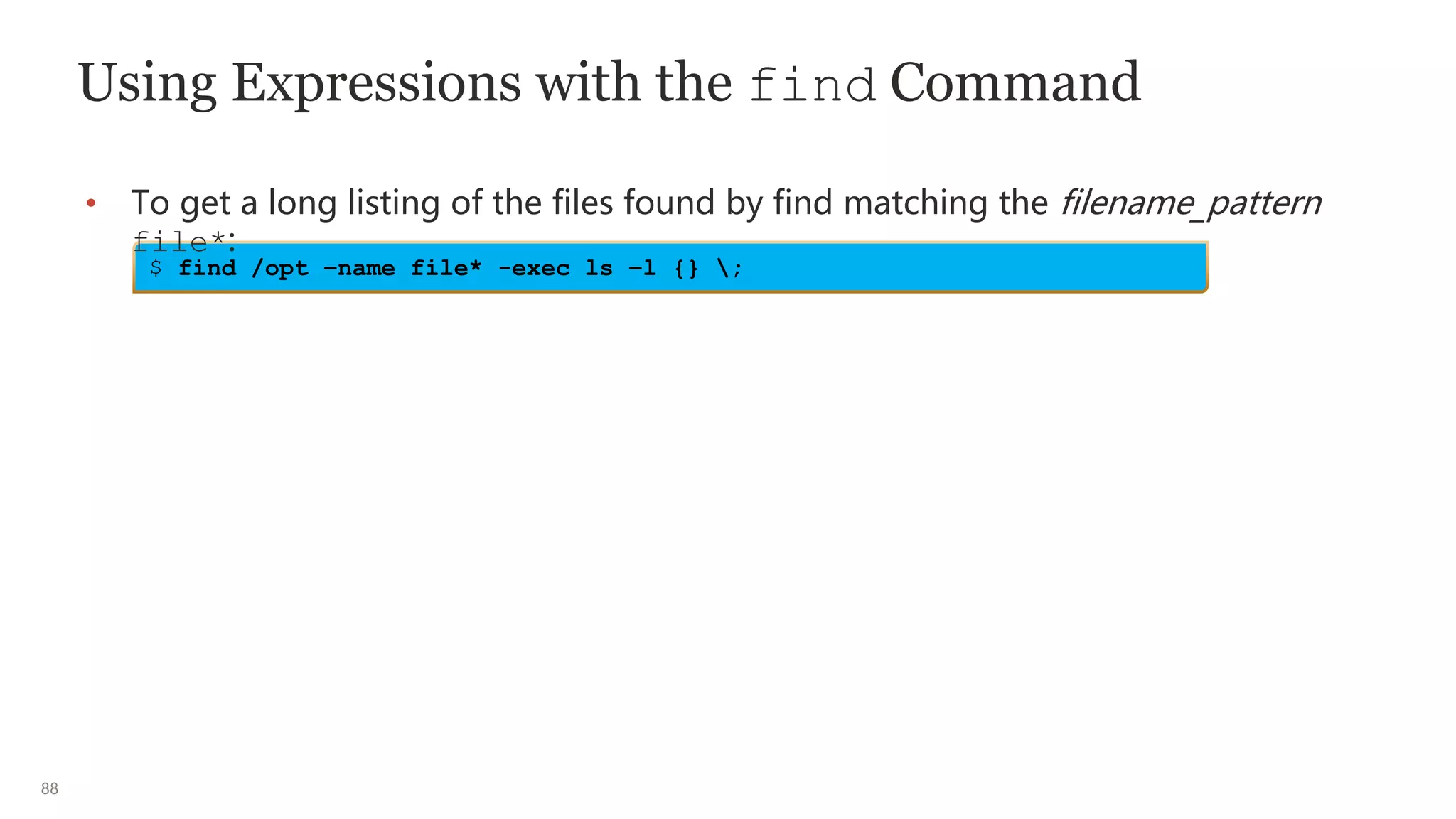
$ find /opt –name file* -exec ls -l {} ;
88
Using Expressions with the find Command
• To get a long listing of the files found by find matching the filename_pattern
file*:
$ find /opt –name file* -exec ls –l {} ;
89
Searching Files and Directories: Linux Also Has a
locate Command
• To search using locate:
• Search for any file named myscript.htm:
• The locate command works much like the grep command (covered in the
following slides), to locate any files that contain the pattern “mess*”.
• For more information about locate command options, see the locate man
page.
$ locate myscript.htm
$ locate [options] regex_pattern
$ locate mess*
90
Searching Within Files: grep Command
• The grep (global regular expression print) command allows you to search
for a specified pattern in one or more files, printing any lines that contain
the specified pattern.
• To search for the occurrence of “first” in a file called “Hello,” enter the
following command:
• For more information about grep command options, see the grep man
page.
$ grep [options] regex_pattern [files(s)]
$ grep first Hello
This is my first file in vim Editor
91
Searching Within Files: grep Command on Linux
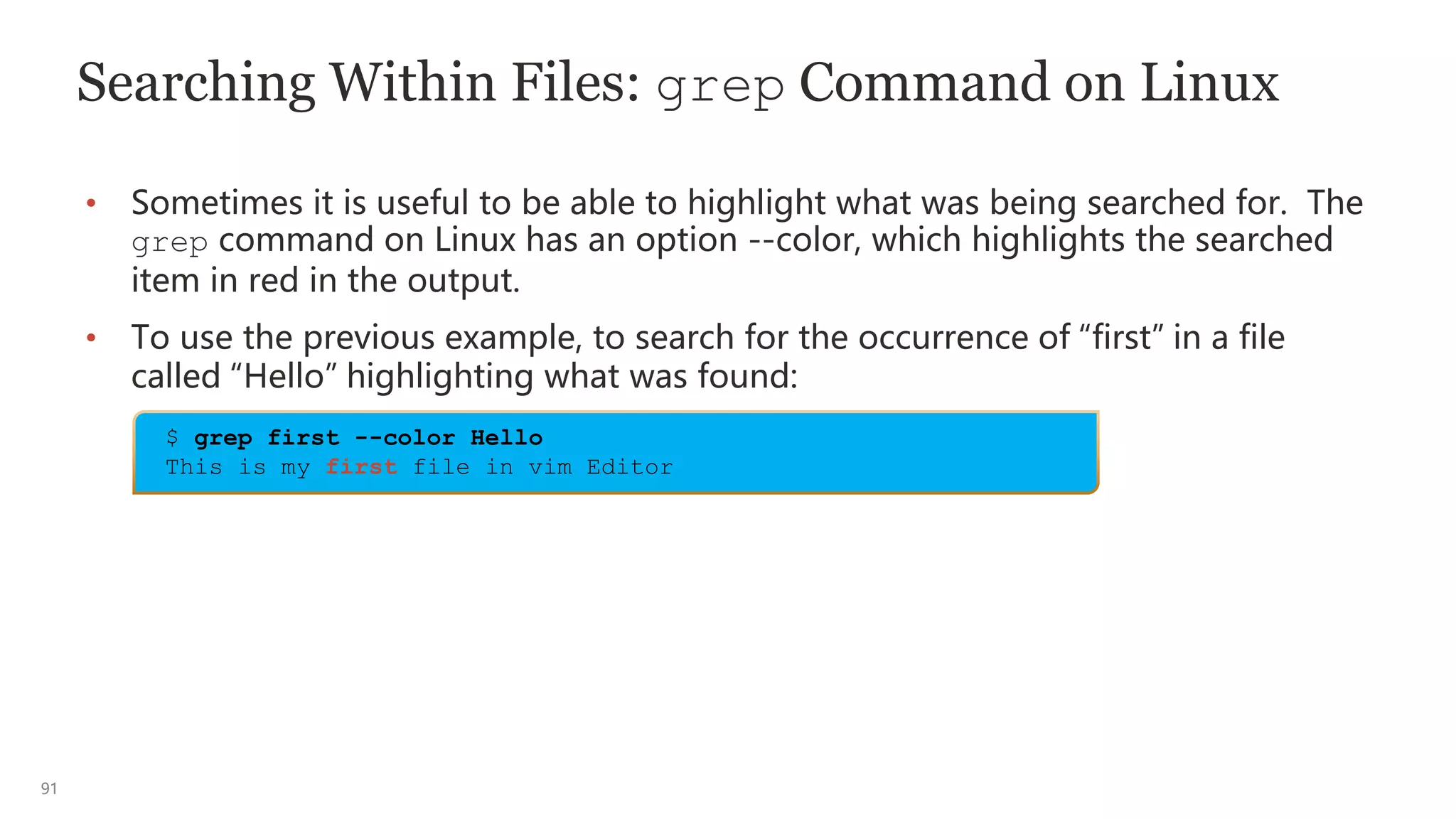
• Sometimes it is useful to be able to highlight what was being searched for. The
grep command on Linux has an option --color, which highlights the searched
item in red in the output.
• To use the previous example, to search for the occurrence of “first” in a file
called “Hello” highlighting what was found:
$ grep first --color Hello
This is my first file in vim Editor
1
Using the vim Editor
93
vim Editor: Introduction
• The vim editor is an interactive command-line editor that you can use to create
and modify text files.
– The vim editor is also the only text editor that you can use to edit certain
system files without changing the permissions associated with the files.
• In Oracle Linux, vim (vi improved) is the default editor.
– The vim editor is an enhanced version of the vi editor and is accessed via an
alias “vi” in Oracle Linux.
94
Accessing the vim Editor
• To create, edit, and view files in the vim editor, use the vi command.
• The vi command includes the following three syntaxes:
• For more information about vim command options, see the vim man page.
$ vi [options] filename
$ vi
$ vi filename
95
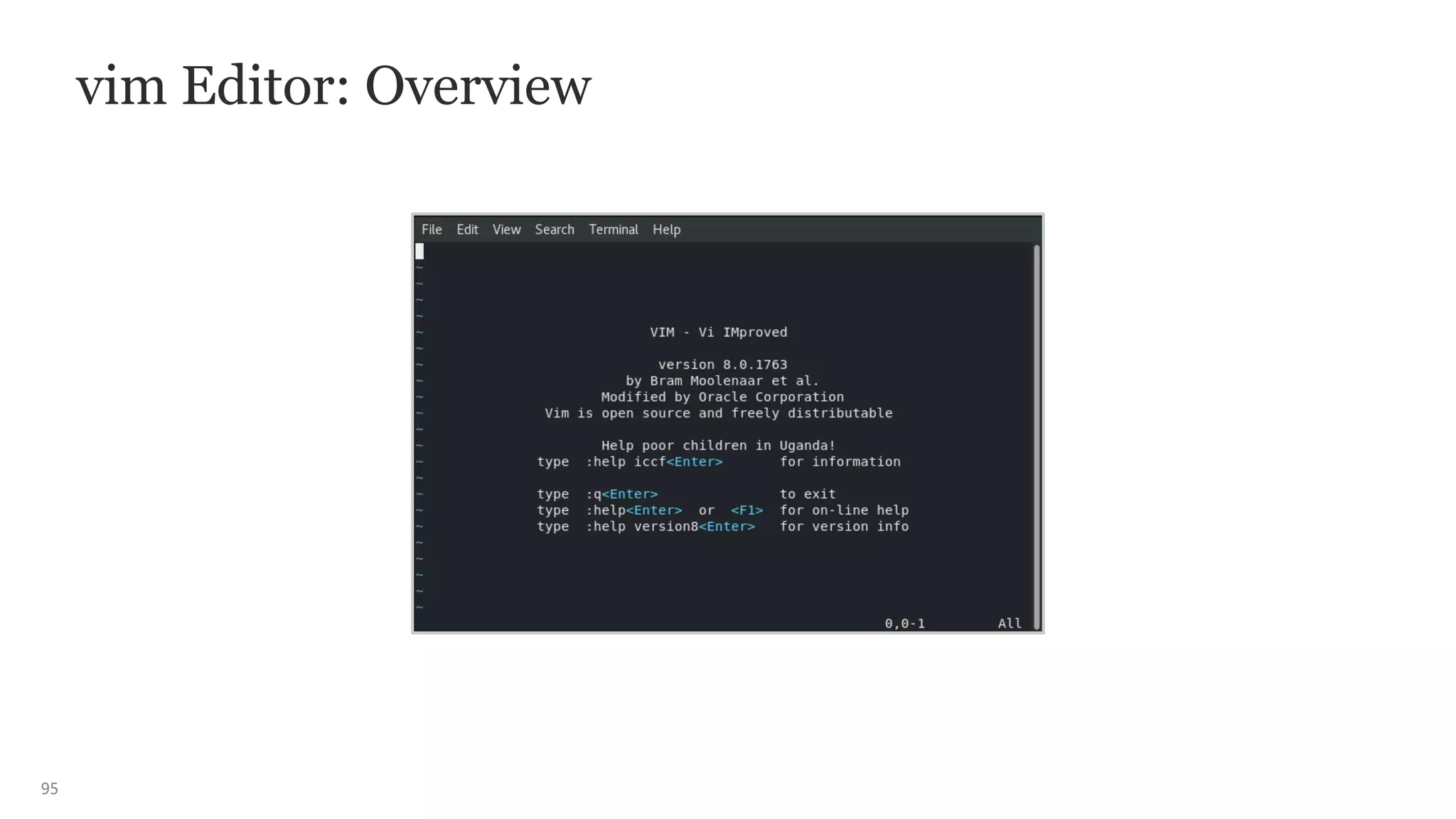
vim Editor: Overview
96
vim Editor Modes
• The vim editor is a modal editor and provides six basic modes of operation:
– Command mode (normal): Typically the default mode when vim starts
– Insert (and replace) mode: Used when adding new text
– Visual mode: Changes how text is highlighted
– Select mode: The default mode for MS Windows installations
– Command-line mode: Allows you to enter ex commands
– Ex mode: Is optimized for batch processing
• Command and insert modes are the two most common modes and will be
the ones used in this course.
97
Switching Between the Two Most Common Modes
• The default mode for the vim editor is command mode.
• To switch to insert mode, press i, o, a, or R.
• To return to command mode, press the Esc key.
• In command mode, enter the :wq command that writes (saves changes) to the
file, quits the vim editor, and returns to the shell prompt.
98
Viewing Files in Read-Only Mode
• The view command enables you to view files in read-only mode.
• The view command invokes the vim editor as read-only, which means you
cannot save changes to the file.
• To view the dante file in read-only mode, enter the following command:
• The dante file appears. Enter the :q command to quit the vim editor, and return
to the shell prompt.
$ view filename
or
$ vim –R filename
$ view dante
99
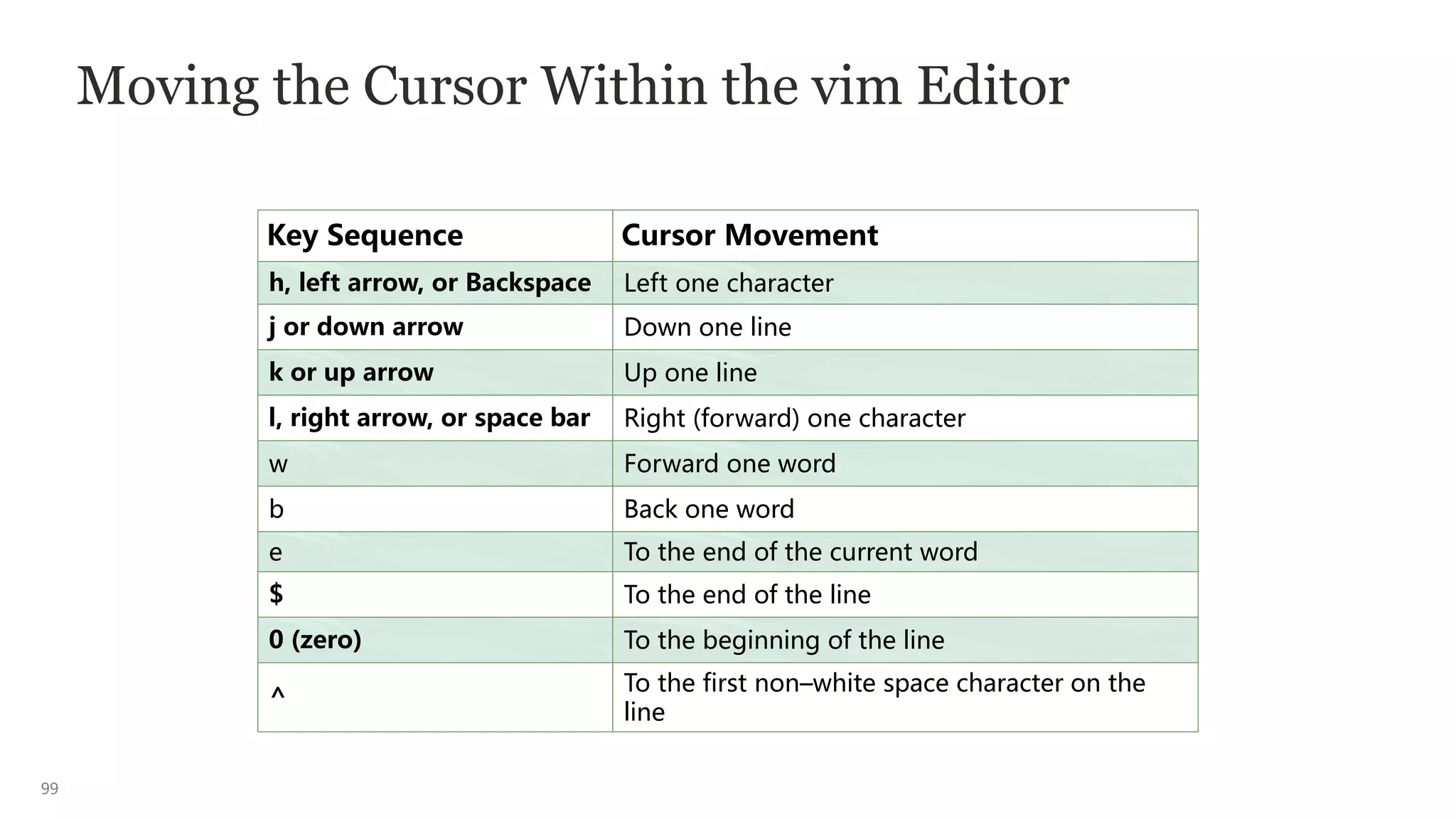
Moving the Cursor Within the vim Editor
Key Sequence Cursor Movement
h, left arrow, or Backspace Left one character
j or down arrow Down one line
k or up arrow Up one line
l, right arrow, or space bar Right (forward) one character
w Forward one word
b Back one word
e To the end of the current word
$ To the end of the line
0 (zero) To the beginning of the line
^
To the first non–white space character on the
line
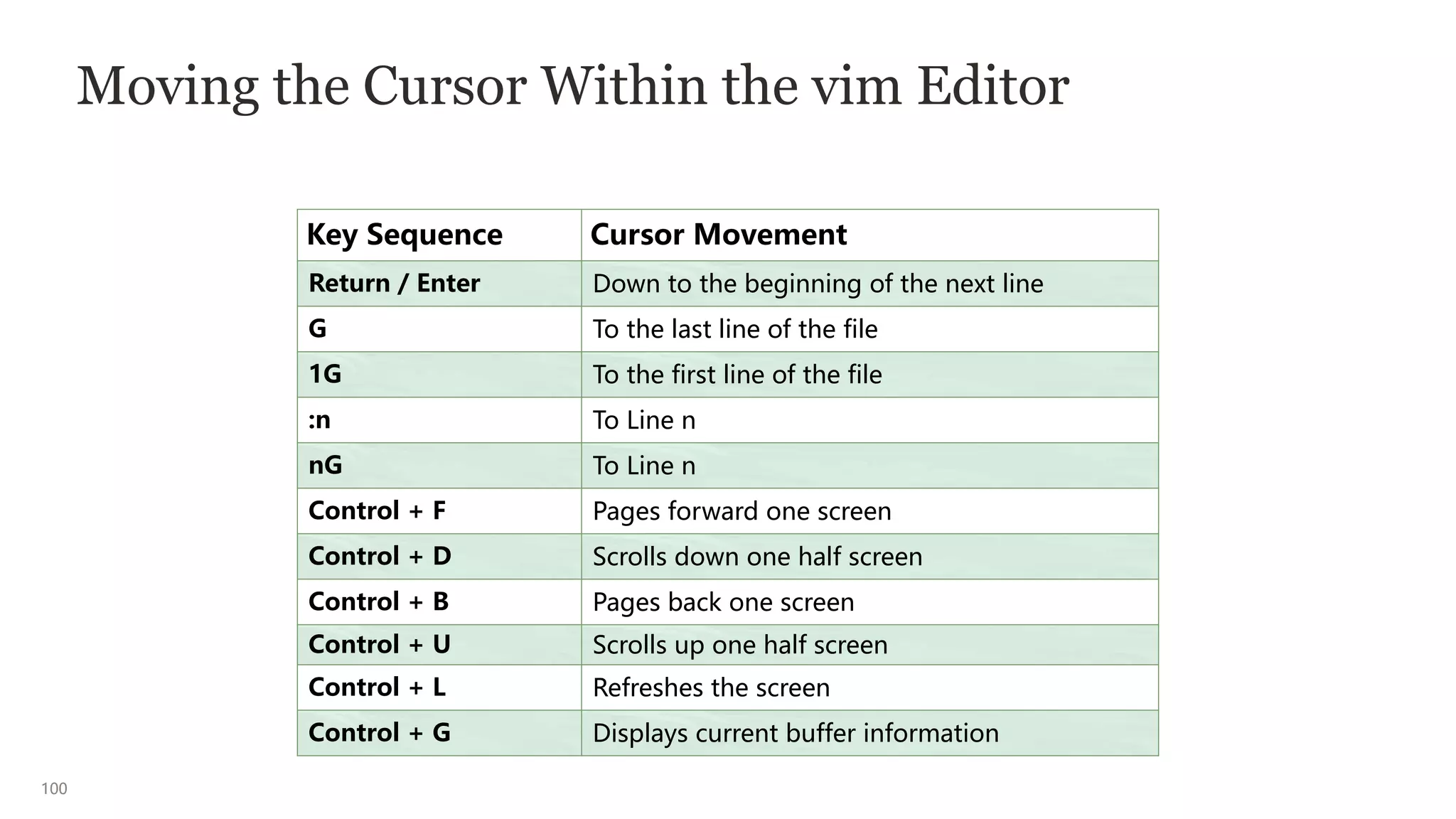
100
Moving the Cursor Within the vim Editor
Key Sequence Cursor Movement
Return / Enter Down to the beginning of the next line
G To the last line of the file
1G To the first line of the file
:n To Line n
nG To Line n
Control + F Pages forward one screen
Control + D Scrolls down one half screen
Control + B Pages back one screen
Control + U Scrolls up one half screen
Control + L Refreshes the screen
Control + G Displays current buffer information
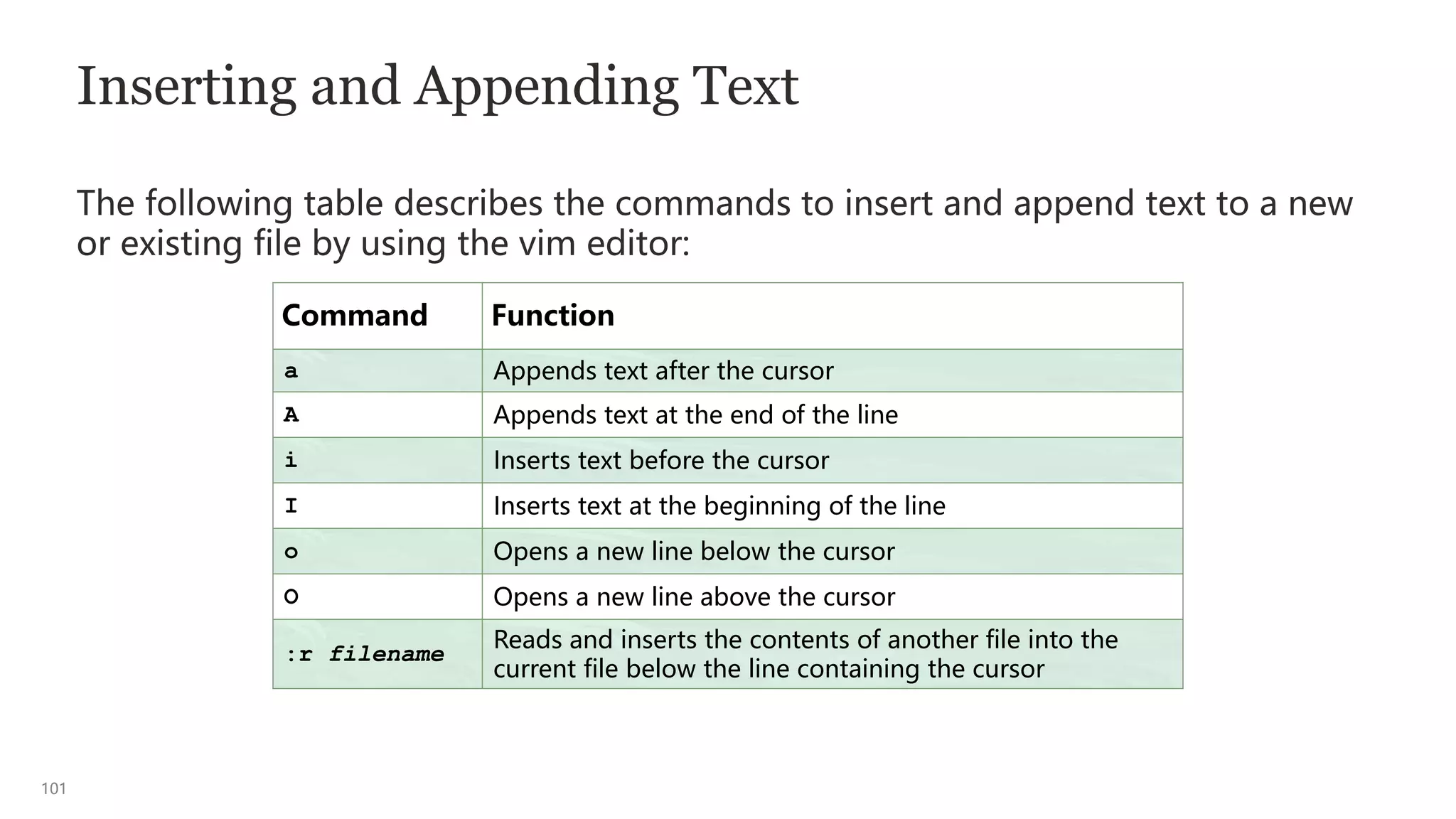
101
Inserting and Appending Text
The following table describes the commands to insert and append text to a new
or existing file by using the vim editor:
Command Function
a Appends text after the cursor
A Appends text at the end of the line
i Inserts text before the cursor
I Inserts text at the beginning of the line
o Opens a new line below the cursor
O Opens a new line above the cursor
:r filename
Reads and inserts the contents of another file into the
current file below the line containing the cursor
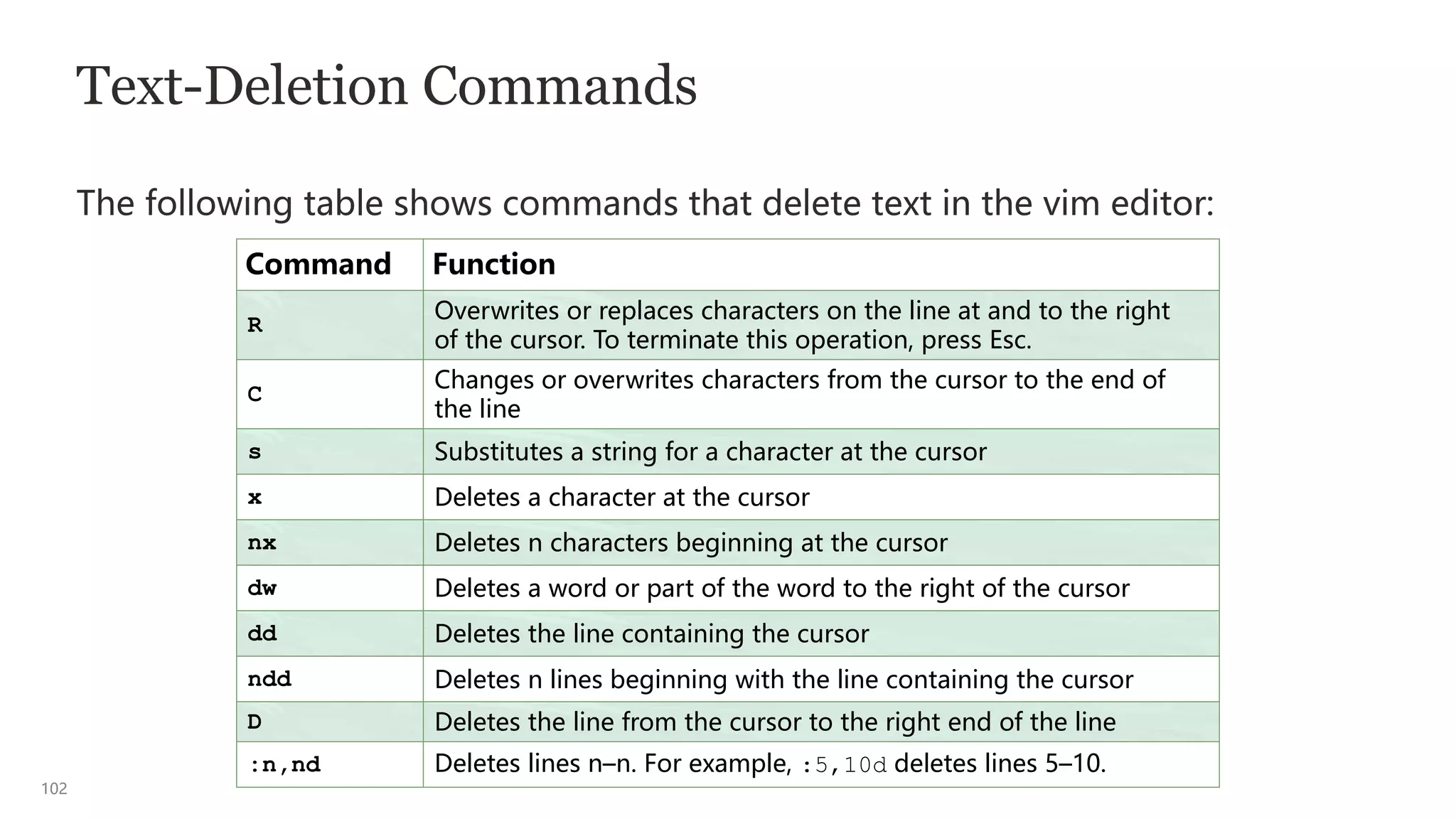
102
Text-Deletion Commands
The following table shows commands that delete text in the vim editor:
Command Function
R
Overwrites or replaces characters on the line at and to the right
of the cursor. To terminate this operation, press Esc.
C
Changes or overwrites characters from the cursor to the end of
the line
s Substitutes a string for a character at the cursor
x Deletes a character at the cursor
nx Deletes n characters beginning at the cursor
dw Deletes a word or part of the word to the right of the cursor
dd Deletes the line containing the cursor
ndd Deletes n lines beginning with the line containing the cursor
D Deletes the line from the cursor to the right end of the line
:n,nd Deletes lines n–n. For example, :5,10d deletes lines 5–10.
103
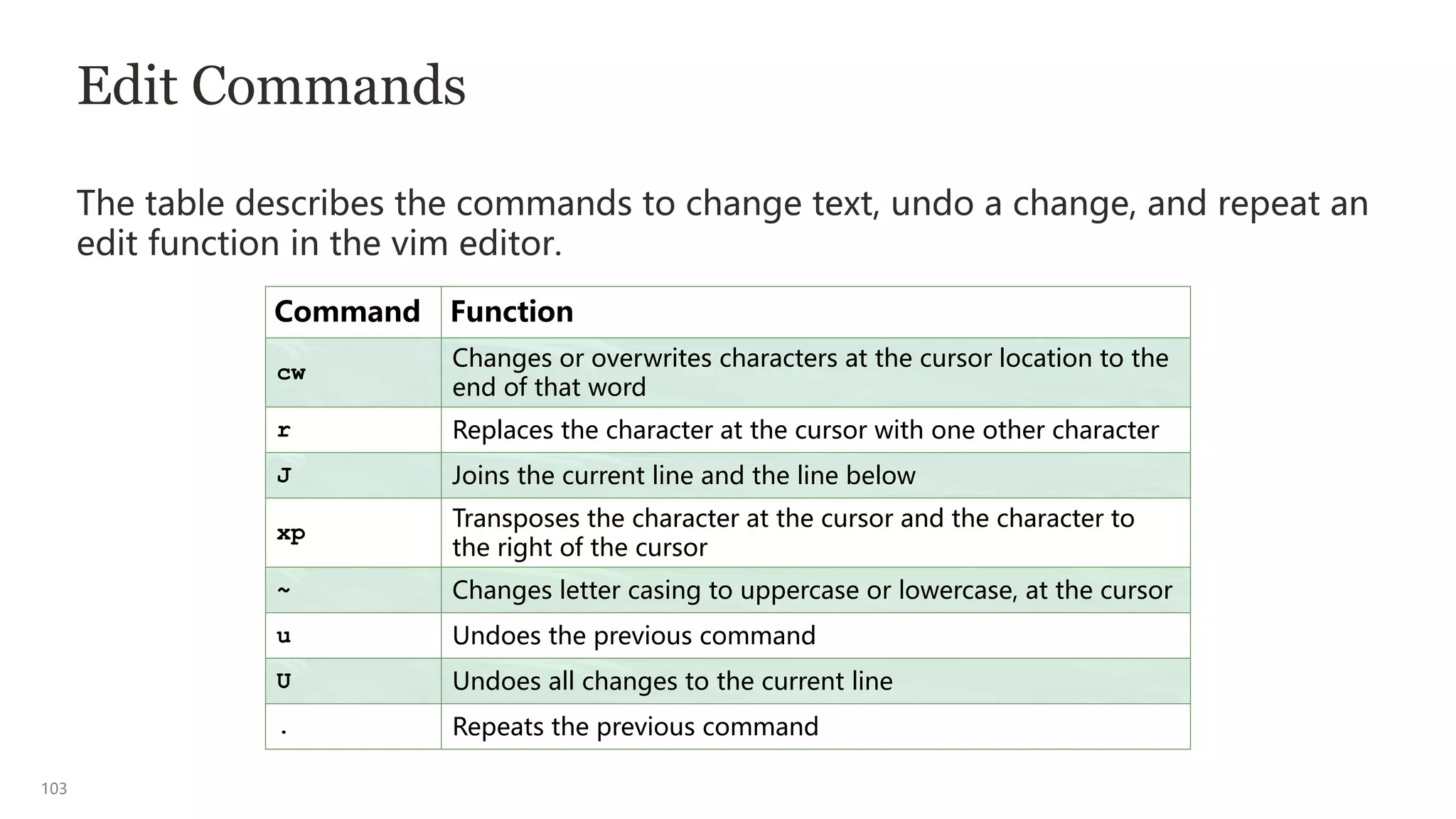
Edit Commands
The table describes the commands to change text, undo a change, and repeat an
edit function in the vim editor.
Command Function
cw
Changes or overwrites characters at the cursor location to the
end of that word
r Replaces the character at the cursor with one other character
J Joins the current line and the line below
xp
Transposes the character at the cursor and the character to
the right of the cursor
~ Changes letter casing to uppercase or lowercase, at the cursor
u Undoes the previous command
U Undoes all changes to the current line
. Repeats the previous command
104
Searching for and Substituting (Replacing) Text
Within a File
The table shows the commands that can search for and substitute (replace) text
using the vim editor.
Command Function
/pattern Searches forward for the pattern/string (regex_pattern)
?pattern Searches backward for the pattern/string
(regex_pattern)
n Searches for the next occurrence of the pattern. Use
this
command after searching for a pattern.
N Searches for the previous occurrence of the pattern.
Use
this command after searching for a pattern.
:[%]s/oldstring/newstring
/[g]
Searches for the old string and substitutes (replaces) it
with the new string globally. The “%” symbol searches
the whole file and the “g” replaces every occurrence of
the old string with new string globally.
105
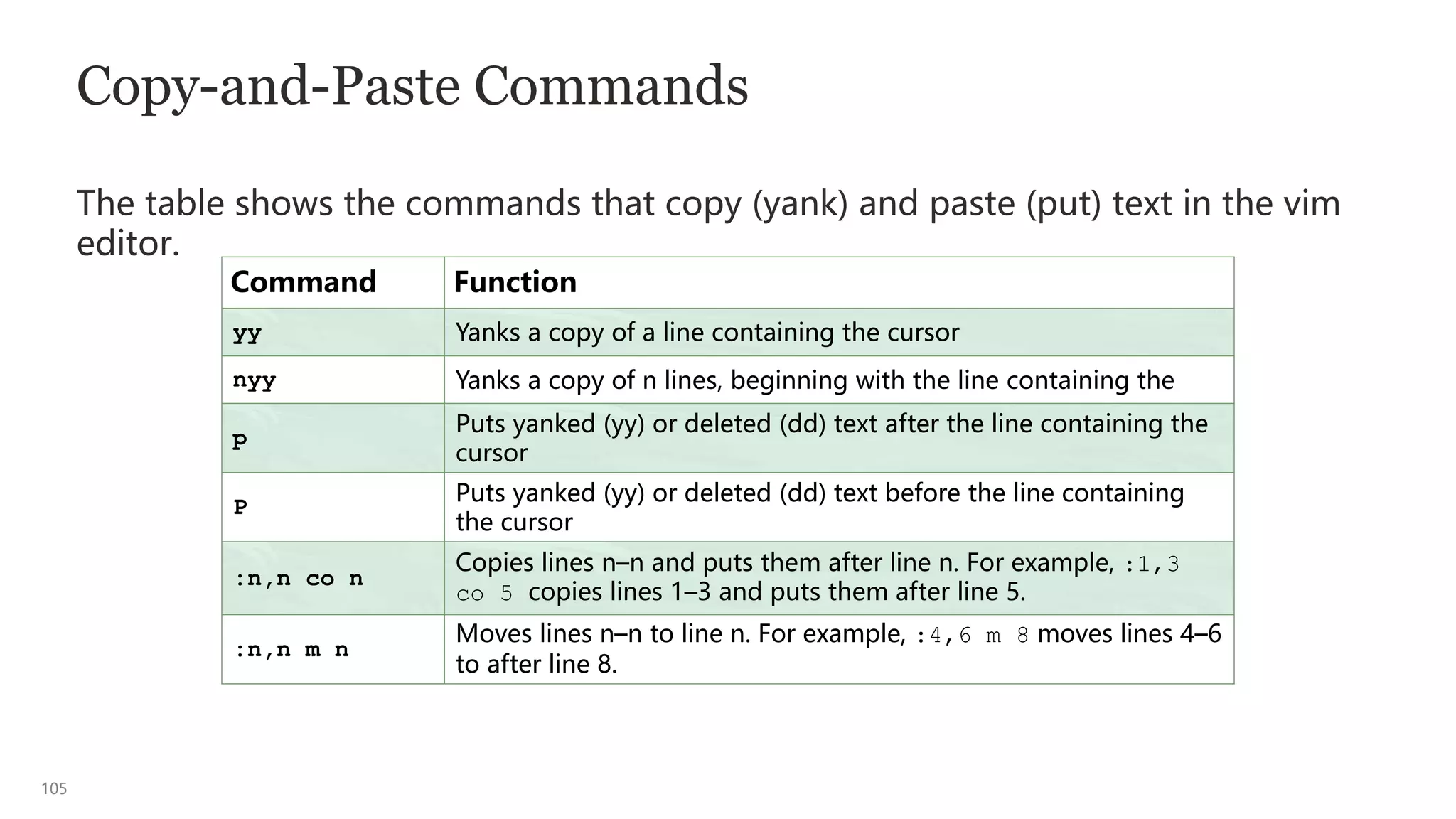
Copy-and-Paste Commands
The table shows the commands that copy (yank) and paste (put) text in the vim
editor.
Command Function
yy Yanks a copy of a line containing the cursor
nyy Yanks a copy of n lines, beginning with the line containing the
p
Puts yanked (yy) or deleted (dd) text after the line containing the
cursor
P
Puts yanked (yy) or deleted (dd) text before the line containing
the cursor
:n,n co n
Copies lines n–n and puts them after line n. For example, :1,3
co 5 copies lines 1–3 and puts them after line 5.
:n,n m n
Moves lines n–n to line n. For example, :4,6 m 8 moves lines 4–6
to after line 8.
106
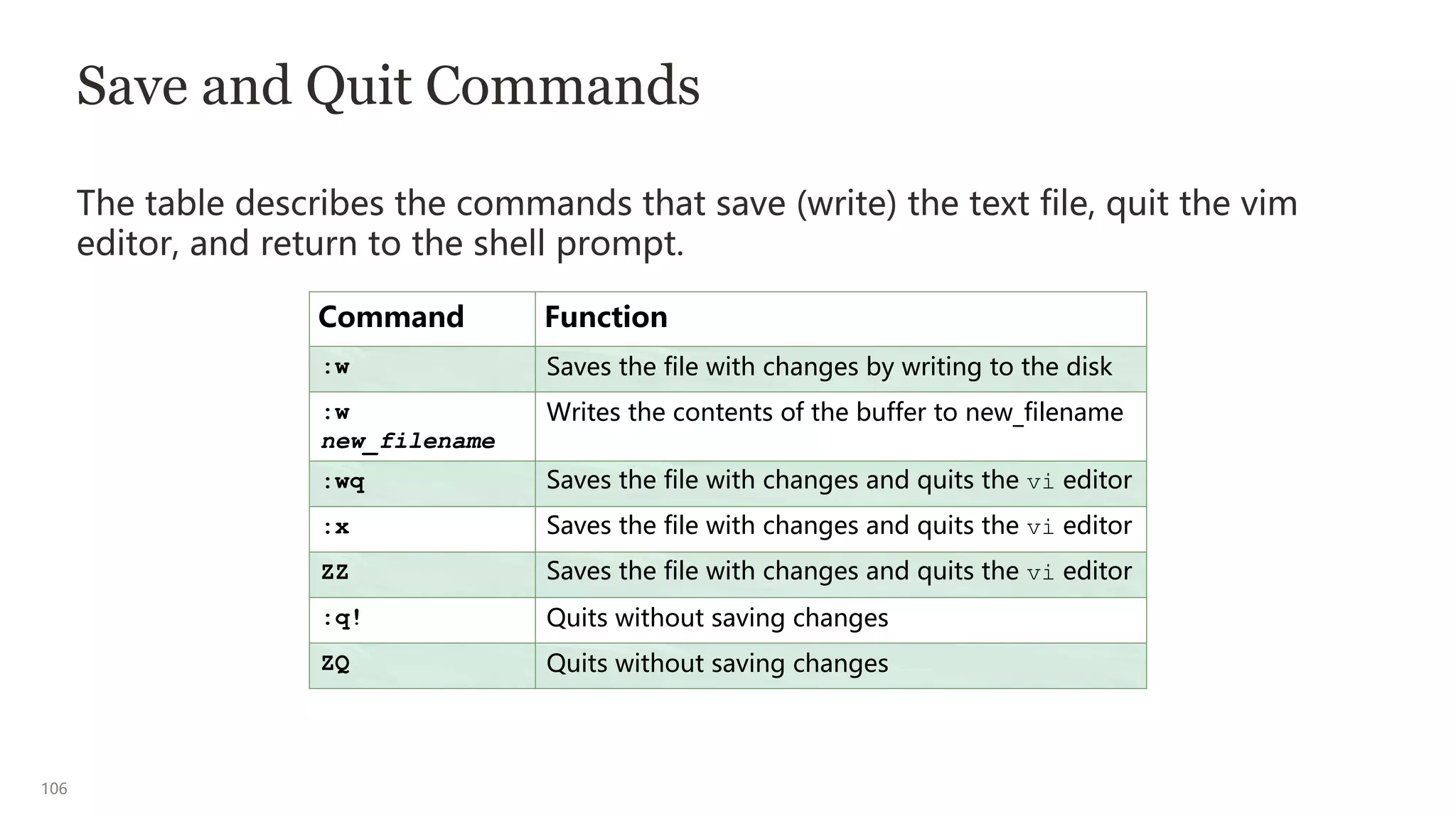
Save and Quit Commands
The table describes the commands that save (write) the text file, quit the vim
editor, and return to the shell prompt.
Command Function
:w Saves the file with changes by writing to the disk
:w
new_filename
Writes the contents of the buffer to new_filename
:wq Saves the file with changes and quits the vi editor
:x Saves the file with changes and quits the vi editor
ZZ Saves the file with changes and quits the vi editor
:q! Quits without saving changes
ZQ Quits without saving changes
107
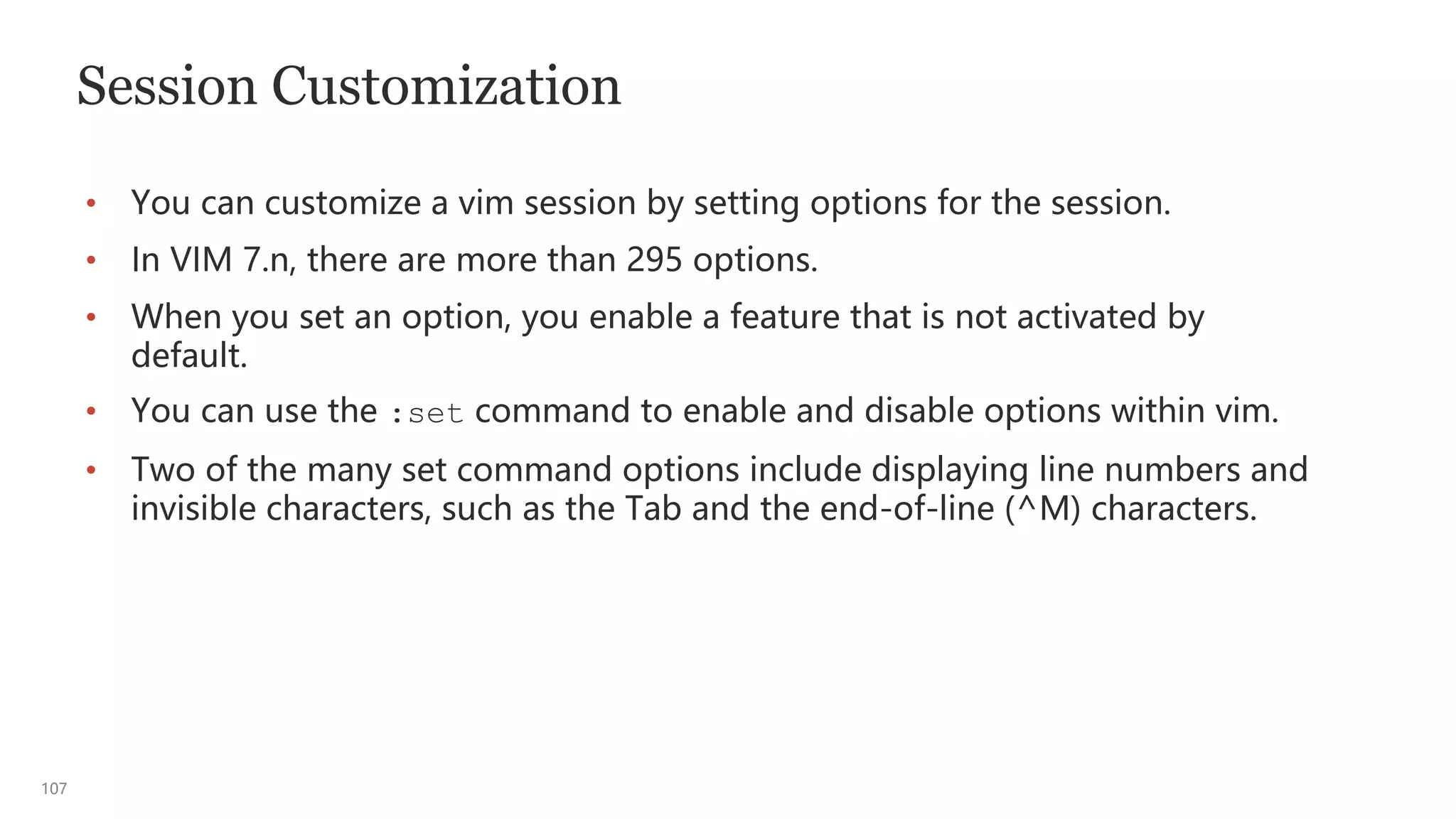
Session Customization
• You can customize a vim session by setting options for the session.
• In VIM 7.n, there are more than 295 options.
• When you set an option, you enable a feature that is not activated by
default.
• You can use the :set command to enable and disable options within vim.
• Two of the many set command options include displaying line numbers and
invisible characters, such as the Tab and the end-of-line (^M) characters.
108
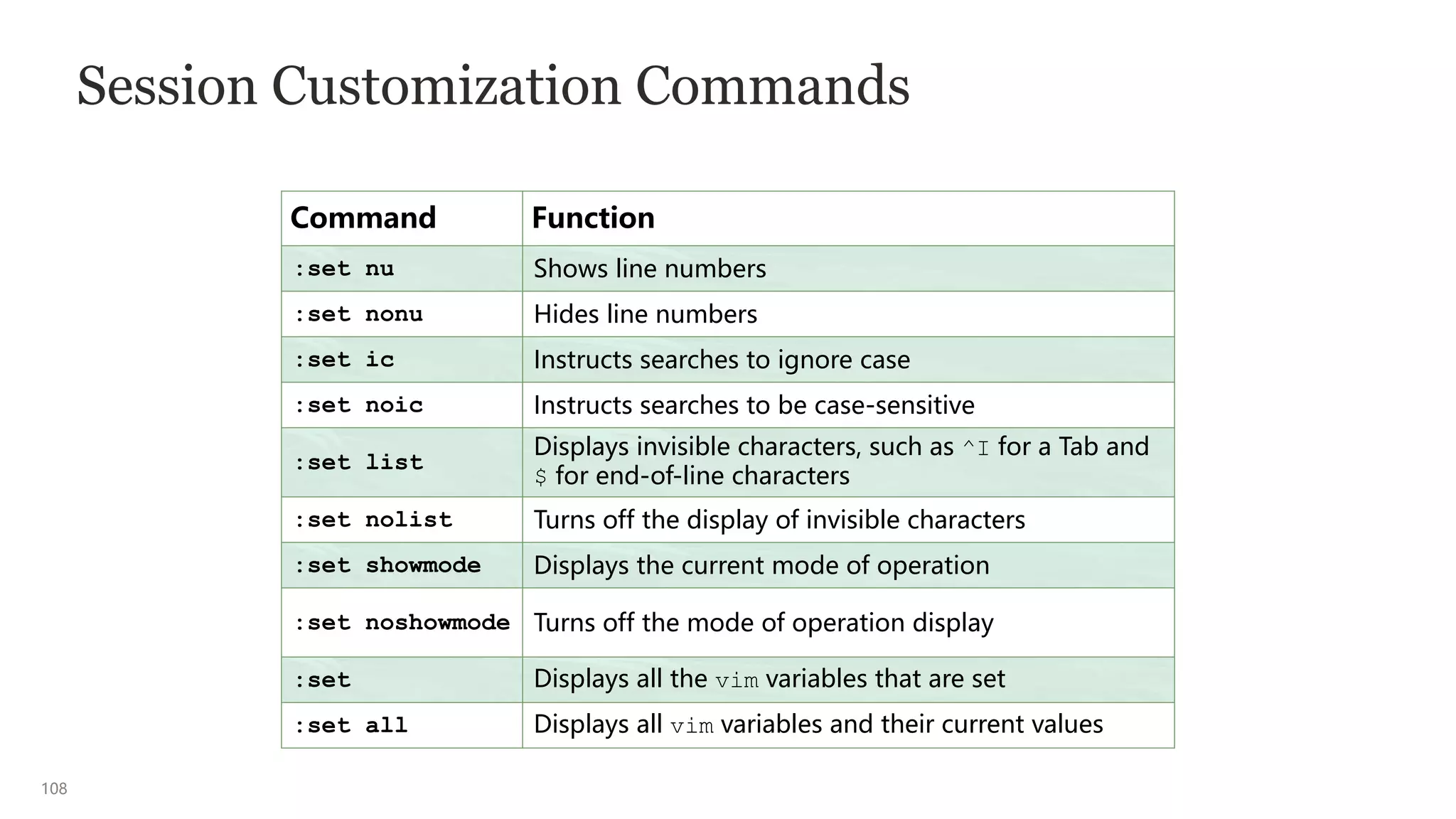
Session Customization Commands
Command Function
:set nu Shows line numbers
:set nonu Hides line numbers
:set ic Instructs searches to ignore case
:set noic Instructs searches to be case-sensitive
:set list
Displays invisible characters, such as ^I for a Tab and
$ for end-of-line characters
:set nolist Turns off the display of invisible characters
:set showmode Displays the current mode of operation
:set noshowmode Turns off the mode of operation display
:set Displays all the vim variables that are set
:set all Displays all vim variables and their current values
1
Using Features Within the Bash Shell
110
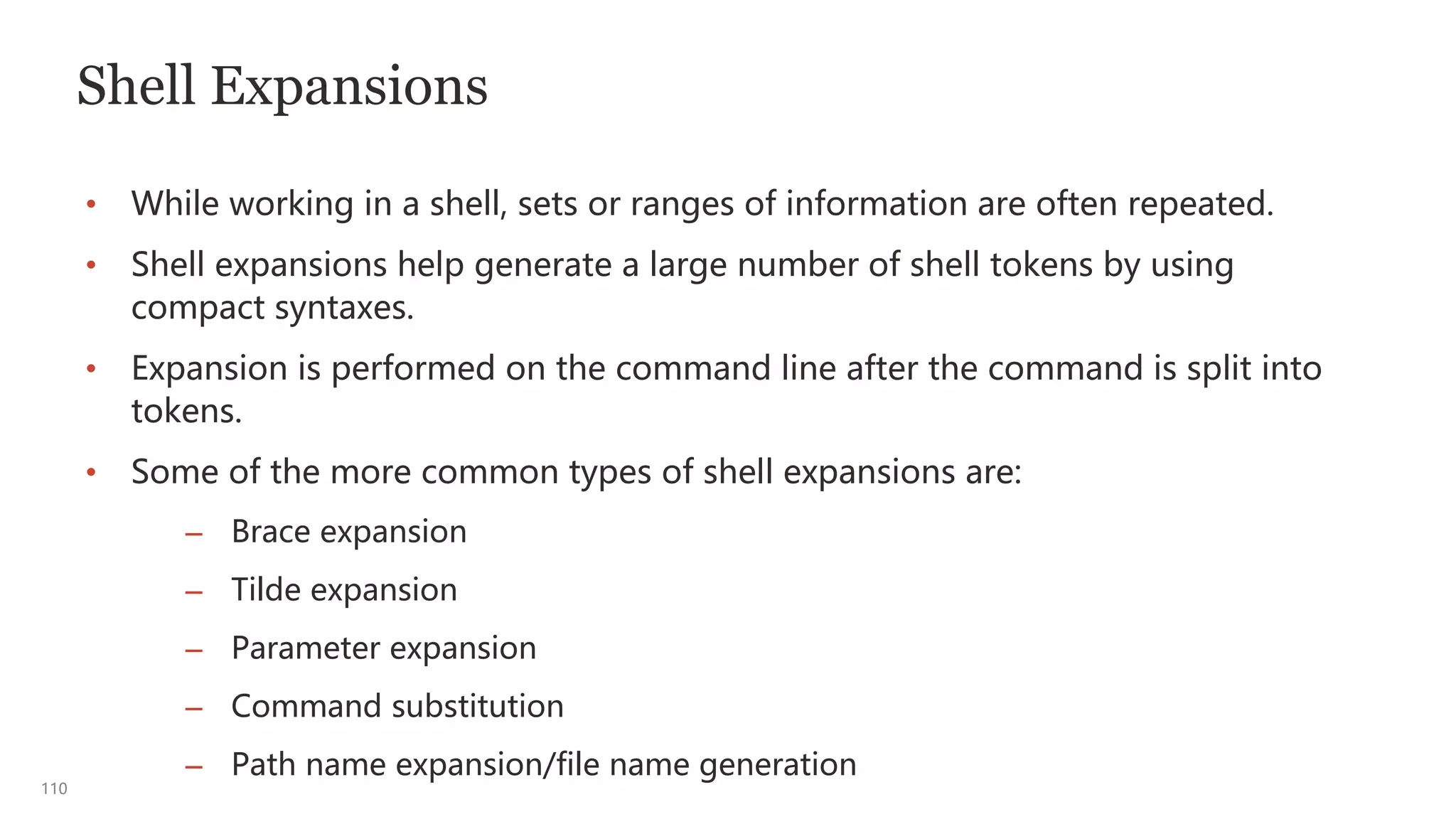
Shell Expansions
• While working in a shell, sets or ranges of information are often repeated.
• Shell expansions help generate a large number of shell tokens by using
compact syntaxes.
• Expansion is performed on the command line after the command is split into
tokens.
• Some of the more common types of shell expansions are:
– Brace expansion
– Tilde expansion
– Parameter expansion
– Command substitution
– Path name expansion/file name generation
111
Brace Expansion
• The brace ({ }) expansion is a mechanism by which arbitrary strings can be
generated.
• Patterns to be brace-expanded take the form of an optional preamble, followed
by either a series of comma-separated strings or a sequence expression
between a pair of curly braces, followed by an optional postscript.
• In the following example, the preamble “a” is prefixed to each string contained
within the braces, and the postscript “e” is then appended to each resulting
string, expanding left to right.
Brace expansion syntax: optional preamble{string1[,string2][,stringn]}optional postscript
$ echo a{d,c,b}e
ade ace abe
112
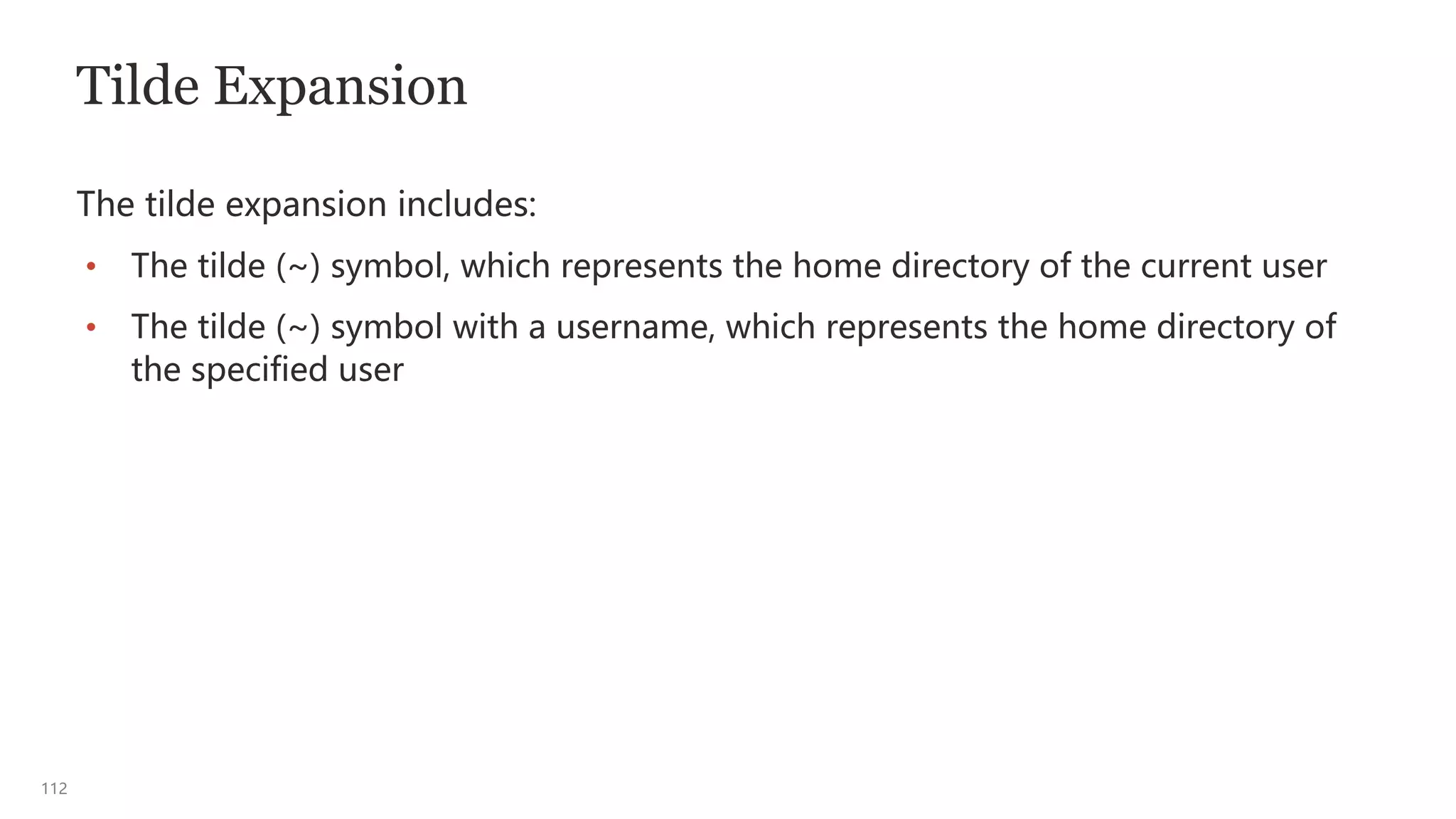
Tilde Expansion
The tilde expansion includes:
• The tilde (~) symbol, which represents the home directory of the current user
• The tilde (~) symbol with a username, which represents the home directory of
the specified user
113
Parameter Expansion
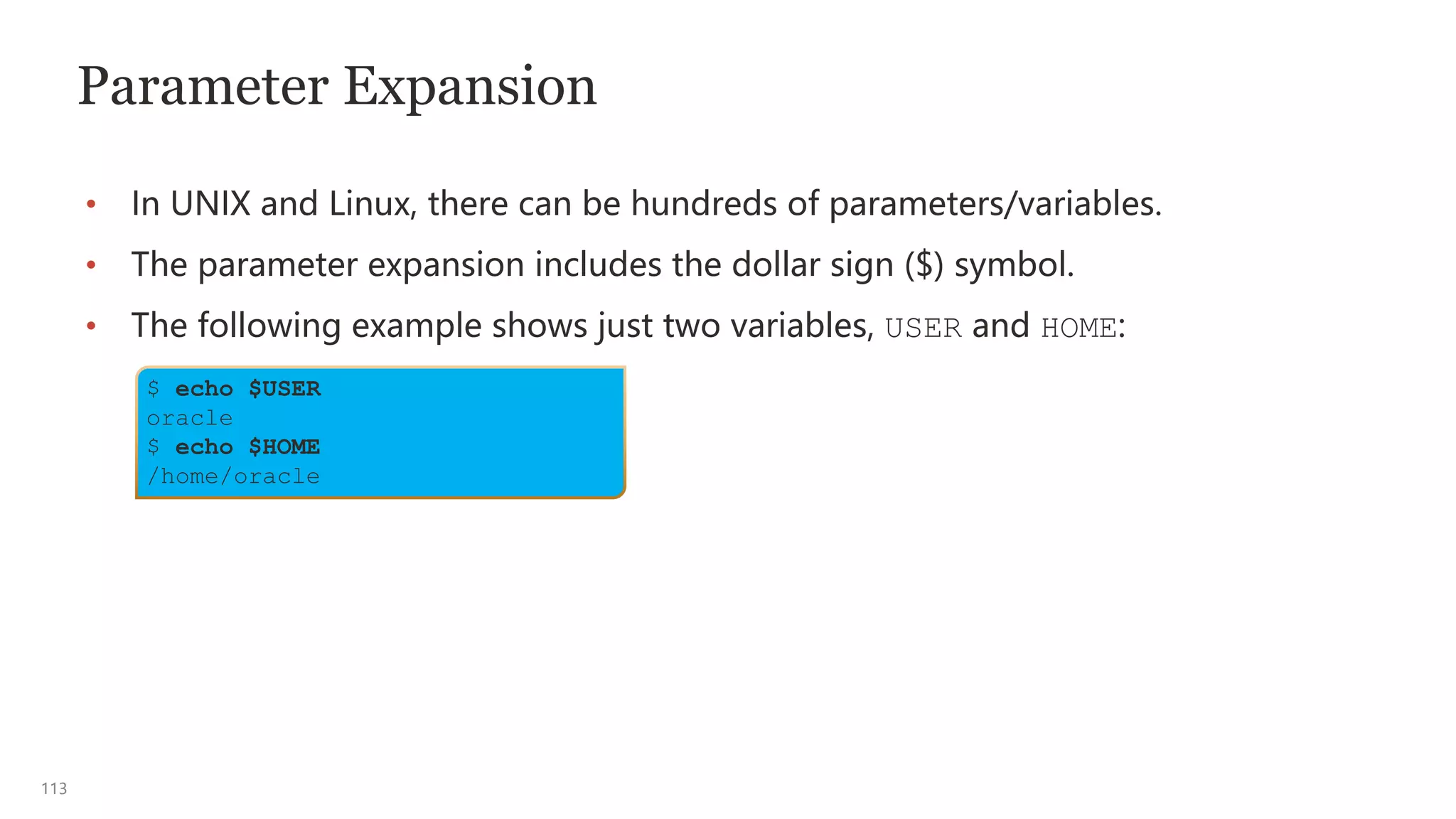
• In UNIX and Linux, there can be hundreds of parameters/variables.
• The parameter expansion includes the dollar sign ($) symbol.
• The following example shows just two variables, USER and HOME:
$ echo $USER
oracle
$ echo $HOME
/home/oracle
114
Command Substitution
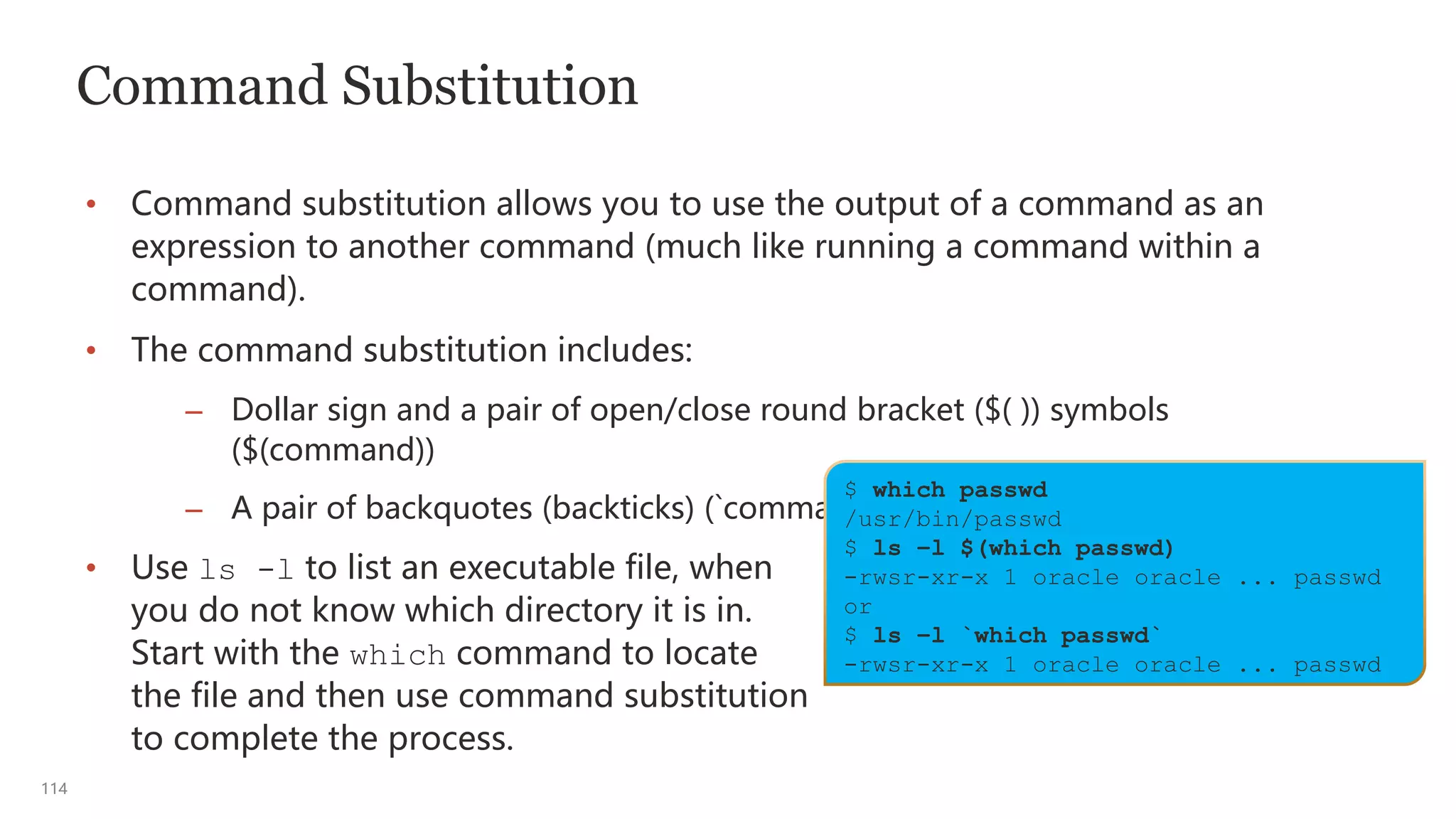
• Command substitution allows you to use the output of a command as an
expression to another command (much like running a command within a
command).
• The command substitution includes:
– Dollar sign and a pair of open/close round bracket ($( )) symbols
($(command))
– A pair of backquotes (backticks) (`command `)
• Use ls -l to list an executable file, when
you do not know which directory it is in.
Start with the which command to locate
the file and then use command substitution
to complete the process.
$ which passwd
/usr/bin/passwd
$ ls –l $(which passwd)
-rwsr-xr-x 1 oracle oracle ... passwd
or
$ ls –l `which passwd`
-rwsr-xr-x 1 oracle oracle ... passwd
115
Path Name Expansion and File Name Generation
• The path name expansion simplifies location changes within the directory
hierarchy.
• The path name expansion or file name generation includes:
– The asterisk (*) symbol, which matches zero or more characters
(sometimes called “globbing”)
– The question mark (?) symbol, which matches zero or a single character
– A pair of square brackets ([ ]), which matches a single character
– The dash (-) symbol, which represents the previous working directory
Note: The asterisk, question mark, and square brackets are metacharacters
that are also used by regular expressions.
116
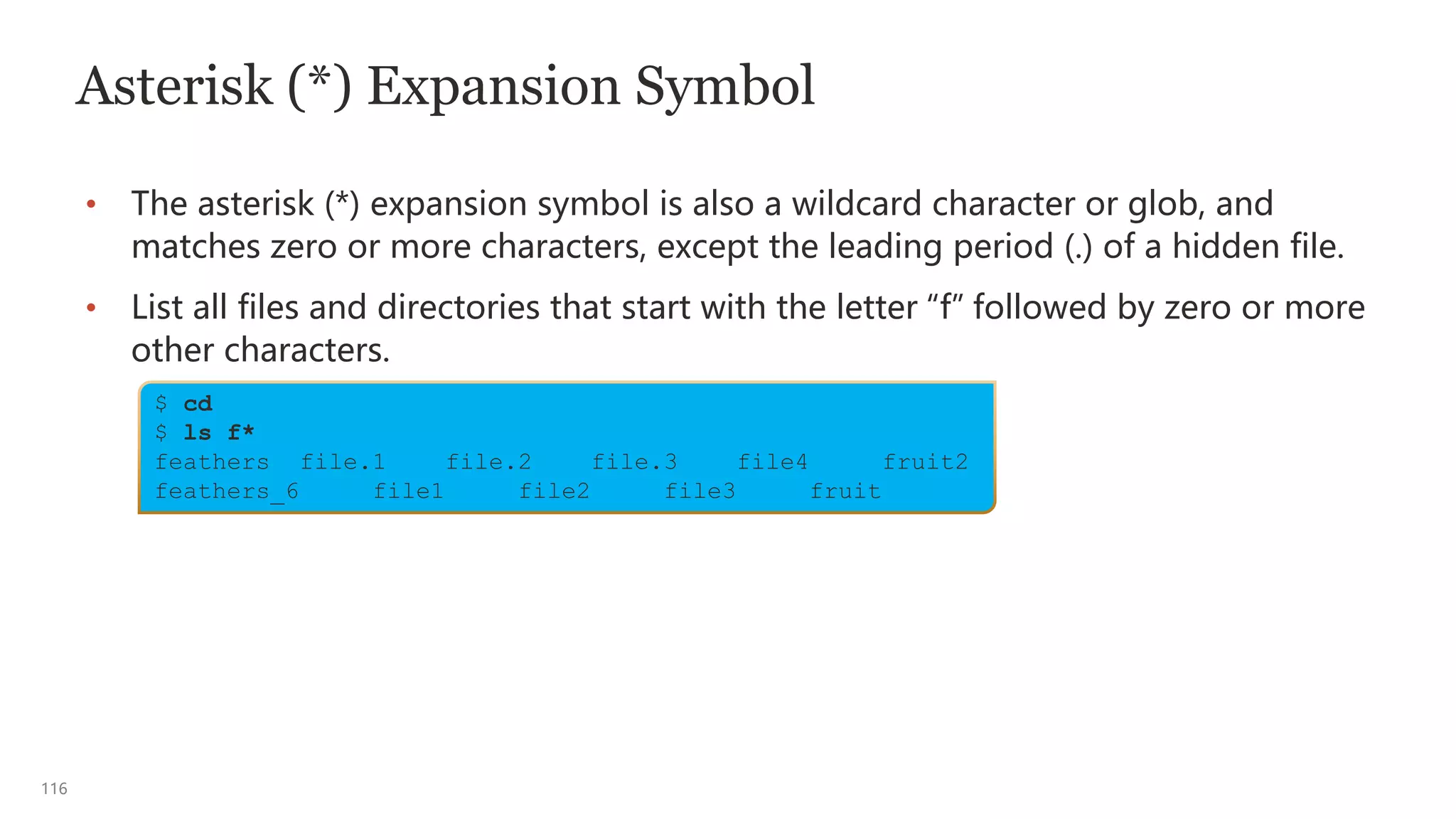
$ cd
$ ls f*
feathers file.1 file.2 file.3 file4 fruit2
feathers_6 file1 file2 file3 fruit
Asterisk (*) Expansion Symbol
• The asterisk (*) expansion symbol is also a wildcard character or glob, and
matches zero or more characters, except the leading period (.) of a hidden file.
• List all files and directories that start with the letter “f” followed by zero or more
other characters.
117
Question Mark (?) Expansion Symbol
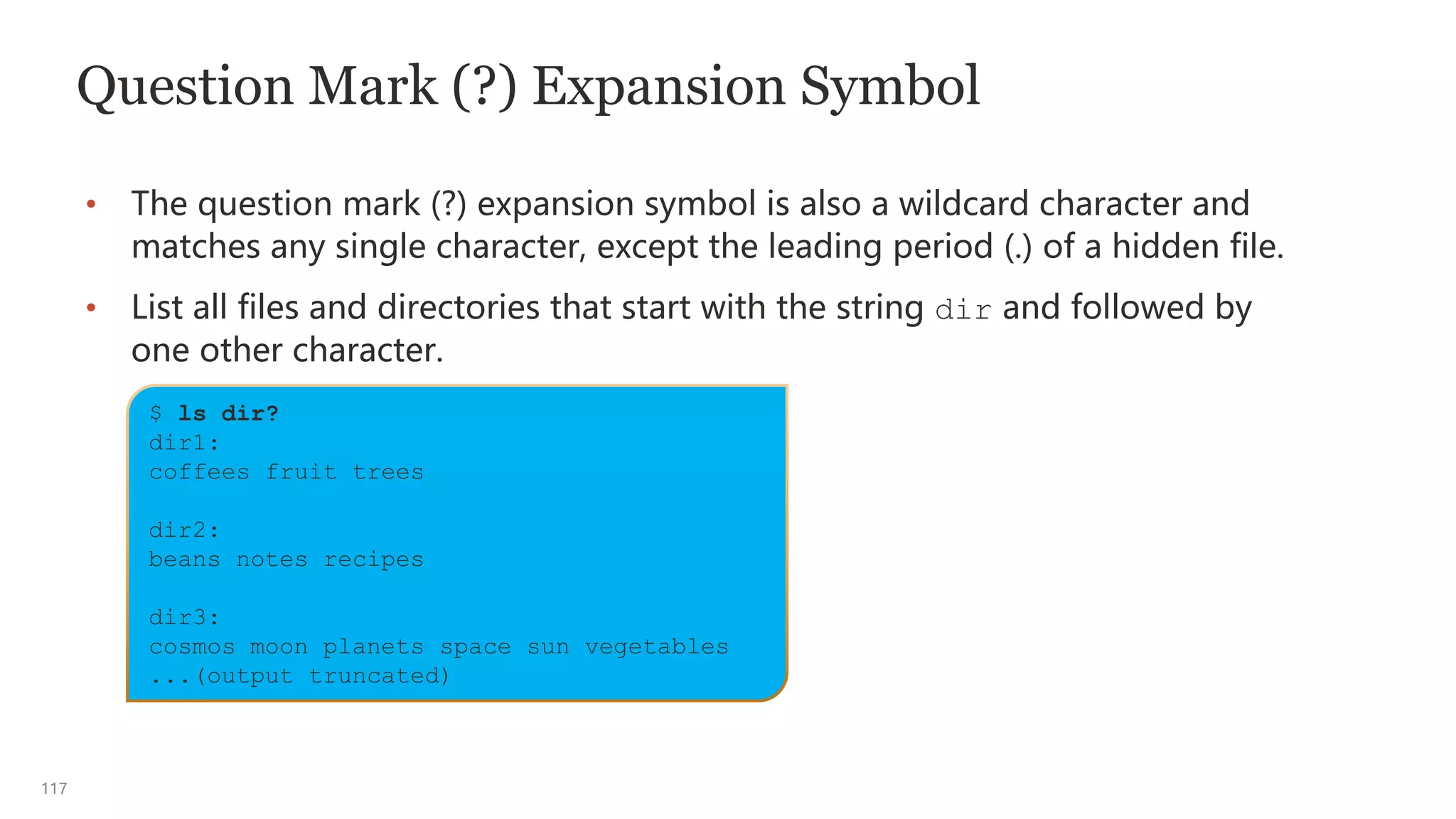
• The question mark (?) expansion symbol is also a wildcard character and
matches any single character, except the leading period (.) of a hidden file.
• List all files and directories that start with the string dir and followed by
one other character.
$ ls dir?
dir1:
coffees fruit trees
dir2:
beans notes recipes
dir3:
cosmos moon planets space sun vegetables
...(output truncated)
118
Square Bracket ([]) Expansion Symbols
The square bracket ([]) expansion symbols are used to create a character class,
which represents a set or range of characters for a single character position.
• A set of characters is any number of specific characters, for example, [acb].
– The characters in a set do not necessarily have to be in any order, for
example, [abc] is the same as [cab].
• A range of characters is a series of ordered characters.
– A range lists the first character followed by a hyphen (-) and then the last
character, for example, [a–z] or [0–9].
– When specifying a range, arrange the characters in the order that you want
them to appear in the output, for example, use [A–Z] or [a–z] to search for
any uppercase or lowercase alphabetical character, respectively.
119
Shell Metacharacters
• Shell metacharacters are specific characters, generally symbols, that have special
meaning within the shell.
• bash metacharacters:
– | pipe, sends the output of the command on the left as input to the command
on the right of the symbol.
– & ampersand, background execution
– ; semicolon, command separator
–  backslash, escapes the next metacharacter to remove its meaning.
– ( ) round brackets (parentheses), command grouping
120
Shell Metacharacters
• bash metacharacters (contd.):
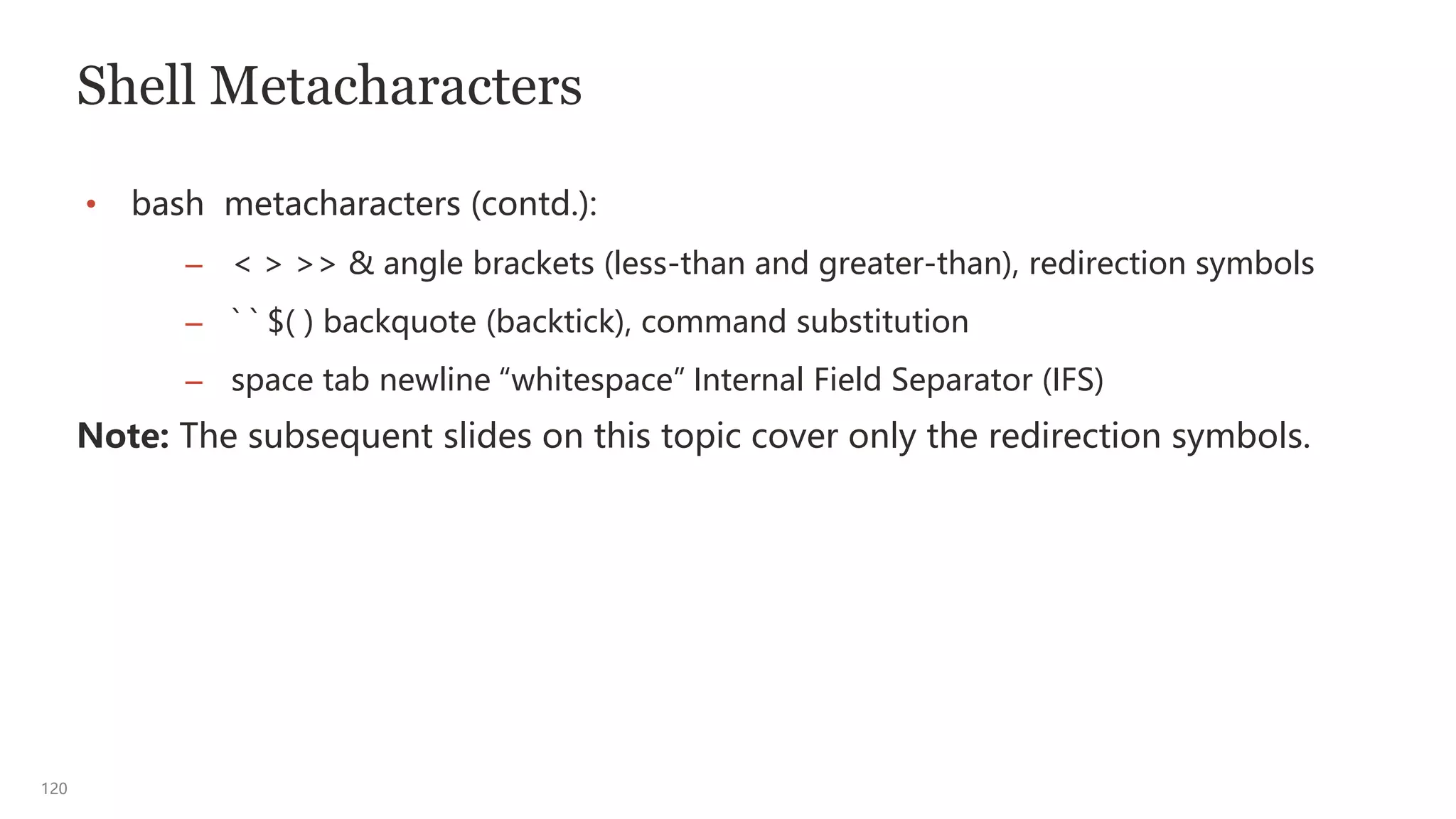
– < > >> & angle brackets (less-than and greater-than), redirection symbols
– ` ` $( ) backquote (backtick), command substitution
– space tab newline “whitespace” Internal Field Separator (IFS)
Note: The subsequent slides on this topic cover only the redirection symbols.
121
Command Communication Channels
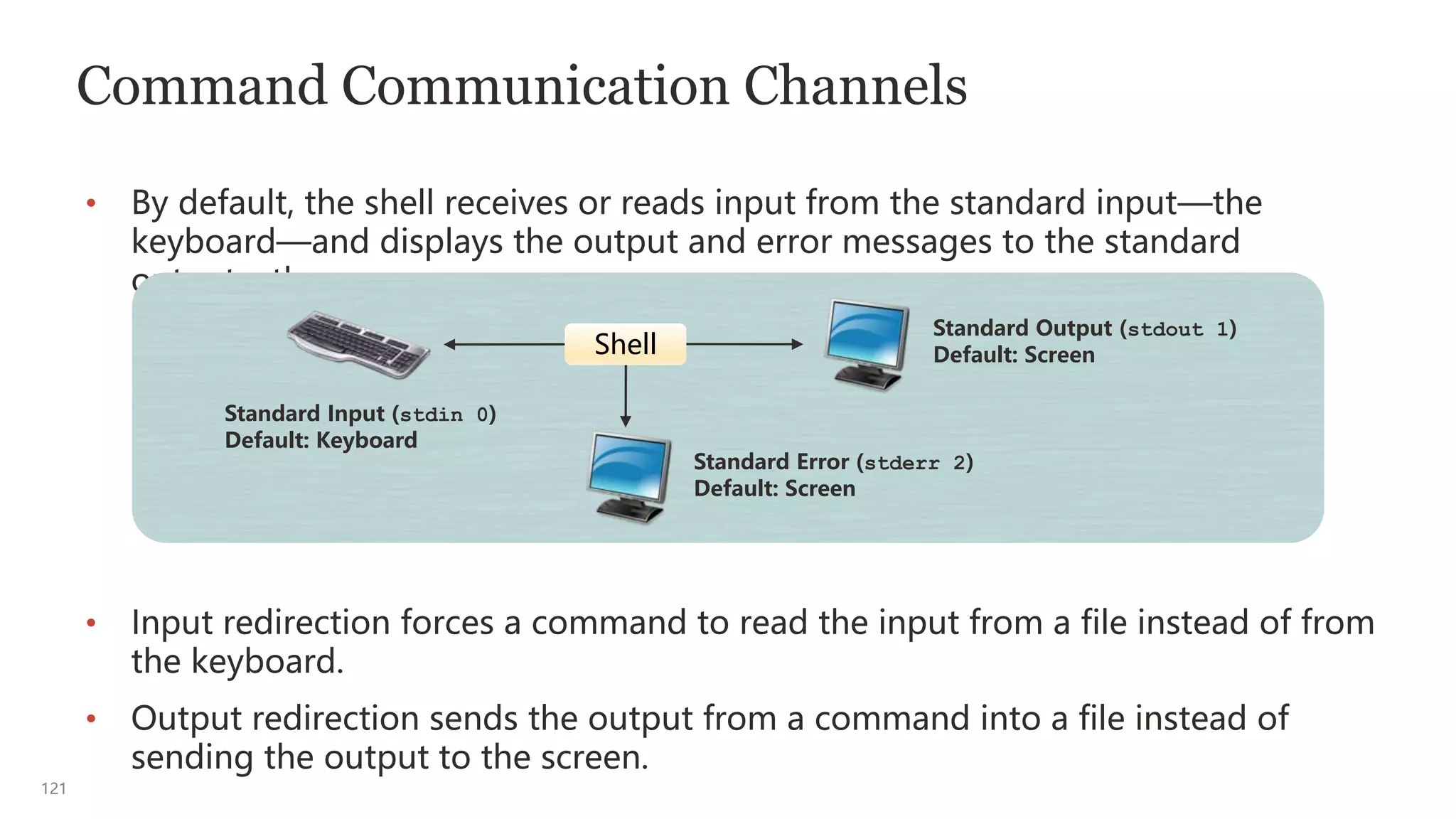
• By default, the shell receives or reads input from the standard input—the
keyboard—and displays the output and error messages to the standard
output—the screen.
• Input redirection forces a command to read the input from a file instead of from
the keyboard.
• Output redirection sends the output from a command into a file instead of
sending the output to the screen.
Standard Output (stdout 1)
Default: Screen
Standard Error (stderr 2)
Default: Screen
Standard Input (stdin 0)
Default: Keyboard
Shell
122
File Descriptors
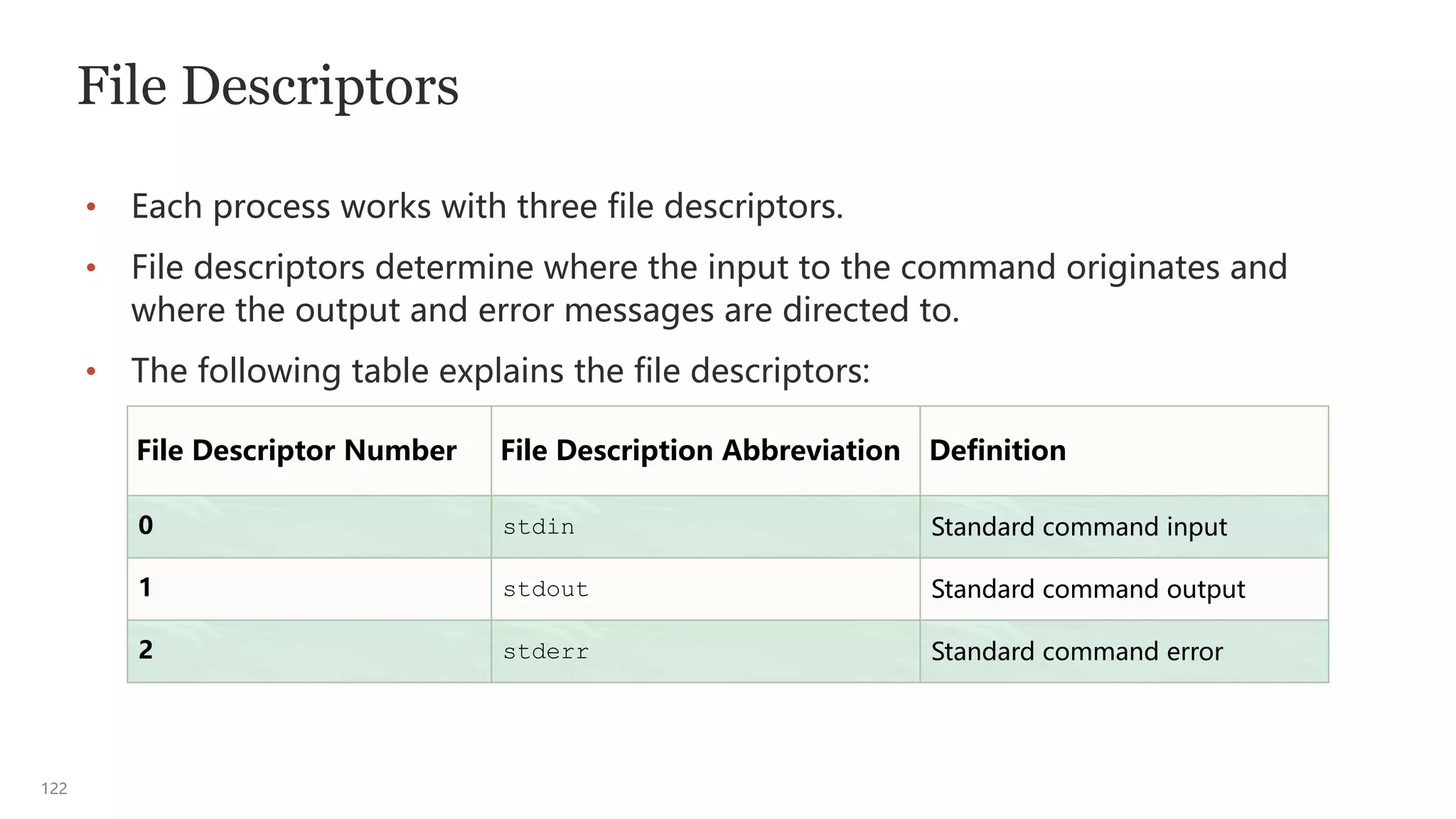
• Each process works with three file descriptors.
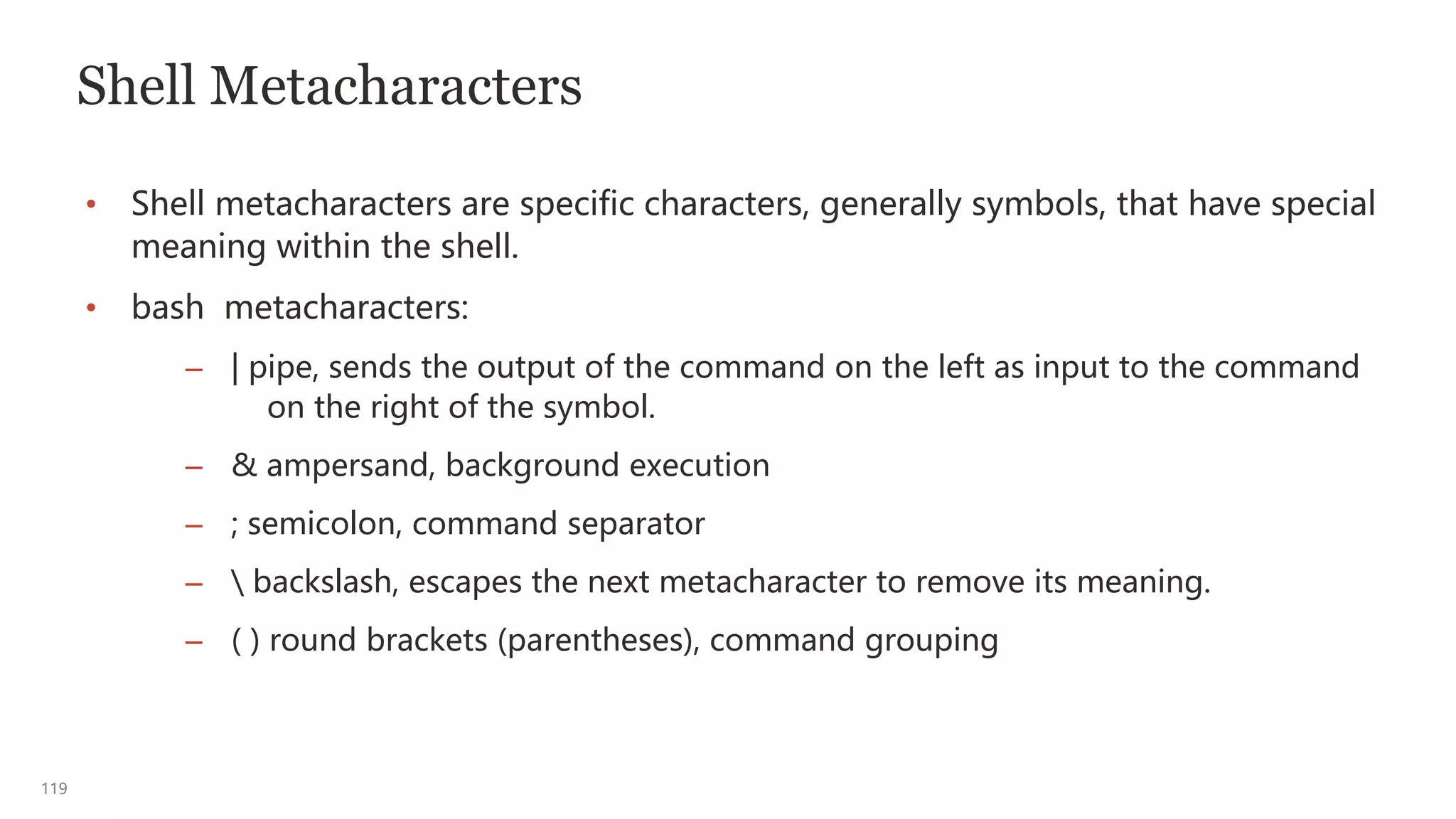
• File descriptors determine where the input to the command originates and
where the output and error messages are directed to.
• The following table explains the file descriptors:
File Descriptor Number File Description Abbreviation Definition
0 stdin Standard command input
1 stdout Standard command output
2 stderr Standard command error
123
Redirection Metacharacters
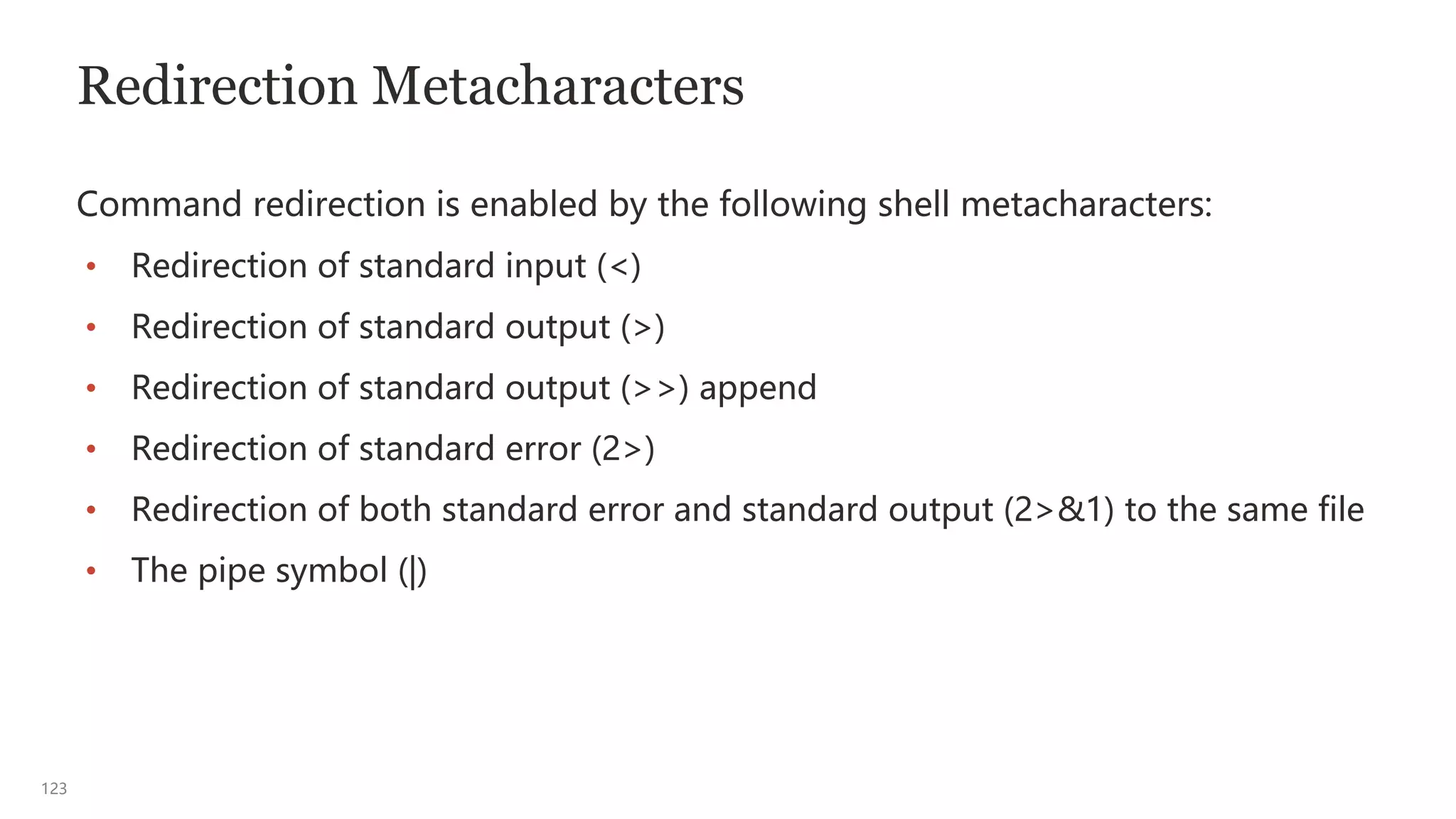
Command redirection is enabled by the following shell metacharacters:
• Redirection of standard input (<)
• Redirection of standard output (>)
• Redirection of standard output (>>) append
• Redirection of standard error (2>)
• Redirection of both standard error and standard output (2>&1) to the same file
• The pipe symbol (|)
124
Redirecting Standard Input (stdin)
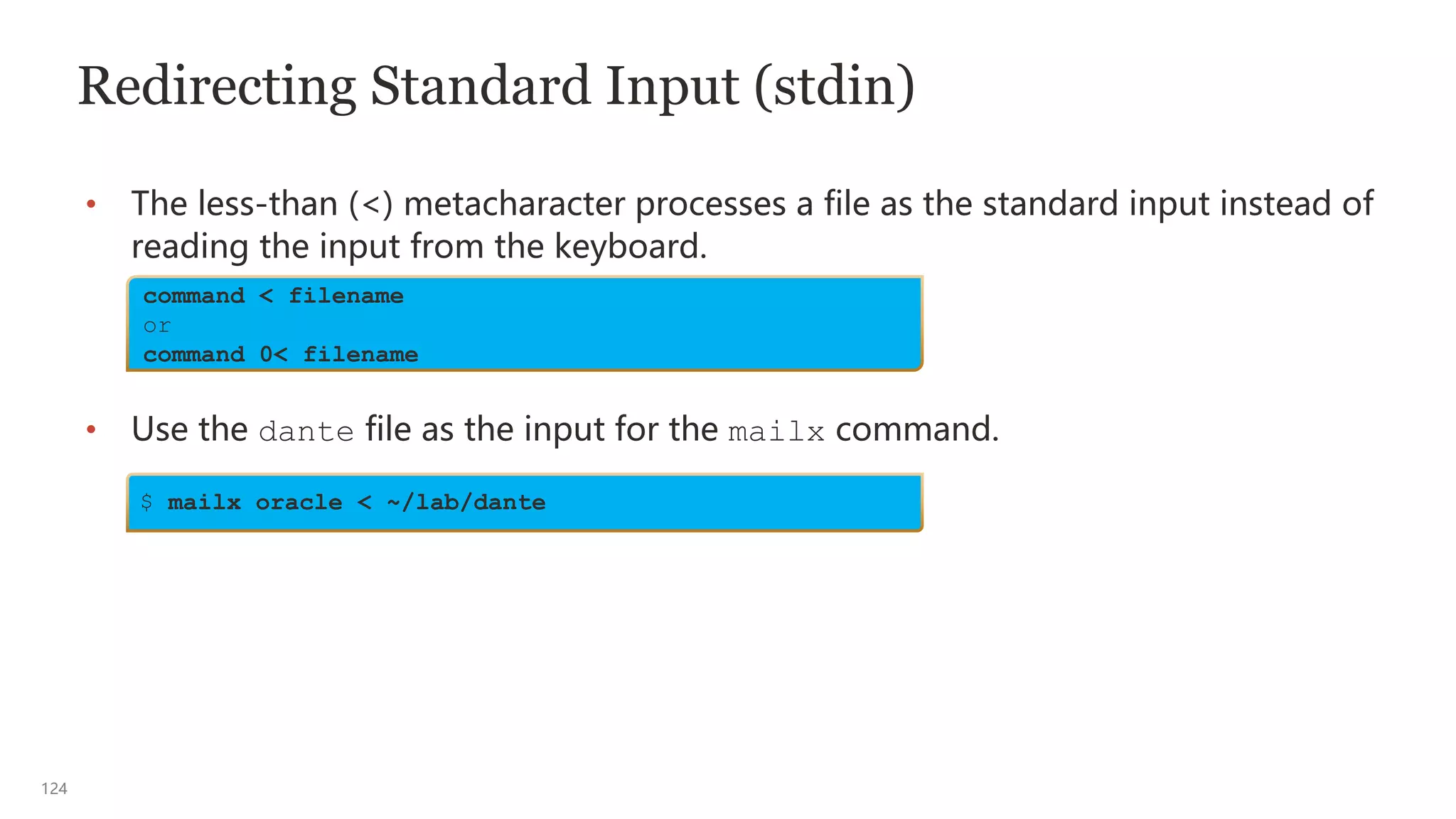
• The less-than (<) metacharacter processes a file as the standard input instead of
reading the input from the keyboard.
• Use the dante file as the input for the mailx command.
command < filename
or
command 0< filename
$ mailx oracle < ~/lab/dante
125
Redirecting Standard Output (stdout)
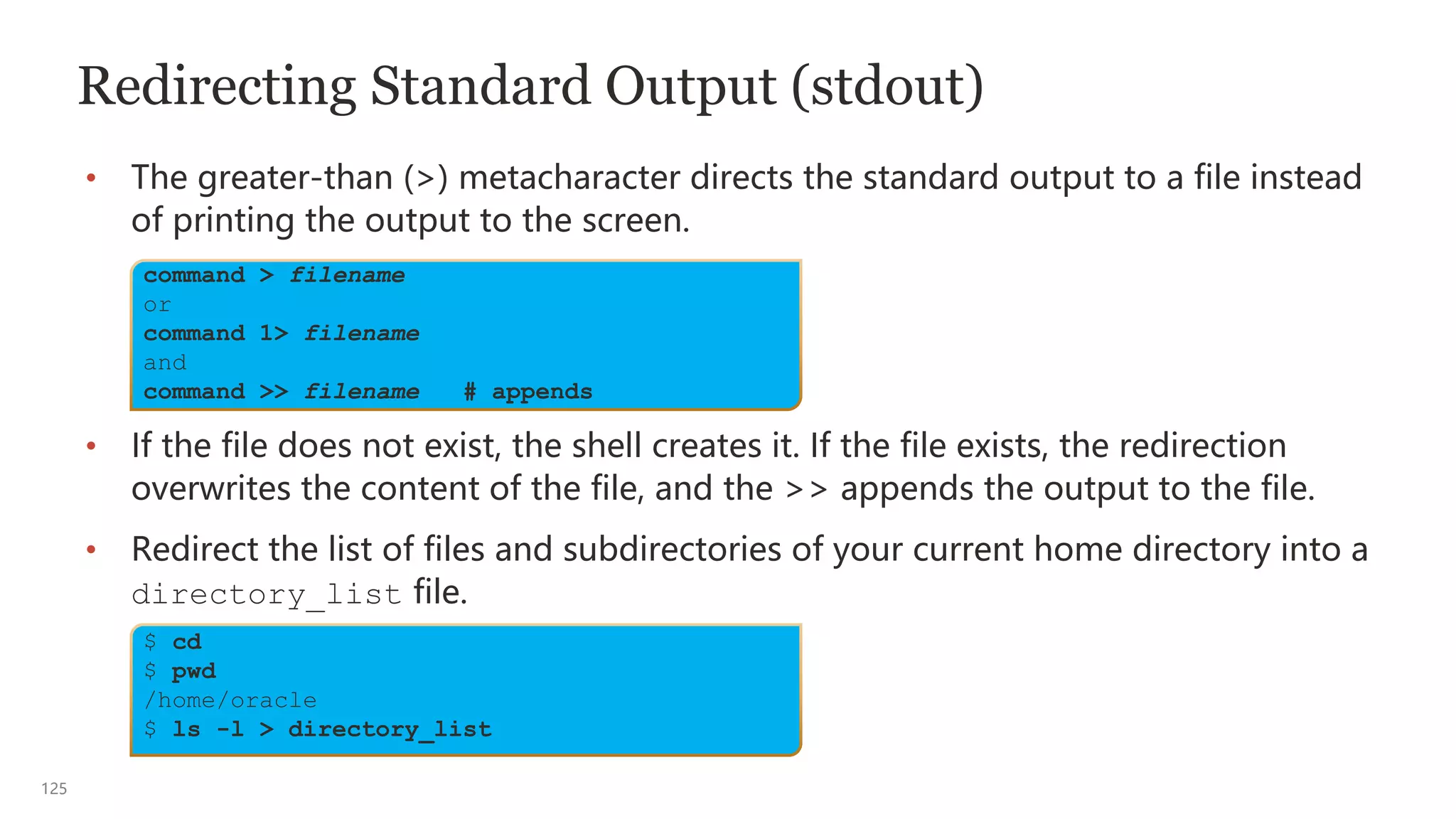
• The greater-than (>) metacharacter directs the standard output to a file instead
of printing the output to the screen.
• If the file does not exist, the shell creates it. If the file exists, the redirection
overwrites the content of the file, and the >> appends the output to the file.
• Redirect the list of files and subdirectories of your current home directory into a
directory_list file.
$ cd
$ pwd
/home/oracle
$ ls -l > directory_list
command > filename
or
command 1> filename
and
command >> filename # appends
126
Redirecting Standard Error (stderr)
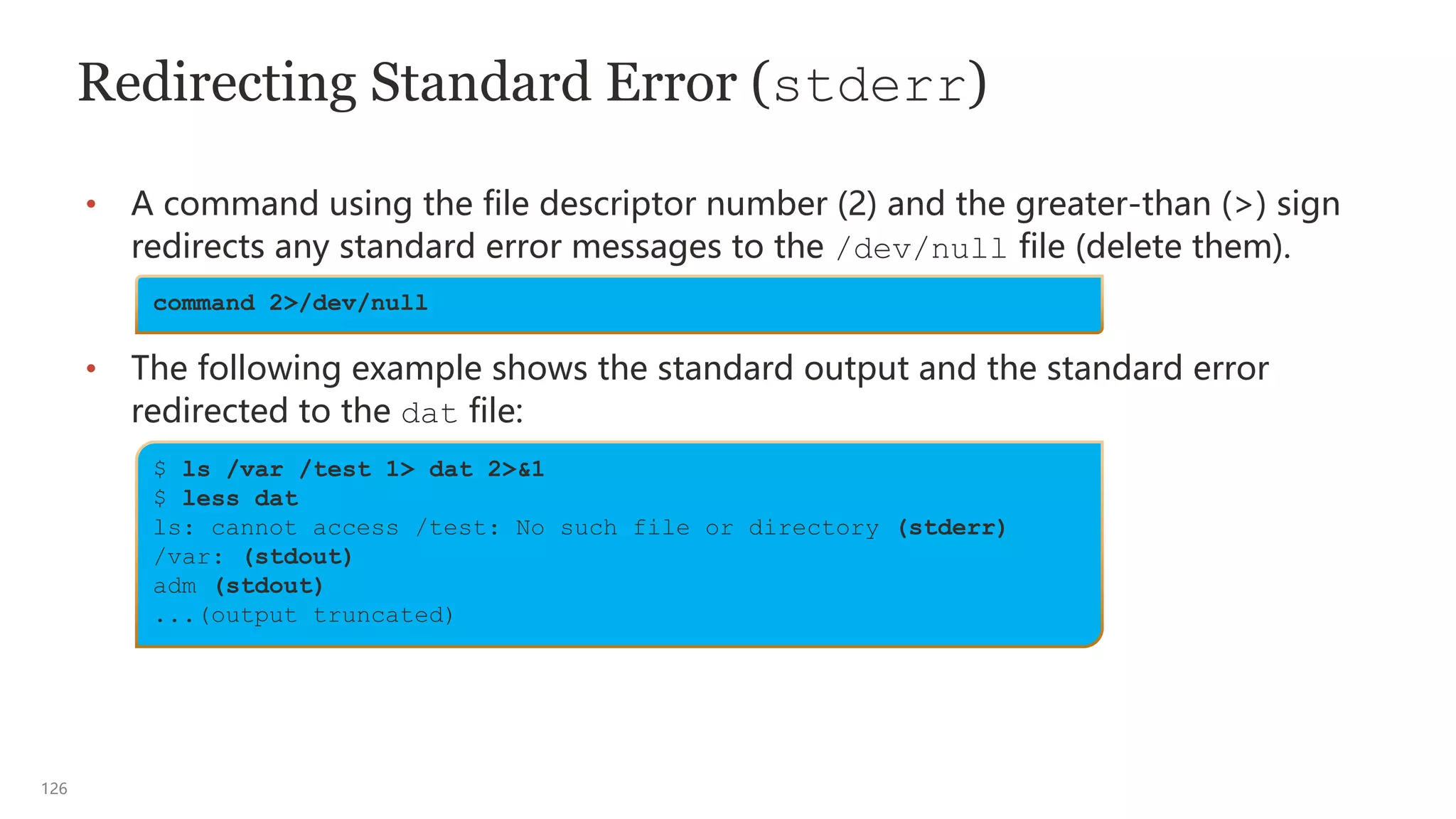
• A command using the file descriptor number (2) and the greater-than (>) sign
redirects any standard error messages to the /dev/null file (delete them).
• The following example shows the standard output and the standard error
redirected to the dat file:
command 2>/dev/null
$ ls /var /test 1> dat 2>&1
$ less dat
ls: cannot access /test: No such file or directory (stderr)
/var: (stdout)
adm (stdout)
...(output truncated)
127
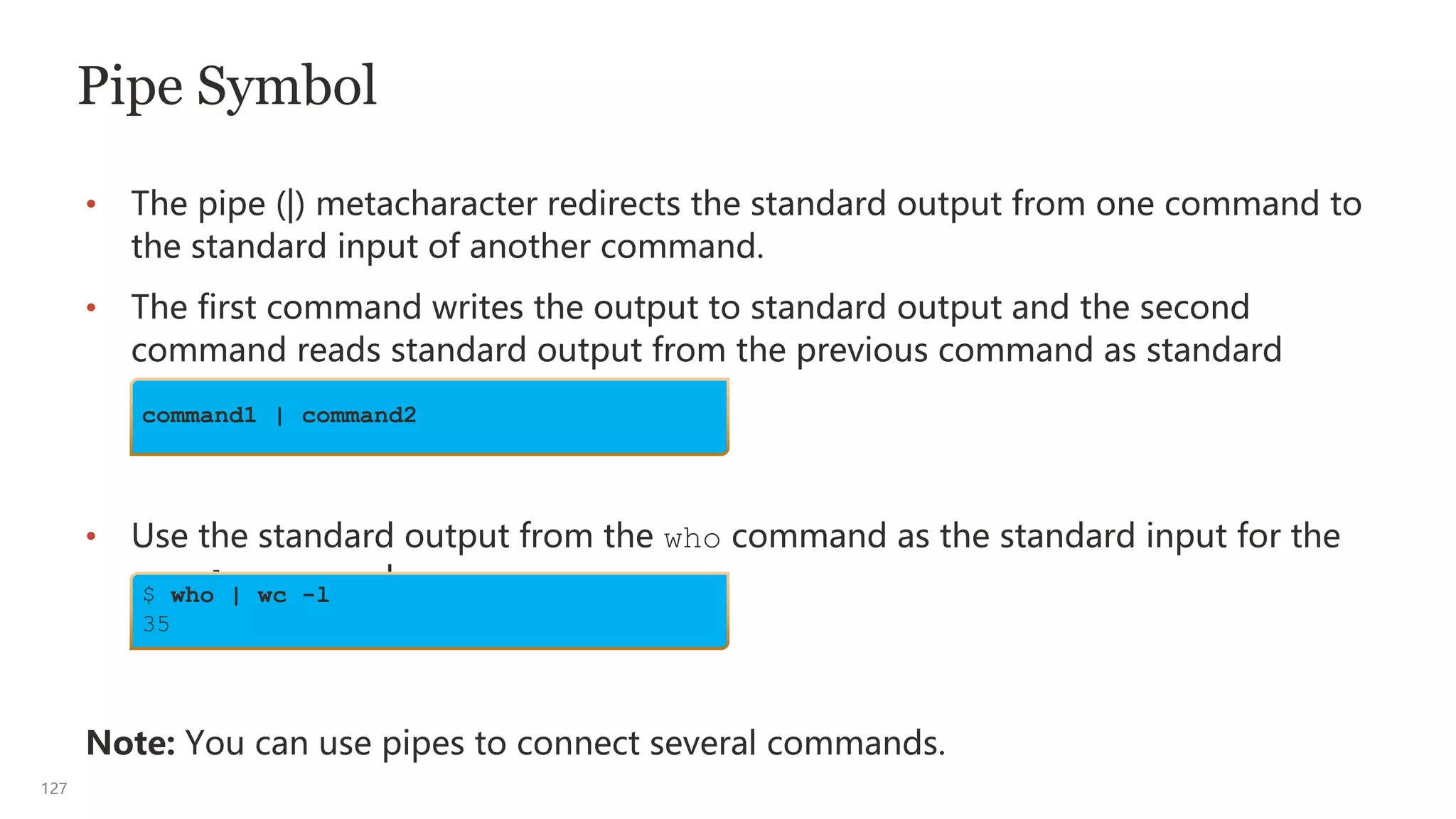
Pipe Symbol
• The pipe (|) metacharacter redirects the standard output from one command to
the standard input of another command.
• The first command writes the output to standard output and the second
command reads standard output from the previous command as standard
input.
• Use the standard output from the who command as the standard input for the
wc -l command.
Note: You can use pipes to connect several commands.
command1 | command2
$ who | wc -l
35
128
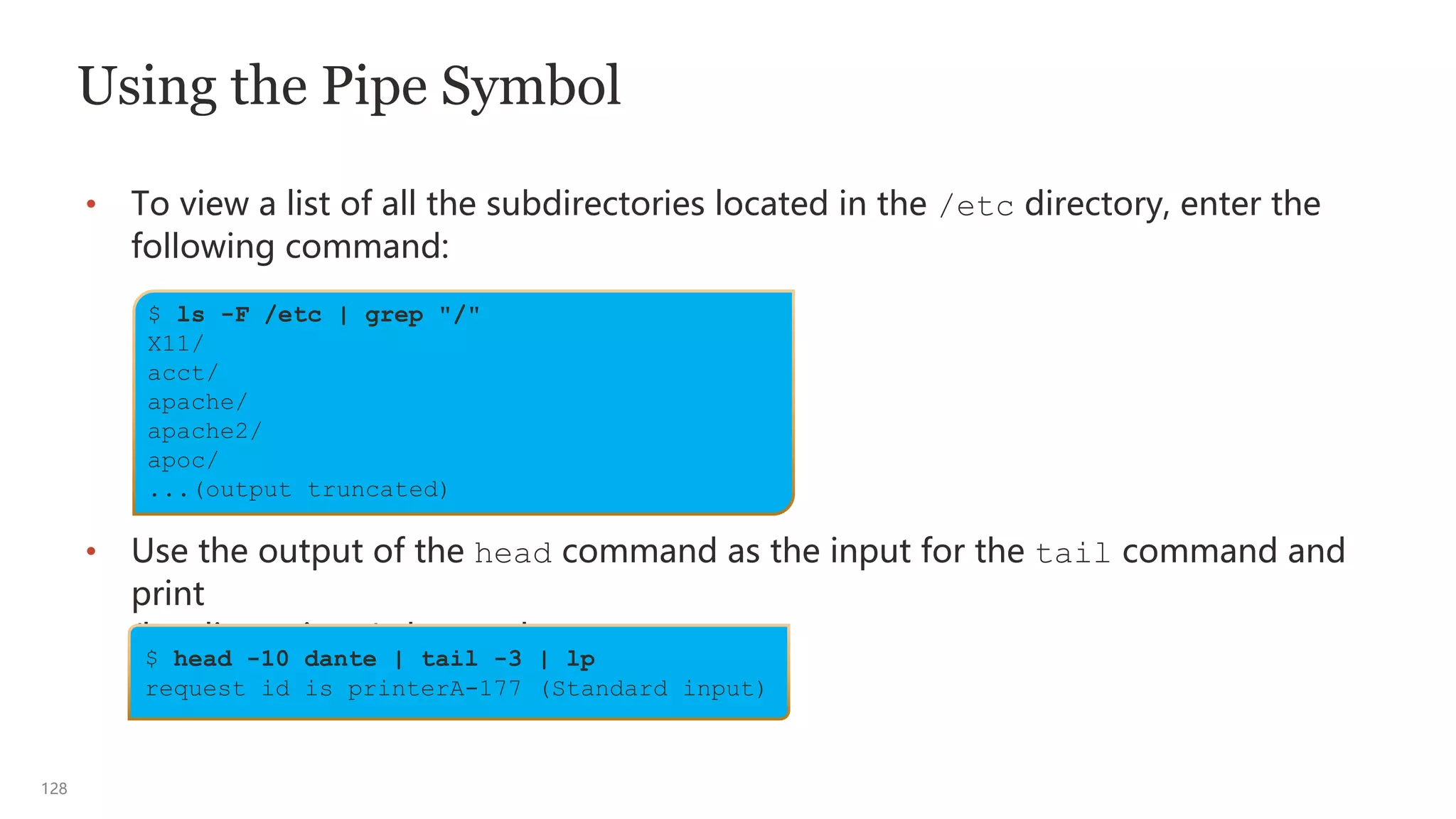
Using the Pipe Symbol
• To view a list of all the subdirectories located in the /etc directory, enter the
following command:
• Use the output of the head command as the input for the tail command and
print
(lp - line printer) the results:
$ ls -F /etc | grep "/"
X11/
acct/
apache/
apache2/
apoc/
...(output truncated)
$ head -10 dante | tail -3 | lp
request id is printerA-177 (Standard input)
129
Redirecting Standard Output (stdout) by Using the
tee Command
• As you saw earlier, the greater-than (>) metacharacter directs the standard
output to a file instead of printing the output to the screen.
• Hypothetically, if you wanted to see the output from command1 before it is
redirected to a file name, you would use the tee command.
• When using the tee command, if the file does not exist, the shell creates it.
If the file exists, the tee redirection overwrites the contents of the file, and
if the [-a] option (append) is used, the redirected output is appended to the
file.
command1 | tee [-a] filename
command > filename
130
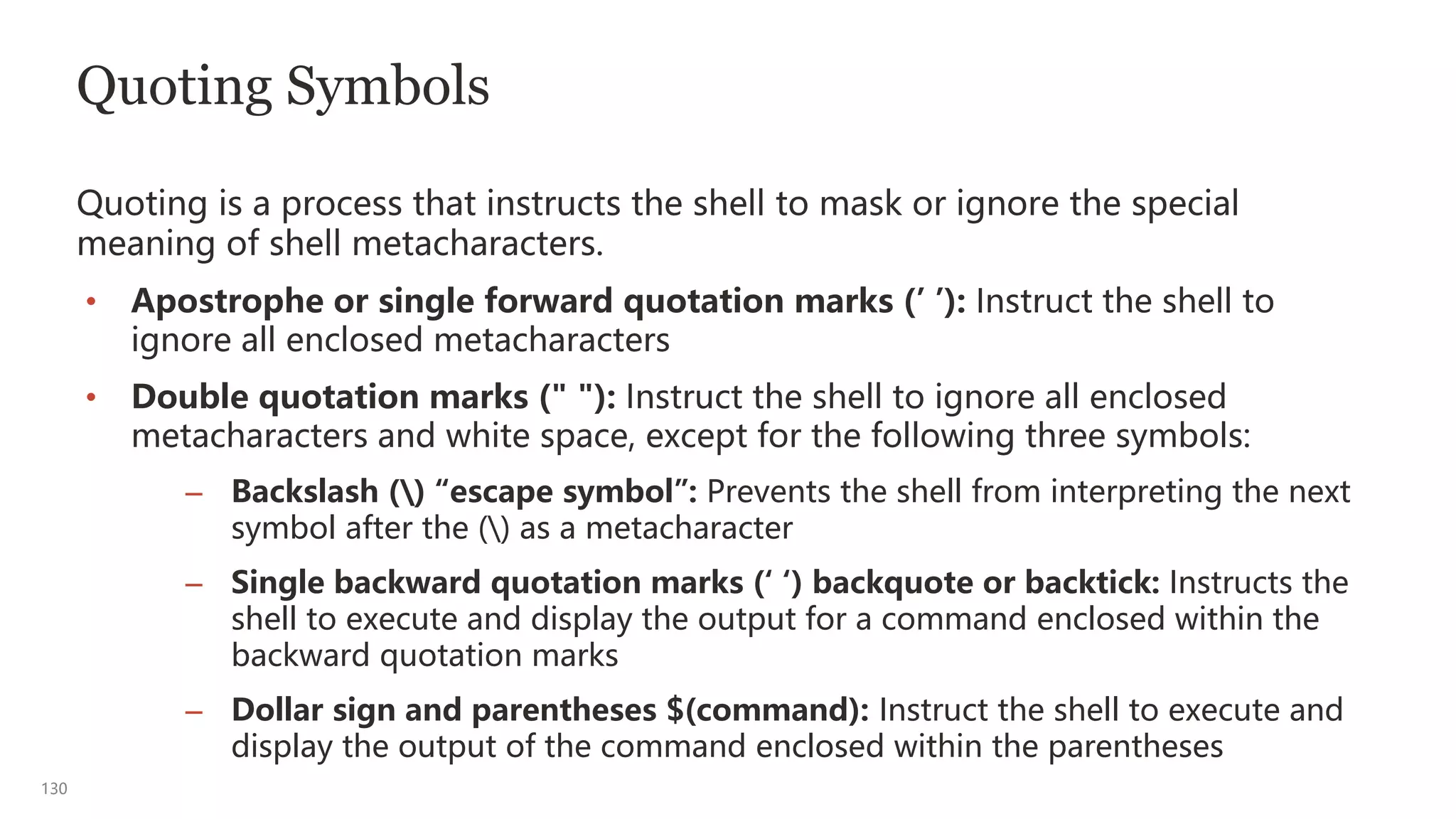
Quoting Symbols
Quoting is a process that instructs the shell to mask or ignore the special
meaning of shell metacharacters.
• Apostrophe or single forward quotation marks (’ ’): Instruct the shell to
ignore all enclosed metacharacters
• Double quotation marks (" "): Instruct the shell to ignore all enclosed
metacharacters and white space, except for the following three symbols:
– Backslash () “escape symbol”: Prevents the shell from interpreting the next
symbol after the () as a metacharacter
– Single backward quotation marks (‘ ‘) backquote or backtick: Instructs the
shell to execute and display the output for a command enclosed within the
backward quotation marks
– Dollar sign and parentheses $(command): Instruct the shell to execute and
display the output of the command enclosed within the parentheses
131
Variables: Introduction
• A variable/parameter is a temporary storage area in memory, which is either set
by the user, shell, system, or any program that loads another program.
• There are two categories of variables:
– Local shell variables apply only to the current instance of the shell and are
used to set short-term working conditions.
– Global environment shell variables are local shell variables that have been
export(ed). The export(ed) variables are a subset of the total shell variables and
are valid for the duration of any fork(ed) or spawn(ed) subordinate session.
132
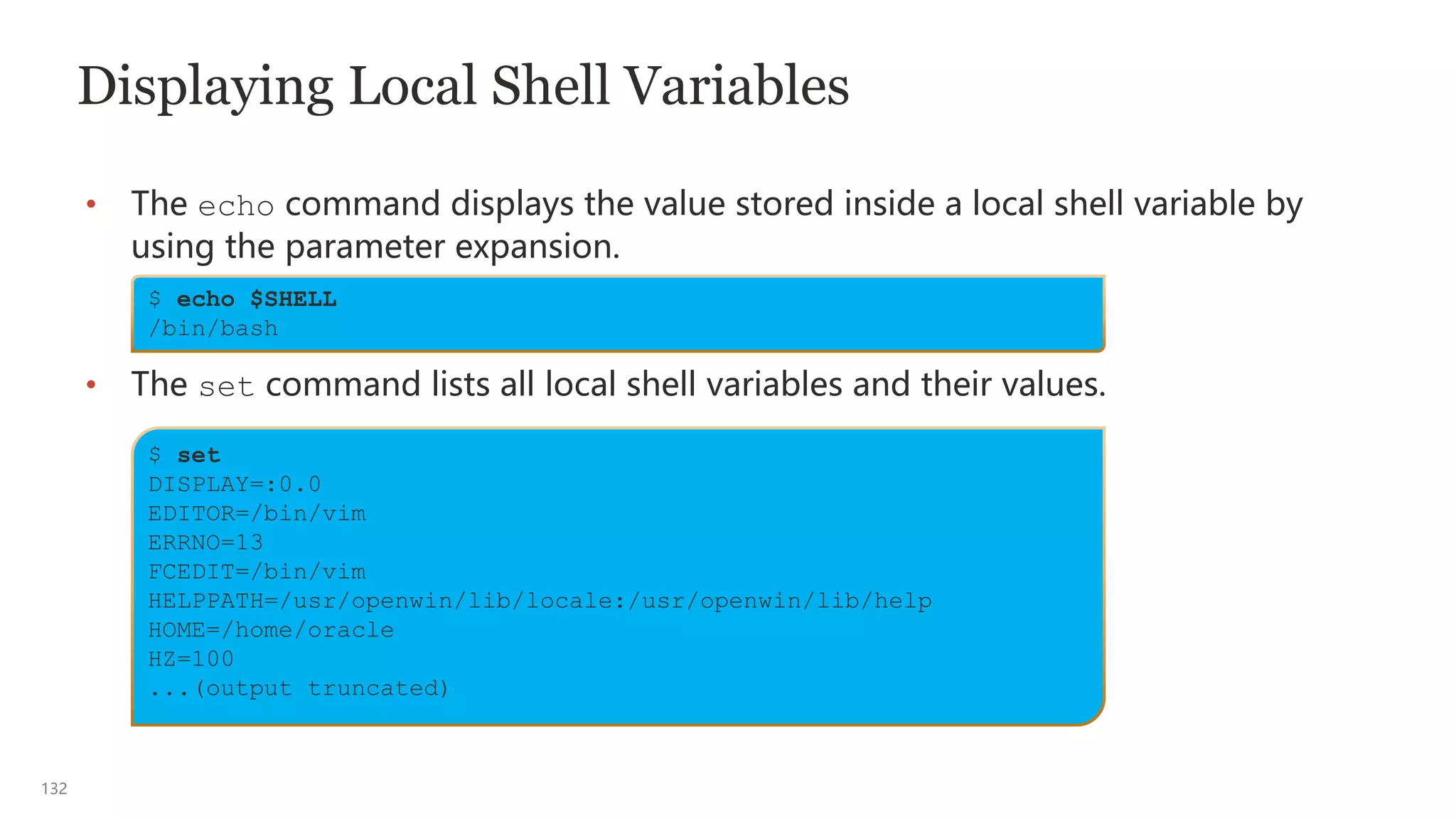
Displaying Local Shell Variables
• The echo command displays the value stored inside a local shell variable by
using the parameter expansion.
• The set command lists all local shell variables and their values.
$ echo $SHELL
/bin/bash
$ set
DISPLAY=:0.0
EDITOR=/bin/vim
ERRNO=13
FCEDIT=/bin/vim
HELPPATH=/usr/openwin/lib/locale:/usr/openwin/lib/help
HOME=/home/oracle
HZ=100
...(output truncated)
133
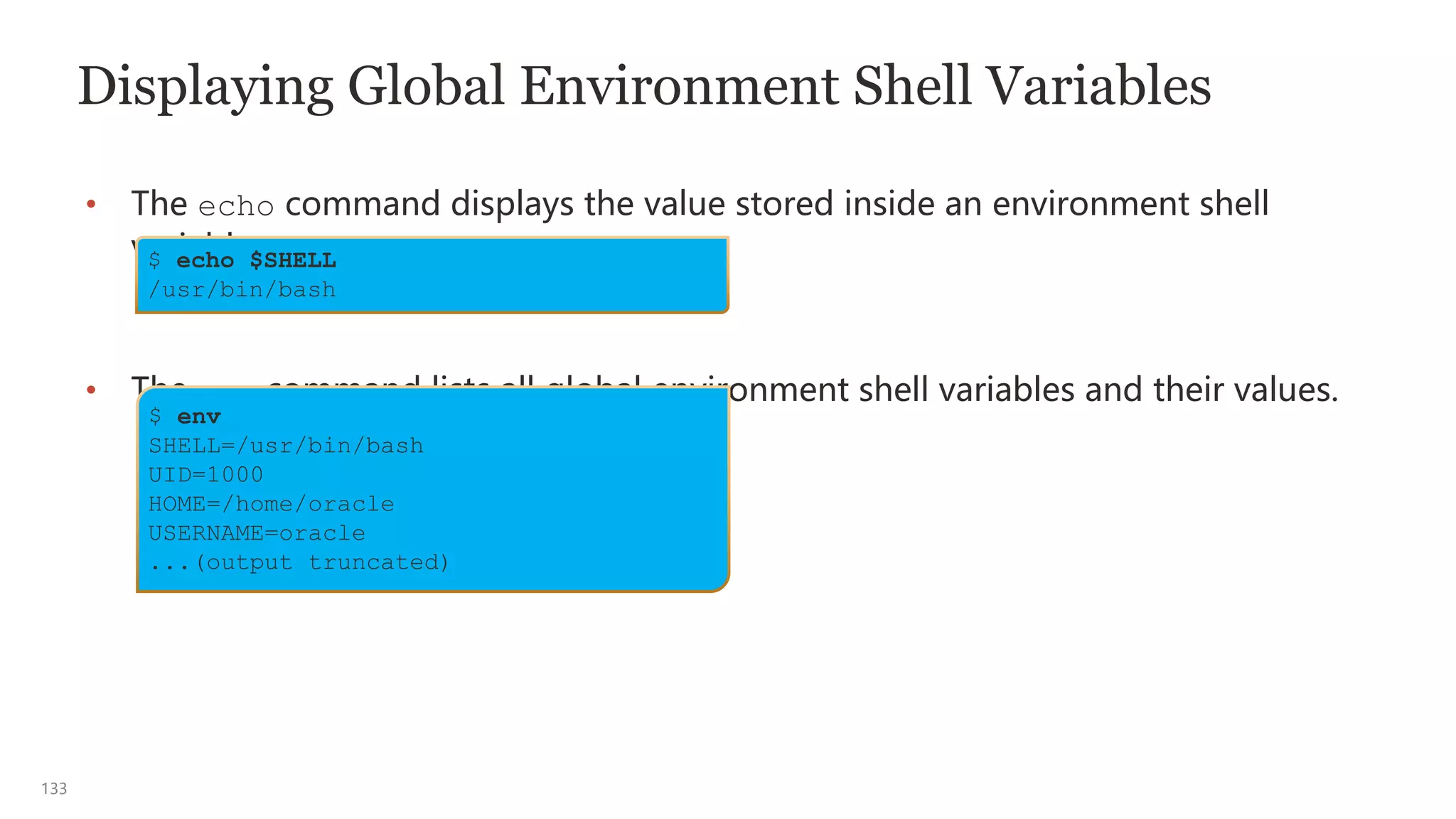
Displaying Global Environment Shell Variables
• The echo command displays the value stored inside an environment shell
variable.
• The env command lists all global environment shell variables and their values.
$ echo $SHELL
/usr/bin/bash
$ env
SHELL=/usr/bin/bash
UID=1000
HOME=/home/oracle
USERNAME=oracle
...(output truncated)
134
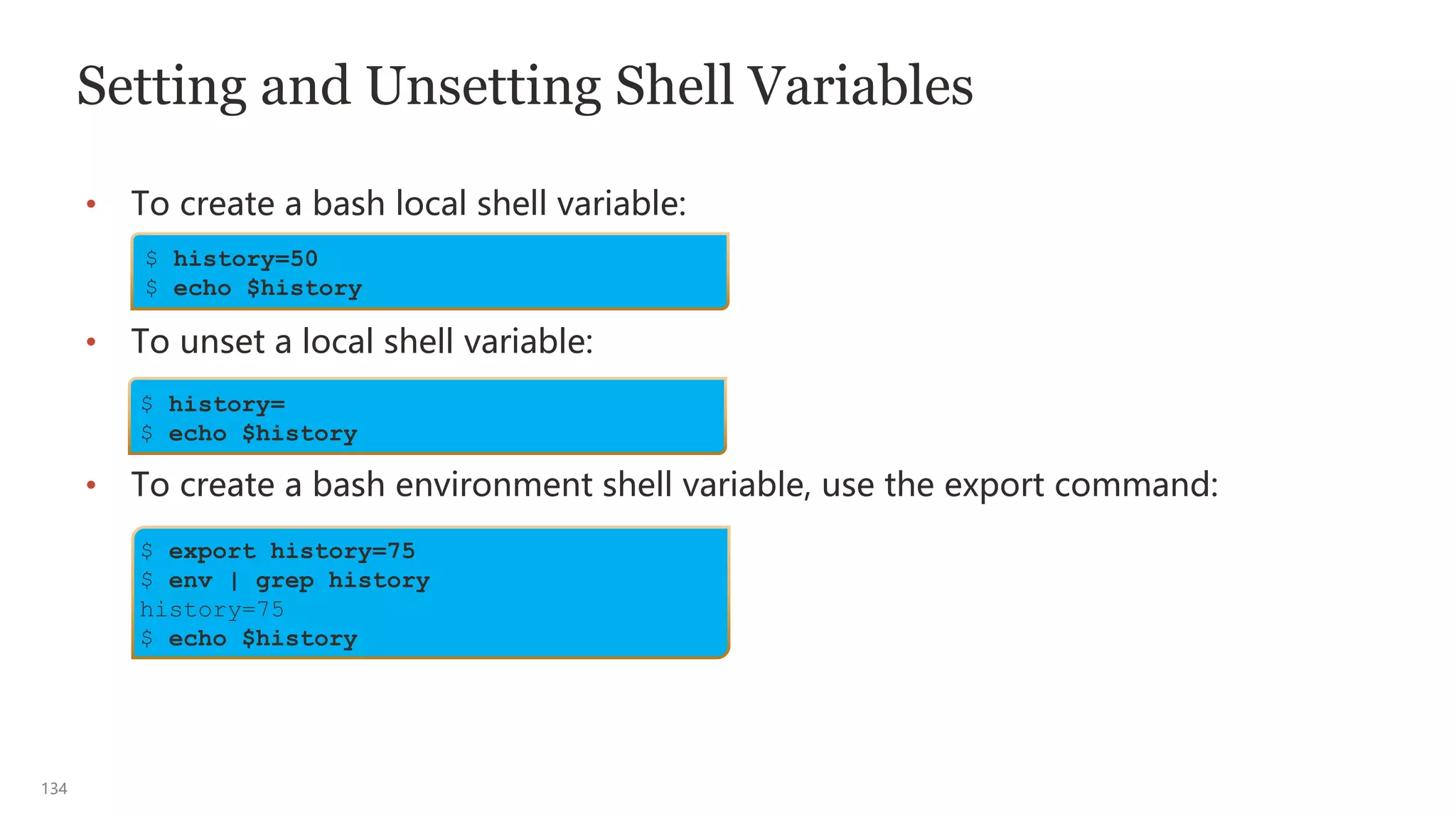
Setting and Unsetting Shell Variables
• To create a bash local shell variable:
• To unset a local shell variable:
• To create a bash environment shell variable, use the export command:
$ export history=75
$ env | grep history
history=75
$ echo $history
$ history=50
$ echo $history
$ history=
$ echo $history
135
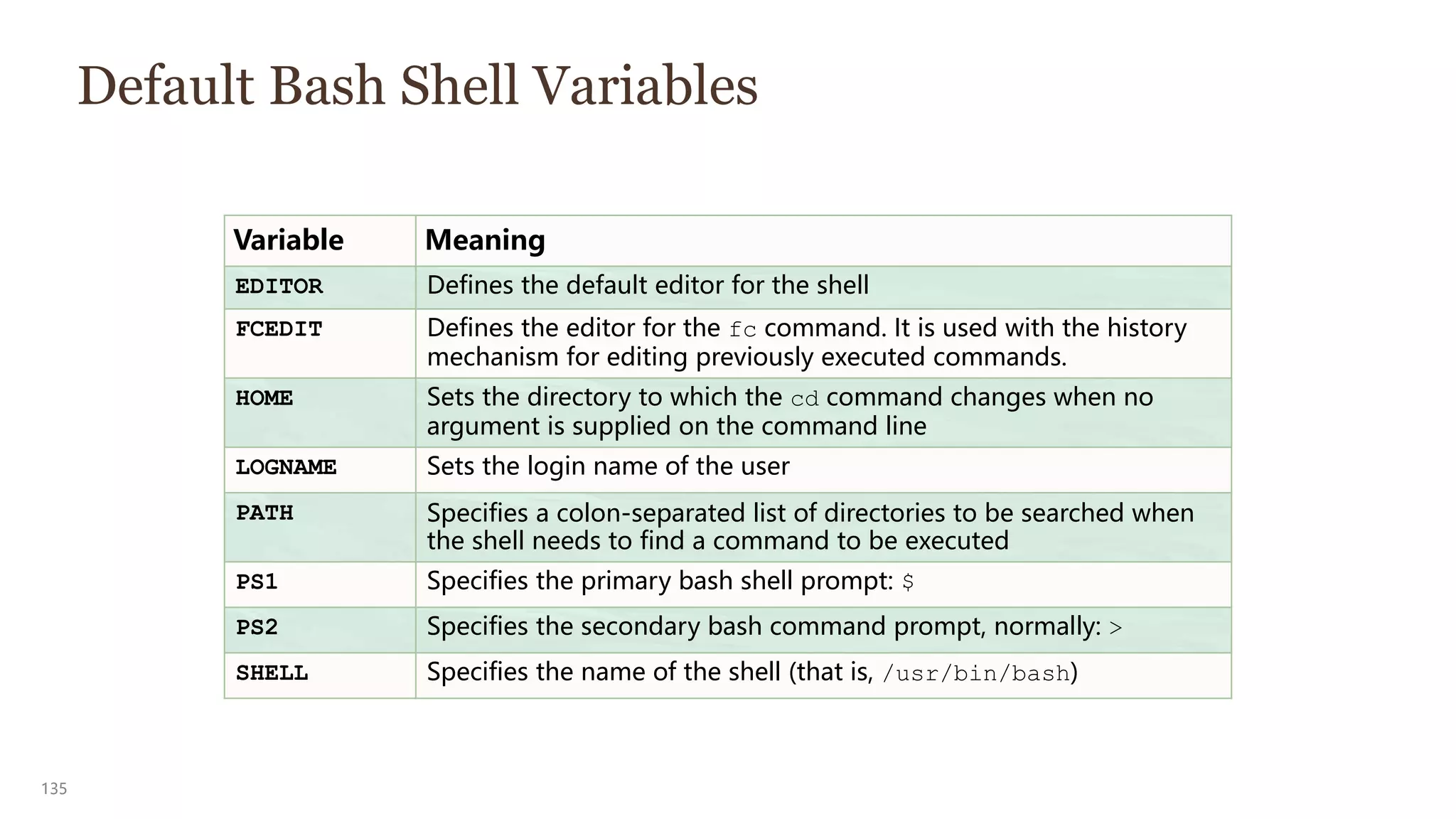
Default Bash Shell Variables
Variable Meaning
EDITOR Defines the default editor for the shell
FCEDIT Defines the editor for the fc command. It is used with the history
mechanism for editing previously executed commands.
HOME Sets the directory to which the cd command changes when no
argument is supplied on the command line
LOGNAME Sets the login name of the user
PATH Specifies a colon-separated list of directories to be searched when
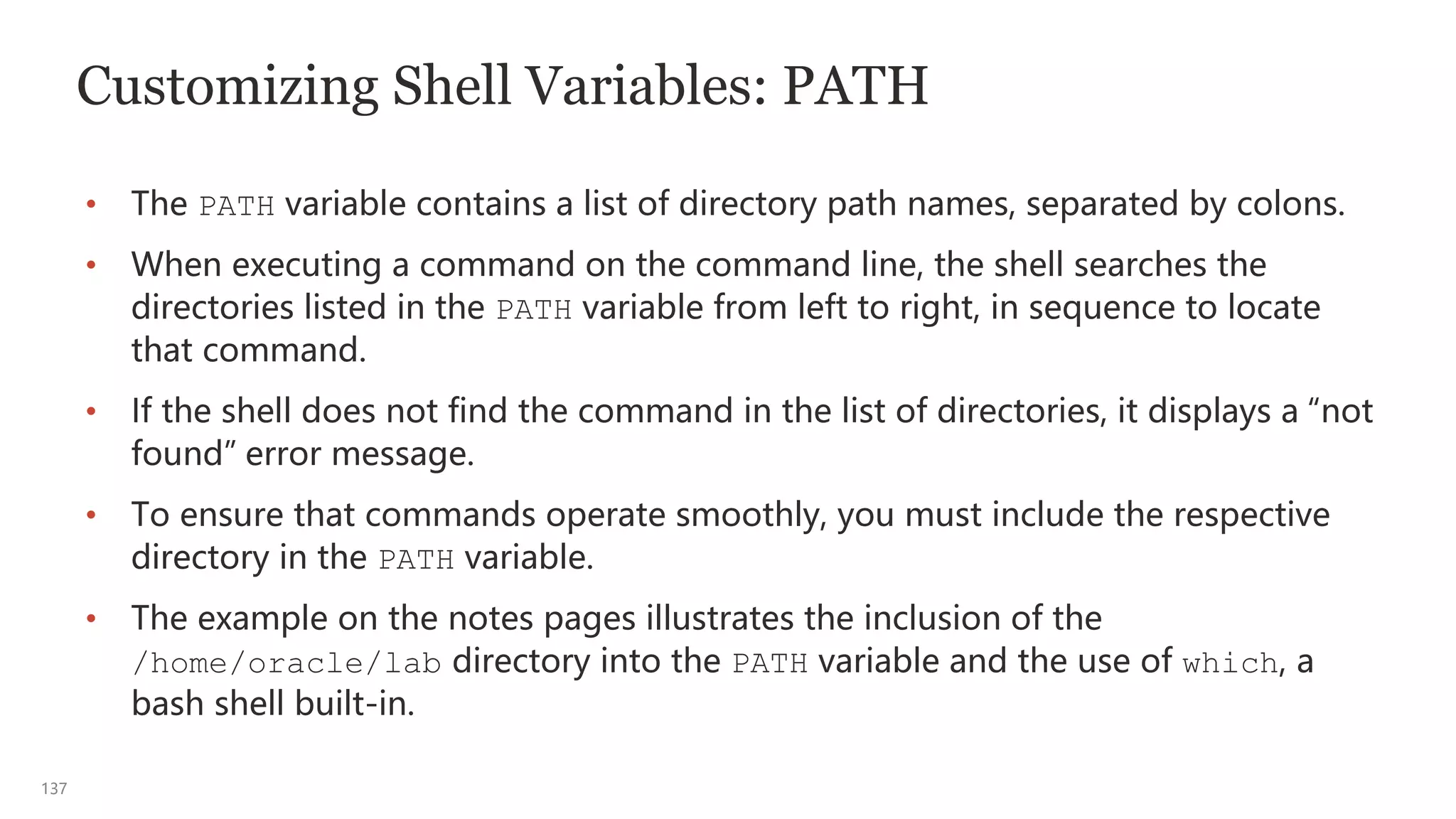
the shell needs to find a command to be executed
PS1 Specifies the primary bash shell prompt: $
PS2 Specifies the secondary bash command prompt, normally: >
SHELL Specifies the name of the shell (that is, /usr/bin/bash)
136
Customizing Bash Shell Variables: PS1
The shell prompt string is stored in the shell variable PS1, and you can customize
it according to your preference.
• In this Oracle Linux example, the prompt displays the user’s login name “u”, the
system’s host name “h” , and the current working directory “W”.
• This shell prompt displays the correct information even when the user logs in to
different hosts.
$ PS1=’[u@h W]$’
[oracle@ol7-server1 ~]$
137
Customizing Shell Variables: PATH
• The PATH variable contains a list of directory path names, separated by colons.
• When executing a command on the command line, the shell searches the
directories listed in the PATH variable from left to right, in sequence to locate
that command.
• If the shell does not find the command in the list of directories, it displays a “not
found” error message.
• To ensure that commands operate smoothly, you must include the respective
directory in the PATH variable.
• The example on the notes pages illustrates the inclusion of the
/home/oracle/lab directory into the PATH variable and the use of which, a
bash shell built-in.
138
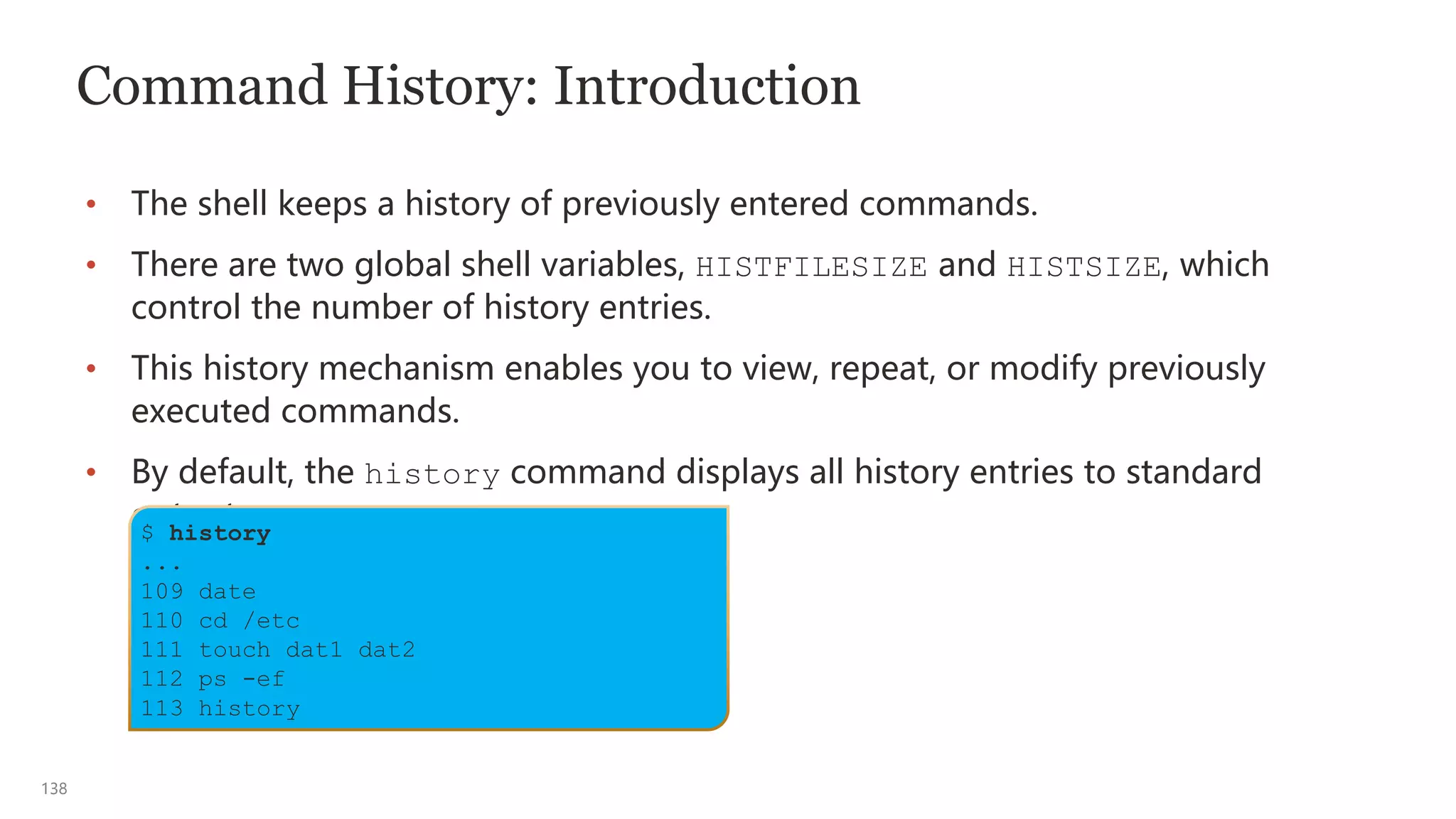
Command History: Introduction
• The shell keeps a history of previously entered commands.
• There are two global shell variables, HISTFILESIZE and HISTSIZE, which
control the number of history entries.
• This history mechanism enables you to view, repeat, or modify previously
executed commands.
• By default, the history command displays all history entries to standard
output.
$ history
...
109 date
110 cd /etc
111 touch dat1 dat2
112 ps -ef
113 history
139
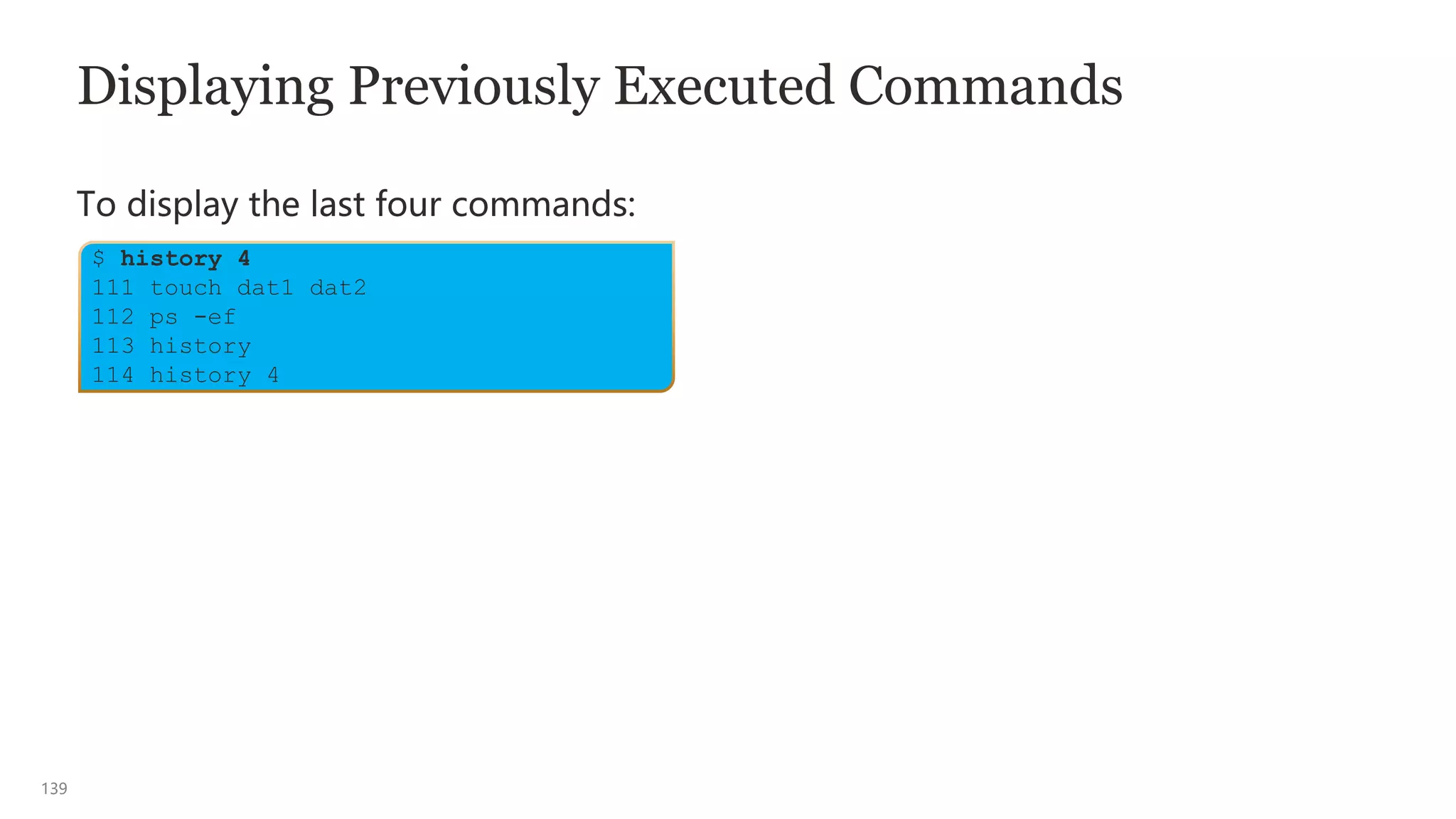
Displaying Previously Executed Commands
To display the last four commands:
$ history 4
111 touch dat1 dat2
112 ps -ef
113 history
114 history 4
140
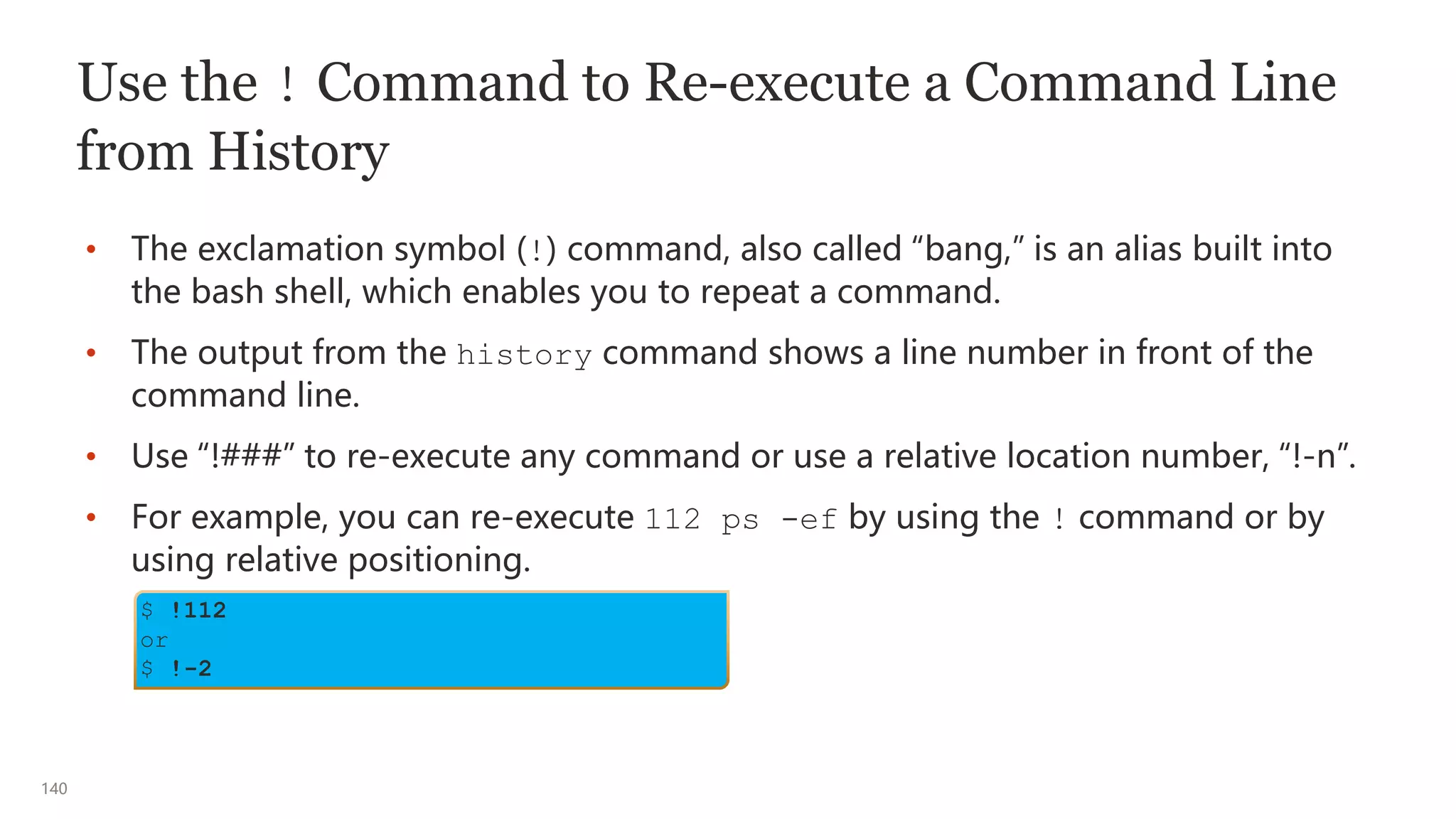
Use the ! Command to Re-execute a Command Line
from History
• The exclamation symbol (!) command, also called “bang,” is an alias built into
the bash shell, which enables you to repeat a command.
• The output from the history command shows a line number in front of the
command line.
• Use “!###” to re-execute any command or use a relative location number, “!-n”.
• For example, you can re-execute 112 ps -ef by using the ! command or by
using relative positioning.
$ !112
or
$ !-2
141
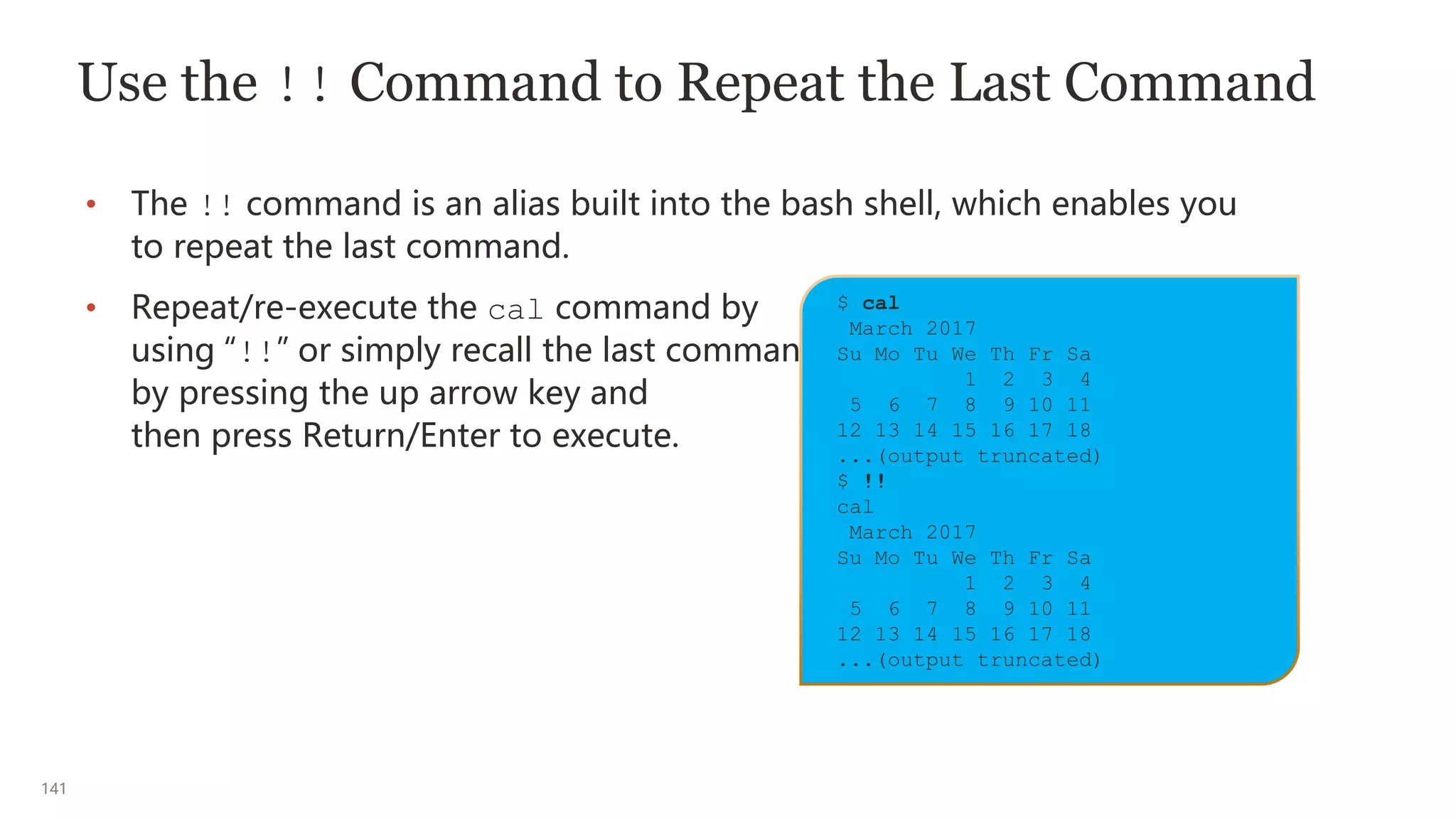
Use the !! Command to Repeat the Last Command
• The !! command is an alias built into the bash shell, which enables you
to repeat the last command.
• Repeat/re-execute the cal command by
using “!!” or simply recall the last command
by pressing the up arrow key and
then press Return/Enter to execute.
$ cal
March 2017
Su Mo Tu We Th Fr Sa
1 2 3 4
5 6 7 8 9 10 11
12 13 14 15 16 17 18
...(output truncated)
$ !!
cal
March 2017
Su Mo Tu We Th Fr Sa
1 2 3 4
5 6 7 8 9 10 11
12 13 14 15 16 17 18
...(output truncated)
142
Searching the History Entries
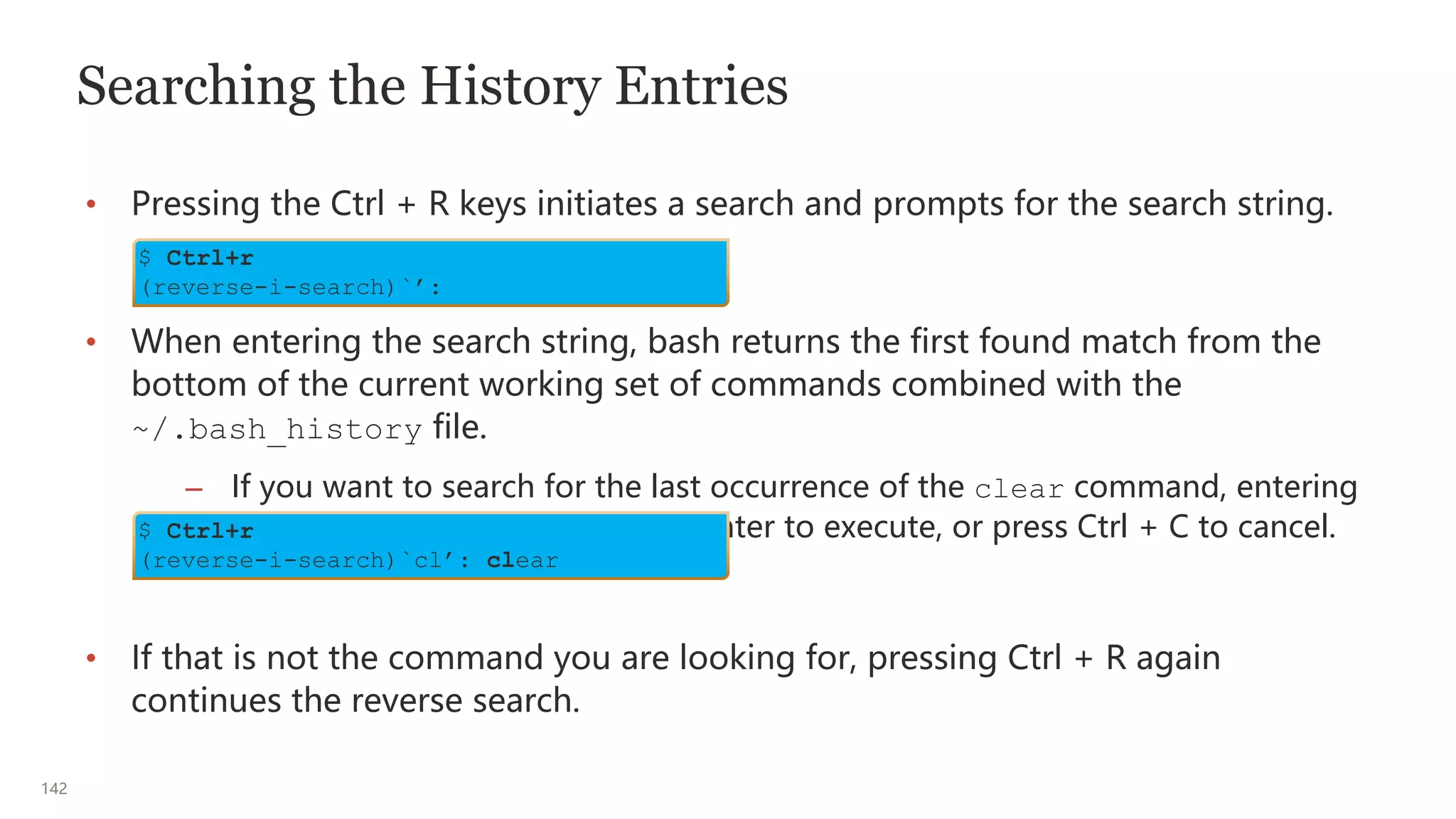
• Pressing the Ctrl + R keys initiates a search and prompts for the search string.
• When entering the search string, bash returns the first found match from the
bottom of the current working set of commands combined with the
~/.bash_history file.
– If you want to search for the last occurrence of the clear command, entering
cl returns clear. Press Return/Enter to execute, or press Ctrl + C to cancel.
• If that is not the command you are looking for, pressing Ctrl + R again
continues the reverse search.
$ Ctrl+r
(reverse-i-search)`’:
$ Ctrl+r
(reverse-i-search)`cl’: clear
143
Using the ! Command to Search for and Execute
History Entries
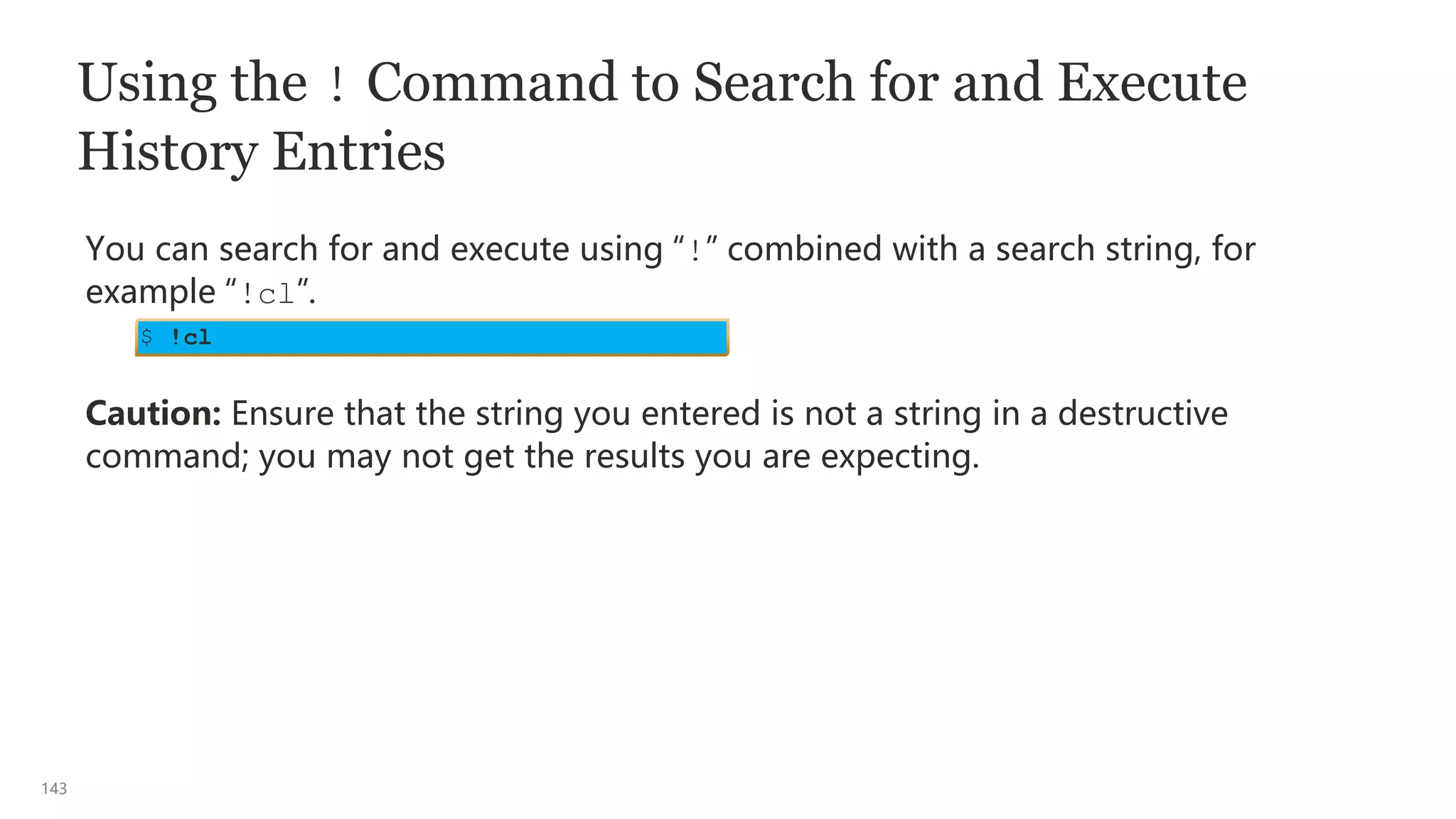
You can search for and execute using “!” combined with a search string, for
example “!cl”.
Caution: Ensure that the string you entered is not a string in a destructive
command; you may not get the results you are expecting.
$ !cl
144
Editing Commands on the Command Line
• You can edit commands by using a shell inline editor.
• The default command-line editing mode in bash is emacs.
• You can, however, switch to vim (vi) mode as well.
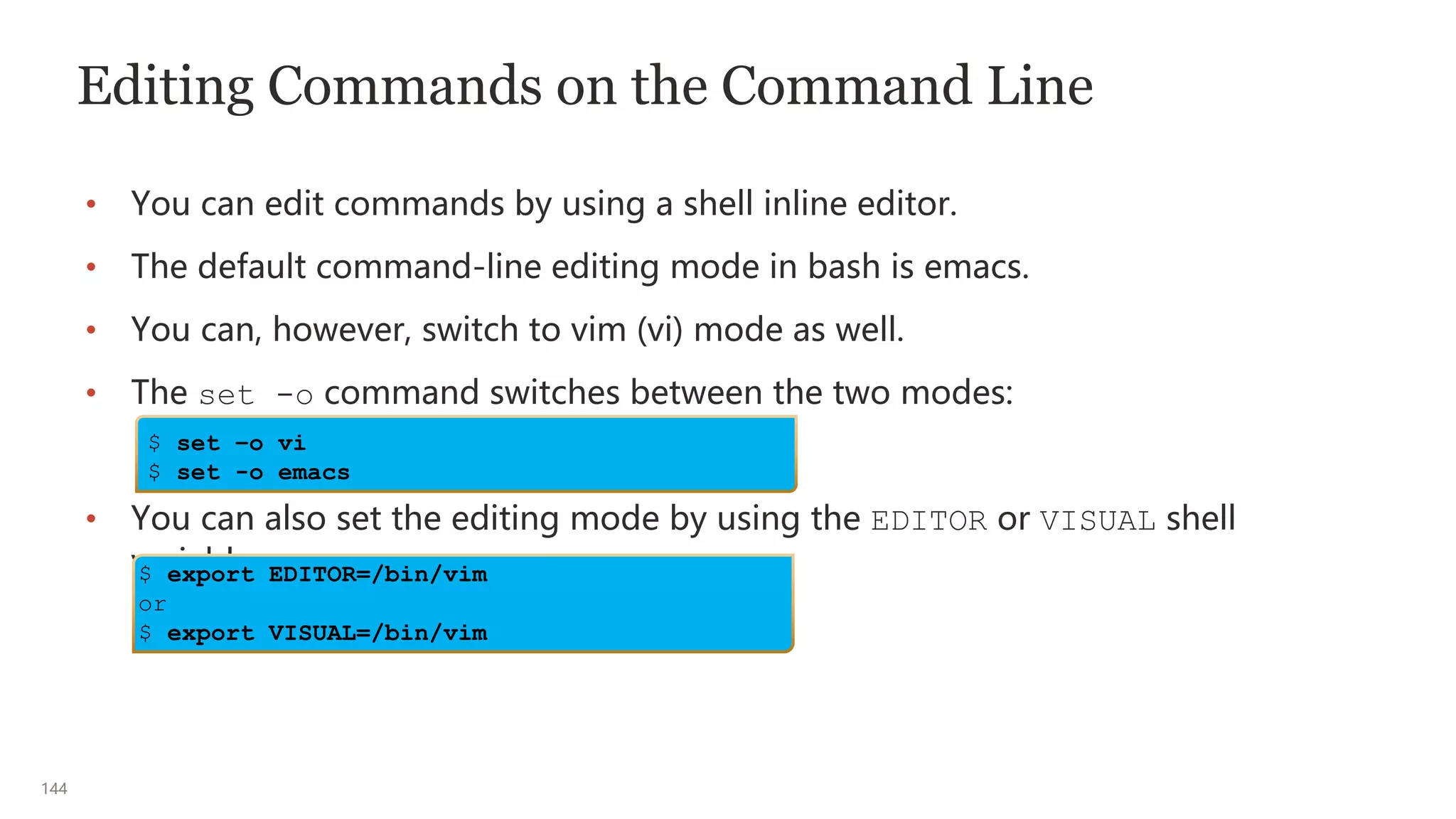
• The set -o command switches between the two modes:
• You can also set the editing mode by using the EDITOR or VISUAL shell
variables.
$ set –o vi
$ set -o emacs
$ export EDITOR=/bin/vim
or
$ export VISUAL=/bin/vim
145
Invoking File Name Completion
• File name completion is a feature that allows you to enter the first part of a file
name or directory name and press a key to fill out or complete the file
name/directory name.
• To invoke file name completion, enter the desired command followed by one or
more characters of a file name and then press the Esc/Tab keys or just press the
Tab key.
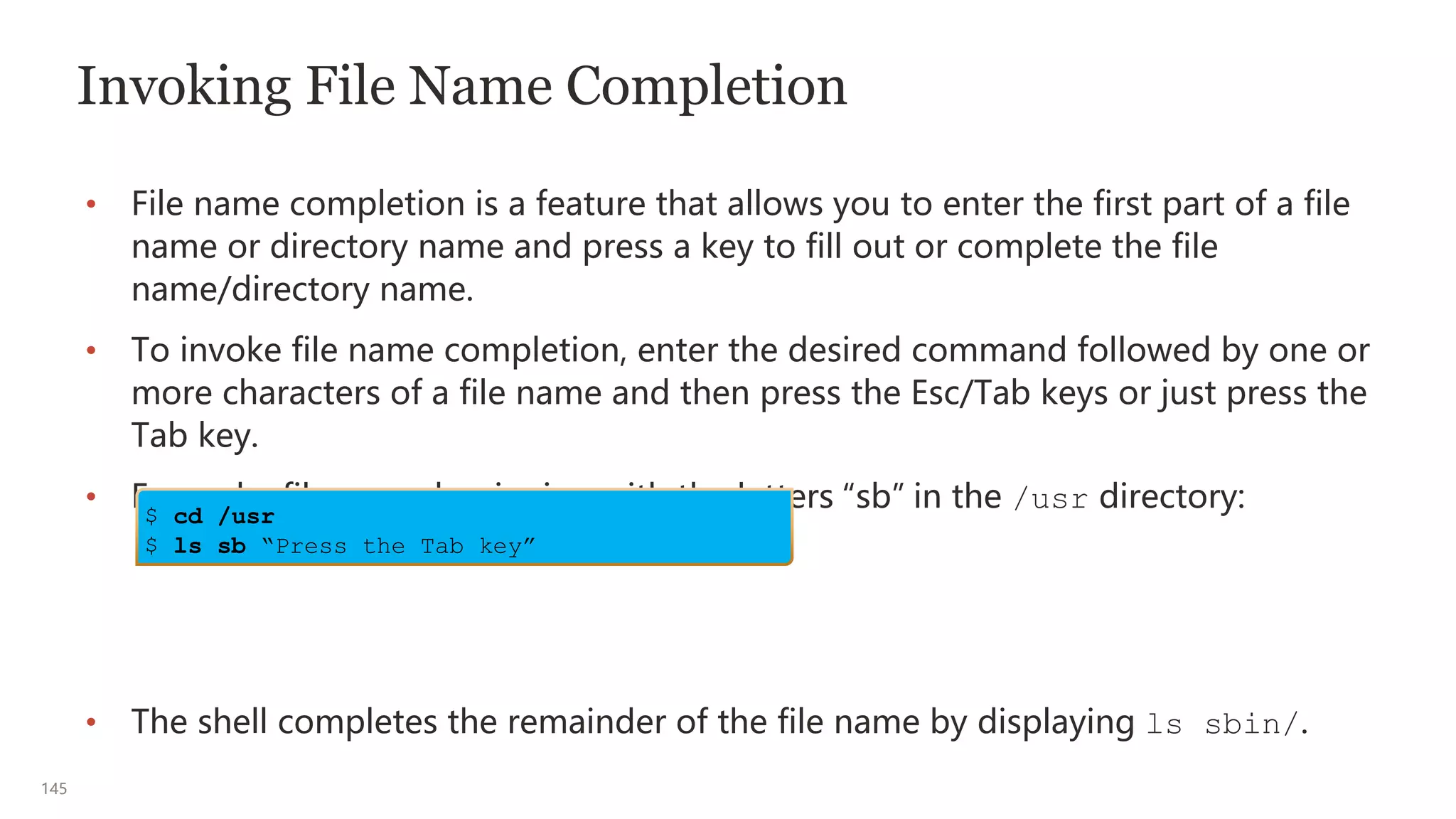
• Expand a file name beginning with the letters “sb” in the /usr directory:
• The shell completes the remainder of the file name by displaying ls sbin/.
$ cd /usr
$ ls sb “Press the Tab key”
146
File Name Completion with More Than a Single
Solution
• You can request the shell to present all possible alternatives of a partial file
name from which you can select.
• This request can be invoked by pressing the Escape (Esc) and the equal (=)
sign keys in sequence or by pressing Tab twice.
147
User Initialization Files
• Other than having a home directory to create and store files, users need an
environment that gives them access to the tools and resources.
• When a user logs in to a system, the user’s work environment is determined by
the initialization files.
• These initialization files are defined by the user’s startup shell, which can vary
depending on the update or release.
• The default initialization files in your home directory enable you to customize
your working environment.
148
Default User Initialization Files for the Bash Shell
• When bash is invoked, it first reads and executes commands from the
/etc/profile file, if the file exists.
• Bash then reads and executes commands from the ~/.bash_profile,
~/.bash_login and ~/.bashrc, which executes /etc/bashrc, if it exists.
• In the absence of the aforementioned files, the ~/.profile file is executed.
• When a login shell exits, bash reads and executes commands from the
~/.bash_logout file, if it exists.
149
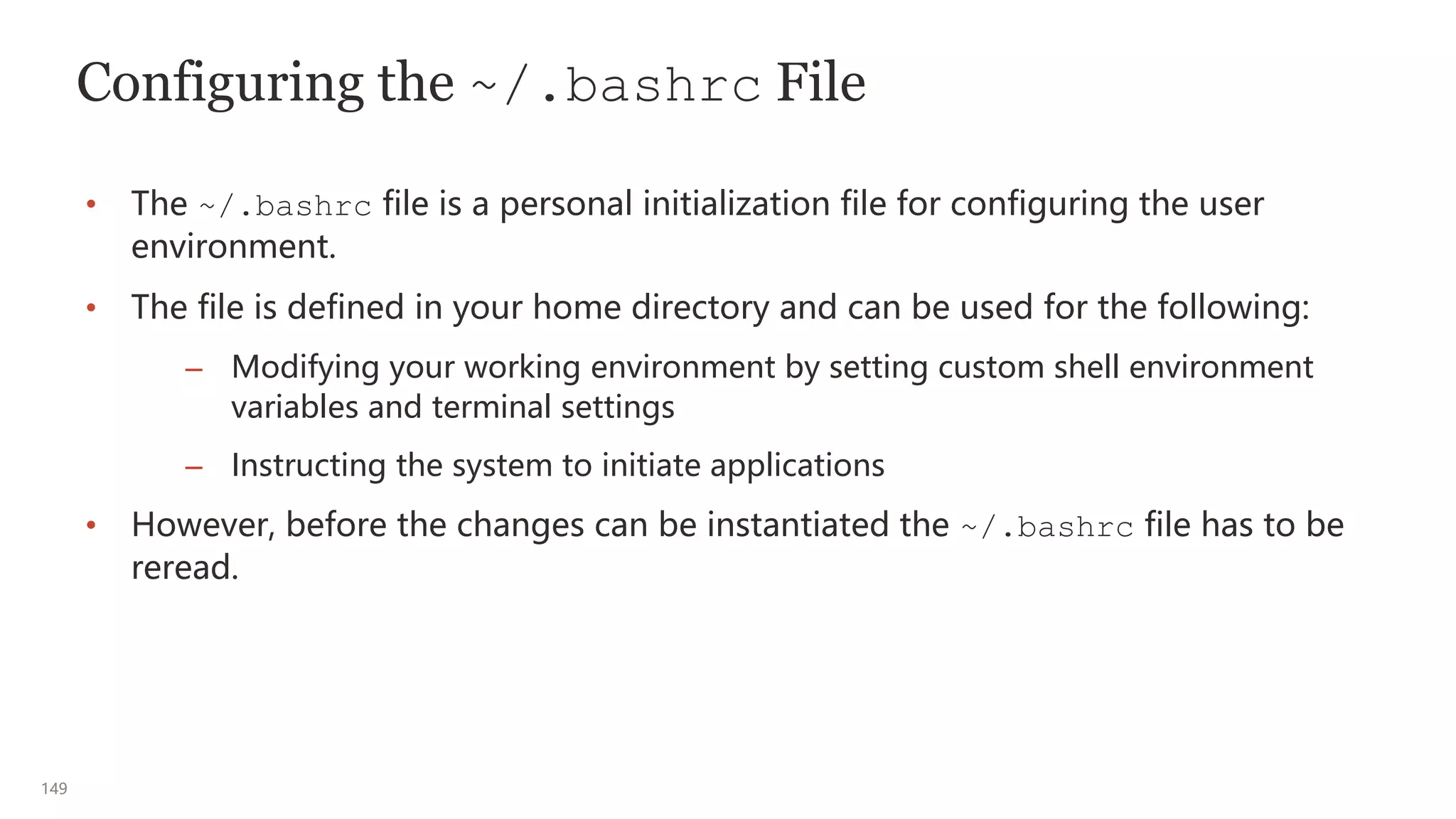
Configuring the ~/.bashrc File
• The ~/.bashrc file is a personal initialization file for configuring the user
environment.
• The file is defined in your home directory and can be used for the following:
– Modifying your working environment by setting custom shell environment
variables and terminal settings
– Instructing the system to initiate applications
• However, before the changes can be instantiated the ~/.bashrc file has to be
reread.
150
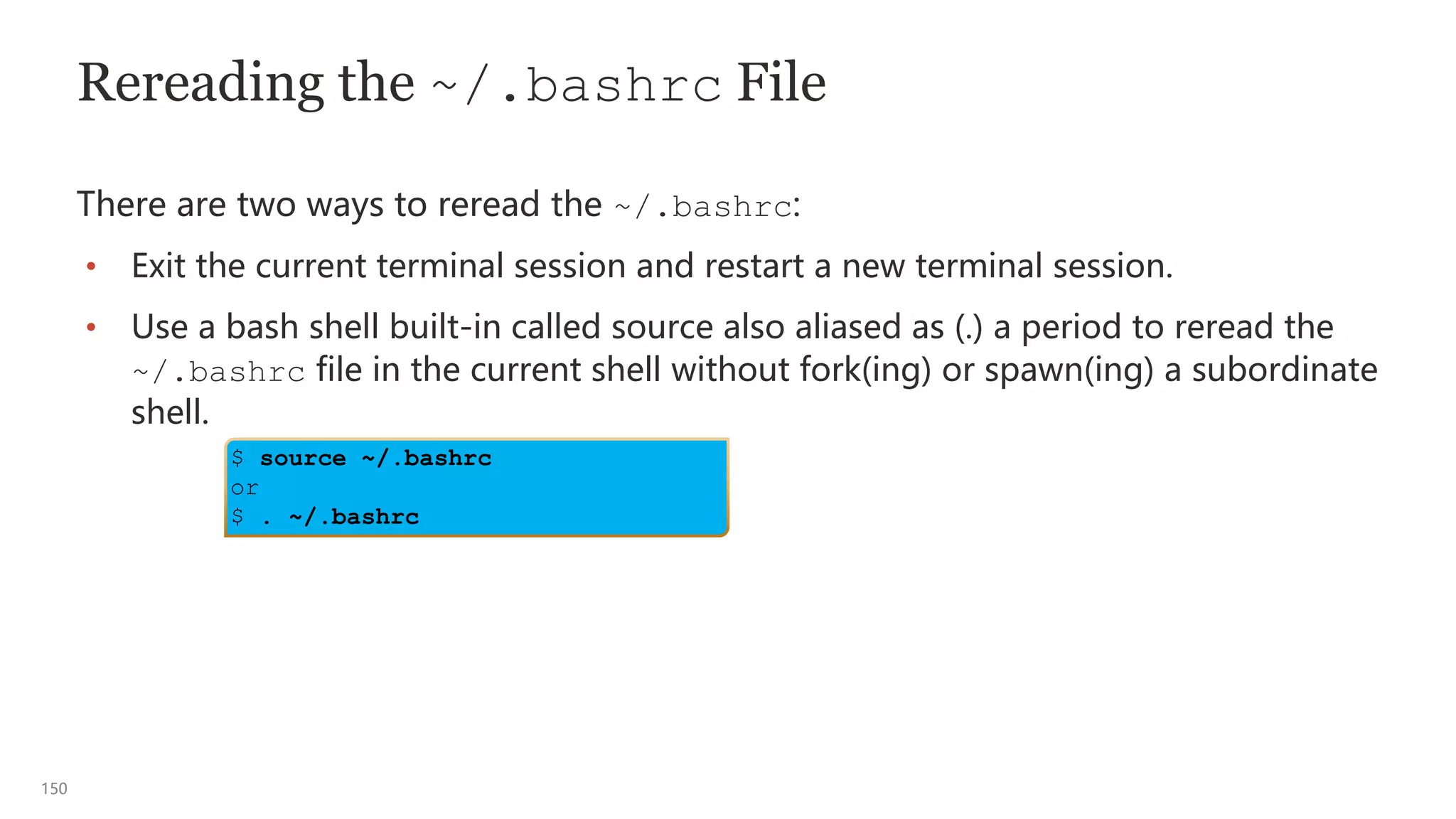
Rereading the ~/.bashrc File
There are two ways to reread the ~/.bashrc:
• Exit the current terminal session and restart a new terminal session.
• Use a bash shell built-in called source also aliased as (.) a period to reread the
~/.bashrc file in the current shell without fork(ing) or spawn(ing) a subordinate
shell.
$ source ~/.bashrc
or
$ . ~/.bashrc
1
Using Basic File Permissions
152
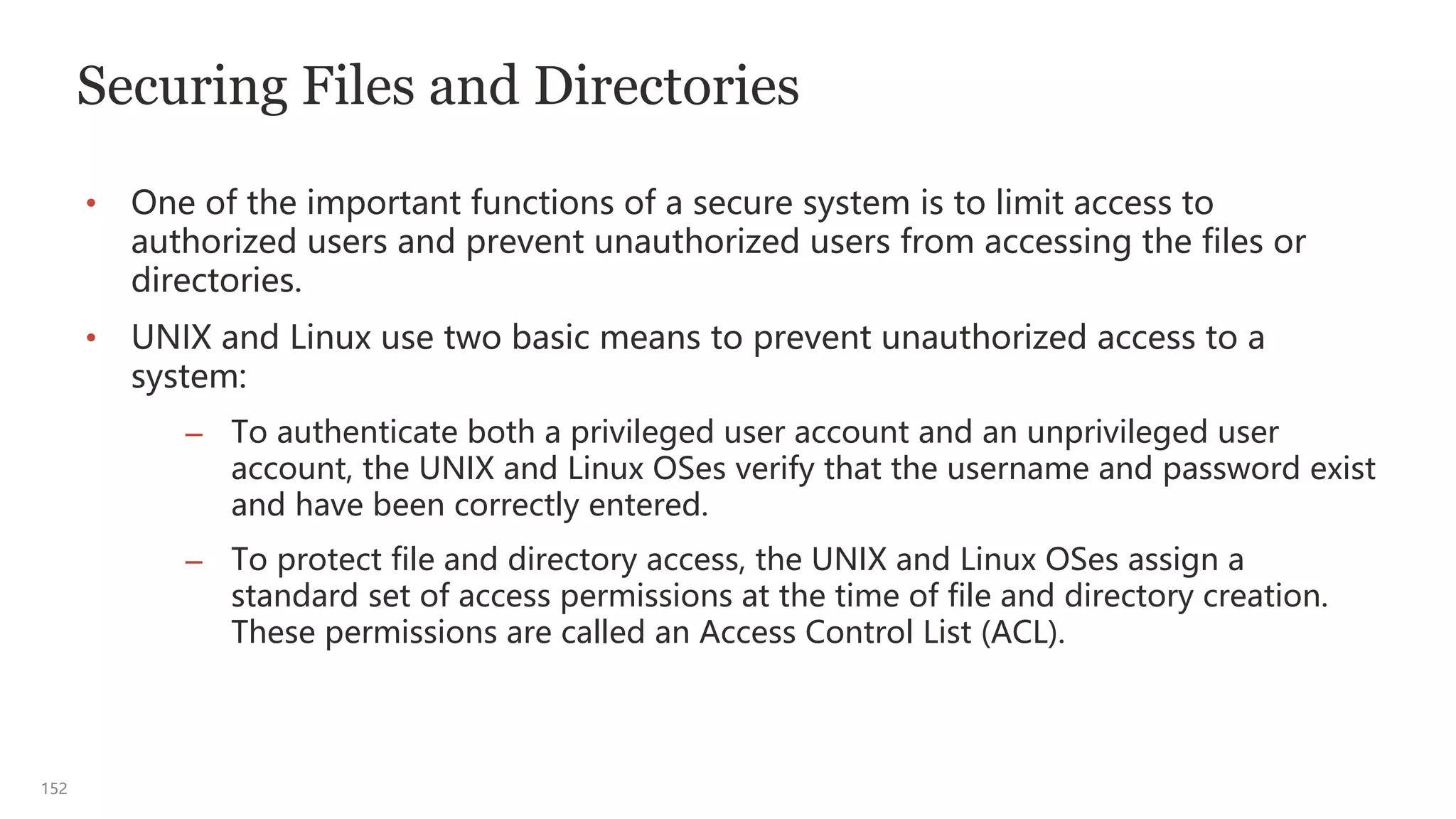
Securing Files and Directories
• One of the important functions of a secure system is to limit access to
authorized users and prevent unauthorized users from accessing the files or
directories.
• UNIX and Linux use two basic means to prevent unauthorized access to a
system:
– To authenticate both a privileged user account and an unprivileged user
account, the UNIX and Linux OSes verify that the username and password exist
and have been correctly entered.
– To protect file and directory access, the UNIX and Linux OSes assign a
standard set of access permissions at the time of file and directory creation.
These permissions are called an Access Control List (ACL).
153
File and Directory Permissions (ACL)
• All files and directories in UNIX and Linux have a default set of standard access
permissions.
• These access permissions control who can access what files, and provide a
fundamental level of security to the files and directories in a system.
• The standard set of access permissions are established by a user’s umask
settings. The umask command is described in more detail later in this lesson.
154
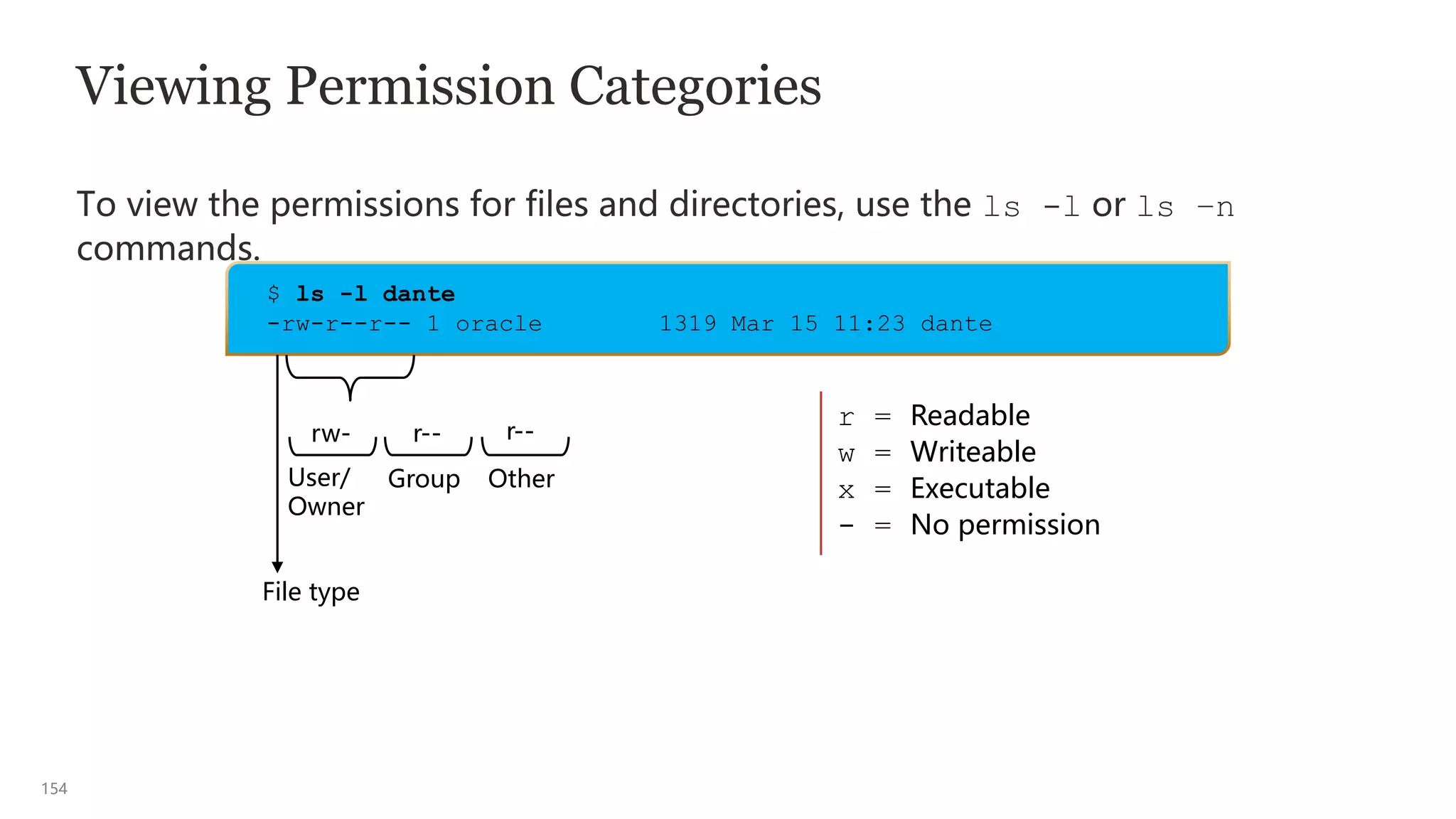
Viewing Permission Categories
To view the permissions for files and directories, use the ls -l or ls –n
commands.
rw-
User/
Owner
Group Other
r = Readable
w = Writeable
x = Executable
- = No permission
$ ls -l dante
-rw-r--r-- 1 oracle 1319 Mar 15 11:23 dante
r-- r--
File type
155
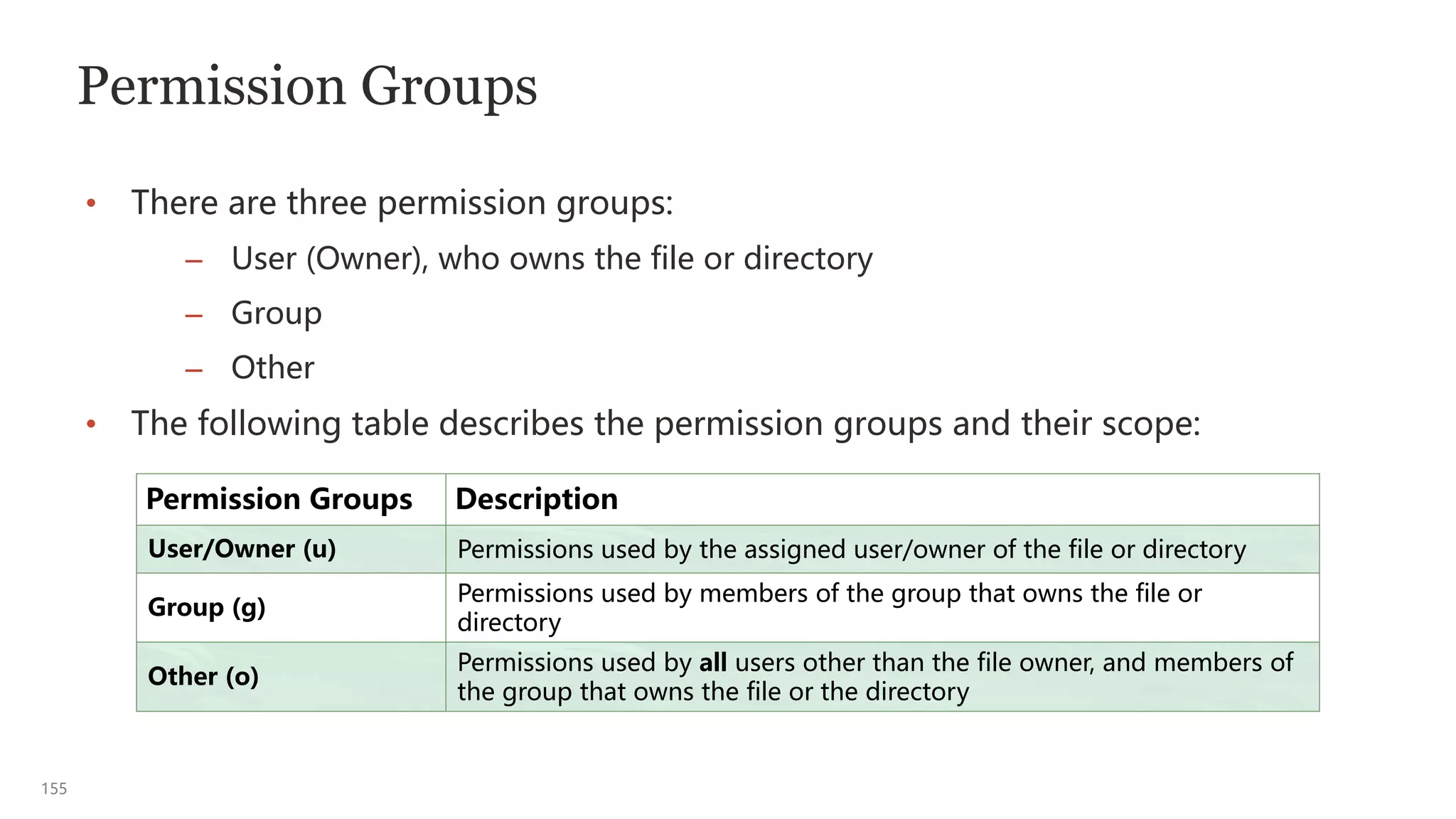
Permission Groups
• There are three permission groups:
– User (Owner), who owns the file or directory
– Group
– Other
• The following table describes the permission groups and their scope:
Permission Groups Description
User/Owner (u) Permissions used by the assigned user/owner of the file or directory
Group (g)
Permissions used by members of the group that owns the file or
directory
Other (o)
Permissions used by all users other than the file owner, and members of
the group that owns the file or the directory
156
Permission Sets
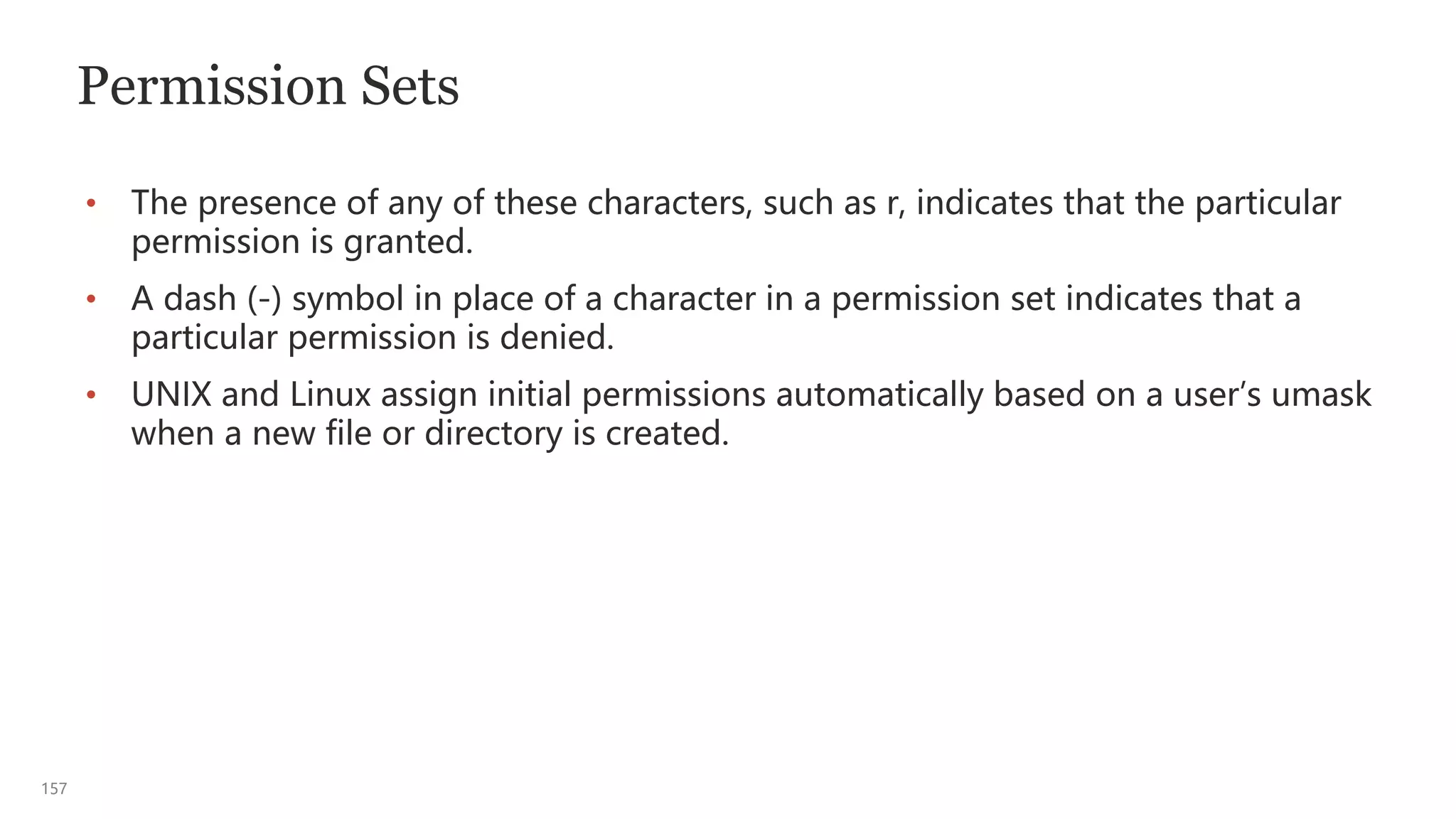
• Each permission group has three permissions, called a permission set.
• Each set consists of read, write, and execute permissions that are represented by
the characters r, w, and x, respectively.
• Each file or directory has three permission sets for the three types of permission
groups.
• The first permission set represents the user/owner permissions, the second set
represents the group permissions, and the last set represents the other (world)
permissions.
157
Permission Sets
• The presence of any of these characters, such as r, indicates that the particular
permission is granted.
• A dash (-) symbol in place of a character in a permission set indicates that a
particular permission is denied.
• UNIX and Linux assign initial permissions automatically based on a user’s umask
when a new file or directory is created.
158
Interpreting File and Directory Permissions
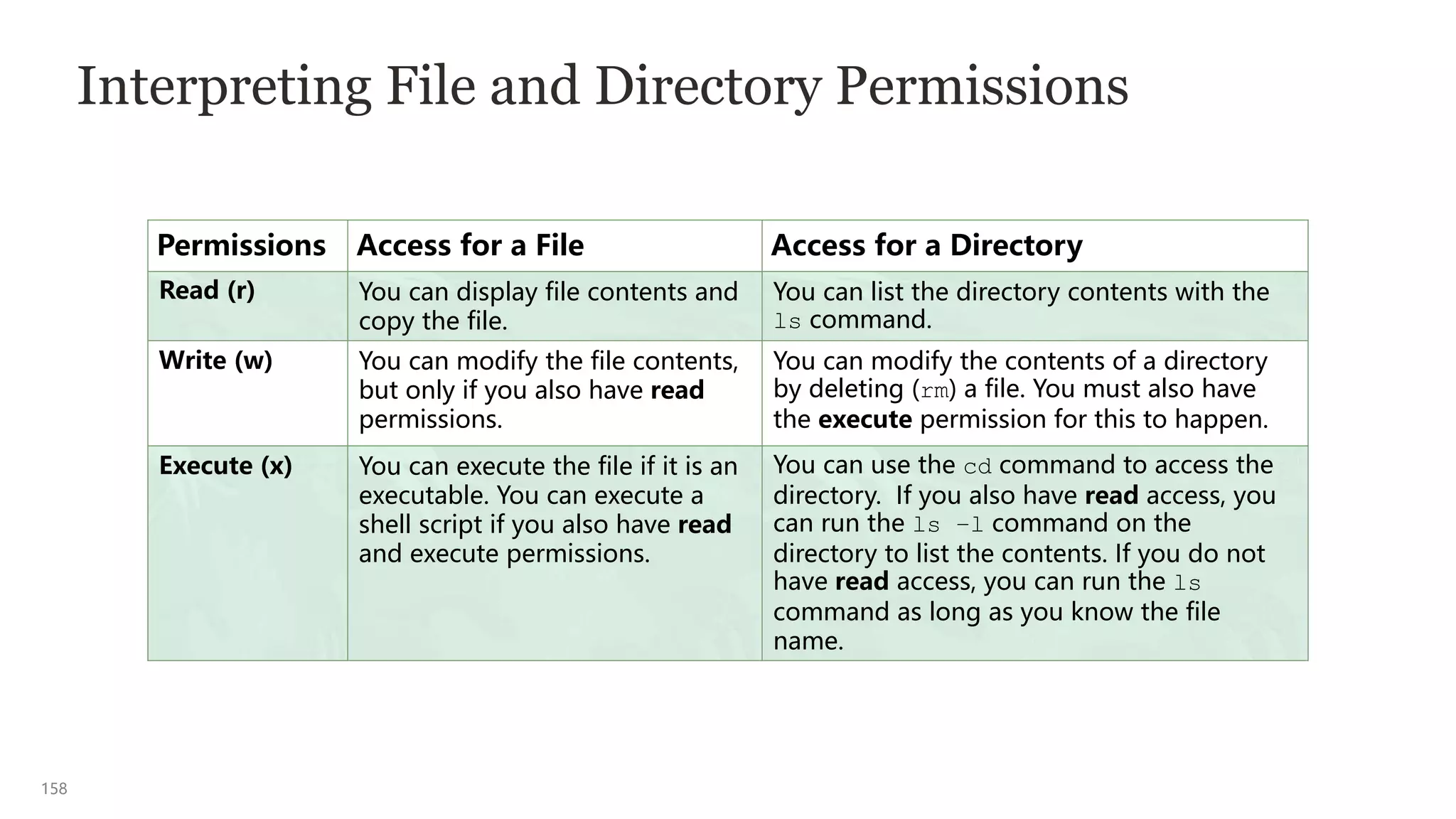
Permissions Access for a File Access for a Directory
Read (r) You can display file contents and
copy the file.
You can list the directory contents with the
ls command.
Write (w) You can modify the file contents,
but only if you also have read
permissions.
You can modify the contents of a directory
by deleting (rm) a file. You must also have
the execute permission for this to happen.
Execute (x) You can execute the file if it is an
executable. You can execute a
shell script if you also have read
and execute permissions.
You can use the cd command to access the
directory. If you also have read access, you
can run the ls –l command on the
directory to list the contents. If you do not
have read access, you can run the ls
command as long as you know the file
name.
159
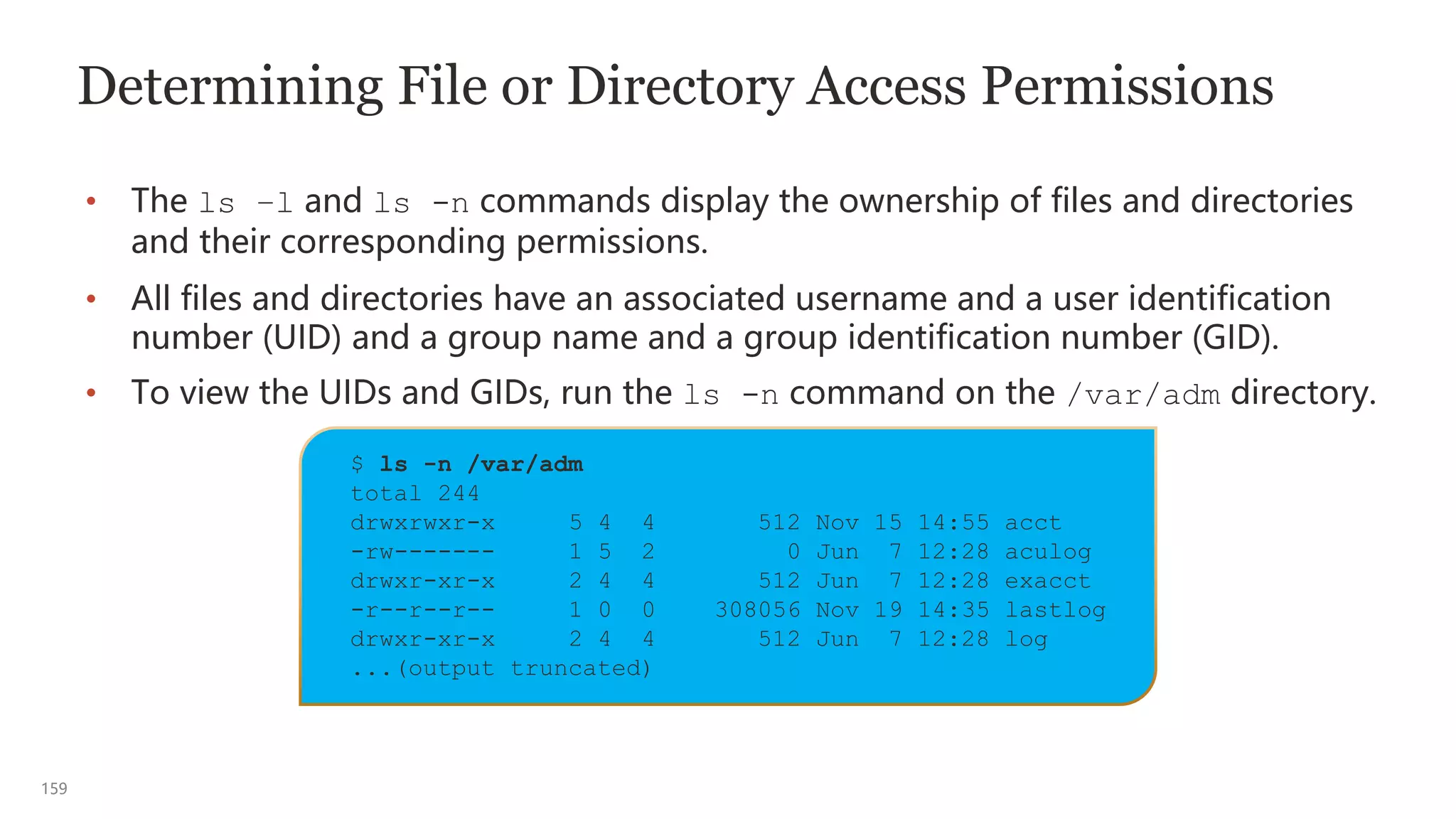
$ ls -n /var/adm
total 244
drwxrwxr-x 5 4 4 512 Nov 15 14:55 acct
-rw------- 1 5 2 0 Jun 7 12:28 aculog
drwxr-xr-x 2 4 4 512 Jun 7 12:28 exacct
-r--r--r-- 1 0 0 308056 Nov 19 14:35 lastlog
drwxr-xr-x 2 4 4 512 Jun 7 12:28 log
...(output truncated)
Determining File or Directory Access Permissions
• The ls –l and ls -n commands display the ownership of files and directories
and their corresponding permissions.
• All files and directories have an associated username and a user identification
number (UID) and a group name and a group identification number (GID).
• To view the UIDs and GIDs, run the ls -n command on the /var/adm directory.
160
Interpreting the ls –n Command
The ls -n command displays the UID and GID listing of file information.
drwxrw-r-x 5 1000 10 512 Feb 22 14:51 dir1
-rw-rw-r-- 1 1000 10 0 Feb 22 14:51 file1
File type (e.g.: ’-’ for a regular file or ’d’ for a directory)
Permissions Set
Link count
UID
GID
Size Last modification
date and time
File or
directory name
r = readable
w = writable
x = executable
- = no permission
$ ls -n
161
Determining Permissions
UID=UID
GID=GID
Use User/Owner
Permissions
Yes
Use Group
Permissions
Yes
No
No
Use Other
Permissions
162
Changing Ownership on Files or Directories
• Every file and directory in UNIX and Linux is owned by somebody.
• The ls –l command shows the username and the group that owns the
object.
• The ls –n command shows the UID and GID numbers corresponding to
who owns the object.
• There are two commands:
– The chown command can be used to change both username and group
ownership.
– The chgrp command changes only group ownership.
163
Changing Both Username and Group Ownership
• The syntax for the chown command is:
• You can change the ownership only for files and directories that you own.
However, the system administrator can change the ownership of any object.
• For more information about the chown command options, see the chown man
pages.
$ chown [options] [newusername][:newgroup] filename
$ ls -l dante
-rw-r--r-- 1 student class 1319 Mar 15 11:23 dante
$ chown oracle:oracle dante
$ ls -l dante
-rw-r--r-- 1 oracle oracle 1319 Mar 15 11:23 dante
164
Changing Group Ownership
• The syntax for the chgrp command is:
• Note: If you still own a file or directory, you can always change the group
ownership.
$ chgrp [options] newgroup filename
165
Changing Permissions
• You can change the permissions on files and directories by using the chmod
command.
• Either the user/owner of the file or directory, or the root user can use the chmod
command to change permissions.
• The chmod command can be used in either symbolic or octal mode.
– Symbolic mode uses a combination of letters and symbols to add or remove
permissions for each permission group.
– Octal mode, also called absolute mode, uses octal numbers to represent each
permission group.
166
Changing Permissions: Symbolic Mode
u User (Owner) Permissions
g Group Permissions
o Other Permissions
a All Permissions (User, Group, & Other)
+ Add Permissions
- Remove Permissions
= Assign Permissions Absolutely
r Read
w Write
x Execute
who op permissions
$ chmod symbolic_mode filename
167
Changing Permissions: Symbolic Mode
• The syntax for the chmod command in symbolic mode is:
• The format of the symbolic_mode consists of three parts: [ugoa] [+-=] [rwx]
– The user category [ugoa]: User/owner, group, other, or all
– The function to be performed [+-=]: Add, remove, or set equal
– The permissions affected [rwx]: Read, write, and execute
Plus special file permissions and sticky bit [st] (described in the next slide)
• If the option is g+x, the executable permission is added to the group
permissions.
$ chmod [options] [symbolic_mode] filename
168
Special File Permissions: Setuid, Setgid, and Stick Bit
• When special file permissions are set on executable files, the user who runs that
executable file executes it with the permissions of the UID or GID, which has the
“s” in place of the “x” for executable privileges.
• The restricted deletion flag “t” (sticky bit) is a permission bit that protects the
files within a directory from being deleted by anyone, except the user who owns
the file, the owner of the directory, or the root user.
• Typically, only the /tmp directory has the “t” in place of the “x”, which makes it
“world readable and world writable.”
$ ls –l /usr/bin/passwd
-rwsr-xr-x 1 root root 27856 May 4 2014 /usr/bin/passwd
$ ls –l /tmp
drwxrwxrwt 68 root root 4096 Apr 15 07:02 /tmp
169
Changing Permissions: Octal Mode
• The syntax for the chmod command in octal mode is:
• The octal_mode option, sometimes called the absolute_mode, consists of three
octal numbers, 4, 2, and 1, which represent a combination (sum) of the
permissions, from 0–7, for the file or directory.
Octal Value Permission
4 Read
2 Write
1 Execute
$ chmod [octal_mode] filename
170
Changing Permissions: Octal Mode
Octal Value Permission Binary
7 rwx 111 (4+2+1)
6 rw- 110 (4+2+0)
5 r-x 101 (4+0+1)
4 r-- 100 (4+0+0)
3 -wx (see the notes page) 011 (0+2+1)
2 -w- (see the notes page) 010 (0+2+0)
1 --x (see the notes page) 001 (0+0+1)
0 --- 000 (0+0+0)
171
Changing Permissions: Octal Mode
• You can modify the permissions for each category of users by combining the
octal numbers.
• The first set of octal numbers defines user/owner permissions, the second set
defines group permissions, and the third set defines other permissions.
Octal Mode Permissions
640 rw-r-----
644 rw-r--r--
750 rwxr-x---
751
rwxr-x--x (see the notes
page)
755 rwxr-xr-x
777 rwxrwxrwx
172
Changing Permissions: Octal Mode
• Set permissions so that the owner, group, and other have read and execute access
only.
• The chmod command fills in any missing octal digits to the left with zeros.
Note: chmod 44 dante becomes chmod 044 dante.
$ chmod 44 dante
$ ls -l dante
----r--r-- 1 oracle oracle 1319 Jan 22 14:51 dante
$ chmod 555 dante
$ ls -l dante
-r-xr-xr-x 1 oracle oracle 1319 Jan 22 14:51 dante
173
umask: A Bash Shell Built-in Command
• When files and directories are created, initial permission values are
automatically assigned.
• The initial maximum permission value for a file is 666 (rw-rw-rw-) and
777 (rwxrwxrwx) for a directory.
• The user mask affects and modifies the default file permissions assigned to the
file or directory.
• You can set the user’s mask by using the umask command in a user
initialization file.
• To view the umask value, run the umask command.
Note: The default umask value for users in Oracle Linux is 0002 (002).
$ umask
0022
174
Determining the umask Octal Value
umask Octal Value File Permissions Directory Permissions
0 rw- rwx
1 rw- rw-
2 r-- r-x
3 r-- r--
4
-w- (see the notes
page)
-wx (see the notes page)
5
-w- (see the notes
page)
-w- (see the notes page)
6 --- --x (see the notes page)
7 --- --- (none)
175
Applying the umask Value
• When you mask out certain permissions from the initial value, the default
permissions assigned to the new files and directories remain.
• The following table displays the results in symbolic mode:
Permission Field Description
-rw-rw-rw- Initial value specified by the system for a new file
w w Default umask utility value to be removed (0022)
-rw-r--r-- Default permissions assigned to newly created files
drwxrwxrwx
Initial value specified by the system for a new
directory
w w Default umask utility value to be removed (0022)
drwxr-xr-x Default permissions set for newly created directories
176
Changing the umask Value
• You can change the umask value to a new value on the command line.
• For example, you might require a more secure umask value of say 027, which
assigns the following access permissions to newly created files and directories:
– Files with read and write permissions for the user/owner, read permission for
the group, and no permissions for other (rw-r-----), octal value 640
– Directories with read, write, and execute permissions for the user/owner, read
and execute permissions for the group, and no permissions for other (rwxr-x--
-),
octal value 750
Note: The default umask is set in the /etc/profile file.
$ umask 027
$ umask
0027
1
Performing Basic Process Control
178
Process: Overview
• A process, also known as a task, is the running form of a program or a shell
script.
• Programs and scripts are stored on disk and processes run in memory.
• Processes have a parent/child relationship.
• A running process can spawn one or more child processes, or fork multiple
independent processes.
• Multiple processes can run in parallel.
179
Attributes of a Process
• The kernel assigns a unique identification number to each process called
a process ID or PID.
– The kernel uses this PID to track, control, and manage the process.
– Every child PID has an owning Parent Process ID (PPID).
• Each process is further associated with a UID and a GID.
– UIDs and GIDs indicate the process’s owner.
– Generally, the UID and GID associated with a process are the same as
the UID and GID of the user who started the process.
180
Process States
• The s, stat, and state output specifiers describe the state of a process.
• A process may be in any one of the following states:
– D: Uninterruptible sleep (usually I/O)
– R: Running or runnable (on run queue)
– S: Interruptible sleep (waiting for an event to complete)
– T: Stopped, either by a job control signal or because it is being
traced
– Z: Defunct (“zombie”) process; terminated but not reaped by its
parent
• For more information about the ps command process state options,
see the ps man page.
181
Process Subsystems
• Each time you boot a system, execute a command, or start an
application, the system activates one or more processes.
• A process, as it runs, uses the resources of the various subsystems:
– Disk I/O
– Network
– Memory
– CPU
UNIX or Linux Kernel
Disk I/O
Subsystem
Network
Subsystem
Memory
Subsystem
CPU
Subsystem
Process Subsystem
182
Agenda
• Describing a Process and Its Attributes
• Managing Processes
183
Listing System Processes
• The process status (ps) command lists the processes that are associated with
your shell.
• For each process, the ps command displays the PID, the terminal identifier
(TTY), the cumulative execution time (TIME), and the command name (CMD).
• You can list the currently running processes on the system owned by the logged
on user by using the ps command.
$ ps [options]
$ ps
PID TTY TIME CMD
1001 pts/1 0:00 bash
1004 pts/1 0:00 ps
184
Listing All Processes
• Use the ps -ef command to list the full format of all the processes currently
scheduled to run on the system.
$ ps -ef | less
UID PID PPID C STIME TTY TIME CMD
root 0 0 0 Feb 13 ? 00:00:18 sched
root 1 0 0 Feb 13 ? 00:00:01 /etc/init -
root 2 0 0 Feb 13 ? 00:00:00 pageout
root 3 0 0 Feb 13 ? 00:17:47 fsflush
root 9 1 0 Feb 13 ? 00:00:00 svc.configd
...(output truncated)
185
Listing All Processes
$ ps -ef | less
UID
root
PID
216
PPID
1
STIME
Oct 23
TTY
?
CMD
/usr/lib/power/powerd
TIME
00:00:18
UID: The username of the owner of the process
PID: The unique process identification number of the process
PPID: The parent process identification number of the process
STIME: The time the process started (hh:mm:ss)
TTY: The controlling terminal for the process.
Note: system processes (daemons) display a
question mark (?), indicating the process
started without the use of a terminal.
TIME: The cumulative execution time
for the process (hh:mm:ss)
CMD: The command name, options,
and arguments
C
0
C: Processor Utilization
186
Listing Process Trees in Oracle Linux
The process tree (pstree) command lists the running processes, rooted at either
systemd or PID.
$ pstree [-options] [PID | user ]
$ ps -f
UID PID PPID C STIME TTY TIME CMD
oracle 2274 2262 0 14:47 pts/0 00:00:00 /bin/bash
oracle 2308 2274 0 14:47 pts/0 00:00:00 ps -f
$ pstree 2262
gnome-terminal-─┬─bash───pstree
├─gnome-pty-helpe
└─3*[{gnome-terminal-}]
187
Terminating a Process
• There might be times when you need to terminate an unwanted process.
• A process might have entered an endless loop, or it might be hung.
• You can kill or stop any process that you own.
• You can use the following two commands to terminate one or more processes:
– kill PID [PID ...]
– pkill -l [ processname | regex_pattern ]
• The kill and pkill commands send signals to processes directing them to
terminate.
• Each signal has a number/value, name, and an associated event.
• For more information about signal values, use the man 7 signal.
188
Terminating a Process: kill Command
• You can terminate any process by sending the appropriate signal to the process.
• The kill command sends a Termination signal (SIGTERM signal 15), by default,
to one or more processes.
Note: The kill command terminates only those processes that you own.
$ kill [-signal] PID [PID ...]
189
Common Signals and Their Uses
• HUP (Hangup - SIGHUP signal 1) is sent to all of the subordinate child
processes when the parent process is terminated.
• To terminate a command-line command, you usually use a Ctrl + C keyboard
command, which sends an Interrupt (SIGINT signal 2), causing it to be
interrupted.
• In place of the exit command used to exit a terminal session, you can use a
Ctrl + D keyboard command, which sends a Quit (SIGQUIT signal 3) to quit the
terminal session.
• To stop the command-line command execution, you can use a Ctrl + Z
keyboard command to send a Stop (SIGTSTP signal 19) to stop/suspend the
foreground execution.
190
# ps –e | grep mail
215 ? 00:00:03 sendmail
12047 ? 00:00:10 dtmail
# kill 12047
# ps –e | grep mail
215 ? 00:00:03 sendmail
Terminating a Process: kill Command
Use the kill command to terminate the dtmail process.
191
Terminating a Process: pgrep and pkill Commands
• You can use the pgrep processname command to identify the ProcessName
or a regex_pattern to be killed, and then use the pkill command to kill it.
• The pkill command requires you to specify the ProcessName or a
regex_pattern instead of the PID of the process.
$ sleep 500 &
[1] 4378
$ pgrep sleep
4378
$ pgrep –l sleep
4378 sleep
$ pkill sleep
[1]+ Terminated sleep 500
192
Terminating a Process: pkill Command
Use the pkill command to terminate the dtmail process.
# pkill dtmail
# pgrep -l mail
215 ? 00:00:03 sendmail
193
Forcefully Terminating a Process: Signal 9 (SIGKILL)
• Some processes ignore the default Termination signal (SIGTERM signal 15) that
the kill command sends.
• If a process does not respond to the Termination signal 15, you can force it to
terminate by sending the Kill signal (SIGKILL signal 9) with either the kill or the
pkill command.
Note: Sending the Termination signal 15 does not necessarily kill a process
gracefully. Only if the signal is caught by the process, it cleans itself up in an
orderly fashion and dies. If not, it just dies.
$ kill -9 PID
or
$ pkill -9 [ processname | regex_pattern ]
1
Using Advanced Shell Features in
Shell Scripts
195
Jobs in the Bash Shell
• A job is a process, which the shell manages.
• Each job is assigned a sequential job ID. A job is a process, therefore,
each job has an associated process ID (PID).
• There are three types of job statuses:
– Foreground
– Background
– Stopped
Note: Other shells support job control, except the Bourne shell.
196
Job Control Commands
Job control commands enable you to place jobs in the foreground or
background, and to start or stop jobs.
Option Description
Ctrl+Z
(SIGTSTP 19)
Stops the foreground job and places it in the background as a stopped job
jobs Lists all jobs and their job IDs
bg [%n] Places the current stopped job or the specified job ID in the background, where
job ID
fg [%n] Brings the current or specified job ID from the background to the foreground,
is the job ID
kill %n Deletes the job from the background, where n is the job ID
kill -19 %n Or, if signal 19 (SIGSTOP) is used, places the process associated with the job ID (n) in
a stopped state
197
Running a Job in the Background
• To run a job in the background, you need to enter the command that you want
to run, followed by an ampersand (&), which is a shell metacharacter, at the end
of the command line.
– For example, to run the sleep command in the background:
– The shell returns the job ID, in brackets (which it assigns to the command), and
the associated PID.
Note: The sleep command suspends the execution of a program for n seconds.
$ sleep 500 &
[1] 3028
198
Bringing a Background Job to the Foreground
• You can use the jobs command to list the jobs that are currently running or
stopped in the background.
• You can use the fg command to bring a background job to the foreground.
Note: The foreground job occupies the shell until the job is completed or
stopped and placed into the background.
$ jobs
[1] + Running sleep 500 &
$ fg %1
sleep 500
199
The alias Command
• An alias is a shorthand shell notation to customize and abbreviate commands.
• If the first word on the command line is an aliasname, the shell replaces that
word with the text of the alias.
• The shell maintains a list of aliases that it searches when a command is entered.
• The following rules apply while creating an alias:
– There can be no whitespace on either side of the equal sign.
– The command string must be quoted if it includes any options,
metacharacters, or whitespace.
– Each command in a single alias must be separated by a semicolon.
$ alias aliasname="command_string"
200
$ alias info=’uname -a; id; date’
$ info
SunOS s11-server1 5.11 11.3 i86pc i386 i86pc
uid=60016(oracle) gid=100(oracle)
Fri Feb 10 15:22:47 UTC 2017
Command Sequence
• You can group several commands under a single aliasname.
• Individual commands are separated by semicolons.
201
Predefined Aliases
• In Oracle Linux, the GNU bash shell contains several predefined system aliases.
• You can display these predefined aliases by using the alias command.
Note: The alias command displays both system- and user-defined aliases.
[oracle@ol7-server1 ~]$ alias
alias egrep='egrep --color=auto'
alias fgrep='fgrep --color=auto'
alias grep='grep --color=auto'
alias l.='ls -d .* --color=auto'
alias ll='ls -l --color=auto'
alias ls='ls --color=auto'
alias vi='vim'
alias which='alias | /usr/bin/which --tty-only --read-alias --show-dot --show-tilde'
202
$ alias h=history
$ h
278 cat /etc/passwd
279 pwd
280 cp /etc/passwd /tmp
281 ls ~
282 alias h=history
283 h
User-Defined Aliases
• User-defined aliases are defined by a user, usually to abbreviate or customize
frequently used commands.
• The history command is aliased as h by using the alias command:
203
Deactivating an Alias
• You can temporarily deactivate an alias by placing a backslash (), the shell
metacharacter escape, in front of the alias on the command line.
• In the following code, the backslash prevents the shell from looking in the alias
list. This allows the shell to run the original rm command to remove the file1
file.
$ rm file1
rm: remove file1 (yes/no)? n
$ rm file1
$ ls file1
file1: No such file or directory
204
Removing an Alias
• The unalias command removes aliases from the alias list.
• The h alias that was created earlier is removed by using the unalias command.
$ unalias aliasname
$ unalias h
$ h
bash: h: not found
205
Shell Functions
• Functions, which is a powerful feature of shell programming, is a group of
commands organized by common functionality.
• There can be hundreds of predefined shell functions.
• These easy-to-manage units, when called, return a single value with no
additional output.
• Using a function involves two steps:
– Defining the function
– Invoking the function
206
Defining a Function
• A function is defined by using the following general syntax:
• To define a function called num that displays the total number of users currently
logged in to the system:
– The num function runs the who command, whose output is redirected to the wc
command.
• To remove a function, use the unset -f command:
function functionname [()] { compound-command [redirections]; }
$ function num { who | wc -l; }
$ unset -f num
207
Invoking a Function
You can invoke a function by merely entering the function name on the
command line or within the shell script.
$ num
208
Shell Options
• Options are switches that control the behavior of the shell. In the bash shell,
there are about 27 different options.
• Options are of the Boolean data type, which means that they can be either on or
off.
• To show the current option settings, enter:
• To turn on an option, enter:
• To turn off an option, enter:
$ set -o
$ set -o option-name
$ set +o option-name
209
Activating the noclobber Shell Option
• Redirecting standard output (stdout) to an existing file overwrites the previous
file’s content that results in data loss.
• This process of overwriting existing data is known as clobbering.
• To prevent an overwrite from occurring, the shell supports a noclobber option.
• When the noclobber option is set, the shell refuses to redirect standard output
to the existing file and displays an error message on the screen.
• The noclobber option is activated in the shell by using the set -o command.
210
Deactivating the noclobber Shell Option
• To deactivate the noclobber option, enter the following commands:
• To temporarily deactivate the noclobber option, use the >| deactivation syntax
on the command line:
Note: There is no space between the > and | on the command line. The
noclobber option is ignored for this command line only, and the contents of the
file are overwritten.
$ ls -l >| file_new
$ set +o noclobber
$ set -o | grep noclobber
noclobber off
211
Shell Scripts
• A shell script is a text file that contains a sequence of commands and comments
for a UNIX-like OS, and is designed to be run by the UNIX shell, a command-line
interpreter.
• Shell scripts are often used to automate repeating command sequences, such as
services that start or stop on system startup or shutdown.
• There can be many shell scripting languages, for example, Perl, PHP, Tcl, and so
on. However, in this lesson, we will focus on the default bash shell.
• Users with little or no programming experience can create and run shell scripts.
• You can run the shell script by simply entering the name of the shell script on
the command line.
212
Determining the Shell to Interpret and Execute a
Shell Script
• Oracle Linux supports various shell scripting languages, such as GNU Bash,
Bourne, Korn, C, Perl, PHP, and others.
• The first line of a shell script identifies the shell program that interprets and
executes the commands in the script.
• The first line should always begin with the symbols #! (called a shebang)
followed immediately by the absolute path name of the shell program used to
interpret the script.
• The first line for a bash shell script is as follows:
#!/full-pathname-of-shell
#!/usr/bin/bash
213
Creating a Shell Script
• To create a shell script, you need a text editor.
• The following code is a simple shell script:
– The first line of the script indicates the shell program that interprets the
commands in the script. In this case, it is /usr/bin/bash.
– The second line is a comment. Everything that appears after a hash (#) symbol
is ignored by bash.
– The last line is the echo command, which prints what is displayed.
#!/usr/bin/bash
# This is my first shell script.
echo "Hello World!"
214
Executing a Shell Script
• After the shell script is created, you can run it.
• To run a shell script, the user must have execute permissions.
– To grant read and execute permissions to the user so that you can execute the
mycmd shell script, use the chmod command:
• A shell script is executed by just calling out the script name on the command
line.
– To run the mycmd script in the current directory, enter ./mycmd on the
command line.
$ chmod u+rx mycmd
215
Comments in a Shell Script
• A comment is a textual description of the script and the lines within the script
file.
• Comments are always preceded by a hash (#) symbol.
• Whenever a shell encounters a hash (#) symbol in a script file, the line following
it is ignored by the shell.
• The addition of comments in a shell script file does not affect the execution of
the script unless a syntactical error is introduced when the comments are added.
# This is a comment inside a shell script
ls -l # lists the files in a directory
216
Positional Parameters in a Shell Script
• You can pass command-line arguments to a shell script while it is running.
• As you pass these arguments on the command line, the shell stores the first
parameter after the script name into variable $1, the second parameter into
variable $2, and so on.
• These variables are called positional parameters.
217
Checking the Exit Status
• Exit status is a numeric value that indicates the success or failure of a command.
– A value of zero indicates success while a nonzero value indicates failure.
– This nonzero value can be any integer in the range of 1–255.
• All commands in the UNIX and Linux environments return an exit status, which
is held in the read-only shell variable ?.
• A developer can use exit status values to indicate different error situations.
– The exit status value can be set inside a shell script with the exit=##
command.
• To check the value of the exit status, use the echo command and the variable
expansion dollar sign ($):
$ echo $?
0
218
The test Command
• The shell built-in test command is used for testing conditions.
• The test command:
– Can be written as a test expression or written using the
[ expression ] special notation.
– Is also used for evaluating expressions, such as the following:
— Variable values
— File access permissions
— File types
219
The test Command
• There are several types or categories of bash shell test comparison operators:
– Integer/Arithmetic test comparison operators
– String test comparison operators
– File test comparison operators
– And there are other test comparison operators
220
Integer/Arithmetic Test Comparison Operators
The Integer/Arithmetic test comparison operators use characters:
Operato Meaning Syntax
-eq Equal to [ "$var1" –eq "$var2" ]
Note1: ^ ^ ^ ^ required whitespace (IFS)
Note2: While not required, the double-quotes (" ") provide
excellent variable and value isolation and is
considered a Best Practice.
-ne Not equal to [ "$var1" –ne "$var2" ]
-le Less than or
equal to
[ "$var1" –le "$var2" ]
-ge Greater than
or equal to
[ "$var1" –ge "$var2" ]
-lt Less than [ "$var1" –lt "$var2" ]
-gt Greater than [ "$var1" –gt "$var2" ]
221
String Test Comparison Operators
The String test comparison operators use symbols.
Operato Meaning Syntax
= or == Equal to [ "$str1" == "$str2" ]
Note: While both = and == are usable as string comparison
operators. The = is also used as an assignment
operator. The == is considered a Best Practice.
!= Not equal to [ "$str1" != "$str2" ]
-z String is null,
zero length
[ "$str1" –z "$str2" ]
-n String is not
null
[ "$str1" –n "$str2" ]
< Sorts before [ "$str1" < "$str2" ]
> Sorts after [ "$str1" > "$str2" ]
222
File Test Comparison Operators
The File test comparison operators use characters. (Not a complete listing.)
Operator Meaning Syntax
-e (or -a) filename File exists [ -e filename ]
-f filename File is a regular file [ -f filename ]
-d filename File is directory [ -d filename ]
-c filename File is a character device [ -c filename ]
-b filename File is a block device [ -d filename ]
-h (or -L) filename File is a symbolic link [ -h filename ]
-r filename File is a readable [ -r filename ]
-w filename File is a writeable [ -w filename ]
-x filename File is a executable [ -x filename ]
-s filename File size is bigger than zero
bytes (not empty)
[ -s filename ]
223
if test condition
then
command
...
fi
Using the test Command in an if Statement
• The test condition command or [ expression ] special notation often follows
the if statement.
• The test command evaluates a condition and, if the result of the test is true, it
returns an exit status of zero.
• If the result of the test is false, the test command returns a nonzero exit status.
if [ expression ]
then
command
...
fi
224
$ bash –xv scriptname
or
$ cat scriptname
#!/usr/bin/bash -xv
...(output truncated)
How to Test/Debug a Shell Script
There are several bash shell command-line options, which can also be included in
your shell scripts on the line with the shebang after the script interpreter.
• The –x option described as a debugger
• The –v option described as verbose
• The –n option described as a syntax checker
225
Conditional Expressions
The shell provides the following special expressions that enable you to run a
command based on the success or failure of the preceding command:
• The && operator
• The || operator
• The if statement
• The case statement
226
The && Operator
The && (and) operator ensures that the second command is run only if the
preceding command succeeds.
$ mkdir $HOME/newdir && cd $HOME/newdir
227
The || Operator
The || (or) operator ensures that the second command is run only if the
preceding command fails.
$ mkdir /usr/tmp/newdir || mkdir $HOME/newdir
228
The if Statement
• The if statement evaluates the exit status of a command and initiates
additional actions based on the return value.
• If the exit status is zero (true), any commands that follow the then statement
are run.
• If the exit status is nonzero (false), any commands that follow the else
statement are run.
$ if [ command | test ];
> then # on true execute
> command1
> ...
> else # on false execute
> commandn
> ...
> fi
229
The if Statement Additional Syntax
Within the if statement, there can be multiple nested if test using the elif
syntax in place of an else.
$ if [ command1 | test1 ];
> then # on true execute
> commandn
> ...
> elif [ command2 | test2 ]; # on false run a second nested test
> then # on true from the second nested test execute
> commandn
> ...
> else # on false from the second nested test execute
> commandn
> ...
> fi
230
The case Statement
The case command compares a single value against other values, and runs a
command or group of commands when a match is found.
$ case value in
> pat1)
> command1
> ...
> ;;
> patn)
> commandn
> ...
> ;;
> *) # The * is a catch-all
> echo "Usage: $0 { pat1 | patn }"
> exit 3
> ;;
> esac
231
Looping Constructs
Many programming/scripting languages provide structures to iterate
through a list of objects. The bash shell provides the following three loop
structures:
• The for loop statement
• The while (true) loop statement
• The until (true) loop statement
232
The for Loop Statement
• The for command enables you to repeat a command or group of commands in
a loop.
• The for command evaluates the exit status of the in operation that follows it.
– If the exit status is zero, any instructions that follow the do statement are run,
command or test is rerun, and the exit status rechecked.
– If the exit status is nonzero, the loop terminates.
$ for arg in [ command | test ]
> do
> commandn
> ...
> done
233
The while (True) Loop Statement
• The while command enables you to repeat a command or group of commands
in a loop.
• The while command evaluates the exit status of the command or the test
command that follows it.
– If the exit status is zero, any instructions that follow the do statement are run,
command or test is rerun, and the exit status rechecked.
– If the exit status is nonzero, the loop terminates.
$ while [ command | test ]
> do
> commandn
> ...
> done
234
The until (True) Loop Statement
• The until command enables you to repeat a command or a group of
commands in a loop:
• The until command evaluates the exit status of the command or the test
command that follows it.
– If the exit status is nonzero, any instructions that follow the do statement are
run, command or test is rerun, and the exit status rechecked.
– If the exit status is zero, the loop terminates.
$ until [ command | test ]
> do
> commandn
> ...
> done
1
Archiving, Compressing, and Performing
Remote File Transfers
236
File Archival: Introduction
• To safeguard your files and directories, you can create a copy of all the files and
directories in your file system.
• This copy is a repository of files and directories and is called an archive.
• The archive serves as a backup in the event of data loss.
• You can create an archive on a storage device, such as a remote disk or tape or
you can send your archive to the cloud.
• Of the many commands, the tar command is the most commonly used for
creating and retrieving archived files.
Note: It is a good practice to use relative path names to archive files.
237
The tar Command
• The tar command creates, adds, deletes, lists, or extracts files in a tape archive
file.
• The output of using a tar command is a tar file.
• The default output location for a tar file in UNIX and Linux is stdout.
$ tar [options] archivefile filenames
238
Common tar Command Options
Option Description
c Creates a new tar file
t Lists the table of contents of the tar file
x Extracts files from the tar file
f Specifies the archive file or tape device
v Executes in verbose mode; writes to the standard output
h Follows symbolic links as standard files or directories
z Compresses and extracts files and directories by using gzip
j Compresses and extracts files and directories by using bzip2
239
Creating a tar Archive
• You can use the tar command to create an archive file containing multiple files
or directories on a disk or in a single file.
• The following example shows you how to archive your home directory on a disk:
• The following example shows you how to archive multiple files into an archive
file called files.tar:
$ tar [-]cvf /dev/rmt/0 .
a ./ 0 tape blocks
a ./.rhosts 1 tape blocks
...(output truncated)
$ tar [-]cvf files.tar file1 file2 file3
a file1 2K
a file2 1K
a file3 1K
240
Viewing the Table of Contents of a tar Archive
• You can view the names of all the files that have been written directly to a disk
or an archive file.
• To view the table of contents of Oracle's home directory on the disk:
• To view the verbose content of the files.tar archive file:
$ tar [-]tf /dev/rmt/0
/.rhosts
./dante
./fruit
...(output truncated)
$ tar [-]tvf files.tar
-rw-rw-r–- oracle/oracle 1610 ... file1
-rw-rw-r-- oracle/oracle 105 ... file2
...(output truncated)
241
Extracting a tar Archive
• You can retrieve or extract the entire contents of an archive or a single file that
was written directly to a disk device or to an archive file.
• To retrieve all the files from the disk archive, enter the following command:
• To extract or restore a single file from the files.tar archive file, enter the
following command:
$ tar [-]xvf /dev/rmt/0
x ., 0 bytes, 0 tape blocks
x ./.rhosts, 2 bytes, 1 tape blocks
...(output truncated)
$ tar [-]xvf files.tar file1
x file1, 1610 bytes, 4 tape blocks
242
File Compression
• With the enormous amount of enterprise data that is created and stored, there
is a pressing need to conserve disk space and optimize data transfer time.
• Various tools, utilities, and commands are used for file compression. Some of
the more commonly used commands are:
– gzip
– zip
– bzip2
243
Compressing a File: gzip Command
• Use the gzip command to compress files:
• For example, to compress a set of files, file1, file2, file3, and file4, enter
the following command:
$ gzip file1 file2 file3 file4
$ ls *.gz
file1.gz file2.gz file3.gz file4.gz
$ gzip [options] filename(s)
244
Uncompressing a File: gunzip Command
• The gunzip or gzip –d command uncompresses a file that has been
compressed by using the gzip command:
• To uncompress or decompress the file1.gz file, use the following command:
$ gunzip [options] filename
$ gunzip file1.gz
or
$ gzip –d file1.gz
245
Viewing a Compressed File: zcat Command
• In Oracle Linux, the zcat command prints the uncompressed form of a
compressed file to stdout.
• To view the content of the dante.gz compressed file, enter the following
command:
Note: The zcat command interprets the compressed data and displays the
content
of the file as if it were not compressed.
$ zcat dante.gz | less
The Life and Times of Dante
by Dante Pocai
Mention "Alighieri" and few may know about whom you are talking. Say
"Dante," instead, and the whole world knows whom you mean. For
$ zcat [options] filename
246
Archiving and Compressing Multiple Files: zip
Command
• The zip command archives and compresses multiple files into a single archive
file, and is compatible with files created by using pkzip.
• To compress file2 and file3 into the file.zip archive file:
$ zip file.zip file2 file3
adding: file2 (deflated 16%
adding: file3 (deflated 26%)
$ ls
file.zip
file2
file3
$ zip [options] archivefile filename(s)
247
Viewing and Uncompressing Archive Files:
unzip Command
• The unzip command is used for listing the files and also for extracting the
content of a compressed .zip file.
• To uncompress the file.zip archive file, use the following command:
$ unzip [options] archivefile
$ unzip file.zip
248
Compressing a File: bzip2 Command
• Use the bzip2 command to compress files.
• For example, to compress a set of files, file1, file2, file3, and file4, enter
the following command:
$ bzip2 file1 file2 file3 file4
$ ls *.bz2
file1.bz2 file2.bz2 file3.bz2 file4.bz2
$ bzip2 [options] filename(s)
249
Uncompressing a File: bunzip2 Command
• The bunzip2 command uncompresses a file that has been compressed with the
bzip2 command.
• To uncompress the file1.bz2 file, use the following command:
$ bunzip2 [options] filename
$ bunzip2 file1.bz2
250
Viewing a Compressed File: bzcat Command
• The bzcat command prints the uncompressed form of a compressed file to
stdout.
• To view the content of the dante.bz2 compressed file, enter the
following command:
Note: The bzcat command interprets the compressed data and displays the
content of the file as if it were not compressed.
$ bzcat dante.bz2 | less
The Life and Times of Dante
by Dante Pocai
Mention "Alighieri" and few may know about whom you are talking. Say
$ bzcat [options] filename

KMSUnix and Linux.pptx

  • 1.
    1 Introduction to Unix &Linux Essentials
  • 2.
    2 Course Objectives This courseprovides you: • The basic UNIX/LINUX skills and knowledge to successfully perform simple tasks in an Oracle Linux environment – Work with files and directories – Use the vim editor – Use features within the bash shell – View and modify file and directory permissions – Use Basic shell features in shell scripts • Some meaningful practices around the areas covered in this course
  • 3.
    3 Course Schedule Module Lesson 1:Course Introduction Lesson 2: Introduction to the UNIX and Linux Environments Lesson 3: Working with Files and Directories Lesson 4: Using the vim editor Lesson 5: Using Features Within the Bash Shell Lesson 6: Using Basic File Permissions Lesson 7: Performing Basic Process Control Lesson 8: Using Basic Shell Features in Shell Scriprt
  • 4.
    4 Practice Environment • Yourpractice environment consists of Oracle Linux systems
  • 5.
    5 Lesson Agenda • Describingthe UNIX and Linux operating systems • Executing commands from the command line
  • 6.
    6 Multiuser, Multitasking, Time-Sharing OperatingSystems • In 1965, Multics was being developed by MIT, Bell Labs (AT&T) and GE. • In 1969, Bell Labs withdrew from the Multics Project and began work on its own UNIX OS. • In 1977, programmers at the University of California, Berkeley made significant enhancements, including networking capability resulting in Berkeley Software Distribution (BSD UNIX). • In 1983, Richard Stallman, formerly of MIT’s AI Lab, began the GNU Project to develop a free UNIX-like OS called GNU (GNU’s Not UNIX).
  • 7.
    7 Multiuser, Multitasking, Time-Sharing OperatingSystems • In 1987, AT&T UNIX, BSD UNIX, and other UNIX OSes were folded into System V Release 4 (SVR4) UNIX, that became an industry standard for the UNIX OS. • In 1991,while the GNU OS was still in need of a kernel, Linus Torvalds, a Finnish Computer Science student, offered to create a kernel for the GNU OS. – In September, the Linux Kernel and the GNU userspace programs were released as the Linux OS.
  • 8.
    8 UNIX and LinuxOS Structure The UNIX and Linux OSes are structured around the following parts: • Kernel • File system • Processes • Shell
  • 9.
    9 UNIX and LinuxOS Structure: The Kernel The kernel is the core of the OS and manages all the physical resources of the hardware, including: • Memory management • Device and storage management • File system I/O • Process management or Central Processing Unit (CPU) functions RAM Hardware Disks I/O CPU Kernel
  • 10.
    10 UNIX and LinuxOS Structure: The File System • All data in UNIX and Linux is organized into files. • All files are organized into directories. • These directories are organized into a file system.
  • 11.
    11 The File System •A file system is a logical collection of files on a partition, slice, or disk. • The UNIX and Linux file systems are a collection of files and directories that has the following properties: – It has a root directory (/) that contains other files and directories. – It has a boot directory (/boot), short for bootstrap, which is used to boot up the operating system. – Each file or directory is identified by its name, the directory in which it resides, and a unique identifier, called an inode. – Each file system is self-contained, in that there are no dependencies between one file system and another.
  • 12.
    12 The root Directory“/” • UNIX uses a hierarchical file system structure, much like an upside-down tree, with the root (/) at the base of the file system and all other directories spreading from there. • The directories have specific purposes and generally hold the same types of information. • The following directories exist on both UNIX and Linux versions that are POSIX compliant: Note: On first login, you are taken to your home directory. /bin /dev /etc /lib /boot /home /mnt /proc /tmp /kernel /usr /var /sbin /
  • 13.
    13 File Types • Everythingin UNIX is considered to be a file, including physical devices, such as USB devices and external disks. • In UNIX, there are three basic types of files: — Socket (s) — Pipe (p) — Door (D) – Ordinary files (-) – Directories (d) – Special files — Symbolic links (l) — Character device (c) — Block device (b)
  • 14.
    14 UNIX and LinuxOS Structure: Processes • Every program you run in the UNIX or Linux OS creates a process. – When you log in and start the shell, you start a process. – When you run a command or open an application, you start a process. • The system starts processes called daemons. • Daemons are processes that run in the background and provide services. – For instance, the desktop login daemon provides a graphical prompt for logging in to the OS.
  • 15.
    15 UNIX and LinuxOS Structure: The Shell • The shell: – Is primarily a command interpreter and serves as an interface between the user and the kernel – Accepts the commands that a user enters, interprets these commands, and passes them to the kernel, which executes the commands • The GNU Bourne Again Shell (bash) is the default shell in Oracle Linux.
  • 16.
    16 User Accounts • Auser account is a login account. – Regular users can log in and use the system, but cannot administer the system. • A group is a collection of users who can share files and other system resources. – Users working on the same project could be formed into a group. – Each group must have a name, a group identification (GID) number, and a list of usernames that belong to the group. The GID number identifies the group internally to the system.
  • 17.
    17 Components of aUser Account • Username • Password • User identification (UID) number • Group identification (GID) number – Primary group – Secondary group • Comment (GECOS) • User’s home directory • User’s login shell
  • 18.
    18 Changing User AccountLogin Credentials • As a matter of course, a user’s password expires on a regular basis. • The passwd command enables you to update your password when it expires or on an as-needed basis. • When changing a password, there can be new password requirements: – The number of characters, numbers, and symbols that can be used – The minimum length of the password – Password reusability
  • 19.
    19 Changing User AccountLogin Credentials: Examples • An Oracle Linux example: $ passwd Changing password for user oracle. Current password: <username> New password: <new password> Retype new password: <new password> passwd: all authentication tokens updated successfully.
  • 20.
    20 Changing Ownership ofa Login Session to Another User or Role • You can use the su command to change the ownership of the current login session to another user or role. • The su command is commonly used to switch to the root user in Linux: • The - (dash) is used to instantiate the home directory and environment variables of the switched-to user. • If the [username] attribute is omitted, then the root username is the default. $ su [-] [username] $ su -
  • 21.
    21 User’s Home Directory •When you first log in, you are taken to your home directory. • The home directory is where you create and organize all your files and subdirectories. • To go to your home directory, use the following commands: • To go to the home directory of another user, use the following command: • The ~ (tilde) is a path name expansion of a user’s home directory. $ cd or $ cd ~ $ cd ~username
  • 22.
    22 UNIX Variants Several variantsevolved out of UNIX. The following are some of the popular UNIX variants: • BSD (Berkeley Software Distribution) • SunOS (BSD - Predecessor of Solaris) • Oracle Solaris (AT&T’s Bell Labs - System V) • AIX (IBM - System V) • Mac OS X (Apple - BSD) • HP-UX (Hewlett Packard - System V) • UNIXWare (Novell - System V)
  • 23.
    23 Linux Distributions • Linuxis packaged and distributed as a Linux distribution (distro). • There are over 600 Linux distros (see DistroWatch.com). • Linux is a UNIX-like OS assembled and developed by Richard Stallman’s GNU Project supplying the userspace programs and the Linux kernel from Linus Torvalds under the open source software development and distribution model. • Some popular Linux file types include: — Socket (s) — Pipe (p) — Door (D) – Ordinary files (- ) – Directories (d) – Special file
  • 24.
    24 The Desktop Environment Thedesktop environment is a graphical user interface (GUI) that allows you to perform a range of activities, such as: • Securing and selecting sessions • Adding and deleting workspaces • Changing backgrounds • Managing files
  • 25.
    25 Executing Commands fromthe Command Line • You can use system commands on the command line to instruct the system to perform specific tasks. • The commands are entered into a terminal window. • Right-clicking the Desktop causes a pop-up window to appear. • Selecting Open in Terminal will launch the terminal window.
  • 26.
    26 Command-Line Syntax • Thecommand syntax is the structure and order of the command components: command name, options, and arguments. • Command-line commands can exist with or without options or arguments. • You can change the behavior of commands by using a combination of options and arguments. Item Description Command Specifies what the system does (an executable) Option Specifies how the command runs (a modifier). Options start with a dash (-) symbol. Argument Specifies what is affected (a file, a directory, or text)
  • 27.
    27 Using UNIX Commands •To display the operating system information: • To display the date and time: • To clear the terminal window: $ uname Linux $ date Tue Dec 22 20:40:21 UTC 2020 $ clear
  • 28.
    28 Using Commands withOptions • Adding options to a command alters the information displayed. • You can use more than one option with a command. • You can also list multiple options separately or they can be combined after a dash (-). • Use of a dash (-) preceding an option is command specific. Also, options are command specific. • To get help with any specific command, you can enter <command> --help as an option.
  • 29.
    29 Using Commands withOptions on Oracle Linux • The following example shows the uname command with two options: – The -i option displays the name of the hardware platform. – The -n option prints the host name of the local system. • The following example shows the uname command with two combined options: $ uname -i x86_64 $ uname -n host01 $ uname -rs Linux 5.4.17-2011.5.3.el8uek.x86_64
  • 30.
    30 Using Commands withArguments • Arguments enable you to additionally define the output from a command. • The following example shows the cal command with two arguments, 12 and 2020. – The first argument, 12, specifies the month. – The second argument, 2020, specifies the year. $ cal 12 2020 December 2020 Su Mo Tu We Th Fr Sa 1 2 3 4 5 6 7 8 9 10 11 12 13 14 15 16 17 18 19 20 21 22 23 24 25 26 27 28 29 30 31
  • 31.
    31 Using Commands withOptions and Arguments Using the ls command without an option, with an option, with an argument, and with an option and argument together: $ ls dante dir3 file.2 file3 greetings dante_1 dir4 file.3 file4 myvars $ ls -l total 104 -rw-r--r--. 1 oracle oracle 1319 Mar 29 2018 dante -rw-r--r--. 1 oracle oracle 368 Mar 29 2018 dante_1 ... $ ls dante dante $ ls -l dante -rw-r--r--. 1 oracle oracle 1319 Mar 29 2018 dante
  • 32.
    32 Using Multiple Commandson the Command Line • You can enter multiple commands on a single command line by using a semicolon (;) to separate each command. • The shell recognizes the semicolon (;) as a command separator. • The following example shows two commands separated by a semicolon: • The shell executes each command from left to right when you press Enter/Return. $ command [options] [argument]; command [options] [argument] $ date; uname Tue Dec 22 20:24:47 UTC 2020 Linux
  • 33.
    33 Using the ManPages • The online technical reference manual (man) pages provide detailed syntax, descriptions, and usage of the commands. • You can use the man command to display the man page entry that explains a given command. • For more information about the man command options, see the man page. $ man command $ man [options] command $ man [options] filename
  • 34.
    34 Displaying the manPages To display the man pages for the uname command using the man command: UNAME(1) User Commands UNAME(1) NAME uname - print system information SYNOPSIS uname [OPTION]... DESCRIPTION Print certain system information. With no OPTION, same as -s. ...
  • 35.
    35 Scrolling Through theMan Pages The following table lists the keyboard commands for scrolling through the man pages: Keyboard Command Action h Provides a description (help) of all scrolling capabilities Space bar Displays the next screen of a man page Return / Enter Displays the next line of a man page b Moves back one full screen /pattern Searches forward for the pattern (regular expression) n Finds the next occurrence of the pattern N Changes the direction of the search q Quits the man command and returns to the shell prompt
  • 36.
    36 Searching the ManPages There are two ways to search for information in the man pages: • Searching by section number • Searching by keyword Section Linux Description 1 User Commands 2 System Calls 3 Library Functions 4 Devices and Special files 5 File Formats 7 Miscellaneous 8 System Administration
  • 37.
    37 Searching the ManPages: By Section • The online man page entries are organized into sections based on the type or usage of the command or file. – Section 1 contains user commands. – Section 5 in Oracle Linux contains information about various file formats. • In Oracle Linux, to look up a specific section of the man page, use the man command with the section number, and the command, or file name. $ man sectionnumber command or $ man sectionnumber filename
  • 38.
    38 Searching the ManPages: By Keyword • When you are unsure of the name of a command, you can use the man command with the -k option and a keyword to search for matching man page entries. • The man command output provides a list of commands and descriptions that contain the specified keyword. $ man –k keyword
  • 39.
    1 Working with Filesand Directories
  • 40.
    40 Viewing Directories • Adirectory is a list of references to objects, which can include files, subdirectories, and symbolic links. • Each reference consists of two components: – A name: The name is used to identify and access the object. – A number: The number specifies the inode where the metadata about the object is stored. • You can use various commands to display the current directory, view content of a directory, and change directories.
  • 41.
    41 Determining the CurrentDirectory The pwd (print working directory) command identifies the full or absolute path name of the current working directory. $ pwd /home/oracle
  • 42.
    42 Displaying the DirectoryContent • The ls command displays the content of a directory. • To display the contents of the /home/oracle/lab directory: • To display the contents of the dir1 subdirectory: • To display the contents of a directory by specifying its full path name: $ ls [options] … [filename] $ ls dante dante_1 ... dir1 ... file1 ... fruit ... Practice $ ls dir coffees fruit trees $ ls /home/oracle/lab/dir2 beans notes recipes
  • 43.
    43 Displaying the DirectoryContent with Options • The ls -l command displays a long listing of file information. drwxrw-r-x 5 oracle oracle 512 Feb 22 14:51 dir1 -rw-rw-r-- 1 oracle oracle 0 Feb 22 14:51 file1 File type (e.g.: ’-’ for a regular file or ’d’ for a directory) Permissions Set Link count User/ Owner Group Size Last modification date and time File or directory name r = readable w = writable x = executable - = no permission $ ls -l
  • 44.
    44 Displaying the DirectoryContent with Options • The ls -a command lists all files in a directory, including hidden files and hidden directories. Hidden files and directories are those that begin with a dot symbol or a period (.), sometimes called a dotfile. • The ls –i command lists the file’s or directory’s inode number and its corresponding name. $ ls -a . .bashrc Downloads .local Public .Xauthority .. .cache eKit .mozilla .ssh .bash_history .config .esd_auth Music Templates .bash_logout Desktop .ICEauthority Pictures Videos $ ls -i 268210 Desktop 658356 eKit 268216 Pictures 268217 Videos 268214 Documents 658358 lab 268213 Public
  • 45.
    45 Displaying the DirectoryContent with Options • The ls -ld command displays detailed information about a directory without showing its content. • The ls -R command displays the content of a directory and all its subdirectories. This type of list is known as a recursive list. $ ls –ld directory_name $ ls –R directory_name
  • 46.
    46 Displaying File Types •The ls -F command or the file command displays the type of file: • The table shows the symbols or indicators used in the ls –F command output: Indicator File Type * Executable / Directory = Socket @ Symbolic link | First In First Out (FIFO) $ ls -F dante Documents/ file.3 greetings practice/ dante_1 file.1 file3 hello.sh* tutor.vi dir1/ file1 file4 info.sh* $ file dir3 dir3: directory
  • 47.
    47 Displaying File Types •The file command also helps to determine certain file types. • To view the file type for the dante file, enter the file command and specify the name of the file. • To view the file type for the /usr/bin/passwd executable, enter the file command and specify the name of the file. $ file [options] filename $ file dante dante: ASCII text $ file /usr/bin/passwd /usr/bin/passwd: setuid ELF 64-bit LSB shared object, x86-64, version 1 (SYSV), dynamically linked, interpreter /lib64/ld-linux-x86-64.so.2, for GNU/Linux 3.2.0, BuildID[sha1]=bba2dbb97651c59c107478797c3cdfb9348357cd, stripped
  • 48.
    48 Changing Directories • Whenworking within the directory hierarchy, you always have a current working directory. • When you initially log in to the system, the current directory is set to your home directory. • You can change your current working directory at any time by using the cd command: • When you use the cd command without options or arguments, the current working directory changes to your home directory. $ cd directory
  • 49.
    49 Changing Directories byUsing Relative or Absolute Path Name • To move around directory hierarchy, you can use: – Relative path name: Lists the directories in the path relative to the current working directory – Absolute path name: Lists all the directories in the path, starting with the root (/) directory • The following table describes the relative path name: Symbol Path Name . Current or working directory .. Parent directory, the directory directly above the current working
  • 50.
    50 Home Directory • Thehome directory of a regular user is where the user is placed after logging in. • The user can create and store files in the home directory. • Often the name of a user’s home directory is the same as the user’s login name. – If your user login name is oracle, your home directory on Oracle Linux would be /home/oracle.
  • 51.
    51 Returning to YourHome Directory You can return to your home directory by using one of the two methods: • Use the cd command without arguments: • Use the cd command with the absolute path name to your home directory: Note: “~” (tilde) is a shell metacharacter for one’s own home directory. $ cd $ pwd /home/oracle $ cd /home/oracle Or $ cd ~
  • 52.
    52 Viewing File Contents Todisplay the content of a text file in read-only format, you can use: • cat: Concatenates several files into a single file. This command is most commonly used to display the contents of relatively small text files. • more: Helps display the contents of a text file, one screen or page, at a time • less: Helps display, navigate, and search contents of text files, one screen or page, at a time • tail: Displays lines of text at the end of the text file • head: Displays lines of text at the beginning of the text file • wc: Counts newlines, words, bytes, and characters in a text file • diff: Displays the differences between two text files
  • 53.
    53 Viewing File Content:cat Command • The cat command is most commonly used to display the content of text files. • Use the cat command to display the contents of the dante text file. Note: Before you attempt to open a file by using the cat command, it is recommended that you first run the file command to determine the file type. $ cat [options] ... [filename] $ cat dante The Life and Times of Dante by Dante Pocai Mention "Alighieri" and few may know about whom you are talking. Say "Dante," instead, and the whole world knows whom you mean. For ...
  • 54.
    54 Viewing File Content:more Command • The more command displays the content of a text file one screen at a time. • The --More--(n%) message appears at the bottom of each screen, where n% is the percentage of the file that has been displayed. • When the entire file has been displayed, the shell prompt appears. $ more [options] filename
  • 55.
    55 Viewing File Content:more Command When the --More--(n%) prompt appears at the bottom of the screen, you can use the keys as described in the following table, to scroll through the file: Keyboard Command Action Space bar Displays the next screen or page of the file you are viewing Return / Enter Displays the next line of the file you are viewing b Moves back one full screen /pattern Searches forward for a pattern (regular expression) n Finds the next occurrence of a pattern after you have used /pattern N Changes the direction of the search h Provides a description of all scrolling capabilities q Quits the more command and returns to the shell prompt
  • 56.
    56 Viewing File Content:less Command The GNU Project created less as a response to more, but with more features and actions. The table in the previous slide details not only more options but some of the less options also. For a more thorough list of features, entering less -? will yield greater details. • The following is a snippet from the less man pages: ... SYNOPSIS less -? less --help less -V less --version less [-[+]aABcCdeEfFgGiIJKLmMnNqQrRsSuUVwWX~] [-b space] [-h lines] [-j line] [-k keyfile] ...
  • 57.
    57 Viewing File Content:head Command • The head command displays the first 10 lines of a file. • You can change the number of lines displayed by using the -n option. • To display the first five lines of the /usr/share/dict/words file in Linux, enter the head command with the -n option set to 5. $ head [–n] filename $ head -5 /usr/share/dict/words 1080 10-point 10th 11-point 12-point
  • 58.
    58 Viewing File Content:tail Command • The tail command displays the last 10 lines of a file. • You can change the number of lines displayed by using the -n or +n option. – The -n option displays n lines from the end of the file. – The +n option displays the file from line n to the end of the file. • Possibly one of the more popular options is -f, which allows you to follow the data that is being appended to the file. $ tail [options] filename
  • 59.
    59 Viewing File Content:wc Command • The wc (word count) command displays the number of lines, words, and characters contained in a file. • You can use the following options with the wc command. Option Description -l Line count -w Word count -c Byte count -m Character count $ wc [options] filename
  • 60.
    60 Viewing File ContentDifferences: diff Command • The diff command displays the differences between two ASCII text files. • When the output of the diff command is displayed, the lines that are unique to filename1 are identified by the < (less than) symbol, while lines that are unique to filename2 are identified by the > (greater than) symbol. Lines that are identical in both files are not displayed. $ diff [options] filename1 filename2
  • 61.
    61 Copying Files andDirectories The cp command copies single or multiple files and directories. • To copy a file name to a new file name in the same directory, use the cp command with the name of the source file and the target file. $ cp [options] source(s) target/destination, where source(s) can be multiple files(s) and target/destination can be a single file or directory $ cp filename newfilename
  • 62.
    62 Copying Multiple Files •To copy multiple files to a different directory, use the cp command with multiple file names for the source and a single directory name for the target. • The following graphic represents copying the feathers and feathers_6 files to the dir1 subdirectory: $ cp feathers feathers_6 dir1 home oracle oracle lab lab feathers feathers_6 coffees fruit trees dir1 dir1 dir2 dir3 dir4 dir5 practice dante dante_1 feathers feathers_6 home
  • 63.
    63 Copying Files: cpCommand Options You can use the cp command with options and modify the functions of the command. Option Description -i Prevents you from accidentally overwriting existing files directories -R (Oracle Linux) Recursive, includes the contents of a directory, and the contents of all subdirectories, when you copy a directory
  • 64.
    64 Copying Files Recursively:-r or -R Option • The -r or -R option recursively copies a directory. • If the target directory does not exist, the cp -r command creates a new directory with that name. • If the target directory exists, the cp -r command creates a new subdirectory with that name, below the destination directory. • The sources option is one or more directory names. The target option is a single directory name.
  • 65.
    65 Preventing Copy Overrides:-i Option • The -i option prevents existing files from being overwritten with new files. • When using the -i option, the system prompts for a yes/no response from you before overwriting existing files. • When copying the feathers file to the feathers_6 file, the overwrite prompt appears: $ cp –i feathers feathers_6 cp: overview ‘feathers_6’? y
  • 66.
    66 Moving and RenamingFiles and Directories • The mv command helps to move and rename files and directories within the directory hierarchy. • The mv command does not affect the content of the files or directories being moved or renamed. • The moved/renamed file maintains its original inode number. • For more information about mv command options, see the mv man page. Caution: mv is a destructive command if not used with the correct options. $ mv [options] source(s) target/destination, where source(s) is the current filename or directory and target/destination is the new filename or directory.
  • 67.
    67 Moving a Fileto Another Directory Use the mv command to move the brands file from the coffees directory to the /home/oracle directory. $ cd ~lab/dir1/coffees $ pwd /home/oracle/lab/dir1/coffees $ ls beans brands nuts $ mv brands ~ $ ls beans nuts $ cd $ pwd /home/oracle $ ls –l brands -rw-r--r-- 1 oracle oracle 0 Feb 6 2017 brands
  • 68.
    68 Moving a Directoryand Its Content • You can also use the mv command to move a directory and its content to a different directory. • Use the mv command to move the practice directory and its content to a new directory named letters. $ cd ~/lab $ pwd /home/oracle/lab $ ls -l practice -rw-r--r-- 1 oracle oracle 0 Feb 6 2017 mailbox -rw-r--r–- 1 oracle oracle 0 Feb 6 2017 project $ mkdir letters $ ls -l letters total 0 $ mv practice letters $ ls -l letters drwxr-xr-x 2 oracle oracle 512 Feb 6 14:11 practice
  • 69.
    69 Renaming Files andDirectories • The mv command is also used for renaming existing files and directories. • Use the mv command to rename the dante file dantenew in the current directory. $ pwd /home/oracle/lab $ mv dante dantenew $ ls dante_1 dir2 feathers file.3 file4 myvars dantenew dir3 feathers_6 file1 fruit practice
  • 70.
    70 Creating Files • Thetouch command creates a new empty file. • You can create multiple files with the same command. • You can also use the touch command to create .hiddenfilenames. • If the file name or directory name already exists, the touch command updates the modification time and access time to the current date and time. • You can use absolute or relative path names on the command line when creating new files. • For more information about touch command options, see the touch man page. $ touch [options] filename
  • 71.
    71 Creating Directories • Themkdir command creates new directories. • Include the –p option if the directory name includes a path name, and the intermediate directories will also be created. • You can use absolute or relative path names on the command line when creating new directories. • For more information about mkdir command options, see the mkdir man page. $ mkdir [options] directory_name and $ mkdir –p directory_name
  • 72.
    72 Creating Directories • Createa new directory, named Reports, in the /home/oracle directory: • Create a Weekly directory in the Reports directory: $ cd ~/lab $ pwd /home/oracle/lab $ mkdir Reports $ ls -ld Reports drwxr-xr-x 2 oracle oracle 512 Feb 6 19:02 Reports $ mkdir Reports/Weekly $ ls Reports Weekly
  • 73.
    73 Removing Files • Youcan permanently remove files from the directory hierarchy by using the rm command. • The rm command is a destructive command. • The following table describes some of the options that you can use with the rm command when removing files and directories. • For more information about rm command options, see the rm man page. Option Description -r or –R Recursive, includes the contents of a directory and the contents of subdirectories when you remove a directory -i Prevents the accidental removal of existing files or directories by prompting for a ‘yes’ or a ‘no’ -f, --force Forces the removal of existing files and directories (the opposite of –i) without prompting $ rm [options] filename
  • 74.
    74 Removing Files • Removethe file named projection from the letters directory: • Use –i to remove the contents of a directory: $ cd ~/lab/letters $ ls mailbox project projection research results $ rm projection $ ls mailbox project research results $ cd ~/lab $ rm -i file* rm: remove regular file ‘file1‘? y rm: remove regular file ‘file2‘? y rm: remove regular file ‘file3‘? y $ ls
  • 75.
    75 Removing Directories • Youcan use the rm command with the -r option to remove directories that contain files and subdirectories. • Remove the letters directory and its content by using the rm –r command. $ rm [options] directory $ cd ~/lab $ pwd /home/oracle/lab $ ls letters mailbox results $ rm -r letters $ ls letters ls: cannot access letters: No such file or directory
  • 76.
    76 Removing Empty Directories •The rmdir command removes empty directories. • If a directory is not empty, the rmdir command displays the following error message: rmdir: failed to remove “directory“: Directory not empty • To remove a directory that you are currently working in, you must first change to its parent directory (cd ..). $ rmdir directory
  • 77.
    77 Types of Links:Symbolic and Hard • A symbolic link (sometimes called a symlink or a soft link) is a pointer that contains the full path name to another file or directory. • Symbolic links can link files and directories located across different file systems. The symlink makes the file or directory easier to access if it has a long path name. • Symlinks become “broken” if the linked to file is removed. • A symbolic link file is identified by the letter l in the file-type field. To view symbolic link files, use the ls -l command. • A hard link shares the inode of another file and increases the link count of the linked to file. • Hard links must be on the same file system and hard links persist even if the other file is removed. • To view hard link files, use the ls -li command and compare inode numbers and link counts.
  • 78.
    78 Creating Symbolic Links •You can use the ln -s command to create a symbolic link file. • You can use either relative or absolute path names when creating a symbolic link for a file. • The file name for the symbolic link appears in the directory in which it was created. • For more information about both symbolic and hard links using the ln command, see the ln man page. $ ln –s source target
  • 79.
    79 Creating Symbolic Links •Use the ln –s command to create a symbolic link file named dante_link to the dante file. • When using the ls –F command to display a list of files and directories, the symbolic links are identified with an @ symbol. $ cd ~/lab $ pwd /home/oracle/lab $ mv dante /var/tmp $ ln -s /var/tmp/dante dante_link $ ls -F Reports/ dir10/ feathers file1* fruit2 brands dir2/ feathers_6 file2* greetings dante_1 dir3/ file.1* file3* myvars dante_link@ dir4/ file.2* file4*
  • 80.
    80 Creating Hard Links •You can use the ln command to create a hard link file. • You can use either relative or absolute path names when creating a hard link for a file. • The file name for the hard link appears in the directory in which it was created. • For more information about both symbolic and hard links using the ln command, see the ln man page. $ ln source target
  • 81.
    81 Removing Both Symbolicand Hard Links • You can use the rm command to remove both symbolic link files and hard link files, just as you would remove a standard file. • Remove the dante_link symbolic link file by using the rm command. $ ls –l dante_link lrwxrwxrwx 1 oracle oracle ... dante_link -> /var/tmp/dante $ rm dante_link $ cat dante_link cat: dante_link: No such file or directory $ mv /var/tmp/dante dante $ ls –l dante dante_link ls: cannot access dante_link: No such file or directory -rw-r--r-- 1 oracle oracle 1319 Feb 6 14:18 dante
  • 82.
    82 Regular Expressions • Usually,when searching in UNIX and Linux, a simple text string is all you need. However, when the pattern is more complex, you need wild cards. • Regular Expressions (sometimes called regex or regexp) is a way to build those wild card patterns. • Virtually, any userspace program that performs searches uses regex_patterns: – Example: grep, more, less, vi, vim, emacs, sed, awk, tcl, ls, find, Microsoft Office, and many more • In addition, many languages, such as Perl, Java, PHP (Hypertext Preprocessor), Python, and Microsoft C and C++, use regex_patterns.
  • 83.
    83 Regular Expressions WildCards Wild cards (metacharacters) • * Asterisk (glob) matches zero or more characters. • ? Question mark matches zero or a single character. • . Period matches a single character. • ^ Caret at the beginning of the line • $ Dollar at the end of the line • [ ] Brackets (a character class). The characters inside the brackets match one character position. • ‘ ‘ Single quotation marks (apostrophe) tell the shell to ignore any enclosed metacharacters. • “ “ Double quotation marks enclose a space. • Backslash escapes the following metacharacter.
  • 84.
    84 Creating Patterns UsingRegular Expressions • The ls command lists all the files in the current directory. • If you want to list only file2 and file4, you can build a regex_pattern file[24](also called a character class): • Another example: If you want all files that end in 2 numerals, but the last numeral has to be a 3; one pattern could be file[0-9][3]: $ ls file1 file11 file2 file23 file3 file32 file4 file45 $ ls file[24] file2 file4 $ ls file[0-9][3] file23
  • 85.
    85 Searching Files andDirectories • The find command searches for files that match the filename_pattern, (could be a regex_pattern) starting in the location specified by path name. • The find command also searches for subdirectories recursively. • When a file matches the filename_pattern specified in the find command, its full directory path is printed. • You can search by –name, -type of file, -perm permissions, -empty or -size, -group name, -user username, and many others. • For more information about find command options, see the find man page. $ find [pathname] –name filename_pattern
  • 86.
    86 Searching Files andDirectories: find Command • Search for a file named myscript.htm in the current directory and any subdirectory. • Search for any file named mypage beginning at the root directory (/) and all subdirectories from the root. • To find all the files that start with mess located in the /var directory, add an asterisk (*) or glob. $ find –name myscript.htm $ find / –name mypage $ find /var –name mess*
  • 87.
    87 Using Expressions withthe find Command • After the find command has found the files that you were searching for, often you may want to do something with those files. That’s where expression comes in. • An expression could be the following: – Instead of getting only the full directory path for the files which were found, you may want to execute an ls –l to get a long listing of the found files. – Alternatively, you want to cp or mv the files. – The expression syntax can take many forms. You will explore two: the -exec and -ok that require y or Y acknowledgment. $ find [pathname] <what you’re searching for> -exec <command> {} ; $ find [pathname] [expression] $ find /opt –name file* -exec ls -l {} ;
  • 88.
    88 Using Expressions withthe find Command • To get a long listing of the files found by find matching the filename_pattern file*: $ find /opt –name file* -exec ls –l {} ;
  • 89.
    89 Searching Files andDirectories: Linux Also Has a locate Command • To search using locate: • Search for any file named myscript.htm: • The locate command works much like the grep command (covered in the following slides), to locate any files that contain the pattern “mess*”. • For more information about locate command options, see the locate man page. $ locate myscript.htm $ locate [options] regex_pattern $ locate mess*
  • 90.
    90 Searching Within Files:grep Command • The grep (global regular expression print) command allows you to search for a specified pattern in one or more files, printing any lines that contain the specified pattern. • To search for the occurrence of “first” in a file called “Hello,” enter the following command: • For more information about grep command options, see the grep man page. $ grep [options] regex_pattern [files(s)] $ grep first Hello This is my first file in vim Editor
  • 91.
    91 Searching Within Files:grep Command on Linux • Sometimes it is useful to be able to highlight what was being searched for. The grep command on Linux has an option --color, which highlights the searched item in red in the output. • To use the previous example, to search for the occurrence of “first” in a file called “Hello” highlighting what was found: $ grep first --color Hello This is my first file in vim Editor
  • 92.
  • 93.
    93 vim Editor: Introduction •The vim editor is an interactive command-line editor that you can use to create and modify text files. – The vim editor is also the only text editor that you can use to edit certain system files without changing the permissions associated with the files. • In Oracle Linux, vim (vi improved) is the default editor. – The vim editor is an enhanced version of the vi editor and is accessed via an alias “vi” in Oracle Linux.
  • 94.
    94 Accessing the vimEditor • To create, edit, and view files in the vim editor, use the vi command. • The vi command includes the following three syntaxes: • For more information about vim command options, see the vim man page. $ vi [options] filename $ vi $ vi filename
  • 95.
  • 96.
    96 vim Editor Modes •The vim editor is a modal editor and provides six basic modes of operation: – Command mode (normal): Typically the default mode when vim starts – Insert (and replace) mode: Used when adding new text – Visual mode: Changes how text is highlighted – Select mode: The default mode for MS Windows installations – Command-line mode: Allows you to enter ex commands – Ex mode: Is optimized for batch processing • Command and insert modes are the two most common modes and will be the ones used in this course.
  • 97.
    97 Switching Between theTwo Most Common Modes • The default mode for the vim editor is command mode. • To switch to insert mode, press i, o, a, or R. • To return to command mode, press the Esc key. • In command mode, enter the :wq command that writes (saves changes) to the file, quits the vim editor, and returns to the shell prompt.
  • 98.
    98 Viewing Files inRead-Only Mode • The view command enables you to view files in read-only mode. • The view command invokes the vim editor as read-only, which means you cannot save changes to the file. • To view the dante file in read-only mode, enter the following command: • The dante file appears. Enter the :q command to quit the vim editor, and return to the shell prompt. $ view filename or $ vim –R filename $ view dante
  • 99.
    99 Moving the CursorWithin the vim Editor Key Sequence Cursor Movement h, left arrow, or Backspace Left one character j or down arrow Down one line k or up arrow Up one line l, right arrow, or space bar Right (forward) one character w Forward one word b Back one word e To the end of the current word $ To the end of the line 0 (zero) To the beginning of the line ^ To the first non–white space character on the line
  • 100.
    100 Moving the CursorWithin the vim Editor Key Sequence Cursor Movement Return / Enter Down to the beginning of the next line G To the last line of the file 1G To the first line of the file :n To Line n nG To Line n Control + F Pages forward one screen Control + D Scrolls down one half screen Control + B Pages back one screen Control + U Scrolls up one half screen Control + L Refreshes the screen Control + G Displays current buffer information
  • 101.
    101 Inserting and AppendingText The following table describes the commands to insert and append text to a new or existing file by using the vim editor: Command Function a Appends text after the cursor A Appends text at the end of the line i Inserts text before the cursor I Inserts text at the beginning of the line o Opens a new line below the cursor O Opens a new line above the cursor :r filename Reads and inserts the contents of another file into the current file below the line containing the cursor
  • 102.
    102 Text-Deletion Commands The followingtable shows commands that delete text in the vim editor: Command Function R Overwrites or replaces characters on the line at and to the right of the cursor. To terminate this operation, press Esc. C Changes or overwrites characters from the cursor to the end of the line s Substitutes a string for a character at the cursor x Deletes a character at the cursor nx Deletes n characters beginning at the cursor dw Deletes a word or part of the word to the right of the cursor dd Deletes the line containing the cursor ndd Deletes n lines beginning with the line containing the cursor D Deletes the line from the cursor to the right end of the line :n,nd Deletes lines n–n. For example, :5,10d deletes lines 5–10.
  • 103.
    103 Edit Commands The tabledescribes the commands to change text, undo a change, and repeat an edit function in the vim editor. Command Function cw Changes or overwrites characters at the cursor location to the end of that word r Replaces the character at the cursor with one other character J Joins the current line and the line below xp Transposes the character at the cursor and the character to the right of the cursor ~ Changes letter casing to uppercase or lowercase, at the cursor u Undoes the previous command U Undoes all changes to the current line . Repeats the previous command
  • 104.
    104 Searching for andSubstituting (Replacing) Text Within a File The table shows the commands that can search for and substitute (replace) text using the vim editor. Command Function /pattern Searches forward for the pattern/string (regex_pattern) ?pattern Searches backward for the pattern/string (regex_pattern) n Searches for the next occurrence of the pattern. Use this command after searching for a pattern. N Searches for the previous occurrence of the pattern. Use this command after searching for a pattern. :[%]s/oldstring/newstring /[g] Searches for the old string and substitutes (replaces) it with the new string globally. The “%” symbol searches the whole file and the “g” replaces every occurrence of the old string with new string globally.
  • 105.
    105 Copy-and-Paste Commands The tableshows the commands that copy (yank) and paste (put) text in the vim editor. Command Function yy Yanks a copy of a line containing the cursor nyy Yanks a copy of n lines, beginning with the line containing the p Puts yanked (yy) or deleted (dd) text after the line containing the cursor P Puts yanked (yy) or deleted (dd) text before the line containing the cursor :n,n co n Copies lines n–n and puts them after line n. For example, :1,3 co 5 copies lines 1–3 and puts them after line 5. :n,n m n Moves lines n–n to line n. For example, :4,6 m 8 moves lines 4–6 to after line 8.
  • 106.
    106 Save and QuitCommands The table describes the commands that save (write) the text file, quit the vim editor, and return to the shell prompt. Command Function :w Saves the file with changes by writing to the disk :w new_filename Writes the contents of the buffer to new_filename :wq Saves the file with changes and quits the vi editor :x Saves the file with changes and quits the vi editor ZZ Saves the file with changes and quits the vi editor :q! Quits without saving changes ZQ Quits without saving changes
  • 107.
    107 Session Customization • Youcan customize a vim session by setting options for the session. • In VIM 7.n, there are more than 295 options. • When you set an option, you enable a feature that is not activated by default. • You can use the :set command to enable and disable options within vim. • Two of the many set command options include displaying line numbers and invisible characters, such as the Tab and the end-of-line (^M) characters.
  • 108.
    108 Session Customization Commands CommandFunction :set nu Shows line numbers :set nonu Hides line numbers :set ic Instructs searches to ignore case :set noic Instructs searches to be case-sensitive :set list Displays invisible characters, such as ^I for a Tab and $ for end-of-line characters :set nolist Turns off the display of invisible characters :set showmode Displays the current mode of operation :set noshowmode Turns off the mode of operation display :set Displays all the vim variables that are set :set all Displays all vim variables and their current values
  • 109.
  • 110.
    110 Shell Expansions • Whileworking in a shell, sets or ranges of information are often repeated. • Shell expansions help generate a large number of shell tokens by using compact syntaxes. • Expansion is performed on the command line after the command is split into tokens. • Some of the more common types of shell expansions are: – Brace expansion – Tilde expansion – Parameter expansion – Command substitution – Path name expansion/file name generation
  • 111.
    111 Brace Expansion • Thebrace ({ }) expansion is a mechanism by which arbitrary strings can be generated. • Patterns to be brace-expanded take the form of an optional preamble, followed by either a series of comma-separated strings or a sequence expression between a pair of curly braces, followed by an optional postscript. • In the following example, the preamble “a” is prefixed to each string contained within the braces, and the postscript “e” is then appended to each resulting string, expanding left to right. Brace expansion syntax: optional preamble{string1[,string2][,stringn]}optional postscript $ echo a{d,c,b}e ade ace abe
  • 112.
    112 Tilde Expansion The tildeexpansion includes: • The tilde (~) symbol, which represents the home directory of the current user • The tilde (~) symbol with a username, which represents the home directory of the specified user
  • 113.
    113 Parameter Expansion • InUNIX and Linux, there can be hundreds of parameters/variables. • The parameter expansion includes the dollar sign ($) symbol. • The following example shows just two variables, USER and HOME: $ echo $USER oracle $ echo $HOME /home/oracle
  • 114.
    114 Command Substitution • Commandsubstitution allows you to use the output of a command as an expression to another command (much like running a command within a command). • The command substitution includes: – Dollar sign and a pair of open/close round bracket ($( )) symbols ($(command)) – A pair of backquotes (backticks) (`command `) • Use ls -l to list an executable file, when you do not know which directory it is in. Start with the which command to locate the file and then use command substitution to complete the process. $ which passwd /usr/bin/passwd $ ls –l $(which passwd) -rwsr-xr-x 1 oracle oracle ... passwd or $ ls –l `which passwd` -rwsr-xr-x 1 oracle oracle ... passwd
  • 115.
    115 Path Name Expansionand File Name Generation • The path name expansion simplifies location changes within the directory hierarchy. • The path name expansion or file name generation includes: – The asterisk (*) symbol, which matches zero or more characters (sometimes called “globbing”) – The question mark (?) symbol, which matches zero or a single character – A pair of square brackets ([ ]), which matches a single character – The dash (-) symbol, which represents the previous working directory Note: The asterisk, question mark, and square brackets are metacharacters that are also used by regular expressions.
  • 116.
    116 $ cd $ lsf* feathers file.1 file.2 file.3 file4 fruit2 feathers_6 file1 file2 file3 fruit Asterisk (*) Expansion Symbol • The asterisk (*) expansion symbol is also a wildcard character or glob, and matches zero or more characters, except the leading period (.) of a hidden file. • List all files and directories that start with the letter “f” followed by zero or more other characters.
  • 117.
    117 Question Mark (?)Expansion Symbol • The question mark (?) expansion symbol is also a wildcard character and matches any single character, except the leading period (.) of a hidden file. • List all files and directories that start with the string dir and followed by one other character. $ ls dir? dir1: coffees fruit trees dir2: beans notes recipes dir3: cosmos moon planets space sun vegetables ...(output truncated)
  • 118.
    118 Square Bracket ([])Expansion Symbols The square bracket ([]) expansion symbols are used to create a character class, which represents a set or range of characters for a single character position. • A set of characters is any number of specific characters, for example, [acb]. – The characters in a set do not necessarily have to be in any order, for example, [abc] is the same as [cab]. • A range of characters is a series of ordered characters. – A range lists the first character followed by a hyphen (-) and then the last character, for example, [a–z] or [0–9]. – When specifying a range, arrange the characters in the order that you want them to appear in the output, for example, use [A–Z] or [a–z] to search for any uppercase or lowercase alphabetical character, respectively.
  • 119.
    119 Shell Metacharacters • Shellmetacharacters are specific characters, generally symbols, that have special meaning within the shell. • bash metacharacters: – | pipe, sends the output of the command on the left as input to the command on the right of the symbol. – & ampersand, background execution – ; semicolon, command separator – backslash, escapes the next metacharacter to remove its meaning. – ( ) round brackets (parentheses), command grouping
  • 120.
    120 Shell Metacharacters • bashmetacharacters (contd.): – < > >> & angle brackets (less-than and greater-than), redirection symbols – ` ` $( ) backquote (backtick), command substitution – space tab newline “whitespace” Internal Field Separator (IFS) Note: The subsequent slides on this topic cover only the redirection symbols.
  • 121.
    121 Command Communication Channels •By default, the shell receives or reads input from the standard input—the keyboard—and displays the output and error messages to the standard output—the screen. • Input redirection forces a command to read the input from a file instead of from the keyboard. • Output redirection sends the output from a command into a file instead of sending the output to the screen. Standard Output (stdout 1) Default: Screen Standard Error (stderr 2) Default: Screen Standard Input (stdin 0) Default: Keyboard Shell
  • 122.
    122 File Descriptors • Eachprocess works with three file descriptors. • File descriptors determine where the input to the command originates and where the output and error messages are directed to. • The following table explains the file descriptors: File Descriptor Number File Description Abbreviation Definition 0 stdin Standard command input 1 stdout Standard command output 2 stderr Standard command error
  • 123.
    123 Redirection Metacharacters Command redirectionis enabled by the following shell metacharacters: • Redirection of standard input (<) • Redirection of standard output (>) • Redirection of standard output (>>) append • Redirection of standard error (2>) • Redirection of both standard error and standard output (2>&1) to the same file • The pipe symbol (|)
  • 124.
    124 Redirecting Standard Input(stdin) • The less-than (<) metacharacter processes a file as the standard input instead of reading the input from the keyboard. • Use the dante file as the input for the mailx command. command < filename or command 0< filename $ mailx oracle < ~/lab/dante
  • 125.
    125 Redirecting Standard Output(stdout) • The greater-than (>) metacharacter directs the standard output to a file instead of printing the output to the screen. • If the file does not exist, the shell creates it. If the file exists, the redirection overwrites the content of the file, and the >> appends the output to the file. • Redirect the list of files and subdirectories of your current home directory into a directory_list file. $ cd $ pwd /home/oracle $ ls -l > directory_list command > filename or command 1> filename and command >> filename # appends
  • 126.
    126 Redirecting Standard Error(stderr) • A command using the file descriptor number (2) and the greater-than (>) sign redirects any standard error messages to the /dev/null file (delete them). • The following example shows the standard output and the standard error redirected to the dat file: command 2>/dev/null $ ls /var /test 1> dat 2>&1 $ less dat ls: cannot access /test: No such file or directory (stderr) /var: (stdout) adm (stdout) ...(output truncated)
  • 127.
    127 Pipe Symbol • Thepipe (|) metacharacter redirects the standard output from one command to the standard input of another command. • The first command writes the output to standard output and the second command reads standard output from the previous command as standard input. • Use the standard output from the who command as the standard input for the wc -l command. Note: You can use pipes to connect several commands. command1 | command2 $ who | wc -l 35
  • 128.
    128 Using the PipeSymbol • To view a list of all the subdirectories located in the /etc directory, enter the following command: • Use the output of the head command as the input for the tail command and print (lp - line printer) the results: $ ls -F /etc | grep "/" X11/ acct/ apache/ apache2/ apoc/ ...(output truncated) $ head -10 dante | tail -3 | lp request id is printerA-177 (Standard input)
  • 129.
    129 Redirecting Standard Output(stdout) by Using the tee Command • As you saw earlier, the greater-than (>) metacharacter directs the standard output to a file instead of printing the output to the screen. • Hypothetically, if you wanted to see the output from command1 before it is redirected to a file name, you would use the tee command. • When using the tee command, if the file does not exist, the shell creates it. If the file exists, the tee redirection overwrites the contents of the file, and if the [-a] option (append) is used, the redirected output is appended to the file. command1 | tee [-a] filename command > filename
  • 130.
    130 Quoting Symbols Quoting isa process that instructs the shell to mask or ignore the special meaning of shell metacharacters. • Apostrophe or single forward quotation marks (’ ’): Instruct the shell to ignore all enclosed metacharacters • Double quotation marks (" "): Instruct the shell to ignore all enclosed metacharacters and white space, except for the following three symbols: – Backslash () “escape symbol”: Prevents the shell from interpreting the next symbol after the () as a metacharacter – Single backward quotation marks (‘ ‘) backquote or backtick: Instructs the shell to execute and display the output for a command enclosed within the backward quotation marks – Dollar sign and parentheses $(command): Instruct the shell to execute and display the output of the command enclosed within the parentheses
  • 131.
    131 Variables: Introduction • Avariable/parameter is a temporary storage area in memory, which is either set by the user, shell, system, or any program that loads another program. • There are two categories of variables: – Local shell variables apply only to the current instance of the shell and are used to set short-term working conditions. – Global environment shell variables are local shell variables that have been export(ed). The export(ed) variables are a subset of the total shell variables and are valid for the duration of any fork(ed) or spawn(ed) subordinate session.
  • 132.
    132 Displaying Local ShellVariables • The echo command displays the value stored inside a local shell variable by using the parameter expansion. • The set command lists all local shell variables and their values. $ echo $SHELL /bin/bash $ set DISPLAY=:0.0 EDITOR=/bin/vim ERRNO=13 FCEDIT=/bin/vim HELPPATH=/usr/openwin/lib/locale:/usr/openwin/lib/help HOME=/home/oracle HZ=100 ...(output truncated)
  • 133.
    133 Displaying Global EnvironmentShell Variables • The echo command displays the value stored inside an environment shell variable. • The env command lists all global environment shell variables and their values. $ echo $SHELL /usr/bin/bash $ env SHELL=/usr/bin/bash UID=1000 HOME=/home/oracle USERNAME=oracle ...(output truncated)
  • 134.
    134 Setting and UnsettingShell Variables • To create a bash local shell variable: • To unset a local shell variable: • To create a bash environment shell variable, use the export command: $ export history=75 $ env | grep history history=75 $ echo $history $ history=50 $ echo $history $ history= $ echo $history
  • 135.
    135 Default Bash ShellVariables Variable Meaning EDITOR Defines the default editor for the shell FCEDIT Defines the editor for the fc command. It is used with the history mechanism for editing previously executed commands. HOME Sets the directory to which the cd command changes when no argument is supplied on the command line LOGNAME Sets the login name of the user PATH Specifies a colon-separated list of directories to be searched when the shell needs to find a command to be executed PS1 Specifies the primary bash shell prompt: $ PS2 Specifies the secondary bash command prompt, normally: > SHELL Specifies the name of the shell (that is, /usr/bin/bash)
  • 136.
    136 Customizing Bash ShellVariables: PS1 The shell prompt string is stored in the shell variable PS1, and you can customize it according to your preference. • In this Oracle Linux example, the prompt displays the user’s login name “u”, the system’s host name “h” , and the current working directory “W”. • This shell prompt displays the correct information even when the user logs in to different hosts. $ PS1=’[u@h W]$’ [oracle@ol7-server1 ~]$
  • 137.
    137 Customizing Shell Variables:PATH • The PATH variable contains a list of directory path names, separated by colons. • When executing a command on the command line, the shell searches the directories listed in the PATH variable from left to right, in sequence to locate that command. • If the shell does not find the command in the list of directories, it displays a “not found” error message. • To ensure that commands operate smoothly, you must include the respective directory in the PATH variable. • The example on the notes pages illustrates the inclusion of the /home/oracle/lab directory into the PATH variable and the use of which, a bash shell built-in.
  • 138.
    138 Command History: Introduction •The shell keeps a history of previously entered commands. • There are two global shell variables, HISTFILESIZE and HISTSIZE, which control the number of history entries. • This history mechanism enables you to view, repeat, or modify previously executed commands. • By default, the history command displays all history entries to standard output. $ history ... 109 date 110 cd /etc 111 touch dat1 dat2 112 ps -ef 113 history
  • 139.
    139 Displaying Previously ExecutedCommands To display the last four commands: $ history 4 111 touch dat1 dat2 112 ps -ef 113 history 114 history 4
  • 140.
    140 Use the !Command to Re-execute a Command Line from History • The exclamation symbol (!) command, also called “bang,” is an alias built into the bash shell, which enables you to repeat a command. • The output from the history command shows a line number in front of the command line. • Use “!###” to re-execute any command or use a relative location number, “!-n”. • For example, you can re-execute 112 ps -ef by using the ! command or by using relative positioning. $ !112 or $ !-2
  • 141.
    141 Use the !!Command to Repeat the Last Command • The !! command is an alias built into the bash shell, which enables you to repeat the last command. • Repeat/re-execute the cal command by using “!!” or simply recall the last command by pressing the up arrow key and then press Return/Enter to execute. $ cal March 2017 Su Mo Tu We Th Fr Sa 1 2 3 4 5 6 7 8 9 10 11 12 13 14 15 16 17 18 ...(output truncated) $ !! cal March 2017 Su Mo Tu We Th Fr Sa 1 2 3 4 5 6 7 8 9 10 11 12 13 14 15 16 17 18 ...(output truncated)
  • 142.
    142 Searching the HistoryEntries • Pressing the Ctrl + R keys initiates a search and prompts for the search string. • When entering the search string, bash returns the first found match from the bottom of the current working set of commands combined with the ~/.bash_history file. – If you want to search for the last occurrence of the clear command, entering cl returns clear. Press Return/Enter to execute, or press Ctrl + C to cancel. • If that is not the command you are looking for, pressing Ctrl + R again continues the reverse search. $ Ctrl+r (reverse-i-search)`’: $ Ctrl+r (reverse-i-search)`cl’: clear
  • 143.
    143 Using the !Command to Search for and Execute History Entries You can search for and execute using “!” combined with a search string, for example “!cl”. Caution: Ensure that the string you entered is not a string in a destructive command; you may not get the results you are expecting. $ !cl
  • 144.
    144 Editing Commands onthe Command Line • You can edit commands by using a shell inline editor. • The default command-line editing mode in bash is emacs. • You can, however, switch to vim (vi) mode as well. • The set -o command switches between the two modes: • You can also set the editing mode by using the EDITOR or VISUAL shell variables. $ set –o vi $ set -o emacs $ export EDITOR=/bin/vim or $ export VISUAL=/bin/vim
  • 145.
    145 Invoking File NameCompletion • File name completion is a feature that allows you to enter the first part of a file name or directory name and press a key to fill out or complete the file name/directory name. • To invoke file name completion, enter the desired command followed by one or more characters of a file name and then press the Esc/Tab keys or just press the Tab key. • Expand a file name beginning with the letters “sb” in the /usr directory: • The shell completes the remainder of the file name by displaying ls sbin/. $ cd /usr $ ls sb “Press the Tab key”
  • 146.
    146 File Name Completionwith More Than a Single Solution • You can request the shell to present all possible alternatives of a partial file name from which you can select. • This request can be invoked by pressing the Escape (Esc) and the equal (=) sign keys in sequence or by pressing Tab twice.
  • 147.
    147 User Initialization Files •Other than having a home directory to create and store files, users need an environment that gives them access to the tools and resources. • When a user logs in to a system, the user’s work environment is determined by the initialization files. • These initialization files are defined by the user’s startup shell, which can vary depending on the update or release. • The default initialization files in your home directory enable you to customize your working environment.
  • 148.
    148 Default User InitializationFiles for the Bash Shell • When bash is invoked, it first reads and executes commands from the /etc/profile file, if the file exists. • Bash then reads and executes commands from the ~/.bash_profile, ~/.bash_login and ~/.bashrc, which executes /etc/bashrc, if it exists. • In the absence of the aforementioned files, the ~/.profile file is executed. • When a login shell exits, bash reads and executes commands from the ~/.bash_logout file, if it exists.
  • 149.
    149 Configuring the ~/.bashrcFile • The ~/.bashrc file is a personal initialization file for configuring the user environment. • The file is defined in your home directory and can be used for the following: – Modifying your working environment by setting custom shell environment variables and terminal settings – Instructing the system to initiate applications • However, before the changes can be instantiated the ~/.bashrc file has to be reread.
  • 150.
    150 Rereading the ~/.bashrcFile There are two ways to reread the ~/.bashrc: • Exit the current terminal session and restart a new terminal session. • Use a bash shell built-in called source also aliased as (.) a period to reread the ~/.bashrc file in the current shell without fork(ing) or spawn(ing) a subordinate shell. $ source ~/.bashrc or $ . ~/.bashrc
  • 151.
    1 Using Basic FilePermissions
  • 152.
    152 Securing Files andDirectories • One of the important functions of a secure system is to limit access to authorized users and prevent unauthorized users from accessing the files or directories. • UNIX and Linux use two basic means to prevent unauthorized access to a system: – To authenticate both a privileged user account and an unprivileged user account, the UNIX and Linux OSes verify that the username and password exist and have been correctly entered. – To protect file and directory access, the UNIX and Linux OSes assign a standard set of access permissions at the time of file and directory creation. These permissions are called an Access Control List (ACL).
  • 153.
    153 File and DirectoryPermissions (ACL) • All files and directories in UNIX and Linux have a default set of standard access permissions. • These access permissions control who can access what files, and provide a fundamental level of security to the files and directories in a system. • The standard set of access permissions are established by a user’s umask settings. The umask command is described in more detail later in this lesson.
  • 154.
    154 Viewing Permission Categories Toview the permissions for files and directories, use the ls -l or ls –n commands. rw- User/ Owner Group Other r = Readable w = Writeable x = Executable - = No permission $ ls -l dante -rw-r--r-- 1 oracle 1319 Mar 15 11:23 dante r-- r-- File type
  • 155.
    155 Permission Groups • Thereare three permission groups: – User (Owner), who owns the file or directory – Group – Other • The following table describes the permission groups and their scope: Permission Groups Description User/Owner (u) Permissions used by the assigned user/owner of the file or directory Group (g) Permissions used by members of the group that owns the file or directory Other (o) Permissions used by all users other than the file owner, and members of the group that owns the file or the directory
  • 156.
    156 Permission Sets • Eachpermission group has three permissions, called a permission set. • Each set consists of read, write, and execute permissions that are represented by the characters r, w, and x, respectively. • Each file or directory has three permission sets for the three types of permission groups. • The first permission set represents the user/owner permissions, the second set represents the group permissions, and the last set represents the other (world) permissions.
  • 157.
    157 Permission Sets • Thepresence of any of these characters, such as r, indicates that the particular permission is granted. • A dash (-) symbol in place of a character in a permission set indicates that a particular permission is denied. • UNIX and Linux assign initial permissions automatically based on a user’s umask when a new file or directory is created.
  • 158.
    158 Interpreting File andDirectory Permissions Permissions Access for a File Access for a Directory Read (r) You can display file contents and copy the file. You can list the directory contents with the ls command. Write (w) You can modify the file contents, but only if you also have read permissions. You can modify the contents of a directory by deleting (rm) a file. You must also have the execute permission for this to happen. Execute (x) You can execute the file if it is an executable. You can execute a shell script if you also have read and execute permissions. You can use the cd command to access the directory. If you also have read access, you can run the ls –l command on the directory to list the contents. If you do not have read access, you can run the ls command as long as you know the file name.
  • 159.
    159 $ ls -n/var/adm total 244 drwxrwxr-x 5 4 4 512 Nov 15 14:55 acct -rw------- 1 5 2 0 Jun 7 12:28 aculog drwxr-xr-x 2 4 4 512 Jun 7 12:28 exacct -r--r--r-- 1 0 0 308056 Nov 19 14:35 lastlog drwxr-xr-x 2 4 4 512 Jun 7 12:28 log ...(output truncated) Determining File or Directory Access Permissions • The ls –l and ls -n commands display the ownership of files and directories and their corresponding permissions. • All files and directories have an associated username and a user identification number (UID) and a group name and a group identification number (GID). • To view the UIDs and GIDs, run the ls -n command on the /var/adm directory.
  • 160.
    160 Interpreting the ls–n Command The ls -n command displays the UID and GID listing of file information. drwxrw-r-x 5 1000 10 512 Feb 22 14:51 dir1 -rw-rw-r-- 1 1000 10 0 Feb 22 14:51 file1 File type (e.g.: ’-’ for a regular file or ’d’ for a directory) Permissions Set Link count UID GID Size Last modification date and time File or directory name r = readable w = writable x = executable - = no permission $ ls -n
  • 161.
  • 162.
    162 Changing Ownership onFiles or Directories • Every file and directory in UNIX and Linux is owned by somebody. • The ls –l command shows the username and the group that owns the object. • The ls –n command shows the UID and GID numbers corresponding to who owns the object. • There are two commands: – The chown command can be used to change both username and group ownership. – The chgrp command changes only group ownership.
  • 163.
    163 Changing Both Usernameand Group Ownership • The syntax for the chown command is: • You can change the ownership only for files and directories that you own. However, the system administrator can change the ownership of any object. • For more information about the chown command options, see the chown man pages. $ chown [options] [newusername][:newgroup] filename $ ls -l dante -rw-r--r-- 1 student class 1319 Mar 15 11:23 dante $ chown oracle:oracle dante $ ls -l dante -rw-r--r-- 1 oracle oracle 1319 Mar 15 11:23 dante
  • 164.
    164 Changing Group Ownership •The syntax for the chgrp command is: • Note: If you still own a file or directory, you can always change the group ownership. $ chgrp [options] newgroup filename
  • 165.
    165 Changing Permissions • Youcan change the permissions on files and directories by using the chmod command. • Either the user/owner of the file or directory, or the root user can use the chmod command to change permissions. • The chmod command can be used in either symbolic or octal mode. – Symbolic mode uses a combination of letters and symbols to add or remove permissions for each permission group. – Octal mode, also called absolute mode, uses octal numbers to represent each permission group.
  • 166.
    166 Changing Permissions: SymbolicMode u User (Owner) Permissions g Group Permissions o Other Permissions a All Permissions (User, Group, & Other) + Add Permissions - Remove Permissions = Assign Permissions Absolutely r Read w Write x Execute who op permissions $ chmod symbolic_mode filename
  • 167.
    167 Changing Permissions: SymbolicMode • The syntax for the chmod command in symbolic mode is: • The format of the symbolic_mode consists of three parts: [ugoa] [+-=] [rwx] – The user category [ugoa]: User/owner, group, other, or all – The function to be performed [+-=]: Add, remove, or set equal – The permissions affected [rwx]: Read, write, and execute Plus special file permissions and sticky bit [st] (described in the next slide) • If the option is g+x, the executable permission is added to the group permissions. $ chmod [options] [symbolic_mode] filename
  • 168.
    168 Special File Permissions:Setuid, Setgid, and Stick Bit • When special file permissions are set on executable files, the user who runs that executable file executes it with the permissions of the UID or GID, which has the “s” in place of the “x” for executable privileges. • The restricted deletion flag “t” (sticky bit) is a permission bit that protects the files within a directory from being deleted by anyone, except the user who owns the file, the owner of the directory, or the root user. • Typically, only the /tmp directory has the “t” in place of the “x”, which makes it “world readable and world writable.” $ ls –l /usr/bin/passwd -rwsr-xr-x 1 root root 27856 May 4 2014 /usr/bin/passwd $ ls –l /tmp drwxrwxrwt 68 root root 4096 Apr 15 07:02 /tmp
  • 169.
    169 Changing Permissions: OctalMode • The syntax for the chmod command in octal mode is: • The octal_mode option, sometimes called the absolute_mode, consists of three octal numbers, 4, 2, and 1, which represent a combination (sum) of the permissions, from 0–7, for the file or directory. Octal Value Permission 4 Read 2 Write 1 Execute $ chmod [octal_mode] filename
  • 170.
    170 Changing Permissions: OctalMode Octal Value Permission Binary 7 rwx 111 (4+2+1) 6 rw- 110 (4+2+0) 5 r-x 101 (4+0+1) 4 r-- 100 (4+0+0) 3 -wx (see the notes page) 011 (0+2+1) 2 -w- (see the notes page) 010 (0+2+0) 1 --x (see the notes page) 001 (0+0+1) 0 --- 000 (0+0+0)
  • 171.
    171 Changing Permissions: OctalMode • You can modify the permissions for each category of users by combining the octal numbers. • The first set of octal numbers defines user/owner permissions, the second set defines group permissions, and the third set defines other permissions. Octal Mode Permissions 640 rw-r----- 644 rw-r--r-- 750 rwxr-x--- 751 rwxr-x--x (see the notes page) 755 rwxr-xr-x 777 rwxrwxrwx
  • 172.
    172 Changing Permissions: OctalMode • Set permissions so that the owner, group, and other have read and execute access only. • The chmod command fills in any missing octal digits to the left with zeros. Note: chmod 44 dante becomes chmod 044 dante. $ chmod 44 dante $ ls -l dante ----r--r-- 1 oracle oracle 1319 Jan 22 14:51 dante $ chmod 555 dante $ ls -l dante -r-xr-xr-x 1 oracle oracle 1319 Jan 22 14:51 dante
  • 173.
    173 umask: A BashShell Built-in Command • When files and directories are created, initial permission values are automatically assigned. • The initial maximum permission value for a file is 666 (rw-rw-rw-) and 777 (rwxrwxrwx) for a directory. • The user mask affects and modifies the default file permissions assigned to the file or directory. • You can set the user’s mask by using the umask command in a user initialization file. • To view the umask value, run the umask command. Note: The default umask value for users in Oracle Linux is 0002 (002). $ umask 0022
  • 174.
    174 Determining the umaskOctal Value umask Octal Value File Permissions Directory Permissions 0 rw- rwx 1 rw- rw- 2 r-- r-x 3 r-- r-- 4 -w- (see the notes page) -wx (see the notes page) 5 -w- (see the notes page) -w- (see the notes page) 6 --- --x (see the notes page) 7 --- --- (none)
  • 175.
    175 Applying the umaskValue • When you mask out certain permissions from the initial value, the default permissions assigned to the new files and directories remain. • The following table displays the results in symbolic mode: Permission Field Description -rw-rw-rw- Initial value specified by the system for a new file w w Default umask utility value to be removed (0022) -rw-r--r-- Default permissions assigned to newly created files drwxrwxrwx Initial value specified by the system for a new directory w w Default umask utility value to be removed (0022) drwxr-xr-x Default permissions set for newly created directories
  • 176.
    176 Changing the umaskValue • You can change the umask value to a new value on the command line. • For example, you might require a more secure umask value of say 027, which assigns the following access permissions to newly created files and directories: – Files with read and write permissions for the user/owner, read permission for the group, and no permissions for other (rw-r-----), octal value 640 – Directories with read, write, and execute permissions for the user/owner, read and execute permissions for the group, and no permissions for other (rwxr-x-- -), octal value 750 Note: The default umask is set in the /etc/profile file. $ umask 027 $ umask 0027
  • 177.
  • 178.
    178 Process: Overview • Aprocess, also known as a task, is the running form of a program or a shell script. • Programs and scripts are stored on disk and processes run in memory. • Processes have a parent/child relationship. • A running process can spawn one or more child processes, or fork multiple independent processes. • Multiple processes can run in parallel.
  • 179.
    179 Attributes of aProcess • The kernel assigns a unique identification number to each process called a process ID or PID. – The kernel uses this PID to track, control, and manage the process. – Every child PID has an owning Parent Process ID (PPID). • Each process is further associated with a UID and a GID. – UIDs and GIDs indicate the process’s owner. – Generally, the UID and GID associated with a process are the same as the UID and GID of the user who started the process.
  • 180.
    180 Process States • Thes, stat, and state output specifiers describe the state of a process. • A process may be in any one of the following states: – D: Uninterruptible sleep (usually I/O) – R: Running or runnable (on run queue) – S: Interruptible sleep (waiting for an event to complete) – T: Stopped, either by a job control signal or because it is being traced – Z: Defunct (“zombie”) process; terminated but not reaped by its parent • For more information about the ps command process state options, see the ps man page.
  • 181.
    181 Process Subsystems • Eachtime you boot a system, execute a command, or start an application, the system activates one or more processes. • A process, as it runs, uses the resources of the various subsystems: – Disk I/O – Network – Memory – CPU UNIX or Linux Kernel Disk I/O Subsystem Network Subsystem Memory Subsystem CPU Subsystem Process Subsystem
  • 182.
    182 Agenda • Describing aProcess and Its Attributes • Managing Processes
  • 183.
    183 Listing System Processes •The process status (ps) command lists the processes that are associated with your shell. • For each process, the ps command displays the PID, the terminal identifier (TTY), the cumulative execution time (TIME), and the command name (CMD). • You can list the currently running processes on the system owned by the logged on user by using the ps command. $ ps [options] $ ps PID TTY TIME CMD 1001 pts/1 0:00 bash 1004 pts/1 0:00 ps
  • 184.
    184 Listing All Processes •Use the ps -ef command to list the full format of all the processes currently scheduled to run on the system. $ ps -ef | less UID PID PPID C STIME TTY TIME CMD root 0 0 0 Feb 13 ? 00:00:18 sched root 1 0 0 Feb 13 ? 00:00:01 /etc/init - root 2 0 0 Feb 13 ? 00:00:00 pageout root 3 0 0 Feb 13 ? 00:17:47 fsflush root 9 1 0 Feb 13 ? 00:00:00 svc.configd ...(output truncated)
  • 185.
    185 Listing All Processes $ps -ef | less UID root PID 216 PPID 1 STIME Oct 23 TTY ? CMD /usr/lib/power/powerd TIME 00:00:18 UID: The username of the owner of the process PID: The unique process identification number of the process PPID: The parent process identification number of the process STIME: The time the process started (hh:mm:ss) TTY: The controlling terminal for the process. Note: system processes (daemons) display a question mark (?), indicating the process started without the use of a terminal. TIME: The cumulative execution time for the process (hh:mm:ss) CMD: The command name, options, and arguments C 0 C: Processor Utilization
  • 186.
    186 Listing Process Treesin Oracle Linux The process tree (pstree) command lists the running processes, rooted at either systemd or PID. $ pstree [-options] [PID | user ] $ ps -f UID PID PPID C STIME TTY TIME CMD oracle 2274 2262 0 14:47 pts/0 00:00:00 /bin/bash oracle 2308 2274 0 14:47 pts/0 00:00:00 ps -f $ pstree 2262 gnome-terminal-─┬─bash───pstree ├─gnome-pty-helpe └─3*[{gnome-terminal-}]
  • 187.
    187 Terminating a Process •There might be times when you need to terminate an unwanted process. • A process might have entered an endless loop, or it might be hung. • You can kill or stop any process that you own. • You can use the following two commands to terminate one or more processes: – kill PID [PID ...] – pkill -l [ processname | regex_pattern ] • The kill and pkill commands send signals to processes directing them to terminate. • Each signal has a number/value, name, and an associated event. • For more information about signal values, use the man 7 signal.
  • 188.
    188 Terminating a Process:kill Command • You can terminate any process by sending the appropriate signal to the process. • The kill command sends a Termination signal (SIGTERM signal 15), by default, to one or more processes. Note: The kill command terminates only those processes that you own. $ kill [-signal] PID [PID ...]
  • 189.
    189 Common Signals andTheir Uses • HUP (Hangup - SIGHUP signal 1) is sent to all of the subordinate child processes when the parent process is terminated. • To terminate a command-line command, you usually use a Ctrl + C keyboard command, which sends an Interrupt (SIGINT signal 2), causing it to be interrupted. • In place of the exit command used to exit a terminal session, you can use a Ctrl + D keyboard command, which sends a Quit (SIGQUIT signal 3) to quit the terminal session. • To stop the command-line command execution, you can use a Ctrl + Z keyboard command to send a Stop (SIGTSTP signal 19) to stop/suspend the foreground execution.
  • 190.
    190 # ps –e| grep mail 215 ? 00:00:03 sendmail 12047 ? 00:00:10 dtmail # kill 12047 # ps –e | grep mail 215 ? 00:00:03 sendmail Terminating a Process: kill Command Use the kill command to terminate the dtmail process.
  • 191.
    191 Terminating a Process:pgrep and pkill Commands • You can use the pgrep processname command to identify the ProcessName or a regex_pattern to be killed, and then use the pkill command to kill it. • The pkill command requires you to specify the ProcessName or a regex_pattern instead of the PID of the process. $ sleep 500 & [1] 4378 $ pgrep sleep 4378 $ pgrep –l sleep 4378 sleep $ pkill sleep [1]+ Terminated sleep 500
  • 192.
    192 Terminating a Process:pkill Command Use the pkill command to terminate the dtmail process. # pkill dtmail # pgrep -l mail 215 ? 00:00:03 sendmail
  • 193.
    193 Forcefully Terminating aProcess: Signal 9 (SIGKILL) • Some processes ignore the default Termination signal (SIGTERM signal 15) that the kill command sends. • If a process does not respond to the Termination signal 15, you can force it to terminate by sending the Kill signal (SIGKILL signal 9) with either the kill or the pkill command. Note: Sending the Termination signal 15 does not necessarily kill a process gracefully. Only if the signal is caught by the process, it cleans itself up in an orderly fashion and dies. If not, it just dies. $ kill -9 PID or $ pkill -9 [ processname | regex_pattern ]
  • 194.
    1 Using Advanced ShellFeatures in Shell Scripts
  • 195.
    195 Jobs in theBash Shell • A job is a process, which the shell manages. • Each job is assigned a sequential job ID. A job is a process, therefore, each job has an associated process ID (PID). • There are three types of job statuses: – Foreground – Background – Stopped Note: Other shells support job control, except the Bourne shell.
  • 196.
    196 Job Control Commands Jobcontrol commands enable you to place jobs in the foreground or background, and to start or stop jobs. Option Description Ctrl+Z (SIGTSTP 19) Stops the foreground job and places it in the background as a stopped job jobs Lists all jobs and their job IDs bg [%n] Places the current stopped job or the specified job ID in the background, where job ID fg [%n] Brings the current or specified job ID from the background to the foreground, is the job ID kill %n Deletes the job from the background, where n is the job ID kill -19 %n Or, if signal 19 (SIGSTOP) is used, places the process associated with the job ID (n) in a stopped state
  • 197.
    197 Running a Jobin the Background • To run a job in the background, you need to enter the command that you want to run, followed by an ampersand (&), which is a shell metacharacter, at the end of the command line. – For example, to run the sleep command in the background: – The shell returns the job ID, in brackets (which it assigns to the command), and the associated PID. Note: The sleep command suspends the execution of a program for n seconds. $ sleep 500 & [1] 3028
  • 198.
    198 Bringing a BackgroundJob to the Foreground • You can use the jobs command to list the jobs that are currently running or stopped in the background. • You can use the fg command to bring a background job to the foreground. Note: The foreground job occupies the shell until the job is completed or stopped and placed into the background. $ jobs [1] + Running sleep 500 & $ fg %1 sleep 500
  • 199.
    199 The alias Command •An alias is a shorthand shell notation to customize and abbreviate commands. • If the first word on the command line is an aliasname, the shell replaces that word with the text of the alias. • The shell maintains a list of aliases that it searches when a command is entered. • The following rules apply while creating an alias: – There can be no whitespace on either side of the equal sign. – The command string must be quoted if it includes any options, metacharacters, or whitespace. – Each command in a single alias must be separated by a semicolon. $ alias aliasname="command_string"
  • 200.
    200 $ alias info=’uname-a; id; date’ $ info SunOS s11-server1 5.11 11.3 i86pc i386 i86pc uid=60016(oracle) gid=100(oracle) Fri Feb 10 15:22:47 UTC 2017 Command Sequence • You can group several commands under a single aliasname. • Individual commands are separated by semicolons.
  • 201.
    201 Predefined Aliases • InOracle Linux, the GNU bash shell contains several predefined system aliases. • You can display these predefined aliases by using the alias command. Note: The alias command displays both system- and user-defined aliases. [oracle@ol7-server1 ~]$ alias alias egrep='egrep --color=auto' alias fgrep='fgrep --color=auto' alias grep='grep --color=auto' alias l.='ls -d .* --color=auto' alias ll='ls -l --color=auto' alias ls='ls --color=auto' alias vi='vim' alias which='alias | /usr/bin/which --tty-only --read-alias --show-dot --show-tilde'
  • 202.
    202 $ alias h=history $h 278 cat /etc/passwd 279 pwd 280 cp /etc/passwd /tmp 281 ls ~ 282 alias h=history 283 h User-Defined Aliases • User-defined aliases are defined by a user, usually to abbreviate or customize frequently used commands. • The history command is aliased as h by using the alias command:
  • 203.
    203 Deactivating an Alias •You can temporarily deactivate an alias by placing a backslash (), the shell metacharacter escape, in front of the alias on the command line. • In the following code, the backslash prevents the shell from looking in the alias list. This allows the shell to run the original rm command to remove the file1 file. $ rm file1 rm: remove file1 (yes/no)? n $ rm file1 $ ls file1 file1: No such file or directory
  • 204.
    204 Removing an Alias •The unalias command removes aliases from the alias list. • The h alias that was created earlier is removed by using the unalias command. $ unalias aliasname $ unalias h $ h bash: h: not found
  • 205.
    205 Shell Functions • Functions,which is a powerful feature of shell programming, is a group of commands organized by common functionality. • There can be hundreds of predefined shell functions. • These easy-to-manage units, when called, return a single value with no additional output. • Using a function involves two steps: – Defining the function – Invoking the function
  • 206.
    206 Defining a Function •A function is defined by using the following general syntax: • To define a function called num that displays the total number of users currently logged in to the system: – The num function runs the who command, whose output is redirected to the wc command. • To remove a function, use the unset -f command: function functionname [()] { compound-command [redirections]; } $ function num { who | wc -l; } $ unset -f num
  • 207.
    207 Invoking a Function Youcan invoke a function by merely entering the function name on the command line or within the shell script. $ num
  • 208.
    208 Shell Options • Optionsare switches that control the behavior of the shell. In the bash shell, there are about 27 different options. • Options are of the Boolean data type, which means that they can be either on or off. • To show the current option settings, enter: • To turn on an option, enter: • To turn off an option, enter: $ set -o $ set -o option-name $ set +o option-name
  • 209.
    209 Activating the noclobberShell Option • Redirecting standard output (stdout) to an existing file overwrites the previous file’s content that results in data loss. • This process of overwriting existing data is known as clobbering. • To prevent an overwrite from occurring, the shell supports a noclobber option. • When the noclobber option is set, the shell refuses to redirect standard output to the existing file and displays an error message on the screen. • The noclobber option is activated in the shell by using the set -o command.
  • 210.
    210 Deactivating the noclobberShell Option • To deactivate the noclobber option, enter the following commands: • To temporarily deactivate the noclobber option, use the >| deactivation syntax on the command line: Note: There is no space between the > and | on the command line. The noclobber option is ignored for this command line only, and the contents of the file are overwritten. $ ls -l >| file_new $ set +o noclobber $ set -o | grep noclobber noclobber off
  • 211.
    211 Shell Scripts • Ashell script is a text file that contains a sequence of commands and comments for a UNIX-like OS, and is designed to be run by the UNIX shell, a command-line interpreter. • Shell scripts are often used to automate repeating command sequences, such as services that start or stop on system startup or shutdown. • There can be many shell scripting languages, for example, Perl, PHP, Tcl, and so on. However, in this lesson, we will focus on the default bash shell. • Users with little or no programming experience can create and run shell scripts. • You can run the shell script by simply entering the name of the shell script on the command line.
  • 212.
    212 Determining the Shellto Interpret and Execute a Shell Script • Oracle Linux supports various shell scripting languages, such as GNU Bash, Bourne, Korn, C, Perl, PHP, and others. • The first line of a shell script identifies the shell program that interprets and executes the commands in the script. • The first line should always begin with the symbols #! (called a shebang) followed immediately by the absolute path name of the shell program used to interpret the script. • The first line for a bash shell script is as follows: #!/full-pathname-of-shell #!/usr/bin/bash
  • 213.
    213 Creating a ShellScript • To create a shell script, you need a text editor. • The following code is a simple shell script: – The first line of the script indicates the shell program that interprets the commands in the script. In this case, it is /usr/bin/bash. – The second line is a comment. Everything that appears after a hash (#) symbol is ignored by bash. – The last line is the echo command, which prints what is displayed. #!/usr/bin/bash # This is my first shell script. echo "Hello World!"
  • 214.
    214 Executing a ShellScript • After the shell script is created, you can run it. • To run a shell script, the user must have execute permissions. – To grant read and execute permissions to the user so that you can execute the mycmd shell script, use the chmod command: • A shell script is executed by just calling out the script name on the command line. – To run the mycmd script in the current directory, enter ./mycmd on the command line. $ chmod u+rx mycmd
  • 215.
    215 Comments in aShell Script • A comment is a textual description of the script and the lines within the script file. • Comments are always preceded by a hash (#) symbol. • Whenever a shell encounters a hash (#) symbol in a script file, the line following it is ignored by the shell. • The addition of comments in a shell script file does not affect the execution of the script unless a syntactical error is introduced when the comments are added. # This is a comment inside a shell script ls -l # lists the files in a directory
  • 216.
    216 Positional Parameters ina Shell Script • You can pass command-line arguments to a shell script while it is running. • As you pass these arguments on the command line, the shell stores the first parameter after the script name into variable $1, the second parameter into variable $2, and so on. • These variables are called positional parameters.
  • 217.
    217 Checking the ExitStatus • Exit status is a numeric value that indicates the success or failure of a command. – A value of zero indicates success while a nonzero value indicates failure. – This nonzero value can be any integer in the range of 1–255. • All commands in the UNIX and Linux environments return an exit status, which is held in the read-only shell variable ?. • A developer can use exit status values to indicate different error situations. – The exit status value can be set inside a shell script with the exit=## command. • To check the value of the exit status, use the echo command and the variable expansion dollar sign ($): $ echo $? 0
  • 218.
    218 The test Command •The shell built-in test command is used for testing conditions. • The test command: – Can be written as a test expression or written using the [ expression ] special notation. – Is also used for evaluating expressions, such as the following: — Variable values — File access permissions — File types
  • 219.
    219 The test Command •There are several types or categories of bash shell test comparison operators: – Integer/Arithmetic test comparison operators – String test comparison operators – File test comparison operators – And there are other test comparison operators
  • 220.
    220 Integer/Arithmetic Test ComparisonOperators The Integer/Arithmetic test comparison operators use characters: Operato Meaning Syntax -eq Equal to [ "$var1" –eq "$var2" ] Note1: ^ ^ ^ ^ required whitespace (IFS) Note2: While not required, the double-quotes (" ") provide excellent variable and value isolation and is considered a Best Practice. -ne Not equal to [ "$var1" –ne "$var2" ] -le Less than or equal to [ "$var1" –le "$var2" ] -ge Greater than or equal to [ "$var1" –ge "$var2" ] -lt Less than [ "$var1" –lt "$var2" ] -gt Greater than [ "$var1" –gt "$var2" ]
  • 221.
    221 String Test ComparisonOperators The String test comparison operators use symbols. Operato Meaning Syntax = or == Equal to [ "$str1" == "$str2" ] Note: While both = and == are usable as string comparison operators. The = is also used as an assignment operator. The == is considered a Best Practice. != Not equal to [ "$str1" != "$str2" ] -z String is null, zero length [ "$str1" –z "$str2" ] -n String is not null [ "$str1" –n "$str2" ] < Sorts before [ "$str1" < "$str2" ] > Sorts after [ "$str1" > "$str2" ]
  • 222.
    222 File Test ComparisonOperators The File test comparison operators use characters. (Not a complete listing.) Operator Meaning Syntax -e (or -a) filename File exists [ -e filename ] -f filename File is a regular file [ -f filename ] -d filename File is directory [ -d filename ] -c filename File is a character device [ -c filename ] -b filename File is a block device [ -d filename ] -h (or -L) filename File is a symbolic link [ -h filename ] -r filename File is a readable [ -r filename ] -w filename File is a writeable [ -w filename ] -x filename File is a executable [ -x filename ] -s filename File size is bigger than zero bytes (not empty) [ -s filename ]
  • 223.
    223 if test condition then command ... fi Usingthe test Command in an if Statement • The test condition command or [ expression ] special notation often follows the if statement. • The test command evaluates a condition and, if the result of the test is true, it returns an exit status of zero. • If the result of the test is false, the test command returns a nonzero exit status. if [ expression ] then command ... fi
  • 224.
    224 $ bash –xvscriptname or $ cat scriptname #!/usr/bin/bash -xv ...(output truncated) How to Test/Debug a Shell Script There are several bash shell command-line options, which can also be included in your shell scripts on the line with the shebang after the script interpreter. • The –x option described as a debugger • The –v option described as verbose • The –n option described as a syntax checker
  • 225.
    225 Conditional Expressions The shellprovides the following special expressions that enable you to run a command based on the success or failure of the preceding command: • The && operator • The || operator • The if statement • The case statement
  • 226.
    226 The && Operator The&& (and) operator ensures that the second command is run only if the preceding command succeeds. $ mkdir $HOME/newdir && cd $HOME/newdir
  • 227.
    227 The || Operator The|| (or) operator ensures that the second command is run only if the preceding command fails. $ mkdir /usr/tmp/newdir || mkdir $HOME/newdir
  • 228.
    228 The if Statement •The if statement evaluates the exit status of a command and initiates additional actions based on the return value. • If the exit status is zero (true), any commands that follow the then statement are run. • If the exit status is nonzero (false), any commands that follow the else statement are run. $ if [ command | test ]; > then # on true execute > command1 > ... > else # on false execute > commandn > ... > fi
  • 229.
    229 The if StatementAdditional Syntax Within the if statement, there can be multiple nested if test using the elif syntax in place of an else. $ if [ command1 | test1 ]; > then # on true execute > commandn > ... > elif [ command2 | test2 ]; # on false run a second nested test > then # on true from the second nested test execute > commandn > ... > else # on false from the second nested test execute > commandn > ... > fi
  • 230.
    230 The case Statement Thecase command compares a single value against other values, and runs a command or group of commands when a match is found. $ case value in > pat1) > command1 > ... > ;; > patn) > commandn > ... > ;; > *) # The * is a catch-all > echo "Usage: $0 { pat1 | patn }" > exit 3 > ;; > esac
  • 231.
    231 Looping Constructs Many programming/scriptinglanguages provide structures to iterate through a list of objects. The bash shell provides the following three loop structures: • The for loop statement • The while (true) loop statement • The until (true) loop statement
  • 232.
    232 The for LoopStatement • The for command enables you to repeat a command or group of commands in a loop. • The for command evaluates the exit status of the in operation that follows it. – If the exit status is zero, any instructions that follow the do statement are run, command or test is rerun, and the exit status rechecked. – If the exit status is nonzero, the loop terminates. $ for arg in [ command | test ] > do > commandn > ... > done
  • 233.
    233 The while (True)Loop Statement • The while command enables you to repeat a command or group of commands in a loop. • The while command evaluates the exit status of the command or the test command that follows it. – If the exit status is zero, any instructions that follow the do statement are run, command or test is rerun, and the exit status rechecked. – If the exit status is nonzero, the loop terminates. $ while [ command | test ] > do > commandn > ... > done
  • 234.
    234 The until (True)Loop Statement • The until command enables you to repeat a command or a group of commands in a loop: • The until command evaluates the exit status of the command or the test command that follows it. – If the exit status is nonzero, any instructions that follow the do statement are run, command or test is rerun, and the exit status rechecked. – If the exit status is zero, the loop terminates. $ until [ command | test ] > do > commandn > ... > done
  • 235.
    1 Archiving, Compressing, andPerforming Remote File Transfers
  • 236.
    236 File Archival: Introduction •To safeguard your files and directories, you can create a copy of all the files and directories in your file system. • This copy is a repository of files and directories and is called an archive. • The archive serves as a backup in the event of data loss. • You can create an archive on a storage device, such as a remote disk or tape or you can send your archive to the cloud. • Of the many commands, the tar command is the most commonly used for creating and retrieving archived files. Note: It is a good practice to use relative path names to archive files.
  • 237.
    237 The tar Command •The tar command creates, adds, deletes, lists, or extracts files in a tape archive file. • The output of using a tar command is a tar file. • The default output location for a tar file in UNIX and Linux is stdout. $ tar [options] archivefile filenames
  • 238.
    238 Common tar CommandOptions Option Description c Creates a new tar file t Lists the table of contents of the tar file x Extracts files from the tar file f Specifies the archive file or tape device v Executes in verbose mode; writes to the standard output h Follows symbolic links as standard files or directories z Compresses and extracts files and directories by using gzip j Compresses and extracts files and directories by using bzip2
  • 239.
    239 Creating a tarArchive • You can use the tar command to create an archive file containing multiple files or directories on a disk or in a single file. • The following example shows you how to archive your home directory on a disk: • The following example shows you how to archive multiple files into an archive file called files.tar: $ tar [-]cvf /dev/rmt/0 . a ./ 0 tape blocks a ./.rhosts 1 tape blocks ...(output truncated) $ tar [-]cvf files.tar file1 file2 file3 a file1 2K a file2 1K a file3 1K
  • 240.
    240 Viewing the Tableof Contents of a tar Archive • You can view the names of all the files that have been written directly to a disk or an archive file. • To view the table of contents of Oracle's home directory on the disk: • To view the verbose content of the files.tar archive file: $ tar [-]tf /dev/rmt/0 /.rhosts ./dante ./fruit ...(output truncated) $ tar [-]tvf files.tar -rw-rw-r–- oracle/oracle 1610 ... file1 -rw-rw-r-- oracle/oracle 105 ... file2 ...(output truncated)
  • 241.
    241 Extracting a tarArchive • You can retrieve or extract the entire contents of an archive or a single file that was written directly to a disk device or to an archive file. • To retrieve all the files from the disk archive, enter the following command: • To extract or restore a single file from the files.tar archive file, enter the following command: $ tar [-]xvf /dev/rmt/0 x ., 0 bytes, 0 tape blocks x ./.rhosts, 2 bytes, 1 tape blocks ...(output truncated) $ tar [-]xvf files.tar file1 x file1, 1610 bytes, 4 tape blocks
  • 242.
    242 File Compression • Withthe enormous amount of enterprise data that is created and stored, there is a pressing need to conserve disk space and optimize data transfer time. • Various tools, utilities, and commands are used for file compression. Some of the more commonly used commands are: – gzip – zip – bzip2
  • 243.
    243 Compressing a File:gzip Command • Use the gzip command to compress files: • For example, to compress a set of files, file1, file2, file3, and file4, enter the following command: $ gzip file1 file2 file3 file4 $ ls *.gz file1.gz file2.gz file3.gz file4.gz $ gzip [options] filename(s)
  • 244.
    244 Uncompressing a File:gunzip Command • The gunzip or gzip –d command uncompresses a file that has been compressed by using the gzip command: • To uncompress or decompress the file1.gz file, use the following command: $ gunzip [options] filename $ gunzip file1.gz or $ gzip –d file1.gz
  • 245.
    245 Viewing a CompressedFile: zcat Command • In Oracle Linux, the zcat command prints the uncompressed form of a compressed file to stdout. • To view the content of the dante.gz compressed file, enter the following command: Note: The zcat command interprets the compressed data and displays the content of the file as if it were not compressed. $ zcat dante.gz | less The Life and Times of Dante by Dante Pocai Mention "Alighieri" and few may know about whom you are talking. Say "Dante," instead, and the whole world knows whom you mean. For $ zcat [options] filename
  • 246.
    246 Archiving and CompressingMultiple Files: zip Command • The zip command archives and compresses multiple files into a single archive file, and is compatible with files created by using pkzip. • To compress file2 and file3 into the file.zip archive file: $ zip file.zip file2 file3 adding: file2 (deflated 16% adding: file3 (deflated 26%) $ ls file.zip file2 file3 $ zip [options] archivefile filename(s)
  • 247.
    247 Viewing and UncompressingArchive Files: unzip Command • The unzip command is used for listing the files and also for extracting the content of a compressed .zip file. • To uncompress the file.zip archive file, use the following command: $ unzip [options] archivefile $ unzip file.zip
  • 248.
    248 Compressing a File:bzip2 Command • Use the bzip2 command to compress files. • For example, to compress a set of files, file1, file2, file3, and file4, enter the following command: $ bzip2 file1 file2 file3 file4 $ ls *.bz2 file1.bz2 file2.bz2 file3.bz2 file4.bz2 $ bzip2 [options] filename(s)
  • 249.
    249 Uncompressing a File:bunzip2 Command • The bunzip2 command uncompresses a file that has been compressed with the bzip2 command. • To uncompress the file1.bz2 file, use the following command: $ bunzip2 [options] filename $ bunzip2 file1.bz2
  • 250.
    250 Viewing a CompressedFile: bzcat Command • The bzcat command prints the uncompressed form of a compressed file to stdout. • To view the content of the dante.bz2 compressed file, enter the following command: Note: The bzcat command interprets the compressed data and displays the content of the file as if it were not compressed. $ bzcat dante.bz2 | less The Life and Times of Dante by Dante Pocai Mention "Alighieri" and few may know about whom you are talking. Say $ bzcat [options] filename