GNU/Linux Introduction
     ●   What is UNIX & GNU/Linux?
     ●   Pros & Cons/Which Distribution?
     ●   Graphical/Console Interface
     ●   Absolute Basics/Getting Help
     ●   Files & File System/Shell
     ●   Processes, I/O Redirection
     ●   Networking
     ●   System services/daemons
     ●   References
What is UNIX?
In order to understand the popularity of Linux, we need to travel
back in time, about 30 years ago... Imagine computers as big as
houses, even stadiums. While the sizes of those computers posed
substantial problems, there was one thing that made this even
worse: every computer had a different operating system. In 1969,
a team of developers in the Bell Labs laboratories started working
on a solution for the software problem, to address these
compatibility issues. They developed a new operating system,
which was

1. Simple and elegant.

2. Written in the C programming language instead of in assembly
   code.

3. Able to recycle code.

The Bell Labs developers named their project "UNIX."
What is Linux?
By the beginning of the 90s home PCs were finally powerful
enough to run a full blown UNIX. Linus Torvalds, a young man
studying computer science at the university of Helsinki, thought it
would be a good idea to have some sort of freely available
academic version of UNIX, and promptly started to code.

From the start, it was Linus' goal to have a free system that was
completely compliant with the original UNIX. That is why he asked
for POSIX standards, POSIX still being the standard for UNIX.

In 1993, two years after start, there were 12000 Linux users. The
project, popular with hobbyists, grew steadily, all the while staying
within the bounds of the POSIX standard. All the features of UNIX
were added over the next couple of years, resulting in the mature
operating system Linux has become today. Linux is a full UNIX
clone, fit for use on workstations as well as on middle-range and
high-end servers.
What is GNU?
Linux is the name of the kernel and the
trademark of Linus Torvalds.
The Linux system is based on GNU tools (Gnu's
Not UNIX), which provide a set of standard
ways to handle and use the system. All GNU
tools are open source, so the can be installed
on any system.
The GNU Project was launched in 1984 by
Richard Stallman to develop a complete UNIX-
like OS which is free software.
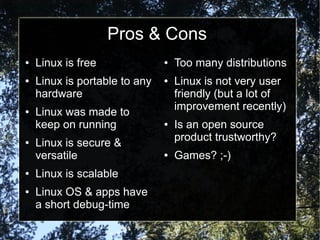
Pros & Cons
●   Linux is free              ●   Too many distributions
●   Linux is portable to any   ●   Linux is not very user
    hardware                       friendly (but a lot of
                                   improvement recently)
●   Linux was made to
    keep on running            ●   Is an open source
                                   product trustworthy?
●   Linux is secure &
    versatile                  ●   Games? ;-)
●   Linux is scalable
●   Linux OS & apps have
    a short debug-time
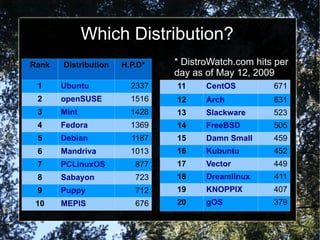
Which Distribution?
Rank   Distribution   H.P.D*   * DistroWatch.com hits per
                               day as of May 12, 2009
 1     Ubuntu           2337   11     CentOS         671
 2     openSUSE         1516   12     Arch           631
 3     Mint             1428   13     Slackware      523
 4     Fedora           1369   14     FreeBSD        505
 5     Debian           1187   15     Damn Small     459
 6     Mandriva         1013   16     Kubuntu        452
 7     PCLinuxOS         877   17     Vector         449
 8     Sabayon           723   18     Dreamlinux     411
 9     Puppy             712   19     KNOPPIX        407
 10    MEPIS             676   20     gOS            379
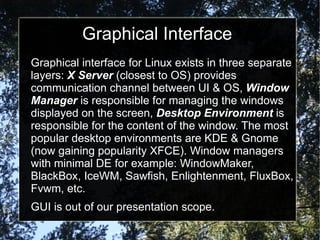
Graphical Interface
Graphical interface for Linux exists in three separate
layers: X Server (closest to OS) provides
communication channel between UI & OS, Window
Manager is responsible for managing the windows
displayed on the screen, Desktop Environment is
responsible for the content of the window. The most
popular desktop environments are KDE & Gnome
(now gaining popularity XFCE). Window managers
with minimal DE for example: WindowMaker,
BlackBox, IceWM, Sawfish, Enlightenment, FluxBox,
Fvwm, etc.
GUI is out of our presentation scope.
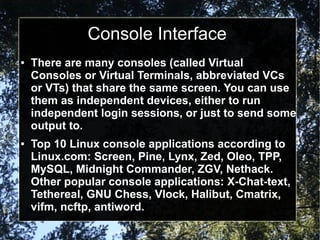
Console Interface
●   There are many consoles (called Virtual
    Consoles or Virtual Terminals, abbreviated VCs
    or VTs) that share the same screen. You can use
    them as independent devices, either to run
    independent login sessions, or just to send some
    output to.
●   Top 10 Linux console applications according to
    Linux.com: Screen, Pine, Lynx, Zed, Oleo, TPP,
    MySQL, Midnight Commander, ZGV, Nethack.
    Other popular console applications: X-Chat-text,
    Tethereal, GNU Chess, Vlock, Halibut, Cmatrix,
    vifm, ncftp, antiword.
Absolute Basics
Quick-start commands:
Command           Meaning
ls                Displays a list of files in the current working directory,
                  like the dir command in DOS
cd directory      change directories
passwd            change the password for the current user
file filename     display file type of file with name filename
cat textfile      throws content of textfile on the screen
pwd               display present working directory
exit or logout    leave this session
man command       read man pages on command
info command      read Info pages on command
apropos string    search the whatis database for strings
Getting Help
●   There are two main sources: man & info
    pages and online communities (or ask google)
●   man pages very structured, overwhelming
    source of documentation.
●   info pages contain more recent information
    and are easier to use then man pages.
●   many commands have built-in –help page.
●   Online: Google.com, help.Ubuntu.com,
    LinuxQuestions.org and many many others.
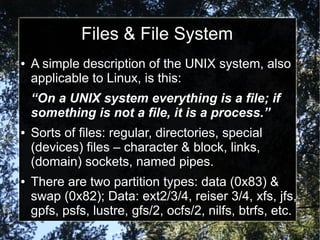
Files & File System
●   A simple description of the UNIX system, also
    applicable to Linux, is this:
    “On a UNIX system everything is a file; if
    something is not a file, it is a process.”
●   Sorts of files: regular, directories, special
    (devices) files – character & block, links,
    (domain) sockets, named pipes.
●   There are two partition types: data (0x83) &
    swap (0x82); Data: ext2/3/4, reiser 3/4, xfs, jfs,
    gpfs, psfs, lustre, gfs/2, ocfs/2, nilfs, btrfs, etc.
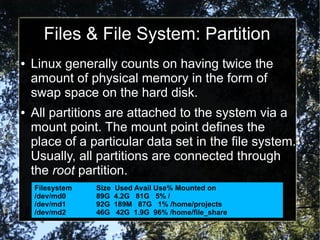
Files & File System: Partition
●   Linux generally counts on having twice the
    amount of physical memory in the form of
    swap space on the hard disk.
●   All partitions are attached to the system via a
    mount point. The mount point defines the
    place of a particular data set in the file system.
    Usually, all partitions are connected through
    the root partition.
    Filesystem   Size   Used Avail Use% Mounted on
    /dev/md0     89G    4.2G 81G 5% /
    /dev/md1     92G    189M 87G 1% /home/projects
    /dev/md2     46G    42G 1.9G 96% /home/file_share
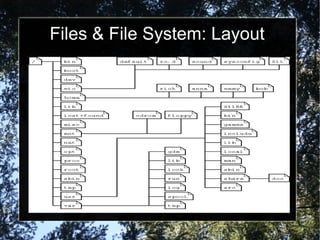
Files & File System: Layout
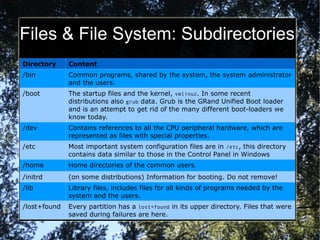
Files & File System: Subdirectories
Directory     Content
/bin          Common programs, shared by the system, the system administrator
              and the users.
/boot         The startup files and the kernel, vmlinuz. In some recent
              distributions also grub data. Grub is the GRand Unified Boot loader
              and is an attempt to get rid of the many different boot-loaders we
              know today.
/dev          Contains references to all the CPU peripheral hardware, which are
              represented as files with special properties.
/etc          Most important system configuration files are in /etc, this directory
              contains data similar to those in the Control Panel in Windows
/home         Home directories of the common users.
/initrd       (on some distributions) Information for booting. Do not remove!
/lib          Library files, includes files for all kinds of programs needed by the
              system and the users.
/lost+found   Every partition has a lost+found in its upper directory. Files that were
              saved during failures are here.
Files & FS: Subdirectories cont.
/misc   For miscellaneous purposes.
/mnt    Standard mount point for external file systems, e.g. a CD-ROM or a digital
        camera.
/net    Standard mount point for entire remote file systems
/opt    Typically contains extra and third party software.
/proc   A virtual file system containing information about system resources. More
        information about the meaning of the files in proc is obtained by entering
        the command man proc in a terminal window. The file proc.txt discusses
        the virtual file system in detail.
/root   The administrative user's home directory. Mind the difference between /,
        the root directory and /root, the home directory of the root user.
/sbin   Programs for use by the system and the system administrator.
/tmp    Temporary space for use by the system, cleaned upon reboot, so don't use
        this for saving any work!
/usr    Programs, libraries, documentation etc. for all user-related programs.
/var    Storage for all variable files and temporary files created by users, such as
        log files, the mail queue, the print spooler area, databases, etc.
Files & File System: Files
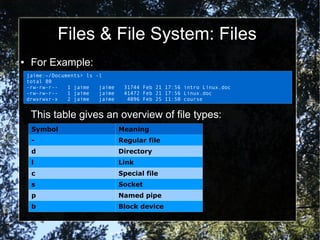
●    For Example:
    jaime:~/Documents> ls -l
    total 80
    -rw-rw-r--   1 jaime   jaime    31744 Feb 21 17:56 intro Linux.doc
    -rw-rw-r--   1 jaime   jaime    41472 Feb 21 17:56 Linux.doc
    drwxrwxr-x   2 jaime   jaime     4096 Feb 25 11:50 course


     This table gives an overview of file types:
     Symbol                        Meaning
     -                             Regular file
     d                             Directory
     l                             Link
     c                             Special file
     s                             Socket
     p                             Named pipe
     b                             Block device
Files & File System: Permissions
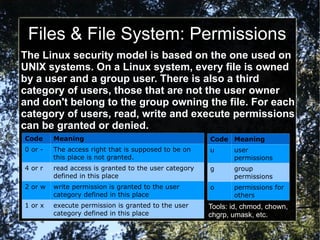
The Linux security model is based on the one used on
UNIX systems. On a Linux system, every file is owned
by a user and a group user. There is also a third
category of users, those that are not the user owner
and don't belong to the group owning the file. For each
category of users, read, write and execute permissions
can be granted or denied.
Code     Meaning                                       Code Meaning
0 or -   The access right that is supposed to be on    u      user
         this place is not granted.                           permissions
4 or r   read access is granted to the user category   g      group
         defined in this place                                permissions
2 or w   write permission is granted to the user       o      permissions for
         category defined in this place                       others
1 or x   execute permission is granted to the user     Tools: id, chmod, chown,
         category defined in this place                chgrp, umask, etc.
Shell
The shell is an advanced way of communicating with the
system, because it allows for two-way conversation and taking
initiative. Both partners in the communication are equal, so
new ideas can be tested. The shell allows the user to handle a
system in a very flexible way. An additional asset is that the
shell allows for task automation. A shell can best be compared
with a way of talking to the computer, a language. Most users
do know that other language, the point-and-click language of
the desktop. But in that language the computer is leading the
conversation, while the user has the passive role of picking
tasks from the ones presented. It is very difficult for a
programmer to include all options and possible uses of a
command in the GUI-format. Thus, GUIs are almost always
less capable than the command or commands that form the
backend.
Shell cont.
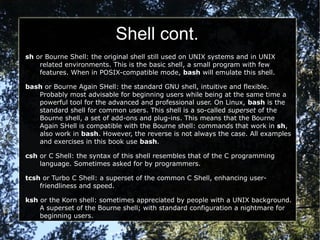
sh or Bourne Shell: the original shell still used on UNIX systems and in UNIX
    related environments. This is the basic shell, a small program with few
    features. When in POSIX-compatible mode, bash will emulate this shell.

bash or Bourne Again SHell: the standard GNU shell, intuitive and flexible.
   Probably most advisable for beginning users while being at the same time a
   powerful tool for the advanced and professional user. On Linux, bash is the
   standard shell for common users. This shell is a so-called superset of the
   Bourne shell, a set of add-ons and plug-ins. This means that the Bourne
   Again SHell is compatible with the Bourne shell: commands that work in sh,
   also work in bash. However, the reverse is not always the case. All examples
   and exercises in this book use bash.

csh or C Shell: the syntax of this shell resembles that of the C programming
    language. Sometimes asked for by programmers.

tcsh or Turbo C Shell: a superset of the common C Shell, enhancing user-
    friendliness and speed.

ksh or the Korn shell: sometimes appreciated by people with a UNIX background.
    A superset of the Bourne shell; with standard configuration a nightmare for
    beginning users.
Processes
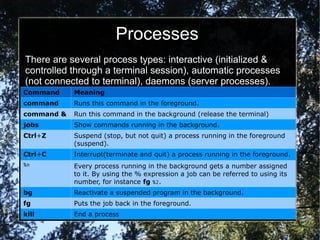
There are several process types: interactive (initialized &
controlled through a terminal session), automatic processes
(not connected to terminal), daemons (server processes).
Command     Meaning
command     Runs this command in the foreground.
command &   Run this command in the background (release the terminal)
jobs        Show commands running in the background.
Ctrl+Z      Suspend (stop, but not quit) a process running in the foreground
            (suspend).
Ctrl+C      Interrupt(terminate and quit) a process running in the foreground.
%n          Every process running in the background gets a number assigned
            to it. By using the % expression a job can be referred to using its
            number, for instance fg %2.
bg          Reactivate a suspended program in the background.
fg          Puts the job back in the foreground.
kill        End a process
I/O Redirection
Most Linux commands read input, such as a file or another
attribute for the command, and write output. By default, input
is being given with the keyboard, and output is displayed on
your screen. Your keyboard is your standard input (stdin)
device, and the screen or a particular terminal window is the
standard output (stdout) device.
However, since Linux is a flexible system, these default
settings don't necessarily have to be applied. The standard
output, for example, on a heavily monitored server in a large
environment may be a printer.
Output redirection is done with >, >>, 2>&1, tee and |
Input redirection is done with <
Filtering is done with grep, sort, uniq, (sed, awk - streams)
Networking
Simplified OSI model:
Layer name           Layer Protocols
Application layer    HTTP, DNS, SMTP, POP, ...
Transport layer      TCP, UDP
Network layer        IP, IPv6
Network access layer PPP, PPPoE, Ethernet


/etc/hosts
/etc/resolv.conf
ip, ifconfig, route, netstat, host, ping,
traceroute, whois
System Services/Daemons
●   Daemons are non-interactive processes that
    provide particular service (see /etc/services)
●   Daemons could be self-contained or run from
    the helper like X/InetD or TCPD.
●   Most common services/applications:
    www/apache, ftp/(proftpd, vsftpd), smtp/
    (sendmail, postfix), pop&imap/dovecot,
    smb/samba, dns/bind, java/tomcat, ldap/slapd,
    ssh&sftp/openssh, scheduler/(atd, crond),
    MySQL, PostgreSQL, dhcp/dhcpd, etc.
References
●   Introduction to Linux
    http://tldp.org/LDP/intro-linux/html/index.html
●   GNU Operating System http://www.gnu.org/
●   The Linux Foundation http://www.linux.com
●   http://en.wikipedia.org/wiki/Comparison_of_file_systems

Linux introduction (eng)

  • 1.
    GNU/Linux Introduction ● What is UNIX & GNU/Linux? ● Pros & Cons/Which Distribution? ● Graphical/Console Interface ● Absolute Basics/Getting Help ● Files & File System/Shell ● Processes, I/O Redirection ● Networking ● System services/daemons ● References
  • 2.
    What is UNIX? Inorder to understand the popularity of Linux, we need to travel back in time, about 30 years ago... Imagine computers as big as houses, even stadiums. While the sizes of those computers posed substantial problems, there was one thing that made this even worse: every computer had a different operating system. In 1969, a team of developers in the Bell Labs laboratories started working on a solution for the software problem, to address these compatibility issues. They developed a new operating system, which was 1. Simple and elegant. 2. Written in the C programming language instead of in assembly code. 3. Able to recycle code. The Bell Labs developers named their project "UNIX."
  • 3.
    What is Linux? Bythe beginning of the 90s home PCs were finally powerful enough to run a full blown UNIX. Linus Torvalds, a young man studying computer science at the university of Helsinki, thought it would be a good idea to have some sort of freely available academic version of UNIX, and promptly started to code. From the start, it was Linus' goal to have a free system that was completely compliant with the original UNIX. That is why he asked for POSIX standards, POSIX still being the standard for UNIX. In 1993, two years after start, there were 12000 Linux users. The project, popular with hobbyists, grew steadily, all the while staying within the bounds of the POSIX standard. All the features of UNIX were added over the next couple of years, resulting in the mature operating system Linux has become today. Linux is a full UNIX clone, fit for use on workstations as well as on middle-range and high-end servers.
  • 4.
    What is GNU? Linuxis the name of the kernel and the trademark of Linus Torvalds. The Linux system is based on GNU tools (Gnu's Not UNIX), which provide a set of standard ways to handle and use the system. All GNU tools are open source, so the can be installed on any system. The GNU Project was launched in 1984 by Richard Stallman to develop a complete UNIX- like OS which is free software.
  • 5.
    Pros & Cons ● Linux is free ● Too many distributions ● Linux is portable to any ● Linux is not very user hardware friendly (but a lot of improvement recently) ● Linux was made to keep on running ● Is an open source product trustworthy? ● Linux is secure & versatile ● Games? ;-) ● Linux is scalable ● Linux OS & apps have a short debug-time
  • 6.
    Which Distribution? Rank Distribution H.P.D* * DistroWatch.com hits per day as of May 12, 2009 1 Ubuntu 2337 11 CentOS 671 2 openSUSE 1516 12 Arch 631 3 Mint 1428 13 Slackware 523 4 Fedora 1369 14 FreeBSD 505 5 Debian 1187 15 Damn Small 459 6 Mandriva 1013 16 Kubuntu 452 7 PCLinuxOS 877 17 Vector 449 8 Sabayon 723 18 Dreamlinux 411 9 Puppy 712 19 KNOPPIX 407 10 MEPIS 676 20 gOS 379
  • 7.
    Graphical Interface Graphical interfacefor Linux exists in three separate layers: X Server (closest to OS) provides communication channel between UI & OS, Window Manager is responsible for managing the windows displayed on the screen, Desktop Environment is responsible for the content of the window. The most popular desktop environments are KDE & Gnome (now gaining popularity XFCE). Window managers with minimal DE for example: WindowMaker, BlackBox, IceWM, Sawfish, Enlightenment, FluxBox, Fvwm, etc. GUI is out of our presentation scope.
  • 8.
    Console Interface ● There are many consoles (called Virtual Consoles or Virtual Terminals, abbreviated VCs or VTs) that share the same screen. You can use them as independent devices, either to run independent login sessions, or just to send some output to. ● Top 10 Linux console applications according to Linux.com: Screen, Pine, Lynx, Zed, Oleo, TPP, MySQL, Midnight Commander, ZGV, Nethack. Other popular console applications: X-Chat-text, Tethereal, GNU Chess, Vlock, Halibut, Cmatrix, vifm, ncftp, antiword.
  • 9.
    Absolute Basics Quick-start commands: Command Meaning ls Displays a list of files in the current working directory, like the dir command in DOS cd directory change directories passwd change the password for the current user file filename display file type of file with name filename cat textfile throws content of textfile on the screen pwd display present working directory exit or logout leave this session man command read man pages on command info command read Info pages on command apropos string search the whatis database for strings
  • 10.
    Getting Help ● There are two main sources: man & info pages and online communities (or ask google) ● man pages very structured, overwhelming source of documentation. ● info pages contain more recent information and are easier to use then man pages. ● many commands have built-in –help page. ● Online: Google.com, help.Ubuntu.com, LinuxQuestions.org and many many others.
  • 11.
    Files & FileSystem ● A simple description of the UNIX system, also applicable to Linux, is this: “On a UNIX system everything is a file; if something is not a file, it is a process.” ● Sorts of files: regular, directories, special (devices) files – character & block, links, (domain) sockets, named pipes. ● There are two partition types: data (0x83) & swap (0x82); Data: ext2/3/4, reiser 3/4, xfs, jfs, gpfs, psfs, lustre, gfs/2, ocfs/2, nilfs, btrfs, etc.
  • 12.
    Files & FileSystem: Partition ● Linux generally counts on having twice the amount of physical memory in the form of swap space on the hard disk. ● All partitions are attached to the system via a mount point. The mount point defines the place of a particular data set in the file system. Usually, all partitions are connected through the root partition. Filesystem Size Used Avail Use% Mounted on /dev/md0 89G 4.2G 81G 5% / /dev/md1 92G 189M 87G 1% /home/projects /dev/md2 46G 42G 1.9G 96% /home/file_share
  • 13.
    Files & FileSystem: Layout
  • 14.
    Files & FileSystem: Subdirectories Directory Content /bin Common programs, shared by the system, the system administrator and the users. /boot The startup files and the kernel, vmlinuz. In some recent distributions also grub data. Grub is the GRand Unified Boot loader and is an attempt to get rid of the many different boot-loaders we know today. /dev Contains references to all the CPU peripheral hardware, which are represented as files with special properties. /etc Most important system configuration files are in /etc, this directory contains data similar to those in the Control Panel in Windows /home Home directories of the common users. /initrd (on some distributions) Information for booting. Do not remove! /lib Library files, includes files for all kinds of programs needed by the system and the users. /lost+found Every partition has a lost+found in its upper directory. Files that were saved during failures are here.
  • 15.
    Files & FS:Subdirectories cont. /misc For miscellaneous purposes. /mnt Standard mount point for external file systems, e.g. a CD-ROM or a digital camera. /net Standard mount point for entire remote file systems /opt Typically contains extra and third party software. /proc A virtual file system containing information about system resources. More information about the meaning of the files in proc is obtained by entering the command man proc in a terminal window. The file proc.txt discusses the virtual file system in detail. /root The administrative user's home directory. Mind the difference between /, the root directory and /root, the home directory of the root user. /sbin Programs for use by the system and the system administrator. /tmp Temporary space for use by the system, cleaned upon reboot, so don't use this for saving any work! /usr Programs, libraries, documentation etc. for all user-related programs. /var Storage for all variable files and temporary files created by users, such as log files, the mail queue, the print spooler area, databases, etc.
  • 16.
    Files & FileSystem: Files ● For Example: jaime:~/Documents> ls -l total 80 -rw-rw-r-- 1 jaime jaime 31744 Feb 21 17:56 intro Linux.doc -rw-rw-r-- 1 jaime jaime 41472 Feb 21 17:56 Linux.doc drwxrwxr-x 2 jaime jaime 4096 Feb 25 11:50 course This table gives an overview of file types: Symbol Meaning - Regular file d Directory l Link c Special file s Socket p Named pipe b Block device
  • 17.
    Files & FileSystem: Permissions The Linux security model is based on the one used on UNIX systems. On a Linux system, every file is owned by a user and a group user. There is also a third category of users, those that are not the user owner and don't belong to the group owning the file. For each category of users, read, write and execute permissions can be granted or denied. Code Meaning Code Meaning 0 or - The access right that is supposed to be on u user this place is not granted. permissions 4 or r read access is granted to the user category g group defined in this place permissions 2 or w write permission is granted to the user o permissions for category defined in this place others 1 or x execute permission is granted to the user Tools: id, chmod, chown, category defined in this place chgrp, umask, etc.
  • 18.
    Shell The shell isan advanced way of communicating with the system, because it allows for two-way conversation and taking initiative. Both partners in the communication are equal, so new ideas can be tested. The shell allows the user to handle a system in a very flexible way. An additional asset is that the shell allows for task automation. A shell can best be compared with a way of talking to the computer, a language. Most users do know that other language, the point-and-click language of the desktop. But in that language the computer is leading the conversation, while the user has the passive role of picking tasks from the ones presented. It is very difficult for a programmer to include all options and possible uses of a command in the GUI-format. Thus, GUIs are almost always less capable than the command or commands that form the backend.
  • 19.
    Shell cont. sh orBourne Shell: the original shell still used on UNIX systems and in UNIX related environments. This is the basic shell, a small program with few features. When in POSIX-compatible mode, bash will emulate this shell. bash or Bourne Again SHell: the standard GNU shell, intuitive and flexible. Probably most advisable for beginning users while being at the same time a powerful tool for the advanced and professional user. On Linux, bash is the standard shell for common users. This shell is a so-called superset of the Bourne shell, a set of add-ons and plug-ins. This means that the Bourne Again SHell is compatible with the Bourne shell: commands that work in sh, also work in bash. However, the reverse is not always the case. All examples and exercises in this book use bash. csh or C Shell: the syntax of this shell resembles that of the C programming language. Sometimes asked for by programmers. tcsh or Turbo C Shell: a superset of the common C Shell, enhancing user- friendliness and speed. ksh or the Korn shell: sometimes appreciated by people with a UNIX background. A superset of the Bourne shell; with standard configuration a nightmare for beginning users.
  • 20.
    Processes There are severalprocess types: interactive (initialized & controlled through a terminal session), automatic processes (not connected to terminal), daemons (server processes). Command Meaning command Runs this command in the foreground. command & Run this command in the background (release the terminal) jobs Show commands running in the background. Ctrl+Z Suspend (stop, but not quit) a process running in the foreground (suspend). Ctrl+C Interrupt(terminate and quit) a process running in the foreground. %n Every process running in the background gets a number assigned to it. By using the % expression a job can be referred to using its number, for instance fg %2. bg Reactivate a suspended program in the background. fg Puts the job back in the foreground. kill End a process
  • 21.
    I/O Redirection Most Linuxcommands read input, such as a file or another attribute for the command, and write output. By default, input is being given with the keyboard, and output is displayed on your screen. Your keyboard is your standard input (stdin) device, and the screen or a particular terminal window is the standard output (stdout) device. However, since Linux is a flexible system, these default settings don't necessarily have to be applied. The standard output, for example, on a heavily monitored server in a large environment may be a printer. Output redirection is done with >, >>, 2>&1, tee and | Input redirection is done with < Filtering is done with grep, sort, uniq, (sed, awk - streams)
  • 22.
    Networking Simplified OSI model: Layername Layer Protocols Application layer HTTP, DNS, SMTP, POP, ... Transport layer TCP, UDP Network layer IP, IPv6 Network access layer PPP, PPPoE, Ethernet /etc/hosts /etc/resolv.conf ip, ifconfig, route, netstat, host, ping, traceroute, whois
  • 23.
    System Services/Daemons ● Daemons are non-interactive processes that provide particular service (see /etc/services) ● Daemons could be self-contained or run from the helper like X/InetD or TCPD. ● Most common services/applications: www/apache, ftp/(proftpd, vsftpd), smtp/ (sendmail, postfix), pop&imap/dovecot, smb/samba, dns/bind, java/tomcat, ldap/slapd, ssh&sftp/openssh, scheduler/(atd, crond), MySQL, PostgreSQL, dhcp/dhcpd, etc.
  • 24.
    References ● Introduction to Linux http://tldp.org/LDP/intro-linux/html/index.html ● GNU Operating System http://www.gnu.org/ ● The Linux Foundation http://www.linux.com ● http://en.wikipedia.org/wiki/Comparison_of_file_systems