LECTURE 5

THE USES OF IMAGES IN MULTIMEDIA

            Prepared By
         Razia Nisar Noorani


                               1
Objective
   What is an image?

   The types of image
      Bitmap

      Vector

         3D models


   Hardware used to acquire / edit images

   Converting from one format to another


                                             2
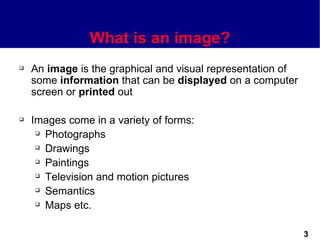
What is an image?
   An image is the graphical and visual representation of
    some information that can be displayed on a computer
    screen or printed out

   Images come in a variety of forms:
      Photographs

      Drawings

      Paintings

      Television and motion pictures

      Semantics

      Maps etc.


                                                             3
What is an image?
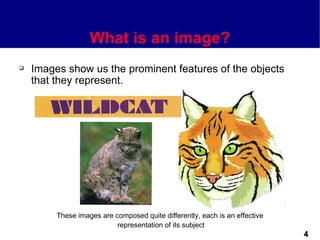
   Images show us the prominent features of the objects
    that they represent.


         These images are composed quite differently, each is an effective
                           representation of its subject
                                                                             4
What is an image?
   Images play an important part in multimedia
      Navigation

      User interface components

      Help systems

      Clip art


                                                  5
Image media types
   Images can be generally divided into two formats:
      Bitmapped or raster images

      Vector graphics or Metafile images


   Bitmapped images are stored as an array of pixels

   Vector graphics are stored as the set of graphic
    primitives required to represent the image


                                                        6
Bitmaps Image
   A pixel is the smallest element of resolution on a
    computer screen (Screen Resolution)

   A pixel is the basic unit of a digital images. Digital image
    is a picture that may be stored in, displayed on,
    processed by a computer.

   As mentioned, bitmap is composed of a matrix elements
    called pixels

   Each pixel can be in a specific colour and each pixel
    consists of two or more colors.

                                                                   7
Bitmaps Image
   The range of these colours is known as the colour depth.

   The color depth determined ā€œHow much data in bits used
    to determined the number of colorsā€.

   Colour depth is measured in bits per pixel
         Remember: a bit (binary digit) is either 1 or 0 and

          that there are eight bits in a byte


                                                                8
Colour depth
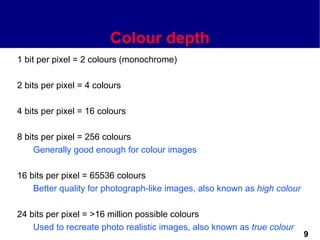
1 bit per pixel = 2 colours (monochrome)

2 bits per pixel = 4 colours

4 bits per pixel = 16 colours

8 bits per pixel = 256 colours
     Generally good enough for colour images

16 bits per pixel = 65536 colours
    Better quality for photograph-like images, also known as high colour

24 bits per pixel = >16 million possible colours
    Used to recreate photo realistic images, also known as true colour
                                                                           9
Bitmaps Image
   The more colours that are allowed per pixel, the greater
    the size of the image

   The number of pixels is related to the size of file that
    required to store an image.

   Remember, two factors effect the size file bitmap are:
      Resolution

      Color Depth


                                                               10
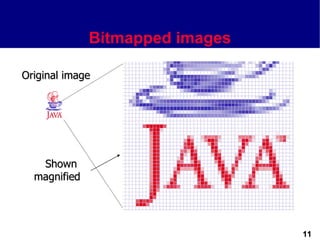
Bitmapped images

Original image


   Shown
  magnified


                                 11
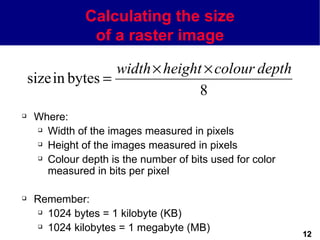
Calculating the size
                of a raster image

                    width Ɨ height Ɨ colour depth
    size in bytes =
                                  8
    Where:
      Width of the images measured in pixels

      Height of the images measured in pixels

      Colour depth is the number of bits used for color

       measured in bits per pixel

    Remember:
       1024 bytes = 1 kilobyte (KB)

       1024 kilobytes = 1 megabyte (MB)
                                                           12
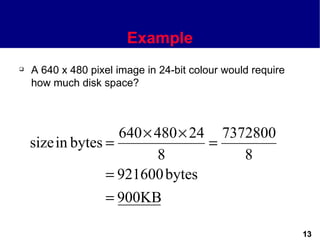
Example
   A 640 x 480 pixel image in 24-bit colour would require
    how much disk space?


                    640 Ɨ 480 Ɨ 24 7372800
    size in bytes =               =
                          8           8
                  = 921600 bytes
                   = 900KB

                                                             13
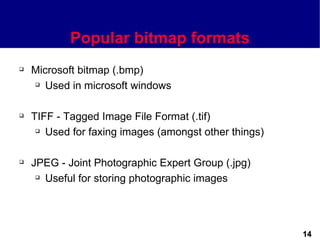
Popular bitmap formats
   Microsoft bitmap (.bmp)
     Used in microsoft windows


   TIFF - Tagged Image File Format (.tif)
      Used for faxing images (amongst other things)


   JPEG - Joint Photographic Expert Group (.jpg)
      Useful for storing photographic images


                                                       14
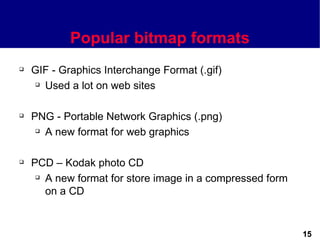
Popular bitmap formats
   GIF - Graphics Interchange Format (.gif)
     Used a lot on web sites


   PNG - Portable Network Graphics (.png)
      A new format for web graphics


   PCD – Kodak photo CD
      A new format for store image in a compressed form

       on a CD


                                                           15
Advantages and Disadvantages
       of using bitmap images
   Advantages
      Convey detail of information quickly

      Real life


   Disadvantages
      Depend on a Resolution

      Effect to the image quality

      Size file is big


                                              16
Software to create bitmap images
   Popular PC packages include:
      Microsoft Paint

         Included with microsoft windows

      Microsoft PhotoDraw 2000

         http://www.microsoft.com/office/photodraw/

      Adobe Photoshop

         http://www.adobe.com/products/photoshop/main.html

      Paint Shop Pro

         http://www.jasc.com/psp6.html

      Macromedia Fireworks

         http://www.macromedia.com/software/fireworks/productinfo/


                                                                      17
Vector images
   Vector images are stored as the set of graphic primitives
    required to represent the image

   A graphic primitive is a simple graphic based on drawing
    elements or objects such as shape
      e.g. square, line, ellipse, arc, etc.


   The image consists of a set of commands (mathematical
    equations) that are drawn the object when needed.


                                                               18
Vector images
   Storing and representing images by mathematical
    equations is called vector graphics or Object Oriented
    graphics.

   Each primitive object has various attributes that go to
    make up the entire image
      e.g. x-y location, fill colour, line colour, line style, etc.


   Example:
      RECTANGLE : rectangle top, left, width, height, color


                   is ( 0, 0, 200, 200, red)
                                                                       19
Vector images
       CIRCLE : circle top, left, radius, color
       LINE : Line x1, y1, x2, y2, color

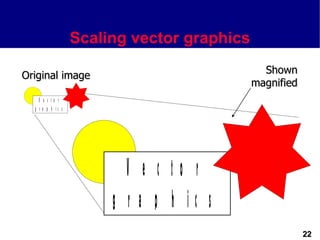
   Vector image or vector graphics can be resized without
    losing the integrity of the original image.

   Scaling a vector is a mathematical operation - only the
    attributes change, the image is unaffected


    Q: Could you defined what the different between a digital image
                and Computer Graphics or graphics?

                                                                      20
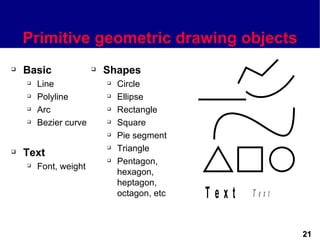
Primitive geometric drawing objects
   Basic                 Shapes
       Line                  Circle
       Polyline              Ellipse
       Arc                   Rectangle
       Bezier curve          Square
                              Pie segment
                              Triangle
   Text
                              Pentagon,
       Font, weight
                               hexagon,
                               heptagon,
                               octagon, etc   Text   Text


                                                            21
Scaling vector graphics
                                               Shown
Original image
                                             magnified
    V e c to r
  g r a p h ic s


                          V e c to r
                        g r a p h ic s
                                                         22
Advantages and Disadvantages
        of using vector image
   Advantages
      Relatively small amount of data required to represent

       the image.
      Therefore, it does not required a lot of memory to

       store
      Easier to manipulate


   Disadvantages
      Limited level of detail than can be presented in an

       image


                                                               23
Software to create vector images
   Graphics programs are tools that allow an artist to
    create and edit designs used in multimedia applications.

   Generally, graphics programs can be categorized as:
    • Drawing programs
       – Creating draw type graphics
       – Provide freehand. Example geometric shape
       – Example : Adobe Illustrator, Corel Draw,
                    Macromedia Freehand
         http://www.adobe.com/products/illustrator/main.html


                                                               24
Software to create vector images
   Paint programs
        - Those creating bitmaps
        - useful in creating original art
        - Example: Paint Shop Pro
          http://www.jasc.com/psp6.html

   Image editing programs
       - Making changes to existing images, such as
         manipulating the brightness or contrast, applying
         textures, patterns.
       - Examples : Adobe Photoshop, Adobe Page Maker,


                                                             25
Vector formats
   Windows metafile (.wmf)
       Used by Microsoft Windows

   SVG - Scalable Vector Graphics (.svg)
       A new format devised for the web

   CGM - Computer Graphics Metafile (.cgm)
       Older format commonly used for clip art

   Adobe PostScript (.ps)
       A page description language used to control printers


                                                               26
Vector formats
   Adobe Portable Document Format (.pdf)
       A page description language common on the web

   Drawing Exchange Format (.dfx)
       Store 3D image created by design program AutoCAD

   Encapsulated PostScript (.epf)
       Professional printing: Illustration program, Adobe Systems,
        Desktop Publishing programs


                                                                      27
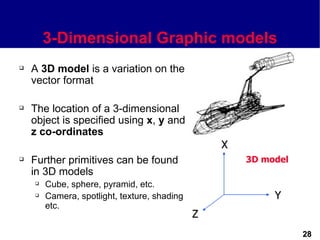
3-Dimensional Graphic models
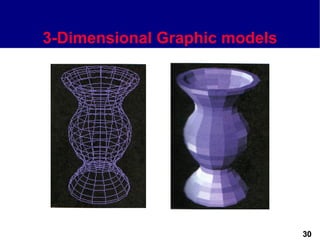
   A 3D model is a variation on the
    vector format

   The location of a 3-dimensional
    object is specified using x, y and
    z co-ordinates
                                                  X
   Further primitives can be found                   3D model
    in 3D models
       Cube, sphere, pyramid, etc.
       Camera, spotlight, texture, shading                Y
        etc.
                                              Z
                                                                 28
3-Dimensional Graphic models
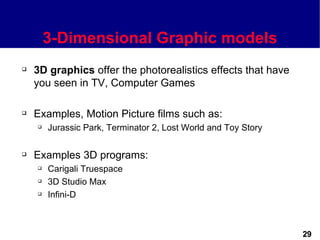
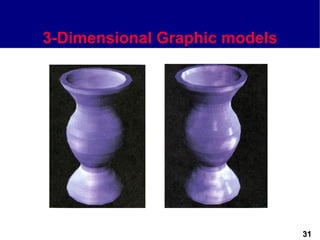
   3D graphics offer the photorealistics effects that have
    you seen in TV, Computer Games

   Examples, Motion Picture films such as:
       Jurassic Park, Terminator 2, Lost World and Toy Story

   Examples 3D programs:
       Carigali Truespace
       3D Studio Max
       Infini-D


                                                                29
3-Dimensional Graphic models


                               30
3-Dimensional Graphic models


                               31
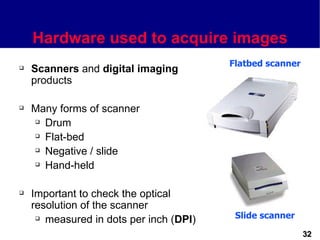
Hardware used to acquire images
                                         Flatbed scanner
   Scanners and digital imaging
    products

   Many forms of scanner
     Drum

     Flat-bed

     Negative / slide

     Hand-held


   Important to check the optical
    resolution of the scanner
      measured in dots per inch (DPI)    Slide scanner

                                                           32
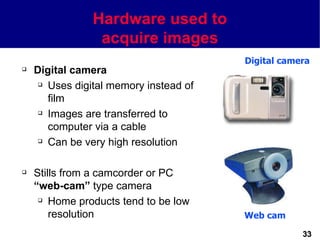
Hardware used to
                 acquire images
                                        Digital camera
   Digital camera
      Uses digital memory instead of

       film
      Images are transferred to

       computer via a cable
      Can be very high resolution


   Stills from a camcorder or PC
    ā€œweb-camā€ type camera
      Home products tend to be low

        resolution                      Web cam

                                                    33
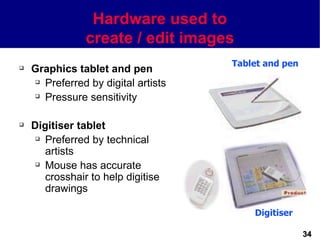
Hardware used to
                create / edit images
                                     Tablet and pen
   Graphics tablet and pen
     Preferred by digital artists

     Pressure sensitivity


   Digitiser tablet
      Preferred by technical

       artists
      Mouse has accurate

       crosshair to help digitise
       drawings

                                         Digitiser

                                                      34
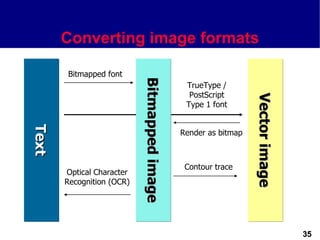
Converting image formats

       Bitmapped font


                           Bitmapped image
                           Bitmapped image
                                              TrueType /
                                               PostScript


                                                                Vector image
                                                                Vector image
                                              Type 1 font
Text
Text


                                             Render as bitmap


                                              Contour trace
       Optical Character
       Recognition (OCR)


                                                                               35
Working With Graphics
   Considerations and guidelines when we are working with
    graphics:

       Choose the graphic depend on your work
       Choose the correct software
       Use minimum color depth
       Delivery Systems


                                                             36
How graphics/images can be used
              effectively
   Different types of graphics are used in different ways:

   Line drawing are graphical representations of physical
    objects. There are 3 kinds of line drawings:

        Isometric - represent 3-D objects without realistic
         perspective

        Orthographic - are 2-D representations of objects

        Perspective - represent objects in their most realistic
                       form
                                                                   37
How graphics/images can be used
              effectively
   Graphs and Tables
    In just a glance, graphs can provide specific data, show
    general trends in data or depict the relationships
    between data and data trends

   Diagrams
    Help users conceptualize a process, flow or
    interrelationship. Examples of diagrams include: Flow
    charts, Schematic Drawings and Block Diagrams.


                                                               38
Advantages and Disadvantages
           of using images
   Advantages
      Convey a lot of information quickly

      Add visual simulation and colour

      Can communicate across language borders

      Enhance other media


                                                 39
Advantages and Disadvantages
            of using texts
   Disadvantages
      Do not provide in-depth explanations

         Graphics rarely suffice to convey a whole message

          in business, technical or safety settings

       Can be misinterpreted
          Graphics should be used carefully to make sure

           the message is not ambiguous or cryptic.


                                                              40
Summary
   Today we have met the various types of image that are
    useful when creating multimedia applications

   Pros and cons of bitmapped and vector images

   What hardware is used to create each of these


                                                            41
Next lecture...
We will look at digital Audio formats


                                        42

Lecture5 graphics

  • 1.
    LECTURE 5 THE USESOF IMAGES IN MULTIMEDIA Prepared By Razia Nisar Noorani 1
  • 2.
    Objective  What is an image?  The types of image  Bitmap  Vector  3D models  Hardware used to acquire / edit images  Converting from one format to another 2
  • 3.
    What is animage?  An image is the graphical and visual representation of some information that can be displayed on a computer screen or printed out  Images come in a variety of forms:  Photographs  Drawings  Paintings  Television and motion pictures  Semantics  Maps etc. 3
  • 4.
    What is animage?  Images show us the prominent features of the objects that they represent. These images are composed quite differently, each is an effective representation of its subject 4
  • 5.
    What is animage?  Images play an important part in multimedia  Navigation  User interface components  Help systems  Clip art 5
  • 6.
    Image media types  Images can be generally divided into two formats:  Bitmapped or raster images  Vector graphics or Metafile images  Bitmapped images are stored as an array of pixels  Vector graphics are stored as the set of graphic primitives required to represent the image 6
  • 7.
    Bitmaps Image  A pixel is the smallest element of resolution on a computer screen (Screen Resolution)  A pixel is the basic unit of a digital images. Digital image is a picture that may be stored in, displayed on, processed by a computer.  As mentioned, bitmap is composed of a matrix elements called pixels  Each pixel can be in a specific colour and each pixel consists of two or more colors. 7
  • 8.
    Bitmaps Image  The range of these colours is known as the colour depth.  The color depth determined ā€œHow much data in bits used to determined the number of colorsā€.  Colour depth is measured in bits per pixel  Remember: a bit (binary digit) is either 1 or 0 and that there are eight bits in a byte 8
  • 9.
    Colour depth 1 bitper pixel = 2 colours (monochrome) 2 bits per pixel = 4 colours 4 bits per pixel = 16 colours 8 bits per pixel = 256 colours Generally good enough for colour images 16 bits per pixel = 65536 colours Better quality for photograph-like images, also known as high colour 24 bits per pixel = >16 million possible colours Used to recreate photo realistic images, also known as true colour 9
  • 10.
    Bitmaps Image  The more colours that are allowed per pixel, the greater the size of the image  The number of pixels is related to the size of file that required to store an image.  Remember, two factors effect the size file bitmap are:  Resolution  Color Depth 10
  • 11.
  • 12.
    Calculating the size of a raster image width Ɨ height Ɨ colour depth size in bytes = 8  Where:  Width of the images measured in pixels  Height of the images measured in pixels  Colour depth is the number of bits used for color measured in bits per pixel  Remember:  1024 bytes = 1 kilobyte (KB)  1024 kilobytes = 1 megabyte (MB) 12
  • 13.
    Example  A 640 x 480 pixel image in 24-bit colour would require how much disk space? 640 Ɨ 480 Ɨ 24 7372800 size in bytes = = 8 8 = 921600 bytes = 900KB 13
  • 14.
    Popular bitmap formats  Microsoft bitmap (.bmp)  Used in microsoft windows  TIFF - Tagged Image File Format (.tif)  Used for faxing images (amongst other things)  JPEG - Joint Photographic Expert Group (.jpg)  Useful for storing photographic images 14
  • 15.
    Popular bitmap formats  GIF - Graphics Interchange Format (.gif)  Used a lot on web sites  PNG - Portable Network Graphics (.png)  A new format for web graphics  PCD – Kodak photo CD  A new format for store image in a compressed form on a CD 15
  • 16.
    Advantages and Disadvantages of using bitmap images  Advantages  Convey detail of information quickly  Real life  Disadvantages  Depend on a Resolution  Effect to the image quality  Size file is big 16
  • 17.
    Software to createbitmap images  Popular PC packages include:  Microsoft Paint  Included with microsoft windows  Microsoft PhotoDraw 2000  http://www.microsoft.com/office/photodraw/  Adobe Photoshop  http://www.adobe.com/products/photoshop/main.html  Paint Shop Pro  http://www.jasc.com/psp6.html  Macromedia Fireworks  http://www.macromedia.com/software/fireworks/productinfo/ 17
  • 18.
    Vector images  Vector images are stored as the set of graphic primitives required to represent the image  A graphic primitive is a simple graphic based on drawing elements or objects such as shape  e.g. square, line, ellipse, arc, etc.  The image consists of a set of commands (mathematical equations) that are drawn the object when needed. 18
  • 19.
    Vector images  Storing and representing images by mathematical equations is called vector graphics or Object Oriented graphics.  Each primitive object has various attributes that go to make up the entire image  e.g. x-y location, fill colour, line colour, line style, etc.  Example:  RECTANGLE : rectangle top, left, width, height, color is ( 0, 0, 200, 200, red) 19
  • 20.
    Vector images  CIRCLE : circle top, left, radius, color  LINE : Line x1, y1, x2, y2, color  Vector image or vector graphics can be resized without losing the integrity of the original image.  Scaling a vector is a mathematical operation - only the attributes change, the image is unaffected Q: Could you defined what the different between a digital image and Computer Graphics or graphics? 20
  • 21.
    Primitive geometric drawingobjects  Basic  Shapes  Line  Circle  Polyline  Ellipse  Arc  Rectangle  Bezier curve  Square  Pie segment  Triangle  Text  Pentagon,  Font, weight hexagon, heptagon, octagon, etc Text Text 21
  • 22.
    Scaling vector graphics Shown Original image magnified V e c to r g r a p h ic s V e c to r g r a p h ic s 22
  • 23.
    Advantages and Disadvantages of using vector image  Advantages  Relatively small amount of data required to represent the image.  Therefore, it does not required a lot of memory to store  Easier to manipulate  Disadvantages  Limited level of detail than can be presented in an image 23
  • 24.
    Software to createvector images  Graphics programs are tools that allow an artist to create and edit designs used in multimedia applications.  Generally, graphics programs can be categorized as: • Drawing programs – Creating draw type graphics – Provide freehand. Example geometric shape – Example : Adobe Illustrator, Corel Draw, Macromedia Freehand http://www.adobe.com/products/illustrator/main.html 24
  • 25.
    Software to createvector images  Paint programs - Those creating bitmaps - useful in creating original art - Example: Paint Shop Pro http://www.jasc.com/psp6.html  Image editing programs - Making changes to existing images, such as manipulating the brightness or contrast, applying textures, patterns. - Examples : Adobe Photoshop, Adobe Page Maker, 25
  • 26.
    Vector formats  Windows metafile (.wmf)  Used by Microsoft Windows  SVG - Scalable Vector Graphics (.svg)  A new format devised for the web  CGM - Computer Graphics Metafile (.cgm)  Older format commonly used for clip art  Adobe PostScript (.ps)  A page description language used to control printers 26
  • 27.
    Vector formats  Adobe Portable Document Format (.pdf)  A page description language common on the web  Drawing Exchange Format (.dfx)  Store 3D image created by design program AutoCAD  Encapsulated PostScript (.epf)  Professional printing: Illustration program, Adobe Systems, Desktop Publishing programs 27
  • 28.
    3-Dimensional Graphic models  A 3D model is a variation on the vector format  The location of a 3-dimensional object is specified using x, y and z co-ordinates X  Further primitives can be found 3D model in 3D models  Cube, sphere, pyramid, etc.  Camera, spotlight, texture, shading Y etc. Z 28
  • 29.
    3-Dimensional Graphic models  3D graphics offer the photorealistics effects that have you seen in TV, Computer Games  Examples, Motion Picture films such as:  Jurassic Park, Terminator 2, Lost World and Toy Story  Examples 3D programs:  Carigali Truespace  3D Studio Max  Infini-D 29
  • 30.
  • 31.
  • 32.
    Hardware used toacquire images Flatbed scanner  Scanners and digital imaging products  Many forms of scanner  Drum  Flat-bed  Negative / slide  Hand-held  Important to check the optical resolution of the scanner  measured in dots per inch (DPI) Slide scanner 32
  • 33.
    Hardware used to acquire images Digital camera  Digital camera  Uses digital memory instead of film  Images are transferred to computer via a cable  Can be very high resolution  Stills from a camcorder or PC ā€œweb-camā€ type camera  Home products tend to be low resolution Web cam 33
  • 34.
    Hardware used to create / edit images Tablet and pen  Graphics tablet and pen  Preferred by digital artists  Pressure sensitivity  Digitiser tablet  Preferred by technical artists  Mouse has accurate crosshair to help digitise drawings Digitiser 34
  • 35.
    Converting image formats Bitmapped font Bitmapped image Bitmapped image TrueType / PostScript Vector image Vector image Type 1 font Text Text Render as bitmap Contour trace Optical Character Recognition (OCR) 35
  • 36.
    Working With Graphics  Considerations and guidelines when we are working with graphics:  Choose the graphic depend on your work  Choose the correct software  Use minimum color depth  Delivery Systems 36
  • 37.
    How graphics/images canbe used effectively  Different types of graphics are used in different ways:  Line drawing are graphical representations of physical objects. There are 3 kinds of line drawings:  Isometric - represent 3-D objects without realistic perspective  Orthographic - are 2-D representations of objects  Perspective - represent objects in their most realistic form 37
  • 38.
    How graphics/images canbe used effectively  Graphs and Tables In just a glance, graphs can provide specific data, show general trends in data or depict the relationships between data and data trends  Diagrams Help users conceptualize a process, flow or interrelationship. Examples of diagrams include: Flow charts, Schematic Drawings and Block Diagrams. 38
  • 39.
    Advantages and Disadvantages of using images  Advantages  Convey a lot of information quickly  Add visual simulation and colour  Can communicate across language borders  Enhance other media 39
  • 40.
    Advantages and Disadvantages of using texts  Disadvantages  Do not provide in-depth explanations  Graphics rarely suffice to convey a whole message in business, technical or safety settings  Can be misinterpreted  Graphics should be used carefully to make sure the message is not ambiguous or cryptic. 40
  • 41.
    Summary  Today we have met the various types of image that are useful when creating multimedia applications  Pros and cons of bitmapped and vector images  What hardware is used to create each of these 41
  • 42.
    Next lecture... We willlook at digital Audio formats 42

Editor's Notes

  • #2Ā SCA3103 - Introduction to Multimedia Semester 2 02/03 Lecture 2