Graphics and Images
Computer Graphics 
• “Computer graphics refers to using a 
computer to create or manipulate any kind 
of picture, image, or diagram.” 
• Typically you manipulate an image on 
your computer with a graphics editing 
program 
– MS Paint 
– Adobe Photoshop 
– GIMP 
– Etc.
Bitmapped Graphics 
• There are two basic types of graphics: 
– Bitmapped and 
– Vector 
• Bitmapped graphics are much more 
common 
• Often they are called raster graphics 
• When you create a bitmapped graphic you 
are basically creating a bunch of colored 
dots
Bitmapped Graphics, cont. 
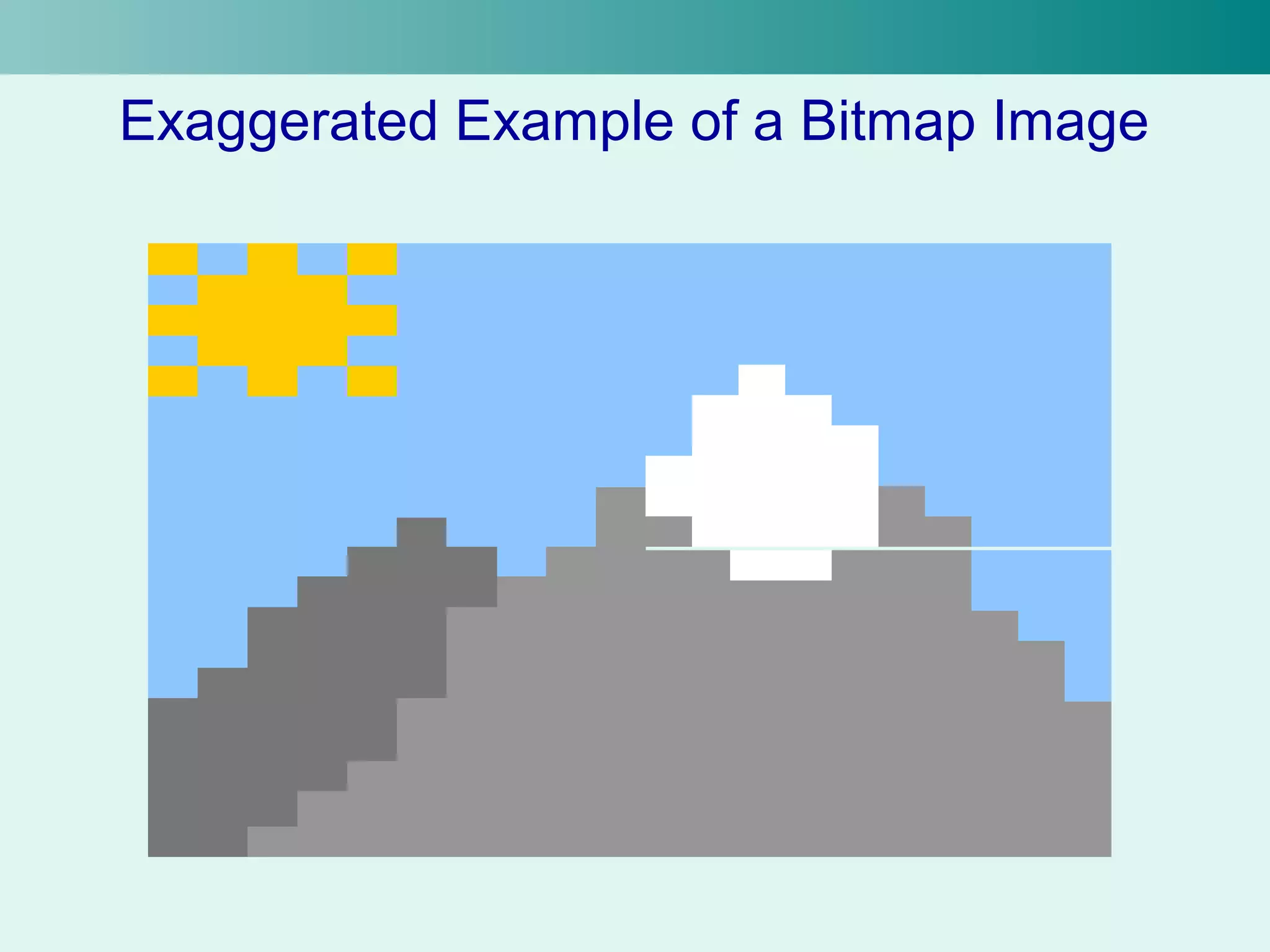
• The bitmapped graphic is stored as an array of dots, or 
pixels 
• Each pixel gets assigned a specific color 
• The more pixels you have, the more detailed the image 
can be 
– Imagine only have one pixel, all you get is a dot 
• Some common bitmap graphics programs are: 
– Photoshop 
– Paint Shop Pro 
– GIMP 
– Photo-Paint 
– Graphic Converter 
• These are paint programs
Exaggerated Example of a Bitmap Image
Vector Graphics 
• The second major type of computer graphics 
• Vector graphics are created and manipulated using 
drawing programs (as opposed to paint programs for 
bitmapped graphics) 
• Instead of using pixels to describe the image, it 
describes the image using shapes 
– Circles 
– Lines 
– Curves 
• Also has to store the color of these shapes 
• A verbal example would be something like: 
– “A yellow circle with a center here and a radius of x, a purple line 
from here to here”
Vector Graphics, cont. 
• The programs used with vector graphics are 
drawing programs 
• Some of these programs include: 
– Corel Draw 
– Adobe Illustrator 
– Acrobat 
• Most of these programs allow the use of 
bitmapped images as part of a vector image 
– Does not make them paint programs 
– Bitmaps are a type of object (like a circle) that can be 
inserted into a vector image
Bitmap vs. Vector Images 
• Bitmap and vector images are obviously 
different 
• Both have strengths and weaknesses 
• They don’t manipulate images in the same 
way 
• They don’t store images in the same way 
• The images are edited differently
Bitmap Images 
• Very flexible 
– Any image can be represented (with enough pixels) 
• Created by scanners, digital cameras, and other 
similar devices 
• Used most commonly, especially on the web 
• Can be displayed directly on your computer 
screen if 1 image pixel is the same size as 1 
screen pixel 
• Takes a lot of memory 
– The color of each pixel must be stored 
– Can be compressed
Vector Images 
• Easy to change parts of the image since 
each part is stored as a different shape 
• Can manipulate the image smoothly 
– Rotating, changing color, size, line width, etc. 
• Limited to the shapes the program can 
handle 
• Typically takes less memory and disk 
space than a bitmap 
• Must be converted to a bitmap to display
File Formats 
• Once we’ve chosen which graphics format we’re 
going to use now we have to select which file 
format 
• Each way of storing an image is called a file 
format 
• Each file format converts the image to a 
corresponding string of bits differently in order to 
store them on disk or transmit them over the 
Internet 
• It’s beyond the scope of this course to discuss 
how these images are converted 
• But, we will discuss the common file formats
File Formats, cont. 
• Hopefully, you’re familiar with JPEG and 
GIF file formats (at least in name only) 
• You can’t just rename “somepicture.gif” to 
“somepicture.jpg” and expect to get the 
desired result 
– Can’t just rename a .doc file as .ppt and 
expect a presentation out of it 
• Images have to be converted from one file 
format to another
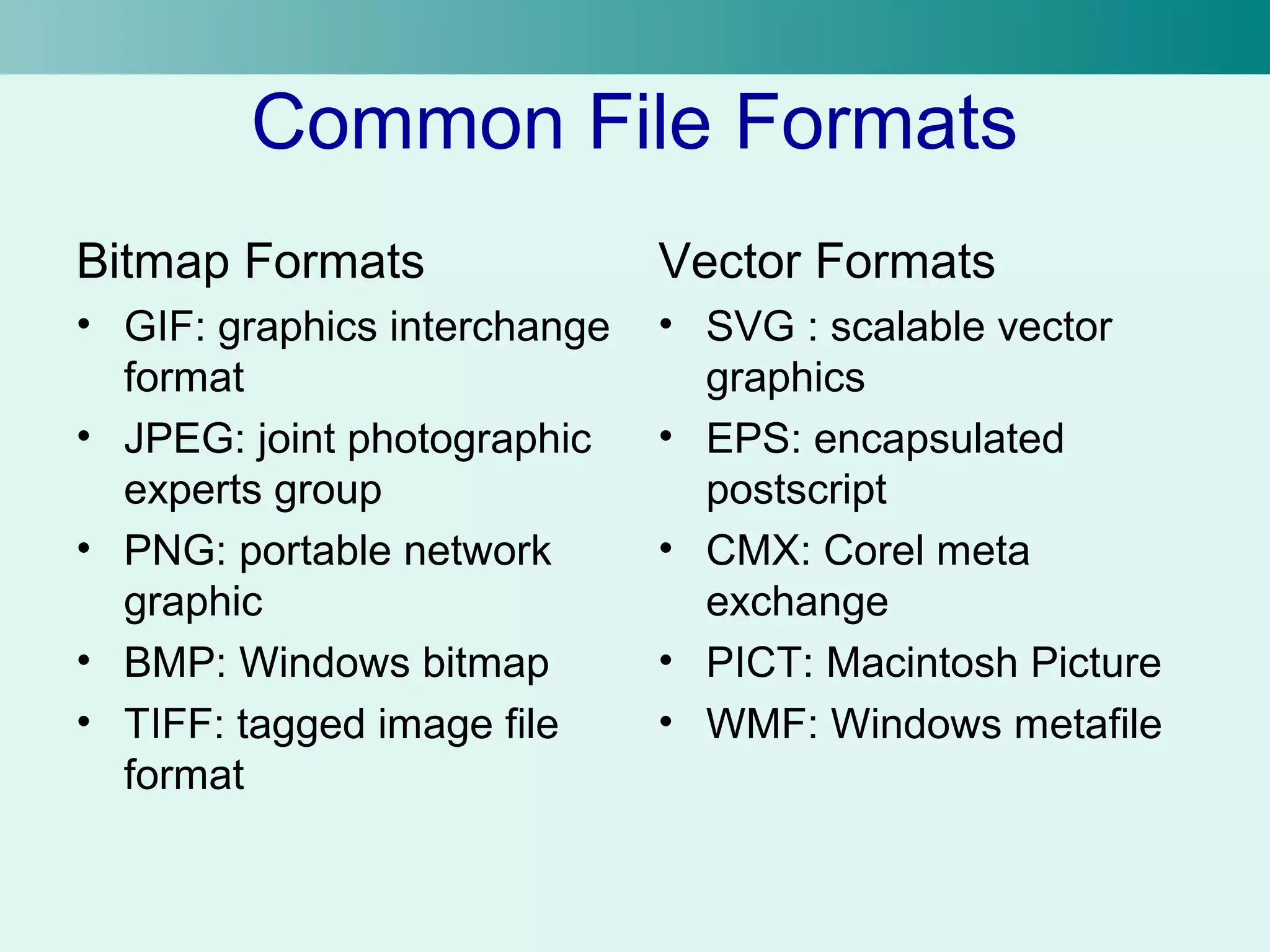
Common File Formats 
Bitmap Formats 
• GIF: graphics interchange 
format 
• JPEG: joint photographic 
experts group 
• PNG: portable network 
graphic 
• BMP: Windows bitmap 
• TIFF: tagged image file 
format 
Vector Formats 
• SVG : scalable vector 
graphics 
• EPS: encapsulated 
postscript 
• CMX: Corel meta 
exchange 
• PICT: Macintosh Picture 
• WMF: Windows metafile
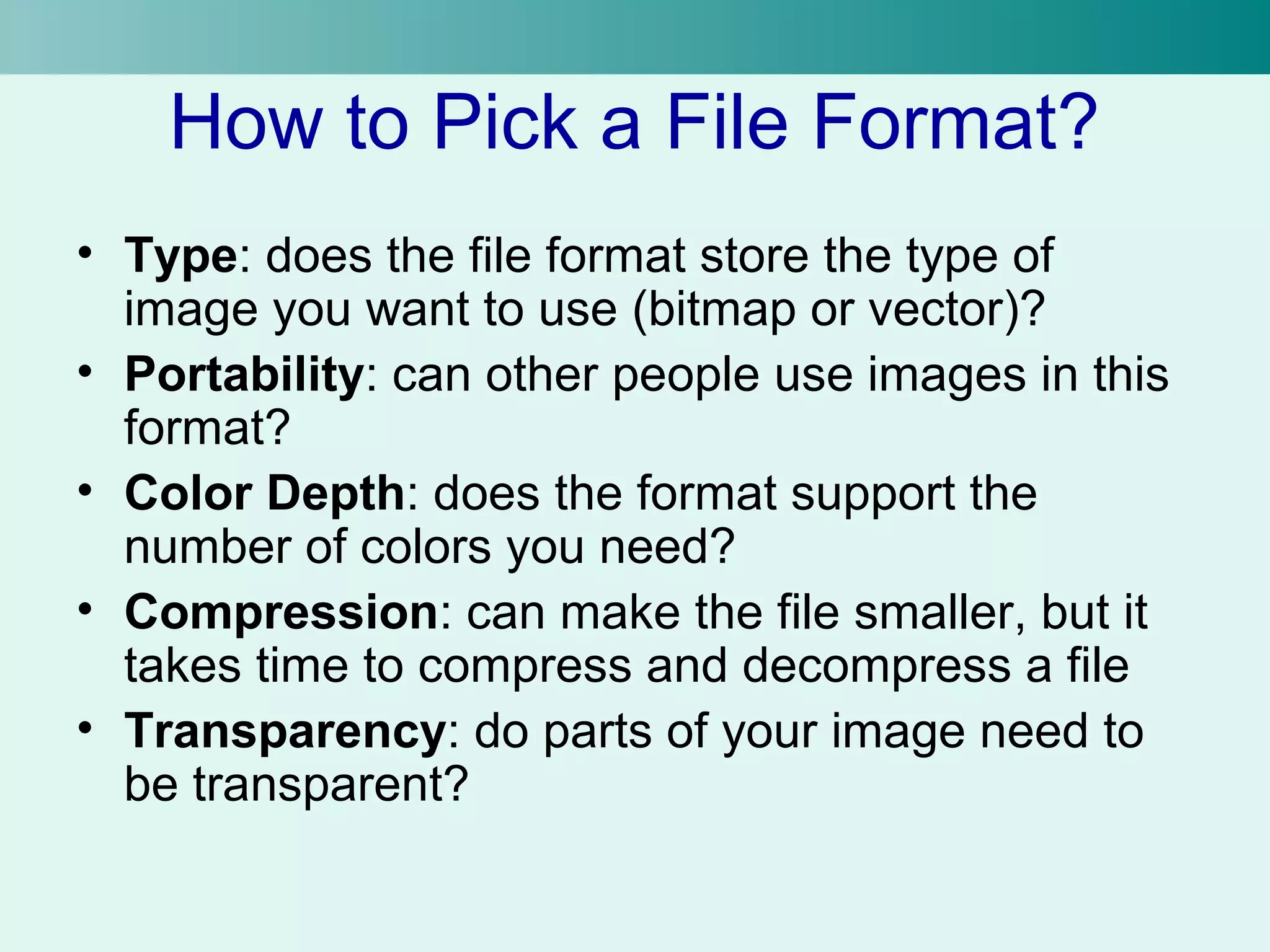
How to Pick a File Format? 
• Type: does the file format store the type of 
image you want to use (bitmap or vector)? 
• Portability: can other people use images in this 
format? 
• Color Depth: does the format support the 
number of colors you need? 
• Compression: can make the file smaller, but it 
takes time to compress and decompress a file 
• Transparency: do parts of your image need to 
be transparent?
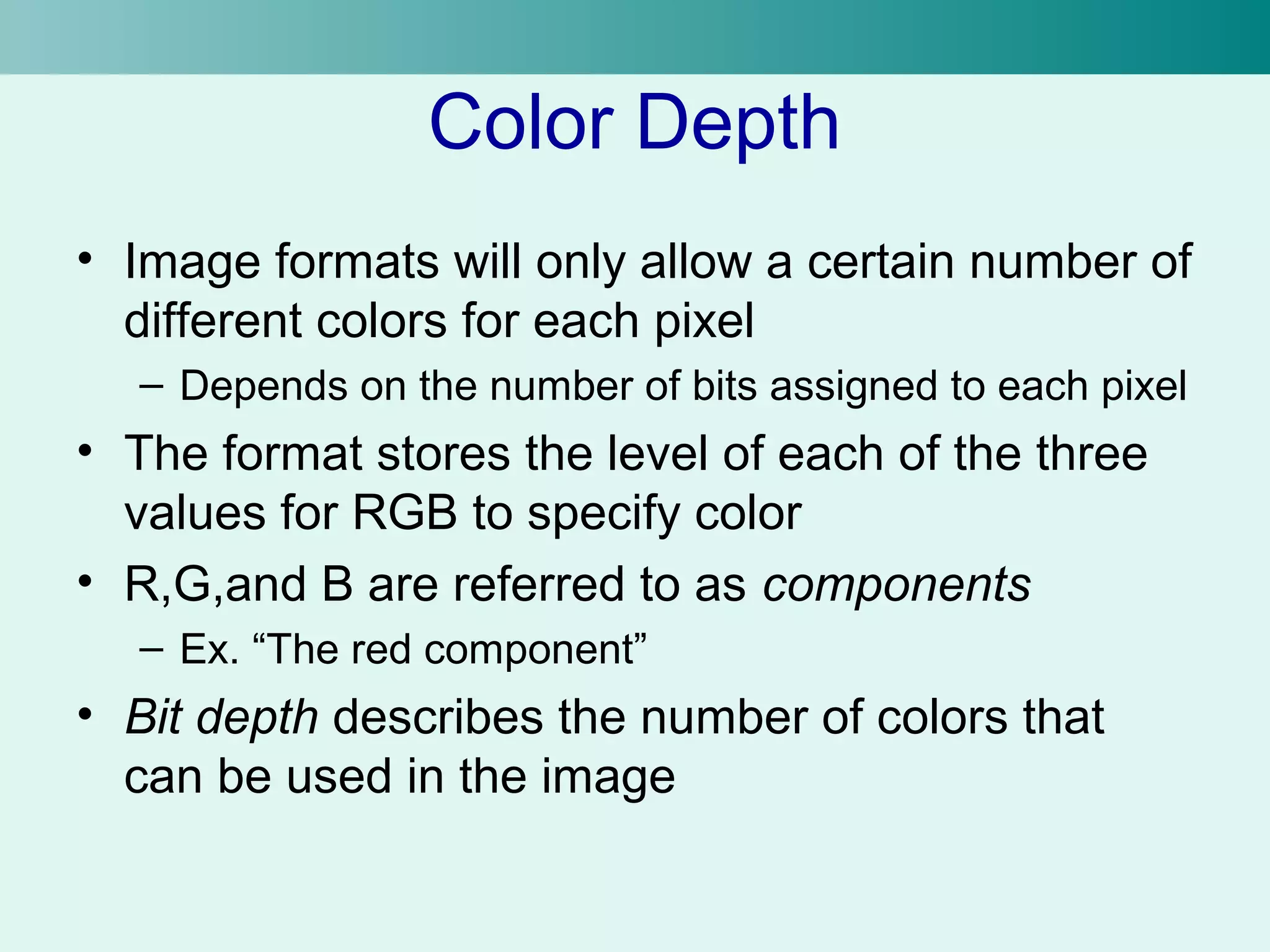
Color Depth 
• Image formats will only allow a certain number of 
different colors for each pixel 
– Depends on the number of bits assigned to each pixel 
• The format stores the level of each of the three 
values for RGB to specify color 
• R,G,and B are referred to as components 
– Ex. “The red component” 
• Bit depth describes the number of colors that 
can be used in the image
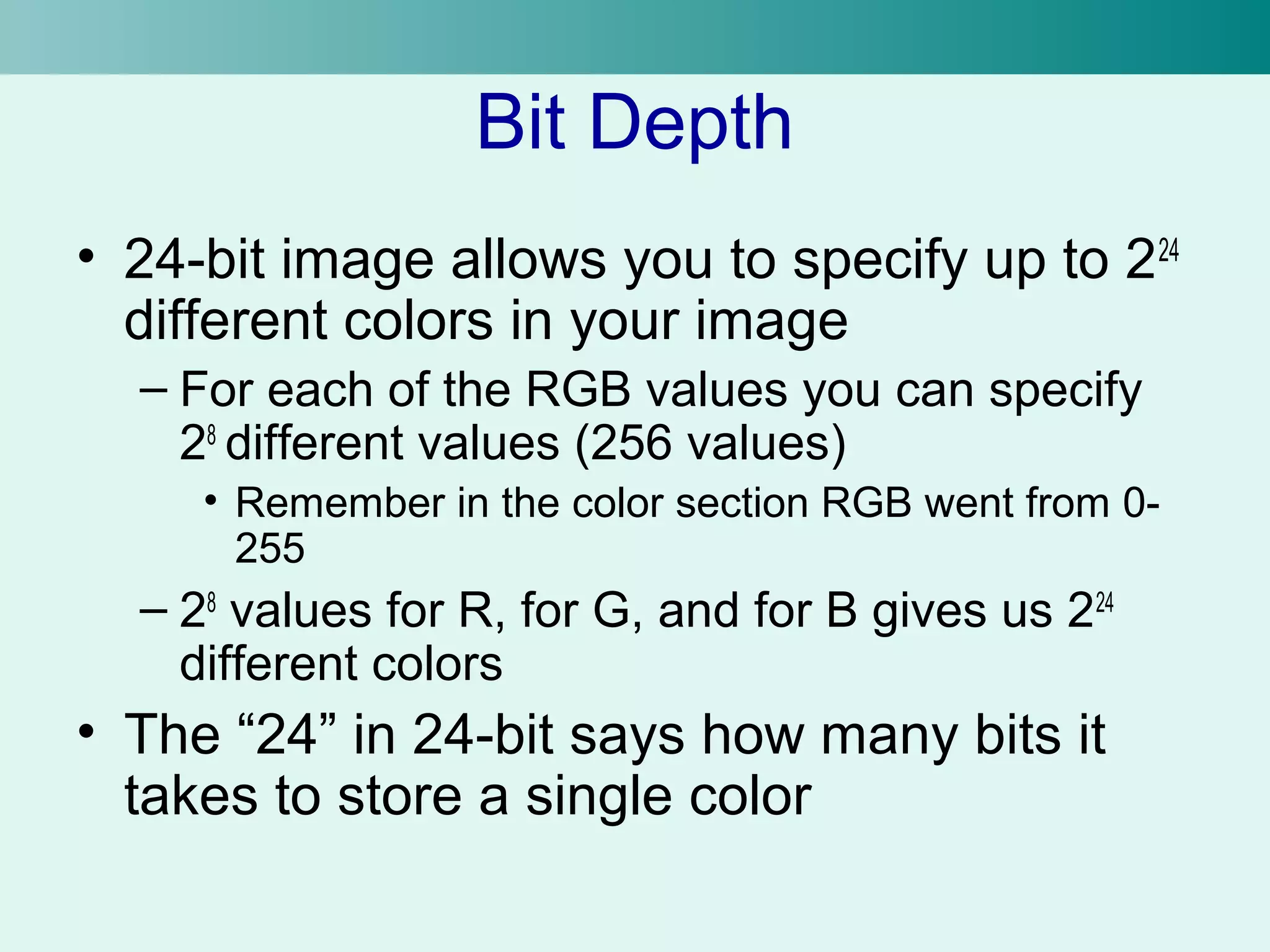
Bit Depth 
• 24-bit image allows you to specify up to 224 
different colors in your image 
– For each of the RGB values you can specify 
28 different values (256 values) 
• Remember in the color section RGB went from 0- 
255 
– 28 values for R, for G, and for B gives us 224 
different colors 
• The “24” in 24-bit says how many bits it 
takes to store a single color
Bit Depth cont. 
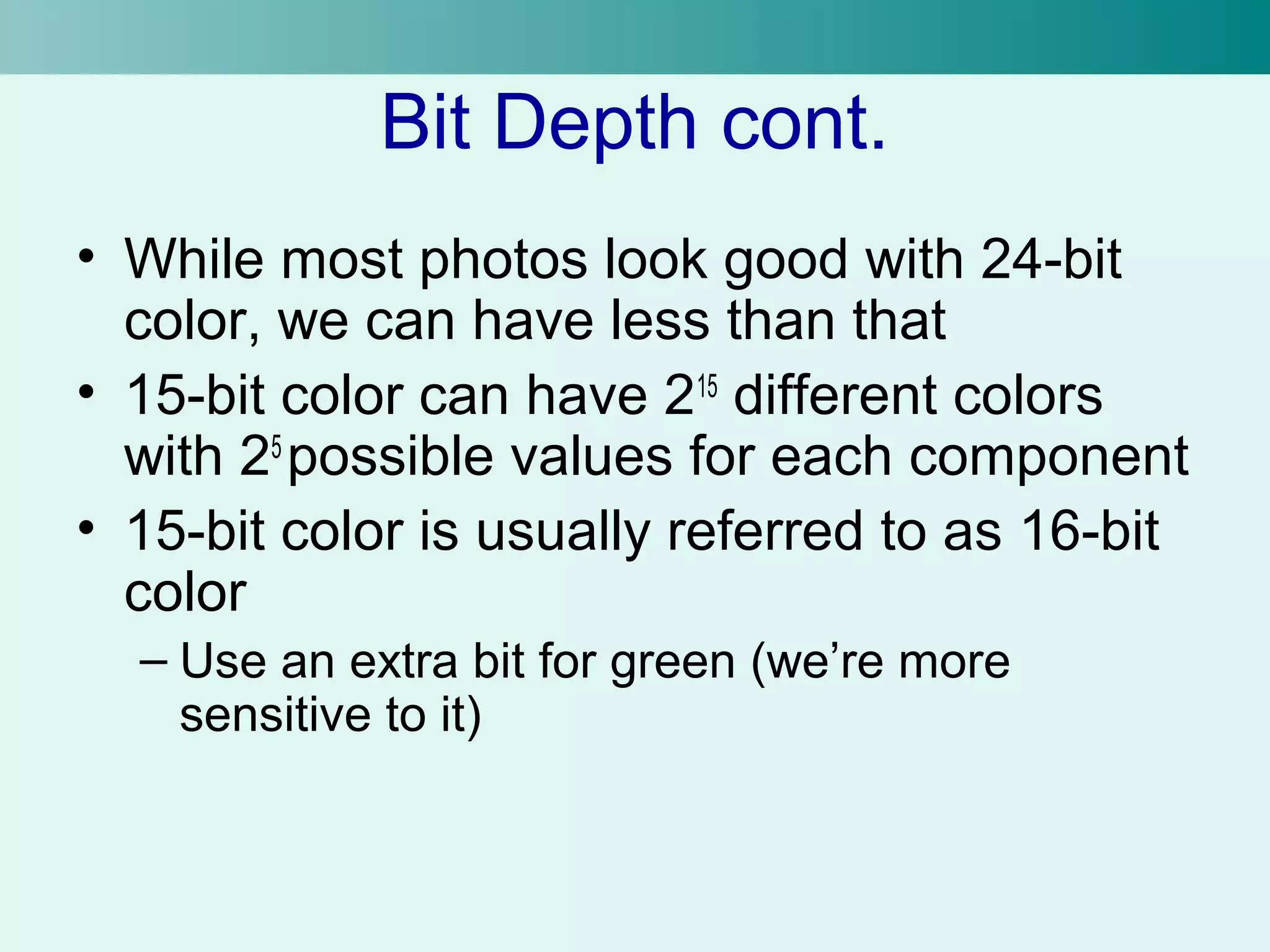
• While most photos look good with 24-bit 
color, we can have less than that 
• 15-bit color can have 215 different colors 
with 25 possible values for each component 
• 15-bit color is usually referred to as 16-bit 
color 
– Use an extra bit for green (we’re more 
sensitive to it)
Formats with Fewer Colors 
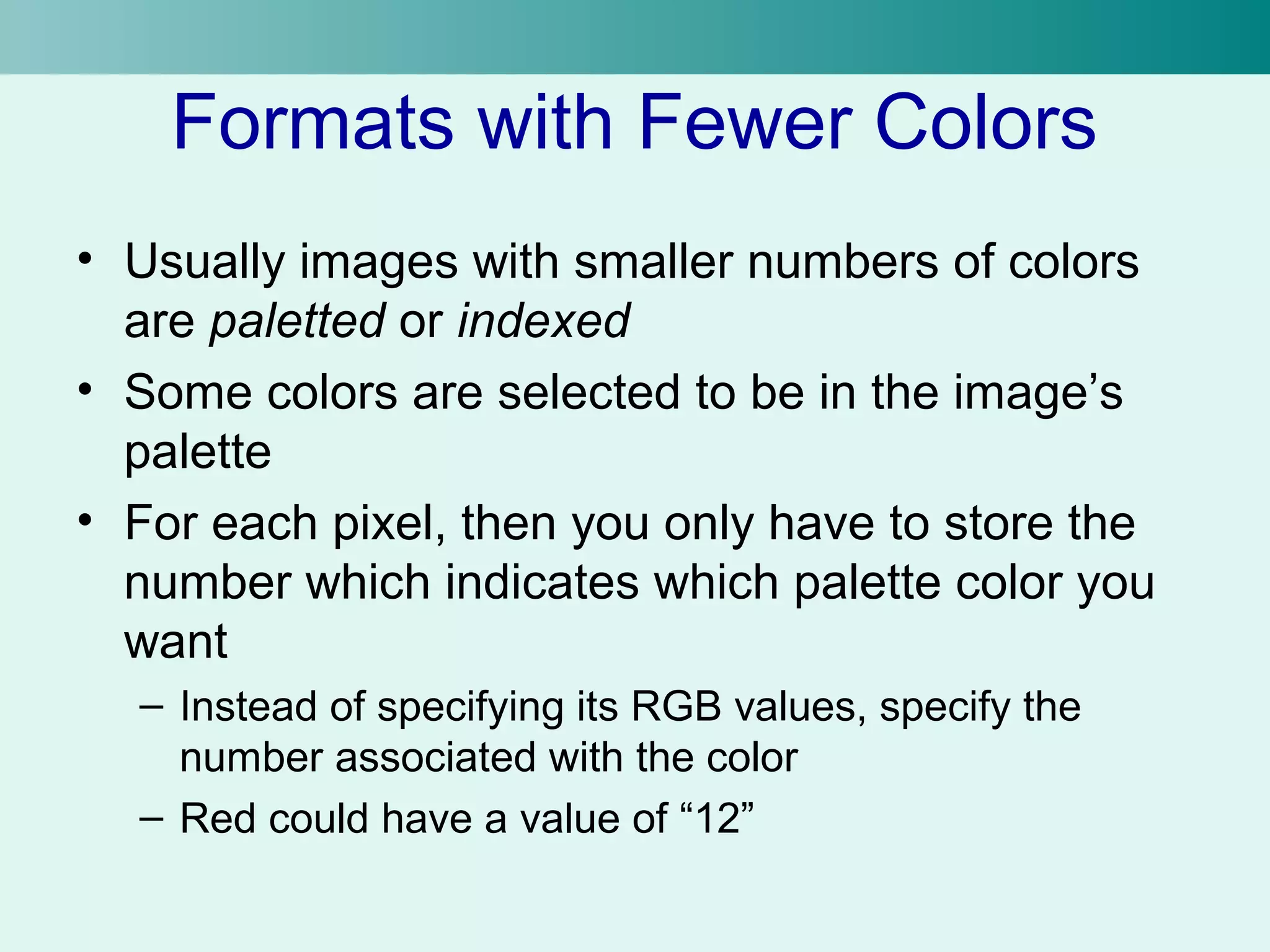
• Usually images with smaller numbers of colors 
are paletted or indexed 
• Some colors are selected to be in the image’s 
palette 
• For each pixel, then you only have to store the 
number which indicates which palette color you 
want 
– Instead of specifying its RGB values, specify the 
number associated with the color 
– Red could have a value of “12”
Palettes 
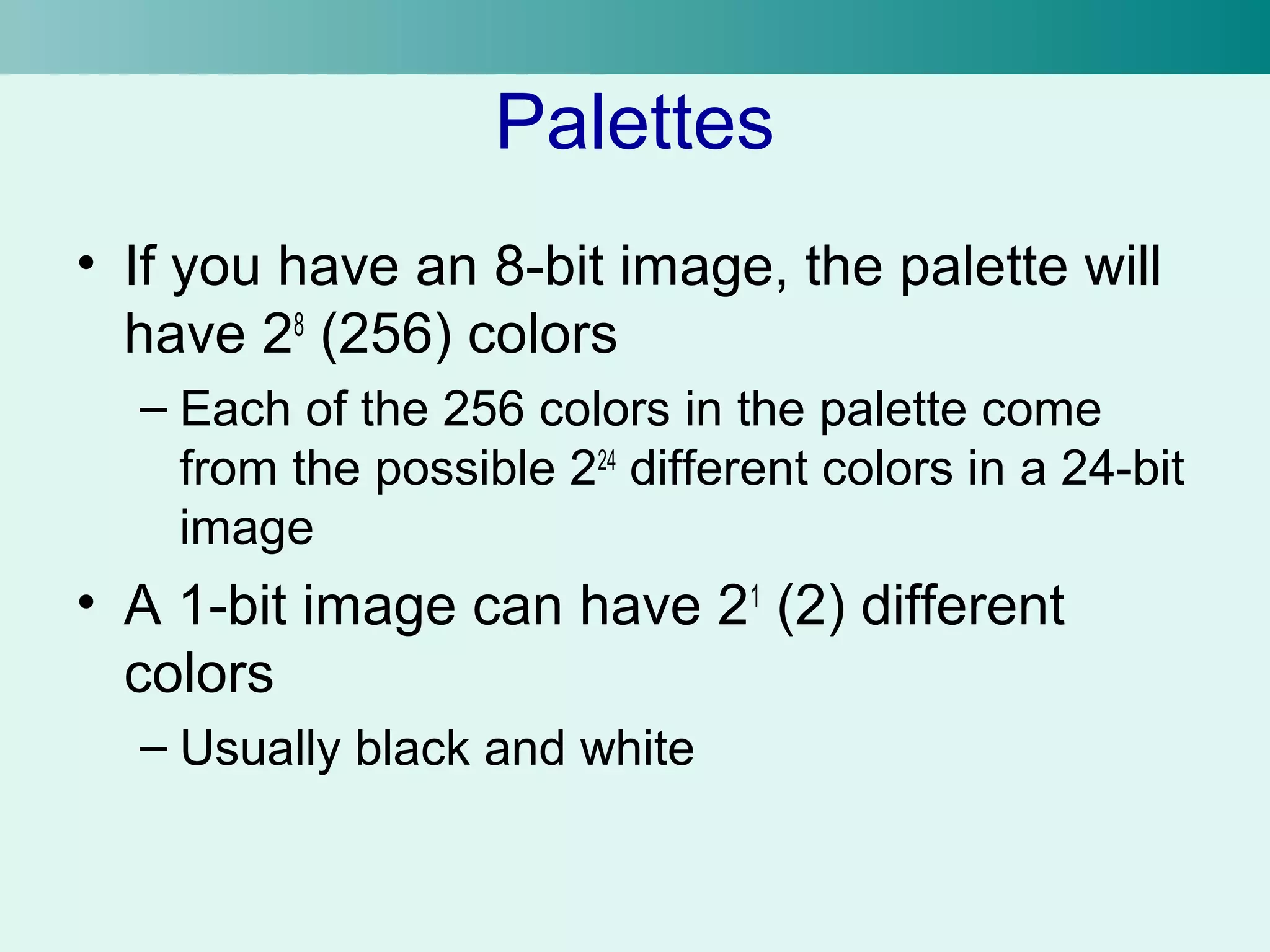
• If you have an 8-bit image, the palette will 
have 28 (256) colors 
– Each of the 256 colors in the palette come 
from the possible 224 different colors in a 24-bit 
image 
• A 1-bit image can have 21 (2) different 
colors 
– Usually black and white
Colors vs. Image Size 
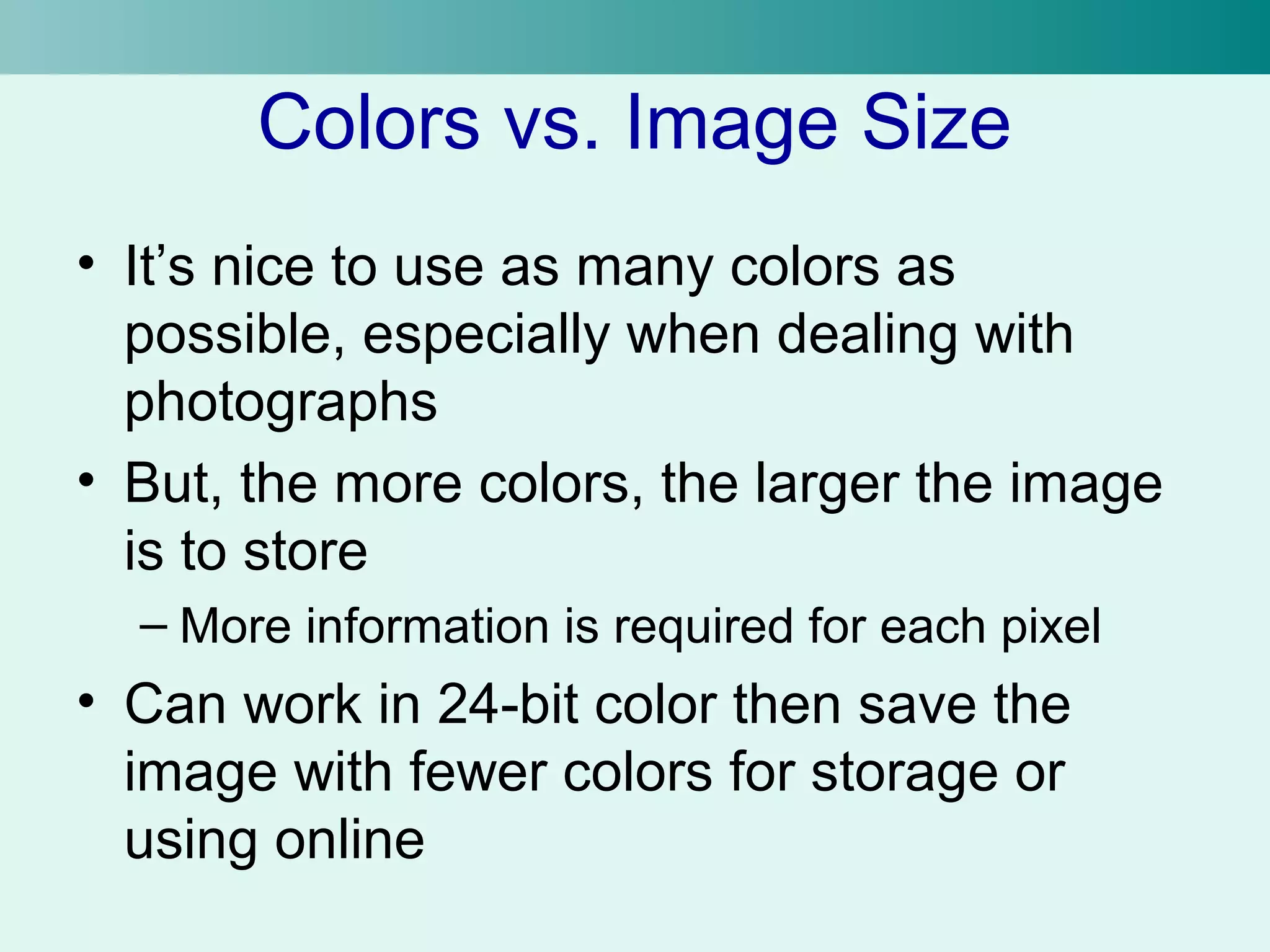
• It’s nice to use as many colors as 
possible, especially when dealing with 
photographs 
• But, the more colors, the larger the image 
is to store 
– More information is required for each pixel 
• Can work in 24-bit color then save the 
image with fewer colors for storage or 
using online
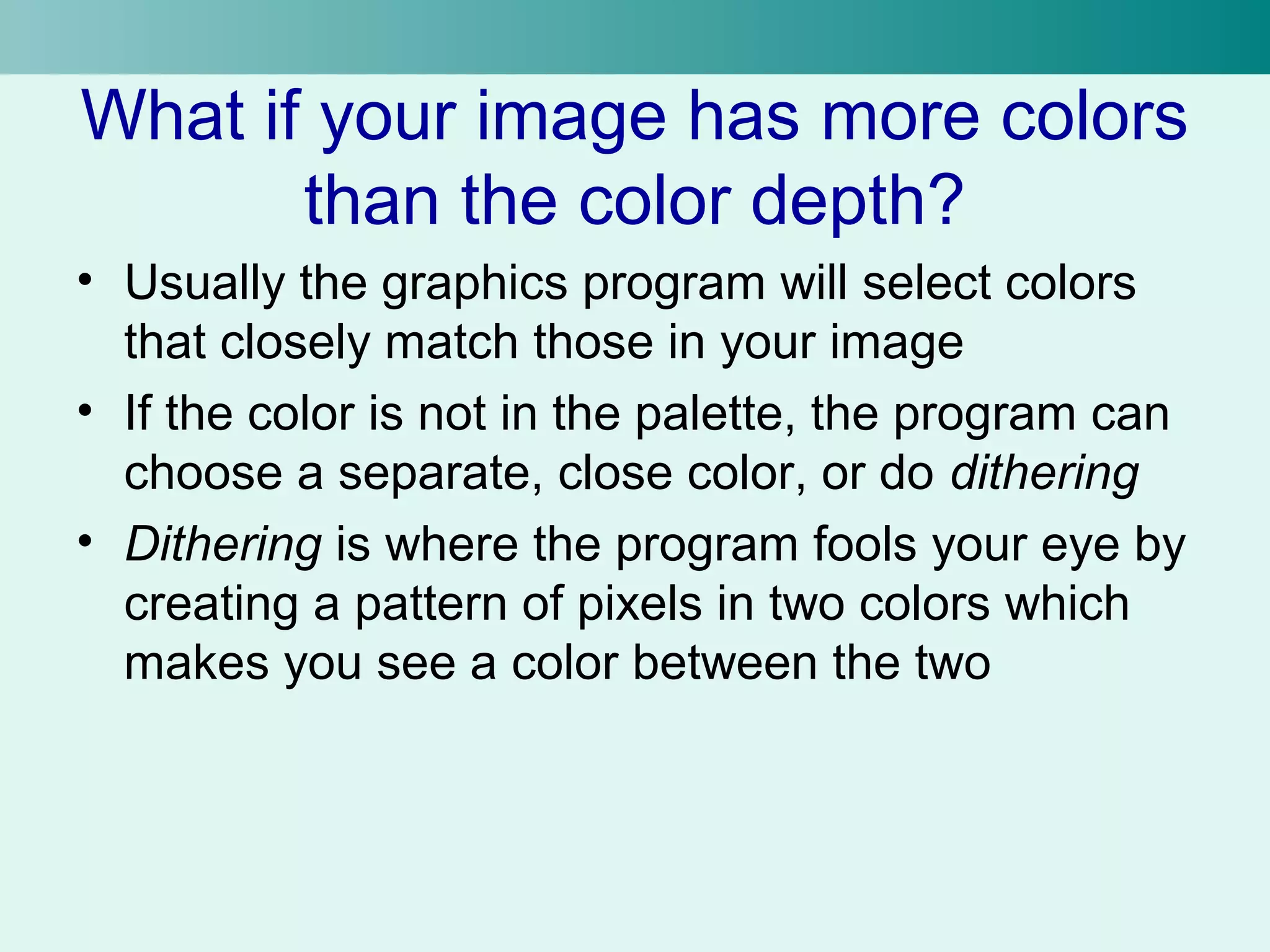
What if your image has more colors 
than the color depth? 
• Usually the graphics program will select colors 
that closely match those in your image 
• If the color is not in the palette, the program can 
choose a separate, close color, or do dithering 
• Dithering is where the program fools your eye by 
creating a pattern of pixels in two colors which 
makes you see a color between the two
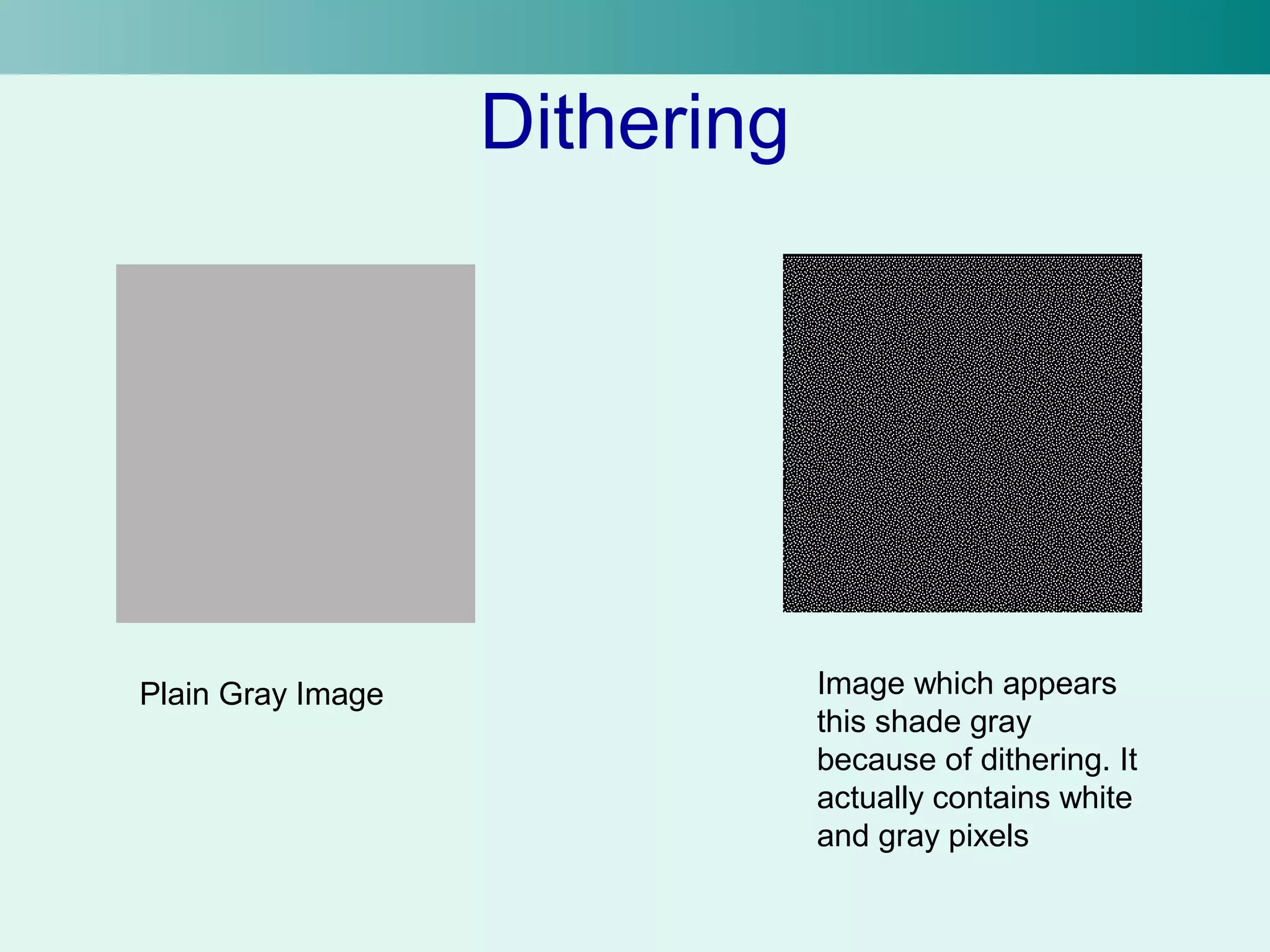
Dithering 
Plain Gray Image Image which appears 
this shade gray 
because of dithering. It 
actually contains white 
and gray pixels
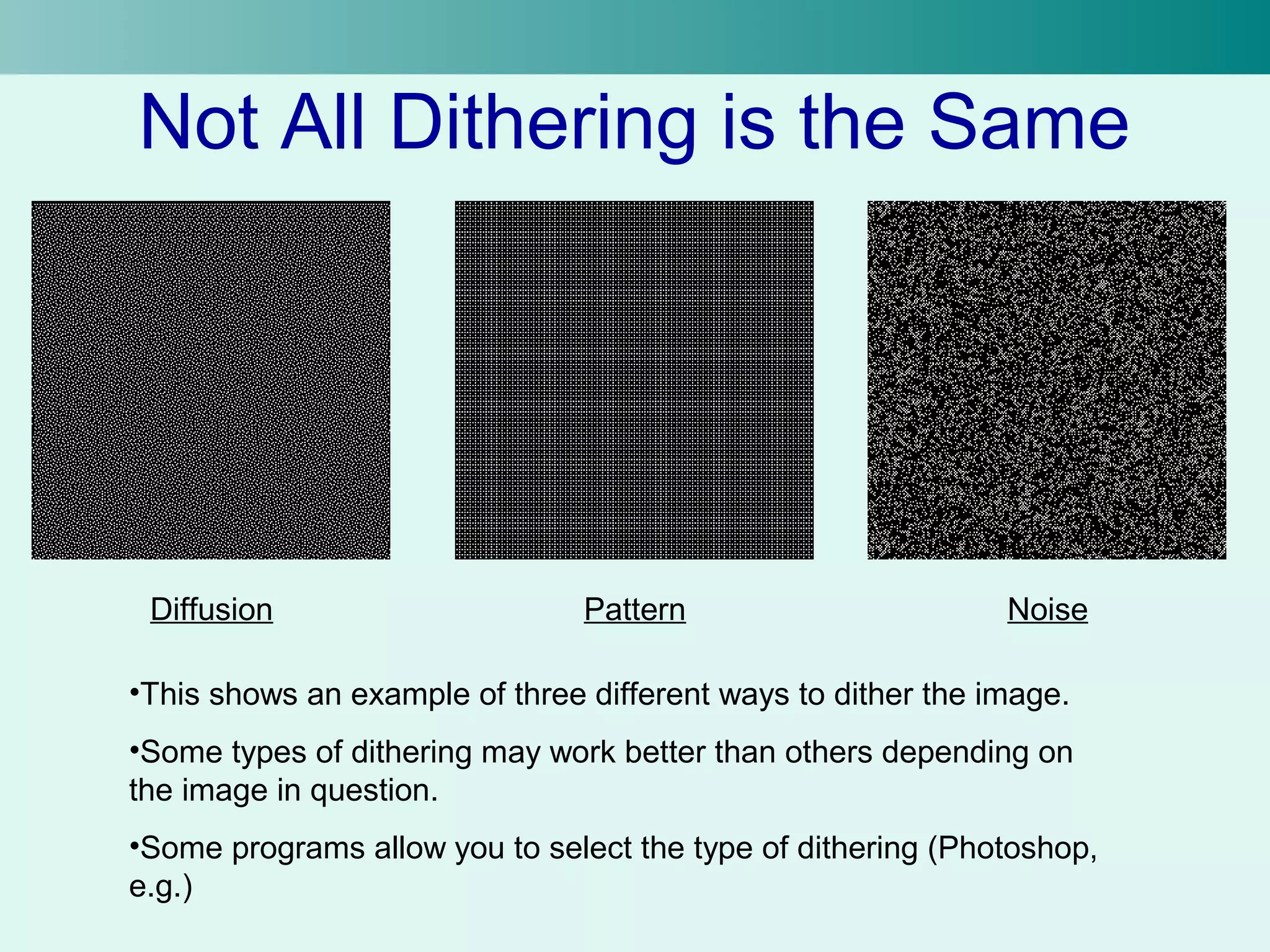
Not All Dithering is the Same 
Diffusion Pattern Noise 
•This shows an example of three different ways to dither the image. 
•Some types of dithering may work better than others depending on 
the image in question. 
•Some programs allow you to select the type of dithering (Photoshop, 
e.g.)
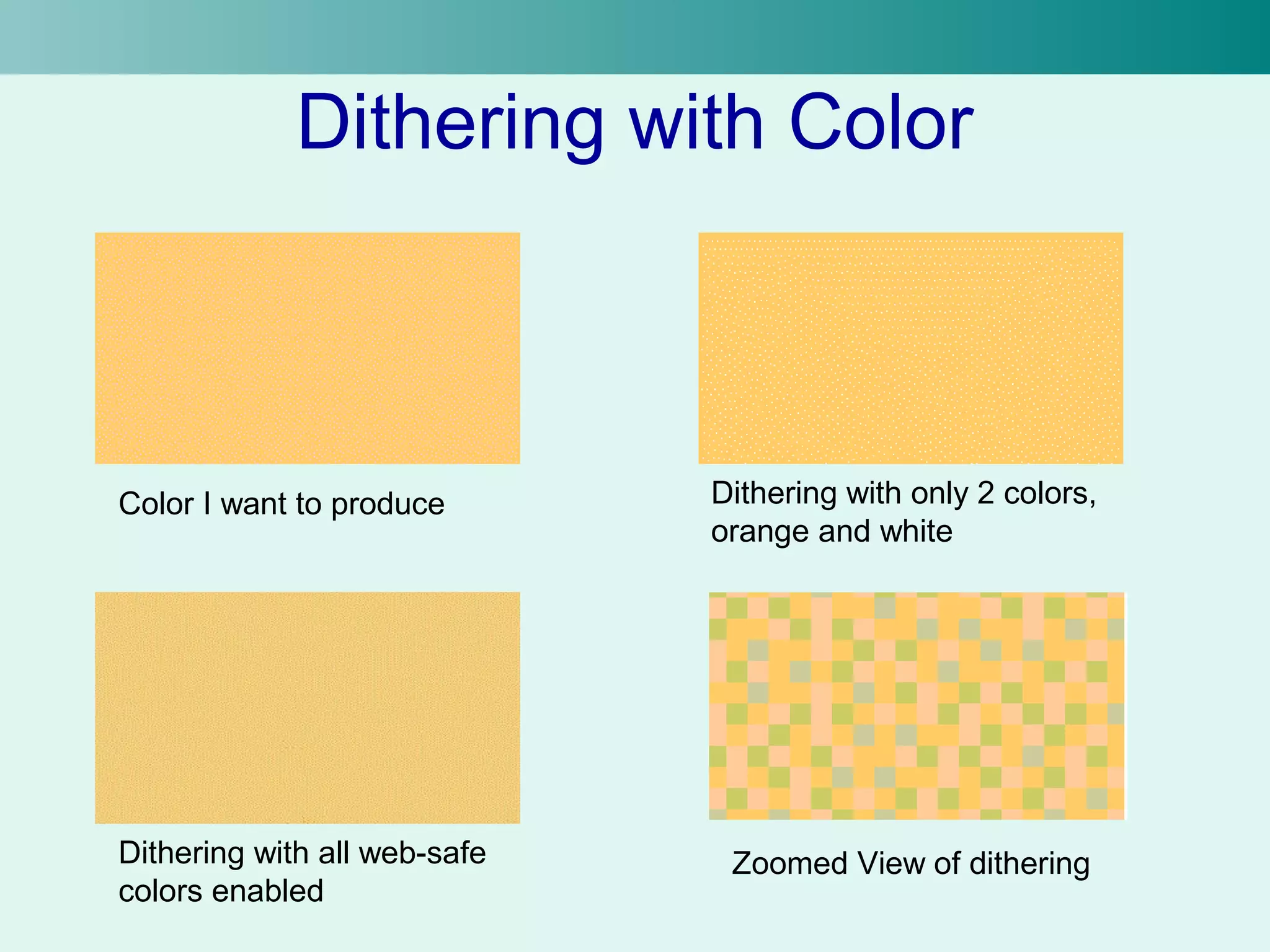
Dithering with Color 
Color I want to produce Dithering with only 2 colors, 
orange and white 
Dithering with all web-safe 
colors enabled 
Zoomed View of dithering
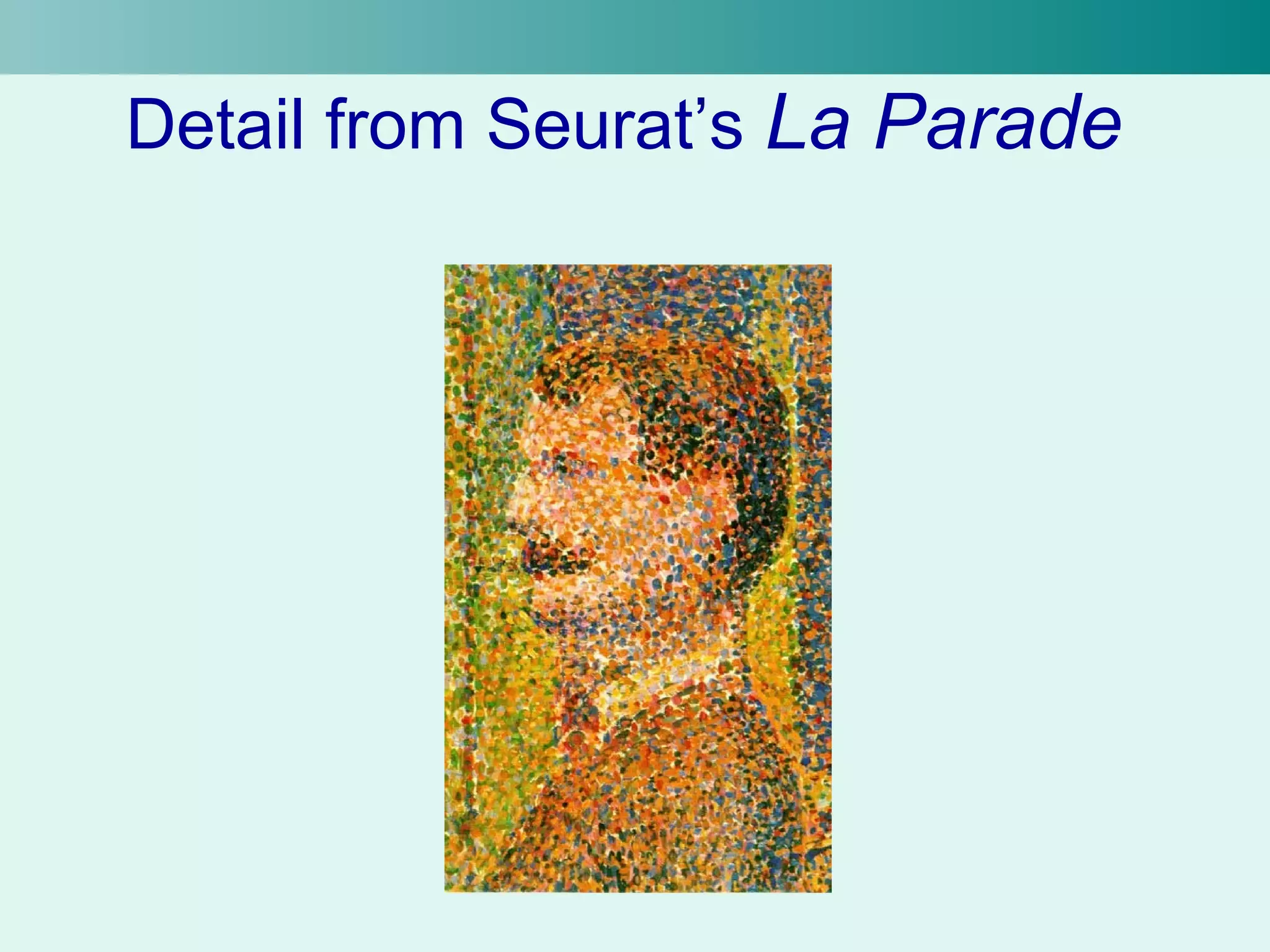
Detail from Seurat’s La Parade
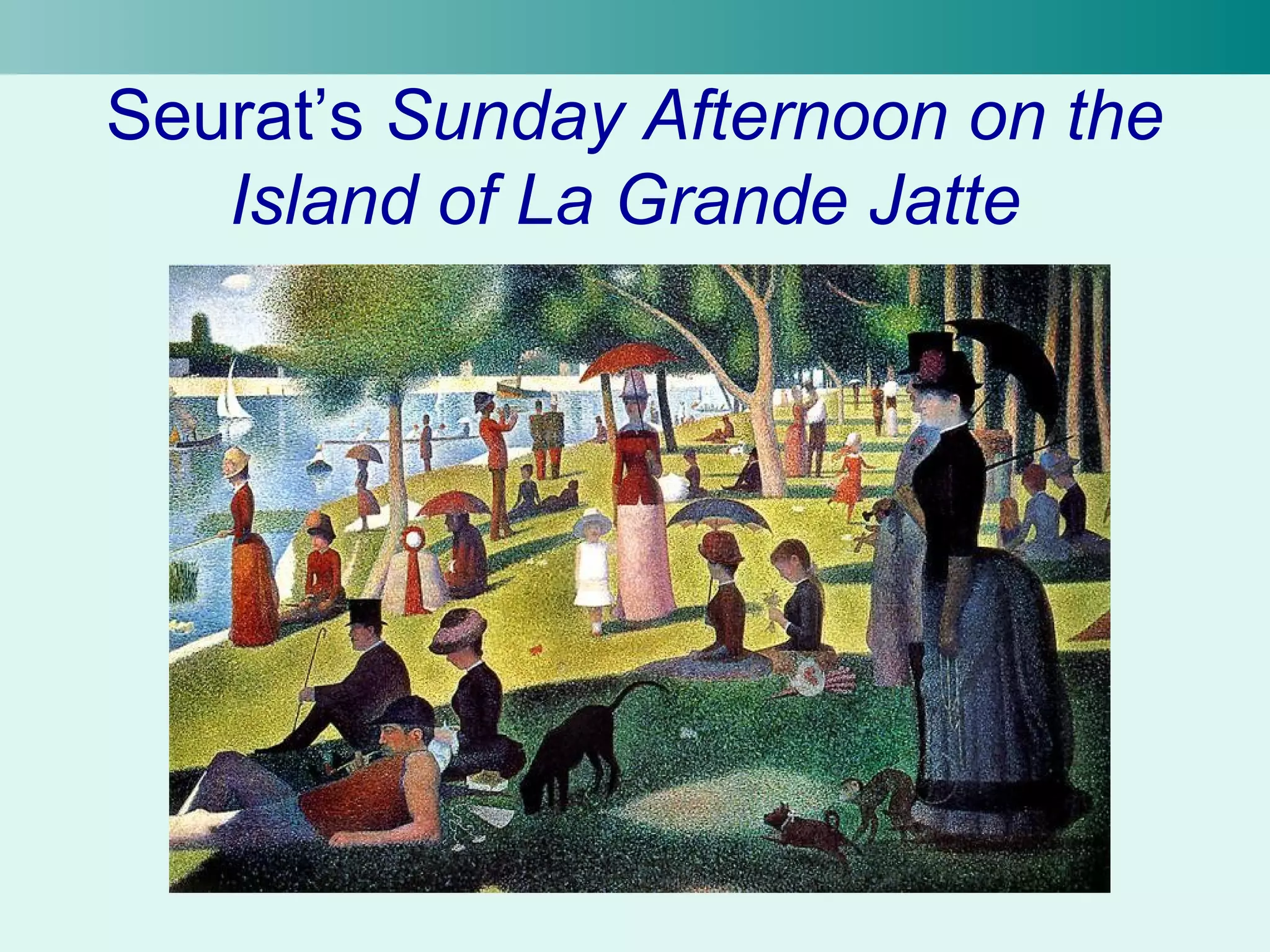
Seurat’s Sunday Afternoon on the 
Island of La Grande Jatte
Compression 
• Compression is used to make files smaller 
• Bitmap images, especially, can be quite 
large if stored without compression 
– Ex. A 640 x 480 pixel image with 24-bit color 
depth would take: 
• 640 * 480*24 bits = 7372800 bits = 900kB 
• Windows bmp format is uncompressed 
– Should NEVER be used online
Lossy vs. Lossless Compression 
• There are two main types of compression: 
– Lossy and 
– Lossless 
• When an image is compressed and later uncompressed 
with a lossless algorithm, the image is exactly the same 
– Most common type 
– No information is lost 
• Lossy algorithms produce images which may be slightly 
different before compression and after uncompressing 
– Some information may be lost 
– Can produce sometimes produce much smaller files than a 
lossless algorithm 
– Can be used when the difference isn’t very noticeable 
– Often takes into account human anatomy 
• We can’t tell the difference between certain values of color
JPEG 
• The JPEG format was designed for 
photographs at high quality and in full 
color 
• Lossy compression format 
• Normally changes can’t be seen except at 
the lowest quality settings 
• Bad idea to store simple black and white 
files as JPEGs 
• Good for 8-bit grayscale
GIF and PNG 
• GIF uses LZW compression algorithm 
developed by Unisys 
– It’s patented (or was patented) 
• PNG was created as an alternative to GIF 
– FREE!!!! 
• Both are used for the web frequently because 
they support transparency 
• For this course, you should try and use PNG 
instead of GIF 
– Considered better algorithm 
– No patent issues
Transparency 
• Allows part of the image to be transparent 
– The background will show through 
• Often used with graphics on web pages 
– The image is still a rectangle 
– Parts of the background show through so it 
doesn’t look like a rectangle 
• Not all image formats support 
transparency
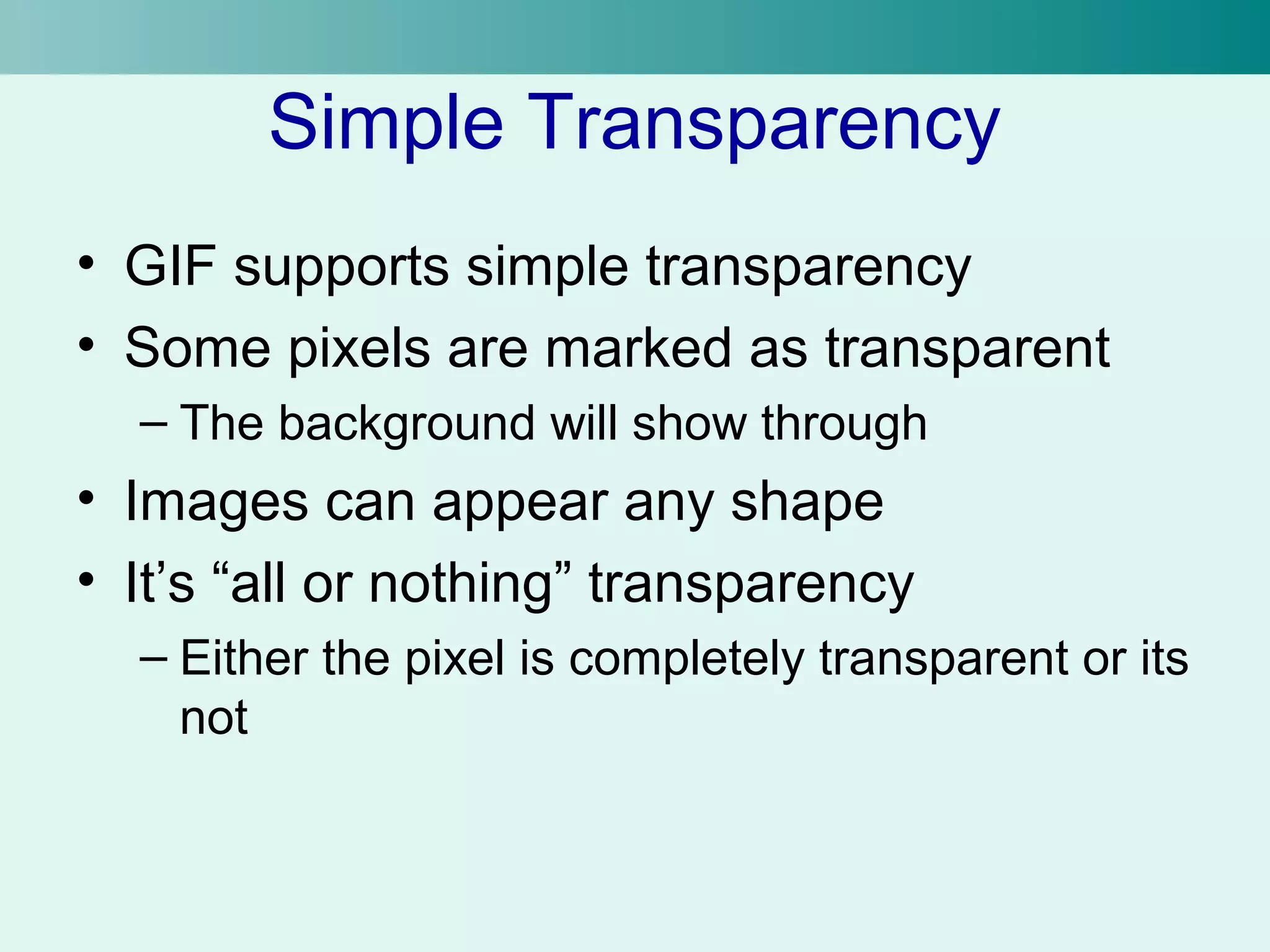
Simple Transparency 
• GIF supports simple transparency 
• Some pixels are marked as transparent 
– The background will show through 
• Images can appear any shape 
• It’s “all or nothing” transparency 
– Either the pixel is completely transparent or its 
not
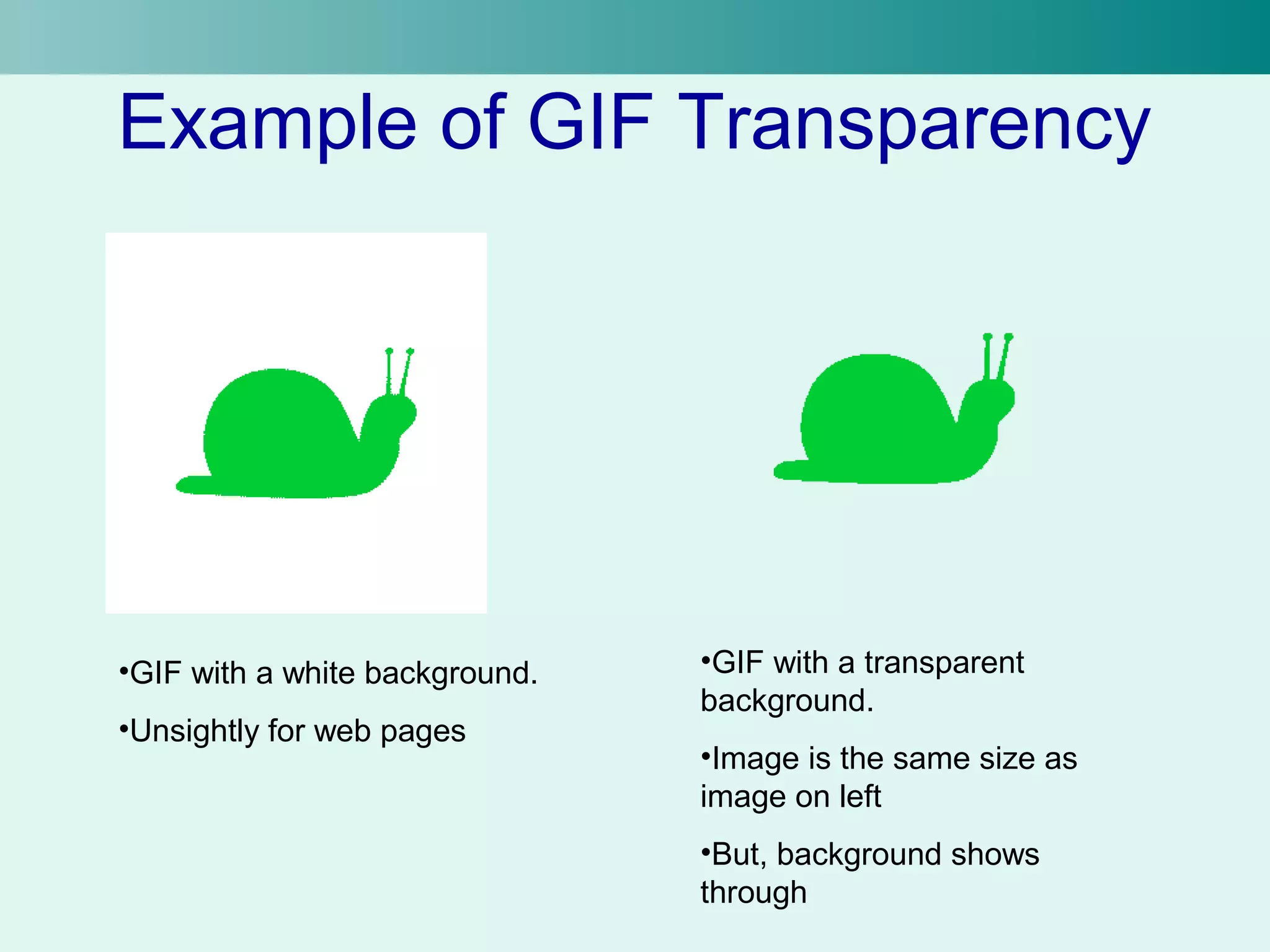
Example of GIF Transparency 
•GIF with a white background. 
•Unsightly for web pages 
•GIF with a transparent 
background. 
•Image is the same size as 
image on left 
•But, background shows 
through
Alpha Channel 
• Alpha channel is a more general method of transparency 
• Images now have two parts: 
– The image 
– A mask, called the alpha channel 
• The alpha channel indicates how transparent each pixel 
is 
• If supported by the program and format, you can specify 
partial transparency of images 
• GIMP and Photoshop support full transparency 
• So does the PNG format 
• If it’s not supported, the advanced transparency 
information is ignored
Why Use Transparency? 
• You could simply color the background of your 
image to the same color as the background of 
your webpage 
• What happens, though, if you decide to change 
the background color on your site? 
– Have to change every single image! 
• Better to use transparency for images with 
shapes (like the snail) 
– Not necessary for square images like a photograph
Common File Formats for the Web 
• The three most common file formats on the web 
are: 
– JPEG (.jpg) 
– GIF (.gif) 
– PNG (.png) 
• Most programs have their own file format called 
a native format 
– These formats are unique to the program 
– Good because you can save without losing any 
information 
• They use no compression or lossless compression 
– Can’t use these online because browsers can’t 
display them and people can’t necessarily open them
JPEG 
• JPEG : Joint Photographic Experts Group 
• .jpg is the file extension (normally) 
• Bitmap format 
• Lossy compression 
• 24-bit color or 8-bit gray-scale 
– Like you’d get from a digital camera or 
scanner
GIF 
• GIF : Graphics Interchange Format 
• .gif file extension 
• Bitmap format 
• Lossless compression 
• Used a lot on the web 
• Good for simple animations and simple 
transparency 
• Limited to 8-bit color (256 colors) 
• Compression algorithm is patented
PNG 
• PNG : Portable Network Graphic 
• Bitmap format 
• Lossless compression 
• Replacement for GIF (no patent!) 
• Better compression algorithm than GIF 
• Supports 24-bit color and full transparency
Other Common File Formats 
• You can read about the other common file 
formats in section 3.6 of your course pack 
• The ones listed are: BMP, TIFF, EPS, and 
SVG 
• BMP and TIFF are bitmapped graphics 
• EPS and SVG are vector graphics
Be Sure to Know 
• The differences between vector and 
bitmapped graphics 
– Their properties 
– How they work (shapes vs. pixels) 
• You should be very familiar with the 
information about JPEG, GIF, and PNG. 
• Also know BMP, and at least one vector 
graphics file format
Questions? 
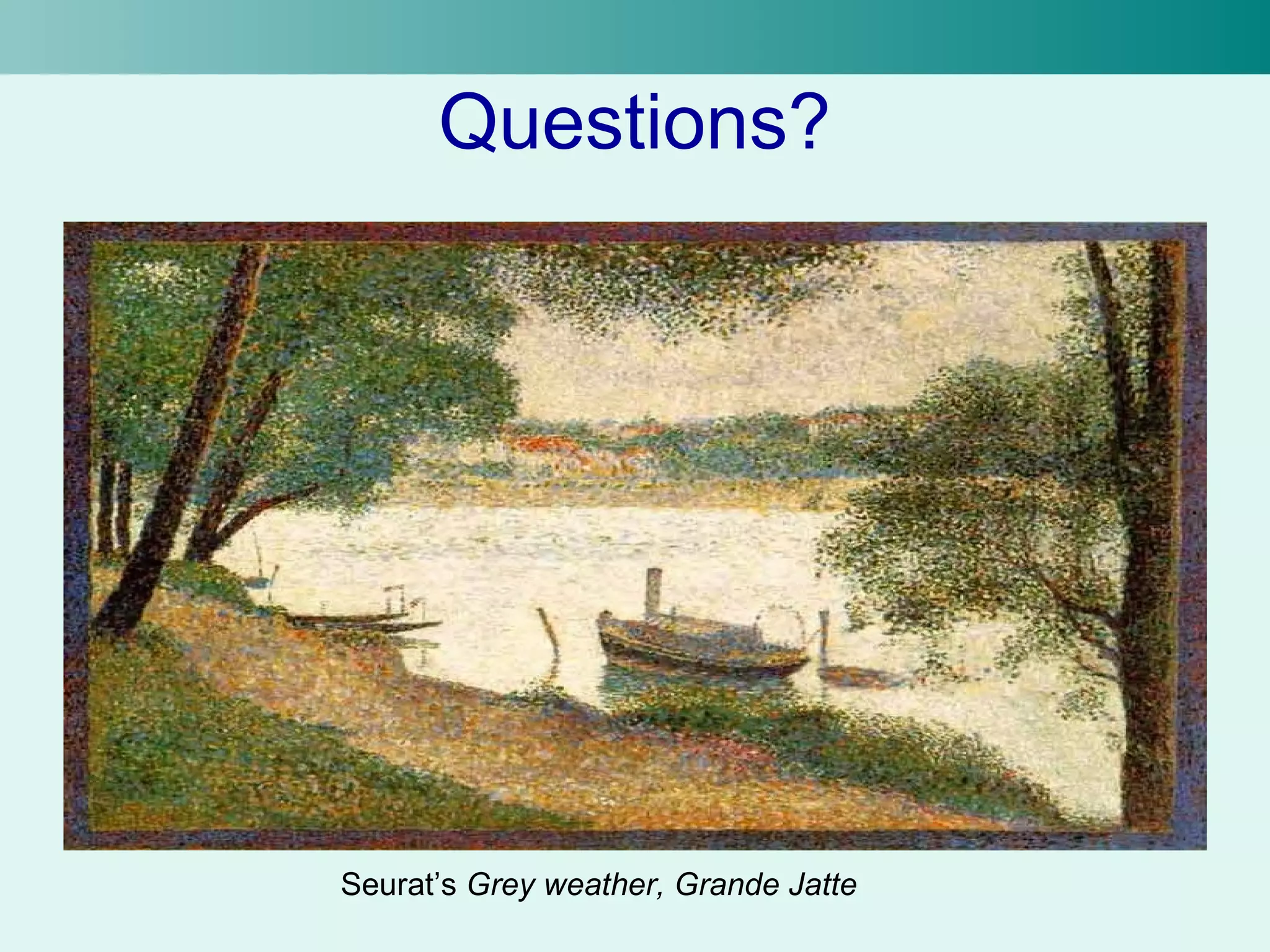
Seurat’s Grey weather, Grande Jatte

Graphics and imagea

  • 1.
  • 2.
    Computer Graphics •“Computer graphics refers to using a computer to create or manipulate any kind of picture, image, or diagram.” • Typically you manipulate an image on your computer with a graphics editing program – MS Paint – Adobe Photoshop – GIMP – Etc.
  • 3.
    Bitmapped Graphics •There are two basic types of graphics: – Bitmapped and – Vector • Bitmapped graphics are much more common • Often they are called raster graphics • When you create a bitmapped graphic you are basically creating a bunch of colored dots
  • 4.
    Bitmapped Graphics, cont. • The bitmapped graphic is stored as an array of dots, or pixels • Each pixel gets assigned a specific color • The more pixels you have, the more detailed the image can be – Imagine only have one pixel, all you get is a dot • Some common bitmap graphics programs are: – Photoshop – Paint Shop Pro – GIMP – Photo-Paint – Graphic Converter • These are paint programs
  • 5.
    Exaggerated Example ofa Bitmap Image
  • 6.
    Vector Graphics •The second major type of computer graphics • Vector graphics are created and manipulated using drawing programs (as opposed to paint programs for bitmapped graphics) • Instead of using pixels to describe the image, it describes the image using shapes – Circles – Lines – Curves • Also has to store the color of these shapes • A verbal example would be something like: – “A yellow circle with a center here and a radius of x, a purple line from here to here”
  • 7.
    Vector Graphics, cont. • The programs used with vector graphics are drawing programs • Some of these programs include: – Corel Draw – Adobe Illustrator – Acrobat • Most of these programs allow the use of bitmapped images as part of a vector image – Does not make them paint programs – Bitmaps are a type of object (like a circle) that can be inserted into a vector image
  • 8.
    Bitmap vs. VectorImages • Bitmap and vector images are obviously different • Both have strengths and weaknesses • They don’t manipulate images in the same way • They don’t store images in the same way • The images are edited differently
  • 9.
    Bitmap Images •Very flexible – Any image can be represented (with enough pixels) • Created by scanners, digital cameras, and other similar devices • Used most commonly, especially on the web • Can be displayed directly on your computer screen if 1 image pixel is the same size as 1 screen pixel • Takes a lot of memory – The color of each pixel must be stored – Can be compressed
  • 10.
    Vector Images •Easy to change parts of the image since each part is stored as a different shape • Can manipulate the image smoothly – Rotating, changing color, size, line width, etc. • Limited to the shapes the program can handle • Typically takes less memory and disk space than a bitmap • Must be converted to a bitmap to display
  • 11.
    File Formats •Once we’ve chosen which graphics format we’re going to use now we have to select which file format • Each way of storing an image is called a file format • Each file format converts the image to a corresponding string of bits differently in order to store them on disk or transmit them over the Internet • It’s beyond the scope of this course to discuss how these images are converted • But, we will discuss the common file formats
  • 12.
    File Formats, cont. • Hopefully, you’re familiar with JPEG and GIF file formats (at least in name only) • You can’t just rename “somepicture.gif” to “somepicture.jpg” and expect to get the desired result – Can’t just rename a .doc file as .ppt and expect a presentation out of it • Images have to be converted from one file format to another
  • 13.
    Common File Formats Bitmap Formats • GIF: graphics interchange format • JPEG: joint photographic experts group • PNG: portable network graphic • BMP: Windows bitmap • TIFF: tagged image file format Vector Formats • SVG : scalable vector graphics • EPS: encapsulated postscript • CMX: Corel meta exchange • PICT: Macintosh Picture • WMF: Windows metafile
  • 14.
    How to Picka File Format? • Type: does the file format store the type of image you want to use (bitmap or vector)? • Portability: can other people use images in this format? • Color Depth: does the format support the number of colors you need? • Compression: can make the file smaller, but it takes time to compress and decompress a file • Transparency: do parts of your image need to be transparent?
  • 15.
    Color Depth •Image formats will only allow a certain number of different colors for each pixel – Depends on the number of bits assigned to each pixel • The format stores the level of each of the three values for RGB to specify color • R,G,and B are referred to as components – Ex. “The red component” • Bit depth describes the number of colors that can be used in the image
  • 16.
    Bit Depth •24-bit image allows you to specify up to 224 different colors in your image – For each of the RGB values you can specify 28 different values (256 values) • Remember in the color section RGB went from 0- 255 – 28 values for R, for G, and for B gives us 224 different colors • The “24” in 24-bit says how many bits it takes to store a single color
  • 17.
    Bit Depth cont. • While most photos look good with 24-bit color, we can have less than that • 15-bit color can have 215 different colors with 25 possible values for each component • 15-bit color is usually referred to as 16-bit color – Use an extra bit for green (we’re more sensitive to it)
  • 18.
    Formats with FewerColors • Usually images with smaller numbers of colors are paletted or indexed • Some colors are selected to be in the image’s palette • For each pixel, then you only have to store the number which indicates which palette color you want – Instead of specifying its RGB values, specify the number associated with the color – Red could have a value of “12”
  • 19.
    Palettes • Ifyou have an 8-bit image, the palette will have 28 (256) colors – Each of the 256 colors in the palette come from the possible 224 different colors in a 24-bit image • A 1-bit image can have 21 (2) different colors – Usually black and white
  • 20.
    Colors vs. ImageSize • It’s nice to use as many colors as possible, especially when dealing with photographs • But, the more colors, the larger the image is to store – More information is required for each pixel • Can work in 24-bit color then save the image with fewer colors for storage or using online
  • 21.
    What if yourimage has more colors than the color depth? • Usually the graphics program will select colors that closely match those in your image • If the color is not in the palette, the program can choose a separate, close color, or do dithering • Dithering is where the program fools your eye by creating a pattern of pixels in two colors which makes you see a color between the two
  • 22.
    Dithering Plain GrayImage Image which appears this shade gray because of dithering. It actually contains white and gray pixels
  • 23.
    Not All Ditheringis the Same Diffusion Pattern Noise •This shows an example of three different ways to dither the image. •Some types of dithering may work better than others depending on the image in question. •Some programs allow you to select the type of dithering (Photoshop, e.g.)
  • 24.
    Dithering with Color Color I want to produce Dithering with only 2 colors, orange and white Dithering with all web-safe colors enabled Zoomed View of dithering
  • 25.
  • 26.
    Seurat’s Sunday Afternoonon the Island of La Grande Jatte
  • 27.
    Compression • Compressionis used to make files smaller • Bitmap images, especially, can be quite large if stored without compression – Ex. A 640 x 480 pixel image with 24-bit color depth would take: • 640 * 480*24 bits = 7372800 bits = 900kB • Windows bmp format is uncompressed – Should NEVER be used online
  • 28.
    Lossy vs. LosslessCompression • There are two main types of compression: – Lossy and – Lossless • When an image is compressed and later uncompressed with a lossless algorithm, the image is exactly the same – Most common type – No information is lost • Lossy algorithms produce images which may be slightly different before compression and after uncompressing – Some information may be lost – Can produce sometimes produce much smaller files than a lossless algorithm – Can be used when the difference isn’t very noticeable – Often takes into account human anatomy • We can’t tell the difference between certain values of color
  • 29.
    JPEG • TheJPEG format was designed for photographs at high quality and in full color • Lossy compression format • Normally changes can’t be seen except at the lowest quality settings • Bad idea to store simple black and white files as JPEGs • Good for 8-bit grayscale
  • 30.
    GIF and PNG • GIF uses LZW compression algorithm developed by Unisys – It’s patented (or was patented) • PNG was created as an alternative to GIF – FREE!!!! • Both are used for the web frequently because they support transparency • For this course, you should try and use PNG instead of GIF – Considered better algorithm – No patent issues
  • 31.
    Transparency • Allowspart of the image to be transparent – The background will show through • Often used with graphics on web pages – The image is still a rectangle – Parts of the background show through so it doesn’t look like a rectangle • Not all image formats support transparency
  • 32.
    Simple Transparency •GIF supports simple transparency • Some pixels are marked as transparent – The background will show through • Images can appear any shape • It’s “all or nothing” transparency – Either the pixel is completely transparent or its not
  • 33.
    Example of GIFTransparency •GIF with a white background. •Unsightly for web pages •GIF with a transparent background. •Image is the same size as image on left •But, background shows through
  • 34.
    Alpha Channel •Alpha channel is a more general method of transparency • Images now have two parts: – The image – A mask, called the alpha channel • The alpha channel indicates how transparent each pixel is • If supported by the program and format, you can specify partial transparency of images • GIMP and Photoshop support full transparency • So does the PNG format • If it’s not supported, the advanced transparency information is ignored
  • 35.
    Why Use Transparency? • You could simply color the background of your image to the same color as the background of your webpage • What happens, though, if you decide to change the background color on your site? – Have to change every single image! • Better to use transparency for images with shapes (like the snail) – Not necessary for square images like a photograph
  • 36.
    Common File Formatsfor the Web • The three most common file formats on the web are: – JPEG (.jpg) – GIF (.gif) – PNG (.png) • Most programs have their own file format called a native format – These formats are unique to the program – Good because you can save without losing any information • They use no compression or lossless compression – Can’t use these online because browsers can’t display them and people can’t necessarily open them
  • 37.
    JPEG • JPEG: Joint Photographic Experts Group • .jpg is the file extension (normally) • Bitmap format • Lossy compression • 24-bit color or 8-bit gray-scale – Like you’d get from a digital camera or scanner
  • 38.
    GIF • GIF: Graphics Interchange Format • .gif file extension • Bitmap format • Lossless compression • Used a lot on the web • Good for simple animations and simple transparency • Limited to 8-bit color (256 colors) • Compression algorithm is patented
  • 39.
    PNG • PNG: Portable Network Graphic • Bitmap format • Lossless compression • Replacement for GIF (no patent!) • Better compression algorithm than GIF • Supports 24-bit color and full transparency
  • 40.
    Other Common FileFormats • You can read about the other common file formats in section 3.6 of your course pack • The ones listed are: BMP, TIFF, EPS, and SVG • BMP and TIFF are bitmapped graphics • EPS and SVG are vector graphics
  • 41.
    Be Sure toKnow • The differences between vector and bitmapped graphics – Their properties – How they work (shapes vs. pixels) • You should be very familiar with the information about JPEG, GIF, and PNG. • Also know BMP, and at least one vector graphics file format
  • 42.
    Questions? Seurat’s Greyweather, Grande Jatte