Compiled by : NafyadT.
Oct, 2024
Chapter Three
Data Representations
Graphic/Image Data Representation
An image could be described as two-dimensional array of points
where every point is allocated its own color.
Every such single point is called pixel, short form of picture
element.
Image is a collection of these points that are colored in such a way
that they produce meaningful information/data.
Pixel (picture element) contains the color or hue and relative
brightness of that point in the image.
The number of pixels in the image determines the resolution
(quality) of the image.
Higher resolution always yields better quality.
Types of Images
There are two basic formats of computer graphics: bit-maps and
vector graphics.
The kind you use determines the tools you choose.
Bitmap formats are the ones used for digital photographs.
Vector formats are used only for line drawings.
Types of Images – Cont…
1. Bit-map images (also called Raster Graphics)
They are formed from pixels, a matrix of dots with different colors.
Bitmap images are defined by their dimension in pixels as well as by
the number of colors they represent.
For example, a 640X480 image contains 640 pixels in horizontal and
480 pixels in vertical direction.
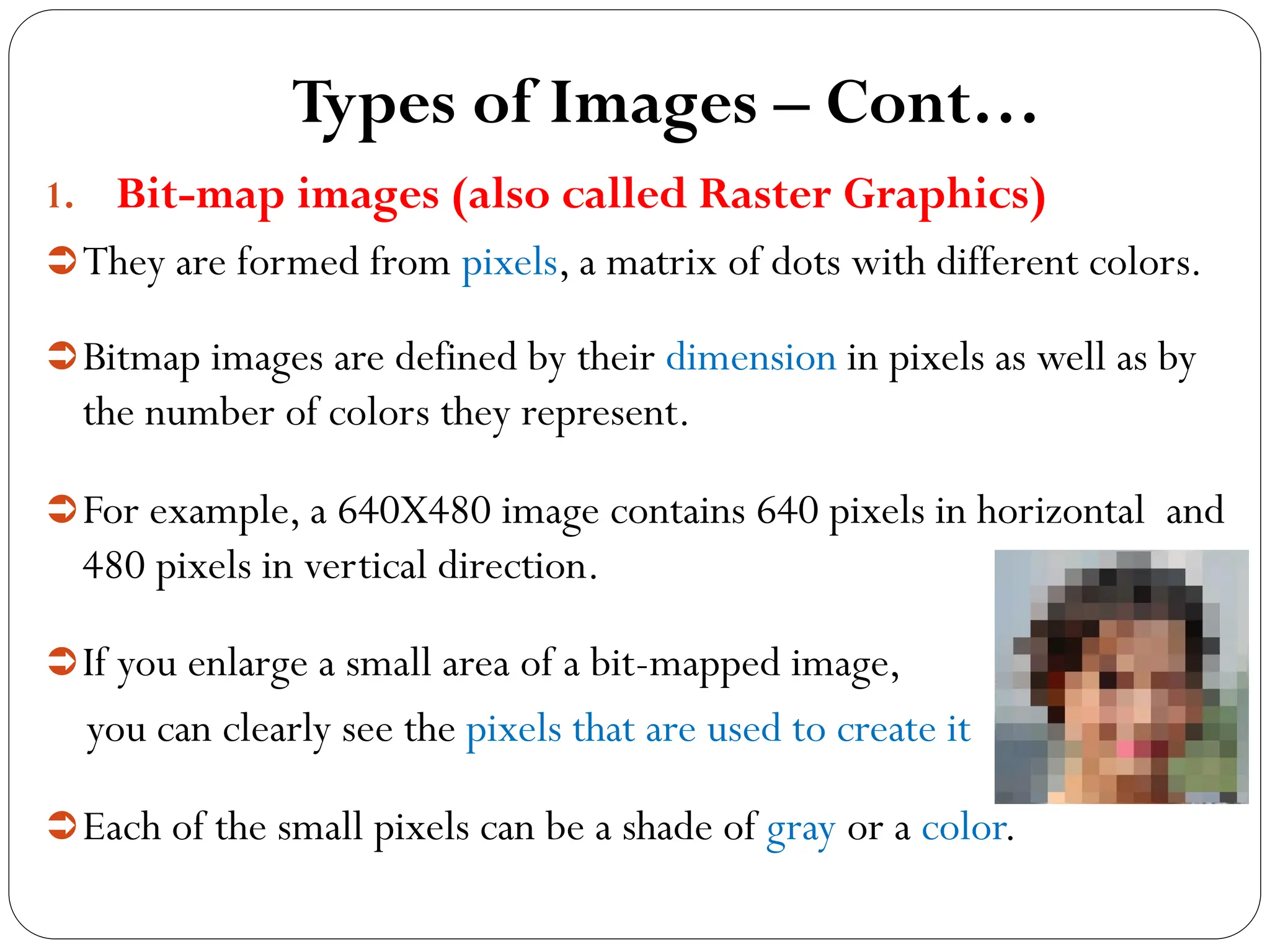
If you enlarge a small area of a bit-mapped image,
you can clearly see the pixels that are used to create it
Each of the small pixels can be a shade of gray or a color.
Types of Images – Bit-map – Cont…
All digital photographs and paintings are bitmapped, and any other
kind of image can be saved or exported into a bitmap format.
In fact, when you print any kind of image on a laser or ink-jet printer,
it is first converted by either the computer or printer into a bitmap
form so it can be printed with the dots the printer uses.
Bitmap images are widely used but suffer from a few unavoidable
problems such as:
They must be printed or displayed at a size determined by the number of
pixels in the image.
Bitmap images also have large file sizes that are determined by the
image’s dimensions in pixels and its color depth.
To reduce this problem, some graphic formats such as GIF and JPEG
are used to store images in compressed format.
Types of Images – Cont…
2.Vector Graphics
They are just a list of graphical objects such as lines, rectangles,
ellipses, arcs, or curves - called primitives.
Draw programs, also called vector graphics programs, are used to
create and edit these vector graphics.
These programs store the primitives as a set of numerical
coordinates and mathematical formulas that specify their shape and
position in the image.
This format is widely used by computer-aided design programs to
create detailed engineering and design drawings.
It is also used in multimedia when 3D animation is desired.
Types of Images -Vector Graphics
Draw programs have a number of advantages over paint-type
programs.
These include:
 Precise control over lines and colors.
 Ability to skew and rotate objects to see them from different angles
 Ability to scale objects to any size to fit the available space.Vector
graphics always print at the best resolution of the printer you use, no
matter what size you make them.
 Color blends and shadings can be easily changed.
 Text can be wrapped around objects.
Digital Images
 Digital images are a collection of pixels arranged
in rectangles.
 Conceptually a pixel is a number that represents a
color depending on the color model.
 In imaging a pixel represents a single point in a
raster image.
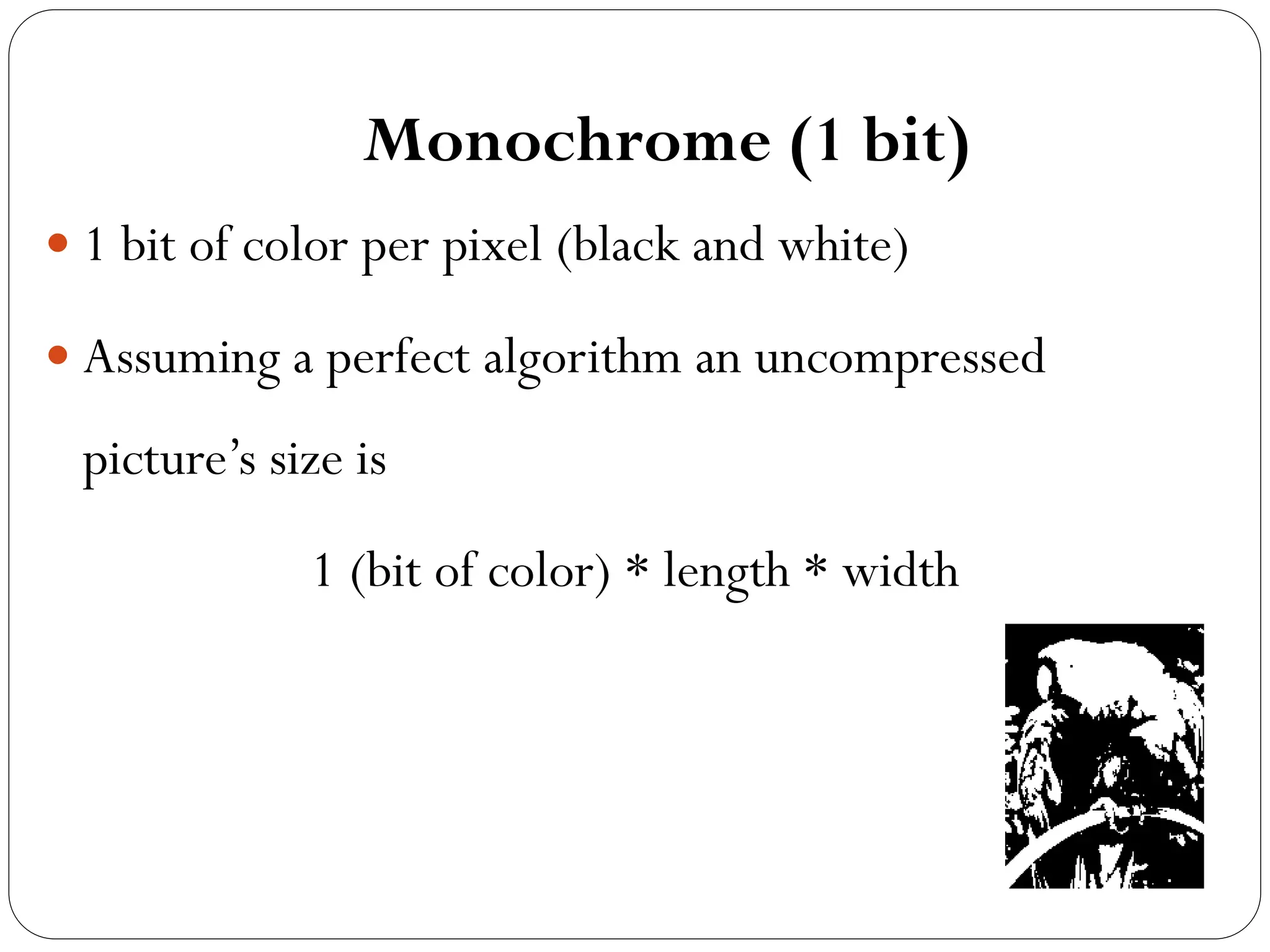
Monochrome (1 bit)
 1 bit of color per pixel (black and white)
 Assuming a perfect algorithm an uncompressed
picture’s size is
1 (bit of color) * length * width
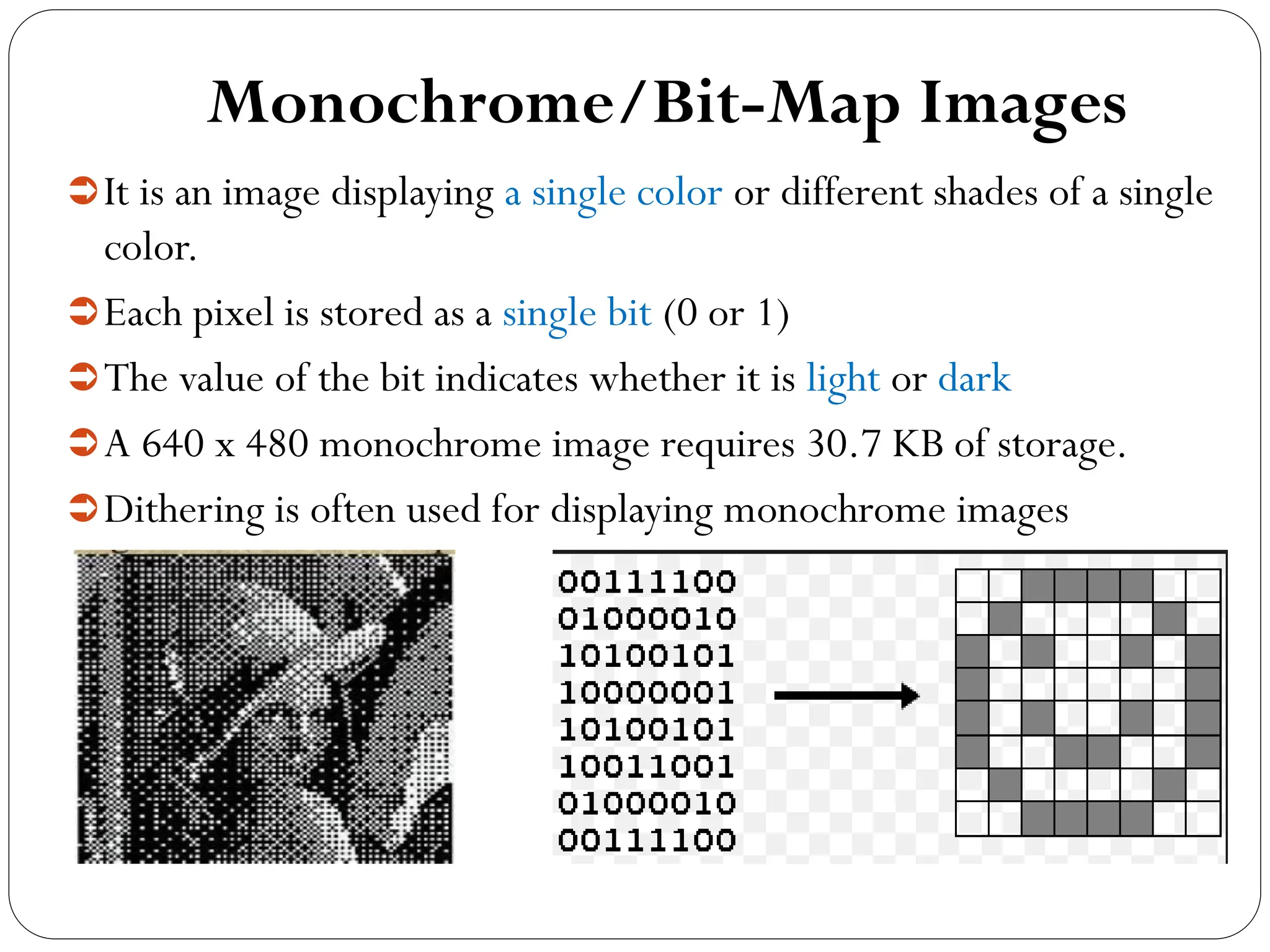
Monochrome/Bit-Map Images
It is an image displaying a single color or different shades of a single
color.
Each pixel is stored as a single bit (0 or 1)
The value of the bit indicates whether it is light or dark
A 640 x 480 monochrome image requires 30.7 KB of storage.
Dithering is often used for displaying monochrome images
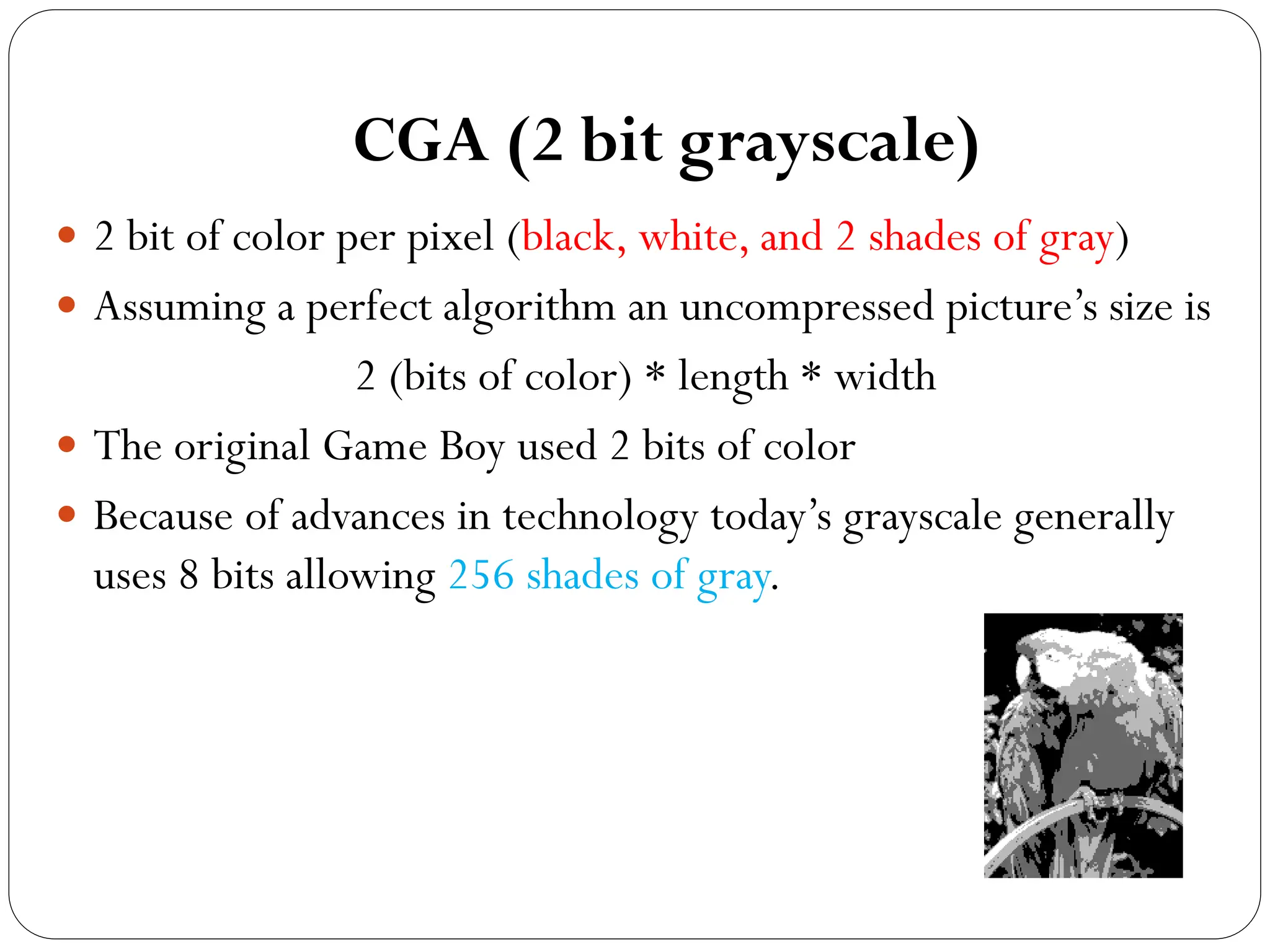
CGA (2 bit grayscale)
 2 bit of color per pixel (black, white, and 2 shades of gray)
 Assuming a perfect algorithm an uncompressed picture’s size is
2 (bits of color) * length * width
 The original Game Boy used 2 bits of color
 Because of advances in technology today’s grayscale generally
uses 8 bits allowing 256 shades of gray.
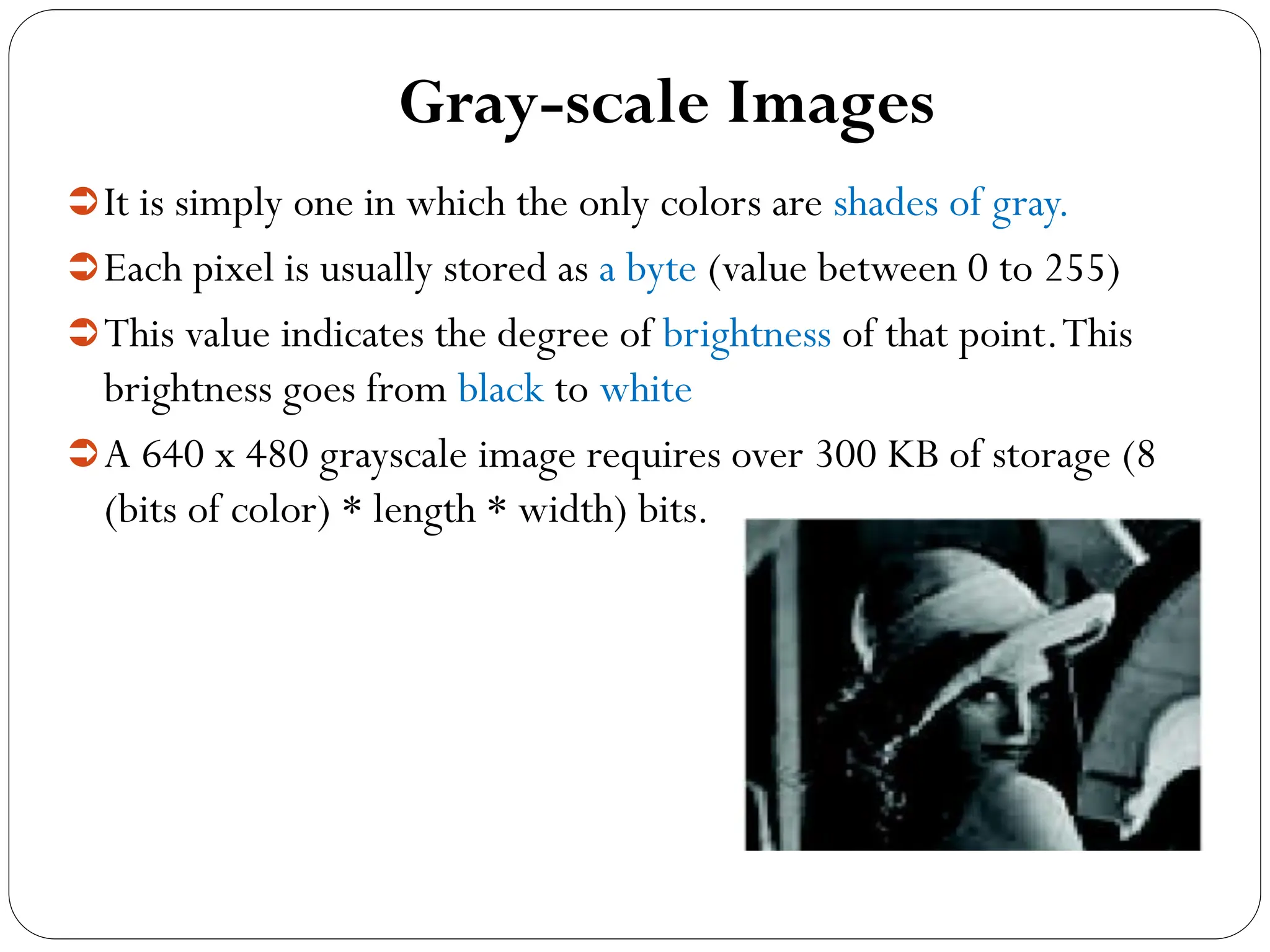
Gray-scale Images
It is simply one in which the only colors are shades of gray.
Each pixel is usually stored as a byte (value between 0 to 255)
This value indicates the degree of brightness of that point.This
brightness goes from black to white
A 640 x 480 grayscale image requires over 300 KB of storage (8
(bits of color) * length * width) bits.
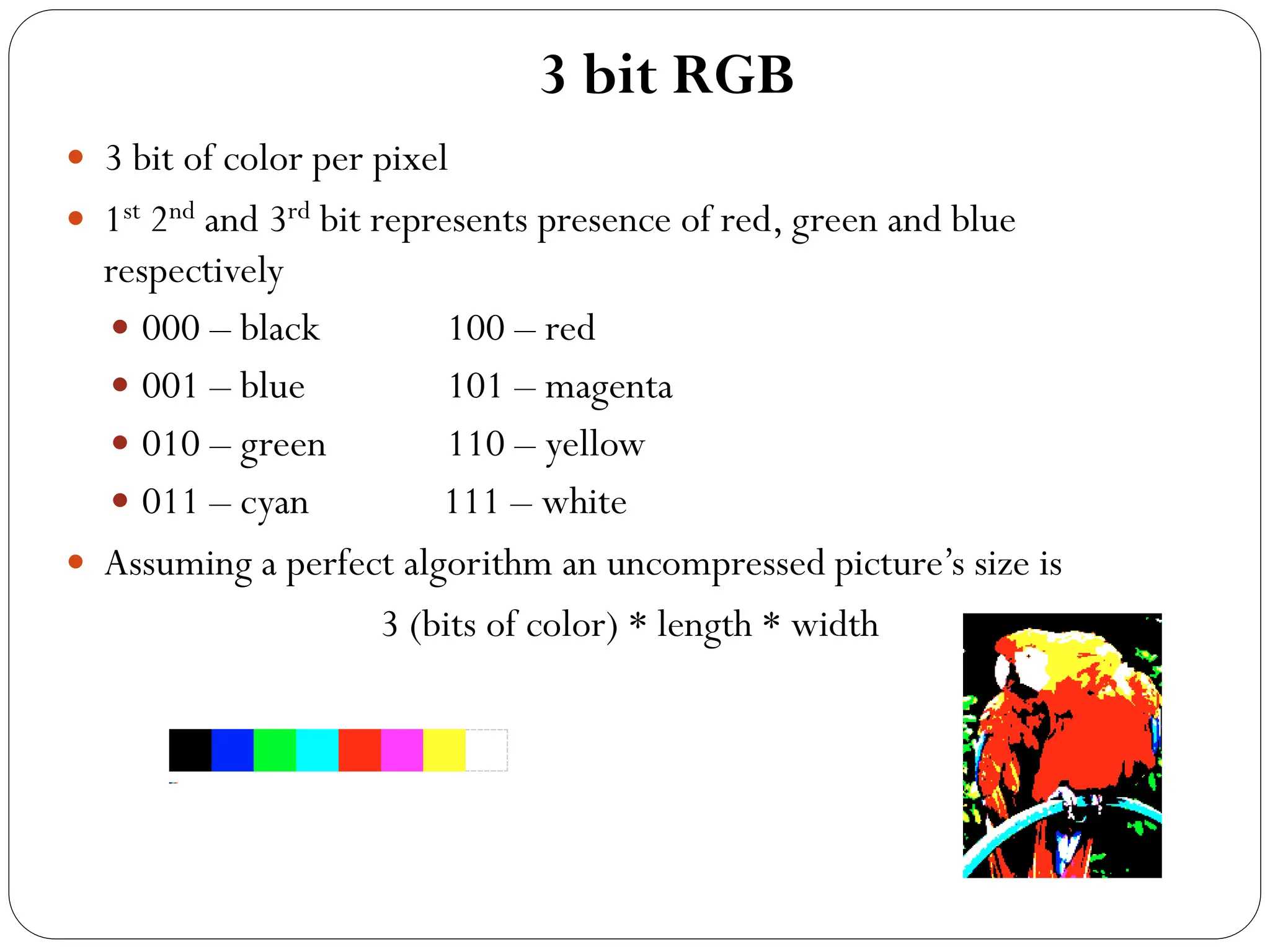
3 bit RGB
 3 bit of color per pixel
 1st 2nd and 3rd bit represents presence of red, green and blue
respectively
 000 – black 100 – red
 001 – blue 101 – magenta
 010 – green 110 – yellow
 011 – cyan 111 – white
 Assuming a perfect algorithm an uncompressed picture’s size is
3 (bits of color) * length * width
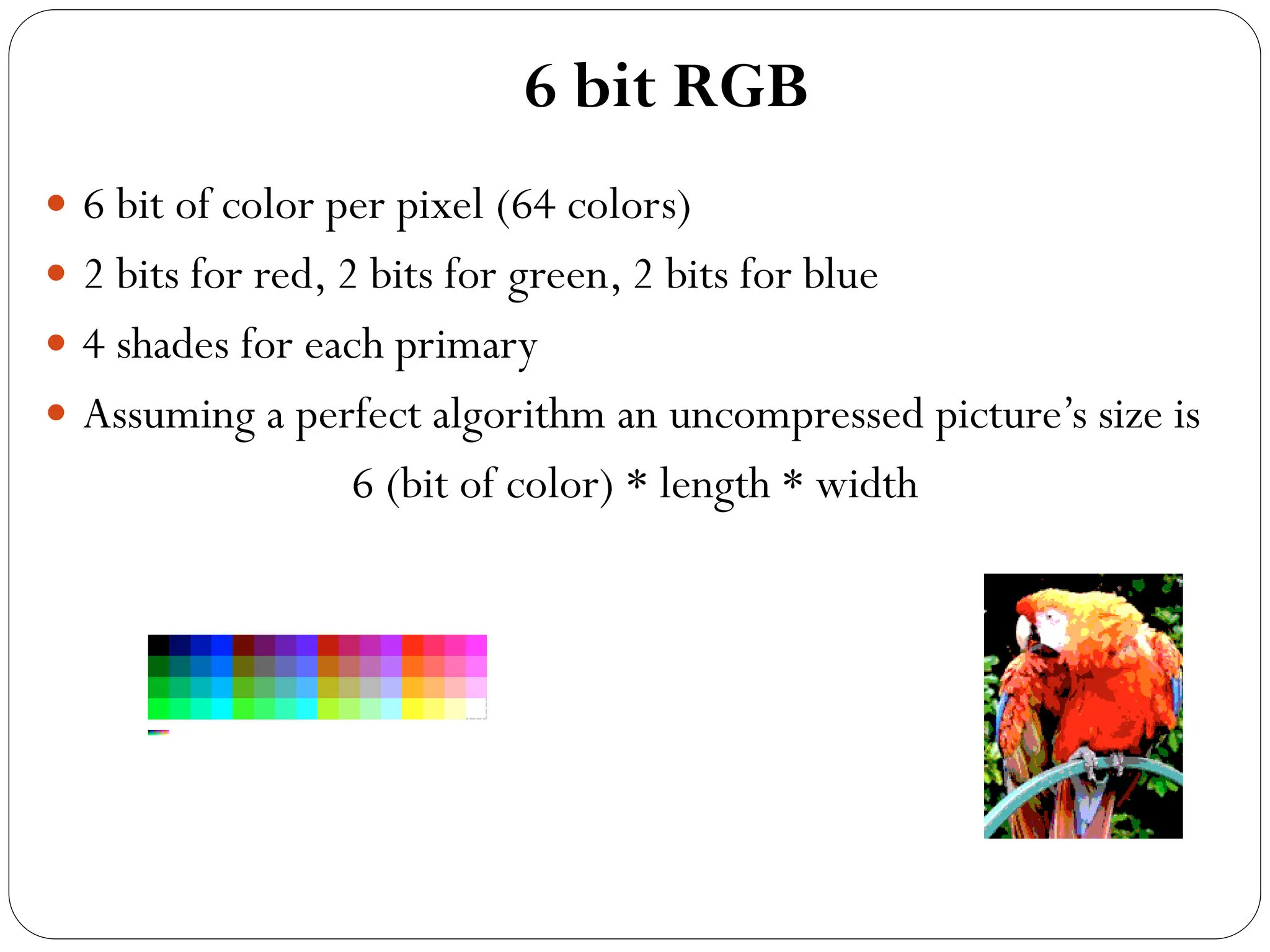
6 bit RGB
 6 bit of color per pixel (64 colors)
 2 bits for red, 2 bits for green, 2 bits for blue
 4 shades for each primary
 Assuming a perfect algorithm an uncompressed picture’s size is
6 (bit of color) * length * width
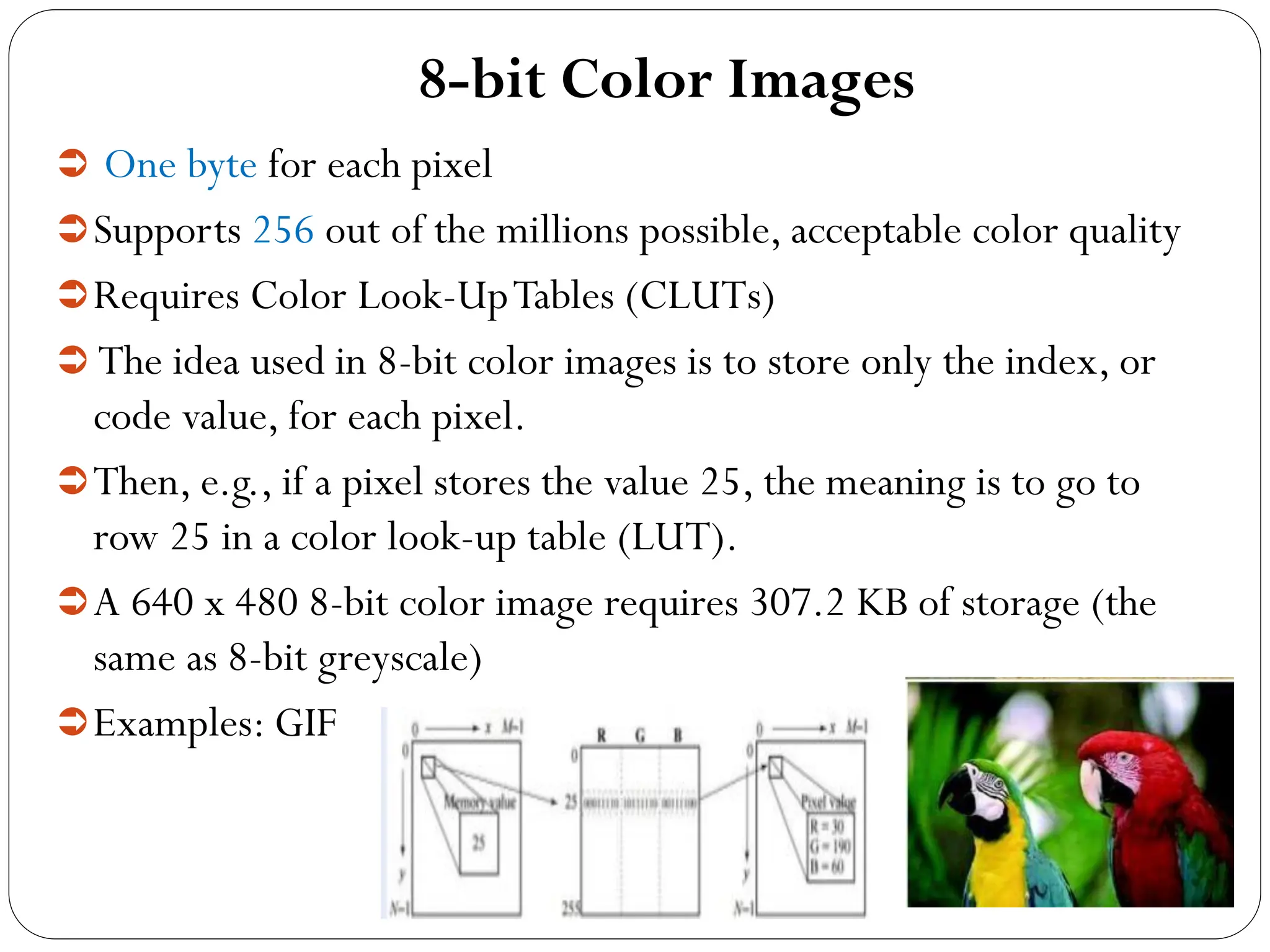
8-bit Color Images
 One byte for each pixel
Supports 256 out of the millions possible, acceptable color quality
Requires Color Look-UpTables (CLUTs)
 The idea used in 8-bit color images is to store only the index, or
code value, for each pixel.
Then, e.g., if a pixel stores the value 25, the meaning is to go to
row 25 in a color look-up table (LUT).
A 640 x 480 8-bit color image requires 307.2 KB of storage (the
same as 8-bit greyscale)
Examples: GIF
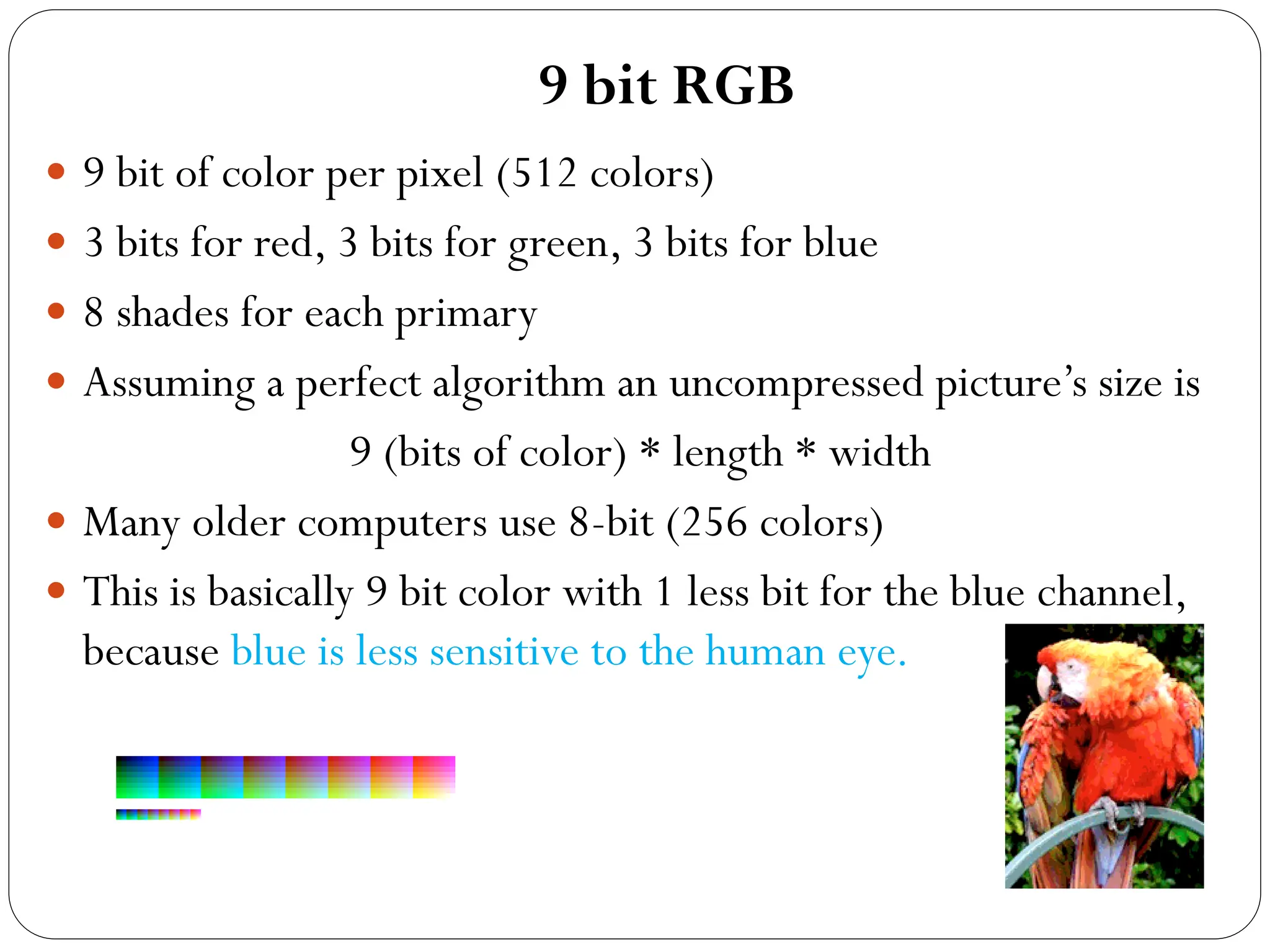
9 bit RGB
 9 bit of color per pixel (512 colors)
 3 bits for red, 3 bits for green, 3 bits for blue
 8 shades for each primary
 Assuming a perfect algorithm an uncompressed picture’s size is
9 (bits of color) * length * width
 Many older computers use 8-bit (256 colors)
 This is basically 9 bit color with 1 less bit for the blue channel,
because blue is less sensitive to the human eye.
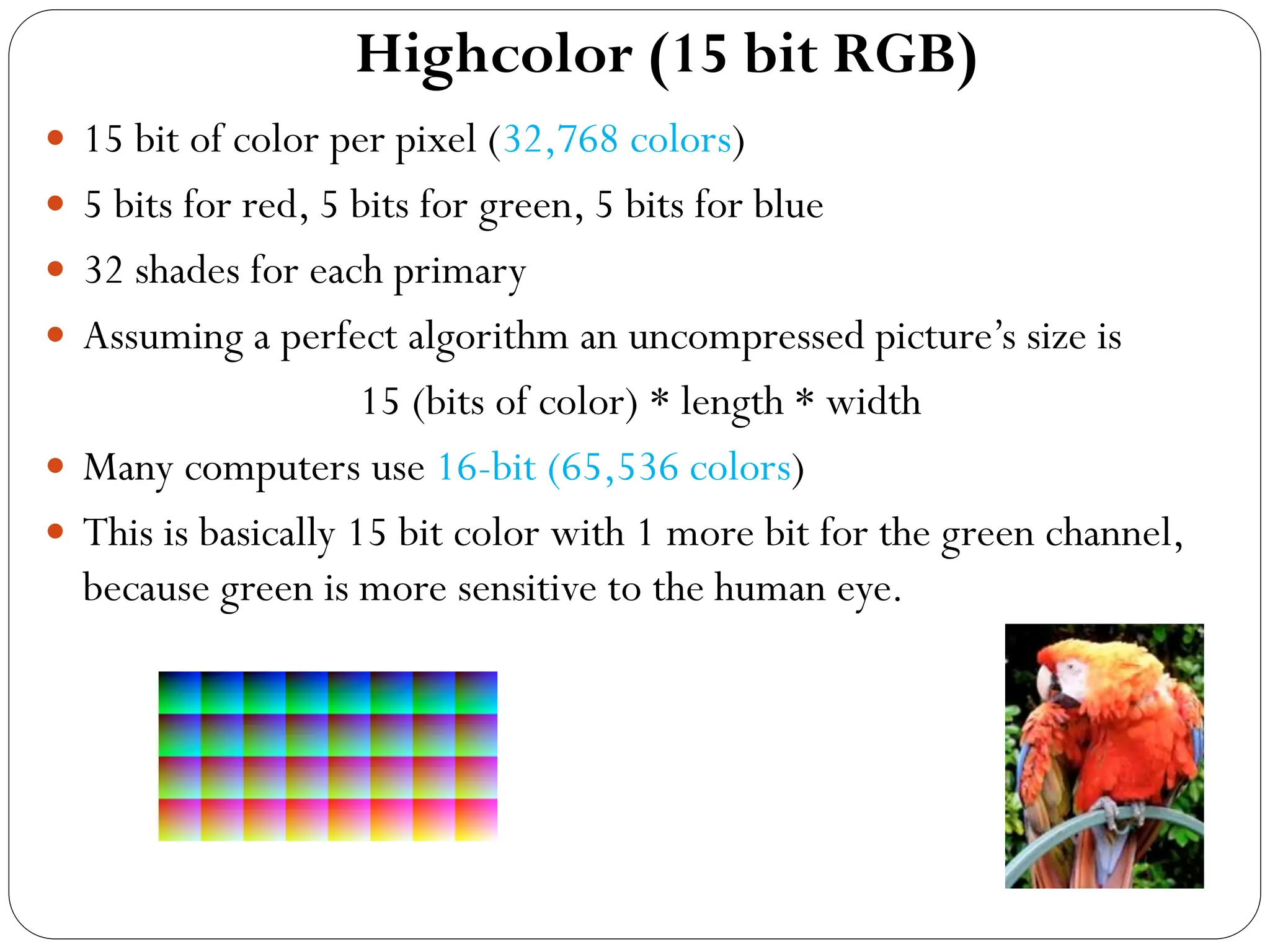
Highcolor (15 bit RGB)
 15 bit of color per pixel (32,768 colors)
 5 bits for red, 5 bits for green, 5 bits for blue
 32 shades for each primary
 Assuming a perfect algorithm an uncompressed picture’s size is
15 (bits of color) * length * width
 Many computers use 16-bit (65,536 colors)
 This is basically 15 bit color with 1 more bit for the green channel,
because green is more sensitive to the human eye.
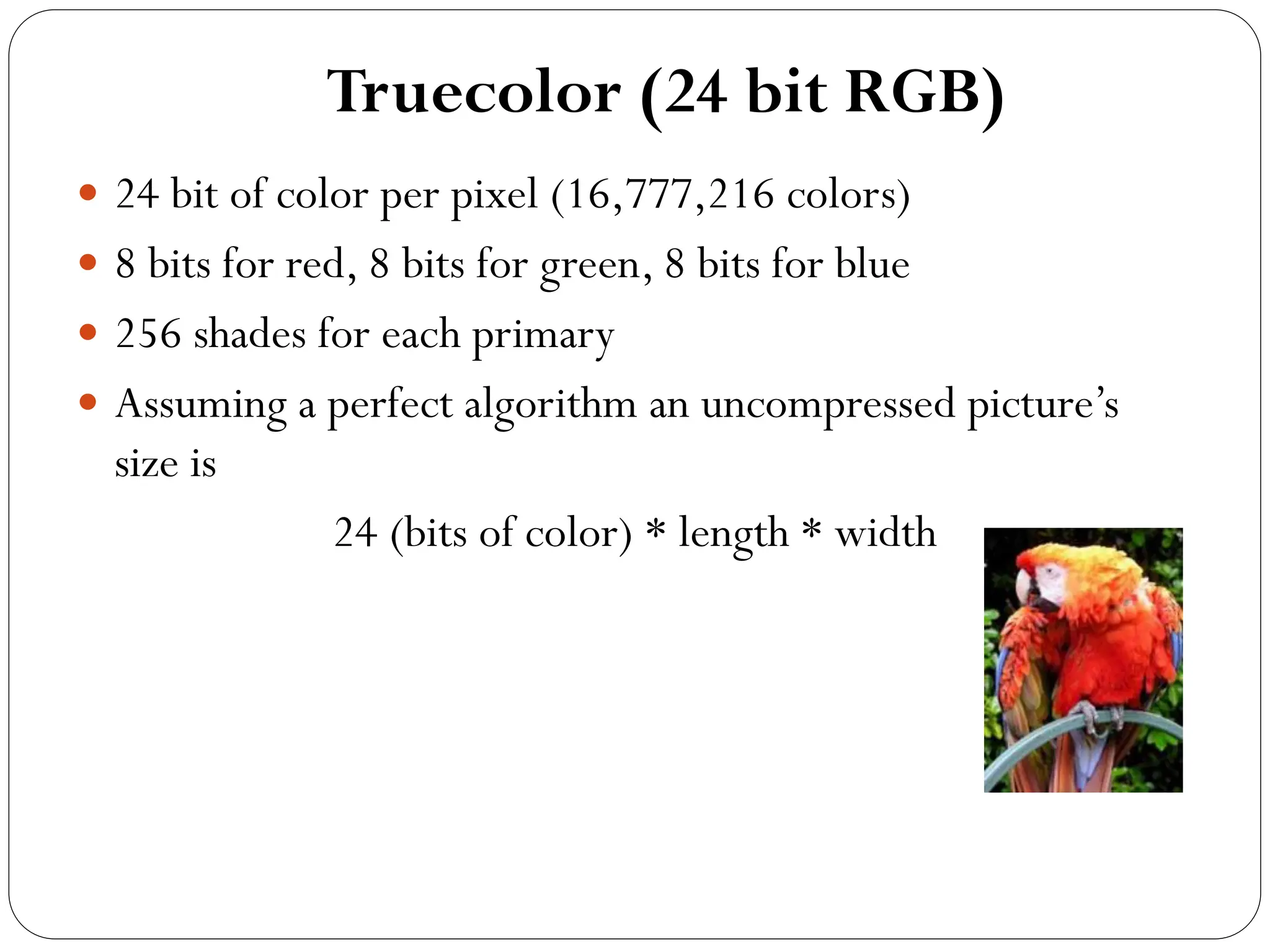
Truecolor (24 bit RGB)
 24 bit of color per pixel (16,777,216 colors)
 8 bits for red, 8 bits for green, 8 bits for blue
 256 shades for each primary
 Assuming a perfect algorithm an uncompressed picture’s
size is
24 (bits of color) * length * width
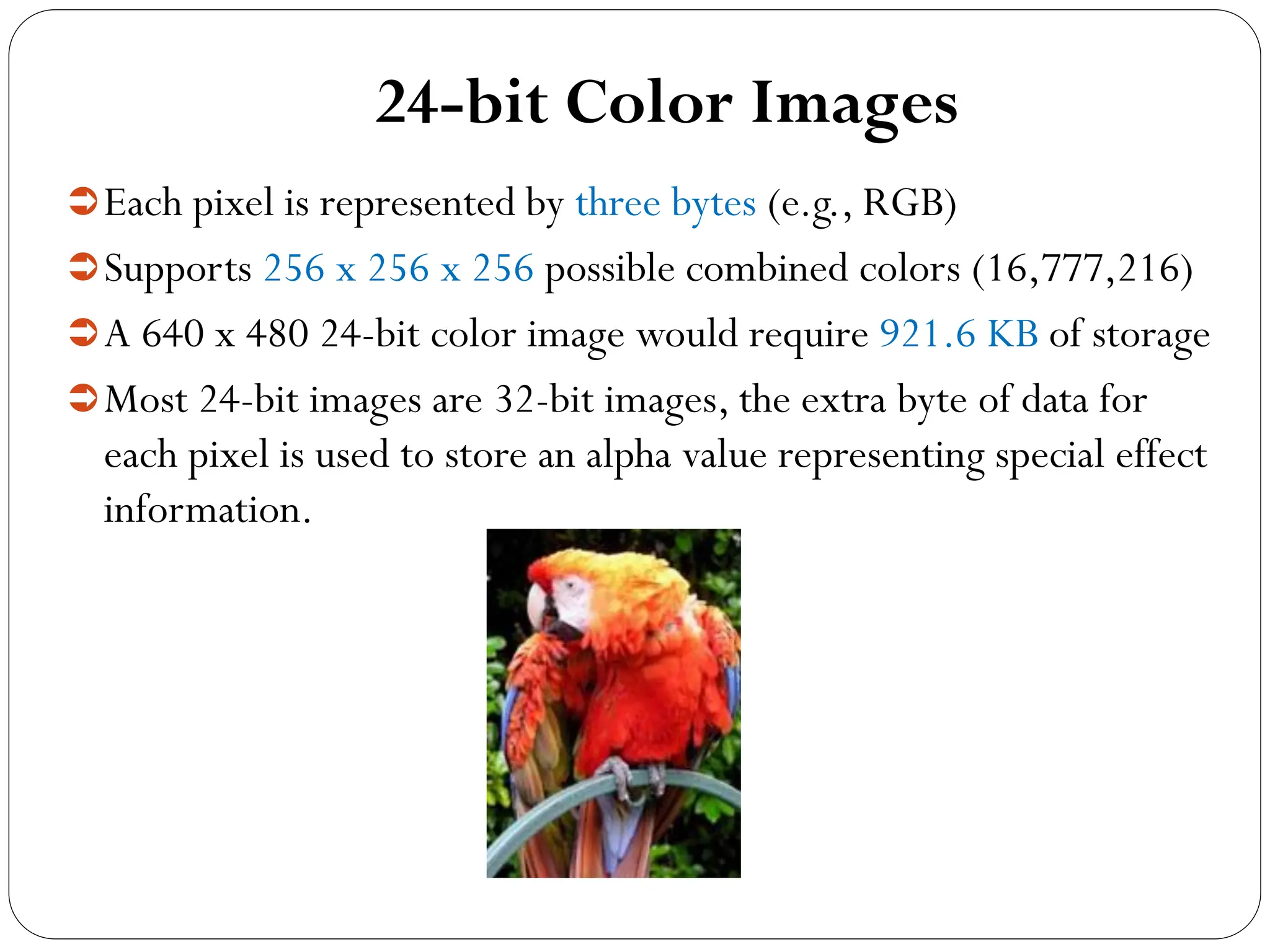
24-bit Color Images
Each pixel is represented by three bytes (e.g., RGB)
Supports 256 x 256 x 256 possible combined colors (16,777,216)
A 640 x 480 24-bit color image would require 921.6 KB of storage
Most 24-bit images are 32-bit images, the extra byte of data for
each pixel is used to store an alpha value representing special effect
information.
32 bit RGB
 Widely used today.
 24 bit of color per pixel + 8 bits for extra data like
transparency and texture.
 Assuming a perfect algorithm an uncompressed picture’s size is
32 (bits of color) * length * width
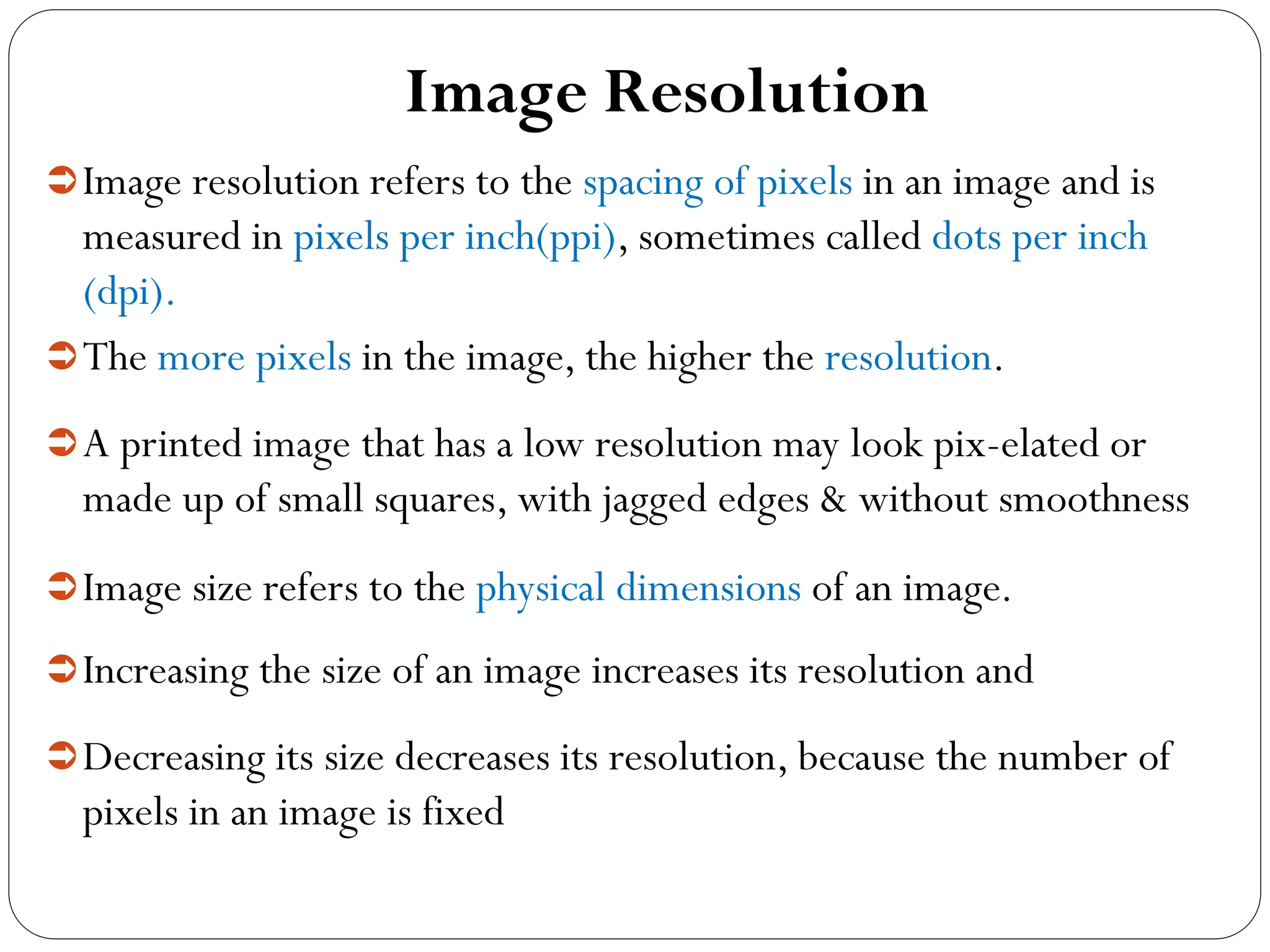
Image Resolution
Image resolution refers to the spacing of pixels in an image and is
measured in pixels per inch(ppi), sometimes called dots per inch
(dpi).
The more pixels in the image, the higher the resolution.
A printed image that has a low resolution may look pix-elated or
made up of small squares, with jagged edges & without smoothness
Image size refers to the physical dimensions of an image.
Increasing the size of an image increases its resolution and
Decreasing its size decreases its resolution, because the number of
pixels in an image is fixed
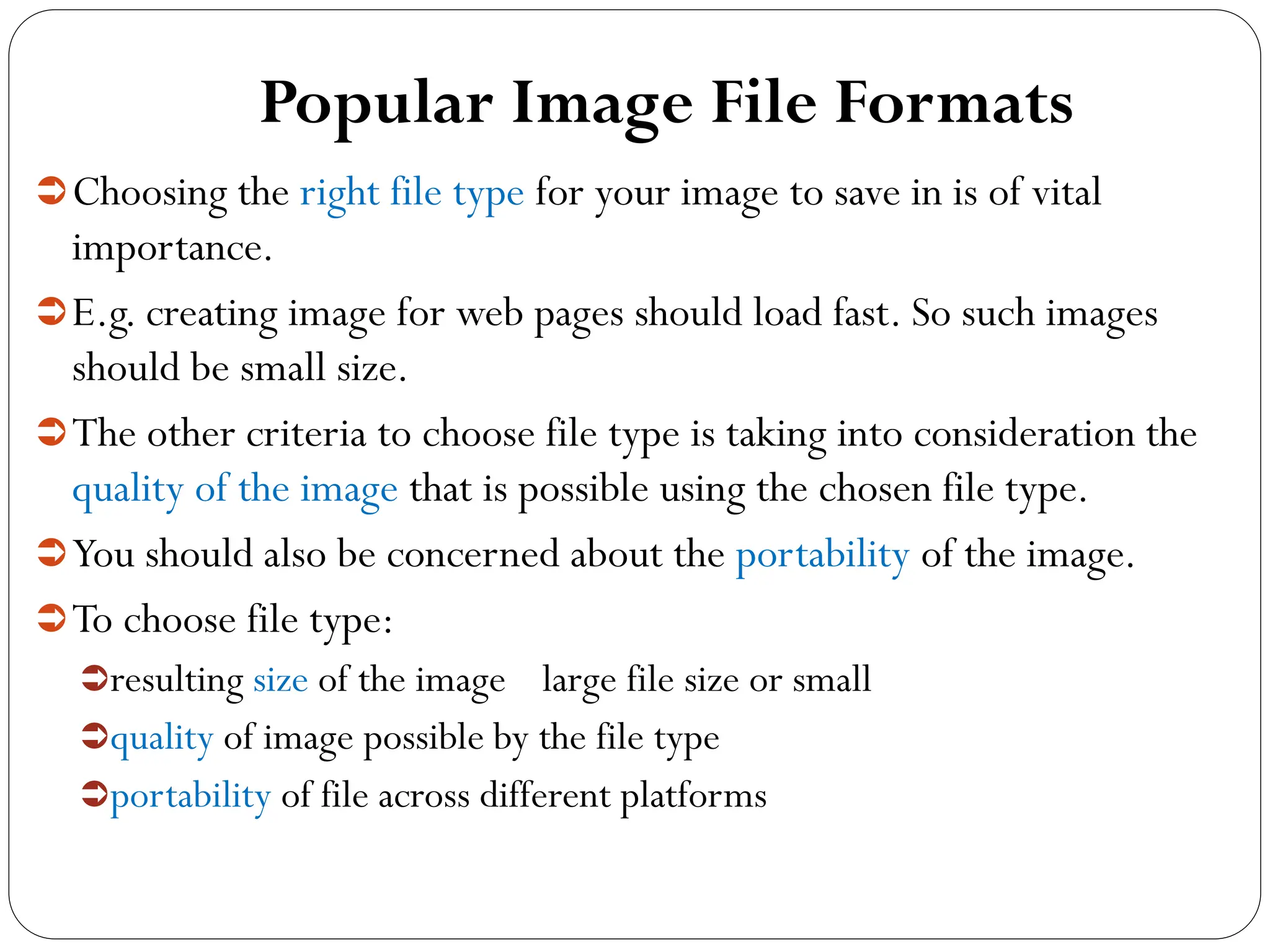
Popular Image File Formats
Choosing the right file type for your image to save in is of vital
importance.
E.g. creating image for web pages should load fast. So such images
should be small size.
The other criteria to choose file type is taking into consideration the
quality of the image that is possible using the chosen file type.
You should also be concerned about the portability of the image.
To choose file type:
resulting size of the image large file size or small
quality of image possible by the file type
portability of file across different platforms
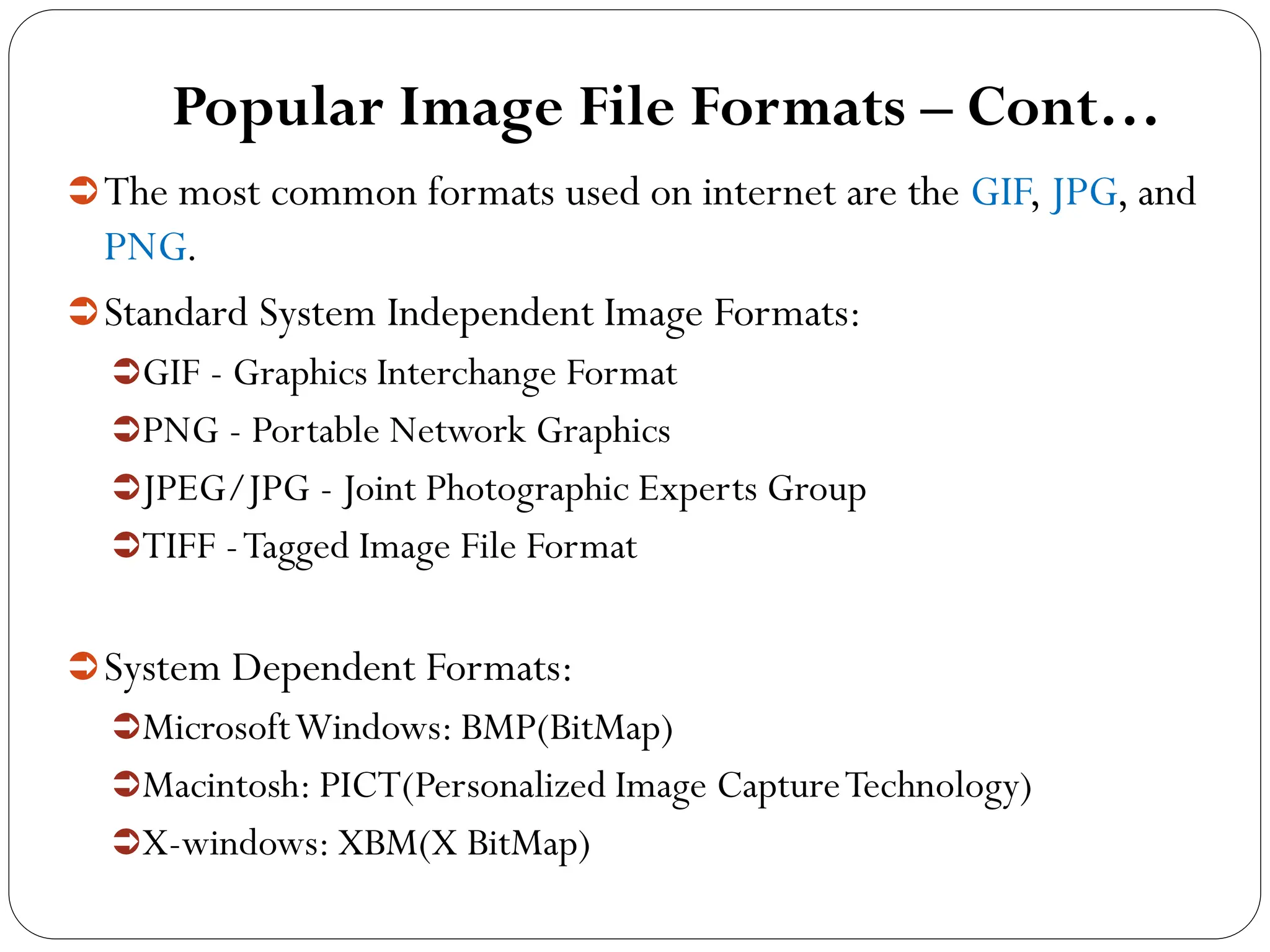
Popular Image File Formats – Cont…
The most common formats used on internet are the GIF, JPG, and
PNG.
Standard System Independent Image Formats:
GIF - Graphics Interchange Format
PNG - Portable Network Graphics
JPEG/JPG - Joint Photographic Experts Group
TIFF -Tagged Image File Format
System Dependent Formats:
MicrosoftWindows: BMP(BitMap)
Macintosh: PICT(Personalized Image CaptureTechnology)
X-windows: XBM(X BitMap)
Popular Image File Formats – Cont…
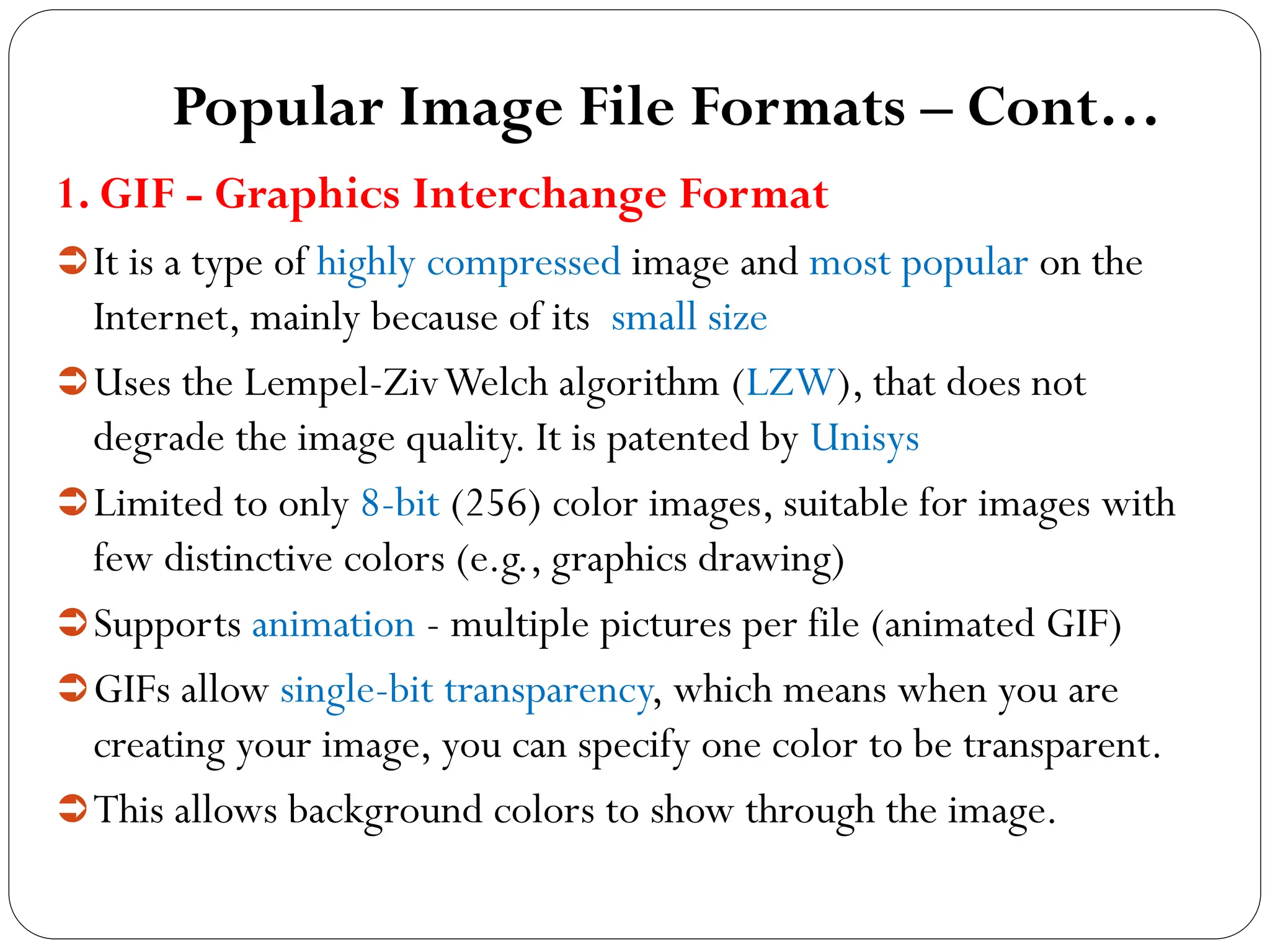
1. GIF - Graphics Interchange Format
It is a type of highly compressed image and most popular on the
Internet, mainly because of its small size
Uses the Lempel-ZivWelch algorithm (LZW), that does not
degrade the image quality. It is patented by Unisys
Limited to only 8-bit (256) color images, suitable for images with
few distinctive colors (e.g., graphics drawing)
Supports animation - multiple pictures per file (animated GIF)
GIFs allow single-bit transparency, which means when you are
creating your image, you can specify one color to be transparent.
This allows background colors to show through the image.
Popular Image File Formats – Cont…
2. PNG - Portable Network Graphics
It is intended as a replacement for GIF in theWWW and image
editing tools.
PNG uses unpatented zip technology(loss-less) for compression
Support for 8, 24 and 48 bits of color information.
Provides transparency using alpha value(0 is fully transparent, 255
is fully opaque)
Supports interlacing, join different parts together to make a whole,
especially by crossing one thing over another
PNG can be animated through the MNG extension of the format,
but browser support is less for this format.
Popular Image File Formats – Cont…
3. JPEG/JPG - Joint Photographic Experts Group
Created by the Joint Photographic Experts Group
Intended for encoding and compression of photographs and similar
images
It takes advantage of limitations in the human vision system to
achieve high rates of compression
It uses complex lossy compression which allows user to set the
desired level of quality(compression).
A compression setting of about 60% will result in the optimum
balance of quality and file size.
Though JPGs can be interlaced, they do not support animation and
transparency.
Popular Image File Formats – Cont…
4.TIFF -Tagged Image File Format
It stores many different types of images (e.g. monochrome, grayscale,
8-bit & 24-bit RGB, etc.)
It uses tags, keywords defining the characteristics of the image that is
included in the file.
For example, a picture 320 by 240 pixels would include a 'width' tag
followed by the number '320’ & a 'depth' tag followed by the number
'240'.
Developed by the Aldus Corp. in the 1980s and later supported by the
Microsoft
 TIFF It supports lossy as well as lossless compression schemes
Do not useTIFF for web images.They produce big files, and more
importantly, most web browsers will not displayTIFFs.
HomeWork
Write when to use and not to use each of
the file types we have discussed so far. Give
your reasons.
Color in Image
Color Science
Color science is a multidisciplinary field that involves the
study of how colors are perceived, represented, and
reproduced in various mediums such as digital displays, print,
and visual arts.
It combines aspects of physics, biology, psychology, and
technology to understand and manipulate colors accurately.
Color Perception
 HumanVision:
Color perception starts with the human eye, which contains
photoreceptor cells called cones.
These cones are sensitive to different wavelengths of light,
corresponding to different colors.
The three primary types of cones are sensitive to short
(blue), medium (green), and long (red) wavelengths.
Color Models in Image
A color model is an orderly system for creating a whole range of
colors from a small set of primary colors.
Colors are represented on a computer by mapping colors to
numbers.
There are two most widely used color models
1. RGB (Red-Green-Blue) orAdditive Model
2. CMYK (Cyan-Magenta-Yellow-blacK) or Subtractive Model
Color Models – Cont…
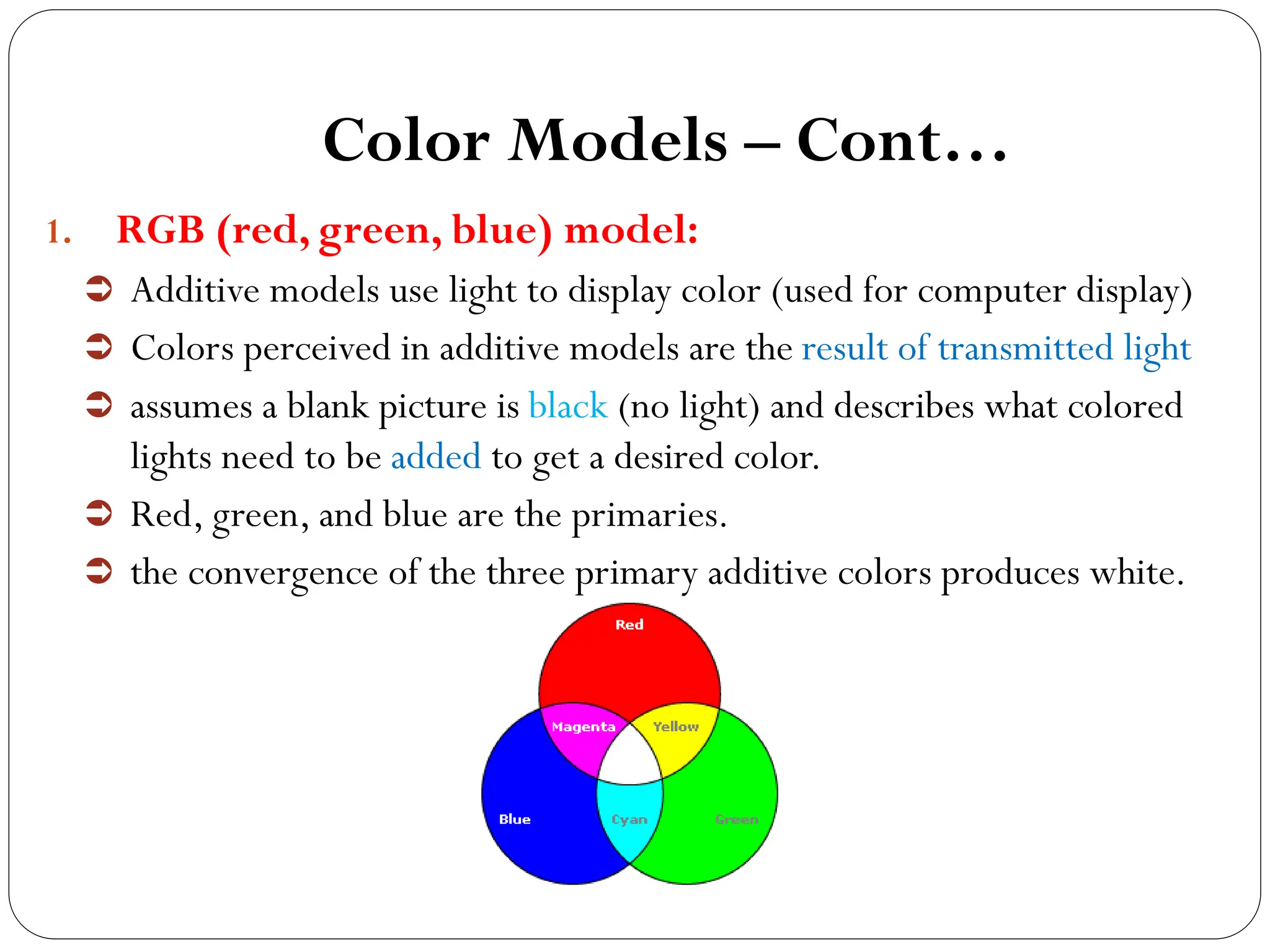
1. RGB (red, green, blue) model:
 Additive models use light to display color (used for computer display)
 Colors perceived in additive models are the result of transmitted light
 assumes a blank picture is black (no light) and describes what colored
lights need to be added to get a desired color.
 Red, green, and blue are the primaries.
 the convergence of the three primary additive colors produces white.
Color Models – Cont…
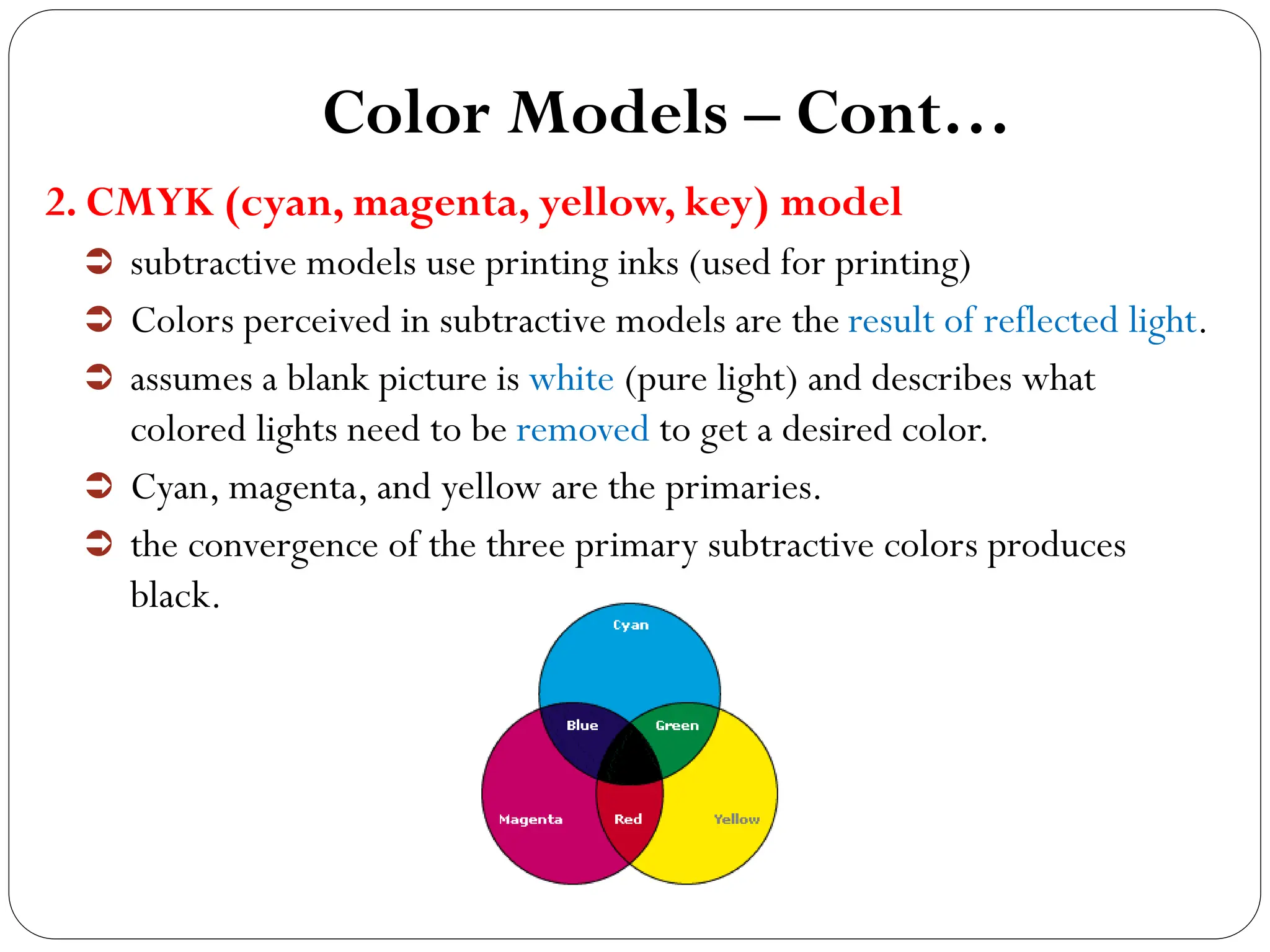
2. CMYK (cyan, magenta, yellow, key) model
 subtractive models use printing inks (used for printing)
 Colors perceived in subtractive models are the result of reflected light.
 assumes a blank picture is white (pure light) and describes what
colored lights need to be removed to get a desired color.
 Cyan, magenta, and yellow are the primaries.
 the convergence of the three primary subtractive colors produces
black.
Color Depth
Colors are virtually infinite in number since each color is a wave.
However, to the human eye, many colors are indistinguishable from
one another.
Color Depth refers to number of bits of data used to represent color.
also known as bit depth or pixel depth,
The color depth of an image is measured in bits.
The greater the color depth (bits per pixel), the more colors are
available.
Using too few causes a loss of information.
Using too many leads to a very large image size.
Text in Multimedia
An image without any text would become complex for whom who
is not an artist.
All multimedia content consists of texts in some form
Text is used to communicate information to the user
Text in Multimedia
Words and symbols in any form, spoken or written, are the most
common system of communication.
They deliver the most widely understood meaning to the greatest
number of people.
Most academic related text such as journals, e-magazines are
available in theWeb Browser readable form.
About Fonts and Faces
A typeface is family of graphic characters that usually includes many
type sizes and styles.
A font is a collection of characters of a single size and style belongs
to a single type face family.
Typical font styles are bold face and italic.
The size of a text is usually measured in points. One point is
approximately 1/72 of an inch i.e. 0.0138.
Typefaces of fonts can be described in many ways, but the most
common characterization of a typeface are:
Serif fonts
Sans serif fonts
About Fonts and Faces
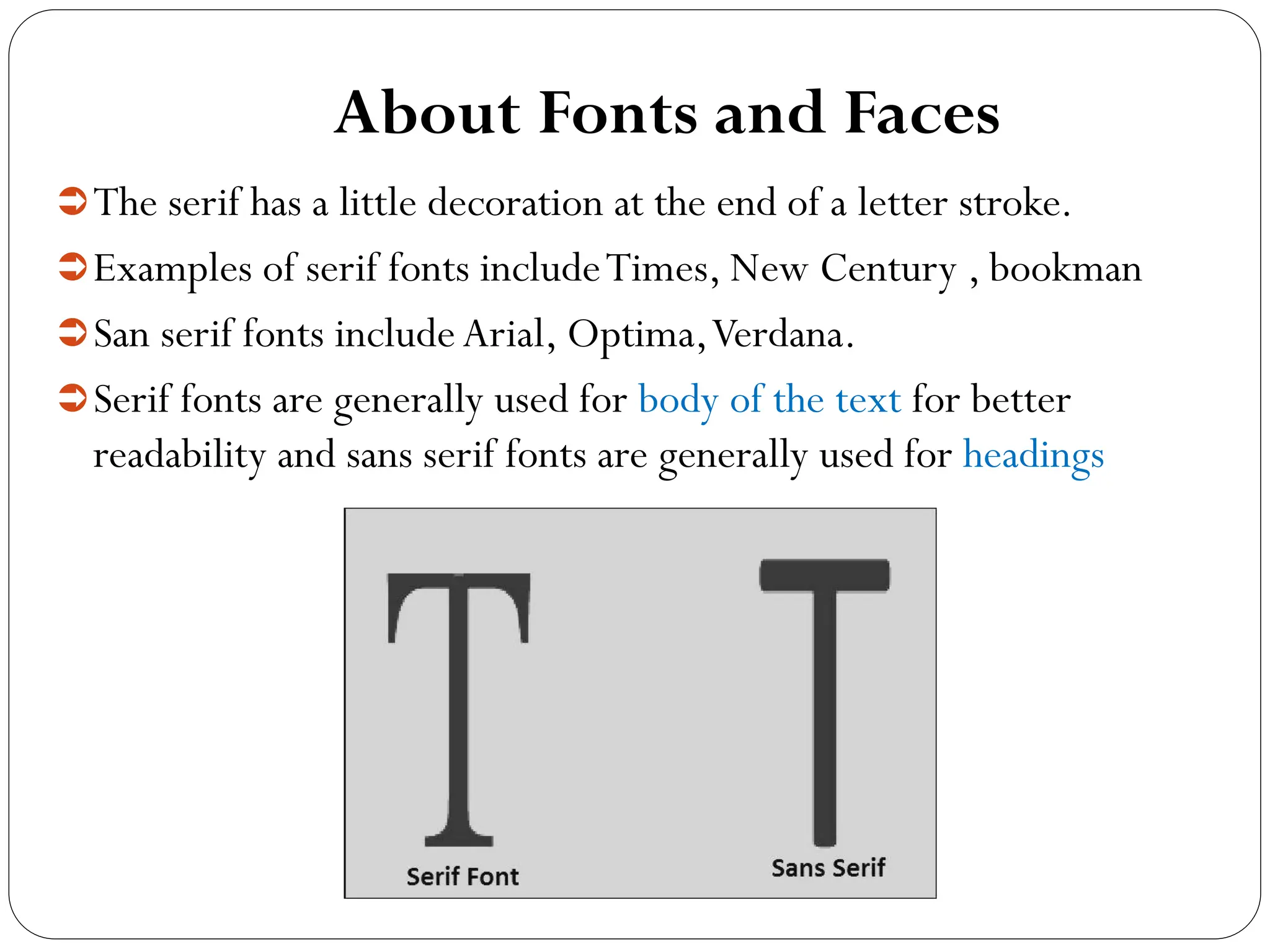
The serif has a little decoration at the end of a letter stroke.
Examples of serif fonts includeTimes, New Century , bookman
San serif fonts includeArial, Optima,Verdana.
Serif fonts are generally used for body of the text for better
readability and sans serif fonts are generally used for headings
SelectingText fonts
Optimizing typography is optimizing readability, accessibility,
usability.
Guidelines which help to choose a font in a multimedia:
Branding – it should embody the character and spirit of your brand.
Legibility – it should be clear and legible, rather than so unreadable.
Serif vs Sans - selecting a typeface for text whether serif or sans?
Font Family - Some fonts are members of ‘superfamilies’ - they come
along with a selection of different styles and weights
Limit the total number of fonts - Avoid using more than 2–3 fonts
in your design
Font Editing and Design tools
There are several software that can be used to create customized
font
Fontographer : is a font editor forWindows and macOS.
It is used to create digital fonts.
It was originally developed byAltsys but is now owned by FontLab Ltd
Fontmonger - is a font conversion utility created by the ARES
Software Corporation
It can convert fonts between many different formats, move characters
between fonts, and edit characters.
FontLab – it has been the dominant software tool for commercial/
retail digital font development
Audio
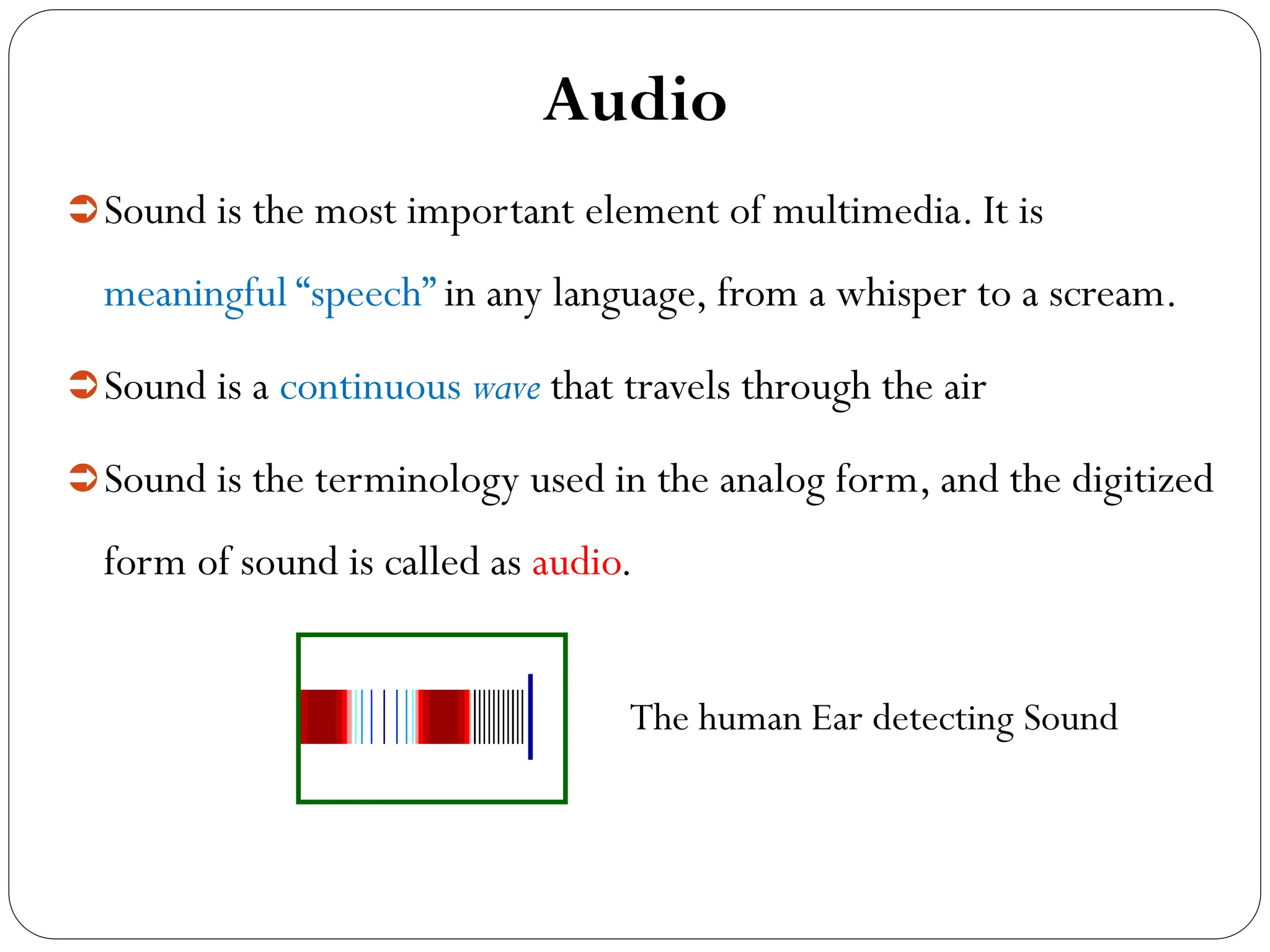
Sound is the most important element of multimedia. It is
meaningful “speech” in any language, from a whisper to a scream.
Sound is a continuous wave that travels through the air
Sound is the terminology used in the analog form, and the digitized
form of sound is called as audio.
The human Ear detecting Sound
42
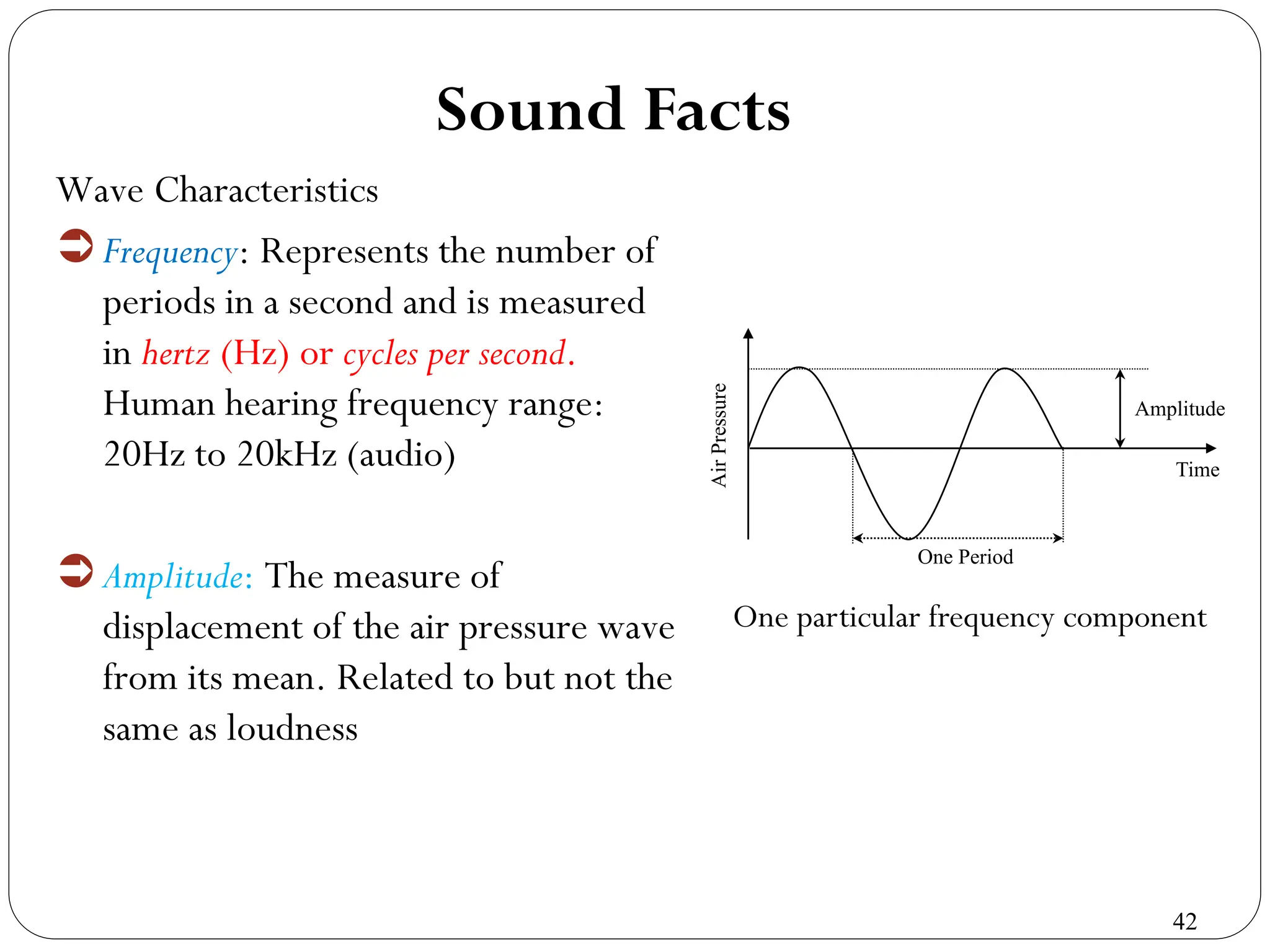
Sound Facts
Wave Characteristics
Frequency: Represents the number of
periods in a second and is measured
in hertz (Hz) or cycles per second.
Human hearing frequency range:
20Hz to 20kHz (audio)
Amplitude: The measure of
displacement of the air pressure wave
from its mean. Related to but not the
same as loudness
Time
Amplitude
One Period
Air
Pressure
One particular frequency component
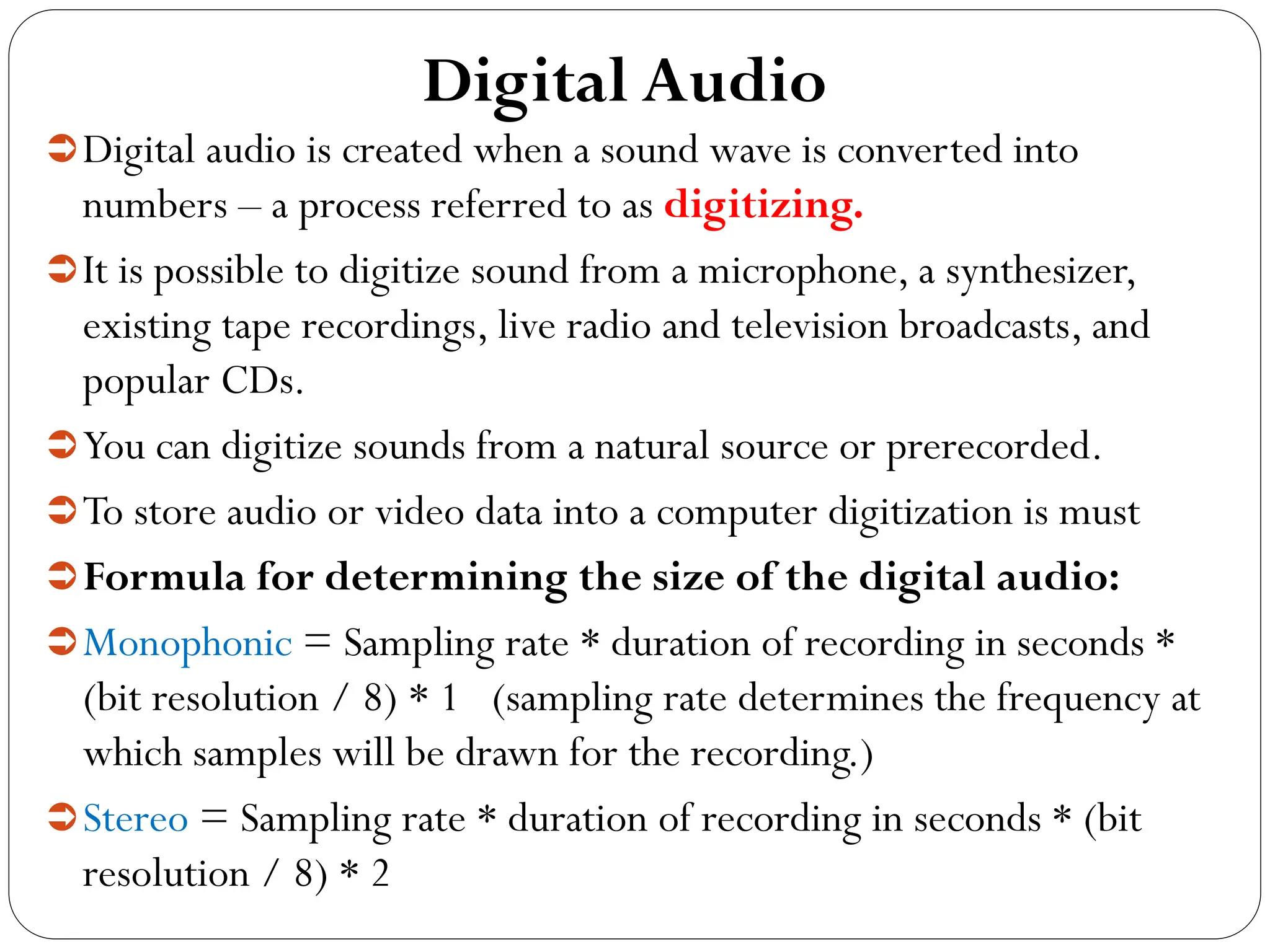
Digital Audio
Digital audio is created when a sound wave is converted into
numbers – a process referred to as digitizing.
It is possible to digitize sound from a microphone, a synthesizer,
existing tape recordings, live radio and television broadcasts, and
popular CDs.
You can digitize sounds from a natural source or prerecorded.
To store audio or video data into a computer digitization is must
Formula for determining the size of the digital audio:
Monophonic = Sampling rate * duration of recording in seconds *
(bit resolution / 8) * 1 (sampling rate determines the frequency at
which samples will be drawn for the recording.)
Stereo = Sampling rate * duration of recording in seconds * (bit
resolution / 8) * 2
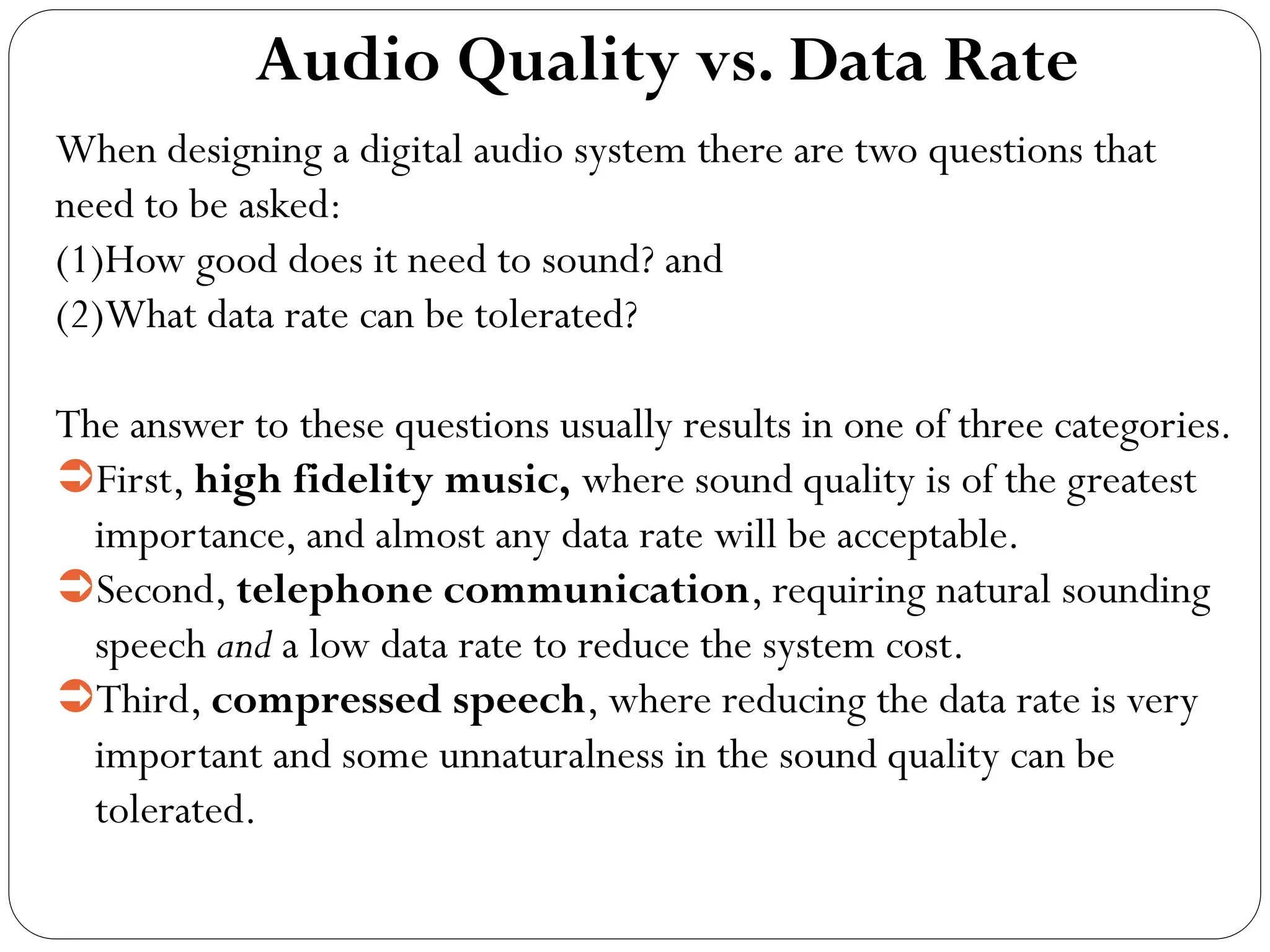
Audio Quality vs. Data Rate
When designing a digital audio system there are two questions that
need to be asked:
(1)How good does it need to sound? and
(2)What data rate can be tolerated?
The answer to these questions usually results in one of three categories.
First, high fidelity music, where sound quality is of the greatest
importance, and almost any data rate will be acceptable.
Second, telephone communication, requiring natural sounding
speech and a low data rate to reduce the system cost.
Third, compressed speech, where reducing the data rate is very
important and some unnaturalness in the sound quality can be
tolerated.
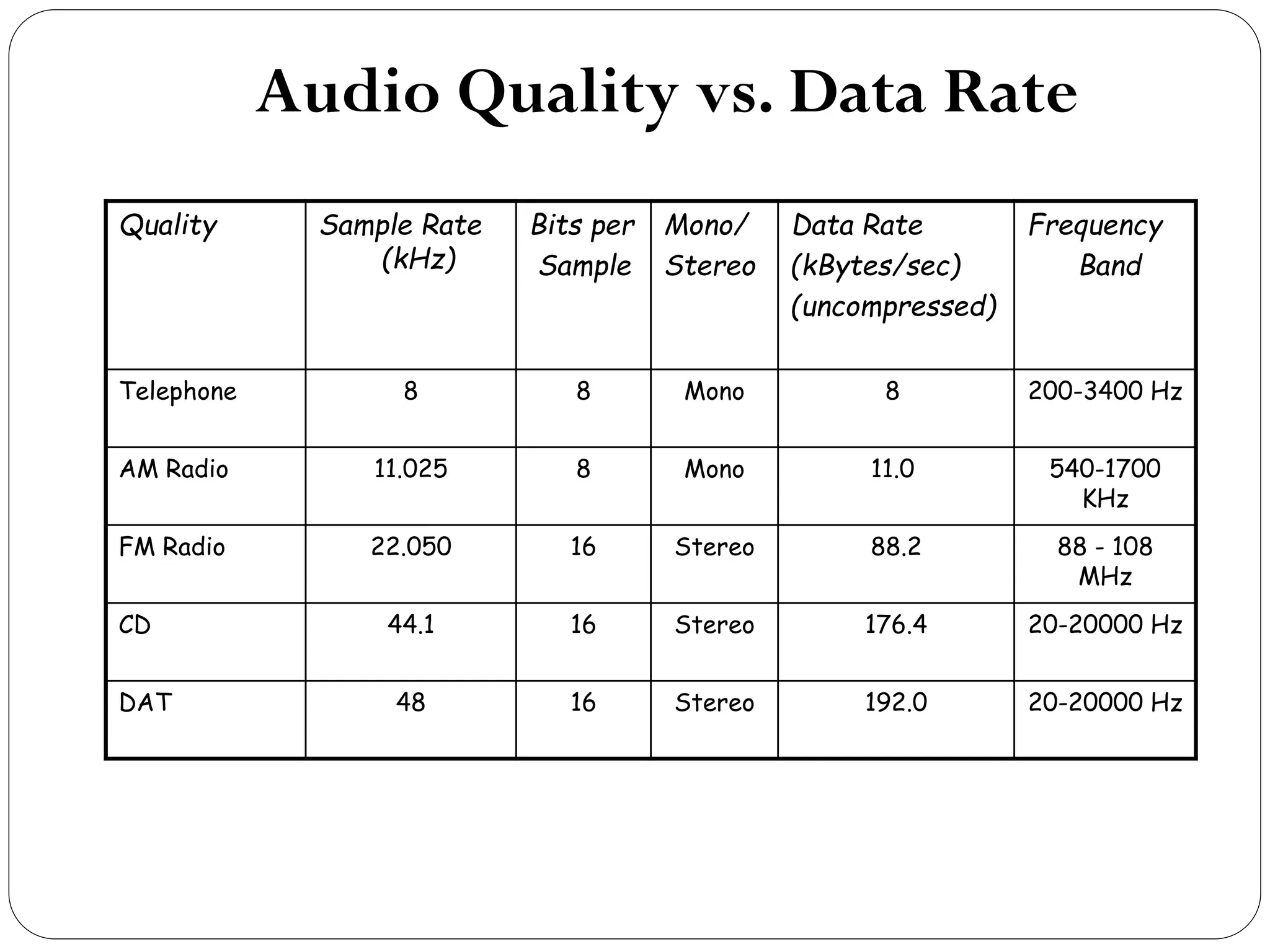
Audio Quality vs. Data Rate
Quality Sample Rate
(kHz)
Bits per
Sample
Mono/
Stereo
Data Rate
(kBytes/sec)
(uncompressed)
Frequency
Band
Telephone 8 8 Mono 8 200-3400 Hz
AM Radio 11.025 8 Mono 11.0 540-1700
KHz
FM Radio 22.050 16 Stereo 88.2 88 - 108
MHz
CD 44.1 16 Stereo 176.4 20-20000 Hz
DAT 48 16 Stereo 192.0 20-20000 Hz
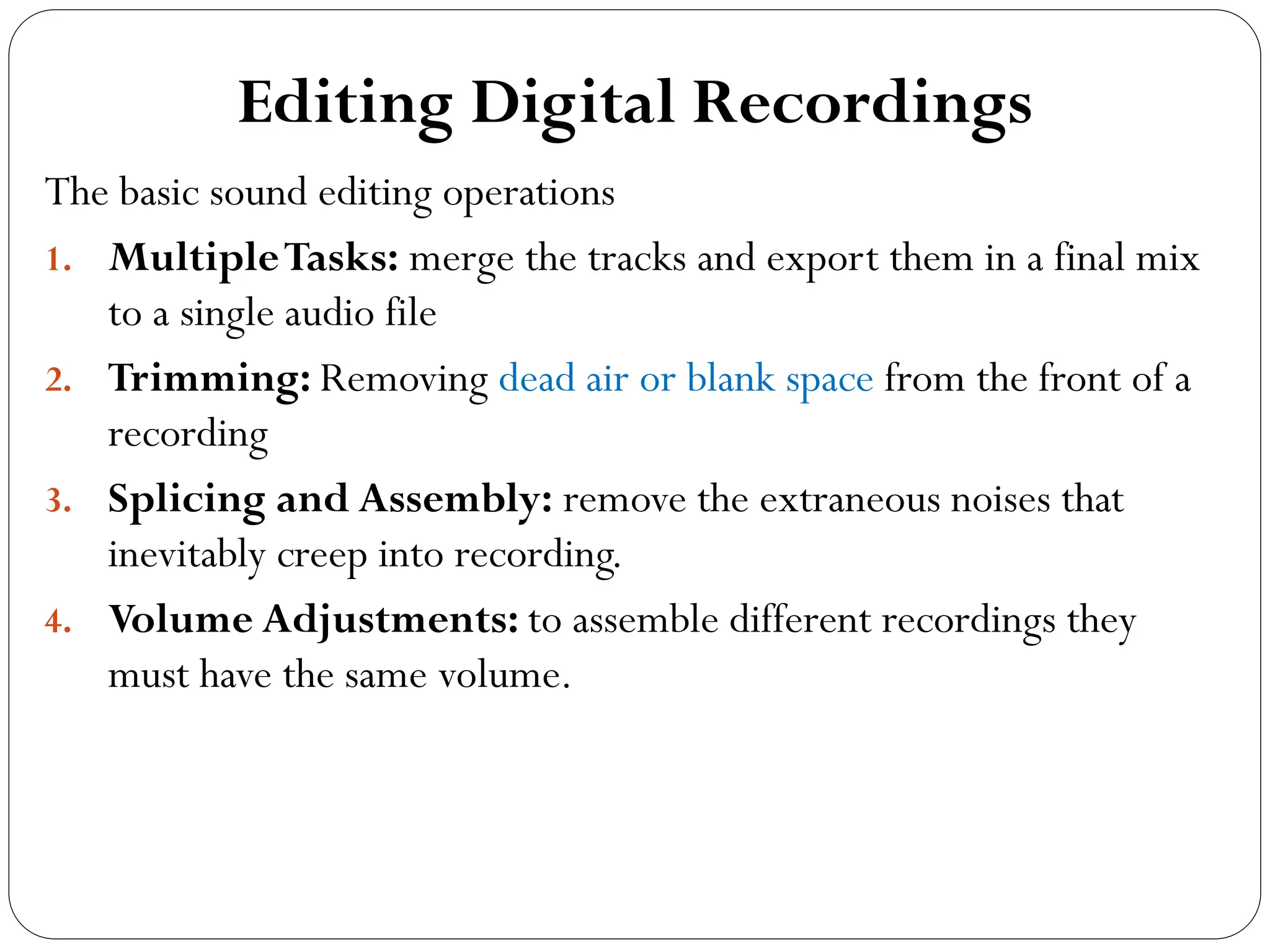
Editing Digital Recordings
The basic sound editing operations
1. MultipleTasks: merge the tracks and export them in a final mix
to a single audio file
2. Trimming: Removing dead air or blank space from the front of a
recording
3. Splicing and Assembly: remove the extraneous noises that
inevitably creep into recording.
4. Volume Adjustments: to assemble different recordings they
must have the same volume.
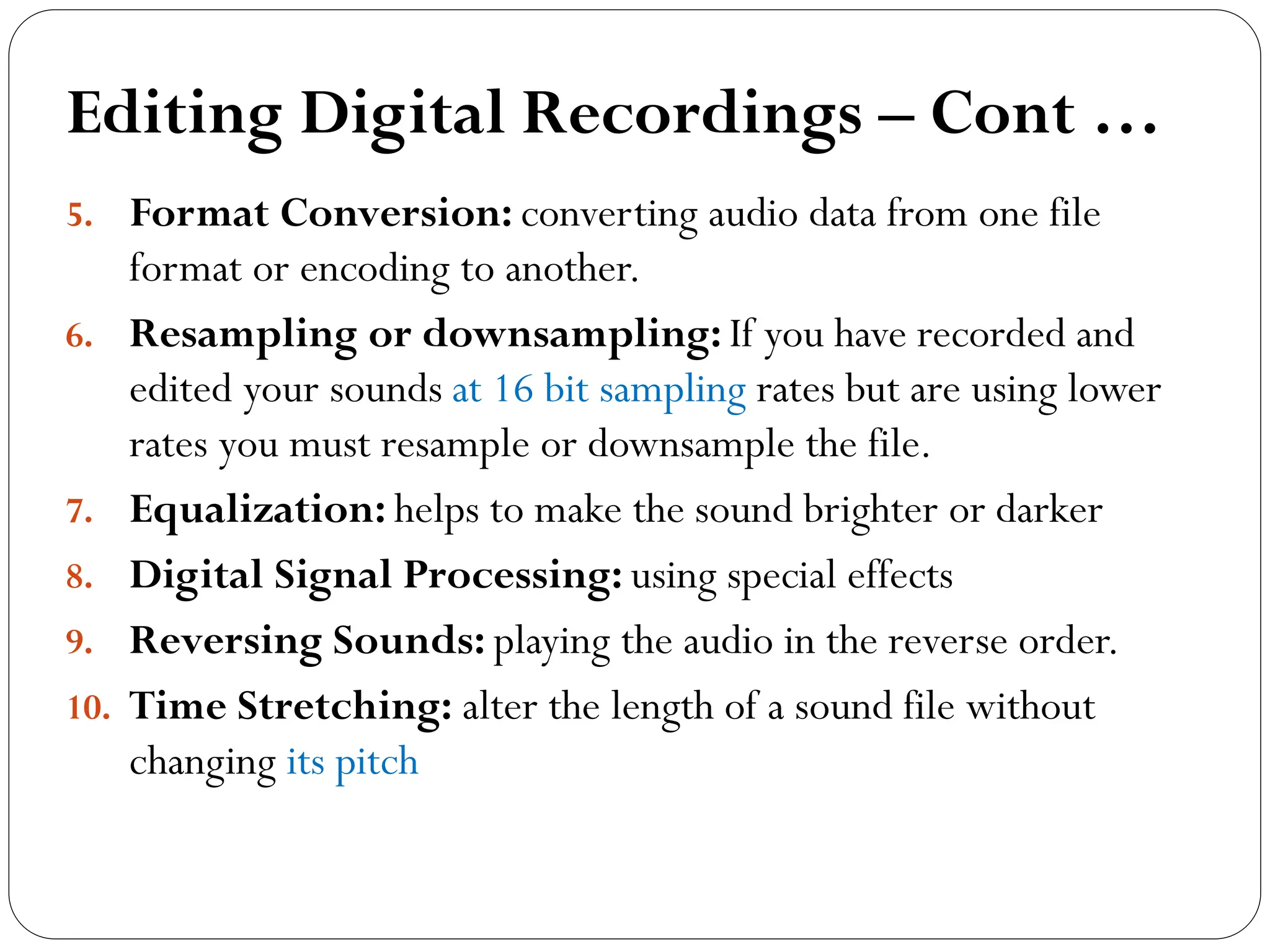
Editing Digital Recordings – Cont …
5. Format Conversion: converting audio data from one file
format or encoding to another.
6. Resampling or downsampling: If you have recorded and
edited your sounds at 16 bit sampling rates but are using lower
rates you must resample or downsample the file.
7. Equalization: helps to make the sound brighter or darker
8. Digital Signal Processing: using special effects
9. Reversing Sounds: playing the audio in the reverse order.
10. Time Stretching: alter the length of a sound file without
changing its pitch
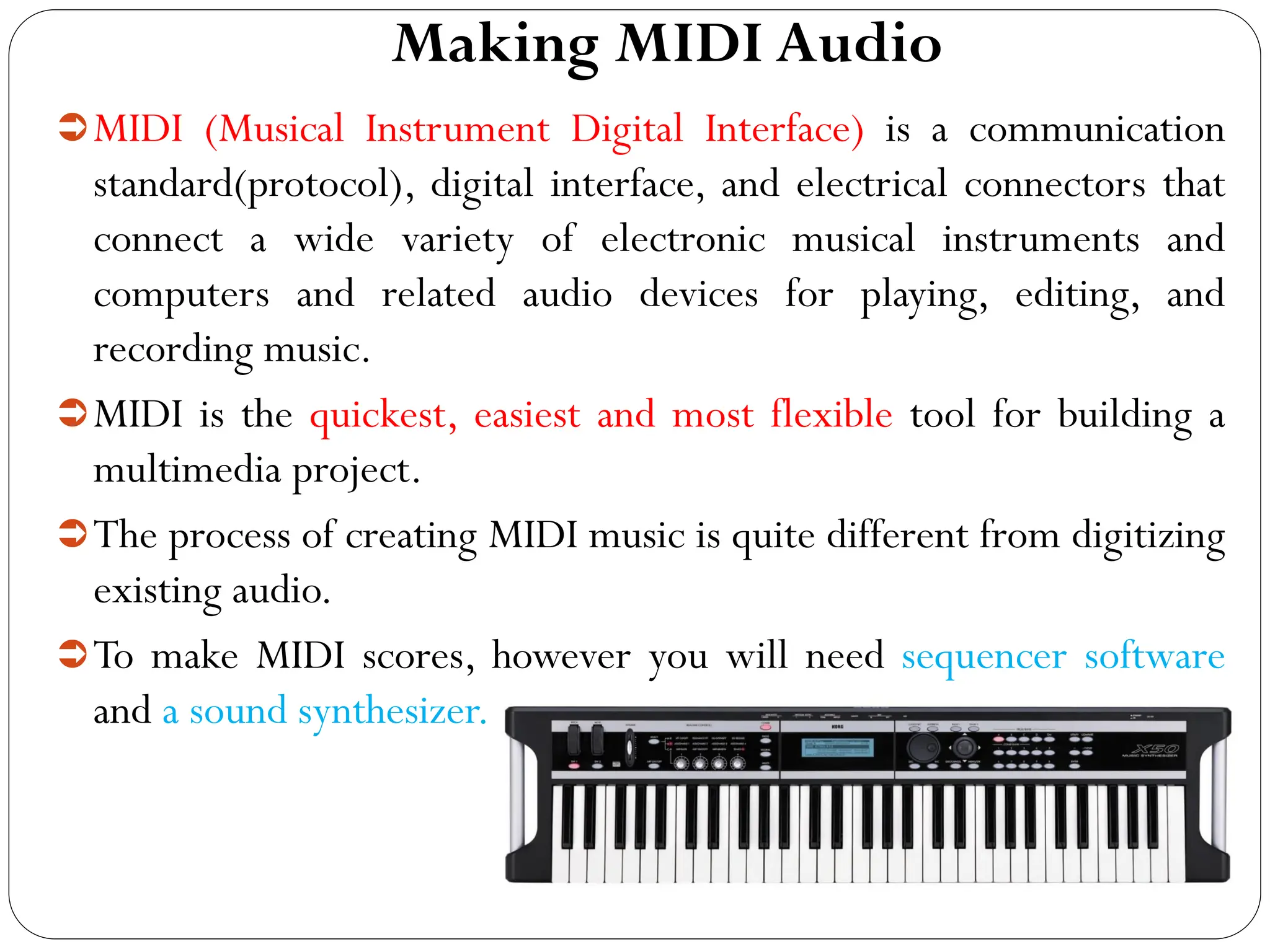
Making MIDI Audio
MIDI (Musical Instrument Digital Interface) is a communication
standard(protocol), digital interface, and electrical connectors that
connect a wide variety of electronic musical instruments and
computers and related audio devices for playing, editing, and
recording music.
MIDI is the quickest, easiest and most flexible tool for building a
multimedia project.
The process of creating MIDI music is quite different from digitizing
existing audio.
To make MIDI scores, however you will need sequencer software
and a sound synthesizer.
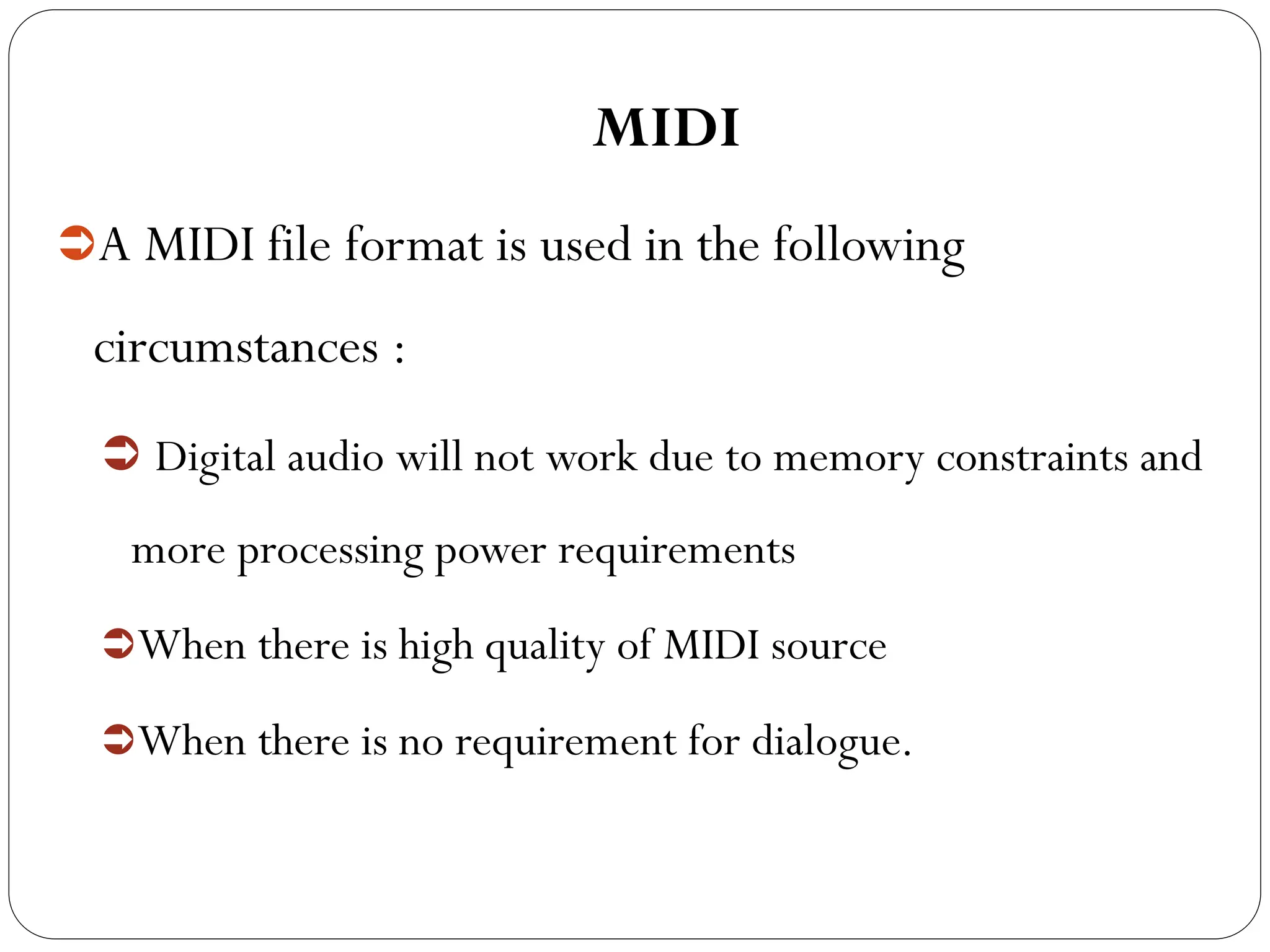
MIDI
A MIDI file format is used in the following
circumstances :
 Digital audio will not work due to memory constraints and
more processing power requirements
When there is high quality of MIDI source
When there is no requirement for dialogue.
A digital audio file format is preferred in the following
circumstances
When there is no control over the playback hardware
When the computing resources and the bandwidth
requirements are high.
When dialogue is required.
MIDI
MIDI: Data Format
Information traveling through the hardware is encoded in MIDI data
format.
The encoding includes note information like beginning of note,
frequency and sound volume; upto 128 notes
The MIDI data format is digital
The data are grouped into MIDI messages
Each MIDI message communicates one musical event between
machines.An event might be pressing keys, moving slider controls,
setting switches and adjusting foot pedals.
10 mins of music encoded in MIDI data format is about 200 Kbytes of
data. (compare against CD-audio!)
Popular Audio Formats:
1. MP3 (MPEG Audio Layer III):
 Widely used for compressed audio files.
 Advantages: High compression with good audio quality,
widely supported.
 Disadvantages: Lossy compression, some loss of audio quality.
2. WAV (Waveform Audio File Format):
 A standard for uncompressed audio files.
 Advantages: Lossless, high audio quality.
 Disadvantages: Large file sizes.
Popular Audio Formats:
3. AAC (Advanced Audio Coding):
 Popular format, known for better sound quality
than MP3 at similar bit rates.
 Advantages: Good audio quality, efficient
compression.
 Disadvantages: Lossy compression.
Software used for Audio
Sound recorder from Microsoft
Apple’s QuickTime Player pro
Sonic Foundry’s SoundForge forWindows
Soundedit16
 Audacity

Chapter 3 (1).pdf Computer Mantainance and Tecknical support Chapter 3 Latest S24 .pdf

  • 1.
    Compiled by :NafyadT. Oct, 2024 Chapter Three Data Representations
  • 2.
    Graphic/Image Data Representation Animage could be described as two-dimensional array of points where every point is allocated its own color. Every such single point is called pixel, short form of picture element. Image is a collection of these points that are colored in such a way that they produce meaningful information/data. Pixel (picture element) contains the color or hue and relative brightness of that point in the image. The number of pixels in the image determines the resolution (quality) of the image. Higher resolution always yields better quality.
  • 3.
    Types of Images Thereare two basic formats of computer graphics: bit-maps and vector graphics. The kind you use determines the tools you choose. Bitmap formats are the ones used for digital photographs. Vector formats are used only for line drawings.
  • 4.
    Types of Images– Cont… 1. Bit-map images (also called Raster Graphics) They are formed from pixels, a matrix of dots with different colors. Bitmap images are defined by their dimension in pixels as well as by the number of colors they represent. For example, a 640X480 image contains 640 pixels in horizontal and 480 pixels in vertical direction. If you enlarge a small area of a bit-mapped image, you can clearly see the pixels that are used to create it Each of the small pixels can be a shade of gray or a color.
  • 5.
    Types of Images– Bit-map – Cont… All digital photographs and paintings are bitmapped, and any other kind of image can be saved or exported into a bitmap format. In fact, when you print any kind of image on a laser or ink-jet printer, it is first converted by either the computer or printer into a bitmap form so it can be printed with the dots the printer uses. Bitmap images are widely used but suffer from a few unavoidable problems such as: They must be printed or displayed at a size determined by the number of pixels in the image. Bitmap images also have large file sizes that are determined by the image’s dimensions in pixels and its color depth. To reduce this problem, some graphic formats such as GIF and JPEG are used to store images in compressed format.
  • 6.
    Types of Images– Cont… 2.Vector Graphics They are just a list of graphical objects such as lines, rectangles, ellipses, arcs, or curves - called primitives. Draw programs, also called vector graphics programs, are used to create and edit these vector graphics. These programs store the primitives as a set of numerical coordinates and mathematical formulas that specify their shape and position in the image. This format is widely used by computer-aided design programs to create detailed engineering and design drawings. It is also used in multimedia when 3D animation is desired.
  • 7.
    Types of Images-Vector Graphics Draw programs have a number of advantages over paint-type programs. These include:  Precise control over lines and colors.  Ability to skew and rotate objects to see them from different angles  Ability to scale objects to any size to fit the available space.Vector graphics always print at the best resolution of the printer you use, no matter what size you make them.  Color blends and shadings can be easily changed.  Text can be wrapped around objects.
  • 8.
    Digital Images  Digitalimages are a collection of pixels arranged in rectangles.  Conceptually a pixel is a number that represents a color depending on the color model.  In imaging a pixel represents a single point in a raster image.
  • 9.
    Monochrome (1 bit) 1 bit of color per pixel (black and white)  Assuming a perfect algorithm an uncompressed picture’s size is 1 (bit of color) * length * width
  • 10.
    Monochrome/Bit-Map Images It isan image displaying a single color or different shades of a single color. Each pixel is stored as a single bit (0 or 1) The value of the bit indicates whether it is light or dark A 640 x 480 monochrome image requires 30.7 KB of storage. Dithering is often used for displaying monochrome images
  • 11.
    CGA (2 bitgrayscale)  2 bit of color per pixel (black, white, and 2 shades of gray)  Assuming a perfect algorithm an uncompressed picture’s size is 2 (bits of color) * length * width  The original Game Boy used 2 bits of color  Because of advances in technology today’s grayscale generally uses 8 bits allowing 256 shades of gray.
  • 12.
    Gray-scale Images It issimply one in which the only colors are shades of gray. Each pixel is usually stored as a byte (value between 0 to 255) This value indicates the degree of brightness of that point.This brightness goes from black to white A 640 x 480 grayscale image requires over 300 KB of storage (8 (bits of color) * length * width) bits.
  • 13.
    3 bit RGB 3 bit of color per pixel  1st 2nd and 3rd bit represents presence of red, green and blue respectively  000 – black 100 – red  001 – blue 101 – magenta  010 – green 110 – yellow  011 – cyan 111 – white  Assuming a perfect algorithm an uncompressed picture’s size is 3 (bits of color) * length * width
  • 14.
    6 bit RGB 6 bit of color per pixel (64 colors)  2 bits for red, 2 bits for green, 2 bits for blue  4 shades for each primary  Assuming a perfect algorithm an uncompressed picture’s size is 6 (bit of color) * length * width
  • 15.
    8-bit Color Images One byte for each pixel Supports 256 out of the millions possible, acceptable color quality Requires Color Look-UpTables (CLUTs)  The idea used in 8-bit color images is to store only the index, or code value, for each pixel. Then, e.g., if a pixel stores the value 25, the meaning is to go to row 25 in a color look-up table (LUT). A 640 x 480 8-bit color image requires 307.2 KB of storage (the same as 8-bit greyscale) Examples: GIF
  • 16.
    9 bit RGB 9 bit of color per pixel (512 colors)  3 bits for red, 3 bits for green, 3 bits for blue  8 shades for each primary  Assuming a perfect algorithm an uncompressed picture’s size is 9 (bits of color) * length * width  Many older computers use 8-bit (256 colors)  This is basically 9 bit color with 1 less bit for the blue channel, because blue is less sensitive to the human eye.
  • 17.
    Highcolor (15 bitRGB)  15 bit of color per pixel (32,768 colors)  5 bits for red, 5 bits for green, 5 bits for blue  32 shades for each primary  Assuming a perfect algorithm an uncompressed picture’s size is 15 (bits of color) * length * width  Many computers use 16-bit (65,536 colors)  This is basically 15 bit color with 1 more bit for the green channel, because green is more sensitive to the human eye.
  • 18.
    Truecolor (24 bitRGB)  24 bit of color per pixel (16,777,216 colors)  8 bits for red, 8 bits for green, 8 bits for blue  256 shades for each primary  Assuming a perfect algorithm an uncompressed picture’s size is 24 (bits of color) * length * width
  • 19.
    24-bit Color Images Eachpixel is represented by three bytes (e.g., RGB) Supports 256 x 256 x 256 possible combined colors (16,777,216) A 640 x 480 24-bit color image would require 921.6 KB of storage Most 24-bit images are 32-bit images, the extra byte of data for each pixel is used to store an alpha value representing special effect information.
  • 20.
    32 bit RGB Widely used today.  24 bit of color per pixel + 8 bits for extra data like transparency and texture.  Assuming a perfect algorithm an uncompressed picture’s size is 32 (bits of color) * length * width
  • 21.
    Image Resolution Image resolutionrefers to the spacing of pixels in an image and is measured in pixels per inch(ppi), sometimes called dots per inch (dpi). The more pixels in the image, the higher the resolution. A printed image that has a low resolution may look pix-elated or made up of small squares, with jagged edges & without smoothness Image size refers to the physical dimensions of an image. Increasing the size of an image increases its resolution and Decreasing its size decreases its resolution, because the number of pixels in an image is fixed
  • 22.
    Popular Image FileFormats Choosing the right file type for your image to save in is of vital importance. E.g. creating image for web pages should load fast. So such images should be small size. The other criteria to choose file type is taking into consideration the quality of the image that is possible using the chosen file type. You should also be concerned about the portability of the image. To choose file type: resulting size of the image large file size or small quality of image possible by the file type portability of file across different platforms
  • 23.
    Popular Image FileFormats – Cont… The most common formats used on internet are the GIF, JPG, and PNG. Standard System Independent Image Formats: GIF - Graphics Interchange Format PNG - Portable Network Graphics JPEG/JPG - Joint Photographic Experts Group TIFF -Tagged Image File Format System Dependent Formats: MicrosoftWindows: BMP(BitMap) Macintosh: PICT(Personalized Image CaptureTechnology) X-windows: XBM(X BitMap)
  • 24.
    Popular Image FileFormats – Cont… 1. GIF - Graphics Interchange Format It is a type of highly compressed image and most popular on the Internet, mainly because of its small size Uses the Lempel-ZivWelch algorithm (LZW), that does not degrade the image quality. It is patented by Unisys Limited to only 8-bit (256) color images, suitable for images with few distinctive colors (e.g., graphics drawing) Supports animation - multiple pictures per file (animated GIF) GIFs allow single-bit transparency, which means when you are creating your image, you can specify one color to be transparent. This allows background colors to show through the image.
  • 25.
    Popular Image FileFormats – Cont… 2. PNG - Portable Network Graphics It is intended as a replacement for GIF in theWWW and image editing tools. PNG uses unpatented zip technology(loss-less) for compression Support for 8, 24 and 48 bits of color information. Provides transparency using alpha value(0 is fully transparent, 255 is fully opaque) Supports interlacing, join different parts together to make a whole, especially by crossing one thing over another PNG can be animated through the MNG extension of the format, but browser support is less for this format.
  • 26.
    Popular Image FileFormats – Cont… 3. JPEG/JPG - Joint Photographic Experts Group Created by the Joint Photographic Experts Group Intended for encoding and compression of photographs and similar images It takes advantage of limitations in the human vision system to achieve high rates of compression It uses complex lossy compression which allows user to set the desired level of quality(compression). A compression setting of about 60% will result in the optimum balance of quality and file size. Though JPGs can be interlaced, they do not support animation and transparency.
  • 27.
    Popular Image FileFormats – Cont… 4.TIFF -Tagged Image File Format It stores many different types of images (e.g. monochrome, grayscale, 8-bit & 24-bit RGB, etc.) It uses tags, keywords defining the characteristics of the image that is included in the file. For example, a picture 320 by 240 pixels would include a 'width' tag followed by the number '320’ & a 'depth' tag followed by the number '240'. Developed by the Aldus Corp. in the 1980s and later supported by the Microsoft  TIFF It supports lossy as well as lossless compression schemes Do not useTIFF for web images.They produce big files, and more importantly, most web browsers will not displayTIFFs.
  • 28.
    HomeWork Write when touse and not to use each of the file types we have discussed so far. Give your reasons.
  • 29.
  • 30.
    Color Science Color scienceis a multidisciplinary field that involves the study of how colors are perceived, represented, and reproduced in various mediums such as digital displays, print, and visual arts. It combines aspects of physics, biology, psychology, and technology to understand and manipulate colors accurately.
  • 31.
    Color Perception  HumanVision: Colorperception starts with the human eye, which contains photoreceptor cells called cones. These cones are sensitive to different wavelengths of light, corresponding to different colors. The three primary types of cones are sensitive to short (blue), medium (green), and long (red) wavelengths.
  • 32.
    Color Models inImage A color model is an orderly system for creating a whole range of colors from a small set of primary colors. Colors are represented on a computer by mapping colors to numbers. There are two most widely used color models 1. RGB (Red-Green-Blue) orAdditive Model 2. CMYK (Cyan-Magenta-Yellow-blacK) or Subtractive Model
  • 33.
    Color Models –Cont… 1. RGB (red, green, blue) model:  Additive models use light to display color (used for computer display)  Colors perceived in additive models are the result of transmitted light  assumes a blank picture is black (no light) and describes what colored lights need to be added to get a desired color.  Red, green, and blue are the primaries.  the convergence of the three primary additive colors produces white.
  • 34.
    Color Models –Cont… 2. CMYK (cyan, magenta, yellow, key) model  subtractive models use printing inks (used for printing)  Colors perceived in subtractive models are the result of reflected light.  assumes a blank picture is white (pure light) and describes what colored lights need to be removed to get a desired color.  Cyan, magenta, and yellow are the primaries.  the convergence of the three primary subtractive colors produces black.
  • 35.
    Color Depth Colors arevirtually infinite in number since each color is a wave. However, to the human eye, many colors are indistinguishable from one another. Color Depth refers to number of bits of data used to represent color. also known as bit depth or pixel depth, The color depth of an image is measured in bits. The greater the color depth (bits per pixel), the more colors are available. Using too few causes a loss of information. Using too many leads to a very large image size.
  • 36.
    Text in Multimedia Animage without any text would become complex for whom who is not an artist. All multimedia content consists of texts in some form Text is used to communicate information to the user Text in Multimedia Words and symbols in any form, spoken or written, are the most common system of communication. They deliver the most widely understood meaning to the greatest number of people. Most academic related text such as journals, e-magazines are available in theWeb Browser readable form.
  • 37.
    About Fonts andFaces A typeface is family of graphic characters that usually includes many type sizes and styles. A font is a collection of characters of a single size and style belongs to a single type face family. Typical font styles are bold face and italic. The size of a text is usually measured in points. One point is approximately 1/72 of an inch i.e. 0.0138. Typefaces of fonts can be described in many ways, but the most common characterization of a typeface are: Serif fonts Sans serif fonts
  • 38.
    About Fonts andFaces The serif has a little decoration at the end of a letter stroke. Examples of serif fonts includeTimes, New Century , bookman San serif fonts includeArial, Optima,Verdana. Serif fonts are generally used for body of the text for better readability and sans serif fonts are generally used for headings
  • 39.
    SelectingText fonts Optimizing typographyis optimizing readability, accessibility, usability. Guidelines which help to choose a font in a multimedia: Branding – it should embody the character and spirit of your brand. Legibility – it should be clear and legible, rather than so unreadable. Serif vs Sans - selecting a typeface for text whether serif or sans? Font Family - Some fonts are members of ‘superfamilies’ - they come along with a selection of different styles and weights Limit the total number of fonts - Avoid using more than 2–3 fonts in your design
  • 40.
    Font Editing andDesign tools There are several software that can be used to create customized font Fontographer : is a font editor forWindows and macOS. It is used to create digital fonts. It was originally developed byAltsys but is now owned by FontLab Ltd Fontmonger - is a font conversion utility created by the ARES Software Corporation It can convert fonts between many different formats, move characters between fonts, and edit characters. FontLab – it has been the dominant software tool for commercial/ retail digital font development
  • 41.
    Audio Sound is themost important element of multimedia. It is meaningful “speech” in any language, from a whisper to a scream. Sound is a continuous wave that travels through the air Sound is the terminology used in the analog form, and the digitized form of sound is called as audio. The human Ear detecting Sound
  • 42.
    42 Sound Facts Wave Characteristics Frequency:Represents the number of periods in a second and is measured in hertz (Hz) or cycles per second. Human hearing frequency range: 20Hz to 20kHz (audio) Amplitude: The measure of displacement of the air pressure wave from its mean. Related to but not the same as loudness Time Amplitude One Period Air Pressure One particular frequency component
  • 43.
    Digital Audio Digital audiois created when a sound wave is converted into numbers – a process referred to as digitizing. It is possible to digitize sound from a microphone, a synthesizer, existing tape recordings, live radio and television broadcasts, and popular CDs. You can digitize sounds from a natural source or prerecorded. To store audio or video data into a computer digitization is must Formula for determining the size of the digital audio: Monophonic = Sampling rate * duration of recording in seconds * (bit resolution / 8) * 1 (sampling rate determines the frequency at which samples will be drawn for the recording.) Stereo = Sampling rate * duration of recording in seconds * (bit resolution / 8) * 2
  • 44.
    Audio Quality vs.Data Rate When designing a digital audio system there are two questions that need to be asked: (1)How good does it need to sound? and (2)What data rate can be tolerated? The answer to these questions usually results in one of three categories. First, high fidelity music, where sound quality is of the greatest importance, and almost any data rate will be acceptable. Second, telephone communication, requiring natural sounding speech and a low data rate to reduce the system cost. Third, compressed speech, where reducing the data rate is very important and some unnaturalness in the sound quality can be tolerated.
  • 45.
    Audio Quality vs.Data Rate Quality Sample Rate (kHz) Bits per Sample Mono/ Stereo Data Rate (kBytes/sec) (uncompressed) Frequency Band Telephone 8 8 Mono 8 200-3400 Hz AM Radio 11.025 8 Mono 11.0 540-1700 KHz FM Radio 22.050 16 Stereo 88.2 88 - 108 MHz CD 44.1 16 Stereo 176.4 20-20000 Hz DAT 48 16 Stereo 192.0 20-20000 Hz
  • 46.
    Editing Digital Recordings Thebasic sound editing operations 1. MultipleTasks: merge the tracks and export them in a final mix to a single audio file 2. Trimming: Removing dead air or blank space from the front of a recording 3. Splicing and Assembly: remove the extraneous noises that inevitably creep into recording. 4. Volume Adjustments: to assemble different recordings they must have the same volume.
  • 47.
    Editing Digital Recordings– Cont … 5. Format Conversion: converting audio data from one file format or encoding to another. 6. Resampling or downsampling: If you have recorded and edited your sounds at 16 bit sampling rates but are using lower rates you must resample or downsample the file. 7. Equalization: helps to make the sound brighter or darker 8. Digital Signal Processing: using special effects 9. Reversing Sounds: playing the audio in the reverse order. 10. Time Stretching: alter the length of a sound file without changing its pitch
  • 48.
    Making MIDI Audio MIDI(Musical Instrument Digital Interface) is a communication standard(protocol), digital interface, and electrical connectors that connect a wide variety of electronic musical instruments and computers and related audio devices for playing, editing, and recording music. MIDI is the quickest, easiest and most flexible tool for building a multimedia project. The process of creating MIDI music is quite different from digitizing existing audio. To make MIDI scores, however you will need sequencer software and a sound synthesizer.
  • 49.
    MIDI A MIDI fileformat is used in the following circumstances :  Digital audio will not work due to memory constraints and more processing power requirements When there is high quality of MIDI source When there is no requirement for dialogue.
  • 50.
    A digital audiofile format is preferred in the following circumstances When there is no control over the playback hardware When the computing resources and the bandwidth requirements are high. When dialogue is required. MIDI
  • 51.
    MIDI: Data Format Informationtraveling through the hardware is encoded in MIDI data format. The encoding includes note information like beginning of note, frequency and sound volume; upto 128 notes The MIDI data format is digital The data are grouped into MIDI messages Each MIDI message communicates one musical event between machines.An event might be pressing keys, moving slider controls, setting switches and adjusting foot pedals. 10 mins of music encoded in MIDI data format is about 200 Kbytes of data. (compare against CD-audio!)
  • 52.
    Popular Audio Formats: 1.MP3 (MPEG Audio Layer III):  Widely used for compressed audio files.  Advantages: High compression with good audio quality, widely supported.  Disadvantages: Lossy compression, some loss of audio quality. 2. WAV (Waveform Audio File Format):  A standard for uncompressed audio files.  Advantages: Lossless, high audio quality.  Disadvantages: Large file sizes.
  • 53.
    Popular Audio Formats: 3.AAC (Advanced Audio Coding):  Popular format, known for better sound quality than MP3 at similar bit rates.  Advantages: Good audio quality, efficient compression.  Disadvantages: Lossy compression.
  • 54.
    Software used forAudio Sound recorder from Microsoft Apple’s QuickTime Player pro Sonic Foundry’s SoundForge forWindows Soundedit16  Audacity