Zen Portfolios
Lunch & Presentation
Tuesday, August 13th, 2013
Agenda
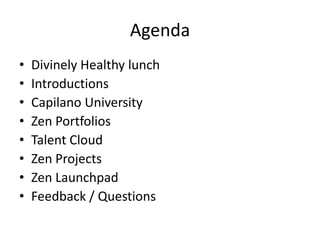
• Divinely Healthy lunch
• Introductions
• Capilano University
• Zen Portfolios
• Talent Cloud
• Zen Projects
• Zen Launchpad
• Feedback / Questions
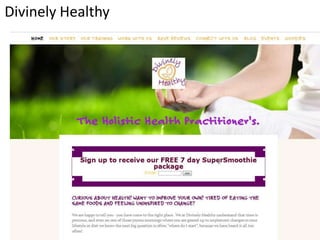
Divinely Healthy
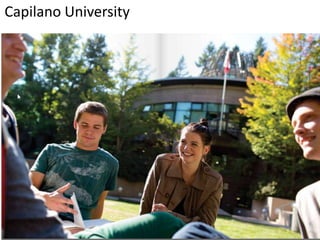
Capilano University
Creating Connections
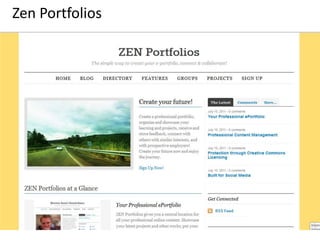
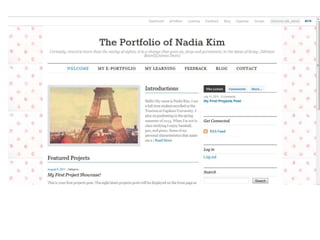
Zen Portfolios
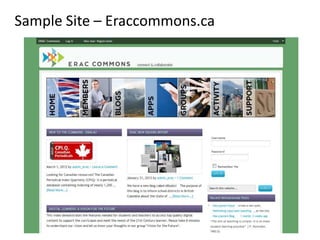
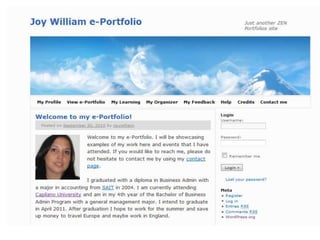
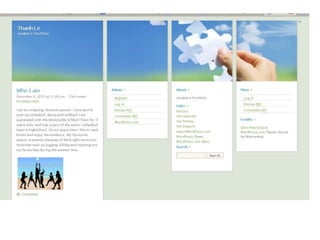
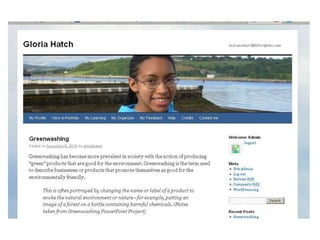
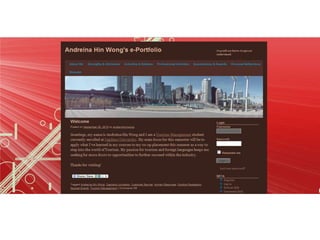
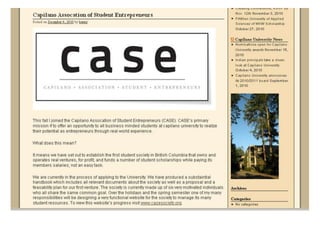
Sample Site – Eraccommons.ca
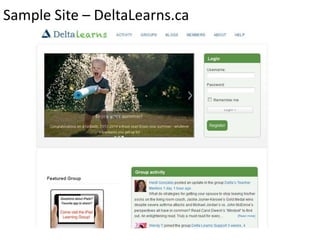
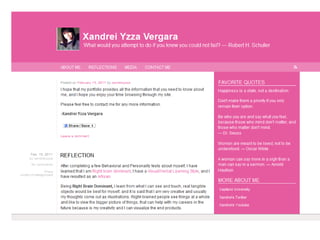
Sample Site – DeltaLearns.ca
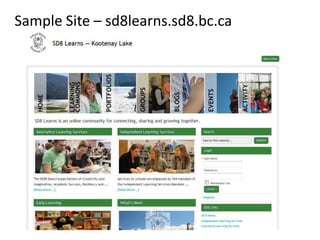
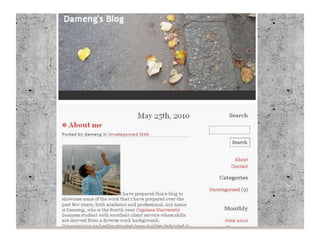
Sample Site – sd8learns.sd8.bc.ca
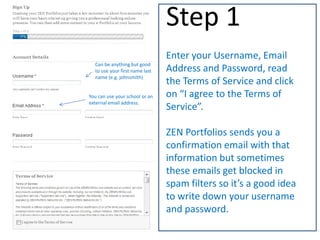
Enter your Username, Email
Address and Password, read
the Terms of Service and click
on “I agree to the Terms of
Service”.
ZEN Portfolios sends you a
confirmation email with that
information but sometimes
these emails get blocked in
spam filters so it’s a good idea
to write down your username
and password.
Step 1
Can be anything but good
to use your first name last
name (e.g. johnsmith)
You can use your school or an
external email address.
Username & Password
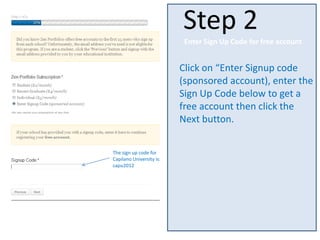
Click on “Enter Signup code
(sponsored account), enter the
Sign Up Code below to get a
free account then click the
Next button.
Step 2
The sign up code for
Capilano University is:
capu2012
Enter Sign Up Code for free account
Click on “Enter Signup code
(sponsored account), enter the
Sign Up Code below to get a
free account then click the
Next button.
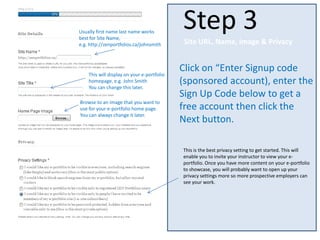
Step 3
Site URL, Name, Image & Privacy
Usually first name last name works
best for Site Name,
e.g. http://zenportfolios.ca/johnsmith
This will display on your e-portfolio
homepage, e.g. John Smith
You can change this later.
Browse to an image that you want to
use for your e-portfolio home page.
You can always change it later.
This is the best privacy setting to get started. This will
enable you to invite your instructor to view your e-
portfolio. Once you have more content on your e-portfolio
to showcase, you will probably want to open up your
privacy settings more so more prospective employers can
see your work.
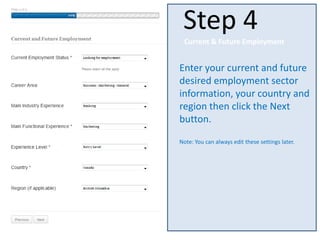
Enter your current and future
desired employment sector
information, your country and
region then click the Next
button.
Note: You can always edit these settings later.
Step 4
Current & Future Employment
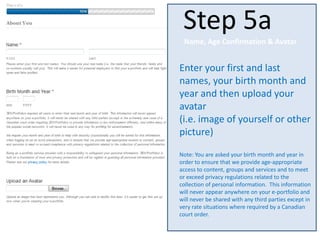
Enter your first and last
names, your birth month and
year and then upload your
avatar
(i.e. image of yourself or other
picture)
Note: You are asked your birth month and year in
order to ensure that we provide age-appropriate
access to content, groups and services and to meet
or exceed privacy regulations related to the
collection of personal information. This information
will never appear anywhere on your e-portfolio and
will never be shared with any third parties except in
very rate situations where required by a Canadian
court order.
Step 5a
Name, Age Confirmation & Avatar
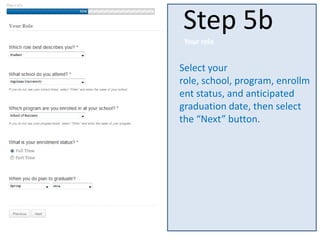
Select your
role, school, program, enrollm
ent status, and anticipated
graduation date, then select
the “Next” button.
Step 5b
Your role
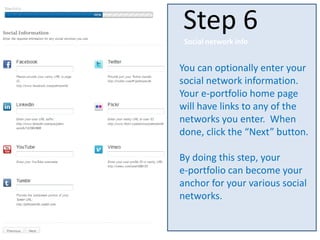
You can optionally enter your
social network information.
Your e-portfolio home page
will have links to any of the
networks you enter. When
done, click the “Next” button.
By doing this step, your
e-portfolio can become your
anchor for your various social
networks.
Step 6
Social network info
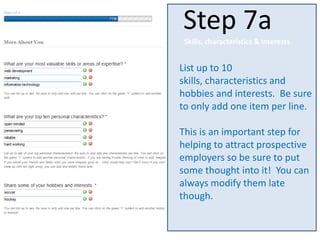
List up to 10
skills, characteristics and
hobbies and interests. Be sure
to only add one item per line.
This is an important step for
helping to attract prospective
employers so be sure to put
some thought into it! You can
always modify them late
though.
Step 7a
Skills, characteristics & interests
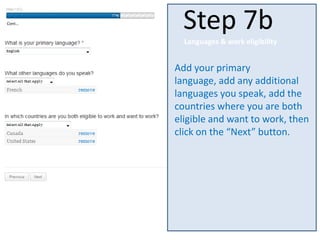
Add your primary
language, add any additional
languages you speak, add the
countries where you are both
eligible and want to work, then
click on the “Next” button.
Step 7b
Languages & work eligibility
Cont…
An automated Welcome Post
is created for your e-portfolio,
based on the information you
entered.
It’s a good idea to modify it at
least slightly so that your
Welcome Post is unique. You
also want to make sure it reads
smoothly.
You can always edit this later
as well.
Step 8
Welcome Post
You can just ignore the
[zpcontactlink] coding,
this is just used by the
system to link to your
contact form.
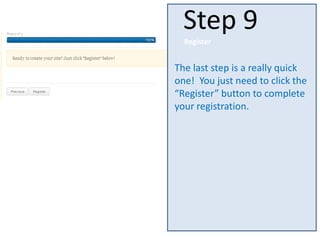
The last step is a really quick
one! You just need to click the
“Register” button to complete
your registration.
Step 9
Register
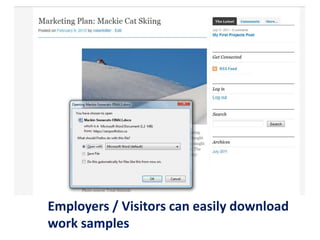
Employers / Visitors can easily download
work samples
A company’s ability to predict
candidate quality increases by
37-40% when there is a sample
of that person’s work.
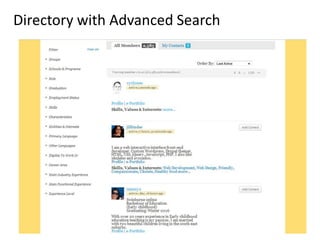
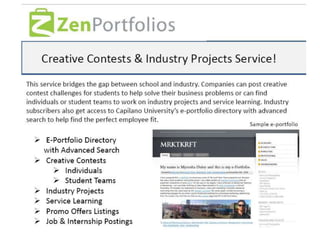
Directory with Advanced Search
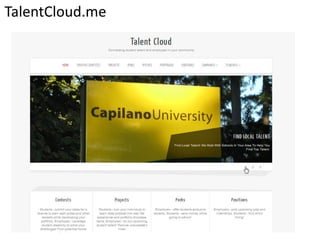
TalentCloud.me
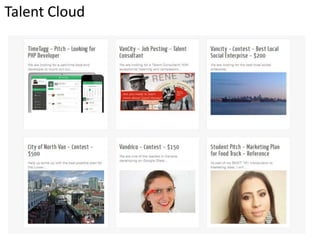
Talent Cloud
“Teaching used to be telling students about the
world. Now it’s about engaging students with
the world."
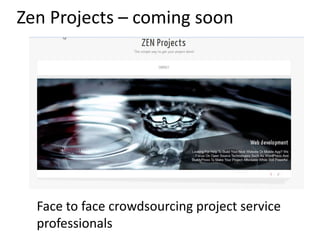
Zen Projects – coming soon
Face to face crowdsourcing project service
professionals
Zen Launchpad
Co-work| Incubate | Accelerate | Learn
Feedback / Questions?
Thanks!
cyrijones@zenportfolios.ca
Cell: 604-783-8601
@cyrijones
Be sure to sign up for our Zen Launchpad email
newsletter and also the Creating Connections
newsletter

Zen portfolios Sept 5th 2013 presentation revised

  • 1.
    Zen Portfolios Lunch &Presentation Tuesday, August 13th, 2013
  • 2.
    Agenda • Divinely Healthylunch • Introductions • Capilano University • Zen Portfolios • Talent Cloud • Zen Projects • Zen Launchpad • Feedback / Questions
  • 3.
  • 4.
  • 6.
  • 7.
  • 8.
    Sample Site –Eraccommons.ca
  • 9.
    Sample Site –DeltaLearns.ca
  • 10.
    Sample Site –sd8learns.sd8.bc.ca
  • 13.
    Enter your Username,Email Address and Password, read the Terms of Service and click on “I agree to the Terms of Service”. ZEN Portfolios sends you a confirmation email with that information but sometimes these emails get blocked in spam filters so it’s a good idea to write down your username and password. Step 1 Can be anything but good to use your first name last name (e.g. johnsmith) You can use your school or an external email address. Username & Password
  • 14.
    Click on “EnterSignup code (sponsored account), enter the Sign Up Code below to get a free account then click the Next button. Step 2 The sign up code for Capilano University is: capu2012 Enter Sign Up Code for free account
  • 15.
    Click on “EnterSignup code (sponsored account), enter the Sign Up Code below to get a free account then click the Next button. Step 3 Site URL, Name, Image & Privacy Usually first name last name works best for Site Name, e.g. http://zenportfolios.ca/johnsmith This will display on your e-portfolio homepage, e.g. John Smith You can change this later. Browse to an image that you want to use for your e-portfolio home page. You can always change it later. This is the best privacy setting to get started. This will enable you to invite your instructor to view your e- portfolio. Once you have more content on your e-portfolio to showcase, you will probably want to open up your privacy settings more so more prospective employers can see your work.
  • 16.
    Enter your currentand future desired employment sector information, your country and region then click the Next button. Note: You can always edit these settings later. Step 4 Current & Future Employment
  • 17.
    Enter your firstand last names, your birth month and year and then upload your avatar (i.e. image of yourself or other picture) Note: You are asked your birth month and year in order to ensure that we provide age-appropriate access to content, groups and services and to meet or exceed privacy regulations related to the collection of personal information. This information will never appear anywhere on your e-portfolio and will never be shared with any third parties except in very rate situations where required by a Canadian court order. Step 5a Name, Age Confirmation & Avatar
  • 18.
    Select your role, school,program, enrollm ent status, and anticipated graduation date, then select the “Next” button. Step 5b Your role
  • 19.
    You can optionallyenter your social network information. Your e-portfolio home page will have links to any of the networks you enter. When done, click the “Next” button. By doing this step, your e-portfolio can become your anchor for your various social networks. Step 6 Social network info
  • 20.
    List up to10 skills, characteristics and hobbies and interests. Be sure to only add one item per line. This is an important step for helping to attract prospective employers so be sure to put some thought into it! You can always modify them late though. Step 7a Skills, characteristics & interests
  • 21.
    Add your primary language,add any additional languages you speak, add the countries where you are both eligible and want to work, then click on the “Next” button. Step 7b Languages & work eligibility Cont…
  • 22.
    An automated WelcomePost is created for your e-portfolio, based on the information you entered. It’s a good idea to modify it at least slightly so that your Welcome Post is unique. You also want to make sure it reads smoothly. You can always edit this later as well. Step 8 Welcome Post You can just ignore the [zpcontactlink] coding, this is just used by the system to link to your contact form.
  • 23.
    The last stepis a really quick one! You just need to click the “Register” button to complete your registration. Step 9 Register
  • 34.
    Employers / Visitorscan easily download work samples
  • 35.
    A company’s abilityto predict candidate quality increases by 37-40% when there is a sample of that person’s work.
  • 37.
  • 38.
  • 39.
  • 40.
    “Teaching used tobe telling students about the world. Now it’s about engaging students with the world."
  • 44.
    Zen Projects –coming soon Face to face crowdsourcing project service professionals
  • 45.
    Zen Launchpad Co-work| Incubate| Accelerate | Learn
  • 46.
  • 47.
    Thanks! cyrijones@zenportfolios.ca Cell: 604-783-8601 @cyrijones Be sureto sign up for our Zen Launchpad email newsletter and also the Creating Connections newsletter

Editor's Notes

  • #31 Gloria Hatch,BMKT 161-81