Mohammad Imam Hossain, Lecturer, Dept. of CSE, UIU. Email: imambuet11@gmail.com
Bootstrap (v4.5)
Bootstrap is a free and open-source CSS framework directed at responsive, mobile-first front-end web development. It
contains CSS- and (optionally) JavaScript-based design templates for typography, forms, buttons, navigation, and other
interface components.
In Bootstrap, we Optimize code for mobile devices first and then scale up components as necessary using CSS media
queries.
Integration >>
1. Downloading from https://getbootstrap.com/docs/4.5/getting-started/download/ and using the necessary
scripts.
2. Using CDN,
<!DOCTYPE html>
<html lang="en">
<head>
<!-- Required meta tags -->
<meta charset="utf-8">
<meta name="viewport"
content="width=device-width, initial-scale=1, shrink-to-fit=no">
<!-- Bootstrap CSS -->
<link rel="stylesheet"
href="https://stackpath.bootstrapcdn.com/bootstrap/4.5.0/css/bootstrap.min.css"
integrity="sha384-9aIt2nRpC12Uk9gS9baDl411NQApFmC26EwAOH8WgZl5MYYxFfc+NcPb1dKGj7Sk"
crossorigin="anonymous">
<title>Bootstrap CDN</title>
</head>
<body>
<h1>Hello, world!</h1>
<!-- jQuery first, then Popper.js, then Bootstrap JS -->
<script src="https://code.jquery.com/jquery-3.5.1.slim.min.js"
integrity="sha384-DfXdz2htPH0lsSSs5nCTpuj/zy4C+OGpamoFVy38MVBnE+IbbVYUew+OrCXaRkfj"
crossorigin="anonymous"></script>
<script src="https://cdn.jsdelivr.net/npm/popper.js@1.16.0/dist/umd/popper.min.js"
integrity="sha384-Q6E9RHvbIyZFJoft+2mJbHaEWldlvI9IOYy5n3zV9zzTtmI3UksdQRVvoxMfooAo"
crossorigin="anonymous"></script>
<script src="https://stackpath.bootstrapcdn.com/bootstrap/4.5.0/js/bootstrap.min.js"
integrity="sha384-OgVRvuATP1z7JjHLkuOU7Xw704+h835Lr+6QL9UvYjZE3Ipu6Tp75j7Bh/kR0JKI"
crossorigin="anonymous"></script>
</body>
</html>
Bootstrap requires the use of
the HTML5 doctype.
To ensure proper rendering and
touch zooming for all devices.
Add this stylesheet link into the <head>
section before all other stylesheets.
Many of the Bootstrap components
require the use of JS to function. So
place these scripts right before the
closing </body> tag.
jQuery must come first, then Popper.js
and then Bootstrap JS plugin.
Mohammad Imam Hossain, Lecturer, Dept. of CSE, UIU. Email: imambuet11@gmail.com
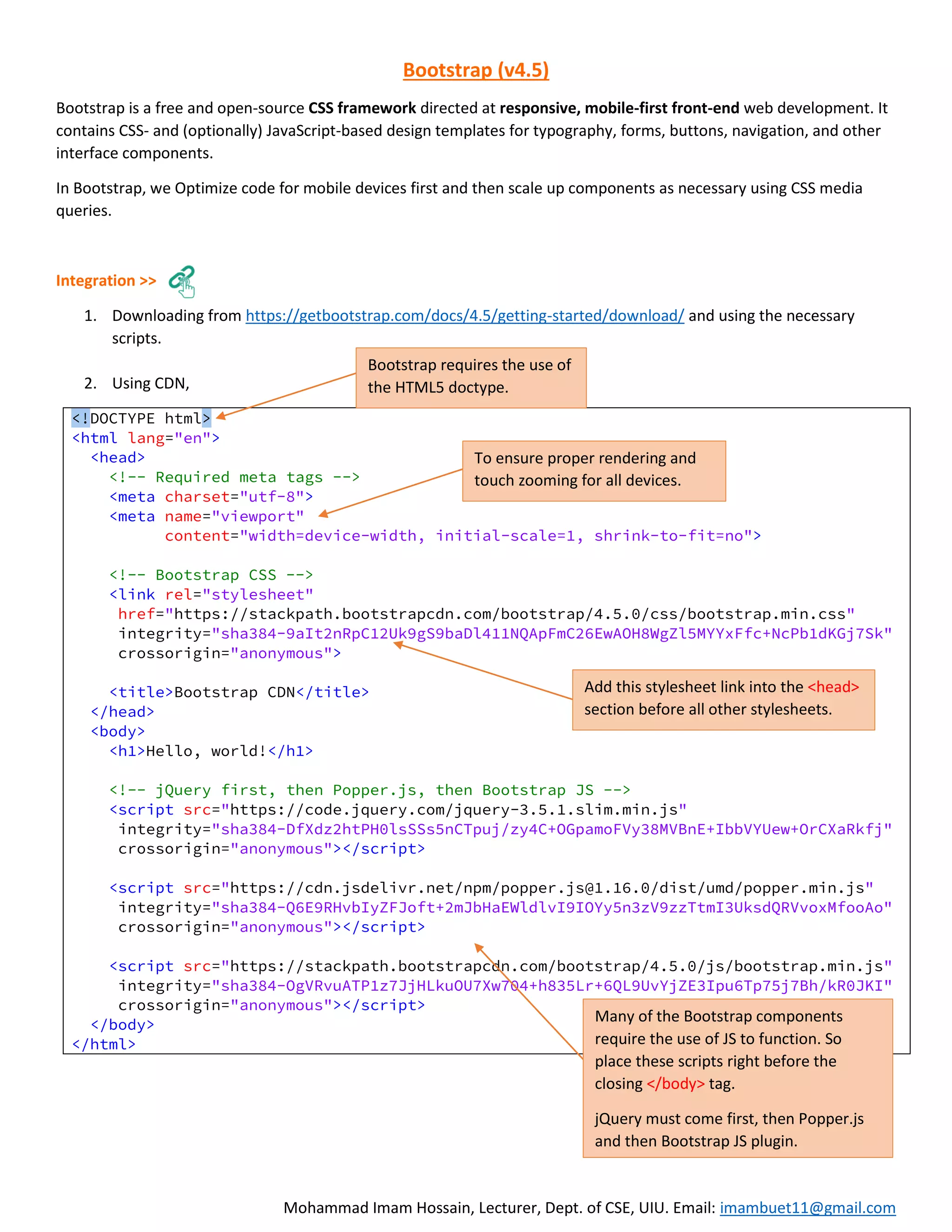
Grid Layout >>
1. Container:
Mohammad Imam Hossain, Lecturer, Dept. of CSE, UIU. Email: imambuet11@gmail.com
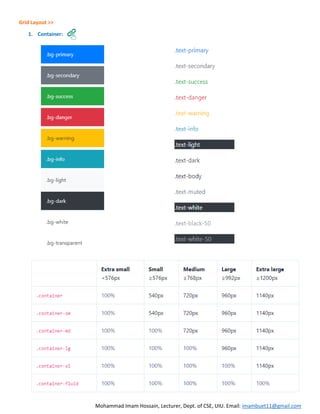
2. Grid System:
border border-top border-right border-bottom border-left
border-0 border-top-0 border-right-0 border-bottom-0
border-left-0
border-primary
border-secondary
border-success
border-danger
border-warning
border-info
border-light
border-dark
border-white
rounded
rounded-top
rounded-right
rounded-bottom
rounded-left
rounded-circle
rounded-pill
rounded-0
Mohammad Imam Hossain, Lecturer, Dept. of CSE, UIU. Email: imambuet11@gmail.com
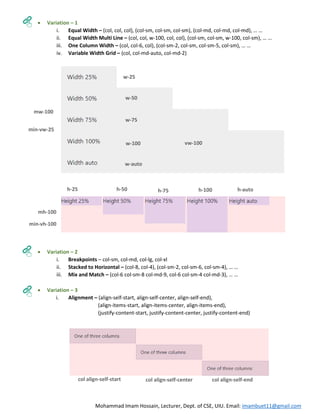
 Variation – 1
i. Equal Width – (col, col, col), (col-sm, col-sm, col-sm), (col-md, col-md, col-md), … …
ii. Equal Width Multi Line – (col, col, w-100, col, col), (col-sm, col-sm, w-100, col-sm), … …
iii. One Column Width – (col, col-6, col), (col-sm-2, col-sm, col-sm-5, col-sm), … …
iv. Variable Width Grid – (col, col-md-auto, col-md-2)
 Variation – 2
i. Breakpoints – col-sm, col-md, col-lg, col-xl
ii. Stacked to Horizontal – (col-8, col-4), (col-sm-2, col-sm-6, col-sm-4), … …
iii. Mix and Match – (col-6 col-sm-8 col-md-9, col-6 col-sm-4 col-md-3), … …
 Variation – 3
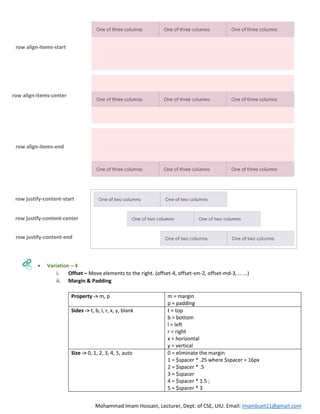
i. Alignment – (align-self-start, align-self-center, align-self-end),
(align-items-start, align-items-center, align-items-end),
(justify-content-start, justify-content-center, justify-content-end)
w-25
w-50
w-75
w-100
w-auto
h-25 h-50 h-75 h-100 h-auto
mw-100
mh-100
vw-100
vh-100
min-vw-25
min-vh-100
col align-self-start col align-self-center col align-self-end
Mohammad Imam Hossain, Lecturer, Dept. of CSE, UIU. Email: imambuet11@gmail.com
 Variation – 4
i. Offset – Move elements to the right. (offset-4, offset-sm-2, offset-md-3, … …)
ii. Margin & Padding
Property -> m, p m = margin
p = padding
Sides -> t, b, l, r, x, y, blank t = top
b = bottom
l = left
r = right
x = horizontal
y = vertical
Size -> 0, 1, 2, 3, 4, 5, auto 0 = eliminate the margin
1 = $spacer * .25 where $spacer = 16px
2 = $spacer * .5
3 = $spacer
4 = $spacer * 1.5 ;
5 = $spacer * 3
row align-items-start
row align-items-center
row align-items-end
row justify-content-start
row justify-content-center
row justify-content-end
Mohammad Imam Hossain, Lecturer, Dept. of CSE, UIU. Email: imambuet11@gmail.com
Syntax:
{property}{sides}-{size}
{property}{sides}-{breakpoint}-{size}
To center align an element, mx-auto
To shift rest of the elements to the right side, mr-auto
To set a right margin with sm breakpoint, mr-sm-2
To set a padding of level 3, p-3
To set a top padding of level 2, pt-2
iii. Nesting – (row within row)
 Variation - 5
i. Display
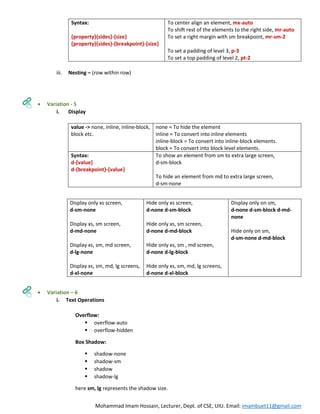
value -> none, inline, inline-block,
block etc.
none = To hide the element
inline = To convert into inline elements
inline-block = To convert into inline-block elements.
block = To convert into block level elements.
Syntax:
d-{value}
d-{breakpoint}-{value}
To show an element from sm to extra large screen,
d-sm-block
To hide an element from md to extra large screen,
d-sm-none
Display only xs screen,
d-sm-none
Display xs, sm screen,
d-md-none
Display xs, sm, md screen,
d-lg-none
Display xs, sm, md, lg screens,
d-xl-none
Hide only xs screen,
d-none d-sm-block
Hide only xs, sm screen,
d-none d-md-block
Hide only xs, sm , md screen,
d-none d-lg-block
Hide only xs, sm, md, lg screens,
d-none d-xl-block
Display only on sm,
d-none d-sm-block d-md-
none
Hide only on sm,
d-sm-none d-md-block
 Variation – 6
i. Text Operations
Overflow:
 overflow-auto
 overflow-hidden
Box Shadow:
 shadow-none
 shadow-sm
 shadow
 shadow-lg
here sm, lg represents the shadow size.
Mohammad Imam Hossain, Lecturer, Dept. of CSE, UIU. Email: imambuet11@gmail.com
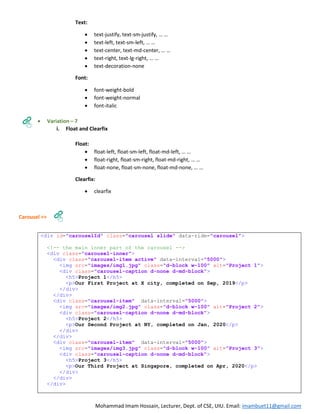
Text:
 text-justify, text-sm-justify, … …
 text-left, text-sm-left, … …
 text-center, text-md-center, … …
 text-right, text-lg-right, … …
 text-decoration-none
Font:
 font-weight-bold
 font-weight-normal
 font-italic
 Variation – 7
i. Float and Clearfix
Float:
 float-left, float-sm-left, float-md-left, … …
 float-right, float-sm-right, float-md-right, … …
 float-none, float-sm-none, float-md-none, … …
Clearfix:
 clearfix
Carousel >>
<div id="carouselId" class="carousel slide" data-ride="carousel">
<!-- the main inner part of the carousel -->
<div class="carousel-inner">
<div class="carousel-item active" data-interval="5000">
<img src="images/img1.jpg" class="d-block w-100" alt="Project 1">
<div class="carousel-caption d-none d-md-block">
<h5>Project 1</h5>
<p>Our First Project at X city, completed on Sep, 2019</p>
</div>
</div>
<div class="carousel-item" data-interval="5000">
<img src="images/img2.jpg" class="d-block w-100" alt="Project 2">
<div class="carousel-caption d-none d-md-block">
<h5>Project 2</h5>
<p>Our Second Project at NY, completed on Jan, 2020</p>
</div>
</div>
<div class="carousel-item" data-interval="5000">
<img src="images/img3.jpg" class="d-block w-100" alt="Project 3">
<div class="carousel-caption d-none d-md-block">
<h5>Project 3</h5>
<p>Our Third Project at Singapore, completed on Apr, 2020</p>
</div>
</div>
</div>
Mohammad Imam Hossain, Lecturer, Dept. of CSE, UIU. Email: imambuet11@gmail.com
<!-- adding indicators for each slide -->
<ol class="carousel-indicators">
<li data-target="#carouselId" data-slide-to="0" class="active"></li>
<li data-target="#carouselId" data-slide-to="1"></li>
<li data-target="#carouselId" data-slide-to="2"></li>
</ol>
<!-- adding left-right move buttons -->
<a class="carousel-control-prev" href="#carouselId" role="button" data-
slide="prev">
<span class="carousel-control-prev-icon" aria-hidden="true"></span>
<span class="sr-only">Previous</span>
</a>
<a class="carousel-control-next" href="#carouselId" role="button" data-
slide="next">
<span class="carousel-control-next-icon" aria-hidden="true"></span>
<span class="sr-only">Next</span>
</a>
</div>
For More: https://getbootstrap.com/docs/4.5/components/carousel/
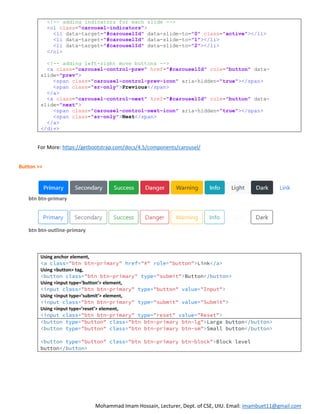
Button >>
Using anchor element,
<a class="btn btn-primary" href="#" role="button">Link</a>
Using <button> tag,
<button class="btn btn-primary" type="submit">Button</button>
Using <input type=’button’> element,
<input class="btn btn-primary" type="button" value="Input">
Using <input type=’submit’> element,
<input class="btn btn-primary" type="submit" value="Submit">
Using <input type=’reset’> element,
<input class="btn btn-primary" type="reset" value="Reset">
<button type="button" class="btn btn-primary btn-lg">Large button</button>
<button type="button" class="btn btn-primary btn-sm">Small button</button>
<button type="button" class="btn btn-primary btn-block">Block level
button</button>
btn btn-primary
btn btn-outline-primary
Mohammad Imam Hossain, Lecturer, Dept. of CSE, UIU. Email: imambuet11@gmail.com
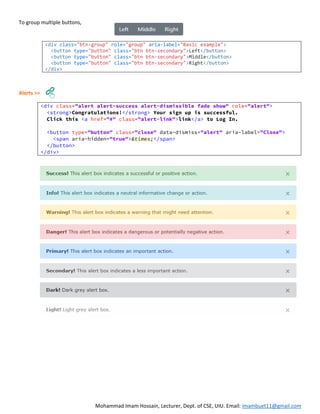
To group multiple buttons,
Alerts >>
<div class="btn-group" role="group" aria-label="Basic example">
<button type="button" class="btn btn-secondary">Left</button>
<button type="button" class="btn btn-secondary">Middle</button>
<button type="button" class="btn btn-secondary">Right</button>
</div>
<div class="alert alert-success alert-dismissible fade show" role="alert">
<strong>Congratulations!</strong> Your sign up is successful.
Click this <a href="#" class="alert-link">link</a> to Log In.
<button type="button" class="close" data-dismiss="alert" aria-label="Close">
<span aria-hidden="true">&times;</span>
</button>
</div>
Mohammad Imam Hossain, Lecturer, Dept. of CSE, UIU. Email: imambuet11@gmail.com
Breadcrumb >>
Jumbotron >>
A lightweight, flexible component that can optionally extend the entire viewport to showcase key marketing
messages on your site. It is a simple Hero Unit where blocks are large visual elements that are meant to grab attention
and showcase key content.
<div class="jumbotron">
<h1>Hello, world!</h1>
<p>This is a simple hero unit, a simple jumbotron-style component for
calling extra attention to featured content or information.</p>
<hr class="my-4">
<p>It uses utility classes for typography and spacing to space content out
within the larger container.</p>
<a class="btn btn-primary btn-lg" href="#" role="button">Learn more</a>
</div>
<nav aria-label="breadcrumb">
<ol class="breadcrumb">
<li class="breadcrumb-item"><a href="#">Home</a></li>
<li class="breadcrumb-item"><a href="#">Library</a></li>
<li class="breadcrumb-item active" aria-current="page">Data</li>
</ol>
</nav>
Mohammad Imam Hossain, Lecturer, Dept. of CSE, UIU. Email: imambuet11@gmail.com
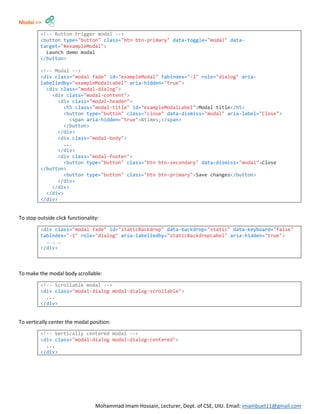
Modal >>
<!-- Button trigger modal -->
<button type="button" class="btn btn-primary" data-toggle="modal" data-
target="#exampleModal">
Launch demo modal
</button>
<!-- Modal -->
<div class="modal fade" id="exampleModal" tabindex="-1" role="dialog" aria-
labelledby="exampleModalLabel" aria-hidden="true">
<div class="modal-dialog">
<div class="modal-content">
<div class="modal-header">
<h5 class="modal-title" id="exampleModalLabel">Modal title</h5>
<button type="button" class="close" data-dismiss="modal" aria-label="Close">
<span aria-hidden="true">&times;</span>
</button>
</div>
<div class="modal-body">
...
</div>
<div class="modal-footer">
<button type="button" class="btn btn-secondary" data-dismiss="modal">Close
</button>
<button type="button" class="btn btn-primary">Save changes</button>
</div>
</div>
</div>
</div>
To stop outside click functionality:
<div class="modal fade" id="staticBackdrop" data-backdrop="static" data-keyboard="false"
tabindex="-1" role="dialog" aria-labelledby="staticBackdropLabel" aria-hidden="true">
… … …
</div>
To make the modal body scrollable:
<!-- Scrollable modal -->
<div class="modal-dialog modal-dialog-scrollable">
...
</div>
To vertically center the modal position:
<!-- Vertically centered modal -->
<div class="modal-dialog modal-dialog-centered">
...
</div>
Mohammad Imam Hossain, Lecturer, Dept. of CSE, UIU. Email: imambuet11@gmail.com
Forms >>
Textual Form Controls:
<input type=”text”>
<input type=”email”>
<input type=”url”>
<input type=”search”>
<input type=”password”>
<div class="form-group">
<label for="id">Email address</label>
<input type="email" class="form-control" id="id">
<small id="helptext" class="form-text text-muted">
We'll never share your email with anyone else.
</small>
</div>
 For plain text, use .form-control-plaintext
 Use .form-group row and grid columns (.col, .col-3) for
horizontally align the elements within the form group.
<div class="form-group row">
<label for="id1" class="col-sm-2 col-form-label">Email</label>
<div class="col-sm-10">
<input type="email" class="form-control" id="id1">
</div>
</div>
Dropdown Box
<select>
… …
</select>
<div class="form-group">
<label for="id">Example select</label>
<select class="form-control" id="id">
<option>1</option>
<option>2</option>
<option>3</option>
<option>4</option>
<option>5</option>
</select>
</div>
Textarea <div class="form-group">
<label for="id">Example textarea</label>
<textarea class="form-control" id="id" rows="3"></textarea>
</div>
<input type=”file”> <div class="form-group">
<label for="id">Example file input</label>
<input type="file" class="form-control-file" id="id">
</div>
<input type=”range”> <div class="form-group">
<label for="id">Example Range input</label>
<input type="range" class="form-control-range" id="id">
</div>
<input type=”checkbox”> <div class="form-check">
<input class="form-check-input" type="checkbox" value="" id="id">
<label class="form-check-label" for="id">
Default checkbox
</label>
</div>
To use as inline element, use .form-check .form-check-inline
<input type=”radio”> <div class="form-check">
<input class="form-check-input" type="radio" name="name" id="id"
value="option1" checked>
<label class="form-check-label" for="id">
Default radio
</label>
</div>
To use as inline element, use .form-check .form-check-inline
Mohammad Imam Hossain, Lecturer, Dept. of CSE, UIU. Email: imambuet11@gmail.com
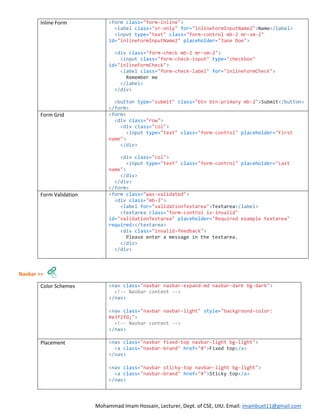
Inline Form <form class="form-inline">
<label class="sr-only" for="inlineFormInputName2">Name</label>
<input type="text" class="form-control mb-2 mr-sm-2"
id="inlineFormInputName2" placeholder="Jane Doe">
<div class="form-check mb-2 mr-sm-2">
<input class="form-check-input" type="checkbox"
id="inlineFormCheck">
<label class="form-check-label" for="inlineFormCheck">
Remember me
</label>
</div>
<button type="submit" class="btn btn-primary mb-2">Submit</button>
</form>
Form Grid <form>
<div class="row">
<div class="col">
<input type="text" class="form-control" placeholder="First
name">
</div>
<div class="col">
<input type="text" class="form-control" placeholder="Last
name">
</div>
</div>
</form>
Form Validation <form class="was-validated">
<div class="mb-3">
<label for="validationTextarea">Textarea</label>
<textarea class="form-control is-invalid"
id="validationTextarea" placeholder="Required example textarea"
required></textarea>
<div class="invalid-feedback">
Please enter a message in the textarea.
</div>
</div>
Navbar >>
Color Schemes <nav class="navbar navbar-expand-md navbar-dark bg-dark">
<!-- Navbar content -->
</nav>
<nav class="navbar navbar-light" style="background-color:
#e3f2fd;">
<!-- Navbar content -->
</nav>
Placement <nav class="navbar fixed-top navbar-light bg-light">
<a class="navbar-brand" href="#">Fixed top</a>
</nav>
<nav class="navbar sticky-top navbar-light bg-light">
<a class="navbar-brand" href="#">Sticky top</a>
</nav>
Mohammad Imam Hossain, Lecturer, Dept. of CSE, UIU. Email: imambuet11@gmail.com
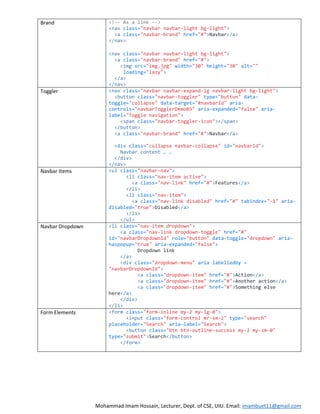
Brand <!-- As a link -->
<nav class="navbar navbar-light bg-light">
<a class="navbar-brand" href="#">Navbar</a>
</nav>
<nav class="navbar navbar-light bg-light">
<a class="navbar-brand" href="#">
<img src="img.jpg" width="30" height="30" alt=""
loading="lazy">
</a>
</nav>
Toggler <nav class="navbar navbar-expand-lg navbar-light bg-light">
<button class="navbar-toggler" type="button" data-
toggle="collapse" data-target="#navbarId" aria-
controls="navbarTogglerDemo03" aria-expanded="false" aria-
label="Toggle navigation">
<span class="navbar-toggler-icon"></span>
</button>
<a class="navbar-brand" href="#">Navbar</a>
<div class="collapse navbar-collapse" id="navbarId">
Navbar content … …
</div>
</nav>
Navbar Items <ul class="navbar-nav">
<li class="nav-item active">
<a class="nav-link" href="#">Features</a>
</li>
<li class="nav-item">
<a class="nav-link disabled" href="#" tabindex="-1" aria-
disabled="true">Disabled</a>
</li>
</ul>
Navbar Dropdown <li class="nav-item dropdown">
<a class="nav-link dropdown-toggle" href="#"
id="navbarDropdownId" role="button" data-toggle="dropdown" aria-
haspopup="true" aria-expanded="false">
Dropdown link
</a>
<div class="dropdown-menu" aria labelledby =
"navbarDropdownId">
<a class="dropdown-item" href="#">Action</a>
<a class="dropdown-item" href="#">Another action</a>
<a class="dropdown-item" href="#">Something else
here</a>
</div>
</li>
Form Elements <form class="form-inline my-2 my-lg-0">
<input class="form-control mr-sm-2" type="search"
placeholder="Search" aria-label="Search">
<button class="btn btn-outline-success my-2 my-sm-0"
type="submit">Search</button>
</form>
Mohammad Imam Hossain, Lecturer, Dept. of CSE, UIU. Email: imambuet11@gmail.com
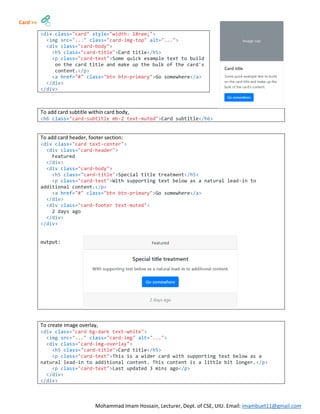
Card >>
<div class="card" style="width: 18rem;">
<img src="..." class="card-img-top" alt="...">
<div class="card-body">
<h5 class="card-title">Card title</h5>
<p class="card-text">Some quick example text to build
on the card title and make up the bulk of the card's
content.</p>
<a href="#" class="btn btn-primary">Go somewhere</a>
</div>
</div>
To add card subtitle within card body,
<h6 class="card-subtitle mb-2 text-muted">Card subtitle</h6>
To add card header, footer section:
<div class="card text-center">
<div class="card-header">
Featured
</div>
<div class="card-body">
<h5 class="card-title">Special title treatment</h5>
<p class="card-text">With supporting text below as a natural lead-in to
additional content.</p>
<a href="#" class="btn btn-primary">Go somewhere</a>
</div>
<div class="card-footer text-muted">
2 days ago
</div>
</div>
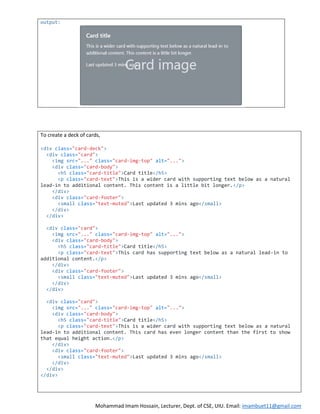
output:
To create image overlay,
<div class="card bg-dark text-white">
<img src="..." class="card-img" alt="...">
<div class="card-img-overlay">
<h5 class="card-title">Card title</h5>
<p class="card-text">This is a wider card with supporting text below as a
natural lead-in to additional content. This content is a little bit longer.</p>
<p class="card-text">Last updated 3 mins ago</p>
</div>
</div>
Mohammad Imam Hossain, Lecturer, Dept. of CSE, UIU. Email: imambuet11@gmail.com
output:
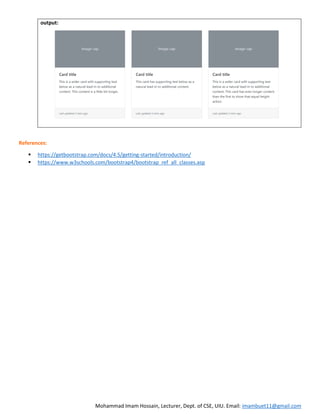
To create a deck of cards,
<div class="card-deck">
<div class="card">
<img src="..." class="card-img-top" alt="...">
<div class="card-body">
<h5 class="card-title">Card title</h5>
<p class="card-text">This is a wider card with supporting text below as a natural
lead-in to additional content. This content is a little bit longer.</p>
</div>
<div class="card-footer">
<small class="text-muted">Last updated 3 mins ago</small>
</div>
</div>
<div class="card">
<img src="..." class="card-img-top" alt="...">
<div class="card-body">
<h5 class="card-title">Card title</h5>
<p class="card-text">This card has supporting text below as a natural lead-in to
additional content.</p>
</div>
<div class="card-footer">
<small class="text-muted">Last updated 3 mins ago</small>
</div>
</div>
<div class="card">
<img src="..." class="card-img-top" alt="...">
<div class="card-body">
<h5 class="card-title">Card title</h5>
<p class="card-text">This is a wider card with supporting text below as a natural
lead-in to additional content. This card has even longer content than the first to show
that equal height action.</p>
</div>
<div class="card-footer">
<small class="text-muted">Last updated 3 mins ago</small>
</div>
</div>
</div>
Mohammad Imam Hossain, Lecturer, Dept. of CSE, UIU. Email: imambuet11@gmail.com
output:
References:
 https://getbootstrap.com/docs/4.5/getting-started/introduction/
 https://www.w3schools.com/bootstrap4/bootstrap_ref_all_classes.asp

Web 3 | Bootstrap

  • 1.
    Mohammad Imam Hossain,Lecturer, Dept. of CSE, UIU. Email: imambuet11@gmail.com Bootstrap (v4.5) Bootstrap is a free and open-source CSS framework directed at responsive, mobile-first front-end web development. It contains CSS- and (optionally) JavaScript-based design templates for typography, forms, buttons, navigation, and other interface components. In Bootstrap, we Optimize code for mobile devices first and then scale up components as necessary using CSS media queries. Integration >> 1. Downloading from https://getbootstrap.com/docs/4.5/getting-started/download/ and using the necessary scripts. 2. Using CDN, <!DOCTYPE html> <html lang="en"> <head> <!-- Required meta tags --> <meta charset="utf-8"> <meta name="viewport" content="width=device-width, initial-scale=1, shrink-to-fit=no"> <!-- Bootstrap CSS --> <link rel="stylesheet" href="https://stackpath.bootstrapcdn.com/bootstrap/4.5.0/css/bootstrap.min.css" integrity="sha384-9aIt2nRpC12Uk9gS9baDl411NQApFmC26EwAOH8WgZl5MYYxFfc+NcPb1dKGj7Sk" crossorigin="anonymous"> <title>Bootstrap CDN</title> </head> <body> <h1>Hello, world!</h1> <!-- jQuery first, then Popper.js, then Bootstrap JS --> <script src="https://code.jquery.com/jquery-3.5.1.slim.min.js" integrity="sha384-DfXdz2htPH0lsSSs5nCTpuj/zy4C+OGpamoFVy38MVBnE+IbbVYUew+OrCXaRkfj" crossorigin="anonymous"></script> <script src="https://cdn.jsdelivr.net/npm/popper.js@1.16.0/dist/umd/popper.min.js" integrity="sha384-Q6E9RHvbIyZFJoft+2mJbHaEWldlvI9IOYy5n3zV9zzTtmI3UksdQRVvoxMfooAo" crossorigin="anonymous"></script> <script src="https://stackpath.bootstrapcdn.com/bootstrap/4.5.0/js/bootstrap.min.js" integrity="sha384-OgVRvuATP1z7JjHLkuOU7Xw704+h835Lr+6QL9UvYjZE3Ipu6Tp75j7Bh/kR0JKI" crossorigin="anonymous"></script> </body> </html> Bootstrap requires the use of the HTML5 doctype. To ensure proper rendering and touch zooming for all devices. Add this stylesheet link into the <head> section before all other stylesheets. Many of the Bootstrap components require the use of JS to function. So place these scripts right before the closing </body> tag. jQuery must come first, then Popper.js and then Bootstrap JS plugin.
  • 2.
    Mohammad Imam Hossain,Lecturer, Dept. of CSE, UIU. Email: imambuet11@gmail.com Grid Layout >> 1. Container:
  • 3.
    Mohammad Imam Hossain,Lecturer, Dept. of CSE, UIU. Email: imambuet11@gmail.com 2. Grid System: border border-top border-right border-bottom border-left border-0 border-top-0 border-right-0 border-bottom-0 border-left-0 border-primary border-secondary border-success border-danger border-warning border-info border-light border-dark border-white rounded rounded-top rounded-right rounded-bottom rounded-left rounded-circle rounded-pill rounded-0
  • 4.
    Mohammad Imam Hossain,Lecturer, Dept. of CSE, UIU. Email: imambuet11@gmail.com  Variation – 1 i. Equal Width – (col, col, col), (col-sm, col-sm, col-sm), (col-md, col-md, col-md), … … ii. Equal Width Multi Line – (col, col, w-100, col, col), (col-sm, col-sm, w-100, col-sm), … … iii. One Column Width – (col, col-6, col), (col-sm-2, col-sm, col-sm-5, col-sm), … … iv. Variable Width Grid – (col, col-md-auto, col-md-2)  Variation – 2 i. Breakpoints – col-sm, col-md, col-lg, col-xl ii. Stacked to Horizontal – (col-8, col-4), (col-sm-2, col-sm-6, col-sm-4), … … iii. Mix and Match – (col-6 col-sm-8 col-md-9, col-6 col-sm-4 col-md-3), … …  Variation – 3 i. Alignment – (align-self-start, align-self-center, align-self-end), (align-items-start, align-items-center, align-items-end), (justify-content-start, justify-content-center, justify-content-end) w-25 w-50 w-75 w-100 w-auto h-25 h-50 h-75 h-100 h-auto mw-100 mh-100 vw-100 vh-100 min-vw-25 min-vh-100 col align-self-start col align-self-center col align-self-end
  • 5.
    Mohammad Imam Hossain,Lecturer, Dept. of CSE, UIU. Email: imambuet11@gmail.com  Variation – 4 i. Offset – Move elements to the right. (offset-4, offset-sm-2, offset-md-3, … …) ii. Margin & Padding Property -> m, p m = margin p = padding Sides -> t, b, l, r, x, y, blank t = top b = bottom l = left r = right x = horizontal y = vertical Size -> 0, 1, 2, 3, 4, 5, auto 0 = eliminate the margin 1 = $spacer * .25 where $spacer = 16px 2 = $spacer * .5 3 = $spacer 4 = $spacer * 1.5 ; 5 = $spacer * 3 row align-items-start row align-items-center row align-items-end row justify-content-start row justify-content-center row justify-content-end
  • 6.
    Mohammad Imam Hossain,Lecturer, Dept. of CSE, UIU. Email: imambuet11@gmail.com Syntax: {property}{sides}-{size} {property}{sides}-{breakpoint}-{size} To center align an element, mx-auto To shift rest of the elements to the right side, mr-auto To set a right margin with sm breakpoint, mr-sm-2 To set a padding of level 3, p-3 To set a top padding of level 2, pt-2 iii. Nesting – (row within row)  Variation - 5 i. Display value -> none, inline, inline-block, block etc. none = To hide the element inline = To convert into inline elements inline-block = To convert into inline-block elements. block = To convert into block level elements. Syntax: d-{value} d-{breakpoint}-{value} To show an element from sm to extra large screen, d-sm-block To hide an element from md to extra large screen, d-sm-none Display only xs screen, d-sm-none Display xs, sm screen, d-md-none Display xs, sm, md screen, d-lg-none Display xs, sm, md, lg screens, d-xl-none Hide only xs screen, d-none d-sm-block Hide only xs, sm screen, d-none d-md-block Hide only xs, sm , md screen, d-none d-lg-block Hide only xs, sm, md, lg screens, d-none d-xl-block Display only on sm, d-none d-sm-block d-md- none Hide only on sm, d-sm-none d-md-block  Variation – 6 i. Text Operations Overflow:  overflow-auto  overflow-hidden Box Shadow:  shadow-none  shadow-sm  shadow  shadow-lg here sm, lg represents the shadow size.
  • 7.
    Mohammad Imam Hossain,Lecturer, Dept. of CSE, UIU. Email: imambuet11@gmail.com Text:  text-justify, text-sm-justify, … …  text-left, text-sm-left, … …  text-center, text-md-center, … …  text-right, text-lg-right, … …  text-decoration-none Font:  font-weight-bold  font-weight-normal  font-italic  Variation – 7 i. Float and Clearfix Float:  float-left, float-sm-left, float-md-left, … …  float-right, float-sm-right, float-md-right, … …  float-none, float-sm-none, float-md-none, … … Clearfix:  clearfix Carousel >> <div id="carouselId" class="carousel slide" data-ride="carousel"> <!-- the main inner part of the carousel --> <div class="carousel-inner"> <div class="carousel-item active" data-interval="5000"> <img src="images/img1.jpg" class="d-block w-100" alt="Project 1"> <div class="carousel-caption d-none d-md-block"> <h5>Project 1</h5> <p>Our First Project at X city, completed on Sep, 2019</p> </div> </div> <div class="carousel-item" data-interval="5000"> <img src="images/img2.jpg" class="d-block w-100" alt="Project 2"> <div class="carousel-caption d-none d-md-block"> <h5>Project 2</h5> <p>Our Second Project at NY, completed on Jan, 2020</p> </div> </div> <div class="carousel-item" data-interval="5000"> <img src="images/img3.jpg" class="d-block w-100" alt="Project 3"> <div class="carousel-caption d-none d-md-block"> <h5>Project 3</h5> <p>Our Third Project at Singapore, completed on Apr, 2020</p> </div> </div> </div>
  • 8.
    Mohammad Imam Hossain,Lecturer, Dept. of CSE, UIU. Email: imambuet11@gmail.com <!-- adding indicators for each slide --> <ol class="carousel-indicators"> <li data-target="#carouselId" data-slide-to="0" class="active"></li> <li data-target="#carouselId" data-slide-to="1"></li> <li data-target="#carouselId" data-slide-to="2"></li> </ol> <!-- adding left-right move buttons --> <a class="carousel-control-prev" href="#carouselId" role="button" data- slide="prev"> <span class="carousel-control-prev-icon" aria-hidden="true"></span> <span class="sr-only">Previous</span> </a> <a class="carousel-control-next" href="#carouselId" role="button" data- slide="next"> <span class="carousel-control-next-icon" aria-hidden="true"></span> <span class="sr-only">Next</span> </a> </div> For More: https://getbootstrap.com/docs/4.5/components/carousel/ Button >> Using anchor element, <a class="btn btn-primary" href="#" role="button">Link</a> Using <button> tag, <button class="btn btn-primary" type="submit">Button</button> Using <input type=’button’> element, <input class="btn btn-primary" type="button" value="Input"> Using <input type=’submit’> element, <input class="btn btn-primary" type="submit" value="Submit"> Using <input type=’reset’> element, <input class="btn btn-primary" type="reset" value="Reset"> <button type="button" class="btn btn-primary btn-lg">Large button</button> <button type="button" class="btn btn-primary btn-sm">Small button</button> <button type="button" class="btn btn-primary btn-block">Block level button</button> btn btn-primary btn btn-outline-primary
  • 9.
    Mohammad Imam Hossain,Lecturer, Dept. of CSE, UIU. Email: imambuet11@gmail.com To group multiple buttons, Alerts >> <div class="btn-group" role="group" aria-label="Basic example"> <button type="button" class="btn btn-secondary">Left</button> <button type="button" class="btn btn-secondary">Middle</button> <button type="button" class="btn btn-secondary">Right</button> </div> <div class="alert alert-success alert-dismissible fade show" role="alert"> <strong>Congratulations!</strong> Your sign up is successful. Click this <a href="#" class="alert-link">link</a> to Log In. <button type="button" class="close" data-dismiss="alert" aria-label="Close"> <span aria-hidden="true">&times;</span> </button> </div>
  • 10.
    Mohammad Imam Hossain,Lecturer, Dept. of CSE, UIU. Email: imambuet11@gmail.com Breadcrumb >> Jumbotron >> A lightweight, flexible component that can optionally extend the entire viewport to showcase key marketing messages on your site. It is a simple Hero Unit where blocks are large visual elements that are meant to grab attention and showcase key content. <div class="jumbotron"> <h1>Hello, world!</h1> <p>This is a simple hero unit, a simple jumbotron-style component for calling extra attention to featured content or information.</p> <hr class="my-4"> <p>It uses utility classes for typography and spacing to space content out within the larger container.</p> <a class="btn btn-primary btn-lg" href="#" role="button">Learn more</a> </div> <nav aria-label="breadcrumb"> <ol class="breadcrumb"> <li class="breadcrumb-item"><a href="#">Home</a></li> <li class="breadcrumb-item"><a href="#">Library</a></li> <li class="breadcrumb-item active" aria-current="page">Data</li> </ol> </nav>
  • 11.
    Mohammad Imam Hossain,Lecturer, Dept. of CSE, UIU. Email: imambuet11@gmail.com Modal >> <!-- Button trigger modal --> <button type="button" class="btn btn-primary" data-toggle="modal" data- target="#exampleModal"> Launch demo modal </button> <!-- Modal --> <div class="modal fade" id="exampleModal" tabindex="-1" role="dialog" aria- labelledby="exampleModalLabel" aria-hidden="true"> <div class="modal-dialog"> <div class="modal-content"> <div class="modal-header"> <h5 class="modal-title" id="exampleModalLabel">Modal title</h5> <button type="button" class="close" data-dismiss="modal" aria-label="Close"> <span aria-hidden="true">&times;</span> </button> </div> <div class="modal-body"> ... </div> <div class="modal-footer"> <button type="button" class="btn btn-secondary" data-dismiss="modal">Close </button> <button type="button" class="btn btn-primary">Save changes</button> </div> </div> </div> </div> To stop outside click functionality: <div class="modal fade" id="staticBackdrop" data-backdrop="static" data-keyboard="false" tabindex="-1" role="dialog" aria-labelledby="staticBackdropLabel" aria-hidden="true"> … … … </div> To make the modal body scrollable: <!-- Scrollable modal --> <div class="modal-dialog modal-dialog-scrollable"> ... </div> To vertically center the modal position: <!-- Vertically centered modal --> <div class="modal-dialog modal-dialog-centered"> ... </div>
  • 12.
    Mohammad Imam Hossain,Lecturer, Dept. of CSE, UIU. Email: imambuet11@gmail.com Forms >> Textual Form Controls: <input type=”text”> <input type=”email”> <input type=”url”> <input type=”search”> <input type=”password”> <div class="form-group"> <label for="id">Email address</label> <input type="email" class="form-control" id="id"> <small id="helptext" class="form-text text-muted"> We'll never share your email with anyone else. </small> </div>  For plain text, use .form-control-plaintext  Use .form-group row and grid columns (.col, .col-3) for horizontally align the elements within the form group. <div class="form-group row"> <label for="id1" class="col-sm-2 col-form-label">Email</label> <div class="col-sm-10"> <input type="email" class="form-control" id="id1"> </div> </div> Dropdown Box <select> … … </select> <div class="form-group"> <label for="id">Example select</label> <select class="form-control" id="id"> <option>1</option> <option>2</option> <option>3</option> <option>4</option> <option>5</option> </select> </div> Textarea <div class="form-group"> <label for="id">Example textarea</label> <textarea class="form-control" id="id" rows="3"></textarea> </div> <input type=”file”> <div class="form-group"> <label for="id">Example file input</label> <input type="file" class="form-control-file" id="id"> </div> <input type=”range”> <div class="form-group"> <label for="id">Example Range input</label> <input type="range" class="form-control-range" id="id"> </div> <input type=”checkbox”> <div class="form-check"> <input class="form-check-input" type="checkbox" value="" id="id"> <label class="form-check-label" for="id"> Default checkbox </label> </div> To use as inline element, use .form-check .form-check-inline <input type=”radio”> <div class="form-check"> <input class="form-check-input" type="radio" name="name" id="id" value="option1" checked> <label class="form-check-label" for="id"> Default radio </label> </div> To use as inline element, use .form-check .form-check-inline
  • 13.
    Mohammad Imam Hossain,Lecturer, Dept. of CSE, UIU. Email: imambuet11@gmail.com Inline Form <form class="form-inline"> <label class="sr-only" for="inlineFormInputName2">Name</label> <input type="text" class="form-control mb-2 mr-sm-2" id="inlineFormInputName2" placeholder="Jane Doe"> <div class="form-check mb-2 mr-sm-2"> <input class="form-check-input" type="checkbox" id="inlineFormCheck"> <label class="form-check-label" for="inlineFormCheck"> Remember me </label> </div> <button type="submit" class="btn btn-primary mb-2">Submit</button> </form> Form Grid <form> <div class="row"> <div class="col"> <input type="text" class="form-control" placeholder="First name"> </div> <div class="col"> <input type="text" class="form-control" placeholder="Last name"> </div> </div> </form> Form Validation <form class="was-validated"> <div class="mb-3"> <label for="validationTextarea">Textarea</label> <textarea class="form-control is-invalid" id="validationTextarea" placeholder="Required example textarea" required></textarea> <div class="invalid-feedback"> Please enter a message in the textarea. </div> </div> Navbar >> Color Schemes <nav class="navbar navbar-expand-md navbar-dark bg-dark"> <!-- Navbar content --> </nav> <nav class="navbar navbar-light" style="background-color: #e3f2fd;"> <!-- Navbar content --> </nav> Placement <nav class="navbar fixed-top navbar-light bg-light"> <a class="navbar-brand" href="#">Fixed top</a> </nav> <nav class="navbar sticky-top navbar-light bg-light"> <a class="navbar-brand" href="#">Sticky top</a> </nav>
  • 14.
    Mohammad Imam Hossain,Lecturer, Dept. of CSE, UIU. Email: imambuet11@gmail.com Brand <!-- As a link --> <nav class="navbar navbar-light bg-light"> <a class="navbar-brand" href="#">Navbar</a> </nav> <nav class="navbar navbar-light bg-light"> <a class="navbar-brand" href="#"> <img src="img.jpg" width="30" height="30" alt="" loading="lazy"> </a> </nav> Toggler <nav class="navbar navbar-expand-lg navbar-light bg-light"> <button class="navbar-toggler" type="button" data- toggle="collapse" data-target="#navbarId" aria- controls="navbarTogglerDemo03" aria-expanded="false" aria- label="Toggle navigation"> <span class="navbar-toggler-icon"></span> </button> <a class="navbar-brand" href="#">Navbar</a> <div class="collapse navbar-collapse" id="navbarId"> Navbar content … … </div> </nav> Navbar Items <ul class="navbar-nav"> <li class="nav-item active"> <a class="nav-link" href="#">Features</a> </li> <li class="nav-item"> <a class="nav-link disabled" href="#" tabindex="-1" aria- disabled="true">Disabled</a> </li> </ul> Navbar Dropdown <li class="nav-item dropdown"> <a class="nav-link dropdown-toggle" href="#" id="navbarDropdownId" role="button" data-toggle="dropdown" aria- haspopup="true" aria-expanded="false"> Dropdown link </a> <div class="dropdown-menu" aria labelledby = "navbarDropdownId"> <a class="dropdown-item" href="#">Action</a> <a class="dropdown-item" href="#">Another action</a> <a class="dropdown-item" href="#">Something else here</a> </div> </li> Form Elements <form class="form-inline my-2 my-lg-0"> <input class="form-control mr-sm-2" type="search" placeholder="Search" aria-label="Search"> <button class="btn btn-outline-success my-2 my-sm-0" type="submit">Search</button> </form>
  • 15.
    Mohammad Imam Hossain,Lecturer, Dept. of CSE, UIU. Email: imambuet11@gmail.com Card >> <div class="card" style="width: 18rem;"> <img src="..." class="card-img-top" alt="..."> <div class="card-body"> <h5 class="card-title">Card title</h5> <p class="card-text">Some quick example text to build on the card title and make up the bulk of the card's content.</p> <a href="#" class="btn btn-primary">Go somewhere</a> </div> </div> To add card subtitle within card body, <h6 class="card-subtitle mb-2 text-muted">Card subtitle</h6> To add card header, footer section: <div class="card text-center"> <div class="card-header"> Featured </div> <div class="card-body"> <h5 class="card-title">Special title treatment</h5> <p class="card-text">With supporting text below as a natural lead-in to additional content.</p> <a href="#" class="btn btn-primary">Go somewhere</a> </div> <div class="card-footer text-muted"> 2 days ago </div> </div> output: To create image overlay, <div class="card bg-dark text-white"> <img src="..." class="card-img" alt="..."> <div class="card-img-overlay"> <h5 class="card-title">Card title</h5> <p class="card-text">This is a wider card with supporting text below as a natural lead-in to additional content. This content is a little bit longer.</p> <p class="card-text">Last updated 3 mins ago</p> </div> </div>
  • 16.
    Mohammad Imam Hossain,Lecturer, Dept. of CSE, UIU. Email: imambuet11@gmail.com output: To create a deck of cards, <div class="card-deck"> <div class="card"> <img src="..." class="card-img-top" alt="..."> <div class="card-body"> <h5 class="card-title">Card title</h5> <p class="card-text">This is a wider card with supporting text below as a natural lead-in to additional content. This content is a little bit longer.</p> </div> <div class="card-footer"> <small class="text-muted">Last updated 3 mins ago</small> </div> </div> <div class="card"> <img src="..." class="card-img-top" alt="..."> <div class="card-body"> <h5 class="card-title">Card title</h5> <p class="card-text">This card has supporting text below as a natural lead-in to additional content.</p> </div> <div class="card-footer"> <small class="text-muted">Last updated 3 mins ago</small> </div> </div> <div class="card"> <img src="..." class="card-img-top" alt="..."> <div class="card-body"> <h5 class="card-title">Card title</h5> <p class="card-text">This is a wider card with supporting text below as a natural lead-in to additional content. This card has even longer content than the first to show that equal height action.</p> </div> <div class="card-footer"> <small class="text-muted">Last updated 3 mins ago</small> </div> </div> </div>
  • 17.
    Mohammad Imam Hossain,Lecturer, Dept. of CSE, UIU. Email: imambuet11@gmail.com output: References:  https://getbootstrap.com/docs/4.5/getting-started/introduction/  https://www.w3schools.com/bootstrap4/bootstrap_ref_all_classes.asp