Bootstrap 3
CSS Framework 1st Phase
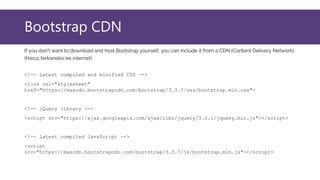
Bootstrap CDN
If you don't want to download and host Bootstrap yourself, you can include it from a CDN (Content Delivery Network).
(Harus terkoneksi ke internet)
<!-- Latest compiled and minified CSS -->
<link rel="stylesheet"
href="https://maxcdn.bootstrapcdn.com/bootstrap/3.3.7/css/bootstrap.min.css">
<!-- jQuery library -->
<script src="https://ajax.googleapis.com/ajax/libs/jquery/3.2.1/jquery.min.js"></script>
<!-- Latest compiled JavaScript -->
<script
src="https://maxcdn.bootstrapcdn.com/bootstrap/3.3.7/js/bootstrap.min.js"></script>
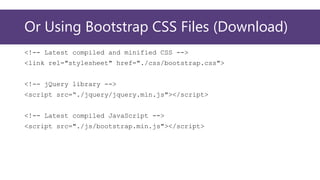
Or Using Bootstrap CSS Files (Download)
<!-- Latest compiled and minified CSS -->
<link rel="stylesheet" href="./css/bootstrap.css">
<!-- jQuery library -->
<script src=“./jquery/jquery.min.js"></script>
<!-- Latest compiled JavaScript -->
<script src="./js/bootstrap.min.js"></script>
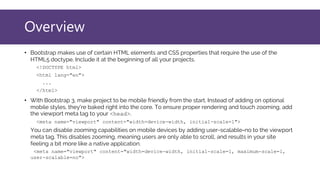
Overview
• Bootstrap makes use of certain HTML elements and CSS properties that require the use of the
HTML5 doctype. Include it at the beginning of all your projects.
<!DOCTYPE html>
<html lang="en">
...
</html>
• With Bootstrap 3, make project to be mobile friendly from the start. Instead of adding on optional
mobile styles, they're baked right into the core. To ensure proper rendering and touch zooming, add
the viewport meta tag to your <head>.
<meta name="viewport" content="width=device-width, initial-scale=1">
You can disable zooming capabilities on mobile devices by adding user-scalable=no to the viewport
meta tag. This disables zooming, meaning users are only able to scroll, and results in your site
feeling a bit more like a native application.
<meta name="viewport" content="width=device-width, initial-scale=1, maximum-scale=1,
user-scalable=no">
Bootstrap Containers
Bootstrap requires a containing element to wrap site contents and house our grid system. You
may choose one of two containers to use in your projects. Note that, due to padding and more,
neither container is nestable.
Use .container for a responsive fixed width container.
<div class="container">
...
</div>
Use .container-fluid for a full width container, spanning the entire width of your viewport.
<div class="container-fluid">
...
</div>
Bootstrap Grid
Grid systems are used for creating page layouts through a series of rows and columns
that house your content. Here's how the Bootstrap grid system works:
• Rows must be placed within a .container (fixed-width) or .container-fluid (full-
width) for proper alignment and padding.
• Use rows to create horizontal groups of columns.
• Content should be placed within columns, and only columns may be immediate
children of rows.
• Predefined grid classes like .row and .col-xs-4 are available for quickly making
grid layouts. Less mixins can also be used for more semantic layouts.
• Columns create gutters (gaps between column content) via padding. That padding is
offset in rows for the first and last column via negative margin on .rows.
• The negative margin is why the examples below are outdented. It's so that content
within grid columns is lined up with non-grid content.
• Grid columns are created by specifying the number of twelve available columns you
wish to span. For example, three equal columns would use three .col-xs-4.
• If more than 12 columns are placed within a single row, each group of extra columns
will, as one unit, wrap onto a new line.
• Grid classes apply to devices with screen widths greater than or equal to the
breakpoint sizes, and override grid classes targeted at smaller devices. Therefore, e.g.
applying any .col-md-* class to an element will not only affect its styling on
medium devices but also on large devices if a .col-lg-* class is not present.
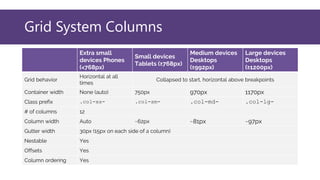
Grid System Columns
Extra small
devices Phones
(<768px)
Small devices
Tablets (≥768px)
Medium devices
Desktops
(≥992px)
Large devices
Desktops
(≥1200px)
Grid behavior
Horizontal at all
times
Collapsed to start, horizontal above breakpoints
Container width None (auto) 750px 970px 1170px
Class prefix .col-xs- .col-sm- .col-md- .col-lg-
# of columns 12
Column width Auto ~62px ~81px ~97px
Gutter width 30px (15px on each side of a column)
Nestable Yes
Offsets Yes
Column ordering Yes
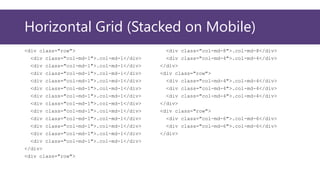
Horizontal Grid (Stacked on Mobile)
<div class="row">
<div class="col-md-1">.col-md-1</div>
</div>
<div class="row">
<div class="col-md-8">.col-md-8</div>
<div class="col-md-4">.col-md-4</div>
</div>
<div class="row">
<div class="col-md-4">.col-md-4</div>
</div>
<div class="row">
<div class="col-md-6">.col-md-6</div>
</div>
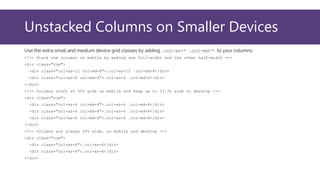
Unstacked Columns on Smaller Devices
Use the extra small and medium device grid classes by adding .col-xs-* .col-md-* to your columns.
<!-- Stack the columns on mobile by making one full-width and the other half-width -->
<div class="row">
<div class="col-xs-12 col-md-8">.col-xs-12 .col-md-8</div>
<div class="col-xs-6 col-md-4">.col-xs-6 .col-md-4</div>
</div>
<!-- Columns start at 50% wide on mobile and bump up to 33.3% wide on desktop -->
<div class="row">
<div class="col-xs-6 col-md-4">.col-xs-6 .col-md-4</div>
</div>
<!-- Columns are always 50% wide, on mobile and desktop -->
<div class="row">
<div class="col-xs-6">.col-xs-6</div>
</div>
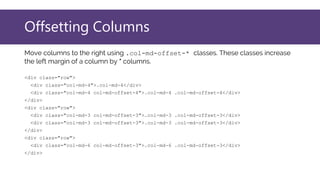
Offsetting Columns
Move columns to the right using .col-md-offset-* classes. These classes increase
the left margin of a column by * columns.
<div class="row">
<div class="col-md-4">.col-md-4</div>
<div class="col-md-4 col-md-offset-4">.col-md-4 .col-md-offset-4</div>
</div>
<div class="row">
<div class="col-md-3 col-md-offset-3">.col-md-3 .col-md-offset-3</div>
</div>
<div class="row">
<div class="col-md-6 col-md-offset-3">.col-md-6 .col-md-offset-3</div>
</div>
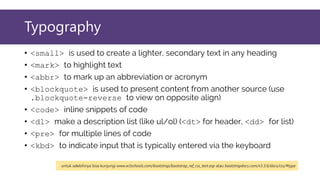
Typography
• <small> is used to create a lighter, secondary text in any heading
• <mark> to highlight text
• <abbr> to mark up an abbreviation or acronym
• <blockquote> is used to present content from another source (use
.blockquote-reverse to view on opposite align)
• <code> inline snippets of code
• <dl> make a description list (like ul/ol) (<dt> for header, <dd> for list)
• <pre> for multiple lines of code
• <kbd> to indicate input that is typically entered via the keyboard
untuk selebihnya bisa kunjungi www.w3schools.com/bootstrap/bootstrap_ref_css_text.asp atau bootstrapdocs.com/v3.3.6/docs/css/#type
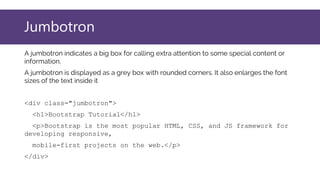
Jumbotron
A jumbotron indicates a big box for calling extra attention to some special content or
information.
A jumbotron is displayed as a grey box with rounded corners. It also enlarges the font
sizes of the text inside it
<div class="jumbotron">
<h1>Bootstrap Tutorial</h1>
<p>Bootstrap is the most popular HTML, CSS, and JS framework for
developing responsive,
mobile-first projects on the web.</p>
</div>
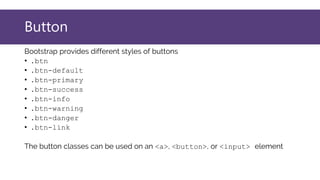
Button
Bootstrap provides different styles of buttons
• .btn
• .btn-default
• .btn-primary
• .btn-success
• .btn-info
• .btn-warning
• .btn-danger
• .btn-link
The button classes can be used on an <a>, <button>, or <input> element
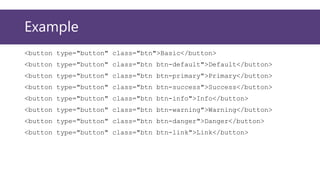
Example
<button type="button" class="btn">Basic</button>
<button type="button" class="btn btn-default">Default</button>
<button type="button" class="btn btn-primary">Primary</button>
<button type="button" class="btn btn-success">Success</button>
<button type="button" class="btn btn-info">Info</button>
<button type="button" class="btn btn-warning">Warning</button>
<button type="button" class="btn btn-danger">Danger</button>
<button type="button" class="btn btn-link">Link</button>
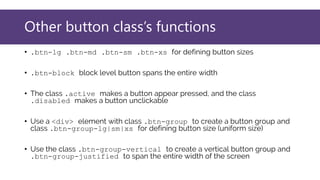
Other button class’s functions
• .btn-lg .btn-md .btn-sm .btn-xs for defining button sizes
• .btn-block block level button spans the entire width
• The class .active makes a button appear pressed, and the class
.disabled makes a button unclickable
• Use a <div> element with class .btn-group to create a button group and
class .btn-group-lg|sm|xs for defining button size (uniform size)
• Use the class .btn-group-vertical to create a vertical button group and
.btn-group-justified to span the entire width of the screen
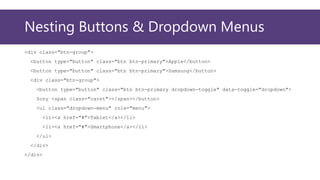
Nesting Buttons & Dropdown Menus
<div class="btn-group">
<button type="button" class="btn btn-primary">Apple</button>
<button type="button" class="btn btn-primary">Samsung</button>
<div class="btn-group">
<button type="button" class="btn btn-primary dropdown-toggle" data-toggle="dropdown">
Sony <span class="caret"></span></button>
<ul class="dropdown-menu" role="menu">
<li><a href="#">Tablet</a></li>
<li><a href="#">Smartphone</a></li>
</ul>
</div>
</div>
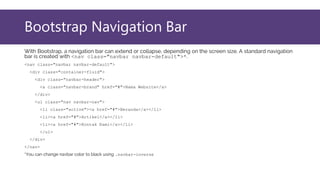
Bootstrap Navigation Bar
With Bootstrap, a navigation bar can extend or collapse, depending on the screen size. A standard navigation
bar is created with <nav class="navbar navbar-default">*.
<nav class="navbar navbar-default">
<div class="container-fluid">
<div class="navbar-header">
<a class="navbar-brand" href="#">Nama Website</a>
</div>
<ul class="nav navbar-nav">
<li class="active"><a href="#">Beranda</a></li>
<li><a href="#">Artikel</a></li>
<li><a href="#">Kontak Kami</a></li>
</ul>
</div>
</nav>
*You can change navbar color to black using .navbar-inverse
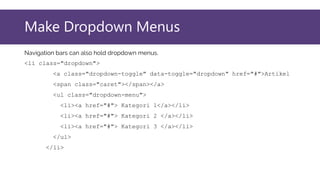
Make Dropdown Menus
Navigation bars can also hold dropdown menus.
<li class="dropdown">
<a class="dropdown-toggle" data-toggle="dropdown" href="#">Artikel
<span class="caret"></span></a>
<ul class="dropdown-menu">
<li><a href="#"> Kategori 1</a></li>
<li><a href="#"> Kategori 2 </a></li>
<li><a href="#"> Kategori 3 </a></li>
</ul>
</li>
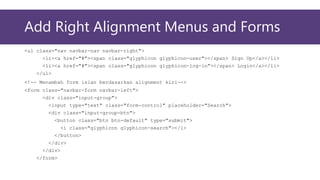
Add Right Alignment Menus and Forms
<ul class="nav navbar-nav navbar-right">
<li><a href="#"><span class="glyphicon glyphicon-user"></span> Sign Up</a></li>
<li><a href="#"><span class="glyphicon glyphicon-log-in"></span> Login</a></li>
</ul>
<!-- Menambah form isian berdasarkan alignment kiri-->
<form class="navbar-form navbar-left">
<div class="input-group">
<input type="text" class="form-control" placeholder="Search">
<div class="input-group-btn">
<button class="btn btn-default" type="submit">
<i class="glyphicon glyphicon-search"></i>
</button>
</div>
</div>
</form>
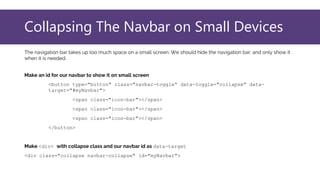
Collapsing The Navbar on Small Devices
The navigation bar takes up too much space on a small screen. We should hide the navigation bar; and only show it
when it is needed.
Make an id for our navbar to show it on small screen
<button type="button" class="navbar-toggle“ data-toggle="collapse" data-
target="#myNavbar">
<span class="icon-bar"></span>
</button>
Make <div> with collapse class and our navbar id as data-target
<div class="collapse navbar-collapse" id="myNavbar">
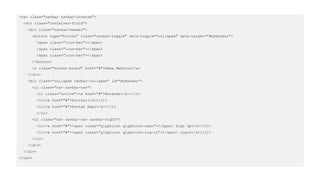
<nav class="navbar navbar-inverse">
<div class="container-fluid">
<div class="navbar-header">
<button type="button" class="navbar-toggle" data-toggle="collapse" data-target="#myNavbar">
<span class="icon-bar"></span>
</button>
<a class="navbar-brand" href="#">Nama Website</a>
</div>
<div class="collapse navbar-collapse" id="myNavbar">
<ul class="nav navbar-nav">
<li class="active"><a href="#">Beranda</a></li>
<li><a href="#">Artikel</a></li>
<li><a href="#">Kontak Kami</a></li>
</ul>
<ul class="nav navbar-nav navbar-right">
<li><a href="#"><span class="glyphicon glyphicon-user"></span> Sign Up</a></li>
<li><a href="#"><span class="glyphicon glyphicon-log-in"></span> Login</a></li>
</ul>
</div>
</div>
</nav>
Bootstrap Forms
Bootstrap provides three types of form layouts:
• Vertical form (this is default)
• Horizontal form
• Inline form
Standard rules for all three form layouts:
• Wrap labels and form controls in <div class="form-group">
(needed for optimum spacing)
• Add class .form-control to all textual <input>, <textarea>, and
<select> elements
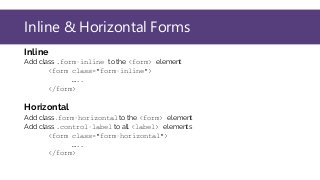
Inline & Horizontal Forms
Inline
Add class .form-inline to the <form> element
<form class="form-inline">
…..
</form>
Horizontal
Add class .form-horizontal to the <form> element
Add class .control-label to all <label> elements
<form class="form-horizontal">
…..
</form>
Bootstrap Tables
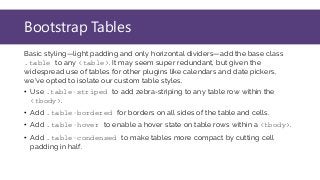
Basic styling—light padding and only horizontal dividers—add the base class
.table to any <table>. It may seem super redundant, but given the
widespread use of tables for other plugins like calendars and date pickers,
we've opted to isolate our custom table styles.
• Use .table-striped to add zebra-striping to any table row within the
<tbody>.
• Add .table-bordered for borders on all sides of the table and cells.
• Add .table-hover to enable a hover state on table rows within a <tbody>.
• Add .table-condensed to make tables more compact by cutting cell
padding in half.
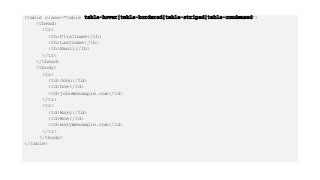
<table class="table table-hover|table-bordered|table-striped|table-condensed">
<thead>
<tr>
<th>Firstname</th>
<th>Lastname</th>
<th>Email</th>
</tr>
</thead>
<tbody>
<tr>
<td>John</td>
<td>Doe</td>
<td>john@example.com</td>
</tr>
<tr>
<td>Mary</td>
<td>Moe</td>
<td>mary@example.com</td>
</tr>
</tbody>
</table>
Bootstrap Inputs
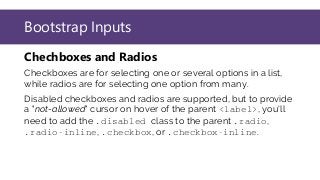
Chechboxes and Radios
Checkboxes are for selecting one or several options in a list,
while radios are for selecting one option from many.
Disabled checkboxes and radios are supported, but to provide
a "not-allowed" cursor on hover of the parent <label>, you'll
need to add the .disabled class to the parent .radio,
.radio-inline, .checkbox, or .checkbox-inline.
Select
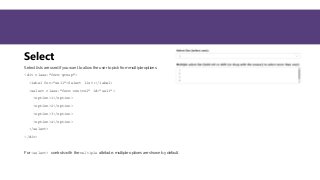
Select lists are used if you want to allow the user to pick from multiple options.
<div class="form-group">
<label for="sel1">Select list:</label>
<select class="form-control" id="sel1">
<option>1</option>
<option>2</option>
<option>3</option>
<option>4</option>
</select>
</div>
For <select> controls with the multiple attribute, multiple options are shown by default.
Source
• www.w3schools.com/bootstrap/
• bootstrapdocs.com/v3.3.6/docs/css/
• stackoverflow.com

Pemrograman Web 4 - Bootstrap 3

  • 1.
  • 2.
    Bootstrap CDN If youdon't want to download and host Bootstrap yourself, you can include it from a CDN (Content Delivery Network). (Harus terkoneksi ke internet) <!-- Latest compiled and minified CSS --> <link rel="stylesheet" href="https://maxcdn.bootstrapcdn.com/bootstrap/3.3.7/css/bootstrap.min.css"> <!-- jQuery library --> <script src="https://ajax.googleapis.com/ajax/libs/jquery/3.2.1/jquery.min.js"></script> <!-- Latest compiled JavaScript --> <script src="https://maxcdn.bootstrapcdn.com/bootstrap/3.3.7/js/bootstrap.min.js"></script>
  • 3.
    Or Using BootstrapCSS Files (Download) <!-- Latest compiled and minified CSS --> <link rel="stylesheet" href="./css/bootstrap.css"> <!-- jQuery library --> <script src=“./jquery/jquery.min.js"></script> <!-- Latest compiled JavaScript --> <script src="./js/bootstrap.min.js"></script>
  • 4.
    Overview • Bootstrap makesuse of certain HTML elements and CSS properties that require the use of the HTML5 doctype. Include it at the beginning of all your projects. <!DOCTYPE html> <html lang="en"> ... </html> • With Bootstrap 3, make project to be mobile friendly from the start. Instead of adding on optional mobile styles, they're baked right into the core. To ensure proper rendering and touch zooming, add the viewport meta tag to your <head>. <meta name="viewport" content="width=device-width, initial-scale=1"> You can disable zooming capabilities on mobile devices by adding user-scalable=no to the viewport meta tag. This disables zooming, meaning users are only able to scroll, and results in your site feeling a bit more like a native application. <meta name="viewport" content="width=device-width, initial-scale=1, maximum-scale=1, user-scalable=no">
  • 5.
    Bootstrap Containers Bootstrap requiresa containing element to wrap site contents and house our grid system. You may choose one of two containers to use in your projects. Note that, due to padding and more, neither container is nestable. Use .container for a responsive fixed width container. <div class="container"> ... </div> Use .container-fluid for a full width container, spanning the entire width of your viewport. <div class="container-fluid"> ... </div>
  • 6.
    Bootstrap Grid Grid systemsare used for creating page layouts through a series of rows and columns that house your content. Here's how the Bootstrap grid system works: • Rows must be placed within a .container (fixed-width) or .container-fluid (full- width) for proper alignment and padding. • Use rows to create horizontal groups of columns. • Content should be placed within columns, and only columns may be immediate children of rows. • Predefined grid classes like .row and .col-xs-4 are available for quickly making grid layouts. Less mixins can also be used for more semantic layouts. • Columns create gutters (gaps between column content) via padding. That padding is offset in rows for the first and last column via negative margin on .rows.
  • 7.
    • The negativemargin is why the examples below are outdented. It's so that content within grid columns is lined up with non-grid content. • Grid columns are created by specifying the number of twelve available columns you wish to span. For example, three equal columns would use three .col-xs-4. • If more than 12 columns are placed within a single row, each group of extra columns will, as one unit, wrap onto a new line. • Grid classes apply to devices with screen widths greater than or equal to the breakpoint sizes, and override grid classes targeted at smaller devices. Therefore, e.g. applying any .col-md-* class to an element will not only affect its styling on medium devices but also on large devices if a .col-lg-* class is not present.
  • 8.
    Grid System Columns Extrasmall devices Phones (<768px) Small devices Tablets (≥768px) Medium devices Desktops (≥992px) Large devices Desktops (≥1200px) Grid behavior Horizontal at all times Collapsed to start, horizontal above breakpoints Container width None (auto) 750px 970px 1170px Class prefix .col-xs- .col-sm- .col-md- .col-lg- # of columns 12 Column width Auto ~62px ~81px ~97px Gutter width 30px (15px on each side of a column) Nestable Yes Offsets Yes Column ordering Yes
  • 9.
    Horizontal Grid (Stackedon Mobile) <div class="row"> <div class="col-md-1">.col-md-1</div> <div class="col-md-1">.col-md-1</div> <div class="col-md-1">.col-md-1</div> <div class="col-md-1">.col-md-1</div> <div class="col-md-1">.col-md-1</div> <div class="col-md-1">.col-md-1</div> <div class="col-md-1">.col-md-1</div> <div class="col-md-1">.col-md-1</div> <div class="col-md-1">.col-md-1</div> <div class="col-md-1">.col-md-1</div> <div class="col-md-1">.col-md-1</div> <div class="col-md-1">.col-md-1</div> </div> <div class="row"> <div class="col-md-8">.col-md-8</div> <div class="col-md-4">.col-md-4</div> </div> <div class="row"> <div class="col-md-4">.col-md-4</div> <div class="col-md-4">.col-md-4</div> <div class="col-md-4">.col-md-4</div> </div> <div class="row"> <div class="col-md-6">.col-md-6</div> <div class="col-md-6">.col-md-6</div> </div>
  • 10.
    Unstacked Columns onSmaller Devices Use the extra small and medium device grid classes by adding .col-xs-* .col-md-* to your columns. <!-- Stack the columns on mobile by making one full-width and the other half-width --> <div class="row"> <div class="col-xs-12 col-md-8">.col-xs-12 .col-md-8</div> <div class="col-xs-6 col-md-4">.col-xs-6 .col-md-4</div> </div> <!-- Columns start at 50% wide on mobile and bump up to 33.3% wide on desktop --> <div class="row"> <div class="col-xs-6 col-md-4">.col-xs-6 .col-md-4</div> <div class="col-xs-6 col-md-4">.col-xs-6 .col-md-4</div> <div class="col-xs-6 col-md-4">.col-xs-6 .col-md-4</div> </div> <!-- Columns are always 50% wide, on mobile and desktop --> <div class="row"> <div class="col-xs-6">.col-xs-6</div> <div class="col-xs-6">.col-xs-6</div> </div>
  • 11.
    Offsetting Columns Move columnsto the right using .col-md-offset-* classes. These classes increase the left margin of a column by * columns. <div class="row"> <div class="col-md-4">.col-md-4</div> <div class="col-md-4 col-md-offset-4">.col-md-4 .col-md-offset-4</div> </div> <div class="row"> <div class="col-md-3 col-md-offset-3">.col-md-3 .col-md-offset-3</div> <div class="col-md-3 col-md-offset-3">.col-md-3 .col-md-offset-3</div> </div> <div class="row"> <div class="col-md-6 col-md-offset-3">.col-md-6 .col-md-offset-3</div> </div>
  • 12.
    Typography • <small> isused to create a lighter, secondary text in any heading • <mark> to highlight text • <abbr> to mark up an abbreviation or acronym • <blockquote> is used to present content from another source (use .blockquote-reverse to view on opposite align) • <code> inline snippets of code • <dl> make a description list (like ul/ol) (<dt> for header, <dd> for list) • <pre> for multiple lines of code • <kbd> to indicate input that is typically entered via the keyboard untuk selebihnya bisa kunjungi www.w3schools.com/bootstrap/bootstrap_ref_css_text.asp atau bootstrapdocs.com/v3.3.6/docs/css/#type
  • 13.
    Jumbotron A jumbotron indicatesa big box for calling extra attention to some special content or information. A jumbotron is displayed as a grey box with rounded corners. It also enlarges the font sizes of the text inside it <div class="jumbotron"> <h1>Bootstrap Tutorial</h1> <p>Bootstrap is the most popular HTML, CSS, and JS framework for developing responsive, mobile-first projects on the web.</p> </div>
  • 14.
    Button Bootstrap provides differentstyles of buttons • .btn • .btn-default • .btn-primary • .btn-success • .btn-info • .btn-warning • .btn-danger • .btn-link The button classes can be used on an <a>, <button>, or <input> element
  • 15.
    Example <button type="button" class="btn">Basic</button> <buttontype="button" class="btn btn-default">Default</button> <button type="button" class="btn btn-primary">Primary</button> <button type="button" class="btn btn-success">Success</button> <button type="button" class="btn btn-info">Info</button> <button type="button" class="btn btn-warning">Warning</button> <button type="button" class="btn btn-danger">Danger</button> <button type="button" class="btn btn-link">Link</button>
  • 16.
    Other button class’sfunctions • .btn-lg .btn-md .btn-sm .btn-xs for defining button sizes • .btn-block block level button spans the entire width • The class .active makes a button appear pressed, and the class .disabled makes a button unclickable • Use a <div> element with class .btn-group to create a button group and class .btn-group-lg|sm|xs for defining button size (uniform size) • Use the class .btn-group-vertical to create a vertical button group and .btn-group-justified to span the entire width of the screen
  • 17.
    Nesting Buttons &Dropdown Menus <div class="btn-group"> <button type="button" class="btn btn-primary">Apple</button> <button type="button" class="btn btn-primary">Samsung</button> <div class="btn-group"> <button type="button" class="btn btn-primary dropdown-toggle" data-toggle="dropdown"> Sony <span class="caret"></span></button> <ul class="dropdown-menu" role="menu"> <li><a href="#">Tablet</a></li> <li><a href="#">Smartphone</a></li> </ul> </div> </div>
  • 18.
    Bootstrap Navigation Bar WithBootstrap, a navigation bar can extend or collapse, depending on the screen size. A standard navigation bar is created with <nav class="navbar navbar-default">*. <nav class="navbar navbar-default"> <div class="container-fluid"> <div class="navbar-header"> <a class="navbar-brand" href="#">Nama Website</a> </div> <ul class="nav navbar-nav"> <li class="active"><a href="#">Beranda</a></li> <li><a href="#">Artikel</a></li> <li><a href="#">Kontak Kami</a></li> </ul> </div> </nav> *You can change navbar color to black using .navbar-inverse
  • 19.
    Make Dropdown Menus Navigationbars can also hold dropdown menus. <li class="dropdown"> <a class="dropdown-toggle" data-toggle="dropdown" href="#">Artikel <span class="caret"></span></a> <ul class="dropdown-menu"> <li><a href="#"> Kategori 1</a></li> <li><a href="#"> Kategori 2 </a></li> <li><a href="#"> Kategori 3 </a></li> </ul> </li>
  • 20.
    Add Right AlignmentMenus and Forms <ul class="nav navbar-nav navbar-right"> <li><a href="#"><span class="glyphicon glyphicon-user"></span> Sign Up</a></li> <li><a href="#"><span class="glyphicon glyphicon-log-in"></span> Login</a></li> </ul> <!-- Menambah form isian berdasarkan alignment kiri--> <form class="navbar-form navbar-left"> <div class="input-group"> <input type="text" class="form-control" placeholder="Search"> <div class="input-group-btn"> <button class="btn btn-default" type="submit"> <i class="glyphicon glyphicon-search"></i> </button> </div> </div> </form>
  • 21.
    Collapsing The Navbaron Small Devices The navigation bar takes up too much space on a small screen. We should hide the navigation bar; and only show it when it is needed. Make an id for our navbar to show it on small screen <button type="button" class="navbar-toggle“ data-toggle="collapse" data- target="#myNavbar"> <span class="icon-bar"></span> <span class="icon-bar"></span> <span class="icon-bar"></span> </button> Make <div> with collapse class and our navbar id as data-target <div class="collapse navbar-collapse" id="myNavbar">
  • 22.
    <nav class="navbar navbar-inverse"> <divclass="container-fluid"> <div class="navbar-header"> <button type="button" class="navbar-toggle" data-toggle="collapse" data-target="#myNavbar"> <span class="icon-bar"></span> <span class="icon-bar"></span> <span class="icon-bar"></span> </button> <a class="navbar-brand" href="#">Nama Website</a> </div> <div class="collapse navbar-collapse" id="myNavbar"> <ul class="nav navbar-nav"> <li class="active"><a href="#">Beranda</a></li> <li><a href="#">Artikel</a></li> <li><a href="#">Kontak Kami</a></li> </ul> <ul class="nav navbar-nav navbar-right"> <li><a href="#"><span class="glyphicon glyphicon-user"></span> Sign Up</a></li> <li><a href="#"><span class="glyphicon glyphicon-log-in"></span> Login</a></li> </ul> </div> </div> </nav>
  • 23.
    Bootstrap Forms Bootstrap providesthree types of form layouts: • Vertical form (this is default) • Horizontal form • Inline form Standard rules for all three form layouts: • Wrap labels and form controls in <div class="form-group"> (needed for optimum spacing) • Add class .form-control to all textual <input>, <textarea>, and <select> elements
  • 24.
    Inline & HorizontalForms Inline Add class .form-inline to the <form> element <form class="form-inline"> ….. </form> Horizontal Add class .form-horizontal to the <form> element Add class .control-label to all <label> elements <form class="form-horizontal"> ….. </form>
  • 25.
    Bootstrap Tables Basic styling—lightpadding and only horizontal dividers—add the base class .table to any <table>. It may seem super redundant, but given the widespread use of tables for other plugins like calendars and date pickers, we've opted to isolate our custom table styles. • Use .table-striped to add zebra-striping to any table row within the <tbody>. • Add .table-bordered for borders on all sides of the table and cells. • Add .table-hover to enable a hover state on table rows within a <tbody>. • Add .table-condensed to make tables more compact by cutting cell padding in half.
  • 26.
  • 27.
    Bootstrap Inputs Chechboxes andRadios Checkboxes are for selecting one or several options in a list, while radios are for selecting one option from many. Disabled checkboxes and radios are supported, but to provide a "not-allowed" cursor on hover of the parent <label>, you'll need to add the .disabled class to the parent .radio, .radio-inline, .checkbox, or .checkbox-inline.
  • 28.
    Select Select lists areused if you want to allow the user to pick from multiple options. <div class="form-group"> <label for="sel1">Select list:</label> <select class="form-control" id="sel1"> <option>1</option> <option>2</option> <option>3</option> <option>4</option> </select> </div> For <select> controls with the multiple attribute, multiple options are shown by default.
  • 29.