Refference Manager
DR. RHANDYKA RAFLI, SP.ONKRAD
Permasalahan dalam menulis makalah ilmiah
Kendala menulis
Paper anda
reference list/bibliography
• Lots of typing
• Lost references
• Mistakes
article
article
article
article
book
book
conference
paper
conference
paper
conference
paper
sumber:
citations
gunakan reference management tool!
Artikel anda
article
article
article
article
book
book
conference
paper
conference
paper
conference
paper
EndNoteWeb
Mendeley
Etc.
citations
Daftar pustaka
• Latihan import
• Latihan citasi
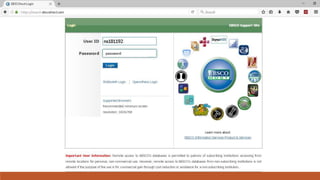
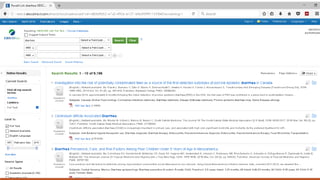
• Mencari jurnal dengan ebscohost
Pengenalan reference manager
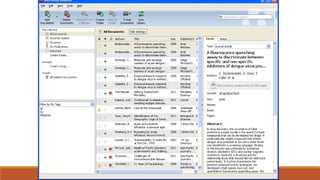
What is Mendeley?
Mendeley is a free reference manager and
academic social network that can help you
organize your research, collaborate with
others online, and discover the latest
research.
Syncs Desktop & Web applications
Desktop – a free academic software to
manage, share, read, annotate and cite
your research papers
Web - a research network to manage
your papers online, discover research
trends and statistics, and to connect to
like-minded researchers
To register and use Mendeley, go to the following address:
http://www.mendeley.com
From the Mendeley homepage, you will see the Sign up for
free and Sign in box. Click on Sign up for free to Register.
You can also use your Facebook account to Sign in.
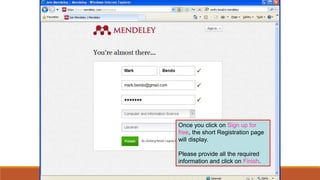
Once you click on Sign up for
free, the short Registration page
will display.
Please provide all the required
information and click on Finish.
Instalasi mendeley
Once you’re signed in, you have
the option to Download Mendeley
Desktop. You can choose to
download it right away or later.
If you choose to
download Mendeley,
click Save so that you
can use the file again
- if you decide to
install it in other
computers or laptops.
To be able to share your profile and
make it searchable to other users of
Mendeley, you must verify your account.
Open the email address that you use
during the sign up/registration.
Click on the URL or the link
provided in the email to verify
your Mendeley account.
After clicking on the URL or link,
you will be sent to this page that
verifies your account.
Exercise 1
1. Open your preferred web browser (IE, Firefox, Chrome, etc.)
2. Go to the website: www.mendeley.com
3. Sign up for an account
and download the Mendeley Desktop.
Mencari jurnal
dan
menyusun library
password
Sumber
lainnya
kedokteran
Creating your Mendeley Library
There are several ways:
•Search references within the Mendeley website
•Add a PDF
•Add a folder of PDFs
•Drag and drop PDFs in Mendeley Desktop
•Import/export to and from other reference
management software
•Add reference manually
•Watch folders to automatically add PDFs to
Mendeley Desktop
•One-click Web Importer
You can also search references
within the Mendeley website.
In Mendeley Web click the Papers
tab and perform a search.
Within the search results, just click
either Save PDF to library or Save
reference to library.
If you want to have access to your PDFs from
anywhere, activate the Sync Library feature
from Mendeley Desktop. By enabling this
feature you are able to access your PDF files in
your Mendeley Web library.
Note: Always use the Sync Library in Mendeley
Desktop every time you use the Mendeley Web
to add references to your library.
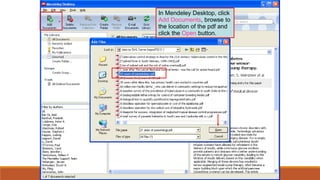
In Mendeley Desktop, click
Add Documents, browse to
the location of the pdf and
click the Open button.
This slide shows that the pdf has been added to
your library.
Mendeley will attempt to automatically detect the
document details (bibliographic data).
Any documents whose details Mendeley is
uncertain about will be added to the Needs
Review section for manual verification.
Click Add Folder, browse to
the location of the folder.
Then click the OK button.
This slide shows that all PDFs have been
added to your library. Two were added.
Mendeley will attempt to automatically detect
the document details (bibliographic data).
Any documents whose details Mendeley is
uncertain about will be added to the Needs
Review section for manual verification.
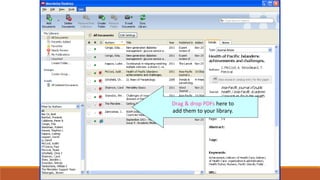
Drag & drop PDFs here to
add them to your library.
Export and Import to and from other
reference management software
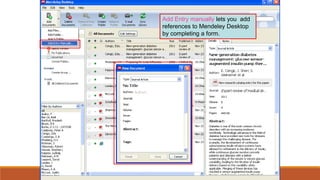
Add Entry manually lets you add
references to Mendeley Desktop
by completing a form.
Exercise 2
1. Log in to your Mendeley Web account then click the
Papers tab.
2. In the search box, search for the article:
The scientific foundation for tobacco harm reduction,
2006-2011 by Brad Rodu
3. Save it to your library.
4. Open your Mendeley Desktop and click Sync Library.
The article should be displayed.
Exercise 3
1. In Mendeley Desktop, click File - Add Entry Manually.
2. Select Book and enter the following:
Title: Tuberculosis Control in the Western Pacific
Region - 2010 Report
Author: World Health Organization. Regional
Office for the Western Pacific
Publisher and publication date:
WHO Regional Office for the Western Pacific, 2011.
3. Click Save.
Exercise 4
1. Download the following article and save to your desktop:
Multidrug-resistant tuberculosis today
by A Matteelli et al.
Click to get full text pdf
2. Drag and drop the pdf file in the Reference section
of your Mendeley Desktop.
3. Review the details of the article before clicking the
button - Details are Collect.
Use Watch folders to automatically
add PDFs to Mendeley Desktop.
When you place a document in a
watched folder, it will be
automatically added to Mendeley.
Web Importer lets you import references and
documents from a wide range of academic
databases with a single click.
In addition to this, it lets you save a snapshot
of any webpage you are viewing.
To install it, click Tools – Install Web Importer.
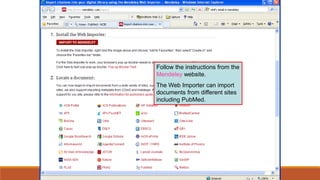
Follow the instructions from the
Mendeley website.
The Web Importer can import
documents from different sites
including PubMed.
In this example, we will use the
Web Importer to import references
from PubMed.
We will do a search in PubMed,
then go to Favorites (IE) or
Bookmarks (Firefox & Chrome) and
click on Import to Mendeley.
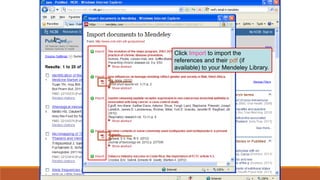
Click Import to import the
references and their pdf (if
available) to your Mendeley Library.
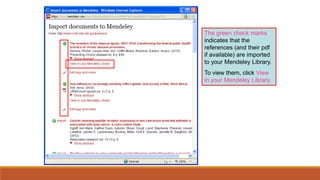
The green check marks
indicates that the
references (and their pdf
if available) are imported
to your Mendeley Library.
To view them, click View
in your Mendeley Library.
Review the details of
the reference and, when
finished, click Save.
Exercise 6
1. Install the Web Importer in your Mendeley Desktop by
clicking Tools – Install Web Importer and then follow the
succeeding instructions.
2. Go to PubMed and type: tobacco control 2012 in the search
box.
3. Click Favorites (IE) or Bookmarks (Firefox & Chrome) and click
Import to Mendeley.
4. Import the first 3 articles by clicking Import.
5. Click Sync Library to display the exported articles to your
Mendeley Desktop.
Managing your documents and references
•Check duplicates and merge duplicate author
names, tags, or publications
•Documents can be marked read/unread
•Search as you type
•Annotate PDFs
•File Organizer
Occasionally when you are importing references into
Mendeley Desktop, they can become duplicated.
This often happens when importing from completely
different sources, such as a paper using the web
importer bookmarklet, and then dragging a PDF of
that same reference into Mendeley.
You can find duplicates by selecting the Tools menu,
and clicking the Check for Duplicates option.
Sets of duplicates will then be shown. Select a
set and review the metadata in the right hand
details pane. Any field which has a tick to the left
of it has no conflicts while un-checked fields
means 2 or more duplicates in the set have
conflicting data.
Click the Confirm Merge button to merge the set.
Documents can be marked read/unread.
When you add documents to Mendeley
Desktop, they are marked unread by a
small green dot. If you open them within
the Mendeley PDF viewer, they will be
marked read. Or simply click on the
green dot to toggle read/unread.
Read
Unread
You can mark your favorite documents (or
documents you keep want to track of) with the
star icon. Simply click to star, and click again
to un-star. All favorite documents will appear
in the Favorites Folder, which you can refer
back to them with one click.
Favorites
All favorite documents will appear in
the Favorites Folder, so you can
refer back to them with one click.
Search as you type.
Smart search in documents highlights the
search term as you type, so you can find
what you're looking for quickly. Just type
into the search box and Mendeley will
find the matching terms in the document.
We have searched for the term lessons.
Annotate PDFs.
You can add highlights and notes to
documents within Mendeley Desktop.
Open a PDF in Mendeley's PDF viewer by
clicking on the pdf icon.
Add highlights and notes by clicking on the
Highlight Text or Add Note buttons on the
menu.
Exercise 7
1. In your Mendeley Desktop, open the pdf of the
article: The scientific foundation for tobacco harm
reduction, 2006-2011.
2. Highlight the title of the article.
3. Add a Note in the article.
Mendeley Desktop’s
File Organizer can
automatically rename
your PDFs and file
them in a clear folder
structure, making it
easier to find your files
outside of Mendeley.
You can find it here:
Tools - Options - File
Organizer tab
1
2
3
Citing references
•Word and OpenOffice plug-in
•How to cite references
•How to insert bibliography
To be able to cite a document,
generate a bibliography, or manually
edit any entry, you should install the
Word and OpenOffice plug-in in
Mendeley Desktop.
Go to Tools – Install MS Word Plugin.
The Mendeley Word & OpenOffice plug-ins integrate
Mendeley into these word processors. Once installed
you will have tool bar buttons that will allow you to cite a
document, generate a bibliography, or manually edit any
entry. This will save you time and effort when you write.
The default citation style is the American Psychological
Association 6th Edition. You can select other citation style
in the drop down menu in your word processor.
To insert citation, put the cursor
where you want the citation
inserted.
Click Insert Citation button then
click Go to Mendeley.
Select the citation, then click Send
Citation to Word Processor.
Another option is to type keywords (i.e.,
author, title or year) in the search box after
clicking Insert Citation (instead of clicking
Go to Mendeley) .
Then, click the corresponding article to
insert the citation.
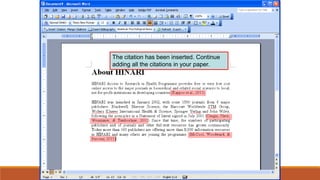
The citation has been inserted. Continue
adding all the citations in your paper.
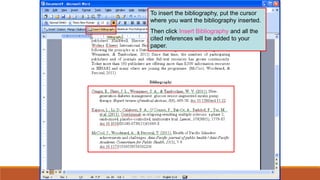
To insert the bibliography, put the cursor
where you want the bibliography inserted.
Then click Insert Bibliography and all the
cited references will be added to your
paper.
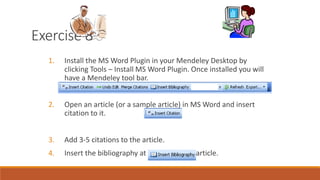
Exercise 8
1. Install the MS Word Plugin in your Mendeley Desktop by
clicking Tools – Install MS Word Plugin. Once installed you will
have a Mendeley tool bar.
2. Open an article (or a sample article) in MS Word and insert
citation to it.
3. Add 3-5 citations to the article.
4. Insert the bibliography at the end of the article.
Sharing Documents and References (cont.)
•How to create a group
•Adding members and documents
•Using groups
Groups are a simple way for you to
collaborate with your colleagues
and share a collection of
documents. Any member of a group
may upload documents to it. In
Mendeley Desktop, you can create
a group by clicking on Create
Group in the left column.
Once you have clicked
Create Group, a dialog
asking you to enter details of
your group will appear.
Sharing Documents and References (cont.)
Three types of groups:
•Private Groups – These are invite-only groups
whose content will only be visible to members of
the group.
•Public Invite-only Groups – These are groups
which are visible to anyone, but only members can
contribute to them.
•Public Open Groups – These are groups anyone
may join and contribute to.
In this example, we will create a group
named Dengue with group description -
Dengue references and click Create
Group.
Once you have created your group, you can add
members and documents to it.
To Invite Members to the group, go to the Members
tab.
You can either add people that are already
Mendeley users by clicking on Find or you can invite
people to join you on Mendeley by clicking on Invite.
You can view the documents of a group by
going to the Documents tab.
To Add Documents, go to the group and click
on Add documents in the top bar.
Alternatively, you can simply drag and drop
documents to the group (either from your
Mendeley folders, or from anywhere else on
your computer).
The Overview tab shows a summary
of what has happened in your Group.
You can see updates on who has
joined, who said what, and which
papers have been added by whom.
You can also post status updates by
entering your update into the box at
the top of the overview section.
This is the end of Module 5.2
SELAMAT
MENULIS

Kuliah refference manager

  • 1.
  • 2.
  • 4.
    Kendala menulis Paper anda referencelist/bibliography • Lots of typing • Lost references • Mistakes article article article article book book conference paper conference paper conference paper sumber: citations
  • 5.
    gunakan reference managementtool! Artikel anda article article article article book book conference paper conference paper conference paper EndNoteWeb Mendeley Etc. citations Daftar pustaka
  • 6.
    • Latihan import •Latihan citasi • Mencari jurnal dengan ebscohost
  • 7.
  • 8.
    What is Mendeley? Mendeleyis a free reference manager and academic social network that can help you organize your research, collaborate with others online, and discover the latest research.
  • 9.
    Syncs Desktop &Web applications Desktop – a free academic software to manage, share, read, annotate and cite your research papers Web - a research network to manage your papers online, discover research trends and statistics, and to connect to like-minded researchers
  • 12.
    To register anduse Mendeley, go to the following address: http://www.mendeley.com From the Mendeley homepage, you will see the Sign up for free and Sign in box. Click on Sign up for free to Register. You can also use your Facebook account to Sign in.
  • 13.
    Once you clickon Sign up for free, the short Registration page will display. Please provide all the required information and click on Finish.
  • 14.
  • 15.
    Once you’re signedin, you have the option to Download Mendeley Desktop. You can choose to download it right away or later.
  • 16.
    If you chooseto download Mendeley, click Save so that you can use the file again - if you decide to install it in other computers or laptops.
  • 17.
    To be ableto share your profile and make it searchable to other users of Mendeley, you must verify your account. Open the email address that you use during the sign up/registration.
  • 18.
    Click on theURL or the link provided in the email to verify your Mendeley account.
  • 19.
    After clicking onthe URL or link, you will be sent to this page that verifies your account.
  • 20.
    Exercise 1 1. Openyour preferred web browser (IE, Firefox, Chrome, etc.) 2. Go to the website: www.mendeley.com 3. Sign up for an account and download the Mendeley Desktop.
  • 21.
  • 23.
  • 27.
  • 28.
  • 30.
    Creating your MendeleyLibrary There are several ways: •Search references within the Mendeley website •Add a PDF •Add a folder of PDFs •Drag and drop PDFs in Mendeley Desktop •Import/export to and from other reference management software •Add reference manually •Watch folders to automatically add PDFs to Mendeley Desktop •One-click Web Importer
  • 31.
    You can alsosearch references within the Mendeley website. In Mendeley Web click the Papers tab and perform a search. Within the search results, just click either Save PDF to library or Save reference to library.
  • 32.
    If you wantto have access to your PDFs from anywhere, activate the Sync Library feature from Mendeley Desktop. By enabling this feature you are able to access your PDF files in your Mendeley Web library. Note: Always use the Sync Library in Mendeley Desktop every time you use the Mendeley Web to add references to your library.
  • 33.
    In Mendeley Desktop,click Add Documents, browse to the location of the pdf and click the Open button.
  • 34.
    This slide showsthat the pdf has been added to your library. Mendeley will attempt to automatically detect the document details (bibliographic data). Any documents whose details Mendeley is uncertain about will be added to the Needs Review section for manual verification.
  • 35.
    Click Add Folder,browse to the location of the folder. Then click the OK button.
  • 36.
    This slide showsthat all PDFs have been added to your library. Two were added. Mendeley will attempt to automatically detect the document details (bibliographic data). Any documents whose details Mendeley is uncertain about will be added to the Needs Review section for manual verification.
  • 37.
    Drag & dropPDFs here to add them to your library.
  • 38.
    Export and Importto and from other reference management software
  • 39.
    Add Entry manuallylets you add references to Mendeley Desktop by completing a form.
  • 40.
    Exercise 2 1. Login to your Mendeley Web account then click the Papers tab. 2. In the search box, search for the article: The scientific foundation for tobacco harm reduction, 2006-2011 by Brad Rodu 3. Save it to your library. 4. Open your Mendeley Desktop and click Sync Library. The article should be displayed.
  • 41.
    Exercise 3 1. InMendeley Desktop, click File - Add Entry Manually. 2. Select Book and enter the following: Title: Tuberculosis Control in the Western Pacific Region - 2010 Report Author: World Health Organization. Regional Office for the Western Pacific Publisher and publication date: WHO Regional Office for the Western Pacific, 2011. 3. Click Save.
  • 42.
    Exercise 4 1. Downloadthe following article and save to your desktop: Multidrug-resistant tuberculosis today by A Matteelli et al. Click to get full text pdf 2. Drag and drop the pdf file in the Reference section of your Mendeley Desktop. 3. Review the details of the article before clicking the button - Details are Collect.
  • 43.
    Use Watch foldersto automatically add PDFs to Mendeley Desktop. When you place a document in a watched folder, it will be automatically added to Mendeley.
  • 44.
    Web Importer letsyou import references and documents from a wide range of academic databases with a single click. In addition to this, it lets you save a snapshot of any webpage you are viewing. To install it, click Tools – Install Web Importer.
  • 45.
    Follow the instructionsfrom the Mendeley website. The Web Importer can import documents from different sites including PubMed.
  • 46.
    In this example,we will use the Web Importer to import references from PubMed. We will do a search in PubMed, then go to Favorites (IE) or Bookmarks (Firefox & Chrome) and click on Import to Mendeley.
  • 47.
    Click Import toimport the references and their pdf (if available) to your Mendeley Library.
  • 48.
    The green checkmarks indicates that the references (and their pdf if available) are imported to your Mendeley Library. To view them, click View in your Mendeley Library.
  • 50.
    Review the detailsof the reference and, when finished, click Save.
  • 51.
    Exercise 6 1. Installthe Web Importer in your Mendeley Desktop by clicking Tools – Install Web Importer and then follow the succeeding instructions. 2. Go to PubMed and type: tobacco control 2012 in the search box. 3. Click Favorites (IE) or Bookmarks (Firefox & Chrome) and click Import to Mendeley. 4. Import the first 3 articles by clicking Import. 5. Click Sync Library to display the exported articles to your Mendeley Desktop.
  • 52.
    Managing your documentsand references •Check duplicates and merge duplicate author names, tags, or publications •Documents can be marked read/unread •Search as you type •Annotate PDFs •File Organizer
  • 53.
    Occasionally when youare importing references into Mendeley Desktop, they can become duplicated. This often happens when importing from completely different sources, such as a paper using the web importer bookmarklet, and then dragging a PDF of that same reference into Mendeley. You can find duplicates by selecting the Tools menu, and clicking the Check for Duplicates option.
  • 54.
    Sets of duplicateswill then be shown. Select a set and review the metadata in the right hand details pane. Any field which has a tick to the left of it has no conflicts while un-checked fields means 2 or more duplicates in the set have conflicting data. Click the Confirm Merge button to merge the set.
  • 55.
    Documents can bemarked read/unread. When you add documents to Mendeley Desktop, they are marked unread by a small green dot. If you open them within the Mendeley PDF viewer, they will be marked read. Or simply click on the green dot to toggle read/unread. Read Unread
  • 56.
    You can markyour favorite documents (or documents you keep want to track of) with the star icon. Simply click to star, and click again to un-star. All favorite documents will appear in the Favorites Folder, which you can refer back to them with one click. Favorites
  • 57.
    All favorite documentswill appear in the Favorites Folder, so you can refer back to them with one click.
  • 58.
    Search as youtype. Smart search in documents highlights the search term as you type, so you can find what you're looking for quickly. Just type into the search box and Mendeley will find the matching terms in the document. We have searched for the term lessons.
  • 59.
    Annotate PDFs. You canadd highlights and notes to documents within Mendeley Desktop. Open a PDF in Mendeley's PDF viewer by clicking on the pdf icon. Add highlights and notes by clicking on the Highlight Text or Add Note buttons on the menu.
  • 60.
    Exercise 7 1. Inyour Mendeley Desktop, open the pdf of the article: The scientific foundation for tobacco harm reduction, 2006-2011. 2. Highlight the title of the article. 3. Add a Note in the article.
  • 61.
    Mendeley Desktop’s File Organizercan automatically rename your PDFs and file them in a clear folder structure, making it easier to find your files outside of Mendeley. You can find it here: Tools - Options - File Organizer tab 1 2 3
  • 62.
    Citing references •Word andOpenOffice plug-in •How to cite references •How to insert bibliography
  • 63.
    To be ableto cite a document, generate a bibliography, or manually edit any entry, you should install the Word and OpenOffice plug-in in Mendeley Desktop. Go to Tools – Install MS Word Plugin.
  • 64.
    The Mendeley Word& OpenOffice plug-ins integrate Mendeley into these word processors. Once installed you will have tool bar buttons that will allow you to cite a document, generate a bibliography, or manually edit any entry. This will save you time and effort when you write. The default citation style is the American Psychological Association 6th Edition. You can select other citation style in the drop down menu in your word processor.
  • 65.
    To insert citation,put the cursor where you want the citation inserted. Click Insert Citation button then click Go to Mendeley.
  • 66.
    Select the citation,then click Send Citation to Word Processor.
  • 67.
    Another option isto type keywords (i.e., author, title or year) in the search box after clicking Insert Citation (instead of clicking Go to Mendeley) . Then, click the corresponding article to insert the citation.
  • 68.
    The citation hasbeen inserted. Continue adding all the citations in your paper.
  • 69.
    To insert thebibliography, put the cursor where you want the bibliography inserted. Then click Insert Bibliography and all the cited references will be added to your paper.
  • 70.
    Exercise 8 1. Installthe MS Word Plugin in your Mendeley Desktop by clicking Tools – Install MS Word Plugin. Once installed you will have a Mendeley tool bar. 2. Open an article (or a sample article) in MS Word and insert citation to it. 3. Add 3-5 citations to the article. 4. Insert the bibliography at the end of the article.
  • 71.
    Sharing Documents andReferences (cont.) •How to create a group •Adding members and documents •Using groups
  • 72.
    Groups are asimple way for you to collaborate with your colleagues and share a collection of documents. Any member of a group may upload documents to it. In Mendeley Desktop, you can create a group by clicking on Create Group in the left column.
  • 73.
    Once you haveclicked Create Group, a dialog asking you to enter details of your group will appear.
  • 74.
    Sharing Documents andReferences (cont.) Three types of groups: •Private Groups – These are invite-only groups whose content will only be visible to members of the group. •Public Invite-only Groups – These are groups which are visible to anyone, but only members can contribute to them. •Public Open Groups – These are groups anyone may join and contribute to.
  • 75.
    In this example,we will create a group named Dengue with group description - Dengue references and click Create Group.
  • 76.
    Once you havecreated your group, you can add members and documents to it. To Invite Members to the group, go to the Members tab. You can either add people that are already Mendeley users by clicking on Find or you can invite people to join you on Mendeley by clicking on Invite. You can view the documents of a group by going to the Documents tab. To Add Documents, go to the group and click on Add documents in the top bar. Alternatively, you can simply drag and drop documents to the group (either from your Mendeley folders, or from anywhere else on your computer).
  • 77.
    The Overview tabshows a summary of what has happened in your Group. You can see updates on who has joined, who said what, and which papers have been added by whom. You can also post status updates by entering your update into the box at the top of the overview section. This is the end of Module 5.2
  • 78.

Editor's Notes