










www.mendeley.com
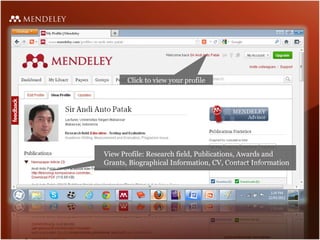
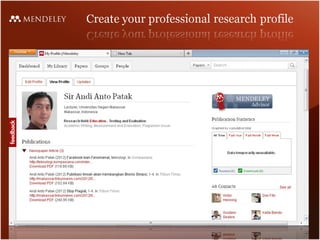
Click to view your profile
View Profile: Research field, Publications, Awards and
Grants, Biographical Information, CV, Contact Information
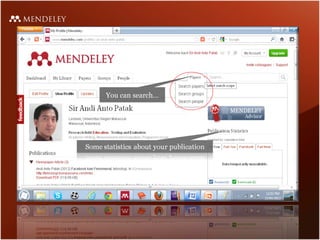
You can search…
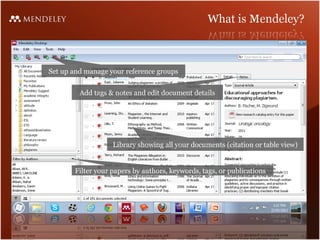
Set up and manage your reference groups
Add tags & notes and edit document details
Library showing all your documents (citation or table view)
Filter your papers by authors, keywords, tags, or publications
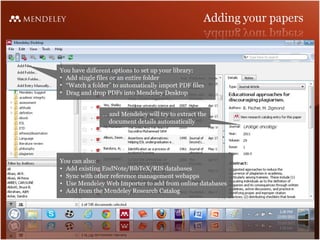
You have different options to set up your library:
• Add single files or an entire folder
• “Watch a folder” to automatically import PDF files
• Drag and drop PDFs into Mendeley Desktop
… and Mendeley will try to extract the
document details automatically
You can also:
• Add existing EndNote/BibTeX/RIS databases
• Sync with other reference management webapps
• Use Mendeley Web Importer to add from online databases
• Add from the Mendeley Research Catalog
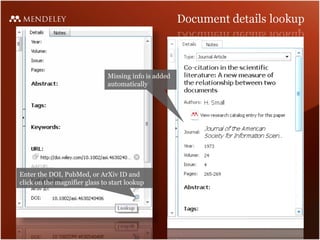
Enter the DOI, PubMed, or ArXiv ID and
click on the magnifier glass to start lookup
Missing info is added
automatically
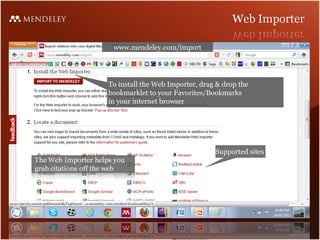
www.mendeley.com/import
To install the Web Importer, drag & drop the
bookmarklet to your Favorites/Bookmarks
in your internet browser
Supported sites
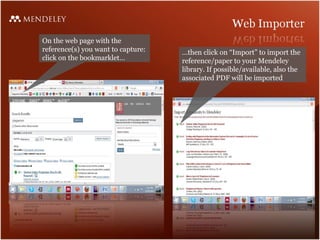
On the web page with the
reference(s) you want to capture:
click on the bookmarklet…
…then click on “Import” to import the
reference/paper to your Mendeley
library. If possible/available, also the
associated PDF will be imported
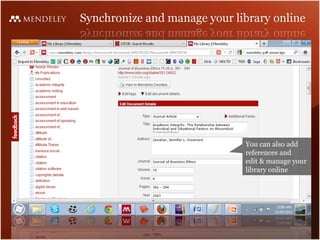
You can also add
references and
edit & manage your
library online
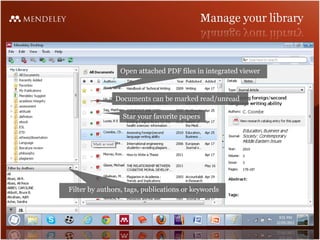
Documents can be marked read/unread
Star your favorite papers
Filter by authors, tags, publications or keywords
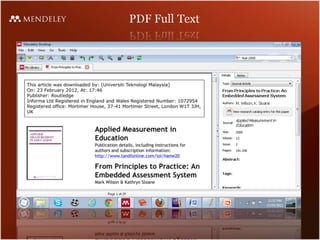
Open attached PDF files in integrated viewer
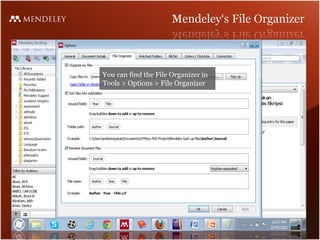
You can find the File Organizer in
Tools > Options > File Organizer
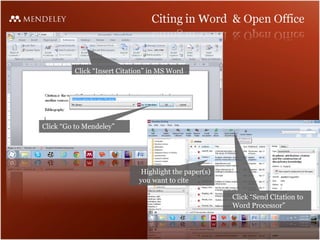
Click “Insert Citation” in MS Word
Click “Send Citation to
Word Processor”
Click “Go to Mendeley”
Highlight the paper(s)
you want to cite
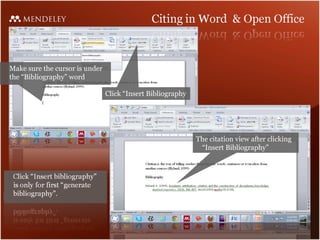
Click “Insert Bibliography
Make sure the cursor is under
the “Bibliography” word
The citation view after clicking
“Insert Bibliography”
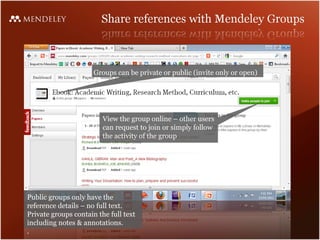
Groups can be private or public (invite only or open)
View the group online – other users
can request to join or simply follow
the activity of the group
Public groups only have the
reference details – no full text.
Private groups contain the full text
including notes & annotations.
.
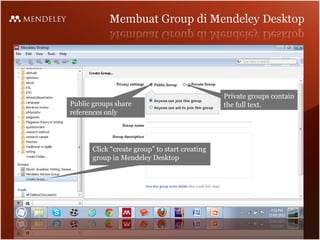
Private groups contain
the full text.Public groups share
references only
Click “create group” to start creating
group in Mendeley Desktop
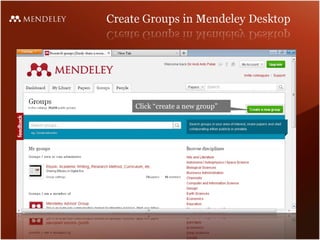
Click “create a new group”
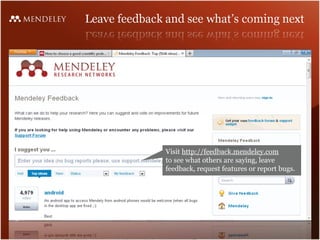
Visit http://feedback.mendeley.com
to see what others are saying, leave
feedback, request features or report bugs.
.
www.mendeley.com

Mendeley teaching presentation - english

  • 1.
  • 7.
    Click to viewyour profile View Profile: Research field, Publications, Awards and Grants, Biographical Information, CV, Contact Information
  • 8.
  • 10.
    Set up andmanage your reference groups Add tags & notes and edit document details Library showing all your documents (citation or table view) Filter your papers by authors, keywords, tags, or publications
  • 11.
    You have differentoptions to set up your library: • Add single files or an entire folder • “Watch a folder” to automatically import PDF files • Drag and drop PDFs into Mendeley Desktop … and Mendeley will try to extract the document details automatically You can also: • Add existing EndNote/BibTeX/RIS databases • Sync with other reference management webapps • Use Mendeley Web Importer to add from online databases • Add from the Mendeley Research Catalog
  • 12.
    Enter the DOI,PubMed, or ArXiv ID and click on the magnifier glass to start lookup Missing info is added automatically
  • 13.
    www.mendeley.com/import To install theWeb Importer, drag & drop the bookmarklet to your Favorites/Bookmarks in your internet browser Supported sites
  • 14.
    On the webpage with the reference(s) you want to capture: click on the bookmarklet… …then click on “Import” to import the reference/paper to your Mendeley library. If possible/available, also the associated PDF will be imported
  • 15.
    You can alsoadd references and edit & manage your library online
  • 17.
    Documents can bemarked read/unread Star your favorite papers Filter by authors, tags, publications or keywords Open attached PDF files in integrated viewer
  • 21.
    You can findthe File Organizer in Tools > Options > File Organizer
  • 23.
    Click “Insert Citation”in MS Word Click “Send Citation to Word Processor” Click “Go to Mendeley” Highlight the paper(s) you want to cite
  • 24.
    Click “Insert Bibliography Makesure the cursor is under the “Bibliography” word The citation view after clicking “Insert Bibliography”
  • 25.
    Groups can beprivate or public (invite only or open) View the group online – other users can request to join or simply follow the activity of the group Public groups only have the reference details – no full text. Private groups contain the full text including notes & annotations. .
  • 26.
    Private groups contain thefull text.Public groups share references only Click “create group” to start creating group in Mendeley Desktop
  • 27.
    Click “create anew group”
  • 31.
    Visit http://feedback.mendeley.com to seewhat others are saying, leave feedback, request features or report bugs. .
  • 33.

Editor's Notes

  • #2 We support academics, students and other professionals (or researchers) in their work with scientific literature. We provide scientific knowledge. We organize scientific knowledge. We help to explore and share scientific knowledge.