oleh: Unit Pendidikan Pelanggan, Perpustakaan Tun Seri Lanang
INFORMATION SKILL COURSE
REFERENCE MANAGEMENT: MENDELEY
 To know the function and use
of reference management
software (Mendeley) in the
management of references for
assignment/ theses/ article
OBJEKTIF
Source: University of Leicester Library. Software for managing your references. https://www2.le.ac.uk/library/help/bibliographies [12 July 2019]
Reference Management software allows you to manage references to all the
publications and information sources you have used:
 Create and organise a library of references
 Import references from bibliographic databases on the internet
 Cite while you write using add-in Word features
 Automatically create bibliographies
INTRODUCTION
INTRODUCTION
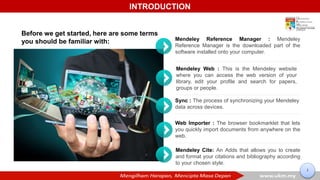
Mendeley Reference Manager : Mendeley
Reference Manager is the downloaded part of the
software installed onto your computer.
Sync : The process of synchronizing your Mendeley
data across devices.
Web Importer : The browser bookmarklet that lets
you quickly import documents from anywhere on the
web.
Mendeley Web : This is the Mendeley website
where you can access the web version of your
library, edit your profile and search for papers,
groups or people.
Mendeley Cite: An Adds that allows you to create
and format your citations and bibliography according
to your chosen style.
Before we get started, here are some terms
you should be familiar with:
1
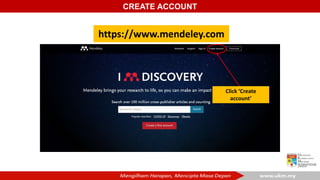
https://www.mendeley.com
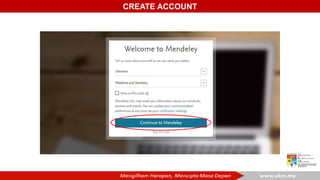
Click ‘Create
account’
CREATE ACCOUNT
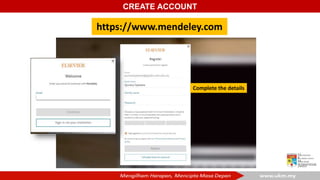
https://www.mendeley.com
Complete the details
CREATE ACCOUNT
CREATE ACCOUNT
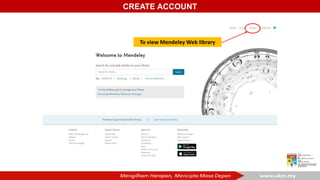
To view Mendeley Web library
CREATE ACCOUNT
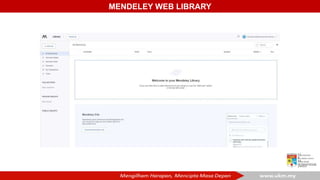
MENDELEY WEB LIBRARY
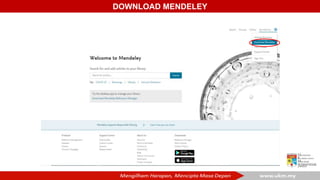
DOWNLOAD MENDELEY
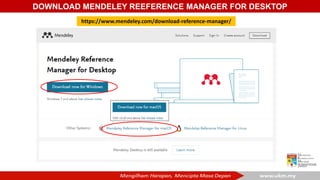
DOWNLOAD MENDELEY REEFERENCE MANAGER FOR DESKTOP
https://www.mendeley.com/download-reference-manager/
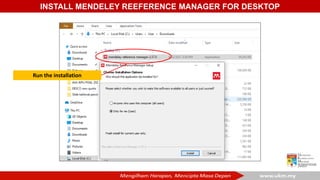
Run the installation
INSTALL MENDELEY REEFERENCE MANAGER FOR DESKTOP
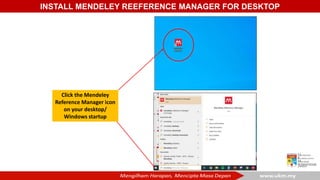
Click the Mendeley
Reference Manager icon
on your desktop/
Windows startup
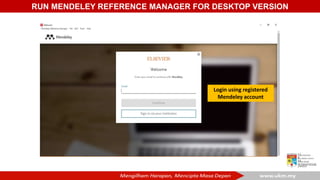
Login using registered
Mendeley account
RUN MENDELEY REFERENCE MANAGER FOR DESKTOP VERSION
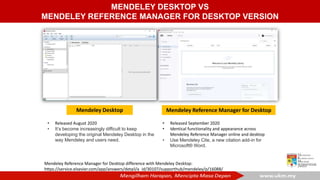
Mendeley Desktop Mendeley Reference Manager for Desktop
Mendeley Reference Manager for Desktop difference with Mendeley Desktop:
https://service.elsevier.com/app/answers/detail/a_id/30107/supporthub/mendeley/p/16088/
• Released September 2020
• Identical functionality and appearance across
Mendeley Reference Manager online and desktop
• Use Mendeley Cite, a new citation add-in for
Microsoft® Word.
• Released August 2020
• It’s become increasingly difficult to keep
developing the original Mendeley Desktop in the
way Mendeley and users need.
MENDELEY DESKTOP VS
MENDELEY REFERENCE MANAGER FOR DESKTOP VERSION
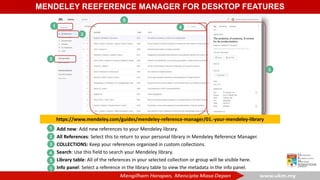
MENDELEY REEFERENCE MANAGER FOR DESKTOP FEATURES
Add new: Add new references to your Mendeley library.
All References: Select this to return to your personal library in Mendeley Reference Manager.
COLLECTIONS: Keep your references organized in custom collections.
Search: Use this field to search your Mendeley library.
Library table: All of the references in your selected collection or group will be visible here.
Info panel: Select a reference in the library table to view the metadata in the info panel.
6
6
https://www.mendeley.com/guides/mendeley-reference-manager/01.-your-mendeley-library
ADDING REFERENCES IN MENDELEY LIBRARY
ADDING REFERENCES
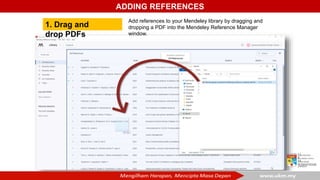
1. Drag and
drop PDFs
Add references to your Mendeley library by dragging and
dropping a PDF into the Mendeley Reference Manager
window.
ADDING REFERENCES
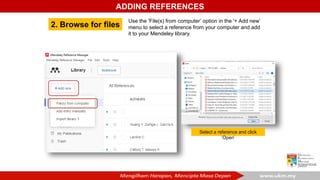
2. Browse for files
Use the 'File(s) from computer’ option in the '+ Add new’
menu to select a reference from your computer and add
it to your Mendeley library.
Select a reference and click
‘Open’
ADDING REFERENCES
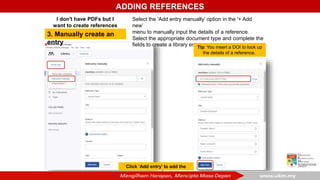
3. Manually create an
entry
Select the 'Add entry manually’ option in the '+ Add
new’
menu to manually input the details of a reference.
Select the appropriate document type and complete the
fields to create a library entry.
Tip: You insert a DOI to look up
the details of a reference.
I don't have PDFs but I
want to create references
Click ‘Add entry’ to add the
record
SMART COLLECTIONS
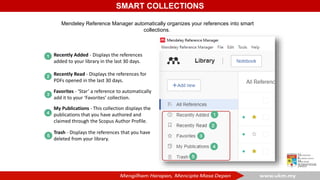
Mendeley Reference Manager automatically organizes your references into smart
collections.
Recently Added - Displays the references
added to your library in the last 30 days.
Recently Read - Displays the references for
PDFs opened in the last 30 days.
Favorites - ‘Star’ a reference to automatically
add it to your ‘Favorites’ collection.
My Publications - This collection displays the
publications that you have authored and
claimed through the Scopus Author Profile.
Trash - Displays the references that you have
deleted from your library.
COLLECTIONS
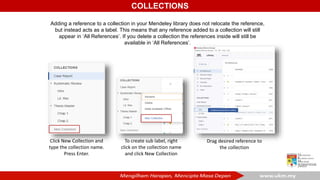
Adding a reference to a collection in your Mendeley library does not relocate the reference,
but instead acts as a label. This means that any reference added to a collection will still
appear in ‘All References’. If you delete a collection the references inside will still be
available in ‘All References’.
Click New Collection and
type the collection name.
Press Enter.
To create sub label, right
click on the collection name
and click New Collection
Drag desired reference to
the collection
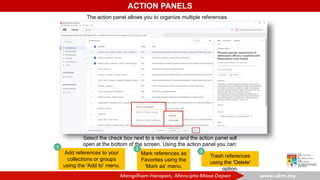
ACTION PANELS
The action panel allows you to organize multiple references.
Select the check box next to a reference and the action panel will
open at the bottom of the screen. Using the action panel you can:
Add references to your
collections or groups
using the 'Add to' menu.
Mark references as
Favorites using the
'Mark as' menu.
Trash references
using the 'Delete'
option.
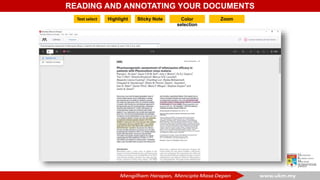
READING AND ANNOTATING YOUR DOCUMENTS
Text select Highlight Sticky Note Color
selection
Zoom
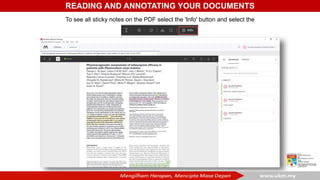
READING AND ANNOTATING YOUR DOCUMENTS
To see all sticky notes on the PDF select the 'Info' button and select the
'Annotations' tab.
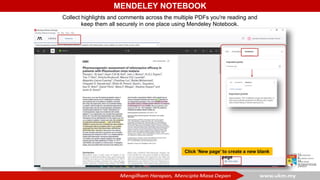
MENDELEY NOTEBOOK
Collect highlights and comments across the multiple PDFs you're reading and
keep them all securely in one place using Mendeley Notebook.
Click ‘New page’ to create a new blank
page
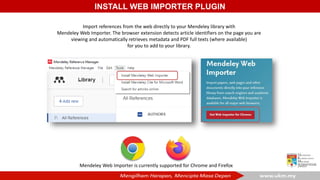
INSTALL WEB IMPORTER PLUGIN
Import references from the web directly to your Mendeley library with
Mendeley Web Importer. The browser extension detects article identifiers on the page you are
viewing and automatically retrieves metadata and PDF full texts (where available)
for you to add to your library.
Mendeley Web Importer is currently supported for Chrome and Firefox
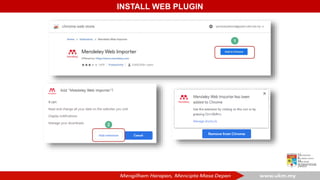
INSTALL WEB PLUGIN
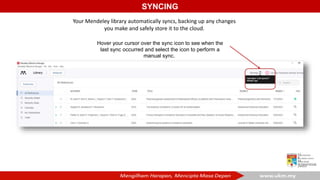
SYNCING
Your Mendeley library automatically syncs, backing up any changes
you make and safely store it to the cloud.
Hover your cursor over the sync icon to see when the
last sync occurred and select the icon to perform a
manual sync.
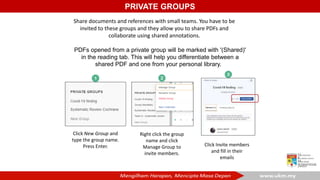
PRIVATE GROUPS
Share documents and references with small teams. You have to be
invited to these groups and they allow you to share PDFs and
collaborate using shared annotations.
PDFs opened from a private group will be marked with '(Shared)'
in the reading tab. This will help you differentiate between a
shared PDF and one from your personal library.
Click New Group and
type the group name.
Press Enter. Click Invite members
and fill in their
emails
Right click the group
name and click
Manage Group to
invite members.
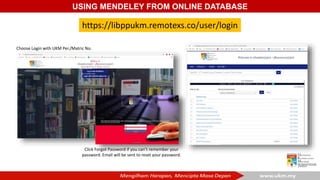
USING MENDELEY FROM ONLINE DATABASE
https://libppukm.remotexs.co/user/login
Click Forgot Password if you can’t remember your
password. Email will be sent to reset your password.
Choose Login with UKM Per./Matric No.
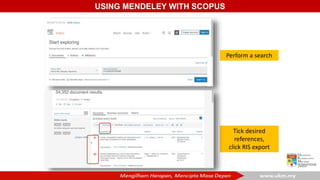
USING MENDELEY WITH SCOPUS
Perform a search
Tick desired
references,
click RIS export
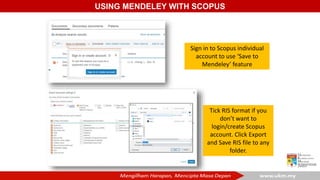
USING MENDELEY WITH SCOPUS
Sign in to Scopus individual
account to use ‘Save to
Mendeley’ feature
Tick RIS format if you
don’t want to
login/create Scopus
account. Click Export
and Save RIS file to any
folder.
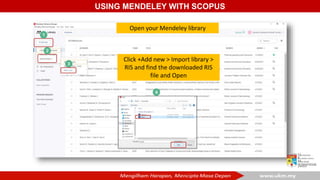
USING MENDELEY WITH SCOPUS
Click +Add new > Import library >
RIS and find the downloaded RIS
file and Open
Open your Mendeley library
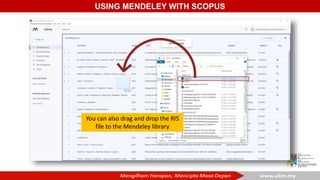
USING MENDELEY WITH SCOPUS
You can also drag and drop the RIS
file to the Mendeley library
USING MENDELEY WITH GOOGLE SCHOLAR
https://scholar.google.com
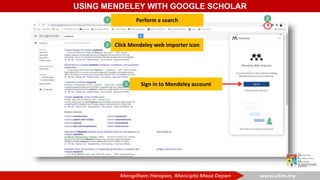
Click Mendeley web importer icon
Sign in to Mendeley account
USING MENDELEY WITH GOOGLE SCHOLAR
Perform a search
USING MENDELEY WITH GOOGLE SCHOLAR
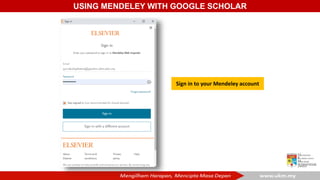
Sign in to your Mendeley account
USING MENDELEY WITH GOOGLE SCHOLAR
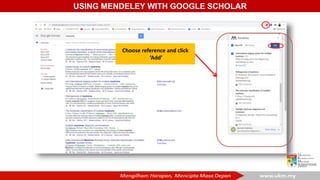
Choose reference and click
‘Add’
USING MENDELEY WITH GOOGLE SCHOLAR
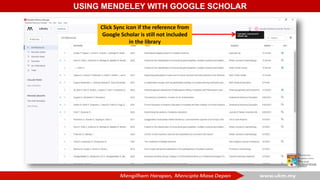
Click Sync icon if the reference from
Google Scholar is still not included
in the library
SEARCH ARTICLES ONLINE USING
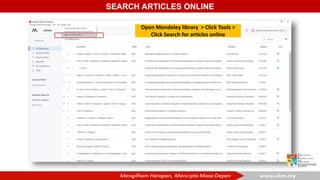
SEARCH ARTICLES ONLINE
Open Mendeley library > Click Tools >
Click Search for articles online
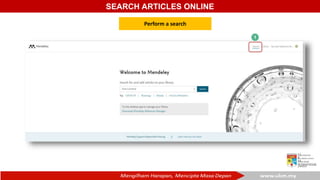
SEARCH ARTICLES ONLINE
Perform a search
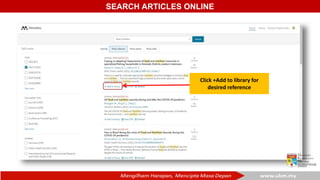
SEARCH ARTICLES ONLINE
Click +Add to library for
desired reference
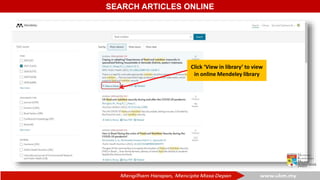
SEARCH ARTICLES ONLINE
Click ‘View in library’ to view
in online Mendeley library
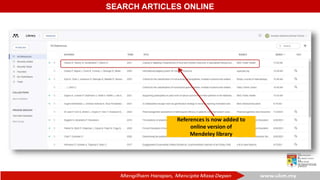
SEARCH ARTICLES ONLINE
References is now added to
online version of
Mendeley library
GENERATING CITATIONS AND BIBLIOGRAPHIES
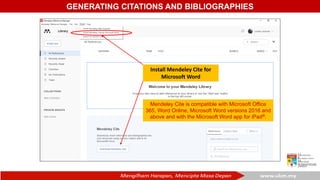
Install Mendeley Cite for
Microsoft Word
Mendeley Cite is compatible with Microsoft Office
365, Word Online, Microsoft Word versions 2016 and
above and with the Microsoft Word app for iPad®.
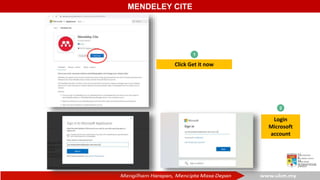
MENDELEY CITE
Click Get it now
Login
Microsoft
account
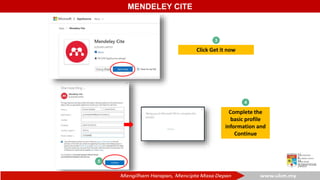
MENDELEY CITE
Click Get it now
Complete the
basic profile
information and
Continue
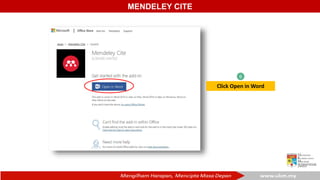
MENDELEY CITE
Click Open in Word
6
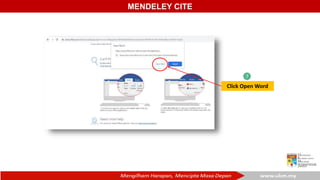
MENDELEY CITE
Click Open Word
7
MENDELEY CITE
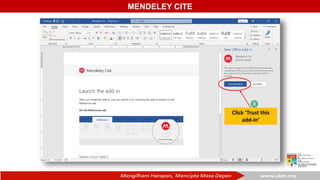
Click ‘Trust this
add-in’
8
MENDELEY CITE
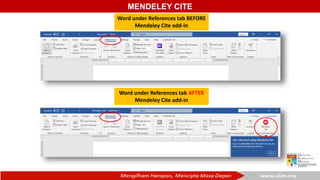
Word under References tab BEFORE
Mendeley Cite add-in
Word under References tab AFTER
Mendeley Cite add-in
MENDELEY CITE
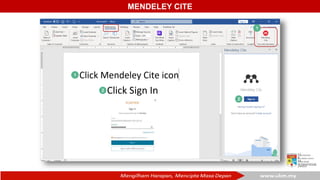
Click Sign In
MENDELEY CITE
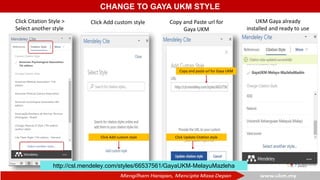
CHANGE TO GAYA UKM STYLE
Click Citation Style >
Select another style
Click Add custom style
Copy and Paste url for
Gaya UKM
Click Update Citation style
Copy and paste url for Gaya UKM
UKM Gaya already
installed and ready to use
http://csl.mendeley.com/styles/66537561/GayaUKM-MelayuMazleha
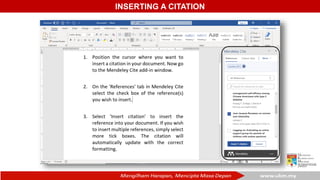
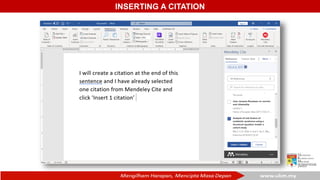
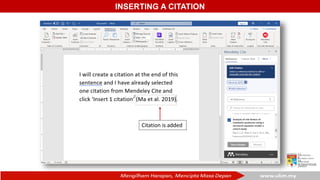
INSERTING A CITATION
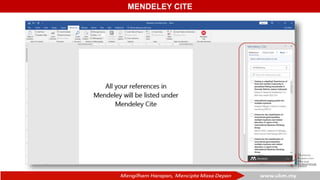
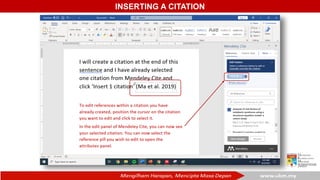
Citation is added
INSERTING A CITATION
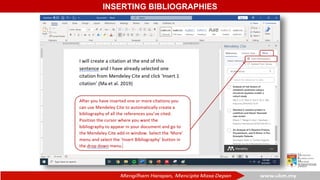
INSERTING BIBLIOGRAPHIES
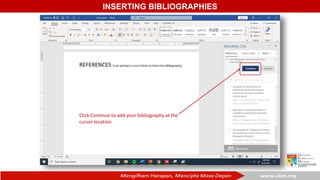
Click Continue to add your bibliography at the
cursor location
INSERTING BIBLIOGRAPHIES
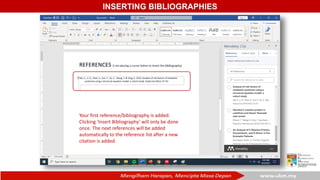
Your first reference/bibliography is added.
Clicking ‘Insert Bibliography’ will only be done
once. The next references will be added
automatically to the reference list after a new
citation is added.
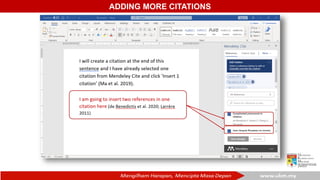
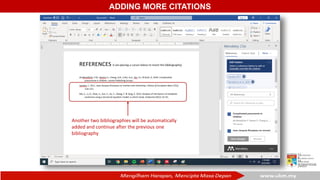
ADDING MORE CITATIONS
Another two bibliographies will be automatically
added and continue after the previous one
bibliography
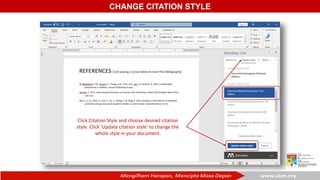
CHANGE CITATION STYLE
Click Citation Style and choose desired citation
style. Click ‘Update citation style’ to change the
whole style in your document.
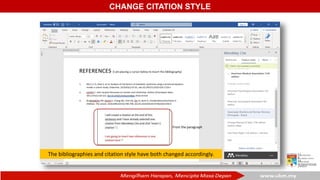
CHANGE CITATION STYLE
The bibliographies and citation style have both changed accordingly.
From the paragraph
UPDATE MENDELEY CITE LIST
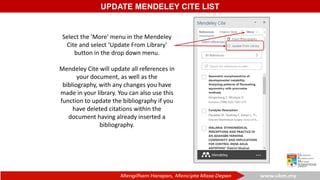
Select the 'More' menu in the Mendeley
Cite and select ‘Update From Library'
button in the drop down menu.
Mendeley Cite will update all references in
your document, as well as the
bibliography, with any changes you have
made in your library. You can also use this
function to update the bibliography if you
have deleted citations within the
document having already inserted a
bibliography.
UPDATE MENDELEY CITE LIST
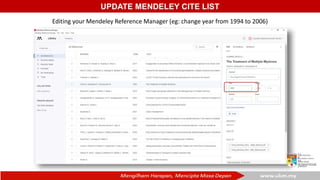
Editing your Mendeley Reference Manager (eg: change year from 1994 to 2006)
UPDATE MENDELEY CITE LIST
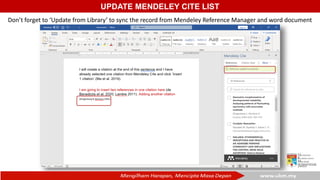
Don’t forget to ‘Update from Library’ to sync the record from Mendeley Reference Manager and word document
DELETING CITATION
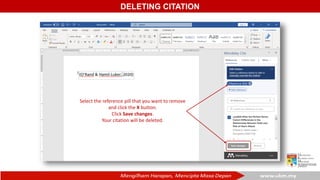
Select the reference pill that you want to remove
and click the X button.
Click Save changes.
Your citation will be deleted.
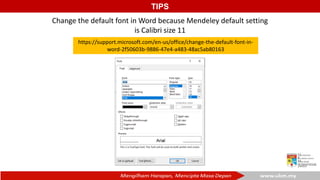
TIPS
https://support.microsoft.com/en-us/office/change-the-default-font-in-
word-2f50603b-9886-47e4-a483-48ac5ab80163
Change the default font in Word because Mendeley default setting
is Calibri size 11
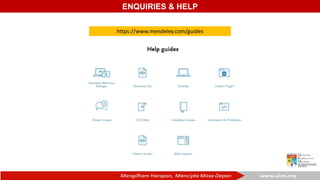
ENQUIRIES & HELP
https://www.mendeley.com/guides
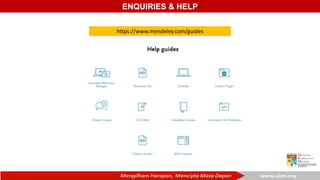
ENQUIRIES & HELP
https://www.mendeley.com/guides
CONTACT US
CONTACT US
Live Chat
https://bit.ly/3AeF1Ql
WhatsApp
019-2045652
Guide to Mendeley Reference Management

Guide to Mendeley Reference Management

  • 1.
    oleh: Unit PendidikanPelanggan, Perpustakaan Tun Seri Lanang INFORMATION SKILL COURSE REFERENCE MANAGEMENT: MENDELEY
  • 2.
     To knowthe function and use of reference management software (Mendeley) in the management of references for assignment/ theses/ article OBJEKTIF
  • 3.
    Source: University ofLeicester Library. Software for managing your references. https://www2.le.ac.uk/library/help/bibliographies [12 July 2019] Reference Management software allows you to manage references to all the publications and information sources you have used:  Create and organise a library of references  Import references from bibliographic databases on the internet  Cite while you write using add-in Word features  Automatically create bibliographies INTRODUCTION
  • 4.
    INTRODUCTION Mendeley Reference Manager: Mendeley Reference Manager is the downloaded part of the software installed onto your computer. Sync : The process of synchronizing your Mendeley data across devices. Web Importer : The browser bookmarklet that lets you quickly import documents from anywhere on the web. Mendeley Web : This is the Mendeley website where you can access the web version of your library, edit your profile and search for papers, groups or people. Mendeley Cite: An Adds that allows you to create and format your citations and bibliography according to your chosen style. Before we get started, here are some terms you should be familiar with: 1
  • 5.
  • 6.
  • 7.
  • 8.
    To view MendeleyWeb library CREATE ACCOUNT
  • 9.
  • 10.
  • 11.
    DOWNLOAD MENDELEY REEFERENCEMANAGER FOR DESKTOP https://www.mendeley.com/download-reference-manager/
  • 12.
    Run the installation INSTALLMENDELEY REEFERENCE MANAGER FOR DESKTOP
  • 13.
    INSTALL MENDELEY REEFERENCEMANAGER FOR DESKTOP Click the Mendeley Reference Manager icon on your desktop/ Windows startup
  • 14.
    Login using registered Mendeleyaccount RUN MENDELEY REFERENCE MANAGER FOR DESKTOP VERSION
  • 15.
    Mendeley Desktop MendeleyReference Manager for Desktop Mendeley Reference Manager for Desktop difference with Mendeley Desktop: https://service.elsevier.com/app/answers/detail/a_id/30107/supporthub/mendeley/p/16088/ • Released September 2020 • Identical functionality and appearance across Mendeley Reference Manager online and desktop • Use Mendeley Cite, a new citation add-in for Microsoft® Word. • Released August 2020 • It’s become increasingly difficult to keep developing the original Mendeley Desktop in the way Mendeley and users need. MENDELEY DESKTOP VS MENDELEY REFERENCE MANAGER FOR DESKTOP VERSION
  • 16.
    MENDELEY REEFERENCE MANAGERFOR DESKTOP FEATURES Add new: Add new references to your Mendeley library. All References: Select this to return to your personal library in Mendeley Reference Manager. COLLECTIONS: Keep your references organized in custom collections. Search: Use this field to search your Mendeley library. Library table: All of the references in your selected collection or group will be visible here. Info panel: Select a reference in the library table to view the metadata in the info panel. 6 6 https://www.mendeley.com/guides/mendeley-reference-manager/01.-your-mendeley-library
  • 17.
    ADDING REFERENCES INMENDELEY LIBRARY
  • 18.
    ADDING REFERENCES 1. Dragand drop PDFs Add references to your Mendeley library by dragging and dropping a PDF into the Mendeley Reference Manager window.
  • 19.
    ADDING REFERENCES 2. Browsefor files Use the 'File(s) from computer’ option in the '+ Add new’ menu to select a reference from your computer and add it to your Mendeley library. Select a reference and click ‘Open’
  • 20.
    ADDING REFERENCES 3. Manuallycreate an entry Select the 'Add entry manually’ option in the '+ Add new’ menu to manually input the details of a reference. Select the appropriate document type and complete the fields to create a library entry. Tip: You insert a DOI to look up the details of a reference. I don't have PDFs but I want to create references Click ‘Add entry’ to add the record
  • 21.
    SMART COLLECTIONS Mendeley ReferenceManager automatically organizes your references into smart collections. Recently Added - Displays the references added to your library in the last 30 days. Recently Read - Displays the references for PDFs opened in the last 30 days. Favorites - ‘Star’ a reference to automatically add it to your ‘Favorites’ collection. My Publications - This collection displays the publications that you have authored and claimed through the Scopus Author Profile. Trash - Displays the references that you have deleted from your library.
  • 22.
    COLLECTIONS Adding a referenceto a collection in your Mendeley library does not relocate the reference, but instead acts as a label. This means that any reference added to a collection will still appear in ‘All References’. If you delete a collection the references inside will still be available in ‘All References’. Click New Collection and type the collection name. Press Enter. To create sub label, right click on the collection name and click New Collection Drag desired reference to the collection
  • 23.
    ACTION PANELS The actionpanel allows you to organize multiple references. Select the check box next to a reference and the action panel will open at the bottom of the screen. Using the action panel you can: Add references to your collections or groups using the 'Add to' menu. Mark references as Favorites using the 'Mark as' menu. Trash references using the 'Delete' option.
  • 24.
    READING AND ANNOTATINGYOUR DOCUMENTS
  • 25.
    READING AND ANNOTATINGYOUR DOCUMENTS Text select Highlight Sticky Note Color selection Zoom
  • 26.
    READING AND ANNOTATINGYOUR DOCUMENTS To see all sticky notes on the PDF select the 'Info' button and select the 'Annotations' tab.
  • 27.
    MENDELEY NOTEBOOK Collect highlightsand comments across the multiple PDFs you're reading and keep them all securely in one place using Mendeley Notebook. Click ‘New page’ to create a new blank page
  • 28.
  • 29.
    INSTALL WEB IMPORTERPLUGIN Import references from the web directly to your Mendeley library with Mendeley Web Importer. The browser extension detects article identifiers on the page you are viewing and automatically retrieves metadata and PDF full texts (where available) for you to add to your library. Mendeley Web Importer is currently supported for Chrome and Firefox
  • 30.
  • 31.
    SYNCING Your Mendeley libraryautomatically syncs, backing up any changes you make and safely store it to the cloud. Hover your cursor over the sync icon to see when the last sync occurred and select the icon to perform a manual sync.
  • 32.
    PRIVATE GROUPS Share documentsand references with small teams. You have to be invited to these groups and they allow you to share PDFs and collaborate using shared annotations. PDFs opened from a private group will be marked with '(Shared)' in the reading tab. This will help you differentiate between a shared PDF and one from your personal library. Click New Group and type the group name. Press Enter. Click Invite members and fill in their emails Right click the group name and click Manage Group to invite members.
  • 33.
    USING MENDELEY FROMONLINE DATABASE https://libppukm.remotexs.co/user/login Click Forgot Password if you can’t remember your password. Email will be sent to reset your password. Choose Login with UKM Per./Matric No.
  • 34.
  • 35.
    USING MENDELEY WITHSCOPUS Perform a search Tick desired references, click RIS export
  • 36.
    USING MENDELEY WITHSCOPUS Sign in to Scopus individual account to use ‘Save to Mendeley’ feature Tick RIS format if you don’t want to login/create Scopus account. Click Export and Save RIS file to any folder.
  • 37.
    USING MENDELEY WITHSCOPUS Click +Add new > Import library > RIS and find the downloaded RIS file and Open Open your Mendeley library
  • 38.
    USING MENDELEY WITHSCOPUS You can also drag and drop the RIS file to the Mendeley library
  • 39.
    USING MENDELEY WITHGOOGLE SCHOLAR https://scholar.google.com
  • 40.
    Click Mendeley webimporter icon Sign in to Mendeley account USING MENDELEY WITH GOOGLE SCHOLAR Perform a search
  • 41.
    USING MENDELEY WITHGOOGLE SCHOLAR Sign in to your Mendeley account
  • 42.
    USING MENDELEY WITHGOOGLE SCHOLAR Choose reference and click ‘Add’
  • 43.
    USING MENDELEY WITHGOOGLE SCHOLAR Click Sync icon if the reference from Google Scholar is still not included in the library
  • 44.
  • 45.
    SEARCH ARTICLES ONLINE OpenMendeley library > Click Tools > Click Search for articles online
  • 46.
  • 47.
    SEARCH ARTICLES ONLINE Click+Add to library for desired reference
  • 48.
    SEARCH ARTICLES ONLINE Click‘View in library’ to view in online Mendeley library
  • 49.
    SEARCH ARTICLES ONLINE Referencesis now added to online version of Mendeley library
  • 50.
  • 51.
    GENERATING CITATIONS ANDBIBLIOGRAPHIES Install Mendeley Cite for Microsoft Word Mendeley Cite is compatible with Microsoft Office 365, Word Online, Microsoft Word versions 2016 and above and with the Microsoft Word app for iPad®.
  • 52.
    MENDELEY CITE Click Getit now Login Microsoft account
  • 53.
    MENDELEY CITE Click Getit now Complete the basic profile information and Continue
  • 54.
  • 55.
  • 56.
  • 57.
    MENDELEY CITE Word underReferences tab BEFORE Mendeley Cite add-in Word under References tab AFTER Mendeley Cite add-in
  • 58.
  • 59.
  • 60.
    CHANGE TO GAYAUKM STYLE Click Citation Style > Select another style Click Add custom style Click Add custom style Copy and Paste url for Gaya UKM Click Update Citation style Copy and paste url for Gaya UKM UKM Gaya already installed and ready to use http://csl.mendeley.com/styles/66537561/GayaUKM-MelayuMazleha
  • 61.
  • 62.
  • 63.
  • 64.
  • 65.
  • 66.
    INSERTING BIBLIOGRAPHIES Click Continueto add your bibliography at the cursor location
  • 67.
    INSERTING BIBLIOGRAPHIES Your firstreference/bibliography is added. Clicking ‘Insert Bibliography’ will only be done once. The next references will be added automatically to the reference list after a new citation is added.
  • 68.
  • 69.
    ADDING MORE CITATIONS Anothertwo bibliographies will be automatically added and continue after the previous one bibliography
  • 70.
    CHANGE CITATION STYLE ClickCitation Style and choose desired citation style. Click ‘Update citation style’ to change the whole style in your document.
  • 71.
    CHANGE CITATION STYLE Thebibliographies and citation style have both changed accordingly. From the paragraph
  • 72.
    UPDATE MENDELEY CITELIST Select the 'More' menu in the Mendeley Cite and select ‘Update From Library' button in the drop down menu. Mendeley Cite will update all references in your document, as well as the bibliography, with any changes you have made in your library. You can also use this function to update the bibliography if you have deleted citations within the document having already inserted a bibliography.
  • 73.
    UPDATE MENDELEY CITELIST Editing your Mendeley Reference Manager (eg: change year from 1994 to 2006)
  • 74.
    UPDATE MENDELEY CITELIST Don’t forget to ‘Update from Library’ to sync the record from Mendeley Reference Manager and word document
  • 75.
    DELETING CITATION Select thereference pill that you want to remove and click the X button. Click Save changes. Your citation will be deleted.
  • 76.
  • 77.
  • 78.
  • 79.
  • 80.