Intro to the
Adobe Creative Suite

M.Foster - 2013
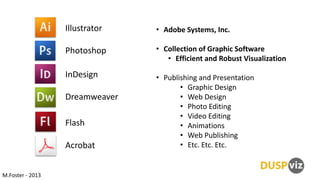
Illustrator

• Adobe Systems, Inc.

Photoshop

• Collection of Graphic Software
• Efficient and Robust Visualization

InDesign
Dreamweaver
Flash
Acrobat
M.Foster - 2013

• Publishing and Presentation
• Graphic Design
• Web Design
• Photo Editing
• Video Editing
• Animations
• Web Publishing
• Etc. Etc. Etc.
Fall 2013 - Introduction

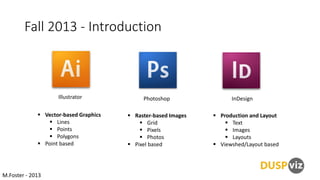
Illustrator

Photoshop

 Vector-based Graphics
 Lines
 Points
 Polygons
 Point based

 Raster-based Images
 Grid
 Pixels
 Photos
 Pixel based

M.Foster - 2013

InDesign
 Production and Layout
 Text
 Images
 Layouts
 Viewshed/Layout based
Introduction to Photoshop
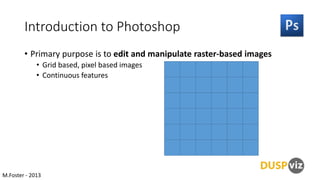
• Primary purpose is to edit and manipulate raster-based images
• Grid based, pixel based images
• Continuous features

M.Foster - 2013
Introduction to Photoshop
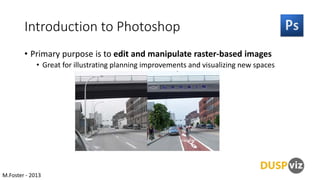
• Primary purpose is to edit and manipulate raster-based images
• Great for illustrating planning improvements and visualizing new spaces

M.Foster - 2013
Introduction to Photoshop
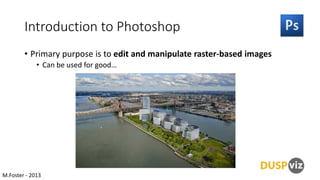
• Primary purpose is to edit and manipulate raster-based images
• Can be used for good…

M.Foster - 2013
Introduction to Photoshop
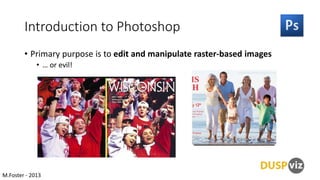
• Primary purpose is to edit and manipulate raster-based images
• … or evil!

M.Foster - 2013
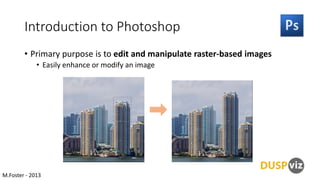
Introduction to Photoshop
• Primary purpose is to edit and manipulate raster-based images
• Easily enhance or modify an image

M.Foster - 2013
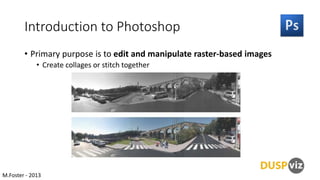
Introduction to Photoshop
• Primary purpose is to edit and manipulate raster-based images
• Create collages or stitch together

M.Foster - 2013
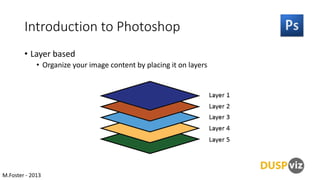
Introduction to Photoshop
• Layer based
• Organize your image content by placing it on layers

M.Foster - 2013
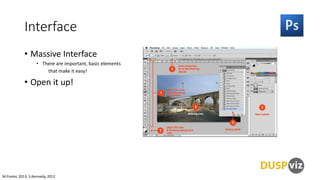
Interface
• Massive Interface
• There are important, basic elements
that make it easy!

• Open it up!

M.Foster, 2013, S.Kennedy, 2012
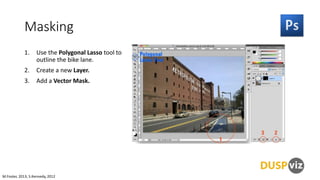
Masking
1.

Use the Polygonal Lasso tool to
outline the bike lane.

2.

Create a new Layer.

3.

Add a Vector Mask.

M.Foster, 2013, S.Kennedy, 2012
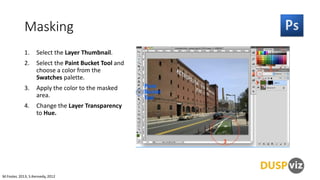
Masking
1.

Select the Layer Thumbnail.

2.

Select the Paint Bucket Tool and
choose a color from the
Swatches palette.

3.

Apply the color to the masked
area.

4.

Change the Layer Transparency
to Hue.

M.Foster, 2013, S.Kennedy, 2012
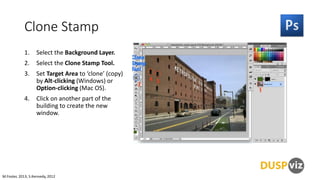
Clone Stamp
1.

Select the Background Layer.

2.

Select the Clone Stamp Tool.

3.

Set Target Area to ‘clone’ (copy)
by Alt-clicking (Windows) or
Option-clicking (Mac OS).

4.

Click on another part of the
building to create the new
window.

M.Foster, 2013, S.Kennedy, 2012
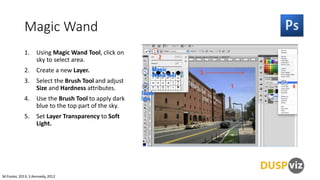
Magic Wand
1.

Using Magic Wand Tool, click on
sky to select area.

2.

Create a new Layer.

3.

Select the Brush Tool and adjust
Size and Hardness attributes.

4.

Use the Brush Tool to apply dark
blue to the top part of the sky.

5.

Set Layer Transparency to Soft
Light.

M.Foster, 2013, S.Kennedy, 2012
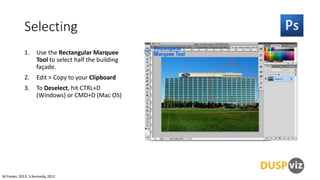
Selecting
1.

Use the Rectangular Marquee
Tool to select half the building
façade.

2.

Edit > Copy to your Clipboard

3.

To Deselect, hit CTRL+D
(Windows) or CMD+D (Mac OS)

M.Foster, 2013, S.Kennedy, 2012
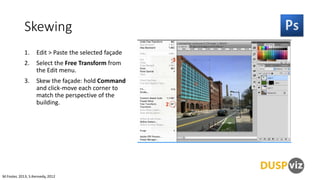
Skewing
1.

Edit > Paste the selected façade

2.

Select the Free Transform from
the Edit menu.

3.

Skew the façade: hold Command
and click-move each corner to
match the perspective of the
building.

M.Foster, 2013, S.Kennedy, 2012
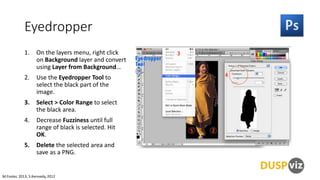
Eyedropper
1.

On the layers menu, right click
on Background layer and convert
using Layer from Background…

2.

Use the Eyedropper Tool to
select the black part of the
image.

3.

Select > Color Range to select
the black area.

4.

Decrease Fuzziness until full
range of black is selected. Hit
OK.

5.

Delete the selected area and
save as a PNG.

M.Foster, 2013, S.Kennedy, 2012
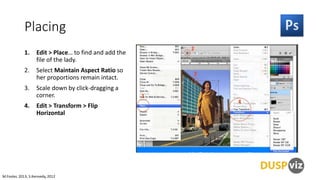
Placing
1.

Edit > Place… to find and add the
file of the lady.

2.

Select Maintain Aspect Ratio so
her proportions remain intact.

3.

Scale down by click-dragging a
corner.

4.

Edit > Transform > Flip
Horizontal

M.Foster, 2013, S.Kennedy, 2012
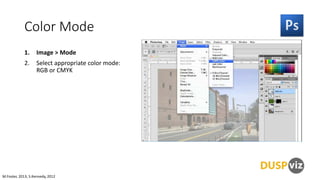
Color Mode
1.

Image > Mode

2.

Select appropriate color mode:
RGB or CMYK

M.Foster, 2013, S.Kennedy, 2012
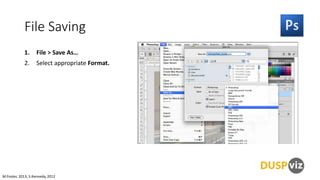
File Saving
1.

File > Save As…

2.

Select appropriate Format.

M.Foster, 2013, S.Kennedy, 2012

DUSPviz Intro to Photoshop - 2013

  • 1.
    Intro to the AdobeCreative Suite M.Foster - 2013
  • 2.
    Illustrator • Adobe Systems,Inc. Photoshop • Collection of Graphic Software • Efficient and Robust Visualization InDesign Dreamweaver Flash Acrobat M.Foster - 2013 • Publishing and Presentation • Graphic Design • Web Design • Photo Editing • Video Editing • Animations • Web Publishing • Etc. Etc. Etc.
  • 3.
    Fall 2013 -Introduction Illustrator Photoshop  Vector-based Graphics  Lines  Points  Polygons  Point based  Raster-based Images  Grid  Pixels  Photos  Pixel based M.Foster - 2013 InDesign  Production and Layout  Text  Images  Layouts  Viewshed/Layout based
  • 4.
    Introduction to Photoshop •Primary purpose is to edit and manipulate raster-based images • Grid based, pixel based images • Continuous features M.Foster - 2013
  • 5.
    Introduction to Photoshop •Primary purpose is to edit and manipulate raster-based images • Great for illustrating planning improvements and visualizing new spaces M.Foster - 2013
  • 6.
    Introduction to Photoshop •Primary purpose is to edit and manipulate raster-based images • Can be used for good… M.Foster - 2013
  • 7.
    Introduction to Photoshop •Primary purpose is to edit and manipulate raster-based images • … or evil! M.Foster - 2013
  • 8.
    Introduction to Photoshop •Primary purpose is to edit and manipulate raster-based images • Easily enhance or modify an image M.Foster - 2013
  • 9.
    Introduction to Photoshop •Primary purpose is to edit and manipulate raster-based images • Create collages or stitch together M.Foster - 2013
  • 10.
    Introduction to Photoshop •Layer based • Organize your image content by placing it on layers M.Foster - 2013
  • 11.
    Interface • Massive Interface •There are important, basic elements that make it easy! • Open it up! M.Foster, 2013, S.Kennedy, 2012
  • 12.
    Masking 1. Use the PolygonalLasso tool to outline the bike lane. 2. Create a new Layer. 3. Add a Vector Mask. M.Foster, 2013, S.Kennedy, 2012
  • 13.
    Masking 1. Select the LayerThumbnail. 2. Select the Paint Bucket Tool and choose a color from the Swatches palette. 3. Apply the color to the masked area. 4. Change the Layer Transparency to Hue. M.Foster, 2013, S.Kennedy, 2012
  • 14.
    Clone Stamp 1. Select theBackground Layer. 2. Select the Clone Stamp Tool. 3. Set Target Area to ‘clone’ (copy) by Alt-clicking (Windows) or Option-clicking (Mac OS). 4. Click on another part of the building to create the new window. M.Foster, 2013, S.Kennedy, 2012
  • 15.
    Magic Wand 1. Using MagicWand Tool, click on sky to select area. 2. Create a new Layer. 3. Select the Brush Tool and adjust Size and Hardness attributes. 4. Use the Brush Tool to apply dark blue to the top part of the sky. 5. Set Layer Transparency to Soft Light. M.Foster, 2013, S.Kennedy, 2012
  • 16.
    Selecting 1. Use the RectangularMarquee Tool to select half the building façade. 2. Edit > Copy to your Clipboard 3. To Deselect, hit CTRL+D (Windows) or CMD+D (Mac OS) M.Foster, 2013, S.Kennedy, 2012
  • 17.
    Skewing 1. Edit > Pastethe selected façade 2. Select the Free Transform from the Edit menu. 3. Skew the façade: hold Command and click-move each corner to match the perspective of the building. M.Foster, 2013, S.Kennedy, 2012
  • 18.
    Eyedropper 1. On the layersmenu, right click on Background layer and convert using Layer from Background… 2. Use the Eyedropper Tool to select the black part of the image. 3. Select > Color Range to select the black area. 4. Decrease Fuzziness until full range of black is selected. Hit OK. 5. Delete the selected area and save as a PNG. M.Foster, 2013, S.Kennedy, 2012
  • 19.
    Placing 1. Edit > Place…to find and add the file of the lady. 2. Select Maintain Aspect Ratio so her proportions remain intact. 3. Scale down by click-dragging a corner. 4. Edit > Transform > Flip Horizontal M.Foster, 2013, S.Kennedy, 2012
  • 20.
    Color Mode 1. Image >Mode 2. Select appropriate color mode: RGB or CMYK M.Foster, 2013, S.Kennedy, 2012
  • 21.
    File Saving 1. File >Save As… 2. Select appropriate Format. M.Foster, 2013, S.Kennedy, 2012