Getting Started with Illustrator
Objectives Create a new document Explore the Illustrator window Create basic shapes Apply fill and stroke colors to objects Select, move, and align objects Transform objects Make direct selections
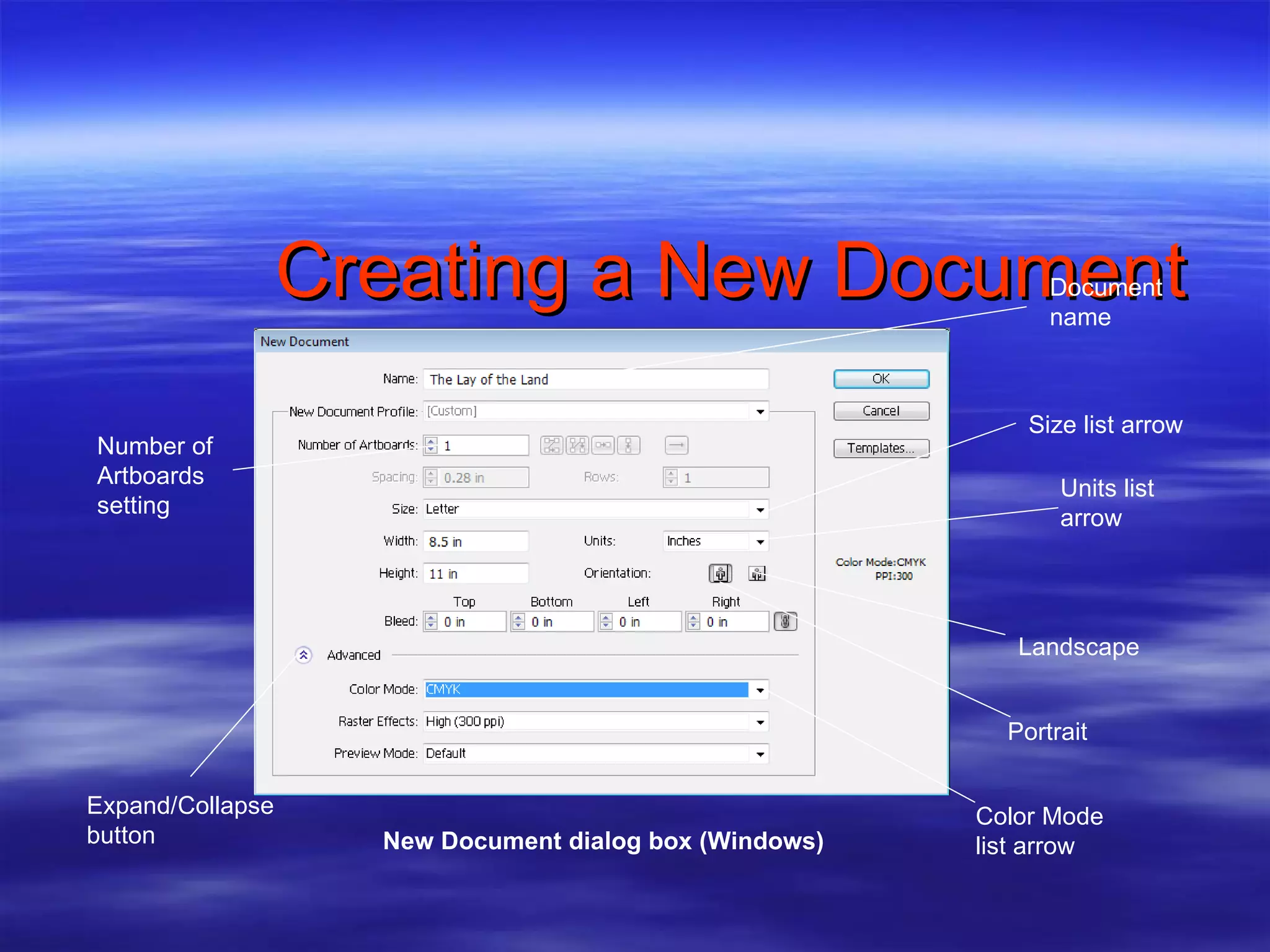
Create a New Document To create a new document in Illustrator, you begin in the New Document dialog box. Choose document size, number of artboards, page orientation, and unit of measure for rulers
Creating a New Document Choosing color modes and document size CMYK Color is color mode used for print projects RGB Color is used for projects going to screen such as TV or Web
Creating a New Document Choosing color modes and document size New Document Profile menu in New Document dialog box allows you to choose  Print Web Mobile and devices Video and film Basic CMYK Basic RGB
Creating a New Document Choosing a unit of measure Many designers choose points and picas Point is 1/72 inch Pica is 12 points or 1/6  inch
Creating a New Document To set preferences for units of measure Click Edit on Application bar Point to Preferences  Click Units and Display Performance Click General, Stroke, and Type list arrows
Creating a New Document Document   name Size list arrow Units list arrow   Color Mode list arrow New Document dialog box (Windows) Landscape  Portrait  Expand/Collapse button Number of Artboards  setting
Creating a New Document QUICKTIP If you are using a Macintosh, you will find the Preferences command on the Illustrator menu.
Exploring the Illustrator Window The arrangement of windows and panels that you see on your monitor is called the  workspace . Illustrator CS4 offers a number of predefined workspaces that are customized for different types of tasks.
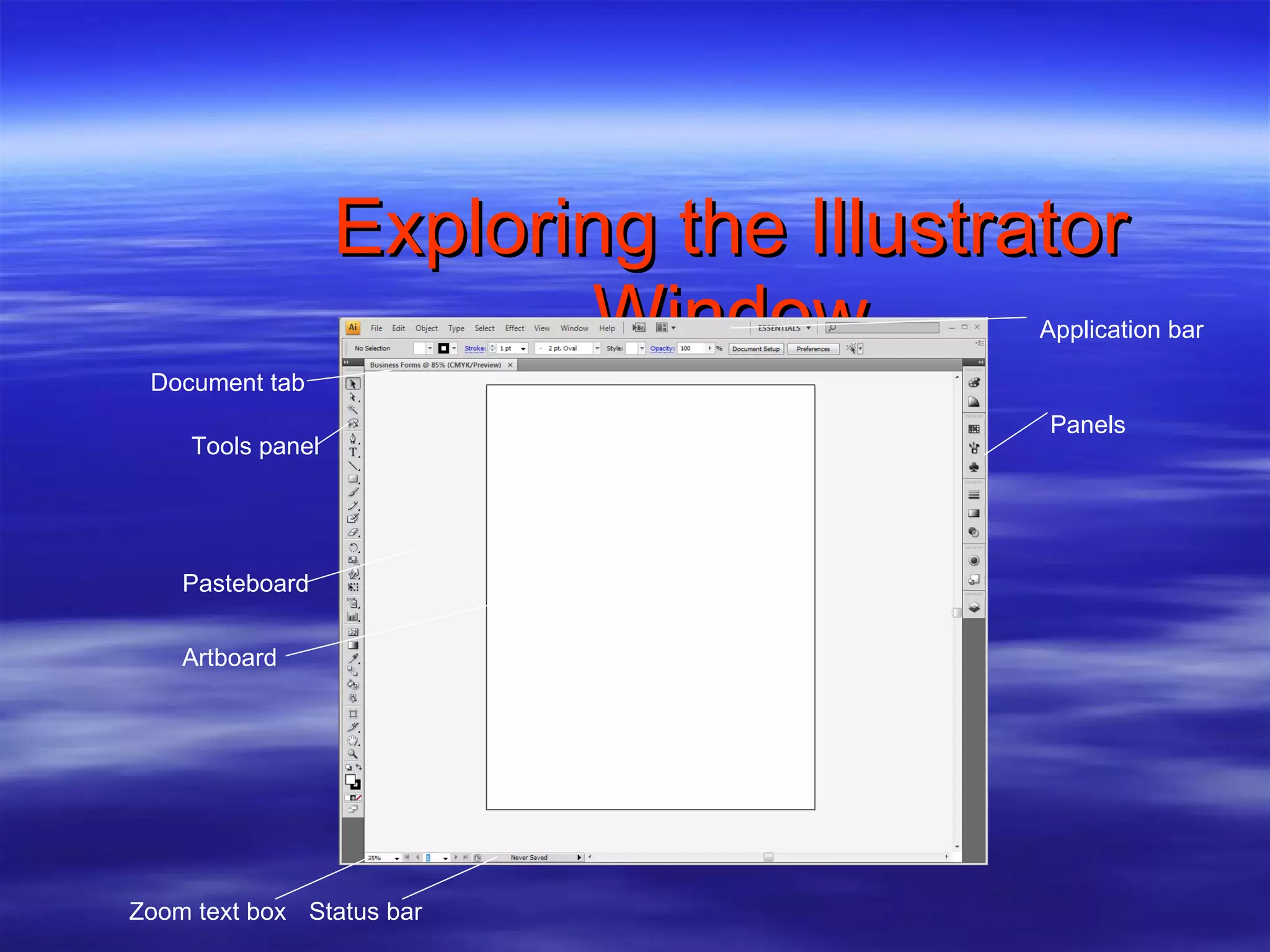
Exploring the Illustrator Window The default workspace is called Essentials. The workspace includes the Application bar Document tab Artboard Pasteboard Panels Tools panel
Exploring the Illustrator Window The  Application bar  includes menus, the Go to Bridge button, the Arrange Documents list arrow, the workspace switcher, and the Minimize, Maximize, and Close buttons. The  document tab  contains the name of your document, magnification level, and color mode.
Exploring the Illustrator Window The  artboard  is the area, bound by a solid line, in which you create your artwork; the size of the artboard can be set as large as 227" × 227". The  pasteboard  is the area outside the artboard where you can store objects before placing them on the artboard.
Exploring the Illustrator Window The  Tools panel  contains tools that let you create, select, and manipulate objects in Illustrator. Panels  are windows containing features for modifying and manipulating Illustrator objects. Panels are arranged in groups on the right side of the workspace.
Exploring the Illustrator Window Other areas of the workspace include the  status bar  and the  zoom text box . The  status bar  contains the zoom text box, the zoom menu, the Artboard Navigation menu, and Next and Previous buttons.
Exploring the Illustrator Window Panels Application bar Tools panel Pasteboard Artboard Status bar Document tab Zoom text box
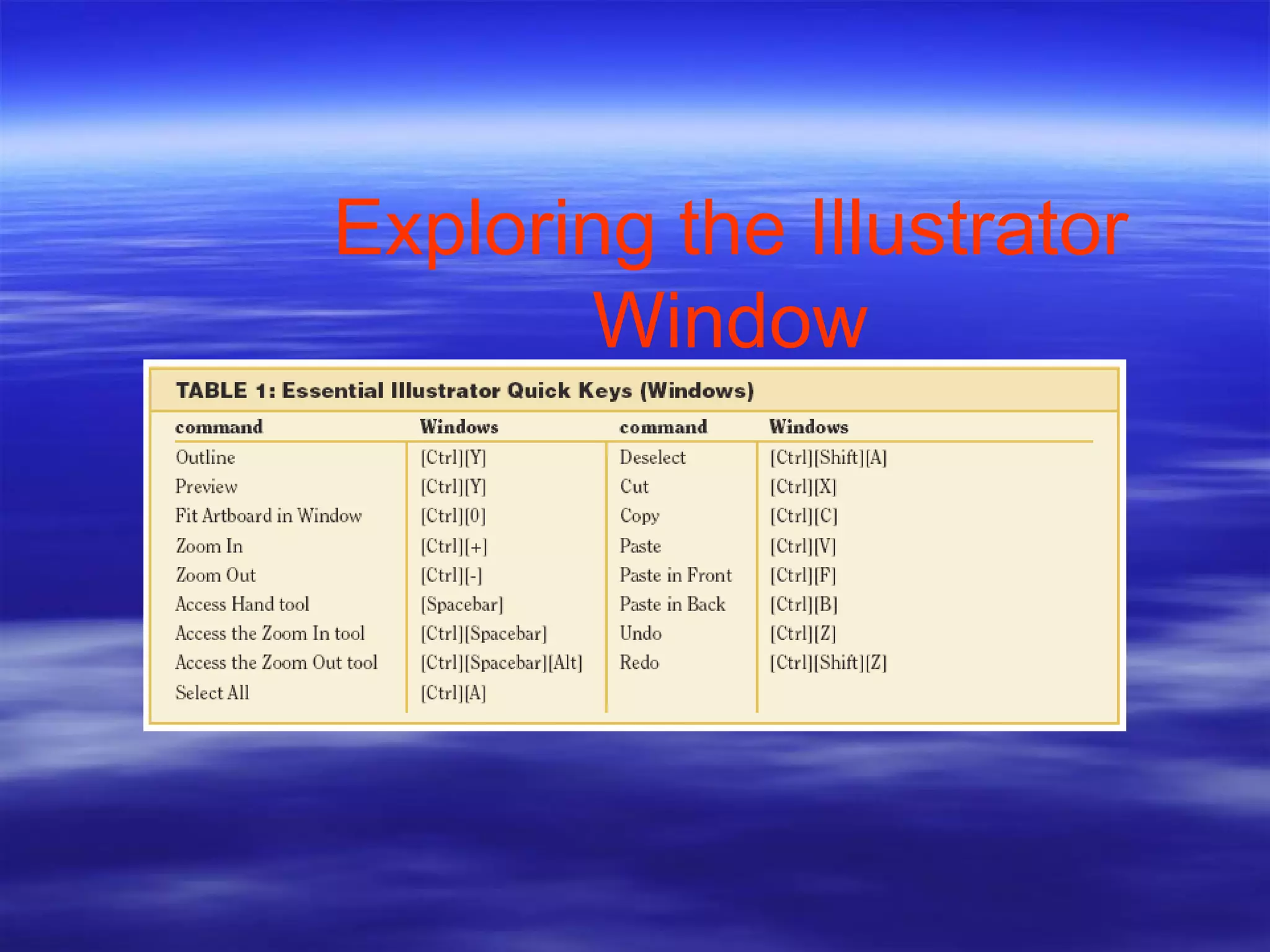
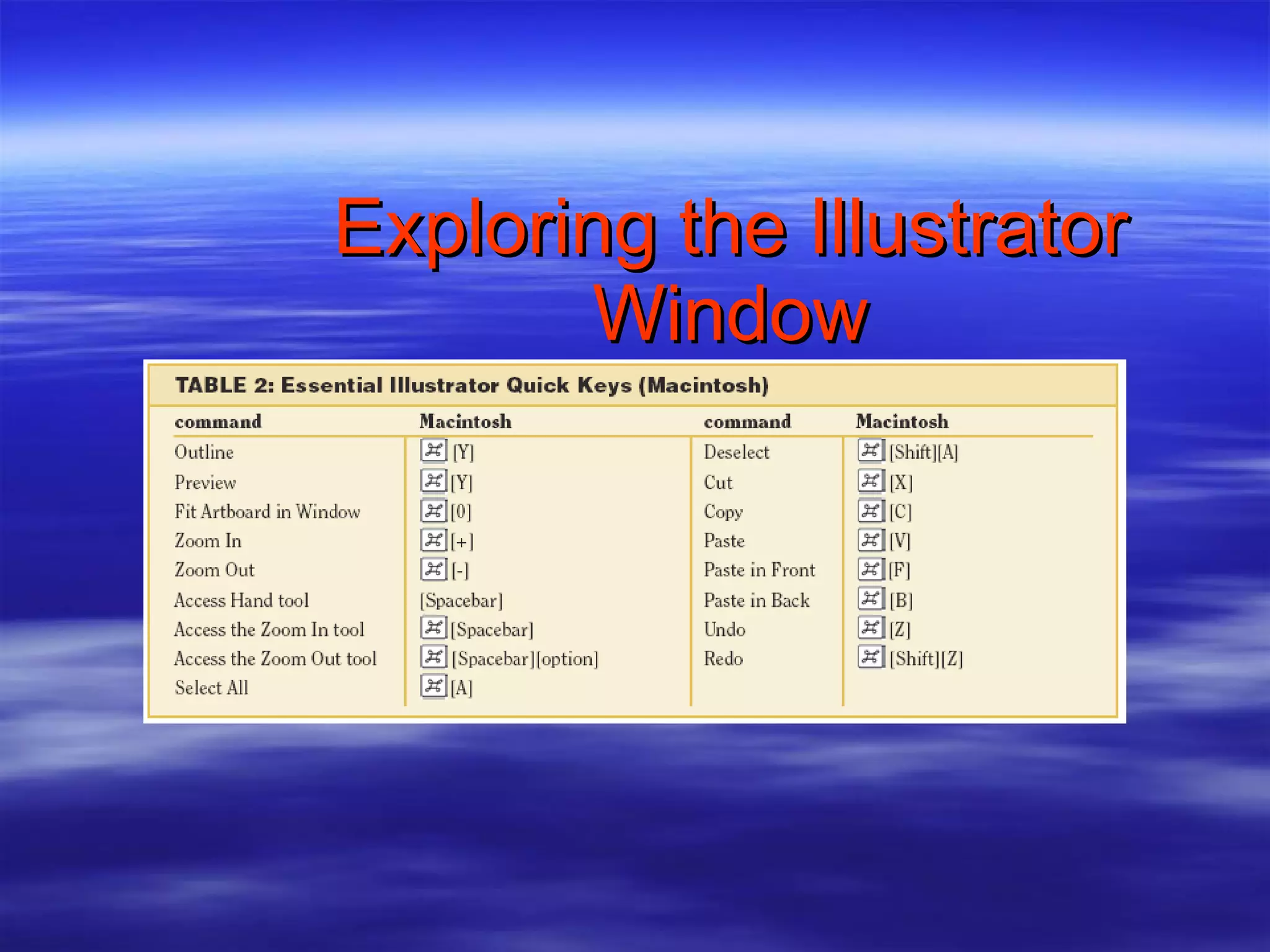
Exploring the Illustrator Window Quick keys  are commands essential for performing basic and complex operations When available, quick key is listed beside command in menu Best place to start memorizing quick keys is with commands on File, Edit, and Object menus
Exploring the Illustrator Window
Create Basic Shapes Basic geometric shapes are the foundation of Illustrator
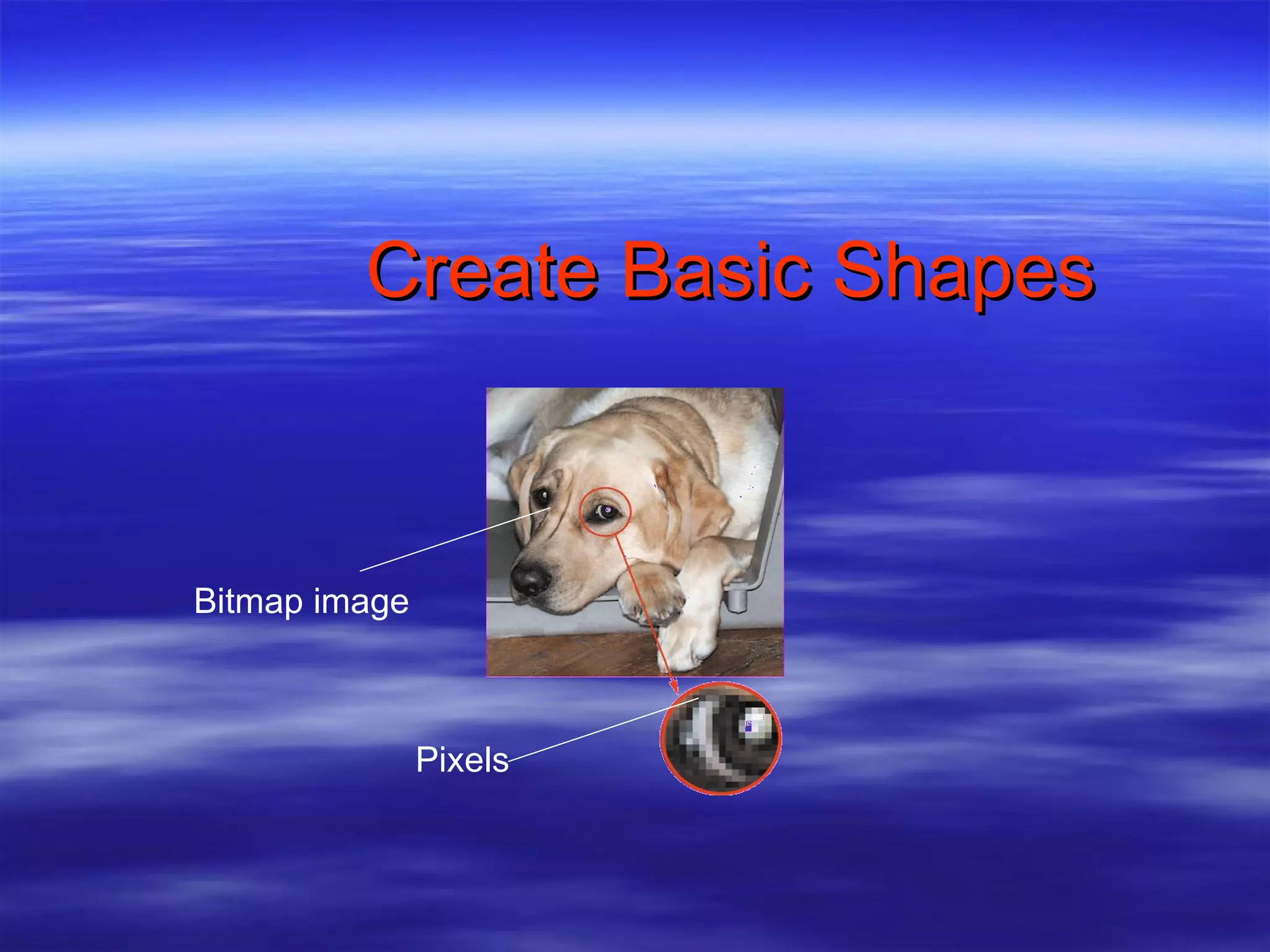
Create Basic Shapes Bitmap Images  – created using square or rectangle grid of colored squares called  pixels . All scanned images composed of pixels All digital images composed of pixels Number of pixels in a given inch referred to as image’s  resolution .
Create Basic Shapes Bitmap images termed resolution-dependent Resizing larger means negative impact on image quality
Create Basic Shapes Bitmap image Pixels
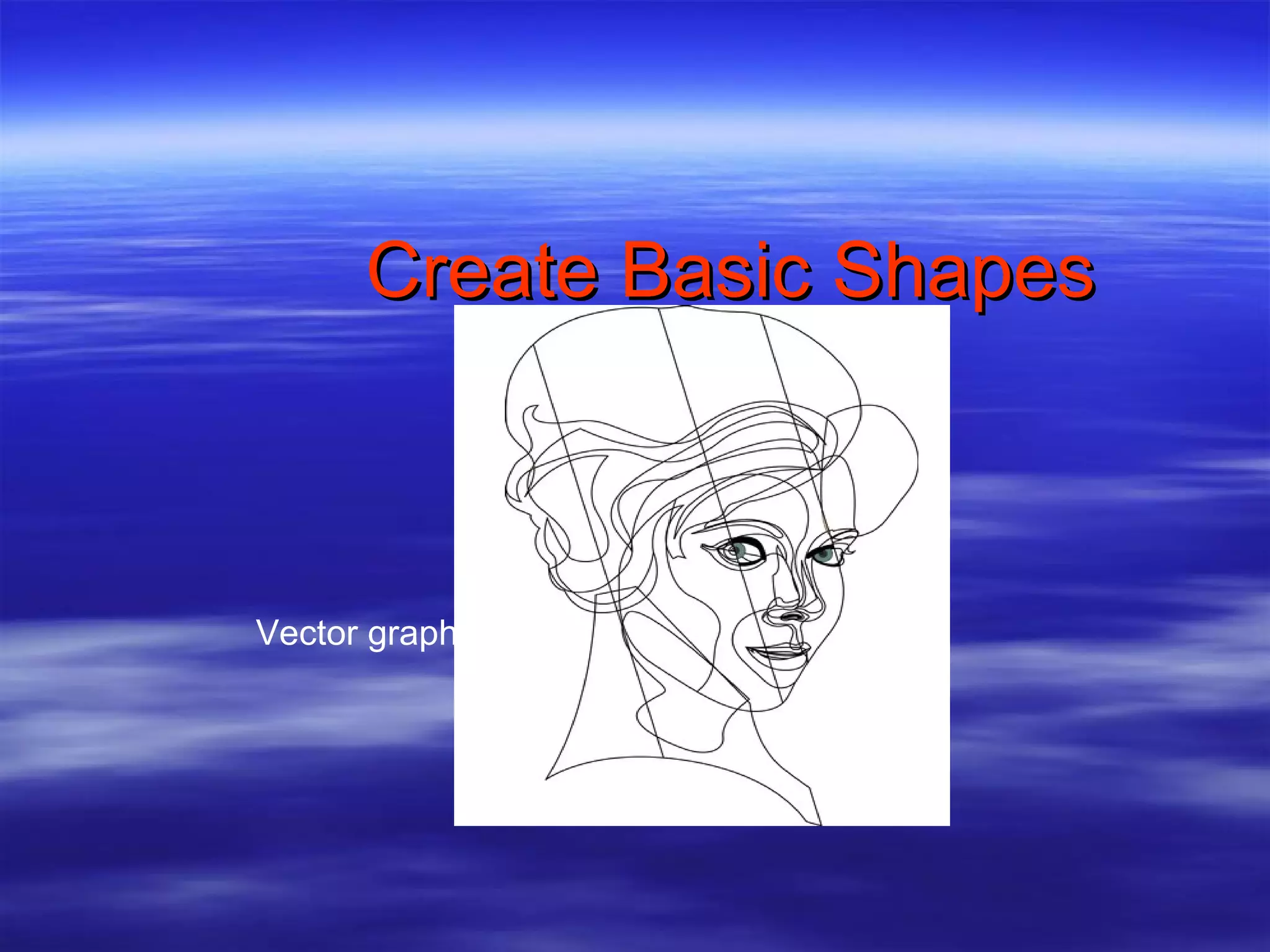
Create Basic Shapes Graphics created in Illustrator are  vector graphics Created with lines and curves Defined by mathematical objects called  vectors
Create Basic Shapes Vector graphics consist of  anchor points  and  line segments , together referred to as  paths Can be scaled to any size Termed  resolution-independent
Create Basic Shapes Vector graphic
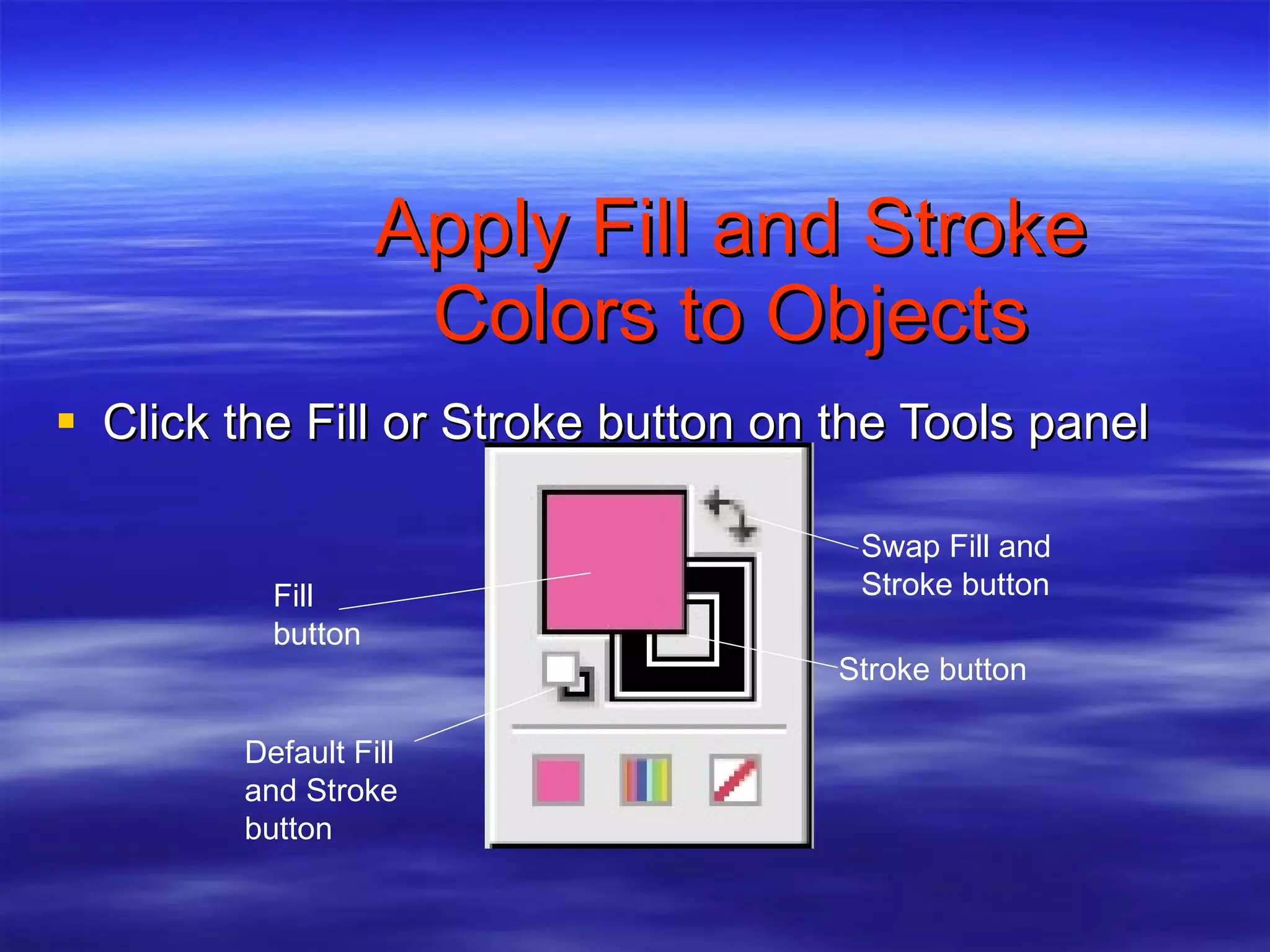
Apply Fill and Stroke Colors to Objects Click the Fill or Stroke button on the Tools panel Stroke button Swap Fill and Stroke button Fill button Default Fill and Stroke button
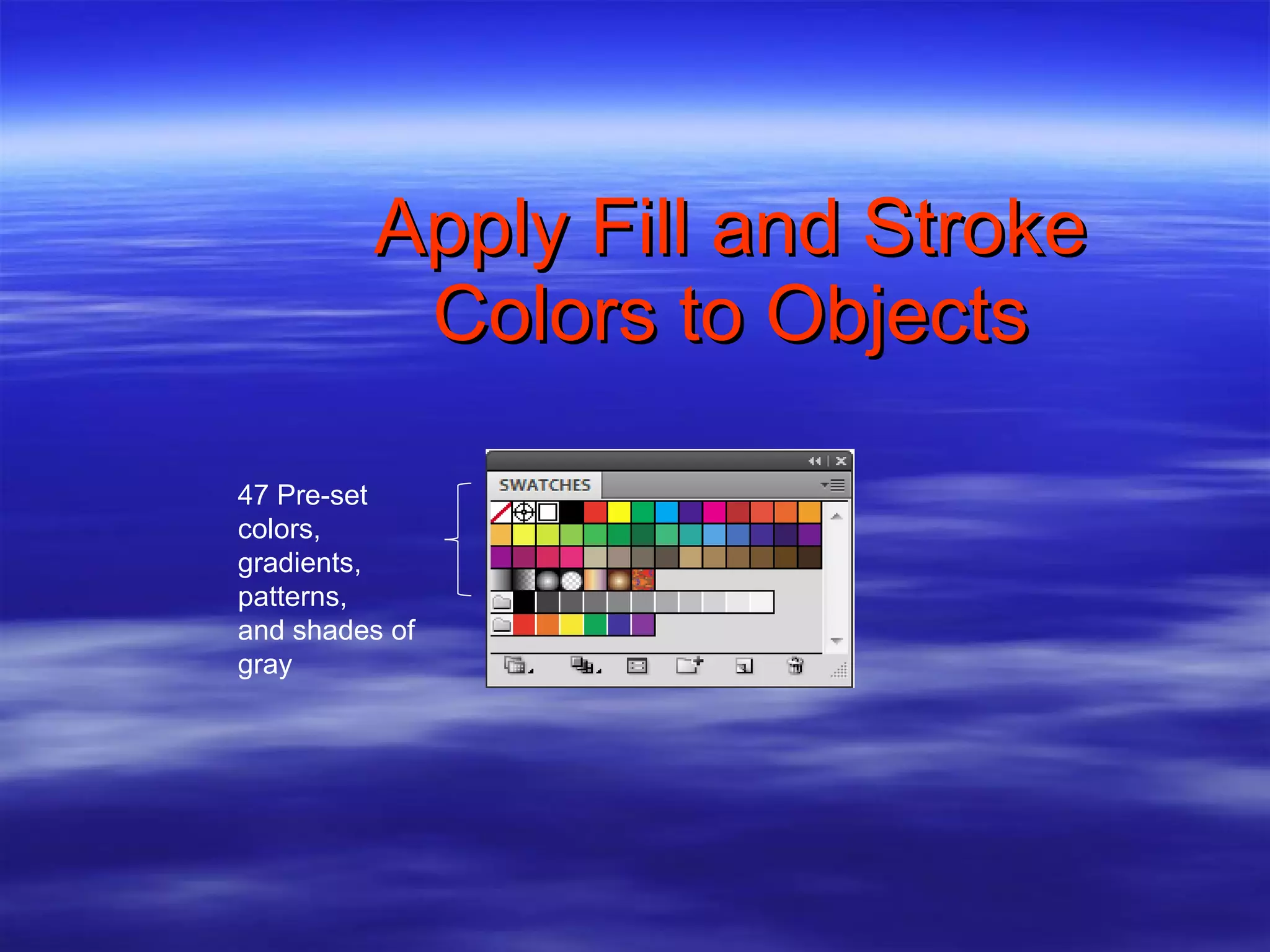
Apply Fill and Stroke Colors to Objects Swatches panel is central to color management in application Simple resource for applying fills and strokes to objects
Apply Fill and Stroke Colors to Objects When object selected, click swatch in panel applies color as fill or stroke, depending on which is activated. Dragging swatch to unselected object will change color of its fill or stroke, depending on which is activated.
Apply Fill and Stroke Colors to Objects 47 Pre-set colors, gradients, patterns, and shades of gray
Select, Move, and Align objects To move or modify object, select it with a selection tool, menu item, or command key Two basic ways to move objects Click and drag Use arrow keys Pressing [Alt](Win) or [option](Mac) when dragging creates copy of object
Select, Move, and Align objects Grouping objects allows them to be selected with one click of Selection tool To group: Click objects Click Object on Application bar Click Group
Select, Move, and Align objects Marquee selection  – dotted rectangle that is created when you drag the Selection tool around an object or objects Any object marquee touches before mouse is released will be selected Marquee selections very useful for quick and precise selections
Select, Move, and Align objects Smart Guides  are temporary guides turned on and off on the View menu help move and align objects in relation to other objects Smart Guides use words to identify visible or invisible objects, page boundaries, intersections, anchor points, paths, and center points
Transform Objects Transforming objects Fundamental transformation tools: Scale tool: resize objects Rotate tool: rotate objects Reflect tool: flip objects over an imaginary axis
Transform Objects Transform an object using desired tool or its dialog box Enter precise numbers to execute transformation on selected object
Transform Objects Repeating transformations Powerful command is Transform Again, found on Object menu When you transform an object, Transform Again repeats transformation
Transform Objects Repeating transformations Power comes in combination with copying transformations Very handy for creating complex geometric shapes from basic objects
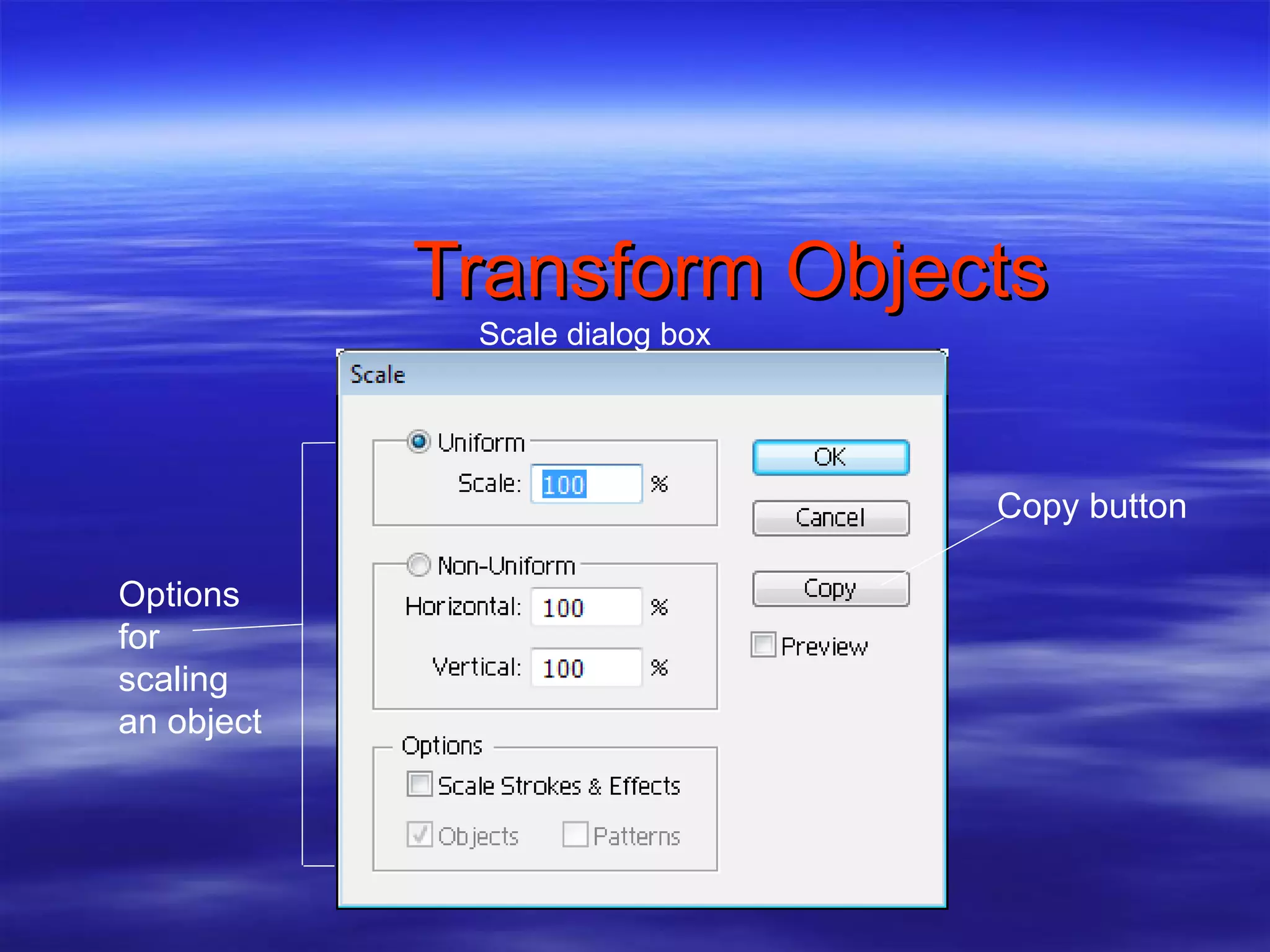
Transform Objects Scale dialog box Options for scaling an object Copy button
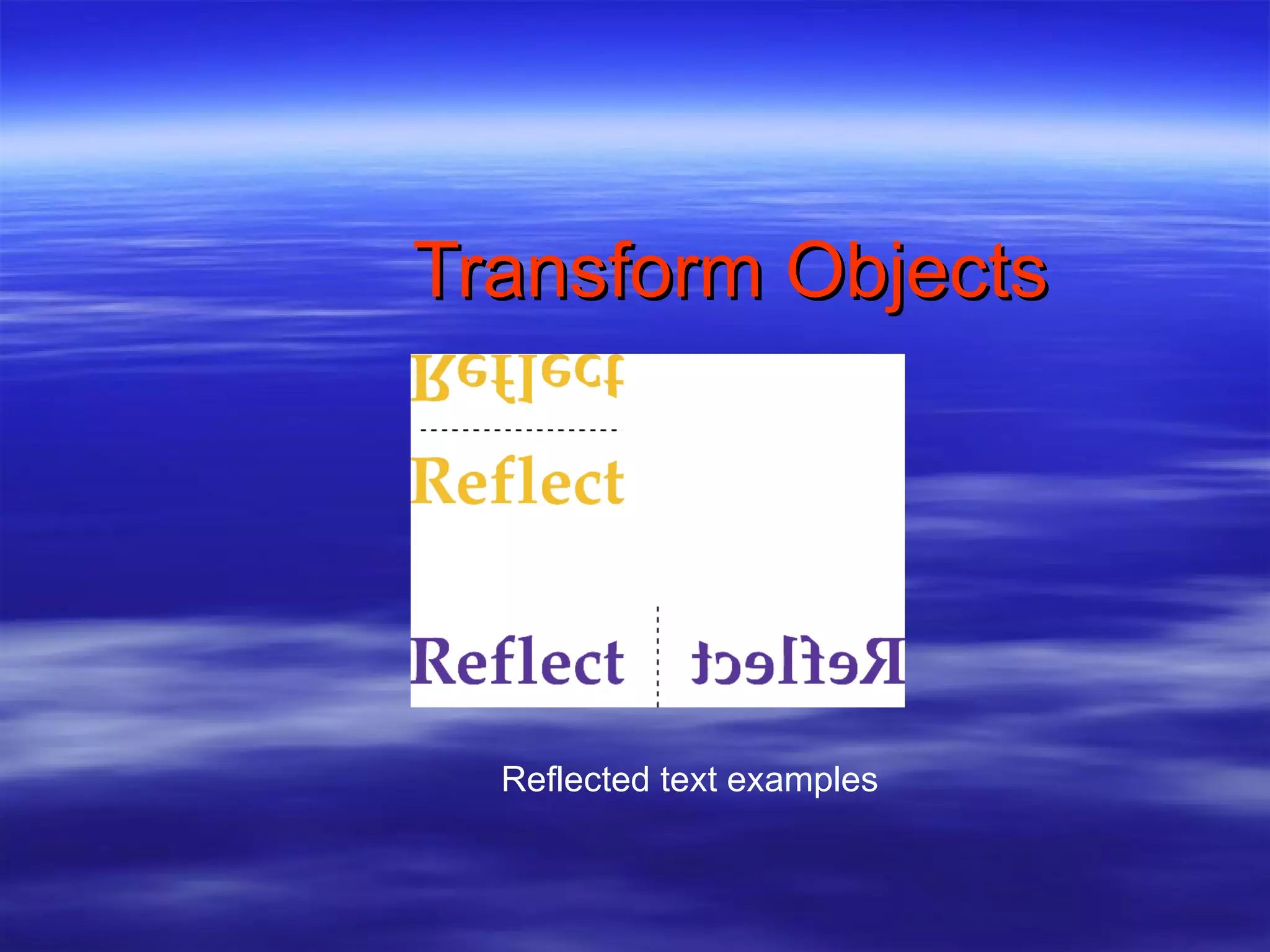
Transform Objects Reflected text examples
Make Direct Selections Use the Direct Selection tool to select individual anchor points or single paths of an object Use [Shift] to select multiple anchor points or multiple paths Select multiple paths or anchor points by dragging a direct selection marquee
Make Direct Selections Clicking center of object with Direct Selection tool selects entire object Click edge to select path only
Make Direct Selections Adding anchor points Add Anchor Points command creates new anchor points without distorting object To add anchor point: Click Object on the Application bar Point to Path Click Add Anchor Points
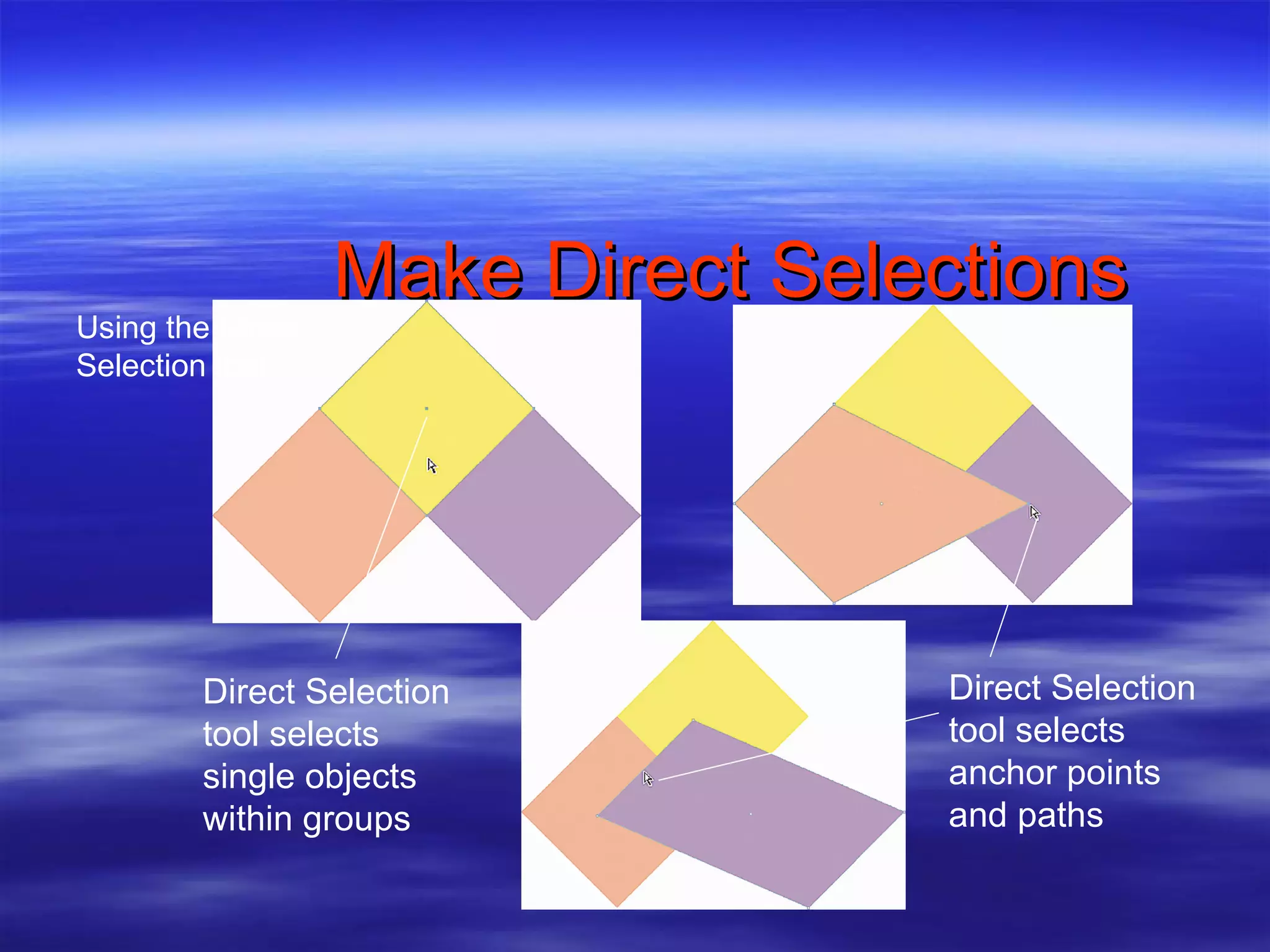
Make Direct Selections Direct Selection tool selects single objects within groups Direct Selection tool selects anchor points and paths Using the Direct Selection tool
Make Direct Selections Turning Objects into Guides Any object you create can be turned into guide Select object Click View on the Application bar Point to Guides, then click Make Guides
Make Direct Selections When object becomes guide, it loses its attributes, such as fill, stroke, and stroke weight Illustrator remembers original attributes  To transform guide back into object, click View on the Application bar, point to Guides, then click Release Guides

Illustrator assignment 1

  • 1.
  • 2.
    Objectives Create anew document Explore the Illustrator window Create basic shapes Apply fill and stroke colors to objects Select, move, and align objects Transform objects Make direct selections
  • 3.
    Create a NewDocument To create a new document in Illustrator, you begin in the New Document dialog box. Choose document size, number of artboards, page orientation, and unit of measure for rulers
  • 4.
    Creating a NewDocument Choosing color modes and document size CMYK Color is color mode used for print projects RGB Color is used for projects going to screen such as TV or Web
  • 5.
    Creating a NewDocument Choosing color modes and document size New Document Profile menu in New Document dialog box allows you to choose Print Web Mobile and devices Video and film Basic CMYK Basic RGB
  • 6.
    Creating a NewDocument Choosing a unit of measure Many designers choose points and picas Point is 1/72 inch Pica is 12 points or 1/6 inch
  • 7.
    Creating a NewDocument To set preferences for units of measure Click Edit on Application bar Point to Preferences Click Units and Display Performance Click General, Stroke, and Type list arrows
  • 8.
    Creating a NewDocument Document name Size list arrow Units list arrow Color Mode list arrow New Document dialog box (Windows) Landscape Portrait Expand/Collapse button Number of Artboards setting
  • 9.
    Creating a NewDocument QUICKTIP If you are using a Macintosh, you will find the Preferences command on the Illustrator menu.
  • 10.
    Exploring the IllustratorWindow The arrangement of windows and panels that you see on your monitor is called the workspace . Illustrator CS4 offers a number of predefined workspaces that are customized for different types of tasks.
  • 11.
    Exploring the IllustratorWindow The default workspace is called Essentials. The workspace includes the Application bar Document tab Artboard Pasteboard Panels Tools panel
  • 12.
    Exploring the IllustratorWindow The Application bar includes menus, the Go to Bridge button, the Arrange Documents list arrow, the workspace switcher, and the Minimize, Maximize, and Close buttons. The document tab contains the name of your document, magnification level, and color mode.
  • 13.
    Exploring the IllustratorWindow The artboard is the area, bound by a solid line, in which you create your artwork; the size of the artboard can be set as large as 227" × 227". The pasteboard is the area outside the artboard where you can store objects before placing them on the artboard.
  • 14.
    Exploring the IllustratorWindow The Tools panel contains tools that let you create, select, and manipulate objects in Illustrator. Panels are windows containing features for modifying and manipulating Illustrator objects. Panels are arranged in groups on the right side of the workspace.
  • 15.
    Exploring the IllustratorWindow Other areas of the workspace include the status bar and the zoom text box . The status bar contains the zoom text box, the zoom menu, the Artboard Navigation menu, and Next and Previous buttons.
  • 16.
    Exploring the IllustratorWindow Panels Application bar Tools panel Pasteboard Artboard Status bar Document tab Zoom text box
  • 17.
    Exploring the IllustratorWindow Quick keys are commands essential for performing basic and complex operations When available, quick key is listed beside command in menu Best place to start memorizing quick keys is with commands on File, Edit, and Object menus
  • 18.
  • 19.
  • 20.
    Create Basic ShapesBasic geometric shapes are the foundation of Illustrator
  • 21.
    Create Basic ShapesBitmap Images – created using square or rectangle grid of colored squares called pixels . All scanned images composed of pixels All digital images composed of pixels Number of pixels in a given inch referred to as image’s resolution .
  • 22.
    Create Basic ShapesBitmap images termed resolution-dependent Resizing larger means negative impact on image quality
  • 23.
    Create Basic ShapesBitmap image Pixels
  • 24.
    Create Basic ShapesGraphics created in Illustrator are vector graphics Created with lines and curves Defined by mathematical objects called vectors
  • 25.
    Create Basic ShapesVector graphics consist of anchor points and line segments , together referred to as paths Can be scaled to any size Termed resolution-independent
  • 26.
    Create Basic ShapesVector graphic
  • 27.
    Apply Fill andStroke Colors to Objects Click the Fill or Stroke button on the Tools panel Stroke button Swap Fill and Stroke button Fill button Default Fill and Stroke button
  • 28.
    Apply Fill andStroke Colors to Objects Swatches panel is central to color management in application Simple resource for applying fills and strokes to objects
  • 29.
    Apply Fill andStroke Colors to Objects When object selected, click swatch in panel applies color as fill or stroke, depending on which is activated. Dragging swatch to unselected object will change color of its fill or stroke, depending on which is activated.
  • 30.
    Apply Fill andStroke Colors to Objects 47 Pre-set colors, gradients, patterns, and shades of gray
  • 31.
    Select, Move, andAlign objects To move or modify object, select it with a selection tool, menu item, or command key Two basic ways to move objects Click and drag Use arrow keys Pressing [Alt](Win) or [option](Mac) when dragging creates copy of object
  • 32.
    Select, Move, andAlign objects Grouping objects allows them to be selected with one click of Selection tool To group: Click objects Click Object on Application bar Click Group
  • 33.
    Select, Move, andAlign objects Marquee selection – dotted rectangle that is created when you drag the Selection tool around an object or objects Any object marquee touches before mouse is released will be selected Marquee selections very useful for quick and precise selections
  • 34.
    Select, Move, andAlign objects Smart Guides are temporary guides turned on and off on the View menu help move and align objects in relation to other objects Smart Guides use words to identify visible or invisible objects, page boundaries, intersections, anchor points, paths, and center points
  • 35.
    Transform Objects Transformingobjects Fundamental transformation tools: Scale tool: resize objects Rotate tool: rotate objects Reflect tool: flip objects over an imaginary axis
  • 36.
    Transform Objects Transforman object using desired tool or its dialog box Enter precise numbers to execute transformation on selected object
  • 37.
    Transform Objects Repeatingtransformations Powerful command is Transform Again, found on Object menu When you transform an object, Transform Again repeats transformation
  • 38.
    Transform Objects Repeatingtransformations Power comes in combination with copying transformations Very handy for creating complex geometric shapes from basic objects
  • 39.
    Transform Objects Scaledialog box Options for scaling an object Copy button
  • 40.
  • 41.
    Make Direct SelectionsUse the Direct Selection tool to select individual anchor points or single paths of an object Use [Shift] to select multiple anchor points or multiple paths Select multiple paths or anchor points by dragging a direct selection marquee
  • 42.
    Make Direct SelectionsClicking center of object with Direct Selection tool selects entire object Click edge to select path only
  • 43.
    Make Direct SelectionsAdding anchor points Add Anchor Points command creates new anchor points without distorting object To add anchor point: Click Object on the Application bar Point to Path Click Add Anchor Points
  • 44.
    Make Direct SelectionsDirect Selection tool selects single objects within groups Direct Selection tool selects anchor points and paths Using the Direct Selection tool
  • 45.
    Make Direct SelectionsTurning Objects into Guides Any object you create can be turned into guide Select object Click View on the Application bar Point to Guides, then click Make Guides
  • 46.
    Make Direct SelectionsWhen object becomes guide, it loses its attributes, such as fill, stroke, and stroke weight Illustrator remembers original attributes To transform guide back into object, click View on the Application bar, point to Guides, then click Release Guides