ADOBE ILLUSTRATOR
introduction to vector graphics
Basics of Illustrator

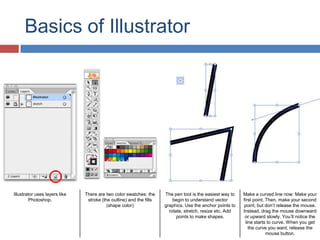
Illustrator uses layers like
Photoshop.

There are two color swatches: the
stroke (the outline) and the fills
(shape color)

The pen tool is the easiest way to
begin to understand vector
graphics. Use the anchor points to
rotate, stretch, resize etc. Add
points to make shapes.

Make a curved line now: Make your
first point. Then, make your second
point, but don’t release the mouse.
Instead, drag the mouse downward
or upward slowly. You’ll notice the
line starts to curve. When you get
the curve you want, release the
mouse button.
Lesson 1: Tracing a Sketch with the Pen
Tool

Step 1

Step 2

Step 3

Step 4

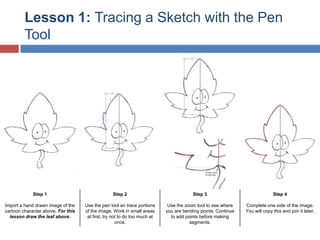
Import a hand drawn image of the
cartoon character above. For this
lesson draw the leaf above.

Use the pen tool an trace portions
of the image. Work in small areas
at first, try not to do too much at
once.

Use the zoom tool to see where
you are bending points. Continue
to add points before making
segments.

Complete one side of the image.
You will copy this and join it later.
Lesson 1: Tracing a Sketch with the Pen
Tool

Step 5

Step 6

Step 7

Step 8

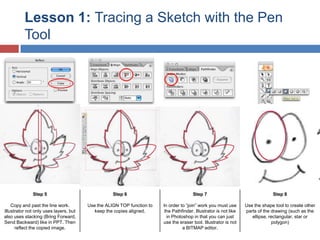
Copy and past the line work.
Illustrator not only uses layers, but
also uses stacking (Bring Forward,
Send Backward) like in PPT. Then
reflect the copied image.

Use the ALIGN TOP function to
keep the copies aligned.

In order to “join” work you must use
the Pathfinder. Illustrator is not like
in Photoshop in that you can just
use the eraser tool. Illustrator is not
a BITMAP editor.

Use the shape tool to create other
parts of the drawing (such as the
ellipse, rectangular, star or
polygon)
Lesson 1: Tracing a Sketch with the Pen
Tool

Step 9

Step 10

Step 11

Step 12

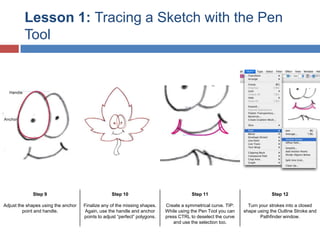
Adjust the shapes using the anchor
point and handle.

Finalize any of the missing shapes.
Again, use the handle and anchor
points to adjust “perfect” polygons.

Create a symmetrical curve. TIP:
While using the Pen Tool you can
press CTRL to deselect the curve
and use the selection too.

Turn your strokes into a closed
shape using the Outline Stroke and
Pathfinder window.
Lesson 1: Tracing a Sketch with the Pen
Tool

Step 13

Step 14

Step 15

Step 16

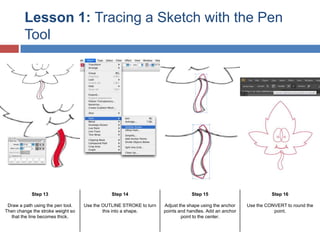
Draw a path using the pen tool.
Then change the stroke weight so
that the line becomes thick.

Use the OUTLINE STROKE to turn
this into a shape.

Adjust the shape using the anchor
points and handles. Add an anchor
point to the center.

Use the CONVERT to round the
point.
Lesson 1: Tracing a Sketch with the Pen
Tool

Step 17

Step 18

Step 19

Step 20

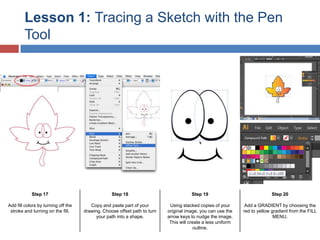
Add fill colors by turning off the
stroke and turning on the fill.

Copy and paste part of your
drawing. Choose offset path to turn
your path into a shape.

Using stacked copies of your
original image, you can use the
arrow keys to nudge the image.
This will create a less uniform
outline.

Add a GRADIENT by choosing the
red to yellow gradient from the FILL
MENU.
Lesson 1: Tracing a Sketch with the Pen
Tool

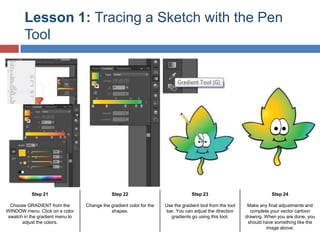
Step 21

Step 22

Step 23

Step 24

Choose GRADIENT from the
WINDOW menu. Click on a color
swatch in the gradient menu to
adjust the colors.

Change the gradient color for the
shapes.

Use the gradient tool from the tool
bar. You can adjust the direction
gradients go using this tool.

Make any final adjustments and
complete your vector cartoon
drawing. When you are done, you
should have something like the
image above.

DID Unit 5 - Illustrator Basics

  • 1.
  • 2.
    Basics of Illustrator Illustratoruses layers like Photoshop. There are two color swatches: the stroke (the outline) and the fills (shape color) The pen tool is the easiest way to begin to understand vector graphics. Use the anchor points to rotate, stretch, resize etc. Add points to make shapes. Make a curved line now: Make your first point. Then, make your second point, but don’t release the mouse. Instead, drag the mouse downward or upward slowly. You’ll notice the line starts to curve. When you get the curve you want, release the mouse button.
  • 3.
    Lesson 1: Tracinga Sketch with the Pen Tool Step 1 Step 2 Step 3 Step 4 Import a hand drawn image of the cartoon character above. For this lesson draw the leaf above. Use the pen tool an trace portions of the image. Work in small areas at first, try not to do too much at once. Use the zoom tool to see where you are bending points. Continue to add points before making segments. Complete one side of the image. You will copy this and join it later.
  • 4.
    Lesson 1: Tracinga Sketch with the Pen Tool Step 5 Step 6 Step 7 Step 8 Copy and past the line work. Illustrator not only uses layers, but also uses stacking (Bring Forward, Send Backward) like in PPT. Then reflect the copied image. Use the ALIGN TOP function to keep the copies aligned. In order to “join” work you must use the Pathfinder. Illustrator is not like in Photoshop in that you can just use the eraser tool. Illustrator is not a BITMAP editor. Use the shape tool to create other parts of the drawing (such as the ellipse, rectangular, star or polygon)
  • 5.
    Lesson 1: Tracinga Sketch with the Pen Tool Step 9 Step 10 Step 11 Step 12 Adjust the shapes using the anchor point and handle. Finalize any of the missing shapes. Again, use the handle and anchor points to adjust “perfect” polygons. Create a symmetrical curve. TIP: While using the Pen Tool you can press CTRL to deselect the curve and use the selection too. Turn your strokes into a closed shape using the Outline Stroke and Pathfinder window.
  • 6.
    Lesson 1: Tracinga Sketch with the Pen Tool Step 13 Step 14 Step 15 Step 16 Draw a path using the pen tool. Then change the stroke weight so that the line becomes thick. Use the OUTLINE STROKE to turn this into a shape. Adjust the shape using the anchor points and handles. Add an anchor point to the center. Use the CONVERT to round the point.
  • 7.
    Lesson 1: Tracinga Sketch with the Pen Tool Step 17 Step 18 Step 19 Step 20 Add fill colors by turning off the stroke and turning on the fill. Copy and paste part of your drawing. Choose offset path to turn your path into a shape. Using stacked copies of your original image, you can use the arrow keys to nudge the image. This will create a less uniform outline. Add a GRADIENT by choosing the red to yellow gradient from the FILL MENU.
  • 8.
    Lesson 1: Tracinga Sketch with the Pen Tool Step 21 Step 22 Step 23 Step 24 Choose GRADIENT from the WINDOW menu. Click on a color swatch in the gradient menu to adjust the colors. Change the gradient color for the shapes. Use the gradient tool from the tool bar. You can adjust the direction gradients go using this tool. Make any final adjustments and complete your vector cartoon drawing. When you are done, you should have something like the image above.