HTML :: FORMS
www.eshikshak.co.in
Introduction
   HTML Forms are required when you want to
    collect some data from the site visitor. For example
    registration information: name, email address,
    credit card, etc.
   Form elements are like text fields, textarea fields,
    drop-down menus, radio buttons, checkboxes, etc.
    which are used to take information from the user.


                          www.eshikshak.co.in
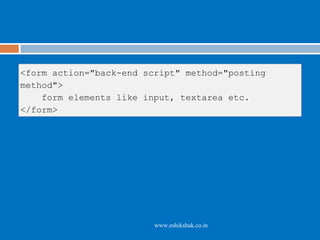
<form action="back-end script" method="posting
method">
    form elements like input, textarea etc.
</form>


                         www.eshikshak.co.in
Most frequently used form attributes
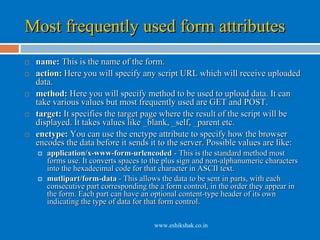
   name: This is the name of the form.
   action: Here you will specify any script URL which will receive uploaded
    data.
   method: Here you will specify method to be used to upload data. It can
    take various values but most frequently used are GET and POST.
   target: It specifies the target page where the result of the script will be
    displayed. It takes values like _blank, _self, _parent etc.
   enctype: You can use the enctype attribute to specify how the browser
    encodes the data before it sends it to the server. Possible values are like:
       application/x-www-form-urlencoded - This is the standard method most
        forms use. It converts spaces to the plus sign and non-alphanumeric characters
        into the hexadecimal code for that character in ASCII text.
       mutlipart/form-data - This allows the data to be sent in parts, with each
        consecutive part corresponding the a form control, in the order they appear in
        the form. Each part can have an optional content-type header of its own
        indicating the type of data for that form control.

                                         www.eshikshak.co.in
Most frequently used form attributes

   There are different types of form controls that you
    can use to collect data from a visitor to your site.
     Text  input controls
     Buttons

     Checkboxes and radio buttons

     Select boxes

     File select boxes

     Hidden controls

     Submit and reset button


                           www.eshikshak.co.in
Single-line text input controls
   Single-line text input controls are created using an <input>
    element whose type attribute has a value of text.
   Here is a basic example of a single-line text input used to take
    first name and last name
    <form action="/cgi-bin/hello_get.cgi" method="get">
    First name:
    <input type="text" name="first_name" />
    <br>
    Last name:
    <input type="text" name="last_name" />
    <input type="submit" value="submit" />
    </form>

                                www.eshikshak.co.in
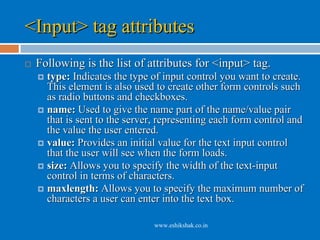
<Input> tag attributes
   Following is the list of attributes for <input> tag.
     type: Indicates the type of input control you want to create.
      This element is also used to create other form controls such
      as radio buttons and checkboxes.
     name: Used to give the name part of the name/value pair
      that is sent to the server, representing each form control and
      the value the user entered.
     value: Provides an initial value for the text input control
      that the user will see when the form loads.
     size: Allows you to specify the width of the text-input
      control in terms of characters.
     maxlength: Allows you to specify the maximum number of
      characters a user can enter into the text box.

                                www.eshikshak.co.in
Password input controls
   This is also a form of single-line text input controls are created
    using an <input> element whose type attribute has a value of
    password.
   Here is a basic example of a single-line password input used
    to take user password:

    <form action="/cgi-bin/hello_get.cgi" method="get">
    Login :
    <input type="text" name="login" />
    <br>
    Password:
    <input type="text" name="password" />
    <input type="submit" value="submit" />
    </form>
                                 www.eshikshak.co.in
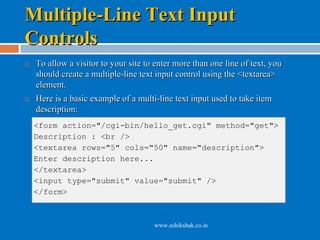
Multiple-Line Text Input
Controls
   To allow a visitor to your site to enter more than one line of text, you
    should create a multiple-line text input control using the <textarea>
    element.
   Here is a basic example of a multi-line text input used to take item
    description:
    <form action="/cgi-bin/hello_get.cgi" method="get">
    Description : <br />
    <textarea rows="5" cols="50" name="description">
    Enter description here...
    </textarea>
    <input type="submit" value="submit" />
    </form>


                                      www.eshikshak.co.in
<textarea> tag attributes
   name: The name of the control. This is used in the
    name/value pair that is sent to the server.
   rows: Indicates the number of rows of text area
    box.
   cols: Indicates the number of columns of text area
    box.


                          www.eshikshak.co.in
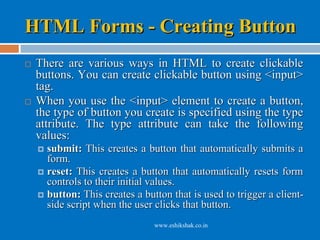
HTML Forms - Creating Button
   There are various ways in HTML to create clickable
    buttons. You can create clickable button using <input>
    tag.
   When you use the <input> element to create a button,
    the type of button you create is specified using the type
    attribute. The type attribute can take the following
    values:
     submit: This creates a button that automatically submits a
      form.
     reset: This creates a button that automatically resets form
      controls to their initial values.
     button: This creates a button that is used to trigger a client-
      side script when the user clicks that button.
                                www.eshikshak.co.in
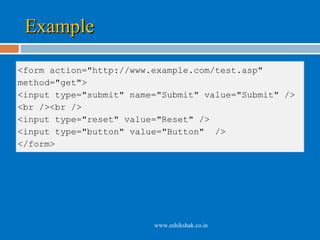
Example

<form action="http://www.example.com/test.asp"
method="get">
<input type="submit" name="Submit" value="Submit" />
<br /><br />
<input type="reset" value="Reset" />
<input type="button" value="Button" />
</form>


                         www.eshikshak.co.in
HTML Forms - Checkboxes
Control
   Checkboxes are used when more than one option is required
    to be selected. They are created using <input> tag as shown
    below.
   Here is example HTML code for a form with two checkboxes

    <form action="/cgi-bin/checkbox.cgi" method="get">
    <input type="checkbox" name="maths" value="on"> Maths
    <input type="checkbox" name="physics" value="on"> Physics
    <input type="submit" value="Select Subject" />
    </form>


                                www.eshikshak.co.in
   Following is the list of important checkbox
    attributes:
     type: Indicates that you want to create a checkbox.
     name: Name of the control.

     value: The value that will be used if the checkbox is
      selected. More than one checkbox should share the
      same name only if you want to allow users to select
      several items from the same list.
     checked: Indicates that when the page loads, the
      checkbox should be selected.
                             www.eshikshak.co.in
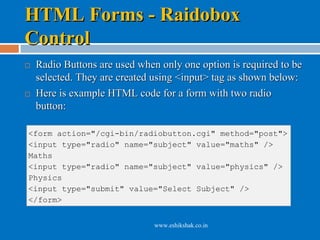
HTML Forms - Raidobox
Control
   Radio Buttons are used when only one option is required to be
    selected. They are created using <input> tag as shown below:
   Here is example HTML code for a form with two radio
    button:

<form action="/cgi-bin/radiobutton.cgi" method="post">
<input type="radio" name="subject" value="maths" />
Maths
<input type="radio" name="subject" value="physics" />
Physics
<input type="submit" value="Select Subject" />
</form>


                               www.eshikshak.co.in
   Following is the list of important radiobox
    attributes:
     type: Indicates  that you want to create a radiobox.
     name: Name of the control.

     value: Used to indicate the value that will be sent to
      the server if this option is selected.
     checked: Indicates that this option should be selected
      by default when the page loads.


                             www.eshikshak.co.in
HTML Forms - Select box
Control
   Drop Down Box is used when we have many options
    available to be selected but only one or two will be selected..
   Here is example HTML code for a form with one drop down
    box
    <form action="/cgi-bin/dropdown.cgi"
    method="post">
    <select name="dropdown">
    <option value="Maths"
    selected>Maths</option>
    <option value="Physics">Physics</option>
    </select>
    <input type="submit" value="Submit" />
    </form>

                               www.eshikshak.co.in
   Following is the list of important attributes of <select>:
     name: This is the name for the control.
     size: This can be used to present a scrolling list box.
     multiple: If set to "multiple" then allows a user to select
      multiple items from the menu.
   Following is the list of important attributes of
    <option>:
     value: The value that is sent to the server if this option is
      selected.
     selected: Specifies that this option should be the initially
      selected value when the page loads.
     label: An alternative way of labeling options.
                                 www.eshikshak.co.in
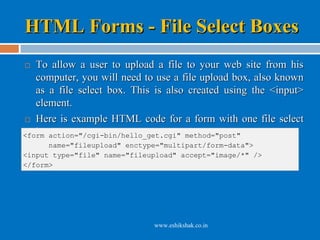
HTML Forms - File Select Boxes
  To allow a user to upload a file to your web site from his
   computer, you will need to use a file upload box, also known
   as a file select box. This is also created using the <input>
   element.
 Here is example HTML code for a form with one file select

   box
<form action="/cgi-bin/hello_get.cgi" method="post"
      name="fileupload" enctype="multipart/form-data">
<input type="file" name="fileupload" accept="image/*" />
</form>


                              www.eshikshak.co.in
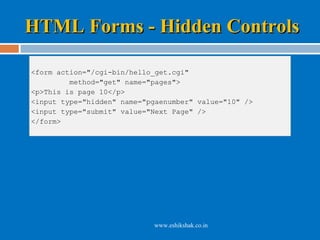
HTML Forms - Hidden Controls
   To pass information between pages without the user
    seeing it. Hidden form controls remain part of any
    form, but the user cannot see them in the Web browser.
   It should not be used for any sensitive information you
    do not want the user to see because the user could see
    this data if she looked in the source of the page.
   Hidden form is being used to keep current page
    number.
   When a user will click next page then the value of
    hidden form will be sent to the back-end application
    and it will decide which page has be displayed next.
                            www.eshikshak.co.in
HTML Forms - Hidden Controls

<form action="/cgi-bin/hello_get.cgi"
         method="get" name="pages">
<p>This is page 10</p>
<input type="hidden" name="pgaenumber" value="10" />
<input type="submit" value="Next Page" />
</form>


                            www.eshikshak.co.in
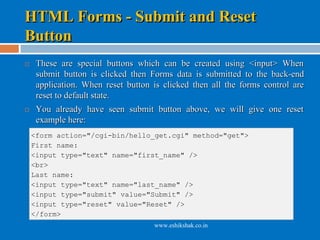
HTML Forms - Submit and Reset
Button
    These are special buttons which can be created using <input> When
     submit button is clicked then Forms data is submitted to the back-end
     application. When reset button is clicked then all the forms control are
     reset to default state.
    You already have seen submit button above, we will give one reset
     example here:
    <form action="/cgi-bin/hello_get.cgi" method="get">
    First name:
    <input type="text" name="first_name" />
    <br>
    Last name:
    <input type="text" name="last_name" />
    <input type="submit" value="Submit" />
    <input type="reset" value="Reset" />
    </form>
                                    www.eshikshak.co.in

Html forms

  • 1.
  • 2.
    Introduction  HTML Forms are required when you want to collect some data from the site visitor. For example registration information: name, email address, credit card, etc.  Form elements are like text fields, textarea fields, drop-down menus, radio buttons, checkboxes, etc. which are used to take information from the user. www.eshikshak.co.in
  • 3.
    <form action="back-end script"method="posting method"> form elements like input, textarea etc. </form> www.eshikshak.co.in
  • 4.
    Most frequently usedform attributes  name: This is the name of the form.  action: Here you will specify any script URL which will receive uploaded data.  method: Here you will specify method to be used to upload data. It can take various values but most frequently used are GET and POST.  target: It specifies the target page where the result of the script will be displayed. It takes values like _blank, _self, _parent etc.  enctype: You can use the enctype attribute to specify how the browser encodes the data before it sends it to the server. Possible values are like:  application/x-www-form-urlencoded - This is the standard method most forms use. It converts spaces to the plus sign and non-alphanumeric characters into the hexadecimal code for that character in ASCII text.  mutlipart/form-data - This allows the data to be sent in parts, with each consecutive part corresponding the a form control, in the order they appear in the form. Each part can have an optional content-type header of its own indicating the type of data for that form control. www.eshikshak.co.in
  • 5.
    Most frequently usedform attributes  There are different types of form controls that you can use to collect data from a visitor to your site.  Text input controls  Buttons  Checkboxes and radio buttons  Select boxes  File select boxes  Hidden controls  Submit and reset button www.eshikshak.co.in
  • 6.
    Single-line text inputcontrols  Single-line text input controls are created using an <input> element whose type attribute has a value of text.  Here is a basic example of a single-line text input used to take first name and last name <form action="/cgi-bin/hello_get.cgi" method="get"> First name: <input type="text" name="first_name" /> <br> Last name: <input type="text" name="last_name" /> <input type="submit" value="submit" /> </form> www.eshikshak.co.in
  • 7.
    <Input> tag attributes  Following is the list of attributes for <input> tag.  type: Indicates the type of input control you want to create. This element is also used to create other form controls such as radio buttons and checkboxes.  name: Used to give the name part of the name/value pair that is sent to the server, representing each form control and the value the user entered.  value: Provides an initial value for the text input control that the user will see when the form loads.  size: Allows you to specify the width of the text-input control in terms of characters.  maxlength: Allows you to specify the maximum number of characters a user can enter into the text box. www.eshikshak.co.in
  • 8.
    Password input controls  This is also a form of single-line text input controls are created using an <input> element whose type attribute has a value of password.  Here is a basic example of a single-line password input used to take user password: <form action="/cgi-bin/hello_get.cgi" method="get"> Login : <input type="text" name="login" /> <br> Password: <input type="text" name="password" /> <input type="submit" value="submit" /> </form> www.eshikshak.co.in
  • 9.
    Multiple-Line Text Input Controls  To allow a visitor to your site to enter more than one line of text, you should create a multiple-line text input control using the <textarea> element.  Here is a basic example of a multi-line text input used to take item description: <form action="/cgi-bin/hello_get.cgi" method="get"> Description : <br /> <textarea rows="5" cols="50" name="description"> Enter description here... </textarea> <input type="submit" value="submit" /> </form> www.eshikshak.co.in
  • 10.
    <textarea> tag attributes  name: The name of the control. This is used in the name/value pair that is sent to the server.  rows: Indicates the number of rows of text area box.  cols: Indicates the number of columns of text area box. www.eshikshak.co.in
  • 11.
    HTML Forms -Creating Button  There are various ways in HTML to create clickable buttons. You can create clickable button using <input> tag.  When you use the <input> element to create a button, the type of button you create is specified using the type attribute. The type attribute can take the following values:  submit: This creates a button that automatically submits a form.  reset: This creates a button that automatically resets form controls to their initial values.  button: This creates a button that is used to trigger a client- side script when the user clicks that button. www.eshikshak.co.in
  • 12.
    Example <form action="http://www.example.com/test.asp" method="get"> <input type="submit"name="Submit" value="Submit" /> <br /><br /> <input type="reset" value="Reset" /> <input type="button" value="Button" /> </form> www.eshikshak.co.in
  • 13.
    HTML Forms -Checkboxes Control  Checkboxes are used when more than one option is required to be selected. They are created using <input> tag as shown below.  Here is example HTML code for a form with two checkboxes <form action="/cgi-bin/checkbox.cgi" method="get"> <input type="checkbox" name="maths" value="on"> Maths <input type="checkbox" name="physics" value="on"> Physics <input type="submit" value="Select Subject" /> </form> www.eshikshak.co.in
  • 14.
    Following is the list of important checkbox attributes:  type: Indicates that you want to create a checkbox.  name: Name of the control.  value: The value that will be used if the checkbox is selected. More than one checkbox should share the same name only if you want to allow users to select several items from the same list.  checked: Indicates that when the page loads, the checkbox should be selected. www.eshikshak.co.in
  • 15.
    HTML Forms -Raidobox Control  Radio Buttons are used when only one option is required to be selected. They are created using <input> tag as shown below:  Here is example HTML code for a form with two radio button: <form action="/cgi-bin/radiobutton.cgi" method="post"> <input type="radio" name="subject" value="maths" /> Maths <input type="radio" name="subject" value="physics" /> Physics <input type="submit" value="Select Subject" /> </form> www.eshikshak.co.in
  • 16.
    Following is the list of important radiobox attributes:  type: Indicates that you want to create a radiobox.  name: Name of the control.  value: Used to indicate the value that will be sent to the server if this option is selected.  checked: Indicates that this option should be selected by default when the page loads. www.eshikshak.co.in
  • 17.
    HTML Forms -Select box Control  Drop Down Box is used when we have many options available to be selected but only one or two will be selected..  Here is example HTML code for a form with one drop down box <form action="/cgi-bin/dropdown.cgi" method="post"> <select name="dropdown"> <option value="Maths" selected>Maths</option> <option value="Physics">Physics</option> </select> <input type="submit" value="Submit" /> </form> www.eshikshak.co.in
  • 18.
    Following is the list of important attributes of <select>:  name: This is the name for the control.  size: This can be used to present a scrolling list box.  multiple: If set to "multiple" then allows a user to select multiple items from the menu.  Following is the list of important attributes of <option>:  value: The value that is sent to the server if this option is selected.  selected: Specifies that this option should be the initially selected value when the page loads.  label: An alternative way of labeling options. www.eshikshak.co.in
  • 19.
    HTML Forms -File Select Boxes  To allow a user to upload a file to your web site from his computer, you will need to use a file upload box, also known as a file select box. This is also created using the <input> element.  Here is example HTML code for a form with one file select box <form action="/cgi-bin/hello_get.cgi" method="post" name="fileupload" enctype="multipart/form-data"> <input type="file" name="fileupload" accept="image/*" /> </form> www.eshikshak.co.in
  • 20.
    HTML Forms -Hidden Controls  To pass information between pages without the user seeing it. Hidden form controls remain part of any form, but the user cannot see them in the Web browser.  It should not be used for any sensitive information you do not want the user to see because the user could see this data if she looked in the source of the page.  Hidden form is being used to keep current page number.  When a user will click next page then the value of hidden form will be sent to the back-end application and it will decide which page has be displayed next. www.eshikshak.co.in
  • 21.
    HTML Forms -Hidden Controls <form action="/cgi-bin/hello_get.cgi" method="get" name="pages"> <p>This is page 10</p> <input type="hidden" name="pgaenumber" value="10" /> <input type="submit" value="Next Page" /> </form> www.eshikshak.co.in
  • 22.
    HTML Forms -Submit and Reset Button  These are special buttons which can be created using <input> When submit button is clicked then Forms data is submitted to the back-end application. When reset button is clicked then all the forms control are reset to default state.  You already have seen submit button above, we will give one reset example here: <form action="/cgi-bin/hello_get.cgi" method="get"> First name: <input type="text" name="first_name" /> <br> Last name: <input type="text" name="last_name" /> <input type="submit" value="Submit" /> <input type="reset" value="Reset" /> </form> www.eshikshak.co.in