HTML/XHTML Forms


                   Aug 24, 2012
What are forms?
   <form> is just another kind of XHTML/HTML tag
   Forms are used to create (rather primitive) GUIs on Web pages
       Usually the purpose is to ask the user for information
       The information is then sent back to the server
   A form is an area that can contain form elements
       The syntax is: <form parameters> ...form elements... </form>
       Form elements include: buttons, checkboxes, text fields, radio buttons,
        drop-down menus, etc
            Other kinds of tags can be mixed in with the form elements
       A form usually contains a Submit button to send the information in he
        form elements to the server
       The form’s parameters tell JavaScript how to send the information to the
        server (there are two different ways it could be sent)
       Forms can be used for other things, such as a GUI for simple programs

                                                                          2
Forms and JavaScript
   The JavaScript language can be used to make pages that “do
    something”
       You can use JavaScript to write complete programs, but...
       Usually you just use snippets of JavaScript here and there throughout your
        Web page
       JavaScript code snippets can be attached to various form elements
            For example, you might want to check that a zipcode field contains a 5-digit
             integer before you send that information to the server
   Microsoft calls its version of JavaScript “active scripting”
   Forms can be used without JavaScript, and JavaScript can be
    used without forms, but they work well together
   JavaScript for forms is covered in a separate lecture


                                                                          3
The <form> tag
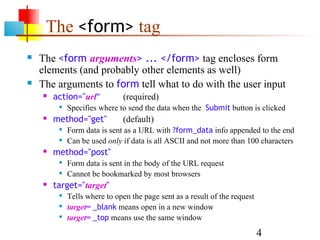
   The <form arguments> ... </form> tag encloses form
    elements (and probably other elements as well)
   The arguments to form tell what to do with the user input
       action="url"          (required)
            Specifies where to send the data when the Submit button is clicked
       method="get"          (default)
            Form data is sent as a URL with ?form_data info appended to the end
            Can be used only if data is all ASCII and not more than 100 characters
       method="post"
            Form data is sent in the body of the URL request
            Cannot be bookmarked by most browsers
       target="target"
            Tells where to open the page sent as a result of the request
            target= _blank means open in a new window
            target= _top means use the same window

                                                                            4
The <input> tag
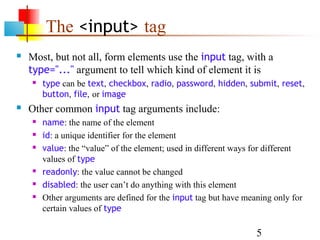
   Most, but not all, form elements use the input tag, with a
    type="..." argument to tell which kind of element it is
       type can be text, checkbox, radio, password, hidden, submit, reset,
        button, file, or image
   Other common input tag arguments include:
       name: the name of the element
       id: a unique identifier for the element
       value: the “value” of the element; used in different ways for different
        values of type
       readonly: the value cannot be changed
       disabled: the user can’t do anything with this element
       Other arguments are defined for the input tag but have meaning only for
        certain values of type

                                                                  5
Text input
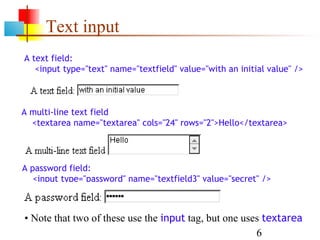
A text field:
   <input type="text" name="textfield" value="with an initial value" />


A multi-line text field
  <textarea name="textarea" cols="24" rows="2">Hello</textarea>


A password field:
   <input type="password" name="textfield3" value="secret" />


• Note that two of these use the input tag, but one uses textarea
                                                       6
Buttons
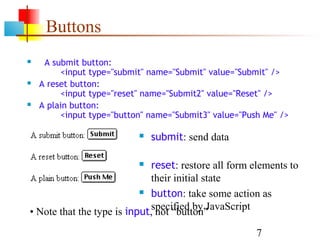
    A submit button:
         <input type="submit" name="Submit" value="Submit" />
   A reset button:
         <input type="reset" name="Submit2" value="Reset" />
   A plain button:
         <input type="button" name="Submit3" value="Push Me" />

                              submit: send data

                             reset: restore all form elements to
                              their initial state
                            button: take some action as


• Note that the type is input,specified by JavaScript
                               not “button”
                                                       7
Radio buttons
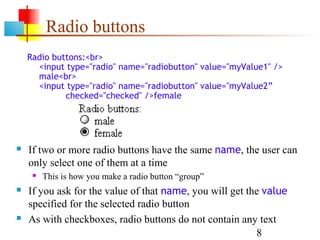
    Radio buttons:<br>
      <input type="radio" name="radiobutton" value="myValue1" />
      male<br>
      <input type="radio" name="radiobutton" value="myValue2”
             checked="checked" />female


   If two or more radio buttons have the same name, the user can
    only select one of them at a time
        This is how you make a radio button “group”
   If you ask for the value of that name, you will get the value
    specified for the selected radio button
   As with checkboxes, radio buttons do not contain any text
                                                          8
Labels
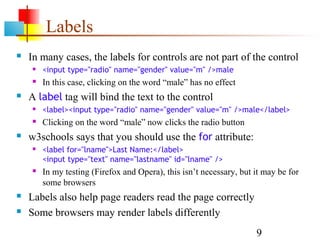
   In many cases, the labels for controls are not part of the control
       <input type="radio" name="gender" value="m" />male
       In this case, clicking on the word “male” has no effect
   A label tag will bind the text to the control
       <label><input type="radio" name="gender" value="m" />male</label>
       Clicking on the word “male” now clicks the radio button
   w3schools says that you should use the for attribute:
       <label for="lname">Last Name:</label>
        <input type="text" name="lastname" id="lname" />
       In my testing (Firefox and Opera), this isn’t necessary, but it may be for
        some browsers
   Labels also help page readers read the page correctly
   Some browsers may render labels differently
                                                                     9
Checkboxes
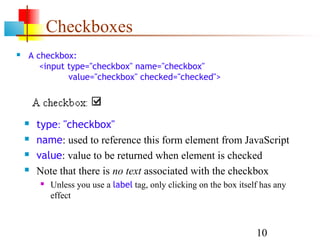
   A checkbox:
       <input type="checkbox" name="checkbox"
              value="checkbox" checked="checked">


       type: "checkbox"
       name: used to reference this form element from JavaScript
       value: value to be returned when element is checked
       Note that there is no text associated with the checkbox
           Unless you use a label tag, only clicking on the box itself has any
            effect


                                                                      10
Drop-down menu or list
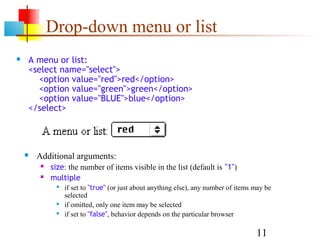
   A menu or list:
    <select name="select">
      <option value="red">red</option>
      <option value="green">green</option>
      <option value="BLUE">blue</option>
    </select>


       Additional arguments:
            size: the number of items visible in the list (default is "1")
            multiple
                 if set to "true" (or just about anything else), any number of items may be
                  selected
                 if omitted, only one item may be selected
                 if set to "false", behavior depends on the particular browser

                                                                                      11
Hidden fields
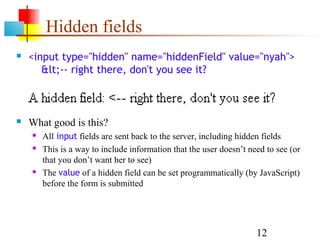
   <input type="hidden" name="hiddenField" value="nyah">
       &lt;-- right there, don't you see it?


   What good is this?
       All input fields are sent back to the server, including hidden fields
       This is a way to include information that the user doesn’t need to see (or
        that you don’t want her to see)
       The value of a hidden field can be set programmatically (by JavaScript)
        before the form is submitted


                                                                     12
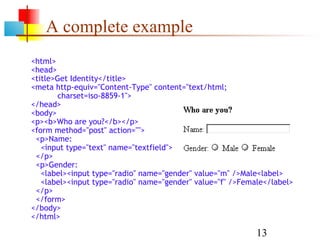
A complete example
<html>
<head>
<title>Get Identity</title>
<meta http-equiv="Content-Type" content="text/html;
       charset=iso-8859-1">
</head>
<body>
<p><b>Who are you?</b></p>
<form method="post" action="">
 <p>Name:
   <input type="text" name="textfield">
 </p>
 <p>Gender:
   <label><input type="radio" name="gender" value="m" />Male<label>
   <label><input type="radio" name="gender" value="f" />Female</label>
 </p>
 </form>
</body>
</html>

                                                            13
The End


          14

05 html-forms

  • 1.
    HTML/XHTML Forms Aug 24, 2012
  • 2.
    What are forms?  <form> is just another kind of XHTML/HTML tag  Forms are used to create (rather primitive) GUIs on Web pages  Usually the purpose is to ask the user for information  The information is then sent back to the server  A form is an area that can contain form elements  The syntax is: <form parameters> ...form elements... </form>  Form elements include: buttons, checkboxes, text fields, radio buttons, drop-down menus, etc  Other kinds of tags can be mixed in with the form elements  A form usually contains a Submit button to send the information in he form elements to the server  The form’s parameters tell JavaScript how to send the information to the server (there are two different ways it could be sent)  Forms can be used for other things, such as a GUI for simple programs 2
  • 3.
    Forms and JavaScript  The JavaScript language can be used to make pages that “do something”  You can use JavaScript to write complete programs, but...  Usually you just use snippets of JavaScript here and there throughout your Web page  JavaScript code snippets can be attached to various form elements  For example, you might want to check that a zipcode field contains a 5-digit integer before you send that information to the server  Microsoft calls its version of JavaScript “active scripting”  Forms can be used without JavaScript, and JavaScript can be used without forms, but they work well together  JavaScript for forms is covered in a separate lecture 3
  • 4.
    The <form> tag  The <form arguments> ... </form> tag encloses form elements (and probably other elements as well)  The arguments to form tell what to do with the user input  action="url" (required)  Specifies where to send the data when the Submit button is clicked  method="get" (default)  Form data is sent as a URL with ?form_data info appended to the end  Can be used only if data is all ASCII and not more than 100 characters  method="post"  Form data is sent in the body of the URL request  Cannot be bookmarked by most browsers  target="target"  Tells where to open the page sent as a result of the request  target= _blank means open in a new window  target= _top means use the same window 4
  • 5.
    The <input> tag  Most, but not all, form elements use the input tag, with a type="..." argument to tell which kind of element it is  type can be text, checkbox, radio, password, hidden, submit, reset, button, file, or image  Other common input tag arguments include:  name: the name of the element  id: a unique identifier for the element  value: the “value” of the element; used in different ways for different values of type  readonly: the value cannot be changed  disabled: the user can’t do anything with this element  Other arguments are defined for the input tag but have meaning only for certain values of type 5
  • 6.
    Text input A textfield: <input type="text" name="textfield" value="with an initial value" /> A multi-line text field <textarea name="textarea" cols="24" rows="2">Hello</textarea> A password field: <input type="password" name="textfield3" value="secret" /> • Note that two of these use the input tag, but one uses textarea 6
  • 7.
    Buttons  A submit button: <input type="submit" name="Submit" value="Submit" />  A reset button: <input type="reset" name="Submit2" value="Reset" />  A plain button: <input type="button" name="Submit3" value="Push Me" />  submit: send data  reset: restore all form elements to their initial state  button: take some action as • Note that the type is input,specified by JavaScript not “button” 7
  • 8.
    Radio buttons Radio buttons:<br> <input type="radio" name="radiobutton" value="myValue1" /> male<br> <input type="radio" name="radiobutton" value="myValue2” checked="checked" />female  If two or more radio buttons have the same name, the user can only select one of them at a time  This is how you make a radio button “group”  If you ask for the value of that name, you will get the value specified for the selected radio button  As with checkboxes, radio buttons do not contain any text 8
  • 9.
    Labels  In many cases, the labels for controls are not part of the control  <input type="radio" name="gender" value="m" />male  In this case, clicking on the word “male” has no effect  A label tag will bind the text to the control  <label><input type="radio" name="gender" value="m" />male</label>  Clicking on the word “male” now clicks the radio button  w3schools says that you should use the for attribute:  <label for="lname">Last Name:</label> <input type="text" name="lastname" id="lname" />  In my testing (Firefox and Opera), this isn’t necessary, but it may be for some browsers  Labels also help page readers read the page correctly  Some browsers may render labels differently 9
  • 10.
    Checkboxes  A checkbox: <input type="checkbox" name="checkbox" value="checkbox" checked="checked">  type: "checkbox"  name: used to reference this form element from JavaScript  value: value to be returned when element is checked  Note that there is no text associated with the checkbox  Unless you use a label tag, only clicking on the box itself has any effect 10
  • 11.
    Drop-down menu orlist  A menu or list: <select name="select"> <option value="red">red</option> <option value="green">green</option> <option value="BLUE">blue</option> </select>  Additional arguments:  size: the number of items visible in the list (default is "1")  multiple  if set to "true" (or just about anything else), any number of items may be selected  if omitted, only one item may be selected  if set to "false", behavior depends on the particular browser 11
  • 12.
    Hidden fields  <input type="hidden" name="hiddenField" value="nyah"> &lt;-- right there, don't you see it?  What good is this?  All input fields are sent back to the server, including hidden fields  This is a way to include information that the user doesn’t need to see (or that you don’t want her to see)  The value of a hidden field can be set programmatically (by JavaScript) before the form is submitted 12
  • 13.
    A complete example <html> <head> <title>GetIdentity</title> <meta http-equiv="Content-Type" content="text/html; charset=iso-8859-1"> </head> <body> <p><b>Who are you?</b></p> <form method="post" action=""> <p>Name: <input type="text" name="textfield"> </p> <p>Gender: <label><input type="radio" name="gender" value="m" />Male<label> <label><input type="radio" name="gender" value="f" />Female</label> </p> </form> </body> </html> 13
  • 14.