Web UI/Forms and Web Applications
Web Application

●   Also web app, webapp, weblication
●   An application that is accessed by a web browser
    (from a server) via intranet or Internet.


●   Take/Imagine a generic desktop application*
    being accessed by a browser by typing in its URL.
Web Application

●   Examples:
    –   Webmail : E.g. Gmail, Yahoo Mail
    –   Online Retail Sales
    –   Online Auction
    –   Blogs
    –   Wiki
    –   MMOGs/MMORPGs
    –   Discussion Boards
    –   Etc...
Web Application: Selling Point

●   No distribution problems*
●   No client installation problems*
●   Easy to develop*
●   Easy to deploy
●   Easy to standardize (version)
Creating User Interfaces In Web
Apps
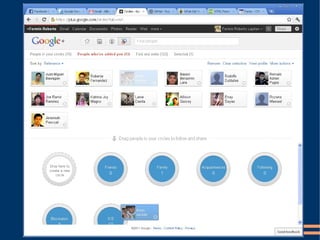
●   The Rich Client approach:
    –   Use plugins like Java or Flash or ActiveX
    –   Requires software installation.
●   For “Rich” user experience.
●   Extensible and Expandable Browsers
    –   Most web browsers can render specialized contents
        using plugins.
    –   Browsers may come with Plugin APIs for developers.
Creating User Interfaces in Web
Apps
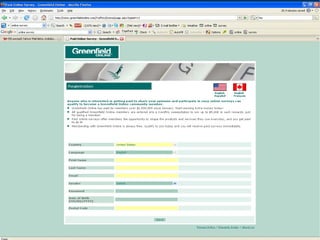
●   Thin Client Approach
    –   Uses HTML form elements, hyperlinks, images, CSS,
        and simplest of Javascript to build/constitute user
        interface.
    –   No installation required.
    –   Very limited in terms of UI features and user
        experience.
         ●   E.g. No DnD, advanced/customized events, etc.
Web Application Examples
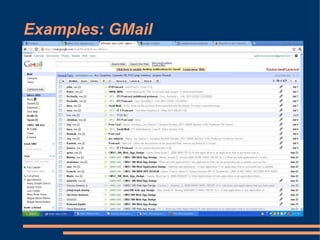
Examples: GMail
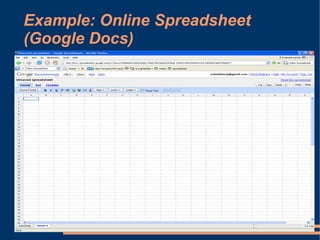
Example: Online Spreadsheet
(Google Docs)
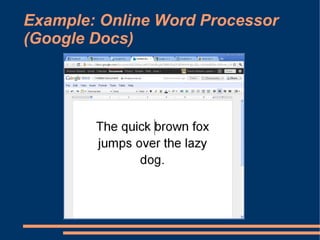
Example: Online Word Processor
(Google Docs)
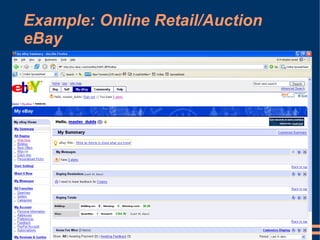
Example: Online Retail/Auction
eBay
Example: Amazon
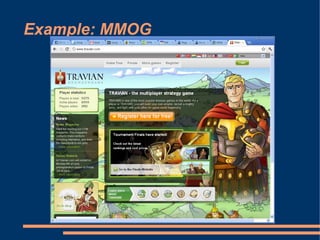
Example: MMOG
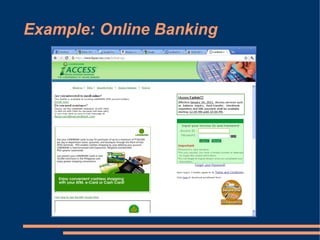
Example: Online Banking
Web Applications

●   Required Reading:
    –   Graham, Paul. The Other Road Ahead,
          http://www.paulgraham.com/road.html
        – Spolsky, Joel. How Microsoft Lost the API War,
          http://www.joelonsoftware.com/articles/APIWar.html
Building User Interfaces in Web
Applications
●   The Usual Suspects
    –   HTML elements: hyperlinks, divs, form elements,
        etc.
    –   CSS: for advanced element stylings
    –   Javascript: for UI controls logic, event handling


●   “Rich Client” Approach*
    –   Use Java
    –   Use Flash
Building User Interfaces in
Application
●   Buzzword: DHTML
    –   Dynamic HTML
    –   Combination of HTML, CSS and Javascript
    –   Microsoft spawned buzzword.
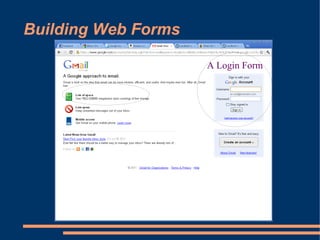
Building Web Forms

                     A Login Form
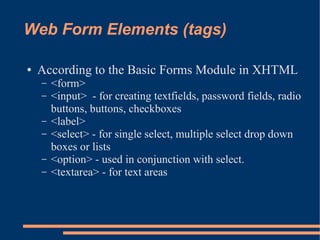
Web Form Elements (tags)

●   According to the Basic Forms Module in XHTML
    –   <form>
    –   <input> - for creating textfields, password fields, radio
        buttons, buttons, checkboxes
    –   <label>
    –   <select> - for single select, multiple select drop down
        boxes or lists
    –   <option> - used in conjunction with select.
    –   <textarea> - for text areas
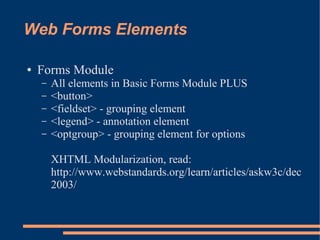
Web Forms Elements

●   Forms Module
    –   All elements in Basic Forms Module PLUS
    –   <button>
    –   <fieldset> - grouping element
    –   <legend> - annotation element
    –   <optgroup> - grouping element for options

        XHTML Modularization, read:
        http://www.webstandards.org/learn/articles/askw3c/dec
        2003/
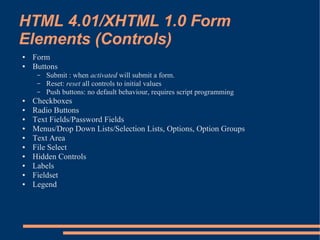
HTML 4.01/XHTML 1.0 Form
Elements (Controls)
●   Form
●   Buttons
     –   Submit : when activated will submit a form.
     –   Reset: reset all controls to initial values
     –   Push buttons: no default behaviour, requires script programming
●   Checkboxes
●   Radio Buttons
●   Text Fields/Password Fields
●   Menus/Drop Down Lists/Selection Lists, Options, Option Groups
●   Text Area
●   File Select
●   Hidden Controls
●   Labels
●   Fieldset
●   Legend
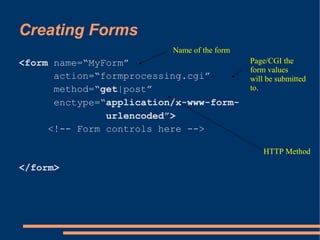
Creating Forms
                          Name of the form
<form name=“MyForm”                          Page/CGI the
                                             form values
      action=“formprocessing.cgi”            will be submitted
      method=“get|post”                      to.
      enctype=“application/x-www-form-
               urlencoded”>
     <!-- Form controls here -->

                                                 HTTP Method

</form>
Creating Forms
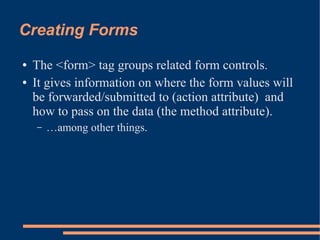
●   The <form> tag groups related form controls.
●   It gives information on where the form values will
    be forwarded/submitted to (action attribute) and
    how to pass on the data (the method attribute).
    –   …among other things.
Creating Forms With File Select
(E.g. Uploading A File)
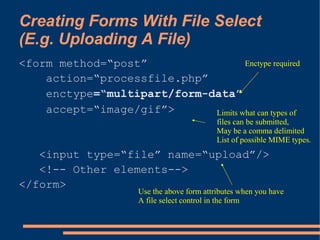
<form method=“post”                  Enctype required
    action=“processfile.php”
    enctype=“multipart/form-data”
    accept=“image/gif”>      Limits what can types of
                                             files can be submitted,
                                             May be a comma delimited
                                             List of possible MIME types.
   <input type=“file” name=“upload”/>
   <!-- Other elements-->
</form>
                      Use the above form attributes when you have
                      A file select control in the form
Form Events

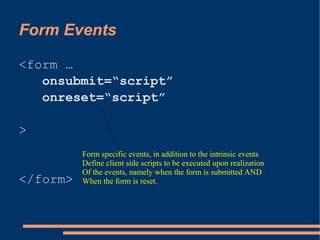
<form …
   onsubmit=“script”
   onreset=“script”

>
          Form specific events, in addition to the intrinsic events
          Define client side scripts to be executed upon realization
          Of the events, namely when the form is submitted AND
</form>   When the form is reset.
Form Methods
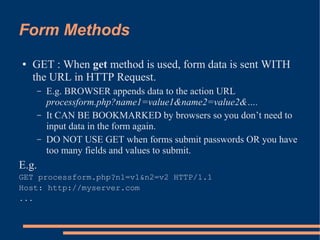
●   GET : When get method is used, form data is sent WITH
    the URL in HTTP Request.
       –   E.g. BROWSER appends data to the action URL
           processform.php?name1=value1&name2=value2&….
       –   It CAN BE BOOKMARKED by browsers so you don’t need to
           input data in the form again.
       –   DO NOT USE GET when forms submit passwords OR you have
           too many fields and values to submit.
E.g.
GET processform.php?n1=v1&n2=v2 HTTP/1.1
Host: http://myserver.com
...
Form Methods
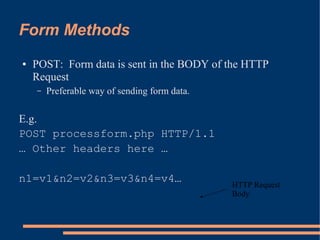
●   POST: Form data is sent in the BODY of the HTTP
    Request
    –   Preferable way of sending form data.

E.g.
POST processform.php HTTP/1.1
… Other headers here …

n1=v1&n2=v2&n3=v3&n4=v4…                       HTTP Request
                                               Body
What gets Submitted
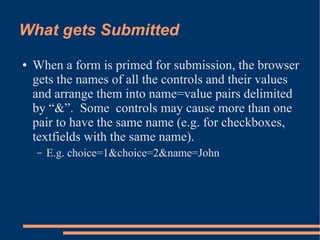
●   When a form is primed for submission, the browser
    gets the names of all the controls and their values
    and arrange them into name=value pairs delimited
    by “&”. Some controls may cause more than one
    pair to have the same name (e.g. for checkboxes,
    textfields with the same name).
    –   E.g. choice=1&choice=2&name=John
The <input> tag.
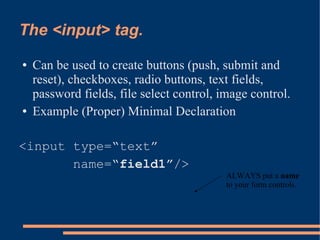
●   Can be used to create buttons (push, submit and
    reset), checkboxes, radio buttons, text fields,
    password fields, file select control, image control.
●   Example (Proper) Minimal Declaration

<input type=“text”
       name=“field1”/>
                                           ALWAYS put a name
                                           to your form controls.
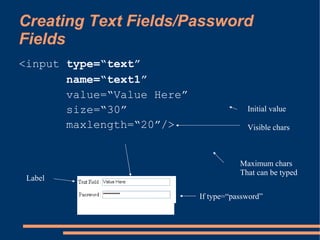
Creating Text Fields/Password
Fields
<input type=“text”
       name=“text1”
       value=“Value Here”
       size=“30”                         Initial value

       maxlength=“20”/>                  Visible chars


                                       Maximum chars
                                       That can be typed
 Label

                            If type=“password”
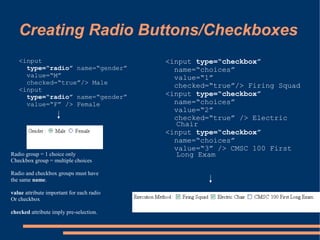
Creating Radio Buttons/Checkboxes
   <input                                  <input type=“checkbox”
     type=“radio” name=“gender”              name=“choices”
     value=“M”                               value=“1”
     checked=“true”/> Male                   checked=“true”/> Firing Squad
   <input
     type=“radio” name=“gender”            <input type=“checkbox”
     value=“F” /> Female                     name=“choices”
                                             value=“2”
                                             checked=“true” /> Electric
                                             Chair
                                           <input type=“checkbox”
                                             name=“choices”
                                             value=“3” /> CMSC 100 First
Radio group = 1 choice only                  Long Exam
Checkbox group = multiple choices

Radio and checkbox groups must have
the same name.

value attribute important for each radio
Or checkbox

checked attribute imply pre-selection.
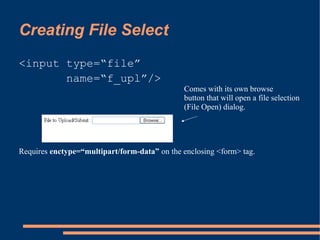
Creating File Select
<input type=“file”
       name=“f_upl”/>
                                              Comes with its own browse
                                              button that will open a file selection
                                              (File Open) dialog.


Requires enctype=“multipart/form-data” on the enclosing <form> tag.
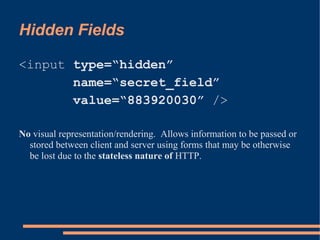
Hidden Fields

<input type=“hidden”
       name=“secret_field”
       value=“883920030” />

No visual representation/rendering. Allows information to be passed or
  stored between client and server using forms that may be otherwise
  be lost due to the stateless nature of HTTP.
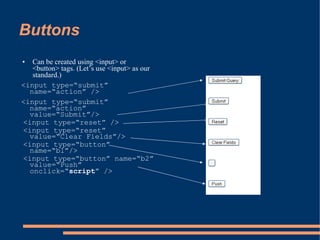
Buttons
●  Can be created using <input> or
   <button> tags. (Let’s use <input> as our
   standard.)
<input type=“submit”
  name=“action” />
<input type=“submit”
  name=“action”
  value=“Submit”/>
<input type=“reset” />
<input type=“reset”
  value=“Clear Fields”/>
<input type=“button”
  name=“b1”/>
<input type=“button” name=“b2”
  value=“Push”
  onclick=“script” />
Buttons
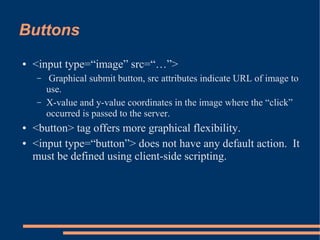
●   <input type=“image” src=“…”>
    –    Graphical submit button, src attributes indicate URL of image to
        use.
    –   X-value and y-value coordinates in the image where the “click”
        occurred is passed to the server.
●   <button> tag offers more graphical flexibility.
●   <input type=“button”> does not have any default action. It
    must be defined using client-side scripting.
Menus/Lists/Dropdown Boxes
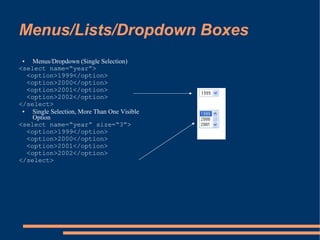
 ●   Menus/Dropdown (Single Selection)
<select name=“year”>
   <option>1999</option>
   <option>2000</option>
   <option>2001</option>
   <option>2002</option>
</select>
 ●   Single Selection, More Than One Visible
     Option
<select name=“year” size=“3”>
   <option>1999</option>
   <option>2000</option>
   <option>2001</option>
   <option>2002</option>
</select>
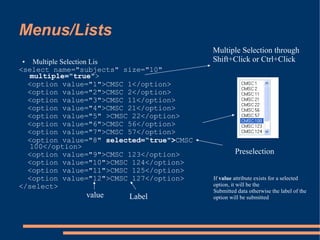
Menus/Lists
                                           Multiple Selection through
●   Multiple Selection Lis                 Shift+Click or Ctrl+Click
<select name="subjects" size="10"
   multiple="true">
  <option value="1">CMSC 1</option>
  <option value="2">CMSC 2</option>
  <option value="3">CMSC 11</option>
  <option value="4">CMSC 21</option>
  <option value="5" >CMSC 22</option>
  <option value="6">CMSC 56</option>
  <option value="7">CMSC 57</option>
  <option value="8" selected=“true">CMSC
   100</option>
  <option value="9">CMSC 123</option>               Preselection
  <option value="10">CMSC 124</option>
  <option value="11">CMSC 125</option>
  <option value="12">CMSC 127</option>     If value attribute exists for a selected
</select>                                  option, it will be the
                                           Submitted data otherwise the label of the
               value     Label             option will be submitted
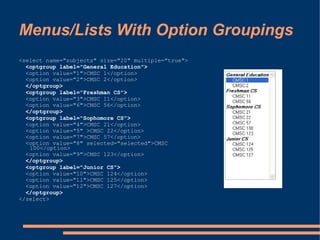
Menus/Lists With Option Groupings
<select name="subjects" size="20" multiple="true">
  <optgroup label="General Education">
  <option value="1">CMSC 1</option>
  <option value="2">CMSC 2</option>
  </optgroup>
  <optgroup label="Freshman CS">
  <option value="3">CMSC 11</option>
  <option value="6">CMSC 56</option>
  </optgroup>
  <optgroup label="Sophomore CS">
  <option value="4">CMSC 21</option>
  <option value="5" >CMSC 22</option>
  <option value="7">CMSC 57</option>
  <option value="8" selected="selected">CMSC
   100</option>
  <option value="9">CMSC 123</option>
  </optgroup>
  <optgroup label="Junior CS">
  <option value="10">CMSC 124</option>
  <option value="11">CMSC 125</option>
  <option value="12">CMSC 127</option>
  </optgroup>
</select>
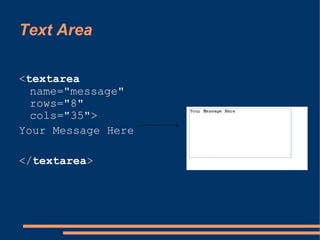
Text Area

<textarea
  name="message"
  rows="8"
  cols="35">
Your Message Here

</textarea>
Misc Form Elements
●   <label> Creates labels for controls
    –   E.g. <label for=“lname”>Name : </label>
●   <fieldset> Grouping for controls and labels within
    form.
●   <legend> allows assigning captions to fieldsets and
    controls.
Attributes For Control Events and
Other Attributes
•       onclick, ondblclick, onmousedown, onmouseup, onmouseover, onmousemove,
        onmouseout, onkeypress, onkeydown, onkeyup
          – Mouse and key events.
          – Each of these attributes are applicable to controls and must contain a script
             (i.e. Javascript inline script or function call).
          – I.e. <input type=“text” onmouseover=“doThis()”…/>
•       onfocus, onblur
          –   Control events activated when focusing in and out of a control.
    ●    onselect
          –   Occurs when text is selected in <input> & <textarea>
    ●   onchange
          –   Occurs when a control loses focus and has changed value.
Limitations of Web Forms
●   Offers limited UI features.
●   Limited UI Interactivity.
●   No support for advanced UI processes, e.g. Drag
    and Drop (DnD) and advanced UI controls.
●   Use CSS to modify look and feel.
Next Generation Web Forms
●   Web Forms 2.0
    –   HTML 4.0 Forms Chapter is informally known as Web Forms
        1.0
    –   Web Forms 2.0 is an enhancement of the “previous” version
        featuring data typing, new events, ease in scripting, etc.
●   XForms
    –   Next generation web forms.
    –   XML Based
    –   Feature rich forms.
●   HTML 5 Forms
    Reading Assignment!
    http://www.w3schools.com/html5/html5_form_input_types.asp
CMSC 100 Official References
●   HTML 4.01 Specification
    – http://www.w3.org/TR/REC-html40/

    –   + Other Related W3C Recommendations esp. XHTML
        with focus on Web Forms/Form Modules.

Cmsc 100 (web forms)

  • 1.
    Web UI/Forms andWeb Applications
  • 2.
    Web Application ● Also web app, webapp, weblication ● An application that is accessed by a web browser (from a server) via intranet or Internet. ● Take/Imagine a generic desktop application* being accessed by a browser by typing in its URL.
  • 3.
    Web Application ● Examples: – Webmail : E.g. Gmail, Yahoo Mail – Online Retail Sales – Online Auction – Blogs – Wiki – MMOGs/MMORPGs – Discussion Boards – Etc...
  • 4.
    Web Application: SellingPoint ● No distribution problems* ● No client installation problems* ● Easy to develop* ● Easy to deploy ● Easy to standardize (version)
  • 5.
    Creating User InterfacesIn Web Apps ● The Rich Client approach: – Use plugins like Java or Flash or ActiveX – Requires software installation. ● For “Rich” user experience. ● Extensible and Expandable Browsers – Most web browsers can render specialized contents using plugins. – Browsers may come with Plugin APIs for developers.
  • 7.
    Creating User Interfacesin Web Apps ● Thin Client Approach – Uses HTML form elements, hyperlinks, images, CSS, and simplest of Javascript to build/constitute user interface. – No installation required. – Very limited in terms of UI features and user experience. ● E.g. No DnD, advanced/customized events, etc.
  • 9.
  • 10.
  • 11.
  • 12.
    Example: Online WordProcessor (Google Docs)
  • 13.
  • 14.
  • 15.
  • 16.
  • 17.
    Web Applications ● Required Reading: – Graham, Paul. The Other Road Ahead, http://www.paulgraham.com/road.html – Spolsky, Joel. How Microsoft Lost the API War, http://www.joelonsoftware.com/articles/APIWar.html
  • 18.
    Building User Interfacesin Web Applications ● The Usual Suspects – HTML elements: hyperlinks, divs, form elements, etc. – CSS: for advanced element stylings – Javascript: for UI controls logic, event handling ● “Rich Client” Approach* – Use Java – Use Flash
  • 19.
    Building User Interfacesin Application ● Buzzword: DHTML – Dynamic HTML – Combination of HTML, CSS and Javascript – Microsoft spawned buzzword.
  • 20.
    Building Web Forms A Login Form
  • 21.
    Web Form Elements(tags) ● According to the Basic Forms Module in XHTML – <form> – <input> - for creating textfields, password fields, radio buttons, buttons, checkboxes – <label> – <select> - for single select, multiple select drop down boxes or lists – <option> - used in conjunction with select. – <textarea> - for text areas
  • 22.
    Web Forms Elements ● Forms Module – All elements in Basic Forms Module PLUS – <button> – <fieldset> - grouping element – <legend> - annotation element – <optgroup> - grouping element for options XHTML Modularization, read: http://www.webstandards.org/learn/articles/askw3c/dec 2003/
  • 23.
    HTML 4.01/XHTML 1.0Form Elements (Controls) ● Form ● Buttons – Submit : when activated will submit a form. – Reset: reset all controls to initial values – Push buttons: no default behaviour, requires script programming ● Checkboxes ● Radio Buttons ● Text Fields/Password Fields ● Menus/Drop Down Lists/Selection Lists, Options, Option Groups ● Text Area ● File Select ● Hidden Controls ● Labels ● Fieldset ● Legend
  • 24.
    Creating Forms Name of the form <form name=“MyForm” Page/CGI the form values action=“formprocessing.cgi” will be submitted method=“get|post” to. enctype=“application/x-www-form- urlencoded”> <!-- Form controls here --> HTTP Method </form>
  • 25.
    Creating Forms ● The <form> tag groups related form controls. ● It gives information on where the form values will be forwarded/submitted to (action attribute) and how to pass on the data (the method attribute). – …among other things.
  • 26.
    Creating Forms WithFile Select (E.g. Uploading A File) <form method=“post” Enctype required action=“processfile.php” enctype=“multipart/form-data” accept=“image/gif”> Limits what can types of files can be submitted, May be a comma delimited List of possible MIME types. <input type=“file” name=“upload”/> <!-- Other elements--> </form> Use the above form attributes when you have A file select control in the form
  • 27.
    Form Events <form … onsubmit=“script” onreset=“script” > Form specific events, in addition to the intrinsic events Define client side scripts to be executed upon realization Of the events, namely when the form is submitted AND </form> When the form is reset.
  • 28.
    Form Methods ● GET : When get method is used, form data is sent WITH the URL in HTTP Request. – E.g. BROWSER appends data to the action URL processform.php?name1=value1&name2=value2&…. – It CAN BE BOOKMARKED by browsers so you don’t need to input data in the form again. – DO NOT USE GET when forms submit passwords OR you have too many fields and values to submit. E.g. GET processform.php?n1=v1&n2=v2 HTTP/1.1 Host: http://myserver.com ...
  • 29.
    Form Methods ● POST: Form data is sent in the BODY of the HTTP Request – Preferable way of sending form data. E.g. POST processform.php HTTP/1.1 … Other headers here … n1=v1&n2=v2&n3=v3&n4=v4… HTTP Request Body
  • 30.
    What gets Submitted ● When a form is primed for submission, the browser gets the names of all the controls and their values and arrange them into name=value pairs delimited by “&”. Some controls may cause more than one pair to have the same name (e.g. for checkboxes, textfields with the same name). – E.g. choice=1&choice=2&name=John
  • 31.
    The <input> tag. ● Can be used to create buttons (push, submit and reset), checkboxes, radio buttons, text fields, password fields, file select control, image control. ● Example (Proper) Minimal Declaration <input type=“text” name=“field1”/> ALWAYS put a name to your form controls.
  • 32.
    Creating Text Fields/Password Fields <inputtype=“text” name=“text1” value=“Value Here” size=“30” Initial value maxlength=“20”/> Visible chars Maximum chars That can be typed Label If type=“password”
  • 33.
    Creating Radio Buttons/Checkboxes <input <input type=“checkbox” type=“radio” name=“gender” name=“choices” value=“M” value=“1” checked=“true”/> Male checked=“true”/> Firing Squad <input type=“radio” name=“gender” <input type=“checkbox” value=“F” /> Female name=“choices” value=“2” checked=“true” /> Electric Chair <input type=“checkbox” name=“choices” value=“3” /> CMSC 100 First Radio group = 1 choice only Long Exam Checkbox group = multiple choices Radio and checkbox groups must have the same name. value attribute important for each radio Or checkbox checked attribute imply pre-selection.
  • 34.
    Creating File Select <inputtype=“file” name=“f_upl”/> Comes with its own browse button that will open a file selection (File Open) dialog. Requires enctype=“multipart/form-data” on the enclosing <form> tag.
  • 35.
    Hidden Fields <input type=“hidden” name=“secret_field” value=“883920030” /> No visual representation/rendering. Allows information to be passed or stored between client and server using forms that may be otherwise be lost due to the stateless nature of HTTP.
  • 36.
    Buttons ● Canbe created using <input> or <button> tags. (Let’s use <input> as our standard.) <input type=“submit” name=“action” /> <input type=“submit” name=“action” value=“Submit”/> <input type=“reset” /> <input type=“reset” value=“Clear Fields”/> <input type=“button” name=“b1”/> <input type=“button” name=“b2” value=“Push” onclick=“script” />
  • 37.
    Buttons ● <input type=“image” src=“…”> – Graphical submit button, src attributes indicate URL of image to use. – X-value and y-value coordinates in the image where the “click” occurred is passed to the server. ● <button> tag offers more graphical flexibility. ● <input type=“button”> does not have any default action. It must be defined using client-side scripting.
  • 38.
    Menus/Lists/Dropdown Boxes ● Menus/Dropdown (Single Selection) <select name=“year”> <option>1999</option> <option>2000</option> <option>2001</option> <option>2002</option> </select> ● Single Selection, More Than One Visible Option <select name=“year” size=“3”> <option>1999</option> <option>2000</option> <option>2001</option> <option>2002</option> </select>
  • 39.
    Menus/Lists Multiple Selection through ● Multiple Selection Lis Shift+Click or Ctrl+Click <select name="subjects" size="10" multiple="true"> <option value="1">CMSC 1</option> <option value="2">CMSC 2</option> <option value="3">CMSC 11</option> <option value="4">CMSC 21</option> <option value="5" >CMSC 22</option> <option value="6">CMSC 56</option> <option value="7">CMSC 57</option> <option value="8" selected=“true">CMSC 100</option> <option value="9">CMSC 123</option> Preselection <option value="10">CMSC 124</option> <option value="11">CMSC 125</option> <option value="12">CMSC 127</option> If value attribute exists for a selected </select> option, it will be the Submitted data otherwise the label of the value Label option will be submitted
  • 40.
    Menus/Lists With OptionGroupings <select name="subjects" size="20" multiple="true"> <optgroup label="General Education"> <option value="1">CMSC 1</option> <option value="2">CMSC 2</option> </optgroup> <optgroup label="Freshman CS"> <option value="3">CMSC 11</option> <option value="6">CMSC 56</option> </optgroup> <optgroup label="Sophomore CS"> <option value="4">CMSC 21</option> <option value="5" >CMSC 22</option> <option value="7">CMSC 57</option> <option value="8" selected="selected">CMSC 100</option> <option value="9">CMSC 123</option> </optgroup> <optgroup label="Junior CS"> <option value="10">CMSC 124</option> <option value="11">CMSC 125</option> <option value="12">CMSC 127</option> </optgroup> </select>
  • 41.
    Text Area <textarea name="message" rows="8" cols="35"> Your Message Here </textarea>
  • 42.
    Misc Form Elements ● <label> Creates labels for controls – E.g. <label for=“lname”>Name : </label> ● <fieldset> Grouping for controls and labels within form. ● <legend> allows assigning captions to fieldsets and controls.
  • 43.
    Attributes For ControlEvents and Other Attributes • onclick, ondblclick, onmousedown, onmouseup, onmouseover, onmousemove, onmouseout, onkeypress, onkeydown, onkeyup – Mouse and key events. – Each of these attributes are applicable to controls and must contain a script (i.e. Javascript inline script or function call). – I.e. <input type=“text” onmouseover=“doThis()”…/> • onfocus, onblur – Control events activated when focusing in and out of a control. ● onselect – Occurs when text is selected in <input> & <textarea> ● onchange – Occurs when a control loses focus and has changed value.
  • 44.
    Limitations of WebForms ● Offers limited UI features. ● Limited UI Interactivity. ● No support for advanced UI processes, e.g. Drag and Drop (DnD) and advanced UI controls. ● Use CSS to modify look and feel.
  • 45.
    Next Generation WebForms ● Web Forms 2.0 – HTML 4.0 Forms Chapter is informally known as Web Forms 1.0 – Web Forms 2.0 is an enhancement of the “previous” version featuring data typing, new events, ease in scripting, etc. ● XForms – Next generation web forms. – XML Based – Feature rich forms. ● HTML 5 Forms Reading Assignment! http://www.w3schools.com/html5/html5_form_input_types.asp
  • 46.
    CMSC 100 OfficialReferences ● HTML 4.01 Specification – http://www.w3.org/TR/REC-html40/ – + Other Related W3C Recommendations esp. XHTML with focus on Web Forms/Form Modules.