Harnessing DE  streaming  as a Motivational Learning Tool Differentiating Instruction and Engaging Students with Powerful Multimedia Learning Experiences
Discovery Education  streaming DE  streaming  launched a new interface for the the Teacher Center tools
Student Center – Student Tools Each student will have their own user name and password which will give them access to:  Search for content Save content into their own My Content area Download materials Access media assets, assignments, quizzes, writing prompts and content folders assigned by teachers in one centralized area
Student Center Login Page
Student Center – Teacher Tools Teachers will be able to:  Assign content to an individual student, multiple students or an entire class Ability to track student submission of assignments, quizzes and writing prompts and student progress Assign media assets or folders of materials for student projects or differentiated instruction
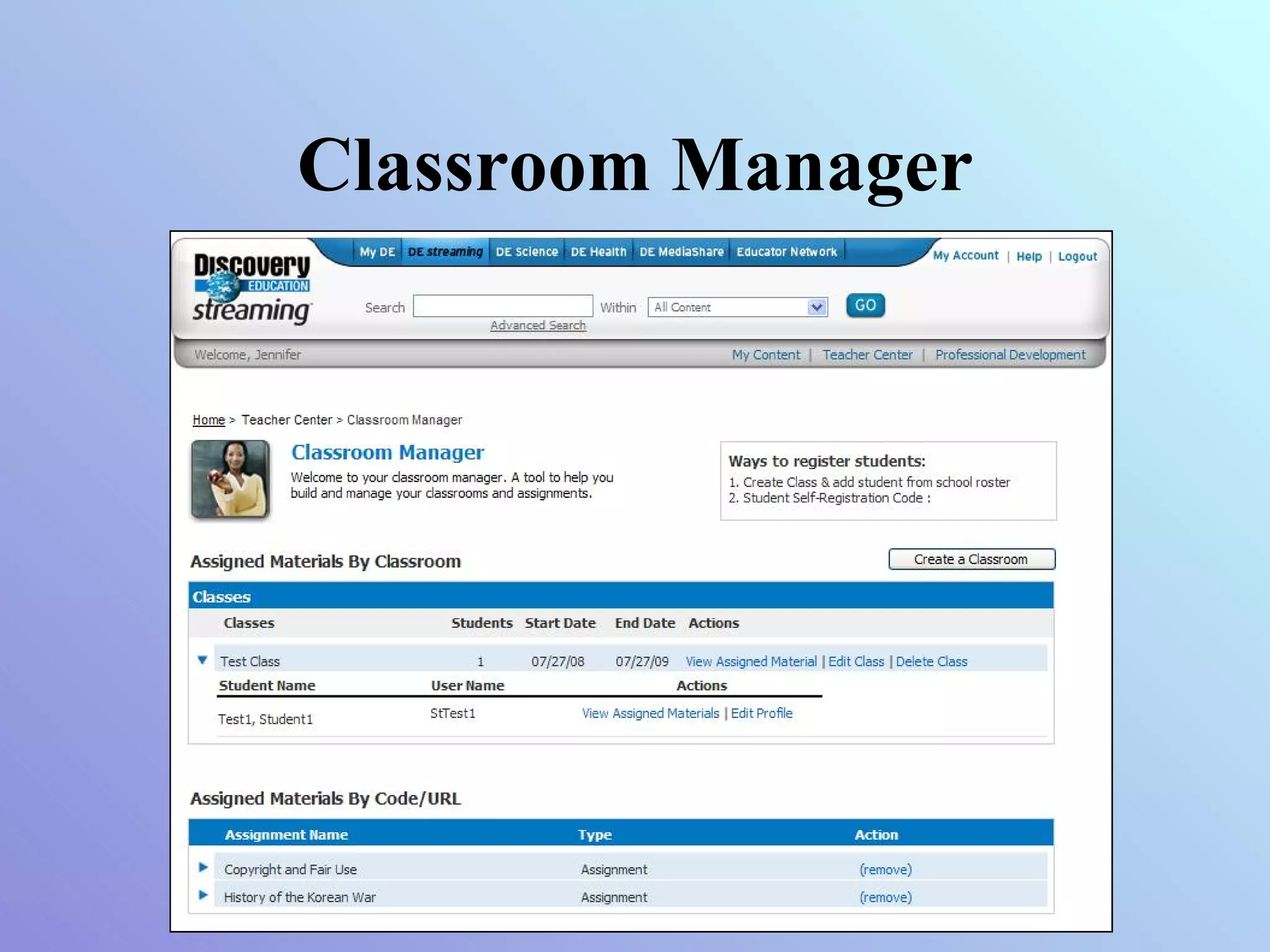
Classroom Manager
Assigning Content Once students are registered in Classroom Manager, teachers can assign any DE  streaming  content to entire classes or individual students
Tracking Progress Once students are registered, they will have a unique account that will allow them (and the teacher) to track progress over time
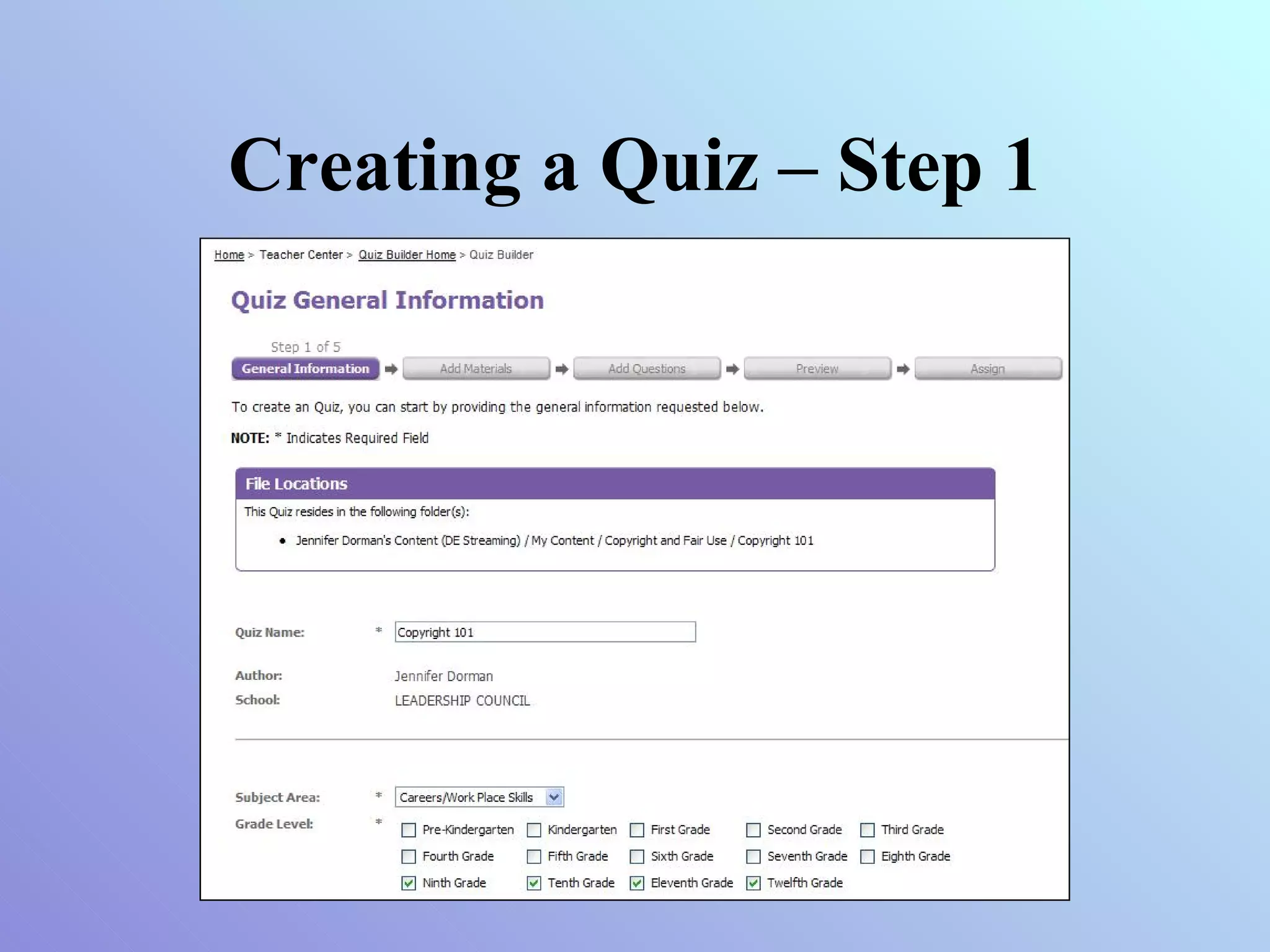
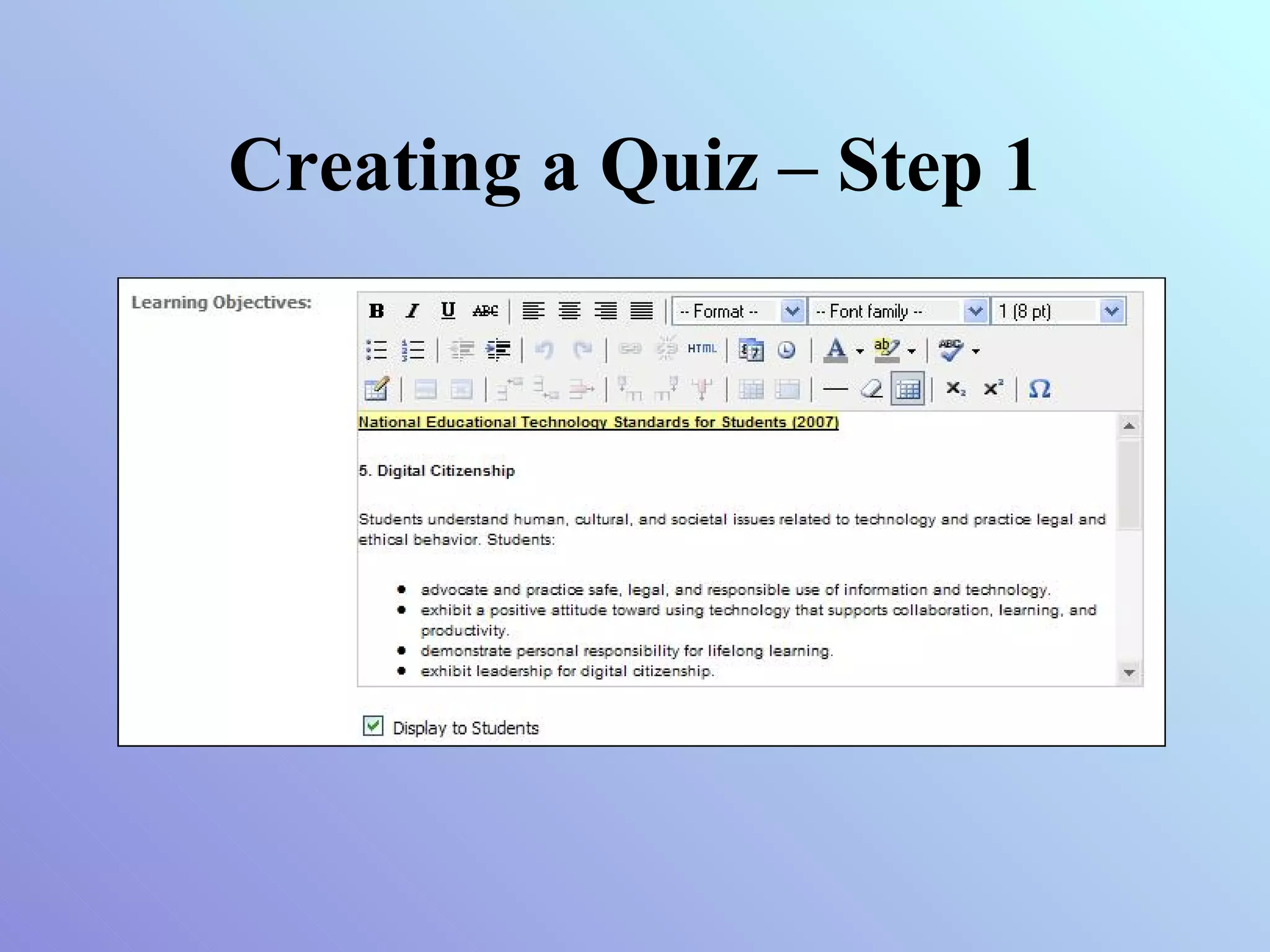
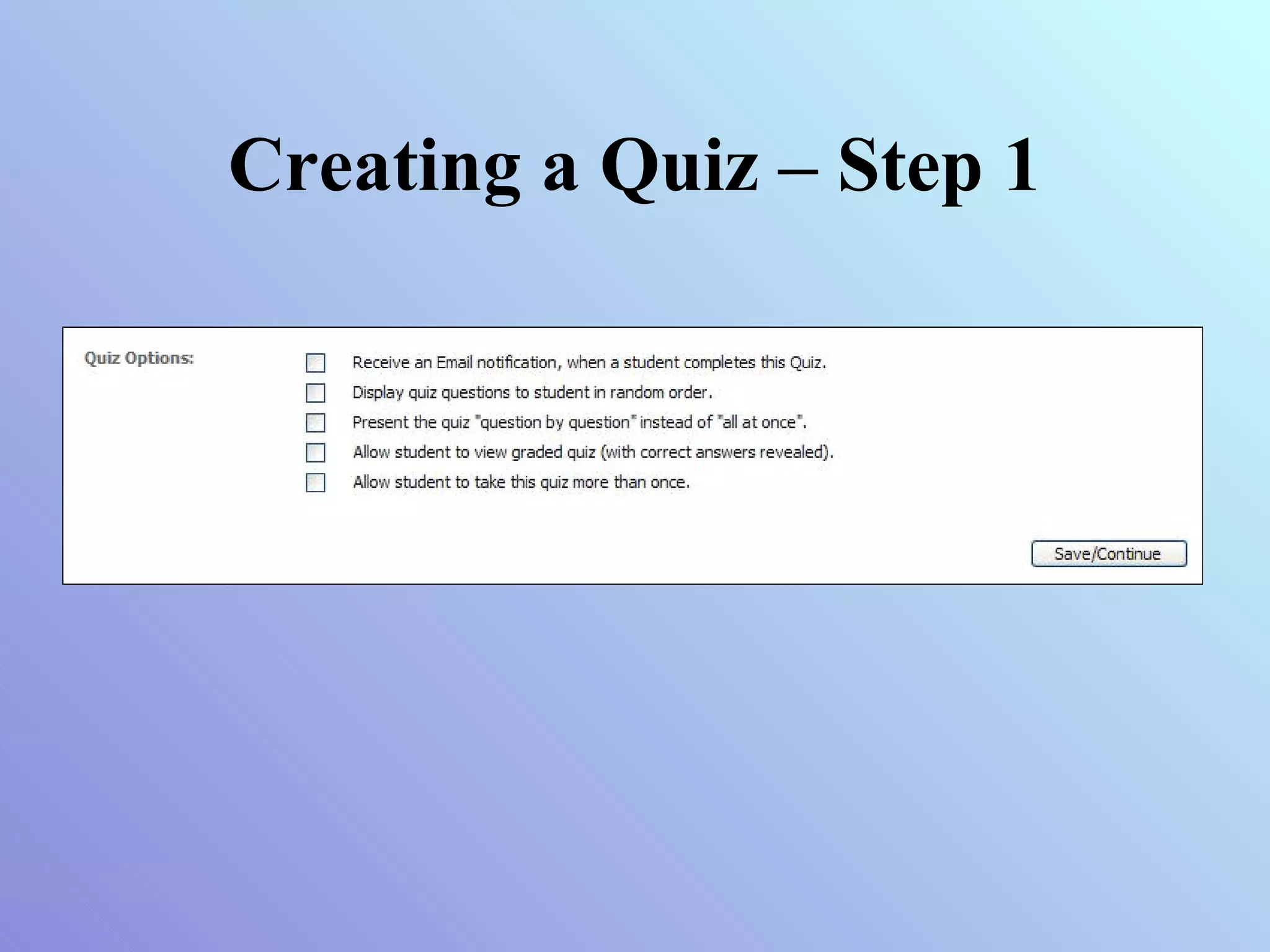
Creating a Quiz – Step 1
Creating a Quiz – Step 2
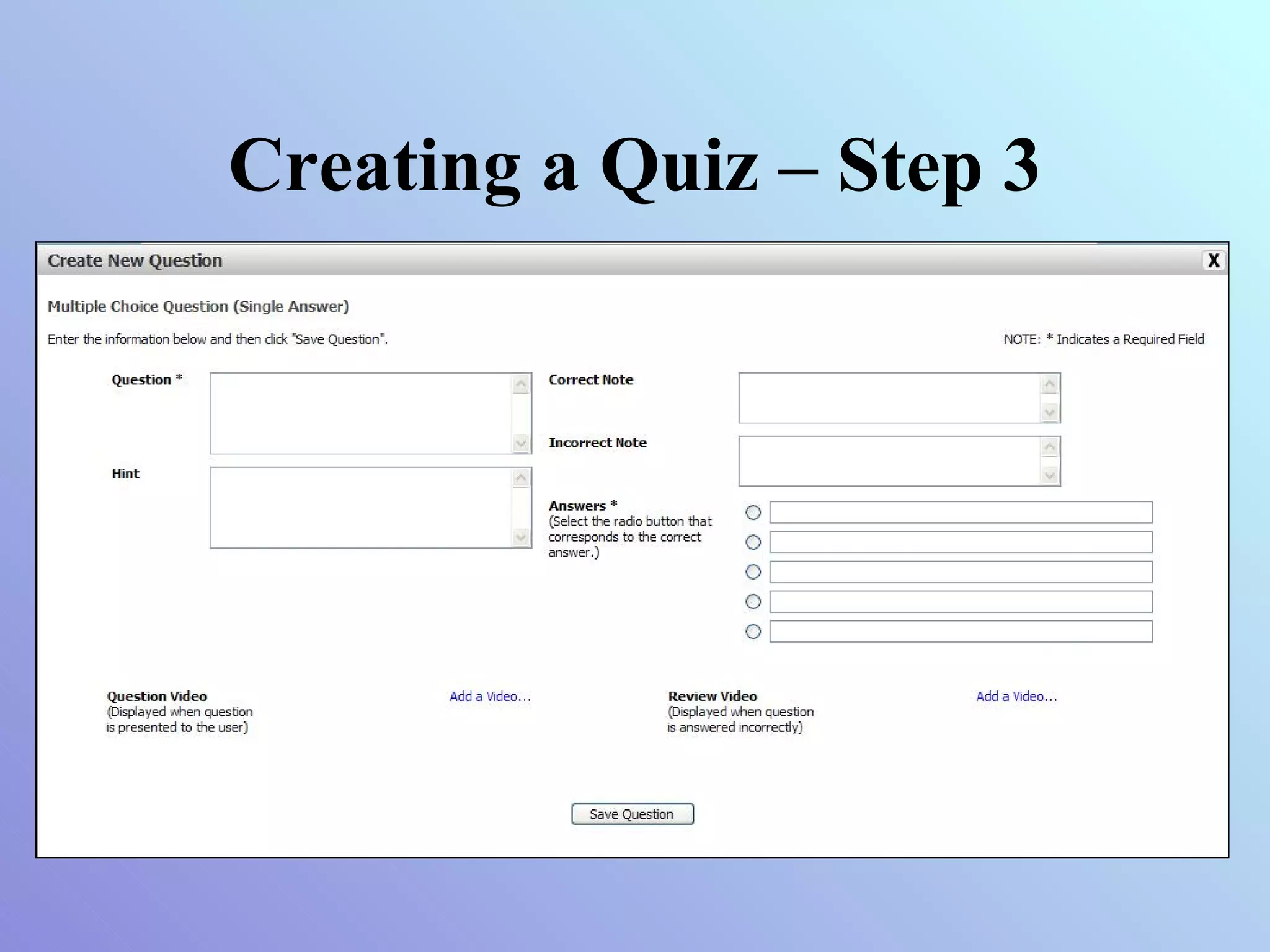
Creating a Quiz – Step 3
Creating a Quiz – Step 4
Creating a Quiz – Step 5
Writing Prompts & Assignments Both the Writing Prompt Builder and the Assignment Builder follow the same (or, nearly similar) 5 steps and can be assigned to all students, specific classes, or specific students the same way. All the builders allow for the inclusion of third-party Internet content through web links and dynamic HTML code (widgets)
Widgetize Your Builder Select where you want your widget to display (material instructions, assignment instructions, etc.)
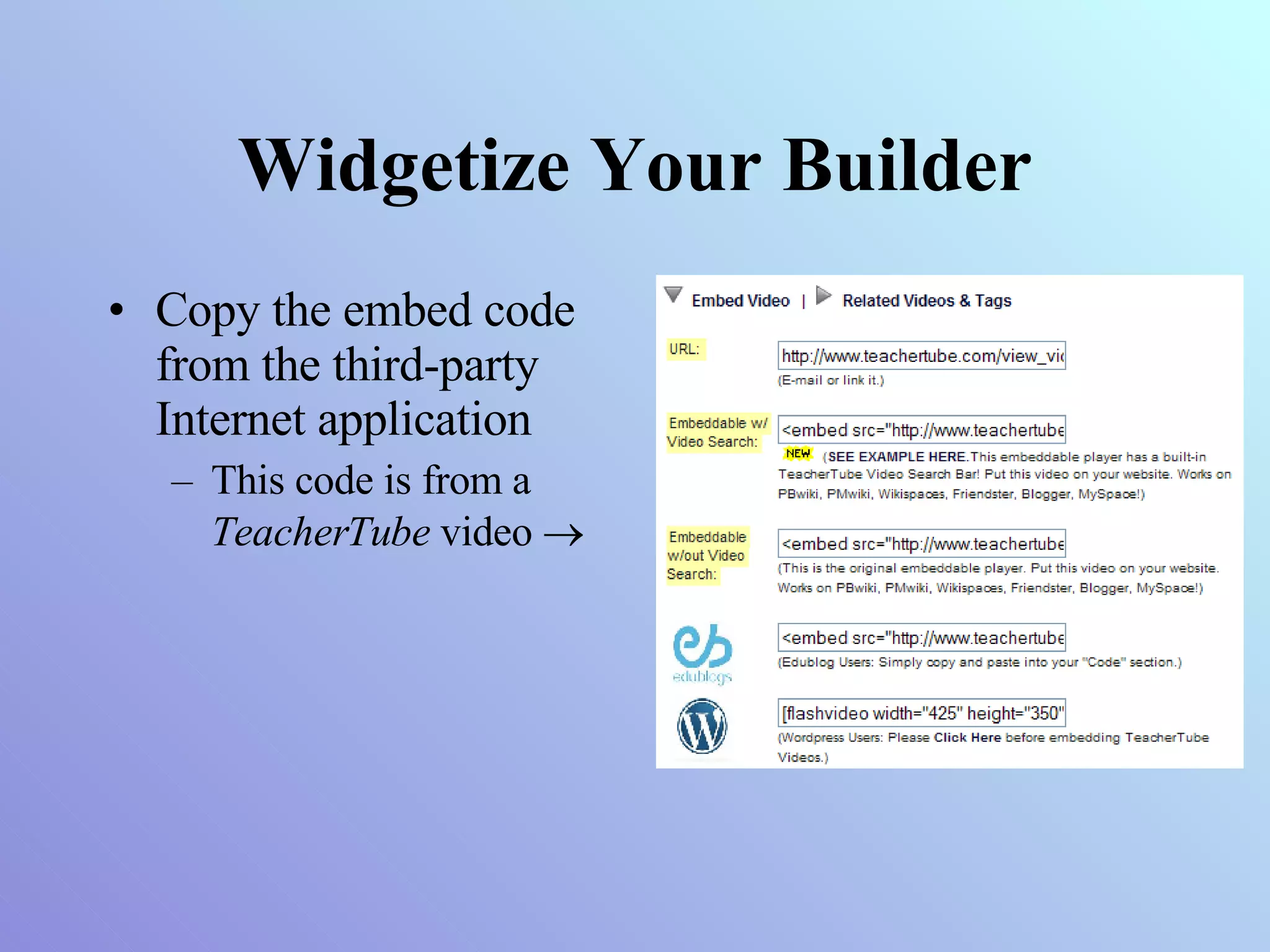
Widgetize Your Builder Copy the embed code from the third-party Internet application This code is from a  TeacherTube  video  
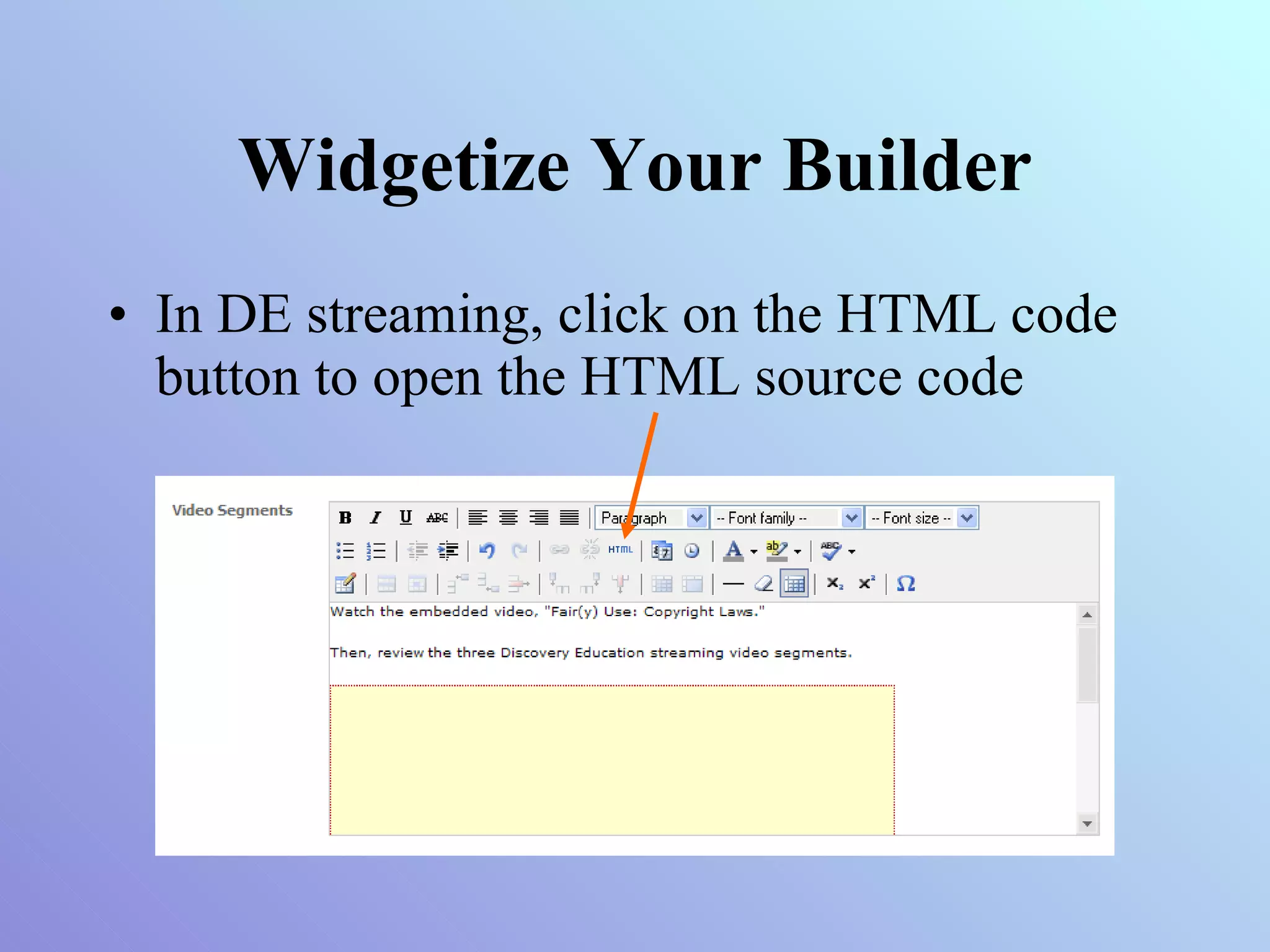
Widgetize Your Builder In DE streaming, click on the HTML code button to open the HTML source code
Widgetize Your Builder Paste the embed code from the third-party application into the HTML source code box Click Update
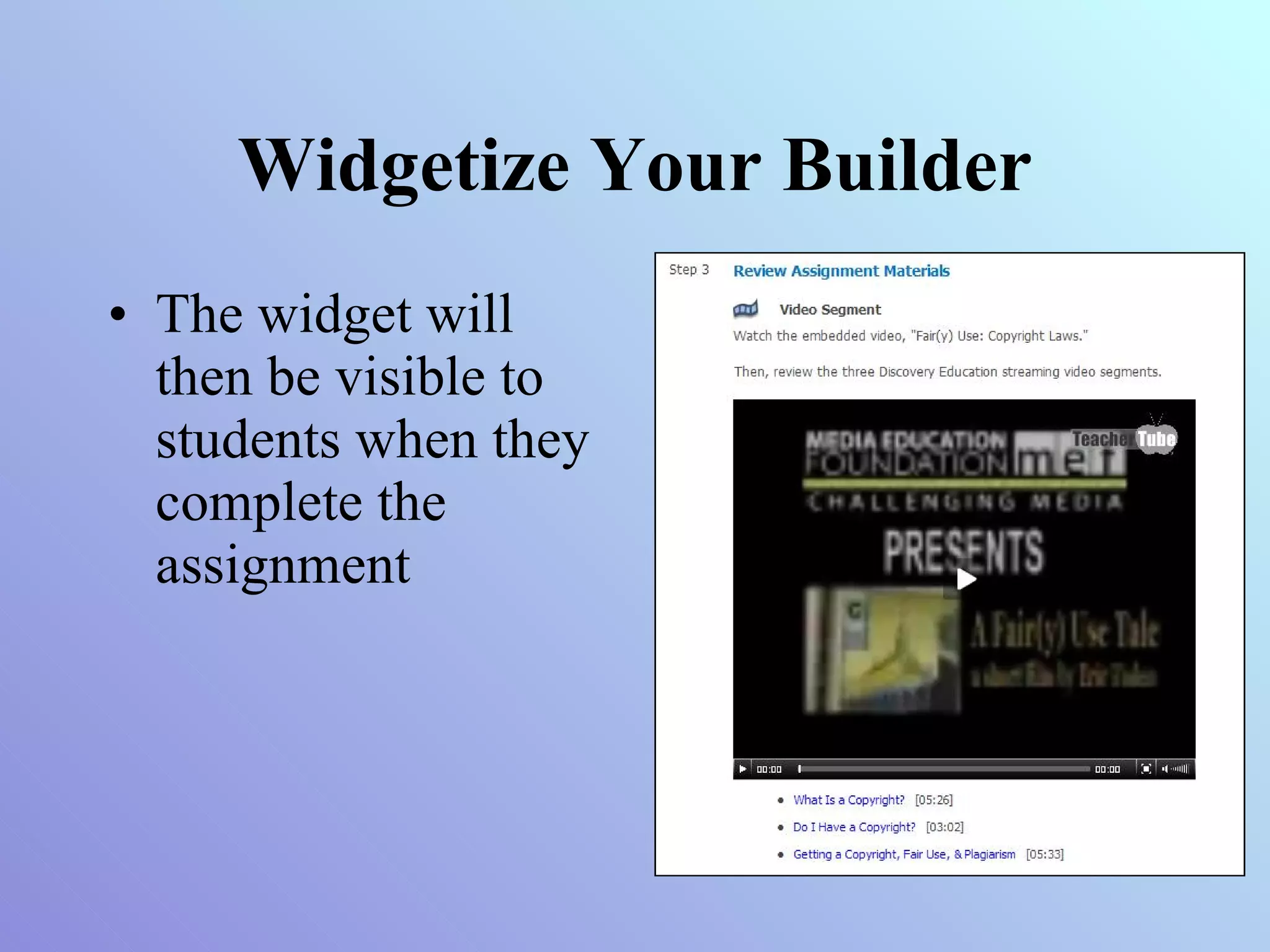
Widgetize Your Builder The widget will then be visible to students when they complete the assignment
Widget Ideas Voicethread TeacherTube / YouTube Swivel Grazr (blogroll / cliproll) MeeboRooms (private chat room) Blabberize  Bubbl.us  PollDaddy Google Forms / Zoho Creator Forms http://www.diigo.com/list/cliotech/web20

Harnessing DE Streaming Builders

  • 1.
    Harnessing DE streaming as a Motivational Learning Tool Differentiating Instruction and Engaging Students with Powerful Multimedia Learning Experiences
  • 2.
    Discovery Education streaming DE streaming launched a new interface for the the Teacher Center tools
  • 3.
    Student Center –Student Tools Each student will have their own user name and password which will give them access to: Search for content Save content into their own My Content area Download materials Access media assets, assignments, quizzes, writing prompts and content folders assigned by teachers in one centralized area
  • 4.
  • 5.
    Student Center –Teacher Tools Teachers will be able to: Assign content to an individual student, multiple students or an entire class Ability to track student submission of assignments, quizzes and writing prompts and student progress Assign media assets or folders of materials for student projects or differentiated instruction
  • 6.
  • 7.
    Assigning Content Oncestudents are registered in Classroom Manager, teachers can assign any DE streaming content to entire classes or individual students
  • 8.
    Tracking Progress Oncestudents are registered, they will have a unique account that will allow them (and the teacher) to track progress over time
  • 9.
    Creating a Quiz– Step 1
  • 10.
    Creating a Quiz– Step 1
  • 11.
    Creating a Quiz– Step 1
  • 12.
    Creating a Quiz– Step 1
  • 13.
    Creating a Quiz– Step 1
  • 14.
    Creating a Quiz– Step 2
  • 15.
    Creating a Quiz– Step 3
  • 16.
    Creating a Quiz– Step 3
  • 17.
    Creating a Quiz– Step 3
  • 18.
    Creating a Quiz– Step 4
  • 19.
    Creating a Quiz– Step 5
  • 20.
    Writing Prompts &Assignments Both the Writing Prompt Builder and the Assignment Builder follow the same (or, nearly similar) 5 steps and can be assigned to all students, specific classes, or specific students the same way. All the builders allow for the inclusion of third-party Internet content through web links and dynamic HTML code (widgets)
  • 21.
    Widgetize Your BuilderSelect where you want your widget to display (material instructions, assignment instructions, etc.)
  • 22.
    Widgetize Your BuilderCopy the embed code from the third-party Internet application This code is from a TeacherTube video 
  • 23.
    Widgetize Your BuilderIn DE streaming, click on the HTML code button to open the HTML source code
  • 24.
    Widgetize Your BuilderPaste the embed code from the third-party application into the HTML source code box Click Update
  • 25.
    Widgetize Your BuilderThe widget will then be visible to students when they complete the assignment
  • 26.
    Widget Ideas VoicethreadTeacherTube / YouTube Swivel Grazr (blogroll / cliproll) MeeboRooms (private chat room) Blabberize Bubbl.us PollDaddy Google Forms / Zoho Creator Forms http://www.diigo.com/list/cliotech/web20