FORMATTING WORD PROCESSING
DOCUMENT
INTRODUCTION
Formatting a word document refers to changing the appearance of the text on
the screen.
The appearance of the text can refer to any of the following:
 Font size
 Font style
 Font color
 Font weight
 Underline
 Alignment, etc
CHANGING FONT APPEARANCE
Applying simple formatting to text, such font-style, font-size and color, is
achieved easily by the following:
 Select/highlight the relevant text to be formatted.
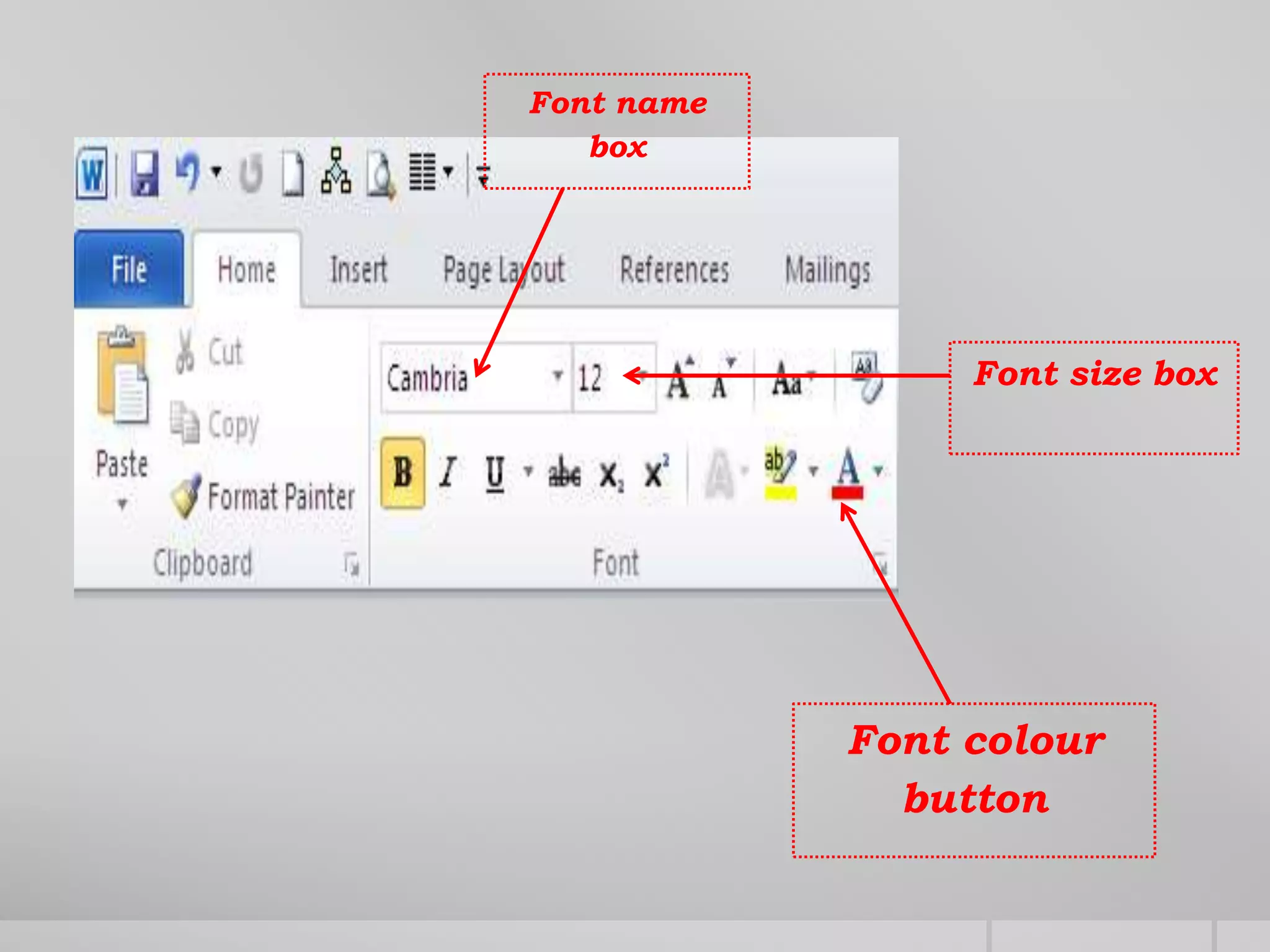
 In the home tab, and in the font group, select;
 the desired font face from the font style box,
 The appropriate font-size from the font-size drop down box
 The desired colour from the font-colour button or drop-down arrow.
Font name
box
Font colour
button
Font size box
APPLY BOLD, ITALIC AND UNDERLINE
To apply bold, italic and underline formatting to text, do the following:
 Select/highlight the relevant text to be formatted.
 In the home tab, and in the font group, select;
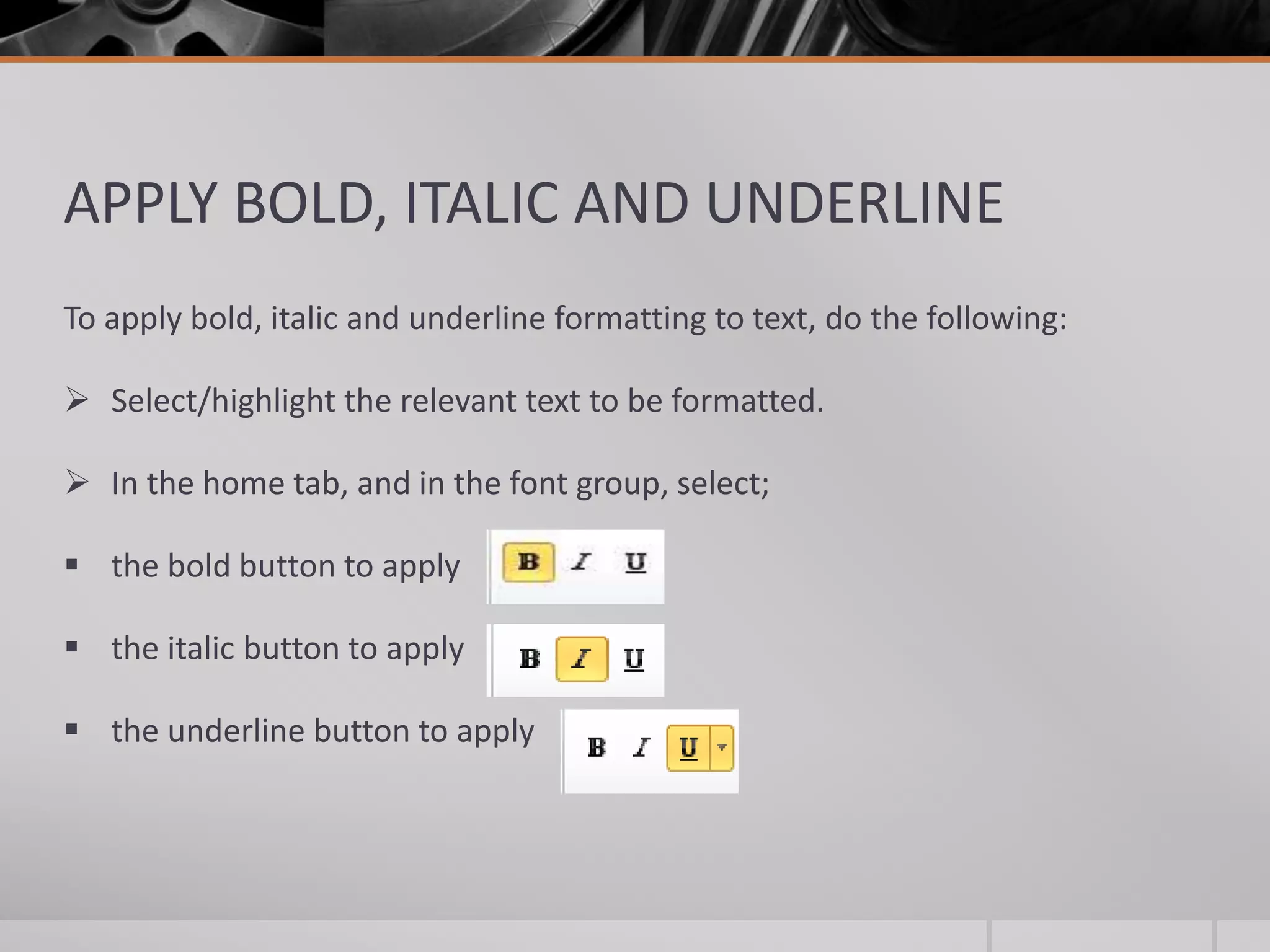
 the bold button to apply
 the italic button to apply
 the underline button to apply
TEXT ALIGNMENT
You can center the text on the page, by doing the following:
1. Select the relevant text.
2. In the home tab and paragraph group;
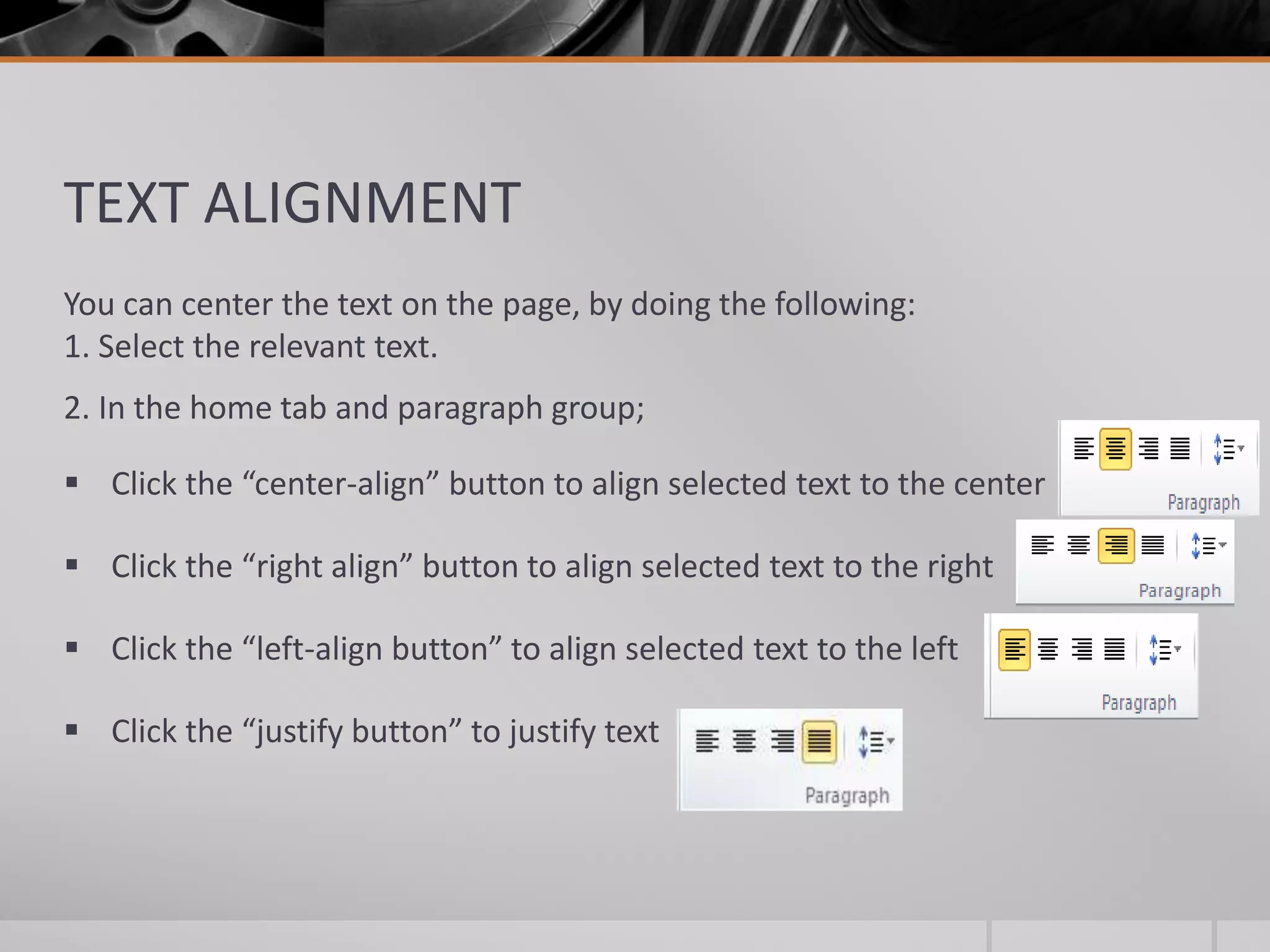
 Click the “center-align” button to align selected text to the center
 Click the “right align” button to align selected text to the right
 Click the “left-align button” to align selected text to the left
 Click the “justify button” to justify text
TEXT SPACING
To change the spacing of text in your document, you simply
1. Select the text, or place the insertion point in the paragraph of text you
want the spacing to apply to
2. Do the following:
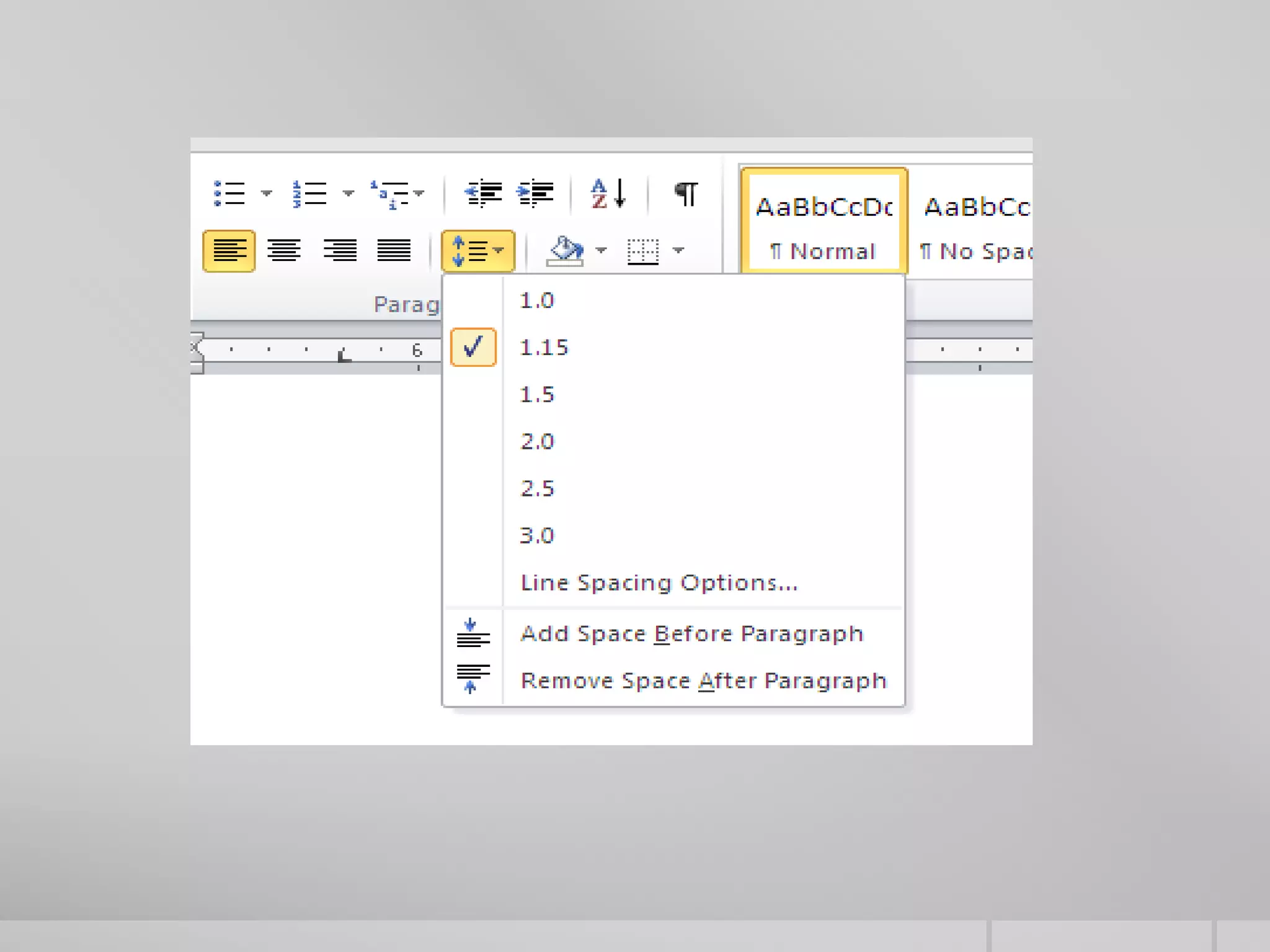
 In the paragraph group on the home tab, click the drop-down arrow on the
“line and spacing button” to bring out the line spacing commands.
 Select the line option spacing you want to apply to the selected text.
SUMMARY
 In this lesson, we looked at formatting in word
processing using formatting tools
 Some of the formatting styles to apply to word
documents are
 Changing font appearance (font style, size, color, weight, etc)
 applying formatting effects to text (bold, italic, underline, etc)
 Text alignment (left, right, center, justify)
 Text spacing (single, 1.5, double, multiple)

Formattingwordprocessingdocument

  • 1.
  • 2.
    INTRODUCTION Formatting a worddocument refers to changing the appearance of the text on the screen. The appearance of the text can refer to any of the following:  Font size  Font style  Font color  Font weight  Underline  Alignment, etc
  • 3.
    CHANGING FONT APPEARANCE Applyingsimple formatting to text, such font-style, font-size and color, is achieved easily by the following:  Select/highlight the relevant text to be formatted.  In the home tab, and in the font group, select;  the desired font face from the font style box,  The appropriate font-size from the font-size drop down box  The desired colour from the font-colour button or drop-down arrow.
  • 4.
  • 5.
    APPLY BOLD, ITALICAND UNDERLINE To apply bold, italic and underline formatting to text, do the following:  Select/highlight the relevant text to be formatted.  In the home tab, and in the font group, select;  the bold button to apply  the italic button to apply  the underline button to apply
  • 6.
    TEXT ALIGNMENT You cancenter the text on the page, by doing the following: 1. Select the relevant text. 2. In the home tab and paragraph group;  Click the “center-align” button to align selected text to the center  Click the “right align” button to align selected text to the right  Click the “left-align button” to align selected text to the left  Click the “justify button” to justify text
  • 7.
    TEXT SPACING To changethe spacing of text in your document, you simply 1. Select the text, or place the insertion point in the paragraph of text you want the spacing to apply to 2. Do the following:  In the paragraph group on the home tab, click the drop-down arrow on the “line and spacing button” to bring out the line spacing commands.  Select the line option spacing you want to apply to the selected text.
  • 9.
    SUMMARY  In thislesson, we looked at formatting in word processing using formatting tools  Some of the formatting styles to apply to word documents are  Changing font appearance (font style, size, color, weight, etc)  applying formatting effects to text (bold, italic, underline, etc)  Text alignment (left, right, center, justify)  Text spacing (single, 1.5, double, multiple)