Editing and Formatting a
Microsoft Word Document
Formatting Paragraphs
• When you format paragraphs:
– It enhances the overall appearance of the document
• Formatting a paragraph includes:
– aligning the text
– applying paragraph styles
– changing line spacing
– paragraph spacing
– indenting text
Aligning Paragraphs
• Alignment of text refers to the position of the text
with respect to the page margins of the
document
• There are four alignment commands:
– Align Left
– Center
– Align Right
– Justify
Aligning Paragraphs (Contd..)
Alignment
Command
Description
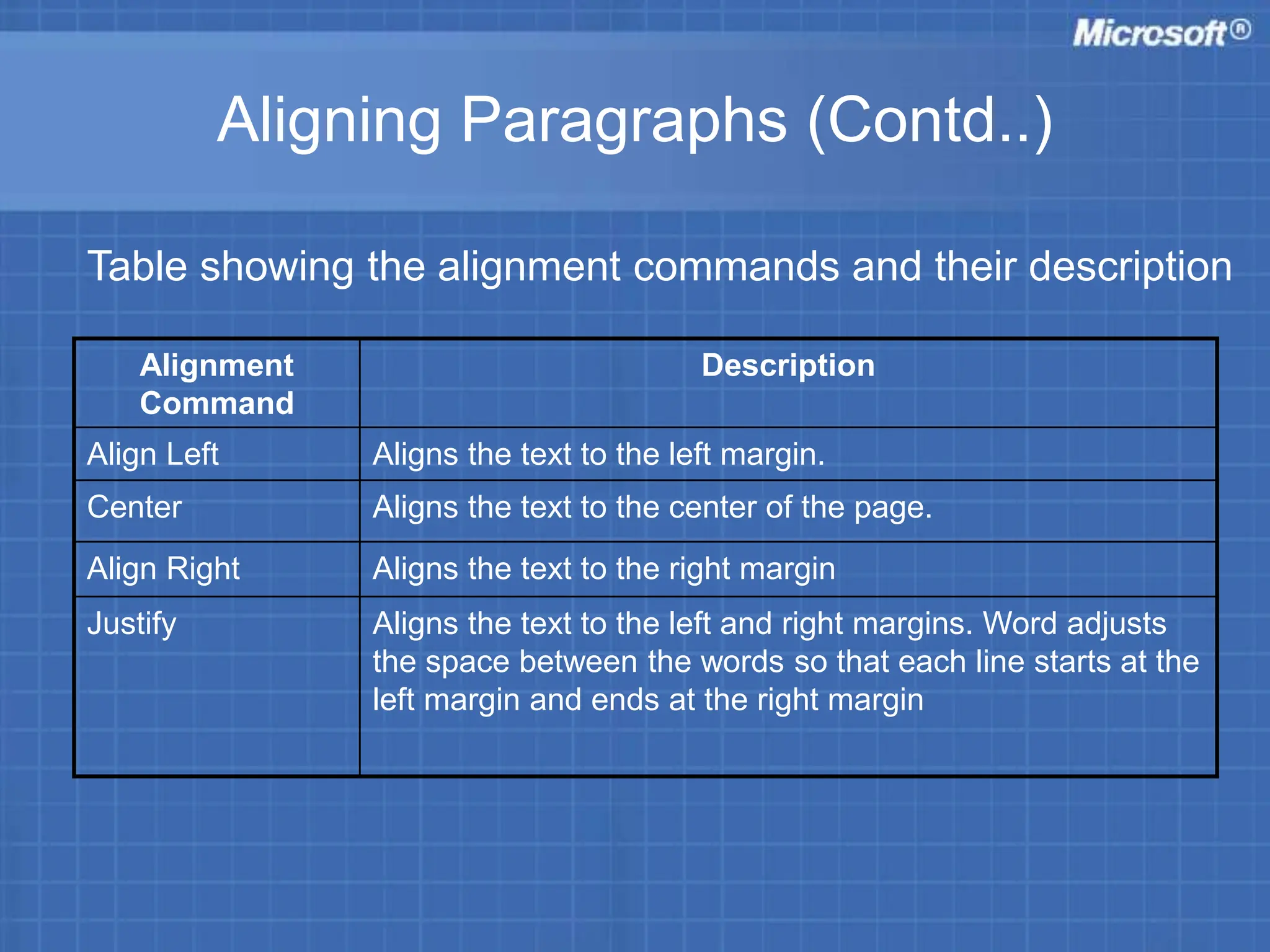
Align Left Aligns the text to the left margin.
Center Aligns the text to the center of the page.
Align Right Aligns the text to the right margin
Justify Aligns the text to the left and right margins. Word adjusts
the space between the words so that each line starts at the
left margin and ends at the right margin
Table showing the alignment commands and their description
Aligning Paragraphs (Contd..)
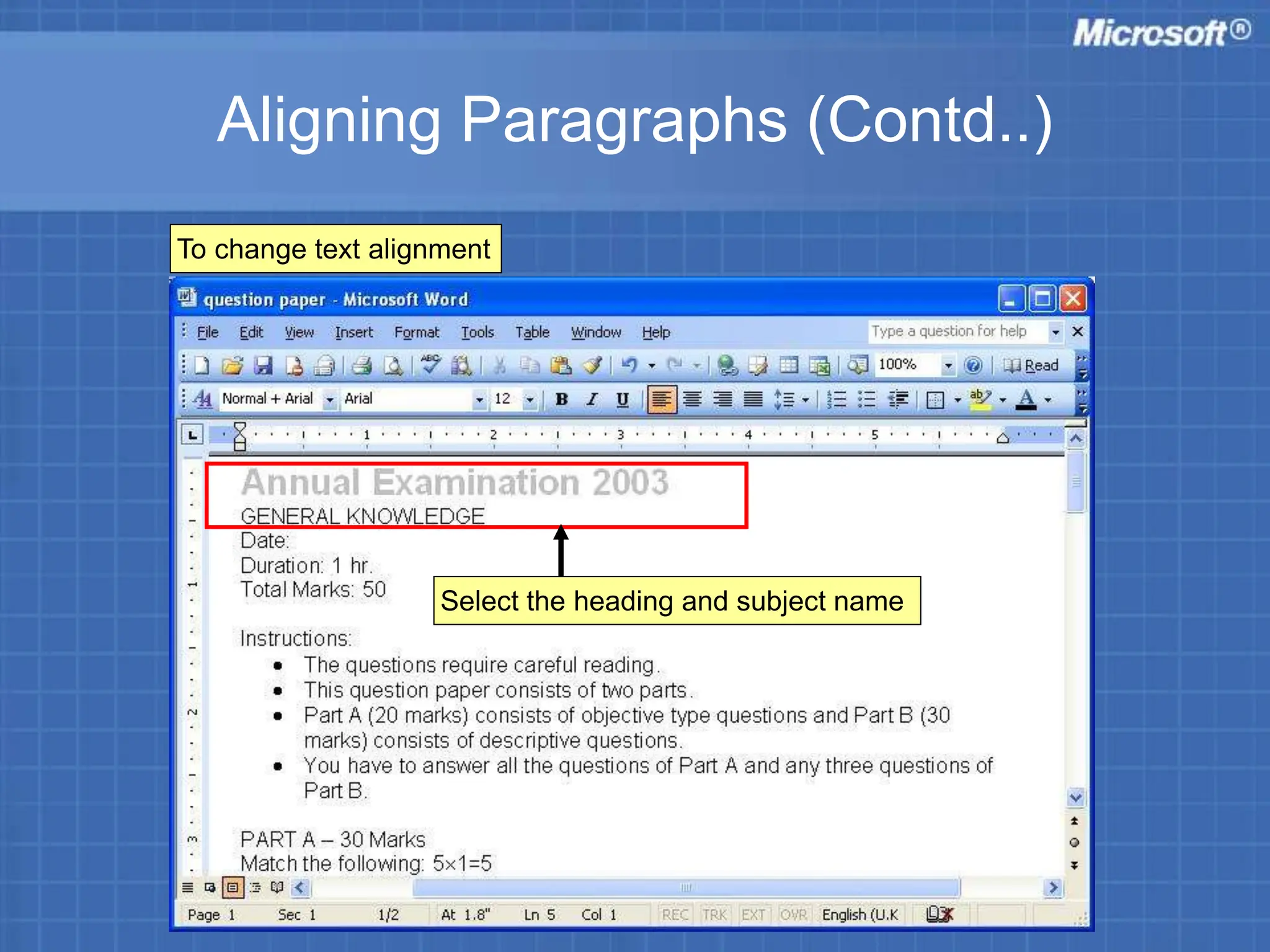
To change text alignment
Select the heading and subject name
Aligning Paragraphs (Contd..)
1
2
Aligning Paragraphs (Contd..)
Paragraph dialog box appears as shown
Under Indents and Spacing tab
Click Centered in Alignment list
Click OK
Aligning Paragraphs (Contd..)
The heading and the subject name appears in the centre as shown
Aligning Paragraphs (Contd..)
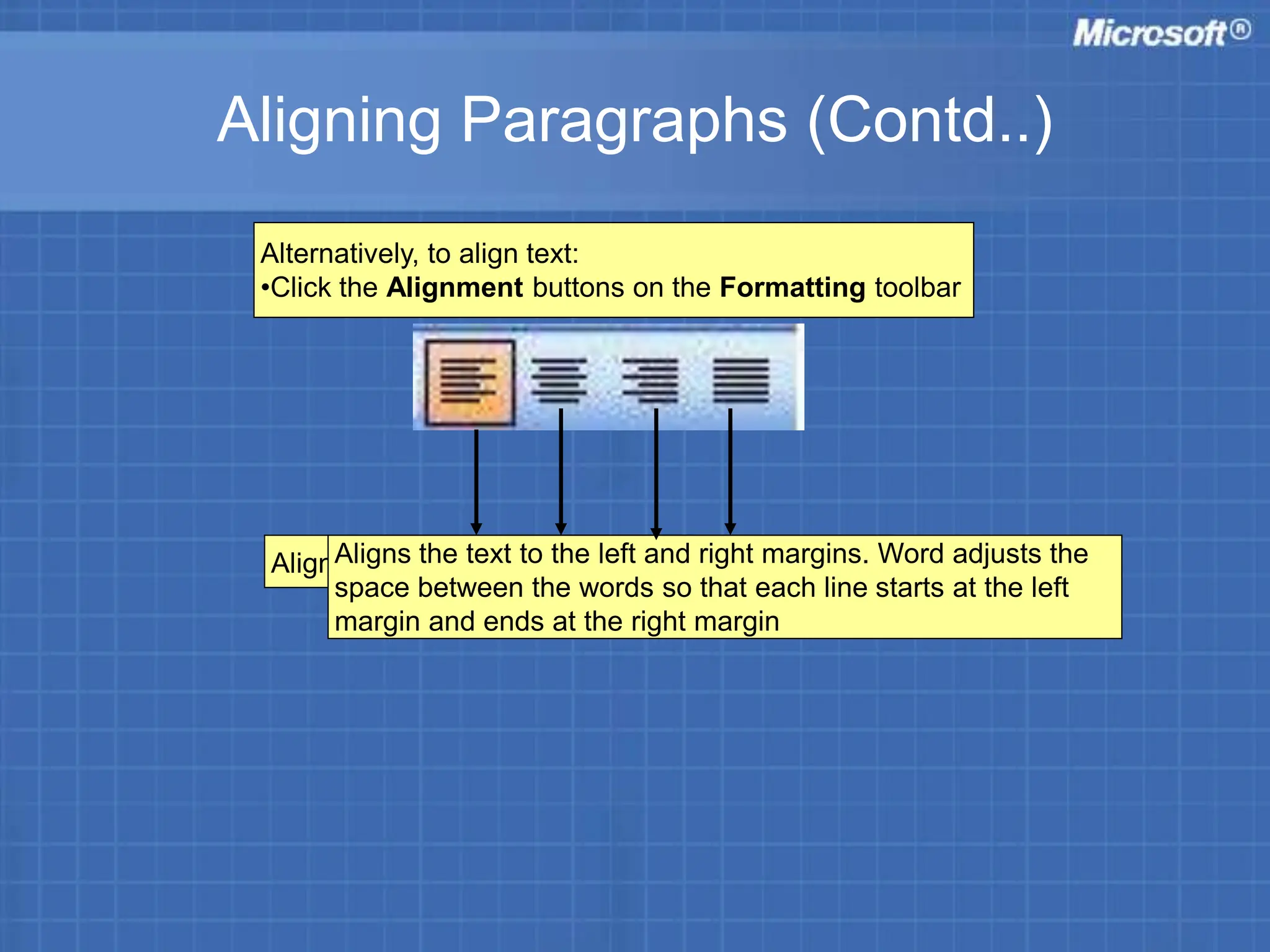
Alternatively, to align text:
•Click the Alignment buttons on the Formatting toolbar
Aligns the text to the centre of the page.
Aligns the text to the left margin.
Aligns the text to the right margin
Aligns the text to the left and right margins. Word adjusts the
space between the words so that each line starts at the left
margin and ends at the right margin
Applying Paragraph Styles
• You can format text using the Styles command
• Styles are a combination of character and
paragraph formatting characteristics that are
named and stored as a set
• Styles:
– Help in enhancing the appearance of various text
elements, such as headings, sub headings, captions,
and paragraph text
– Help to format documents easily
Applying Paragraph Styles (Contd..)
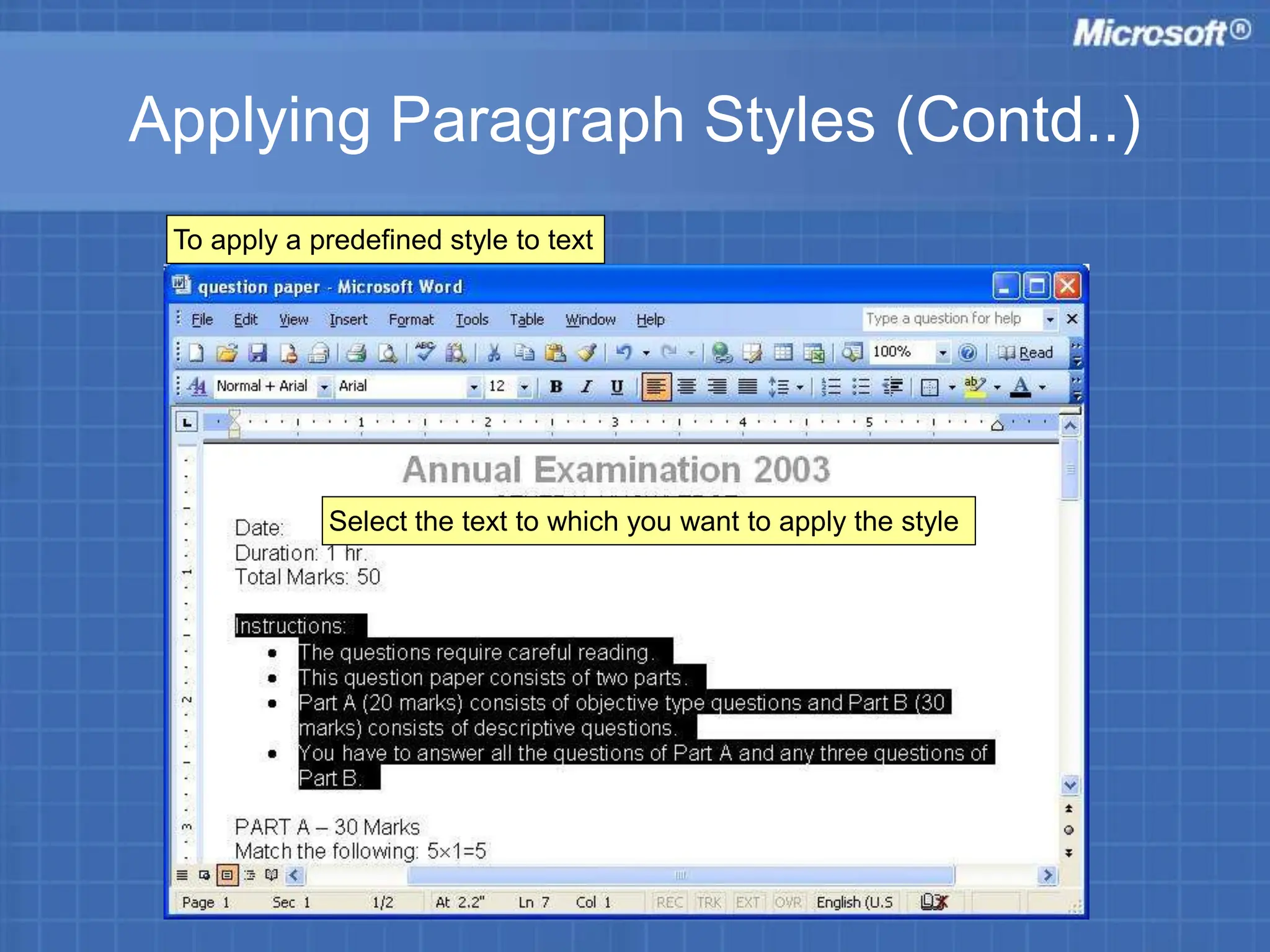
To apply a predefined style to text
Select the text to which you want to apply the style
Applying Paragraph Styles (Contd..)
The Style list on the Formatting toolbar
Click the required style
Applying Paragraph Styles (Contd..)
Text appears in a new style as shown
Changing Line Spacing
• By default, Word assigns single line spacing
for the documents
• You can increase or decrease the spacing
between the lines of a paragraph for better
readability
Changing Line Spacing (Contd..)
To increase the line spacing
Select the paragraph of the question paper that contains the instructions
Changing Line Spacing (Contd..)
2
1
Changing Line Spacing (Contd..)
Paragraph dialog box appears
Select the required line spacing, say 1.5 lines, from the Line Spacing list
Click OK
Changing Line Spacing (Contd..)
The spacing between the lines have increased
Changing Paragraph Spacing
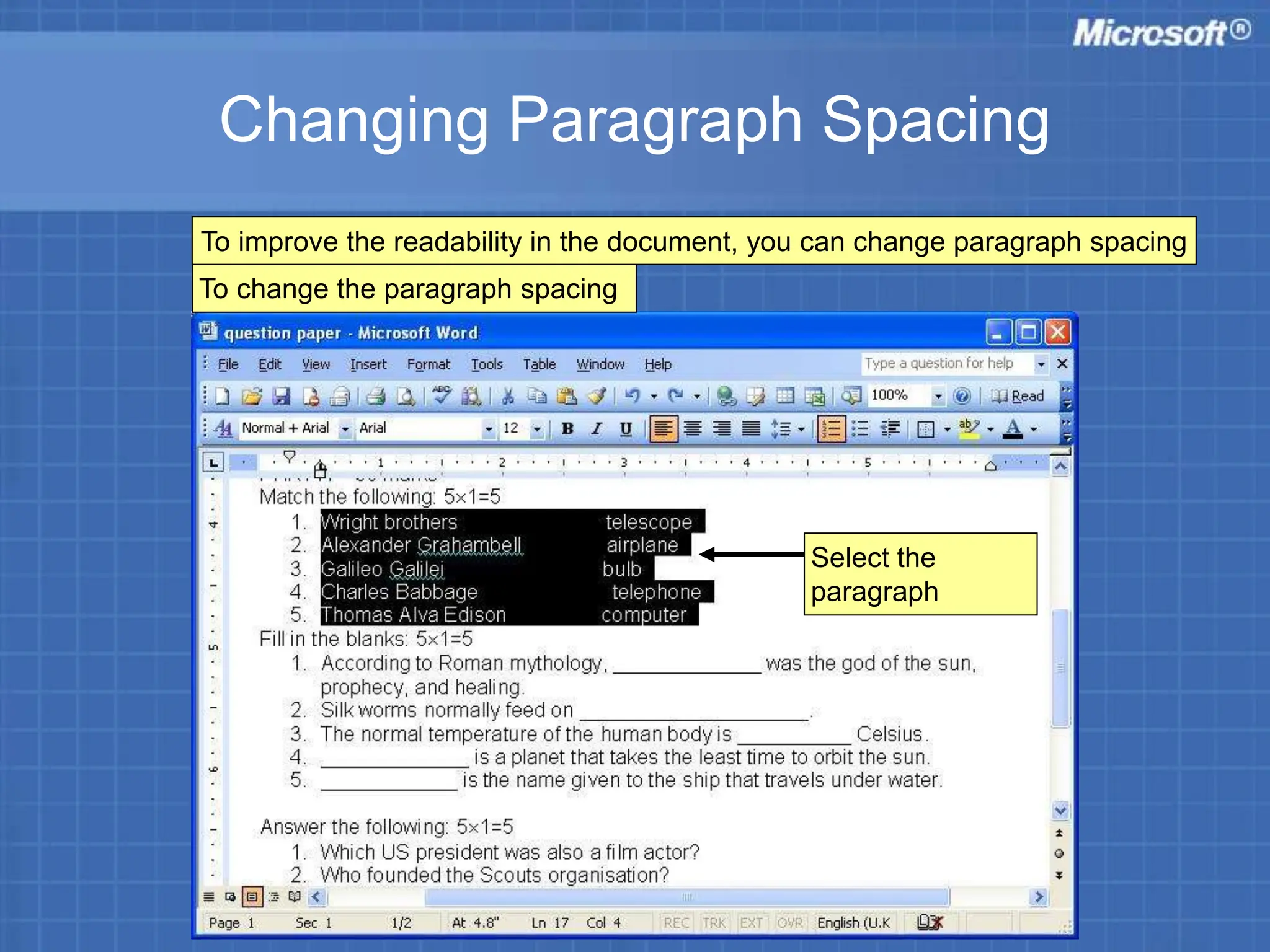
To change the paragraph spacing
Select the
paragraph
To improve the readability in the document, you can change paragraph spacing
Changing Paragraph Spacing (Contd..)
2
1
Changing Paragraph Spacing (Contd..)
Paragraph dialog box appears
Click OK
Under Spacing
Specify the required spacing
value say 6 in the Before box
Specify the required spacing
value say 6 in the After box.
To include blank spaces above a paragraph
To include blank spaces after a paragraph
Changing Paragraph Spacing (Contd..)
The questions section now appears uncluttered
Indenting Text
• Indentation is the blank space between a margin
and the beginning or end of an indented line
– Document appears better if the options are indented a
little towards the right.
Indenting Text (Contd..)
•To indent the options by 0.75 inches from the left margin
•To do so:
Select the list
Indenting Text (Contd..)
1
2
Indenting Text (Contd..)
On the Paragraph dialog box
Set the left margin value to 0.75 inches in the Left box
Click OK
Under Indentation
Indenting Text (Contd..)
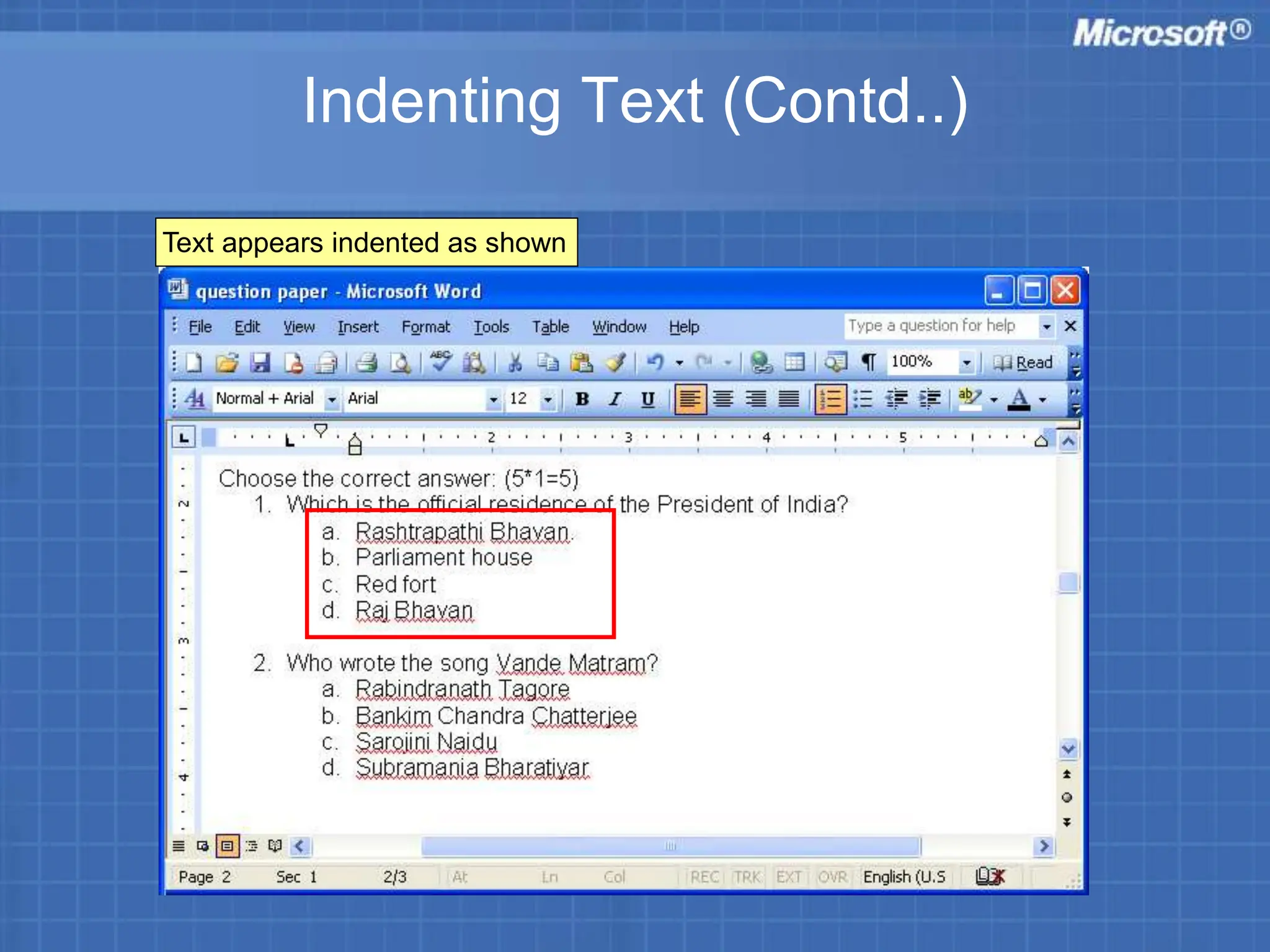
Text appears indented as shown
Inserting and Modifying Tab Stops
• The Tab key is used to move multiple spaces at
a time in a document
• Every time you press the Tab key, the insertion
point will move by 0.5 inches. This value is
called the default tab value
• You can also create your own tab stop positions
to replace the default tab stops
Inserting and Modifying Tab Stops (Contd..)
To set tab stops
Inserting and Modifying Tab Stops (Contd..)
2
1
Inserting and Modifying Tab Stops (Contd..)
Tabs dialog box appears
Type the value 3
Click Set
Click OK
Inserting and Modifying Tab Stops (Contd..)
Click at the end of the caption Wright Brothers, and then press the Tab key
A black L-shaped icon appears on the horizontal ruler
Inserting and Modifying Tab Stops (Contd..)
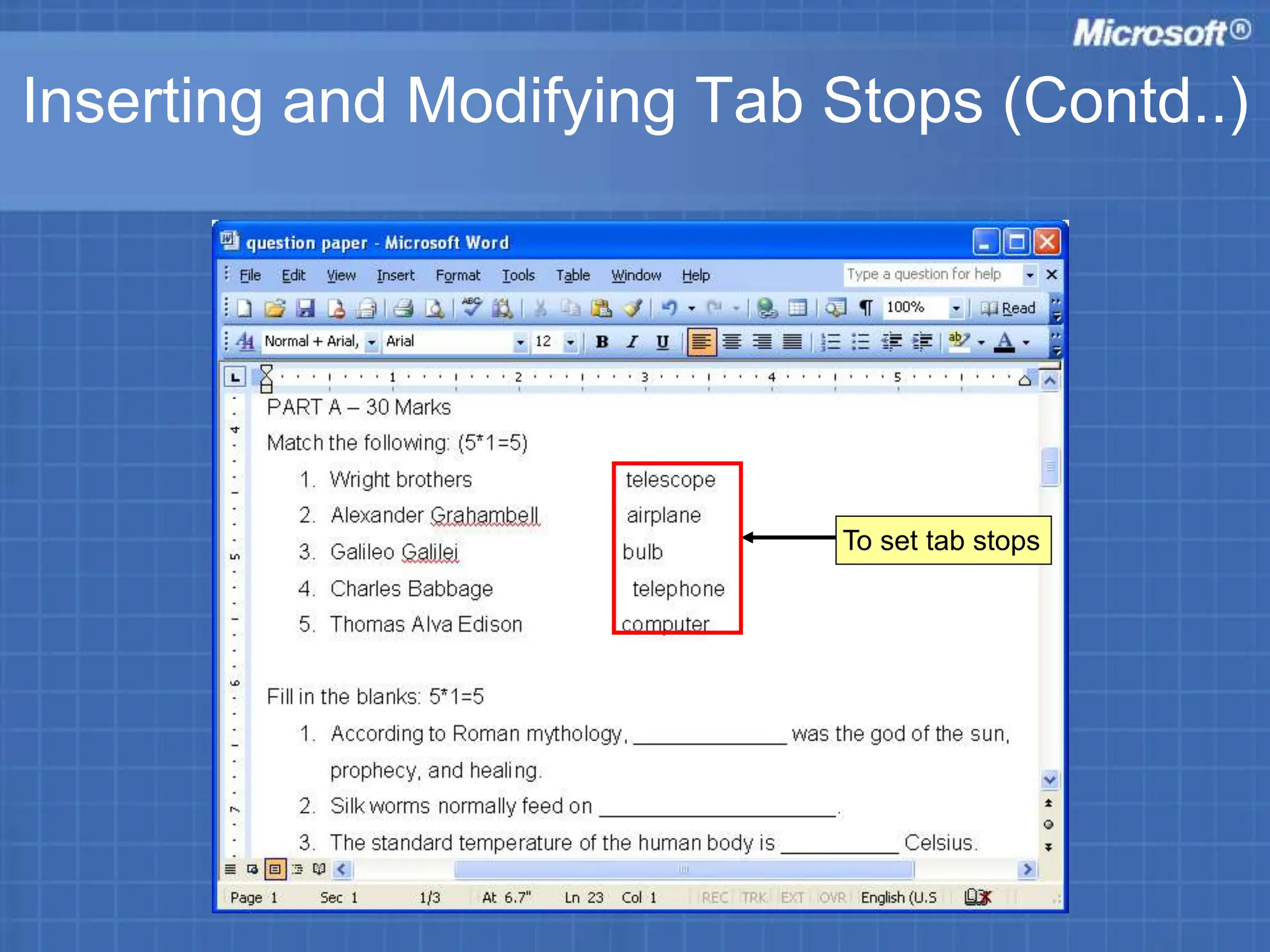
The details look more organised as shown
•The insertion point positions itself in line with the tab stop position on the
horizontal ruler.
•Repeat the same procedure for the remaining sentences.
Inserting Page Breaks
• A page break is the point at which one page
ends and another page begins
• Word automatically inserts a page break when
you type a full page of text
• Page breaks can be inserted manually also
Inserting Page Breaks (Contd..)
1
2
To insert a page break
Click at the position where you want to insert a page break
Inserting Page Breaks (Contd..)
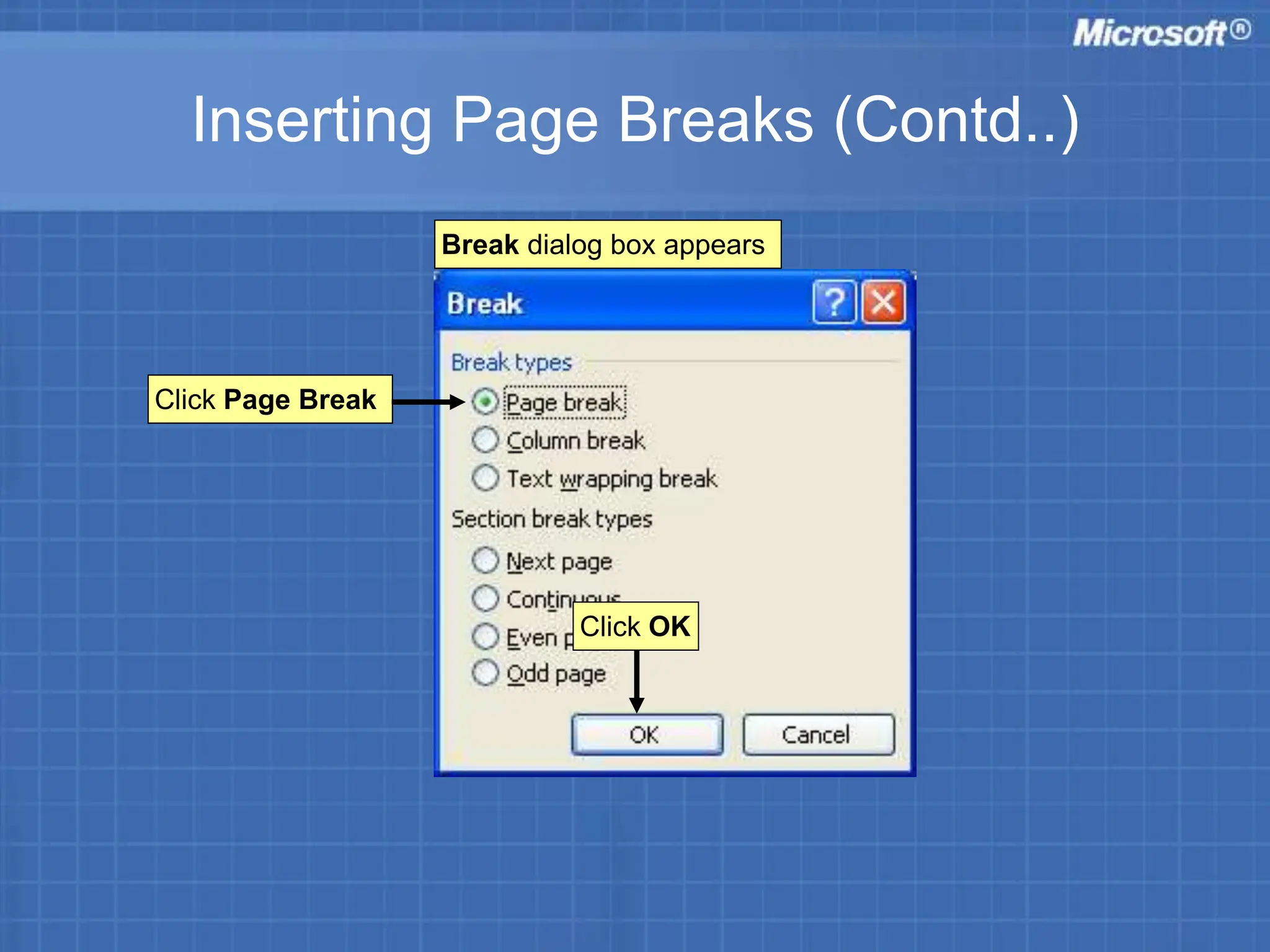
Break dialog box appears
Click Page Break
Click OK
Inserting Page Breaks (Contd..)
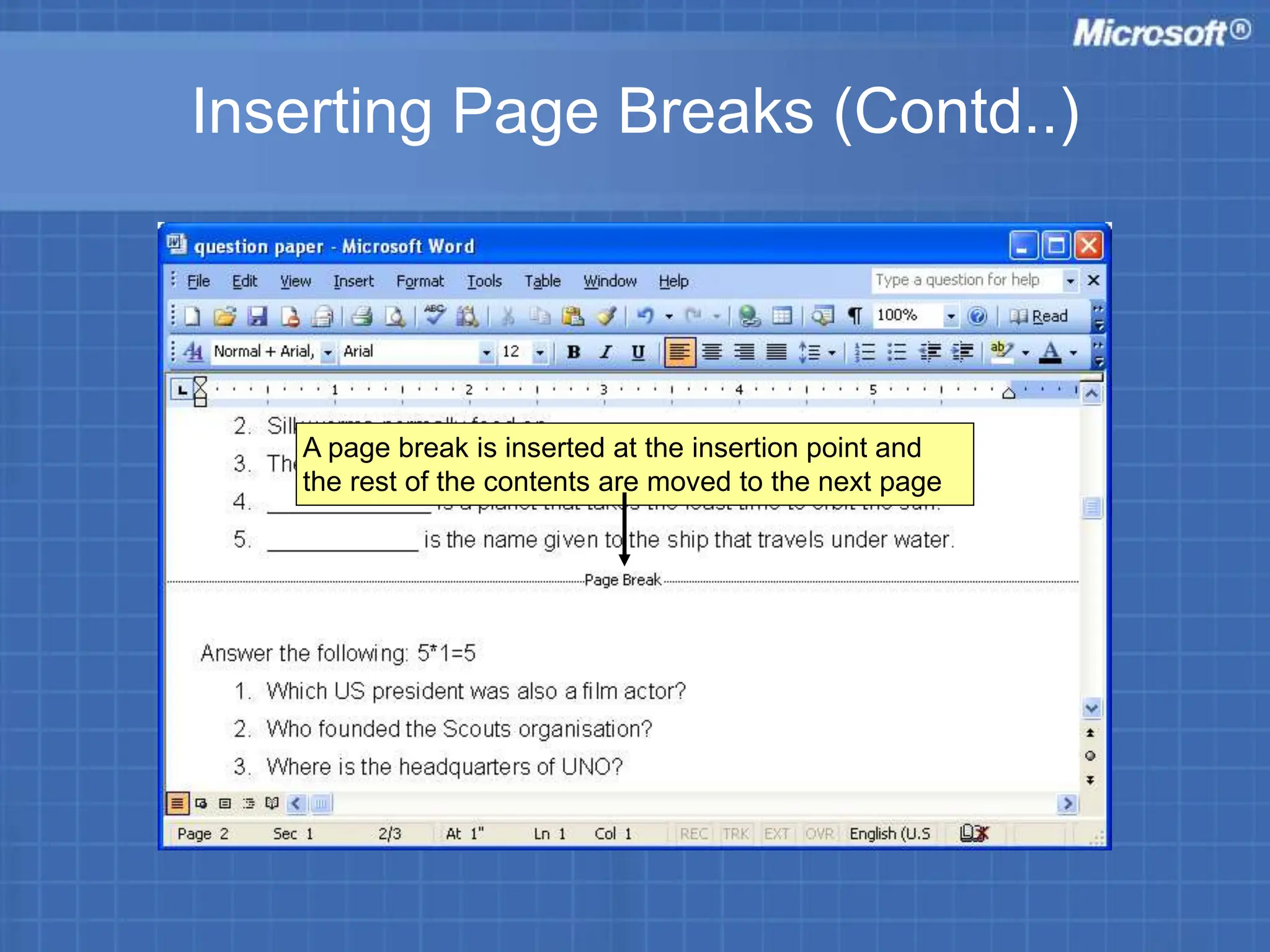
A page break is inserted at the insertion point and
the rest of the contents are moved to the next page

Microsoft Word

  • 1.
    Editing and Formattinga Microsoft Word Document
  • 2.
  • 3.
    Formatting Paragraphs • Whenyou format paragraphs: – It enhances the overall appearance of the document • Formatting a paragraph includes: – aligning the text – applying paragraph styles – changing line spacing – paragraph spacing – indenting text
  • 4.
    Aligning Paragraphs • Alignmentof text refers to the position of the text with respect to the page margins of the document • There are four alignment commands: – Align Left – Center – Align Right – Justify
  • 5.
    Aligning Paragraphs (Contd..) Alignment Command Description AlignLeft Aligns the text to the left margin. Center Aligns the text to the center of the page. Align Right Aligns the text to the right margin Justify Aligns the text to the left and right margins. Word adjusts the space between the words so that each line starts at the left margin and ends at the right margin Table showing the alignment commands and their description
  • 6.
    Aligning Paragraphs (Contd..) Tochange text alignment Select the heading and subject name
  • 7.
  • 8.
    Aligning Paragraphs (Contd..) Paragraphdialog box appears as shown Under Indents and Spacing tab Click Centered in Alignment list Click OK
  • 9.
    Aligning Paragraphs (Contd..) Theheading and the subject name appears in the centre as shown
  • 10.
    Aligning Paragraphs (Contd..) Alternatively,to align text: •Click the Alignment buttons on the Formatting toolbar Aligns the text to the centre of the page. Aligns the text to the left margin. Aligns the text to the right margin Aligns the text to the left and right margins. Word adjusts the space between the words so that each line starts at the left margin and ends at the right margin
  • 11.
    Applying Paragraph Styles •You can format text using the Styles command • Styles are a combination of character and paragraph formatting characteristics that are named and stored as a set • Styles: – Help in enhancing the appearance of various text elements, such as headings, sub headings, captions, and paragraph text – Help to format documents easily
  • 12.
    Applying Paragraph Styles(Contd..) To apply a predefined style to text Select the text to which you want to apply the style
  • 13.
    Applying Paragraph Styles(Contd..) The Style list on the Formatting toolbar Click the required style
  • 14.
    Applying Paragraph Styles(Contd..) Text appears in a new style as shown
  • 15.
    Changing Line Spacing •By default, Word assigns single line spacing for the documents • You can increase or decrease the spacing between the lines of a paragraph for better readability
  • 16.
    Changing Line Spacing(Contd..) To increase the line spacing Select the paragraph of the question paper that contains the instructions
  • 17.
    Changing Line Spacing(Contd..) 2 1
  • 18.
    Changing Line Spacing(Contd..) Paragraph dialog box appears Select the required line spacing, say 1.5 lines, from the Line Spacing list Click OK
  • 19.
    Changing Line Spacing(Contd..) The spacing between the lines have increased
  • 20.
    Changing Paragraph Spacing Tochange the paragraph spacing Select the paragraph To improve the readability in the document, you can change paragraph spacing
  • 21.
  • 22.
    Changing Paragraph Spacing(Contd..) Paragraph dialog box appears Click OK Under Spacing Specify the required spacing value say 6 in the Before box Specify the required spacing value say 6 in the After box. To include blank spaces above a paragraph To include blank spaces after a paragraph
  • 23.
    Changing Paragraph Spacing(Contd..) The questions section now appears uncluttered
  • 24.
    Indenting Text • Indentationis the blank space between a margin and the beginning or end of an indented line – Document appears better if the options are indented a little towards the right.
  • 25.
    Indenting Text (Contd..) •Toindent the options by 0.75 inches from the left margin •To do so: Select the list
  • 26.
  • 27.
    Indenting Text (Contd..) Onthe Paragraph dialog box Set the left margin value to 0.75 inches in the Left box Click OK Under Indentation
  • 28.
    Indenting Text (Contd..) Textappears indented as shown
  • 29.
    Inserting and ModifyingTab Stops • The Tab key is used to move multiple spaces at a time in a document • Every time you press the Tab key, the insertion point will move by 0.5 inches. This value is called the default tab value • You can also create your own tab stop positions to replace the default tab stops
  • 30.
    Inserting and ModifyingTab Stops (Contd..) To set tab stops
  • 31.
    Inserting and ModifyingTab Stops (Contd..) 2 1
  • 32.
    Inserting and ModifyingTab Stops (Contd..) Tabs dialog box appears Type the value 3 Click Set Click OK
  • 33.
    Inserting and ModifyingTab Stops (Contd..) Click at the end of the caption Wright Brothers, and then press the Tab key A black L-shaped icon appears on the horizontal ruler
  • 34.
    Inserting and ModifyingTab Stops (Contd..) The details look more organised as shown •The insertion point positions itself in line with the tab stop position on the horizontal ruler. •Repeat the same procedure for the remaining sentences.
  • 35.
    Inserting Page Breaks •A page break is the point at which one page ends and another page begins • Word automatically inserts a page break when you type a full page of text • Page breaks can be inserted manually also
  • 36.
    Inserting Page Breaks(Contd..) 1 2 To insert a page break Click at the position where you want to insert a page break
  • 37.
    Inserting Page Breaks(Contd..) Break dialog box appears Click Page Break Click OK
  • 38.
    Inserting Page Breaks(Contd..) A page break is inserted at the insertion point and the rest of the contents are moved to the next page