EDIT AND FORMAT PRESENTATION
Lesson 2
OPENING A PRESENTATION
 You can open a saved presentation and view the presentation on your screen
 This allows you to make changes to the presentation
HOW TO OPEN A PRESENTATION
1. Click on File tab.
 The Backstage view will appear.

2. Click on the Open button.
 Recently opened documents appear on the File tab, and you can click on any of these
documents to open them.
 The open dialog box appears

3. Click on these areas to navigate to the folder or drive where you stored the file
1.

Our slide is located at My Computer/Shared Documents/Source Files

4. Click on the name of the file that you want to open
1.

For today, the filename is activity three slide show

5. Click Open.
 The file opens in the program window
SELECTING TEXT
 You will need to select the text you want to work with before making changes to
the text in your presentation.
 Selected text appears highlighted on your screen
SELECTING TEXT
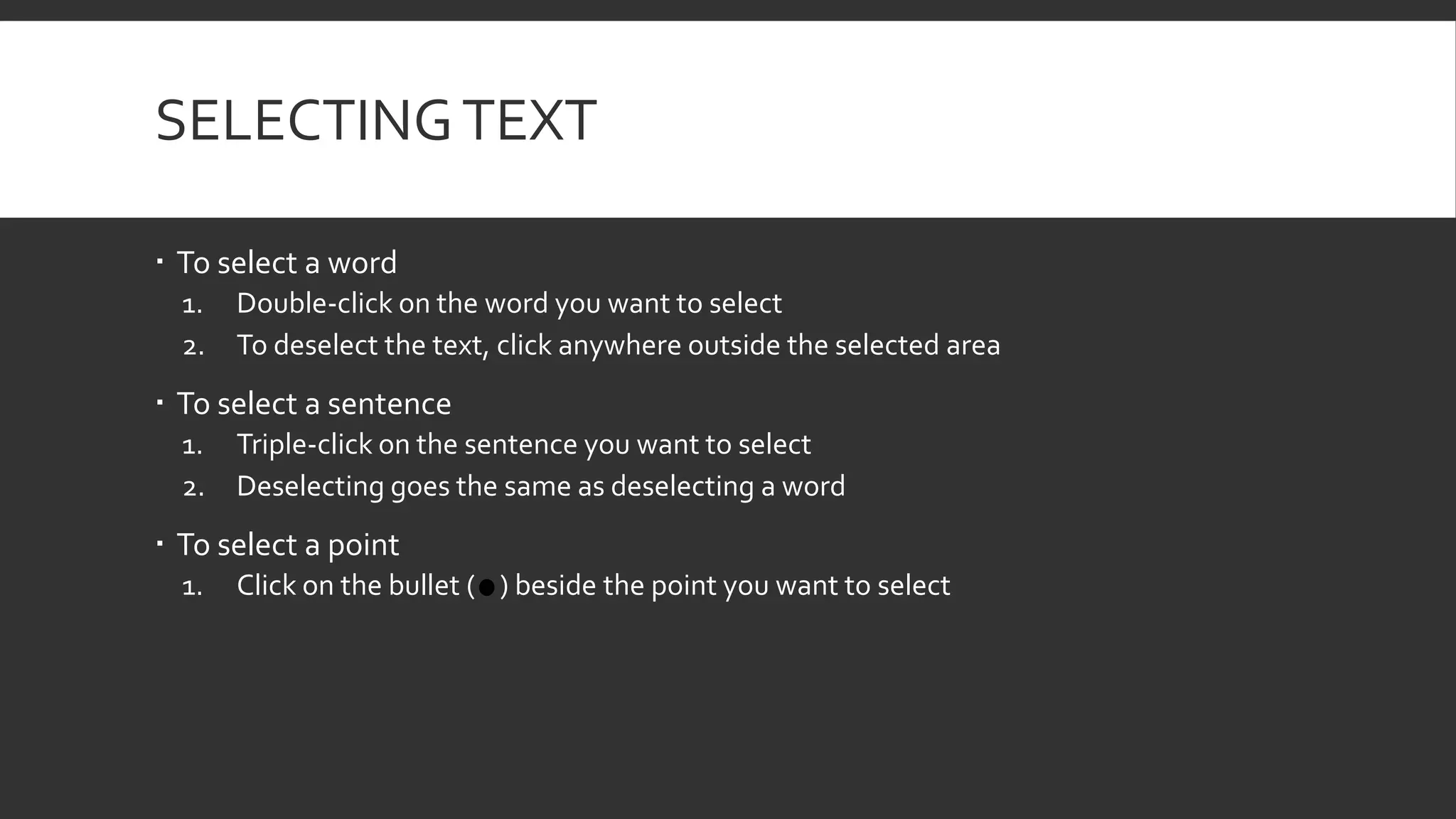
 To select a word
1.
2.

Double-click on the word you want to select
To deselect the text, click anywhere outside the selected area

 To select a sentence
1.
2.

Triple-click on the sentence you want to select
Deselecting goes the same as deselecting a word

 To select a point
1.

Click on the bullet ( ) beside the point you want to select
UNDOING CHANGES
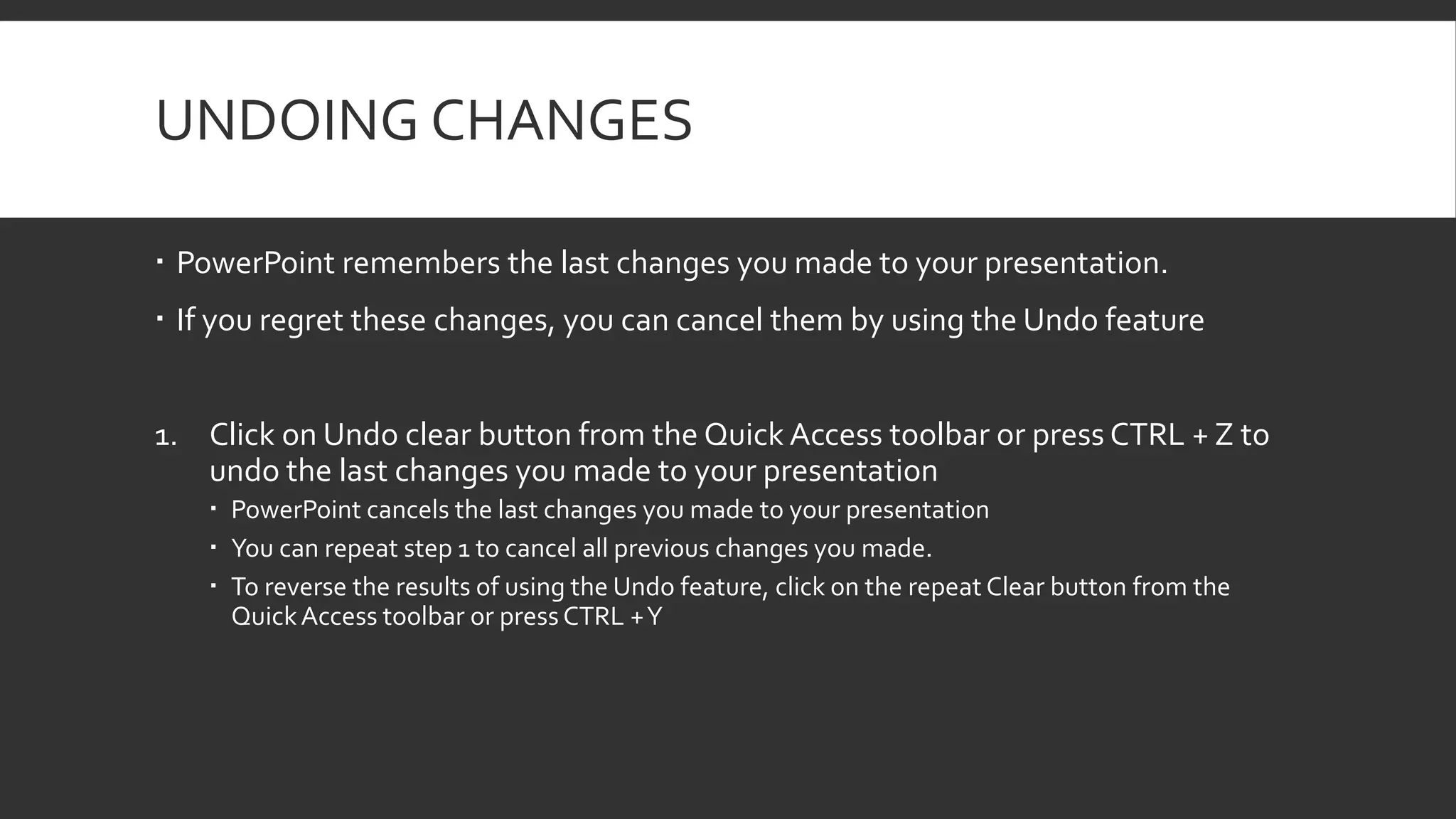
 PowerPoint remembers the last changes you made to your presentation.
 If you regret these changes, you can cancel them by using the Undo feature
1. Click on Undo clear button from the Quick Access toolbar or press CTRL + Z to
undo the last changes you made to your presentation
 PowerPoint cancels the last changes you made to your presentation
 You can repeat step 1 to cancel all previous changes you made.
 To reverse the results of using the Undo feature, click on the repeat Clear button from the
Quick Access toolbar or press CTRL + Y
CHANGING THE FONT TEXT
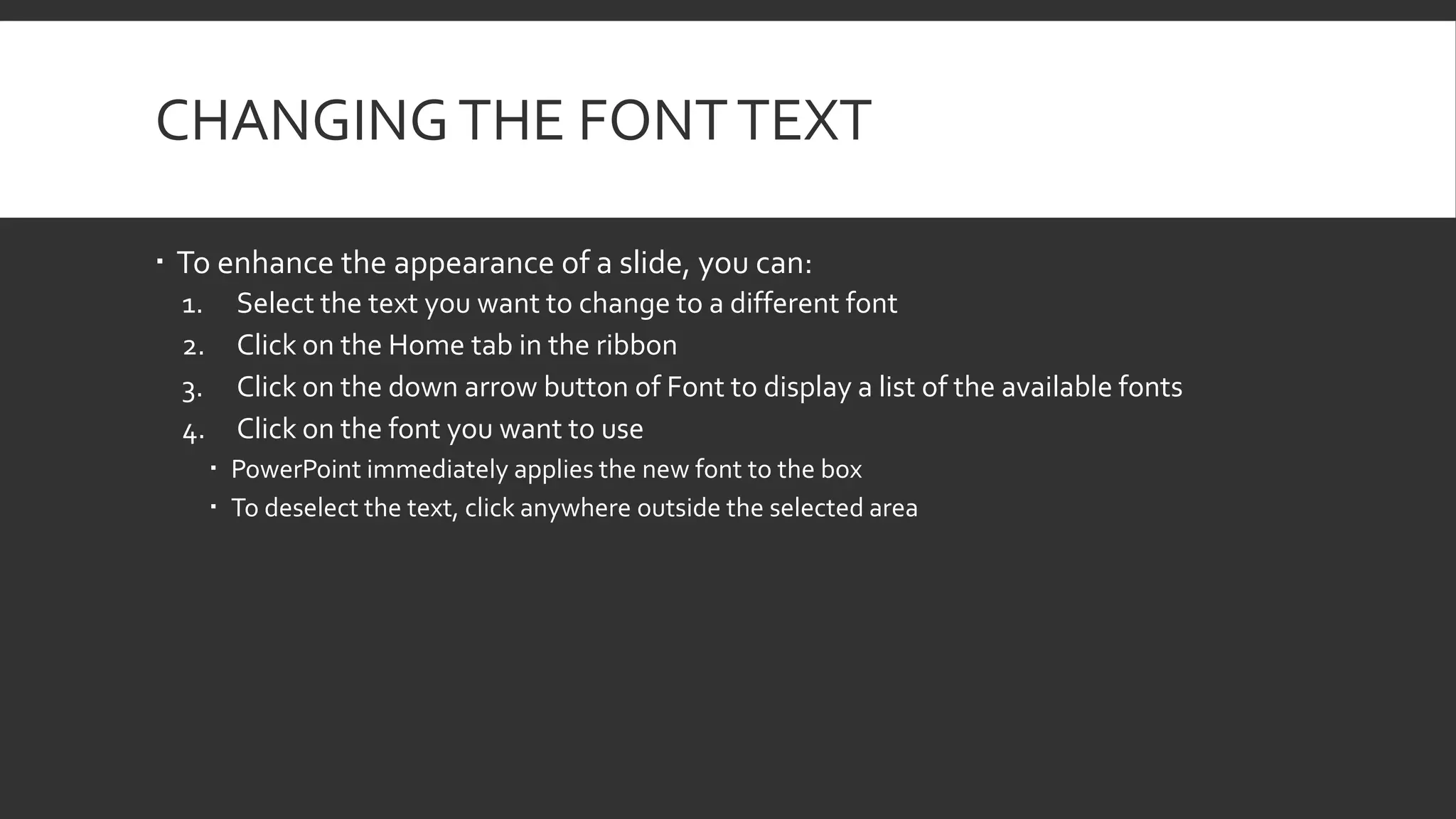
 To enhance the appearance of a slide, you can:
1.
2.
3.
4.

Select the text you want to change to a different font
Click on the Home tab in the ribbon
Click on the down arrow button of Font to display a list of the available fonts
Click on the font you want to use
 PowerPoint immediately applies the new font to the box
 To deselect the text, click anywhere outside the selected area
CHANGING THE SIZE OF TEXT
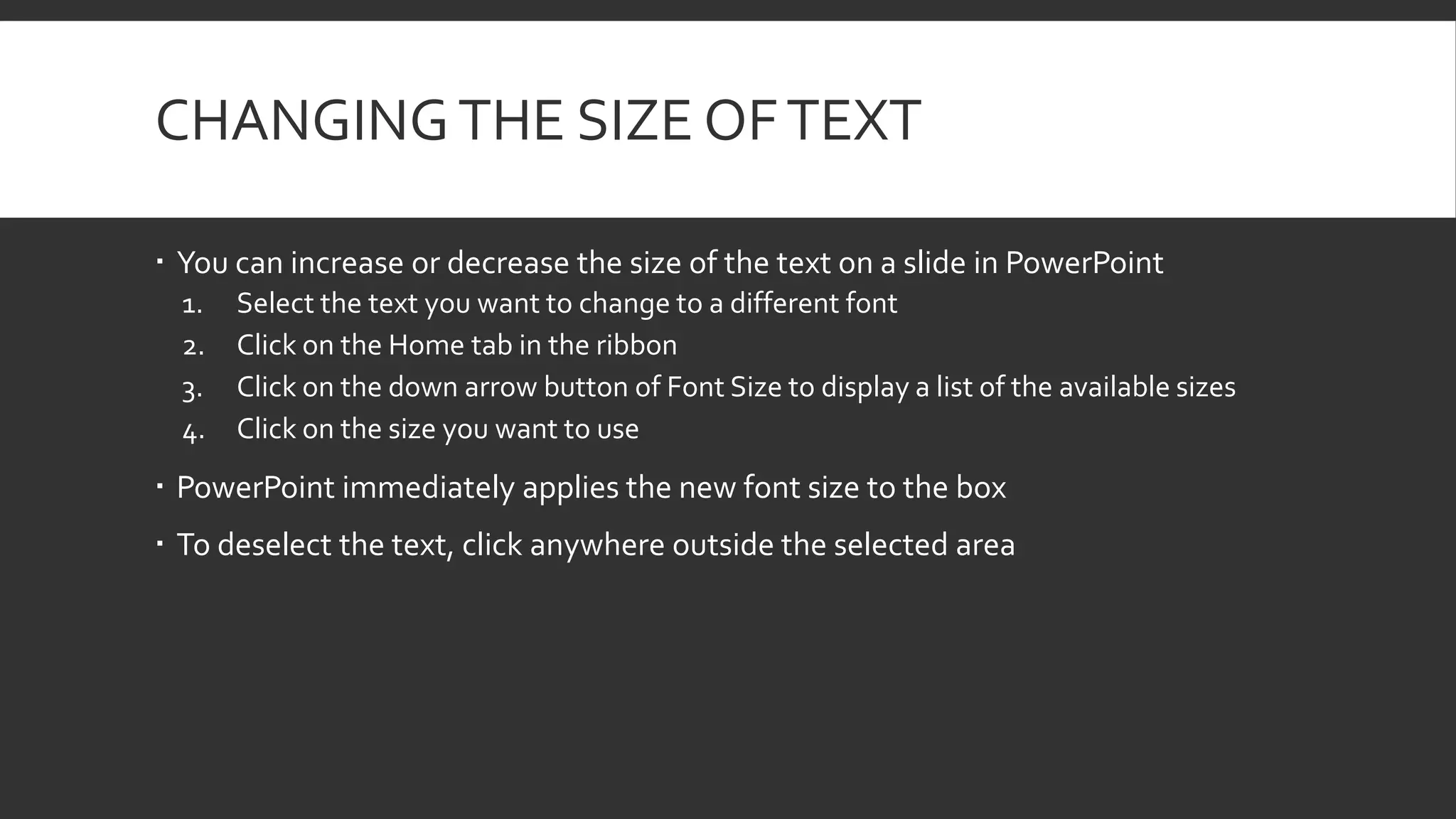
 You can increase or decrease the size of the text on a slide in PowerPoint
1.
2.
3.
4.

Select the text you want to change to a different font
Click on the Home tab in the ribbon
Click on the down arrow button of Font Size to display a list of the available sizes
Click on the size you want to use

 PowerPoint immediately applies the new font size to the box
 To deselect the text, click anywhere outside the selected area
CHANGING THE COLOR OF TEXT
 You can change the color of the text on a slide to enhance the appearance of the
slide and draw attention to any important information
1.
2.
3.
4.

Select the text you want to change to a different color
Click on the Home tab in the ribbon
Click on the down arrow of Font Color button to see and select the color.
Click on the color into any of these.

 PowerPoint applies the color to the text in the selected text box
 To deselect the text, click anywhere outside the selected area.
CHANGING THE TEXT STYLE
 You can change the appearance of the text by changing the text style into any of
these four different styles; bold, italic, underline, and shadow.
1.
2.
3.

Select the text or text box that you want to change
Click on the Home tab
Click on the style button:





Bold (B)
Italic (I)
Underline (U)
Shadow (S)

 PowerPoint assigns the formatting to the text
 In our slide, we use bold style
CHANGING THE TEXT ALIGNMENT
 You can change the positioning of the text in a text box by assigning different
alignment commands
1.
2.
3.

Select the text or text box you want to change
Click on the Home tab in the ribbon
Click on an alignment button:





Left align
Center
Right Align
Justify

 PowerPoint assigns the formatting to the text
SET LINE SPACING
 You can change the line spacing to create greater or lesser space between lines on
the text
1.
2.
3.
4.

Select the text or text box that you want to change
Click on the Home tab in the Ribbon
Click on the down arrow of Line Spacing button
Click on a line spacing amount

 PowerPoint applies the line spacing to the text
 In our slide, we apply 1.5 spacing
END OF DISCUSSION FOR TODAY 
 Start saving your files with the file name:
 ActThreeThirdMallariFerryIbay

 Save it at this directory:
 My Computer/Shared Documents/Your Section

 We will continue this activity next meeting

Second lesson for first year

  • 1.
    EDIT AND FORMATPRESENTATION Lesson 2
  • 2.
    OPENING A PRESENTATION You can open a saved presentation and view the presentation on your screen  This allows you to make changes to the presentation
  • 3.
    HOW TO OPENA PRESENTATION 1. Click on File tab.  The Backstage view will appear. 2. Click on the Open button.  Recently opened documents appear on the File tab, and you can click on any of these documents to open them.  The open dialog box appears 3. Click on these areas to navigate to the folder or drive where you stored the file 1. Our slide is located at My Computer/Shared Documents/Source Files 4. Click on the name of the file that you want to open 1. For today, the filename is activity three slide show 5. Click Open.  The file opens in the program window
  • 4.
    SELECTING TEXT  Youwill need to select the text you want to work with before making changes to the text in your presentation.  Selected text appears highlighted on your screen
  • 5.
    SELECTING TEXT  Toselect a word 1. 2. Double-click on the word you want to select To deselect the text, click anywhere outside the selected area  To select a sentence 1. 2. Triple-click on the sentence you want to select Deselecting goes the same as deselecting a word  To select a point 1. Click on the bullet ( ) beside the point you want to select
  • 6.
    UNDOING CHANGES  PowerPointremembers the last changes you made to your presentation.  If you regret these changes, you can cancel them by using the Undo feature 1. Click on Undo clear button from the Quick Access toolbar or press CTRL + Z to undo the last changes you made to your presentation  PowerPoint cancels the last changes you made to your presentation  You can repeat step 1 to cancel all previous changes you made.  To reverse the results of using the Undo feature, click on the repeat Clear button from the Quick Access toolbar or press CTRL + Y
  • 7.
    CHANGING THE FONTTEXT  To enhance the appearance of a slide, you can: 1. 2. 3. 4. Select the text you want to change to a different font Click on the Home tab in the ribbon Click on the down arrow button of Font to display a list of the available fonts Click on the font you want to use  PowerPoint immediately applies the new font to the box  To deselect the text, click anywhere outside the selected area
  • 8.
    CHANGING THE SIZEOF TEXT  You can increase or decrease the size of the text on a slide in PowerPoint 1. 2. 3. 4. Select the text you want to change to a different font Click on the Home tab in the ribbon Click on the down arrow button of Font Size to display a list of the available sizes Click on the size you want to use  PowerPoint immediately applies the new font size to the box  To deselect the text, click anywhere outside the selected area
  • 9.
    CHANGING THE COLOROF TEXT  You can change the color of the text on a slide to enhance the appearance of the slide and draw attention to any important information 1. 2. 3. 4. Select the text you want to change to a different color Click on the Home tab in the ribbon Click on the down arrow of Font Color button to see and select the color. Click on the color into any of these.  PowerPoint applies the color to the text in the selected text box  To deselect the text, click anywhere outside the selected area.
  • 10.
    CHANGING THE TEXTSTYLE  You can change the appearance of the text by changing the text style into any of these four different styles; bold, italic, underline, and shadow. 1. 2. 3. Select the text or text box that you want to change Click on the Home tab Click on the style button:     Bold (B) Italic (I) Underline (U) Shadow (S)  PowerPoint assigns the formatting to the text  In our slide, we use bold style
  • 11.
    CHANGING THE TEXTALIGNMENT  You can change the positioning of the text in a text box by assigning different alignment commands 1. 2. 3. Select the text or text box you want to change Click on the Home tab in the ribbon Click on an alignment button:     Left align Center Right Align Justify  PowerPoint assigns the formatting to the text
  • 12.
    SET LINE SPACING You can change the line spacing to create greater or lesser space between lines on the text 1. 2. 3. 4. Select the text or text box that you want to change Click on the Home tab in the Ribbon Click on the down arrow of Line Spacing button Click on a line spacing amount  PowerPoint applies the line spacing to the text  In our slide, we apply 1.5 spacing
  • 13.
    END OF DISCUSSIONFOR TODAY   Start saving your files with the file name:  ActThreeThirdMallariFerryIbay  Save it at this directory:  My Computer/Shared Documents/Your Section  We will continue this activity next meeting