FORMATTING TEXT
OMEH BAT
•It contains the most frequently
used commands in Word
HOME TAB
LOBD
• A set of type characters that are darker
and heavier than normal.
BOLD
GILNA FELT
•A text that is align on the left
edge.
LEFT ALIGN
FORMATTED TEXT
• can draw the reader's attention to specific
parts of a document and emphasize important
information. In Word, you have several
options for adjusting text, including font, size,
and color. You can also adjust the alignment
of the text to change how it is displayed on
the page.
CHANGE FONT SIZE, COLOR AND TEXT
ALIGNMENT
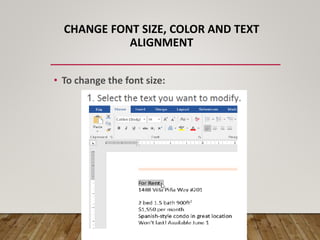
• To change the font size:
CHANGE FONT SIZE, COLOR AND TEXT
ALIGNMENT
• To change the font size:
2. On the Home tab, click the Font Size
drop-down arrow. Select a font size from
the menu. If the font size you need is not
available in the menu, you can click the
Font Size box and type the desired size,
then press Enter.
CHANGE FONT SIZE, COLOR AND TEXT
ALIGNMENT
• To change the font size:
2. On the Home tab, click the Font Size
drop-down arrow. Select a font size from
the menu. If the font size you need is not
available in the menu, you can click the
Font Size box and type the desired size,
then press Enter.
To change the font:
By default, the font of each new document is set to Calibri.
However, Word provides many other fonts you can use to
customize text.
1. Select the text you want to modify.
2. On the Home tab, click the drop-down
arrow next to the Font box. A menu of font styles
will appear.
3. Select the font style you want to use.
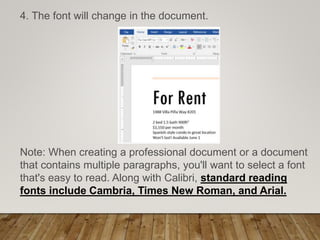
4. The font will change in the document.
Note: When creating a professional document or a document
that contains multiple paragraphs, you'll want to select a font
that's easy to read. Along with Calibri, standard reading
fonts include Cambria, Times New Roman, and Arial.
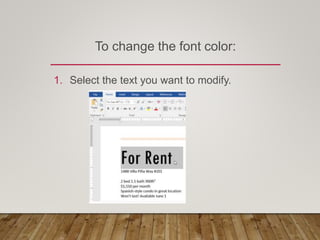
To change the font color:
1. Select the text you want to modify.
2. On the home tab, click the font
color drop-down arrow. The font
color menu appears.
3. Select the font color you want to use.
The font color will change in the
document.
Your color choices aren't limited to the drop-down menu
that appears. Select More Colors at the bottom of the
menu to access the Colors dialog box. Choose the color
you want, then click OK.
To use the bold, italic, and underline
commands:
• The Bold, Italic, and Underline commands can be used to
help draw attention to important words or phrases.
1. Select the text you want to modify.
2. On the Home tab, click the Bold (B), Italic (I), or Underline
(U) command in the Font group. In our example, we'll click
Bold.
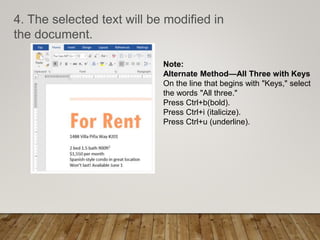
4. The selected text will be modified in
the document.
Note:
Alternate Method—All Three with Keys
On the line that begins with "Keys," select
the words "All three."
Press Ctrl+b(bold).
Press Ctrl+i (italicize).
Press Ctrl+u (underline).
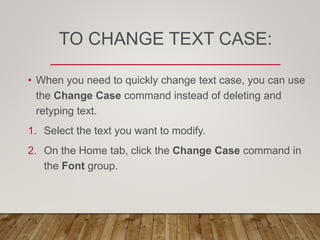
TO CHANGE TEXT CASE:
• When you need to quickly change text case, you can use
the Change Case command instead of deleting and
retyping text.
1. Select the text you want to modify.
2. On the Home tab, click the Change Case command in
the Font group.
3. A drop-down menu will appear. Select the desired case
option from the menu.
4. The text case will be changed in the document.
TO HIGHLIGHT TEXT:
• Highlighting can be a useful tool for marking
important text in your document.
1.Select the text you want to highlight.
2.From the Home tab, click the Text Highlight
Color drop-down arrow. The Highlight
Color menu appears.
TO HIGHLIGHT TEXT:
• Highlighting can be a
useful tool for marking
important text in your
document.
1.Select the text you want
to highlight.
2.From the Home tab, click
the Text Highlight
Color drop-down arrow.
The Highlight
Color menu appears.
TO HIGHLIGHT TEXT:
3. Select the desired
highlight color. The
selected text will then
be highlighted in the
document.
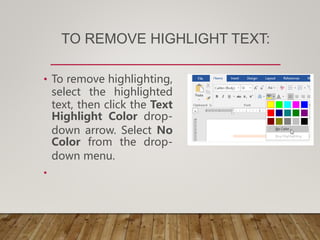
TO REMOVE HIGHLIGHT TEXT:
• To remove highlighting,
select the highlighted
text, then click the Text
Highlight Color drop-
down arrow. Select No
Color from the drop-
down menu.
•
• If you need to highlight several lines of text,
changing the mouse into a highlighter may be a
helpful alternative to selecting and highlighting
individual lines. Click the Text Highlight
Color command, and the cursor changes into a
highlighter. You can then click and drag the
highlighter over the lines you want to highlight.
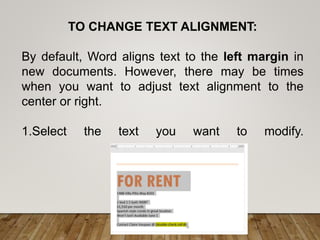
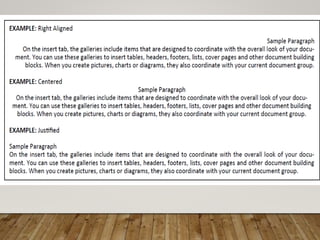
TO CHANGE TEXT ALIGNMENT:
By default, Word aligns text to the left margin in
new documents. However, there may be times
when you want to adjust text alignment to the
center or right.
1.Select the text you want to modify.
2. On the Home tab, select one of the four alignment options from
the Paragraph group. In our example, we've selected Center
Alignment.
3. The text will be realigned in the document.
Text Alignment
Microsoft Word gives you a choice of several types of
alignments. Align Text Left aligns all selected text to the left
margin. The Align Text Left command is the most common
alignment and is selected by default when a new document is
created. Center aligns text an equal distance from the left and
right margins. Align Text Right aligns all selected text to the
right margin. Justify the justified text is equal on both sides. It
lines up equally to the right and left margins.
PREPARE FOR A
SHORT QUIZ ON
THURSDAY
MULTIPLE CHOICE. CHOSE THE BEST
ANSWER. SELECT THE LETTER OF YOUR
CHOICE.
1. The Font group is part________
tab.
A. Home
B. Design
C. Review
D. Page Layout
2. The following options are
example of a font style , except?
a. Bold c. Italic
b. Border d. Underline
3. Organizing or arranging the
text according to a
chosen pattern is called?
a. Saving c. Opening
b. Editing d. Formatting
4. It is used to emphasize
headings, subheadings, and other
things?
a. Text highlight
b. Bold, Underline, Italicize
c. font Color
d. All of the above
5. There are four types of
text alignment in MS
Word, except:
a. Text left
b. Justify
b. Center
d. Strikethrough
6. This alignment is making the
text aligned both to the right
and to the left margins
a. Middle alignment
b. Right Alignment
c. Center
d. Justify
7. By default in MS Word,
the font name is set to
______.
a.Times New Roman
b. Arial Narrow
c. Arial
d. Calibri
8. The following options are
example of a font style ,
except?
a. Bold
b. Italic
c. Border
d. Underline
9. It refers to the text layout
with respect to document
margins
a.Text alignment
b.Text formatting
c. Text Highlighter
d. None of the above
10. This type of text formatting
is usually used to mark some
important facts in the text
a. Text highlight
b. Font color
c. Font name
d. Text alignment
IDENTIFICATION
11. It contains the most
frequently used commands in
Word.
12. A text that is align on the
right edge.
13.A set of type characters that
are darker and heavier than
normal.
14. A text that is align on
the left edge.
15. A tool for marking
important text in your
document.

Formatting Text.pptx

  • 1.
  • 2.
    OMEH BAT •It containsthe most frequently used commands in Word HOME TAB
  • 3.
    LOBD • A setof type characters that are darker and heavier than normal. BOLD
  • 4.
    GILNA FELT •A textthat is align on the left edge. LEFT ALIGN
  • 6.
    FORMATTED TEXT • candraw the reader's attention to specific parts of a document and emphasize important information. In Word, you have several options for adjusting text, including font, size, and color. You can also adjust the alignment of the text to change how it is displayed on the page.
  • 7.
    CHANGE FONT SIZE,COLOR AND TEXT ALIGNMENT • To change the font size:
  • 8.
    CHANGE FONT SIZE,COLOR AND TEXT ALIGNMENT • To change the font size: 2. On the Home tab, click the Font Size drop-down arrow. Select a font size from the menu. If the font size you need is not available in the menu, you can click the Font Size box and type the desired size, then press Enter.
  • 9.
    CHANGE FONT SIZE,COLOR AND TEXT ALIGNMENT • To change the font size: 2. On the Home tab, click the Font Size drop-down arrow. Select a font size from the menu. If the font size you need is not available in the menu, you can click the Font Size box and type the desired size, then press Enter.
  • 11.
    To change thefont: By default, the font of each new document is set to Calibri. However, Word provides many other fonts you can use to customize text. 1. Select the text you want to modify.
  • 12.
    2. On theHome tab, click the drop-down arrow next to the Font box. A menu of font styles will appear. 3. Select the font style you want to use.
  • 13.
    4. The fontwill change in the document. Note: When creating a professional document or a document that contains multiple paragraphs, you'll want to select a font that's easy to read. Along with Calibri, standard reading fonts include Cambria, Times New Roman, and Arial.
  • 14.
    To change thefont color: 1. Select the text you want to modify.
  • 15.
    2. On thehome tab, click the font color drop-down arrow. The font color menu appears.
  • 16.
    3. Select thefont color you want to use. The font color will change in the document.
  • 17.
    Your color choicesaren't limited to the drop-down menu that appears. Select More Colors at the bottom of the menu to access the Colors dialog box. Choose the color you want, then click OK.
  • 18.
    To use thebold, italic, and underline commands: • The Bold, Italic, and Underline commands can be used to help draw attention to important words or phrases. 1. Select the text you want to modify. 2. On the Home tab, click the Bold (B), Italic (I), or Underline (U) command in the Font group. In our example, we'll click Bold.
  • 19.
    4. The selectedtext will be modified in the document. Note: Alternate Method—All Three with Keys On the line that begins with "Keys," select the words "All three." Press Ctrl+b(bold). Press Ctrl+i (italicize). Press Ctrl+u (underline).
  • 20.
    TO CHANGE TEXTCASE: • When you need to quickly change text case, you can use the Change Case command instead of deleting and retyping text. 1. Select the text you want to modify. 2. On the Home tab, click the Change Case command in the Font group.
  • 21.
    3. A drop-downmenu will appear. Select the desired case option from the menu. 4. The text case will be changed in the document.
  • 22.
    TO HIGHLIGHT TEXT: •Highlighting can be a useful tool for marking important text in your document. 1.Select the text you want to highlight. 2.From the Home tab, click the Text Highlight Color drop-down arrow. The Highlight Color menu appears.
  • 23.
    TO HIGHLIGHT TEXT: •Highlighting can be a useful tool for marking important text in your document. 1.Select the text you want to highlight. 2.From the Home tab, click the Text Highlight Color drop-down arrow. The Highlight Color menu appears.
  • 24.
    TO HIGHLIGHT TEXT: 3.Select the desired highlight color. The selected text will then be highlighted in the document.
  • 25.
    TO REMOVE HIGHLIGHTTEXT: • To remove highlighting, select the highlighted text, then click the Text Highlight Color drop- down arrow. Select No Color from the drop- down menu. •
  • 26.
    • If youneed to highlight several lines of text, changing the mouse into a highlighter may be a helpful alternative to selecting and highlighting individual lines. Click the Text Highlight Color command, and the cursor changes into a highlighter. You can then click and drag the highlighter over the lines you want to highlight.
  • 27.
    TO CHANGE TEXTALIGNMENT: By default, Word aligns text to the left margin in new documents. However, there may be times when you want to adjust text alignment to the center or right. 1.Select the text you want to modify.
  • 28.
    2. On theHome tab, select one of the four alignment options from the Paragraph group. In our example, we've selected Center Alignment. 3. The text will be realigned in the document.
  • 29.
    Text Alignment Microsoft Wordgives you a choice of several types of alignments. Align Text Left aligns all selected text to the left margin. The Align Text Left command is the most common alignment and is selected by default when a new document is created. Center aligns text an equal distance from the left and right margins. Align Text Right aligns all selected text to the right margin. Justify the justified text is equal on both sides. It lines up equally to the right and left margins.
  • 32.
    PREPARE FOR A SHORTQUIZ ON THURSDAY
  • 33.
    MULTIPLE CHOICE. CHOSETHE BEST ANSWER. SELECT THE LETTER OF YOUR CHOICE.
  • 34.
    1. The Fontgroup is part________ tab. A. Home B. Design C. Review D. Page Layout
  • 35.
    2. The followingoptions are example of a font style , except? a. Bold c. Italic b. Border d. Underline
  • 36.
    3. Organizing orarranging the text according to a chosen pattern is called? a. Saving c. Opening b. Editing d. Formatting
  • 37.
    4. It isused to emphasize headings, subheadings, and other things? a. Text highlight b. Bold, Underline, Italicize c. font Color d. All of the above
  • 38.
    5. There arefour types of text alignment in MS Word, except: a. Text left b. Justify b. Center d. Strikethrough
  • 39.
    6. This alignmentis making the text aligned both to the right and to the left margins a. Middle alignment b. Right Alignment c. Center d. Justify
  • 40.
    7. By defaultin MS Word, the font name is set to ______. a.Times New Roman b. Arial Narrow c. Arial d. Calibri
  • 41.
    8. The followingoptions are example of a font style , except? a. Bold b. Italic c. Border d. Underline
  • 42.
    9. It refersto the text layout with respect to document margins a.Text alignment b.Text formatting c. Text Highlighter d. None of the above
  • 43.
    10. This typeof text formatting is usually used to mark some important facts in the text a. Text highlight b. Font color c. Font name d. Text alignment
  • 44.
  • 45.
    11. It containsthe most frequently used commands in Word.
  • 46.
    12. A textthat is align on the right edge.
  • 47.
    13.A set oftype characters that are darker and heavier than normal.
  • 48.
    14. A textthat is align on the left edge.
  • 49.
    15. A toolfor marking important text in your document.