Microsoft Word
What is Microsoft Word?
• Microsoft Word is a word processor developed by
Microsoft. The initial version of Microsoft Word debuted
in 1983 as a competitor to WordStar, the most popular
word processor at the time.
• A word processor is a
computer program that
allows you to write, edit,
and produce text
documents such as letters.
What is Microsoft Office?
• The name “Microsoft Office” encompasses Microsoft’s
whole array of office productivity products. Microsoft
Word is one of the many applications that are
categorized under “Microsoft Office” umbrella.
What is Office 365?
• Office 365 is a service that requires a monthly
subscription charge (about $10 per month) to utilize
Microsoft Office apps. One Advantage of utilizing Office
365 is that software updates are free (if a new version of
Microsoft Word is released, you can upgrade for free).
Title Bar
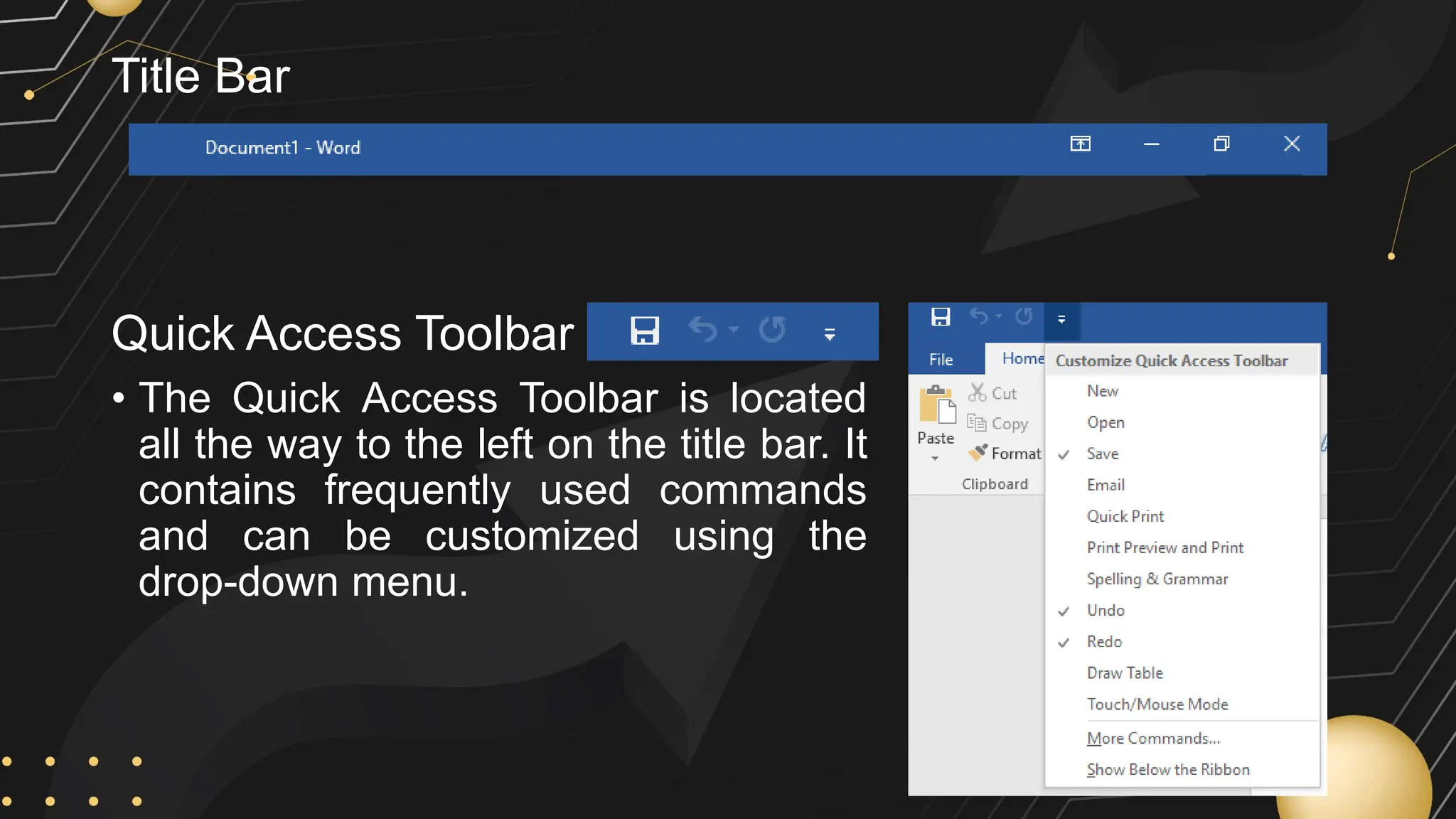
Quick Access Toolbar
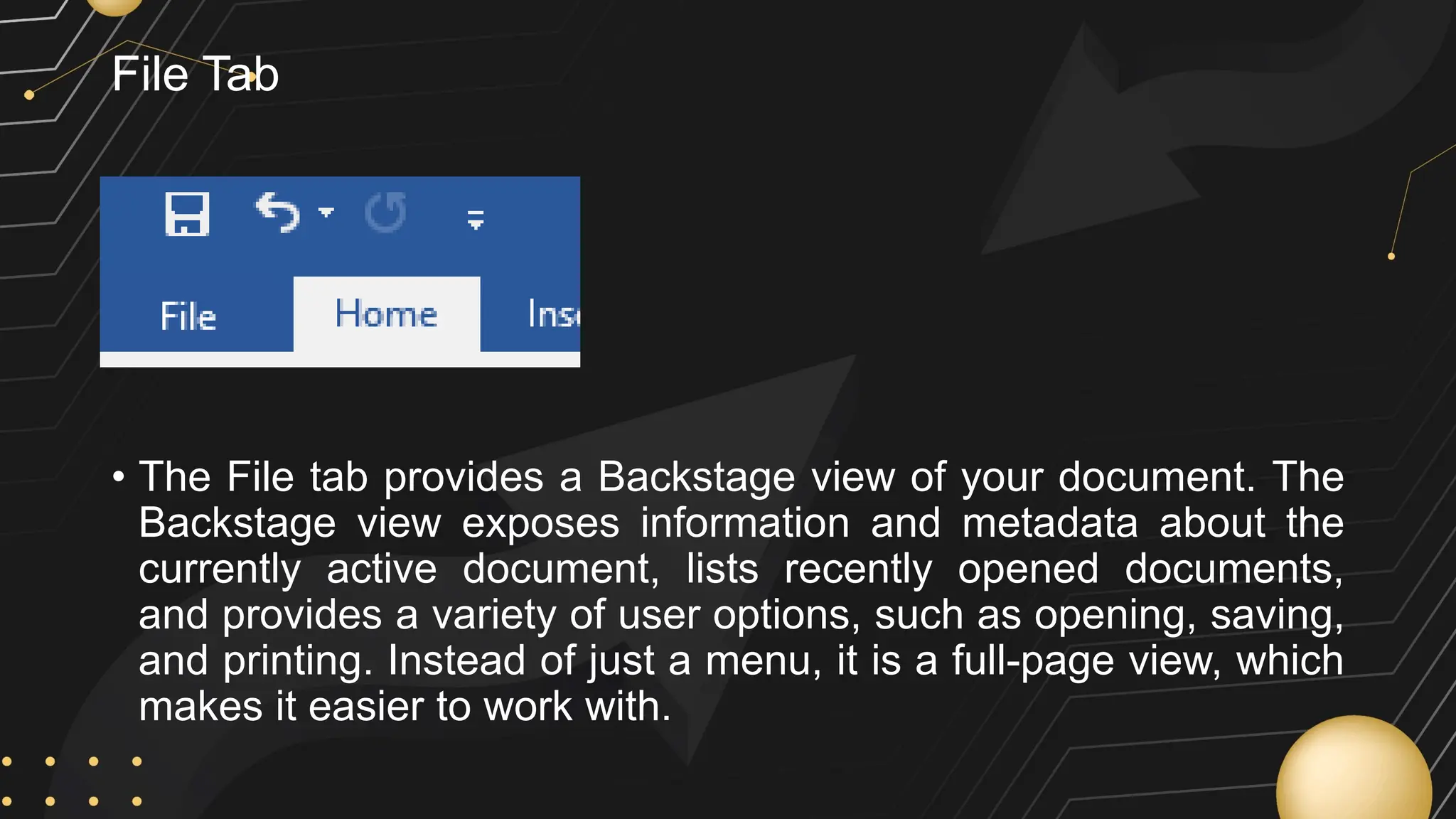
• The Quick Access Toolbar is located
all the way to the left on the title bar. It
contains frequently used commands
and can be customized using the
drop-down menu.
Ribbon
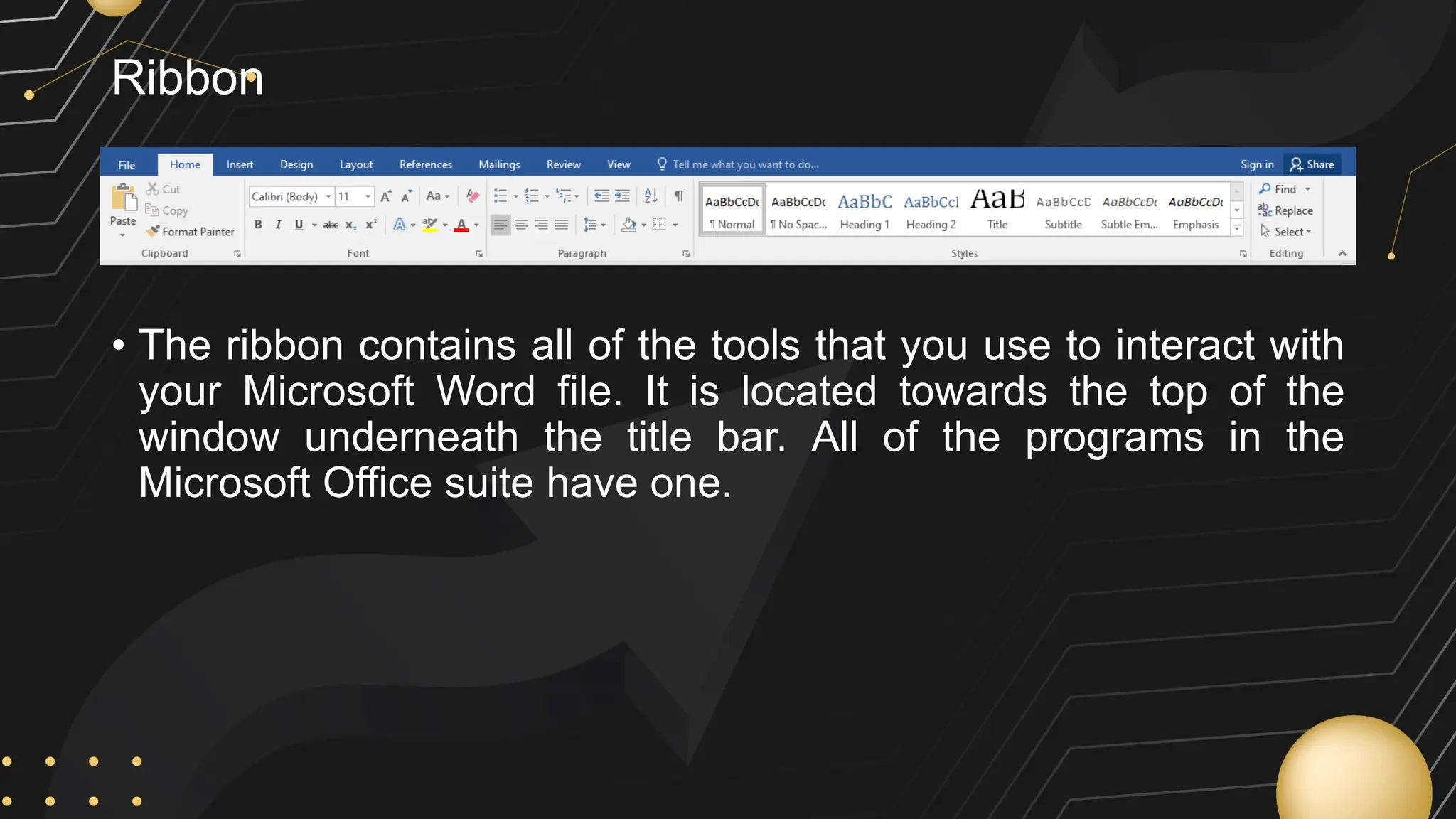
• The ribbon contains all of the tools that you use to interact with
your Microsoft Word file. It is located towards the top of the
window underneath the title bar. All of the programs in the
Microsoft Office suite have one.
Contextual Tab
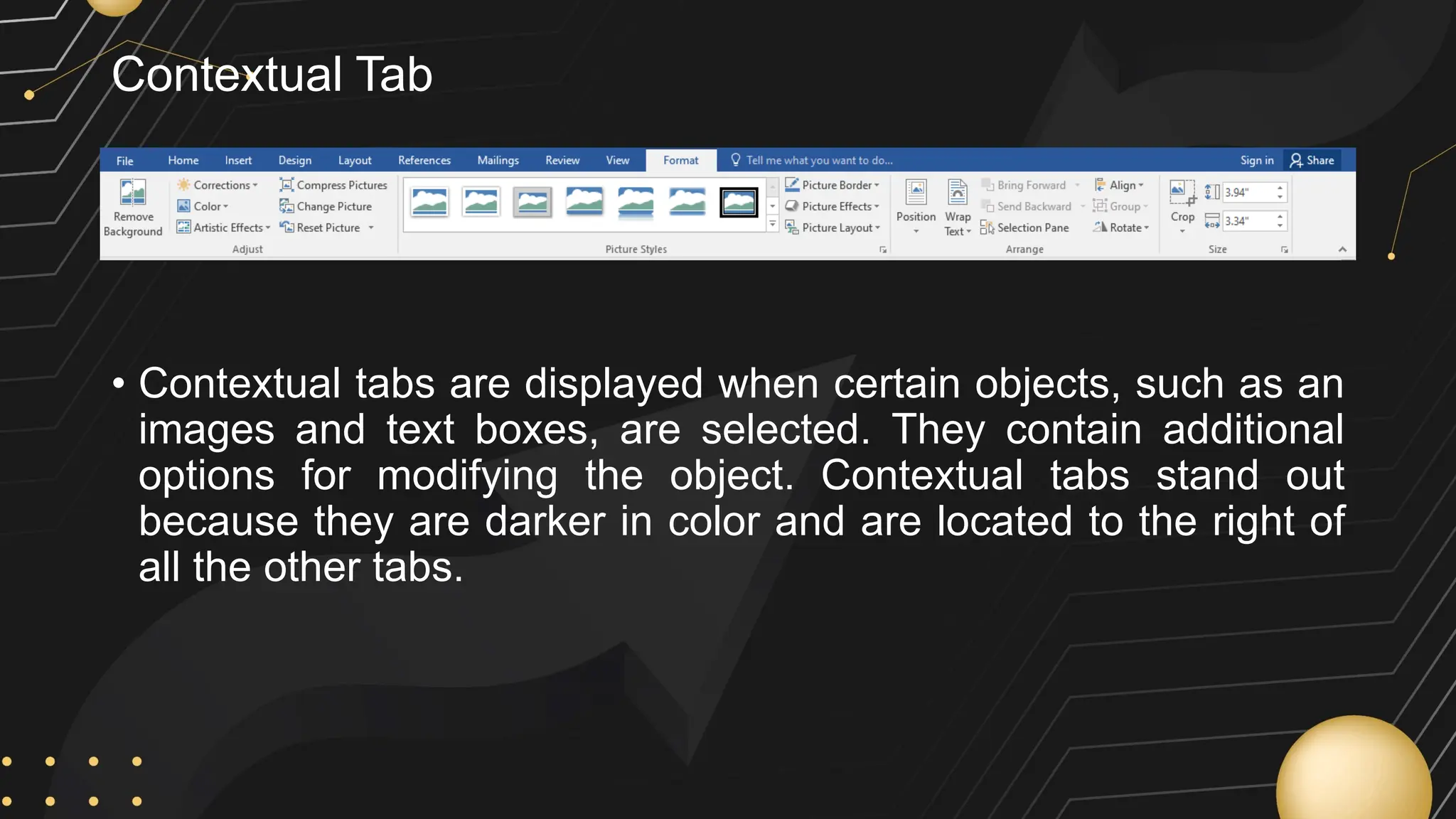
• Contextual tabs are displayed when certain objects, such as an
images and text boxes, are selected. They contain additional
options for modifying the object. Contextual tabs stand out
because they are darker in color and are located to the right of
all the other tabs.
File Tab
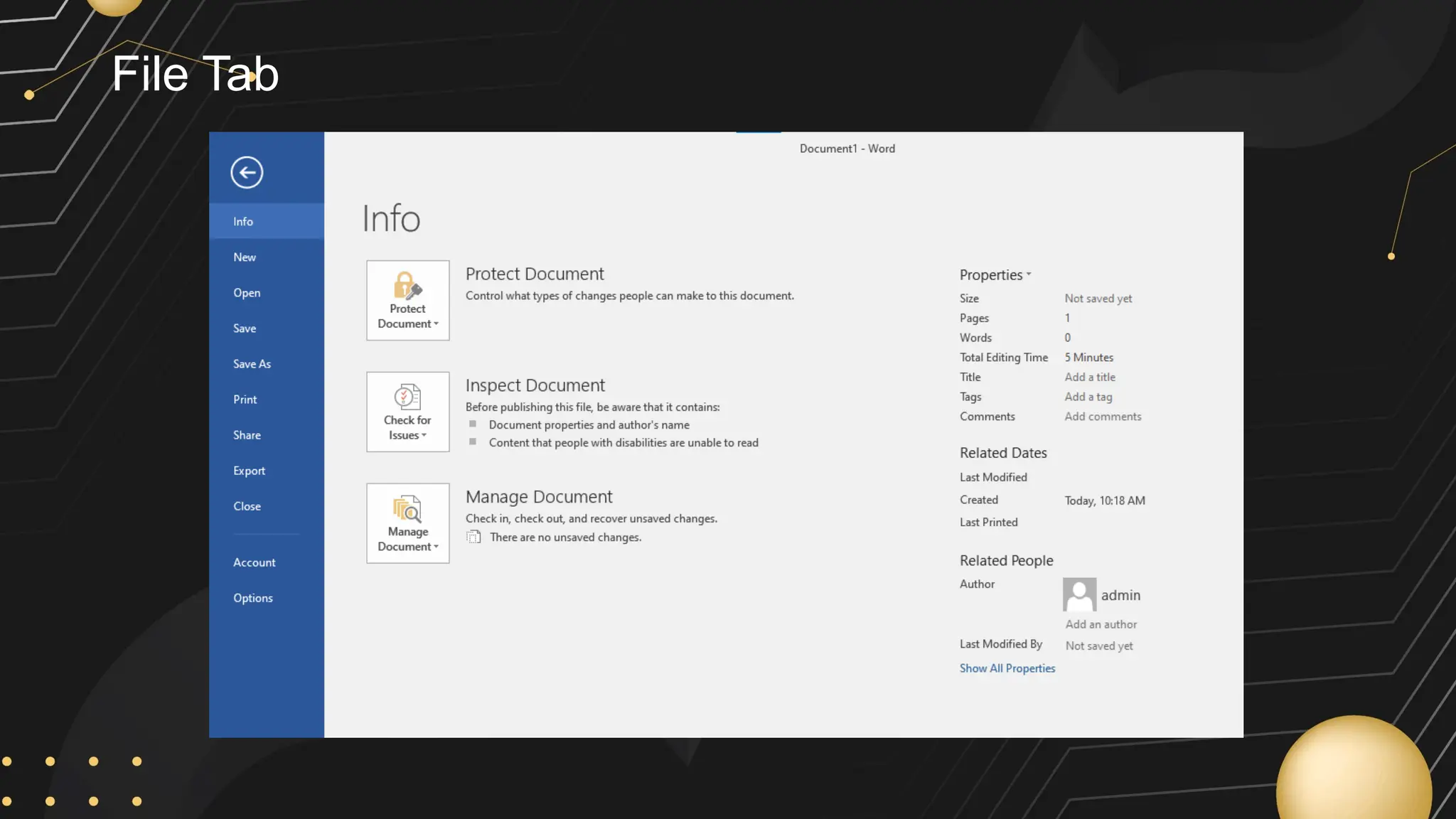
• The File tab provides a Backstage view of your document. The
Backstage view exposes information and metadata about the
currently active document, lists recently opened documents,
and provides a variety of user options, such as opening, saving,
and printing. Instead of just a menu, it is a full-page view, which
makes it easier to work with.
File Tab
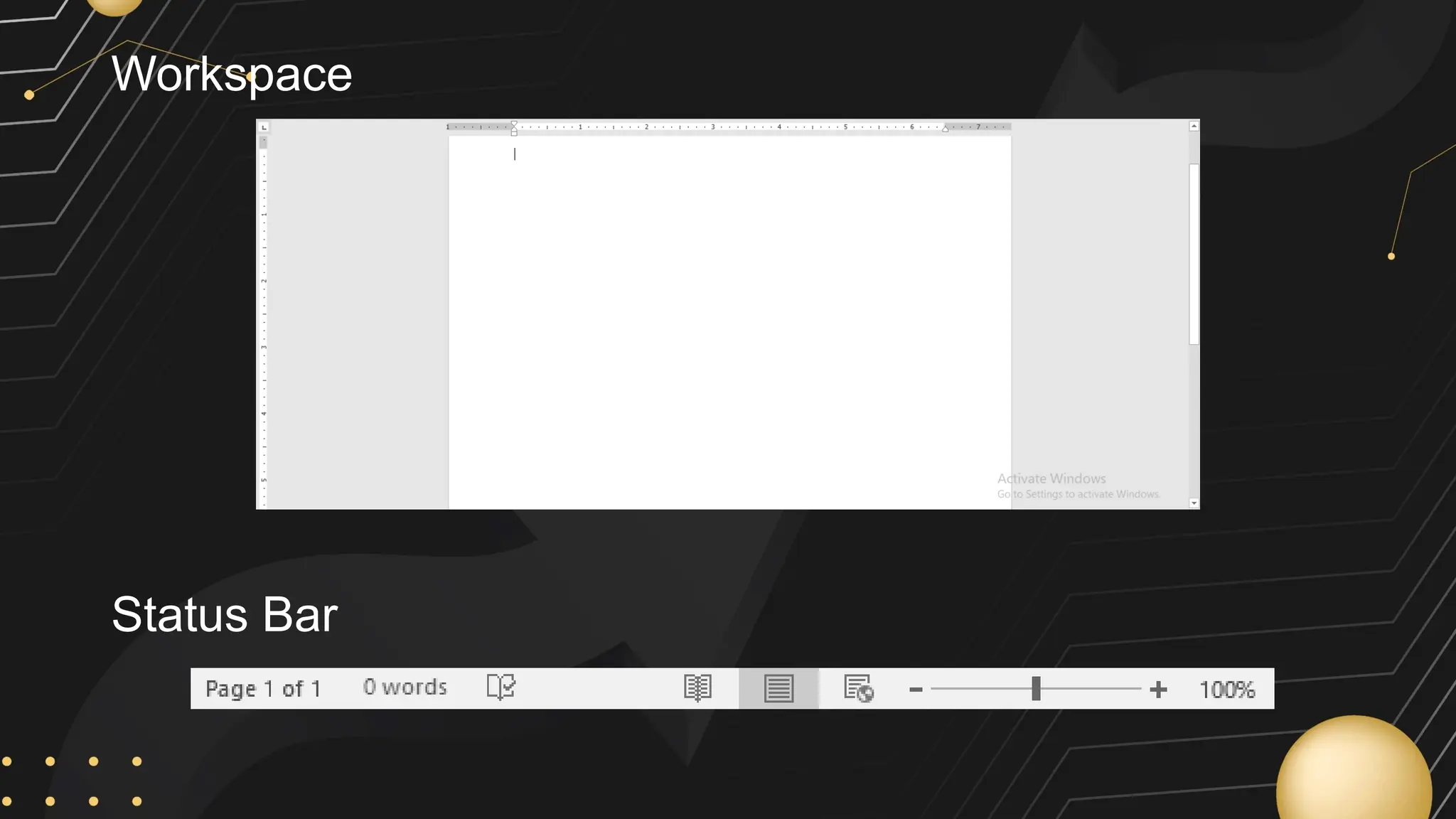
Workspace
Status Bar
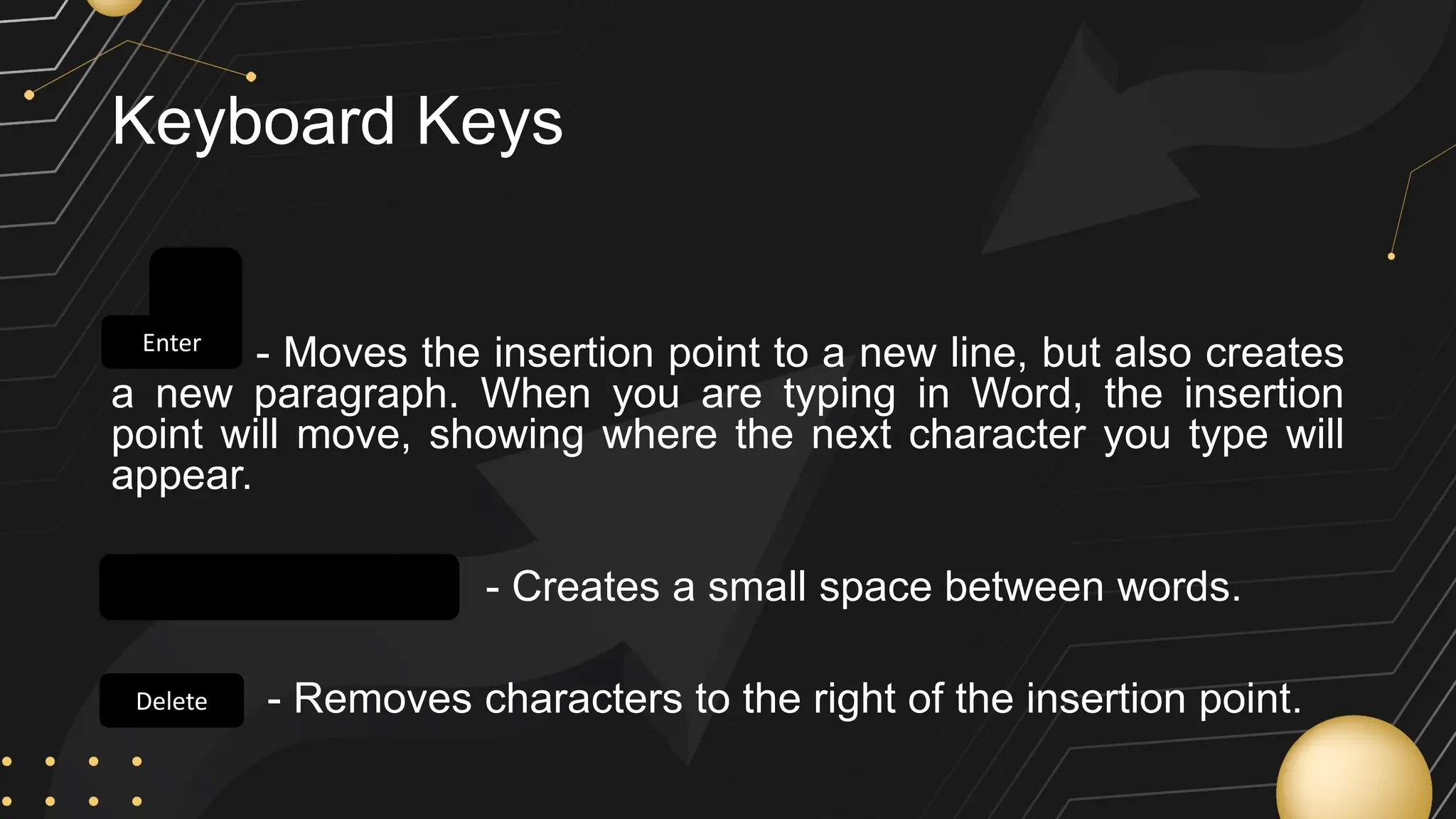
Keyboard Keys
- Moves the insertion point to a new line, but also creates
a new paragraph. When you are typing in Word, the insertion
point will move, showing where the next character you type will
appear.
- Creates a small space between words.
- Removes characters to the right of the insertion point.
Enter
Delete
Enter
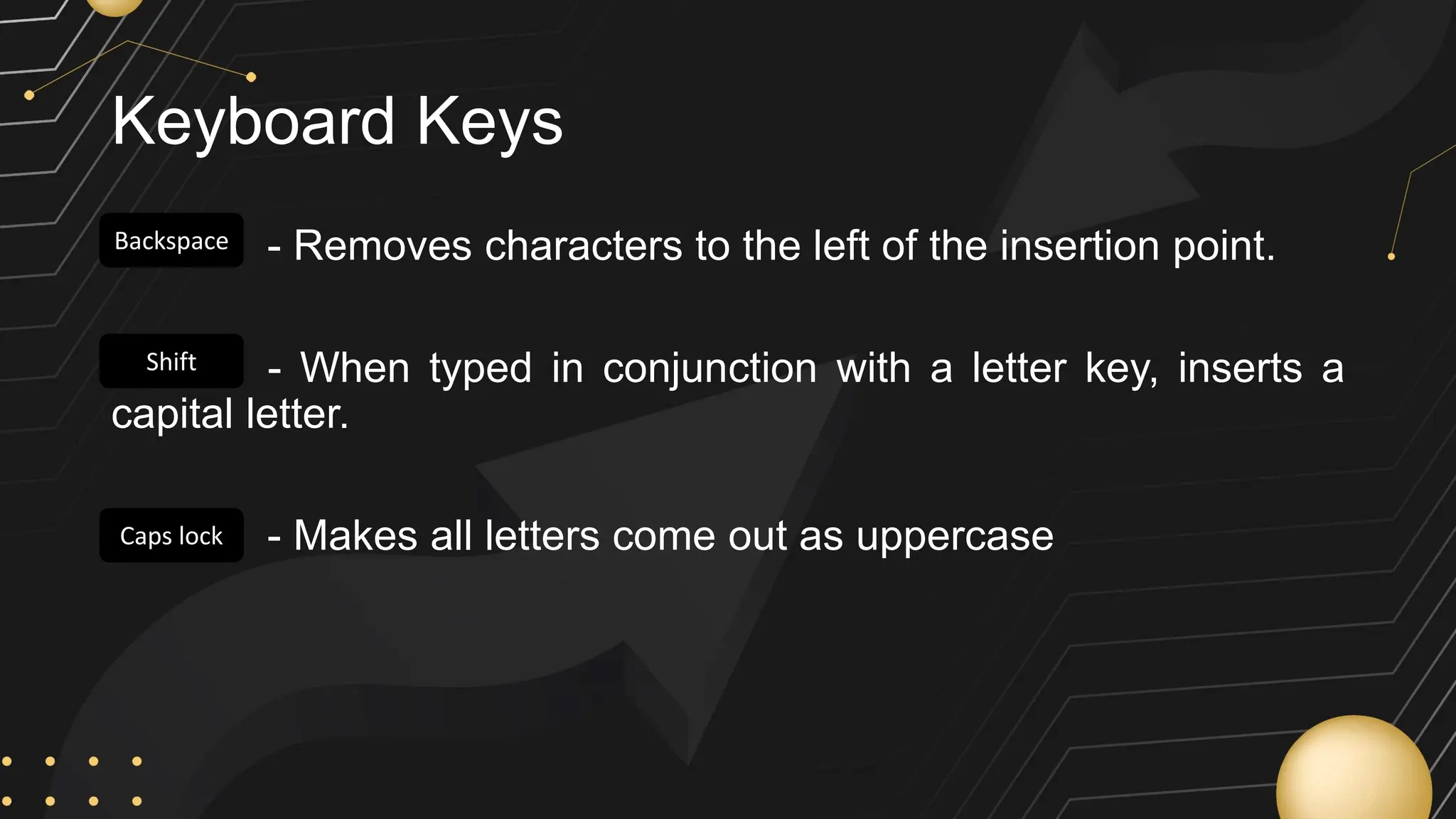
Keyboard Keys
- Removes characters to the left of the insertion point.
- When typed in conjunction with a letter key, inserts a
capital letter.
- Makes all letters come out as uppercase
Enter
Caps lock
Shift
Backspace
Spelling & Grammar Check
• As you type a document, Word automatically checks your
spelling and grammar.
• This indicates that Word detects possible spelling (red line) or
grammar (blue line) errors.
• These lines are just visual indicators. If we were to print our
document, the lines would not appear in the printout.
Correcting Individual Words
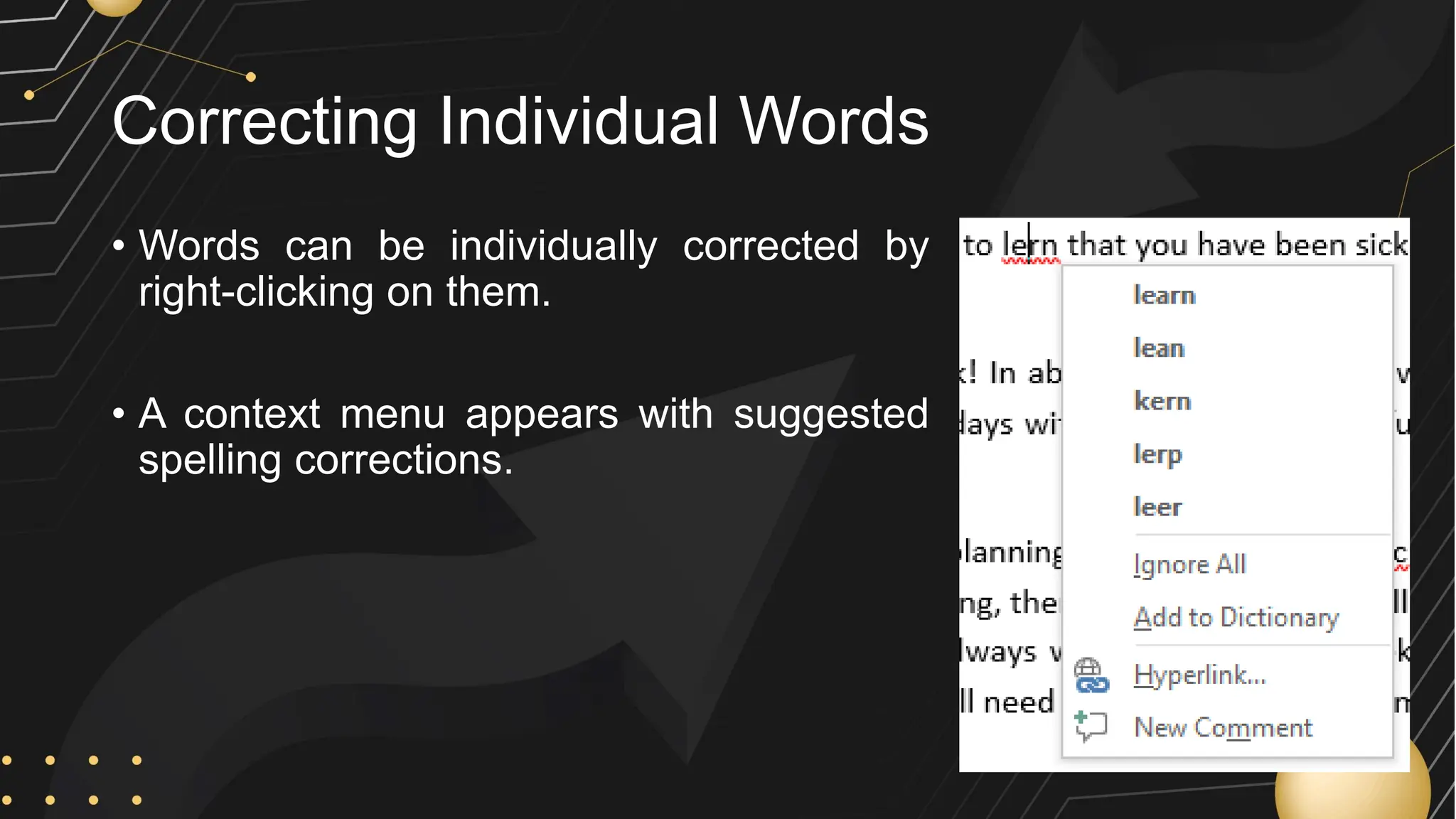
• Words can be individually corrected by
right-clicking on them.
• A context menu appears with suggested
spelling corrections.
Reviewing the Entire Document
• You can also have Word step you through all of the spelling and
grammar mistakes in the entire document.
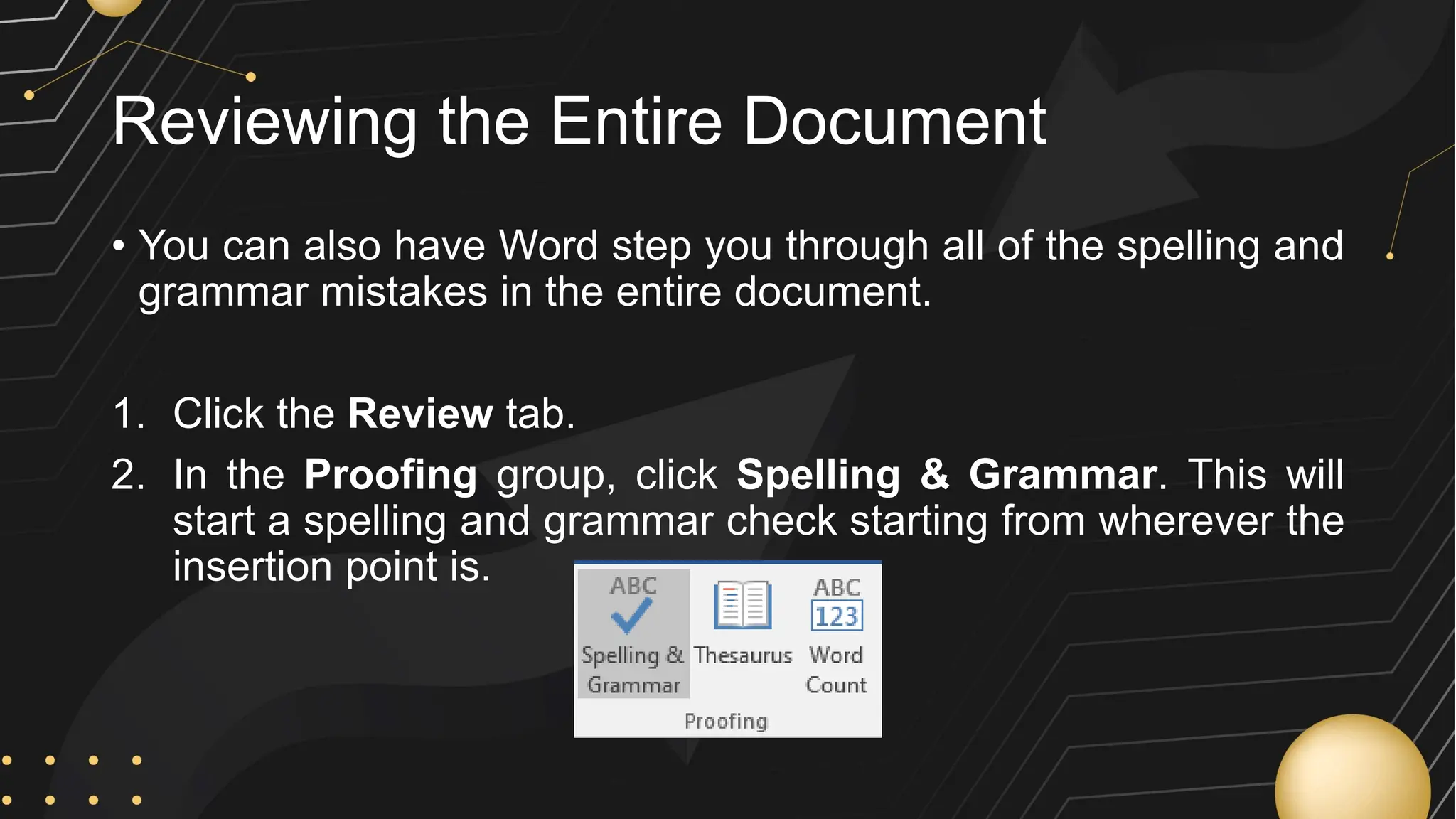
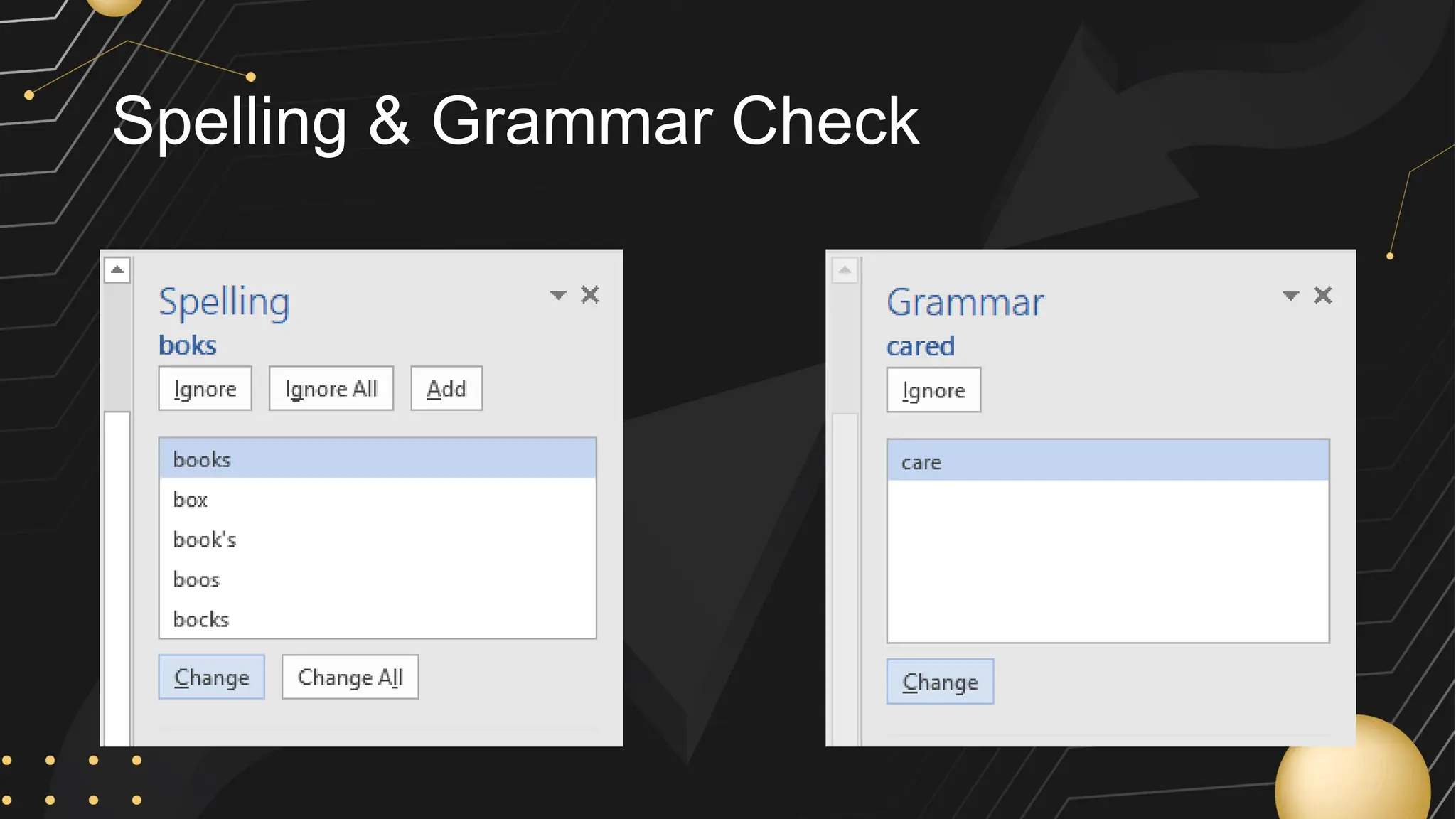
1. Click the Review tab.
2. In the Proofing group, click Spelling & Grammar. This will
start a spelling and grammar check starting from wherever the
insertion point is.
Spelling & Grammar Check
Alignment
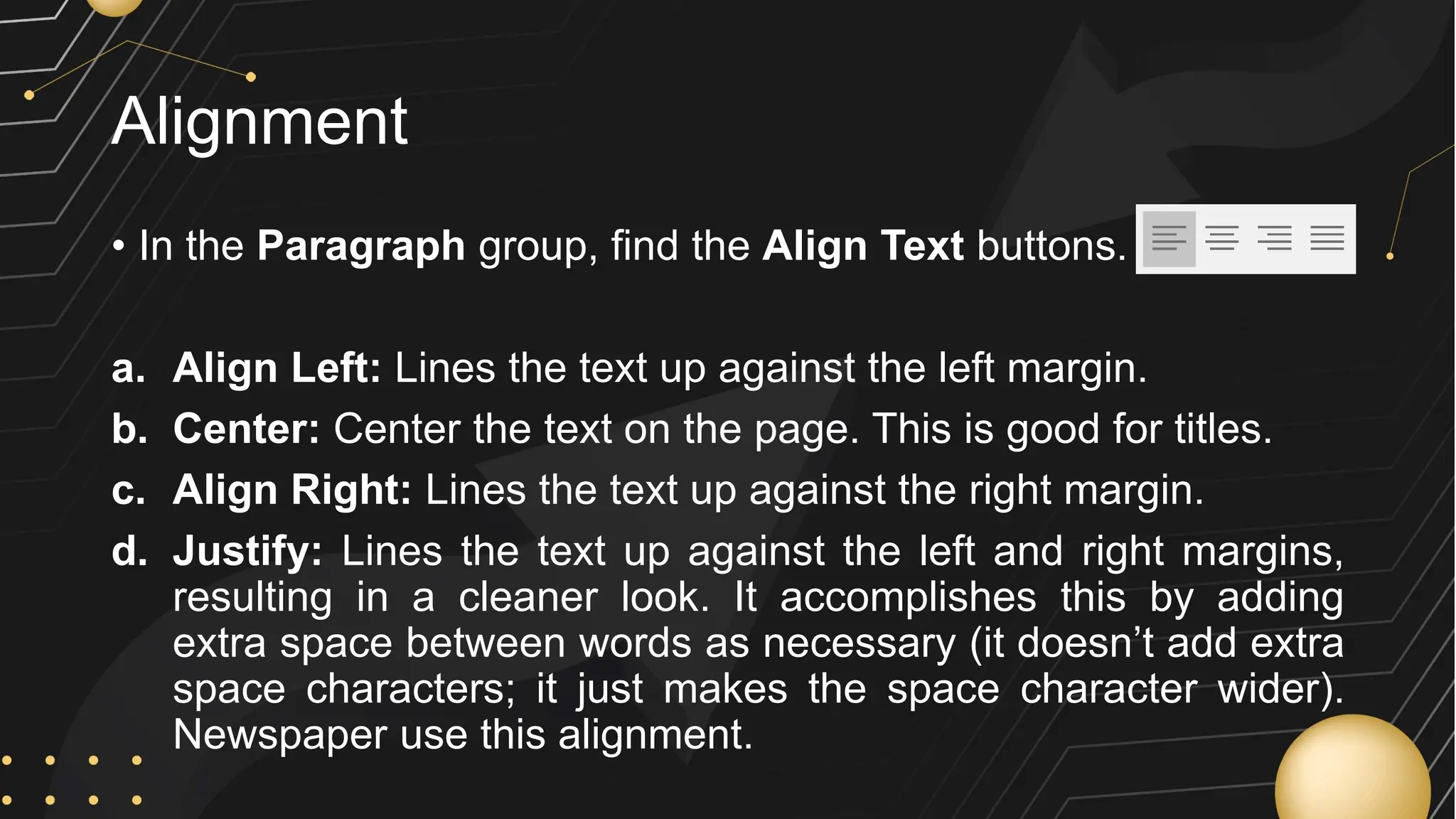
• In the Paragraph group, find the Align Text buttons.
a. Align Left: Lines the text up against the left margin.
b. Center: Center the text on the page. This is good for titles.
c. Align Right: Lines the text up against the right margin.
d. Justify: Lines the text up against the left and right margins,
resulting in a cleaner look. It accomplishes this by adding
extra space between words as necessary (it doesn’t add extra
space characters; it just makes the space character wider).
Newspaper use this alignment.
Insert Picture
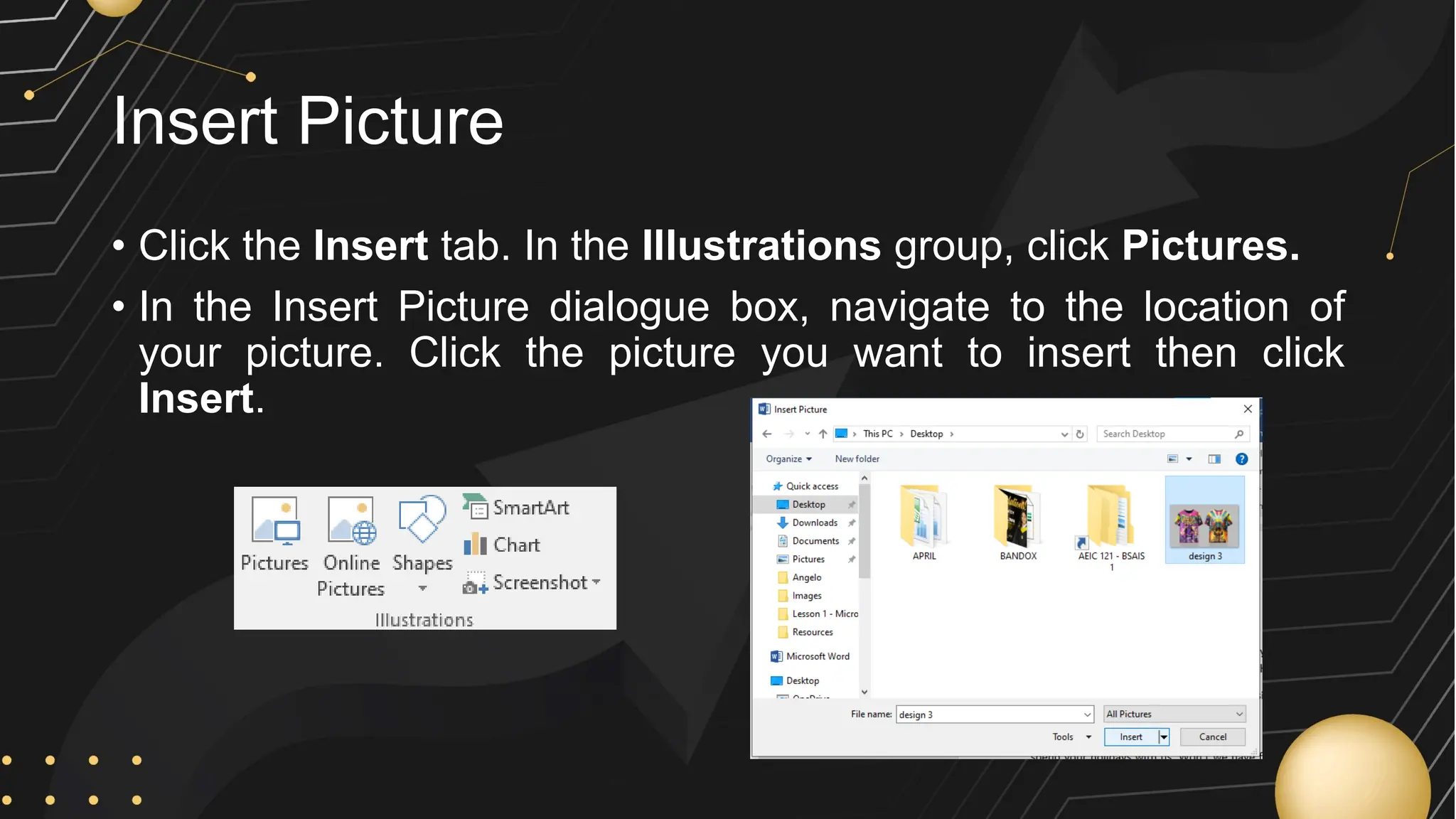
• Click the Insert tab. In the Illustrations group, click Pictures.
• In the Insert Picture dialogue box, navigate to the location of
your picture. Click the picture you want to insert then click
Insert.
Cut, Copy, and Paste
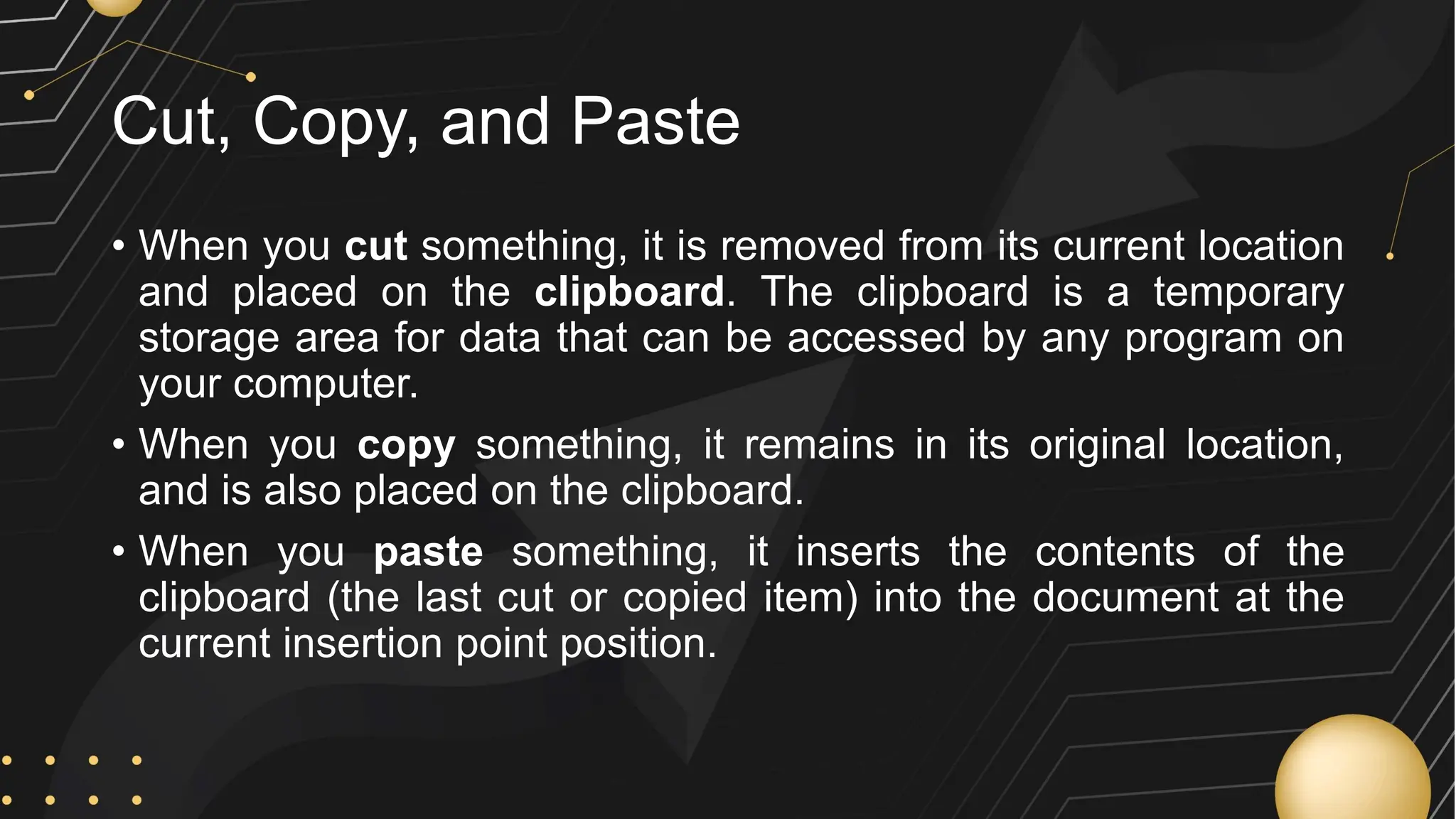
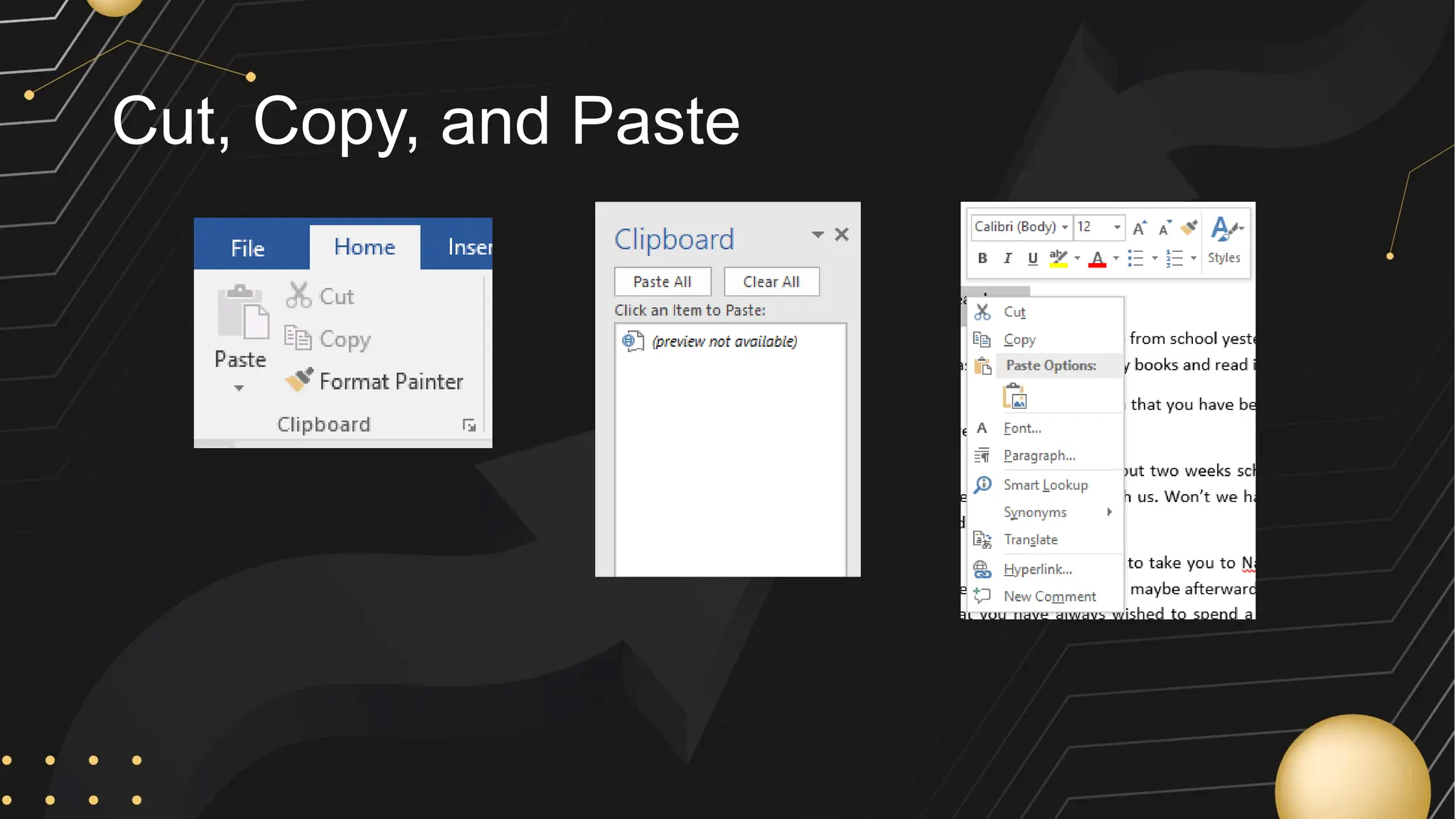
• When you cut something, it is removed from its current location
and placed on the clipboard. The clipboard is a temporary
storage area for data that can be accessed by any program on
your computer.
• When you copy something, it remains in its original location,
and is also placed on the clipboard.
• When you paste something, it inserts the contents of the
clipboard (the last cut or copied item) into the document at the
current insertion point position.
Cut, Copy, and Paste
Bulleted / Numbered Lists
• When you want to present a list of items in a document, you will
usually want to put each item on its own line. There are several
different types of lists in Word.
1. Bulleted Lists
2. Numbered Lists
3. Multilevel Lists
Bulleted Lists
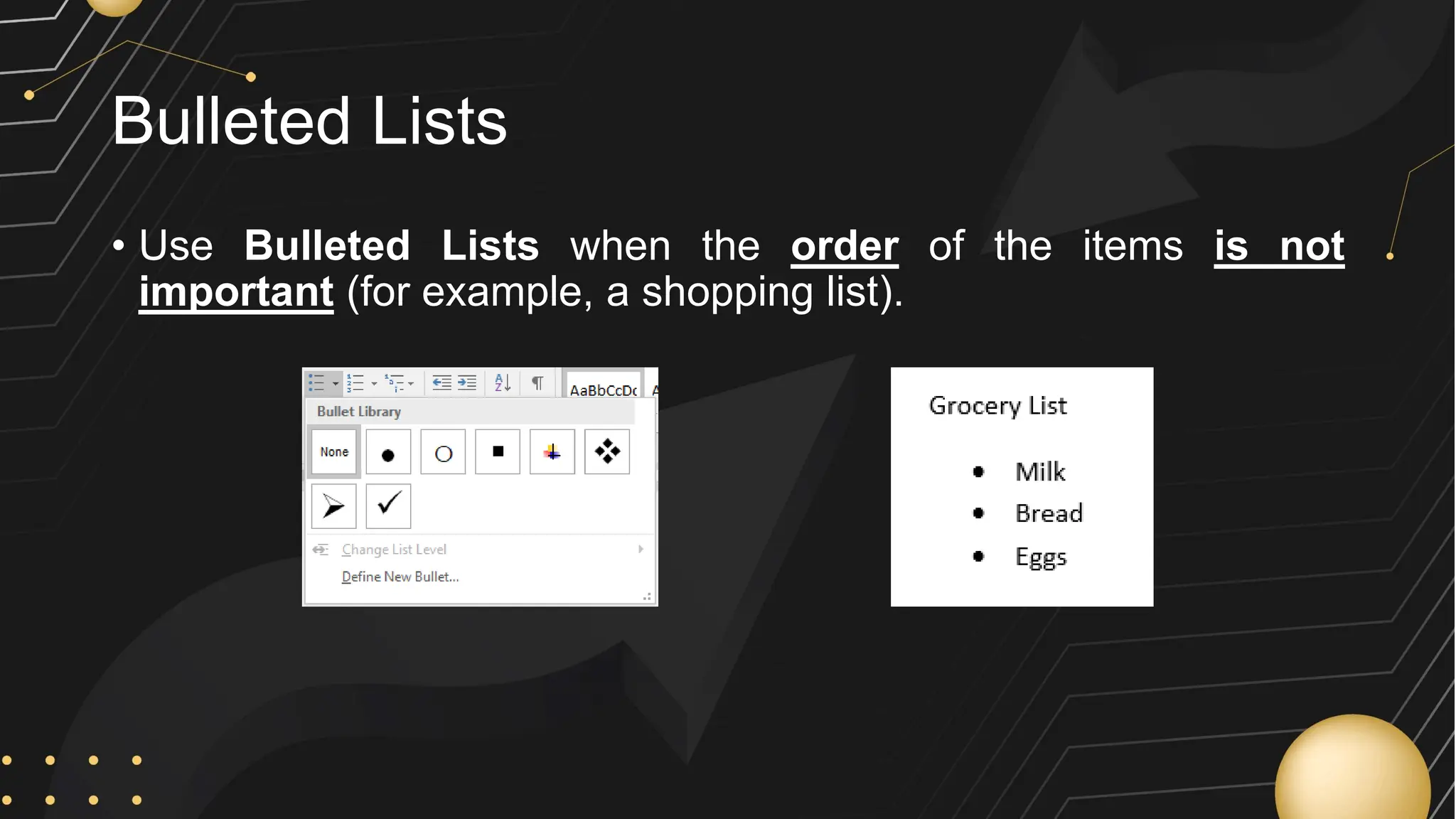
• Use Bulleted Lists when the order of the items is not
important (for example, a shopping list).
Numbered Lists
• Use Numbered Lists when the order of the items is important
(for example, a recipe).
Multilevel Lists
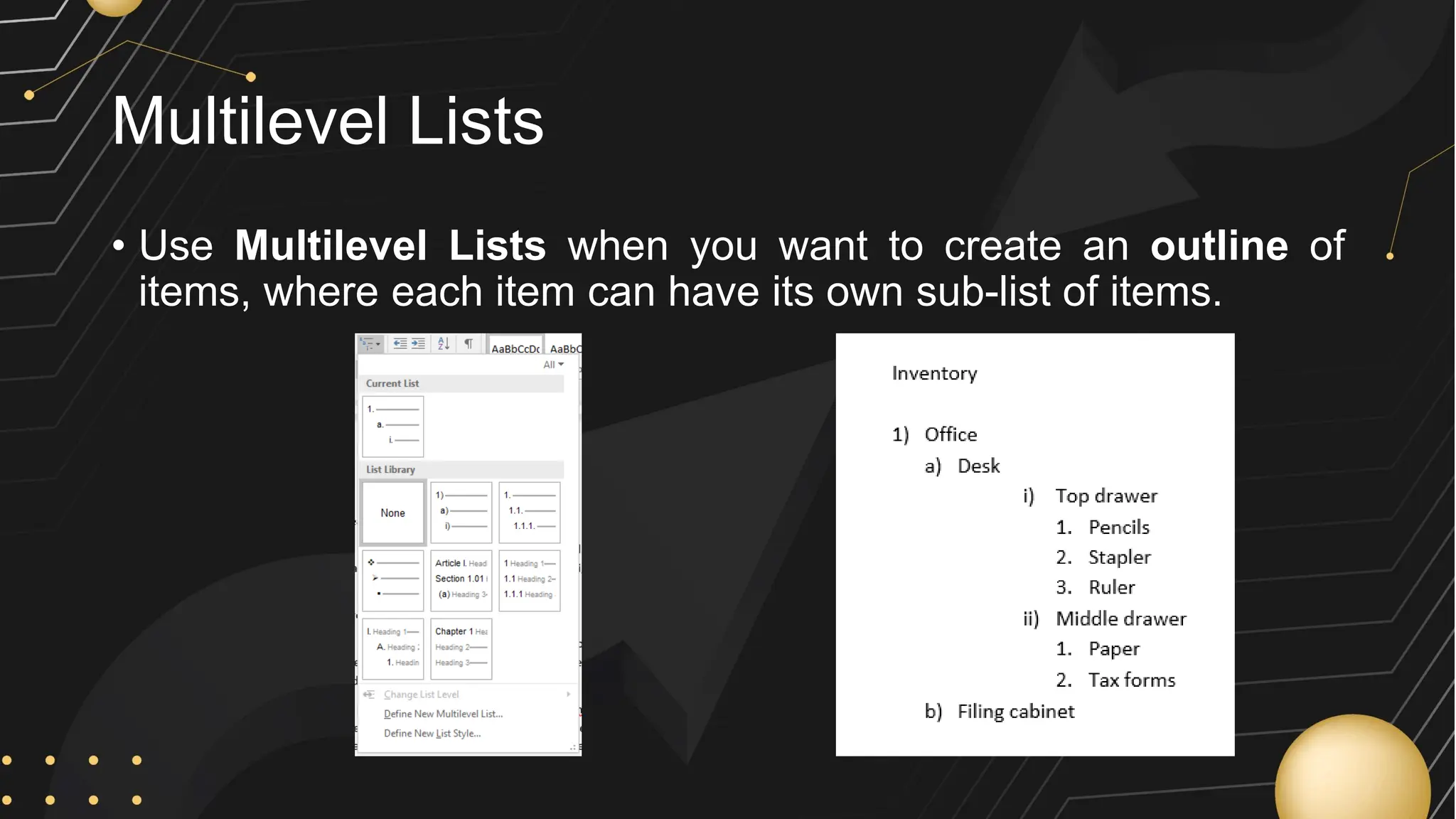
• Use Multilevel Lists when you want to create an outline of
items, where each item can have its own sub-list of items.
Tables
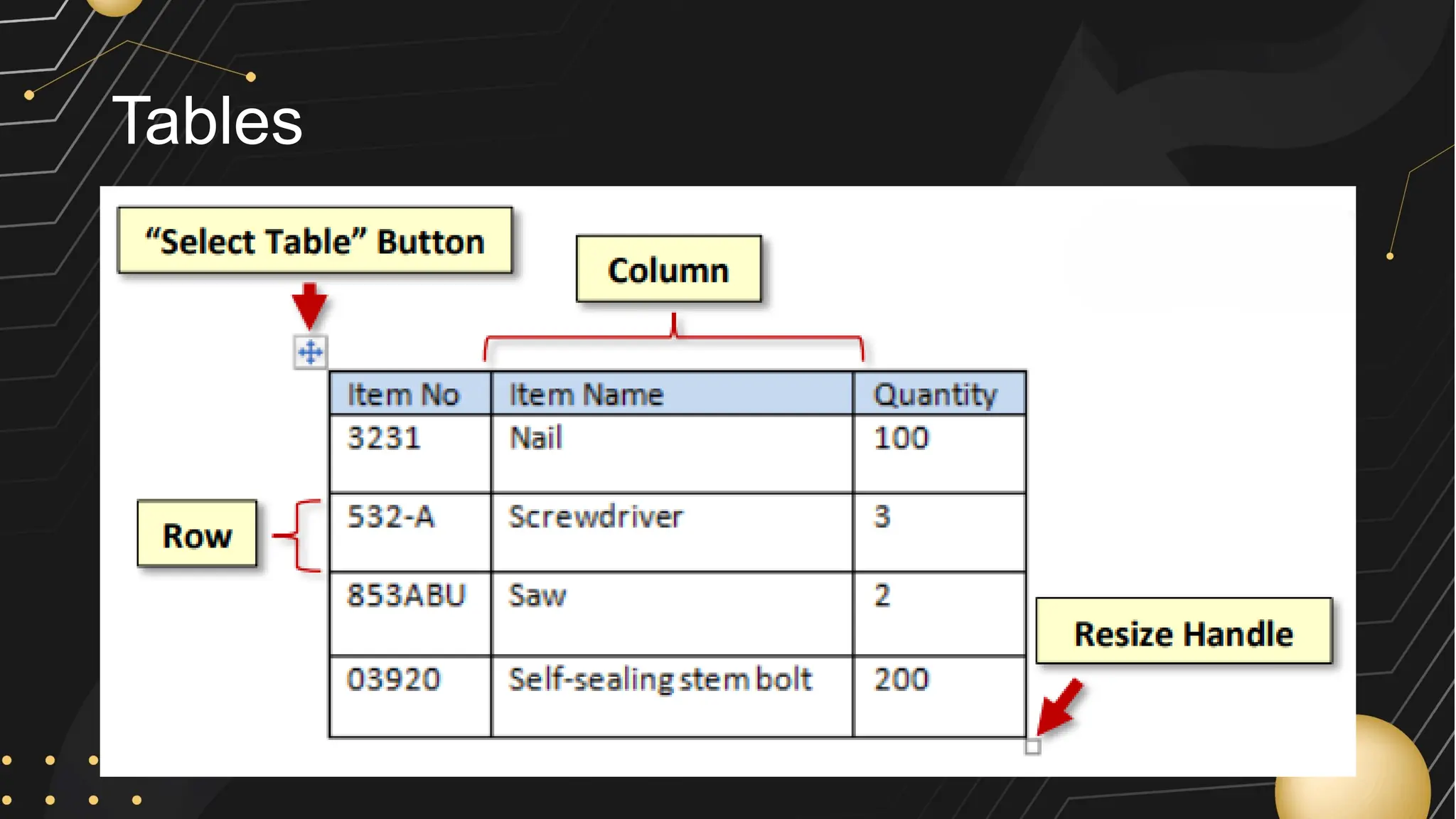
Word allows you to insert tables into your document. Tables
consist of the following elements:
• Row: Runs horizontally (left to right)
• Column: Runs vertically (up and down)
• Cell: The intersection of a row and column. You can type text
into each cell.
Tables
Inserting a Table
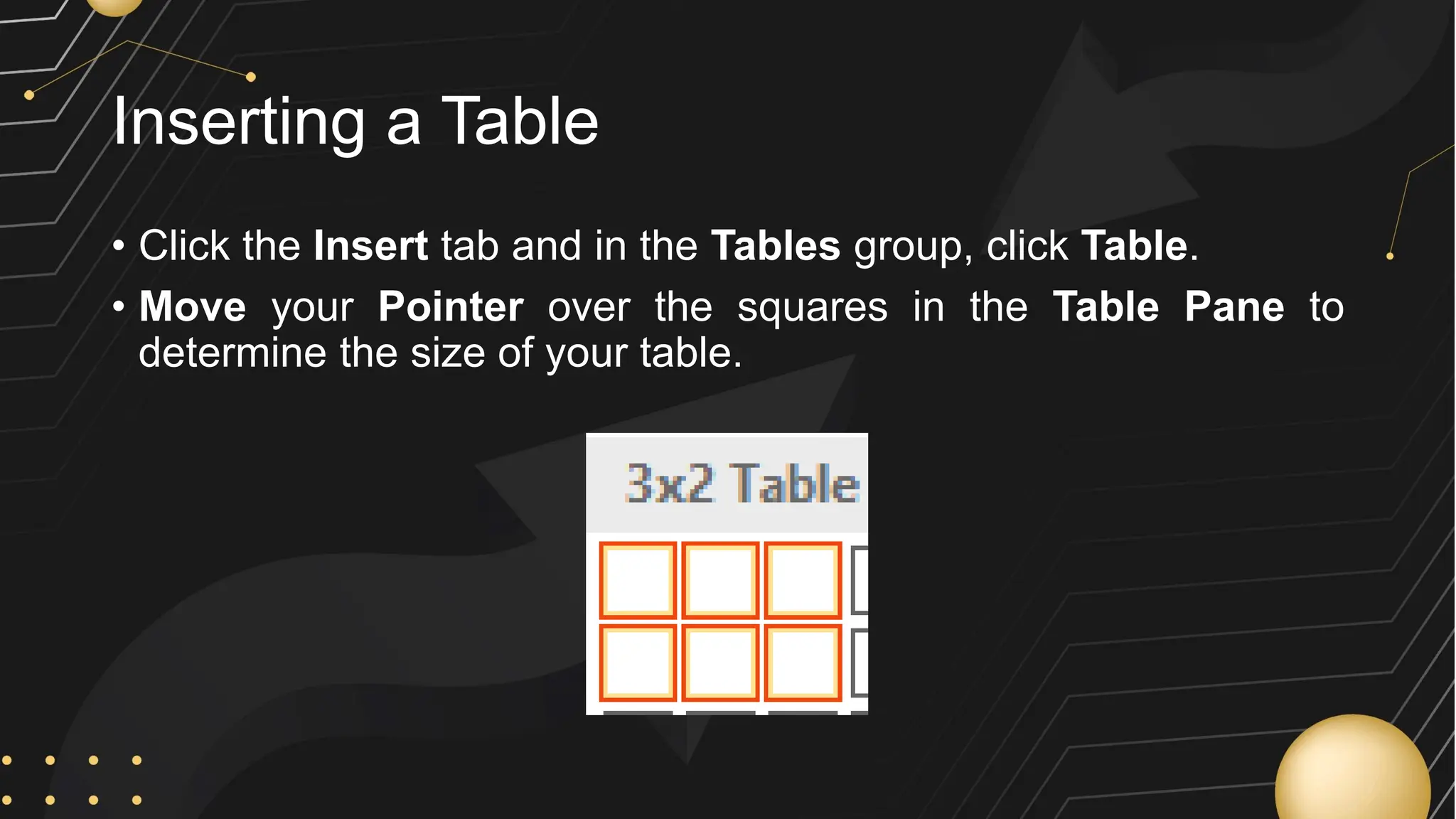
• Click the Insert tab and in the Tables group, click Table.
• Move your Pointer over the squares in the Table Pane to
determine the size of your table.
Inserting a Table
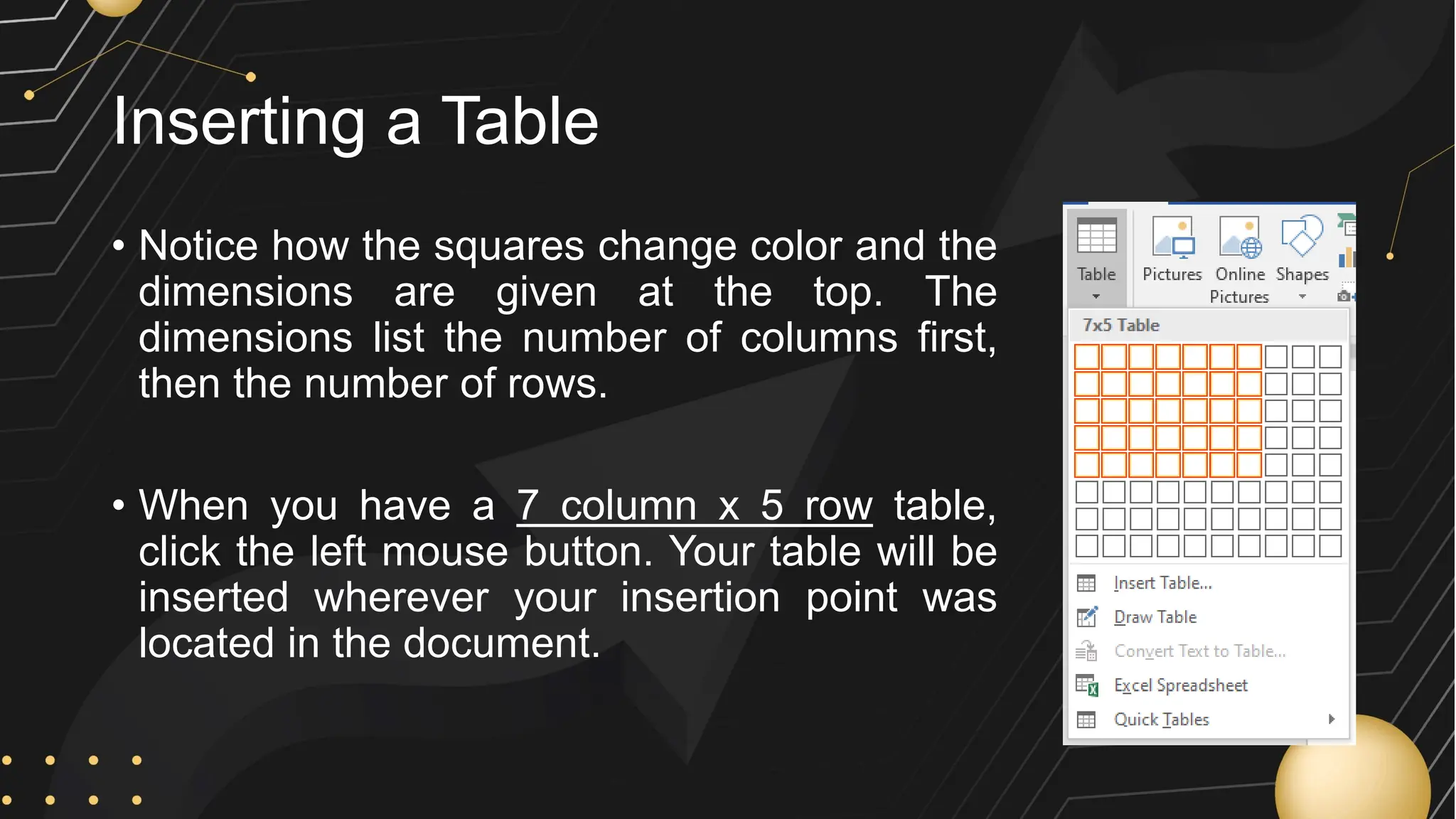
• Notice how the squares change color and the
dimensions are given at the top. The
dimensions list the number of columns first,
then the number of rows.
• When you have a 7 column x 5 row table,
click the left mouse button. Your table will be
inserted wherever your insertion point was
located in the document.
Inserting a Table
Margins
• Page margins are more than just empty space. The right page
margins make your document more readable. Generous page
margins make text look inviting and give reviewers room for
notes and comments.
Selecting Preset Margins
• Click Layout Tab, in the Page Setup group,
click Margins then choose from the preset
margins
• Word’s Margins menu gives you a way to
quickly apply standard margins to your
pages. The preset margins are a mixed bag
of settings from a half inch to one and a
quarter inches.
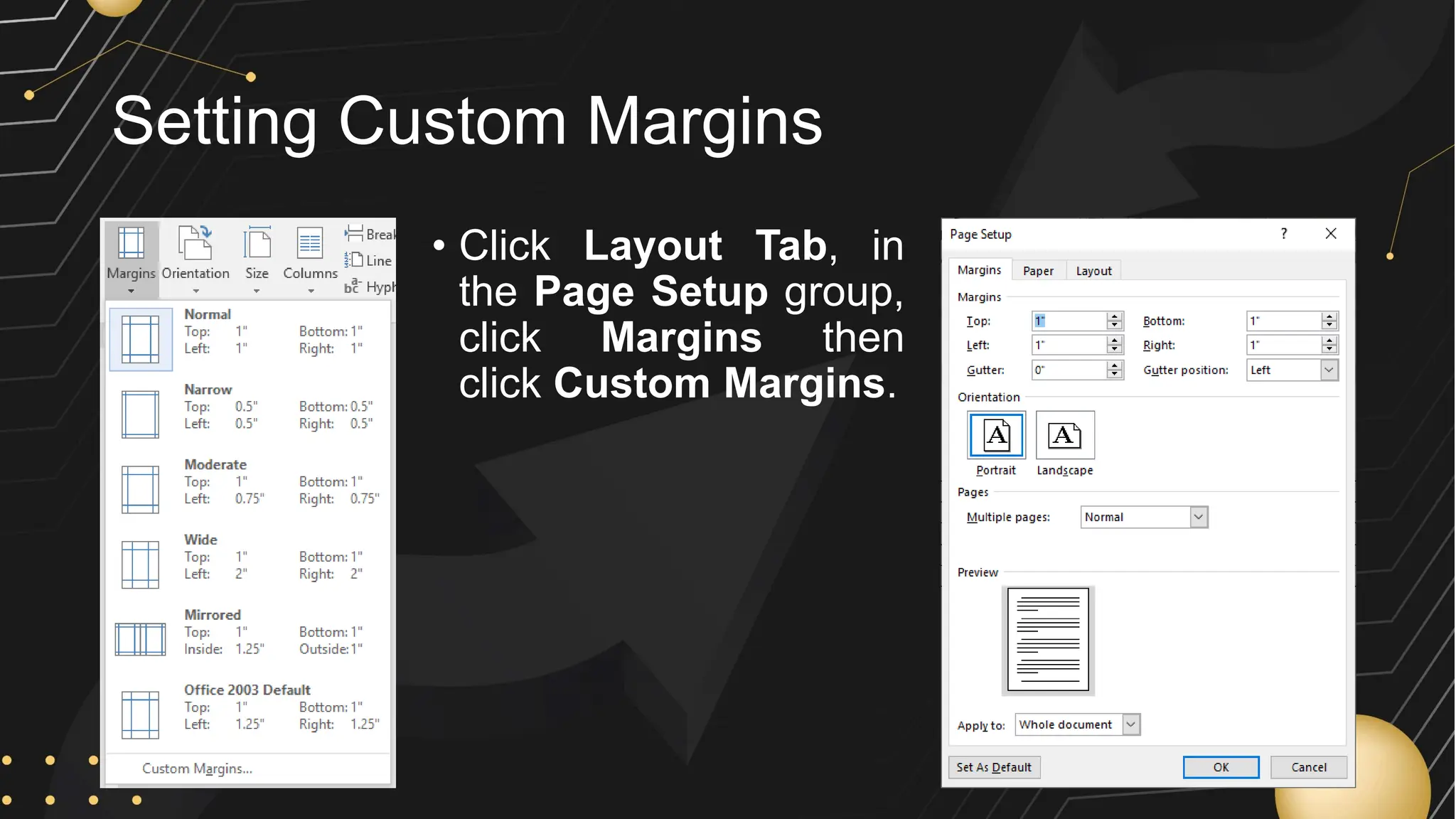
Setting Custom Margins
• Click Layout Tab, in
the Page Setup group,
click Margins then
click Custom Margins.
Orientation
• Most business documents, school papers, and letters use
a portrait page orientation, meaning the page is taller than it is
wide. But sometimes you want a short, wide page—
landscape page orientation—to accommodate a table, chart, or
photo, or just for artistic effect. Whatever the reason, using the
Orientation menu is the easiest way to make the change.
Orientation
• Click Layout Tab, in the Page Setup group, click Orientation.
Paper Size
• If you want to quickly change the page size to a
standard paper size like letter, legal, or tabloid, go
to the Size menu. With one quick click, you change
your document’s size.
Customize Paper Size
• If you can’t find the paper size you need
on the Size menu, then you need to
customize your paper size.
• Click Layout Tab, in the Page Setup
group, click Size then click More Paper
Sizes.
Columns
• Word makes it easy to work with multiple newspaper-style
columns. Instead of your having to use tabs or spaces to
separate the column one line at a time, Word lets you set up the
column guidelines and then type away. When you type text in a
multicolumn layout, your words appear in the left column first.
After you reach the end or bottom of the column, the insertion
point jumps to the top of the next column and you begin to fill it,
from top to bottom.
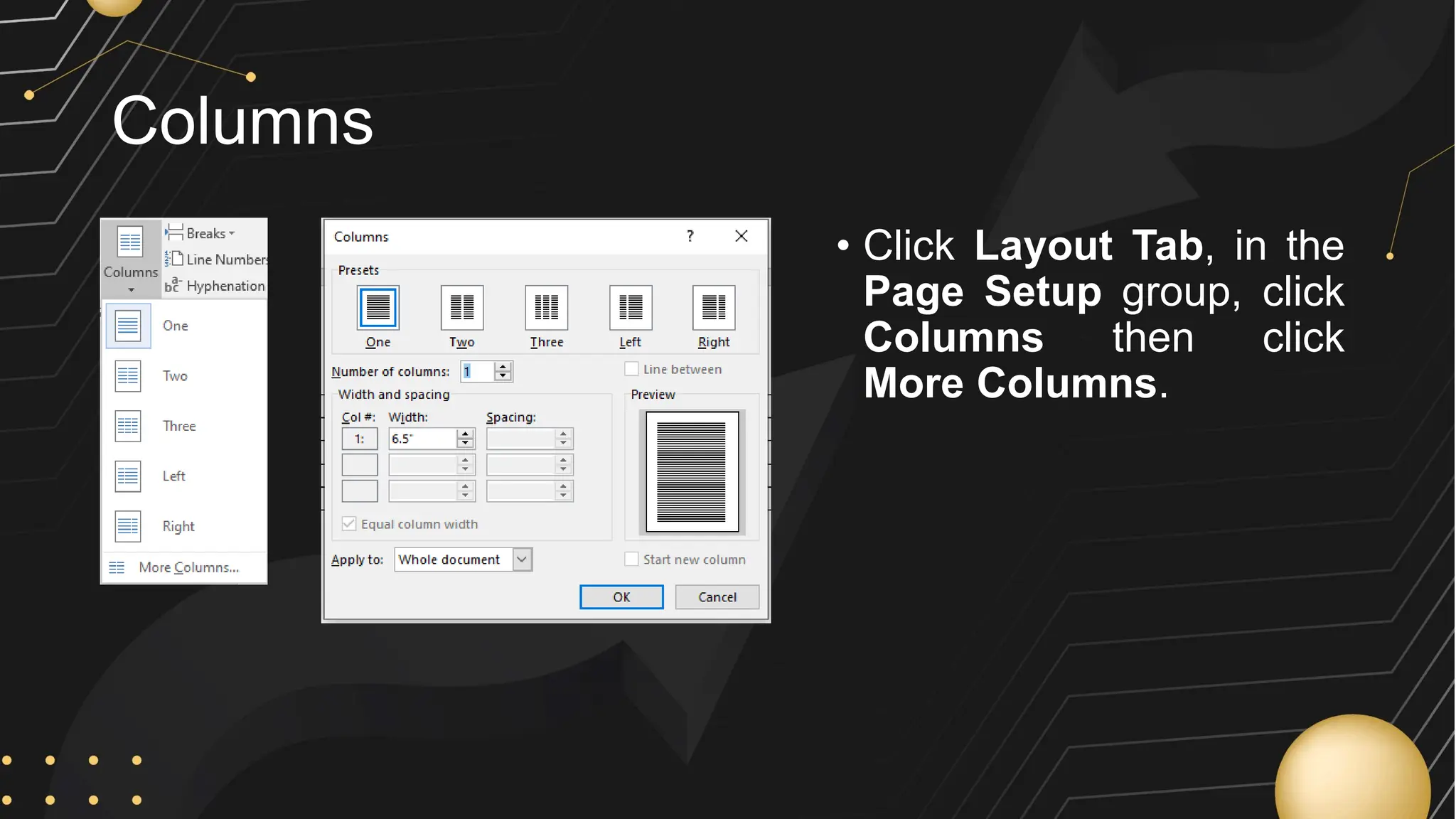
Columns
• Click Layout Tab, in the
Page Setup group, click
Columns then click
More Columns.

Word Processing Simplified: A Beginner's Handbook

  • 1.
  • 2.
    What is MicrosoftWord? • Microsoft Word is a word processor developed by Microsoft. The initial version of Microsoft Word debuted in 1983 as a competitor to WordStar, the most popular word processor at the time. • A word processor is a computer program that allows you to write, edit, and produce text documents such as letters.
  • 3.
    What is MicrosoftOffice? • The name “Microsoft Office” encompasses Microsoft’s whole array of office productivity products. Microsoft Word is one of the many applications that are categorized under “Microsoft Office” umbrella.
  • 4.
    What is Office365? • Office 365 is a service that requires a monthly subscription charge (about $10 per month) to utilize Microsoft Office apps. One Advantage of utilizing Office 365 is that software updates are free (if a new version of Microsoft Word is released, you can upgrade for free).
  • 5.
    Title Bar Quick AccessToolbar • The Quick Access Toolbar is located all the way to the left on the title bar. It contains frequently used commands and can be customized using the drop-down menu.
  • 6.
    Ribbon • The ribboncontains all of the tools that you use to interact with your Microsoft Word file. It is located towards the top of the window underneath the title bar. All of the programs in the Microsoft Office suite have one.
  • 7.
    Contextual Tab • Contextualtabs are displayed when certain objects, such as an images and text boxes, are selected. They contain additional options for modifying the object. Contextual tabs stand out because they are darker in color and are located to the right of all the other tabs.
  • 8.
    File Tab • TheFile tab provides a Backstage view of your document. The Backstage view exposes information and metadata about the currently active document, lists recently opened documents, and provides a variety of user options, such as opening, saving, and printing. Instead of just a menu, it is a full-page view, which makes it easier to work with.
  • 9.
  • 10.
  • 11.
    Keyboard Keys - Movesthe insertion point to a new line, but also creates a new paragraph. When you are typing in Word, the insertion point will move, showing where the next character you type will appear. - Creates a small space between words. - Removes characters to the right of the insertion point. Enter Delete Enter
  • 12.
    Keyboard Keys - Removescharacters to the left of the insertion point. - When typed in conjunction with a letter key, inserts a capital letter. - Makes all letters come out as uppercase Enter Caps lock Shift Backspace
  • 13.
    Spelling & GrammarCheck • As you type a document, Word automatically checks your spelling and grammar. • This indicates that Word detects possible spelling (red line) or grammar (blue line) errors. • These lines are just visual indicators. If we were to print our document, the lines would not appear in the printout.
  • 14.
    Correcting Individual Words •Words can be individually corrected by right-clicking on them. • A context menu appears with suggested spelling corrections.
  • 15.
    Reviewing the EntireDocument • You can also have Word step you through all of the spelling and grammar mistakes in the entire document. 1. Click the Review tab. 2. In the Proofing group, click Spelling & Grammar. This will start a spelling and grammar check starting from wherever the insertion point is.
  • 16.
  • 17.
    Alignment • In theParagraph group, find the Align Text buttons. a. Align Left: Lines the text up against the left margin. b. Center: Center the text on the page. This is good for titles. c. Align Right: Lines the text up against the right margin. d. Justify: Lines the text up against the left and right margins, resulting in a cleaner look. It accomplishes this by adding extra space between words as necessary (it doesn’t add extra space characters; it just makes the space character wider). Newspaper use this alignment.
  • 18.
    Insert Picture • Clickthe Insert tab. In the Illustrations group, click Pictures. • In the Insert Picture dialogue box, navigate to the location of your picture. Click the picture you want to insert then click Insert.
  • 19.
    Cut, Copy, andPaste • When you cut something, it is removed from its current location and placed on the clipboard. The clipboard is a temporary storage area for data that can be accessed by any program on your computer. • When you copy something, it remains in its original location, and is also placed on the clipboard. • When you paste something, it inserts the contents of the clipboard (the last cut or copied item) into the document at the current insertion point position.
  • 20.
  • 21.
    Bulleted / NumberedLists • When you want to present a list of items in a document, you will usually want to put each item on its own line. There are several different types of lists in Word. 1. Bulleted Lists 2. Numbered Lists 3. Multilevel Lists
  • 22.
    Bulleted Lists • UseBulleted Lists when the order of the items is not important (for example, a shopping list).
  • 23.
    Numbered Lists • UseNumbered Lists when the order of the items is important (for example, a recipe).
  • 24.
    Multilevel Lists • UseMultilevel Lists when you want to create an outline of items, where each item can have its own sub-list of items.
  • 25.
    Tables Word allows youto insert tables into your document. Tables consist of the following elements: • Row: Runs horizontally (left to right) • Column: Runs vertically (up and down) • Cell: The intersection of a row and column. You can type text into each cell.
  • 26.
  • 27.
    Inserting a Table •Click the Insert tab and in the Tables group, click Table. • Move your Pointer over the squares in the Table Pane to determine the size of your table.
  • 28.
    Inserting a Table •Notice how the squares change color and the dimensions are given at the top. The dimensions list the number of columns first, then the number of rows. • When you have a 7 column x 5 row table, click the left mouse button. Your table will be inserted wherever your insertion point was located in the document.
  • 29.
  • 30.
    Margins • Page marginsare more than just empty space. The right page margins make your document more readable. Generous page margins make text look inviting and give reviewers room for notes and comments.
  • 31.
    Selecting Preset Margins •Click Layout Tab, in the Page Setup group, click Margins then choose from the preset margins • Word’s Margins menu gives you a way to quickly apply standard margins to your pages. The preset margins are a mixed bag of settings from a half inch to one and a quarter inches.
  • 32.
    Setting Custom Margins •Click Layout Tab, in the Page Setup group, click Margins then click Custom Margins.
  • 33.
    Orientation • Most businessdocuments, school papers, and letters use a portrait page orientation, meaning the page is taller than it is wide. But sometimes you want a short, wide page— landscape page orientation—to accommodate a table, chart, or photo, or just for artistic effect. Whatever the reason, using the Orientation menu is the easiest way to make the change.
  • 34.
    Orientation • Click LayoutTab, in the Page Setup group, click Orientation.
  • 35.
    Paper Size • Ifyou want to quickly change the page size to a standard paper size like letter, legal, or tabloid, go to the Size menu. With one quick click, you change your document’s size.
  • 36.
    Customize Paper Size •If you can’t find the paper size you need on the Size menu, then you need to customize your paper size. • Click Layout Tab, in the Page Setup group, click Size then click More Paper Sizes.
  • 37.
    Columns • Word makesit easy to work with multiple newspaper-style columns. Instead of your having to use tabs or spaces to separate the column one line at a time, Word lets you set up the column guidelines and then type away. When you type text in a multicolumn layout, your words appear in the left column first. After you reach the end or bottom of the column, the insertion point jumps to the top of the next column and you begin to fill it, from top to bottom.
  • 38.
    Columns • Click LayoutTab, in the Page Setup group, click Columns then click More Columns.