Final Professional
(Pharm-D)
Compiled by Jawad Ansari - PULC
Course Instructor
M. Jawad Aslam
 Review spreadsheet concepts
 Cell and cell contents
 Labels and values
 Functions, and formulas
 Arithmetic and comparison operators
 Cell reference types
 Format cells and worksheets
 Chart types
2
 An electronic spreadsheet program
allows you to perform numeric
calculations and to analyze and present
numeric data
 The spreadsheet is called a worksheet
and the individual worksheets are
stored in a workbook which is the
Excel file
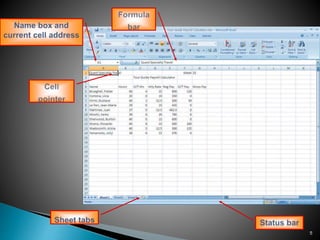
 Sheet tabs located at the bottom let
you switch from sheet to sheet in a
workbook
3
 The intersection of a row and a column
is called a cell
 Each cell has its own unique location
called a cell address
◦ A cell address is identified by its column
and row coordinates (ie: A1, C23, D15,
etc.)
 The Name box displays the active cell
address
 Contents of the active cell can be
edited in the cell itself or in the
formula bar
 A selection of two or more cells such
as B5:B14 is called a range
4
5
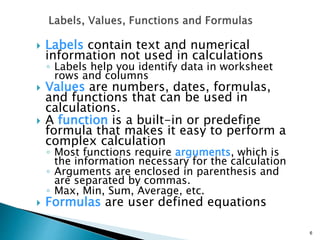
 Labels contain text and numerical
information not used in calculations
◦ Labels help you identify data in worksheet
rows and columns
 Values are numbers, dates, formulas,
and functions that can be used in
calculations.
 A function is a built-in or predefine
formula that makes it easy to perform a
complex calculation
◦ Most functions require arguments, which is
the information necessary for the calculation
◦ Arguments are enclosed in parenthesis and
are separated by commas.
◦ Max, Min, Sum, Average, etc.
 Formulas are user defined equations
6
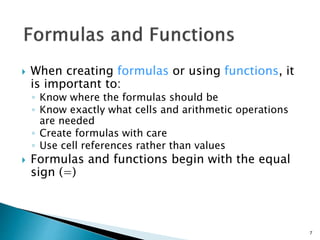
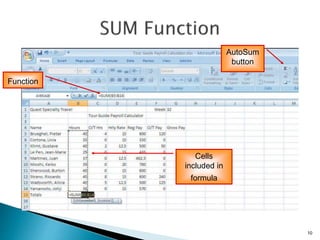
 When creating formulas or using functions, it
is important to:
◦ Know where the formulas should be
◦ Know exactly what cells and arithmetic operations
are needed
◦ Create formulas with care
◦ Use cell references rather than values
 Formulas and functions begin with the equal
sign (=)
7
8
9
 Operations inside parentheses are
calculated first
 Reference operators such as ranges are
calculated next
 Exponents are calculated next
 Multiplication and division are calculated
next (from left to right)
 Addition and subtraction are calculated
next (from left to right)
10
Cells
included in
formula
Function
AutoSum
button
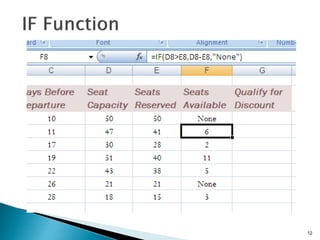
 Comparison operators compare values for the
purpose of true/false results
 If function format and arguments:
If(logical_test, value_if_true, value_if_false)
◦ Logical Test – what is being compared using
comparison operators
(>, <, =, <=, >=, <>)
◦ A different value, formula, or function can be
returned or performed when result is true or false.
11
12
13
 Use a relative cell reference when you
want to preserve the relationship to the
formula location
 When a formula is copied, the cell
reference changes to preserve the
relationship of the formula to the
referenced cells
14
 Use an absolute cell reference when you want
to preserve the exact cell address in a formula
 Cell reference does not change when the
formula is copied to another location
 Created by placing a dollar sign ($) before
either the column letter and the row number
or both of a cell’s address
 Apply absolute cell reference before copying a
formula if you want one or more cell
references to remain unchanged in relation to
the formula
15
 A mixed cell reference combines both relative
and absolute cell referencing
◦ Example: When you copy a formula, you may want
to change the row reference but keep the column
reference
◦ Created using the [F4] function key
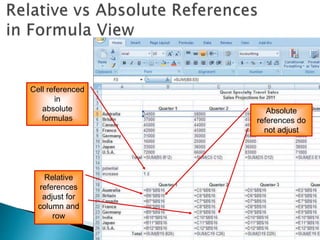
 Switch between displaying formulas and their
values on a worksheet by pressing
CTRL + ` (grave accent)
 Do NOT adjust or format columns in Formula
View
 See next slide for example
16
Cell referenced
in
absolute
formulas
Relative
references
adjust for
column and
row
Absolute
references do
not adjust
 After getting the numeric data in place,
it can be formatted for better
presentation.
 The format of a cell determines how the
labels and values look
◦ Bold, italic, dollar signs, commas, etc.
 Formatting does not change the data
only its appearance
17
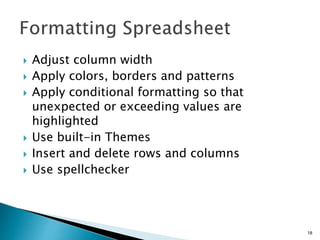
 Adjust column width
 Apply colors, borders and patterns
 Apply conditional formatting so that
unexpected or exceeding values are
highlighted
 Use built-in Themes
 Insert and delete rows and columns
 Use spellchecker
18
19
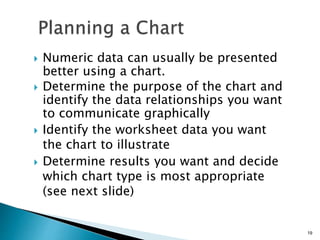
 Numeric data can usually be presented
better using a chart.
 Determine the purpose of the chart and
identify the data relationships you want
to communicate graphically
 Identify the worksheet data you want
the chart to illustrate
 Determine results you want and decide
which chart type is most appropriate
(see next slide)
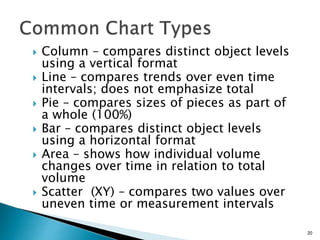
 Column – compares distinct object levels
using a vertical format
 Line – compares trends over even time
intervals; does not emphasize total
 Pie – compares sizes of pieces as part of
a whole (100%)
 Bar – compares distinct object levels
using a horizontal format
 Area – shows how individual volume
changes over time in relation to total
volume
 Scatter (XY) – compares two values over
uneven time or measurement intervals
20
21
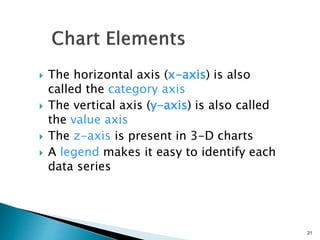
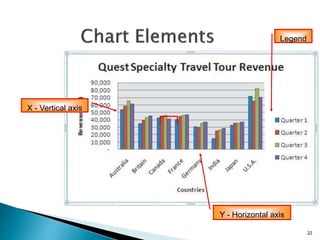
 The horizontal axis (x-axis) is also
called the category axis
 The vertical axis (y-axis) is also called
the value axis
 The z-axis is present in 3-D charts
 A legend makes it easy to identify each
data series
22
Y - Horizontal axis
X - Vertical axis
Legend
23
 Select a range of data
 Use buttons on the Insert tab of the
Ribbon to create and modify a chart
 In a pie chart, emphasize a data point by
exploding, or pulling that slice away
from the pie chart
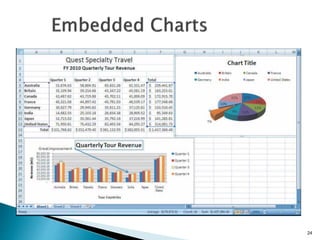
 An embedded chart is one that is
inserted directly in the current
worksheet
 A chart sheet is a sheet in a workbook
that contains only a chart, which is
linked to the workbook data
24

Excel_2007_Final.pptx

  • 1.
    Final Professional (Pharm-D) Compiled byJawad Ansari - PULC Course Instructor M. Jawad Aslam
  • 2.
     Review spreadsheetconcepts  Cell and cell contents  Labels and values  Functions, and formulas  Arithmetic and comparison operators  Cell reference types  Format cells and worksheets  Chart types 2
  • 3.
     An electronicspreadsheet program allows you to perform numeric calculations and to analyze and present numeric data  The spreadsheet is called a worksheet and the individual worksheets are stored in a workbook which is the Excel file  Sheet tabs located at the bottom let you switch from sheet to sheet in a workbook 3
  • 4.
     The intersectionof a row and a column is called a cell  Each cell has its own unique location called a cell address ◦ A cell address is identified by its column and row coordinates (ie: A1, C23, D15, etc.)  The Name box displays the active cell address  Contents of the active cell can be edited in the cell itself or in the formula bar  A selection of two or more cells such as B5:B14 is called a range 4
  • 5.
  • 6.
     Labels containtext and numerical information not used in calculations ◦ Labels help you identify data in worksheet rows and columns  Values are numbers, dates, formulas, and functions that can be used in calculations.  A function is a built-in or predefine formula that makes it easy to perform a complex calculation ◦ Most functions require arguments, which is the information necessary for the calculation ◦ Arguments are enclosed in parenthesis and are separated by commas. ◦ Max, Min, Sum, Average, etc.  Formulas are user defined equations 6
  • 7.
     When creatingformulas or using functions, it is important to: ◦ Know where the formulas should be ◦ Know exactly what cells and arithmetic operations are needed ◦ Create formulas with care ◦ Use cell references rather than values  Formulas and functions begin with the equal sign (=) 7
  • 8.
  • 9.
    9  Operations insideparentheses are calculated first  Reference operators such as ranges are calculated next  Exponents are calculated next  Multiplication and division are calculated next (from left to right)  Addition and subtraction are calculated next (from left to right)
  • 10.
  • 11.
     Comparison operatorscompare values for the purpose of true/false results  If function format and arguments: If(logical_test, value_if_true, value_if_false) ◦ Logical Test – what is being compared using comparison operators (>, <, =, <=, >=, <>) ◦ A different value, formula, or function can be returned or performed when result is true or false. 11
  • 12.
  • 13.
    13  Use arelative cell reference when you want to preserve the relationship to the formula location  When a formula is copied, the cell reference changes to preserve the relationship of the formula to the referenced cells
  • 14.
    14  Use anabsolute cell reference when you want to preserve the exact cell address in a formula  Cell reference does not change when the formula is copied to another location  Created by placing a dollar sign ($) before either the column letter and the row number or both of a cell’s address  Apply absolute cell reference before copying a formula if you want one or more cell references to remain unchanged in relation to the formula
  • 15.
    15  A mixedcell reference combines both relative and absolute cell referencing ◦ Example: When you copy a formula, you may want to change the row reference but keep the column reference ◦ Created using the [F4] function key  Switch between displaying formulas and their values on a worksheet by pressing CTRL + ` (grave accent)  Do NOT adjust or format columns in Formula View  See next slide for example
  • 16.
  • 17.
     After gettingthe numeric data in place, it can be formatted for better presentation.  The format of a cell determines how the labels and values look ◦ Bold, italic, dollar signs, commas, etc.  Formatting does not change the data only its appearance 17
  • 18.
     Adjust columnwidth  Apply colors, borders and patterns  Apply conditional formatting so that unexpected or exceeding values are highlighted  Use built-in Themes  Insert and delete rows and columns  Use spellchecker 18
  • 19.
    19  Numeric datacan usually be presented better using a chart.  Determine the purpose of the chart and identify the data relationships you want to communicate graphically  Identify the worksheet data you want the chart to illustrate  Determine results you want and decide which chart type is most appropriate (see next slide)
  • 20.
     Column –compares distinct object levels using a vertical format  Line – compares trends over even time intervals; does not emphasize total  Pie – compares sizes of pieces as part of a whole (100%)  Bar – compares distinct object levels using a horizontal format  Area – shows how individual volume changes over time in relation to total volume  Scatter (XY) – compares two values over uneven time or measurement intervals 20
  • 21.
    21  The horizontalaxis (x-axis) is also called the category axis  The vertical axis (y-axis) is also called the value axis  The z-axis is present in 3-D charts  A legend makes it easy to identify each data series
  • 22.
    22 Y - Horizontalaxis X - Vertical axis Legend
  • 23.
    23  Select arange of data  Use buttons on the Insert tab of the Ribbon to create and modify a chart  In a pie chart, emphasize a data point by exploding, or pulling that slice away from the pie chart  An embedded chart is one that is inserted directly in the current worksheet  A chart sheet is a sheet in a workbook that contains only a chart, which is linked to the workbook data
  • 24.