SPREADSHEET
FOR
GRADE IIIA
By AFRODISIUS MATHAYO
+255743233716
Introduction to Spreadsheets
MAIN COMPONENTS OF SPREADSHEET
•Labels
– Alphabetical text
•Values
– A number
•Formulas
– Statement that performs a calculation
•Functions
– Built-in formula that is a shortcut for common calculations
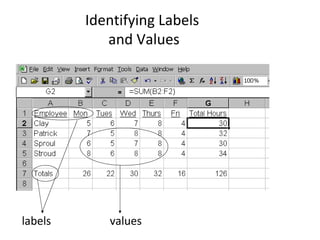
Identifying Labels, Values, formulas
and functions
labels values
What are Uses of Spreadsheets?
• Prepare budgets
–What is a budget?
–Why is it beneficial to have a budget?
• Maintain student grades
• Prepare financial statements
Uses of Spreadsheets continue …
• Analyze numbers
– What is the definition of analyze?
• Manage inventory
– What is inventory?
• Make forecasts
– What is forecasting
Advantages of using Spreadsheets
• Forecasting and making decisions
• Fast and efficient
• Spreadsheets Automatically recalculate with
formula’s
An Excel (Spreadsheet) window
Identifying the Parts of the SS Window
Active Cell
oCell is outlined in bold
oCell Address is in the upper left hand corner
Columns
oVertical portion of the spreadsheet
oIdentified by letters A, B or C
Rows
oHorizontal portion of the spreadsheet
oIdentified by numbers 1,2 or 3
Cell
oCreated by the intersection of a row and column
Parts of the Spreadsheet Window
Active cell
Column C
Row 5
cells
Look at your spreadsheet window as we go over the parts
Identifying Spreadsheet Parts
Column CRow 2
Cell A2 stands
for column A,
row 2.
Identifying Spreadsheet Parts
Whatever you type
in a cell, appears in
the formula bar.
To move from cell
to cell (across from
left to right), you
can use the TAB
button!
To move up and
down, just use your
arrow keys!
Entering Data into a Spreadsheet
• Labels
– Alphabetical text
• Values
– A number
• Formulas
– Statement that performs a calculation
• Functions
– Built-in formula that is a shortcut for common calculations
Identifying Labels
and Values
labels values
Identifying Formulas and Functions
formul
a
functio
n
The result of
the formula
The result of
the function
Identifying Parts of a Spreadsheet
Formula
=B2+C2+D2
equal sign—first part
of any spreadsheet
formula
mathematical
operators
cell reference/address
—made up of the
column heading and
the row number
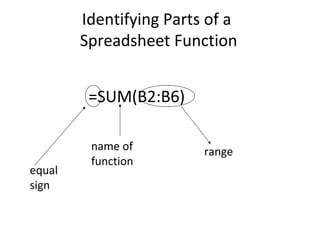
Identifying Parts of a
Spreadsheet Function
=SUM(B2:B6)
equal
sign
name of
function
range
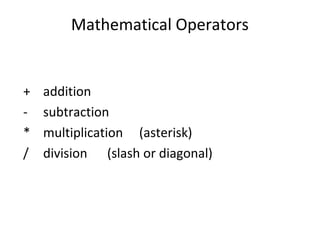
Mathematical Operators
+ addition
- subtraction
* multiplication (asterisk)
/ division (slash or diagonal)
Function Name Description
AVERAGE Average of arguments.
COUNT Counts the number of cells in a range.
IF Specifies a logical test to perform; then
performs one action if test result in true
and another if it is not true.
MAX Maximum value of range of cells.
MIN Minimum value of range of cells.
ROUND Rounds a number to a specified number
of digits.
SUM Totals a range of cells.
Spreadsheet Functions
Relative and Absolute Referencing
• Relative
– cells that change when they are copied into other
cells
• Absolute
– cells that do not change regardless of where it is
copied
Changing Column Width
1. Position cursor between column headings.
2. Make sure your cursor changes to cross-hairs.
3. Click and drag to the right.
Shortcut: double-click between the column
headings!
Changing Row Height
1. Position cursor between row headings.
2. Make sure your cursor changes to cross-hairs.
Shortcut: double-click between the row
headings
Using auto-fill handle
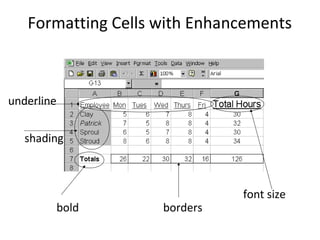
Formatting Cells with Enhancements
bold borders
font size
shading
underline
Numeric Formatting
general
currency
decimal
Graphing
• Bar graph
– used to compare the values of various items
• Line graph
– useful for plotting trends
• Area graph
– like a “filled in” line graph. Used to track changes over
time
• Pie graph
– used to represent the percentage each item contributes to
the total
Types of Charts/Graphs
• You can sort your data in a spreadsheet either
alphabetically or numerically. This is helpful when you
want to organize your information!
• To Sort Data:
– Choose the data that you want to sort and highlight
the columns/rows.
– Click Data from the Menu Bar and Click Sort from
the Data Menu.
– The Sort Box will ask you how you want to sort your
information. For example, do you want to sort
Column A in ascending order or descending order?
Sort a List of Data!
1. Open a new spreadsheet
in Microsoft Excel.
2. Format the data as
indicated so your
spreadsheet will look
like the one illustrated.
Practical Activity
Select the column
headings. Align center
and format in bold.
Change the font size to
12 point.
Select the
names of
the
countries.
Format in
italic.
Change Column Width!
• When you create a new spreadsheet to enter
data, you can easily adjust column widths to
display the data.
Click and drag
the column
boundary to
change the column
width so the cell
with the most data
fits.
• You can delete a row or a column to remove data you no
longer want in your spreadsheet. You can also add a row or
column to insert additional data.
• To Delete a Row or Column:
– Highlight the row(s) or column(s) that you want to
delete.
– Right click on your mouse and click delete. A box will ask
you if you want to shift the cells or delete the entire row
or column. Choose Entire Row or Column and click
Delete.
Insert and Delete Columns and Rows
Right click
on your
mouse and
click delete.
Choose
Entire
Column
from the
Delete
Box and
click Delete.

Exel

  • 1.
  • 2.
    Introduction to Spreadsheets MAINCOMPONENTS OF SPREADSHEET •Labels – Alphabetical text •Values – A number •Formulas – Statement that performs a calculation •Functions – Built-in formula that is a shortcut for common calculations
  • 3.
    Identifying Labels, Values,formulas and functions labels values
  • 4.
    What are Usesof Spreadsheets? • Prepare budgets –What is a budget? –Why is it beneficial to have a budget? • Maintain student grades • Prepare financial statements
  • 5.
    Uses of Spreadsheetscontinue … • Analyze numbers – What is the definition of analyze? • Manage inventory – What is inventory? • Make forecasts – What is forecasting
  • 6.
    Advantages of usingSpreadsheets • Forecasting and making decisions • Fast and efficient • Spreadsheets Automatically recalculate with formula’s
  • 7.
  • 8.
    Identifying the Partsof the SS Window Active Cell oCell is outlined in bold oCell Address is in the upper left hand corner Columns oVertical portion of the spreadsheet oIdentified by letters A, B or C Rows oHorizontal portion of the spreadsheet oIdentified by numbers 1,2 or 3 Cell oCreated by the intersection of a row and column
  • 9.
    Parts of theSpreadsheet Window Active cell Column C Row 5 cells Look at your spreadsheet window as we go over the parts
  • 10.
    Identifying Spreadsheet Parts ColumnCRow 2 Cell A2 stands for column A, row 2.
  • 11.
    Identifying Spreadsheet Parts Whateveryou type in a cell, appears in the formula bar. To move from cell to cell (across from left to right), you can use the TAB button! To move up and down, just use your arrow keys!
  • 12.
    Entering Data intoa Spreadsheet • Labels – Alphabetical text • Values – A number • Formulas – Statement that performs a calculation • Functions – Built-in formula that is a shortcut for common calculations
  • 13.
  • 14.
    Identifying Formulas andFunctions formul a functio n The result of the formula The result of the function
  • 15.
    Identifying Parts ofa Spreadsheet Formula =B2+C2+D2 equal sign—first part of any spreadsheet formula mathematical operators cell reference/address —made up of the column heading and the row number
  • 16.
    Identifying Parts ofa Spreadsheet Function =SUM(B2:B6) equal sign name of function range
  • 17.
    Mathematical Operators + addition -subtraction * multiplication (asterisk) / division (slash or diagonal)
  • 18.
    Function Name Description AVERAGEAverage of arguments. COUNT Counts the number of cells in a range. IF Specifies a logical test to perform; then performs one action if test result in true and another if it is not true. MAX Maximum value of range of cells. MIN Minimum value of range of cells. ROUND Rounds a number to a specified number of digits. SUM Totals a range of cells. Spreadsheet Functions
  • 19.
    Relative and AbsoluteReferencing • Relative – cells that change when they are copied into other cells • Absolute – cells that do not change regardless of where it is copied
  • 20.
    Changing Column Width 1.Position cursor between column headings. 2. Make sure your cursor changes to cross-hairs. 3. Click and drag to the right. Shortcut: double-click between the column headings!
  • 21.
    Changing Row Height 1.Position cursor between row headings. 2. Make sure your cursor changes to cross-hairs. Shortcut: double-click between the row headings
  • 22.
  • 23.
    Formatting Cells withEnhancements bold borders font size shading underline
  • 24.
  • 25.
    Graphing • Bar graph –used to compare the values of various items • Line graph – useful for plotting trends • Area graph – like a “filled in” line graph. Used to track changes over time • Pie graph – used to represent the percentage each item contributes to the total
  • 26.
  • 27.
    • You cansort your data in a spreadsheet either alphabetically or numerically. This is helpful when you want to organize your information! • To Sort Data: – Choose the data that you want to sort and highlight the columns/rows. – Click Data from the Menu Bar and Click Sort from the Data Menu. – The Sort Box will ask you how you want to sort your information. For example, do you want to sort Column A in ascending order or descending order? Sort a List of Data!
  • 28.
    1. Open anew spreadsheet in Microsoft Excel. 2. Format the data as indicated so your spreadsheet will look like the one illustrated. Practical Activity Select the column headings. Align center and format in bold. Change the font size to 12 point. Select the names of the countries. Format in italic.
  • 29.
    Change Column Width! •When you create a new spreadsheet to enter data, you can easily adjust column widths to display the data. Click and drag the column boundary to change the column width so the cell with the most data fits.
  • 30.
    • You candelete a row or a column to remove data you no longer want in your spreadsheet. You can also add a row or column to insert additional data. • To Delete a Row or Column: – Highlight the row(s) or column(s) that you want to delete. – Right click on your mouse and click delete. A box will ask you if you want to shift the cells or delete the entire row or column. Choose Entire Row or Column and click Delete. Insert and Delete Columns and Rows
  • 31.
    Right click on your mouseand click delete. Choose Entire Column from the Delete Box and click Delete.