MS WORDMELVIN MOSOLINI ARIAS │ PATRONAGE OF MARY DEVELOPMENT SCHOOL
LESSON OBJECTIVES
At the end of this session, 85% percent of my
students should be able to:
Use some advanced
capabilities of Microsoft Word
commonly used to increase
productivity and efficiency.
LESSON OBJECTIVES
At the end of this session, 85% percent of my
students should be able to:
Effectively used these features
to help improve the productivity
of an organization through
maximizing the potential of
Microsoft Word.
LESSON OBJECTIVES
At the end of this session, 85% percent of my
students should be able to:
Create form letters or
documents for distribution
to various recipients.
WORD PROCESSOR
Electronic device or
computer software
application that performs
the task of composing,
editing, formatting, and
printing of documents.
EXAMPLES OF
WORD PROCESSOR
OPENOFFICEWRITER
LIBREOFFICEWRITER
POLARISWRITER
KINGSOFTWRITER
WORDPERFECT
WORDPAD
MICROSOFTWORD (MSWORD)
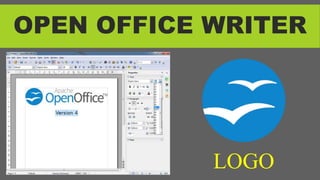
OPEN OFFICE WRITER
LOGO
OPEN OFFICE WRITER
LOGO
POLARIS OFFICE
LOGO
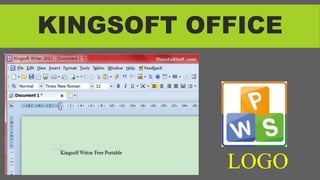
KINGSOFT OFFICE
LOGO
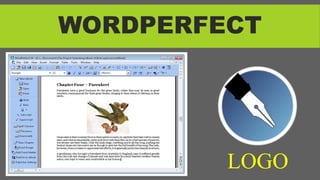
WORDPERFECT
LOGO
WORDPAD
LOGO
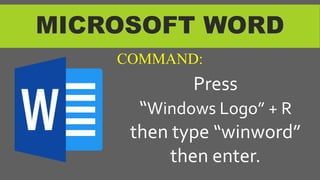
MICROSOFT WORD
Press
“Windows Logo” + R
then type “winword”
then enter.
COMMAND:
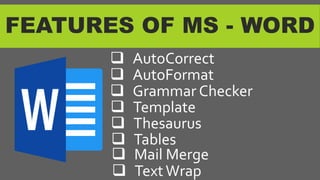
FEATURES OF MS - WORD
 AutoCorrect
 AutoFormat
 Grammar Checker
 Template
 Thesaurus
 Tables
 Mail Merge
 TextWrap
KEYBOARD SHORTCUTS
 Ctrl + F – Display Find Dialog Box
 Ctrl + G – Display GoTo Dialog Box
 Ctrl + H – Display Replace Dialog
Box
 Ctrl + I - ItalicizeText
 Ctrl + J – Justify Text
 Ctrl + K – Create a hyperlink
KEYBOARD SHORTCUTS
 Ctrl + L – AlignText to Left
 Ctrl + M –Tab (Indention)
 Ctrl + N – Create a new document
 Ctrl + O – Open a document
 Ctrl + P – Display Print dialog box
 Ctrl + R – AlignText to Right
 Ctrl + S – Save a document
KEYBOARD SHORTCUTS
 Ctrl + U – UnderlineText
 Ctrl +V – Paste a copied text
 Ctrl +Y – Redo the last undone
action
 Ctrl + Z – Undo the last action
 Ctrl + C – CopyText/ Image
TEXT ALIGNMENT
 Align LEFT
 Align RIGHT
 Align ENTER
 JUSTIFIED
UNIVERSAL PAGE SIZES
 Letter (Short) – 8.5’’ by 11’’
 Long (Folio) – 8.5’’ by 13’’
 A4 – 8.27’’ by 11.69’’
PAGE ORIENTATION
___________________
_______________________
_______________________
_______________________
_______________________
_______________________
_______________________
_______________________
_______________________
_______________________
_______________________
_______________________
____________________________________
________________________________________
________________________________________
________________________________________
________________________________________
________________________________________
________________________________________
PORTRAIT
LANDSCAPE
IMAGE PLACEMENT
 IN LINE WITHTHETEST
 SQUARE
 TIGHT
 THROUGH
 TOP AND BOTTOM
 BEHINDTEXT
 IN FRONT OFTHETEXT
LESSON DISCUSSION
In the professional
world, sending out
information to convey
important
information is vital.
LESSON DISCUSSION
Because of ICT, things
are now sent much
faster than the
traditional newsletters
or postal mail.
LESSON DISCUSSION
You can now use the
Internet to send
out information you
need to share.
RECAPITULATION
The Ribbon Tabs are the access or control portions in
order for a ribbon to be activated or displayed.
(Ribbon) Tabs
THE HOME RIBBON
This ribbon contains the most commonly
used commands in MS Word.
THE HOME RIBBON
CLIPBOARD FONT PARAGRAPH STYLES
THE INSERT RIBBON
This ribbon contains the commands normally
needed to insert text, illustrations, symbols,
etc., into a document.
THE INSERT RIBBON
PAGES TABLES ILLUSTRATIONS LINKS
HEADER AND FOOTER TEXT SYMBOLS
THE PAGE LAYOUT RIBBON
This ribbon contains the commands
related to the layout and appearance of
the page or pages in the document.
THE PAGE LAYOUT RIBBON
THEMES PAGE SET - UP PAGE BACKGROUND
PARAGRAPH ARRANGE
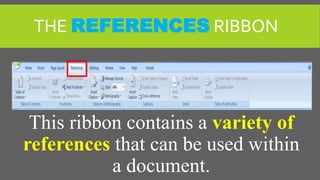
THE REFERENCES RIBBON
This ribbon contains a variety of
references that can be used within
a document.
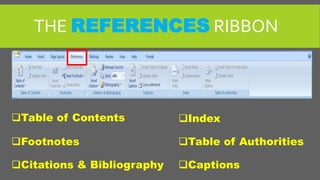
THE REFERENCES RIBBON
Table of Contents
Footnotes
Citations & Bibliography Captions
Index
Table of Authorities
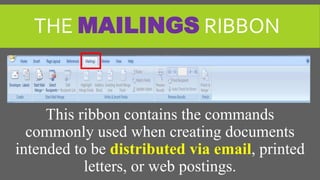
THE MAILINGS RIBBON
This ribbon contains the commands
commonly used when creating documents
intended to be distributed via email, printed
letters, or web postings.
THE MAILINGS RIBBON
 Create
 Start Mail Merge
 Write & Insert Fields
 Preview Results
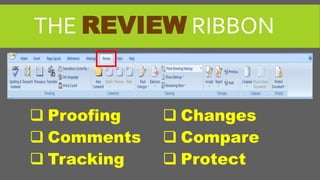
THE REVIEW RIBBON
This ribbon contains the commands
needed to review and revise an
existing document.
THE REVIEW RIBBON
 Proofing
 Comments
 Tracking
 Changes
 Compare
 Protect
THE VIEW RIBBON
This ribbon contains settings that
affect how the document appears on
the screen.
THE VIEW RIBBON
Document Views
Show/Hide
Zoom
Window
Macros
THANK YOU
EMPOWERMENT TECHNOLOGIES

EMPOWERMENT TECHNOLOGIES - LESSON 3