ESSENTIAL MOBILE APPS:
FORMATIVE ASSESSMENT AND
SURVEYS

10 NOVEMBER 2012
HCT WOMEN‟S COLLEGE, FUJAIRAH


                         Donald Glass
                         Academic Bridge Program
                         Zayed University – Abu Dhabi
                         glassde2@gmail.com
                         Twitter: @ZUdon
ESSENTIAL MOBILE APPS:
FORMATIVE ASSESSMENT AND
SURVEYS
 Introduction
 Nearpod Demonstration
 How to create a Nearpod
 Other Features of Nearpod
 Socrative Demonstration
 How to create a Socrative
 Nearpod v. Socrative
 Quiz
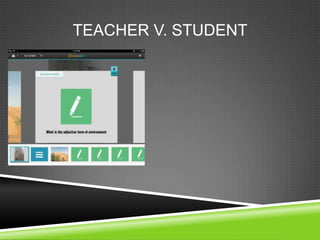
TEACHER V. STUDENT
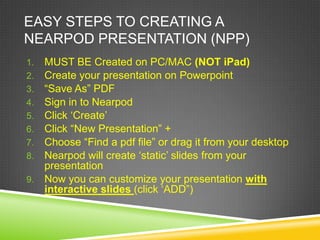
EASY STEPS TO CREATING A
NEARPOD PRESENTATION (NPP)
1. MUST BE Created on PC/MAC (NOT iPad)
2. Create your presentation on Powerpoint
3. “Save As” PDF
4. Sign in to Nearpod
5. Click „Create‟
6. Click “New Presentation” +
7. Choose “Find a pdf file” or drag it from your desktop
8. Nearpod will create „static‟ slides from your
   presentation
9. Now you can customize your presentation with
   interactive slides (click „ADD”)
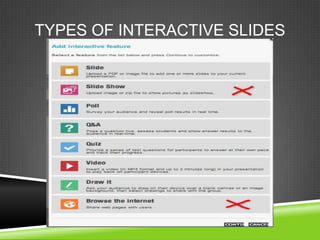
TYPES OF INTERACTIVE SLIDES
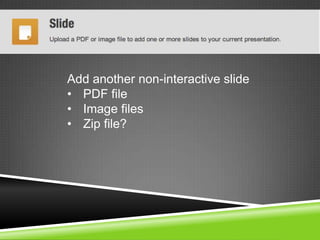
Add another non-interactive slide
• PDF file
• Image files
• Zip file?
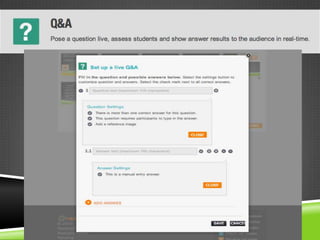
Poll Creation
Window
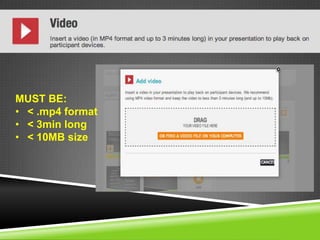
MUST BE:
• < .mp4 format
• < 3min long
• < 10MB size
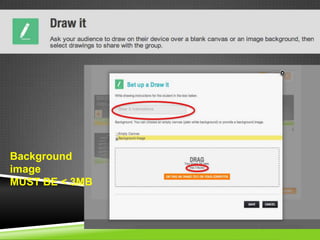
Background
image
MUST BE < 3MB
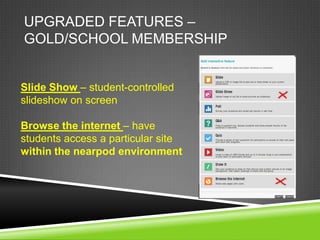
UPGRADED FEATURES –
GOLD/SCHOOL MEMBERSHIP


Slide Show – student-controlled
slideshow on screen

Browse the internet – have
students access a particular site
within the nearpod environment
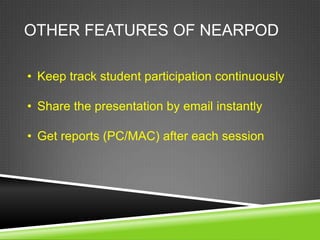
OTHER FEATURES OF NEARPOD

• Keep track student participation continuously

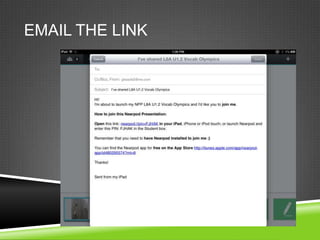
• Share the presentation by email instantly

• Get reports (PC/MAC) after each session
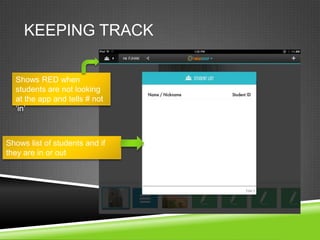
KEEPING TRACK

  Shows RED when
  students are not looking
  at the app and tells # not
  „in‟


Shows list of students and if
they are in or out
EMAIL THE LINK
GET REPORTS ON YOUR PC/MAC
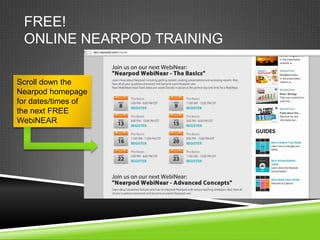
FREE!
 ONLINE NEARPOD TRAINING

Scroll down the
Nearpod homepage
for dates/times of
the next FREE
WebiNEAR
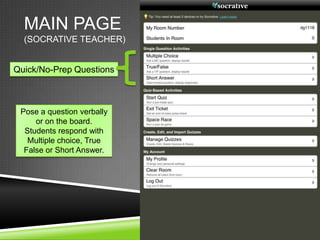
MAIN PAGE
  (SOCRATIVE TEACHER)


Quick/No-Prep Questions


 Pose a question verbally
     or on the board.
  Students respond with
   Multiple choice, True
  False or Short Answer.
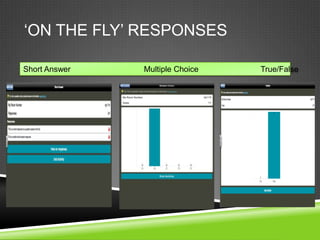
„ON THE FLY‟ RESPONSES

Short Answer   Multiple Choice   True/False
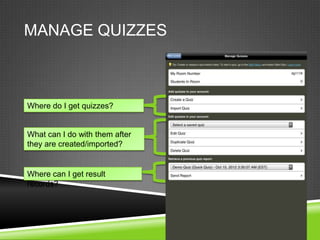
MANAGE QUIZZES


Where do I get quizzes?


What can I do with them after
they are created/imported?


Where can I get result
records?
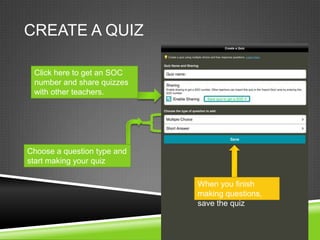
CREATE A QUIZ

 Click here to get an SOC
 number and share quizzes
 with other teachers.


Choose a question type and
start making your quiz

                             When you finish
                             making questions,
                             save the quiz
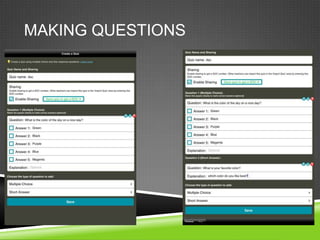
MAKING QUESTIONS
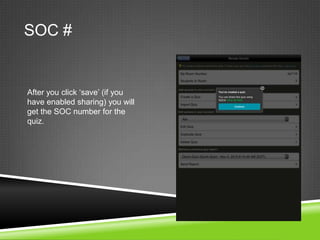
SOC #


After you click „save‟ (if you
have enabled sharing) you will
get the SOC number for the
quiz.
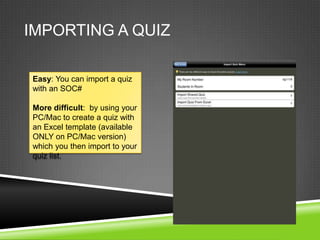
IMPORTING A QUIZ

Easy: You can import a quiz
with an SOC#

More difficult: by using your
PC/Mac to create a quiz with
an Excel template (available
ONLY on PC/Mac version)
which you then import to your
quiz list.
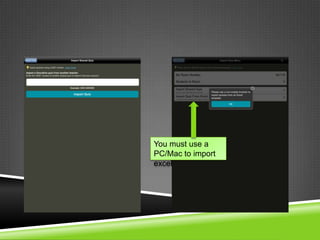
You must use a
PC/Mac to import
excel
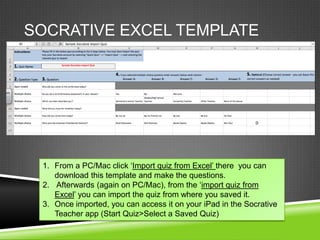
SOCRATIVE EXCEL TEMPLATE


 1. From a PC/Mac click „Import quiz from Excel‟ there you can
    download this template and make the questions.
 2. Afterwards (again on PC/Mac), from the „import quiz from
    Excel‟ you can import the quiz from where you saved it.
 3. Once imported, you can access it on your iPad in the Socrative
    Teacher app (Start Quiz>Select a Saved Quiz)
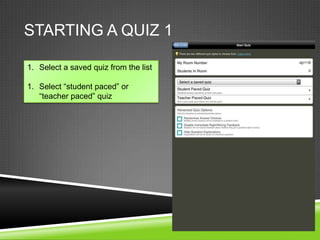
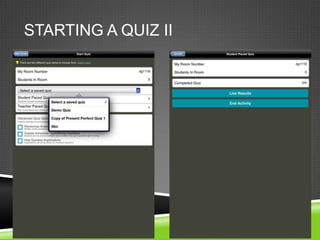
STARTING A QUIZ 1

1. Select a saved quiz from the list

1. Select “student paced” or
   “teacher paced” quiz
STARTING A QUIZ II
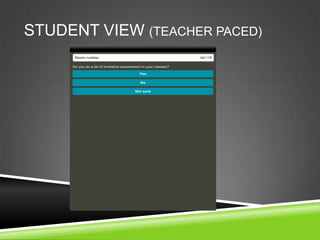
STUDENT VIEW (TEACHER PACED)
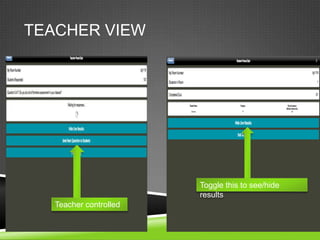
TEACHER VIEW


                        Toggle this to see/hide
                        results
   Teacher controlled
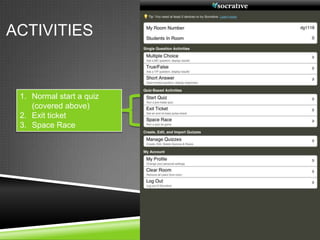
ACTIVITIES


 1. Normal start a quiz
    (covered above)
 2. Exit ticket
 3. Space Race
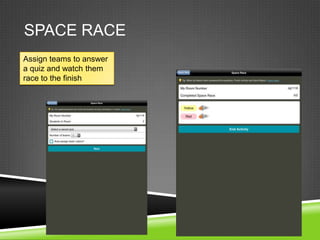
SPACE RACE
Assign teams to answer
a quiz and watch them
race to the finish
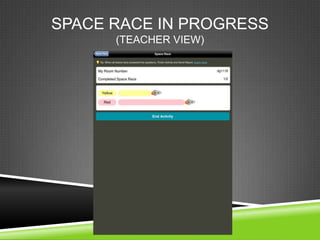
SPACE RACE IN PROGRESS
      (TEACHER VIEW)
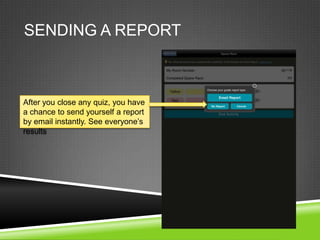
SENDING A REPORT


After you close any quiz, you have
a chance to send yourself a report
by email instantly. See everyone‟s
results
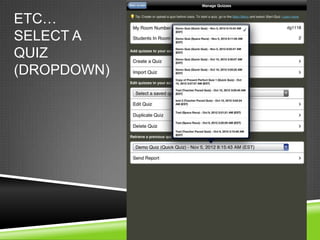
ETC….
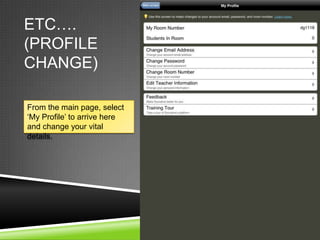
(PROFILE
CHANGE)

From the main page, select
„My Profile‟ to arrive here
and change your vital
details.
ETC…
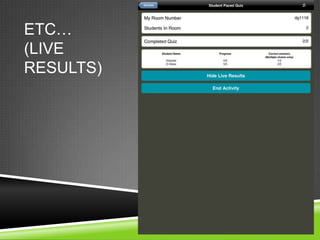
(LIVE
RESULTS)
ETC…
SELECT A
QUIZ
(DROPDOWN)
ETC…
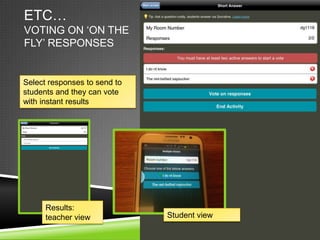
VOTING ON „ON THE
FLY‟ RESPONSES


Select responses to send to
students and they can vote
with instant results


      Results:
      teacher view            Student view
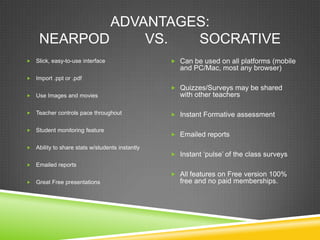
ADVANTAGES:
     NEARPOD     VS.  SOCRATIVE
   Slick, easy-to-use interface                   Can be used on all platforms (mobile
                                                     and PC/Mac, most any browser)
   Import .ppt or .pdf
                                                   Quizzes/Surveys may be shared
   Use Images and movies                            with other teachers

   Teacher controls pace throughout               Instant Formative assessment

   Student monitoring feature
                                                   Emailed reports

   Ability to share stats w/students instantly
                                                   Instant „pulse‟ of the class surveys
   Emailed reports
                                                   All features on Free version 100%
   Great Free presentations                         free and no paid memberships.
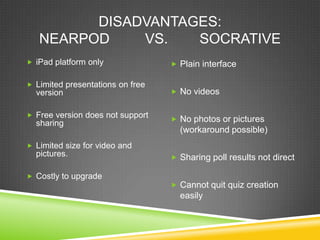
DISADVANTAGES:
   NEARPOD    VS.   SOCRATIVE
 iPad platform only               Plain interface

 Limited presentations on free
  version                          No videos


 Free version does not support
                                   No photos or pictures
  sharing
                                    (workaround possible)
 Limited size for video and
  pictures.                        Sharing poll results not direct

 Costly to upgrade
                                   Cannot quit quiz creation
                                    easily
HOW CAN I LEARN MORE ABOUT
NEARPOD AND SOCRATIVE

   Nearpod.com

   Socrative.com
FINAL QUIZ - NEARPOD
EXIT TICKET - SOCRATIVE


Exit Ticket Problem:
Which of the two essential mobile tools
do you think you are most likely to use?
THANK YOU FOR YOUR TIME AND
 ATTENTION
 REFERENCES AND LINKS

Unitag – Custom QR Code Creator – www.unitaglive.com
Nearpod Website – www.nearpod.com
Socrative Website – www.socrative.com
Socrative Blog (with how to vids/printables) –
http://socrativegarden.wordpress.com/
Screenshots via “Snip” app for Mac

Formative Assessment and Surveys

  • 1.
    ESSENTIAL MOBILE APPS: FORMATIVEASSESSMENT AND SURVEYS 10 NOVEMBER 2012 HCT WOMEN‟S COLLEGE, FUJAIRAH Donald Glass Academic Bridge Program Zayed University – Abu Dhabi glassde2@gmail.com Twitter: @ZUdon
  • 2.
    ESSENTIAL MOBILE APPS: FORMATIVEASSESSMENT AND SURVEYS  Introduction  Nearpod Demonstration  How to create a Nearpod  Other Features of Nearpod  Socrative Demonstration  How to create a Socrative  Nearpod v. Socrative  Quiz
  • 3.
  • 4.
    EASY STEPS TOCREATING A NEARPOD PRESENTATION (NPP) 1. MUST BE Created on PC/MAC (NOT iPad) 2. Create your presentation on Powerpoint 3. “Save As” PDF 4. Sign in to Nearpod 5. Click „Create‟ 6. Click “New Presentation” + 7. Choose “Find a pdf file” or drag it from your desktop 8. Nearpod will create „static‟ slides from your presentation 9. Now you can customize your presentation with interactive slides (click „ADD”)
  • 5.
  • 6.
    Add another non-interactiveslide • PDF file • Image files • Zip file?
  • 7.
  • 10.
    MUST BE: • <.mp4 format • < 3min long • < 10MB size
  • 11.
  • 12.
    UPGRADED FEATURES – GOLD/SCHOOLMEMBERSHIP Slide Show – student-controlled slideshow on screen Browse the internet – have students access a particular site within the nearpod environment
  • 13.
    OTHER FEATURES OFNEARPOD • Keep track student participation continuously • Share the presentation by email instantly • Get reports (PC/MAC) after each session
  • 14.
    KEEPING TRACK Shows RED when students are not looking at the app and tells # not „in‟ Shows list of students and if they are in or out
  • 15.
  • 16.
    GET REPORTS ONYOUR PC/MAC
  • 17.
    FREE! ONLINE NEARPODTRAINING Scroll down the Nearpod homepage for dates/times of the next FREE WebiNEAR
  • 19.
    MAIN PAGE (SOCRATIVE TEACHER) Quick/No-Prep Questions Pose a question verbally or on the board. Students respond with Multiple choice, True False or Short Answer.
  • 20.
    „ON THE FLY‟RESPONSES Short Answer Multiple Choice True/False
  • 22.
    MANAGE QUIZZES Where doI get quizzes? What can I do with them after they are created/imported? Where can I get result records?
  • 23.
    CREATE A QUIZ Click here to get an SOC number and share quizzes with other teachers. Choose a question type and start making your quiz When you finish making questions, save the quiz
  • 24.
  • 25.
    SOC # After youclick „save‟ (if you have enabled sharing) you will get the SOC number for the quiz.
  • 26.
    IMPORTING A QUIZ Easy:You can import a quiz with an SOC# More difficult: by using your PC/Mac to create a quiz with an Excel template (available ONLY on PC/Mac version) which you then import to your quiz list.
  • 27.
    You must usea PC/Mac to import excel
  • 28.
    SOCRATIVE EXCEL TEMPLATE 1. From a PC/Mac click „Import quiz from Excel‟ there you can download this template and make the questions. 2. Afterwards (again on PC/Mac), from the „import quiz from Excel‟ you can import the quiz from where you saved it. 3. Once imported, you can access it on your iPad in the Socrative Teacher app (Start Quiz>Select a Saved Quiz)
  • 29.
    STARTING A QUIZ1 1. Select a saved quiz from the list 1. Select “student paced” or “teacher paced” quiz
  • 30.
  • 31.
  • 32.
    TEACHER VIEW Toggle this to see/hide results Teacher controlled
  • 33.
    ACTIVITIES 1. Normalstart a quiz (covered above) 2. Exit ticket 3. Space Race
  • 34.
    SPACE RACE Assign teamsto answer a quiz and watch them race to the finish
  • 35.
    SPACE RACE INPROGRESS (TEACHER VIEW)
  • 36.
    SENDING A REPORT Afteryou close any quiz, you have a chance to send yourself a report by email instantly. See everyone‟s results
  • 37.
    ETC…. (PROFILE CHANGE) From the mainpage, select „My Profile‟ to arrive here and change your vital details.
  • 38.
  • 39.
  • 40.
    ETC… VOTING ON „ONTHE FLY‟ RESPONSES Select responses to send to students and they can vote with instant results Results: teacher view Student view
  • 41.
    ADVANTAGES: NEARPOD VS. SOCRATIVE  Slick, easy-to-use interface  Can be used on all platforms (mobile and PC/Mac, most any browser)  Import .ppt or .pdf  Quizzes/Surveys may be shared  Use Images and movies with other teachers  Teacher controls pace throughout  Instant Formative assessment  Student monitoring feature  Emailed reports  Ability to share stats w/students instantly  Instant „pulse‟ of the class surveys  Emailed reports  All features on Free version 100%  Great Free presentations free and no paid memberships.
  • 42.
    DISADVANTAGES: NEARPOD VS. SOCRATIVE  iPad platform only  Plain interface  Limited presentations on free version  No videos  Free version does not support  No photos or pictures sharing (workaround possible)  Limited size for video and pictures.  Sharing poll results not direct  Costly to upgrade  Cannot quit quiz creation easily
  • 43.
    HOW CAN ILEARN MORE ABOUT NEARPOD AND SOCRATIVE Nearpod.com Socrative.com
  • 44.
    FINAL QUIZ -NEARPOD
  • 45.
    EXIT TICKET -SOCRATIVE
  • 46.
    EXIT TICKET -SOCRATIVE Exit Ticket Problem: Which of the two essential mobile tools do you think you are most likely to use?
  • 47.
    THANK YOU FORYOUR TIME AND ATTENTION REFERENCES AND LINKS Unitag – Custom QR Code Creator – www.unitaglive.com Nearpod Website – www.nearpod.com Socrative Website – www.socrative.com Socrative Blog (with how to vids/printables) – http://socrativegarden.wordpress.com/ Screenshots via “Snip” app for Mac

Editor's Notes

  • #44 Nearpod’s website features demonstration presentations and videos, ‘how to’ videos and information on free ‘webiNEARs’ available at certain times.Socratives’s website features simple, no nonsense descriptions of how the app works and additional support is available through the socrative blog where you will find how to printables and video tutorials along with loads of ideas to get you started