Ten Bright Ideas to Make your Brightspace
Courses More Accessible to Students
with Disabilities
Jim Clink, Implementation Consultant
Original Presentation by Barry Dahl, Sr. Community Manager
Source of the Ten Bright Ideas
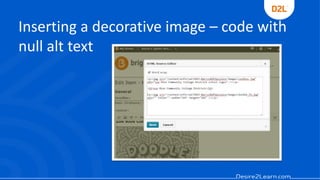
1. Use Null Alt Text for Decorative Images
in HTML Pages.
• Alt=""
• Example code:
<img src= "doodle.gif" width="20" alt="" />
• Assistive Technology will ignore an image with
null alt text.
• Note: Having a null alt text attribute is not the
same as having no alt text attribute.
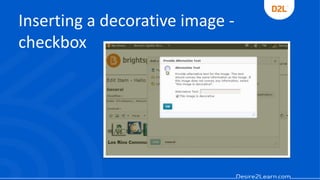
Inserting a decorative image -
checkbox
Inserting a decorative image – code with
null alt text
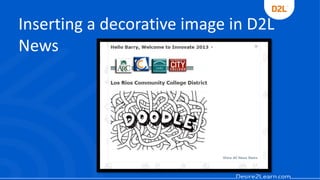
Inserting a decorative image in D2L
News
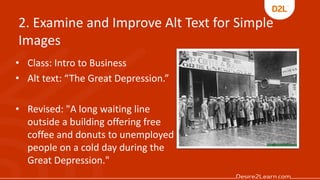
2. Examine and Improve Alt Text for Simple
Images
• Class: Intro to Business
• Alt text: “The Great Depression.”
• Revised: "A long waiting line
outside a building offering free
coffee and donuts to unemployed
people on a cold day during the
Great Depression."
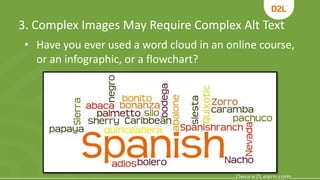
3. Complex Images May Require Complex Alt Text
• Have you ever used a word cloud in an online course,
or an infographic, or a flowchart?
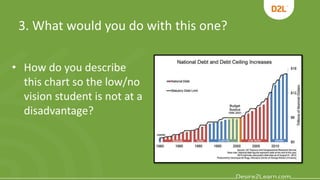
3. What would you do with this one?
• How do you describe
this chart so the low/no
vision student is not at a
disadvantage?
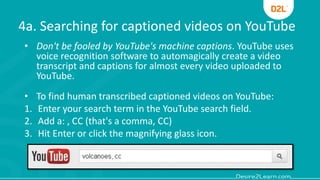
4a. Searching for captioned videos on YouTube
• Don't be fooled by YouTube's machine captions. YouTube uses
voice recognition software to automagically create a video
transcript and captions for almost every video uploaded to
YouTube.
• To find human transcribed captioned videos on YouTube:
1. Enter your search term in the YouTube search field.
2. Add a: , CC (that's a comma, CC)
3. Hit Enter or click the magnifying glass icon.
4b. Searching for captioned videos on Google
Advanced Video Search over the entire Web.
1. Fill out the Advanced Video Search fields that you
need.
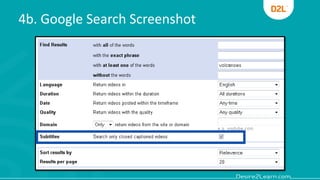
2. Choose the subtitles > closed captioned only
3. Hit Enter or click the Advanced Search button.
4b. Google Search Screenshot
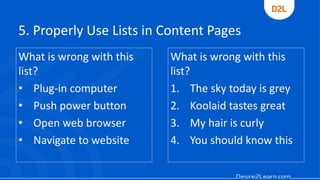
5. Properly Use Lists in Content Pages
What is wrong with this
list?
• Plug-in computer
• Push power button
• Open web browser
• Navigate to website
What is wrong with this
list?
1. The sky today is grey
2. Koolaid tastes great
3. My hair is curly
4. You should know this
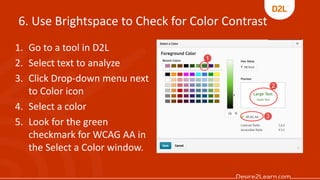
6. Use Brightspace to Check for Color Contrast
1. Go to a tool in D2L
2. Select text to analyze
3. Click Drop-down menu next
to Color icon
4. Select a color
5. Look for the green
checkmark for WCAG AA in
the Select a Color window.
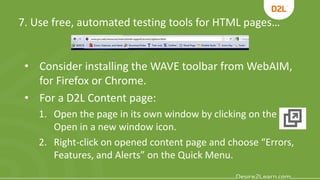
7. Use free, automated testing tools for HTML pages…
• Consider installing the WAVE toolbar from WebAIM,
for Firefox or Chrome.
• For a D2L Content page:
1. Open the page in its own window by clicking on the
Open in a new window icon.
2. Right-click on opened content page and choose “Errors,
Features, and Alerts” on the Quick Menu.
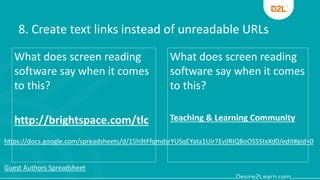
8. Create text links instead of unreadable URLs
What does screen reading
software say when it comes
to this?
http://brightspace.com/tlc
What does screen reading
software say when it comes
to this?
Teaching & Learning Community
https://docs.google.com/spreadsheets/d/15h9tFfqmdsrYUSqEYata1Uir7EvjlRIQBoOS5StxXd0/edit#gid=0
Guest Authors Spreadsheet
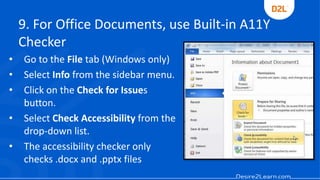
9. For Office Documents, use Built-in A11Y
Checker
• Go to the File tab (Windows only)
• Select Info from the sidebar menu.
• Click on the Check for Issues
button.
• Select Check Accessibility from the
drop-down list.
• The accessibility checker only
checks .docx and .pptx files
10. Consider the A11Y Features of External Tools
• Using external (usually web-based) tools is popular in
education.
• Is the tool built to allow users with disabilities to
create content?
• Is the output created by the tool web accessible?
• Do you have alternatives or work-arounds in place
for students who cannot participate?
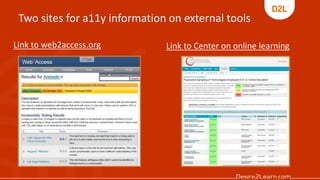
Two sites for a11y information on external tools
Link to web2access.org Link to Center on online learning
The End – but wait…
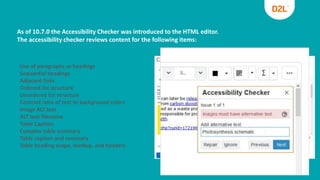
As of 10.7.0 the Accessibility Checker was introduced to the HTML editor.
The accessibility checker reviews content for the following items:
Use of paragraphs as headings
Sequential headings
Adjacent links
Ordered list structure
Unordered list structure
Contrast ratio of text to background colors
Image ALT text
ALT text filename
Table Caption
Complex table summary
Table caption and summary
Table heading scope, markup, and headers

Ten Bright Ideas for Improving Accessibility in Brightspace

  • 1.
    Ten Bright Ideasto Make your Brightspace Courses More Accessible to Students with Disabilities Jim Clink, Implementation Consultant Original Presentation by Barry Dahl, Sr. Community Manager
  • 2.
    Source of theTen Bright Ideas
  • 3.
    1. Use NullAlt Text for Decorative Images in HTML Pages. • Alt="" • Example code: <img src= "doodle.gif" width="20" alt="" /> • Assistive Technology will ignore an image with null alt text. • Note: Having a null alt text attribute is not the same as having no alt text attribute.
  • 4.
    Inserting a decorativeimage - checkbox
  • 5.
    Inserting a decorativeimage – code with null alt text
  • 6.
    Inserting a decorativeimage in D2L News
  • 7.
    2. Examine andImprove Alt Text for Simple Images • Class: Intro to Business • Alt text: “The Great Depression.” • Revised: "A long waiting line outside a building offering free coffee and donuts to unemployed people on a cold day during the Great Depression."
  • 8.
    3. Complex ImagesMay Require Complex Alt Text • Have you ever used a word cloud in an online course, or an infographic, or a flowchart?
  • 9.
    3. What wouldyou do with this one? • How do you describe this chart so the low/no vision student is not at a disadvantage?
  • 10.
    4a. Searching forcaptioned videos on YouTube • Don't be fooled by YouTube's machine captions. YouTube uses voice recognition software to automagically create a video transcript and captions for almost every video uploaded to YouTube. • To find human transcribed captioned videos on YouTube: 1. Enter your search term in the YouTube search field. 2. Add a: , CC (that's a comma, CC) 3. Hit Enter or click the magnifying glass icon.
  • 11.
    4b. Searching forcaptioned videos on Google Advanced Video Search over the entire Web. 1. Fill out the Advanced Video Search fields that you need. 2. Choose the subtitles > closed captioned only 3. Hit Enter or click the Advanced Search button.
  • 12.
  • 13.
    5. Properly UseLists in Content Pages What is wrong with this list? • Plug-in computer • Push power button • Open web browser • Navigate to website What is wrong with this list? 1. The sky today is grey 2. Koolaid tastes great 3. My hair is curly 4. You should know this
  • 14.
    6. Use Brightspaceto Check for Color Contrast 1. Go to a tool in D2L 2. Select text to analyze 3. Click Drop-down menu next to Color icon 4. Select a color 5. Look for the green checkmark for WCAG AA in the Select a Color window.
  • 15.
    7. Use free,automated testing tools for HTML pages… • Consider installing the WAVE toolbar from WebAIM, for Firefox or Chrome. • For a D2L Content page: 1. Open the page in its own window by clicking on the Open in a new window icon. 2. Right-click on opened content page and choose “Errors, Features, and Alerts” on the Quick Menu.
  • 16.
    8. Create textlinks instead of unreadable URLs What does screen reading software say when it comes to this? http://brightspace.com/tlc What does screen reading software say when it comes to this? Teaching & Learning Community https://docs.google.com/spreadsheets/d/15h9tFfqmdsrYUSqEYata1Uir7EvjlRIQBoOS5StxXd0/edit#gid=0 Guest Authors Spreadsheet
  • 17.
    9. For OfficeDocuments, use Built-in A11Y Checker • Go to the File tab (Windows only) • Select Info from the sidebar menu. • Click on the Check for Issues button. • Select Check Accessibility from the drop-down list. • The accessibility checker only checks .docx and .pptx files
  • 18.
    10. Consider theA11Y Features of External Tools • Using external (usually web-based) tools is popular in education. • Is the tool built to allow users with disabilities to create content? • Is the output created by the tool web accessible? • Do you have alternatives or work-arounds in place for students who cannot participate?
  • 19.
    Two sites fora11y information on external tools Link to web2access.org Link to Center on online learning
  • 20.
    The End –but wait…
  • 21.
    As of 10.7.0the Accessibility Checker was introduced to the HTML editor. The accessibility checker reviews content for the following items: Use of paragraphs as headings Sequential headings Adjacent links Ordered list structure Unordered list structure Contrast ratio of text to background colors Image ALT text ALT text filename Table Caption Complex table summary Table caption and summary Table heading scope, markup, and headers