
Data Analysis and Working on SPSS
Dr. Senthilvel Vasudevan, M.Sc., M.Phil., DST., PGDBS., Ph. D,
Lecturer in Pharmacy (Biostatistics),
Dept. of Pharmacy Practice,
College of Pharmacy,
KSAU-HS,
Riyadh, Saudi Arabia.
Research Methodology II (CAMS 412)
Lecture: 6
Date: 23/10/2016
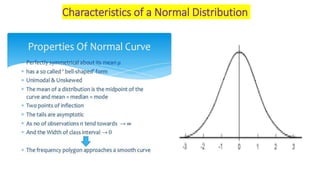
Characteristics of a Normal Distribution
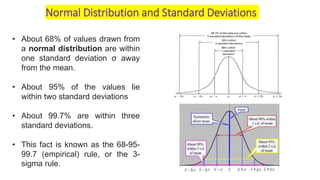
• About 68% of values drawn from
a normal distribution are within
one standard deviation σ away
from the mean.
• About 95% of the values lie
within two standard deviations
• About 99.7% are within three
standard deviations.
• This fact is known as the 68-95-
99.7 (empirical) rule, or the 3-
sigma rule.
Normal Distribution and Standard Deviations
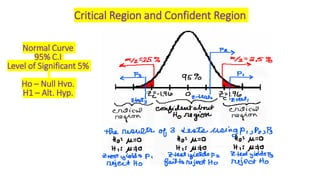
Critical Region and Confident Region
Normal Curve
95% C.I
Level of Significant 5%
Ho – Null Hyp.
H1 – Alt. Hyp.
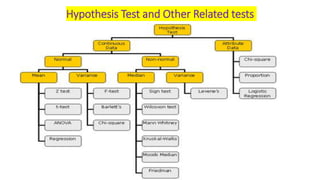
Hypothesis Test and Other Related tests
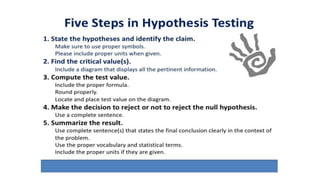
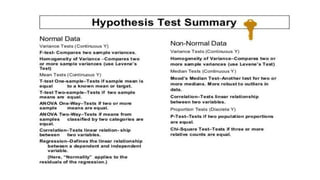
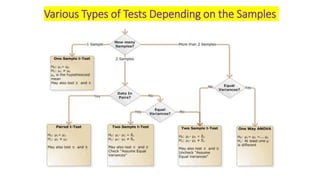
Various Types of Tests Depending on the Samples
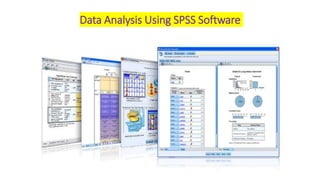
Data Analysis Using SPSS Software
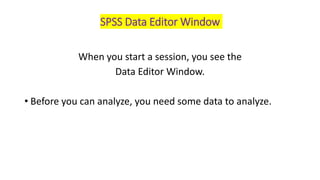
SPSS Data Editor Window
When you start a session, you see the
Data Editor Window.
• Before you can analyze, you need some data to analyze.
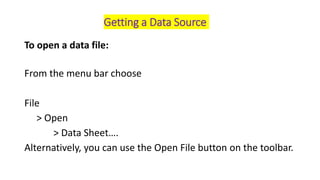
Getting a Data Source
To open a data file:
From the menu bar choose
File
> Open
> Data Sheet….
Alternatively, you can use the Open File button on the toolbar.
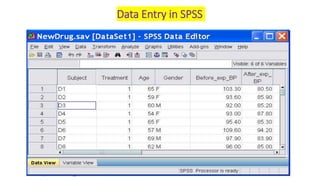
Data Entry in SPSS
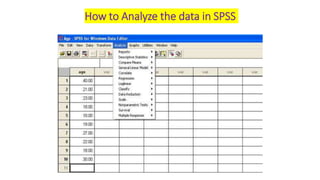
How to Analyze the data in SPSS
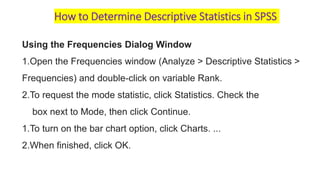
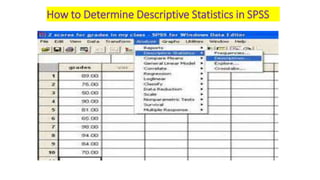
How to Determine Descriptive Statistics in SPSS
Using the Frequencies Dialog Window
1.Open the Frequencies window (Analyze > Descriptive Statistics >
Frequencies) and double-click on variable Rank.
2.To request the mode statistic, click Statistics. Check the
box next to Mode, then click Continue.
1.To turn on the bar chart option, click Charts. ...
2.When finished, click OK.
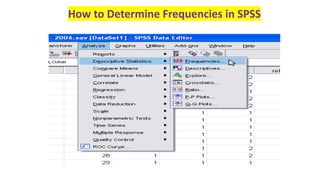
How to Determine Frequencies in SPSS
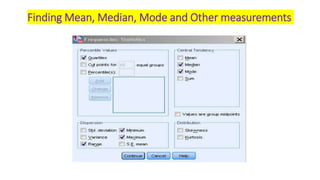
Finding Mean, Median, Mode and Other measurements
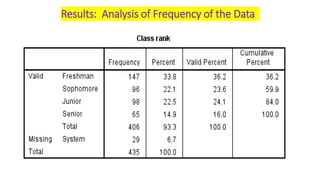
Results: Analysis of Frequency of the Data
How to Determine Descriptive Statistics in SPSS
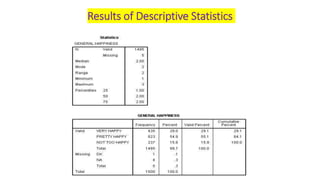
Results of Descriptive Statistics
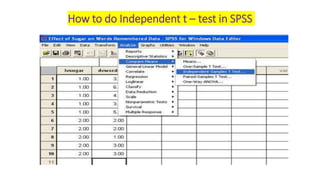
How to do Independent t – test in SPSS
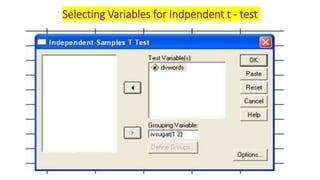
Selecting Variables for Indpendent t - test
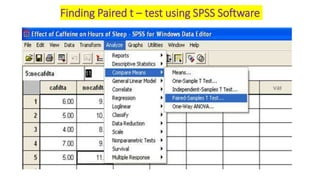
Finding Paired t – test using SPSS Software
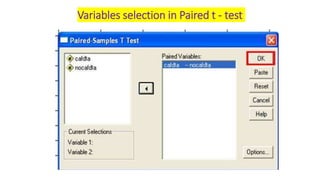
Variables selection in Paired t - test
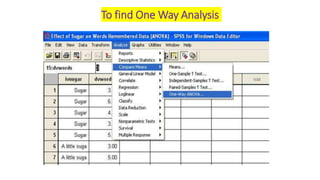
To find One Way Analysis
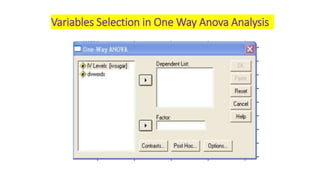
Variables Selection in One Way Anova Analysis
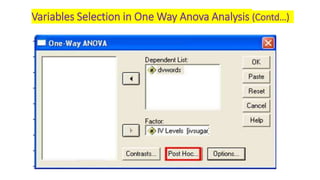
Variables Selection in One Way Anova Analysis (Contd…)
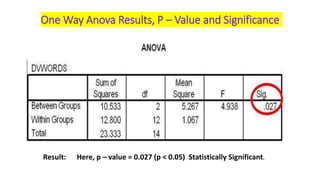
One Way Anova Results, P – Value and Significance
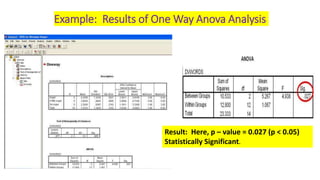
Result: Here, p – value = 0.027 (p < 0.05) Statistically Significant.
Example: Results of One Way Anova Analysis
Result: Here, p – value = 0.027 (p < 0.05)
Statistically Significant.
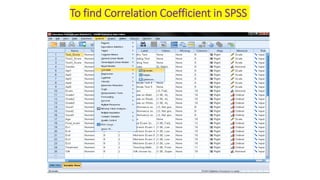
To find Correlation Coefficient in SPSS
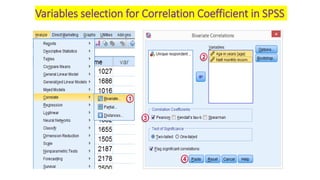
Variables selection for Correlation Coefficient in SPSS
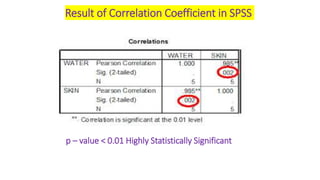
p – value < 0.01 Highly Statistically Significant
Result of Correlation Coefficient in SPSS
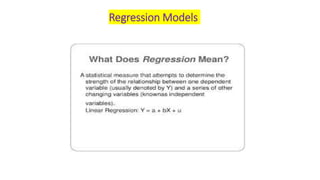
Regression Models
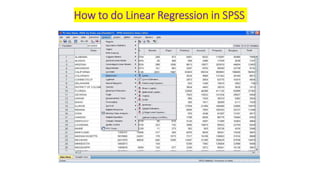
How to do Linear Regression in SPSS
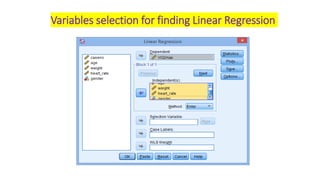
Variables selection for finding Linear Regression
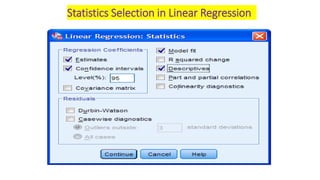
Statistics Selection in Linear Regression
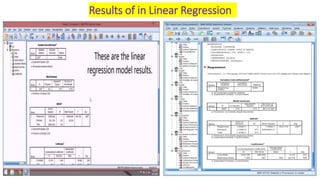
Results of in Linear Regression
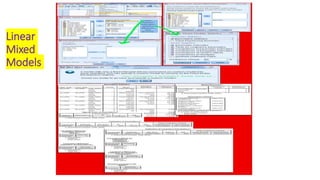
Linear
Mixed
Models
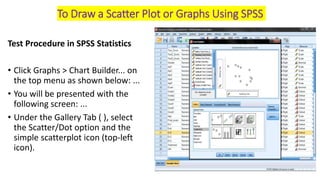
Test Procedure in SPSS Statistics
• Click Graphs > Chart Builder... on
the top menu as shown below: ...
• You will be presented with the
following screen: ...
• Under the Gallery Tab ( ), select
the Scatter/Dot option and the
simple scatterplot icon (top-left
icon).
To Draw a Scatter Plot or Graphs Using SPSS
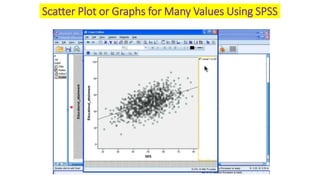
Scatter Plot or Graphs for Many Values Using SPSS
Thanks to all

Data analysis and working on spss

  • 1.
    Data Analysis andWorking on SPSS Dr. Senthilvel Vasudevan, M.Sc., M.Phil., DST., PGDBS., Ph. D, Lecturer in Pharmacy (Biostatistics), Dept. of Pharmacy Practice, College of Pharmacy, KSAU-HS, Riyadh, Saudi Arabia. Research Methodology II (CAMS 412) Lecture: 6 Date: 23/10/2016
  • 2.
    Characteristics of aNormal Distribution
  • 4.
    • About 68%of values drawn from a normal distribution are within one standard deviation σ away from the mean. • About 95% of the values lie within two standard deviations • About 99.7% are within three standard deviations. • This fact is known as the 68-95- 99.7 (empirical) rule, or the 3- sigma rule. Normal Distribution and Standard Deviations
  • 5.
    Critical Region andConfident Region Normal Curve 95% C.I Level of Significant 5% Ho – Null Hyp. H1 – Alt. Hyp.
  • 8.
    Hypothesis Test andOther Related tests
  • 9.
    Various Types ofTests Depending on the Samples
  • 10.
    Data Analysis UsingSPSS Software
  • 11.
    SPSS Data EditorWindow When you start a session, you see the Data Editor Window. • Before you can analyze, you need some data to analyze.
  • 12.
    Getting a DataSource To open a data file: From the menu bar choose File > Open > Data Sheet…. Alternatively, you can use the Open File button on the toolbar.
  • 13.
  • 14.
    How to Analyzethe data in SPSS
  • 15.
    How to DetermineDescriptive Statistics in SPSS Using the Frequencies Dialog Window 1.Open the Frequencies window (Analyze > Descriptive Statistics > Frequencies) and double-click on variable Rank. 2.To request the mode statistic, click Statistics. Check the box next to Mode, then click Continue. 1.To turn on the bar chart option, click Charts. ... 2.When finished, click OK.
  • 16.
    How to DetermineFrequencies in SPSS
  • 17.
    Finding Mean, Median,Mode and Other measurements
  • 18.
    Results: Analysis ofFrequency of the Data
  • 19.
    How to DetermineDescriptive Statistics in SPSS
  • 20.
  • 21.
    How to doIndependent t – test in SPSS
  • 22.
    Selecting Variables forIndpendent t - test
  • 23.
    Finding Paired t– test using SPSS Software
  • 24.
    Variables selection inPaired t - test
  • 25.
    To find OneWay Analysis
  • 26.
    Variables Selection inOne Way Anova Analysis
  • 27.
    Variables Selection inOne Way Anova Analysis (Contd…)
  • 28.
    One Way AnovaResults, P – Value and Significance Result: Here, p – value = 0.027 (p < 0.05) Statistically Significant.
  • 29.
    Example: Results ofOne Way Anova Analysis Result: Here, p – value = 0.027 (p < 0.05) Statistically Significant.
  • 30.
    To find CorrelationCoefficient in SPSS
  • 31.
    Variables selection forCorrelation Coefficient in SPSS
  • 32.
    p – value< 0.01 Highly Statistically Significant Result of Correlation Coefficient in SPSS
  • 33.
  • 34.
    How to doLinear Regression in SPSS
  • 35.
    Variables selection forfinding Linear Regression
  • 36.
    Statistics Selection inLinear Regression
  • 37.
    Results of inLinear Regression
  • 38.
  • 39.
    Test Procedure inSPSS Statistics • Click Graphs > Chart Builder... on the top menu as shown below: ... • You will be presented with the following screen: ... • Under the Gallery Tab ( ), select the Scatter/Dot option and the simple scatterplot icon (top-left icon). To Draw a Scatter Plot or Graphs Using SPSS
  • 40.
    Scatter Plot orGraphs for Many Values Using SPSS
  • 41.