Computer System and Hardware Components Chapter II IT 105 Prepared by:  [email_address]
A computer system consists of Hardware The physical equipment such as case, storage drives, keyboards, monitors, cables, speakers and printers. Software Includes the operating system and programs. The operating system instructs the computer how to operate. These operations may include identifying, accessing and processing information.
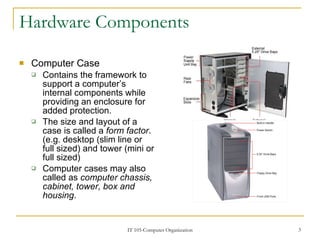
Hardware Components Computer Case Contains the framework to support a computer’s internal components while providing an enclosure for added protection. The size and layout of a case is called a  form factor . (e.g. desktop (slim line or full sized) and tower (mini or full sized) Computer cases may also called as  computer chassis, cabinet, tower, box and housing .
Computer Case Factors to consider when choosing a case: The size of the motherboard The number of external or internal drive locations, called  bays Available space When choosing a computer case, consider the ff: Model Type There are two main case models, for desktop PCs and for tower computers. The type of motherboard determines the type of case to be used. The size and shape must match exactly. Size If a computer has many components, it needs more room for airflow to keep the system cool. Available Space The design of the desktop case may limit the number and size of the components that can be added. Power Supply Match the power rating and connection type of the power supply to the type of motherboard. Appearance Some people don’t care how the case looks, others do.
Computer Case Status Display LED indicators that are mounted on the front of the case can tell you if the system is receiving power, when the hard drive is being used, and when the computer is on standby or sleeping. Vents All cases have a vent on the power supply, and some have another vent on the back to help draw air into or out of the system.
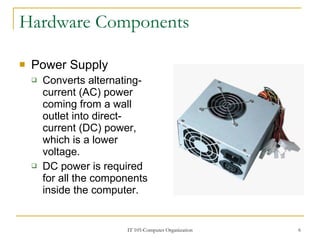
Hardware Components Power Supply Converts alternating-current (AC) power coming from a wall outlet into direct-current (DC) power, which is a lower voltage. DC power is required for all the components inside the computer.
Power Supply Form Factors AT ATX- more advanced features than AT ATXv12- add power support for the motherboard by adding another 4-pin power connector. Connectors Most connectors today are keyed connector. Keyed connectors are designed to be inserted in only one direction. Power Color Codes Yellow Blue Orange Blue Orange Red White Black
Power Supply Ground: Used to complete circuits with other voltages BLACK 0V ISA bus cards and early PROMS WHITE -5V Motherboard, Baby AT and earlier CPUs, and many motherboard components RED +5V Most newer CPUs, some types of system memory and AGP video slots ORANGE +3.3V Some types of serial port circuits and early Programmable Read Only Memory (PROM) BLUE -12V Disk drive motors, fans, cooling devices, and system bus slots YELLOW +12V ATXv12 Power Supply ATX Power Supply AT Power Supply Use Wire Color Voltage
Power Supply Different connectors: Molex connector A keyed connector used to connect to an optical drive or hard drive Berg connector A keyed connector used to connect to a floppy drive It is smaller than Molex 20-pin or 24-pin slotted connector It used to connect to the motherboard 24-pin has two rows of 12 pins each 20-pin has two rows of 10 pins each Four-pin-to-eight-pin auxiliary power connector It has two rows to four pins and supplies power to all areas of the motherboard.
Hardware Components Motherboards It is the main printed circuit boards. It contains the buses, or electrical pathways. These buses allow data to travel between the various components that comprise a computer. Also known as  system board, backplane, or main board
Motherboards Motherboard accommodates the CPU, RAM, expansion slots, heat sink/fan assembly, BIOS chip, chip set, and the embedded wires. Sockets, internal and external connectors and various ports are also placed on the mother board. Various form factors: AT- Advanced Technology ATX- Advanced Technology Extended Mini-ATX Micro ATX LPX- Low-Profile Extended NLX-  New Low-Profile Extended BTX- Balanced Technology Extended
Motherboards Chip Set Composed of various integrated circuits attached to the motherboard that control how system hardware interacts with the CPU and motherboard. It allows the CPU to communicate and interact with computer’s other components and to exchange data with system memory, hard disk drives, video cards and other output devices. It establishes how much memory can be added to motherboard. It also determines the type of connectors on the motherboard. Two distinct components Northbridge Controls the access to RAM, video card and the speed at which the CPU can communicate with them Southbridge Allows the CPU to communicate with the hard drives, sound card, USB ports and other I/O devices.
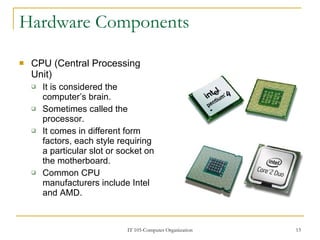
Hardware Components CPU (Central Processing Unit) It is considered the computer’s brain. Sometimes called the processor. It comes in different form factors, each style requiring a particular slot or socket on the motherboard. Common CPU manufacturers include Intel and AMD.
Central Processing Unit CPU socket or slot It is the connector that is the interface between the motherboard and the processor. PGA (pin grid array)- most CPU sockets and processors built today ZIF (zero insertion force)- the amount of force needed to install the CPU. Slot-based processors are cartridge-shaped and fit into a slot that looks similar to an expansion slot. Cache While the CPU is executing one step of the program, the remaining instructions and data are stored nearby in a special memory called  cache .
Central Processing Unit Two major CPU architectures RISC (reduced instruction set computer) Architectures use a relatively small set of instructions and RISC chips are designed to execute these instructions very rapidly. CISC (complex instruction set computer) Architectures use a broad set of instructions, resulting in fewer steps of operation. Hyperthreading The CPU has multiple pieces of code being executed simultaneously on each pipeline. A CPU’s speed is rated in cycles per second Speed (MHZ, GHz) The amount of data that a CPU can process at one time depends on the size of the processor bus (CPU bus or FSB (front-side bus)). The wider the processor data bus, the more powerful the processor. Current processors have a 32-bit or 64-bit processor data bus. Single-core CPU One core inside a single CPU chip that handles all the processing capability. Dual-core CPU Two cores inside a single CPU chip, in which both cores can process information at the same time
Hardware Components Cooling Systems Case Fan It is installed in the computer case to make the cooling process more efficient. CPU Fan A fan on top of the heat sink moves away the heat from the CPU.  Graphics Card Cooling System Fans are dedicated to cooling the graphics-processing unit (GPU).
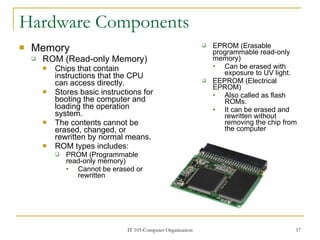
Hardware Components Memory ROM (Read-only Memory) Chips that contain instructions that the CPU can access directly. Stores basic instructions for booting the computer and loading the operation system. The contents cannot be erased, changed, or rewritten by normal means. ROM types includes: PROM (Programmable read-only memory) Cannot be erased or rewritten EPROM (Erasable programmable read-only memory) Can be erased with exposure to UV light. EEPROM (Electrical EPROM) Also called as flash ROMs. It can be erased and rewritten without removing the chip from the computer
Memory RAM (Random Access Memory) It is the temporary storage for data and programs that are being accessed by the CPU. It is a volatile memory. Types of RAM are as follows. DRAM (Dynamic RAM) A memory chip that is used as main memory. SRAM (Static RAM) A memory chip that is used as cache memory.
Memory FPM DRAM (Fast Page Mode DRAM) A memory that supports paging. Paging enables faster access to the data than regular DRAM. EDO (Extended Data Out) RAM A memory that overlaps consecutive data accesses. This speeds up the access time to retrieve data from memory Synchronous DRAM (SDRAM) A DRAM that operates in synchronization with the memory bus.
Memory Double Data Rate ( DDR) SDRAM A memory that transfers data twice as fast as SDRAM. DDR2 SDRAM A memory that is faster than DDR-SDRAM. It decreases noise and crosstalk between signal wires. RAMBus DRAM (RDRAM) A memory chip that was developed at very high rates of speed. Rarely used.
Memory Memory Modules DIP (Dual Inline Package) Is an individual memory chip. A DIP had dual rows of pins used to attached it on the mother board.
Memory SIMM (Single Inline Memory Module) A small circuit board that holds several memory chips. SIMM have 30-pin and 72-pin configurations. DIMM (Dual Inline Memory Module) A small circuit board that holds SDRAM (168 pins), DDR (184-pins), and DDR2 (240-pins).
Memory Cache Memory SRAM is used as cache memory to store the most frequently used data. SRAM gives processor faster access to the data than retrieving it from slower DRAM or main memory. Types of cache memory L1  is internal cache integrated into the CPU. L2  is external cache originally mounted on the motherboard near the CPU. L3  is used on some high-end workstations and server CPUs. Error Checking Nonparity  does not check for errors in memory. Parity  contains 8 bits for data and 1 bit for error checking. The error-checking bit is called a parity bit. Error Correction Code   (ECC)  can defeat multiple bit errors in memory and correct single bit errors in memory.
Hardware Components Adapter Cards Adapter cards increase a computer’s functionality by adding controllers for specific devices or by replacing malfunctioning ports. NIC connects a computer to network using a network cable. Wireless NIC connects a computer to a network using radio frequencies. Sound Adapter Provides audio compatibility.
Adapter Cards Video Adapter Provides graphic capability. Modem Adapter Connects a computer to the internet using phone line. SCSI Adapter Connects SCSI devices such as hard drives or tape drives to a computer.
Adapter Cards RAID Adapters Connects multiple hard drives to a computer to provide redundancy and improve performance. To connect peripheral devices: USB port Parallel port Serial port
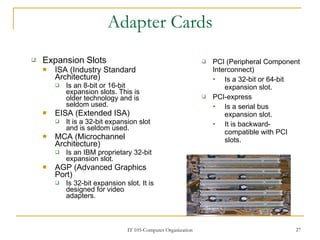
Adapter Cards Expansion Slots ISA (Industry Standard Architecture) Is an 8-bit or 16-bit expansion slots. This is older technology and is seldom used. EISA (Extended ISA) It is a 32-bit expansion slot and is seldom used. MCA (Microchannel Architecture) Is an IBM proprietary 32-bit expansion slot. AGP (Advanced Graphics Port) Is 32-bit expansion slot. It is designed for video adapters. PCI (Peripheral Component Interconnect) Is a 32-bit or 64-bit expansion slot. PCI-express Is a serial bus expansion slot. It is backward-compatible with PCI slots.
Hardware Components Storage Drives A storage drive reads or write information to magnetic or optical storage media. Storage drives can be installed inside the computer case such as hard drive. For portability, some storage drives can connect to the computer using USB port, FireWire port or SCSI port.
Storage Drives Types of storage drives: Floppy Drives (A: drive) Is a storage device that uses removable 3.5 inch floppy disks. This can store 720 KB or 1.44 MB of data. One of the oldest technology. Hard Drives (C: drive/D: drive) Is a magnetic storage device that is installed inside the computer. Is used as permanent storage for data. Capacity-GB and speed rpm (revolutions per minute)
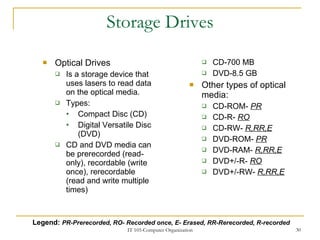
Storage Drives Optical Drives Is a storage device that uses lasers to read data on the optical media. Types: Compact Disc (CD) Digital Versatile Disc (DVD) CD and DVD media can be prerecorded (read-only), recordable (write once), rerecordable (read and write multiple times) CD-700 MB DVD-8.5 GB Other types of optical media: CD-ROM-  PR CD-R-  RO CD-RW-  R,RR,E DVD-ROM-  PR DVD-RAM-  R,RR,E DVD+/-R-  RO DVD+/-RW-  R,RR,E Legend:  PR-Prerecorded, RO- Recorded once, E- Erased, RR-Rerecorded, R-recorded
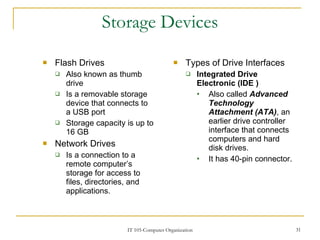
Storage Devices Flash Drives Also known as thumb drive Is a removable storage device that connects to a USB port Storage capacity is up to 16 GB Network Drives Is a connection to a remote computer’s storage for access to files, directories, and applications. Types of Drive Interfaces Integrated Drive Electronic (IDE ) Also called  Advanced Technology Attachment (ATA) , an earlier drive controller interface that connects computers and hard disk drives. It has 40-pin connector.
Storage Devices Enhanced Integrated Drive Electronics (EIDE) Also called ATA-2, is an updated version of the IDE drive controller interface. Parallel ATA (PATA) Refers to the parallel version of the ATA drive controller interface. Serial ATA (SATA) Refers to the serial version of the ATA drive controller interface. Uses 7-pin connector . Small Computer System Interface (SCSI) A drive controller interface that can connect up to 15 drives. It uses a 5-pin, 68-pin, or 80-pin connector.
Hardware Components Internal Cables Data cables connect drives to the drive controller, which is located on an adapter card or the motherboard. Types of data cables: Floppy disk drive (FDD) data cable Has up to two 34-pin drive connectors and one 34-pin connector for the drive controller.
Internal Cables PATA (IDE) data cable Has 40 conductors, up to two 40-pin connectors and 40-pin connector for the drive controller. PATA (EIDE) data cable Has 80 conductors, up to two 40-pin connectors for drives and one 40-pin connector for drive controller. SATA data cable Has seven conductors, one keyed connector for the drive and one keyed connector for the drive controller SCSI data cable Three types: A narrow SCSI data cable has 50 conductors, up to seven 50 –pin connector, and one 50 – pin connector for host adapters A wide SCSI data cable has 68 conductors, up to 15 68 –pin connector, and one 68 – pin connector for host adapters An Alt-4 SCSI data cable has 80 conductors, up to 15 80 –pin connector, and one 80 – pin connector for host adapters
Hardware Components Ports and Cables Serial Can be either DB-9, or DB-25 male connector To connect a serial device, such as modem or printer, serial cable must be used. A serial cable has a maximum length of 50 feet (15.2 m) USB Ports Is standard interface that connects peripheral devices to a computer. A single USB port in a computer can support up to 127 separate devices with the use of multiple USB hubs. USB 1.1 -12 Mbps USB 2.0 – 480 Mbps FireWire Ports Is a high-speed, hot-swappable interface that connects peripheral devices to a computer. A single FireWire port in a computer can support up to 63 devices.
Ports and Cables Parallel Ports Is a standard Type A DB-25 female connector. To connect a parallel device, such as printers, a parallel cable must be used. A parallel cable has a maximum length of 15 feet. SCSI Ports If a single SCSI device is connected to SCSI port, the cable can be up to 80 feet in length. Can support up to 15 devices. Network Ports Also called an RJ-45 port, connects a computer to a network The connection speed depends on the type of network port Standard Ethernet can transmit up to 10 Mbps, Fast Ethernet can transmit up to 100 Mbps, and Gigabit Ethernet can transmit up to1000 Mbps
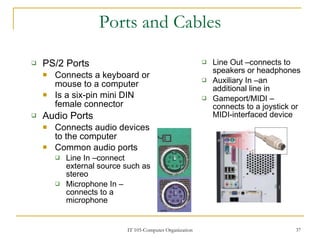
Ports and Cables PS/2 Ports Connects a keyboard or mouse to a computer Is a six-pin mini DIN female connector Audio Ports Connects audio devices to the computer Common audio ports Line In –connect external source such as stereo Microphone In –connects to a microphone Line Out –connects to speakers or headphones Auxiliary In –an additional line in Gameport/MIDI –connects to a joystick or MIDI-interfaced device
Ports and Cables Video Ports Connects a monitor cable to a computer Several types: VGA (Video Graphics Array) Has three-row 15-pin female connector Analog output DVI (Digital Visual Interface) Has a 24-pin female connector or 29-pin female connector Digital output HDMI (High-Definition Multimedia Interface) Has 19-pin connector Provides both analog and digital signals S-Video Has 4-pin connector and provides analog signals Component/RGB Has three shielded cables (red, green, and blue) with RCS jacks and provides analog signals
Hardware Components Input Devices Is used to enter data or instructions into a computer Mouse and Keyboard Digital Camera and Digital Video Camera Biometric Authentication Device Touch Screen Scanner Output Devices Is used to present information to the user from a computer Monitors CRT (cathode ray tube) LCD (liquid crystal display) DLP (digital light processing) Printers, scanners, and fax machines Speakers and headphones
Project #1 (individual or by pair) Choose your own partner. Create a portfolio that compiles all the images of all given hardware components and sub-components. Indicate their names and functions. Categorize them for better readable output. Use your own creativity, formal or informal. Deadline is before or on the preliminary exam day. Creativity-40%  Readability-20%  Originality- 40%

Computer Hardware Components

  • 1.
    Computer System andHardware Components Chapter II IT 105 Prepared by: [email_address]
  • 2.
    A computer systemconsists of Hardware The physical equipment such as case, storage drives, keyboards, monitors, cables, speakers and printers. Software Includes the operating system and programs. The operating system instructs the computer how to operate. These operations may include identifying, accessing and processing information.
  • 3.
    Hardware Components ComputerCase Contains the framework to support a computer’s internal components while providing an enclosure for added protection. The size and layout of a case is called a form factor . (e.g. desktop (slim line or full sized) and tower (mini or full sized) Computer cases may also called as computer chassis, cabinet, tower, box and housing .
  • 4.
    Computer Case Factorsto consider when choosing a case: The size of the motherboard The number of external or internal drive locations, called bays Available space When choosing a computer case, consider the ff: Model Type There are two main case models, for desktop PCs and for tower computers. The type of motherboard determines the type of case to be used. The size and shape must match exactly. Size If a computer has many components, it needs more room for airflow to keep the system cool. Available Space The design of the desktop case may limit the number and size of the components that can be added. Power Supply Match the power rating and connection type of the power supply to the type of motherboard. Appearance Some people don’t care how the case looks, others do.
  • 5.
    Computer Case StatusDisplay LED indicators that are mounted on the front of the case can tell you if the system is receiving power, when the hard drive is being used, and when the computer is on standby or sleeping. Vents All cases have a vent on the power supply, and some have another vent on the back to help draw air into or out of the system.
  • 6.
    Hardware Components PowerSupply Converts alternating-current (AC) power coming from a wall outlet into direct-current (DC) power, which is a lower voltage. DC power is required for all the components inside the computer.
  • 7.
    Power Supply FormFactors AT ATX- more advanced features than AT ATXv12- add power support for the motherboard by adding another 4-pin power connector. Connectors Most connectors today are keyed connector. Keyed connectors are designed to be inserted in only one direction. Power Color Codes Yellow Blue Orange Blue Orange Red White Black
  • 8.
    Power Supply Ground:Used to complete circuits with other voltages BLACK 0V ISA bus cards and early PROMS WHITE -5V Motherboard, Baby AT and earlier CPUs, and many motherboard components RED +5V Most newer CPUs, some types of system memory and AGP video slots ORANGE +3.3V Some types of serial port circuits and early Programmable Read Only Memory (PROM) BLUE -12V Disk drive motors, fans, cooling devices, and system bus slots YELLOW +12V ATXv12 Power Supply ATX Power Supply AT Power Supply Use Wire Color Voltage
  • 9.
    Power Supply Differentconnectors: Molex connector A keyed connector used to connect to an optical drive or hard drive Berg connector A keyed connector used to connect to a floppy drive It is smaller than Molex 20-pin or 24-pin slotted connector It used to connect to the motherboard 24-pin has two rows of 12 pins each 20-pin has two rows of 10 pins each Four-pin-to-eight-pin auxiliary power connector It has two rows to four pins and supplies power to all areas of the motherboard.
  • 10.
    Hardware Components MotherboardsIt is the main printed circuit boards. It contains the buses, or electrical pathways. These buses allow data to travel between the various components that comprise a computer. Also known as system board, backplane, or main board
  • 11.
    Motherboards Motherboard accommodatesthe CPU, RAM, expansion slots, heat sink/fan assembly, BIOS chip, chip set, and the embedded wires. Sockets, internal and external connectors and various ports are also placed on the mother board. Various form factors: AT- Advanced Technology ATX- Advanced Technology Extended Mini-ATX Micro ATX LPX- Low-Profile Extended NLX- New Low-Profile Extended BTX- Balanced Technology Extended
  • 12.
    Motherboards Chip SetComposed of various integrated circuits attached to the motherboard that control how system hardware interacts with the CPU and motherboard. It allows the CPU to communicate and interact with computer’s other components and to exchange data with system memory, hard disk drives, video cards and other output devices. It establishes how much memory can be added to motherboard. It also determines the type of connectors on the motherboard. Two distinct components Northbridge Controls the access to RAM, video card and the speed at which the CPU can communicate with them Southbridge Allows the CPU to communicate with the hard drives, sound card, USB ports and other I/O devices.
  • 13.
    Hardware Components CPU(Central Processing Unit) It is considered the computer’s brain. Sometimes called the processor. It comes in different form factors, each style requiring a particular slot or socket on the motherboard. Common CPU manufacturers include Intel and AMD.
  • 14.
    Central Processing UnitCPU socket or slot It is the connector that is the interface between the motherboard and the processor. PGA (pin grid array)- most CPU sockets and processors built today ZIF (zero insertion force)- the amount of force needed to install the CPU. Slot-based processors are cartridge-shaped and fit into a slot that looks similar to an expansion slot. Cache While the CPU is executing one step of the program, the remaining instructions and data are stored nearby in a special memory called cache .
  • 15.
    Central Processing UnitTwo major CPU architectures RISC (reduced instruction set computer) Architectures use a relatively small set of instructions and RISC chips are designed to execute these instructions very rapidly. CISC (complex instruction set computer) Architectures use a broad set of instructions, resulting in fewer steps of operation. Hyperthreading The CPU has multiple pieces of code being executed simultaneously on each pipeline. A CPU’s speed is rated in cycles per second Speed (MHZ, GHz) The amount of data that a CPU can process at one time depends on the size of the processor bus (CPU bus or FSB (front-side bus)). The wider the processor data bus, the more powerful the processor. Current processors have a 32-bit or 64-bit processor data bus. Single-core CPU One core inside a single CPU chip that handles all the processing capability. Dual-core CPU Two cores inside a single CPU chip, in which both cores can process information at the same time
  • 16.
    Hardware Components CoolingSystems Case Fan It is installed in the computer case to make the cooling process more efficient. CPU Fan A fan on top of the heat sink moves away the heat from the CPU. Graphics Card Cooling System Fans are dedicated to cooling the graphics-processing unit (GPU).
  • 17.
    Hardware Components MemoryROM (Read-only Memory) Chips that contain instructions that the CPU can access directly. Stores basic instructions for booting the computer and loading the operation system. The contents cannot be erased, changed, or rewritten by normal means. ROM types includes: PROM (Programmable read-only memory) Cannot be erased or rewritten EPROM (Erasable programmable read-only memory) Can be erased with exposure to UV light. EEPROM (Electrical EPROM) Also called as flash ROMs. It can be erased and rewritten without removing the chip from the computer
  • 18.
    Memory RAM (RandomAccess Memory) It is the temporary storage for data and programs that are being accessed by the CPU. It is a volatile memory. Types of RAM are as follows. DRAM (Dynamic RAM) A memory chip that is used as main memory. SRAM (Static RAM) A memory chip that is used as cache memory.
  • 19.
    Memory FPM DRAM(Fast Page Mode DRAM) A memory that supports paging. Paging enables faster access to the data than regular DRAM. EDO (Extended Data Out) RAM A memory that overlaps consecutive data accesses. This speeds up the access time to retrieve data from memory Synchronous DRAM (SDRAM) A DRAM that operates in synchronization with the memory bus.
  • 20.
    Memory Double DataRate ( DDR) SDRAM A memory that transfers data twice as fast as SDRAM. DDR2 SDRAM A memory that is faster than DDR-SDRAM. It decreases noise and crosstalk between signal wires. RAMBus DRAM (RDRAM) A memory chip that was developed at very high rates of speed. Rarely used.
  • 21.
    Memory Memory ModulesDIP (Dual Inline Package) Is an individual memory chip. A DIP had dual rows of pins used to attached it on the mother board.
  • 22.
    Memory SIMM (SingleInline Memory Module) A small circuit board that holds several memory chips. SIMM have 30-pin and 72-pin configurations. DIMM (Dual Inline Memory Module) A small circuit board that holds SDRAM (168 pins), DDR (184-pins), and DDR2 (240-pins).
  • 23.
    Memory Cache MemorySRAM is used as cache memory to store the most frequently used data. SRAM gives processor faster access to the data than retrieving it from slower DRAM or main memory. Types of cache memory L1 is internal cache integrated into the CPU. L2 is external cache originally mounted on the motherboard near the CPU. L3 is used on some high-end workstations and server CPUs. Error Checking Nonparity does not check for errors in memory. Parity contains 8 bits for data and 1 bit for error checking. The error-checking bit is called a parity bit. Error Correction Code (ECC) can defeat multiple bit errors in memory and correct single bit errors in memory.
  • 24.
    Hardware Components AdapterCards Adapter cards increase a computer’s functionality by adding controllers for specific devices or by replacing malfunctioning ports. NIC connects a computer to network using a network cable. Wireless NIC connects a computer to a network using radio frequencies. Sound Adapter Provides audio compatibility.
  • 25.
    Adapter Cards VideoAdapter Provides graphic capability. Modem Adapter Connects a computer to the internet using phone line. SCSI Adapter Connects SCSI devices such as hard drives or tape drives to a computer.
  • 26.
    Adapter Cards RAIDAdapters Connects multiple hard drives to a computer to provide redundancy and improve performance. To connect peripheral devices: USB port Parallel port Serial port
  • 27.
    Adapter Cards ExpansionSlots ISA (Industry Standard Architecture) Is an 8-bit or 16-bit expansion slots. This is older technology and is seldom used. EISA (Extended ISA) It is a 32-bit expansion slot and is seldom used. MCA (Microchannel Architecture) Is an IBM proprietary 32-bit expansion slot. AGP (Advanced Graphics Port) Is 32-bit expansion slot. It is designed for video adapters. PCI (Peripheral Component Interconnect) Is a 32-bit or 64-bit expansion slot. PCI-express Is a serial bus expansion slot. It is backward-compatible with PCI slots.
  • 28.
    Hardware Components StorageDrives A storage drive reads or write information to magnetic or optical storage media. Storage drives can be installed inside the computer case such as hard drive. For portability, some storage drives can connect to the computer using USB port, FireWire port or SCSI port.
  • 29.
    Storage Drives Typesof storage drives: Floppy Drives (A: drive) Is a storage device that uses removable 3.5 inch floppy disks. This can store 720 KB or 1.44 MB of data. One of the oldest technology. Hard Drives (C: drive/D: drive) Is a magnetic storage device that is installed inside the computer. Is used as permanent storage for data. Capacity-GB and speed rpm (revolutions per minute)
  • 30.
    Storage Drives OpticalDrives Is a storage device that uses lasers to read data on the optical media. Types: Compact Disc (CD) Digital Versatile Disc (DVD) CD and DVD media can be prerecorded (read-only), recordable (write once), rerecordable (read and write multiple times) CD-700 MB DVD-8.5 GB Other types of optical media: CD-ROM- PR CD-R- RO CD-RW- R,RR,E DVD-ROM- PR DVD-RAM- R,RR,E DVD+/-R- RO DVD+/-RW- R,RR,E Legend: PR-Prerecorded, RO- Recorded once, E- Erased, RR-Rerecorded, R-recorded
  • 31.
    Storage Devices FlashDrives Also known as thumb drive Is a removable storage device that connects to a USB port Storage capacity is up to 16 GB Network Drives Is a connection to a remote computer’s storage for access to files, directories, and applications. Types of Drive Interfaces Integrated Drive Electronic (IDE ) Also called Advanced Technology Attachment (ATA) , an earlier drive controller interface that connects computers and hard disk drives. It has 40-pin connector.
  • 32.
    Storage Devices EnhancedIntegrated Drive Electronics (EIDE) Also called ATA-2, is an updated version of the IDE drive controller interface. Parallel ATA (PATA) Refers to the parallel version of the ATA drive controller interface. Serial ATA (SATA) Refers to the serial version of the ATA drive controller interface. Uses 7-pin connector . Small Computer System Interface (SCSI) A drive controller interface that can connect up to 15 drives. It uses a 5-pin, 68-pin, or 80-pin connector.
  • 33.
    Hardware Components InternalCables Data cables connect drives to the drive controller, which is located on an adapter card or the motherboard. Types of data cables: Floppy disk drive (FDD) data cable Has up to two 34-pin drive connectors and one 34-pin connector for the drive controller.
  • 34.
    Internal Cables PATA(IDE) data cable Has 40 conductors, up to two 40-pin connectors and 40-pin connector for the drive controller. PATA (EIDE) data cable Has 80 conductors, up to two 40-pin connectors for drives and one 40-pin connector for drive controller. SATA data cable Has seven conductors, one keyed connector for the drive and one keyed connector for the drive controller SCSI data cable Three types: A narrow SCSI data cable has 50 conductors, up to seven 50 –pin connector, and one 50 – pin connector for host adapters A wide SCSI data cable has 68 conductors, up to 15 68 –pin connector, and one 68 – pin connector for host adapters An Alt-4 SCSI data cable has 80 conductors, up to 15 80 –pin connector, and one 80 – pin connector for host adapters
  • 35.
    Hardware Components Portsand Cables Serial Can be either DB-9, or DB-25 male connector To connect a serial device, such as modem or printer, serial cable must be used. A serial cable has a maximum length of 50 feet (15.2 m) USB Ports Is standard interface that connects peripheral devices to a computer. A single USB port in a computer can support up to 127 separate devices with the use of multiple USB hubs. USB 1.1 -12 Mbps USB 2.0 – 480 Mbps FireWire Ports Is a high-speed, hot-swappable interface that connects peripheral devices to a computer. A single FireWire port in a computer can support up to 63 devices.
  • 36.
    Ports and CablesParallel Ports Is a standard Type A DB-25 female connector. To connect a parallel device, such as printers, a parallel cable must be used. A parallel cable has a maximum length of 15 feet. SCSI Ports If a single SCSI device is connected to SCSI port, the cable can be up to 80 feet in length. Can support up to 15 devices. Network Ports Also called an RJ-45 port, connects a computer to a network The connection speed depends on the type of network port Standard Ethernet can transmit up to 10 Mbps, Fast Ethernet can transmit up to 100 Mbps, and Gigabit Ethernet can transmit up to1000 Mbps
  • 37.
    Ports and CablesPS/2 Ports Connects a keyboard or mouse to a computer Is a six-pin mini DIN female connector Audio Ports Connects audio devices to the computer Common audio ports Line In –connect external source such as stereo Microphone In –connects to a microphone Line Out –connects to speakers or headphones Auxiliary In –an additional line in Gameport/MIDI –connects to a joystick or MIDI-interfaced device
  • 38.
    Ports and CablesVideo Ports Connects a monitor cable to a computer Several types: VGA (Video Graphics Array) Has three-row 15-pin female connector Analog output DVI (Digital Visual Interface) Has a 24-pin female connector or 29-pin female connector Digital output HDMI (High-Definition Multimedia Interface) Has 19-pin connector Provides both analog and digital signals S-Video Has 4-pin connector and provides analog signals Component/RGB Has three shielded cables (red, green, and blue) with RCS jacks and provides analog signals
  • 39.
    Hardware Components InputDevices Is used to enter data or instructions into a computer Mouse and Keyboard Digital Camera and Digital Video Camera Biometric Authentication Device Touch Screen Scanner Output Devices Is used to present information to the user from a computer Monitors CRT (cathode ray tube) LCD (liquid crystal display) DLP (digital light processing) Printers, scanners, and fax machines Speakers and headphones
  • 40.
    Project #1 (individualor by pair) Choose your own partner. Create a portfolio that compiles all the images of all given hardware components and sub-components. Indicate their names and functions. Categorize them for better readable output. Use your own creativity, formal or informal. Deadline is before or on the preliminary exam day. Creativity-40% Readability-20% Originality- 40%