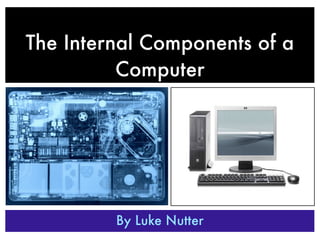
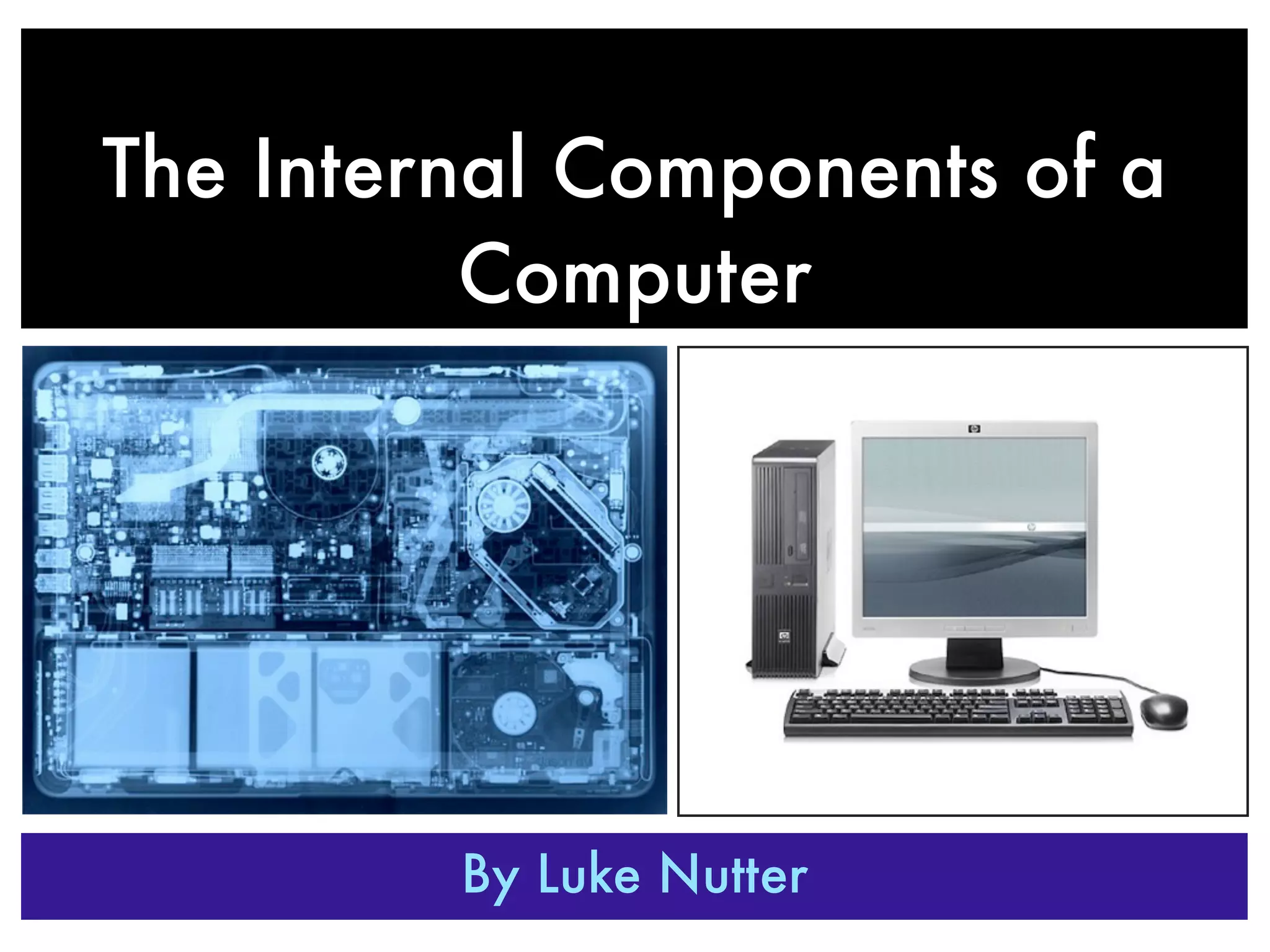
The Internal Components of a
          Computer


         By Luke Nutter
INTRODUCTION
Within this Presentation I will talk about the function of the key components located inside the base unit of the
computer. As well as listing the functions, I Will talk about the abbreviations for each component (If applicable)
and define what each component is. I will also include an image of each component, to act as a visual aid.
Throughout the presentation there is three buttons located in the bottom right of the slide, to allow for navigation
back to Title page, Previous slide and Next slide. I hope you enjoy the presentation and any feedback would be
appreciated, thank you.
INTRODUCTION
Within this Presentation I will talk about the function of the key components located inside the base unit of the
computer. As well as listing the functions, I Will talk about the abbreviations for each component (If applicable)
and define what each component is. I will also include an image of each component, to act as a visual aid.
Throughout the presentation there is three buttons located in the bottom right of the slide, to allow for navigation
back to Title page, Previous slide and Next slide. I hope you enjoy the presentation and any feedback would be
appreciated, thank you.


                                         Slide Navigation Tools
MOTHERBOARD

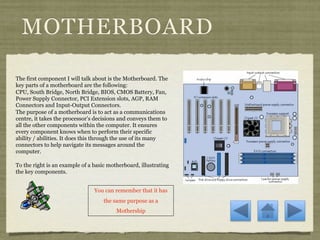
The first component I will talk about is the Motherboard. The
key parts of a motherboard are the following:
CPU, South Bridge, North Bridge, BIOS, CMOS Battery, Fan,
Power Supply Connector, PCI Extension slots, AGP, RAM
Connectors and Input-Output Connectors.
The purpose of a motherboard is to act as a communications
centre, it takes the processor’s decisions and conveys them to
all the other components within the computer. It ensures
every component knows when to perform their specific
ability / abilities. It does this through the use of its many
connectors to help navigate its messages around the
computer.

To the right is an example of a basic motherboard, illustrating
the key components.
MOTHERBOARD

The first component I will talk about is the Motherboard. The
key parts of a motherboard are the following:
CPU, South Bridge, North Bridge, BIOS, CMOS Battery, Fan,
Power Supply Connector, PCI Extension slots, AGP, RAM
Connectors and Input-Output Connectors.
The purpose of a motherboard is to act as a communications
centre, it takes the processor’s decisions and conveys them to
all the other components within the computer. It ensures
every component knows when to perform their specific
ability / abilities. It does this through the use of its many
connectors to help navigate its messages around the
computer.

To the right is an example of a basic motherboard, illustrating
the key components.


                                You can remember that it has
                                    the same purpose as a
                                         Mothership
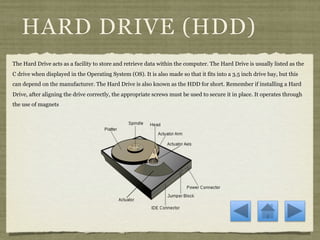
HARD DRIVE (HDD)
The Hard Drive acts as a facility to store and retrieve data within the computer. The Hard Drive is usually listed as the
C drive when displayed in the Operating System (OS). It is also made so that it fits into a 3.5 inch drive bay, but this
can depend on the manufacturer. The Hard Drive is also known as the HDD for short. Remember if installing a Hard
Drive, after aligning the drive correctly, the appropriate screws must be used to secure it in place. It operates through
the use of magnets
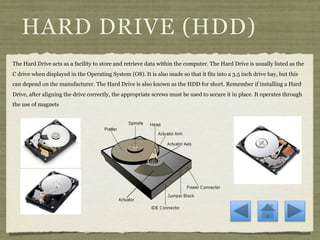
HARD DRIVE (HDD)
The Hard Drive acts as a facility to store and retrieve data within the computer. The Hard Drive is usually listed as the
C drive when displayed in the Operating System (OS). It is also made so that it fits into a 3.5 inch drive bay, but this
can depend on the manufacturer. The Hard Drive is also known as the HDD for short. Remember if installing a Hard
Drive, after aligning the drive correctly, the appropriate screws must be used to secure it in place. It operates through
the use of magnets
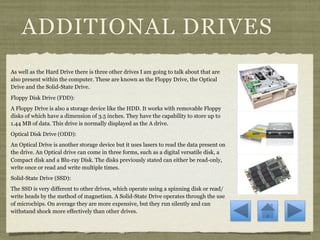
ADDITIONAL DRIVES
As well as the Hard Drive there is three other drives I am going to talk about that are
also present within the computer. These are known as the Floppy Drive, the Optical
Drive and the Solid-State Drive.
Floppy Disk Drive (FDD):
A Floppy Drive is also a storage device like the HDD. It works with removable Floppy
disks of which have a dimension of 3.5 inches. They have the capability to store up to
1.44 MB of data. This drive is normally displayed as the A drive.
Optical Disk Drive (ODD):
An Optical Drive is another storage device but it uses lasers to read the data present on
the drive. An Optical drive can come in three forms, such as a digital versatile disk, a
Compact disk and a Blu-ray Disk. The disks previously stated can either be read-only,
write once or read and write multiple times.
Solid-State Drive (SSD):
The SSD is very different to other drives, which operate using a spinning disk or read/
write heads by the method of magnetism. A Solid-State Drive operates through the use
of microchips. On average they are more expensive, but they run silently and can
withstand shock more effectively than other drives.
ADDITIONAL DRIVES
As well as the Hard Drive there is three other drives I am going to talk about that are
also present within the computer. These are known as the Floppy Drive, the Optical
Drive and the Solid-State Drive.
Floppy Disk Drive (FDD):
A Floppy Drive is also a storage device like the HDD. It works with removable Floppy
disks of which have a dimension of 3.5 inches. They have the capability to store up to
1.44 MB of data. This drive is normally displayed as the A drive.
Optical Disk Drive (ODD):
An Optical Drive is another storage device but it uses lasers to read the data present on
the drive. An Optical drive can come in three forms, such as a digital versatile disk, a
Compact disk and a Blu-ray Disk. The disks previously stated can either be read-only,
write once or read and write multiple times.
Solid-State Drive (SSD):
The SSD is very different to other drives, which operate using a spinning disk or read/
write heads by the method of magnetism. A Solid-State Drive operates through the use
of microchips. On average they are more expensive, but they run silently and can
withstand shock more effectively than other drives.
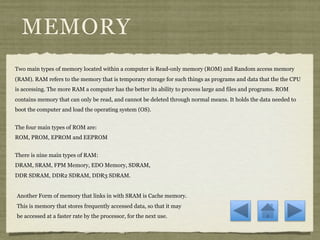
MEMORY
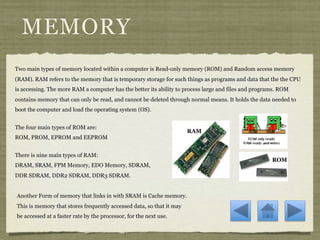
Two main types of memory located within a computer is Read-only memory (ROM) and Random access memory
(RAM). RAM refers to the memory that is temporary storage for such things as programs and data that the the CPU
is accessing. The more RAM a computer has the better its ability to process large and files and programs. ROM
contains memory that can only be read, and cannot be deleted through normal means. It holds the data needed to
boot the computer and load the operating system (OS).


The four main types of ROM are:
ROM, PROM, EPROM and EEPROM


There is nine main types of RAM:
DRAM, SRAM, FPM Memory, EDO Memory, SDRAM,
DDR SDRAM, DDR2 SDRAM, DDR3 SDRAM.


Another Form of memory that links in with SRAM is Cache memory.
This is memory that stores frequently accessed data, so that it may
be accessed at a faster rate by the processor, for the next use.
MEMORY
Two main types of memory located within a computer is Read-only memory (ROM) and Random access memory
(RAM). RAM refers to the memory that is temporary storage for such things as programs and data that the the CPU
is accessing. The more RAM a computer has the better its ability to process large and files and programs. ROM
contains memory that can only be read, and cannot be deleted through normal means. It holds the data needed to
boot the computer and load the operating system (OS).


The four main types of ROM are:
                                                                      RAM
ROM, PROM, EPROM and EEPROM


There is nine main types of RAM:
                                                                                                      ROM
DRAM, SRAM, FPM Memory, EDO Memory, SDRAM,
DDR SDRAM, DDR2 SDRAM, DDR3 SDRAM.


Another Form of memory that links in with SRAM is Cache memory.
This is memory that stores frequently accessed data, so that it may
be accessed at a faster rate by the processor, for the next use.
ADAPTER CARDS
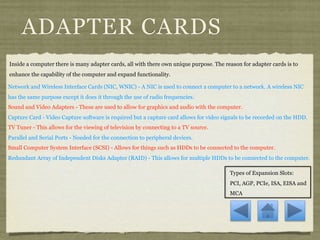
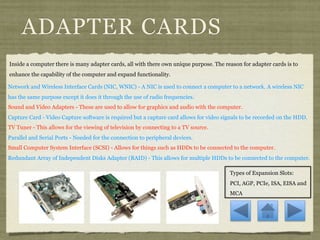
Inside a computer there is many adapter cards, all with there own unique purpose. The reason for adapter cards is to
enhance the capability of the computer and expand functionality.

Network and Wireless Interface Cards (NIC, WNIC) - A NIC is used to connect a computer to a network. A wireless NIC
has the same purpose except it does it through the use of radio frequencies.
Sound and Video Adapters - These are used to allow for graphics and audio with the computer.
Capture Card - Video Capture software is required but a capture card allows for video signals to be recorded on the HDD.
TV Tuner - This allows for the viewing of television by connecting to a TV source.
Parallel and Serial Ports - Needed for the connection to peripheral devices.
Small Computer System Interface (SCSI) - Allows for things such as HDDs to be connected to the computer.
Redundant Array of Independent Disks Adapter (RAID) - This allows for multiple HDDs to be connected to the computer.

                                                                                        Types of Expansion Slots:
                                                                                        PCI, AGP, PCIe, ISA, EISA and
                                                                                        MCA
ADAPTER CARDS
Inside a computer there is many adapter cards, all with there own unique purpose. The reason for adapter cards is to
enhance the capability of the computer and expand functionality.

Network and Wireless Interface Cards (NIC, WNIC) - A NIC is used to connect a computer to a network. A wireless NIC
has the same purpose except it does it through the use of radio frequencies.
Sound and Video Adapters - These are used to allow for graphics and audio with the computer.
Capture Card - Video Capture software is required but a capture card allows for video signals to be recorded on the HDD.
TV Tuner - This allows for the viewing of television by connecting to a TV source.
Parallel and Serial Ports - Needed for the connection to peripheral devices.
Small Computer System Interface (SCSI) - Allows for things such as HDDs to be connected to the computer.
Redundant Array of Independent Disks Adapter (RAID) - This allows for multiple HDDs to be connected to the computer.

                                                                                        Types of Expansion Slots:
                                                                                        PCI, AGP, PCIe, ISA, EISA and
                                                                                        MCA
CENTRAL PROCESSING
       UNIT (CPU)
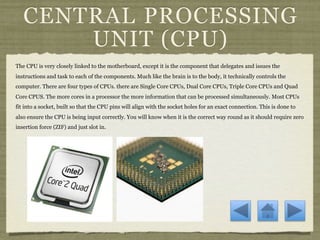
The CPU is very closely linked to the motherboard, except it is the component that delegates and issues the
instructions and task to each of the components. Much like the brain is to the body, it technically controls the
computer. There are four types of CPUs. there are Single Core CPUs, Dual Core CPUs, Triple Core CPUs and Quad
Core CPUS. The more cores in a processor the more information that can be processed simultaneously. Most CPUs
fit into a socket, built so that the CPU pins will align with the socket holes for an exact connection. This is done to
also ensure the CPU is being input correctly. You will know when it is the correct way round as it should require zero
insertion force (ZIF) and just slot in.
CENTRAL PROCESSING
       UNIT (CPU)
The CPU is very closely linked to the motherboard, except it is the component that delegates and issues the
instructions and task to each of the components. Much like the brain is to the body, it technically controls the
computer. There are four types of CPUs. there are Single Core CPUs, Dual Core CPUs, Triple Core CPUs and Quad
Core CPUS. The more cores in a processor the more information that can be processed simultaneously. Most CPUs
fit into a socket, built so that the CPU pins will align with the socket holes for an exact connection. This is done to
also ensure the CPU is being input correctly. You will know when it is the correct way round as it should require zero
insertion force (ZIF) and just slot in.
POWER SUPPLY
The Power Supply is what gives the computer the ability to power all of its components. It uses the alternating current
from a wall outlet, and then coverts it to direct current. This is done because direct current is a lower voltage, ensuring
the components to not overheat. The use of an uninterruptible power supply (UPS) will stop large fluctuation in power,
which can damage to computer or cause it to power off.
POWER SUPPLY
The Power Supply is what gives the computer the ability to power all of its components. It uses the alternating current
from a wall outlet, and then coverts it to direct current. This is done because direct current is a lower voltage, ensuring
the components to not overheat. The use of an uninterruptible power supply (UPS) will stop large fluctuation in power,
which can damage to computer or cause it to power off.
CONCLUSION
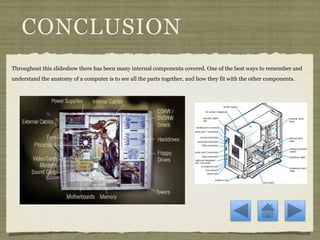
Throughout this slideshow there has been many internal components covered. One of the best ways to remember and
understand the anatomy of a computer is to see all the parts together, and how they fit with the other components.
CONCLUSION
Throughout this slideshow there has been many internal components covered. One of the best ways to remember and
understand the anatomy of a computer is to see all the parts together, and how they fit with the other components.
Thank You for Using This
     Presentation

Internal components - luke nutter

  • 1.
    The Internal Componentsof a Computer By Luke Nutter
  • 2.
    INTRODUCTION Within this PresentationI will talk about the function of the key components located inside the base unit of the computer. As well as listing the functions, I Will talk about the abbreviations for each component (If applicable) and define what each component is. I will also include an image of each component, to act as a visual aid. Throughout the presentation there is three buttons located in the bottom right of the slide, to allow for navigation back to Title page, Previous slide and Next slide. I hope you enjoy the presentation and any feedback would be appreciated, thank you.
  • 3.
    INTRODUCTION Within this PresentationI will talk about the function of the key components located inside the base unit of the computer. As well as listing the functions, I Will talk about the abbreviations for each component (If applicable) and define what each component is. I will also include an image of each component, to act as a visual aid. Throughout the presentation there is three buttons located in the bottom right of the slide, to allow for navigation back to Title page, Previous slide and Next slide. I hope you enjoy the presentation and any feedback would be appreciated, thank you. Slide Navigation Tools
  • 4.
    MOTHERBOARD The first componentI will talk about is the Motherboard. The key parts of a motherboard are the following: CPU, South Bridge, North Bridge, BIOS, CMOS Battery, Fan, Power Supply Connector, PCI Extension slots, AGP, RAM Connectors and Input-Output Connectors. The purpose of a motherboard is to act as a communications centre, it takes the processor’s decisions and conveys them to all the other components within the computer. It ensures every component knows when to perform their specific ability / abilities. It does this through the use of its many connectors to help navigate its messages around the computer. To the right is an example of a basic motherboard, illustrating the key components.
  • 5.
    MOTHERBOARD The first componentI will talk about is the Motherboard. The key parts of a motherboard are the following: CPU, South Bridge, North Bridge, BIOS, CMOS Battery, Fan, Power Supply Connector, PCI Extension slots, AGP, RAM Connectors and Input-Output Connectors. The purpose of a motherboard is to act as a communications centre, it takes the processor’s decisions and conveys them to all the other components within the computer. It ensures every component knows when to perform their specific ability / abilities. It does this through the use of its many connectors to help navigate its messages around the computer. To the right is an example of a basic motherboard, illustrating the key components. You can remember that it has the same purpose as a Mothership
  • 6.
    HARD DRIVE (HDD) TheHard Drive acts as a facility to store and retrieve data within the computer. The Hard Drive is usually listed as the C drive when displayed in the Operating System (OS). It is also made so that it fits into a 3.5 inch drive bay, but this can depend on the manufacturer. The Hard Drive is also known as the HDD for short. Remember if installing a Hard Drive, after aligning the drive correctly, the appropriate screws must be used to secure it in place. It operates through the use of magnets
  • 7.
    HARD DRIVE (HDD) TheHard Drive acts as a facility to store and retrieve data within the computer. The Hard Drive is usually listed as the C drive when displayed in the Operating System (OS). It is also made so that it fits into a 3.5 inch drive bay, but this can depend on the manufacturer. The Hard Drive is also known as the HDD for short. Remember if installing a Hard Drive, after aligning the drive correctly, the appropriate screws must be used to secure it in place. It operates through the use of magnets
  • 8.
    ADDITIONAL DRIVES As wellas the Hard Drive there is three other drives I am going to talk about that are also present within the computer. These are known as the Floppy Drive, the Optical Drive and the Solid-State Drive. Floppy Disk Drive (FDD): A Floppy Drive is also a storage device like the HDD. It works with removable Floppy disks of which have a dimension of 3.5 inches. They have the capability to store up to 1.44 MB of data. This drive is normally displayed as the A drive. Optical Disk Drive (ODD): An Optical Drive is another storage device but it uses lasers to read the data present on the drive. An Optical drive can come in three forms, such as a digital versatile disk, a Compact disk and a Blu-ray Disk. The disks previously stated can either be read-only, write once or read and write multiple times. Solid-State Drive (SSD): The SSD is very different to other drives, which operate using a spinning disk or read/ write heads by the method of magnetism. A Solid-State Drive operates through the use of microchips. On average they are more expensive, but they run silently and can withstand shock more effectively than other drives.
  • 9.
    ADDITIONAL DRIVES As wellas the Hard Drive there is three other drives I am going to talk about that are also present within the computer. These are known as the Floppy Drive, the Optical Drive and the Solid-State Drive. Floppy Disk Drive (FDD): A Floppy Drive is also a storage device like the HDD. It works with removable Floppy disks of which have a dimension of 3.5 inches. They have the capability to store up to 1.44 MB of data. This drive is normally displayed as the A drive. Optical Disk Drive (ODD): An Optical Drive is another storage device but it uses lasers to read the data present on the drive. An Optical drive can come in three forms, such as a digital versatile disk, a Compact disk and a Blu-ray Disk. The disks previously stated can either be read-only, write once or read and write multiple times. Solid-State Drive (SSD): The SSD is very different to other drives, which operate using a spinning disk or read/ write heads by the method of magnetism. A Solid-State Drive operates through the use of microchips. On average they are more expensive, but they run silently and can withstand shock more effectively than other drives.
  • 10.
    MEMORY Two main typesof memory located within a computer is Read-only memory (ROM) and Random access memory (RAM). RAM refers to the memory that is temporary storage for such things as programs and data that the the CPU is accessing. The more RAM a computer has the better its ability to process large and files and programs. ROM contains memory that can only be read, and cannot be deleted through normal means. It holds the data needed to boot the computer and load the operating system (OS). The four main types of ROM are: ROM, PROM, EPROM and EEPROM There is nine main types of RAM: DRAM, SRAM, FPM Memory, EDO Memory, SDRAM, DDR SDRAM, DDR2 SDRAM, DDR3 SDRAM. Another Form of memory that links in with SRAM is Cache memory. This is memory that stores frequently accessed data, so that it may be accessed at a faster rate by the processor, for the next use.
  • 11.
    MEMORY Two main typesof memory located within a computer is Read-only memory (ROM) and Random access memory (RAM). RAM refers to the memory that is temporary storage for such things as programs and data that the the CPU is accessing. The more RAM a computer has the better its ability to process large and files and programs. ROM contains memory that can only be read, and cannot be deleted through normal means. It holds the data needed to boot the computer and load the operating system (OS). The four main types of ROM are: RAM ROM, PROM, EPROM and EEPROM There is nine main types of RAM: ROM DRAM, SRAM, FPM Memory, EDO Memory, SDRAM, DDR SDRAM, DDR2 SDRAM, DDR3 SDRAM. Another Form of memory that links in with SRAM is Cache memory. This is memory that stores frequently accessed data, so that it may be accessed at a faster rate by the processor, for the next use.
  • 12.
    ADAPTER CARDS Inside acomputer there is many adapter cards, all with there own unique purpose. The reason for adapter cards is to enhance the capability of the computer and expand functionality. Network and Wireless Interface Cards (NIC, WNIC) - A NIC is used to connect a computer to a network. A wireless NIC has the same purpose except it does it through the use of radio frequencies. Sound and Video Adapters - These are used to allow for graphics and audio with the computer. Capture Card - Video Capture software is required but a capture card allows for video signals to be recorded on the HDD. TV Tuner - This allows for the viewing of television by connecting to a TV source. Parallel and Serial Ports - Needed for the connection to peripheral devices. Small Computer System Interface (SCSI) - Allows for things such as HDDs to be connected to the computer. Redundant Array of Independent Disks Adapter (RAID) - This allows for multiple HDDs to be connected to the computer. Types of Expansion Slots: PCI, AGP, PCIe, ISA, EISA and MCA
  • 13.
    ADAPTER CARDS Inside acomputer there is many adapter cards, all with there own unique purpose. The reason for adapter cards is to enhance the capability of the computer and expand functionality. Network and Wireless Interface Cards (NIC, WNIC) - A NIC is used to connect a computer to a network. A wireless NIC has the same purpose except it does it through the use of radio frequencies. Sound and Video Adapters - These are used to allow for graphics and audio with the computer. Capture Card - Video Capture software is required but a capture card allows for video signals to be recorded on the HDD. TV Tuner - This allows for the viewing of television by connecting to a TV source. Parallel and Serial Ports - Needed for the connection to peripheral devices. Small Computer System Interface (SCSI) - Allows for things such as HDDs to be connected to the computer. Redundant Array of Independent Disks Adapter (RAID) - This allows for multiple HDDs to be connected to the computer. Types of Expansion Slots: PCI, AGP, PCIe, ISA, EISA and MCA
  • 14.
    CENTRAL PROCESSING UNIT (CPU) The CPU is very closely linked to the motherboard, except it is the component that delegates and issues the instructions and task to each of the components. Much like the brain is to the body, it technically controls the computer. There are four types of CPUs. there are Single Core CPUs, Dual Core CPUs, Triple Core CPUs and Quad Core CPUS. The more cores in a processor the more information that can be processed simultaneously. Most CPUs fit into a socket, built so that the CPU pins will align with the socket holes for an exact connection. This is done to also ensure the CPU is being input correctly. You will know when it is the correct way round as it should require zero insertion force (ZIF) and just slot in.
  • 15.
    CENTRAL PROCESSING UNIT (CPU) The CPU is very closely linked to the motherboard, except it is the component that delegates and issues the instructions and task to each of the components. Much like the brain is to the body, it technically controls the computer. There are four types of CPUs. there are Single Core CPUs, Dual Core CPUs, Triple Core CPUs and Quad Core CPUS. The more cores in a processor the more information that can be processed simultaneously. Most CPUs fit into a socket, built so that the CPU pins will align with the socket holes for an exact connection. This is done to also ensure the CPU is being input correctly. You will know when it is the correct way round as it should require zero insertion force (ZIF) and just slot in.
  • 16.
    POWER SUPPLY The PowerSupply is what gives the computer the ability to power all of its components. It uses the alternating current from a wall outlet, and then coverts it to direct current. This is done because direct current is a lower voltage, ensuring the components to not overheat. The use of an uninterruptible power supply (UPS) will stop large fluctuation in power, which can damage to computer or cause it to power off.
  • 17.
    POWER SUPPLY The PowerSupply is what gives the computer the ability to power all of its components. It uses the alternating current from a wall outlet, and then coverts it to direct current. This is done because direct current is a lower voltage, ensuring the components to not overheat. The use of an uninterruptible power supply (UPS) will stop large fluctuation in power, which can damage to computer or cause it to power off.
  • 18.
    CONCLUSION Throughout this slideshowthere has been many internal components covered. One of the best ways to remember and understand the anatomy of a computer is to see all the parts together, and how they fit with the other components.
  • 19.
    CONCLUSION Throughout this slideshowthere has been many internal components covered. One of the best ways to remember and understand the anatomy of a computer is to see all the parts together, and how they fit with the other components.
  • 21.
    Thank You forUsing This Presentation