Advanced
Features in
Microsoft Word
Advanced
Features in
Microsoft Word
Chapter - 2
Page -17
Understanding
Superscript and
Subscript
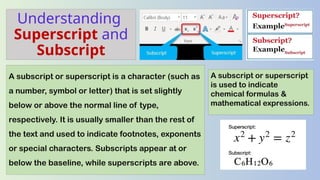
A subscript or superscript is a character (such as
a number, symbol or letter) that is set slightly
below or above the normal line of type,
respectively. It is usually smaller than the rest of
the text and used to indicate footnotes, exponents
or special characters. Subscripts appear at or
below the baseline, while superscripts are above.
A subscript or superscript
is used to indicate
chemical formulas &
mathematical expressions.
Inserting
Superscript and
Subscript
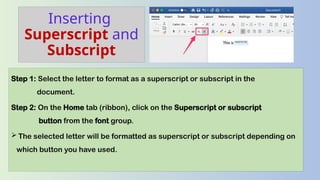
Step 1: Select the letter to format as a superscript or subscript in the
document.
Step 2: On the Home tab (ribbon), click on the Superscript or subscript
button from the font group.
 The selected letter will be formatted as superscript or subscript depending on
which button you have used.
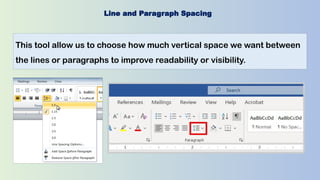
Line and Paragraph Spacing
This tool allow us to choose how much vertical space we want between
the lines or paragraphs to improve readability or visibility.
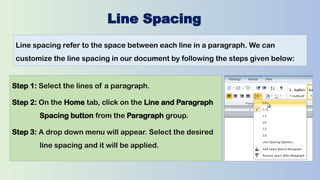
Line Spacing
Line spacing refer to the space between each line in a paragraph. We can
customize the line spacing in our document by following the steps given below:
Step 1: Select the lines of a paragraph.
Step 2: On the Home tab, click on the Line and Paragraph
Spacing button from the Paragraph group.
Step 3: A drop down menu will appear. Select the desired
line spacing and it will be applied.
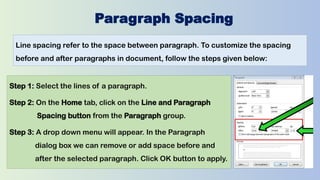
Paragraph Spacing
Line spacing refer to the space between paragraph. To customize the spacing
before and after paragraphs in document, follow the steps given below:
Step 1: Select the lines of a paragraph.
Step 2: On the Home tab, click on the Line and Paragraph
Spacing button from the Paragraph group.
Step 3: A drop down menu will appear. In the Paragraph
dialog box we can remove or add space before and
after the selected paragraph. Click OK button to apply.
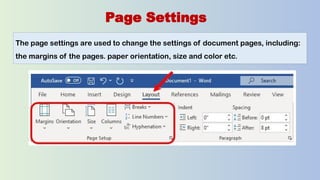
Page Settings
The page settings are used to change the settings of document pages, including:
the margins of the pages. paper orientation, size and color etc.
Page Margins
Setting Page Margins
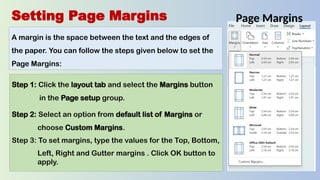
A margin is the space between the text and the edges of
the paper. You can follow the steps given below to set the
Page Margins:
Step 1: Click the layout tab and select the Margins button
in the Page setup group.
Step 2: Select an option from default list of Margins or
choose Custom Margins.
Step 3: To set margins, type the values for the Top, Bottom,
Left, Right and Gutter margins . Click OK button to
apply.
Setting Page Orientation
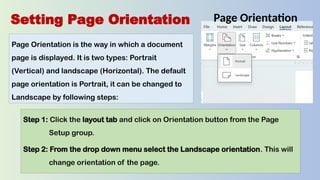
Page Orientation is the way in which a document
page is displayed. It is two types: Portrait
(Vertical) and landscape (Horizontal). The default
page orientation is Portrait, it can be changed to
Landscape by following steps:
Step 1: Click the layout tab and click on Orientation button from the Page
Setup group.
Step 2: From the drop down menu select the Landscape orientation. This will
change orientation of the page.
Page Orientation
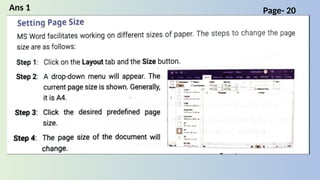
Setting Page Size
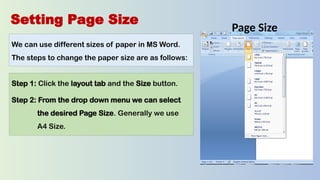
We can use different sizes of paper in MS Word.
The steps to change the paper size are as follows:
Step 1: Click the layout tab and the Size button.
Step 2: From the drop down menu we can select
the desired Page Size. Generally we use
A4 Size.
Page Size
Setting Page Color
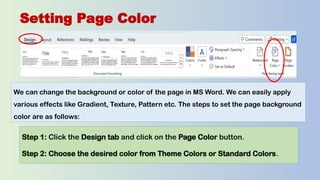
We can change the background or color of the page in MS Word. We can easily apply
various effects like Gradient, Texture, Pattern etc. The steps to set the page background
color are as follows:
Step 1: Click the Design tab and click on the Page Color button.
Step 2: Choose the desired color from Theme Colors or Standard Colors.
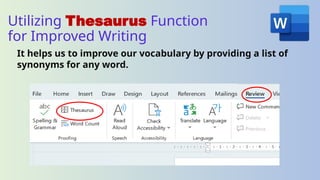
Utilizing Thesaurus Function
for Improved Writing
It helps us to improve our vocabulary by providing a list of
synonyms for any word.
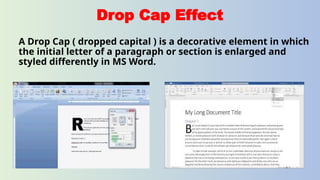
Drop Cap Effect
A Drop Cap ( dropped capital ) is a decorative element in which
the initial letter of a paragraph or section is enlarged and
styled differently in MS Word.
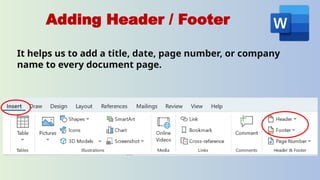
Adding Header / Footer
It helps us to add a title, date, page number, or company
name to every document page.
Page- 24
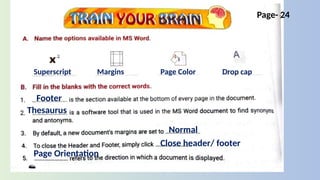
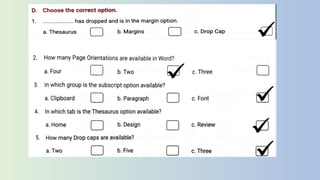
Superscript Margins Page Color Drop cap
Footer
Thesaurus
Normal
Close header/ footer
Page Orientation
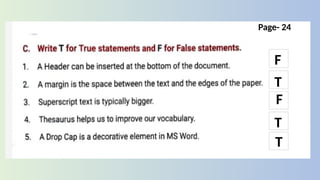
F
T
F
T
T
Page- 24
Page- 20
Ans 1
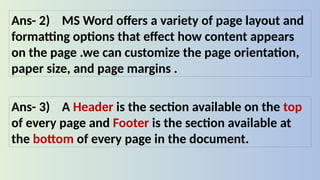
Ans- 2) MS Word offers a variety of page layout and
formatting options that effect how content appears
on the page .we can customize the page orientation,
paper size, and page margins .
Ans- 3) A Header is the section available on the top
of every page and Footer is the section available at
the bottom of every page in the document.
Page- 22
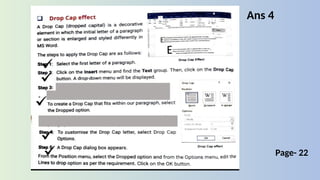
Ans 4
Ans- 5)
MS EXCEL and MS PowerPoint are the two
applications for MS Word advanced features.

Advanced Features in Microsoft Word.pptx

  • 1.
    Advanced Features in Microsoft Word Advanced Featuresin Microsoft Word Chapter - 2 Page -17
  • 2.
    Understanding Superscript and Subscript A subscriptor superscript is a character (such as a number, symbol or letter) that is set slightly below or above the normal line of type, respectively. It is usually smaller than the rest of the text and used to indicate footnotes, exponents or special characters. Subscripts appear at or below the baseline, while superscripts are above. A subscript or superscript is used to indicate chemical formulas & mathematical expressions.
  • 3.
    Inserting Superscript and Subscript Step 1:Select the letter to format as a superscript or subscript in the document. Step 2: On the Home tab (ribbon), click on the Superscript or subscript button from the font group.  The selected letter will be formatted as superscript or subscript depending on which button you have used.
  • 4.
    Line and ParagraphSpacing This tool allow us to choose how much vertical space we want between the lines or paragraphs to improve readability or visibility.
  • 5.
    Line Spacing Line spacingrefer to the space between each line in a paragraph. We can customize the line spacing in our document by following the steps given below: Step 1: Select the lines of a paragraph. Step 2: On the Home tab, click on the Line and Paragraph Spacing button from the Paragraph group. Step 3: A drop down menu will appear. Select the desired line spacing and it will be applied.
  • 6.
    Paragraph Spacing Line spacingrefer to the space between paragraph. To customize the spacing before and after paragraphs in document, follow the steps given below: Step 1: Select the lines of a paragraph. Step 2: On the Home tab, click on the Line and Paragraph Spacing button from the Paragraph group. Step 3: A drop down menu will appear. In the Paragraph dialog box we can remove or add space before and after the selected paragraph. Click OK button to apply.
  • 7.
    Page Settings The pagesettings are used to change the settings of document pages, including: the margins of the pages. paper orientation, size and color etc.
  • 8.
    Page Margins Setting PageMargins A margin is the space between the text and the edges of the paper. You can follow the steps given below to set the Page Margins: Step 1: Click the layout tab and select the Margins button in the Page setup group. Step 2: Select an option from default list of Margins or choose Custom Margins. Step 3: To set margins, type the values for the Top, Bottom, Left, Right and Gutter margins . Click OK button to apply.
  • 9.
    Setting Page Orientation PageOrientation is the way in which a document page is displayed. It is two types: Portrait (Vertical) and landscape (Horizontal). The default page orientation is Portrait, it can be changed to Landscape by following steps: Step 1: Click the layout tab and click on Orientation button from the Page Setup group. Step 2: From the drop down menu select the Landscape orientation. This will change orientation of the page. Page Orientation
  • 10.
    Setting Page Size Wecan use different sizes of paper in MS Word. The steps to change the paper size are as follows: Step 1: Click the layout tab and the Size button. Step 2: From the drop down menu we can select the desired Page Size. Generally we use A4 Size. Page Size
  • 11.
    Setting Page Color Wecan change the background or color of the page in MS Word. We can easily apply various effects like Gradient, Texture, Pattern etc. The steps to set the page background color are as follows: Step 1: Click the Design tab and click on the Page Color button. Step 2: Choose the desired color from Theme Colors or Standard Colors.
  • 12.
    Utilizing Thesaurus Function forImproved Writing It helps us to improve our vocabulary by providing a list of synonyms for any word.
  • 13.
    Drop Cap Effect ADrop Cap ( dropped capital ) is a decorative element in which the initial letter of a paragraph or section is enlarged and styled differently in MS Word.
  • 14.
    Adding Header /Footer It helps us to add a title, date, page number, or company name to every document page.
  • 15.
    Page- 24 Superscript MarginsPage Color Drop cap Footer Thesaurus Normal Close header/ footer Page Orientation
  • 16.
  • 18.
  • 19.
    Ans- 2) MSWord offers a variety of page layout and formatting options that effect how content appears on the page .we can customize the page orientation, paper size, and page margins . Ans- 3) A Header is the section available on the top of every page and Footer is the section available at the bottom of every page in the document.
  • 20.
  • 21.
    Ans- 5) MS EXCELand MS PowerPoint are the two applications for MS Word advanced features.