
CISCO 2960X SWITCH PASSWORD
RECOVERY
www.netprotocolxpert.in
• This short post details how to perform password recovery
on a Cisco 2960X switch.
• The biggest problem most people have with doing a
password recovery on a 2960 or 3560 is knowing how long
to hold the mode button down for.
• The process is this.
• Hold Down the Mode Button on the front of the switch
• Power up the Switch whilst keeping the mode button
held in
• Let the mode button go at the right time and then enter
a few commands.
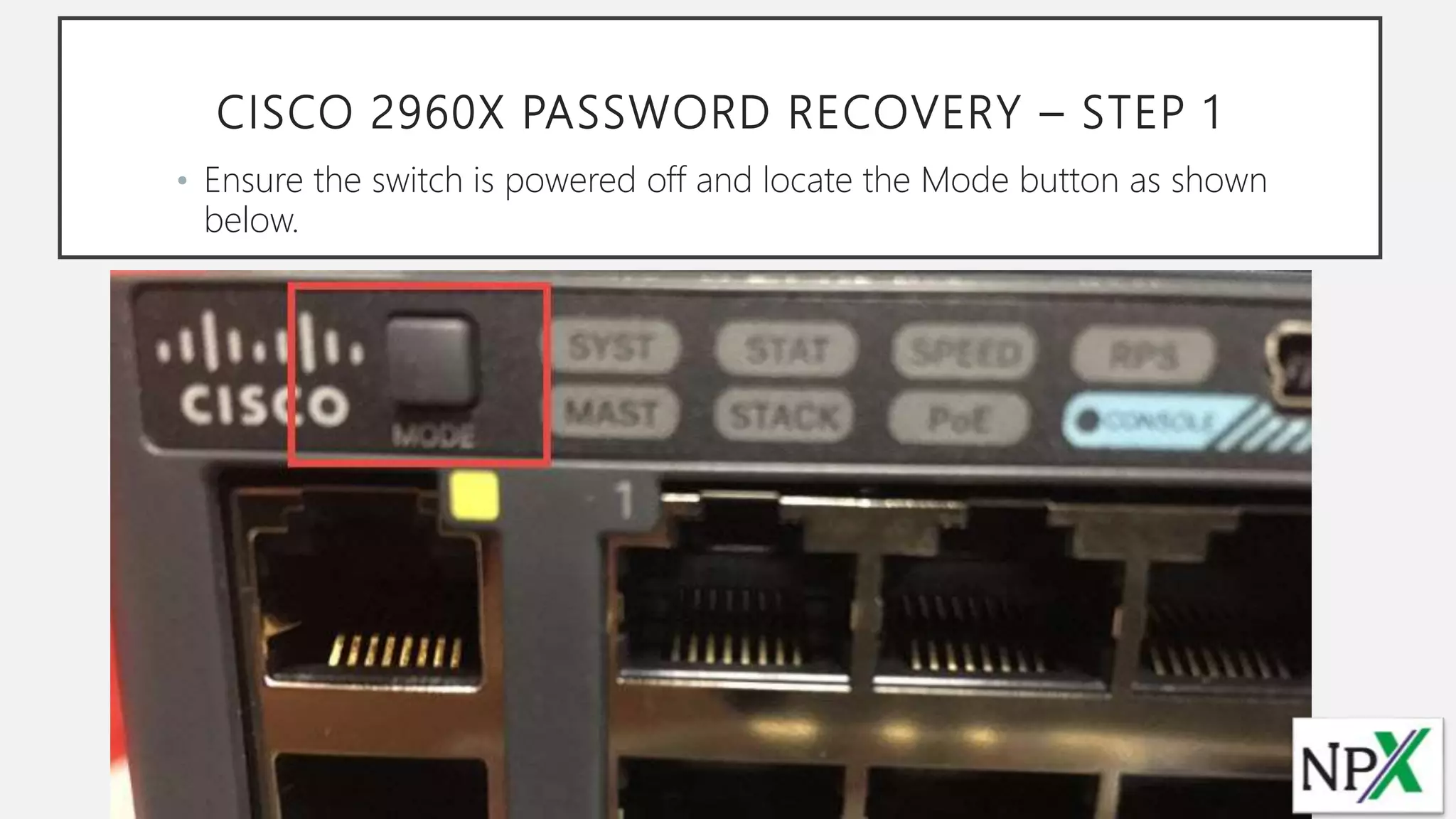
CISCO 2960X PASSWORD RECOVERY – STEP 1
• Ensure the switch is powered off and locate the Mode button as shown
below.
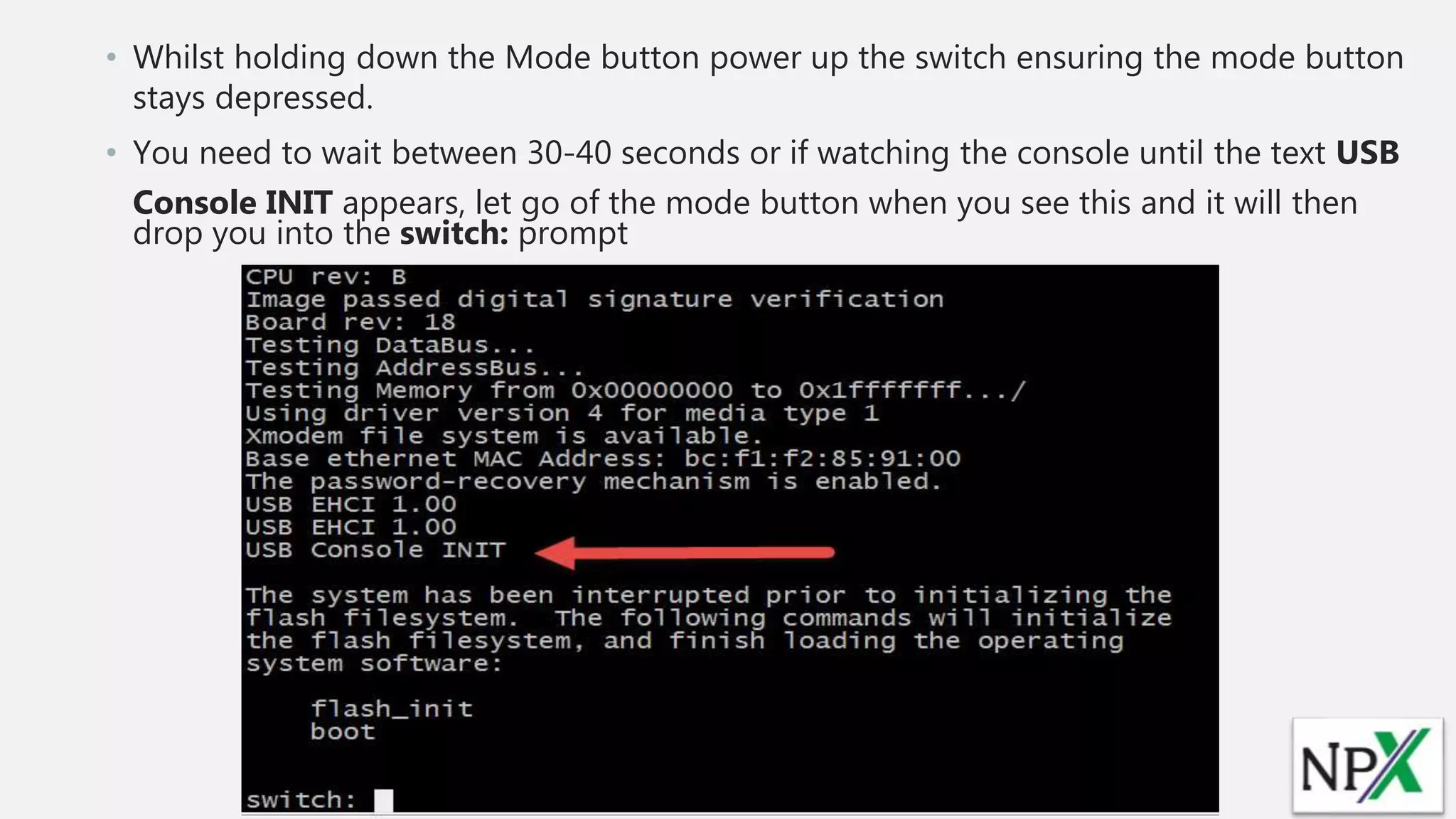
• Whilst holding down the Mode button power up the switch ensuring the mode button
stays depressed.
• You need to wait between 30-40 seconds or if watching the console until the text USB
Console INIT appears, let go of the mode button when you see this and it will then
drop you into the switch: prompt
CISCO 2960X PASSWORD RECOVERY – STEP 2
• Once you are at the switch: prompt enter the command
• flash_init
• Then at the next prompt enter
• dir flash:
• You should then see all the files in flash – you now need to rename the
config.text file to config old
• rename flash:config.text flash:config.old
• !— The config.text file contains the password !— definition.
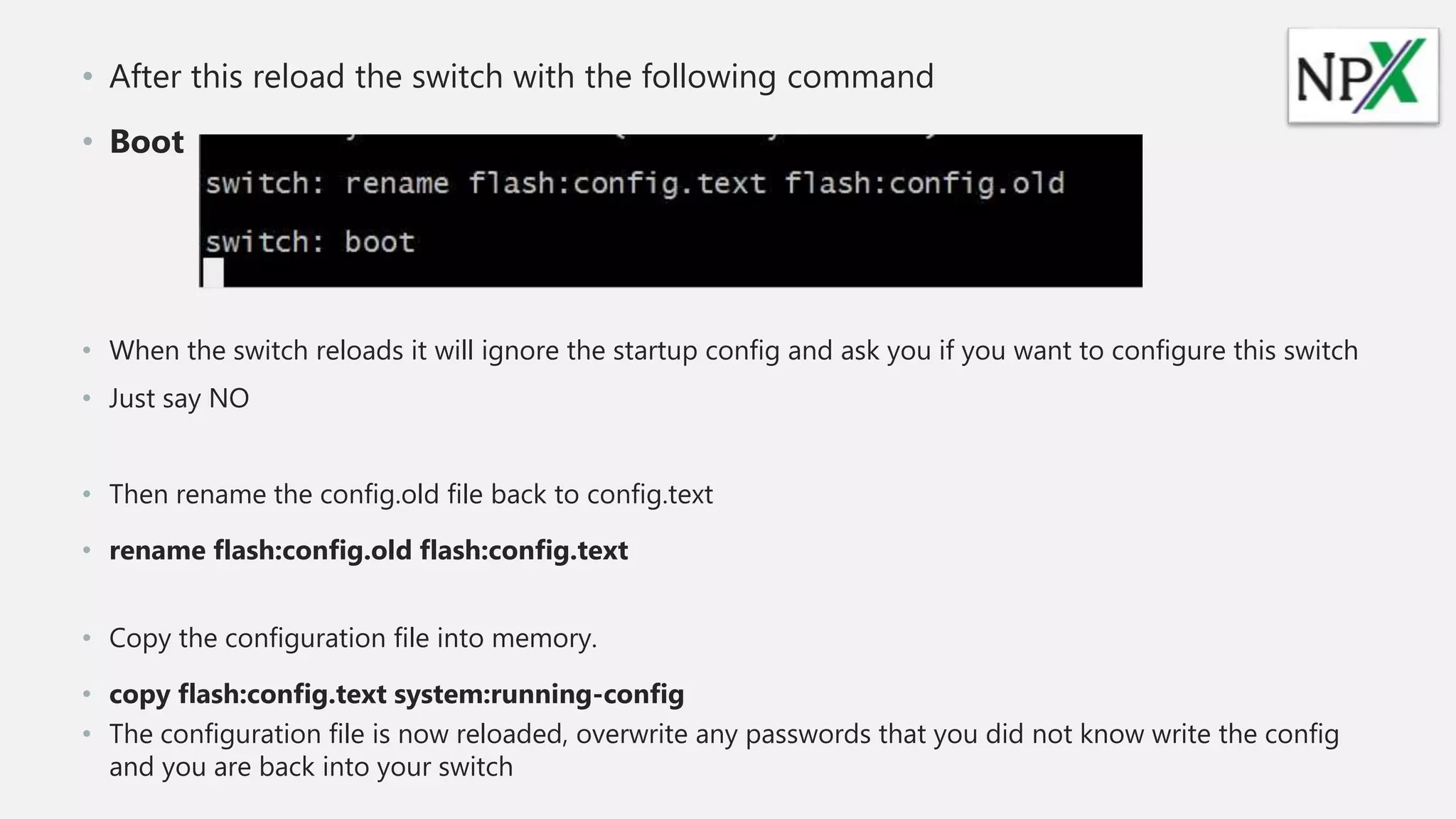
• After this reload the switch with the following command
• Boot
• When the switch reloads it will ignore the startup config and ask you if you want to configure this switch
• Just say NO
• Then rename the config.old file back to config.text
• rename flash:config.old flash:config.text
• Copy the configuration file into memory.
• copy flash:config.text system:running-config
• The configuration file is now reloaded, overwrite any passwords that you did not know write the config
and you are back into your switch

Cisco 2960x switch password recovery

  • 1.
    CISCO 2960X SWITCHPASSWORD RECOVERY www.netprotocolxpert.in
  • 2.
    • This shortpost details how to perform password recovery on a Cisco 2960X switch. • The biggest problem most people have with doing a password recovery on a 2960 or 3560 is knowing how long to hold the mode button down for. • The process is this. • Hold Down the Mode Button on the front of the switch • Power up the Switch whilst keeping the mode button held in • Let the mode button go at the right time and then enter a few commands.
  • 3.
    CISCO 2960X PASSWORDRECOVERY – STEP 1 • Ensure the switch is powered off and locate the Mode button as shown below.
  • 4.
    • Whilst holdingdown the Mode button power up the switch ensuring the mode button stays depressed. • You need to wait between 30-40 seconds or if watching the console until the text USB Console INIT appears, let go of the mode button when you see this and it will then drop you into the switch: prompt
  • 5.
    CISCO 2960X PASSWORDRECOVERY – STEP 2 • Once you are at the switch: prompt enter the command • flash_init • Then at the next prompt enter • dir flash: • You should then see all the files in flash – you now need to rename the config.text file to config old • rename flash:config.text flash:config.old • !— The config.text file contains the password !— definition.
  • 6.
    • After thisreload the switch with the following command • Boot • When the switch reloads it will ignore the startup config and ask you if you want to configure this switch • Just say NO • Then rename the config.old file back to config.text • rename flash:config.old flash:config.text • Copy the configuration file into memory. • copy flash:config.text system:running-config • The configuration file is now reloaded, overwrite any passwords that you did not know write the config and you are back into your switch