Chapter 10Creating a Database
What’s Inside and on the CD?In this chapter, you will be introduced to Microsoft Access and its powerful tools for:Entering and updating informationDeleting informationSorting dataSearching for specific dataCreating reports2Practical Microsoft Office 2010
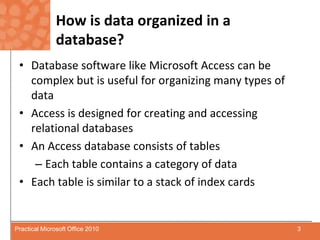
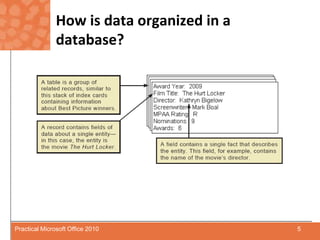
How is data organized in a database?Database software like Microsoft Access can be complex but is useful for organizing many types of dataAccess is designed for creating and accessing relational databasesAn Access database consists of tablesEach table contains a category of dataEach table is similar to a stack of index cards3Practical Microsoft Office 2010
How is data organized in a database?Each card in the stack contains similar information, which relates to a single entity.A database record is equivalent to one index card.4Practical Microsoft Office 2010
How is data organized in a database?5Practical Microsoft Office 2010
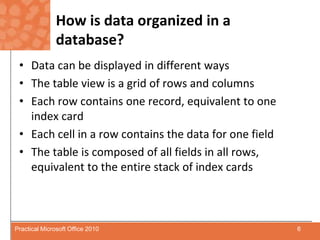
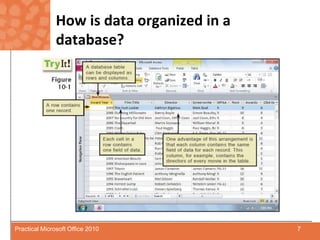
How is data organized in a database?Data can be displayed in different waysThe table view is a grid of rows and columns Each row contains one record, equivalent to one index cardEach cell in a row contains the data for one fieldThe table is composed of all fields in all rows, equivalent to the entire stack of index cards6Practical Microsoft Office 2010
How is data organized in a database?7Practical Microsoft Office 2010
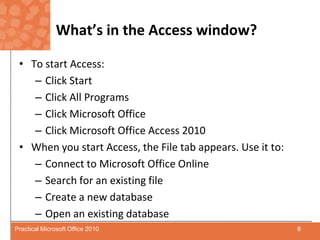
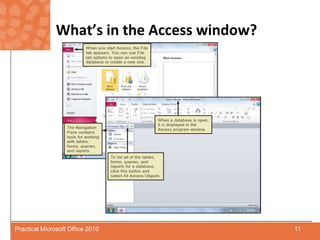
What’s in the Access window?To start Access:Click StartClick All ProgramsClick Microsoft OfficeClick Microsoft Office Access 2010When you start Access, the File tab appears. Use it to:Connect to Microsoft Office OnlineSearch for an existing fileCreate a new databaseOpen an existing database8Practical Microsoft Office 2010
What’s in the Access window?With Access, you typically don’t create a new database but open an existing one to add to or edit data it containsUnlike other Microsoft programs, Access databases are not displayed as they will be printedAccess provides several tools used to create, modify, and display data9Practical Microsoft Office 2010
What’s in the Access window?Tools, used to create tables and simple queries, are contained in the Navigation Pane on left side of the database windowAccess offers many different ways to use each toolAccess is a complex softwareIn order to simplify introduction, some basic ways to use most common tools will be introduced10Practical Microsoft Office 2010
What’s in the Access window?11Practical Microsoft Office 2010
How do I create a new database or open an existing database?Creating a database is different from a document, worksheet, or presentationIn Access you first save an empty database, then create elements of databaseElements include:TablesReportsFormsQueries12Practical Microsoft Office 2010
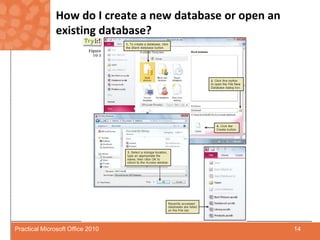
How do I create a new database or open an existing database?To open an existing database:Use the recent databases listUse the Recent buttonUse the Open button on the Access File tab.13Practical Microsoft Office 2010
How do I create a new database or open an existing database?14Practical Microsoft Office 2010
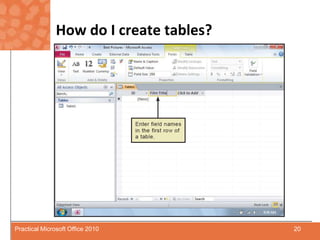
How do I create tables?You must specify the structure of tables, records, and fields before you can enter dataA table contains recordsEach record contains one or more fieldsEach field contains a type of data such as name or data15Practical Microsoft Office 2010
How do I create tables?When you create a new database, Access creates an empty table named Table1You can create additional tables by clicking the Create tab and selecting the table tool16Practical Microsoft Office 2010
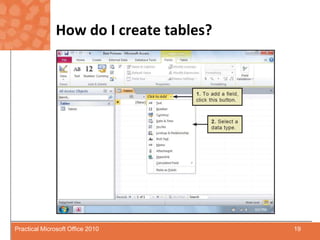
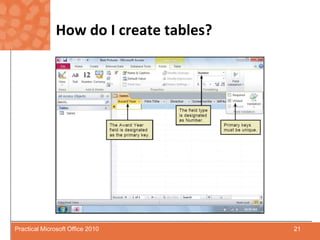
How do I create tables?To define a field for a table, begin by selecting the data typeTextMemoNumberDate & TimeAutoNumberYes/NoEnter a field name, following the Access rules for field names17Practical Microsoft Office 2010
How do I create tables?Table contains an ID field designed to be used as the primary keyA field that uniquely identifies each recordImportant that no two records are ever assigned the same value for this unique fieldDefault data type is AutoNumberCan be modified to accept other primary key dataSKU’sSSN’sTelephone numbers18Practical Microsoft Office 2010
How do I create tables?19Practical Microsoft Office 2010
How do I create tables?20Practical Microsoft Office 2010
How do I create tables?21Practical Microsoft Office 2010
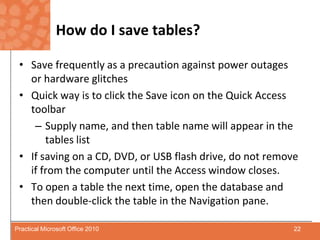
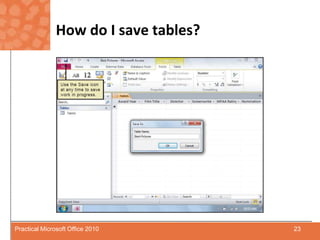
How do I save tables?Save frequently as a precaution against power outages or hardware glitchesQuick way is to click the Save icon on the Quick Access toolbarSupply name, and then table name will appear in the tables listIf saving on a CD, DVD, or USB flash drive, do not remove if from the computer until the Access window closes.To open a table the next time, open the database and then double-click the table in the Navigation pane.22Practical Microsoft Office 2010
How do I save tables?23Practical Microsoft Office 2010
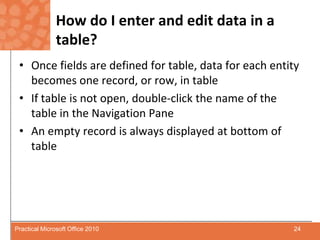
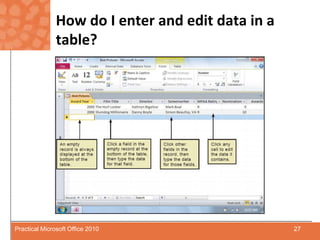
How do I enter and edit data in a table?Once fields are defined for table, data for each entity becomes one record, or row, in tableIf table is not open, double-click the name of the table in the Navigation PaneAn empty record is always displayed at bottom of table24Practical Microsoft Office 2010
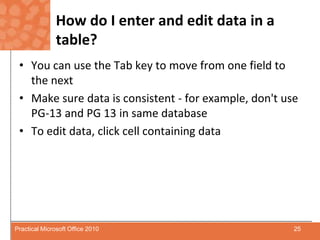
How do I enter and edit data in a table?You can use the Tab key to move from one field to the nextMake sure data is consistent - for example, don't use PG-13 and PG 13 in same databaseTo edit data, click cell containing data25Practical Microsoft Office 2010
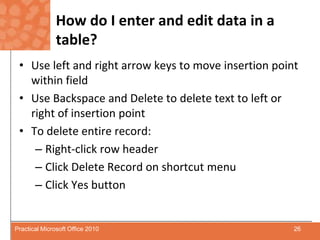
How do I enter and edit data in a table?Use left and right arrow keys to move insertion point within fieldUse Backspace and Delete to delete text to left or right of insertion pointTo delete entire record:Right-click row headerClick Delete Record on shortcut menuClick Yes button26Practical Microsoft Office 2010
How do I enter and edit data in a table?27Practical Microsoft Office 2010
Can I import data into a database?You can import data from files created with other softwareWorksheets created with ExcelDatabases created with older versions of AccessE-mail address books created with OutlookComma-delimited filesA comma-delimited file, sometimes referred to as a CSV file, is data separated by commas28Practical Microsoft Office 2010
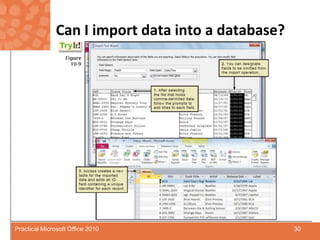
Can I import data into a database?Many software applications offer an export option that creates a comma-delimited fileImport a CSV file by selecting the Import text filefrom the External Data tab and then select the file29Practical Microsoft Office 2010
Can I import data into a database?30Practical Microsoft Office 2010
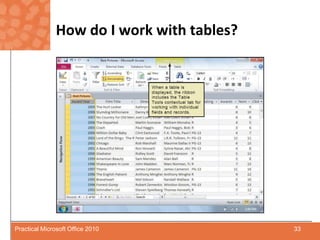
How do I work with tables?Working with data in Access can be similar to working with data in an Excel worksheetYou can add, delete, move, sort, and search for dataControls for these operations are on the ribbon31Practical Microsoft Office 2010
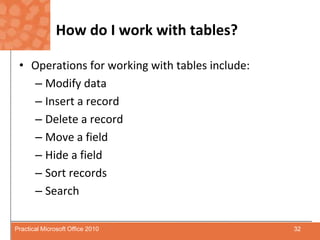
How do I work with tables?Operations for working with tables include:Modify dataInsert a recordDelete a recordMove a fieldHide a fieldSort recordsSearch32Practical Microsoft Office 2010
How do I work with tables?33Practical Microsoft Office 2010
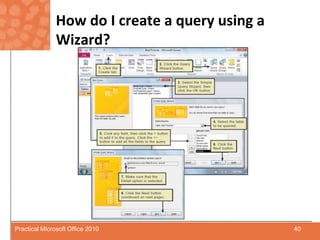
How do I create a query using a wizard?Data in a table can be manipulated in many ways, e.g.:search a company database for all customers in a specific stateCreate a query to search for records containing particular dataA query contains criteria that specifies what you want to find34Practical Microsoft Office 2010
How do I create a query using a wizard?Use query to display some, but not all, fields in tableThe Query Wizard is a quick way to learn about simple queries and use them to locate data35Practical Microsoft Office 2010
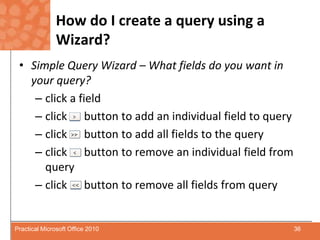
How do I create a query using a Wizard?Simple Query Wizard – What fields do you want in your query?click a fieldclick      button to add an individual field to queryclick      button to add all fields to the queryclick      button to remove an individual field from queryclick      button to remove all fields from query36Practical Microsoft Office 2010
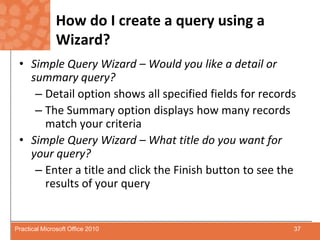
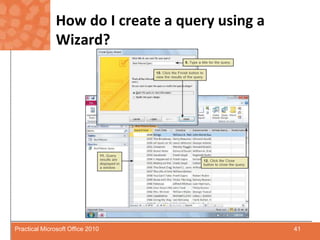
How do I create a query using a Wizard?Simple Query Wizard – Would you like a detail or summary query?Detail option shows all specified fields for recordsThe Summary option displays how many records match your criteriaSimple Query Wizard – What title do you want for your query?Enter a title and click the Finish button to see the results of your query37Practical Microsoft Office 2010
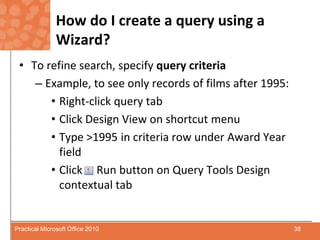
How do I create a query using a Wizard?To refine search, specify query criteria Example, to see only records of films after 1995:Right-click query tabClick Design View on shortcut menuType >1995 in criteria row under Award Year fieldClick     Run button on Query Tools Design contextual tab38Practical Microsoft Office 2010
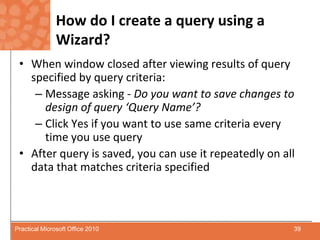
How do I create a query using a Wizard?When window closed after viewing results of query specified by query criteria:Message asking - Do you want to save changes to design of query ‘Query Name’?Click Yes if you want to use same criteria every time you use queryAfter query is saved, you can use it repeatedly on all data that matches criteria specified39Practical Microsoft Office 2010
How do I create a query using a Wizard?40Practical Microsoft Office 2010
How do I create a query using a Wizard?41Practical Microsoft Office 2010

Chapter.10

  • 1.
  • 2.
    What’s Inside andon the CD?In this chapter, you will be introduced to Microsoft Access and its powerful tools for:Entering and updating informationDeleting informationSorting dataSearching for specific dataCreating reports2Practical Microsoft Office 2010
  • 3.
    How is dataorganized in a database?Database software like Microsoft Access can be complex but is useful for organizing many types of dataAccess is designed for creating and accessing relational databasesAn Access database consists of tablesEach table contains a category of dataEach table is similar to a stack of index cards3Practical Microsoft Office 2010
  • 4.
    How is dataorganized in a database?Each card in the stack contains similar information, which relates to a single entity.A database record is equivalent to one index card.4Practical Microsoft Office 2010
  • 5.
    How is dataorganized in a database?5Practical Microsoft Office 2010
  • 6.
    How is dataorganized in a database?Data can be displayed in different waysThe table view is a grid of rows and columns Each row contains one record, equivalent to one index cardEach cell in a row contains the data for one fieldThe table is composed of all fields in all rows, equivalent to the entire stack of index cards6Practical Microsoft Office 2010
  • 7.
    How is dataorganized in a database?7Practical Microsoft Office 2010
  • 8.
    What’s in theAccess window?To start Access:Click StartClick All ProgramsClick Microsoft OfficeClick Microsoft Office Access 2010When you start Access, the File tab appears. Use it to:Connect to Microsoft Office OnlineSearch for an existing fileCreate a new databaseOpen an existing database8Practical Microsoft Office 2010
  • 9.
    What’s in theAccess window?With Access, you typically don’t create a new database but open an existing one to add to or edit data it containsUnlike other Microsoft programs, Access databases are not displayed as they will be printedAccess provides several tools used to create, modify, and display data9Practical Microsoft Office 2010
  • 10.
    What’s in theAccess window?Tools, used to create tables and simple queries, are contained in the Navigation Pane on left side of the database windowAccess offers many different ways to use each toolAccess is a complex softwareIn order to simplify introduction, some basic ways to use most common tools will be introduced10Practical Microsoft Office 2010
  • 11.
    What’s in theAccess window?11Practical Microsoft Office 2010
  • 12.
    How do Icreate a new database or open an existing database?Creating a database is different from a document, worksheet, or presentationIn Access you first save an empty database, then create elements of databaseElements include:TablesReportsFormsQueries12Practical Microsoft Office 2010
  • 13.
    How do Icreate a new database or open an existing database?To open an existing database:Use the recent databases listUse the Recent buttonUse the Open button on the Access File tab.13Practical Microsoft Office 2010
  • 14.
    How do Icreate a new database or open an existing database?14Practical Microsoft Office 2010
  • 15.
    How do Icreate tables?You must specify the structure of tables, records, and fields before you can enter dataA table contains recordsEach record contains one or more fieldsEach field contains a type of data such as name or data15Practical Microsoft Office 2010
  • 16.
    How do Icreate tables?When you create a new database, Access creates an empty table named Table1You can create additional tables by clicking the Create tab and selecting the table tool16Practical Microsoft Office 2010
  • 17.
    How do Icreate tables?To define a field for a table, begin by selecting the data typeTextMemoNumberDate & TimeAutoNumberYes/NoEnter a field name, following the Access rules for field names17Practical Microsoft Office 2010
  • 18.
    How do Icreate tables?Table contains an ID field designed to be used as the primary keyA field that uniquely identifies each recordImportant that no two records are ever assigned the same value for this unique fieldDefault data type is AutoNumberCan be modified to accept other primary key dataSKU’sSSN’sTelephone numbers18Practical Microsoft Office 2010
  • 19.
    How do Icreate tables?19Practical Microsoft Office 2010
  • 20.
    How do Icreate tables?20Practical Microsoft Office 2010
  • 21.
    How do Icreate tables?21Practical Microsoft Office 2010
  • 22.
    How do Isave tables?Save frequently as a precaution against power outages or hardware glitchesQuick way is to click the Save icon on the Quick Access toolbarSupply name, and then table name will appear in the tables listIf saving on a CD, DVD, or USB flash drive, do not remove if from the computer until the Access window closes.To open a table the next time, open the database and then double-click the table in the Navigation pane.22Practical Microsoft Office 2010
  • 23.
    How do Isave tables?23Practical Microsoft Office 2010
  • 24.
    How do Ienter and edit data in a table?Once fields are defined for table, data for each entity becomes one record, or row, in tableIf table is not open, double-click the name of the table in the Navigation PaneAn empty record is always displayed at bottom of table24Practical Microsoft Office 2010
  • 25.
    How do Ienter and edit data in a table?You can use the Tab key to move from one field to the nextMake sure data is consistent - for example, don't use PG-13 and PG 13 in same databaseTo edit data, click cell containing data25Practical Microsoft Office 2010
  • 26.
    How do Ienter and edit data in a table?Use left and right arrow keys to move insertion point within fieldUse Backspace and Delete to delete text to left or right of insertion pointTo delete entire record:Right-click row headerClick Delete Record on shortcut menuClick Yes button26Practical Microsoft Office 2010
  • 27.
    How do Ienter and edit data in a table?27Practical Microsoft Office 2010
  • 28.
    Can I importdata into a database?You can import data from files created with other softwareWorksheets created with ExcelDatabases created with older versions of AccessE-mail address books created with OutlookComma-delimited filesA comma-delimited file, sometimes referred to as a CSV file, is data separated by commas28Practical Microsoft Office 2010
  • 29.
    Can I importdata into a database?Many software applications offer an export option that creates a comma-delimited fileImport a CSV file by selecting the Import text filefrom the External Data tab and then select the file29Practical Microsoft Office 2010
  • 30.
    Can I importdata into a database?30Practical Microsoft Office 2010
  • 31.
    How do Iwork with tables?Working with data in Access can be similar to working with data in an Excel worksheetYou can add, delete, move, sort, and search for dataControls for these operations are on the ribbon31Practical Microsoft Office 2010
  • 32.
    How do Iwork with tables?Operations for working with tables include:Modify dataInsert a recordDelete a recordMove a fieldHide a fieldSort recordsSearch32Practical Microsoft Office 2010
  • 33.
    How do Iwork with tables?33Practical Microsoft Office 2010
  • 34.
    How do Icreate a query using a wizard?Data in a table can be manipulated in many ways, e.g.:search a company database for all customers in a specific stateCreate a query to search for records containing particular dataA query contains criteria that specifies what you want to find34Practical Microsoft Office 2010
  • 35.
    How do Icreate a query using a wizard?Use query to display some, but not all, fields in tableThe Query Wizard is a quick way to learn about simple queries and use them to locate data35Practical Microsoft Office 2010
  • 36.
    How do Icreate a query using a Wizard?Simple Query Wizard – What fields do you want in your query?click a fieldclick button to add an individual field to queryclick button to add all fields to the queryclick button to remove an individual field from queryclick button to remove all fields from query36Practical Microsoft Office 2010
  • 37.
    How do Icreate a query using a Wizard?Simple Query Wizard – Would you like a detail or summary query?Detail option shows all specified fields for recordsThe Summary option displays how many records match your criteriaSimple Query Wizard – What title do you want for your query?Enter a title and click the Finish button to see the results of your query37Practical Microsoft Office 2010
  • 38.
    How do Icreate a query using a Wizard?To refine search, specify query criteria Example, to see only records of films after 1995:Right-click query tabClick Design View on shortcut menuType >1995 in criteria row under Award Year fieldClick Run button on Query Tools Design contextual tab38Practical Microsoft Office 2010
  • 39.
    How do Icreate a query using a Wizard?When window closed after viewing results of query specified by query criteria:Message asking - Do you want to save changes to design of query ‘Query Name’?Click Yes if you want to use same criteria every time you use queryAfter query is saved, you can use it repeatedly on all data that matches criteria specified39Practical Microsoft Office 2010
  • 40.
    How do Icreate a query using a Wizard?40Practical Microsoft Office 2010
  • 41.
    How do Icreate a query using a Wizard?41Practical Microsoft Office 2010