Chapter 2Creating a Document
What’s Inside and on the CD?In this chapter, you will learn how to:Create documents using Microsoft WordSelect and edit textCheck spellingUse the electronic thesaurusSpecify print optionsUse document templates2Practical Microsoft Office 2010
What’s in the Word program window?Word program window appears when you start Microsoft WordClick Start and point to All Programs, click Microsoft Office, then click Microsoft Office Word 20103Practical Microsoft Office 2010
What’s in the Word program window?4Practical Microsoft Office 2010
What’s in the Word program window?You use these objects to:createedit save printformat5Practical Microsoft Office 2010
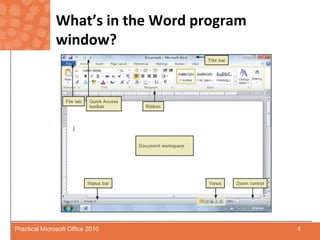
What’s in the Word program window?Document workspace is where you type documents.  It looks like a blank sheet of paper on your screen.Title bar shows name of current documentIf document has not been saved, title bar displays generic title “Document1”Word’s ribbon contains commands and tools that you can use to create and edit your document6Practical Microsoft Office 2010
What’s in the Word program window?There are different ways to view document:Draft viewWeb Layout viewPrint Layout viewFull Screen Reading viewOutline viewStatus bar provides information about documentClickingthe Zoom level on the status bar increases or decreases the zoom levelRight-Click status bar to customize information displayed7Practical Microsoft Office 2010
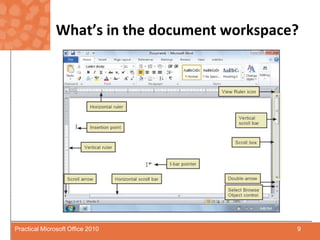
What’s in the document workspace?The blank document workspace is bordered by scroll bars and a rulerYou can display none, one, or both rulersUse the scroll bar by dragging the scroll box or clicking the scroll arrowsDouble-arrows on the vertical scroll bar work in conjunction with the Select Browse Object controlPageChart8Practical Microsoft Office 2010
What’s in the document workspace?9Practical Microsoft Office 2010
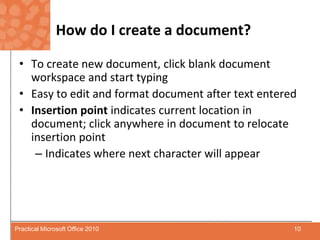
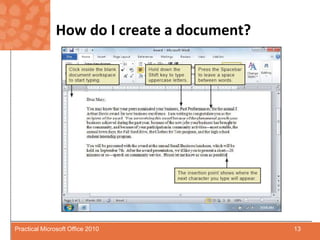
How do I create a document?To create new document, click blank document workspace and start typingEasy to edit and format document after text enteredInsertion point indicates current location in document; click anywhere in document to relocate insertion pointIndicates where next character will appear10Practical Microsoft Office 2010
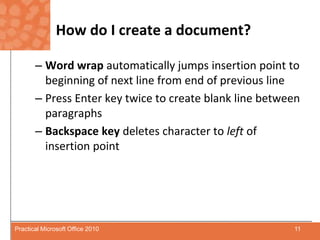
How do I create a document?Word wrap automatically jumps insertion point to beginning of next line from end of previous linePress Enter key twice to create blank line between paragraphsBackspace key deletes character to left of insertion point11Practical Microsoft Office 2010
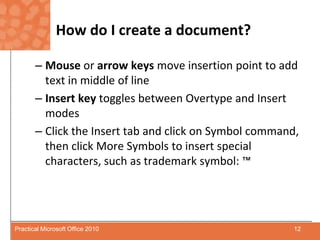
How do I create a document?Mouse or arrow keys move insertion point to add text in middle of lineInsert key toggles between Overtype and Insertmodes Click the Insert tab and click on Symbol command, then click More Symbols to insert special characters, such as trademark symbol: ™12Practical Microsoft Office 2010
How do I create a document?13Practical Microsoft Office 2010
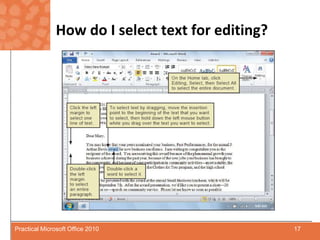
How do I select text for editing?Select text marks characters, words, phrases, sentences, or paragraphs to modify Selected text is highlightedUse drag method to select short sections of textDouble-click a word to select only that wordTriple-click to select entire paragraph14Practical Microsoft Office 2010
How do I select text for editing?When pointing to left margin, pointer changes to white arrow Click once to select line of textDouble-click to select paragraphYou can use keyboard to select text Use mouse or arrow keys to move insertion point to beginning of selected text Hold Shift key down while using arrow keys to select text15Practical Microsoft Office 2010
How do I select text for editing?Deselect text by clicking away from text currently selected, or by pressing an arrow keySelect section of text by clicking at beginning of selection, then Shift-clicking at endSelect non-contiguous textby selecting first word or section, then using Control-click to select subsequent sections16Practical Microsoft Office 2010
How do I select text for editing?17Practical Microsoft Office 2010
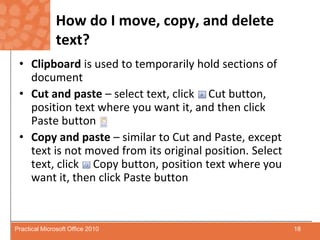
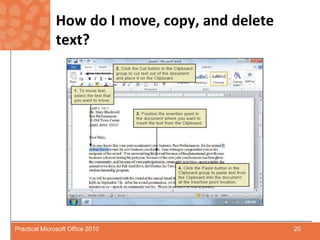
How do I move, copy, and delete text?Clipboard is used to temporarily hold sections of documentCut and paste – select text, click     Cut button, position text where you want it, and then click      Paste buttonCopy and paste – similar to Cut and Paste, except text is not moved from its original position. Select text, click     Copy button, position text where you want it, then click Paste button18Practical Microsoft Office 2010
How do I move, copy, and delete text?Copied text remains on Clipboard so you can paste as many copies of text as neededText, numbers, graphics, tables, and other objects can be cut or copied and pasted between different applications, such as Excel data into Word document19Practical Microsoft Office 2010
How do I move, copy, and delete text?20Practical Microsoft Office 2010
Can I undo a command?Undo button may allow you to undo last action you performed Redo button may allow you to restore action that you mistakenly undidRepeat command repeats your last action 21Practical Microsoft Office 2010
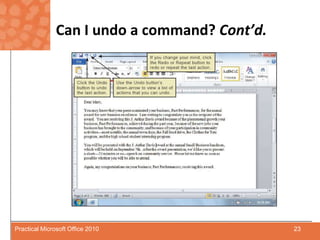
Can I undo a command?If no actions can be undone or redone, buttons will be disabled and appear “grayed out”Undo button undoes editing or formatting commands Actions such as saving and printing files cannot be undoneClick down arrow beside either button to undo or redo a number of actions22Practical Microsoft Office 2010
Can I undo a command? Cont’d.23Practical Microsoft Office 2010
How do I check spelling, grammar, and readability?Microsoft Word provides tools to help you check spelling and grammarYou can check the readability of a document by displaying readability staticsBased on number of syllables per word and words per sentenceSummarized as a score between 1 and 100If you don’t see any wavy lines, spelling and grammar checking might be turned off24Practical Microsoft Office 2010
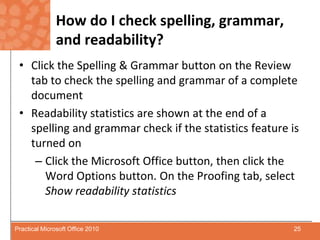
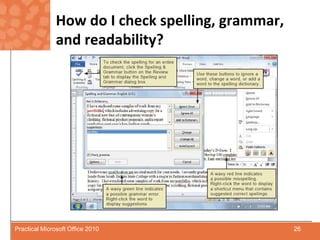
How do I check spelling, grammar, and readability?Click the Spelling & Grammar button on the Review tab to check the spelling and grammar of a complete documentReadability statistics are shown at the end of a spelling and grammar check if the statistics feature is turned onClick the Microsoft Office button, then click the Word Options button. On the Proofing tab, select Show readability statistics25Practical Microsoft Office 2010
How do I check spelling, grammar, and readability?26Practical Microsoft Office 2010
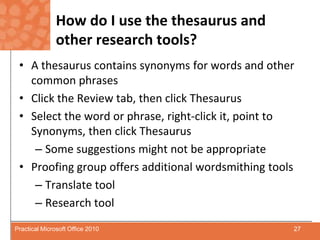
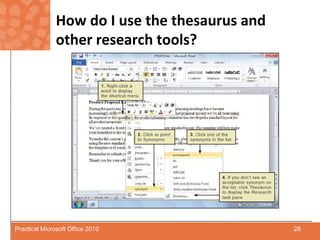
How do I use the thesaurus and other research tools?A thesaurus contains synonyms for words and other common phrasesClick the Review tab, then click ThesaurusSelect the word or phrase, right-click it, point to Synonyms, then click ThesaurusSome suggestions might not be appropriateProofing group offers additional wordsmithing toolsTranslate toolResearch tool27Practical Microsoft Office 2010
How do I use the thesaurus and other research tools?28Practical Microsoft Office 2010
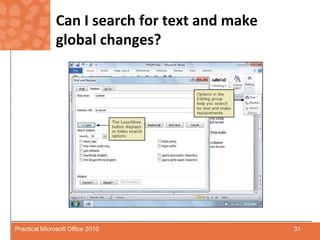
Can I search for text and make global changes?Find and replace function allows you to replace all instances of text with new textUse capitalization in replacement text only if you want all instances of the replacement text to be capitalizedIf you enter the replacement text in all lowercase, Word will change the case to match the original text29Practical Microsoft Office 2010
Can I search for text and make global changes?Word looks for your search string in any part of the wordThe Sounds like option lets you find words even if you are not sure how to spell themYou can use wildcards*?30Practical Microsoft Office 2010
Can I search for text and make global changes?31Practical Microsoft Office 2010
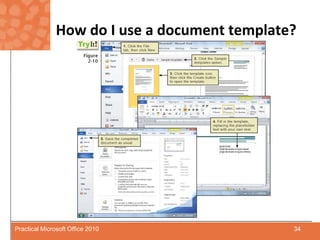
How do I use a document template?Document can be created from scratch or by using a pre-formatted document templateWord templates include: LettersFaxesResumes32Practical Microsoft Office 2010
How do I use a document template?Placeholder is element into which text is entered to personalize documentCreate custom templates for documents needed on regular basisBusiness templates include letterhead, fax cover sheets, memos, and reports33Practical Microsoft Office 2010
How do I use a document template?34Practical Microsoft Office 2010
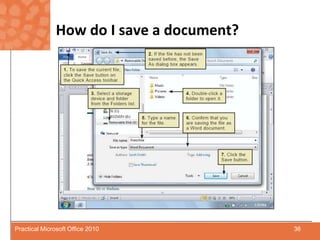
How do I save a document?Save As dialog box appears first time you save documentBy default, Word saves your file as Word document in Documents folderYou can save document as different file type by clicking down arrow key to right of Save as type text boxClick Save button regularly to save your work35Practical Microsoft Office 2010
How do I save a document?36Practical Microsoft Office 2010
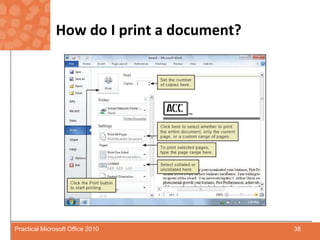
How do I print a document?To access the Print dialog box, click the Print option available through the file tab Printer listPrint range Current pageRange of pagesNumber of copiesCollate optionDuplex printersPrint Preview	37Practical Microsoft Office 2010
How do I print a document?	38Practical Microsoft Office 2010
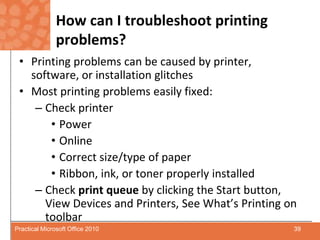
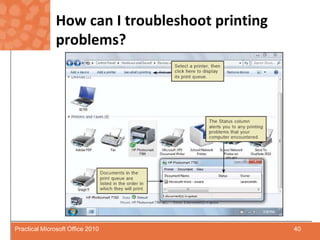
How can I troubleshoot printing problems?Printing problems can be caused by printer, software, or installation glitchesMost printing problems easily fixed:Check printerPowerOnlineCorrect size/type of paperRibbon, ink, or toner properly installedCheck print queue by clicking the Start button, View Devices and Printers, See What’s Printing on toolbar39Practical Microsoft Office 2010
How can I troubleshoot printing problems?40Practical Microsoft Office 2010
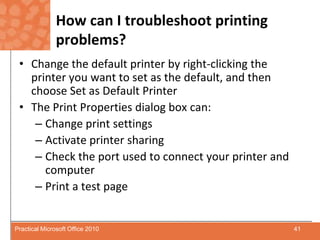
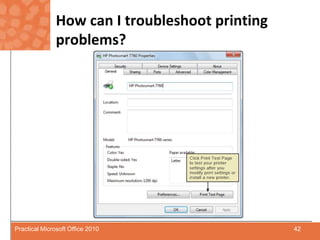
How can I troubleshoot printing problems?Change the default printer by right-clicking the printer you want to set as the default, and then choose Set as Default PrinterThe Print Properties dialog box can:Change print settingsActivate printer sharingCheck the port used to connect your printer and computerPrint a test page41Practical Microsoft Office 2010
How can I troubleshoot printing problems?42Practical Microsoft Office 2010
How can I troubleshoot printing problems?Check on Page Setup dialog box that page settings are correctPrinter software may be problemUpdated printer drivers typically available online to download and install43Practical Microsoft Office 2010

Chapter.02

  • 1.
  • 2.
    What’s Inside andon the CD?In this chapter, you will learn how to:Create documents using Microsoft WordSelect and edit textCheck spellingUse the electronic thesaurusSpecify print optionsUse document templates2Practical Microsoft Office 2010
  • 3.
    What’s in theWord program window?Word program window appears when you start Microsoft WordClick Start and point to All Programs, click Microsoft Office, then click Microsoft Office Word 20103Practical Microsoft Office 2010
  • 4.
    What’s in theWord program window?4Practical Microsoft Office 2010
  • 5.
    What’s in theWord program window?You use these objects to:createedit save printformat5Practical Microsoft Office 2010
  • 6.
    What’s in theWord program window?Document workspace is where you type documents. It looks like a blank sheet of paper on your screen.Title bar shows name of current documentIf document has not been saved, title bar displays generic title “Document1”Word’s ribbon contains commands and tools that you can use to create and edit your document6Practical Microsoft Office 2010
  • 7.
    What’s in theWord program window?There are different ways to view document:Draft viewWeb Layout viewPrint Layout viewFull Screen Reading viewOutline viewStatus bar provides information about documentClickingthe Zoom level on the status bar increases or decreases the zoom levelRight-Click status bar to customize information displayed7Practical Microsoft Office 2010
  • 8.
    What’s in thedocument workspace?The blank document workspace is bordered by scroll bars and a rulerYou can display none, one, or both rulersUse the scroll bar by dragging the scroll box or clicking the scroll arrowsDouble-arrows on the vertical scroll bar work in conjunction with the Select Browse Object controlPageChart8Practical Microsoft Office 2010
  • 9.
    What’s in thedocument workspace?9Practical Microsoft Office 2010
  • 10.
    How do Icreate a document?To create new document, click blank document workspace and start typingEasy to edit and format document after text enteredInsertion point indicates current location in document; click anywhere in document to relocate insertion pointIndicates where next character will appear10Practical Microsoft Office 2010
  • 11.
    How do Icreate a document?Word wrap automatically jumps insertion point to beginning of next line from end of previous linePress Enter key twice to create blank line between paragraphsBackspace key deletes character to left of insertion point11Practical Microsoft Office 2010
  • 12.
    How do Icreate a document?Mouse or arrow keys move insertion point to add text in middle of lineInsert key toggles between Overtype and Insertmodes Click the Insert tab and click on Symbol command, then click More Symbols to insert special characters, such as trademark symbol: ™12Practical Microsoft Office 2010
  • 13.
    How do Icreate a document?13Practical Microsoft Office 2010
  • 14.
    How do Iselect text for editing?Select text marks characters, words, phrases, sentences, or paragraphs to modify Selected text is highlightedUse drag method to select short sections of textDouble-click a word to select only that wordTriple-click to select entire paragraph14Practical Microsoft Office 2010
  • 15.
    How do Iselect text for editing?When pointing to left margin, pointer changes to white arrow Click once to select line of textDouble-click to select paragraphYou can use keyboard to select text Use mouse or arrow keys to move insertion point to beginning of selected text Hold Shift key down while using arrow keys to select text15Practical Microsoft Office 2010
  • 16.
    How do Iselect text for editing?Deselect text by clicking away from text currently selected, or by pressing an arrow keySelect section of text by clicking at beginning of selection, then Shift-clicking at endSelect non-contiguous textby selecting first word or section, then using Control-click to select subsequent sections16Practical Microsoft Office 2010
  • 17.
    How do Iselect text for editing?17Practical Microsoft Office 2010
  • 18.
    How do Imove, copy, and delete text?Clipboard is used to temporarily hold sections of documentCut and paste – select text, click Cut button, position text where you want it, and then click Paste buttonCopy and paste – similar to Cut and Paste, except text is not moved from its original position. Select text, click Copy button, position text where you want it, then click Paste button18Practical Microsoft Office 2010
  • 19.
    How do Imove, copy, and delete text?Copied text remains on Clipboard so you can paste as many copies of text as neededText, numbers, graphics, tables, and other objects can be cut or copied and pasted between different applications, such as Excel data into Word document19Practical Microsoft Office 2010
  • 20.
    How do Imove, copy, and delete text?20Practical Microsoft Office 2010
  • 21.
    Can I undoa command?Undo button may allow you to undo last action you performed Redo button may allow you to restore action that you mistakenly undidRepeat command repeats your last action 21Practical Microsoft Office 2010
  • 22.
    Can I undoa command?If no actions can be undone or redone, buttons will be disabled and appear “grayed out”Undo button undoes editing or formatting commands Actions such as saving and printing files cannot be undoneClick down arrow beside either button to undo or redo a number of actions22Practical Microsoft Office 2010
  • 23.
    Can I undoa command? Cont’d.23Practical Microsoft Office 2010
  • 24.
    How do Icheck spelling, grammar, and readability?Microsoft Word provides tools to help you check spelling and grammarYou can check the readability of a document by displaying readability staticsBased on number of syllables per word and words per sentenceSummarized as a score between 1 and 100If you don’t see any wavy lines, spelling and grammar checking might be turned off24Practical Microsoft Office 2010
  • 25.
    How do Icheck spelling, grammar, and readability?Click the Spelling & Grammar button on the Review tab to check the spelling and grammar of a complete documentReadability statistics are shown at the end of a spelling and grammar check if the statistics feature is turned onClick the Microsoft Office button, then click the Word Options button. On the Proofing tab, select Show readability statistics25Practical Microsoft Office 2010
  • 26.
    How do Icheck spelling, grammar, and readability?26Practical Microsoft Office 2010
  • 27.
    How do Iuse the thesaurus and other research tools?A thesaurus contains synonyms for words and other common phrasesClick the Review tab, then click ThesaurusSelect the word or phrase, right-click it, point to Synonyms, then click ThesaurusSome suggestions might not be appropriateProofing group offers additional wordsmithing toolsTranslate toolResearch tool27Practical Microsoft Office 2010
  • 28.
    How do Iuse the thesaurus and other research tools?28Practical Microsoft Office 2010
  • 29.
    Can I searchfor text and make global changes?Find and replace function allows you to replace all instances of text with new textUse capitalization in replacement text only if you want all instances of the replacement text to be capitalizedIf you enter the replacement text in all lowercase, Word will change the case to match the original text29Practical Microsoft Office 2010
  • 30.
    Can I searchfor text and make global changes?Word looks for your search string in any part of the wordThe Sounds like option lets you find words even if you are not sure how to spell themYou can use wildcards*?30Practical Microsoft Office 2010
  • 31.
    Can I searchfor text and make global changes?31Practical Microsoft Office 2010
  • 32.
    How do Iuse a document template?Document can be created from scratch or by using a pre-formatted document templateWord templates include: LettersFaxesResumes32Practical Microsoft Office 2010
  • 33.
    How do Iuse a document template?Placeholder is element into which text is entered to personalize documentCreate custom templates for documents needed on regular basisBusiness templates include letterhead, fax cover sheets, memos, and reports33Practical Microsoft Office 2010
  • 34.
    How do Iuse a document template?34Practical Microsoft Office 2010
  • 35.
    How do Isave a document?Save As dialog box appears first time you save documentBy default, Word saves your file as Word document in Documents folderYou can save document as different file type by clicking down arrow key to right of Save as type text boxClick Save button regularly to save your work35Practical Microsoft Office 2010
  • 36.
    How do Isave a document?36Practical Microsoft Office 2010
  • 37.
    How do Iprint a document?To access the Print dialog box, click the Print option available through the file tab Printer listPrint range Current pageRange of pagesNumber of copiesCollate optionDuplex printersPrint Preview 37Practical Microsoft Office 2010
  • 38.
    How do Iprint a document? 38Practical Microsoft Office 2010
  • 39.
    How can Itroubleshoot printing problems?Printing problems can be caused by printer, software, or installation glitchesMost printing problems easily fixed:Check printerPowerOnlineCorrect size/type of paperRibbon, ink, or toner properly installedCheck print queue by clicking the Start button, View Devices and Printers, See What’s Printing on toolbar39Practical Microsoft Office 2010
  • 40.
    How can Itroubleshoot printing problems?40Practical Microsoft Office 2010
  • 41.
    How can Itroubleshoot printing problems?Change the default printer by right-clicking the printer you want to set as the default, and then choose Set as Default PrinterThe Print Properties dialog box can:Change print settingsActivate printer sharingCheck the port used to connect your printer and computerPrint a test page41Practical Microsoft Office 2010
  • 42.
    How can Itroubleshoot printing problems?42Practical Microsoft Office 2010
  • 43.
    How can Itroubleshoot printing problems?Check on Page Setup dialog box that page settings are correctPrinter software may be problemUpdated printer drivers typically available online to download and install43Practical Microsoft Office 2010