Ribbon Components
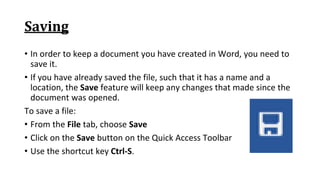
Saving
• In order to keep a document you have created in Word, you need to
save it.
• If you have already saved the file, such that it has a name and a
location, the Save feature will keep any changes that made since the
document was opened.
To save a file:
• From the File tab, choose Save
• Click on the Save button on the Quick Access Toolbar
• Use the shortcut key Ctrl‐S.
Save As
• If you want to save your file with a different name and/or location,
click on the File tab, choose Save As… or press the function key F12.
• If you have never saved this document before, any method you
choose to save will activate the Save As dialog box.
• Word Document‐Saves as a Word Document (*.docx)
• To save the file in a different format, change the Save As type option
• Remember if the file was previously saved, you will make a new copy
by using "Save As…".
Save As
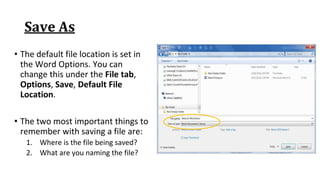
• The default file location is set in
the Word Options. You can
change this under the File tab,
Options, Save, Default File
Location.
• The two most important things to
remember with saving a file are:
1. Where is the file being saved?
2. What are you naming the file?
Closing a Document
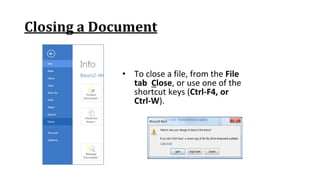
• To close a file, from the File
tab Close, or use one of the
shortcut keys (Ctrl‐F4, or
Ctrl‐W).
Closing a Document
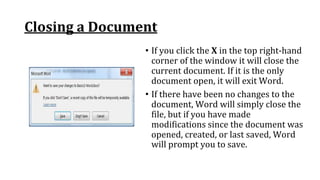
• If you click the X in the top right‐hand
corner of the window it will close the
current document. If it is the only
document open, it will exit Word.
• If there have been no changes to the
document, Word will simply close the
file, but if you have made
modifications since the document was
opened, created, or last saved, Word
will prompt you to save.
Closing a Document
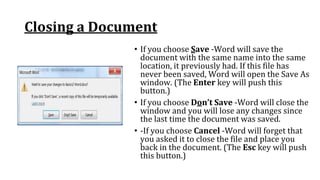
• If you choose Save ‐Word will save the
document with the same name into the same
location, it previously had. If this file has
never been saved, Word will open the Save As
window. (The Enter key will push this
button.)
• If you choose Don’t Save ‐Word will close the
window and you will lose any changes since
the last time the document was saved.
• ‐If you choose Cancel ‐Word will forget that
you asked it to close the file and place you
back in the document. (The Esc key will push
this button.)
Undo
• Word keeps track of most tasks you perform until you exit. Tasks such
as formatting and deleting, can be undone.
• From the Quick Access Toolbar click the button
• or use the shortcut key Ctrl‐Z.
Redo
• If you undo too far, or you change your mind about the
undoing of that task, Word allows you to Redo.
• On the Quick Access Toolbar you will find the redo button
• or use the shortcut key Ctrl‐Y.
Repeat
• If there is nothing to redo, Word puts a
Repeat feature in Redo’s place and
assigns the shortcut key (Ctrl‐Y) to
Repeat.
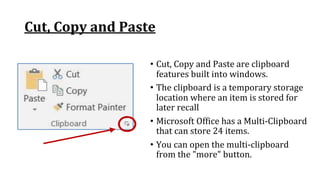
Cut, Copy and Paste
• Cut, Copy and Paste are clipboard
features built into windows.
• The clipboard is a temporary storage
location where an item is stored for
later recall
• Microsoft Office has a Multi‐Clipboard
that can store 24 items.
• You can open the multi‐clipboard
from the "more" button.
Cut
• Cut will copy the selected text to
the clipboard and remove it from
the current location.
• This button appropriately shows
a pair of scissors for the cut
option.
• The shortcut key is Ctrl‐X.
Copy
•Copy will place the selected text on
the clipboard; nothing will appear
to happen on the window.
•The button shows two sheets of
paper for the copy option.
•The shortcut key is Ctrl‐C.
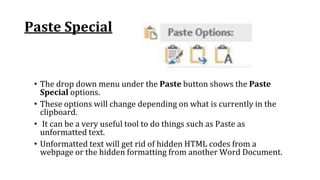
Paste Special
• The drop down menu under the Paste button shows the Paste
Special options.
• These options will change depending on what is currently in the
clipboard.
• It can be a very useful tool to do things such as Paste as
unformatted text.
• Unformatted text will get rid of hidden HTML codes from a
webpage or the hidden formatting from another Word Document.
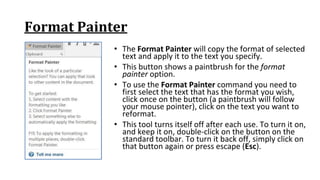
Format Painter
• The Format Painter will copy the format of selected
text and apply it to the text you specify.
• This button shows a paintbrush for the format
painter option.
• To use the Format Painter command you need to
first select the text that has the format you wish,
click once on the button (a paintbrush will follow
your mouse pointer), click on the text you want to
reformat.
• This tool turns itself off after each use. To turn it on,
and keep it on, double‐click on the button on the
standard toolbar. To turn it back off, simply click on
that button again or press escape (Esc).
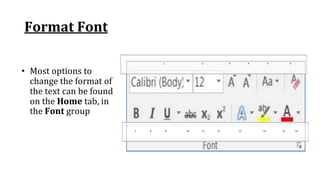
Format Font
• Most options to
change the format of
the text can be found
on the Home tab, in
the Font group
7 8 9 10 11 12 13 14 15 16
1 2 3 4 5 6
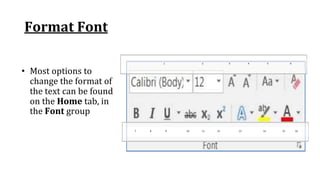
Format Font
• Most options to
change the format of
the text can be found
on the Home tab, in
the Font group
7 8 9 10 11 12 13 14 15 16
1 2 3 4 5 6
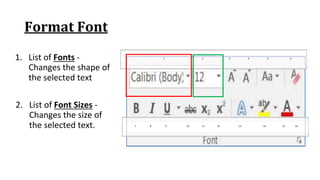
Format Font
1. List of Fonts ‐
Changes the shape of
the selected text
7 8 9 10 11 12 13 14 15 16
1 2 3 4 5 6
2. List of Font Sizes ‐
Changes the size of
the selected text.
Format Font
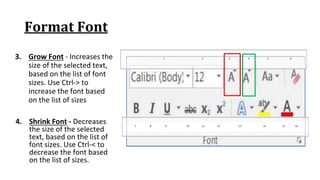
3. Grow Font ‐ Increases the
size of the selected text,
based on the list of font
sizes. Use Ctrl‐> to
increase the font based
on the list of sizes
7 8 9 10 11 12 13 14 15 16
1 2 3 4 5 6
4. Shrink Font ‐ Decreases
the size of the selected
text, based on the list of
font sizes. Use Ctrl‐< to
decrease the font based
on the list of sizes.
Format Font
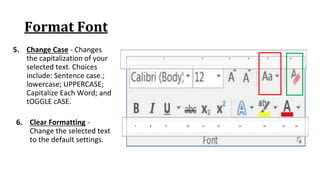
5. Change Case ‐ Changes
the capitalization of your
selected text. Choices
include: Sentence case.;
lowercase; UPPERCASE;
Capitalize Each Word; and
tOGGLE cASE.
7 8 9 10 11 12 13 14 15 16
1 2 3 4 5 6
6. Clear Formatting ‐
Change the selected text
to the default settings.
Format Font
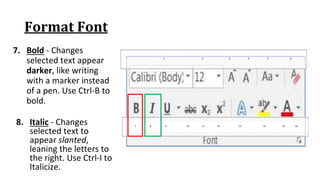
7. Bold ‐ Changes
selected text appear
darker, like writing
with a marker instead
of a pen. Use Ctrl‐B to
bold.
7 8 9 10 11 12 13 14 15 16
1 2 3 4 5 6
8. Italic ‐ Changes
selected text to
appear slanted,
leaning the letters to
the right. Use Ctrl‐I to
Italicize.
Format Font
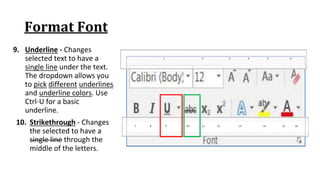
9. Underline ‐ Changes
selected text to have a
single line under the text.
The dropdown allows you
to pick different underlines
and underline colors. Use
Ctrl‐U for a basic
underline.
7 8 9 10 11 12 13 14 15 16
1 2 3 4 5 6
10. Strikethrough ‐ Changes
the selected to have a
single line through the
middle of the letters.
Format Font
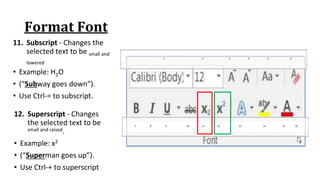
11. Subscript ‐ Changes the
selected text to be small and
lowered
• Example: H2O
• (“Subway goes down”).
• Use Ctrl‐= to subscript.
7 8 9 10 11 12 13 14 15 16
1 2 3 4 5 6
12. Superscript ‐ Changes
the selected text to be
small and raised.
• Example: x2
• (“Superman goes up”).
• Use Ctrl‐+ to superscript
Format Font
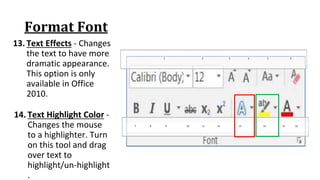
13. Text Effects ‐ Changes
the text to have more
dramatic appearance.
This option is only
available in Office
2010.
7 8 9 10 11 12 13 14 15 16
1 2 3 4 5 6
14. Text Highlight Color ‐
Changes the mouse
to a highlighter. Turn
on this tool and drag
over text to
highlight/un‐highlight
.
Format Font
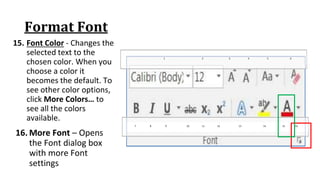
15. Font Color ‐ Changes the
selected text to the
chosen color. When you
choose a color it
becomes the default. To
see other color options,
click More Colors… to
see all the colors
available.
7 8 9 10 11 12 13 14 15 16
1 2 3 4 5 6
16. More Font – Opens
the Font dialog box
with more Font
settings
Font Dialog Box
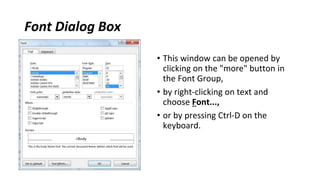
• This window can be opened by
clicking on the "more" button in
the Font Group,
• by right‐clicking on text and
choose Font...,
• or by pressing Ctrl‐D on the
keyboard.
Font Dialog Box
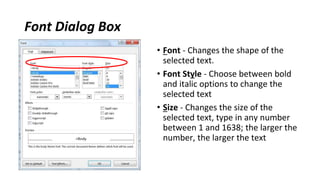
• Font ‐ Changes the shape of the
selected text.
• Font Style ‐ Choose between bold
and italic options to change the
selected text
• Size ‐ Changes the size of the
selected text, type in any number
between 1 and 1638; the larger the
number, the larger the text
Font Dialog Box
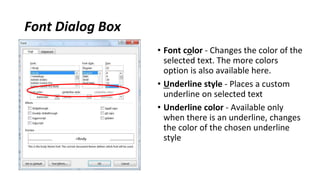
• Font color ‐ Changes the color of the
selected text. The more colors
option is also available here.
• Underline style ‐ Places a custom
underline on selected text
• Underline color ‐ Available only
when there is an underline, changes
the color of the chosen underline
style
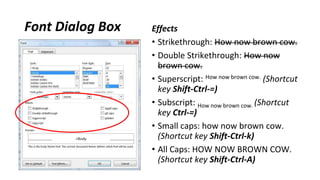
Font Dialog Box Effects
• Strikethrough: How now brown cow.
• Double Strikethrough: How now
brown cow.
• Superscript: How now brown cow. (Shortcut
key Shift‐Ctrl‐=)
• Subscript: How now brown cow. (Shortcut
key Ctrl‐=)
• Small caps: how now brown cow.
(Shortcut key Shift‐Ctrl‐k)
• All Caps: HOW NOW BROWN COW.
(Shortcut key Shift‐Ctrl‐A)
Font Dialog Box
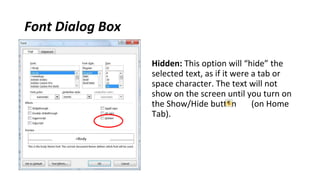
Hidden: This option will “hide” the
selected text, as if it were a tab or
space character. The text will not
show on the screen until you turn on
the Show/Hide button (on Home
Tab).
Font Dialog Box
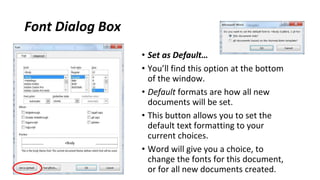
• Set as Default…
• You’ll find this option at the bottom
of the window.
• Default formats are how all new
documents will be set.
• This button allows you to set the
default text formatting to your
current choices.
• Word will give you a choice, to
change the fonts for this document,
or for all new documents created.
Formatting Paragraphs
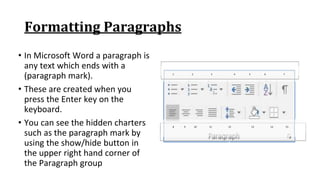
• In Microsoft Word a paragraph is
any text which ends with a
(paragraph mark).
• These are created when you
press the Enter key on the
keyboard.
• You can see the hidden charters
such as the paragraph mark by
using the show/hide button in
the upper right hand corner of
the Paragraph group
1 2 3 4 5 6 7
8 9 10 11 12 13 14 15
Formatting Paragraphs
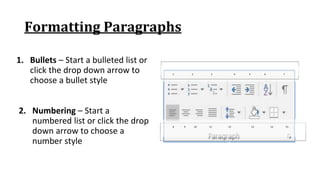
1. Bullets – Start a bulleted list or
click the drop down arrow to
choose a bullet style
1 2 3 4 5 6 7
8 9 10 11 12 13 14 15
2. Numbering – Start a
numbered list or click the drop
down arrow to choose a
number style
Formatting Paragraphs
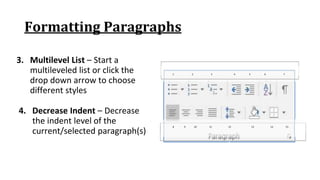
3. Multilevel List – Start a
multileveled list or click the
drop down arrow to choose
different styles
1 2 3 4 5 6 7
8 9 10 11 12 13 14 15
4. Decrease Indent – Decrease
the indent level of the
current/selected paragraph(s)
Formatting Paragraphs
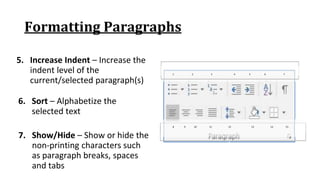
5. Increase Indent – Increase the
indent level of the
current/selected paragraph(s)
1 2 3 4 5 6 7
8 9 10 11 12 13 14 15
6. Sort – Alphabetize the
selected text
7. Show/Hide – Show or hide the
non‐printing characters such
as paragraph breaks, spaces
and tabs
Formatting Paragraphs
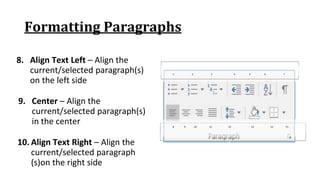
8. Align Text Left – Align the
current/selected paragraph(s)
on the left side
1 2 3 4 5 6 7
8 9 10 11 12 13 14 15
9. Center – Align the
current/selected paragraph(s)
in the center
10. Align Text Right – Align the
current/selected paragraph
(s)on the right side
Formatting Paragraphs
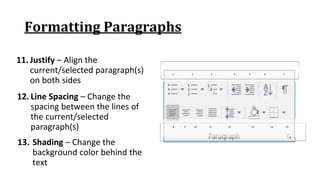
11. Justify – Align the
current/selected paragraph(s)
on both sides
1 2 3 4 5 6 7
8 9 10 11 12 13 14 15
12. Line Spacing – Change the
spacing between the lines of
the current/selected
paragraph(s)
13. Shading – Change the
background color behind the
text
Formatting Paragraphs
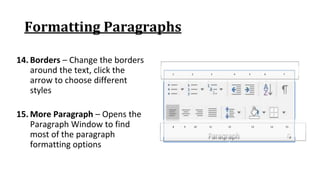
14. Borders – Change the borders
around the text, click the
arrow to choose different
styles
1 2 3 4 5 6 7
8 9 10 11 12 13 14 15
15. More Paragraph – Opens the
Paragraph Window to find
most of the paragraph
formatting options
Alignment
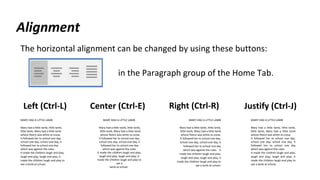
The horizontal alignment can be changed by using these buttons:
Left (Ctrl‐L)
in the Paragraph group of the Home Tab.
Center (Ctrl‐E) Right (Ctrl‐R) Justify (Ctrl‐J)
MARY HAD A LITTLE LAMB
Mary had a little lamb, little lamb,
little lamb, Mary had a little lamb
whose fleece was white as snow.
It followed her to school one day,
school one day, school one day, it
followed her to school one day
which was against the rules.
It made the children laugh and play,
laugh and play, laugh and play, it
made the children laugh and play to
see a lamb at school.
MARY HAD A LITTLE LAMB
Mary had a little lamb, little lamb,
little lamb, Mary had a little lamb
whose fleece was white as snow.
It followed her to school one day,
school one day, school one day, it
followed her to school one day
which was against the rules.
It made the children laugh and play,
laugh and play, laugh and play, it
made the children laugh and play to
see a
lamb at school.
MARY HAD A LITTLE LAMB
Mary had a little lamb, little lamb,
little lamb, Mary had a little lamb
whose fleece was white as snow.
It followed her to school one day,
school one day, school one day, it
followed her to school one day
which was against the rules. It
made the children laugh and play,
laugh and play, laugh and play, it
made the children laugh and play to
see a lamb at school.
MARY HAD A LITTLE LAMB
Mary had a little lamb, little lamb,
little lamb, Mary had a little lamb
whose fleece was white as snow.
It followed her to school one day,
school one day, school one day, it
followed her to school one day
which was against the rules.
It made the children laugh and play,
laugh and play, laugh and play, it
made the children laugh and play to
see a lamb at school.
Indentation
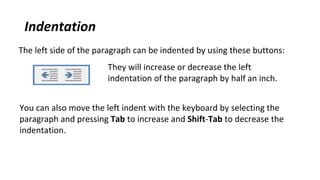
The left side of the paragraph can be indented by using these buttons:
They will increase or decrease the left
indentation of the paragraph by half an inch.
You can also move the left indent with the keyboard by selecting the
paragraph and pressing Tab to increase and Shift‐Tab to decrease the
indentation.
Indentation
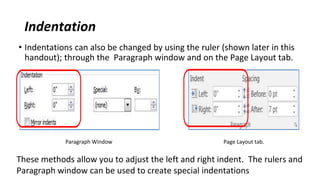
• Indentations can also be changed by using the ruler (shown later in this
handout); through the Paragraph window and on the Page Layout tab.
Paragraph Window Page Layout tab.
These methods allow you to adjust the left and right indent. The rulers and
Paragraph window can be used to create special indentations
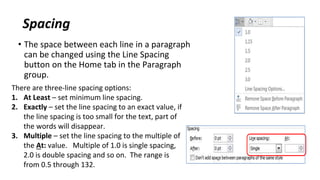
Spacing
• The space between each line in a paragraph
can be changed using the Line Spacing
button on the Home tab in the Paragraph
group.
There are three‐line spacing options:
1. At Least – set minimum line spacing.
2. Exactly – set the line spacing to an exact value, if
the line spacing is too small for the text, part of
the words will disappear.
3. Multiple – set the line spacing to the multiple of
the At: value. Multiple of 1.0 is single spacing,
2.0 is double spacing and so on. The range is
from 0.5 through 132.
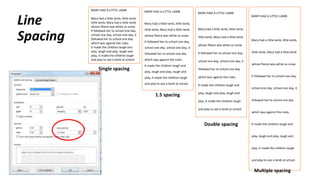
Line
Spacing
MARY HAD A LITTLE LAMB
Mary had a little lamb, little lamb,
little lamb, Mary had a little lamb
whose fleece was white as snow.
It followed her to school one day,
school one day, school one day, it
followed her to school one day
which was against the rules.
It made the children laugh and
play, laugh and play, laugh and
play, it made the children laugh
and play to see a lamb at school.
MARY HAD A LITTLE LAMB
Mary had a little lamb, little lamb,
little lamb, Mary had a little lamb
whose fleece was white as snow.
It followed her to school one day,
school one day, school one day, it
followed her to school one day
which was against the rules.
It made the children laugh and
play, laugh and play, laugh and
play, it made the children laugh
and play to see a lamb at school.
MARY HAD A LITTLE LAMB
Mary had a little lamb, little lamb,
little lamb, Mary had a little lamb
whose fleece was white as snow.
It followed her to school one day,
school one day, school one day, it
followed her to school one day
which was against the rules.
It made the children laugh and
play, laugh and play, laugh and
play, it made the children laugh
and play to see a lamb at school.
MARY HAD A LITTLE LAMB
Mary had a little lamb, little lamb,
little lamb, Mary had a little lamb
whose fleece was white as snow.
It followed her to school one day,
school one day, school one day, it
followed her to school one day
which was against the rules.
It made the children laugh and
play, laugh and play, laugh and
play, it made the children laugh
and play to see a lamb at school.
Single spacing
1.5 spacing
Double spacing
Multiple spacing
Spelling and Grammar
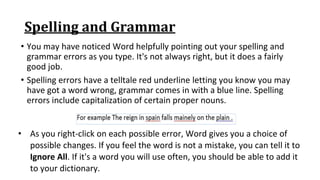
• You may have noticed Word helpfully pointing out your spelling and
grammar errors as you type. It's not always right, but it does a fairly
good job.
• Spelling errors have a telltale red underline letting you know you may
have got a word wrong, grammar comes in with a blue line. Spelling
errors include capitalization of certain proper nouns.
• As you right‐click on each possible error, Word gives you a choice of
possible changes. If you feel the word is not a mistake, you can tell it to
Ignore All. If it's a word you will use often, you should be able to add it
to your dictionary.
Spelling and Grammar
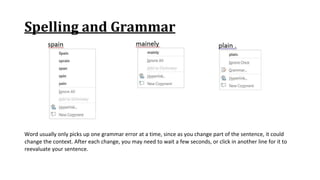
Word usually only picks up one grammar error at a time, since as you change part of the sentence, it could
change the context. After each change, you may need to wait a few seconds, or click in another line for it to
reevaluate your sentence.
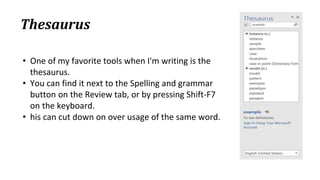
Thesaurus
• One of my favorite tools when I'm writing is the
thesaurus.
• You can find it next to the Spelling and grammar
button on the Review tab, or by pressing Shift‐F7
on the keyboard.
• his can cut down on over usage of the same word.
Auto correct
• Word often autocorrects words as you
type.
• There are common mistakes like "teh"
instead of "the" where you may not
even notice it happen.
• If you catch it, you can immediately
hit undo (or Ctrl‐Z) and it will go back
to the way you typed the word.
• If it turns out that teh is an acronym
for "total education healthcare" and
you want to use it all the time, you
might choose to turn off that
particular autocorrection.
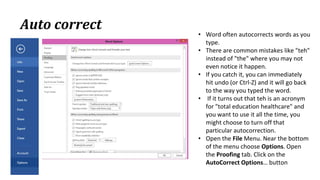
• Open the File Menu. Near the bottom
of the menu choose Options. Open
the Proofing tab. Click on the
AutoCorrect Options… button

Ribbon components

  • 1.
  • 2.
    Saving • In orderto keep a document you have created in Word, you need to save it. • If you have already saved the file, such that it has a name and a location, the Save feature will keep any changes that made since the document was opened. To save a file: • From the File tab, choose Save • Click on the Save button on the Quick Access Toolbar • Use the shortcut key Ctrl‐S.
  • 3.
    Save As • Ifyou want to save your file with a different name and/or location, click on the File tab, choose Save As… or press the function key F12. • If you have never saved this document before, any method you choose to save will activate the Save As dialog box. • Word Document‐Saves as a Word Document (*.docx) • To save the file in a different format, change the Save As type option • Remember if the file was previously saved, you will make a new copy by using "Save As…".
  • 4.
    Save As • Thedefault file location is set in the Word Options. You can change this under the File tab, Options, Save, Default File Location. • The two most important things to remember with saving a file are: 1. Where is the file being saved? 2. What are you naming the file?
  • 5.
    Closing a Document •To close a file, from the File tab Close, or use one of the shortcut keys (Ctrl‐F4, or Ctrl‐W).
  • 6.
    Closing a Document •If you click the X in the top right‐hand corner of the window it will close the current document. If it is the only document open, it will exit Word. • If there have been no changes to the document, Word will simply close the file, but if you have made modifications since the document was opened, created, or last saved, Word will prompt you to save.
  • 7.
    Closing a Document •If you choose Save ‐Word will save the document with the same name into the same location, it previously had. If this file has never been saved, Word will open the Save As window. (The Enter key will push this button.) • If you choose Don’t Save ‐Word will close the window and you will lose any changes since the last time the document was saved. • ‐If you choose Cancel ‐Word will forget that you asked it to close the file and place you back in the document. (The Esc key will push this button.)
  • 8.
    Undo • Word keepstrack of most tasks you perform until you exit. Tasks such as formatting and deleting, can be undone. • From the Quick Access Toolbar click the button • or use the shortcut key Ctrl‐Z.
  • 9.
    Redo • If youundo too far, or you change your mind about the undoing of that task, Word allows you to Redo. • On the Quick Access Toolbar you will find the redo button • or use the shortcut key Ctrl‐Y.
  • 10.
    Repeat • If thereis nothing to redo, Word puts a Repeat feature in Redo’s place and assigns the shortcut key (Ctrl‐Y) to Repeat.
  • 11.
    Cut, Copy andPaste • Cut, Copy and Paste are clipboard features built into windows. • The clipboard is a temporary storage location where an item is stored for later recall • Microsoft Office has a Multi‐Clipboard that can store 24 items. • You can open the multi‐clipboard from the "more" button.
  • 12.
    Cut • Cut willcopy the selected text to the clipboard and remove it from the current location. • This button appropriately shows a pair of scissors for the cut option. • The shortcut key is Ctrl‐X.
  • 13.
    Copy •Copy will placethe selected text on the clipboard; nothing will appear to happen on the window. •The button shows two sheets of paper for the copy option. •The shortcut key is Ctrl‐C.
  • 14.
    Paste Special • Thedrop down menu under the Paste button shows the Paste Special options. • These options will change depending on what is currently in the clipboard. • It can be a very useful tool to do things such as Paste as unformatted text. • Unformatted text will get rid of hidden HTML codes from a webpage or the hidden formatting from another Word Document.
  • 15.
    Format Painter • TheFormat Painter will copy the format of selected text and apply it to the text you specify. • This button shows a paintbrush for the format painter option. • To use the Format Painter command you need to first select the text that has the format you wish, click once on the button (a paintbrush will follow your mouse pointer), click on the text you want to reformat. • This tool turns itself off after each use. To turn it on, and keep it on, double‐click on the button on the standard toolbar. To turn it back off, simply click on that button again or press escape (Esc).
  • 16.
    Format Font • Mostoptions to change the format of the text can be found on the Home tab, in the Font group 7 8 9 10 11 12 13 14 15 16 1 2 3 4 5 6
  • 17.
    Format Font • Mostoptions to change the format of the text can be found on the Home tab, in the Font group 7 8 9 10 11 12 13 14 15 16 1 2 3 4 5 6
  • 18.
    Format Font 1. Listof Fonts ‐ Changes the shape of the selected text 7 8 9 10 11 12 13 14 15 16 1 2 3 4 5 6 2. List of Font Sizes ‐ Changes the size of the selected text.
  • 19.
    Format Font 3. GrowFont ‐ Increases the size of the selected text, based on the list of font sizes. Use Ctrl‐> to increase the font based on the list of sizes 7 8 9 10 11 12 13 14 15 16 1 2 3 4 5 6 4. Shrink Font ‐ Decreases the size of the selected text, based on the list of font sizes. Use Ctrl‐< to decrease the font based on the list of sizes.
  • 20.
    Format Font 5. ChangeCase ‐ Changes the capitalization of your selected text. Choices include: Sentence case.; lowercase; UPPERCASE; Capitalize Each Word; and tOGGLE cASE. 7 8 9 10 11 12 13 14 15 16 1 2 3 4 5 6 6. Clear Formatting ‐ Change the selected text to the default settings.
  • 21.
    Format Font 7. Bold‐ Changes selected text appear darker, like writing with a marker instead of a pen. Use Ctrl‐B to bold. 7 8 9 10 11 12 13 14 15 16 1 2 3 4 5 6 8. Italic ‐ Changes selected text to appear slanted, leaning the letters to the right. Use Ctrl‐I to Italicize.
  • 22.
    Format Font 9. Underline‐ Changes selected text to have a single line under the text. The dropdown allows you to pick different underlines and underline colors. Use Ctrl‐U for a basic underline. 7 8 9 10 11 12 13 14 15 16 1 2 3 4 5 6 10. Strikethrough ‐ Changes the selected to have a single line through the middle of the letters.
  • 23.
    Format Font 11. Subscript‐ Changes the selected text to be small and lowered • Example: H2O • (“Subway goes down”). • Use Ctrl‐= to subscript. 7 8 9 10 11 12 13 14 15 16 1 2 3 4 5 6 12. Superscript ‐ Changes the selected text to be small and raised. • Example: x2 • (“Superman goes up”). • Use Ctrl‐+ to superscript
  • 24.
    Format Font 13. TextEffects ‐ Changes the text to have more dramatic appearance. This option is only available in Office 2010. 7 8 9 10 11 12 13 14 15 16 1 2 3 4 5 6 14. Text Highlight Color ‐ Changes the mouse to a highlighter. Turn on this tool and drag over text to highlight/un‐highlight .
  • 25.
    Format Font 15. FontColor ‐ Changes the selected text to the chosen color. When you choose a color it becomes the default. To see other color options, click More Colors… to see all the colors available. 7 8 9 10 11 12 13 14 15 16 1 2 3 4 5 6 16. More Font – Opens the Font dialog box with more Font settings
  • 26.
    Font Dialog Box •This window can be opened by clicking on the "more" button in the Font Group, • by right‐clicking on text and choose Font..., • or by pressing Ctrl‐D on the keyboard.
  • 27.
    Font Dialog Box •Font ‐ Changes the shape of the selected text. • Font Style ‐ Choose between bold and italic options to change the selected text • Size ‐ Changes the size of the selected text, type in any number between 1 and 1638; the larger the number, the larger the text
  • 28.
    Font Dialog Box •Font color ‐ Changes the color of the selected text. The more colors option is also available here. • Underline style ‐ Places a custom underline on selected text • Underline color ‐ Available only when there is an underline, changes the color of the chosen underline style
  • 29.
    Font Dialog BoxEffects • Strikethrough: How now brown cow. • Double Strikethrough: How now brown cow. • Superscript: How now brown cow. (Shortcut key Shift‐Ctrl‐=) • Subscript: How now brown cow. (Shortcut key Ctrl‐=) • Small caps: how now brown cow. (Shortcut key Shift‐Ctrl‐k) • All Caps: HOW NOW BROWN COW. (Shortcut key Shift‐Ctrl‐A)
  • 30.
    Font Dialog Box Hidden:This option will “hide” the selected text, as if it were a tab or space character. The text will not show on the screen until you turn on the Show/Hide button (on Home Tab).
  • 31.
    Font Dialog Box •Set as Default… • You’ll find this option at the bottom of the window. • Default formats are how all new documents will be set. • This button allows you to set the default text formatting to your current choices. • Word will give you a choice, to change the fonts for this document, or for all new documents created.
  • 32.
    Formatting Paragraphs • InMicrosoft Word a paragraph is any text which ends with a (paragraph mark). • These are created when you press the Enter key on the keyboard. • You can see the hidden charters such as the paragraph mark by using the show/hide button in the upper right hand corner of the Paragraph group 1 2 3 4 5 6 7 8 9 10 11 12 13 14 15
  • 33.
    Formatting Paragraphs 1. Bullets– Start a bulleted list or click the drop down arrow to choose a bullet style 1 2 3 4 5 6 7 8 9 10 11 12 13 14 15 2. Numbering – Start a numbered list or click the drop down arrow to choose a number style
  • 34.
    Formatting Paragraphs 3. MultilevelList – Start a multileveled list or click the drop down arrow to choose different styles 1 2 3 4 5 6 7 8 9 10 11 12 13 14 15 4. Decrease Indent – Decrease the indent level of the current/selected paragraph(s)
  • 35.
    Formatting Paragraphs 5. IncreaseIndent – Increase the indent level of the current/selected paragraph(s) 1 2 3 4 5 6 7 8 9 10 11 12 13 14 15 6. Sort – Alphabetize the selected text 7. Show/Hide – Show or hide the non‐printing characters such as paragraph breaks, spaces and tabs
  • 36.
    Formatting Paragraphs 8. AlignText Left – Align the current/selected paragraph(s) on the left side 1 2 3 4 5 6 7 8 9 10 11 12 13 14 15 9. Center – Align the current/selected paragraph(s) in the center 10. Align Text Right – Align the current/selected paragraph (s)on the right side
  • 37.
    Formatting Paragraphs 11. Justify– Align the current/selected paragraph(s) on both sides 1 2 3 4 5 6 7 8 9 10 11 12 13 14 15 12. Line Spacing – Change the spacing between the lines of the current/selected paragraph(s) 13. Shading – Change the background color behind the text
  • 38.
    Formatting Paragraphs 14. Borders– Change the borders around the text, click the arrow to choose different styles 1 2 3 4 5 6 7 8 9 10 11 12 13 14 15 15. More Paragraph – Opens the Paragraph Window to find most of the paragraph formatting options
  • 39.
    Alignment The horizontal alignmentcan be changed by using these buttons: Left (Ctrl‐L) in the Paragraph group of the Home Tab. Center (Ctrl‐E) Right (Ctrl‐R) Justify (Ctrl‐J) MARY HAD A LITTLE LAMB Mary had a little lamb, little lamb, little lamb, Mary had a little lamb whose fleece was white as snow. It followed her to school one day, school one day, school one day, it followed her to school one day which was against the rules. It made the children laugh and play, laugh and play, laugh and play, it made the children laugh and play to see a lamb at school. MARY HAD A LITTLE LAMB Mary had a little lamb, little lamb, little lamb, Mary had a little lamb whose fleece was white as snow. It followed her to school one day, school one day, school one day, it followed her to school one day which was against the rules. It made the children laugh and play, laugh and play, laugh and play, it made the children laugh and play to see a lamb at school. MARY HAD A LITTLE LAMB Mary had a little lamb, little lamb, little lamb, Mary had a little lamb whose fleece was white as snow. It followed her to school one day, school one day, school one day, it followed her to school one day which was against the rules. It made the children laugh and play, laugh and play, laugh and play, it made the children laugh and play to see a lamb at school. MARY HAD A LITTLE LAMB Mary had a little lamb, little lamb, little lamb, Mary had a little lamb whose fleece was white as snow. It followed her to school one day, school one day, school one day, it followed her to school one day which was against the rules. It made the children laugh and play, laugh and play, laugh and play, it made the children laugh and play to see a lamb at school.
  • 40.
    Indentation The left sideof the paragraph can be indented by using these buttons: They will increase or decrease the left indentation of the paragraph by half an inch. You can also move the left indent with the keyboard by selecting the paragraph and pressing Tab to increase and Shift‐Tab to decrease the indentation.
  • 41.
    Indentation • Indentations canalso be changed by using the ruler (shown later in this handout); through the Paragraph window and on the Page Layout tab. Paragraph Window Page Layout tab. These methods allow you to adjust the left and right indent. The rulers and Paragraph window can be used to create special indentations
  • 42.
    Spacing • The spacebetween each line in a paragraph can be changed using the Line Spacing button on the Home tab in the Paragraph group. There are three‐line spacing options: 1. At Least – set minimum line spacing. 2. Exactly – set the line spacing to an exact value, if the line spacing is too small for the text, part of the words will disappear. 3. Multiple – set the line spacing to the multiple of the At: value. Multiple of 1.0 is single spacing, 2.0 is double spacing and so on. The range is from 0.5 through 132.
  • 43.
    Line Spacing MARY HAD ALITTLE LAMB Mary had a little lamb, little lamb, little lamb, Mary had a little lamb whose fleece was white as snow. It followed her to school one day, school one day, school one day, it followed her to school one day which was against the rules. It made the children laugh and play, laugh and play, laugh and play, it made the children laugh and play to see a lamb at school. MARY HAD A LITTLE LAMB Mary had a little lamb, little lamb, little lamb, Mary had a little lamb whose fleece was white as snow. It followed her to school one day, school one day, school one day, it followed her to school one day which was against the rules. It made the children laugh and play, laugh and play, laugh and play, it made the children laugh and play to see a lamb at school. MARY HAD A LITTLE LAMB Mary had a little lamb, little lamb, little lamb, Mary had a little lamb whose fleece was white as snow. It followed her to school one day, school one day, school one day, it followed her to school one day which was against the rules. It made the children laugh and play, laugh and play, laugh and play, it made the children laugh and play to see a lamb at school. MARY HAD A LITTLE LAMB Mary had a little lamb, little lamb, little lamb, Mary had a little lamb whose fleece was white as snow. It followed her to school one day, school one day, school one day, it followed her to school one day which was against the rules. It made the children laugh and play, laugh and play, laugh and play, it made the children laugh and play to see a lamb at school. Single spacing 1.5 spacing Double spacing Multiple spacing
  • 44.
    Spelling and Grammar •You may have noticed Word helpfully pointing out your spelling and grammar errors as you type. It's not always right, but it does a fairly good job. • Spelling errors have a telltale red underline letting you know you may have got a word wrong, grammar comes in with a blue line. Spelling errors include capitalization of certain proper nouns. • As you right‐click on each possible error, Word gives you a choice of possible changes. If you feel the word is not a mistake, you can tell it to Ignore All. If it's a word you will use often, you should be able to add it to your dictionary.
  • 45.
    Spelling and Grammar Wordusually only picks up one grammar error at a time, since as you change part of the sentence, it could change the context. After each change, you may need to wait a few seconds, or click in another line for it to reevaluate your sentence.
  • 46.
    Thesaurus • One ofmy favorite tools when I'm writing is the thesaurus. • You can find it next to the Spelling and grammar button on the Review tab, or by pressing Shift‐F7 on the keyboard. • his can cut down on over usage of the same word.
  • 47.
    Auto correct • Wordoften autocorrects words as you type. • There are common mistakes like "teh" instead of "the" where you may not even notice it happen. • If you catch it, you can immediately hit undo (or Ctrl‐Z) and it will go back to the way you typed the word. • If it turns out that teh is an acronym for "total education healthcare" and you want to use it all the time, you might choose to turn off that particular autocorrection. • Open the File Menu. Near the bottom of the menu choose Options. Open the Proofing tab. Click on the AutoCorrect Options… button