Chapter 6Formatting a Worksheet
What’s inside and on the CD?In this chapter you will learn how to:Format worksheets created with Microsoft ExcelDetermine special formatting characteristics for each type of dataMake changes to spreadsheet data in order to show how changes effect resultsAvoid making incorrect modifications to data2Practical Microsoft Office 2010
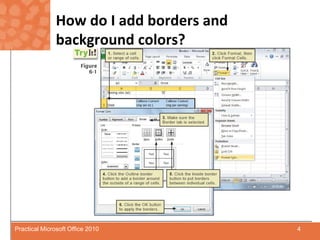
How do I add borders and background colors?Borders and background colors define areas and can draw attention to important informationTo add borders, use the Font group on the Home tab and Format Cells dialog box3Practical Microsoft Office 2010
How do I add borders and background colors?4Practical Microsoft Office 2010
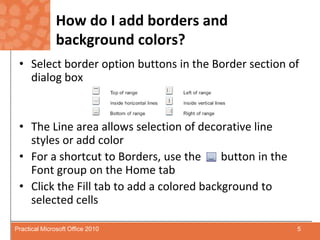
How do I add borders and background colors?Select border option buttons in the Border section of dialog boxThe Line area allows selection of decorative line styles or add colorFor a shortcut to Borders, use the       button in the Font group on the Home tabClick the Fill tab to add a colored background to selected cells5Practical Microsoft Office 2010
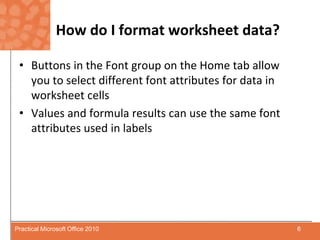
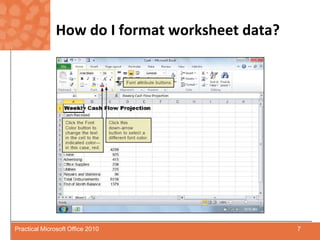
How do I format worksheet data?Buttons in the Font group on the Home tab allow you to select different font attributes for data in worksheet cellsValues and formula results can use the same font attributes used in labels6Practical Microsoft Office 2010
How do I format worksheet data?7Practical Microsoft Office 2010
How do I format worksheet data?To apply format:Click in the cell to formatClick as many font attributes as wantedClick outside cell to completeTo change font for range:Click top-left cell Drag mouse to selected cellsRelease mouse button Apply font formatting option8Practical Microsoft Office 2010
How do I format worksheet data?Separate words or letters in a cell can be formatted differently. Use the mouse inside the cell to select words or characters to formatMore formatting options:Select cell(s) Click Format CellsClick Cells to display Cells Format dialog boxSelect formatting optionClick OK to apply9Practical Microsoft Office 2010
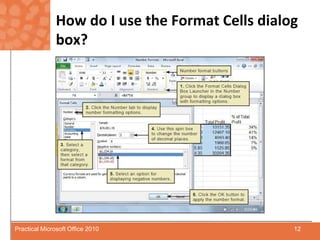
How do I use the Format Cells dialog box?These number formats can be applied to cells that contain values:CurrencyPercentCommasDecimalsNumber group on the Home tab can be used to apply most common number formats Format Cells dialog box provides options to improve readability10Practical Microsoft Office 2010
How do I use the Format Cells dialog box?The     Accounting Number Format button button displays contents in local currency formatThe     Percent Style button displays the cell contents as a percentage The     Comma style button adds a comma to valuesThe     Decrease Decimal button, one less digit is displayed, the     Increase Decimal button, one more digit is displayedSelect a range of cells then click any format buttons to apply formatting to a range11Practical Microsoft Office 2010
How do I use the Format Cells dialog box? 12Practical Microsoft Office 2010
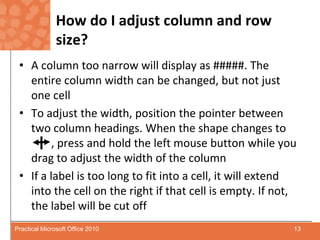
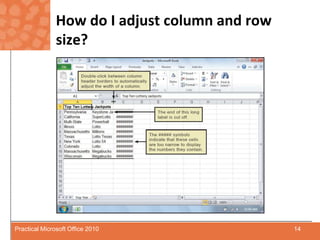
How do I adjust column and row size?A column too narrow will display as #####. The entire column width can be changed, but not just one cellTo adjust the width, position the pointer between two column headings. When the shape changes to       	, press and hold the left mouse button while you drag to adjust the width of the columnIf a label is too long to fit into a cell, it will extend into the cell on the right if that cell is empty. If not, the label will be cut off13Practical Microsoft Office 2010
How do I adjust column and row size?14Practical Microsoft Office 2010
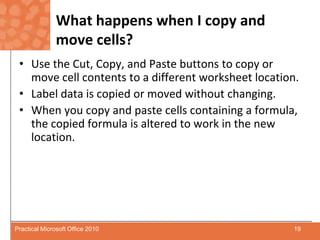
How do I center and align cell contents?By default, labels are left-aligned while values and formulas are right-aligned.Typically, you will want to center or right-align a label when it is a column heading.Select the header cell and click the Align Text Right button.15Practical Microsoft Office 2010
How do I center and align cell contents?Select a range of cells and click the desired alignment button to align a range of cells.Click column header at top of a column to select entire column.Click row header on left of row to select all cells in row.To center text across columns, select the range, then click the Merge & Center button.16Practical Microsoft Office 2010
How do I center and align cell contents?To merge a range of cells in a column:Select the rangeClick the Merge & Center button in the Alignment group on the Home tabThe down-arrow button next to the Merge & Center button allows you to:Unmerge cellsMerge without centering17Practical Microsoft Office 2010
How do I center and align cell contents?18Practical Microsoft Office 2010
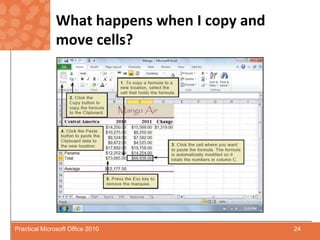
What happens when I copy and move cells?Use the Cut, Copy, and Paste buttons to copy or move cell contents to a different worksheet location.Label data is copied or moved without changing.When you copy and paste cells containing a formula, the copied formula is altered to work in the new location.19Practical Microsoft Office 2010
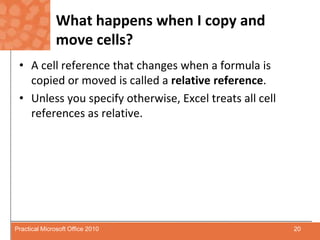
What happens when I copy and move cells?A cell reference that changes when a formula is copied or moved is called a relative reference. Unless you specify otherwise, Excel treats all cell references as relative.20Practical Microsoft Office 2010
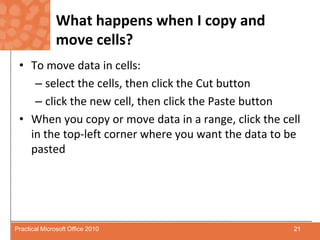
What happens when I copy and move cells?To move data in cells:select the cells, then click the Cut buttonclick the new cell, then click the Paste buttonWhen you copy or move data in a range, click the cell in the top-left corner where you want the data to be pasted21Practical Microsoft Office 2010
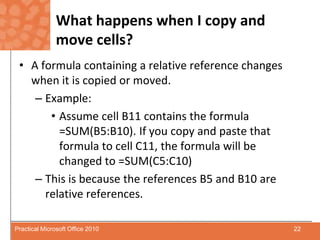
What happens when I copy and move cells?A formula containing a relative reference changes when it is copied or moved.Example:Assume cell B11 contains the formula =SUM(B5:B10). If you copy and paste that formula to cell C11, the formula will be changed to =SUM(C5:C10)This is because the references B5 and B10 are relative references.22Practical Microsoft Office 2010
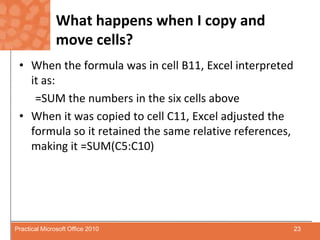
What happens when I copy and move cells?When the formula was in cell B11, Excel interpreted it as:=SUM the numbers in the six cells aboveWhen it was copied to cell C11, Excel adjusted the formula so it retained the same relative references, making it =SUM(C5:C10)23Practical Microsoft Office 2010
What happens when I copy and move cells?24Practical Microsoft Office 2010
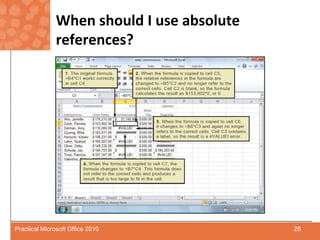
When should I use absolute references?Sometimes, you do not want cell references to change when moved to a new location.An absolute reference will not change and always refer to the same cell.To create an absolute reference, insert a dollar sign ($) before the column reference and another dollar sign before the row reference.25Practical Microsoft Office 2010
When should I use absolute references?If you want to use an absolute reference in a formula, begin typing, then press the F4 key after you click a cell to add it to the formula.Pressing the F4 key changes the current reference to an absolute reference.References can be combined so only one row or column is an absolute reference.26Practical Microsoft Office 2010
When should I use absolute references?For example,$C1 creates an absolute column and a relative row referenceC$1 creates a relative column and an absolute row referenceThe absolute identifier will not change, but the relative identifier will.27Practical Microsoft Office 2010
When should I use absolute references?28Practical Microsoft Office 2010
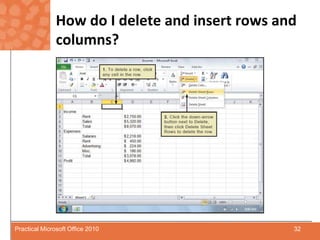
How do I delete and insert rows and columns?When you insert or delete rows or columns, Excel will adjust your formulas to refer to the correct cells.To insert a row, select a row, click the down-arrow button next to Insert in the Cells group, then click Insert Sheet Rows.29Practical Microsoft Office 2010
How do I delete and insert rows and columns?To insert more than one row, drag down over the number of rows to insert and follow the same steps for inserting a rowTo delete rows, select rows, drag over the rows you want to delete, click the down-arrow button next to Delete in the Cells group, then click Delete Sheet Rows30Practical Microsoft Office 2010
How do I delete and insert rows and columns?Use the same procedures to insert and delete columns.Excel will adjust the relative cell references in formulas to keep them correct as you insert or delete.31Practical Microsoft Office 2010
How do I delete and insert rows and columns?32Practical Microsoft Office 2010
Can I use styles?Use predefined styles or create your own stylesPredefined includes formats for displaying: currency percentagesnumbersCreate your own to enhance your worksheetClick Styles in the Styles group, click the More button, then click New Cell styleType style name, and then use the Format Cells dialog box to modify your style33Practical Microsoft Office 2010
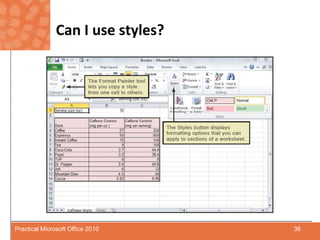
Can I use styles?The     Format Painter button allows you to copy and paste formats from one cell to anotherClick cell containing formats to be copiedClick Format Painter buttonClick cell where you want format appliedThe Styles group includes a variety of predefined formats designed to format entire worksheets or sections of worksheets34Practical Microsoft Office 2010
Can I use styles?The Hide function is used to hide rows or columns you don’t want displayedTo use Hide function:Select rows or columns to be hiddenRight-click highlighted areaSelect HideTo display hidden rows or columns, select rows or columns bordering hidden section and right-click, then choose Unhide   35Practical Microsoft Office 2010
Can I use styles?36Practical Microsoft Office 2010
How do I manage multiple worksheets?A workbook – sometimes called a “3D workbook” – is a collection of worksheetsWorkbooks allow related worksheets to be grouped togetherWorksheets in a workbook can access data from other worksheets37Practical Microsoft Office 2010
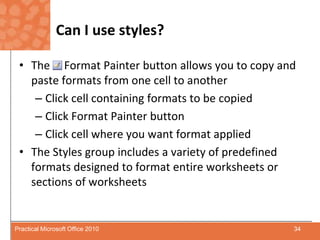
How do I manage multiple worksheets?Default workbook contains three worksheets, titled Sheet 1, Sheet 2, and sheet 3Click tabs at bottom of screen to navigateRename worksheets, change color of tab, or change order by right-clicking worksheet tab and making selection38Practical Microsoft Office 2010
How do I manage multiple worksheets?To insert new worksheet:Right-click tab for worksheet that should follow new worksheetSelect Insert from shortcut menuMake selection from Insert dialog boxTo delete existing worksheet:Right-click worksheet’s tabClick Delete39Practical Microsoft Office 2010
How do I manage multiple worksheets?Move/copy option allows you to change the order of worksheetsFor example, to insert new worksheet in front of Sheet 1, insert new sheet after any tab, then use Move/copy option to position as first sheet 40Practical Microsoft Office 2010
How do I manage multiple worksheets?To reference data from other worksheets, include tab name before row letter and column number Example:Sheet3!A1 indicates Column A, Row 1 on Sheet 3Also reference data on other worksheets by:Navigating to worksheetClick desired cell Enter formula or function 41Practical Microsoft Office 2010
How do I manage multiple worksheets?42Practical Microsoft Office 2010

Chapter.06

  • 1.
  • 2.
    What’s inside andon the CD?In this chapter you will learn how to:Format worksheets created with Microsoft ExcelDetermine special formatting characteristics for each type of dataMake changes to spreadsheet data in order to show how changes effect resultsAvoid making incorrect modifications to data2Practical Microsoft Office 2010
  • 3.
    How do Iadd borders and background colors?Borders and background colors define areas and can draw attention to important informationTo add borders, use the Font group on the Home tab and Format Cells dialog box3Practical Microsoft Office 2010
  • 4.
    How do Iadd borders and background colors?4Practical Microsoft Office 2010
  • 5.
    How do Iadd borders and background colors?Select border option buttons in the Border section of dialog boxThe Line area allows selection of decorative line styles or add colorFor a shortcut to Borders, use the button in the Font group on the Home tabClick the Fill tab to add a colored background to selected cells5Practical Microsoft Office 2010
  • 6.
    How do Iformat worksheet data?Buttons in the Font group on the Home tab allow you to select different font attributes for data in worksheet cellsValues and formula results can use the same font attributes used in labels6Practical Microsoft Office 2010
  • 7.
    How do Iformat worksheet data?7Practical Microsoft Office 2010
  • 8.
    How do Iformat worksheet data?To apply format:Click in the cell to formatClick as many font attributes as wantedClick outside cell to completeTo change font for range:Click top-left cell Drag mouse to selected cellsRelease mouse button Apply font formatting option8Practical Microsoft Office 2010
  • 9.
    How do Iformat worksheet data?Separate words or letters in a cell can be formatted differently. Use the mouse inside the cell to select words or characters to formatMore formatting options:Select cell(s) Click Format CellsClick Cells to display Cells Format dialog boxSelect formatting optionClick OK to apply9Practical Microsoft Office 2010
  • 10.
    How do Iuse the Format Cells dialog box?These number formats can be applied to cells that contain values:CurrencyPercentCommasDecimalsNumber group on the Home tab can be used to apply most common number formats Format Cells dialog box provides options to improve readability10Practical Microsoft Office 2010
  • 11.
    How do Iuse the Format Cells dialog box?The Accounting Number Format button button displays contents in local currency formatThe Percent Style button displays the cell contents as a percentage The Comma style button adds a comma to valuesThe Decrease Decimal button, one less digit is displayed, the Increase Decimal button, one more digit is displayedSelect a range of cells then click any format buttons to apply formatting to a range11Practical Microsoft Office 2010
  • 12.
    How do Iuse the Format Cells dialog box? 12Practical Microsoft Office 2010
  • 13.
    How do Iadjust column and row size?A column too narrow will display as #####. The entire column width can be changed, but not just one cellTo adjust the width, position the pointer between two column headings. When the shape changes to , press and hold the left mouse button while you drag to adjust the width of the columnIf a label is too long to fit into a cell, it will extend into the cell on the right if that cell is empty. If not, the label will be cut off13Practical Microsoft Office 2010
  • 14.
    How do Iadjust column and row size?14Practical Microsoft Office 2010
  • 15.
    How do Icenter and align cell contents?By default, labels are left-aligned while values and formulas are right-aligned.Typically, you will want to center or right-align a label when it is a column heading.Select the header cell and click the Align Text Right button.15Practical Microsoft Office 2010
  • 16.
    How do Icenter and align cell contents?Select a range of cells and click the desired alignment button to align a range of cells.Click column header at top of a column to select entire column.Click row header on left of row to select all cells in row.To center text across columns, select the range, then click the Merge & Center button.16Practical Microsoft Office 2010
  • 17.
    How do Icenter and align cell contents?To merge a range of cells in a column:Select the rangeClick the Merge & Center button in the Alignment group on the Home tabThe down-arrow button next to the Merge & Center button allows you to:Unmerge cellsMerge without centering17Practical Microsoft Office 2010
  • 18.
    How do Icenter and align cell contents?18Practical Microsoft Office 2010
  • 19.
    What happens whenI copy and move cells?Use the Cut, Copy, and Paste buttons to copy or move cell contents to a different worksheet location.Label data is copied or moved without changing.When you copy and paste cells containing a formula, the copied formula is altered to work in the new location.19Practical Microsoft Office 2010
  • 20.
    What happens whenI copy and move cells?A cell reference that changes when a formula is copied or moved is called a relative reference. Unless you specify otherwise, Excel treats all cell references as relative.20Practical Microsoft Office 2010
  • 21.
    What happens whenI copy and move cells?To move data in cells:select the cells, then click the Cut buttonclick the new cell, then click the Paste buttonWhen you copy or move data in a range, click the cell in the top-left corner where you want the data to be pasted21Practical Microsoft Office 2010
  • 22.
    What happens whenI copy and move cells?A formula containing a relative reference changes when it is copied or moved.Example:Assume cell B11 contains the formula =SUM(B5:B10). If you copy and paste that formula to cell C11, the formula will be changed to =SUM(C5:C10)This is because the references B5 and B10 are relative references.22Practical Microsoft Office 2010
  • 23.
    What happens whenI copy and move cells?When the formula was in cell B11, Excel interpreted it as:=SUM the numbers in the six cells aboveWhen it was copied to cell C11, Excel adjusted the formula so it retained the same relative references, making it =SUM(C5:C10)23Practical Microsoft Office 2010
  • 24.
    What happens whenI copy and move cells?24Practical Microsoft Office 2010
  • 25.
    When should Iuse absolute references?Sometimes, you do not want cell references to change when moved to a new location.An absolute reference will not change and always refer to the same cell.To create an absolute reference, insert a dollar sign ($) before the column reference and another dollar sign before the row reference.25Practical Microsoft Office 2010
  • 26.
    When should Iuse absolute references?If you want to use an absolute reference in a formula, begin typing, then press the F4 key after you click a cell to add it to the formula.Pressing the F4 key changes the current reference to an absolute reference.References can be combined so only one row or column is an absolute reference.26Practical Microsoft Office 2010
  • 27.
    When should Iuse absolute references?For example,$C1 creates an absolute column and a relative row referenceC$1 creates a relative column and an absolute row referenceThe absolute identifier will not change, but the relative identifier will.27Practical Microsoft Office 2010
  • 28.
    When should Iuse absolute references?28Practical Microsoft Office 2010
  • 29.
    How do Idelete and insert rows and columns?When you insert or delete rows or columns, Excel will adjust your formulas to refer to the correct cells.To insert a row, select a row, click the down-arrow button next to Insert in the Cells group, then click Insert Sheet Rows.29Practical Microsoft Office 2010
  • 30.
    How do Idelete and insert rows and columns?To insert more than one row, drag down over the number of rows to insert and follow the same steps for inserting a rowTo delete rows, select rows, drag over the rows you want to delete, click the down-arrow button next to Delete in the Cells group, then click Delete Sheet Rows30Practical Microsoft Office 2010
  • 31.
    How do Idelete and insert rows and columns?Use the same procedures to insert and delete columns.Excel will adjust the relative cell references in formulas to keep them correct as you insert or delete.31Practical Microsoft Office 2010
  • 32.
    How do Idelete and insert rows and columns?32Practical Microsoft Office 2010
  • 33.
    Can I usestyles?Use predefined styles or create your own stylesPredefined includes formats for displaying: currency percentagesnumbersCreate your own to enhance your worksheetClick Styles in the Styles group, click the More button, then click New Cell styleType style name, and then use the Format Cells dialog box to modify your style33Practical Microsoft Office 2010
  • 34.
    Can I usestyles?The Format Painter button allows you to copy and paste formats from one cell to anotherClick cell containing formats to be copiedClick Format Painter buttonClick cell where you want format appliedThe Styles group includes a variety of predefined formats designed to format entire worksheets or sections of worksheets34Practical Microsoft Office 2010
  • 35.
    Can I usestyles?The Hide function is used to hide rows or columns you don’t want displayedTo use Hide function:Select rows or columns to be hiddenRight-click highlighted areaSelect HideTo display hidden rows or columns, select rows or columns bordering hidden section and right-click, then choose Unhide 35Practical Microsoft Office 2010
  • 36.
    Can I usestyles?36Practical Microsoft Office 2010
  • 37.
    How do Imanage multiple worksheets?A workbook – sometimes called a “3D workbook” – is a collection of worksheetsWorkbooks allow related worksheets to be grouped togetherWorksheets in a workbook can access data from other worksheets37Practical Microsoft Office 2010
  • 38.
    How do Imanage multiple worksheets?Default workbook contains three worksheets, titled Sheet 1, Sheet 2, and sheet 3Click tabs at bottom of screen to navigateRename worksheets, change color of tab, or change order by right-clicking worksheet tab and making selection38Practical Microsoft Office 2010
  • 39.
    How do Imanage multiple worksheets?To insert new worksheet:Right-click tab for worksheet that should follow new worksheetSelect Insert from shortcut menuMake selection from Insert dialog boxTo delete existing worksheet:Right-click worksheet’s tabClick Delete39Practical Microsoft Office 2010
  • 40.
    How do Imanage multiple worksheets?Move/copy option allows you to change the order of worksheetsFor example, to insert new worksheet in front of Sheet 1, insert new sheet after any tab, then use Move/copy option to position as first sheet 40Practical Microsoft Office 2010
  • 41.
    How do Imanage multiple worksheets?To reference data from other worksheets, include tab name before row letter and column number Example:Sheet3!A1 indicates Column A, Row 1 on Sheet 3Also reference data on other worksheets by:Navigating to worksheetClick desired cell Enter formula or function 41Practical Microsoft Office 2010
  • 42.
    How do Imanage multiple worksheets?42Practical Microsoft Office 2010