Copyright © Terry Felke-Morris
WEB DEVELOPMENT & DESIGN
FOUNDATIONS WITH HTML5
Chapter 9
Key Concepts
1Copyright © Terry Felke-Morris
Copyright © Terry Felke-Morris
LEARNING OUTCOMES
 In this chapter, you will learn how to ...
 Describe common uses of forms on web pages
 Create forms on web pages using the form, input, textarea, and select elements
 Create forms that provide additional accessibility features using the accesskey and
tabindex attributes
 Associate form controls and groups using the label, fieldset, and legend elements
 Create custom image buttons and use the button element
 Use CSS to style a form
 Configure new HTML5 form controls including the email, URL, datalist, range,
spinner, calendar, and color controls
 Describe the features and common uses of server-side processing
 Invoke server-side processing to handle form data
 Find free server-side processing resources on the Web
2
Copyright © Terry Felke-Morris
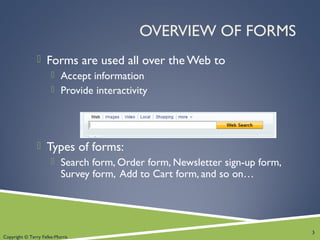
OVERVIEW OF FORMS
 Forms are used all over the Web to
 Accept information
 Provide interactivity
 Types of forms:
 Search form, Order form, Newsletter sign-up form,
Survey form, Add to Cart form, and so on…
3
Copyright © Terry Felke-Morris
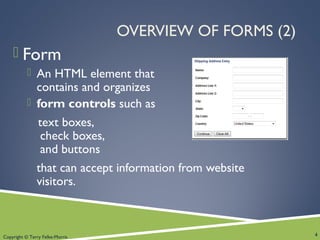
OVERVIEW OF FORMS (2)
 Form
 An HTML element that
contains and organizes
 form controls such as
text boxes,
check boxes,
and buttons
that can accept information from website
visitors.
4
Copyright © Terry Felke-Morris
TWO COMPONENTS OF USING FORMS
1. The HTML form
-- the web page user interface
and
2. The server-side processing
Server-side processing works with the
form data and sends e-mail, writes to a
text file, updates a database, or performs
some other type of processing on the
server.
5
Copyright © Terry Felke-Morris
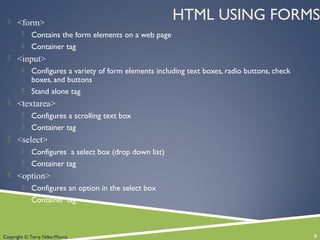
HTML USING FORMS <form>
 Contains the form elements on a web page
 Container tag
 <input>
 Configures a variety of form elements including text boxes, radio buttons, check
boxes, and buttons
 Stand alone tag
 <textarea>
 Configures a scrolling text box
 Container tag
 <select>
 Configures a select box (drop down list)
 Container tag
 <option>
 Configures an option in the select box
 Container tag
6
Copyright © Terry Felke-Morris
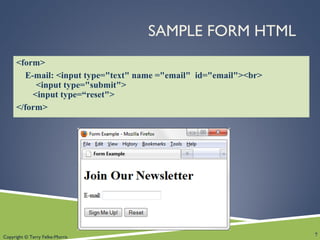
SAMPLE FORM HTML
<form>
E-mail: <input type="text" name ="email" id="email"><br>
<input type="submit">
<input type=“reset">
</form>
7
Copyright © Terry Felke-Morris
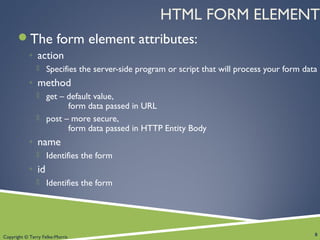
HTML FORM ELEMENT
The form element attributes:
◦ action
 Specifies the server-side program or script that will process your form data
◦ method
 get – default value,
form data passed in URL
 post – more secure,
form data passed in HTTP Entity Body
◦ name
 Identifies the form
◦ id
 Identifies the form
8
Copyright © Terry Felke-Morris
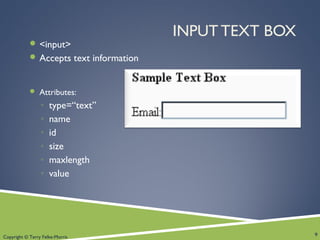
INPUT TEXT BOX
 <input>
 Accepts text information
 Attributes:
◦ type=“text”
◦ name
◦ id
◦ size
◦ maxlength
◦ value
9
Copyright © Terry Felke-Morris
TEXTAREA SCROLLING TEXT BOX
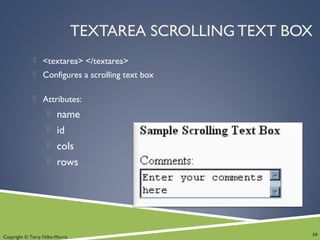
 <textarea> </textarea>
 Configures a scrolling text box
 Attributes:
 name
 id
 cols
 rows
10
Copyright © Terry Felke-Morris
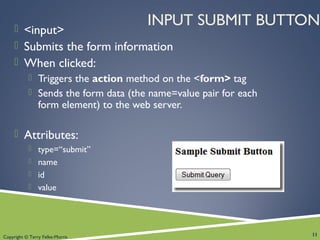
INPUT SUBMIT BUTTON <input>
 Submits the form information
 When clicked:
 Triggers the action method on the <form> tag
 Sends the form data (the name=value pair for each
form element) to the web server.
 Attributes:
 type=“submit”
 name
 id
 value
11
Copyright © Terry Felke-Morris
INPUT RESET BUTTON
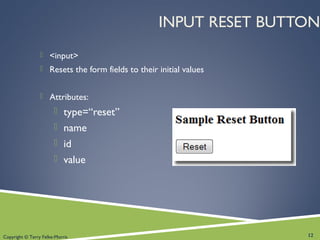
 <input>
 Resets the form fields to their initial values
 Attributes:
 type=“reset”
 name
 id
 value
12
Copyright © Terry Felke-Morris
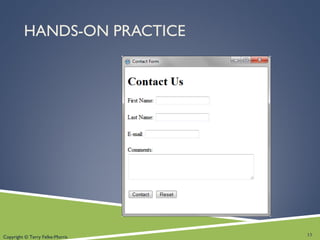
HANDS-ON PRACTICE
13
Copyright © Terry Felke-Morris
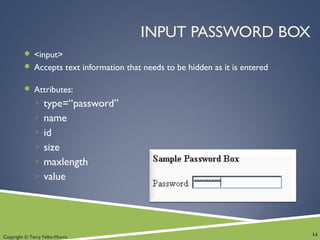
INPUT PASSWORD BOX
 <input>
 Accepts text information that needs to be hidden as it is entered
 Attributes:
◦ type=“password”
◦ name
◦ id
◦ size
◦ maxlength
◦ value
14
Copyright © Terry Felke-Morris
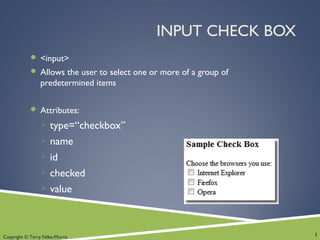
INPUT CHECK BOX
 <input>
 Allows the user to select one or more of a group of
predetermined items
 Attributes:
◦ type=“checkbox”
◦ name
◦ id
◦ checked
◦ value
1
Copyright © Terry Felke-Morris
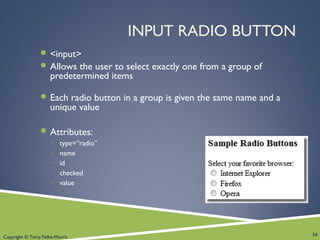
INPUT RADIO BUTTON
 <input>
 Allows the user to select exactly one from a group of
predetermined items
 Each radio button in a group is given the same name and a
unique value
 Attributes:
◦ type=“radio”
◦ name
◦ id
◦ checked
◦ value
16
Copyright © Terry Felke-Morris
INPUT HIDDEN FORM DATA
 <input>
 This form control is not displayed on the web page.
 Hidden form fields
 Can be accessed by both client-side and server-side scripting
 Sometimes used to contain information needed as the visitor moves
from page to page.
 Attributes:
 type=“hidden”
 name
 id
 value
17
Copyright © Terry Felke-Morris
SELECT LIST
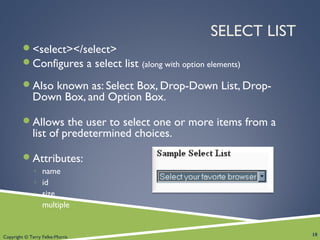
<select></select>
Configures a select list (along with option elements)
Also known as: Select Box, Drop-Down List, Drop-
Down Box, and Option Box.
Allows the user to select one or more items from a
list of predetermined choices.
Attributes:
◦ name
◦ id
◦ size
◦ multiple
18
Copyright © Terry Felke-Morris
OPTIONS IN A SELECT LIST
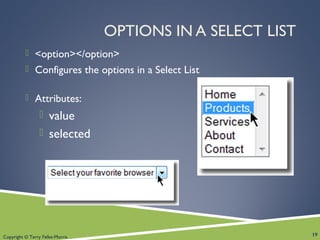
 <option></option>
 Configures the options in a Select List
 Attributes:
 value
 selected
19
Copyright © Terry Felke-Morris
CHECKPOINT
1. You are designing a web site for a client who
sells items in a retail store.
They want to create a customer list for e-mail
marketing purposes. Your client sells to
consumers and needs a form that accepts their
customer’s name and e-mail address.
Would you recommend using two input boxes (one
for the name and one for the e-mail) or three
input boxes (for the first name, last name, and
email address)?
Explain your answer.
20
Copyright © Terry Felke-Morris
CHECKPOINT
2. You are designing a survey form for a client. One of
the questions has 10 possible responses.
Only one response can be selected per question.
What type of form control would you use to
configure this question on the web page?
3. True or False.
In a radio button group, the value attribute is used
by the browser to process the radio buttons as a
group.
21
Copyright © Terry Felke-Morris
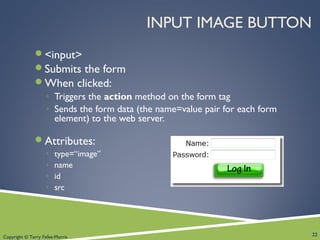
INPUT IMAGE BUTTON
<input>
Submits the form
When clicked:
◦ Triggers the action method on the form tag
◦ Sends the form data (the name=value pair for each form
element) to the web server.
Attributes:
◦ type=“image”
◦ name
◦ id
◦ src
22
Copyright © Terry Felke-Morris
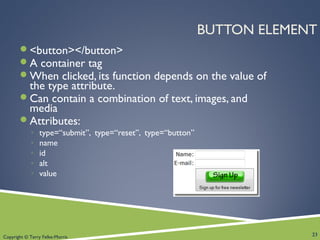
BUTTON ELEMENT
<button></button>
A container tag
When clicked, its function depends on the value of
the type attribute.
Can contain a combination of text, images, and
media
Attributes:
◦ type=“submit”, type=“reset”, type=“button”
◦ name
◦ id
◦ alt
◦ value
23
Copyright © Terry Felke-Morris
ACCESSIBILITY & FORMS
 Label Element
 Fieldset Element
 Legend Element
 Tabindex Attribute
 Accesskey Attribute
24
Copyright © Terry Felke-Morris
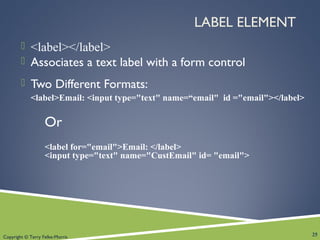
LABEL ELEMENT
 <label></label>
 Associates a text label with a form control
 Two Different Formats:
<label>Email: <input type="text" name=“email" id ="email"></label>
Or
<label for="email">Email: </label>
<input type="text" name="CustEmail" id= "email">
25
Copyright © Terry Felke-Morris
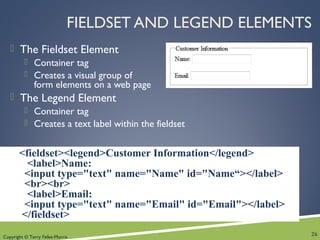
FIELDSET AND LEGEND ELEMENTS
 The Fieldset Element
 Container tag
 Creates a visual group of
form elements on a web page
 The Legend Element
 Container tag
 Creates a text label within the fieldset
26
<fieldset><legend>Customer Information</legend>
<label>Name:
<input type="text" name="Name" id="Name“></label>
<br><br>
<label>Email:
<input type="text" name="Email" id="Email"></label>
</fieldset>
Copyright © Terry Felke-Morris
TABINDEX ATTRIBUTE
 Attribute that can be used on form controls and
anchor tags
 Modifies the default tab order
 Assign a numeric value
<input type="text" name="CustEmail" id="CustEmail"
tabindex="1">
27
Copyright © Terry Felke-Morris
ACCESSKEY ATTRIBUTE
 Attribute that can be used on form controls
and anchor tags
 Create a “hot-key” combination to place the
focus on the component
 Assign a value of a keyboard letter
 On Windows use the CTRL and the “hot-key”
to move the cursor
<input type="text" name="CustEmail"
id="CustEmail" accesskey="E">
28
Copyright © Terry Felke-Morris
CHECKPOINT
1. Describe the purpose of the fieldset and legend elements.
2. Describe the purpose of the accesskey attribute and how
it supports accessibility.
3. When designing a form, should you use the standard
submit button, an image button, or a button tag? Are these
different in the way that they provide for accessibility?
Explain your answer.
29
Copyright © Terry Felke-Morris
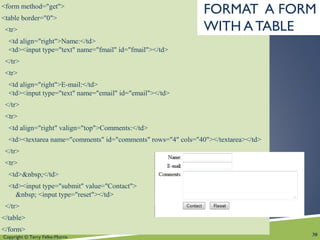
<form method="get">
<table border="0">
<tr>
<td align="right">Name:</td>
<td><input type="text" name="fmail" id="fmail"></td>
</tr>
<tr>
<td align="right">E-mail:</td>
<td><input type="text" name="email" id="email"></td>
</tr>
<tr>
<td align="right" valign="top">Comments:</td>
<td><textarea name="comments" id="comments" rows="4" cols="40"></textarea></td>
</tr>
<tr>
<td>&nbsp;</td>
<td><input type="submit" value="Contact">
&nbsp; <input type="reset"></td>
</tr>
</table>
</form>
30
FORMAT A FORM
WITH A TABLE
Copyright © Terry Felke-Morris
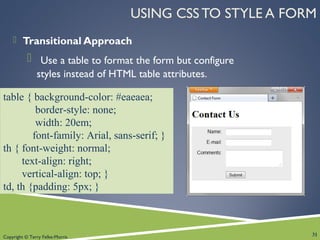
USING CSS TO STYLE A FORM
 Transitional Approach
 Use a table to format the form but configure
styles instead of HTML table attributes.
31
table { background-color: #eaeaea;
border-style: none;
width: 20em;
font-family: Arial, sans-serif; }
th { font-weight: normal;
text-align: right;
vertical-align: top; }
td, th {padding: 5px; }
Copyright © Terry Felke-Morris
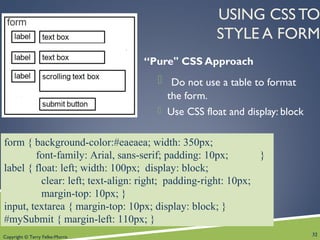
USING CSS TO
STYLE A FORM
“Pure" CSS Approach
 Do not use a table to format
the form.
 Use CSS float and display: block
32
form { background-color:#eaeaea; width: 350px;
font-family: Arial, sans-serif; padding: 10px; }
label { float: left; width: 100px; display: block;
clear: left; text-align: right; padding-right: 10px;
margin-top: 10px; }
input, textarea { margin-top: 10px; display: block; }
#mySubmit { margin-left: 110px; }
Copyright © Terry Felke-Morris
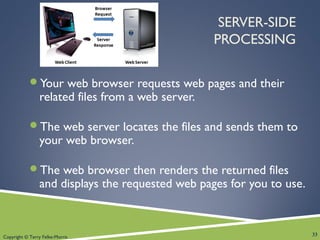
SERVER-SIDE
PROCESSING
Your web browser requests web pages and their
related files from a web server.
The web server locates the files and sends them to
your web browser.
The web browser then renders the returned files
and displays the requested web pages for you to use.
33
Copyright © Terry Felke-Morris
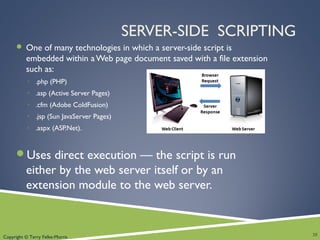
CGI
COMMON GATEWAY INTERFACE
 A protocol for a web server to pass a web page
user's request to an application program and
accept information to send to the user.
34
Copyright © Terry Felke-Morris
SERVER-SIDE SCRIPTING
 One of many technologies in which a server-side script is
embedded within aWeb page document saved with a file extension
such as:
◦ .php (PHP)
◦ .asp (Active Server Pages)
◦ .cfm (Adobe ColdFusion)
◦ .jsp (Sun JavaServer Pages)
◦ .aspx (ASP.Net).
Uses direct execution — the script is run
either by the web server itself or by an
extension module to the web server.
35
Copyright © Terry Felke-Morris
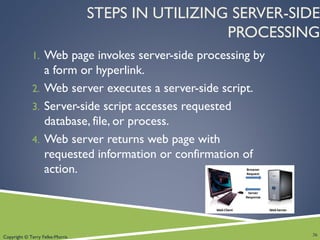
STEPS IN UTILIZING SERVER-SIDE
PROCESSING
1. Web page invokes server-side processing by
a form or hyperlink.
2. Web server executes a server-side script.
3. Server-side script accesses requested
database, file, or process.
4. Web server returns web page with
requested information or confirmation of
action.
36
Copyright © Terry Felke-Morris
COMMON USES OF
SERVER-SIDE SCRIPTING
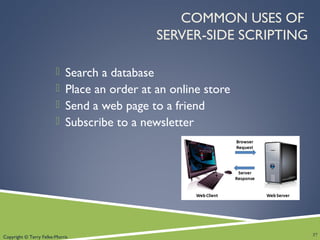
 Search a database
 Place an order at an online store
 Send a web page to a friend
 Subscribe to a newsletter
37
Copyright © Terry Felke-Morris
SENDING INFORMATION TO
A SERVER-SIDE SCRIPT
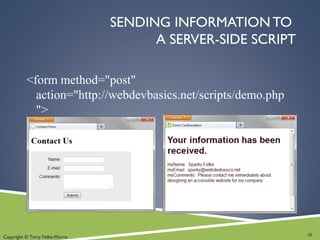
<form method="post"
action="http://webdevbasics.net/scripts/demo.php
">
38
Copyright © Terry Felke-Morris
SOURCES OF FREE
SERVER-SIDE PROCESSING
 Many web host providers offer free scripts for their clients.
Contact their support area or FAQ to learn more about their
services.
 Some web sites that offer FREE remotely hosted scripts (in
return for displaying an ad).
 http://formbuddy.com
 http://response-o-matic.com
 http://master.com
 http://www.formmail.com
 http://wufoo.com
 http://icebrrg.com
 http://formassembly.com
39
Copyright © Terry Felke-Morris
SERVER-SIDE SCRIPTING TECHNOLOGIES
JavaServer Pages
http://java.sun.com/products/jsp
 Active Server Pages
Visit http://msdn.microsoft.com and search for “Active Server Pages”
 ColdFusion
http://www.adobe.com/products/coldfusion
 PHP
http://www.php.net
 Ruby on Rails
http://www.rubyonrails.org or http://tryruby.hobix.com
 Microsoft’s .NET Framework
http://www.microsoft.com/net
40
Copyright © Terry Felke-Morris
CHECKPOINT
1. Describe server-side processing.
2. Describe why communication is needed
between the developer of a server-side script
and the web page designer.
41
Copyright © Terry Felke-Morris
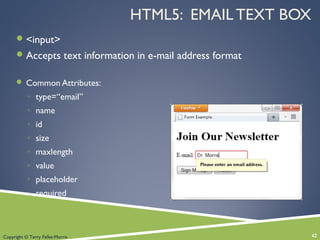
HTML5: EMAIL TEXT BOX
<input>
Accepts text information in e-mail address format
 Common Attributes:
◦ type=“email”
◦ name
◦ id
◦ size
◦ maxlength
◦ value
◦ placeholder
◦ required
42
Copyright © Terry Felke-Morris
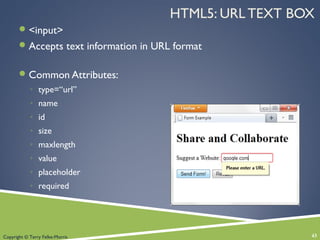
HTML5: URL TEXT BOX
<input>
Accepts text information in URL format
Common Attributes:
◦ type=“url”
◦ name
◦ id
◦ size
◦ maxlength
◦ value
◦ placeholder
◦ required
43
Copyright © Terry Felke-Morris
HTML5:TELEPHONE NUMBER TEXT BOX
<input>
Accepts text information in telephone number format
Common Attributes:
◦ type=“tel”
◦ name
◦ id
◦ size
◦ maxlength
◦ value
◦ placeholder
◦ required
44
Copyright © Terry Felke-Morris
HTML5: SEARCH TEXT BOX
<input>
Accepts search terms
Common Attributes:
◦ type=“search”
◦ name
◦ id
◦ size
◦ maxlength
◦ value
◦ placeholder
◦ required
45
Copyright © Terry Felke-Morris
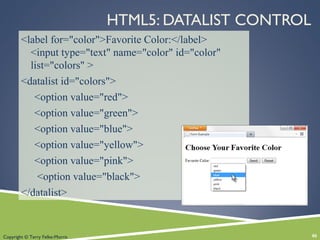
HTML5: DATALIST CONTROL
<label for="color">Favorite Color:</label>
<input type="text" name="color" id="color"
list="colors" >
<datalist id="colors">
<option value="red">
<option value="green">
<option value="blue">
<option value="yellow">
<option value="pink">
<option value="black">
</datalist>
46
Copyright © Terry Felke-Morris
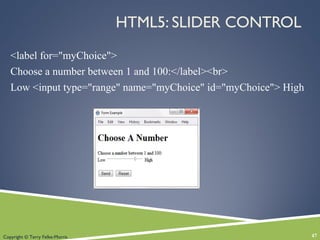
HTML5: SLIDER CONTROL
<label for="myChoice">
Choose a number between 1 and 100:</label><br>
Low <input type="range" name="myChoice" id="myChoice"> High
47
Copyright © Terry Felke-Morris
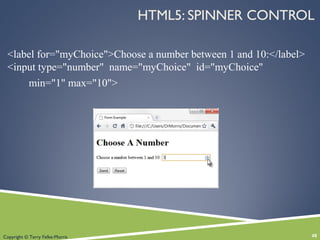
HTML5: SPINNER CONTROL
<label for="myChoice">Choose a number between 1 and 10:</label>
<input type="number" name="myChoice" id="myChoice"
min="1" max="10">
48
Copyright © Terry Felke-Morris
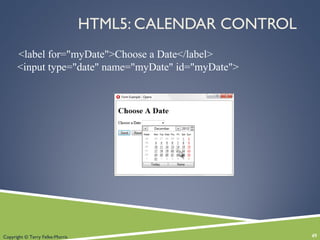
HTML5: CALENDAR CONTROL
<label for="myDate">Choose a Date</label>
<input type="date" name="myDate" id="myDate">
49
Copyright © Terry Felke-Morris
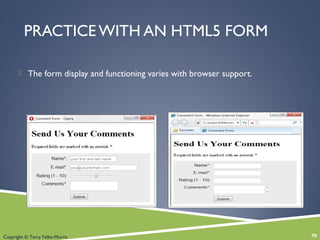
PRACTICE WITH AN HTML5 FORM
 The form display and functioning varies with browser support.
50
Copyright © Terry Felke-Morris
SUMMARY
 This chapter introduced the use of forms on web
pages.
 You learned about how to configure form elements
and provide for accessibility.
 You also learned how to configure a form to access
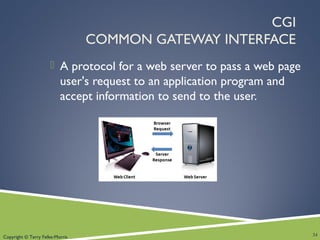
server-side processing.
 In addition, you learned about new HTML5 form
controls.
51

Chapter 9 - Web Design

  • 1.
    Copyright © TerryFelke-Morris WEB DEVELOPMENT & DESIGN FOUNDATIONS WITH HTML5 Chapter 9 Key Concepts 1Copyright © Terry Felke-Morris
  • 2.
    Copyright © TerryFelke-Morris LEARNING OUTCOMES  In this chapter, you will learn how to ...  Describe common uses of forms on web pages  Create forms on web pages using the form, input, textarea, and select elements  Create forms that provide additional accessibility features using the accesskey and tabindex attributes  Associate form controls and groups using the label, fieldset, and legend elements  Create custom image buttons and use the button element  Use CSS to style a form  Configure new HTML5 form controls including the email, URL, datalist, range, spinner, calendar, and color controls  Describe the features and common uses of server-side processing  Invoke server-side processing to handle form data  Find free server-side processing resources on the Web 2
  • 3.
    Copyright © TerryFelke-Morris OVERVIEW OF FORMS  Forms are used all over the Web to  Accept information  Provide interactivity  Types of forms:  Search form, Order form, Newsletter sign-up form, Survey form, Add to Cart form, and so on… 3
  • 4.
    Copyright © TerryFelke-Morris OVERVIEW OF FORMS (2)  Form  An HTML element that contains and organizes  form controls such as text boxes, check boxes, and buttons that can accept information from website visitors. 4
  • 5.
    Copyright © TerryFelke-Morris TWO COMPONENTS OF USING FORMS 1. The HTML form -- the web page user interface and 2. The server-side processing Server-side processing works with the form data and sends e-mail, writes to a text file, updates a database, or performs some other type of processing on the server. 5
  • 6.
    Copyright © TerryFelke-Morris HTML USING FORMS <form>  Contains the form elements on a web page  Container tag  <input>  Configures a variety of form elements including text boxes, radio buttons, check boxes, and buttons  Stand alone tag  <textarea>  Configures a scrolling text box  Container tag  <select>  Configures a select box (drop down list)  Container tag  <option>  Configures an option in the select box  Container tag 6
  • 7.
    Copyright © TerryFelke-Morris SAMPLE FORM HTML <form> E-mail: <input type="text" name ="email" id="email"><br> <input type="submit"> <input type=“reset"> </form> 7
  • 8.
    Copyright © TerryFelke-Morris HTML FORM ELEMENT The form element attributes: ◦ action  Specifies the server-side program or script that will process your form data ◦ method  get – default value, form data passed in URL  post – more secure, form data passed in HTTP Entity Body ◦ name  Identifies the form ◦ id  Identifies the form 8
  • 9.
    Copyright © TerryFelke-Morris INPUT TEXT BOX  <input>  Accepts text information  Attributes: ◦ type=“text” ◦ name ◦ id ◦ size ◦ maxlength ◦ value 9
  • 10.
    Copyright © TerryFelke-Morris TEXTAREA SCROLLING TEXT BOX  <textarea> </textarea>  Configures a scrolling text box  Attributes:  name  id  cols  rows 10
  • 11.
    Copyright © TerryFelke-Morris INPUT SUBMIT BUTTON <input>  Submits the form information  When clicked:  Triggers the action method on the <form> tag  Sends the form data (the name=value pair for each form element) to the web server.  Attributes:  type=“submit”  name  id  value 11
  • 12.
    Copyright © TerryFelke-Morris INPUT RESET BUTTON  <input>  Resets the form fields to their initial values  Attributes:  type=“reset”  name  id  value 12
  • 13.
    Copyright © TerryFelke-Morris HANDS-ON PRACTICE 13
  • 14.
    Copyright © TerryFelke-Morris INPUT PASSWORD BOX  <input>  Accepts text information that needs to be hidden as it is entered  Attributes: ◦ type=“password” ◦ name ◦ id ◦ size ◦ maxlength ◦ value 14
  • 15.
    Copyright © TerryFelke-Morris INPUT CHECK BOX  <input>  Allows the user to select one or more of a group of predetermined items  Attributes: ◦ type=“checkbox” ◦ name ◦ id ◦ checked ◦ value 1
  • 16.
    Copyright © TerryFelke-Morris INPUT RADIO BUTTON  <input>  Allows the user to select exactly one from a group of predetermined items  Each radio button in a group is given the same name and a unique value  Attributes: ◦ type=“radio” ◦ name ◦ id ◦ checked ◦ value 16
  • 17.
    Copyright © TerryFelke-Morris INPUT HIDDEN FORM DATA  <input>  This form control is not displayed on the web page.  Hidden form fields  Can be accessed by both client-side and server-side scripting  Sometimes used to contain information needed as the visitor moves from page to page.  Attributes:  type=“hidden”  name  id  value 17
  • 18.
    Copyright © TerryFelke-Morris SELECT LIST <select></select> Configures a select list (along with option elements) Also known as: Select Box, Drop-Down List, Drop- Down Box, and Option Box. Allows the user to select one or more items from a list of predetermined choices. Attributes: ◦ name ◦ id ◦ size ◦ multiple 18
  • 19.
    Copyright © TerryFelke-Morris OPTIONS IN A SELECT LIST  <option></option>  Configures the options in a Select List  Attributes:  value  selected 19
  • 20.
    Copyright © TerryFelke-Morris CHECKPOINT 1. You are designing a web site for a client who sells items in a retail store. They want to create a customer list for e-mail marketing purposes. Your client sells to consumers and needs a form that accepts their customer’s name and e-mail address. Would you recommend using two input boxes (one for the name and one for the e-mail) or three input boxes (for the first name, last name, and email address)? Explain your answer. 20
  • 21.
    Copyright © TerryFelke-Morris CHECKPOINT 2. You are designing a survey form for a client. One of the questions has 10 possible responses. Only one response can be selected per question. What type of form control would you use to configure this question on the web page? 3. True or False. In a radio button group, the value attribute is used by the browser to process the radio buttons as a group. 21
  • 22.
    Copyright © TerryFelke-Morris INPUT IMAGE BUTTON <input> Submits the form When clicked: ◦ Triggers the action method on the form tag ◦ Sends the form data (the name=value pair for each form element) to the web server. Attributes: ◦ type=“image” ◦ name ◦ id ◦ src 22
  • 23.
    Copyright © TerryFelke-Morris BUTTON ELEMENT <button></button> A container tag When clicked, its function depends on the value of the type attribute. Can contain a combination of text, images, and media Attributes: ◦ type=“submit”, type=“reset”, type=“button” ◦ name ◦ id ◦ alt ◦ value 23
  • 24.
    Copyright © TerryFelke-Morris ACCESSIBILITY & FORMS  Label Element  Fieldset Element  Legend Element  Tabindex Attribute  Accesskey Attribute 24
  • 25.
    Copyright © TerryFelke-Morris LABEL ELEMENT  <label></label>  Associates a text label with a form control  Two Different Formats: <label>Email: <input type="text" name=“email" id ="email"></label> Or <label for="email">Email: </label> <input type="text" name="CustEmail" id= "email"> 25
  • 26.
    Copyright © TerryFelke-Morris FIELDSET AND LEGEND ELEMENTS  The Fieldset Element  Container tag  Creates a visual group of form elements on a web page  The Legend Element  Container tag  Creates a text label within the fieldset 26 <fieldset><legend>Customer Information</legend> <label>Name: <input type="text" name="Name" id="Name“></label> <br><br> <label>Email: <input type="text" name="Email" id="Email"></label> </fieldset>
  • 27.
    Copyright © TerryFelke-Morris TABINDEX ATTRIBUTE  Attribute that can be used on form controls and anchor tags  Modifies the default tab order  Assign a numeric value <input type="text" name="CustEmail" id="CustEmail" tabindex="1"> 27
  • 28.
    Copyright © TerryFelke-Morris ACCESSKEY ATTRIBUTE  Attribute that can be used on form controls and anchor tags  Create a “hot-key” combination to place the focus on the component  Assign a value of a keyboard letter  On Windows use the CTRL and the “hot-key” to move the cursor <input type="text" name="CustEmail" id="CustEmail" accesskey="E"> 28
  • 29.
    Copyright © TerryFelke-Morris CHECKPOINT 1. Describe the purpose of the fieldset and legend elements. 2. Describe the purpose of the accesskey attribute and how it supports accessibility. 3. When designing a form, should you use the standard submit button, an image button, or a button tag? Are these different in the way that they provide for accessibility? Explain your answer. 29
  • 30.
    Copyright © TerryFelke-Morris <form method="get"> <table border="0"> <tr> <td align="right">Name:</td> <td><input type="text" name="fmail" id="fmail"></td> </tr> <tr> <td align="right">E-mail:</td> <td><input type="text" name="email" id="email"></td> </tr> <tr> <td align="right" valign="top">Comments:</td> <td><textarea name="comments" id="comments" rows="4" cols="40"></textarea></td> </tr> <tr> <td>&nbsp;</td> <td><input type="submit" value="Contact"> &nbsp; <input type="reset"></td> </tr> </table> </form> 30 FORMAT A FORM WITH A TABLE
  • 31.
    Copyright © TerryFelke-Morris USING CSS TO STYLE A FORM  Transitional Approach  Use a table to format the form but configure styles instead of HTML table attributes. 31 table { background-color: #eaeaea; border-style: none; width: 20em; font-family: Arial, sans-serif; } th { font-weight: normal; text-align: right; vertical-align: top; } td, th {padding: 5px; }
  • 32.
    Copyright © TerryFelke-Morris USING CSS TO STYLE A FORM “Pure" CSS Approach  Do not use a table to format the form.  Use CSS float and display: block 32 form { background-color:#eaeaea; width: 350px; font-family: Arial, sans-serif; padding: 10px; } label { float: left; width: 100px; display: block; clear: left; text-align: right; padding-right: 10px; margin-top: 10px; } input, textarea { margin-top: 10px; display: block; } #mySubmit { margin-left: 110px; }
  • 33.
    Copyright © TerryFelke-Morris SERVER-SIDE PROCESSING Your web browser requests web pages and their related files from a web server. The web server locates the files and sends them to your web browser. The web browser then renders the returned files and displays the requested web pages for you to use. 33
  • 34.
    Copyright © TerryFelke-Morris CGI COMMON GATEWAY INTERFACE  A protocol for a web server to pass a web page user's request to an application program and accept information to send to the user. 34
  • 35.
    Copyright © TerryFelke-Morris SERVER-SIDE SCRIPTING  One of many technologies in which a server-side script is embedded within aWeb page document saved with a file extension such as: ◦ .php (PHP) ◦ .asp (Active Server Pages) ◦ .cfm (Adobe ColdFusion) ◦ .jsp (Sun JavaServer Pages) ◦ .aspx (ASP.Net). Uses direct execution — the script is run either by the web server itself or by an extension module to the web server. 35
  • 36.
    Copyright © TerryFelke-Morris STEPS IN UTILIZING SERVER-SIDE PROCESSING 1. Web page invokes server-side processing by a form or hyperlink. 2. Web server executes a server-side script. 3. Server-side script accesses requested database, file, or process. 4. Web server returns web page with requested information or confirmation of action. 36
  • 37.
    Copyright © TerryFelke-Morris COMMON USES OF SERVER-SIDE SCRIPTING  Search a database  Place an order at an online store  Send a web page to a friend  Subscribe to a newsletter 37
  • 38.
    Copyright © TerryFelke-Morris SENDING INFORMATION TO A SERVER-SIDE SCRIPT <form method="post" action="http://webdevbasics.net/scripts/demo.php "> 38
  • 39.
    Copyright © TerryFelke-Morris SOURCES OF FREE SERVER-SIDE PROCESSING  Many web host providers offer free scripts for their clients. Contact their support area or FAQ to learn more about their services.  Some web sites that offer FREE remotely hosted scripts (in return for displaying an ad).  http://formbuddy.com  http://response-o-matic.com  http://master.com  http://www.formmail.com  http://wufoo.com  http://icebrrg.com  http://formassembly.com 39
  • 40.
    Copyright © TerryFelke-Morris SERVER-SIDE SCRIPTING TECHNOLOGIES JavaServer Pages http://java.sun.com/products/jsp  Active Server Pages Visit http://msdn.microsoft.com and search for “Active Server Pages”  ColdFusion http://www.adobe.com/products/coldfusion  PHP http://www.php.net  Ruby on Rails http://www.rubyonrails.org or http://tryruby.hobix.com  Microsoft’s .NET Framework http://www.microsoft.com/net 40
  • 41.
    Copyright © TerryFelke-Morris CHECKPOINT 1. Describe server-side processing. 2. Describe why communication is needed between the developer of a server-side script and the web page designer. 41
  • 42.
    Copyright © TerryFelke-Morris HTML5: EMAIL TEXT BOX <input> Accepts text information in e-mail address format  Common Attributes: ◦ type=“email” ◦ name ◦ id ◦ size ◦ maxlength ◦ value ◦ placeholder ◦ required 42
  • 43.
    Copyright © TerryFelke-Morris HTML5: URL TEXT BOX <input> Accepts text information in URL format Common Attributes: ◦ type=“url” ◦ name ◦ id ◦ size ◦ maxlength ◦ value ◦ placeholder ◦ required 43
  • 44.
    Copyright © TerryFelke-Morris HTML5:TELEPHONE NUMBER TEXT BOX <input> Accepts text information in telephone number format Common Attributes: ◦ type=“tel” ◦ name ◦ id ◦ size ◦ maxlength ◦ value ◦ placeholder ◦ required 44
  • 45.
    Copyright © TerryFelke-Morris HTML5: SEARCH TEXT BOX <input> Accepts search terms Common Attributes: ◦ type=“search” ◦ name ◦ id ◦ size ◦ maxlength ◦ value ◦ placeholder ◦ required 45
  • 46.
    Copyright © TerryFelke-Morris HTML5: DATALIST CONTROL <label for="color">Favorite Color:</label> <input type="text" name="color" id="color" list="colors" > <datalist id="colors"> <option value="red"> <option value="green"> <option value="blue"> <option value="yellow"> <option value="pink"> <option value="black"> </datalist> 46
  • 47.
    Copyright © TerryFelke-Morris HTML5: SLIDER CONTROL <label for="myChoice"> Choose a number between 1 and 100:</label><br> Low <input type="range" name="myChoice" id="myChoice"> High 47
  • 48.
    Copyright © TerryFelke-Morris HTML5: SPINNER CONTROL <label for="myChoice">Choose a number between 1 and 10:</label> <input type="number" name="myChoice" id="myChoice" min="1" max="10"> 48
  • 49.
    Copyright © TerryFelke-Morris HTML5: CALENDAR CONTROL <label for="myDate">Choose a Date</label> <input type="date" name="myDate" id="myDate"> 49
  • 50.
    Copyright © TerryFelke-Morris PRACTICE WITH AN HTML5 FORM  The form display and functioning varies with browser support. 50
  • 51.
    Copyright © TerryFelke-Morris SUMMARY  This chapter introduced the use of forms on web pages.  You learned about how to configure form elements and provide for accessibility.  You also learned how to configure a form to access server-side processing.  In addition, you learned about new HTML5 form controls. 51