ACH 245 Computer Applications  for Design Lecture 1- Basic Computer Fundamentals Lab Overview File Storage and Media Controls The Network Environment File Management
Some Ground Rules Multiple ways to achieve same function Course will show you the best or most common way You  must  follow along with the lecture No doing other work or assignments Technology can and will go wrong You  are responsible for your files, materials and equipment No  web surfing, IM, e-mail or playing games
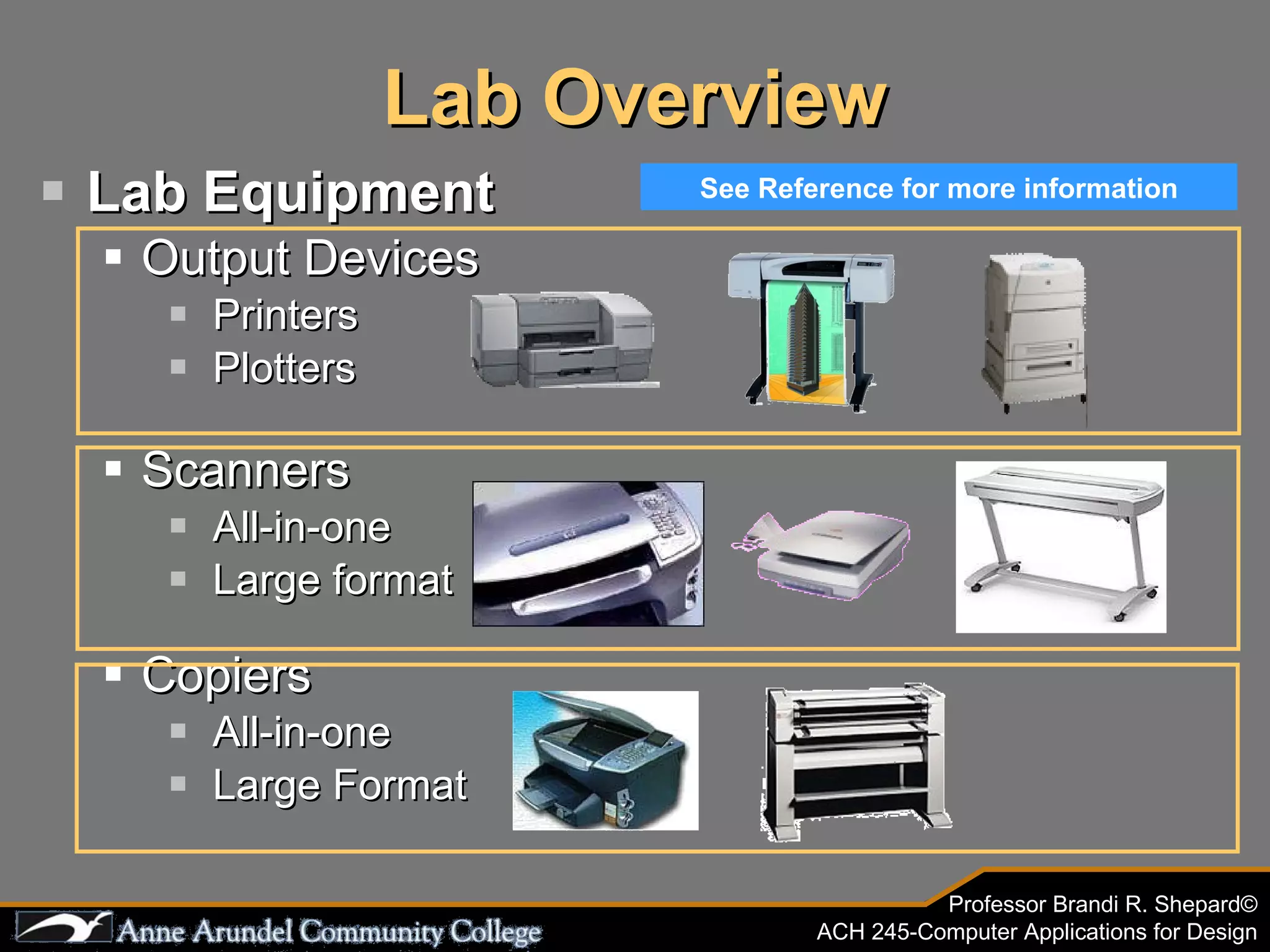
Lab Equipment  Output Devices Printers Plotters  Scanners All-in-one Large format Copiers All-in-one Large Format Lab Overview See Reference for more information
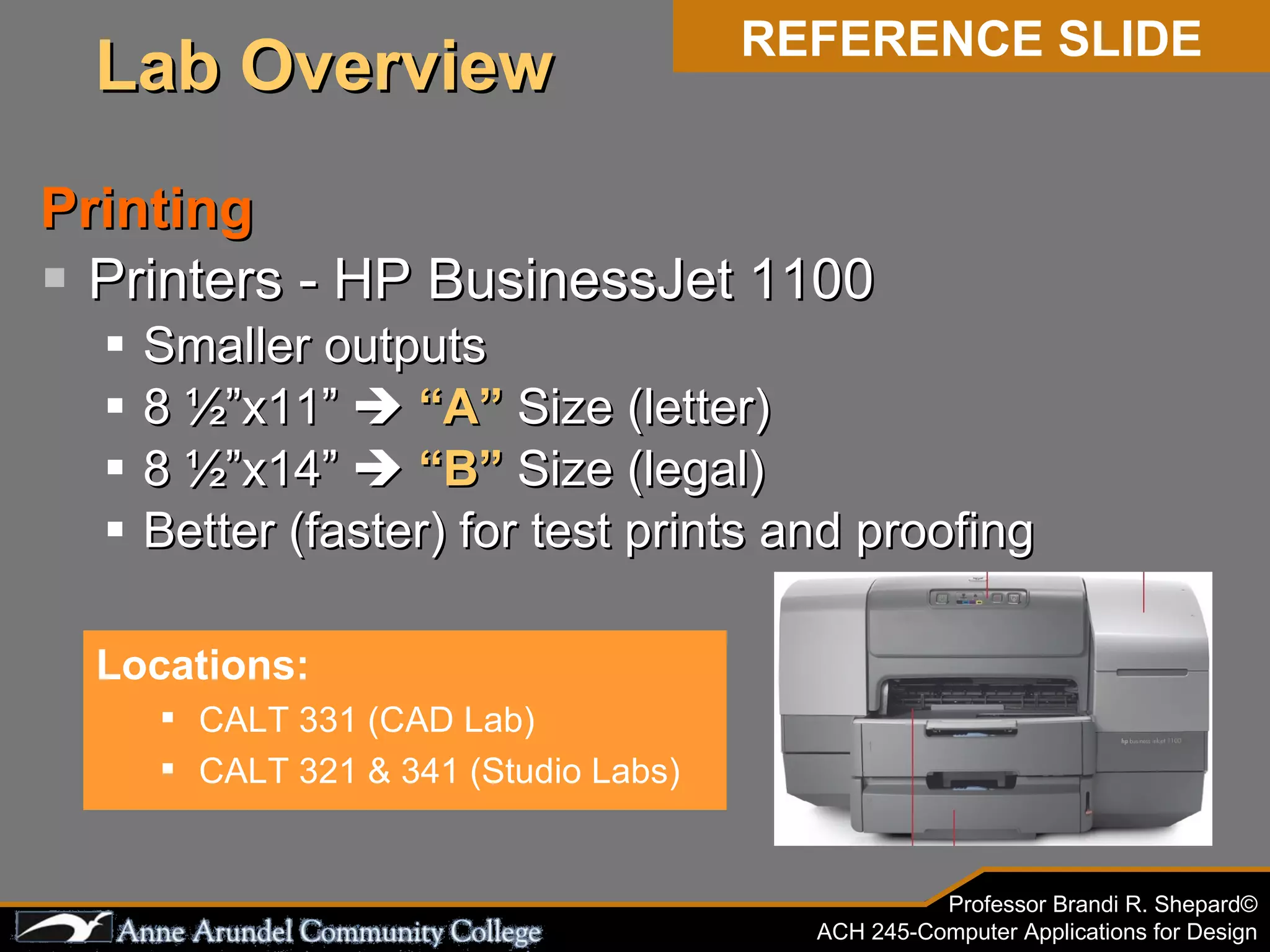
Printing Printers - HP BusinessJet 1100 Smaller outputs 8 ยฝโ€x11โ€  ๏ƒจ   โ€œAโ€  Size (letter) 8 ยฝโ€x14โ€  ๏ƒจ   โ€œBโ€  Size (legal) Better (faster) for test prints and proofing Locations: CALT 331 (CAD Lab) CALT 321 & 341 (Studio Labs) REFERENCE SLIDE Lab Overview
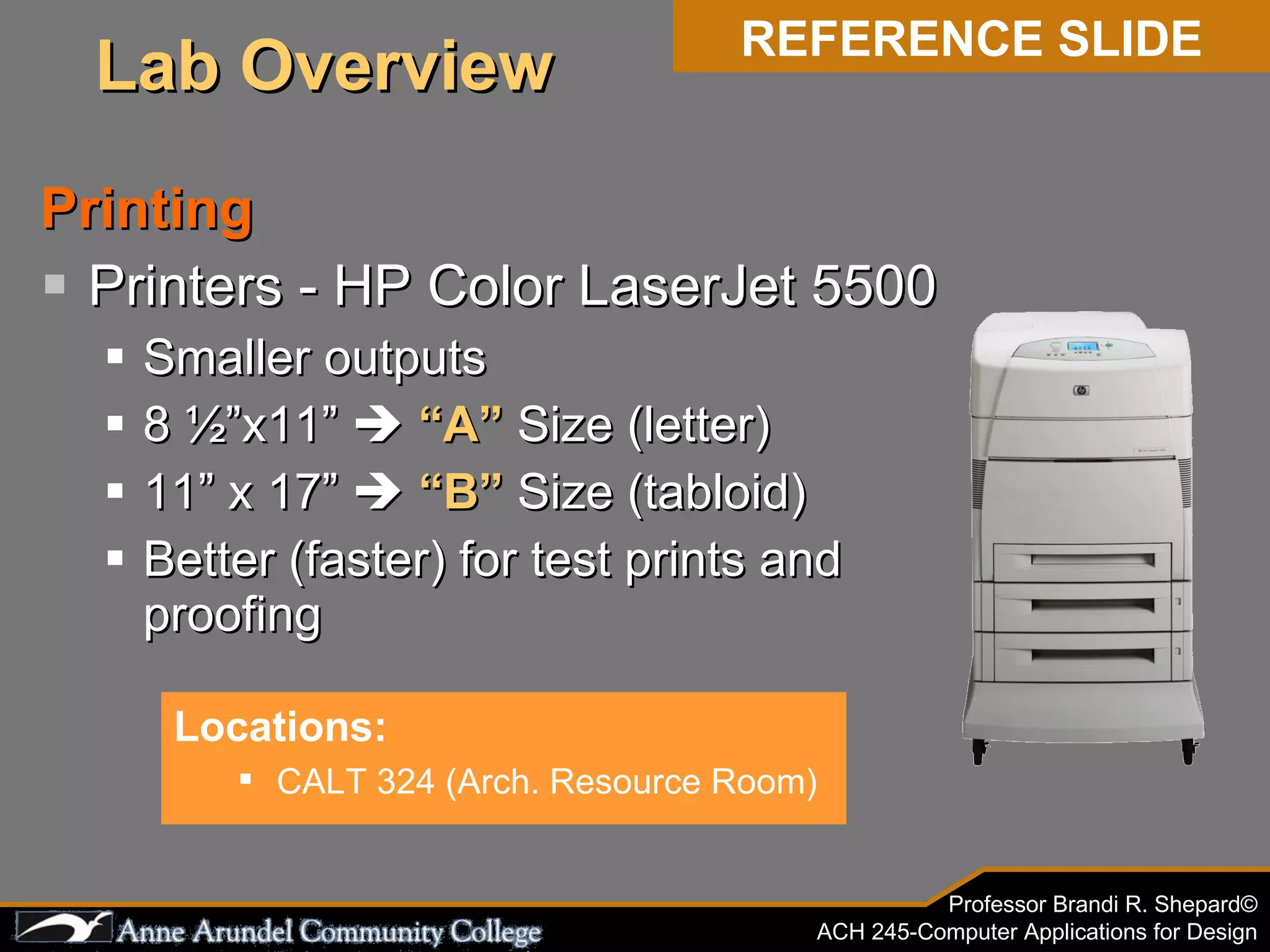
Printing Printers - HP Color LaserJet 5500 Smaller outputs 8 ยฝโ€x11โ€  ๏ƒจ   โ€œAโ€  Size (letter) 11โ€ x 17โ€  ๏ƒจ   โ€œBโ€  Size (tabloid) Better (faster) for test prints and proofing Locations: CALT 324 (Arch. Resource Room) REFERENCE SLIDE Lab Overview
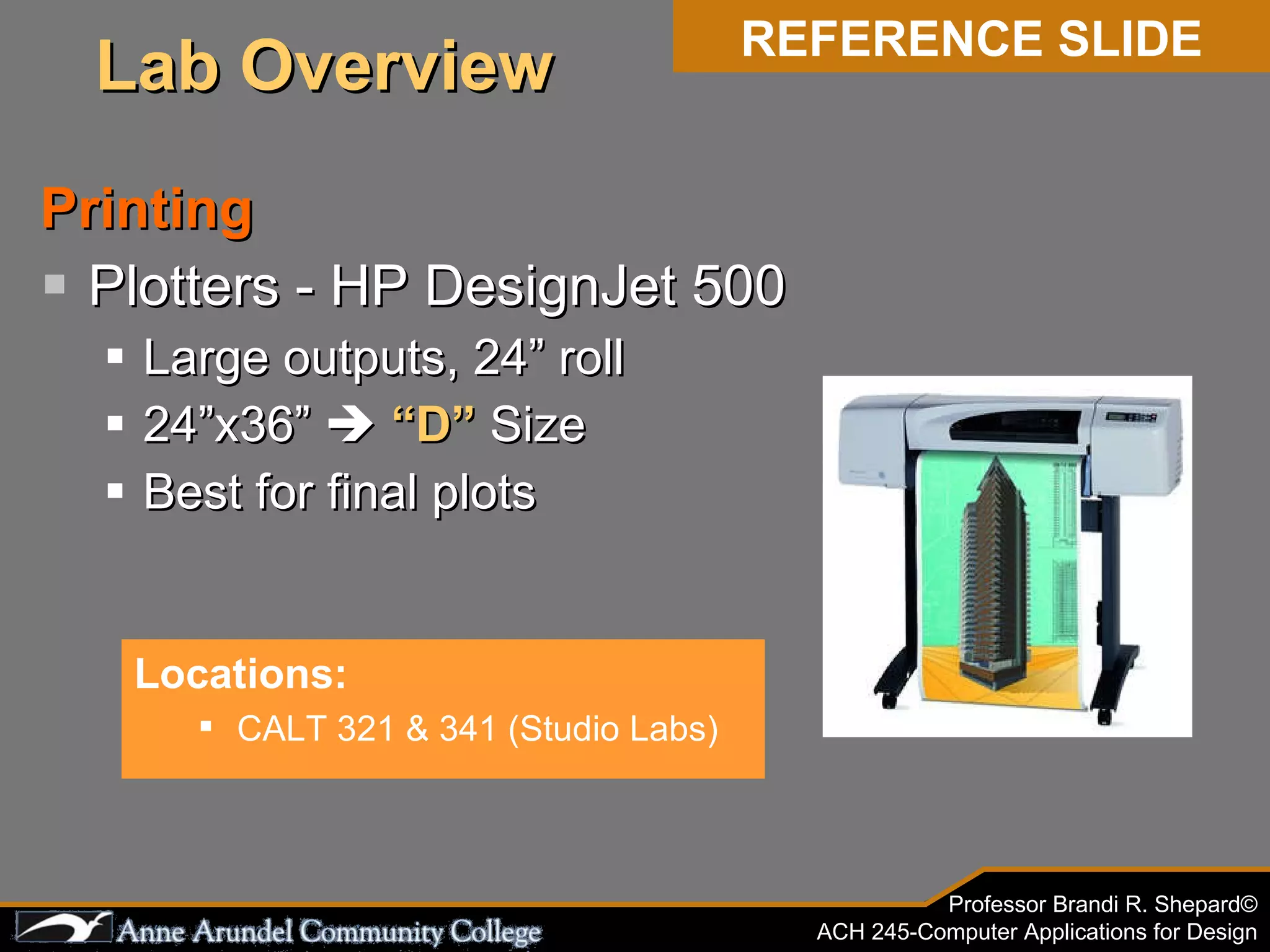
Printing Plotters - HP DesignJet 500 Large outputs, 24โ€ roll 24โ€x36โ€  ๏ƒจ   โ€œDโ€  Size Best for final plots Locations: CALT 321 & 341 (Studio Labs) REFERENCE SLIDE Lab Overview
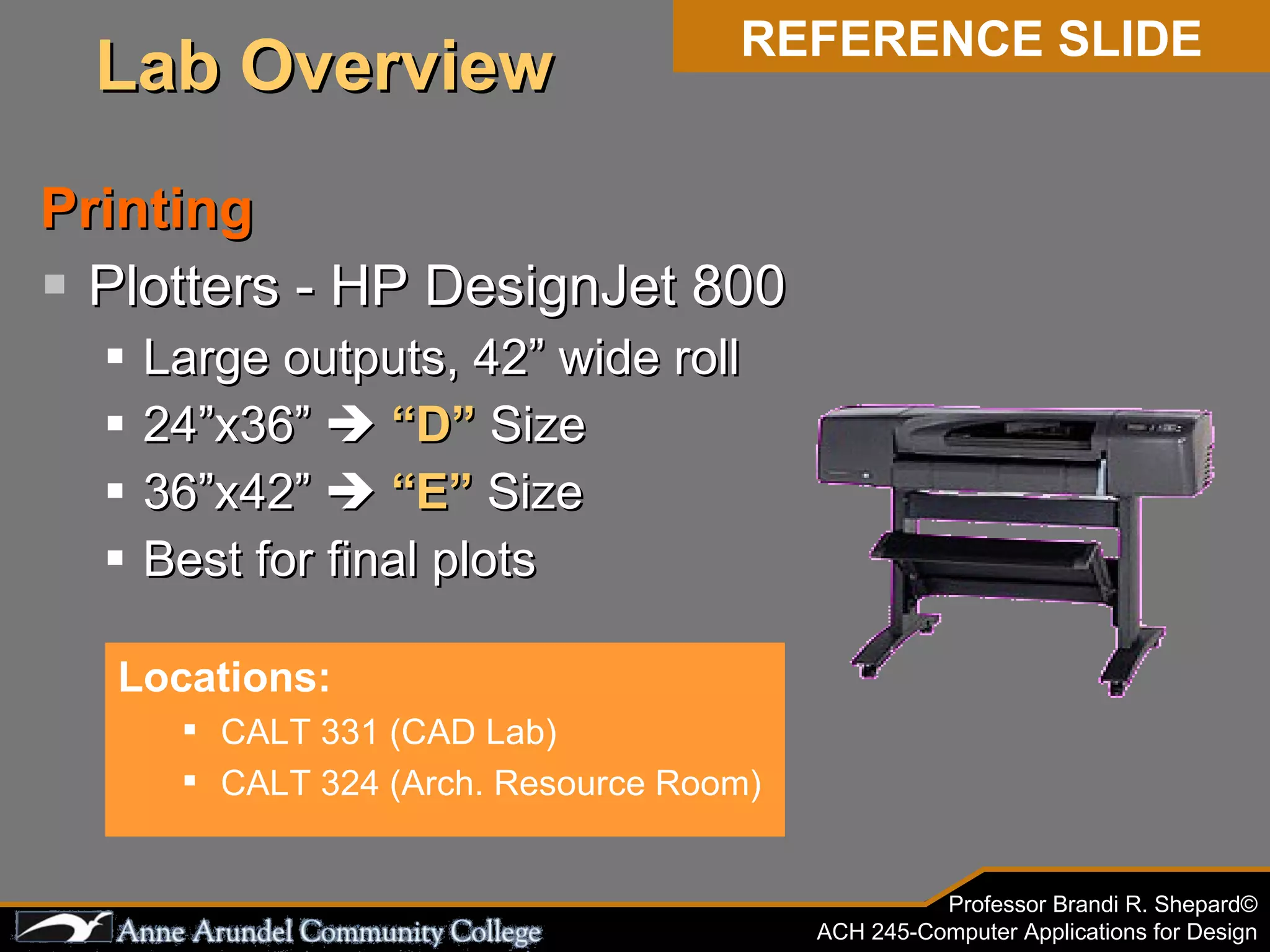
Printing Plotters - HP DesignJet 800 Large outputs, 42โ€ wide roll 24โ€x36โ€  ๏ƒจ   โ€œDโ€  Size 36โ€x42โ€  ๏ƒจ   โ€œEโ€  Size Best for final plots Locations: CALT 331 (CAD Lab) CALT 324 (Arch. Resource Room) REFERENCE SLIDE Lab Overview
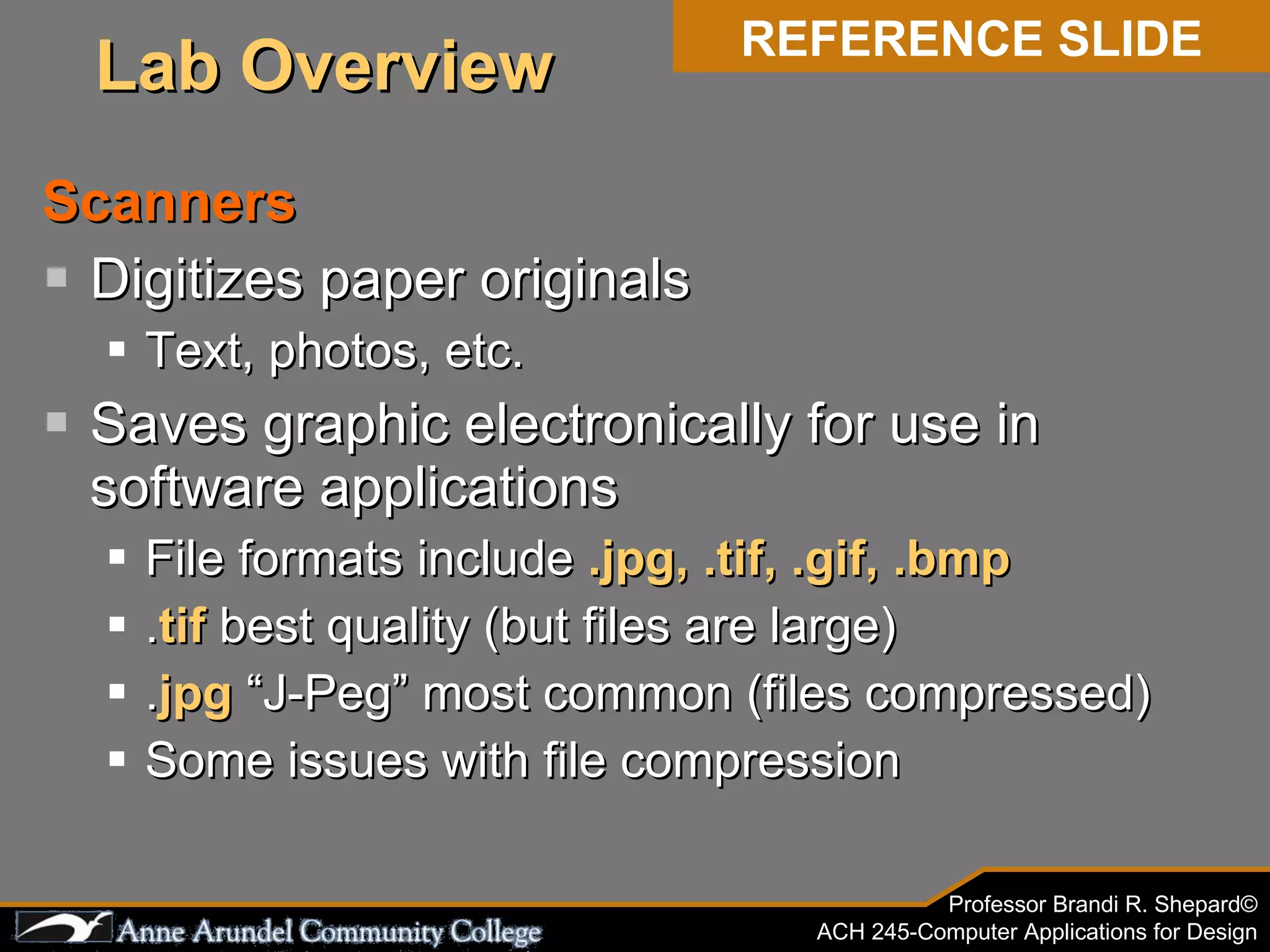
Scanners Digitizes paper originals Text, photos, etc. Saves graphic electronically for use in software applications File formats include  .jpg, .tif, .gif, .bmp . tif  best quality (but files are large) . jpg  โ€œJ-Pegโ€ most common (files compressed) Some issues with file compression REFERENCE SLIDE Lab Overview
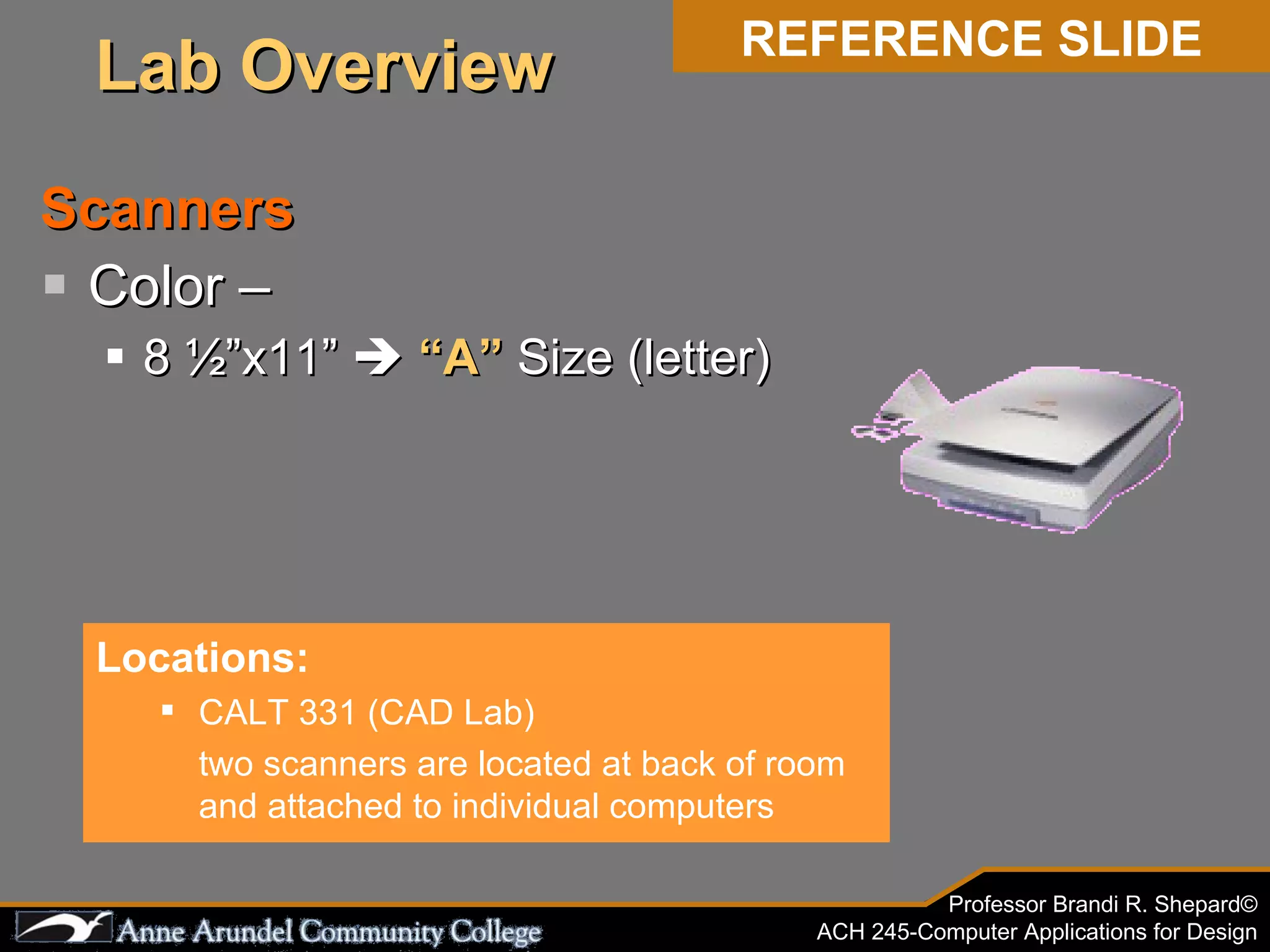
Scanners Color โ€“  8 ยฝโ€x11โ€  ๏ƒจ   โ€œAโ€  Size (letter) Locations: CALT 331 (CAD Lab) two scanners are located at back of room and attached to individual computers REFERENCE SLIDE Lab Overview
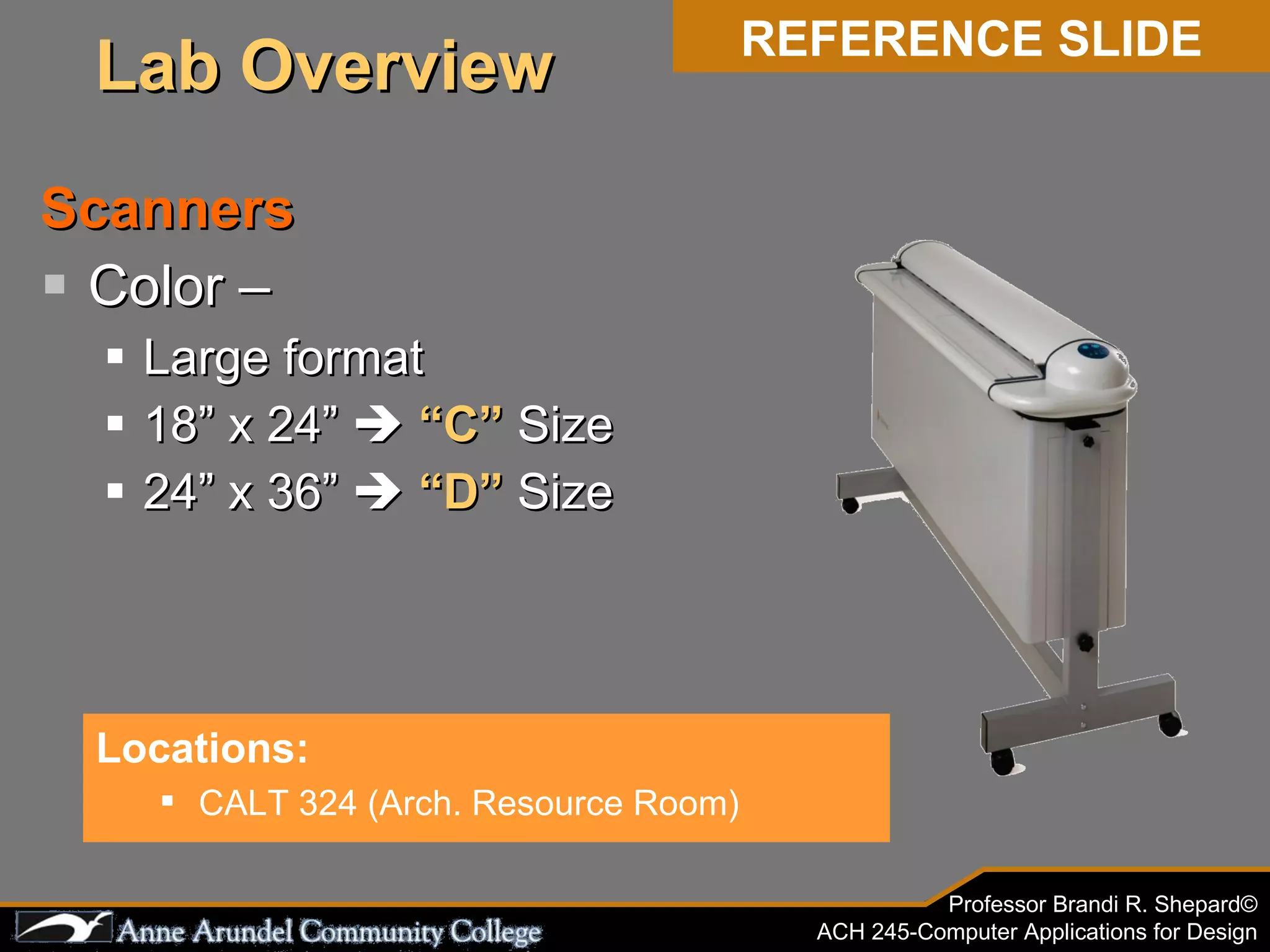
Scanners Color โ€“  Large format 18โ€ x 24โ€  ๏ƒจ   โ€œCโ€  Size 24โ€ x 36โ€  ๏ƒจ   โ€œDโ€  Size Locations: CALT 324 (Arch. Resource Room) REFERENCE SLIDE Lab Overview
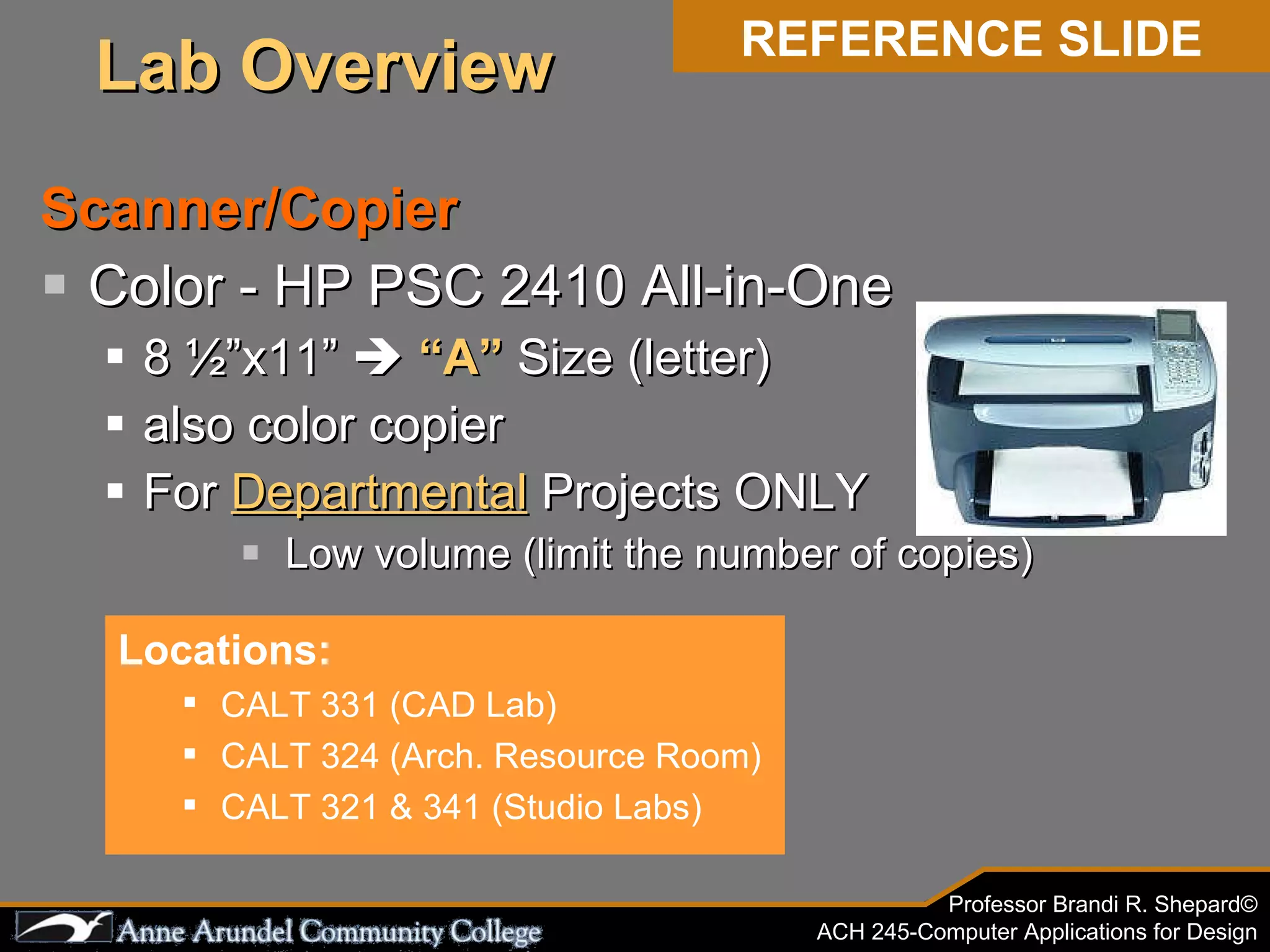
Scanner/Copier Color - HP PSC 2410 All-in-One 8 ยฝโ€x11โ€  ๏ƒจ   โ€œAโ€  Size (letter) also color copier For  Departmental  Projects ONLY Low volume (limit the number of copies) Locations: CALT 331 (CAD Lab) CALT 324 (Arch. Resource Room) CALT 321 & 341 (Studio Labs) REFERENCE SLIDE Lab Overview
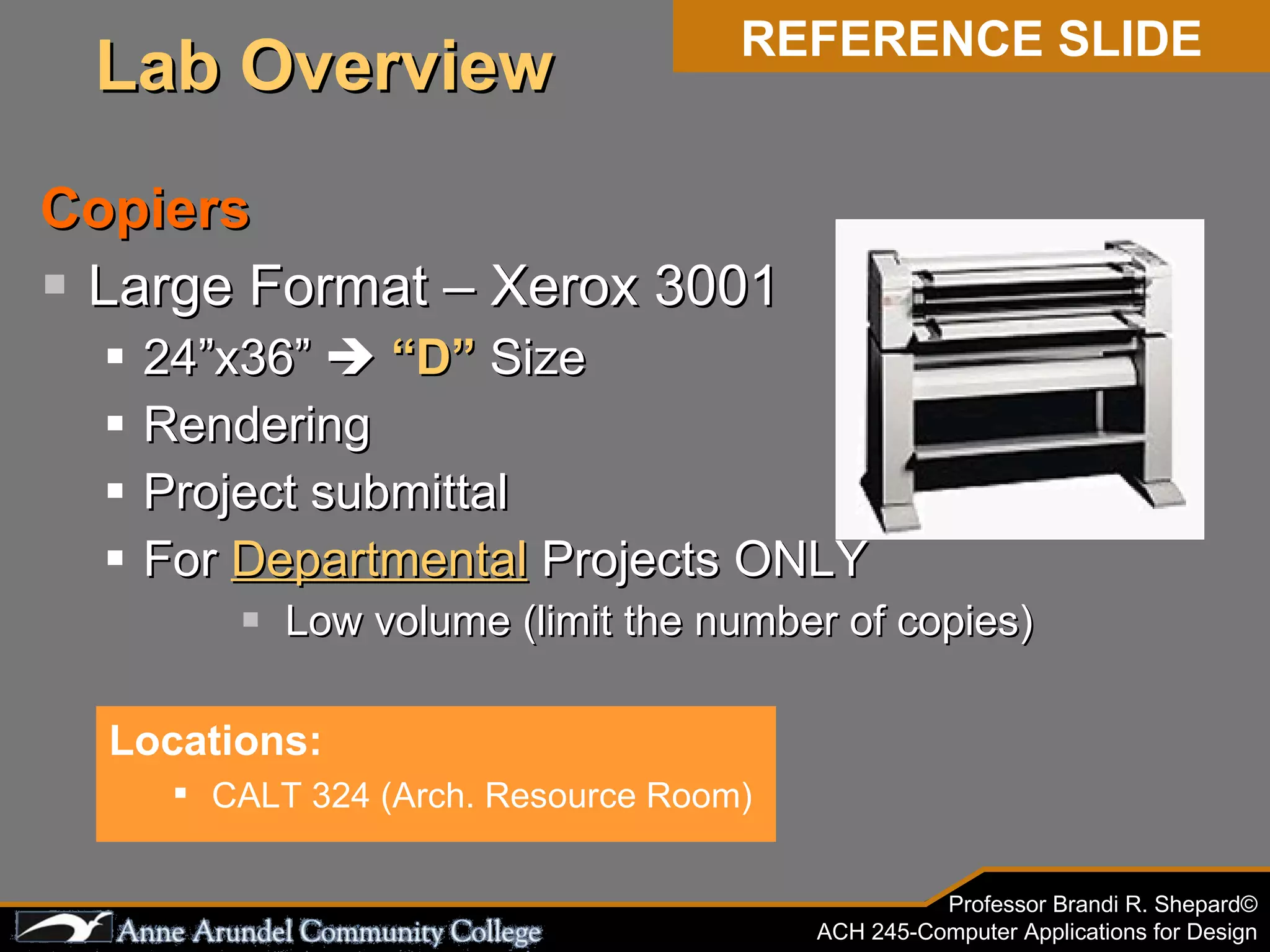
Copiers Large Format โ€“ Xerox 3001 24โ€x36โ€  ๏ƒจ   โ€œDโ€  Size Rendering Project submittal For  Departmental  Projects ONLY Low volume (limit the number of copies) REFERENCE SLIDE Locations: CALT 324 (Arch. Resource Room) Lab Overview
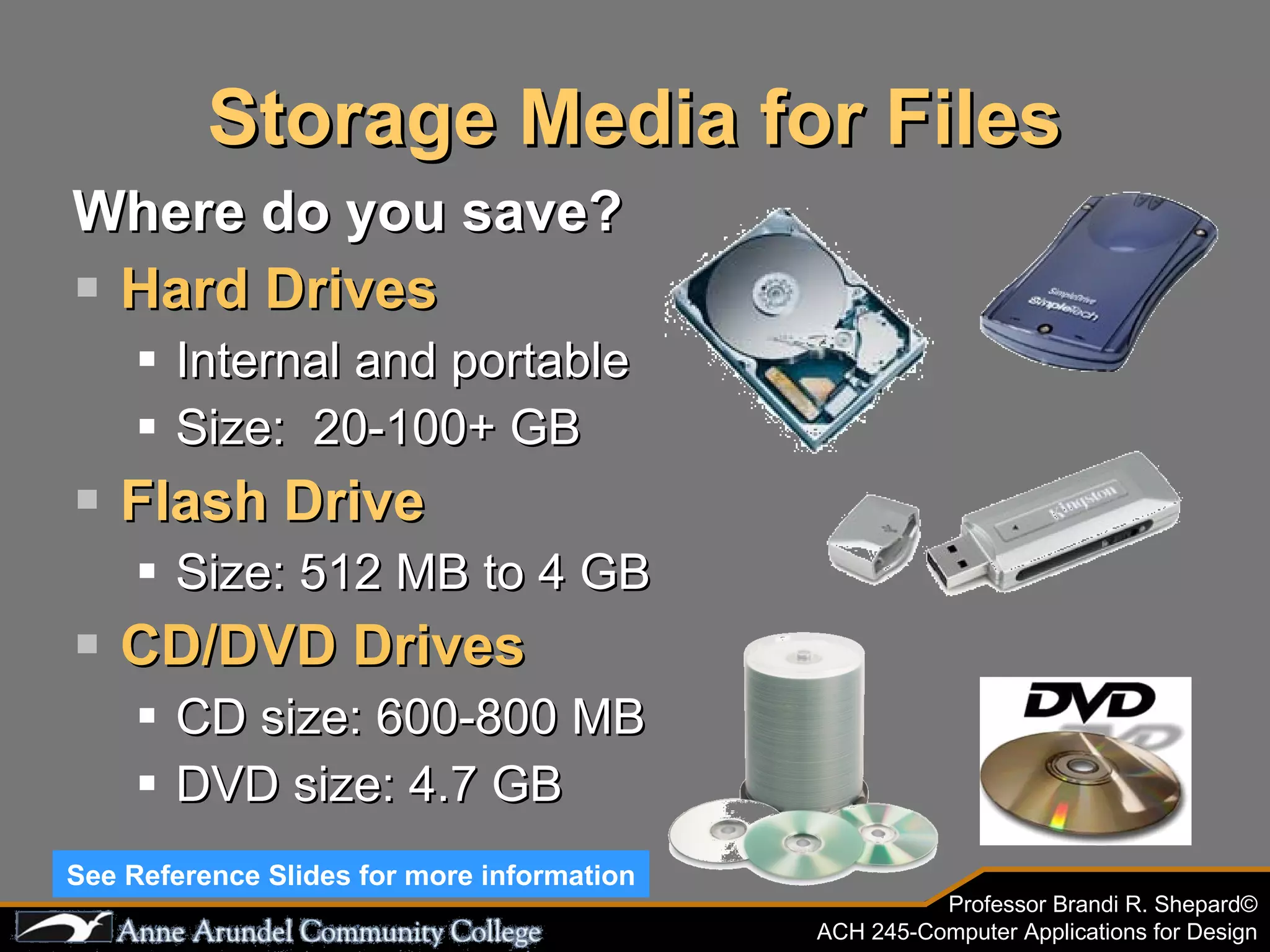
Storage Media for Files Where do you save? Hard Drives Internal and portable Size:  20-100+ GB Flash Drive Size: 512 MB to 4 GB CD/DVD Drives CD size: 600-800 MB DVD size: 4.7 GB See Reference Slides for more information
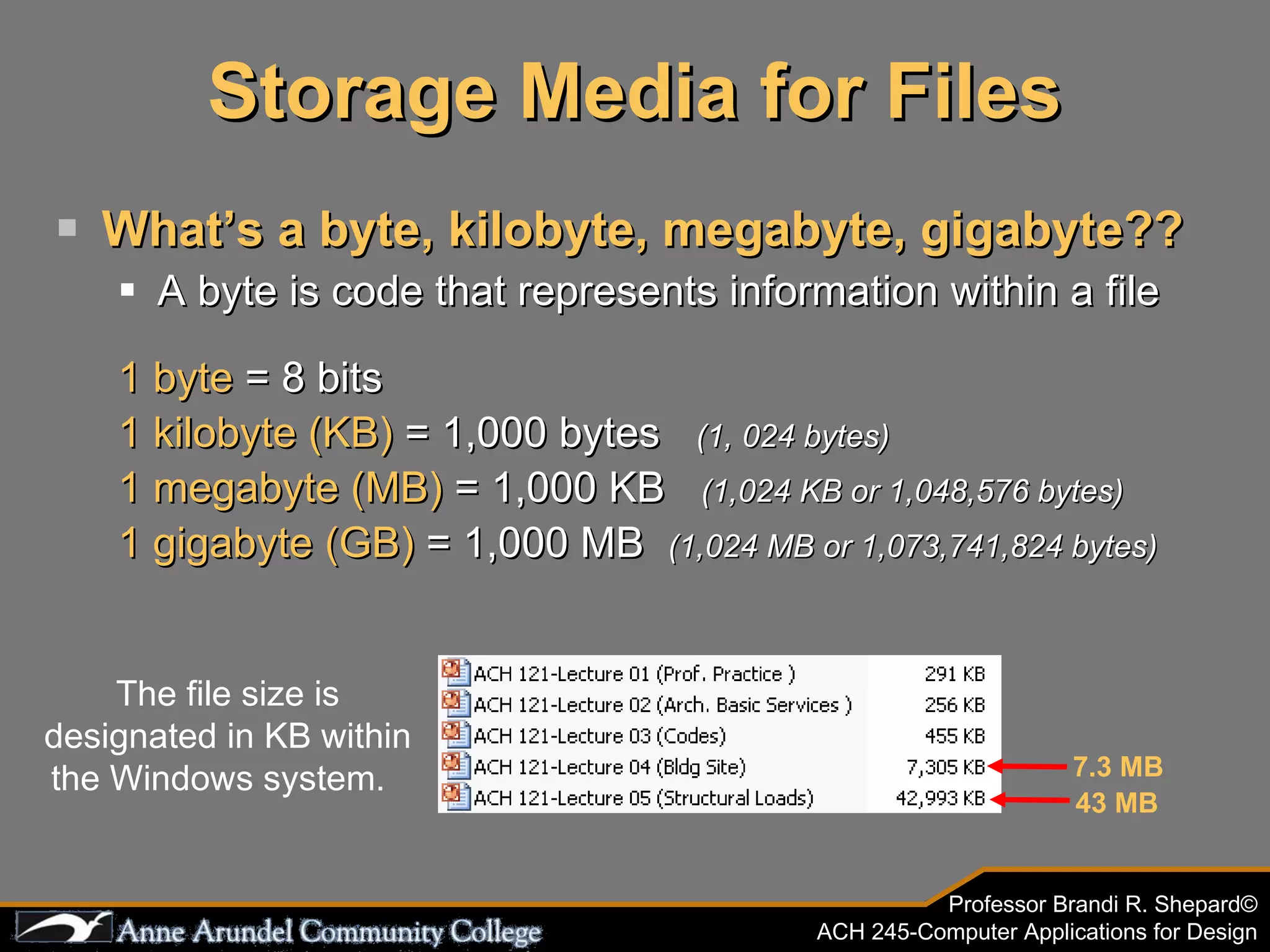
Storage Media for Files Whatโ€™s a byte, kilobyte, megabyte, gigabyte?? A byte is code that represents information within a file 1 byte  = 8 bits 1 kilobyte (KB)  = 1,000 bytes  (1, 024 bytes) 1 megabyte (MB)  = 1,000 KB  (1,024 KB or 1,048,576 bytes)  1 gigabyte (GB)  = 1,000 MB  (1,024 MB or 1,073,741,824 bytes)  The file size is designated in KB within the Windows system.  7.3 MB   43 MB
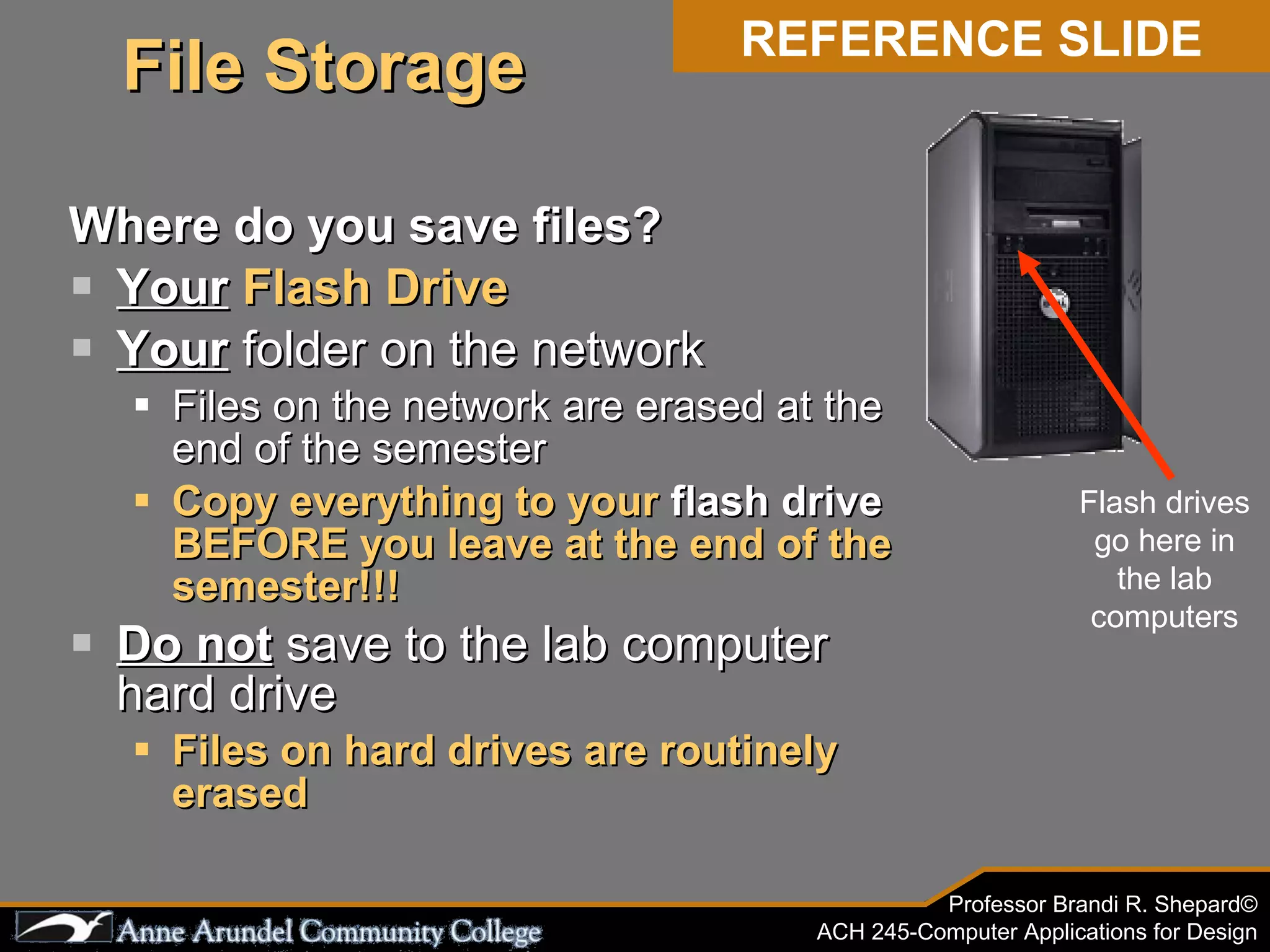
Where do you save files? Your   Flash Drive Your  folder on the network Files on the network are erased at the end of the semester Copy everything to your  flash drive  BEFORE you leave at the end of the semester!!! Do not  save to the lab computer hard drive Files on hard drives are routinely erased Flash drives go here in the lab computers REFERENCE SLIDE File Storage
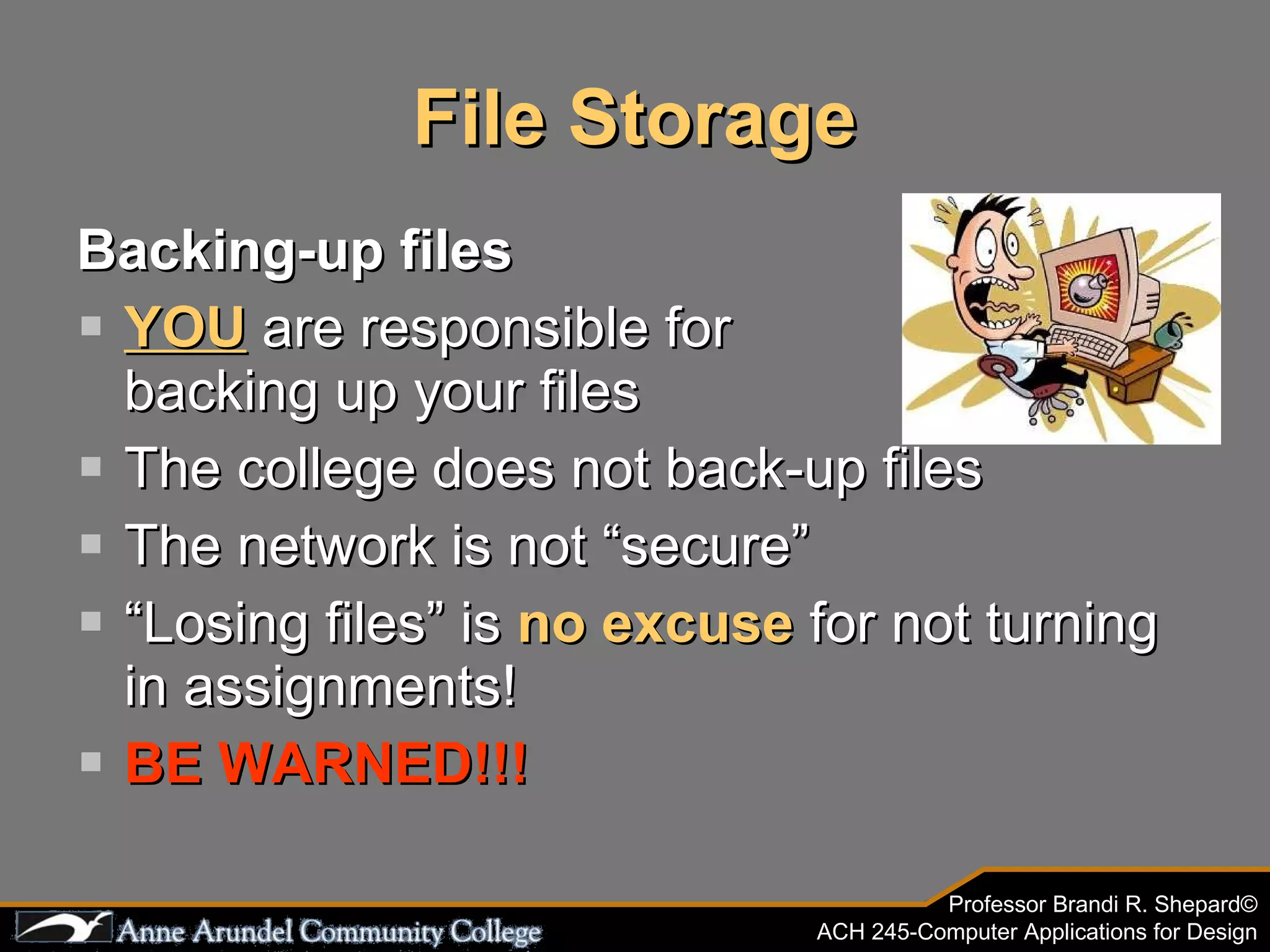
File Storage Backing-up files YOU  are responsible for  backing up your files The college does not back-up files The network is not โ€œsecureโ€ โ€œ Losing filesโ€ is  no excuse  for not turning in assignments! BE WARNED!!!
Your computer just died. Locked  up.  Stopped working. Did  you  save?
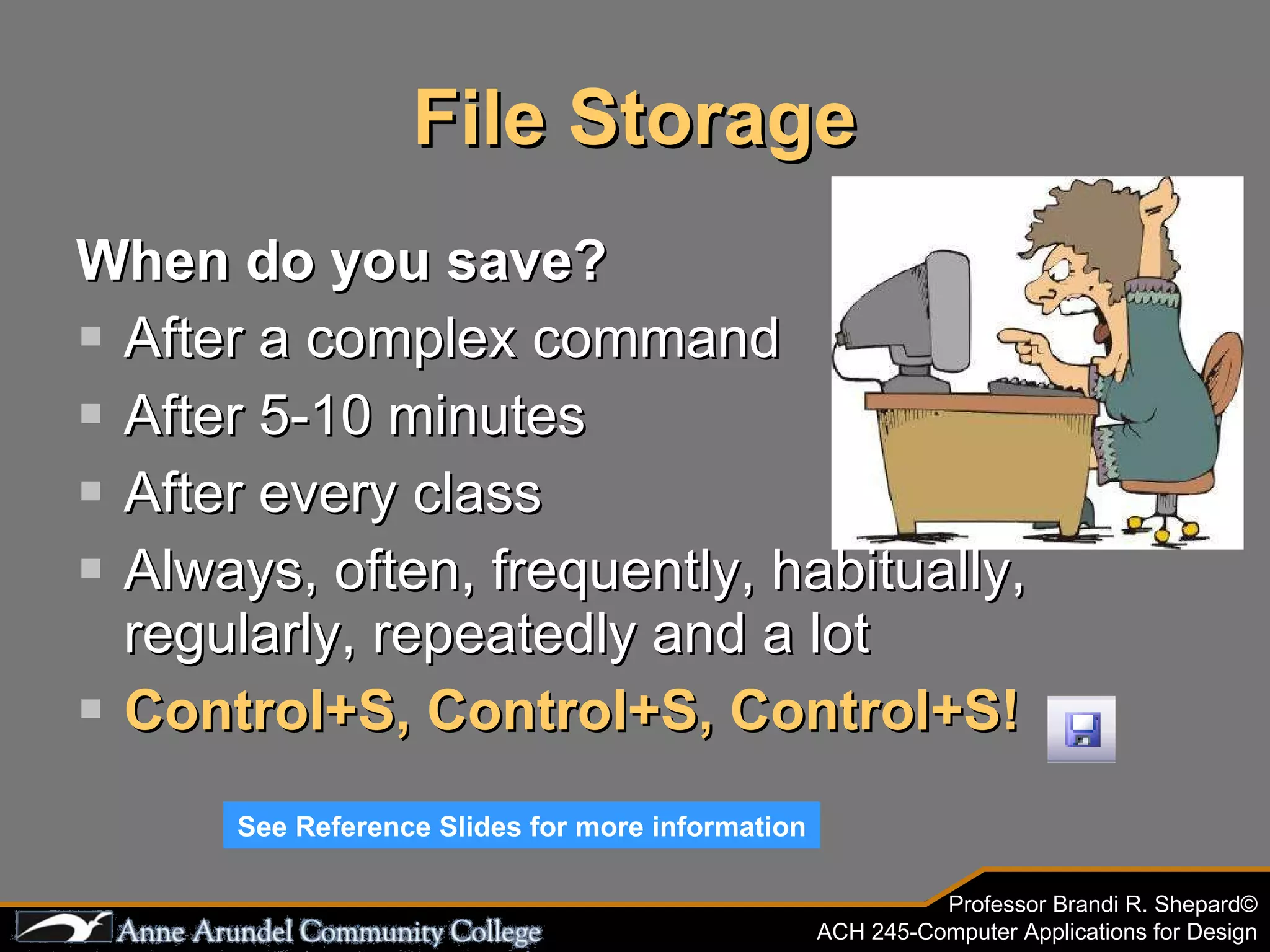
File Storage When do you save? After a complex command After 5-10 minutes After every class Always, often, frequently, habitually, regularly, repeatedly and a lot Control+S, Control+S, Control+S! See Reference Slides for more information
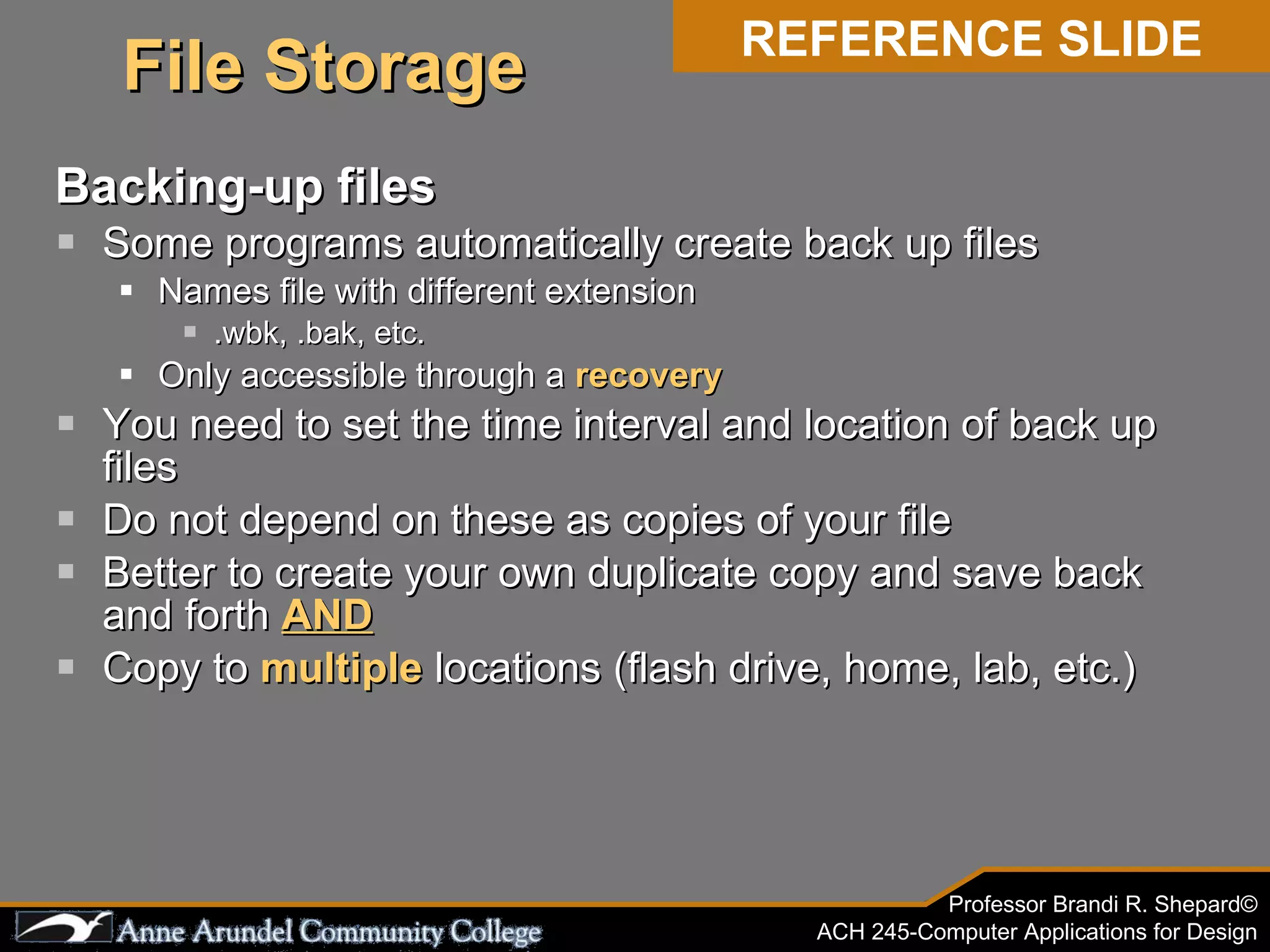
Backing-up files Some programs automatically create back up files Names file with different extension .wbk, .bak, etc. Only accessible through a  recovery You need to set the time interval and location of back up files Do not depend on these as copies of your file Better to create your own duplicate copy and save back and forth  AND Copy to  multiple  locations (flash drive, home, lab, etc.) REFERENCE SLIDE File Storage
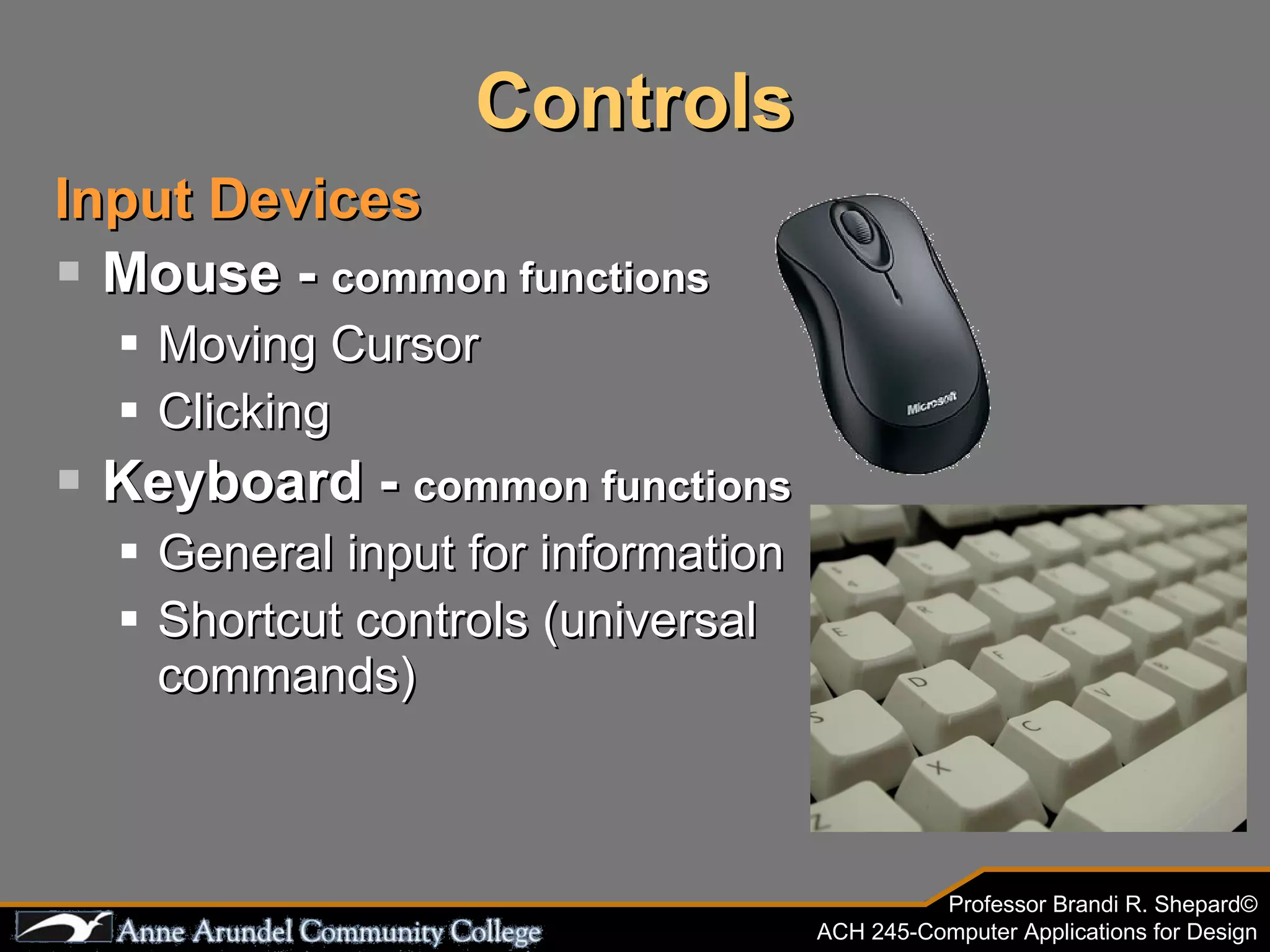
Controls Input Devices Mouse -  common functions Moving Cursor Clicking  Keyboard -  common functions General input for information Shortcut controls (universal commands)
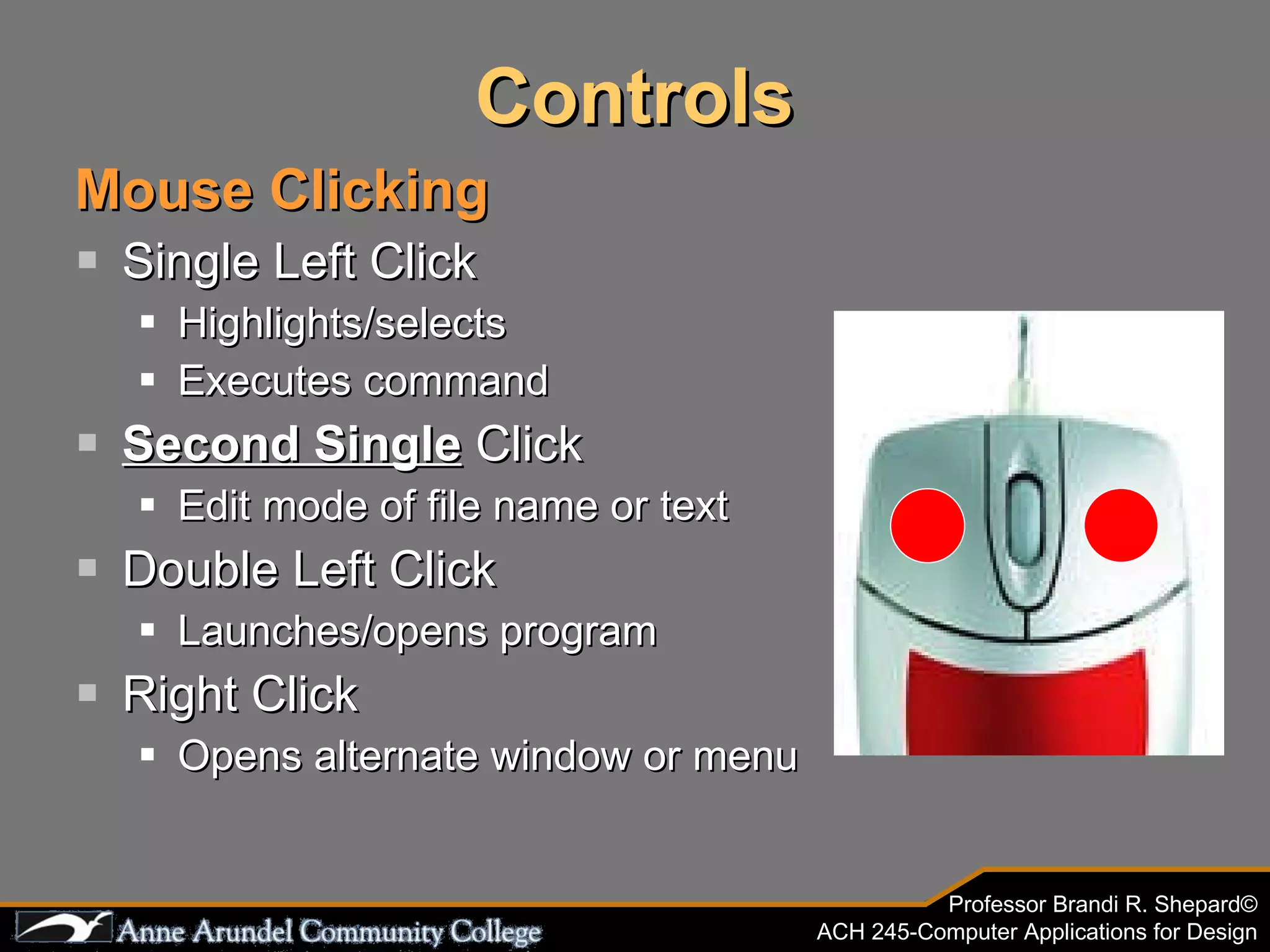
Controls Mouse Clicking Single Left Click Highlights/selects Executes command Second Single  Click Edit mode of file name or text Double Left Click Launches/opens program Right Click Opens alternate window or menu
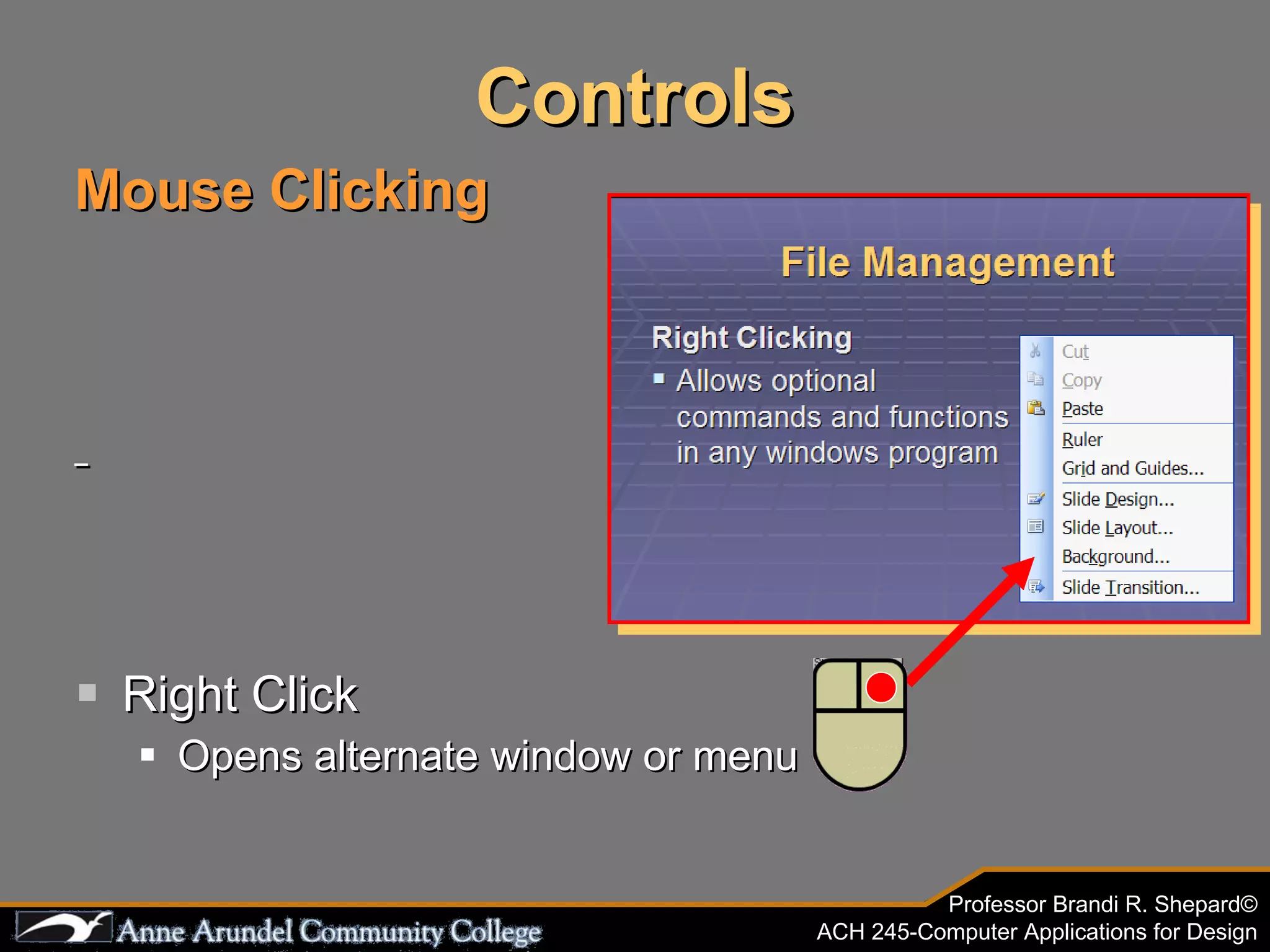
Controls Mouse Clicking Right Click Opens alternate window or menu
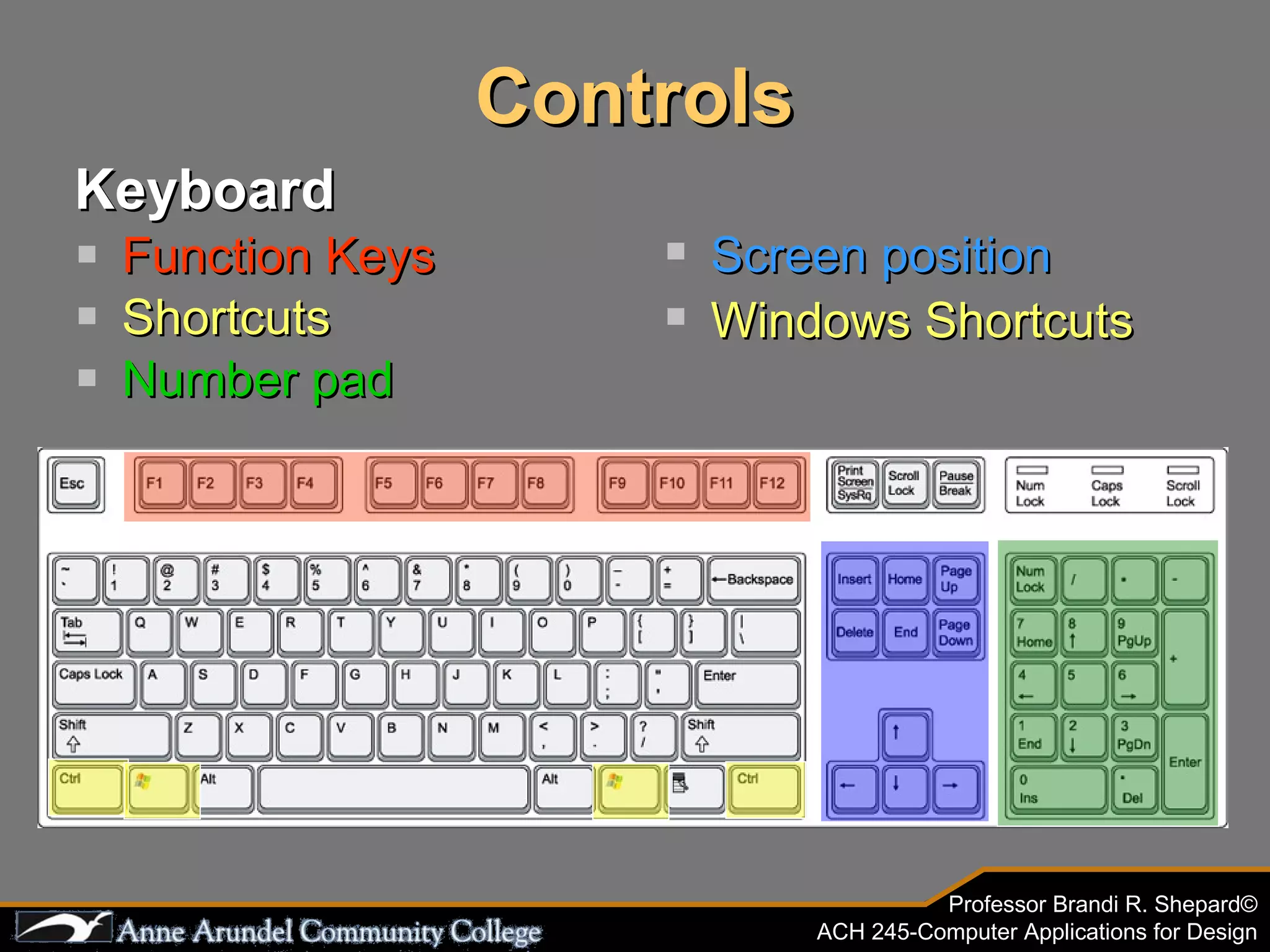
Controls Keyboard Function Keys Shortcuts Number pad Screen position Windows Shortcuts
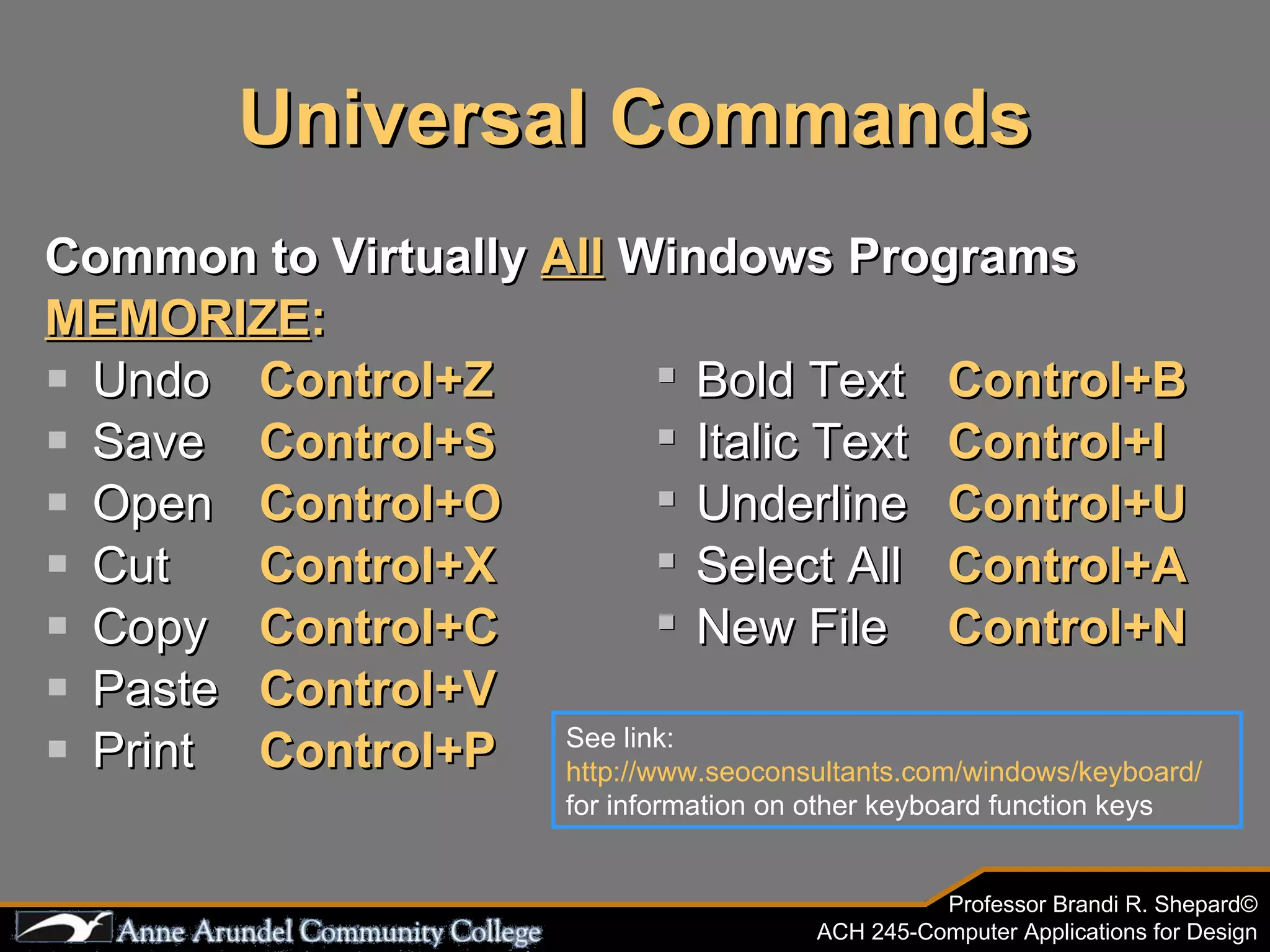
Universal Commands Common to Virtually  All  Windows Programs MEMORIZE : Undo Control+Z   ๏ฎ   Bold Text   Control+B   Save Control+S ๏ฎ   Italic Text   Control+I   Open Control+O   ๏ฎ   Underline   Control+U   Cut Control+X   ๏ฎ   Select All   Control+A   Copy Control+C   ๏ฎ   New File   Control+N   Paste Control+V   Print  Control+P   See link:  http://www.seoconsultants.com/windows/keyboard/  for information on other keyboard function keys
Logging On Move mouse to make sure computer is on Make sure monitor is on If not, press center button on tower to turn on computer Screen will appear asking you to press  โ€œCtrl-Alt-Delete to beginโ€
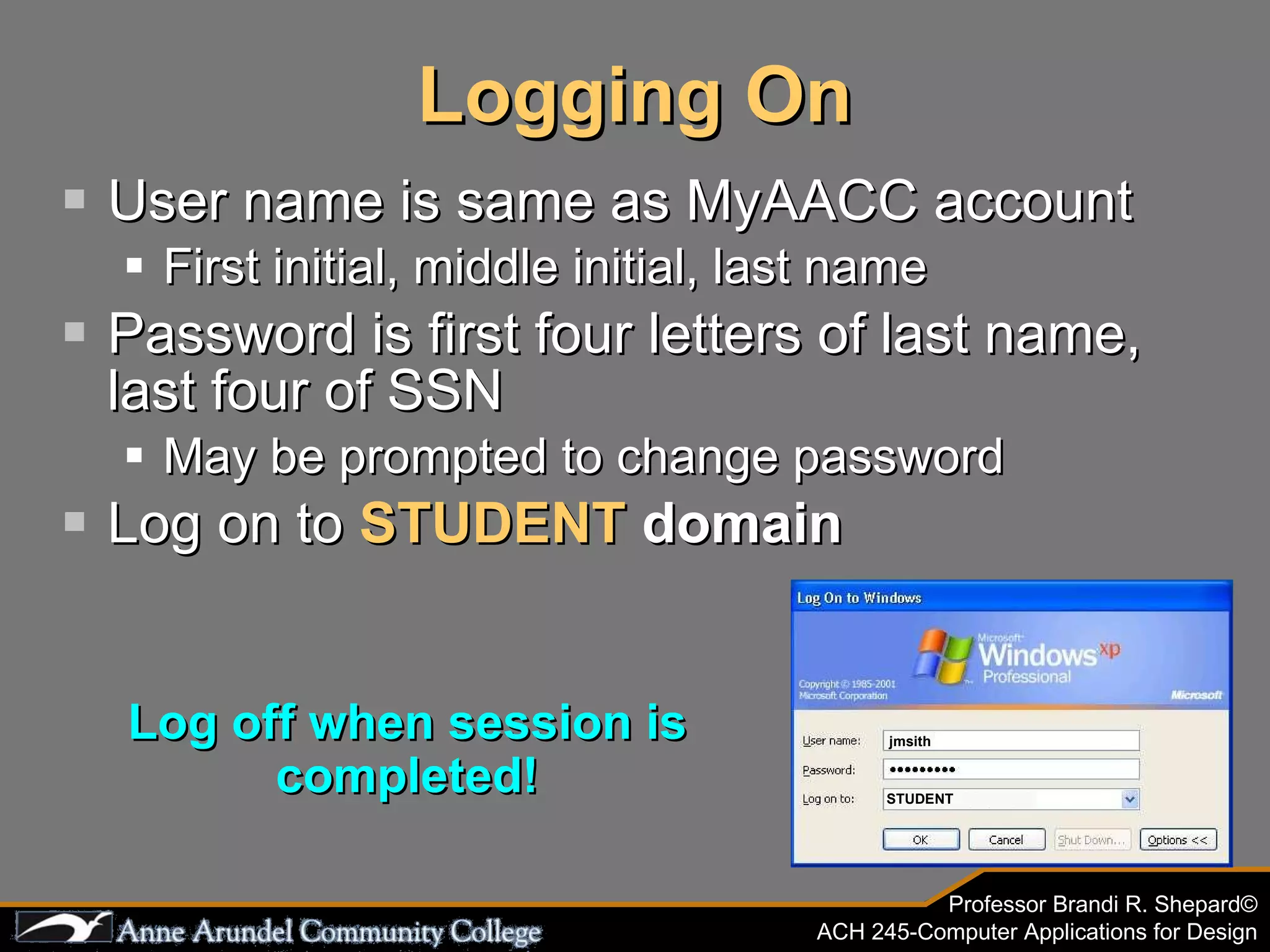
Logging On User name is same as MyAACC account First initial, middle initial, last name Password is first four letters of last name, last four of SSN May be prompted to change password Log on to  STUDENT  domain Log off when session is completed! jmsith STUDENT
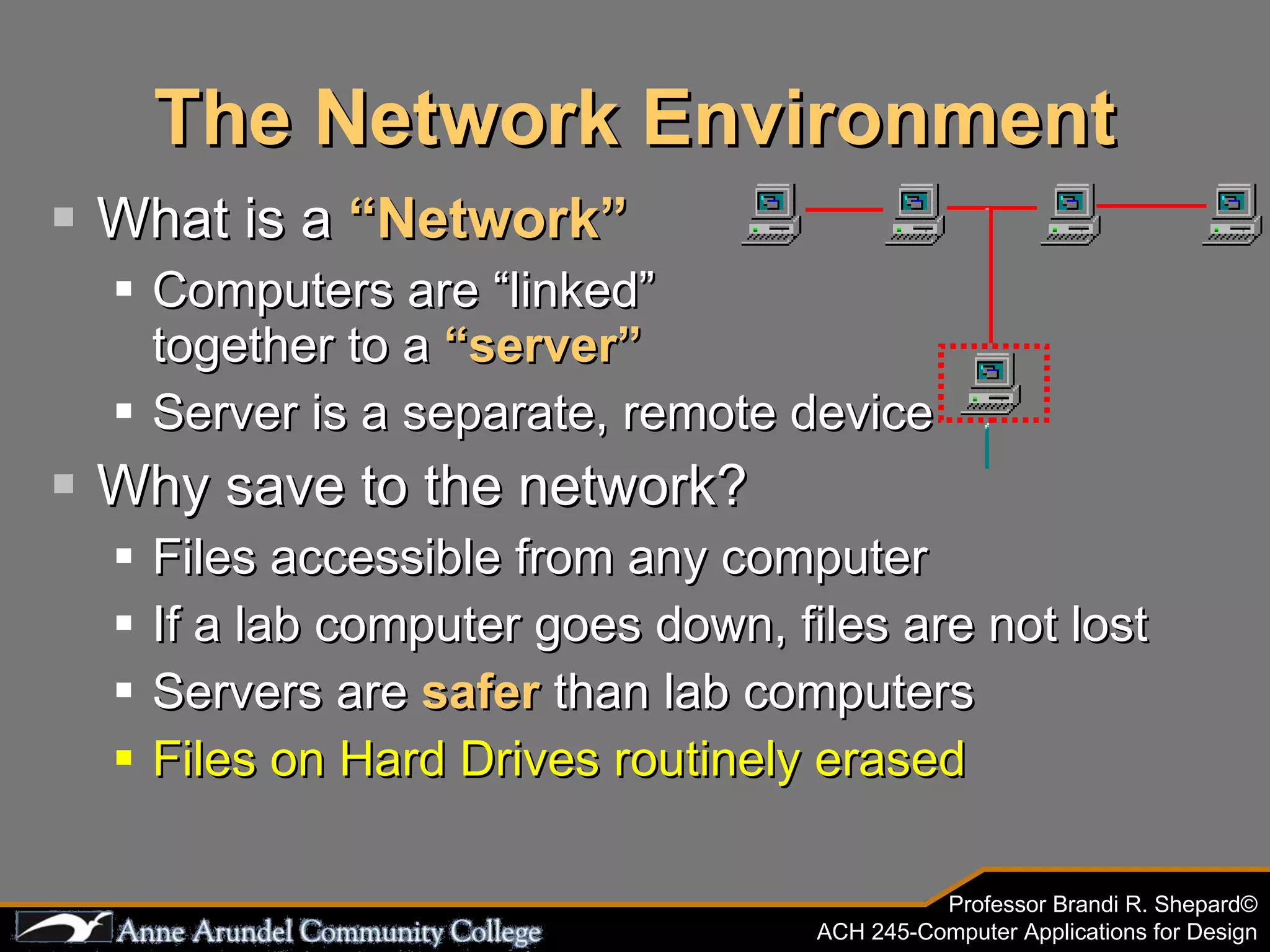
The Network Environment What is a  โ€œNetworkโ€ Computers are โ€œlinkedโ€  together to a  โ€œserverโ€ Server is a separate, remote device Why save to the network? Files accessible from any computer If a lab computer goes down, files are not lost Servers are  safer   than lab computers Files on Hard Drives routinely erased
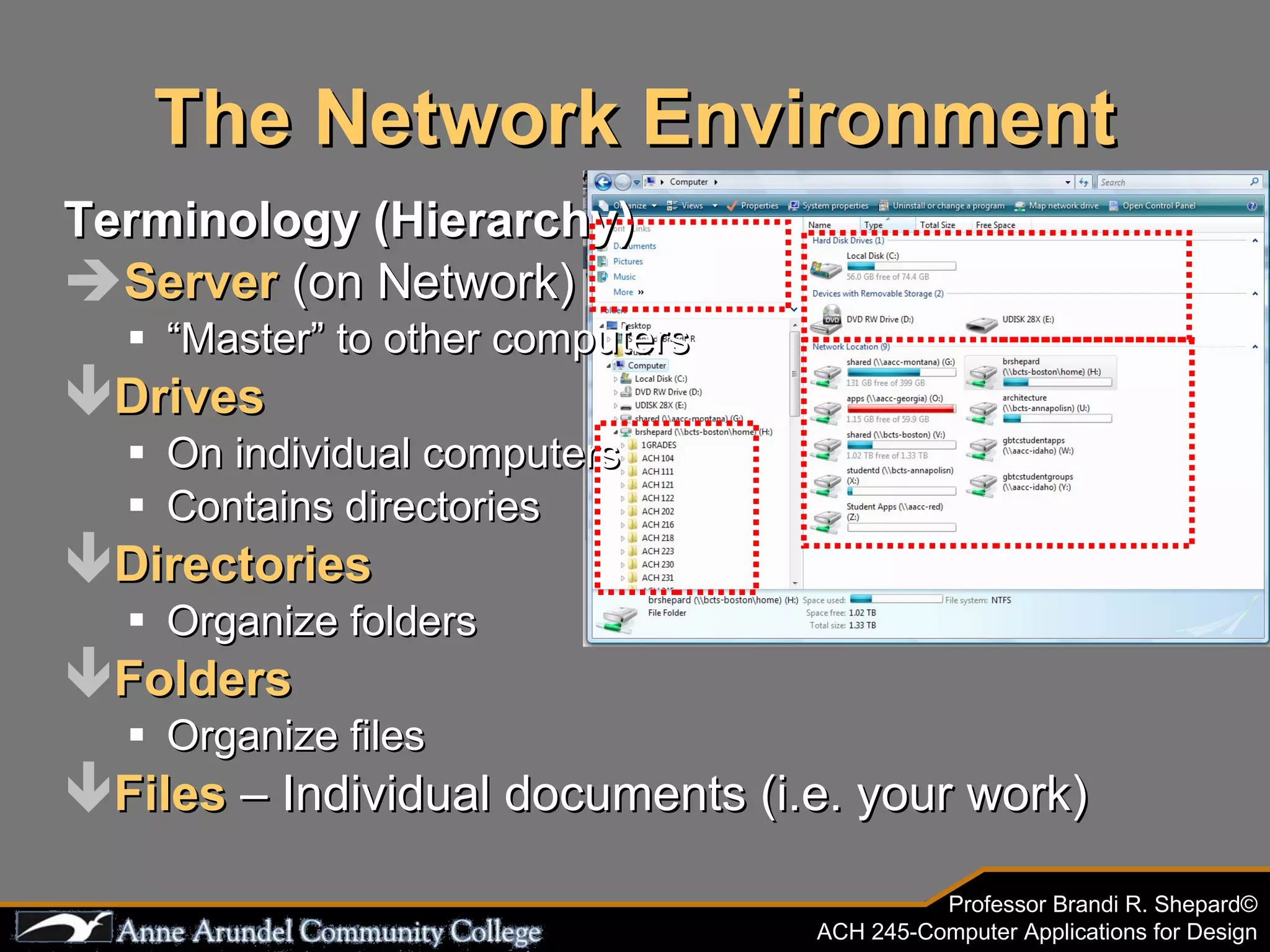
The Network Environment Terminology (Hierarchy) Server  (on Network) โ€œ Masterโ€ to other computers Drives On individual computers Contains directories Directories Organize folders Folders Organize files Files  โ€“ Individual documents (i.e. your work)
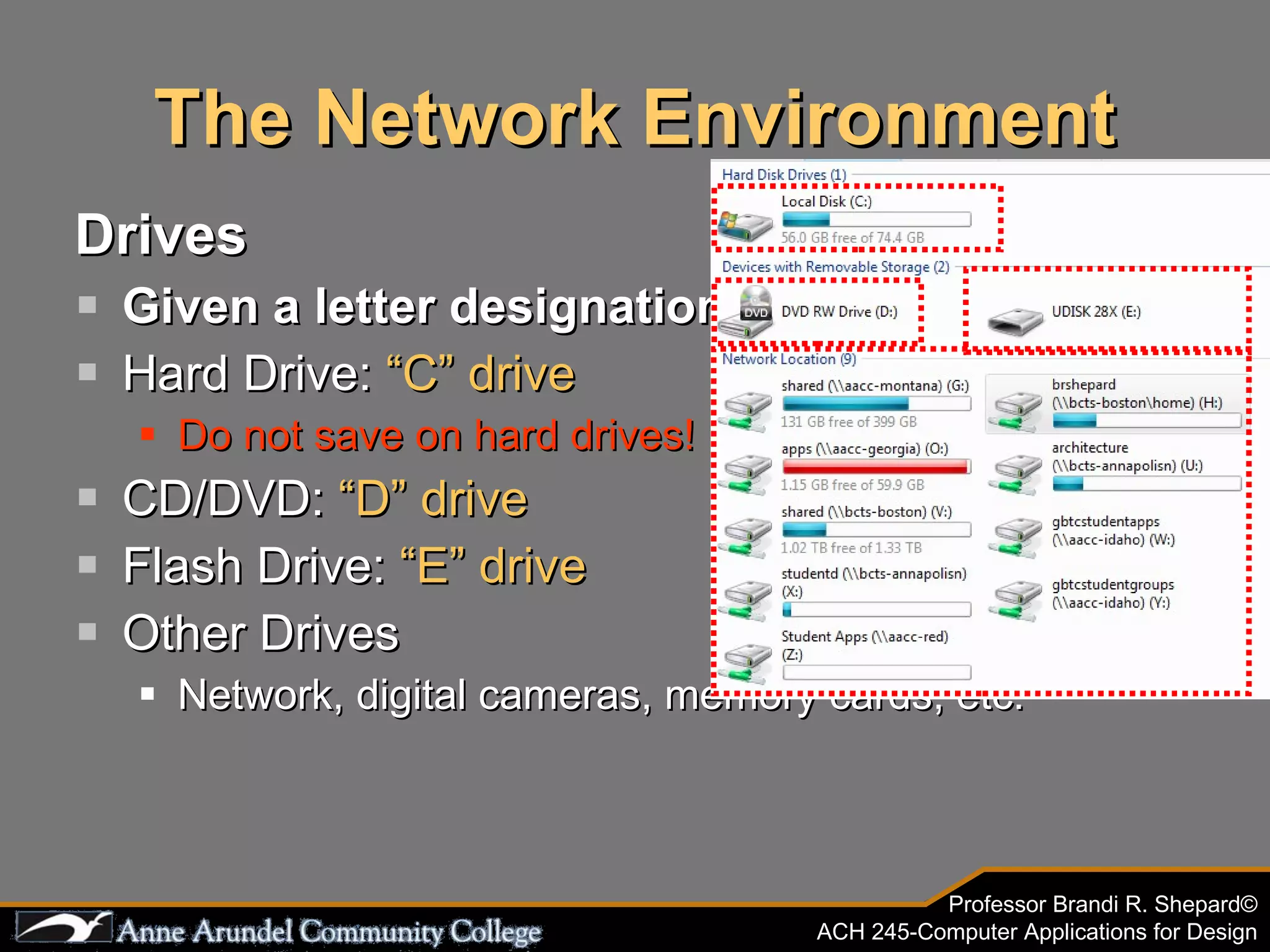
The Network Environment Drives Given a letter designation Hard Drive:  โ€œCโ€ drive Do not save on hard drives! CD/DVD:  โ€œDโ€ drive Flash Drive:  โ€œEโ€ drive Other Drives Network, digital cameras, memory cards, etc.
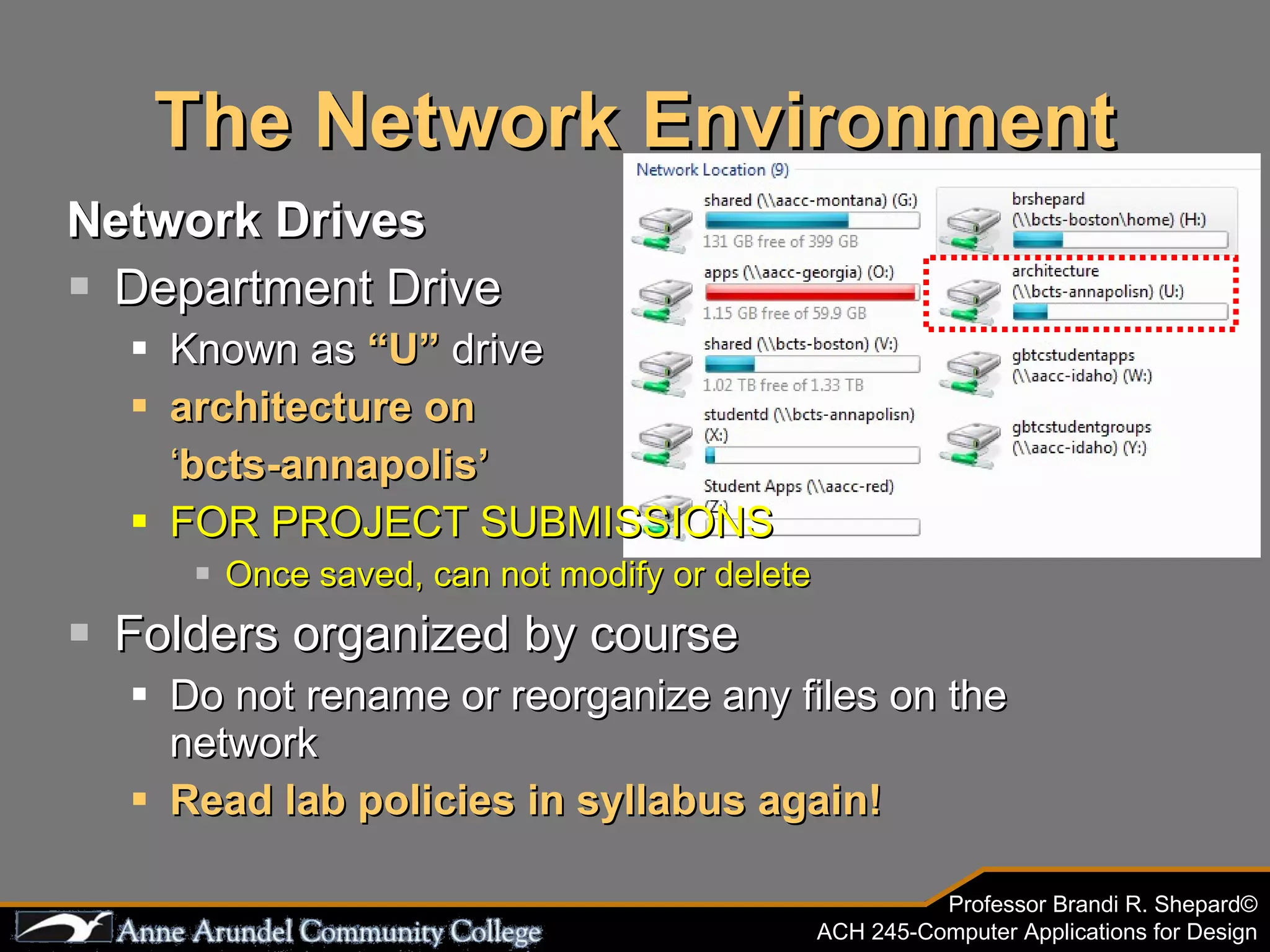
The Network Environment Network Drives Department Drive Known as  โ€œUโ€  drive architecture on   โ€˜ bcts-annapolisโ€™ FOR PROJECT SUBMISSIONS  Once saved, can not modify or delete Folders organized by course Do not rename or reorganize any files on the network Read lab policies in syllabus again!
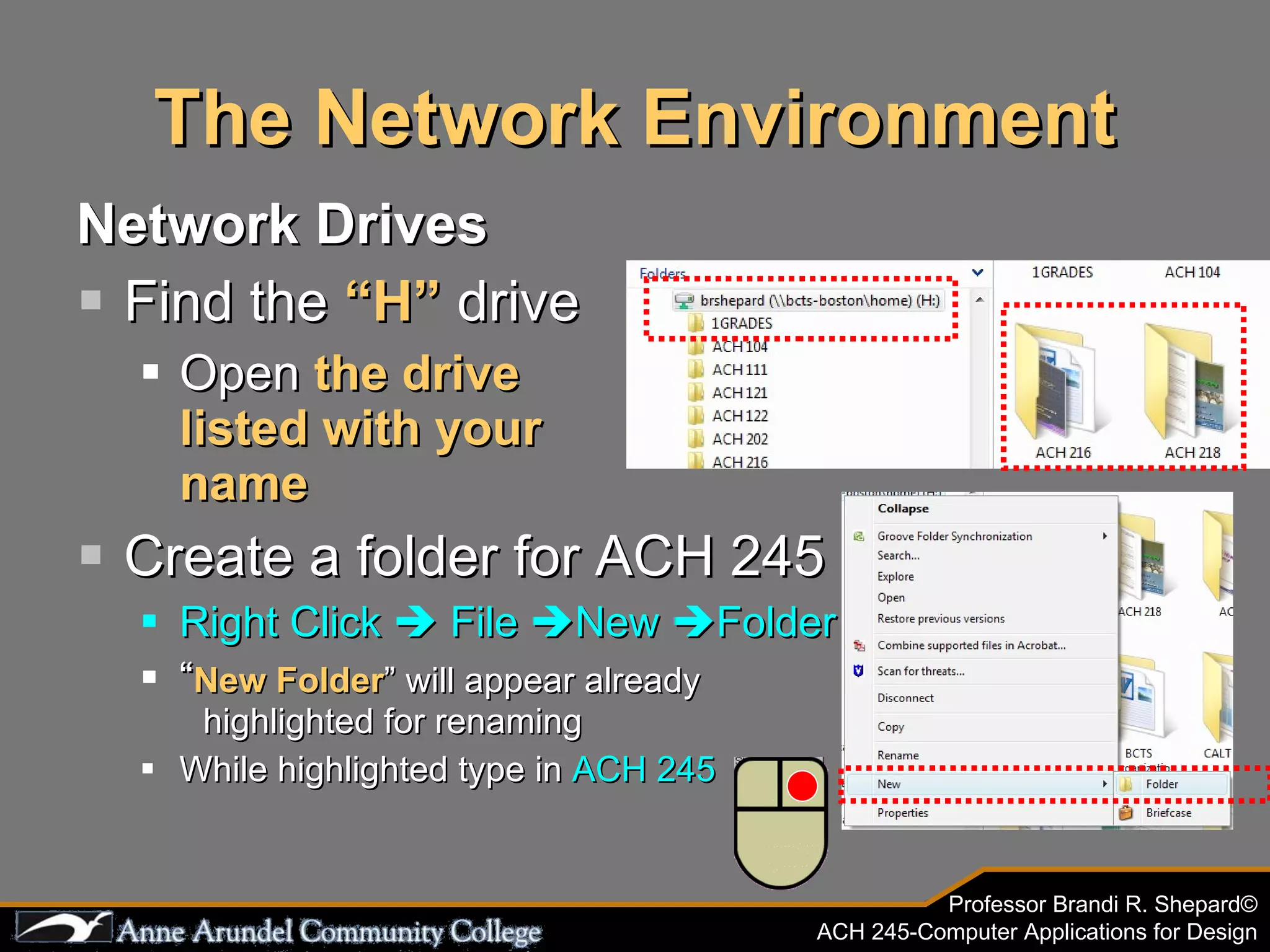
The Network Environment Network Drives Find the  โ€œHโ€  drive Open  the drive  listed with your  name Create a folder for ACH 245 Right Click  ๏ƒจ  File  ๏ƒจ New  ๏ƒจ Folder โ€œ New Folder โ€ will appear already  highlighted for renaming While highlighted type in  ACH 245
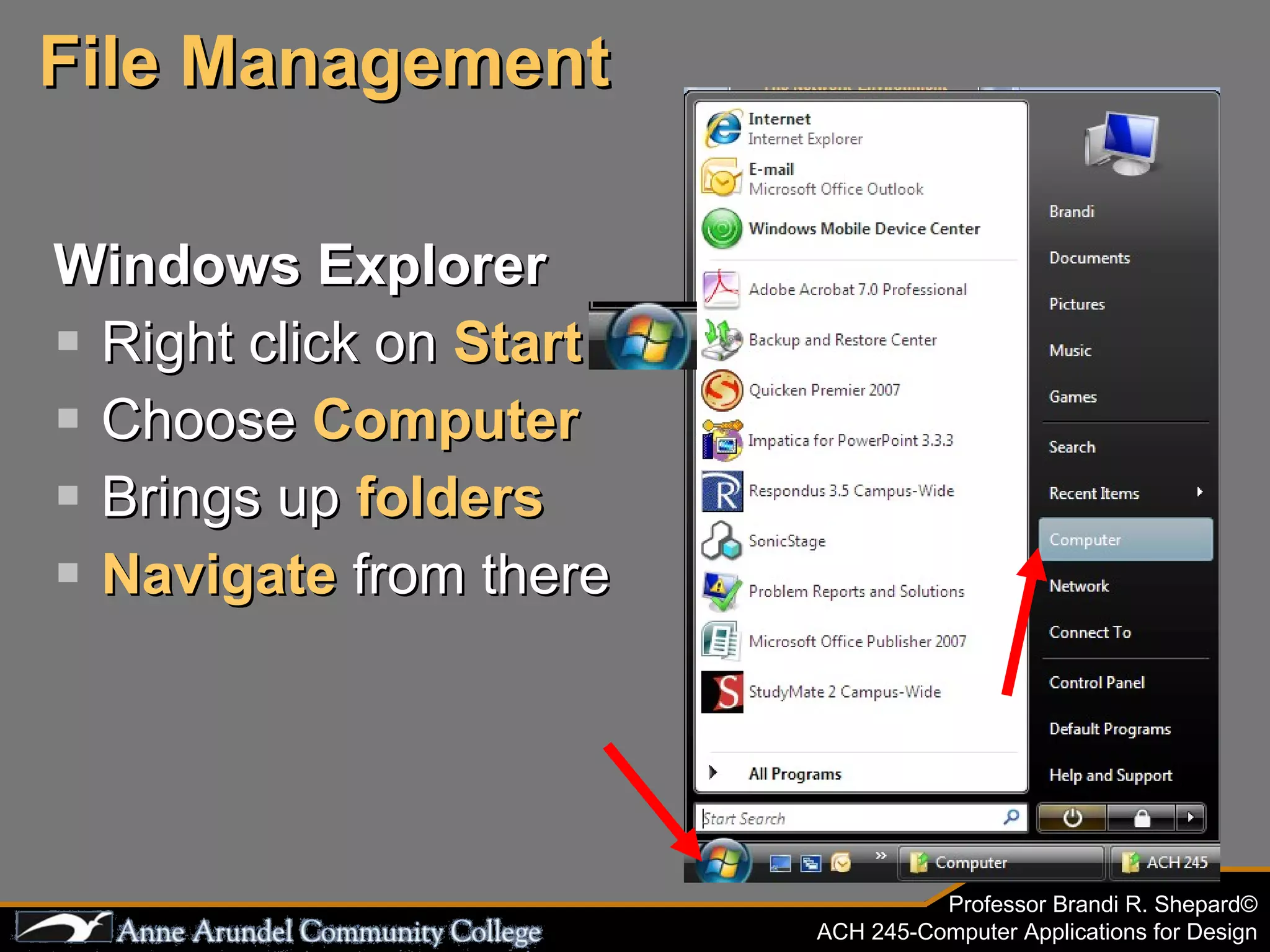
Windows Explorer Right click on  Start Choose  Computer Brings up  folders Navigate   from there File Management
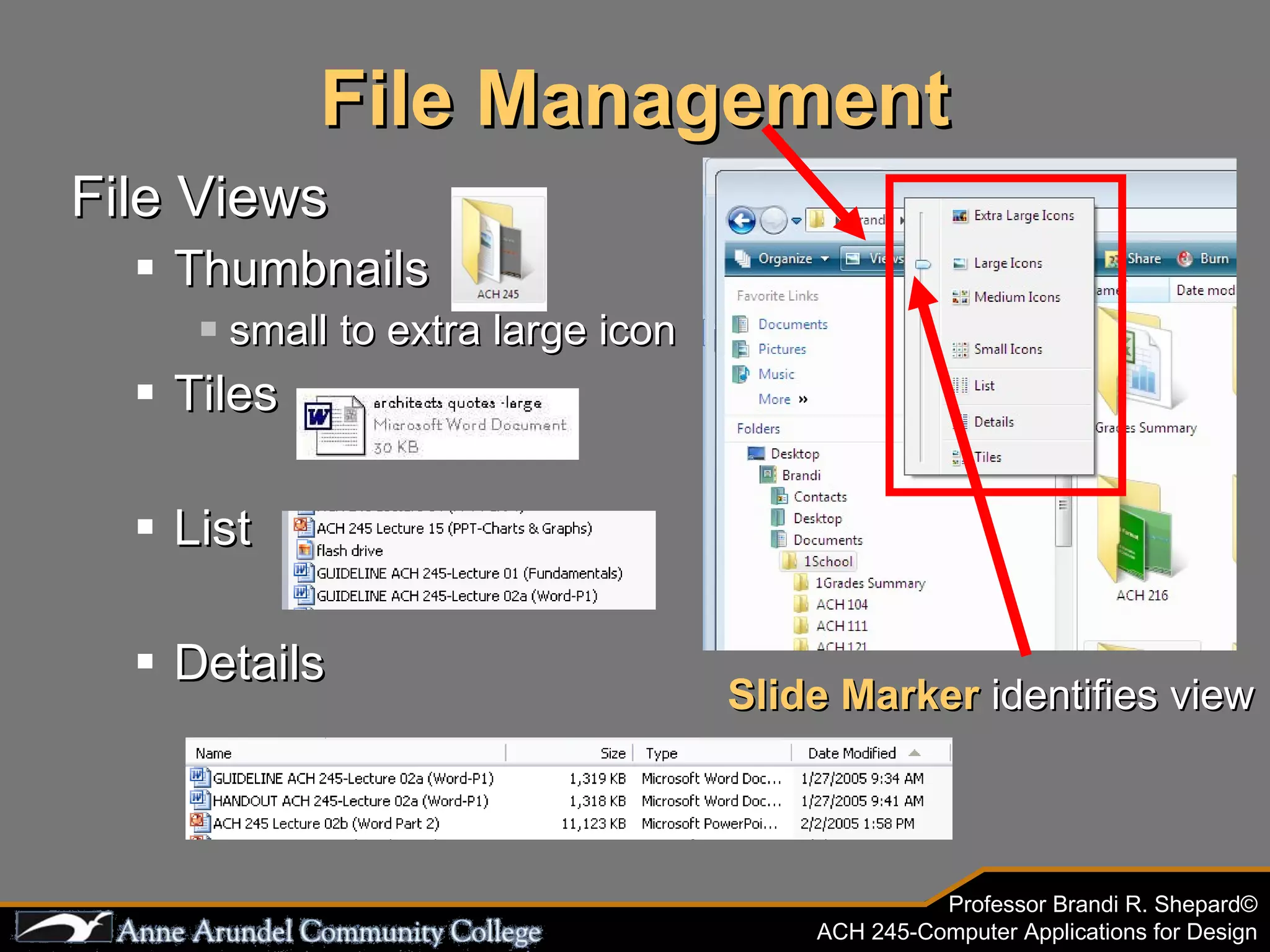
File Management File Views Thumbnails small to extra large icon Tiles List Details Slide Marker  identifies view
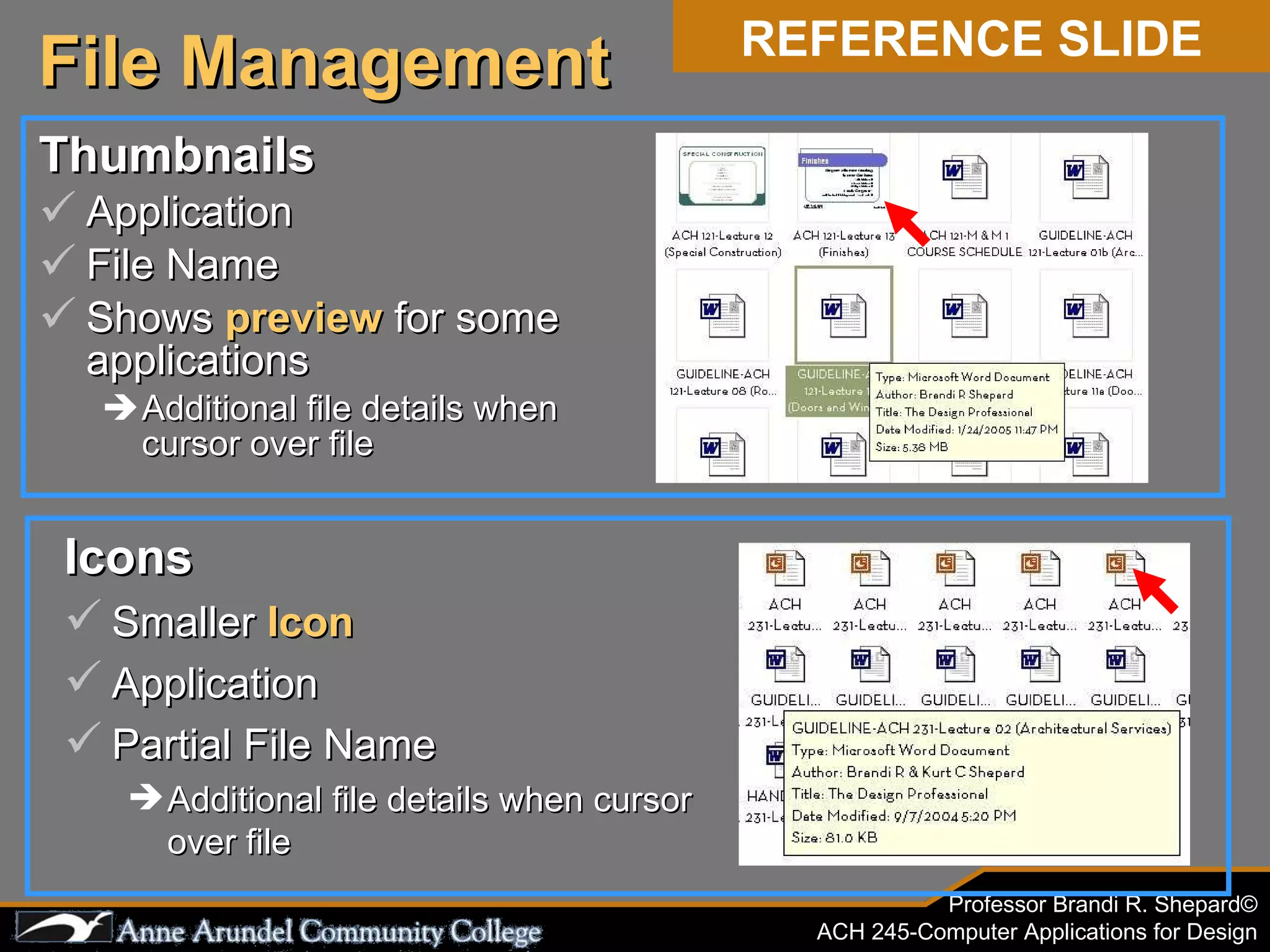
Thumbnails Application File Name Shows  preview  for some applications Additional file details when cursor over file File Management REFERENCE SLIDE Icons Smaller  Icon Application Partial File Name Additional file details when cursor over file
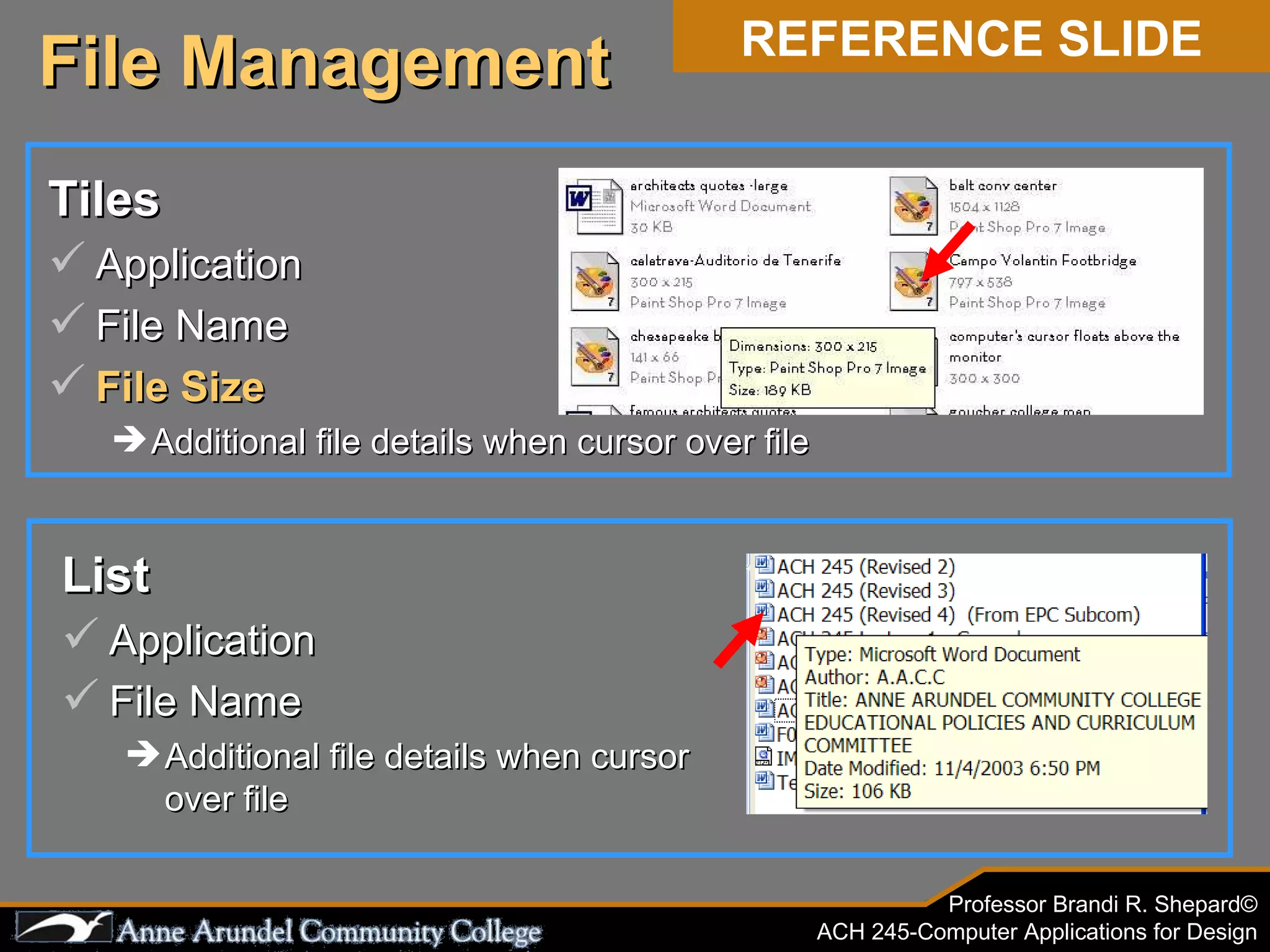
File Management REFERENCE SLIDE List Application File Name Additional file details when cursor over file Tiles Application File Name File Size Additional file details when cursor over file
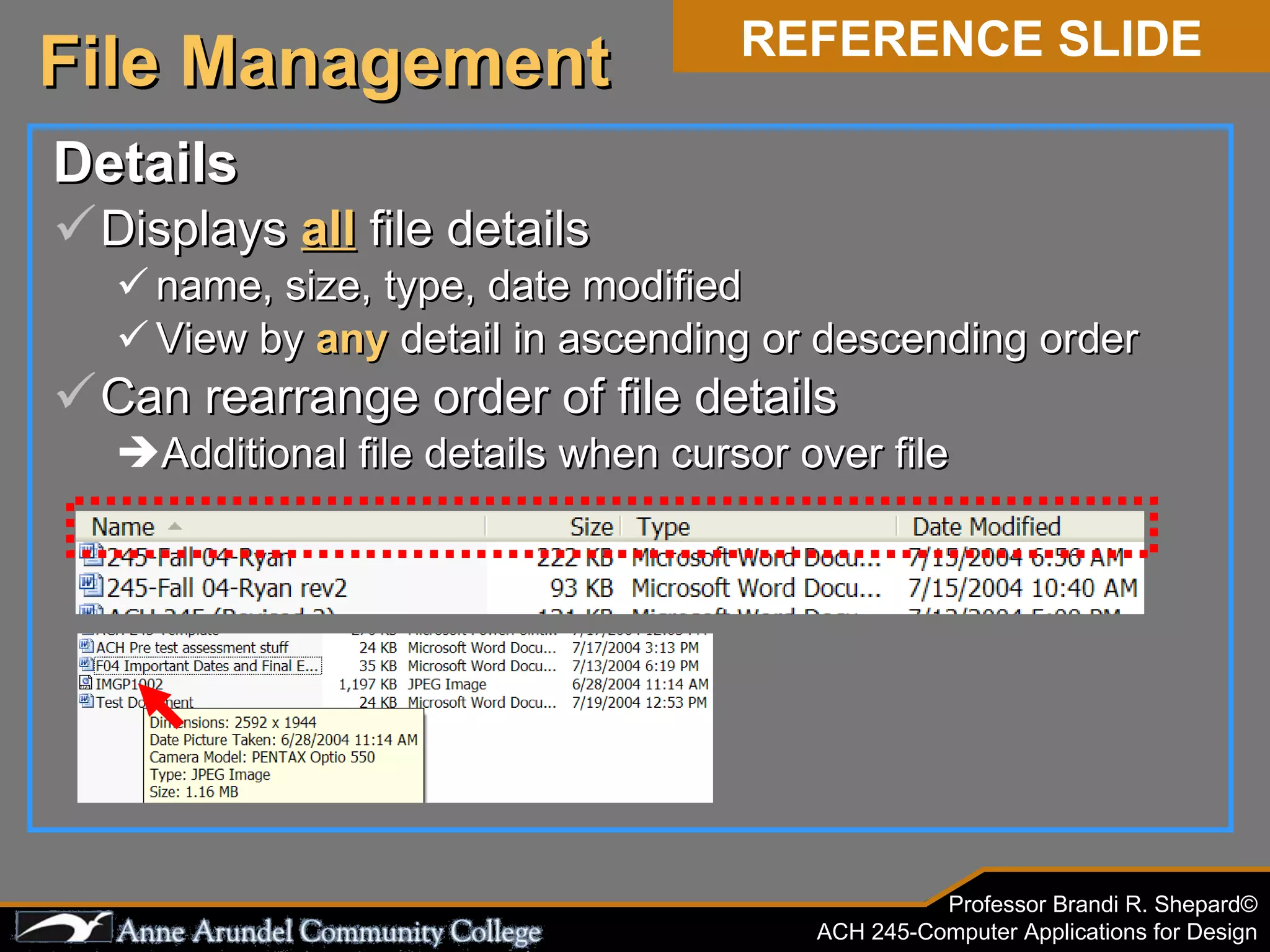
Details Displays  all  file details name, size, type, date modified View by  any  detail in ascending or descending order Can rearrange order of file details Additional file details when cursor over file File Management REFERENCE SLIDE
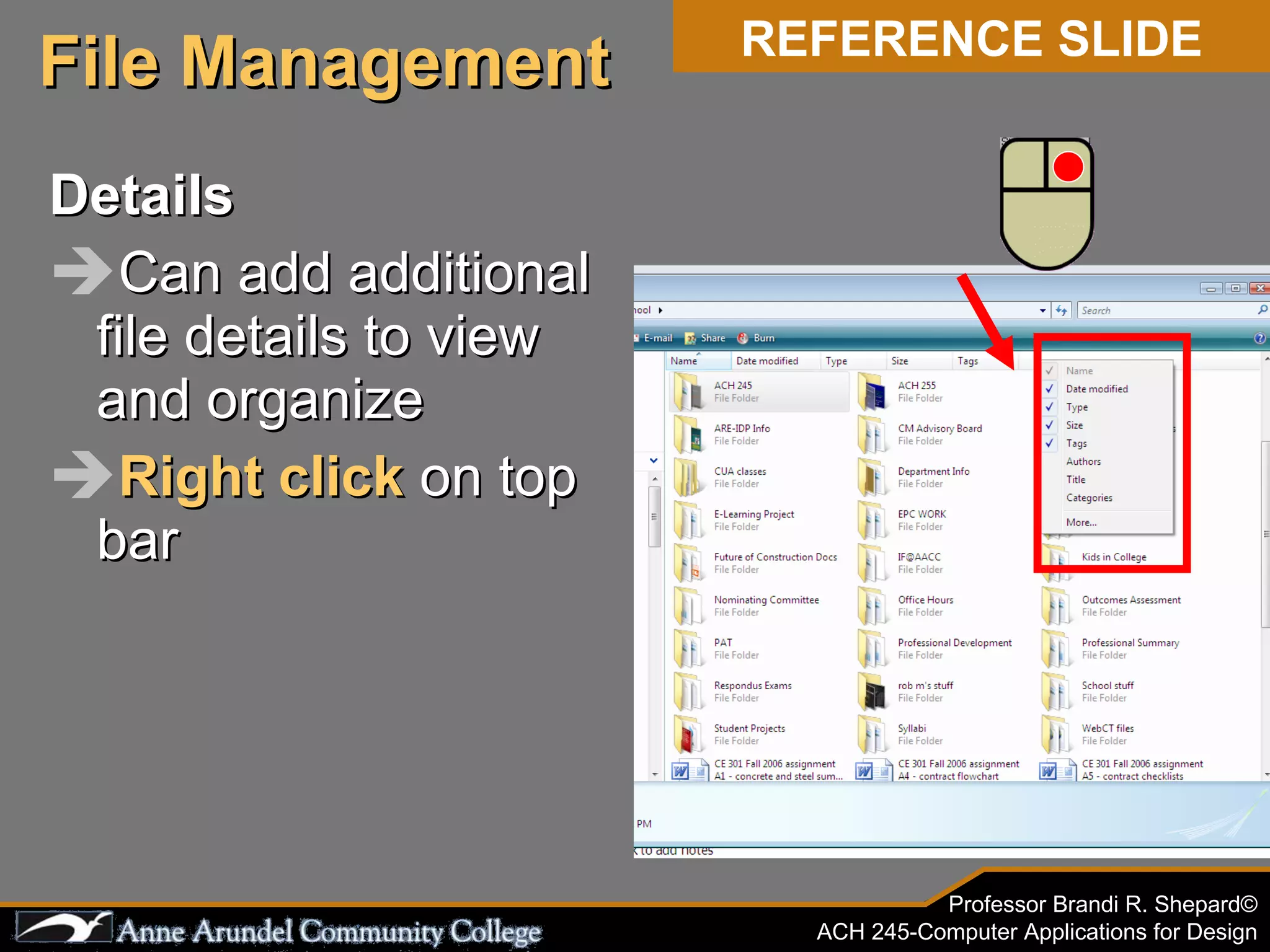
Details Can add additional file details to view and organize Right   click  on top bar File Management REFERENCE SLIDE
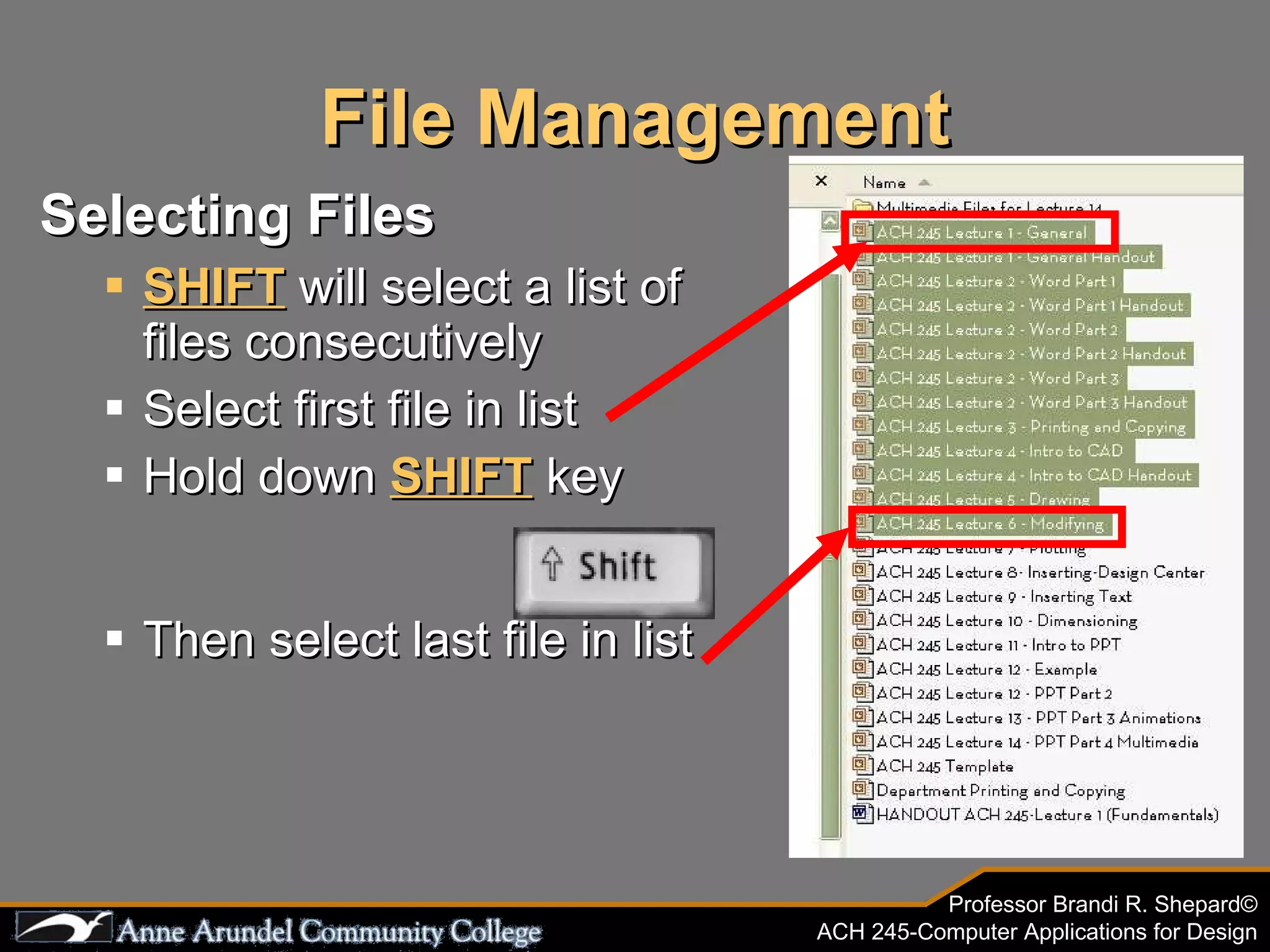
File Management Selecting Files SHIFT   will select a list of files consecutively Select first file in list Hold down  SHIFT   key Then select last file in list
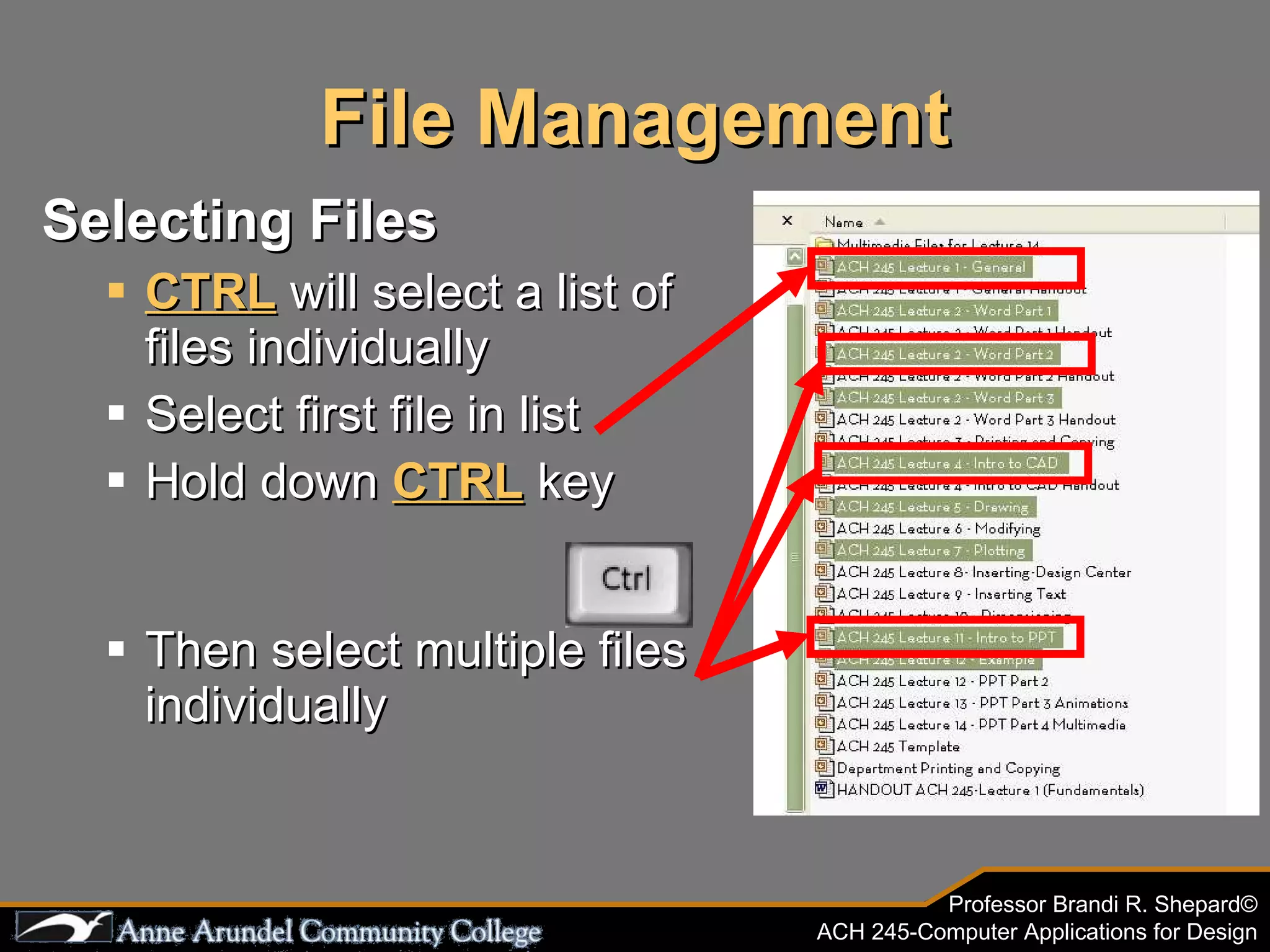
File Management Selecting Files CTRL   will select a list of files individually Select first file in list Hold down  CTRL  key Then select multiple files individually
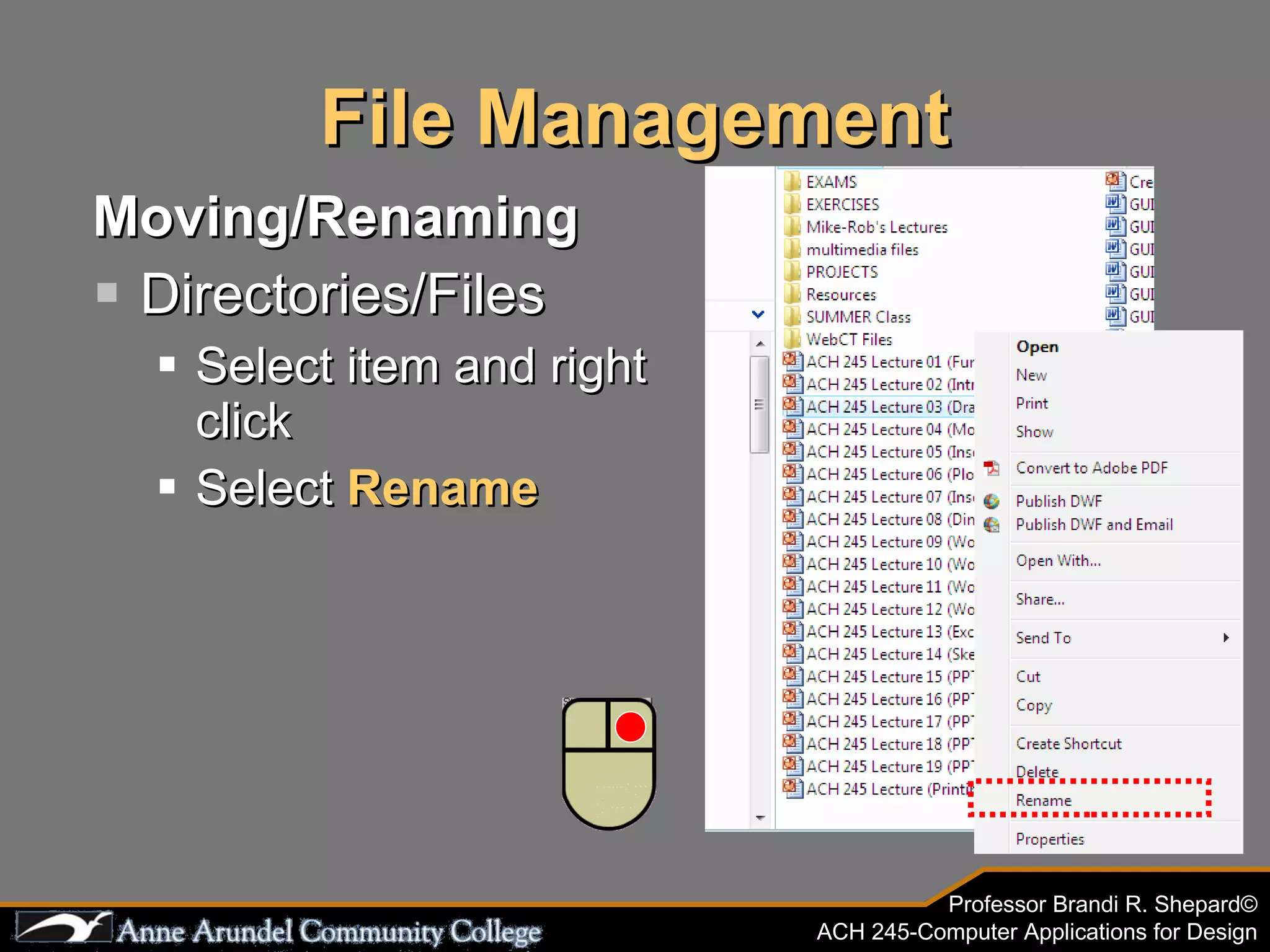
File Management Moving/Renaming Directories/Files Select item and right click Select  Rename
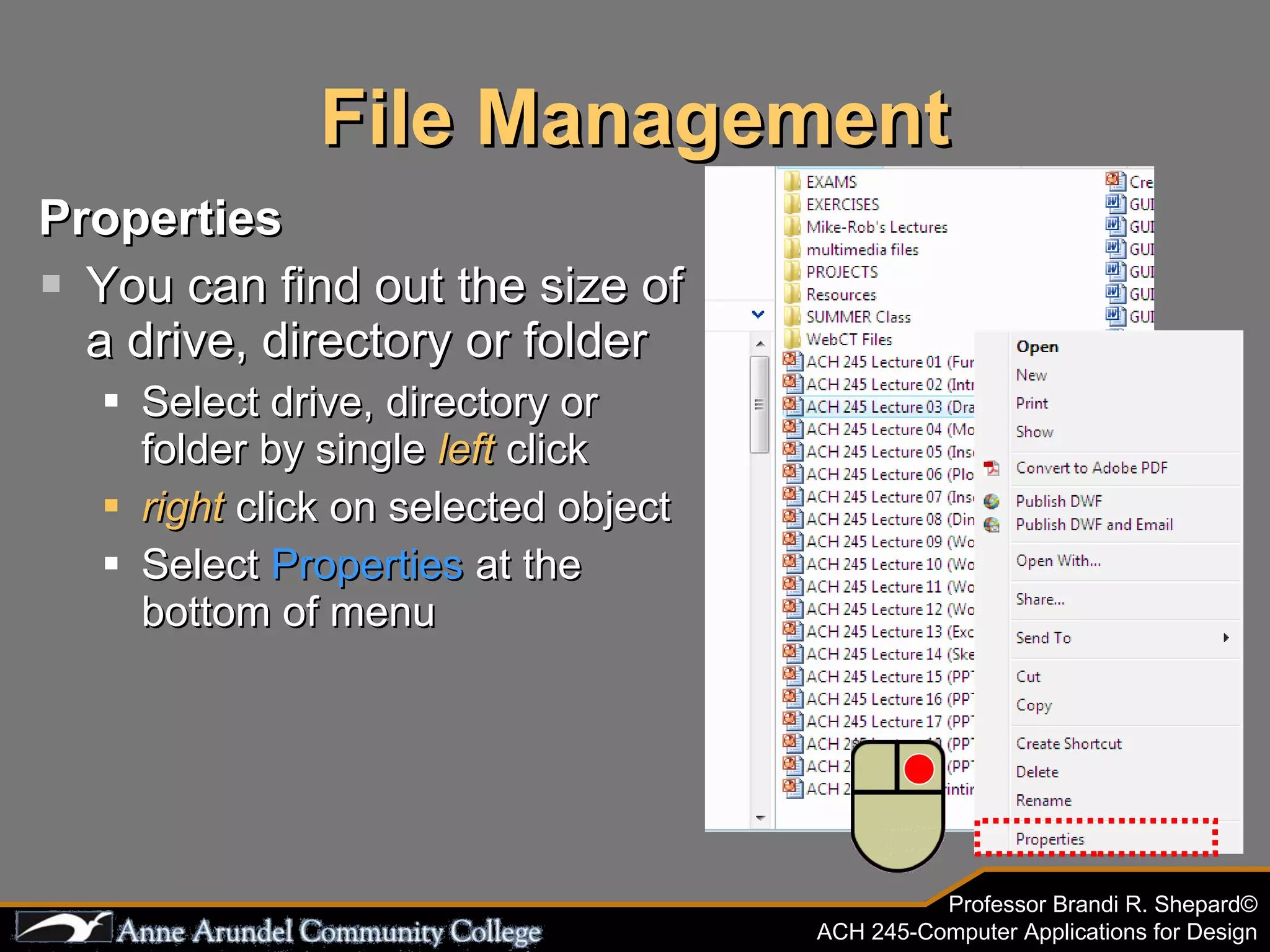
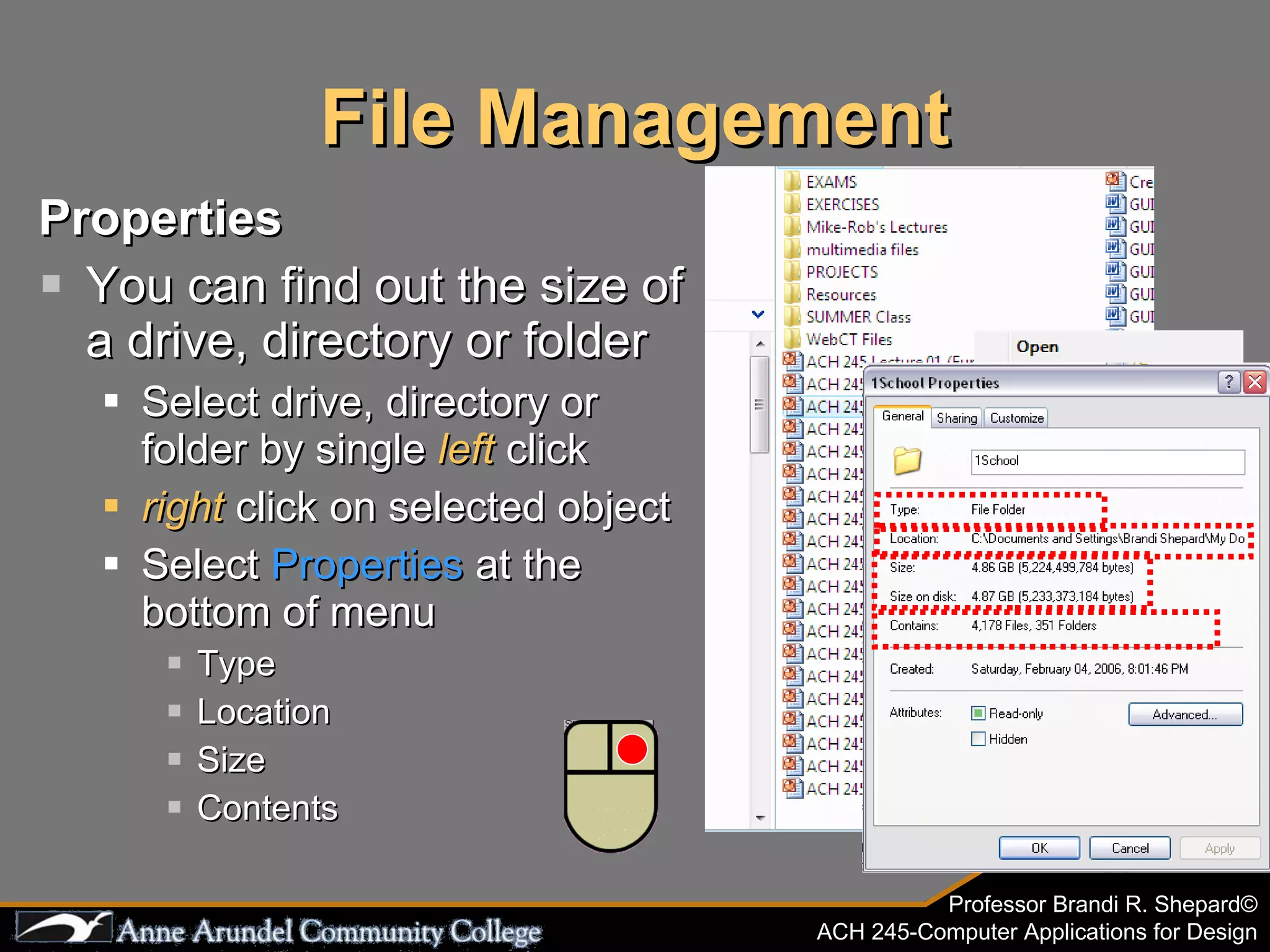
File Management Properties You can find out the size of a drive, directory or folder Select drive, directory or folder by single  left  click right  click on selected object Select  Properties  at the bottom of menu
File Management Properties You can find out the size of a drive, directory or folder Select drive, directory or folder by single  left  click right  click on selected object Select  Properties  at the bottom of menu Type Location Size Contents
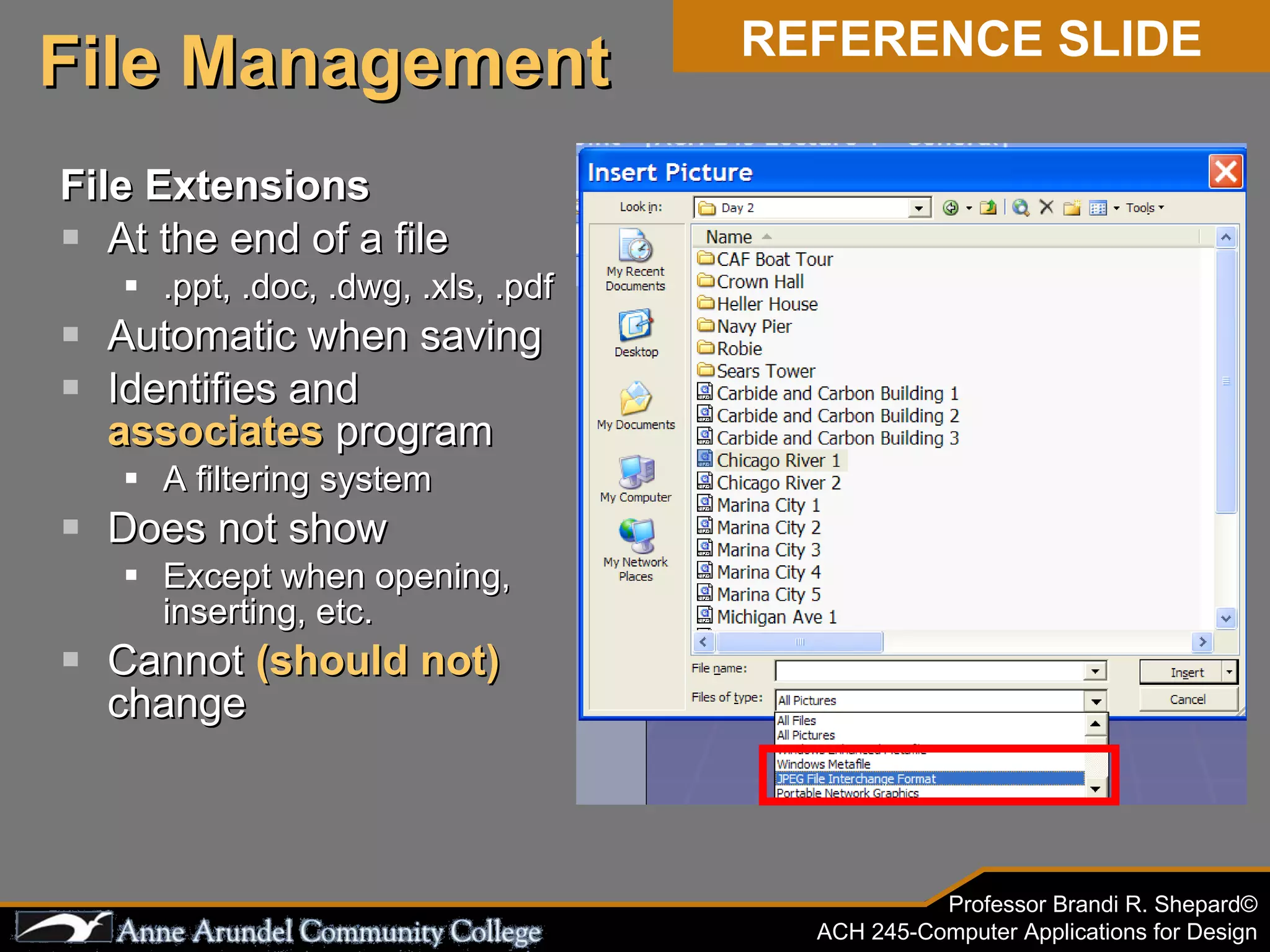
File Extensions At the end of a file .ppt, .doc, .dwg, .xls, .pdf Automatic when saving Identifies and  associates  program A filtering system Does not show Except when opening, inserting, etc. Cannot  (should not)  change File Management REFERENCE SLIDE
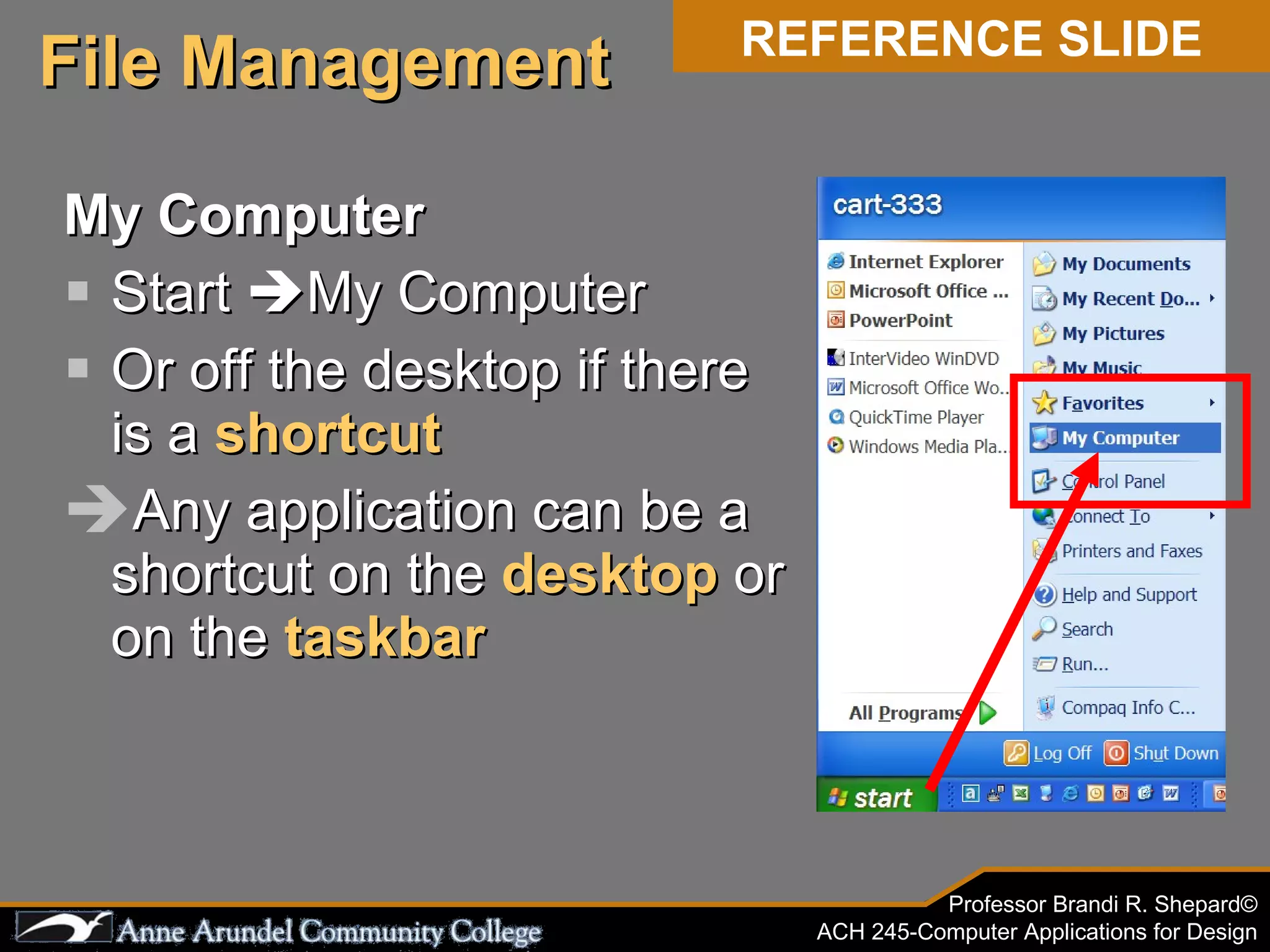
My Computer Start  ๏ƒจ My Computer Or off the desktop if there is a  shortcut Any application can be a shortcut on the  desktop  or on the  taskbar File Management REFERENCE SLIDE
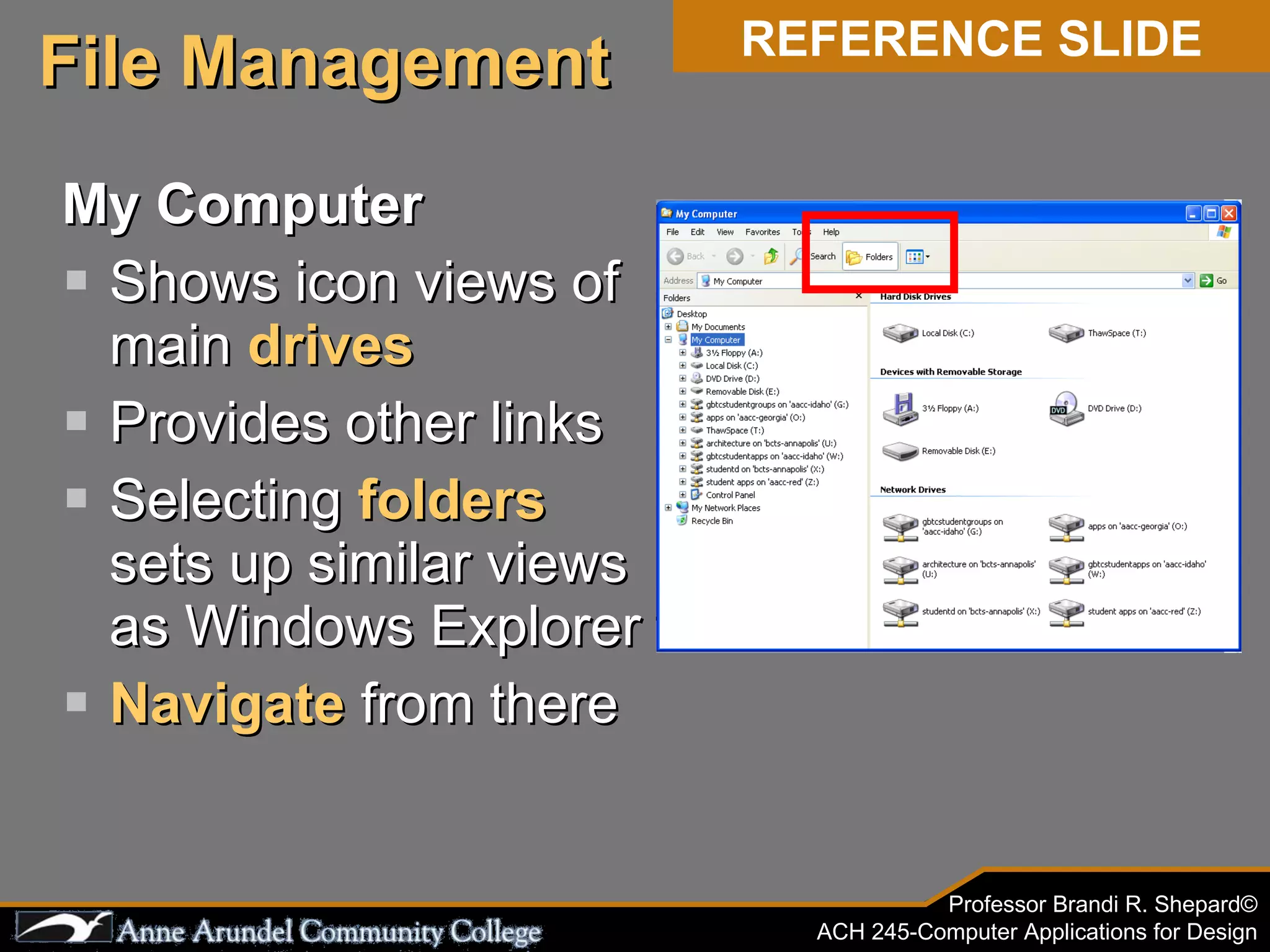
My Computer Shows icon views of main  drives Provides other links Selecting  folders  sets up similar views as Windows Explorer Navigate  from there File Management REFERENCE SLIDE
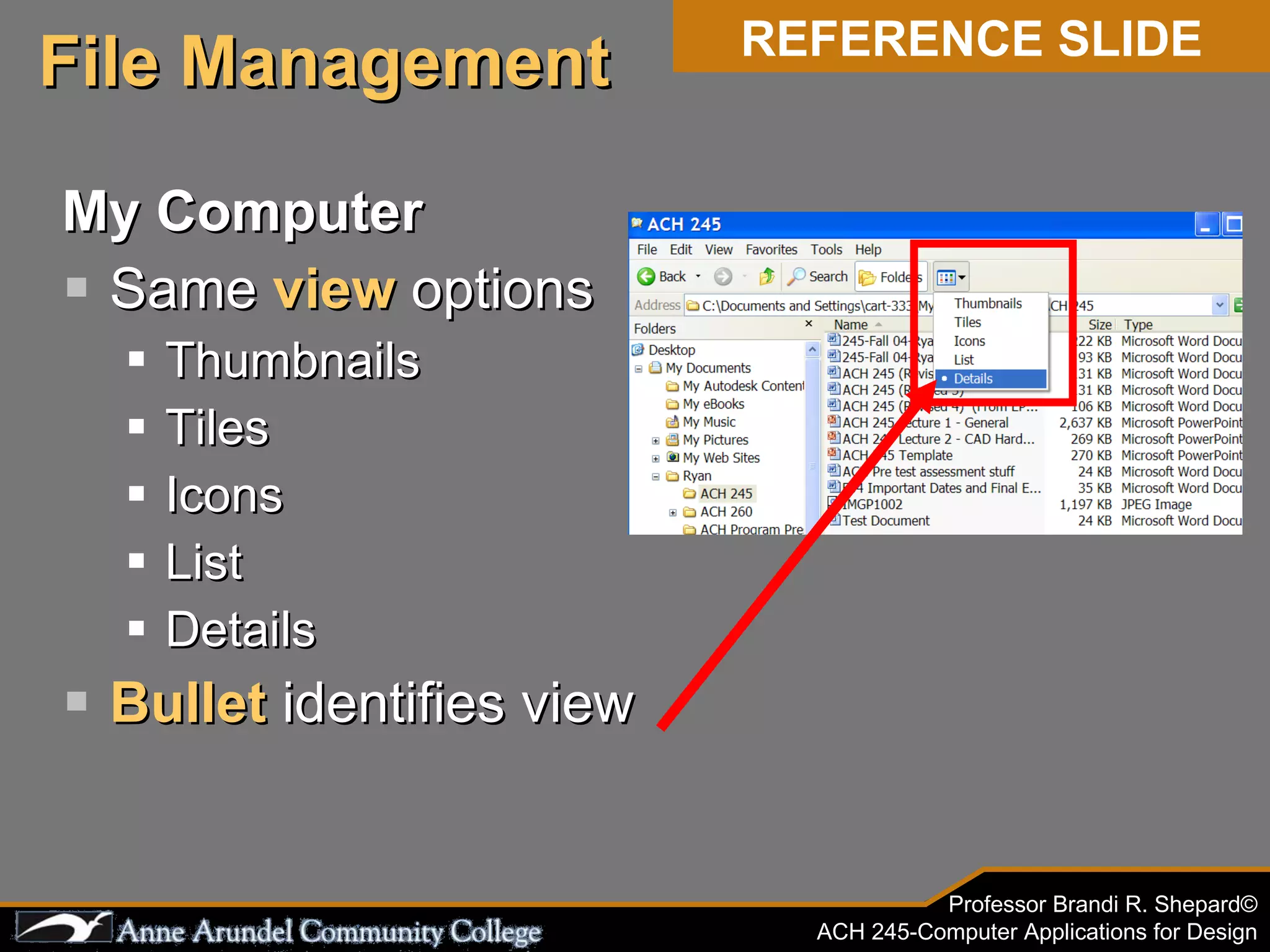
My Computer Same  view  options Thumbnails Tiles Icons List Details Bullet  identifies view File Management REFERENCE SLIDE
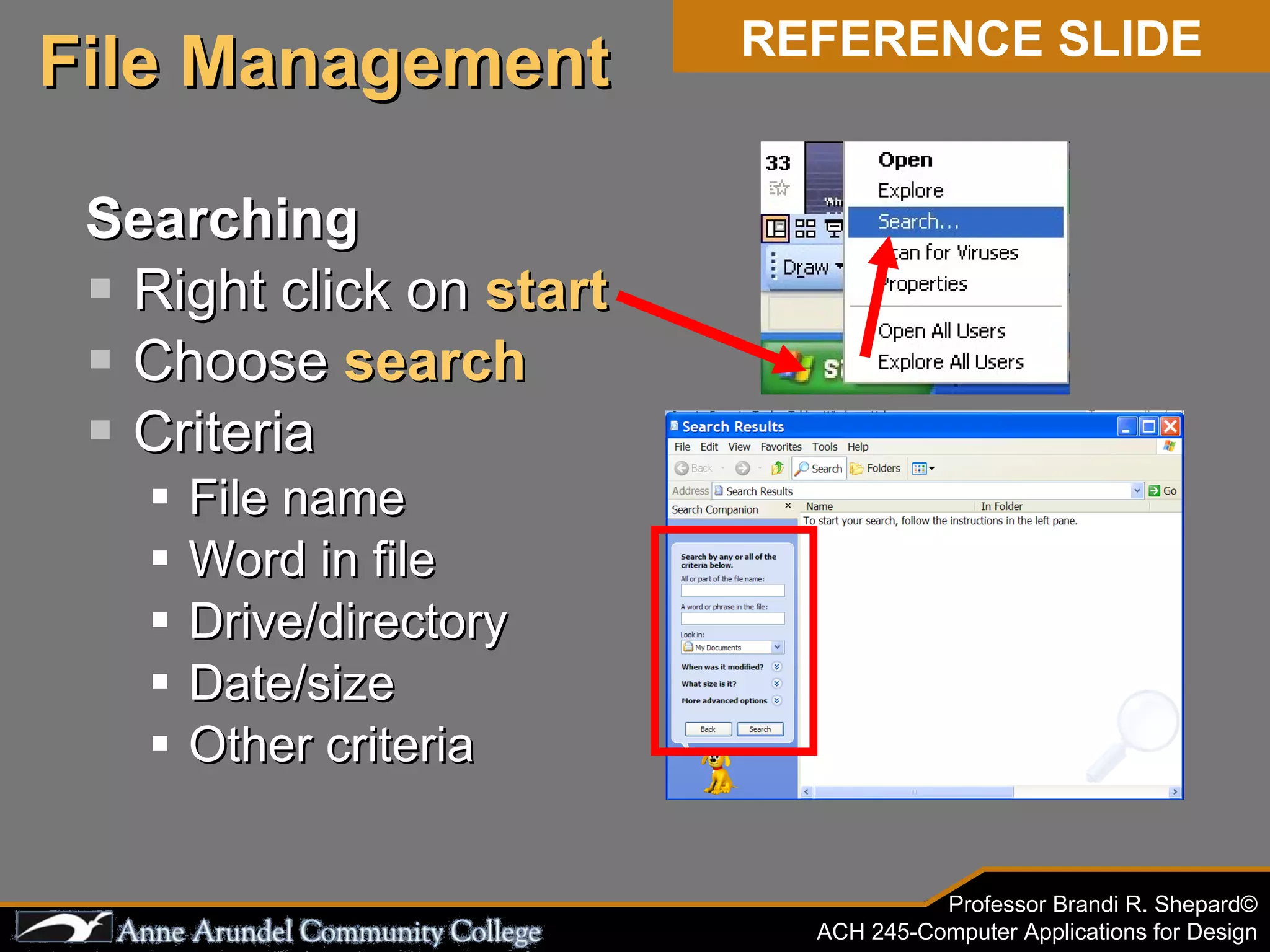
Searching Right click on  start Choose  search Criteria File name Word in file Drive/directory Date/size Other criteria File Management REFERENCE SLIDE
Course Assignments For project submission All files must be named the following format: [course #]-[lastname]-[assignment]-[semester] EXAMPLE:  ACH 245-smith-project 1-SP07
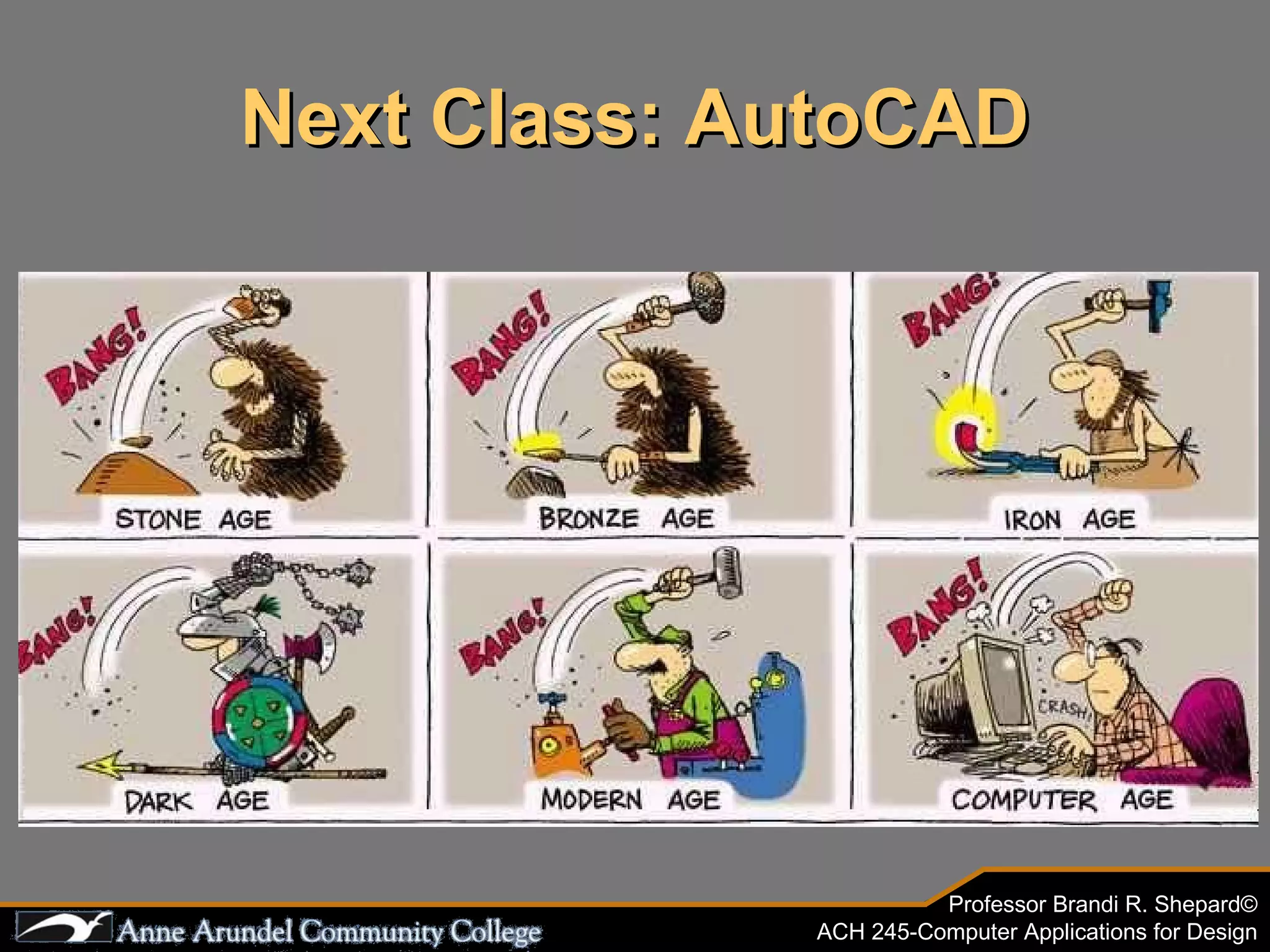
Next Class: AutoCAD

ACH 245 Lecture 01 (Fundamentals) Vista

  • 1.
    ACH 245 ComputerApplications for Design Lecture 1- Basic Computer Fundamentals Lab Overview File Storage and Media Controls The Network Environment File Management
  • 2.
    Some Ground RulesMultiple ways to achieve same function Course will show you the best or most common way You must follow along with the lecture No doing other work or assignments Technology can and will go wrong You are responsible for your files, materials and equipment No web surfing, IM, e-mail or playing games
  • 3.
    Lab Equipment Output Devices Printers Plotters Scanners All-in-one Large format Copiers All-in-one Large Format Lab Overview See Reference for more information
  • 4.
    Printing Printers -HP BusinessJet 1100 Smaller outputs 8 ยฝโ€x11โ€ ๏ƒจ โ€œAโ€ Size (letter) 8 ยฝโ€x14โ€ ๏ƒจ โ€œBโ€ Size (legal) Better (faster) for test prints and proofing Locations: CALT 331 (CAD Lab) CALT 321 & 341 (Studio Labs) REFERENCE SLIDE Lab Overview
  • 5.
    Printing Printers -HP Color LaserJet 5500 Smaller outputs 8 ยฝโ€x11โ€ ๏ƒจ โ€œAโ€ Size (letter) 11โ€ x 17โ€ ๏ƒจ โ€œBโ€ Size (tabloid) Better (faster) for test prints and proofing Locations: CALT 324 (Arch. Resource Room) REFERENCE SLIDE Lab Overview
  • 6.
    Printing Plotters -HP DesignJet 500 Large outputs, 24โ€ roll 24โ€x36โ€ ๏ƒจ โ€œDโ€ Size Best for final plots Locations: CALT 321 & 341 (Studio Labs) REFERENCE SLIDE Lab Overview
  • 7.
    Printing Plotters -HP DesignJet 800 Large outputs, 42โ€ wide roll 24โ€x36โ€ ๏ƒจ โ€œDโ€ Size 36โ€x42โ€ ๏ƒจ โ€œEโ€ Size Best for final plots Locations: CALT 331 (CAD Lab) CALT 324 (Arch. Resource Room) REFERENCE SLIDE Lab Overview
  • 8.
    Scanners Digitizes paperoriginals Text, photos, etc. Saves graphic electronically for use in software applications File formats include .jpg, .tif, .gif, .bmp . tif best quality (but files are large) . jpg โ€œJ-Pegโ€ most common (files compressed) Some issues with file compression REFERENCE SLIDE Lab Overview
  • 9.
    Scanners Color โ€“ 8 ยฝโ€x11โ€ ๏ƒจ โ€œAโ€ Size (letter) Locations: CALT 331 (CAD Lab) two scanners are located at back of room and attached to individual computers REFERENCE SLIDE Lab Overview
  • 10.
    Scanners Color โ€“ Large format 18โ€ x 24โ€ ๏ƒจ โ€œCโ€ Size 24โ€ x 36โ€ ๏ƒจ โ€œDโ€ Size Locations: CALT 324 (Arch. Resource Room) REFERENCE SLIDE Lab Overview
  • 11.
    Scanner/Copier Color -HP PSC 2410 All-in-One 8 ยฝโ€x11โ€ ๏ƒจ โ€œAโ€ Size (letter) also color copier For Departmental Projects ONLY Low volume (limit the number of copies) Locations: CALT 331 (CAD Lab) CALT 324 (Arch. Resource Room) CALT 321 & 341 (Studio Labs) REFERENCE SLIDE Lab Overview
  • 12.
    Copiers Large Formatโ€“ Xerox 3001 24โ€x36โ€ ๏ƒจ โ€œDโ€ Size Rendering Project submittal For Departmental Projects ONLY Low volume (limit the number of copies) REFERENCE SLIDE Locations: CALT 324 (Arch. Resource Room) Lab Overview
  • 13.
    Storage Media forFiles Where do you save? Hard Drives Internal and portable Size: 20-100+ GB Flash Drive Size: 512 MB to 4 GB CD/DVD Drives CD size: 600-800 MB DVD size: 4.7 GB See Reference Slides for more information
  • 14.
    Storage Media forFiles Whatโ€™s a byte, kilobyte, megabyte, gigabyte?? A byte is code that represents information within a file 1 byte = 8 bits 1 kilobyte (KB) = 1,000 bytes (1, 024 bytes) 1 megabyte (MB) = 1,000 KB (1,024 KB or 1,048,576 bytes) 1 gigabyte (GB) = 1,000 MB (1,024 MB or 1,073,741,824 bytes) The file size is designated in KB within the Windows system. 7.3 MB 43 MB
  • 15.
    Where do yousave files? Your Flash Drive Your folder on the network Files on the network are erased at the end of the semester Copy everything to your flash drive BEFORE you leave at the end of the semester!!! Do not save to the lab computer hard drive Files on hard drives are routinely erased Flash drives go here in the lab computers REFERENCE SLIDE File Storage
  • 16.
    File Storage Backing-upfiles YOU are responsible for backing up your files The college does not back-up files The network is not โ€œsecureโ€ โ€œ Losing filesโ€ is no excuse for not turning in assignments! BE WARNED!!!
  • 17.
    Your computer justdied. Locked up. Stopped working. Did you save?
  • 18.
    File Storage Whendo you save? After a complex command After 5-10 minutes After every class Always, often, frequently, habitually, regularly, repeatedly and a lot Control+S, Control+S, Control+S! See Reference Slides for more information
  • 19.
    Backing-up files Someprograms automatically create back up files Names file with different extension .wbk, .bak, etc. Only accessible through a recovery You need to set the time interval and location of back up files Do not depend on these as copies of your file Better to create your own duplicate copy and save back and forth AND Copy to multiple locations (flash drive, home, lab, etc.) REFERENCE SLIDE File Storage
  • 20.
    Controls Input DevicesMouse - common functions Moving Cursor Clicking Keyboard - common functions General input for information Shortcut controls (universal commands)
  • 21.
    Controls Mouse ClickingSingle Left Click Highlights/selects Executes command Second Single Click Edit mode of file name or text Double Left Click Launches/opens program Right Click Opens alternate window or menu
  • 22.
    Controls Mouse ClickingRight Click Opens alternate window or menu
  • 23.
    Controls Keyboard FunctionKeys Shortcuts Number pad Screen position Windows Shortcuts
  • 24.
    Universal Commands Commonto Virtually All Windows Programs MEMORIZE : Undo Control+Z ๏ฎ Bold Text Control+B Save Control+S ๏ฎ Italic Text Control+I Open Control+O ๏ฎ Underline Control+U Cut Control+X ๏ฎ Select All Control+A Copy Control+C ๏ฎ New File Control+N Paste Control+V Print Control+P See link: http://www.seoconsultants.com/windows/keyboard/ for information on other keyboard function keys
  • 25.
    Logging On Movemouse to make sure computer is on Make sure monitor is on If not, press center button on tower to turn on computer Screen will appear asking you to press โ€œCtrl-Alt-Delete to beginโ€
  • 26.
    Logging On Username is same as MyAACC account First initial, middle initial, last name Password is first four letters of last name, last four of SSN May be prompted to change password Log on to STUDENT domain Log off when session is completed! jmsith STUDENT
  • 27.
    The Network EnvironmentWhat is a โ€œNetworkโ€ Computers are โ€œlinkedโ€ together to a โ€œserverโ€ Server is a separate, remote device Why save to the network? Files accessible from any computer If a lab computer goes down, files are not lost Servers are safer than lab computers Files on Hard Drives routinely erased
  • 28.
    The Network EnvironmentTerminology (Hierarchy) Server (on Network) โ€œ Masterโ€ to other computers Drives On individual computers Contains directories Directories Organize folders Folders Organize files Files โ€“ Individual documents (i.e. your work)
  • 29.
    The Network EnvironmentDrives Given a letter designation Hard Drive: โ€œCโ€ drive Do not save on hard drives! CD/DVD: โ€œDโ€ drive Flash Drive: โ€œEโ€ drive Other Drives Network, digital cameras, memory cards, etc.
  • 30.
    The Network EnvironmentNetwork Drives Department Drive Known as โ€œUโ€ drive architecture on โ€˜ bcts-annapolisโ€™ FOR PROJECT SUBMISSIONS Once saved, can not modify or delete Folders organized by course Do not rename or reorganize any files on the network Read lab policies in syllabus again!
  • 31.
    The Network EnvironmentNetwork Drives Find the โ€œHโ€ drive Open the drive listed with your name Create a folder for ACH 245 Right Click ๏ƒจ File ๏ƒจ New ๏ƒจ Folder โ€œ New Folder โ€ will appear already highlighted for renaming While highlighted type in ACH 245
  • 32.
    Windows Explorer Rightclick on Start Choose Computer Brings up folders Navigate from there File Management
  • 33.
    File Management FileViews Thumbnails small to extra large icon Tiles List Details Slide Marker identifies view
  • 34.
    Thumbnails Application FileName Shows preview for some applications Additional file details when cursor over file File Management REFERENCE SLIDE Icons Smaller Icon Application Partial File Name Additional file details when cursor over file
  • 35.
    File Management REFERENCESLIDE List Application File Name Additional file details when cursor over file Tiles Application File Name File Size Additional file details when cursor over file
  • 36.
    Details Displays all file details name, size, type, date modified View by any detail in ascending or descending order Can rearrange order of file details Additional file details when cursor over file File Management REFERENCE SLIDE
  • 37.
    Details Can addadditional file details to view and organize Right click on top bar File Management REFERENCE SLIDE
  • 38.
    File Management SelectingFiles SHIFT will select a list of files consecutively Select first file in list Hold down SHIFT key Then select last file in list
  • 39.
    File Management SelectingFiles CTRL will select a list of files individually Select first file in list Hold down CTRL key Then select multiple files individually
  • 40.
    File Management Moving/RenamingDirectories/Files Select item and right click Select Rename
  • 41.
    File Management PropertiesYou can find out the size of a drive, directory or folder Select drive, directory or folder by single left click right click on selected object Select Properties at the bottom of menu
  • 42.
    File Management PropertiesYou can find out the size of a drive, directory or folder Select drive, directory or folder by single left click right click on selected object Select Properties at the bottom of menu Type Location Size Contents
  • 43.
    File Extensions Atthe end of a file .ppt, .doc, .dwg, .xls, .pdf Automatic when saving Identifies and associates program A filtering system Does not show Except when opening, inserting, etc. Cannot (should not) change File Management REFERENCE SLIDE
  • 44.
    My Computer Start ๏ƒจ My Computer Or off the desktop if there is a shortcut Any application can be a shortcut on the desktop or on the taskbar File Management REFERENCE SLIDE
  • 45.
    My Computer Showsicon views of main drives Provides other links Selecting folders sets up similar views as Windows Explorer Navigate from there File Management REFERENCE SLIDE
  • 46.
    My Computer Same view options Thumbnails Tiles Icons List Details Bullet identifies view File Management REFERENCE SLIDE
  • 47.
    Searching Right clickon start Choose search Criteria File name Word in file Drive/directory Date/size Other criteria File Management REFERENCE SLIDE
  • 48.
    Course Assignments Forproject submission All files must be named the following format: [course #]-[lastname]-[assignment]-[semester] EXAMPLE: ACH 245-smith-project 1-SP07
  • 49.