Photoshop CS2   Saving files in multiple format


Modul 2 :    Saving Files in Multiple Format


Duration :   40 minutes


Objective:   Students will be able to:-


             a. save a pdf file or save another format.
             b. Create a new layer and rearrange the layer.


                                                                     1
Photoshop CS2      Saving files in multiple format


       Saving Files in Multiple Format


Saving files in Photoshop format (PSD)

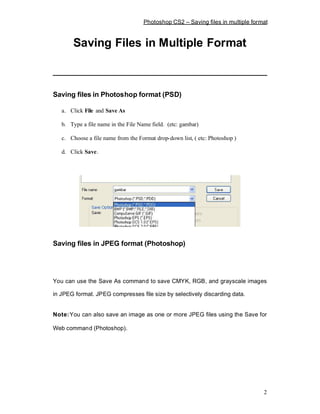
   a. Click File and Save As

   b. Type a file name in the File Name field. (etc: gambar)

   c. Choose a file name from the Format drop-down list, ( etc: Photoshop )

   d. Click Save.


Saving files in JPEG format (Photoshop)


You can use the Save As command to save CMYK, RGB, and grayscale images

in JPEG format. JPEG compresses file size by selectively discarding data.


Note: You can also save an image as one or more JPEG files using the Save for

Web command (Photoshop).


                                                                                     2
Photoshop CS2    Saving files in multiple format

To save a file in JPEG format:


   a. Save the artwork, and choose JPEG from the Format menu.

   b. In the JPEG Options dialog box, select the options you want, and click

      Save..

   c. To save a file in a different file format:


                  1. Choose File > Save As
                  2. Choose a format from the format pop-up menu
                      (JPEG,GIF,BMP,T IFF etc.)
                  3. Specify a filename and location
                  4. Select saving options. Click Save


                                                                                    3
Photoshop CS2     Saving files in multiple format


                          Using Layers

About layers


Layers allow you to work on one element of an image without disturbing the

others.


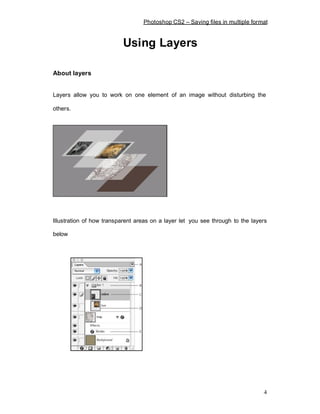
Illustration of how transparent areas on a layer let you see through to the layers

below


                                                                                 4
Photoshop CS2    Saving files in multiple format

Displaying the Layers palette


   Ø Choose Window > Layers.


Using the Layers palette menu


Click the triangle    in the upper right corner of the palette to access commands

for working with layers.


About the background layer


               Background


                                                                                 5
Photoshop CS2   Saving files in multiple format

To convert a background into a layer:


1.    Double-click Background in the Layers palette, or choose Layer > New >

      Layer from Background.

2.    Set layer options as desired.

3.    Click OK.


To add a new layer or layer set using default options:


                                                                               6
Photoshop CS2    Saving files in multiple format


Click the New Layer button            or New Layer Set button          in the Layers

palette.


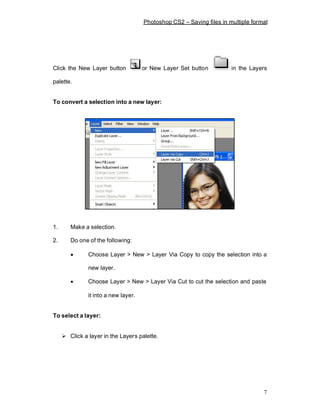
To convert a selection into a new layer:


1.      Make a selection.

2.      Do one of the following:

        ·      Choose Layer > New > Layer Via Copy to copy the selection into a

               new layer.

        ·      Choose Layer > New > Layer Via Cut to cut the selection and paste

               it into a new layer.


To select a layer:


     Ø Click a layer in the Layers palette.


                                                                                    7
Photoshop CS2      Saving files in multiple format


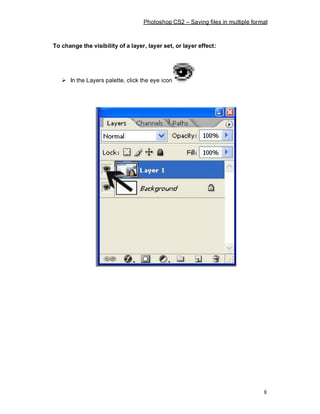
To change the visibility of a layer, layer set, or layer effect:


   Ø In the Layers palette, click the eye icon


                                                                                   8

Photoshop - Module 2

  • 2.
    Photoshop CS2 Saving files in multiple format Modul 2 : Saving Files in Multiple Format Duration : 40 minutes Objective: Students will be able to:- a. save a pdf file or save another format. b. Create a new layer and rearrange the layer. 1
  • 3.
    Photoshop CS2 Saving files in multiple format Saving Files in Multiple Format Saving files in Photoshop format (PSD) a. Click File and Save As b. Type a file name in the File Name field. (etc: gambar) c. Choose a file name from the Format drop-down list, ( etc: Photoshop ) d. Click Save. Saving files in JPEG format (Photoshop) You can use the Save As command to save CMYK, RGB, and grayscale images in JPEG format. JPEG compresses file size by selectively discarding data. Note: You can also save an image as one or more JPEG files using the Save for Web command (Photoshop). 2
  • 4.
    Photoshop CS2 Saving files in multiple format To save a file in JPEG format: a. Save the artwork, and choose JPEG from the Format menu. b. In the JPEG Options dialog box, select the options you want, and click Save.. c. To save a file in a different file format: 1. Choose File > Save As 2. Choose a format from the format pop-up menu (JPEG,GIF,BMP,T IFF etc.) 3. Specify a filename and location 4. Select saving options. Click Save 3
  • 5.
    Photoshop CS2 Saving files in multiple format Using Layers About layers Layers allow you to work on one element of an image without disturbing the others. Illustration of how transparent areas on a layer let you see through to the layers below 4
  • 6.
    Photoshop CS2 Saving files in multiple format Displaying the Layers palette Ø Choose Window > Layers. Using the Layers palette menu Click the triangle in the upper right corner of the palette to access commands for working with layers. About the background layer Background 5
  • 7.
    Photoshop CS2 Saving files in multiple format To convert a background into a layer: 1. Double-click Background in the Layers palette, or choose Layer > New > Layer from Background. 2. Set layer options as desired. 3. Click OK. To add a new layer or layer set using default options: 6
  • 8.
    Photoshop CS2 Saving files in multiple format Click the New Layer button or New Layer Set button in the Layers palette. To convert a selection into a new layer: 1. Make a selection. 2. Do one of the following: · Choose Layer > New > Layer Via Copy to copy the selection into a new layer. · Choose Layer > New > Layer Via Cut to cut the selection and paste it into a new layer. To select a layer: Ø Click a layer in the Layers palette. 7
  • 9.
    Photoshop CS2 Saving files in multiple format To change the visibility of a layer, layer set, or layer effect: Ø In the Layers palette, click the eye icon 8