ESSENTIAL
LINUX COMMANDS
DBAs
Gökhan Atıl
GÖKHAN ATIL
➤ DBA Team Lead with 15+ years of experience
➤ Oracle ACE Director (2016)

ACE (2011)
➤ 10g/11g and R12 OCP
➤ Founding Member and Vice President of TROUG
➤ Co-author of Expert Oracle Enterprise Manager 12c
➤ Blogger (since 2008) gokhanatil.com
➤ Twitter: @gokhanatil
2
INTRODUCTION
➤ This session will cover only the tools shipped with Oracle
Enterprise Linux 7 (no external repositories required).
➤ Power user tools / “root” privileges are not required.
➤ There are three main sections:
➤ Quick System Health Check (USE Method)
➤ Profilers & Tracing
➤ Other Useful Stuff
QUICK SYSTEM
HEALTH CHECK
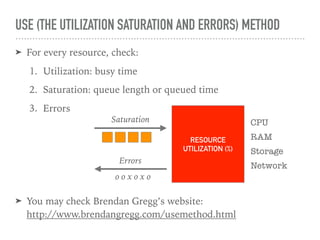
USE (THE UTILIZATION SATURATION AND ERRORS) METHOD
➤ For every resource, check:
1. Utilization: busy time
2. Saturation: queue length or queued time
3. Errors
➤ You may check Brendan Gregg’s website: 

http://www.brendangregg.com/usemethod.html
RESOURCE
UTILIZATION (%)
Saturation
Errors
o o x o x o
CPU
RAM
Storage
Network
UPTIME
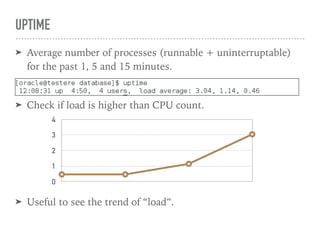
➤ Average number of processes (runnable + uninterruptable)
for the past 1, 5 and 15 minutes.
➤ Check if load is higher than CPU count.
➤ Useful to see the trend of “load”.
0
1
2
3
4
FREE
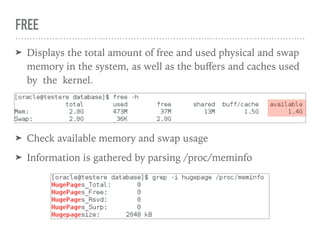
➤ Displays the total amount of free and used physical and swap
memory in the system, as well as the buffers and caches used
by the kernel.
➤ Check available memory and swap usage
➤ Information is gathered by parsing /proc/meminfo
TOP
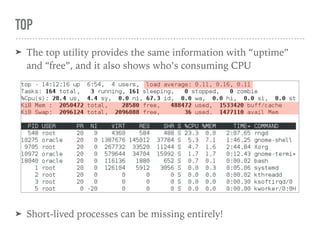
➤ The top utility provides the same information with “uptime”
and “free”, and it also shows who’s consuming CPU
➤ Short-lived processes can be missing entirely!
TOP (CONT’D)
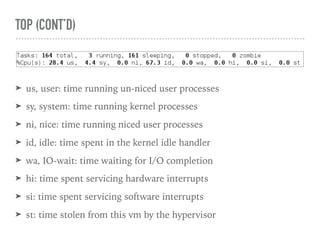
➤ us, user: time running un-niced user processes
➤ sy, system: time running kernel processes
➤ ni, nice: time running niced user processes
➤ id, idle: time spent in the kernel idle handler
➤ wa, IO-wait: time waiting for I/O completion
➤ hi: time spent servicing hardware interrupts
➤ si: time spent servicing software interrupts
➤ st: time stolen from this vm by the hypervisor
TOP (CONT’D)
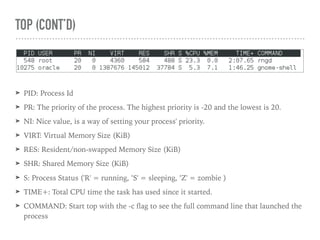
➤ PID: Process Id
➤ PR: The priority of the process. The highest priority is -20 and the lowest is 20.
➤ NI: Nice value, is a way of setting your process' priority.
➤ VIRT: Virtual Memory Size (KiB)
➤ RES: Resident/non-swapped Memory Size (KiB)
➤ SHR: Shared Memory Size (KiB)
➤ S: Process Status ('R' = running, ’S' = sleeping, ’Z' = zombie )
➤ TIME+: Total CPU time the task has used since it started.
➤ COMMAND: Start top with the -c flag to see the full command line that launched the
process
TOP (CONT’D)
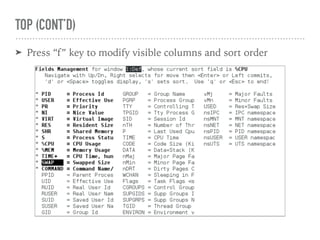
➤ Press “f” key to modify visible columns and sort order
VMSTAT
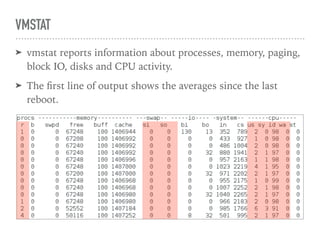
➤ vmstat reports information about processes, memory, paging,
block IO, disks and CPU activity.
➤ The first line of output shows the averages since the last
reboot.
VMSTAT (CONT’D)
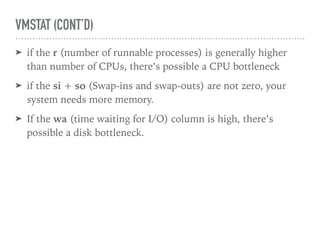
➤ if the r (number of runnable processes) is generally higher
than number of CPUs, there’s possible a CPU bottleneck
➤ if the si + so (Swap-ins and swap-outs) are not zero, your
system needs more memory.
➤ If the wa (time waiting for I/O) column is high, there’s
possible a disk bottleneck.
IOSTAT
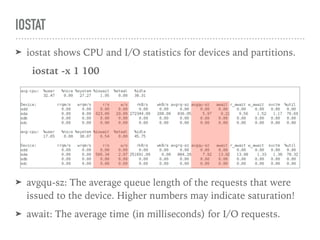
➤ iostat shows CPU and I/O statistics for devices and partitions.
iostat -x 1 100
➤ avgqu-sz: The average queue length of the requests that were
issued to the device. Higher numbers may indicate saturation!
➤ await: The average time (in milliseconds) for I/O requests.
MPSTAT
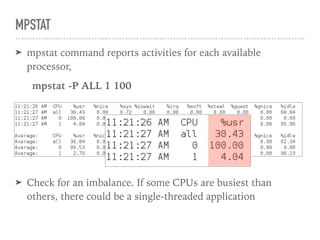
➤ mpstat command reports activities for each available
processor,
mpstat -P ALL 1 100
➤ Check for an imbalance. If some CPUs are busiest than
others, there could be a single-threaded application
PIDSTAT
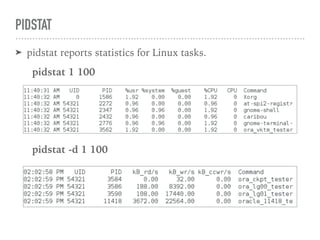
➤ pidstat reports statistics for Linux tasks.
pidstat 1 100
pidstat -d 1 100
SAR (SYSTEM ACTIVITY REPORT)
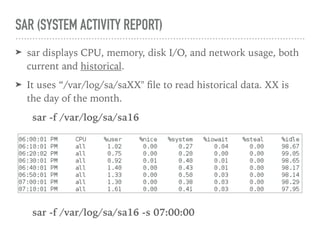
➤ sar displays CPU, memory, disk I/O, and network usage, both
current and historical.
➤ It uses “/var/log/sa/saXX" file to read historical data. XX is
the day of the month.
sar -f /var/log/sa/sa16
sar -f /var/log/sa/sa16 -s 07:00:00
SAR (CONT’D)
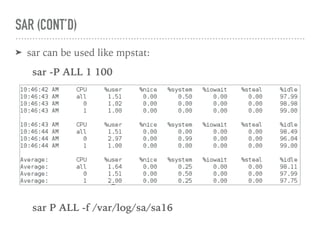
➤ sar can be used like mpstat:
sar -P ALL 1 100
sar P ALL -f /var/log/sa/sa16
SAR (CONT’D)
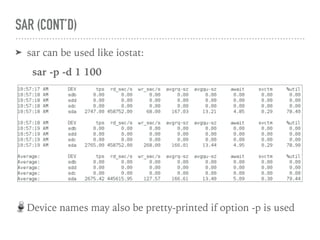
➤ sar can be used like iostat:
sar -p -d 1 100
Device names may also be pretty-printed if option -p is used
SAR (CONT’D)
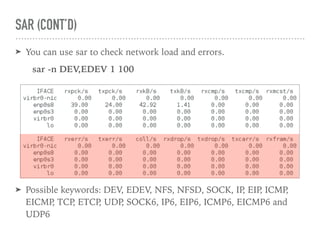
➤ You can use sar to check network load and errors.
sar -n DEV,EDEV 1 100
➤ Possible keywords: DEV, EDEV, NFS, NFSD, SOCK, IP, EIP, ICMP,
EICMP, TCP, ETCP, UDP, SOCK6, IP6, EIP6, ICMP6, EICMP6 and
UDP6
DMESG
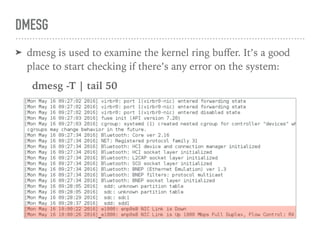
➤ dmesg is used to examine the kernel ring buffer. It’s a good
place to start checking if there’s any error on the system:
dmesg -T | tail 50
TRACING &
PROFILERS
PERF
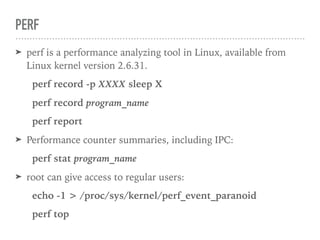
➤ perf is a performance analyzing tool in Linux, available from
Linux kernel version 2.6.31.
perf record -p XXXX sleep X
perf record program_name
perf report
➤ Performance counter summaries, including IPC:
perf stat program_name
➤ root can give access to regular users:
echo -1 > /proc/sys/kernel/perf_event_paranoid
perf top
PERF (CONT’D)
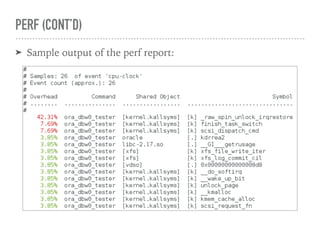
➤ Sample output of the perf report:
STRACE
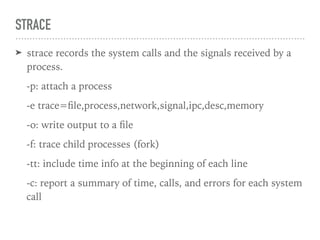
➤ strace records the system calls and the signals received by a
process.
-p: attach a process
-e trace=file,process,network,signal,ipc,desc,memory
-o: write output to a file
-f: trace child processes (fork)
-tt: include time info at the beginning of each line
-c: report a summary of time, calls, and errors for each system
call
STRACE
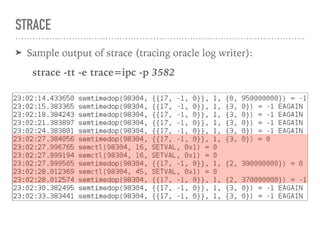
➤ Sample output of strace (tracing oracle log writer):
strace -tt -e trace=ipc -p 3582
LTRACE
➤ ltrace records the dynamic library calls and the signals received by
a process.
➤ Its use is very similar to strace.
-p: attach a process
-o: write output to a file
-f: trace child processes (fork)
-e: {[+-][symbol_pattern][@library_pattern]}
-c: report a summary of time, calls, and errors for each system call
-tt: include time info at the beginning of each line
-S: Display system calls as well as library calls
LTRACE
➤ Sample output of ltrace (tracing oracle log writer):
ltrace -tt -e pwrite64 -p 3582
ls -l /proc/3582/fd/25[89]
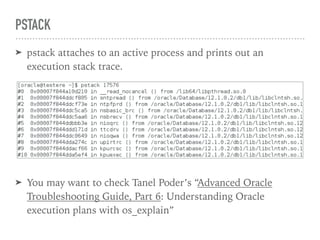
PSTACK
➤ pstack attaches to an active process and prints out an
execution stack trace.
➤ You may want to check Tanel Poder’s “Advanced Oracle
Troubleshooting Guide, Part 6: Understanding Oracle
execution plans with os_explain”
OTHER
USEFUL
STUFF
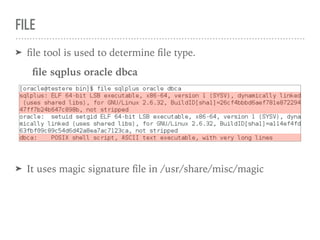
FILE
➤ file tool is used to determine file type.
file sqplus oracle dbca
➤ It uses magic signature file in /usr/share/misc/magic
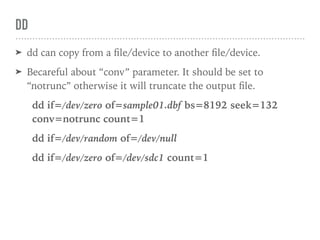
DD
➤ dd can copy from a file/device to another file/device.
➤ Becareful about “conv” parameter. It should be set to
“notrunc” otherwise it will truncate the output file.
dd if=/dev/zero of=sample01.dbf bs=8192 seek=132
conv=notrunc count=1
dd if=/dev/random of=/dev/null
dd if=/dev/zero of=/dev/sdc1 count=1
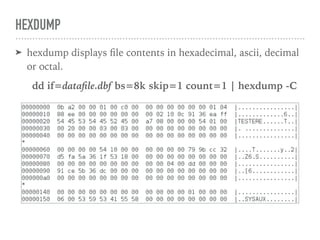
HEXDUMP
➤ hexdump displays file contents in hexadecimal, ascii, decimal
or octal.
dd if=datafile.dbf bs=8k skip=1 count=1 | hexdump -C
STRINGS
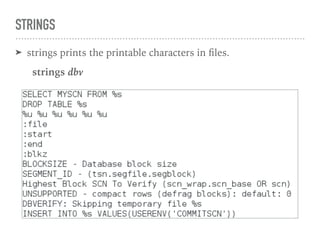
➤ strings prints the printable characters in files.
strings dbv
FUSER
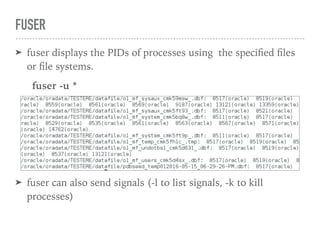
➤ fuser displays the PIDs of processes using the specified files
or file systems.
fuser -u *
➤ fuser can also send signals (-l to list signals, -k to kill
processes)
LSOF
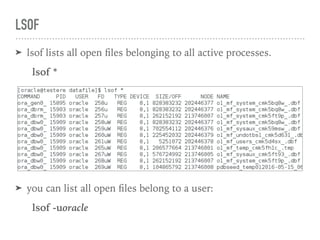
➤ lsof lists all open files belonging to all active processes.
lsof *
➤ you can list all open files belong to a user:
lsof -uoracle
IPCS
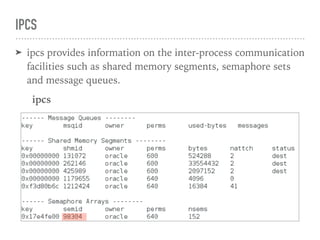
➤ ipcs provides information on the inter-process communication
facilities such as shared memory segments, semaphore sets
and message queues.
ipcs
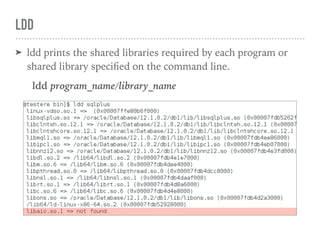
LDD
➤ ldd prints the shared libraries required by each program or
shared library specified on the command line.
ldd program_name/library_name
THANK YOU FOR ATTENDING! 

ANY QUESTIONS?

Essential Linux Commands for DBAs

  • 1.
  • 2.
    GÖKHAN ATIL ➤ DBATeam Lead with 15+ years of experience ➤ Oracle ACE Director (2016)
 ACE (2011) ➤ 10g/11g and R12 OCP ➤ Founding Member and Vice President of TROUG ➤ Co-author of Expert Oracle Enterprise Manager 12c ➤ Blogger (since 2008) gokhanatil.com ➤ Twitter: @gokhanatil 2
  • 3.
    INTRODUCTION ➤ This sessionwill cover only the tools shipped with Oracle Enterprise Linux 7 (no external repositories required). ➤ Power user tools / “root” privileges are not required. ➤ There are three main sections: ➤ Quick System Health Check (USE Method) ➤ Profilers & Tracing ➤ Other Useful Stuff
  • 4.
  • 5.
    USE (THE UTILIZATIONSATURATION AND ERRORS) METHOD ➤ For every resource, check: 1. Utilization: busy time 2. Saturation: queue length or queued time 3. Errors ➤ You may check Brendan Gregg’s website: 
 http://www.brendangregg.com/usemethod.html RESOURCE UTILIZATION (%) Saturation Errors o o x o x o CPU RAM Storage Network
  • 6.
    UPTIME ➤ Average numberof processes (runnable + uninterruptable) for the past 1, 5 and 15 minutes. ➤ Check if load is higher than CPU count. ➤ Useful to see the trend of “load”. 0 1 2 3 4
  • 7.
    FREE ➤ Displays thetotal amount of free and used physical and swap memory in the system, as well as the buffers and caches used by the kernel. ➤ Check available memory and swap usage ➤ Information is gathered by parsing /proc/meminfo
  • 8.
    TOP ➤ The toputility provides the same information with “uptime” and “free”, and it also shows who’s consuming CPU ➤ Short-lived processes can be missing entirely!
  • 9.
    TOP (CONT’D) ➤ us,user: time running un-niced user processes ➤ sy, system: time running kernel processes ➤ ni, nice: time running niced user processes ➤ id, idle: time spent in the kernel idle handler ➤ wa, IO-wait: time waiting for I/O completion ➤ hi: time spent servicing hardware interrupts ➤ si: time spent servicing software interrupts ➤ st: time stolen from this vm by the hypervisor
  • 10.
    TOP (CONT’D) ➤ PID:Process Id ➤ PR: The priority of the process. The highest priority is -20 and the lowest is 20. ➤ NI: Nice value, is a way of setting your process' priority. ➤ VIRT: Virtual Memory Size (KiB) ➤ RES: Resident/non-swapped Memory Size (KiB) ➤ SHR: Shared Memory Size (KiB) ➤ S: Process Status ('R' = running, ’S' = sleeping, ’Z' = zombie ) ➤ TIME+: Total CPU time the task has used since it started. ➤ COMMAND: Start top with the -c flag to see the full command line that launched the process
  • 11.
    TOP (CONT’D) ➤ Press“f” key to modify visible columns and sort order
  • 12.
    VMSTAT ➤ vmstat reportsinformation about processes, memory, paging, block IO, disks and CPU activity. ➤ The first line of output shows the averages since the last reboot.
  • 13.
    VMSTAT (CONT’D) ➤ ifthe r (number of runnable processes) is generally higher than number of CPUs, there’s possible a CPU bottleneck ➤ if the si + so (Swap-ins and swap-outs) are not zero, your system needs more memory. ➤ If the wa (time waiting for I/O) column is high, there’s possible a disk bottleneck.
  • 14.
    IOSTAT ➤ iostat showsCPU and I/O statistics for devices and partitions. iostat -x 1 100 ➤ avgqu-sz: The average queue length of the requests that were issued to the device. Higher numbers may indicate saturation! ➤ await: The average time (in milliseconds) for I/O requests.
  • 15.
    MPSTAT ➤ mpstat commandreports activities for each available processor, mpstat -P ALL 1 100 ➤ Check for an imbalance. If some CPUs are busiest than others, there could be a single-threaded application
  • 16.
    PIDSTAT ➤ pidstat reportsstatistics for Linux tasks. pidstat 1 100 pidstat -d 1 100
  • 17.
    SAR (SYSTEM ACTIVITYREPORT) ➤ sar displays CPU, memory, disk I/O, and network usage, both current and historical. ➤ It uses “/var/log/sa/saXX" file to read historical data. XX is the day of the month. sar -f /var/log/sa/sa16 sar -f /var/log/sa/sa16 -s 07:00:00
  • 18.
    SAR (CONT’D) ➤ sarcan be used like mpstat: sar -P ALL 1 100 sar P ALL -f /var/log/sa/sa16
  • 19.
    SAR (CONT’D) ➤ sarcan be used like iostat: sar -p -d 1 100 Device names may also be pretty-printed if option -p is used
  • 20.
    SAR (CONT’D) ➤ Youcan use sar to check network load and errors. sar -n DEV,EDEV 1 100 ➤ Possible keywords: DEV, EDEV, NFS, NFSD, SOCK, IP, EIP, ICMP, EICMP, TCP, ETCP, UDP, SOCK6, IP6, EIP6, ICMP6, EICMP6 and UDP6
  • 21.
    DMESG ➤ dmesg isused to examine the kernel ring buffer. It’s a good place to start checking if there’s any error on the system: dmesg -T | tail 50
  • 22.
  • 23.
    PERF ➤ perf isa performance analyzing tool in Linux, available from Linux kernel version 2.6.31. perf record -p XXXX sleep X perf record program_name perf report ➤ Performance counter summaries, including IPC: perf stat program_name ➤ root can give access to regular users: echo -1 > /proc/sys/kernel/perf_event_paranoid perf top
  • 24.
    PERF (CONT’D) ➤ Sampleoutput of the perf report:
  • 25.
    STRACE ➤ strace recordsthe system calls and the signals received by a process. -p: attach a process -e trace=file,process,network,signal,ipc,desc,memory -o: write output to a file -f: trace child processes (fork) -tt: include time info at the beginning of each line -c: report a summary of time, calls, and errors for each system call
  • 26.
    STRACE ➤ Sample outputof strace (tracing oracle log writer): strace -tt -e trace=ipc -p 3582
  • 27.
    LTRACE ➤ ltrace recordsthe dynamic library calls and the signals received by a process. ➤ Its use is very similar to strace. -p: attach a process -o: write output to a file -f: trace child processes (fork) -e: {[+-][symbol_pattern][@library_pattern]} -c: report a summary of time, calls, and errors for each system call -tt: include time info at the beginning of each line -S: Display system calls as well as library calls
  • 28.
    LTRACE ➤ Sample outputof ltrace (tracing oracle log writer): ltrace -tt -e pwrite64 -p 3582 ls -l /proc/3582/fd/25[89]
  • 29.
    PSTACK ➤ pstack attachesto an active process and prints out an execution stack trace. ➤ You may want to check Tanel Poder’s “Advanced Oracle Troubleshooting Guide, Part 6: Understanding Oracle execution plans with os_explain”
  • 30.
  • 31.
    FILE ➤ file toolis used to determine file type. file sqplus oracle dbca ➤ It uses magic signature file in /usr/share/misc/magic
  • 32.
    DD ➤ dd cancopy from a file/device to another file/device. ➤ Becareful about “conv” parameter. It should be set to “notrunc” otherwise it will truncate the output file. dd if=/dev/zero of=sample01.dbf bs=8192 seek=132 conv=notrunc count=1 dd if=/dev/random of=/dev/null dd if=/dev/zero of=/dev/sdc1 count=1
  • 33.
    HEXDUMP ➤ hexdump displaysfile contents in hexadecimal, ascii, decimal or octal. dd if=datafile.dbf bs=8k skip=1 count=1 | hexdump -C
  • 34.
    STRINGS ➤ strings printsthe printable characters in files. strings dbv
  • 35.
    FUSER ➤ fuser displaysthe PIDs of processes using the specified files or file systems. fuser -u * ➤ fuser can also send signals (-l to list signals, -k to kill processes)
  • 36.
    LSOF ➤ lsof listsall open files belonging to all active processes. lsof * ➤ you can list all open files belong to a user: lsof -uoracle
  • 37.
    IPCS ➤ ipcs providesinformation on the inter-process communication facilities such as shared memory segments, semaphore sets and message queues. ipcs
  • 38.
    LDD ➤ ldd printsthe shared libraries required by each program or shared library specified on the command line. ldd program_name/library_name
  • 39.
    THANK YOU FORATTENDING! 
 ANY QUESTIONS?