Burndown Chart
How-to
Quick guide to the JIRA add-on
https://marketplace.atlassian.com/plugins/com.nomtek.BurndownChart
Goals
• Flexible iteration management
• Pace of work monitoring
• Finish date prediction
• Early learning of failure causes to fix them
Setup Step 1/1
Define the scope
• Create JIRA Issues for all work items within the monitored scope.
• Set Original Estimate for every Issue within the scope, example:
Original Estimates
• Update only while adding the Issue to the scope or when the
scope of the Issue changes.
• Affects the vertical dotted Scope change line:
Remaining Estimates
• Update every day as the work progresses.
• The chart shows the sum of Remaining Estimates of all Issues in the scope, for every day.
Iterations Howto (1/2)
• Use JIRA statuses to differentiate Issues that are not a
part of the current iteration (scope) and will not be
displayed:
• To start new iteration, move new issues into the scope by
changing their status
• Example: Waiting -> ToDo.
Iterations Howto (2/2)
What’s done on that day?
• Hover over the Remaining Work line to get a status
and progress information for a specific day.
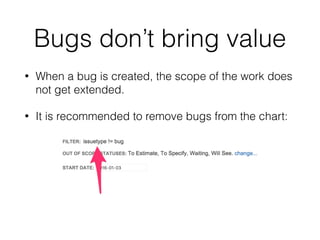
Bugs don’t bring value
• When a bug is created, the scope of the work does
not get extended.
• It is recommended to remove bugs from the chart:
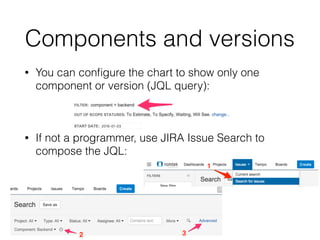
Components and versions
• You can configure the chart to show only one
component or version (JQL query):
• If not a programmer, use JIRA Issue Search to
compose the JQL:
whenever in doubt
burndown@nomtek.com
Thank You!

Burndown Chart How-to

  • 1.
    Burndown Chart How-to Quick guideto the JIRA add-on https://marketplace.atlassian.com/plugins/com.nomtek.BurndownChart
  • 2.
    Goals • Flexible iterationmanagement • Pace of work monitoring • Finish date prediction • Early learning of failure causes to fix them
  • 3.
    Setup Step 1/1 Definethe scope • Create JIRA Issues for all work items within the monitored scope. • Set Original Estimate for every Issue within the scope, example:
  • 4.
    Original Estimates • Updateonly while adding the Issue to the scope or when the scope of the Issue changes. • Affects the vertical dotted Scope change line:
  • 5.
    Remaining Estimates • Updateevery day as the work progresses. • The chart shows the sum of Remaining Estimates of all Issues in the scope, for every day.
  • 6.
    Iterations Howto (1/2) •Use JIRA statuses to differentiate Issues that are not a part of the current iteration (scope) and will not be displayed: • To start new iteration, move new issues into the scope by changing their status • Example: Waiting -> ToDo.
  • 7.
  • 8.
    What’s done onthat day? • Hover over the Remaining Work line to get a status and progress information for a specific day.
  • 9.
    Bugs don’t bringvalue • When a bug is created, the scope of the work does not get extended. • It is recommended to remove bugs from the chart:
  • 10.
    Components and versions •You can configure the chart to show only one component or version (JQL query): • If not a programmer, use JIRA Issue Search to compose the JQL:
  • 11.