Basic Microsoft Word We will learn about: inserting & formatting  pictures
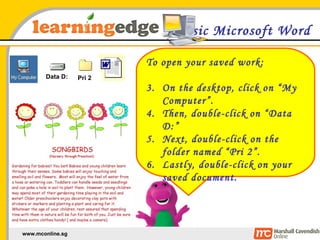
Basic Microsoft Word To open your saved work: On the desktop, click on “My Computer”. Then, double-click on “Data D:” Next, double-click on the folder named “Pri 2”. Lastly, double-click on your saved document. Data D: Pri 2
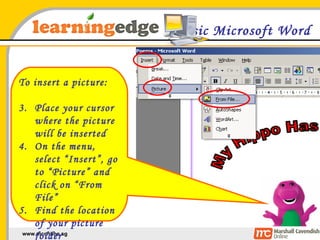
Basic Microsoft Word To insert a picture: Place your cursor where the picture will be inserted On the menu, select “Insert”, go to “Picture” and click on “From File” Find the location of your picture folder
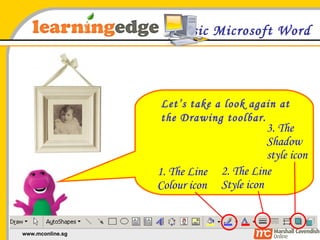
Basic Microsoft Word Let’s take a look again at the Drawing toolbar.  3. The Shadow style icon 1. The Line Colour icon 2. The Line Style icon
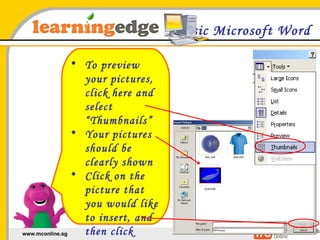
Basic Microsoft Word To preview your pictures, click here and select “Thumbnails” Your pictures should be clearly shown Click on the picture that you would like to insert, and then click “Insert”
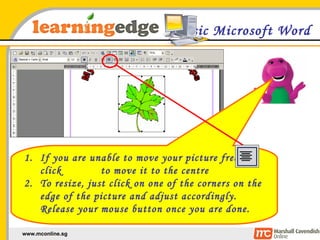
Basic Microsoft Word If you are unable to move your picture freely, click  to move it to the centre To resize, just click on one of the corners on the edge of the picture and adjust accordingly. Release your mouse button once you are done.
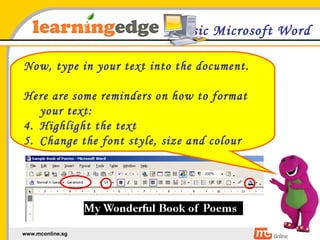
Basic Microsoft Word Now, type in your text into the document. Here are some reminders on how to format your text: Highlight the text Change the font style, size and colour

BasicWord03

  • 1.
    Basic Microsoft WordWe will learn about: inserting & formatting pictures
  • 2.
    Basic Microsoft WordTo open your saved work: On the desktop, click on “My Computer”. Then, double-click on “Data D:” Next, double-click on the folder named “Pri 2”. Lastly, double-click on your saved document. Data D: Pri 2
  • 3.
    Basic Microsoft WordTo insert a picture: Place your cursor where the picture will be inserted On the menu, select “Insert”, go to “Picture” and click on “From File” Find the location of your picture folder
  • 4.
    Basic Microsoft WordLet’s take a look again at the Drawing toolbar. 3. The Shadow style icon 1. The Line Colour icon 2. The Line Style icon
  • 5.
    Basic Microsoft WordTo preview your pictures, click here and select “Thumbnails” Your pictures should be clearly shown Click on the picture that you would like to insert, and then click “Insert”
  • 6.
    Basic Microsoft WordIf you are unable to move your picture freely, click to move it to the centre To resize, just click on one of the corners on the edge of the picture and adjust accordingly. Release your mouse button once you are done.
  • 7.
    Basic Microsoft WordNow, type in your text into the document. Here are some reminders on how to format your text: Highlight the text Change the font style, size and colour