
Chapter 5 5 
Computing Components
Basic Concepts of Computer 
Hardware 
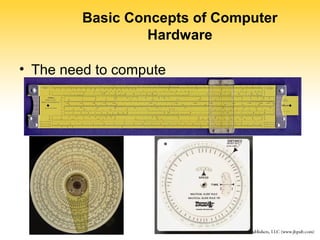
• The need to compute
Basic Concepts of Computer 
Hardware 
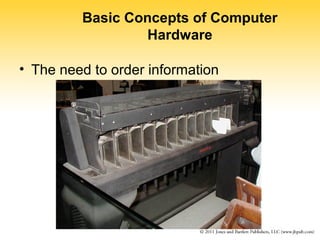
• The need to order information
Basic Concepts of Computer 
Hardware 
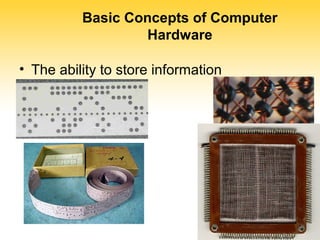
• The ability to store information
Basic Concepts of Computer 
Hardware 
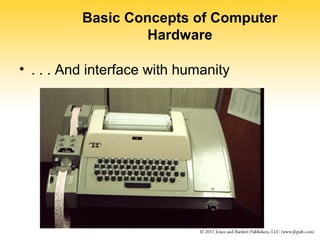
• . . . And interface with humanity
Basic Concepts of Computer 
Hardware 
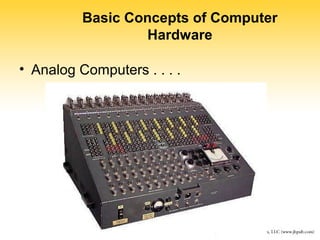
• Analog Computers . . . .
Basic Concepts of Computer 
Hardware 
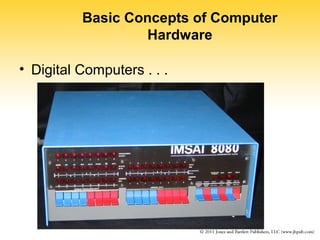
• Digital Computers . . .
Basic Concepts of Computer 
Hardware 
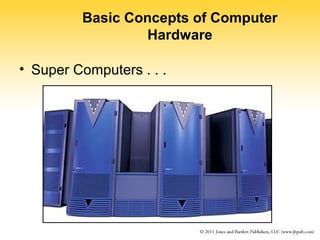
• Super Computers . . .
9 
Computer Components 
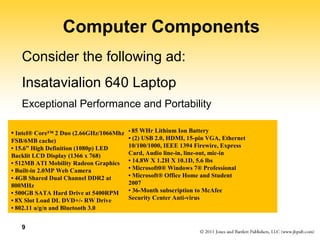
Consider the following ad: 
Insatavialion 640 Laptop 
Exceptional Performance and Portability 
• Intel® Core™ 2 Duo (2.66GHz/1066Mhz 
FSB/6MB cache) 
• 15.6” High Definition (1080p) LED 
Backlit LCD Display (1366 x 768) 
• 512MB ATI Mobility Radeon Graphics 
• Built-in 2.0MP Web Camera 
• 4GB Shared Dual Channel DDR2 at 
800MHz 
• 500GB SATA Hard Drive at 5400RPM 
• 8X Slot Load DL DVD+/- RW Drive 
• 802.11 a/g/n and Bluetooth 3.0 
• 85 WHr Lithium Ion Battery 
• (2) USB 2.0, HDMI, 15-pin VGA, Ethernet 
10/100/1000, IEEE 1394 Firewire, Express 
Card, Audio line-in, line-out, mic-in 
• 14.8W X 1.2H X 10.1D, 5.6 lbs 
• Microsoft0® Windows 7® Professional 
• Microsoft® Office Home and Student 
2007 
• 36-Month subscription to McAfee 
Security Center Anti-virus
10 
Computer Components 
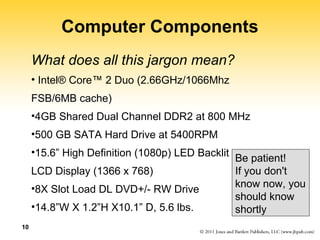
What does all this jargon mean? 
• Intel® Core™ 2 Duo (2.66GHz/1066Mhz 
FSB/6MB cache) 
•4GB Shared Dual Channel DDR2 at 800 MHz 
•500 GB SATA Hard Drive at 5400RPM 
•15.6” High Definition (1080p) LED Backlit 
LCD Display (1366 x 768) 
•8X Slot Load DL DVD+/- RW Drive 
•14.8”W X 1.2”H X10.1” D, 5.6 lbs. 
Be patient! 
If you don't 
know now, you 
should know 
shortly
Computer Components, 
cont… 
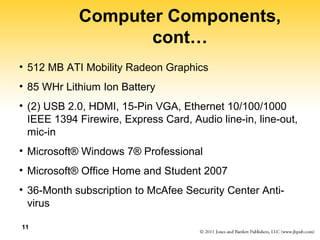
• 512 MB ATI Mobility Radeon Graphics 
• 85 WHr Lithium Ion Battery 
• (2) USB 2.0, HDMI, 15-Pin VGA, Ethernet 10/100/1000 
IEEE 1394 Firewire, Express Card, Audio line-in, line-out, 
mic-in 
• Microsoft® Windows 7® Professional 
• Microsoft® Office Home and Student 2007 
• 36-Month subscription to McAfee Security Center Anti-virus 
11
12 
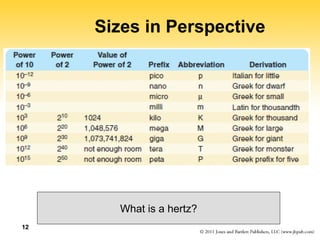
Sizes in Perspective 
What is a hertz?
13 
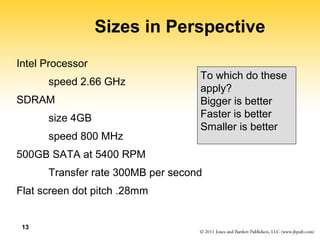
Sizes in Perspective 
Intel Processor 
speed 2.66 GHz 
SDRAM 
size 4GB 
speed 800 MHz 
500GB SATA at 5400 RPM 
Transfer rate 300MB per second 
Flat screen dot pitch .28mm 
To which do these 
apply? 
Bigger is better 
Faster is better 
Smaller is better
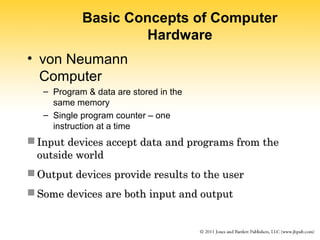
Basic Concepts of Computer 
Hardware 
• von Neumann 
Computer 
– Program & data are stored in the 
same memory 
– Single program counter – one 
instruction at a time 
 Input devices accept data aanndd pprrooggrraammss ffrroomm tthhee 
oouuttssiiddee wwoorrlldd 
OOuuttppuutt ddeevviicceess pprroovviiddee rreessuullttss ttoo tthhee uusseerr 
SSoommee ddeevviicceess aarree bbootthh iinnppuutt aanndd oouuttppuutt
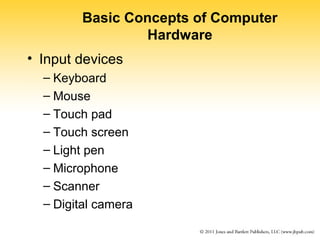
Basic Concepts of Computer 
Hardware 
• Input devices 
– Keyboard 
– Mouse 
– Touch pad 
– Touch screen 
– Light pen 
– Microphone 
– Scanner 
– Digital camera
Basic Concepts of Computer 
Hardware 
• Output devices 
– Display Monitor 
– Hard drive 
– Speakers 
– Optical Disk 
– Printers
Basic Concepts of Computer 
Hardware 
• Dual Mode (input & output) 
– Touch screen display 
– Hard drive 
– Optical Disk 
– Network card 
– Modem 
– Zip / Jazz drive
18 
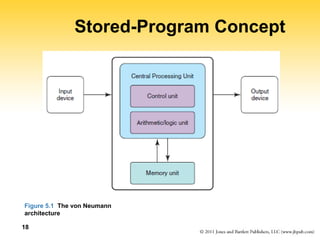
Stored-Program Concept 
Figure 5.1 The von Neumann 
architecture
Memory 
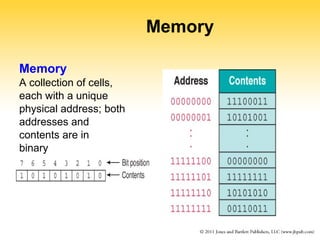
Memory 
A collection of cells, 
each with a unique 
physical address; both 
addresses and 
contents are in 
binary
20 
Arithmetic/Logic Unit 
Performs basic arithmetic operations such 
as adding 
Performs logical operations such as AND, 
OR, and NOT 
Most modern ALUs have a small amount of 
special storage units called registers
21 
Input/Output Units 
Input Unit 
A device through which data and programs from 
the outside world are entered into the computer; 
Can you name three? 
Output unit 
A device through which results stored in the 
computer memory are made available to the 
outside world 
Can you name two?
Connecting Devices 
• Direct interface to motherboard 
– Usually a “card” (NIC, Modem, Special Function) 
– Usually require special software (driver) 
• Connect via a “port” 
– Port is a pathway for data to go in & out of the 
computer from external devices 
– External devices are usually referred to as a 
“peripheral” 
– Different types of ports have different 
characteristics
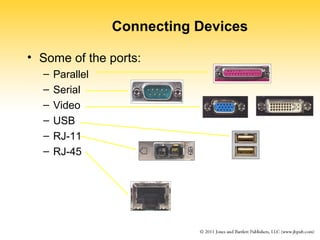
Connecting Devices 
• Some of the ports: 
– Parallel 
– Serial 
– Video 
– USB 
– RJ-11 
– RJ-45
Connecting Devices 
• Properties of ports 
– Serial vs Parallel 
– Daisy chain devices (USB or SCSI) 
– Speed (10M / 100M / 1G) 
– Buffer requirements / capacity
25 
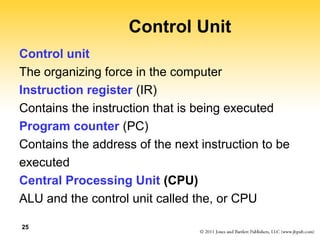
Control Unit 
Control unit 
The organizing force in the computer 
Instruction register (IR) 
Contains the instruction that is being executed 
Program counter (PC) 
Contains the address of the next instruction to be 
executed 
Central Processing Unit (CPU) 
ALU and the control unit called the, or CPU
26 
Flow of Information 
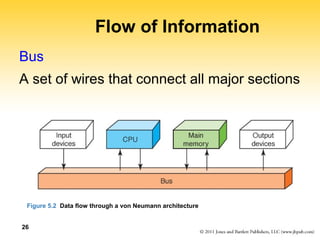
Bus 
A set of wires that connect all major sections 
Figure 5.2 Data flow through a von Neumann architecture
27 
The Fetch-Execute Cycle 
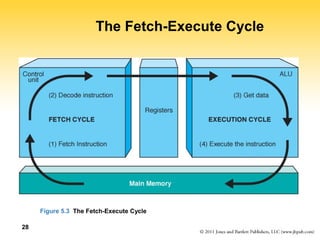
Fetch the next instruction 
Decode the instruction 
Get data if needed 
Execute the instruction 
Why is it called a cycle?
28 
The Fetch-Execute Cycle 
Figure 5.3 The Fetch-Execute Cycle
The Central Processing Unit 
• Multiple components within the CPU 
• ALU : does arithmetic and logic 
• Control : manages all components 
• Registers : used to manipulate data 
• Instruction Decode : figures out what the instruction does 
• Program Counter : keeps track of next instruction 
• Accumulator : special register for arithmetic 
• Buses : interconnect components
Moving information within the computer 
• Data bus – used to move data between components 
• Address Bus – used to specify memory location 
• Control Bus – used to synchronize / regulate components 
• Data is moved around in bytes 
• Data moves either serially or in parallel 
– Serial data is sent one bit at a time ins sequence 
– Parallel data is sent eight or more bits at a time 
• Maximum size depends on width of the bus 
• Pentium has a 32bit data bus 
• The type of component determines the need for serial or parallel 
– Keyboard & mouse are serial 
– Hard drive, CDrom, & Printer are parallel 
– Everything in CPU is parallel
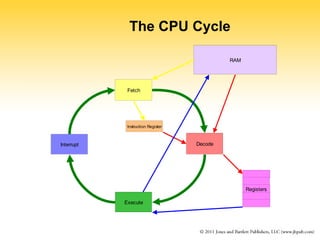
The CPU Cycle 
Fetch 
Decode 
Execute 
Interrupt 
RAM 
Instruction Register 
Registers
The CPU Cycle 
• Fetch instructions from memory 
• Decode instructions and fetch operands 
• Execute the decoded instruction 
• Service device interrupts 
• Repeat cycle 
• Cycle runs at the approximate clock speed of the 
CPU (more or less)
Storing Data & Information 
• Three different types of storage: 
– Primary memory (RAM) 
– Secondary storage (Hard drive) 
– Tertiary storage (removable material ie CD) 
• All storage has characteristics (properties) 
– Size 
– Speed 
– Access method 
– Volatility
Storing Data & Information 
• Primary Storage usually called RAM 
– Random access memory 
– Electronic (no moving parts) 
– Fastest type of storage 
• Access time in the nanosecond range 
– Direct access (can go directly to any location) 
– Volatile form of storage 
– Most expensive of the three types 
– Special types of memory 
• ROM (read only memory) 
• Cache (high speed memory) 
• PROM (programmable read only memory)
Storing Data & Information 
• Secondary Storage usually hard drive 
– Supports direct access at block / file level 
– Electronic & mechanical ( moving parts) 
– Slower than RAM due to mechanical 
aspects 
• Access time in the millisecond range 
– Nonvolatile form of storage 
– Much less expensive than RAM 
– Usually significantly larger than RAM
Storing Data & Information 
• Tertiary Storage usually removable 
– More often than not it is sequential 
– Electronic & mechanical ( moving parts) 
– Slower than hard drive due to mechanical 
aspects and removable media 
– Nonvolatile form of storage 
– Cheapest form of storage 
– Used for archival storage, not frequently 
referenced, or extremely large data sets 
• Good for backup purposes
Storing Data & Information 
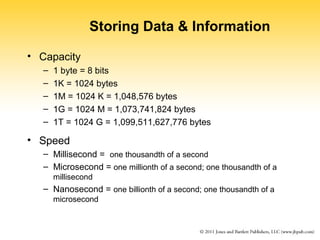
• Capacity 
– 1 byte = 8 bits 
– 1K = 1024 bytes 
– 1M = 1024 K = 1,048,576 bytes 
– 1G = 1024 M = 1,073,741,824 bytes 
– 1T = 1024 G = 1,099,511,627,776 bytes 
• Speed 
– Millisecond = one thousandth of a second 
– Microsecond = one millionth of a second; one thousandth of a 
millisecond 
– Nanosecond = one billionth of a second; one thousandth of a 
microsecond
Storing Data & Information 
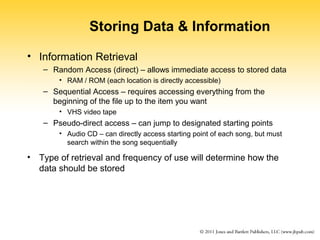
• Information Retrieval 
– Random Access (direct) – allows immediate access to stored data 
• RAM / ROM (each location is directly accessible) 
– Sequential Access – requires accessing everything from the 
beginning of the file up to the item you want 
• VHS video tape 
– Pseudo-direct access – can jump to designated starting points 
• Audio CD – can directly access starting point of each song, but must 
search within the song sequentially 
• Type of retrieval and frequency of use will determine how the 
data should be stored
Storing Data & Information 
• Characteristics of different types of storage 
• RAM 
– Access time: access times ranging from 80ns to 50ns 
– Size: PCs today can range from 256M to 1G 
– Cost: depends on density 256M ~ $110 / 1G ~ $375 
• Hard drive 
– Access time: depends on speed – 7200rpm -- 8.9ms 
– Size: 160 G 
– Cost: $110 
• Removable Storage (Zip / Jazz) [250 M Zip] 
– Access time: depends on interface – 40ms seek / 1.4Mbps xfer 
– Size: Unlimited 
– Cost: $130 + cost of media (8 pack - $85)
40 
RAM and ROM 
Random Access Memory (RAM) 
Memory in which each location can be accessed 
and changed 
Read Only Memory (ROM) 
Memory in which each location can be accessed 
but not changed 
RAM is volatile, ROM is not 
What does volatile mean?
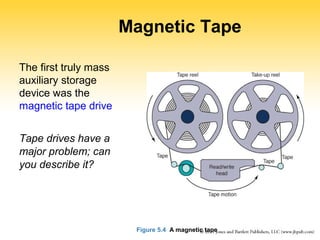
Magnetic Tape 
The first truly mass 
auxiliary storage 
device was the 
magnetic tape drive 
Tape drives have a 
major problem; can 
you describe it? 
Figure 5.4 A magnetic tape
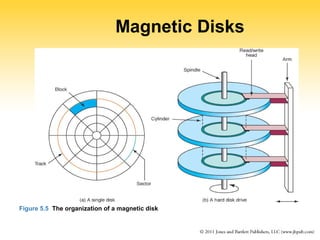
Magnetic Disks 
Figure 5.5 The organization of a magnetic disk
43 
Magnetic Disks 
History 
Floppy disks (Why "floppy"?) 
1970. 8" in diameter " 
late 1970, 5 1/2" 
now, 3 1/2" 
Zip drives 
Tracks near center are more densely packed 
Why?
44 
Magnetic Disks 
Seek time 
Time it takes for read/write head to be over 
right track 
Latency 
Time it takes for sector to be in position 
Access time 
Can you define it?
45 
Compact Disks 
CD 
A compact disk that uses a laser to read information stored 
optically on a plastic disk; data is evenly distributed around 
track 
CD-ROM read-only memory 
CD-DA digital audio 
CD-WORM write once, read many 
RW or RAM both read from and written to 
DVD 
Digital Versatile Disk, used for storing audio and video
46 
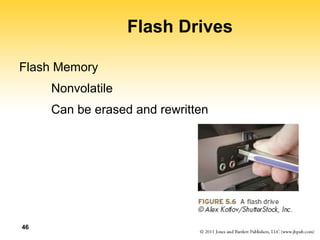
Flash Drives 
Flash Memory 
Nonvolatile 
Can be erased and rewritten
47 
Touch Screens 
Touch screen 
A computer monitor that can respond to the user 
touching the screen with a stylus or finger 
There are three types 
– Resistive 
– Capacitive 
– Infrared 
– Surface acoustic wave (SAW)
48 
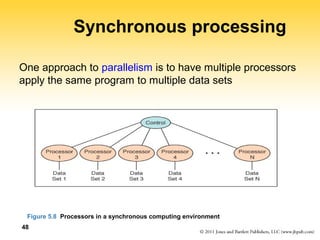
Synchronous processing 
One approach to parallelism is to have multiple processors 
apply the same program to multiple data sets 
Figure 5.8 Processors in a synchronous computing environment
49 
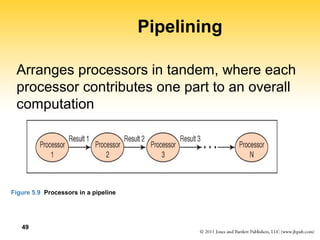
Pipelining 
Arranges processors in tandem, where each 
processor contributes one part to an overall 
computation 
Figure 5.9 Processors in a pipeline
50 
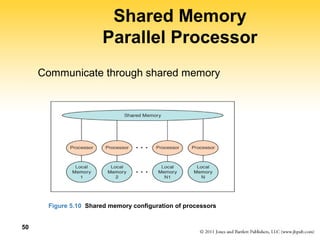
Shared Memory 
Parallel Processor 
Communicate through shared memory 
Figure 5.10 Shared memory configuration of processors
51 
Embedded Systems 
Embedded systems 
Computers that are dedicated to perform 
a narrow range of functions as part of a 
larger system 
Empty your pockets or backpacks. 
How many embedded systems do you 
have?

Basic hardware concept

  • 1.
    Chapter 5 5 Computing Components
  • 2.
    Basic Concepts ofComputer Hardware • The need to compute
  • 3.
    Basic Concepts ofComputer Hardware • The need to order information
  • 4.
    Basic Concepts ofComputer Hardware • The ability to store information
  • 5.
    Basic Concepts ofComputer Hardware • . . . And interface with humanity
  • 6.
    Basic Concepts ofComputer Hardware • Analog Computers . . . .
  • 7.
    Basic Concepts ofComputer Hardware • Digital Computers . . .
  • 8.
    Basic Concepts ofComputer Hardware • Super Computers . . .
  • 9.
    9 Computer Components Consider the following ad: Insatavialion 640 Laptop Exceptional Performance and Portability • Intel® Core™ 2 Duo (2.66GHz/1066Mhz FSB/6MB cache) • 15.6” High Definition (1080p) LED Backlit LCD Display (1366 x 768) • 512MB ATI Mobility Radeon Graphics • Built-in 2.0MP Web Camera • 4GB Shared Dual Channel DDR2 at 800MHz • 500GB SATA Hard Drive at 5400RPM • 8X Slot Load DL DVD+/- RW Drive • 802.11 a/g/n and Bluetooth 3.0 • 85 WHr Lithium Ion Battery • (2) USB 2.0, HDMI, 15-pin VGA, Ethernet 10/100/1000, IEEE 1394 Firewire, Express Card, Audio line-in, line-out, mic-in • 14.8W X 1.2H X 10.1D, 5.6 lbs • Microsoft0® Windows 7® Professional • Microsoft® Office Home and Student 2007 • 36-Month subscription to McAfee Security Center Anti-virus
  • 10.
    10 Computer Components What does all this jargon mean? • Intel® Core™ 2 Duo (2.66GHz/1066Mhz FSB/6MB cache) •4GB Shared Dual Channel DDR2 at 800 MHz •500 GB SATA Hard Drive at 5400RPM •15.6” High Definition (1080p) LED Backlit LCD Display (1366 x 768) •8X Slot Load DL DVD+/- RW Drive •14.8”W X 1.2”H X10.1” D, 5.6 lbs. Be patient! If you don't know now, you should know shortly
  • 11.
    Computer Components, cont… • 512 MB ATI Mobility Radeon Graphics • 85 WHr Lithium Ion Battery • (2) USB 2.0, HDMI, 15-Pin VGA, Ethernet 10/100/1000 IEEE 1394 Firewire, Express Card, Audio line-in, line-out, mic-in • Microsoft® Windows 7® Professional • Microsoft® Office Home and Student 2007 • 36-Month subscription to McAfee Security Center Anti-virus 11
  • 12.
    12 Sizes inPerspective What is a hertz?
  • 13.
    13 Sizes inPerspective Intel Processor speed 2.66 GHz SDRAM size 4GB speed 800 MHz 500GB SATA at 5400 RPM Transfer rate 300MB per second Flat screen dot pitch .28mm To which do these apply? Bigger is better Faster is better Smaller is better
  • 14.
    Basic Concepts ofComputer Hardware • von Neumann Computer – Program & data are stored in the same memory – Single program counter – one instruction at a time  Input devices accept data aanndd pprrooggrraammss ffrroomm tthhee oouuttssiiddee wwoorrlldd OOuuttppuutt ddeevviicceess pprroovviiddee rreessuullttss ttoo tthhee uusseerr SSoommee ddeevviicceess aarree bbootthh iinnppuutt aanndd oouuttppuutt
  • 15.
    Basic Concepts ofComputer Hardware • Input devices – Keyboard – Mouse – Touch pad – Touch screen – Light pen – Microphone – Scanner – Digital camera
  • 16.
    Basic Concepts ofComputer Hardware • Output devices – Display Monitor – Hard drive – Speakers – Optical Disk – Printers
  • 17.
    Basic Concepts ofComputer Hardware • Dual Mode (input & output) – Touch screen display – Hard drive – Optical Disk – Network card – Modem – Zip / Jazz drive
  • 18.
    18 Stored-Program Concept Figure 5.1 The von Neumann architecture
  • 19.
    Memory Memory Acollection of cells, each with a unique physical address; both addresses and contents are in binary
  • 20.
    20 Arithmetic/Logic Unit Performs basic arithmetic operations such as adding Performs logical operations such as AND, OR, and NOT Most modern ALUs have a small amount of special storage units called registers
  • 21.
    21 Input/Output Units Input Unit A device through which data and programs from the outside world are entered into the computer; Can you name three? Output unit A device through which results stored in the computer memory are made available to the outside world Can you name two?
  • 22.
    Connecting Devices •Direct interface to motherboard – Usually a “card” (NIC, Modem, Special Function) – Usually require special software (driver) • Connect via a “port” – Port is a pathway for data to go in & out of the computer from external devices – External devices are usually referred to as a “peripheral” – Different types of ports have different characteristics
  • 23.
    Connecting Devices •Some of the ports: – Parallel – Serial – Video – USB – RJ-11 – RJ-45
  • 24.
    Connecting Devices •Properties of ports – Serial vs Parallel – Daisy chain devices (USB or SCSI) – Speed (10M / 100M / 1G) – Buffer requirements / capacity
  • 25.
    25 Control Unit Control unit The organizing force in the computer Instruction register (IR) Contains the instruction that is being executed Program counter (PC) Contains the address of the next instruction to be executed Central Processing Unit (CPU) ALU and the control unit called the, or CPU
  • 26.
    26 Flow ofInformation Bus A set of wires that connect all major sections Figure 5.2 Data flow through a von Neumann architecture
  • 27.
    27 The Fetch-ExecuteCycle Fetch the next instruction Decode the instruction Get data if needed Execute the instruction Why is it called a cycle?
  • 28.
    28 The Fetch-ExecuteCycle Figure 5.3 The Fetch-Execute Cycle
  • 29.
    The Central ProcessingUnit • Multiple components within the CPU • ALU : does arithmetic and logic • Control : manages all components • Registers : used to manipulate data • Instruction Decode : figures out what the instruction does • Program Counter : keeps track of next instruction • Accumulator : special register for arithmetic • Buses : interconnect components
  • 30.
    Moving information withinthe computer • Data bus – used to move data between components • Address Bus – used to specify memory location • Control Bus – used to synchronize / regulate components • Data is moved around in bytes • Data moves either serially or in parallel – Serial data is sent one bit at a time ins sequence – Parallel data is sent eight or more bits at a time • Maximum size depends on width of the bus • Pentium has a 32bit data bus • The type of component determines the need for serial or parallel – Keyboard & mouse are serial – Hard drive, CDrom, & Printer are parallel – Everything in CPU is parallel
  • 31.
    The CPU Cycle Fetch Decode Execute Interrupt RAM Instruction Register Registers
  • 32.
    The CPU Cycle • Fetch instructions from memory • Decode instructions and fetch operands • Execute the decoded instruction • Service device interrupts • Repeat cycle • Cycle runs at the approximate clock speed of the CPU (more or less)
  • 33.
    Storing Data &Information • Three different types of storage: – Primary memory (RAM) – Secondary storage (Hard drive) – Tertiary storage (removable material ie CD) • All storage has characteristics (properties) – Size – Speed – Access method – Volatility
  • 34.
    Storing Data &Information • Primary Storage usually called RAM – Random access memory – Electronic (no moving parts) – Fastest type of storage • Access time in the nanosecond range – Direct access (can go directly to any location) – Volatile form of storage – Most expensive of the three types – Special types of memory • ROM (read only memory) • Cache (high speed memory) • PROM (programmable read only memory)
  • 35.
    Storing Data &Information • Secondary Storage usually hard drive – Supports direct access at block / file level – Electronic & mechanical ( moving parts) – Slower than RAM due to mechanical aspects • Access time in the millisecond range – Nonvolatile form of storage – Much less expensive than RAM – Usually significantly larger than RAM
  • 36.
    Storing Data &Information • Tertiary Storage usually removable – More often than not it is sequential – Electronic & mechanical ( moving parts) – Slower than hard drive due to mechanical aspects and removable media – Nonvolatile form of storage – Cheapest form of storage – Used for archival storage, not frequently referenced, or extremely large data sets • Good for backup purposes
  • 37.
    Storing Data &Information • Capacity – 1 byte = 8 bits – 1K = 1024 bytes – 1M = 1024 K = 1,048,576 bytes – 1G = 1024 M = 1,073,741,824 bytes – 1T = 1024 G = 1,099,511,627,776 bytes • Speed – Millisecond = one thousandth of a second – Microsecond = one millionth of a second; one thousandth of a millisecond – Nanosecond = one billionth of a second; one thousandth of a microsecond
  • 38.
    Storing Data &Information • Information Retrieval – Random Access (direct) – allows immediate access to stored data • RAM / ROM (each location is directly accessible) – Sequential Access – requires accessing everything from the beginning of the file up to the item you want • VHS video tape – Pseudo-direct access – can jump to designated starting points • Audio CD – can directly access starting point of each song, but must search within the song sequentially • Type of retrieval and frequency of use will determine how the data should be stored
  • 39.
    Storing Data &Information • Characteristics of different types of storage • RAM – Access time: access times ranging from 80ns to 50ns – Size: PCs today can range from 256M to 1G – Cost: depends on density 256M ~ $110 / 1G ~ $375 • Hard drive – Access time: depends on speed – 7200rpm -- 8.9ms – Size: 160 G – Cost: $110 • Removable Storage (Zip / Jazz) [250 M Zip] – Access time: depends on interface – 40ms seek / 1.4Mbps xfer – Size: Unlimited – Cost: $130 + cost of media (8 pack - $85)
  • 40.
    40 RAM andROM Random Access Memory (RAM) Memory in which each location can be accessed and changed Read Only Memory (ROM) Memory in which each location can be accessed but not changed RAM is volatile, ROM is not What does volatile mean?
  • 41.
    Magnetic Tape Thefirst truly mass auxiliary storage device was the magnetic tape drive Tape drives have a major problem; can you describe it? Figure 5.4 A magnetic tape
  • 42.
    Magnetic Disks Figure5.5 The organization of a magnetic disk
  • 43.
    43 Magnetic Disks History Floppy disks (Why "floppy"?) 1970. 8" in diameter " late 1970, 5 1/2" now, 3 1/2" Zip drives Tracks near center are more densely packed Why?
  • 44.
    44 Magnetic Disks Seek time Time it takes for read/write head to be over right track Latency Time it takes for sector to be in position Access time Can you define it?
  • 45.
    45 Compact Disks CD A compact disk that uses a laser to read information stored optically on a plastic disk; data is evenly distributed around track CD-ROM read-only memory CD-DA digital audio CD-WORM write once, read many RW or RAM both read from and written to DVD Digital Versatile Disk, used for storing audio and video
  • 46.
    46 Flash Drives Flash Memory Nonvolatile Can be erased and rewritten
  • 47.
    47 Touch Screens Touch screen A computer monitor that can respond to the user touching the screen with a stylus or finger There are three types – Resistive – Capacitive – Infrared – Surface acoustic wave (SAW)
  • 48.
    48 Synchronous processing One approach to parallelism is to have multiple processors apply the same program to multiple data sets Figure 5.8 Processors in a synchronous computing environment
  • 49.
    49 Pipelining Arrangesprocessors in tandem, where each processor contributes one part to an overall computation Figure 5.9 Processors in a pipeline
  • 50.
    50 Shared Memory Parallel Processor Communicate through shared memory Figure 5.10 Shared memory configuration of processors
  • 51.
    51 Embedded Systems Embedded systems Computers that are dedicated to perform a narrow range of functions as part of a larger system Empty your pockets or backpacks. How many embedded systems do you have?