By: Mudit K. J., Harpreet, Perry, Karan
 CPU   stands for Central Processing Unit

 Central Processing Unit is like the brain of
 the Computer
 The CPU is one of the main portions of the
  computer, that carries out instructions to the
  computer program
 CPU performs arithmetical, logical and
  input/output operations
 The designs of the CPU may have changed, but
  they all perform the same operations
 The First CPU was made in the 1940s and was ran
  with the first computer the EDVAC (Electronic
  Discrete Variable Automatic Computer).
 The EDVAC was one of the first functional
  Electronic Computers
 The   CPU will have

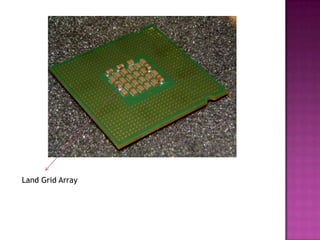
LGA – Land Grid Array
    - Used to connect to Sockets
     - The sockets will have a model number
  that is used for that certain processor
775 socket is used in the Pentium 4 processor
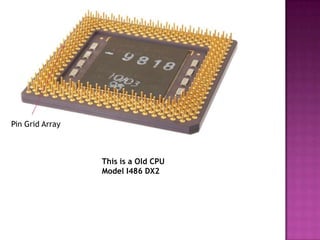
 PGA– Pin Grid Array
     - Was used in previous models of the
 processor
Pin Grid Array


                 This is a Old CPU
                 Model I486 DX2
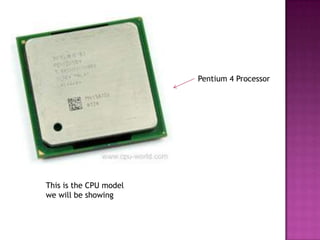
Pentium 4 Processor


This is the CPU model
we will be showing
Land Grid Array
 Unplug  all electrical connections
 This includes the electrical power to the
  motherboard processor and the fan cable
 Put in the Anti-Static Wrist Strap to a non-
  painted area/metal
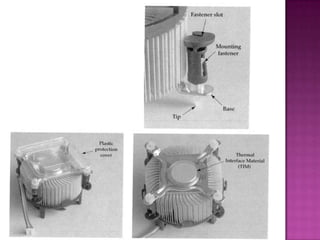
 There  are four fasteners connected from the
  cooling assembly to the motherboard
 Gently rotate 90 degrees to the direction
  indicated on top of the fastener
 Never do a counter-clockwise rotation
 When a fastener is released, alignment line
  on top will be parallel to the cooling
  assembly
 You will need to use a flat-tip screwdriver to
  rotate the fastener caps
 Do not let the screwdriver tip slip off the
  fasteners
 Pull the fasteners gently upward, but you
  should here a snap from each fastener on the
  motherboard
 Place the plastic protection covers over the
  bottom of the cooling assembly to protect
  the fastener tips
 Disengage locking lever tab while holding the
  load plate in position
 Slowly release load plate while you move the
  load lever into full open position
 Remove   Processor using a straight up vertical
  direction
 Do not tilt or slide the processor
 Close the processor load plate, lock the lever
  and replace socket protective cover
 Excess Thermal material can be removed
  with a soft lint-free cloth
 Core  Processor
 Heat Sink Fan Assembly
 Compressed Air to remove debris or Foreign
 objects
Anti – Static Wrist Strap
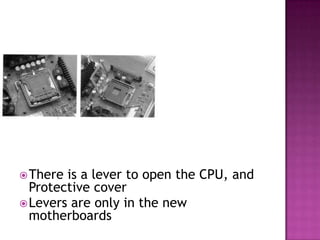
 Lookat the pictures
 What Do you see


 There is a lever to open the CPU, and
  Protective cover
 Levers are only in the new
  motherboards
 UseCompressed Air to remove Debris or
 foreign objects

 Never use your finger, cloth or brush to
  remove debris
 This damages the pins
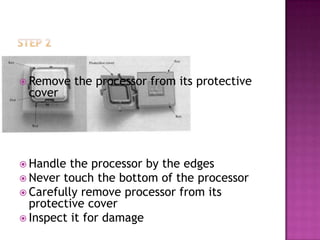
 Remove   the processor from its protective
 cover


 Handle  the processor by the edges
 Never touch the bottom of the processor
 Carefully remove processor from its
  protective cover
 Inspect it for damage
There is one way for a processor to be inserted
 back into its socket

A processor has many pins, but there is only
  ONE pin

This pin is known as Pin #1, this is where you
 put the processor in its place
 Placethe processor over the socket
 keys, look for a socket that is different to
 other sockets

 DoNOT drag the processor across or place it
 the wrong way

 This   Pin must correspond to the socket
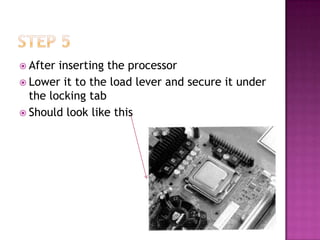
 After inserting the processor
 Lower it to the load lever and secure it under
  the locking tab
 Should look like this
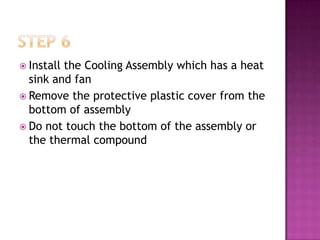
 Installthe Cooling Assembly which has a heat
  sink and fan
 Remove the protective plastic cover from the
  bottom of assembly
 Do not touch the bottom of the assembly or
  the thermal compound
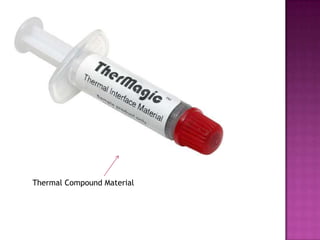
Thermal Compound Material
 Before  installing the cooling assembly that
  has a heat sink and fan
 Apply the thermal compound material on the
  processor
 Put enough compound material so that it is
  evenly distributed
 Use a material like a old card, etc to evenly
  distribute it
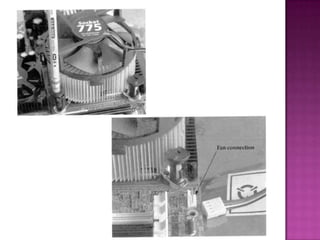
 Position the fan over the processor
 The motherboard should have four holes
  around the processor
 The holes are for the cooling assembly to be
  placed
 The cooling assembly will have 4 fasteners
 Use a pencil’s end (eraser) to push down the
  fastener
 Connect a fan electrical cable to the
  motherboard fan connection
 http://www.youtube.com/watch?v=Y2gi0GTz
 fTA
 Visit
computerpartcpu.wikispaces.com

Website has more Tutorials on removal and
 installation of CPUs on other versions of the
 computer hardware models
Computer Manuals Pgs 205 to 218

Tutorial videos mostly from Youtube

Cpu presentation

  • 1.
    By: Mudit K.J., Harpreet, Perry, Karan
  • 2.
     CPU stands for Central Processing Unit Central Processing Unit is like the brain of the Computer
  • 3.
     The CPUis one of the main portions of the computer, that carries out instructions to the computer program  CPU performs arithmetical, logical and input/output operations  The designs of the CPU may have changed, but they all perform the same operations  The First CPU was made in the 1940s and was ran with the first computer the EDVAC (Electronic Discrete Variable Automatic Computer).  The EDVAC was one of the first functional Electronic Computers
  • 4.
     The CPU will have LGA – Land Grid Array - Used to connect to Sockets - The sockets will have a model number that is used for that certain processor 775 socket is used in the Pentium 4 processor
  • 5.
     PGA– PinGrid Array - Was used in previous models of the processor
  • 7.
    Pin Grid Array This is a Old CPU Model I486 DX2
  • 8.
    Pentium 4 Processor Thisis the CPU model we will be showing
  • 9.
  • 11.
     Unplug all electrical connections  This includes the electrical power to the motherboard processor and the fan cable  Put in the Anti-Static Wrist Strap to a non- painted area/metal
  • 12.
     There are four fasteners connected from the cooling assembly to the motherboard  Gently rotate 90 degrees to the direction indicated on top of the fastener  Never do a counter-clockwise rotation  When a fastener is released, alignment line on top will be parallel to the cooling assembly  You will need to use a flat-tip screwdriver to rotate the fastener caps  Do not let the screwdriver tip slip off the fasteners
  • 13.
     Pull thefasteners gently upward, but you should here a snap from each fastener on the motherboard  Place the plastic protection covers over the bottom of the cooling assembly to protect the fastener tips  Disengage locking lever tab while holding the load plate in position  Slowly release load plate while you move the load lever into full open position
  • 14.
     Remove Processor using a straight up vertical direction  Do not tilt or slide the processor  Close the processor load plate, lock the lever and replace socket protective cover  Excess Thermal material can be removed with a soft lint-free cloth
  • 16.
     Core Processor  Heat Sink Fan Assembly  Compressed Air to remove debris or Foreign objects Anti – Static Wrist Strap
  • 17.
     Lookat thepictures  What Do you see  There is a lever to open the CPU, and Protective cover  Levers are only in the new motherboards
  • 18.
     UseCompressed Airto remove Debris or foreign objects  Never use your finger, cloth or brush to remove debris  This damages the pins
  • 19.
     Remove the processor from its protective cover  Handle the processor by the edges  Never touch the bottom of the processor  Carefully remove processor from its protective cover  Inspect it for damage
  • 20.
    There is oneway for a processor to be inserted back into its socket A processor has many pins, but there is only ONE pin This pin is known as Pin #1, this is where you put the processor in its place
  • 21.
     Placethe processorover the socket keys, look for a socket that is different to other sockets  DoNOT drag the processor across or place it the wrong way  This Pin must correspond to the socket
  • 22.
     After insertingthe processor  Lower it to the load lever and secure it under the locking tab  Should look like this
  • 23.
     Installthe CoolingAssembly which has a heat sink and fan  Remove the protective plastic cover from the bottom of assembly  Do not touch the bottom of the assembly or the thermal compound
  • 24.
  • 25.
     Before installing the cooling assembly that has a heat sink and fan  Apply the thermal compound material on the processor  Put enough compound material so that it is evenly distributed  Use a material like a old card, etc to evenly distribute it
  • 26.
     Position thefan over the processor  The motherboard should have four holes around the processor  The holes are for the cooling assembly to be placed  The cooling assembly will have 4 fasteners  Use a pencil’s end (eraser) to push down the fastener  Connect a fan electrical cable to the motherboard fan connection
  • 29.
  • 30.
     Visit computerpartcpu.wikispaces.com Website hasmore Tutorials on removal and installation of CPUs on other versions of the computer hardware models
  • 31.
    Computer Manuals Pgs205 to 218 Tutorial videos mostly from Youtube