Argus Safety
Aggregate Reporting – Awareness
1Katalyst Healthcares & Life Sciences 01-02-2017
Reports
Argus Safety has powerful system reporting capabilities that enable you to
monitor product safety profiles, case progress, and company productivity
during the case handling process.
There are several different kinds of reports available in Argus. In this
section, we will review:
• Aggregate Reports
• Periodic Reports
2Katalyst Healthcares & Life Sciences 01-02-2017
Aggregate Reports: Topics
• Working in the Library
• Running Case Data Analysis Reports
• Running CIOMS II Line Listings
• Working with Case Listings
3Katalyst Healthcares & Life Sciences 01-02-2017
Aggregate Reporting
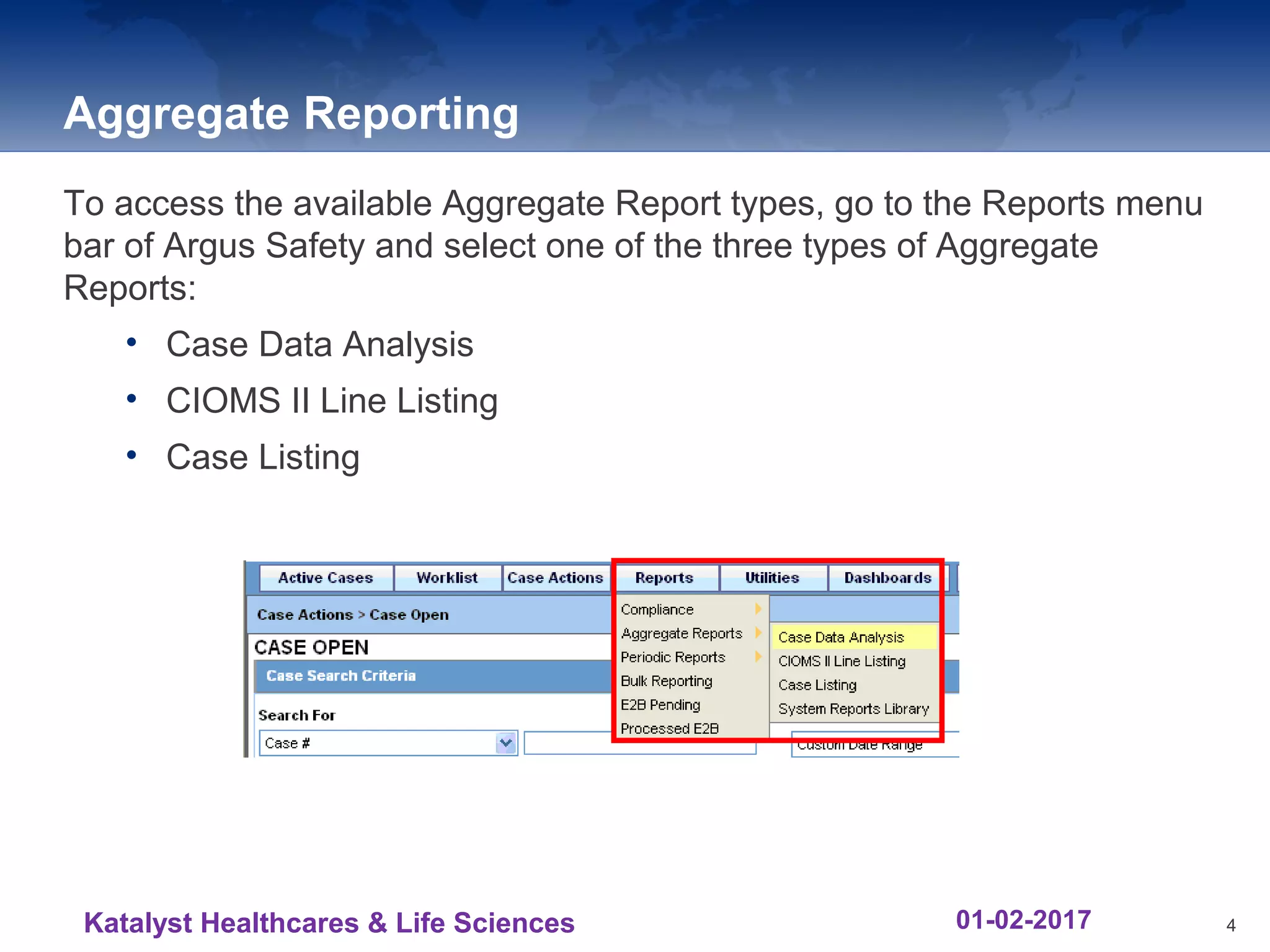
To access the available Aggregate Report types, go to the Reports menu
bar of Argus Safety and select one of the three types of Aggregate
Reports:
• Case Data Analysis
• CIOMS II Line Listing
• Case Listing
4Katalyst Healthcares & Life Sciences 01-02-2017
System Reports Library
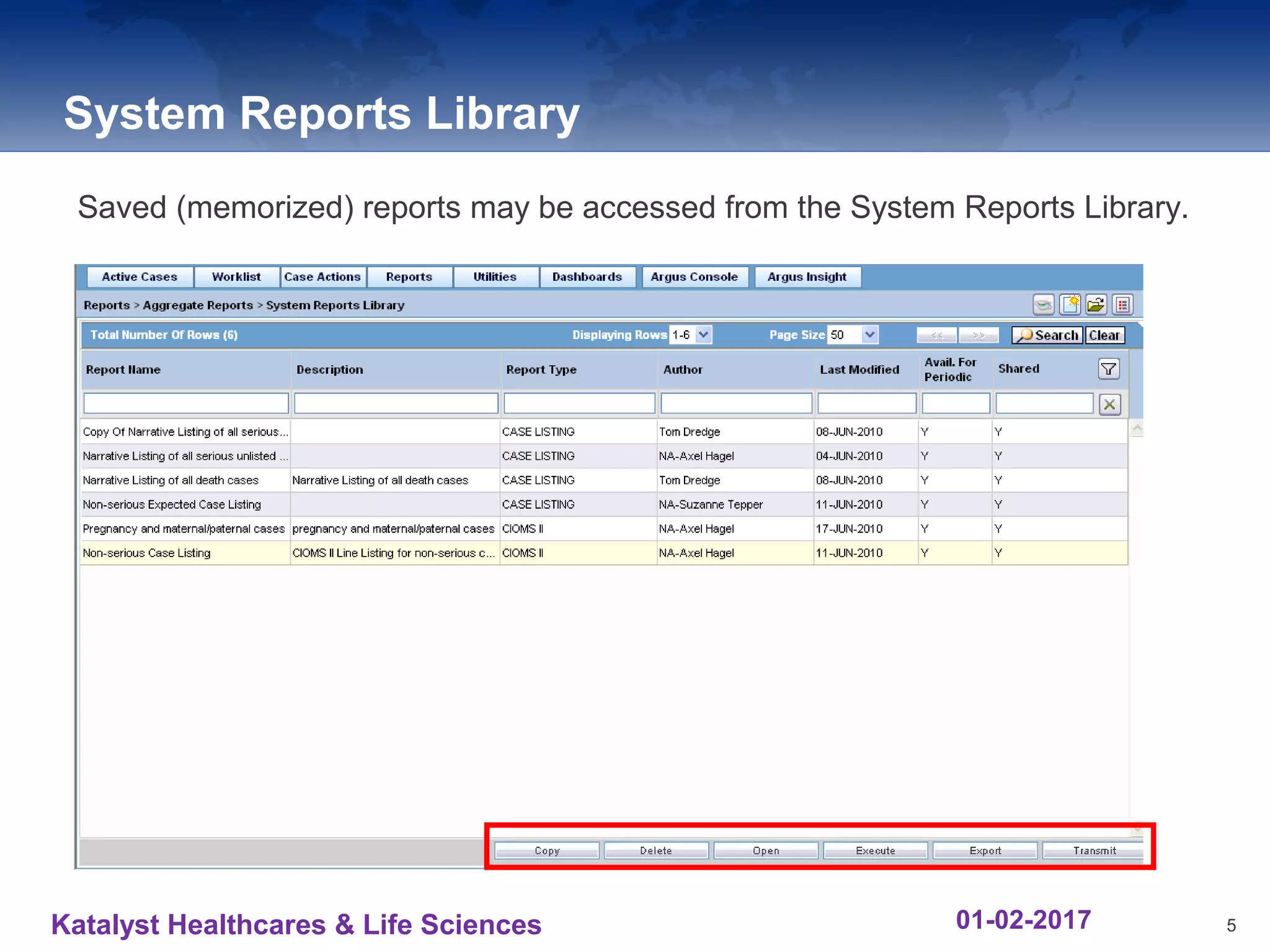
Saved (memorized) reports may be accessed from the System Reports Library.
5Katalyst Healthcares & Life Sciences 01-02-2017
Case Data Analysis
The Case Data Analysis report enables the User to tabulate events or
cases over time in Cross Tabular Fashion.‐
There are many reporting field options and filter criteria to build your Case
Data Analysis report, including Advanced Conditions.
6
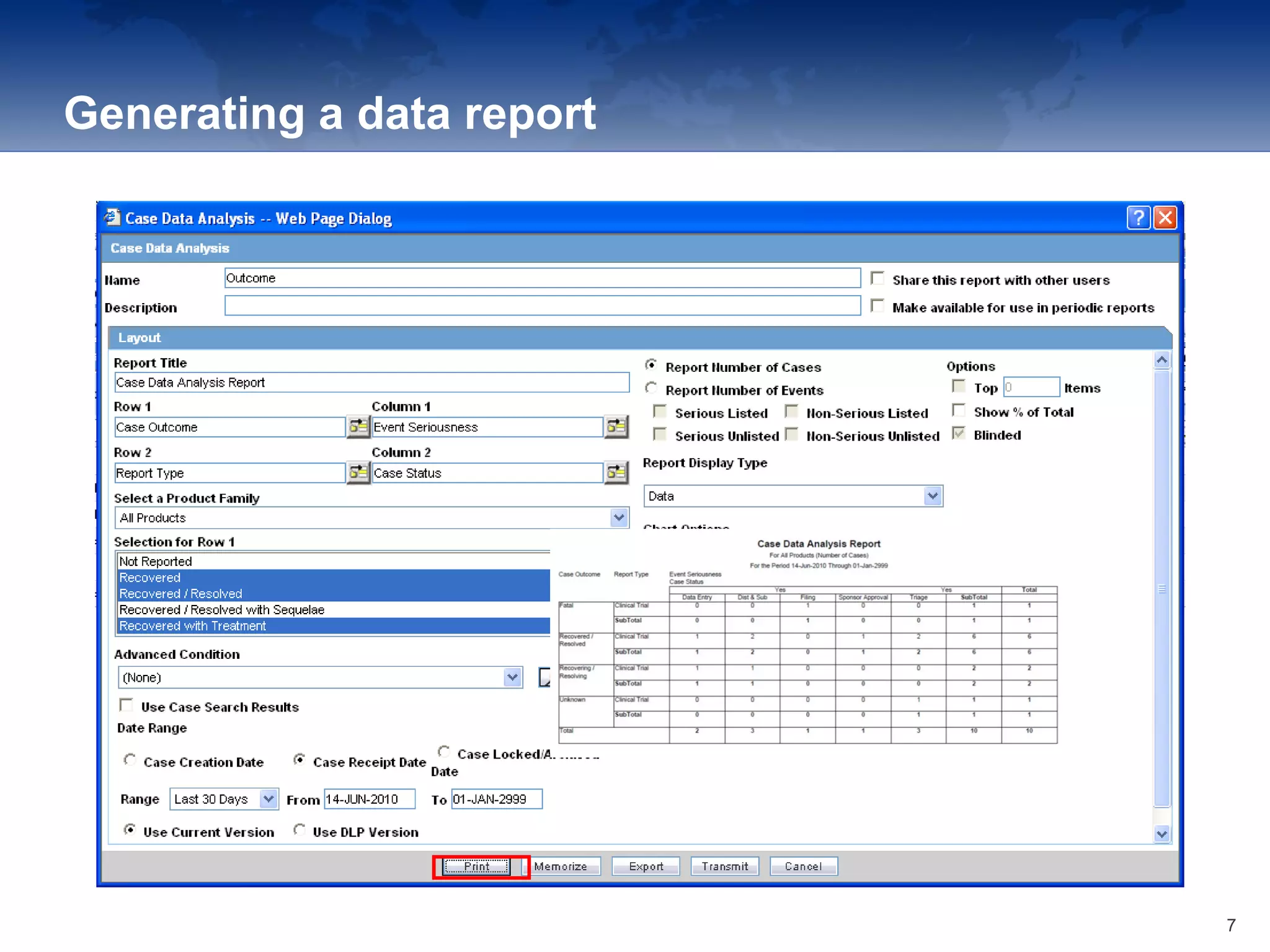
Generating a data report
7
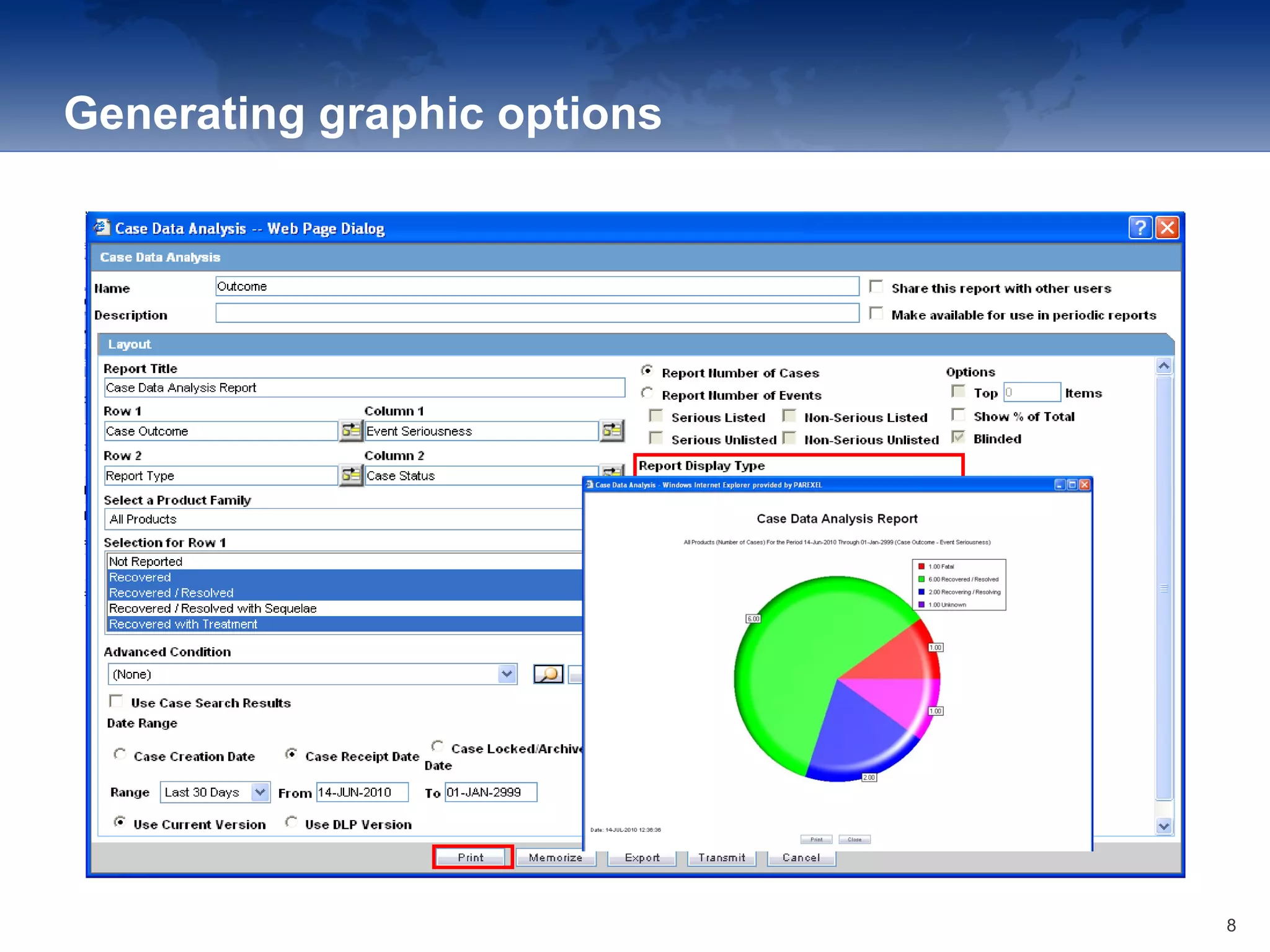
Generating graphic options
8
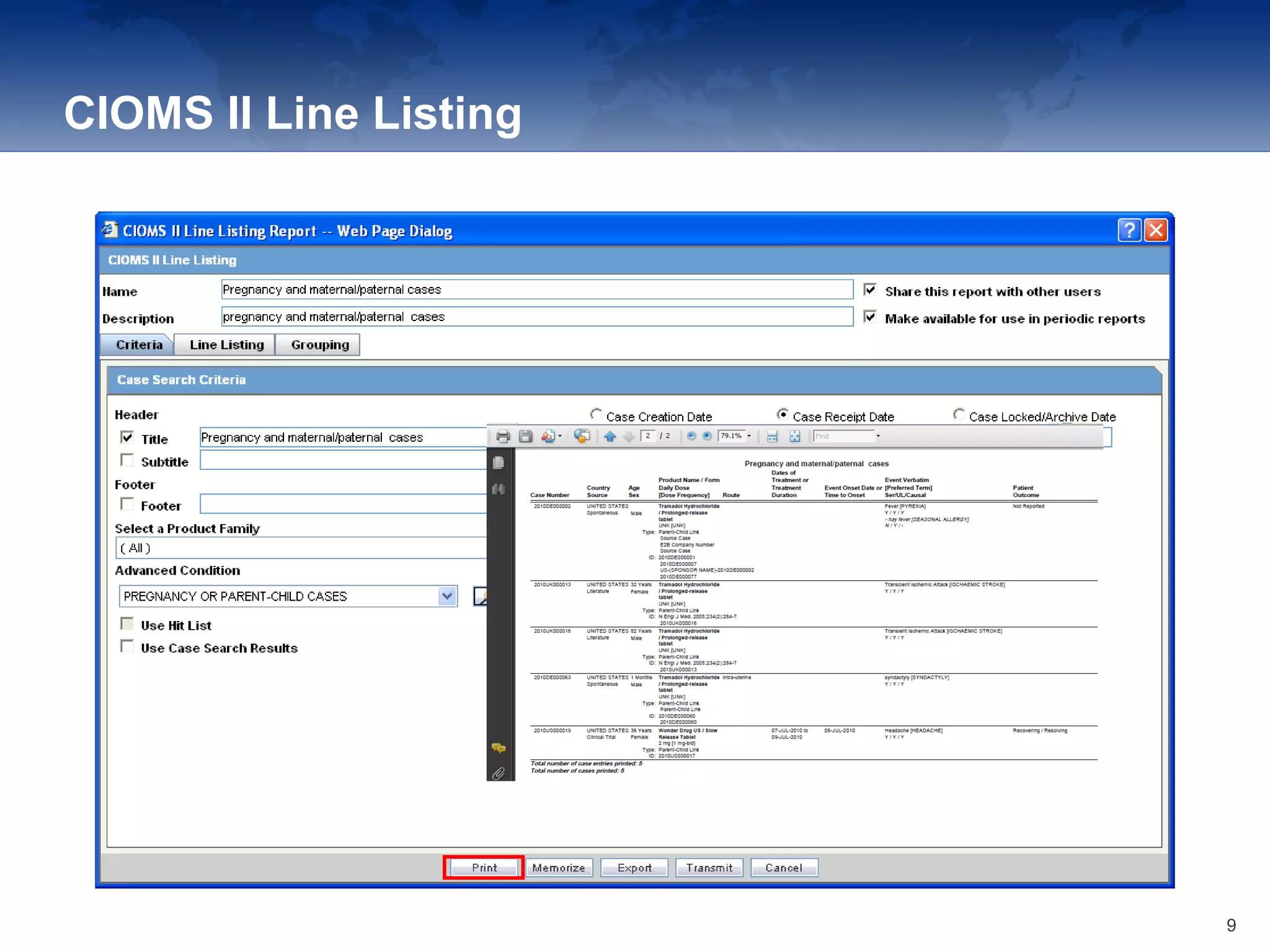
CIOMS II Line Listing
9
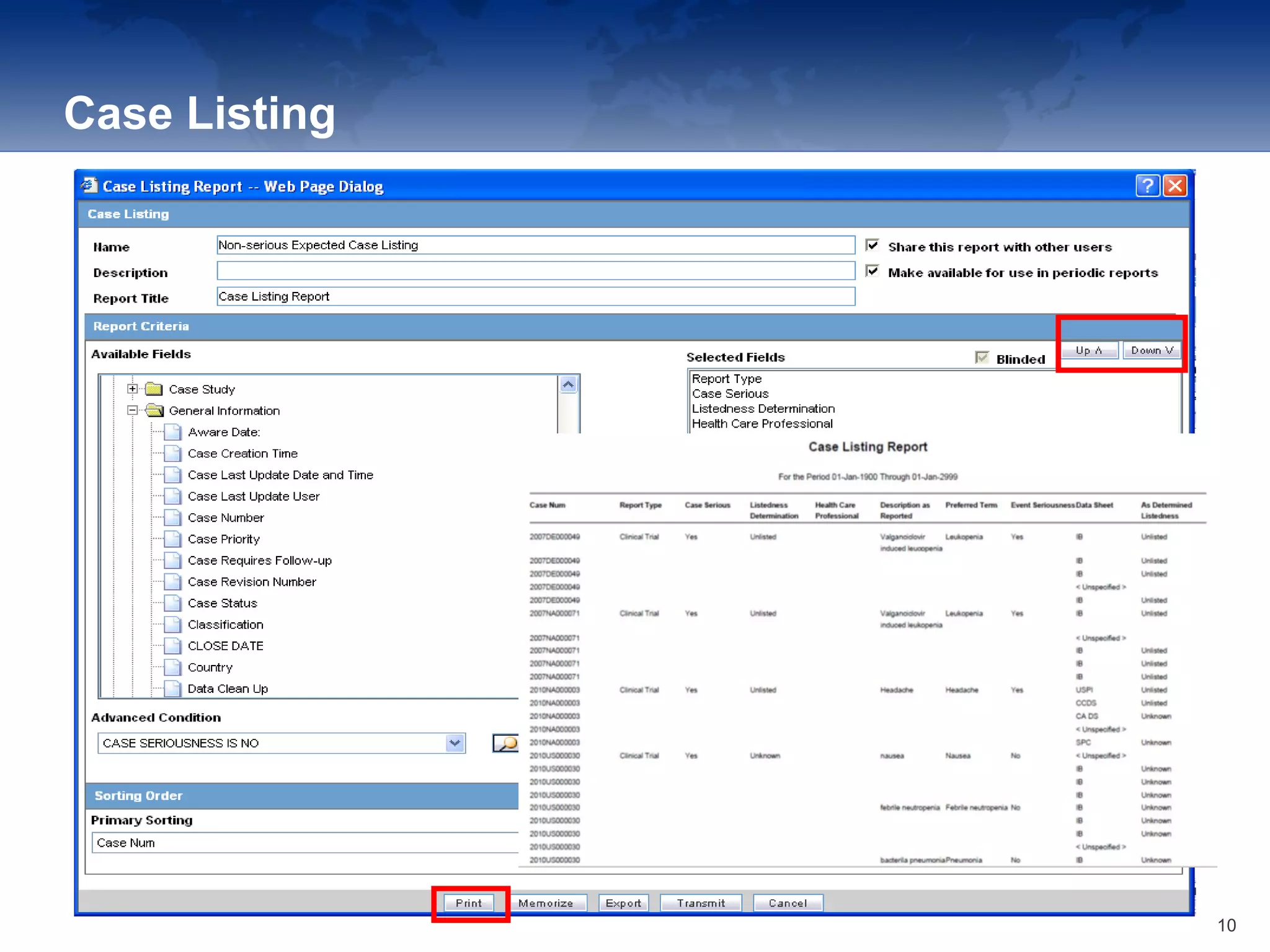
Case Listing
10
1111
Argus: Periodic Reports
11Katalyst Healthcares & Life Sciences 01-02-2017
Periodic Reporting
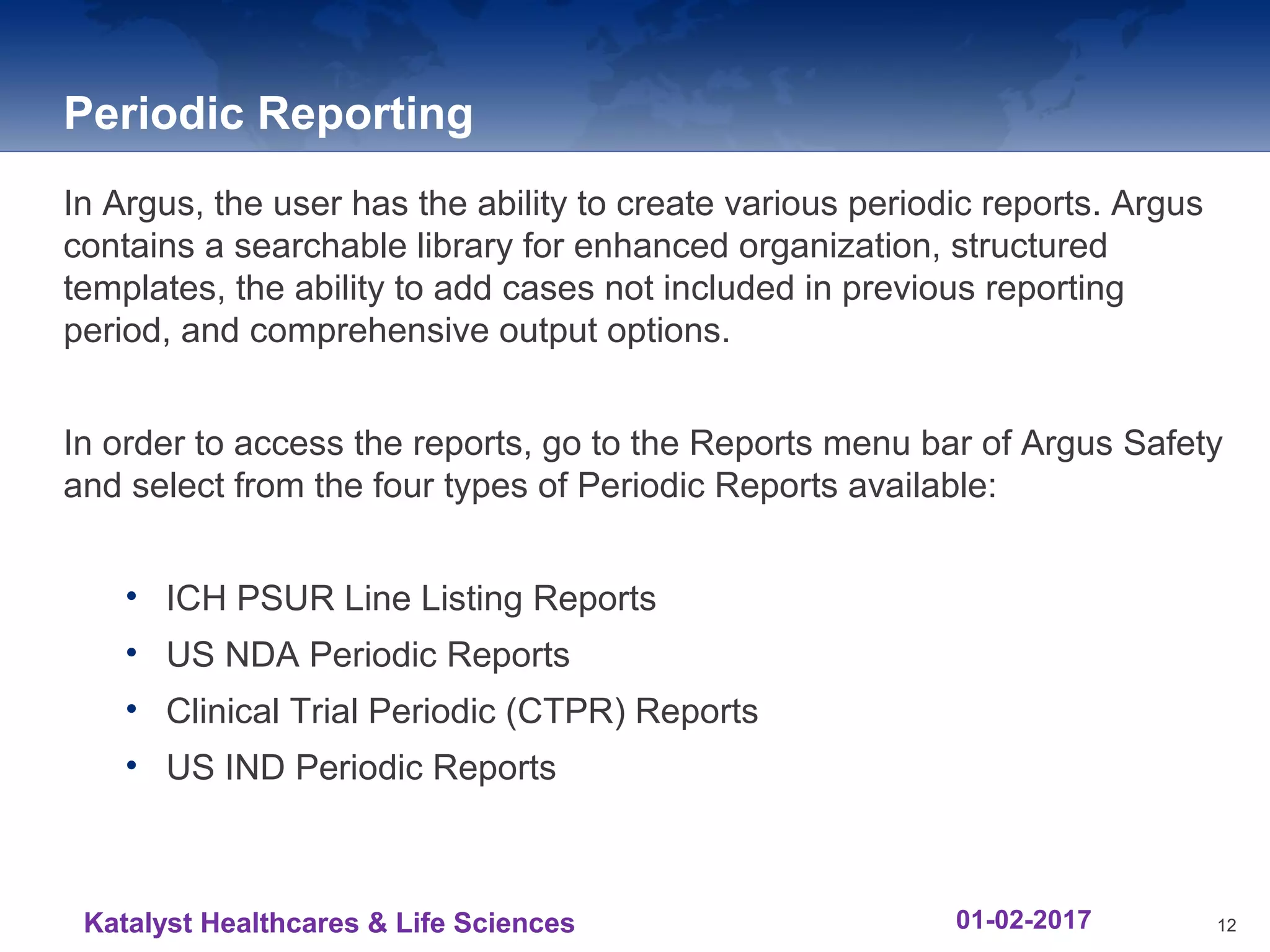
In Argus, the user has the ability to create various periodic reports. Argus
contains a searchable library for enhanced organization, structured
templates, the ability to add cases not included in previous reporting
period, and comprehensive output options.
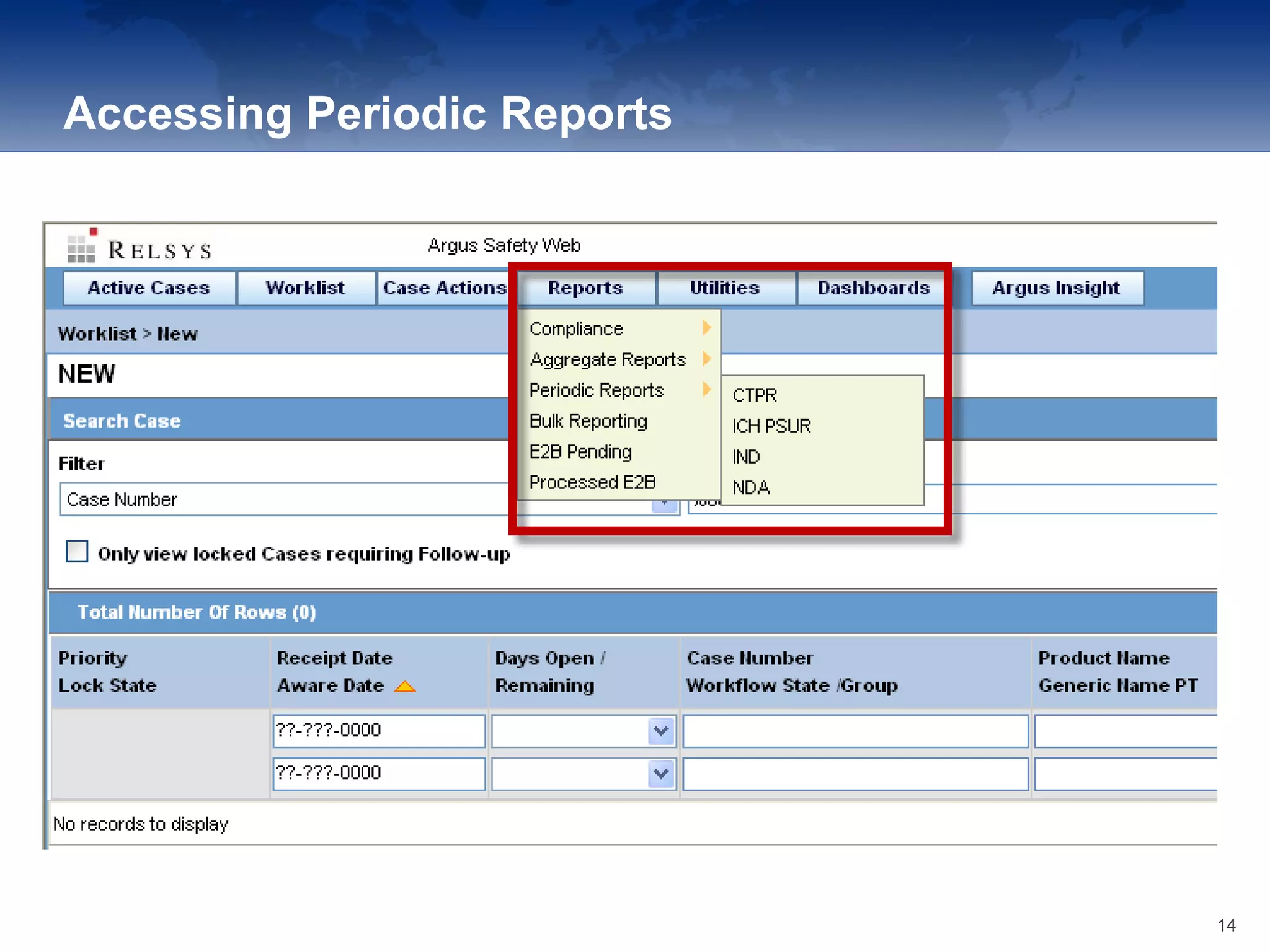
In order to access the reports, go to the Reports menu bar of Argus Safety
and select from the four types of Periodic Reports available:
• ICH PSUR Line Listing Reports
• US NDA Periodic Reports
• Clinical Trial Periodic (CTPR) Reports
• US IND Periodic Reports
12Katalyst Healthcares & Life Sciences 01-02-2017
Report Definitions
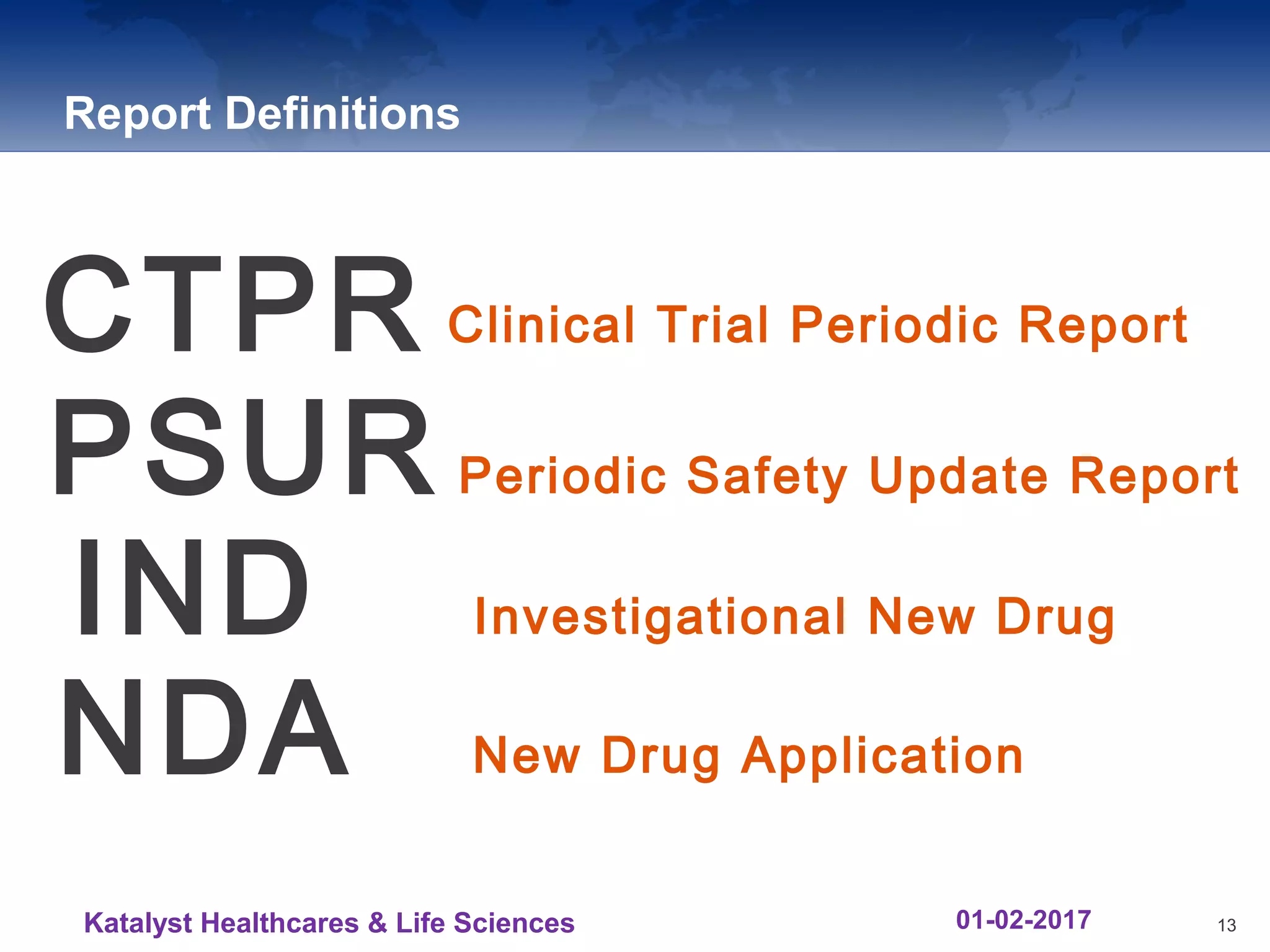
CTPR Clinical Trial Periodic Report
PSUR Periodic Safety Update Report
IND Investigational New Drug
NDA New Drug Application
13Katalyst Healthcares & Life Sciences 01-02-2017
Accessing Periodic Reports
14
Periodic Reporting - PSUR: Topics
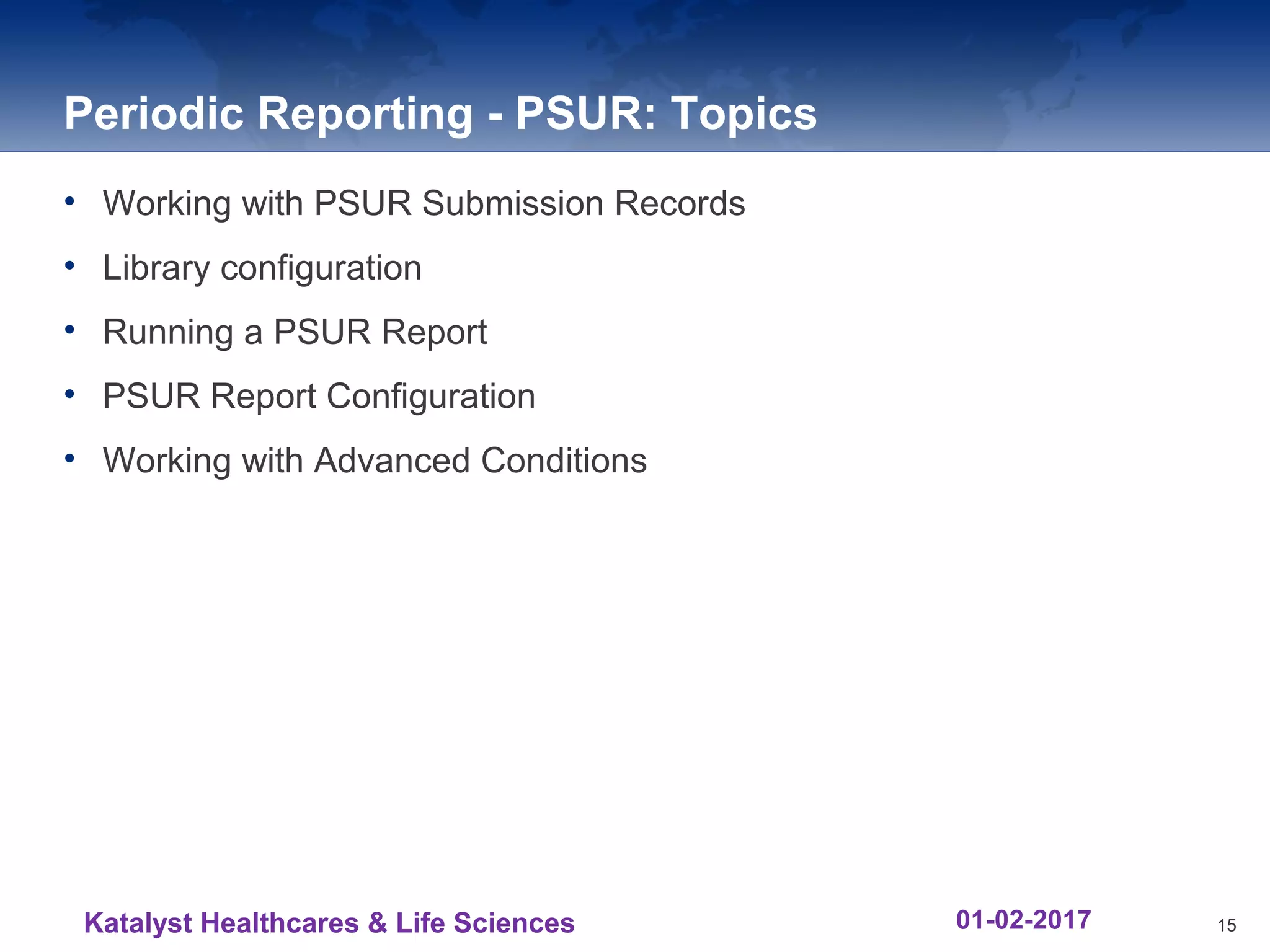
• Working with PSUR Submission Records
• Library configuration
• Running a PSUR Report
• PSUR Report Configuration
• Working with Advanced Conditions
15Katalyst Healthcares & Life Sciences 01-02-2017
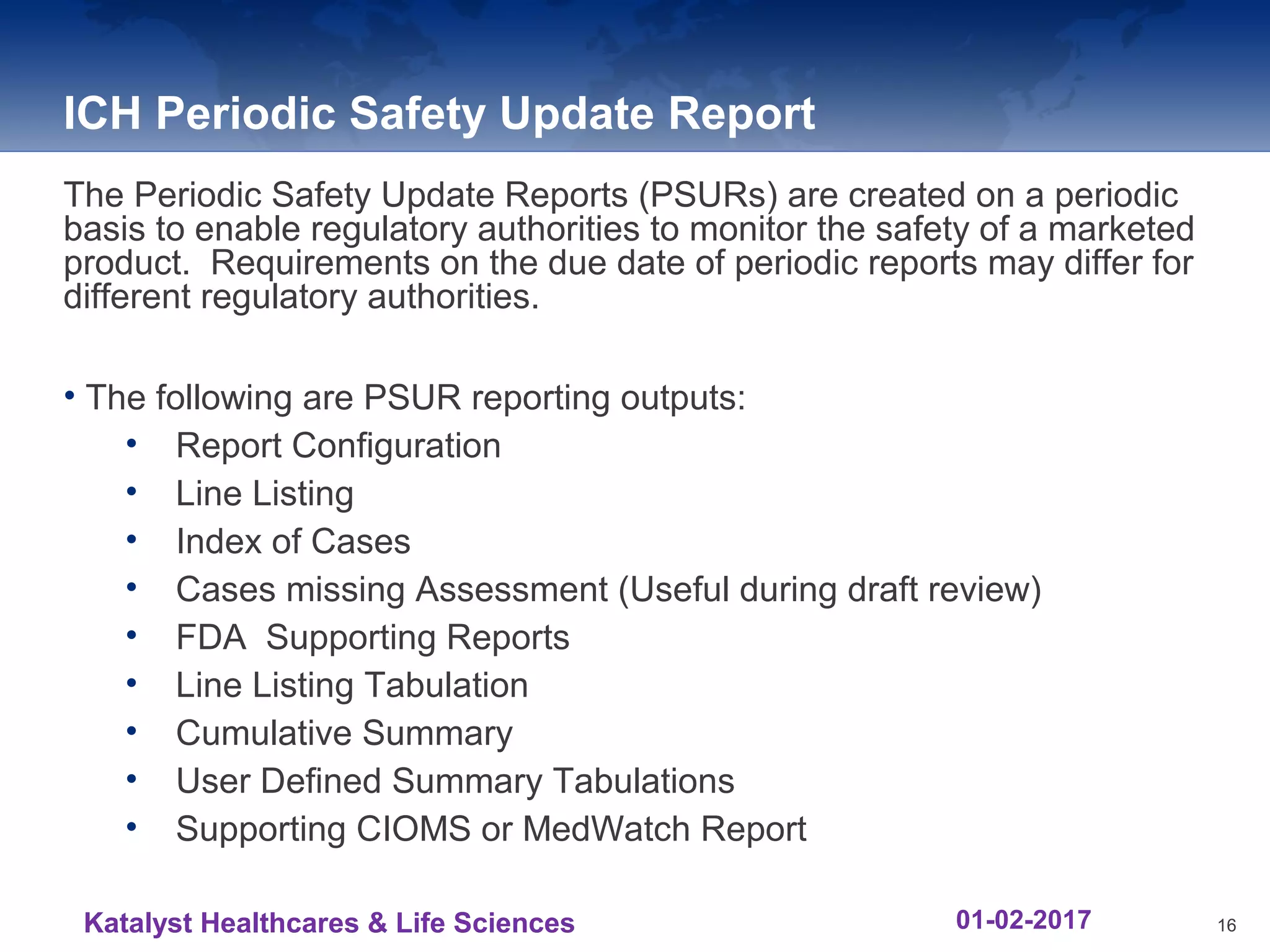
ICH Periodic Safety Update Report
The Periodic Safety Update Reports (PSURs) are created on a periodic
basis to enable regulatory authorities to monitor the safety of a marketed
product. Requirements on the due date of periodic reports may differ for
different regulatory authorities.
• The following are PSUR reporting outputs:
• Report Configuration
• Line Listing
• Index of Cases
• Cases missing Assessment (Useful during draft review)
• FDA Supporting Reports
• Line Listing Tabulation
• Cumulative Summary
• User Defined Summary Tabulations
• Supporting CIOMS or MedWatch Report
16Katalyst Healthcares & Life Sciences 01-02-2017
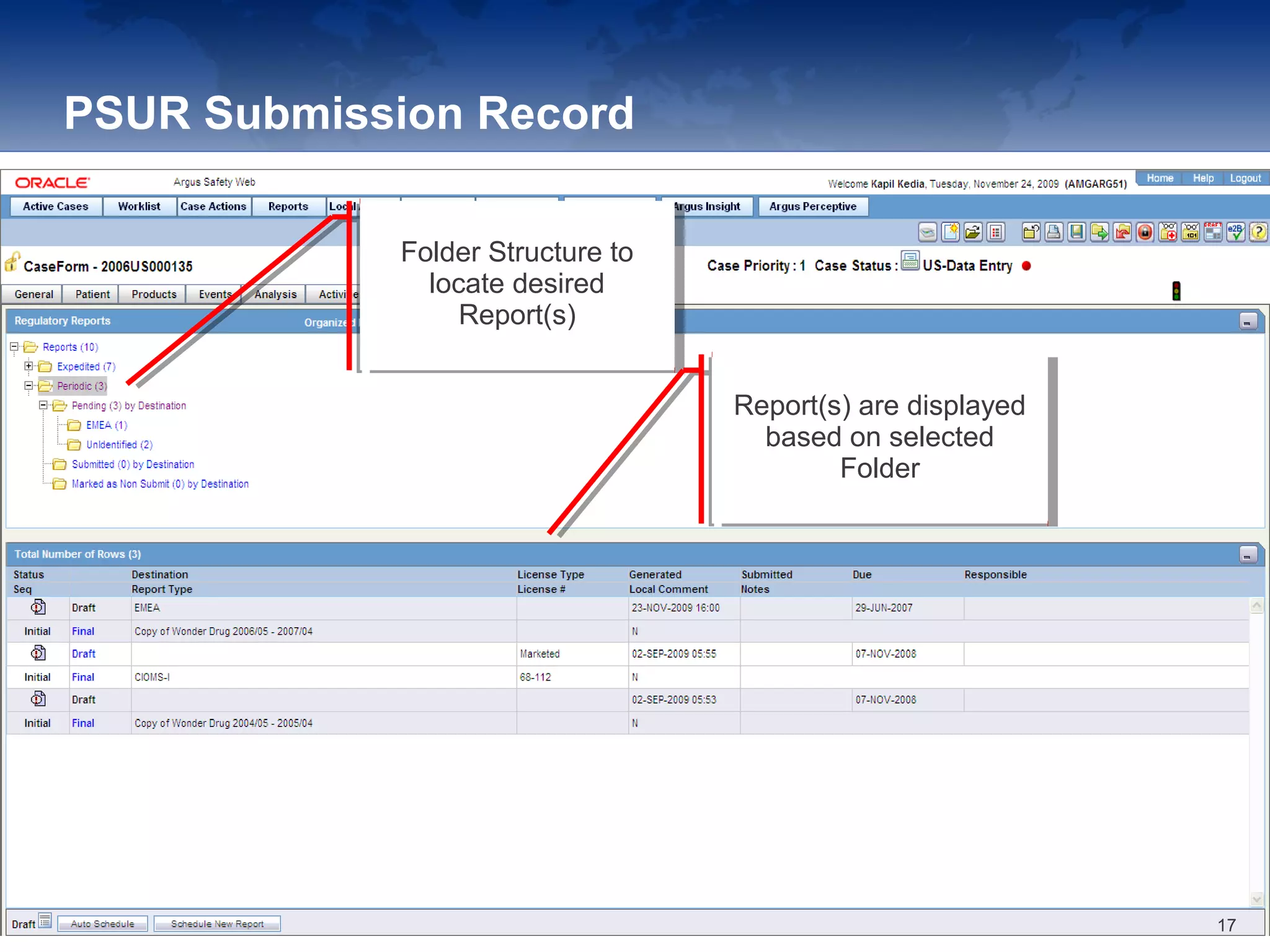
PSUR Submission Record
Folder Structure to
locate desired
Report(s)
Folder Structure to
locate desired
Report(s)
Report(s) are displayed
based on selected
Folder
Report(s) are displayed
based on selected
Folder
17
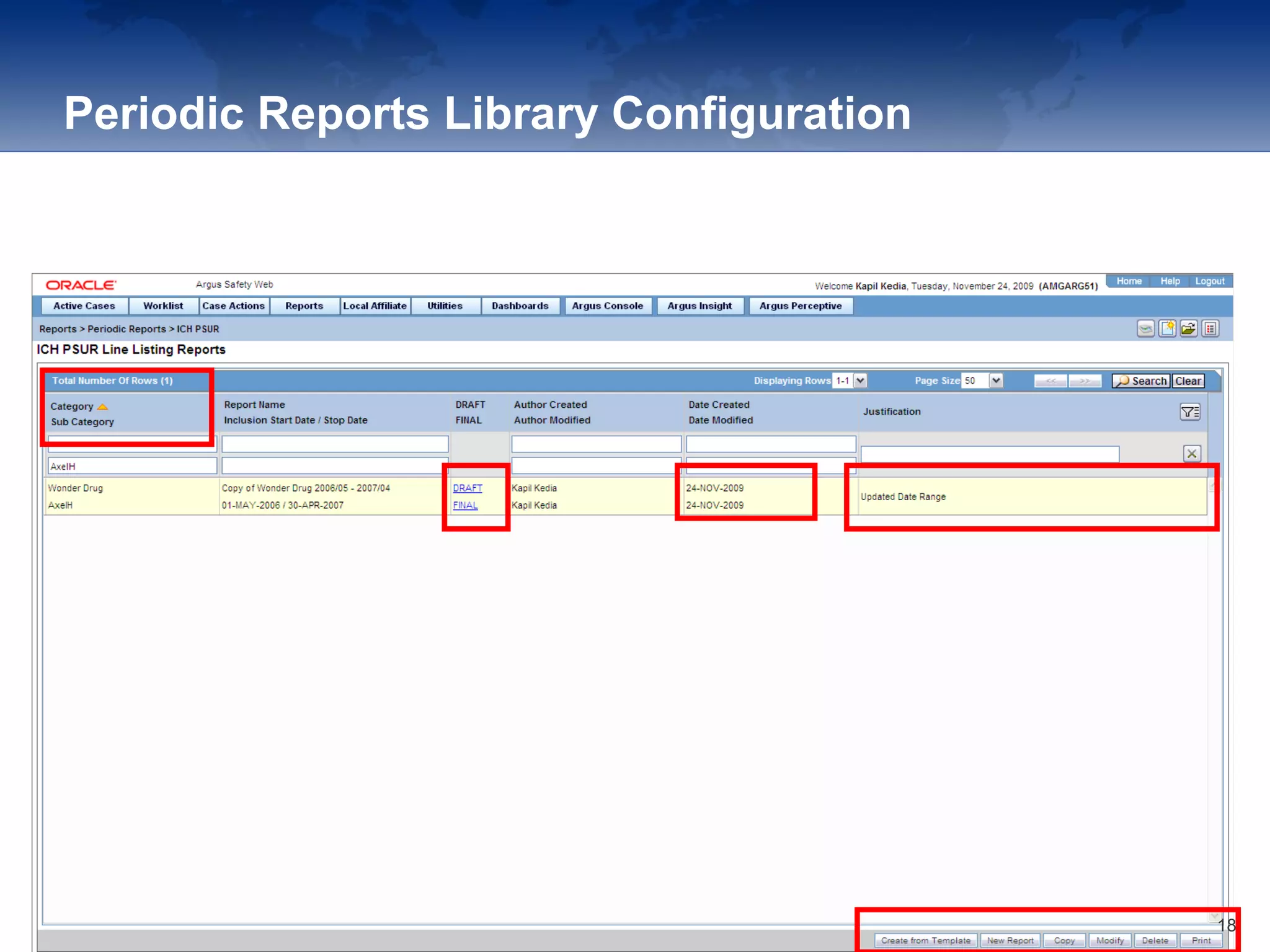
Periodic Reports Library Configuration
18
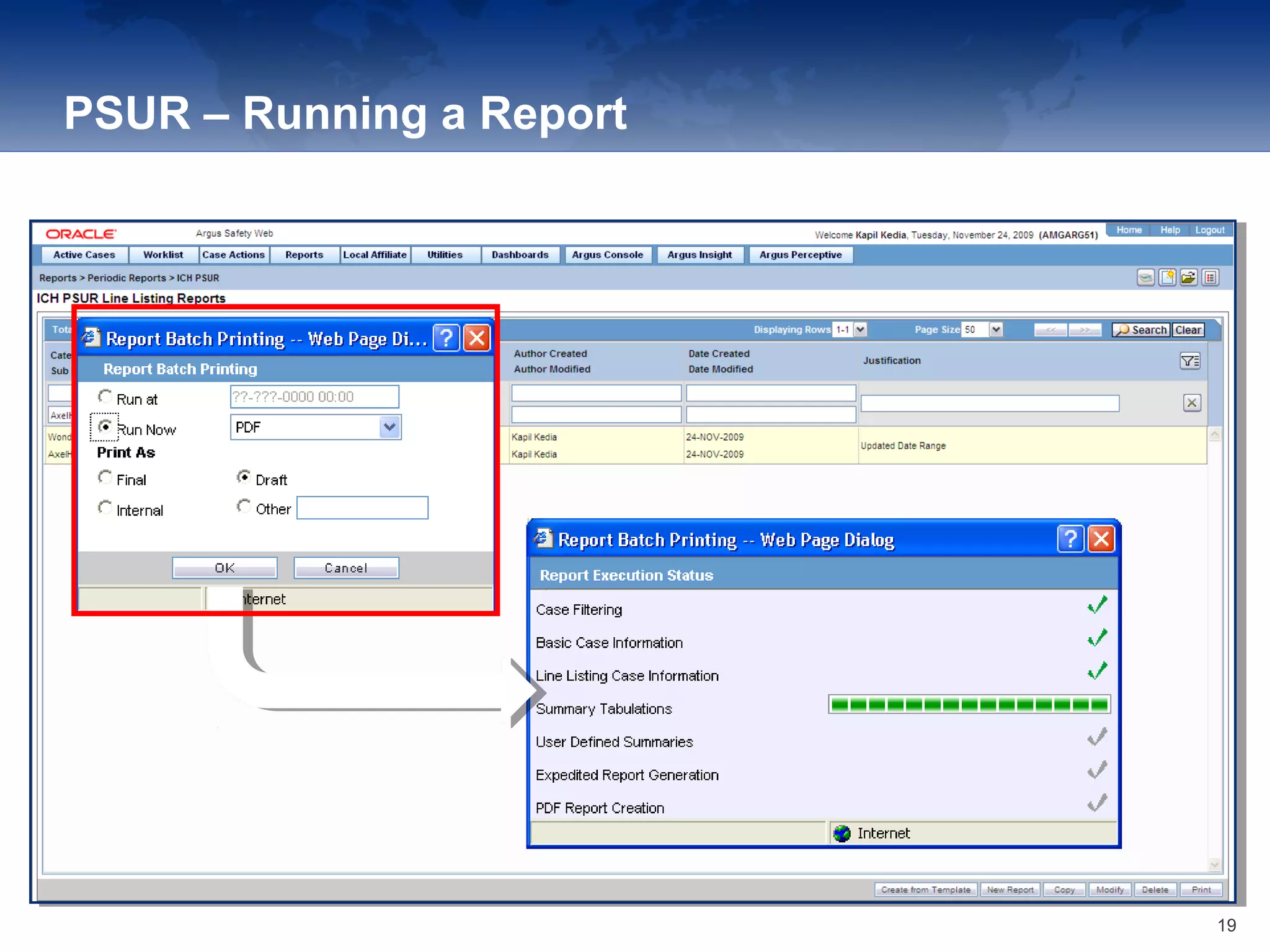
PSUR – Running a Report
19
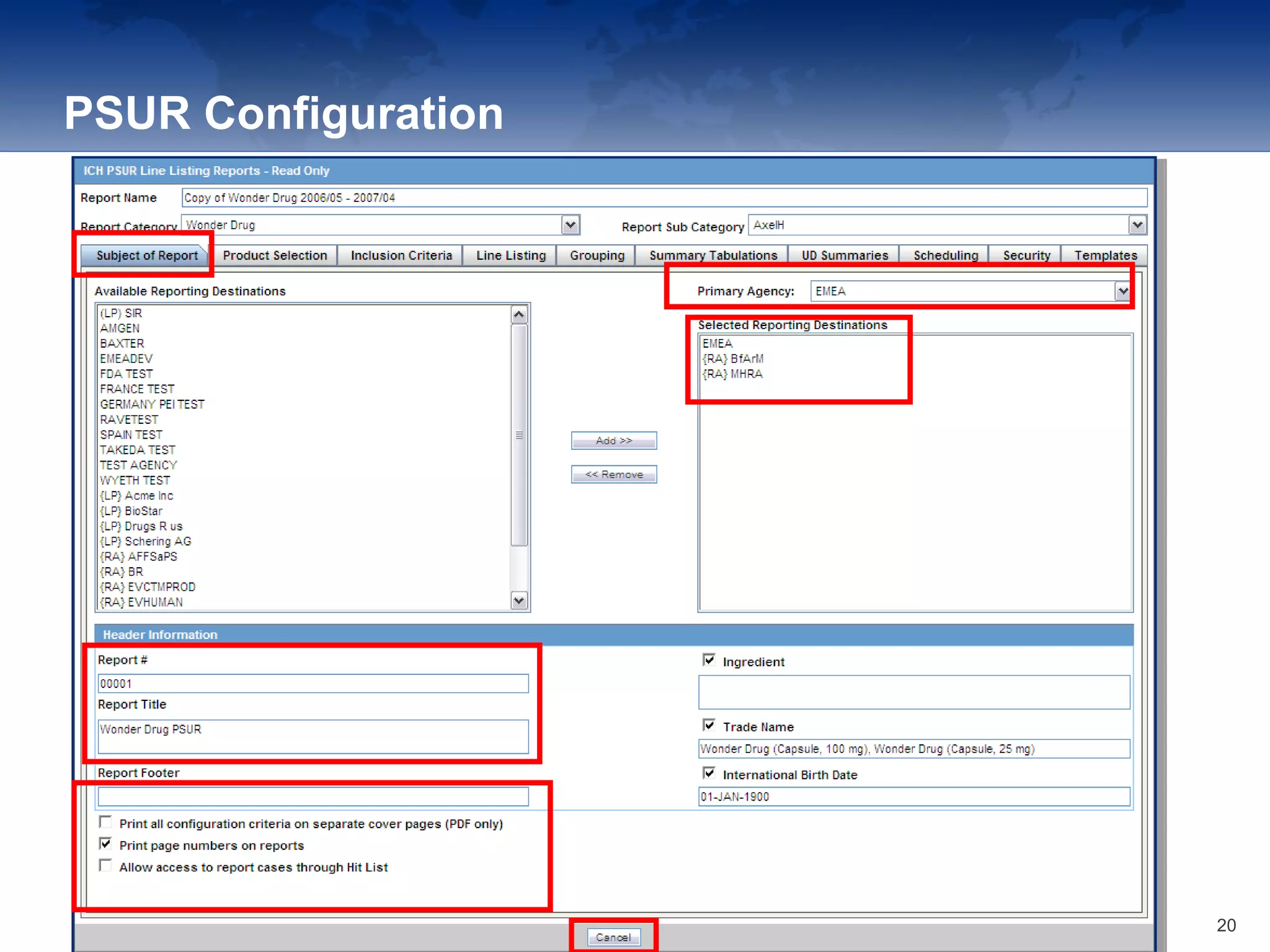
PSUR Configuration
20
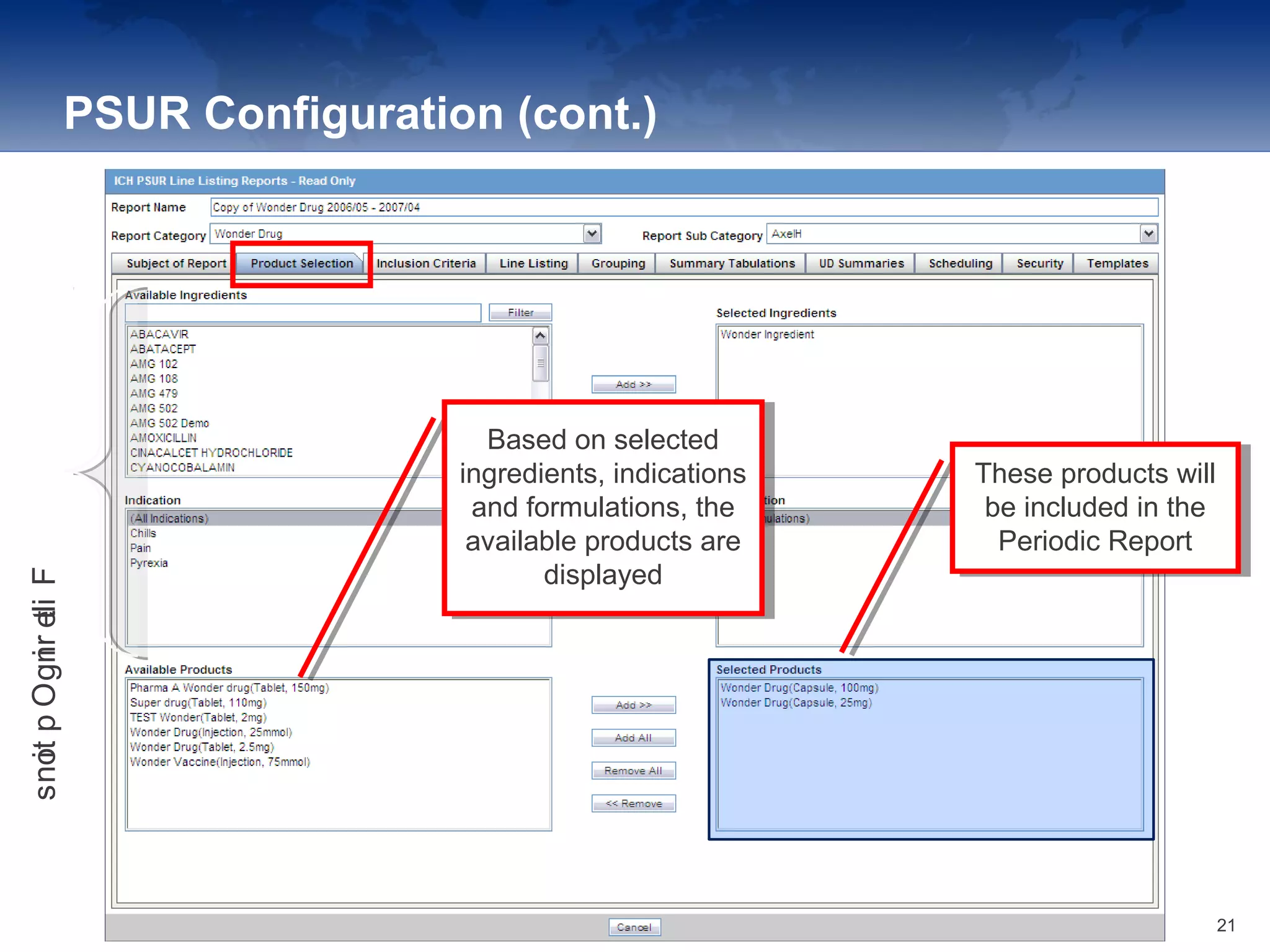
PSUR Configuration (cont.)
FilteringOptions
Based on selected
ingredients, indications
and formulations, the
available products are
displayed
Based on selected
ingredients, indications
and formulations, the
available products are
displayed
These products will
be included in the
Periodic Report
These products will
be included in the
Periodic Report
21
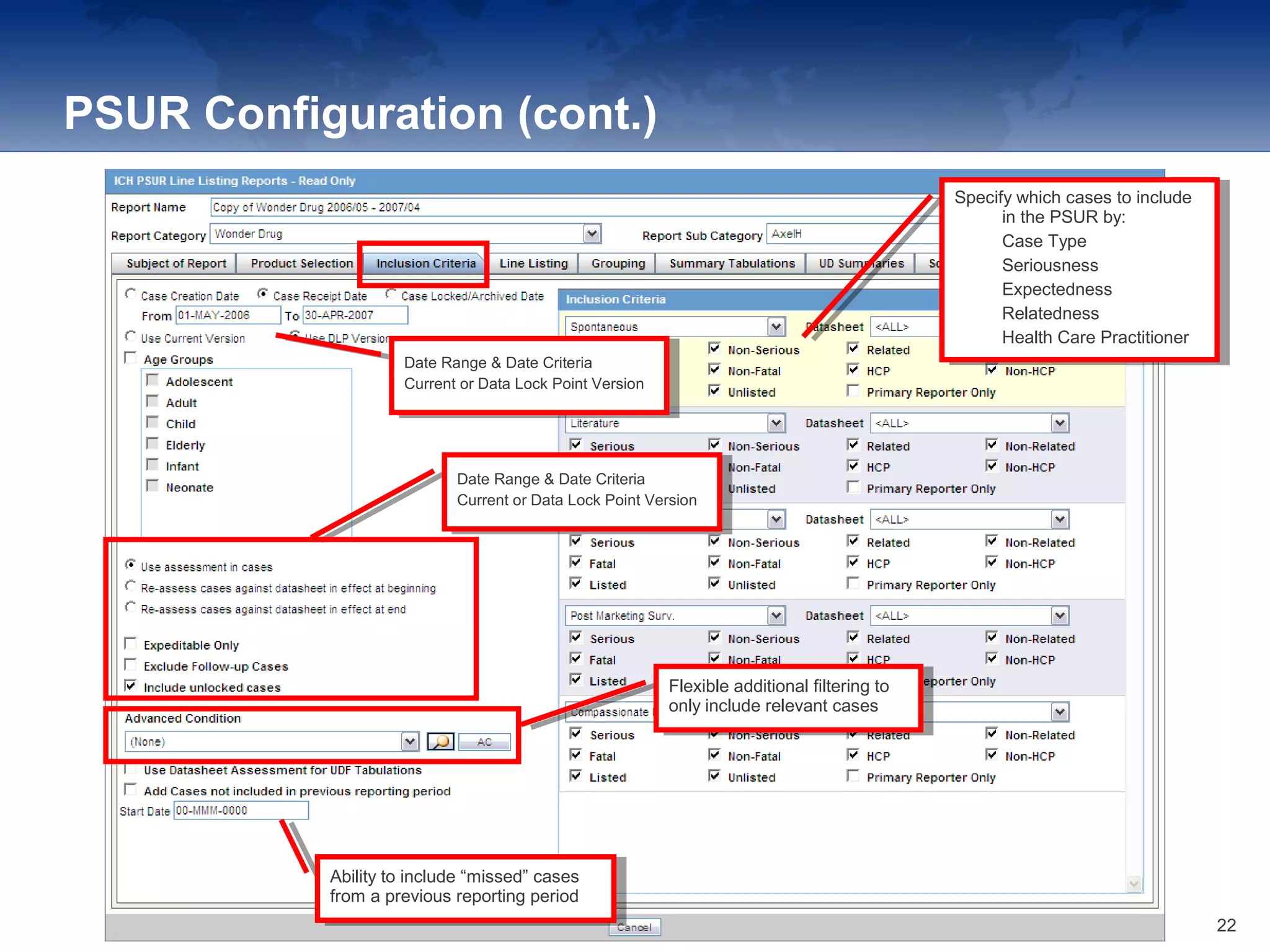
PSUR Configuration (cont.)
Date Range & Date Criteria
Current or Data Lock Point Version
Date Range & Date Criteria
Current or Data Lock Point Version
Date Range & Date Criteria
Current or Data Lock Point Version
Date Range & Date Criteria
Current or Data Lock Point Version
Specify which cases to include
in the PSUR by:
1. Case Type
2. Seriousness
3. Expectedness
4. Relatedness
5. Health Care Practitioner
Specify which cases to include
in the PSUR by:
1. Case Type
2. Seriousness
3. Expectedness
4. Relatedness
5. Health Care Practitioner
Flexible additional filtering to
only include relevant cases
Flexible additional filtering to
only include relevant cases
Ability to include “missed” cases
from a previous reporting period
Ability to include “missed” cases
from a previous reporting period
22
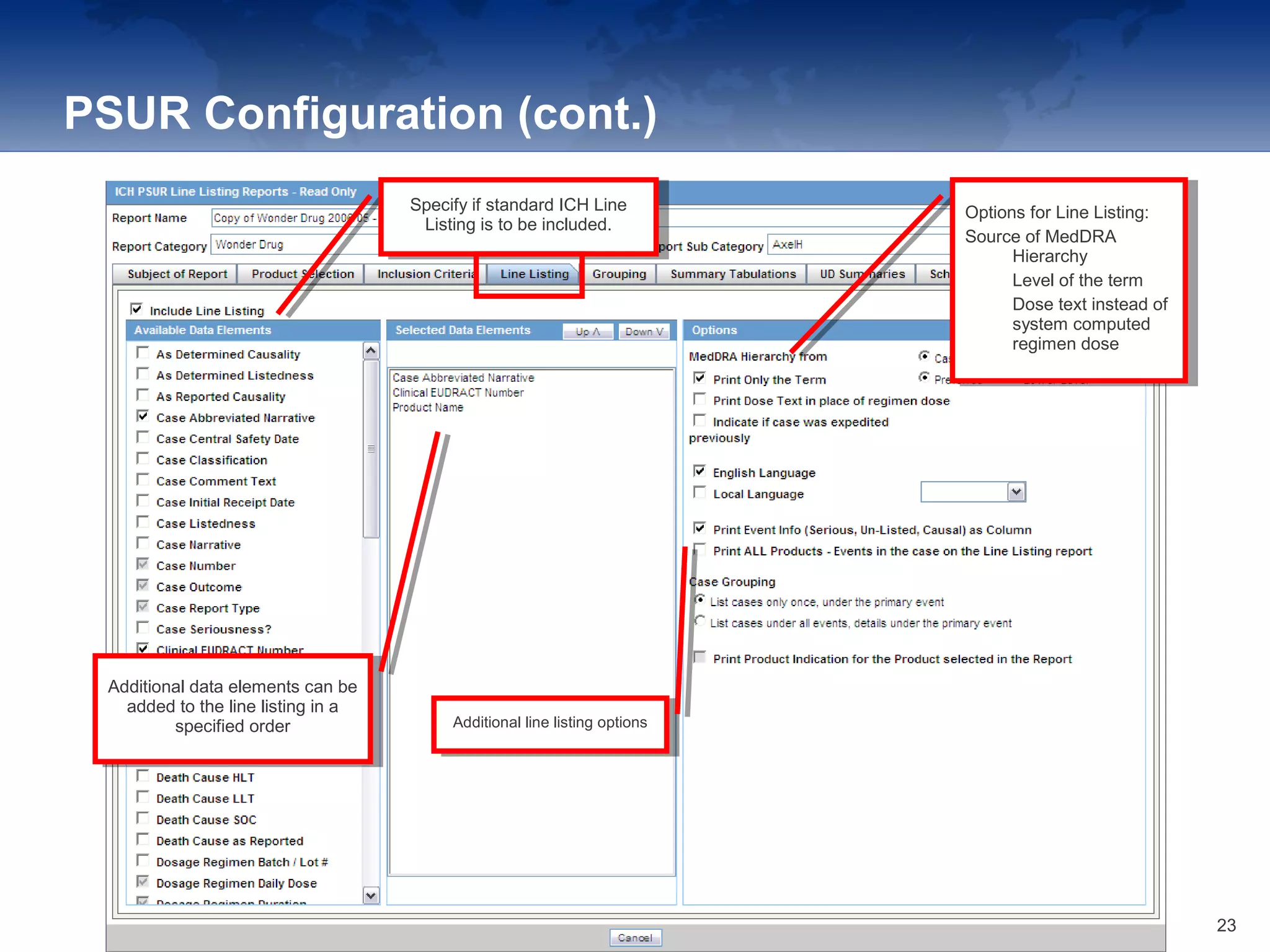
PSUR Configuration (cont.)
Specify if standard ICH Line
Listing is to be included.
Specify if standard ICH Line
Listing is to be included.
Additional data elements can be
added to the line listing in a
specified order
Additional data elements can be
added to the line listing in a
specified order Additional line listing optionsAdditional line listing options
Options for Line Listing:
Source of MedDRA
Hierarchy
• Level of the term
• Dose text instead of
system computed
regimen dose
Options for Line Listing:
Source of MedDRA
Hierarchy
• Level of the term
• Dose text instead of
system computed
regimen dose
23
PSUR Configuration (cont.)
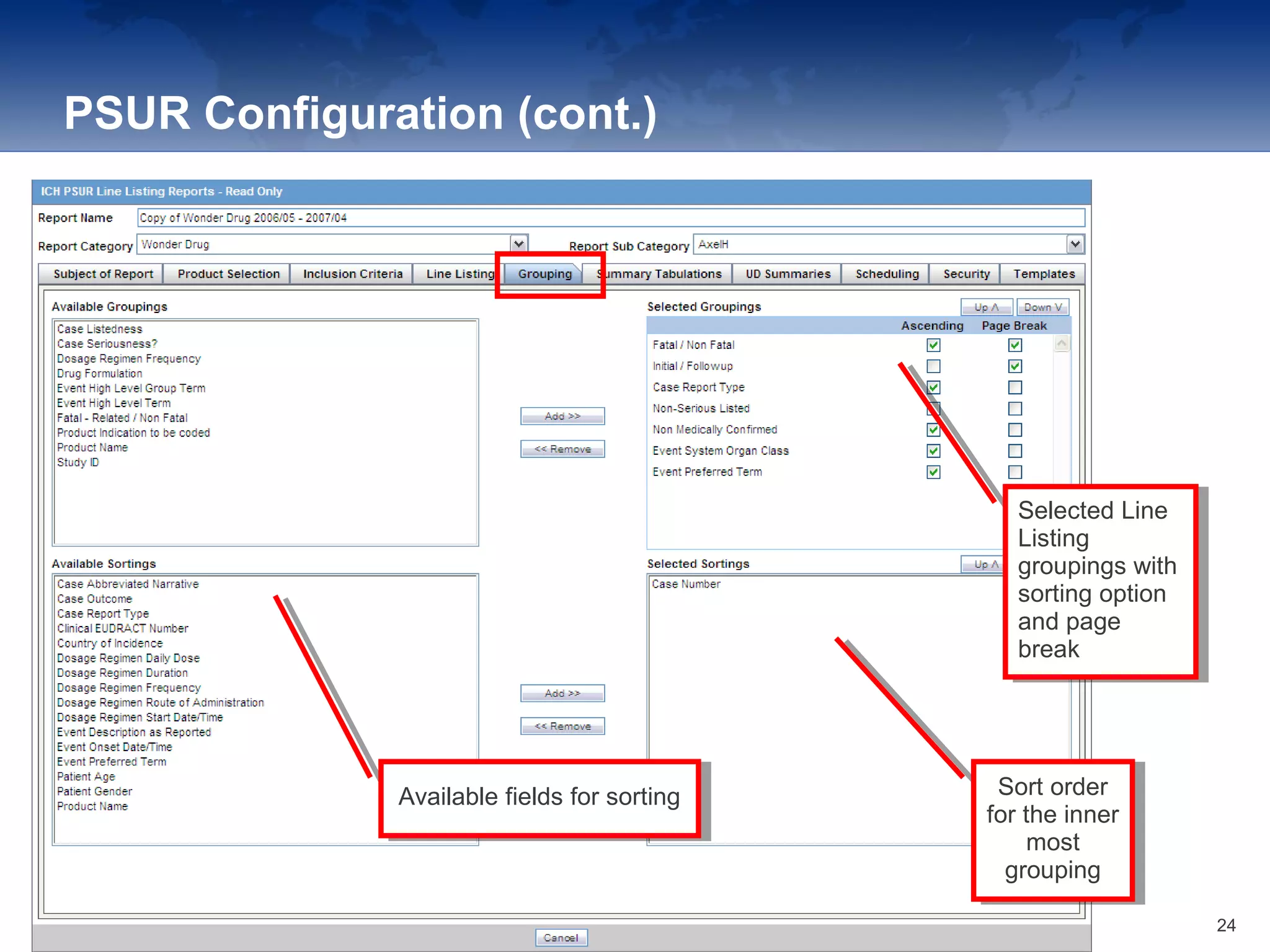
Available fields for sortingAvailable fields for sorting
Selected Line
Listing
groupings with
sorting option
and page
break
Selected Line
Listing
groupings with
sorting option
and page
break
Sort order
for the inner
most
grouping
Sort order
for the inner
most
grouping
24
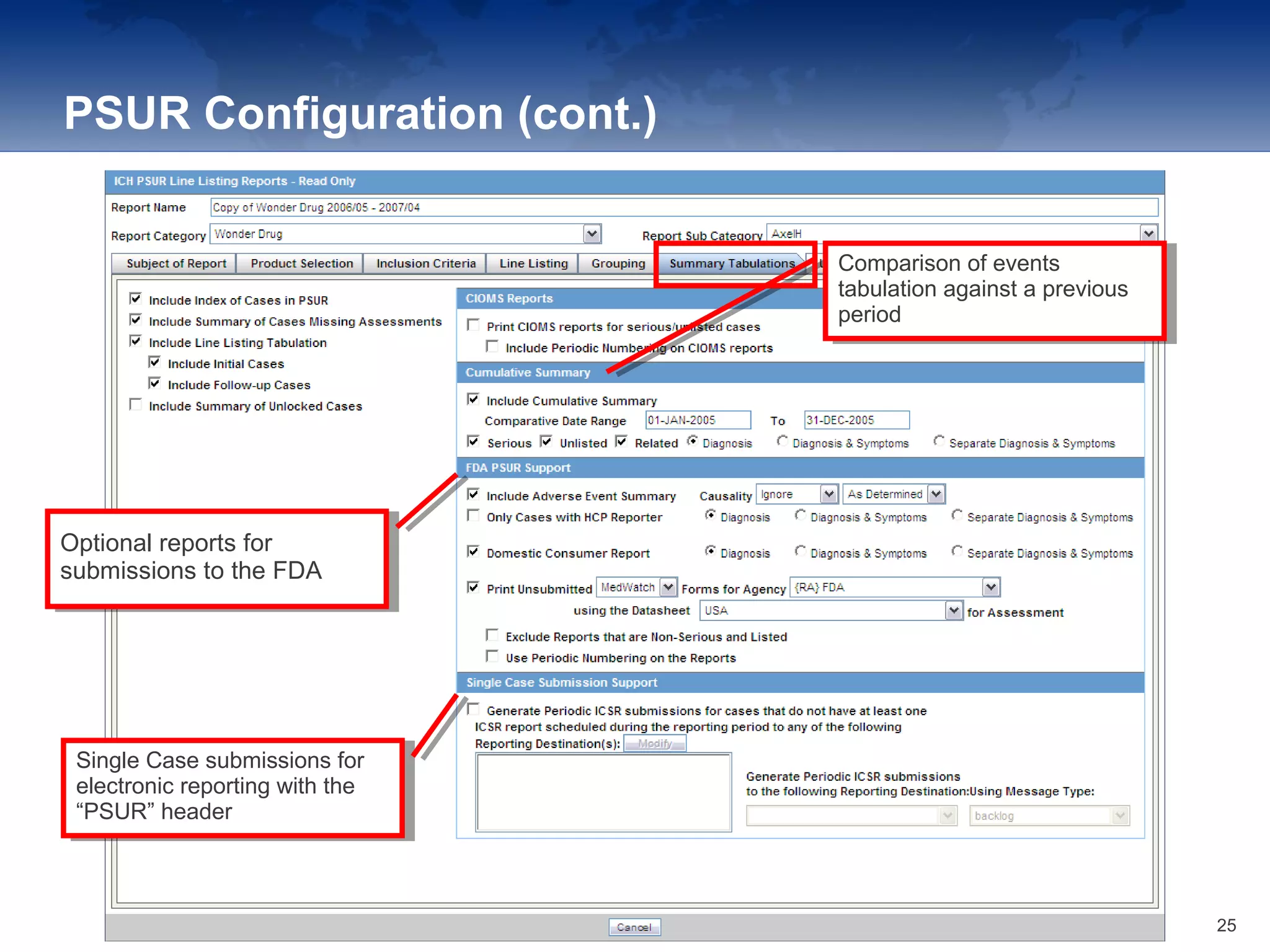
PSUR Configuration (cont.)
Comparison of events
tabulation against a previous
period
Comparison of events
tabulation against a previous
period
Optional reports for
submissions to the FDA
Optional reports for
submissions to the FDA
Single Case submissions for
electronic reporting with the
“PSUR” header
Single Case submissions for
electronic reporting with the
“PSUR” header
25
PSUR Configuration (cont.)
26
PSUR Configuration (cont.)
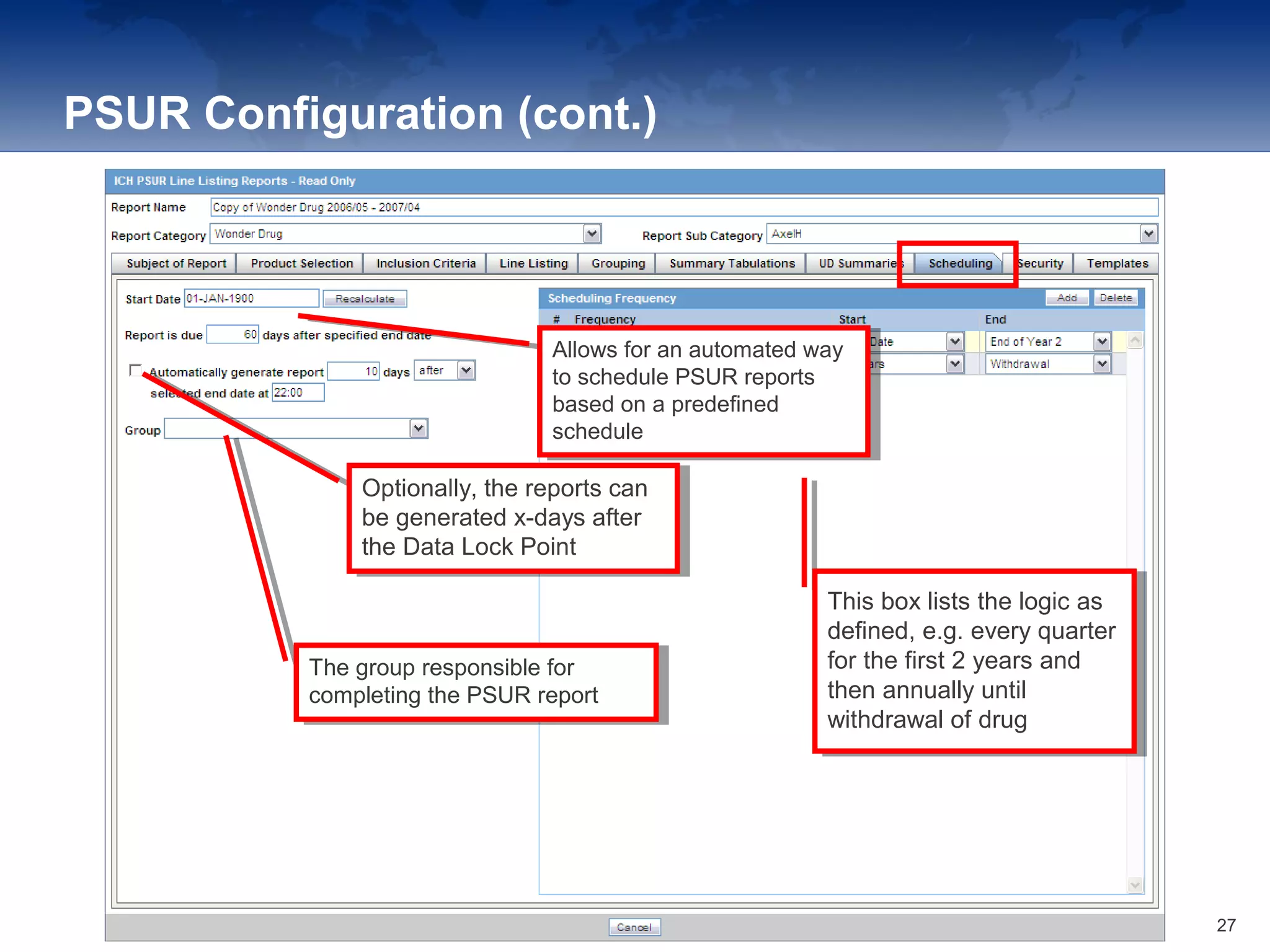
Allows for an automated way
to schedule PSUR reports
based on a predefined
schedule
Allows for an automated way
to schedule PSUR reports
based on a predefined
schedule
Optionally, the reports can
be generated x-days after
the Data Lock Point
Optionally, the reports can
be generated x-days after
the Data Lock Point
The group responsible for
completing the PSUR report
The group responsible for
completing the PSUR report
This box lists the logic as
defined, e.g. every quarter
for the first 2 years and
then annually until
withdrawal of drug
This box lists the logic as
defined, e.g. every quarter
for the first 2 years and
then annually until
withdrawal of drug
27
PSUR Configuration (cont.)
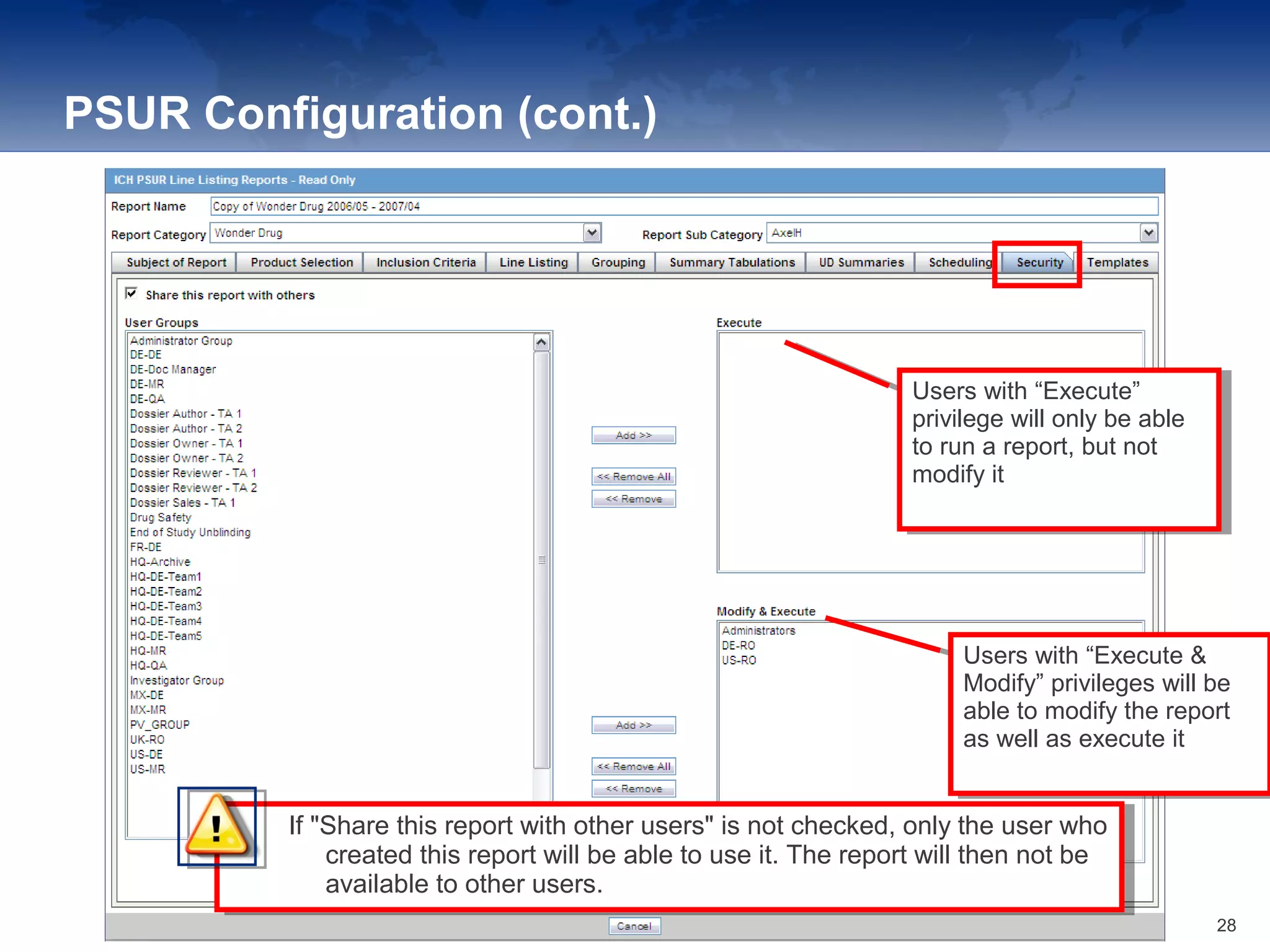
If "Share this report with other users" is not checked, only the user who
created this report will be able to use it. The report will then not be
available to other users.
If "Share this report with other users" is not checked, only the user who
created this report will be able to use it. The report will then not be
available to other users.
Users with “Execute”
privilege will only be able
to run a report, but not
modify it
Users with “Execute”
privilege will only be able
to run a report, but not
modify it
Users with “Execute &
Modify” privileges will be
able to modify the report
as well as execute it
Users with “Execute &
Modify” privileges will be
able to modify the report
as well as execute it
28
PSUR Configuration (cont.)
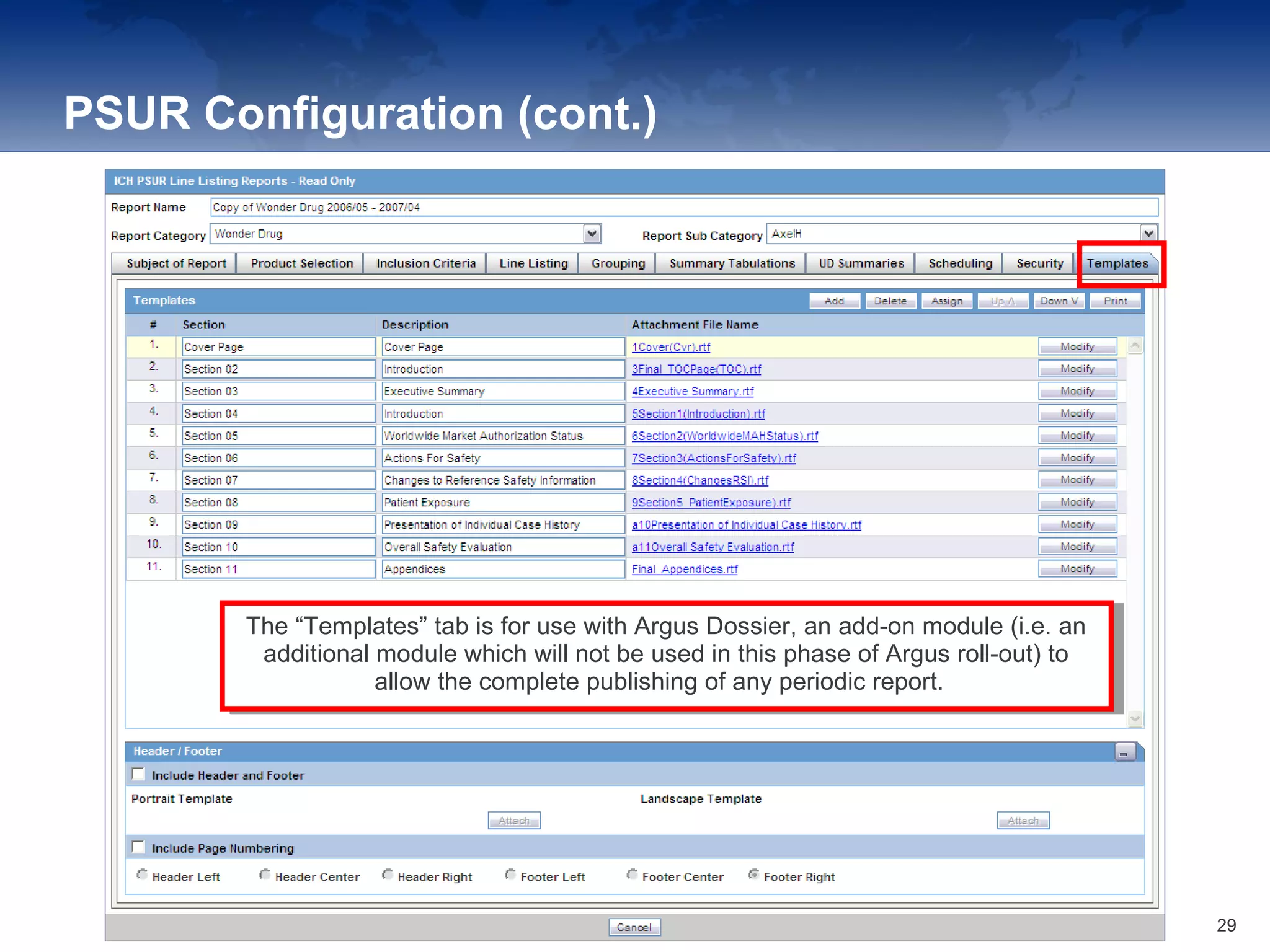
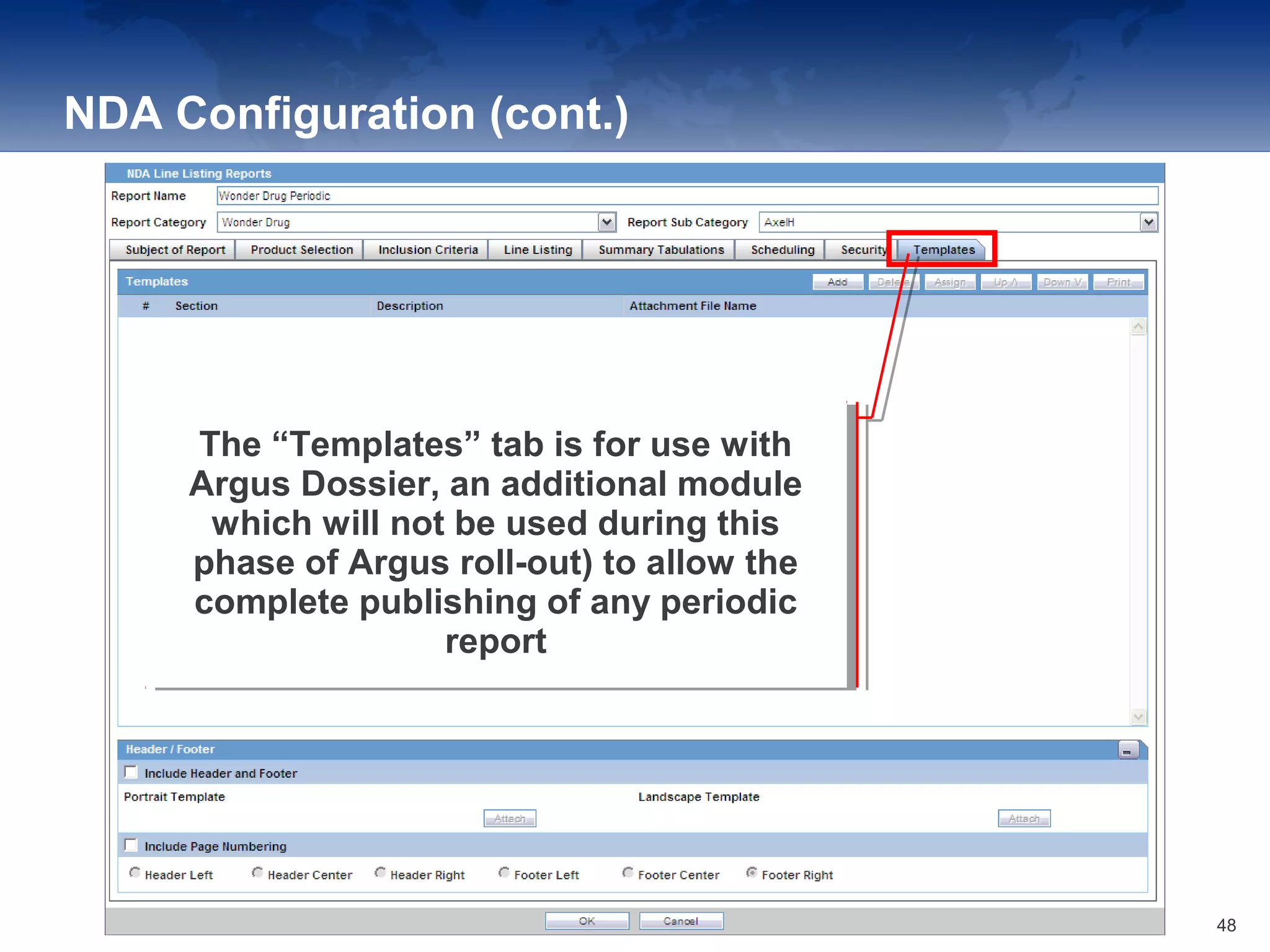
The “Templates” tab is for use with Argus Dossier, an add-on module (i.e. an
additional module which will not be used in this phase of Argus roll-out) to
allow the complete publishing of any periodic report.
The “Templates” tab is for use with Argus Dossier, an add-on module (i.e. an
additional module which will not be used in this phase of Argus roll-out) to
allow the complete publishing of any periodic report.
29
Printing the PSUR
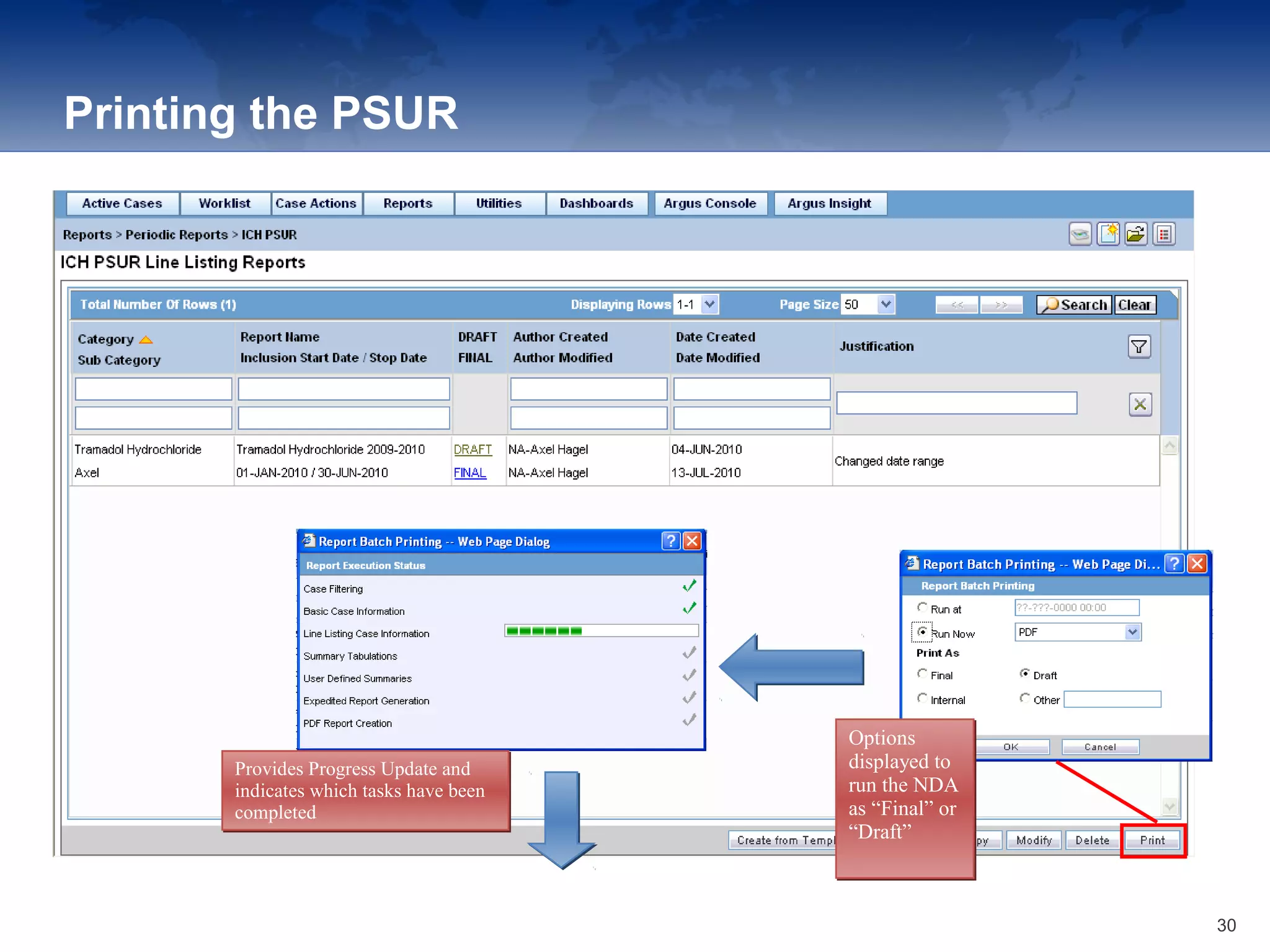
Provides Progress Update and
indicates which tasks have been
completed
Provides Progress Update and
indicates which tasks have been
completed
Options
displayed to
run the NDA
as “Final” or
“Draft”
Options
displayed to
run the NDA
as “Final” or
“Draft”
30
Printing the PSUR (2)
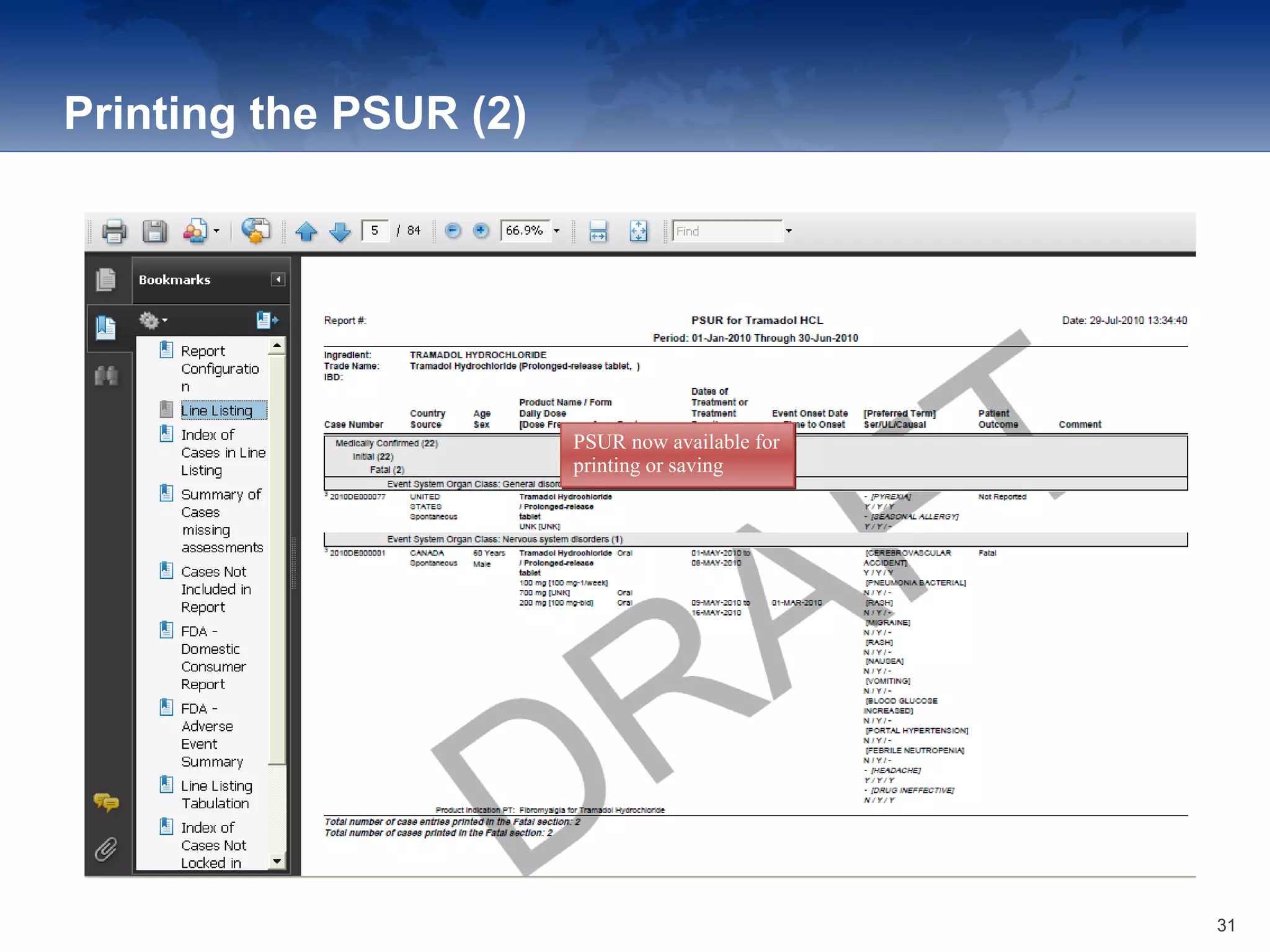
PSUR now available for
printing or saving
PSUR now available for
printing or saving
31
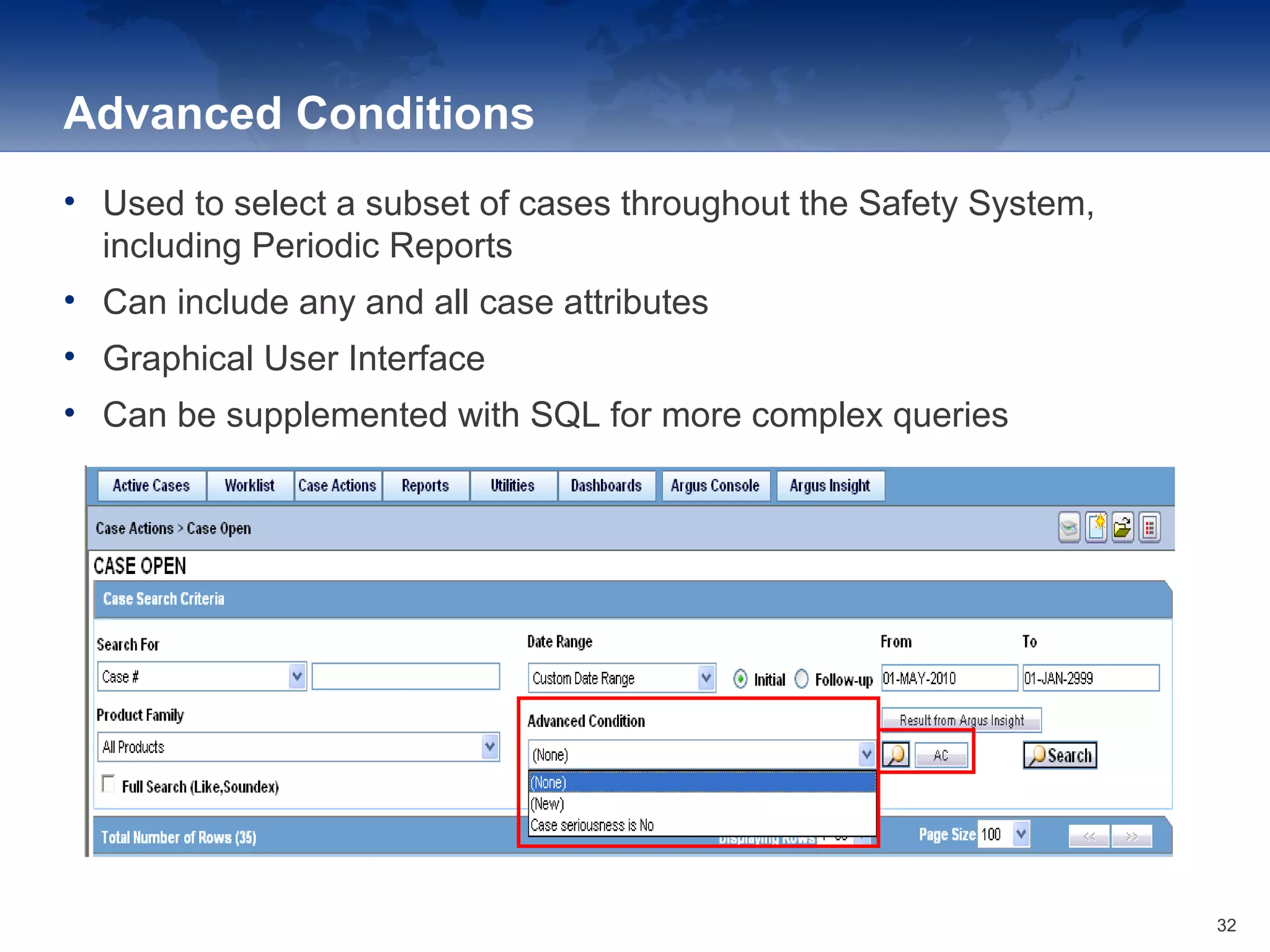
Advanced Conditions
• Used to select a subset of cases throughout the Safety System,
including Periodic Reports
• Can include any and all case attributes
• Graphical User Interface
• Can be supplemented with SQL for more complex queries
32
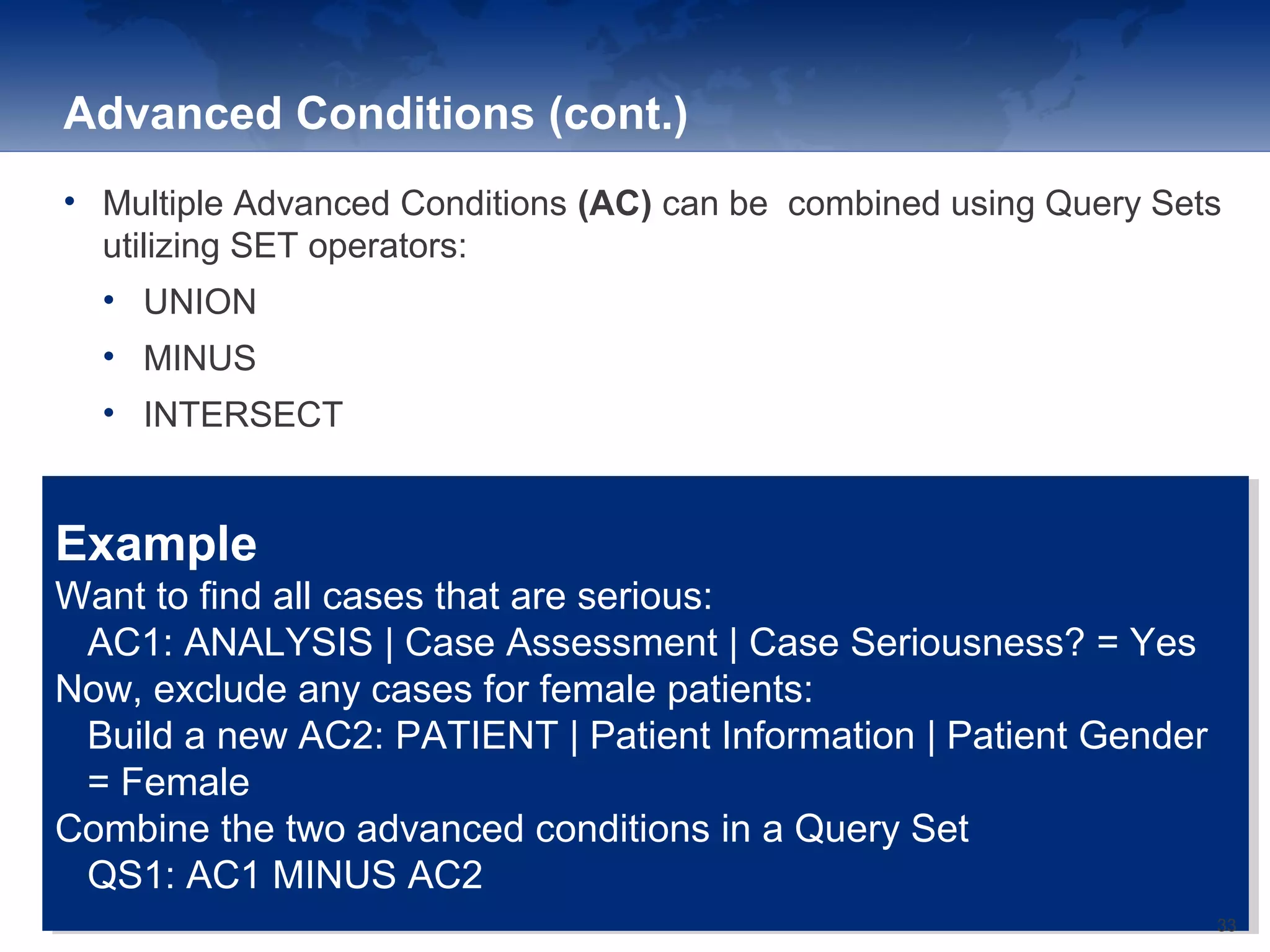
Advanced Conditions (cont.)
• Multiple Advanced Conditions (AC) can be combined using Query Sets
utilizing SET operators:
• UNION
• MINUS
• INTERSECT
Example
Want to find all cases that are serious:
AC1: ANALYSIS | Case Assessment | Case Seriousness? = Yes
Now, exclude any cases for female patients:
Build a new AC2: PATIENT | Patient Information | Patient Gender
= Female
Combine the two advanced conditions in a Query Set
QS1: AC1 MINUS AC2
Example
Want to find all cases that are serious:
AC1: ANALYSIS | Case Assessment | Case Seriousness? = Yes
Now, exclude any cases for female patients:
Build a new AC2: PATIENT | Patient Information | Patient Gender
= Female
Combine the two advanced conditions in a Query Set
QS1: AC1 MINUS AC2
33
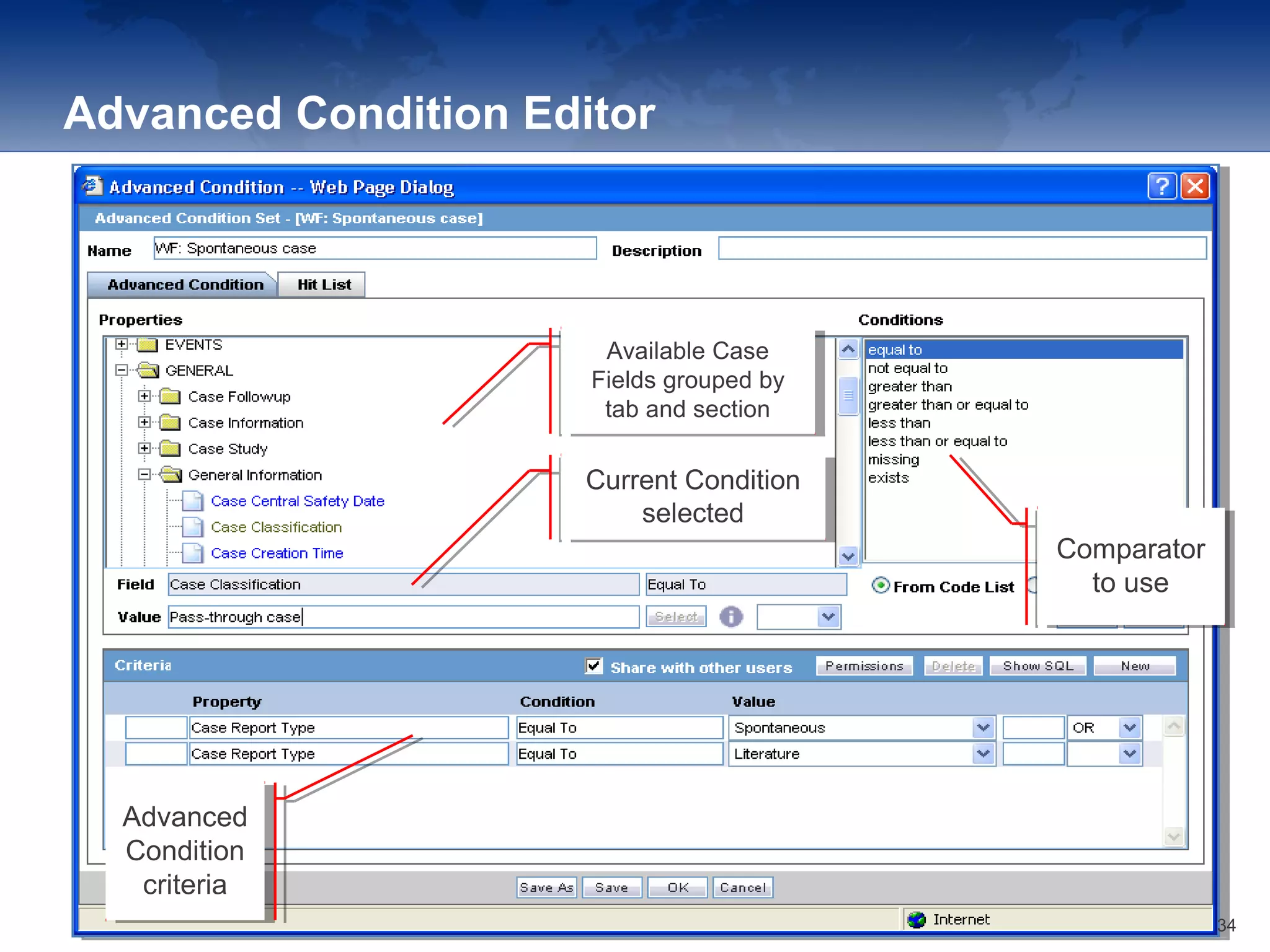
Advanced Condition Editor
Comparator
to use
Comparator
to use
Advanced
Condition
criteria
Advanced
Condition
criteria
Available Case
Fields grouped by
tab and section
Available Case
Fields grouped by
tab and section
Current Condition
selected
Current Condition
selected
34
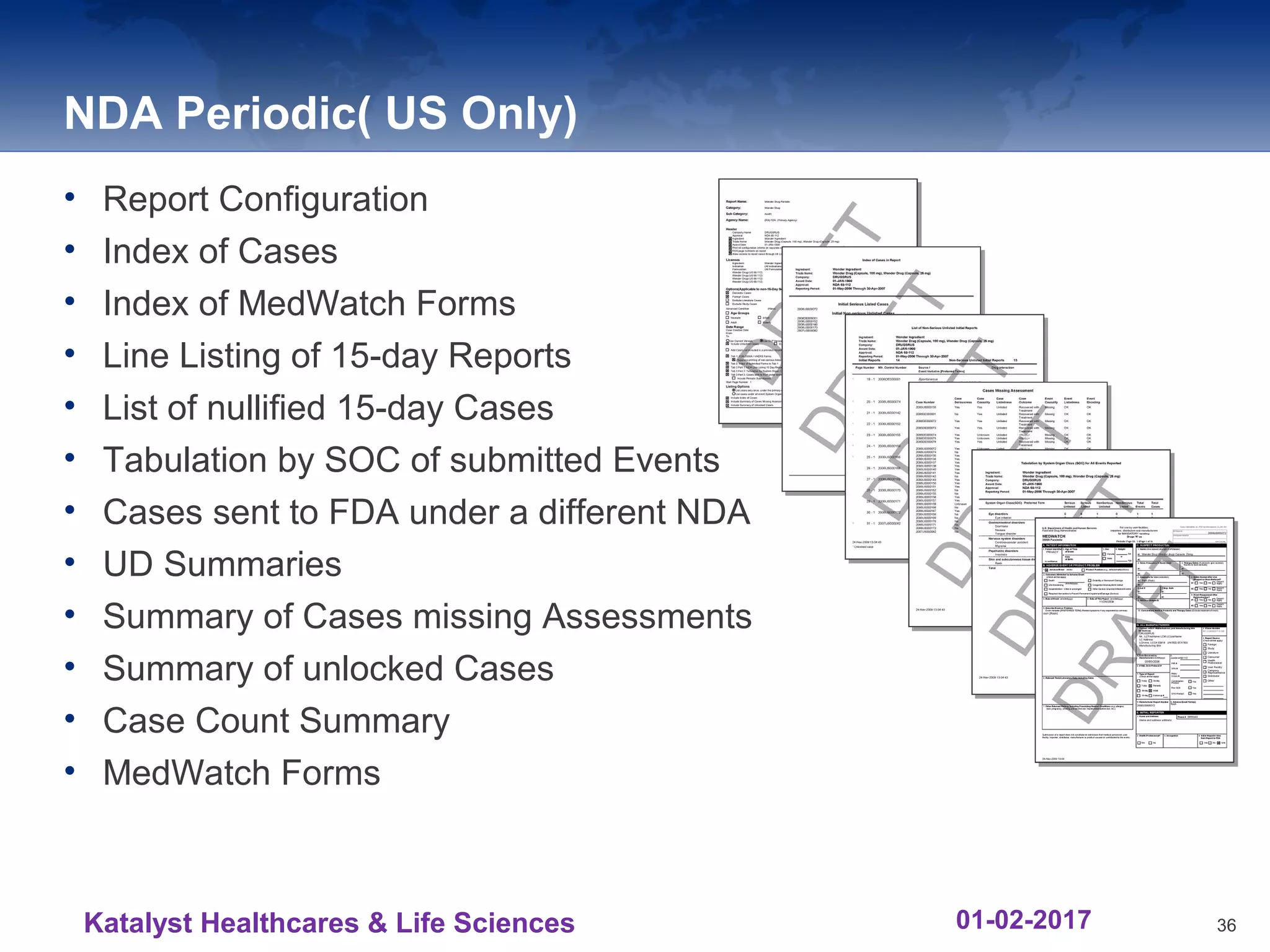
NDA Periodic( US Only)
• Report Configuration
• Index of Cases
• Index of MedWatch Forms
• Line Listing of 15-day Reports
• List of nullified 15-day Cases
• Tabulation by SOC of submitted Events
• Cases sent to FDA under a different NDA
• UD Summaries
• Summary of Cases missing Assessments
• Summary of unlocked Cases
• Case Count Summary
• MedWatch Forms
36Katalyst Healthcares & Life Sciences 01-02-2017
Periodic Reports – NDA: Topics
• Accessing NDA Reports
• Working with the Library
• Running a NDA Report
• NDA Configuration
37Katalyst Healthcares & Life Sciences 01-02-2017
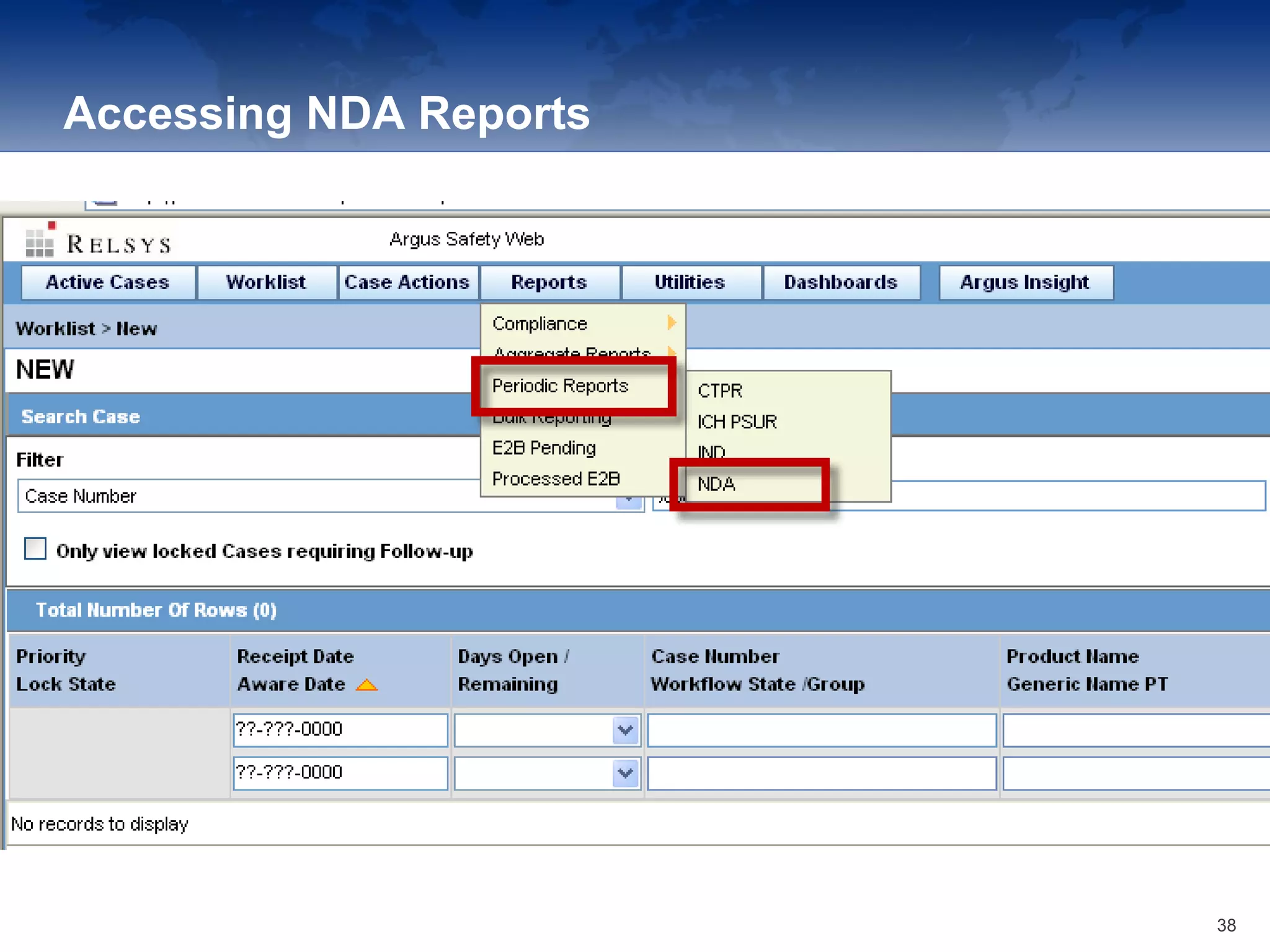
Accessing NDA Reports
38
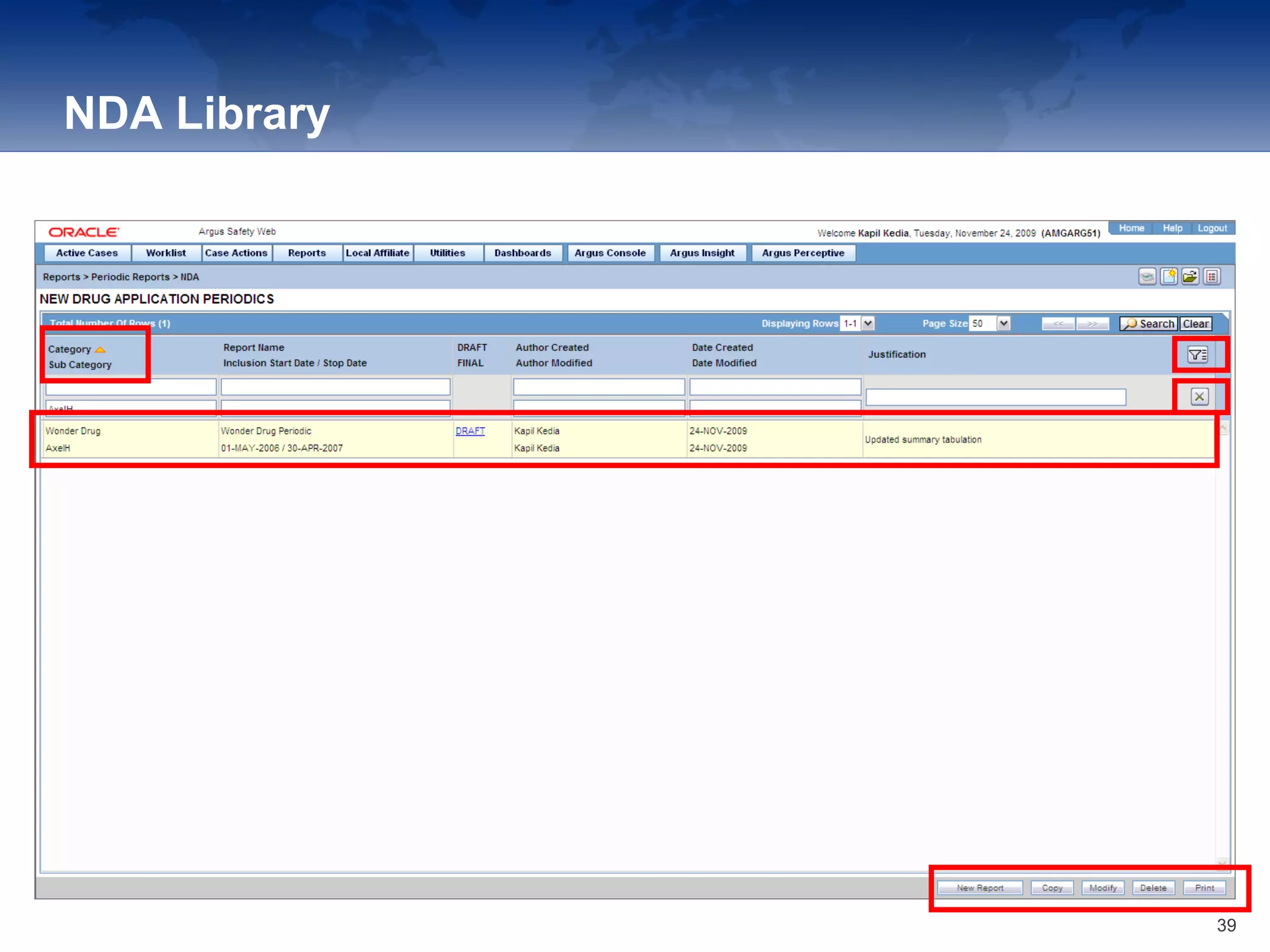
NDA Library
39
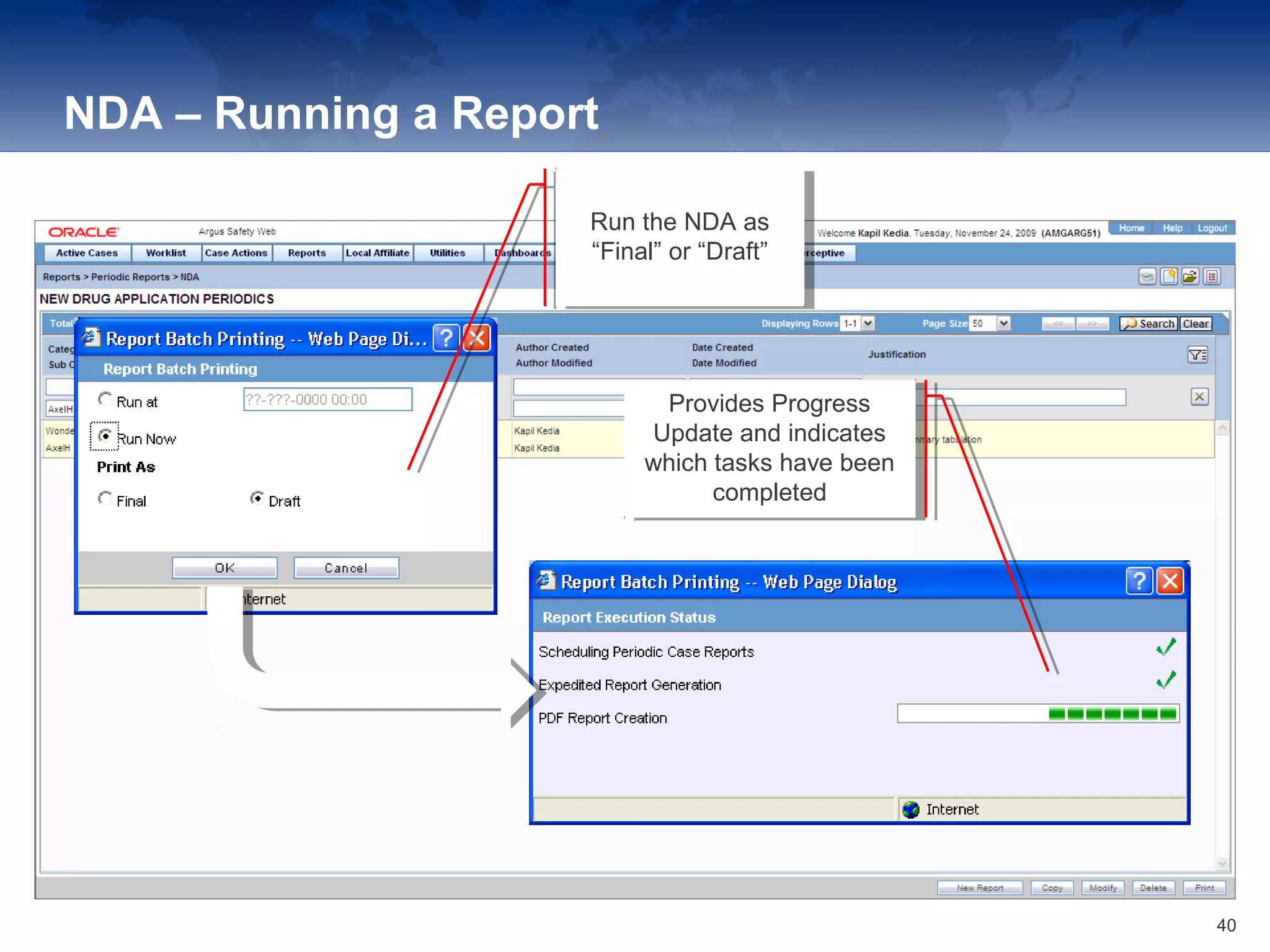
NDA – Running a Report
Run the NDA as
“Final” or “Draft”
Run the NDA as
“Final” or “Draft”
Provides Progress
Update and indicates
which tasks have been
completed
Provides Progress
Update and indicates
which tasks have been
completed
40
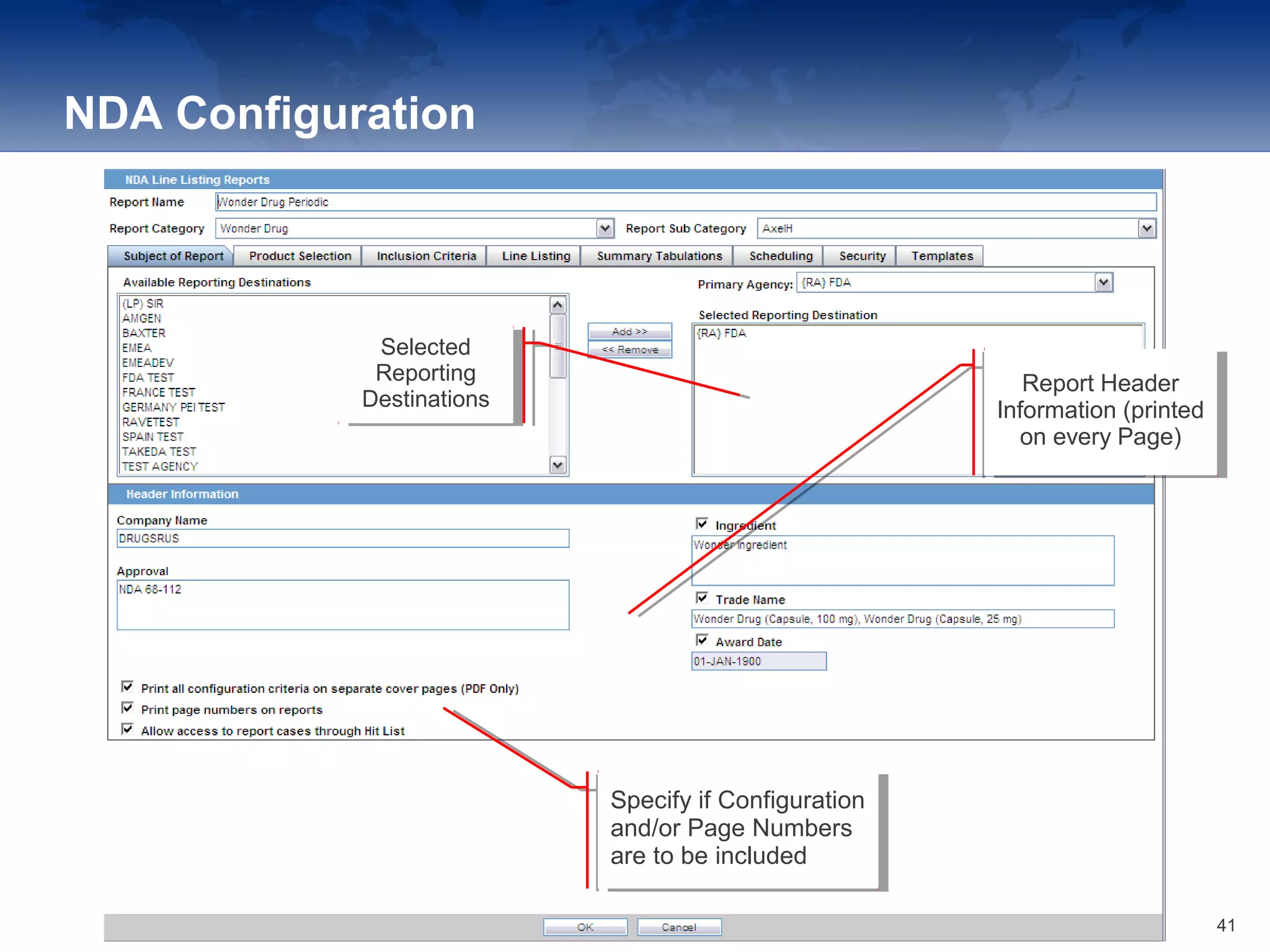
NDA Configuration
Specify if Configuration
and/or Page Numbers
are to be included
Specify if Configuration
and/or Page Numbers
are to be included
Selected
Reporting
Destinations
Selected
Reporting
Destinations
Report Header
Information (printed
on every Page)
Report Header
Information (printed
on every Page)
41
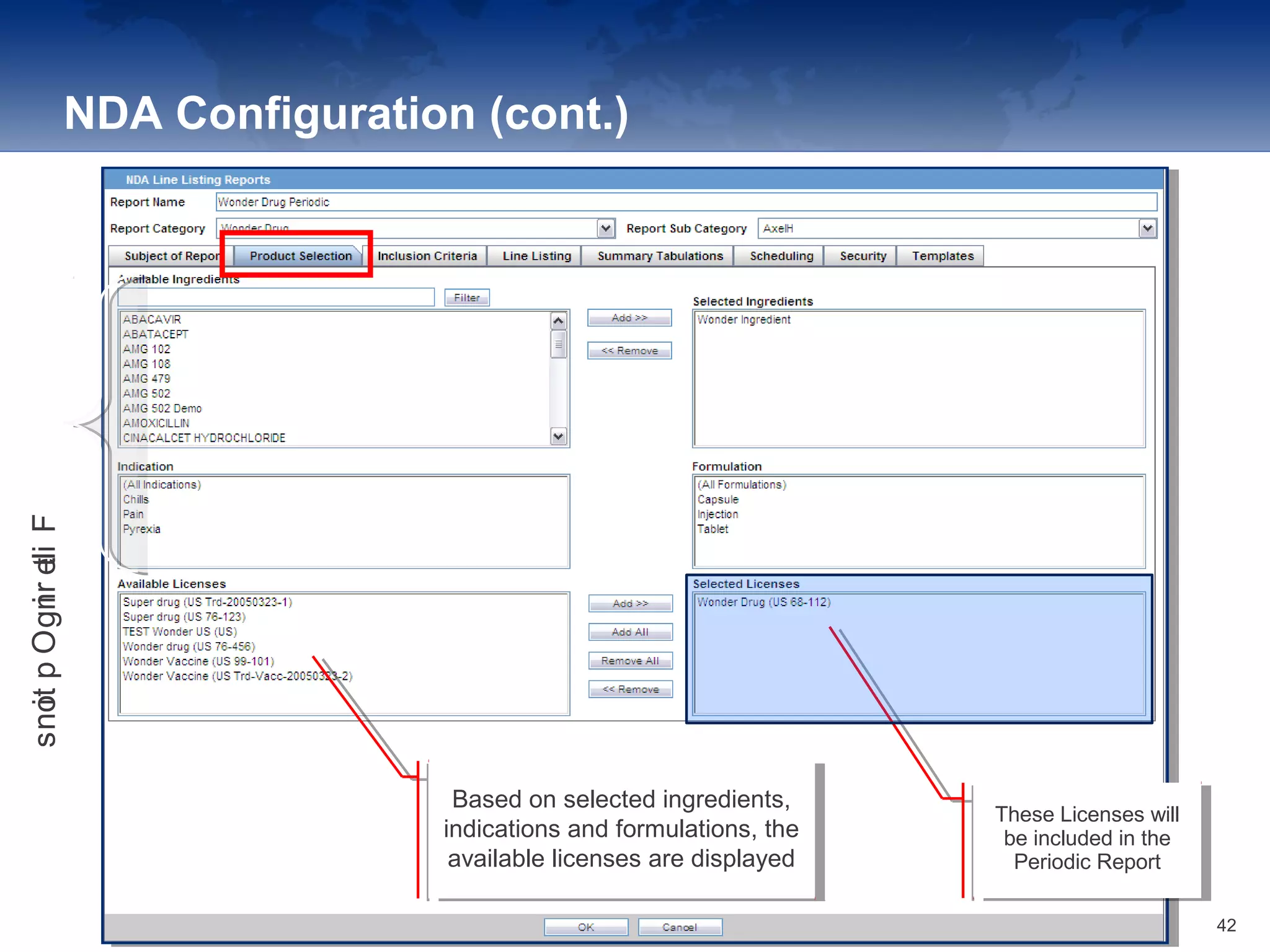
NDA Configuration (cont.)
These Licenses will
be included in the
Periodic Report
These Licenses will
be included in the
Periodic Report
Based on selected ingredients,
indications and formulations, the
available licenses are displayed
Based on selected ingredients,
indications and formulations, the
available licenses are displayed
FilteringOptions
42
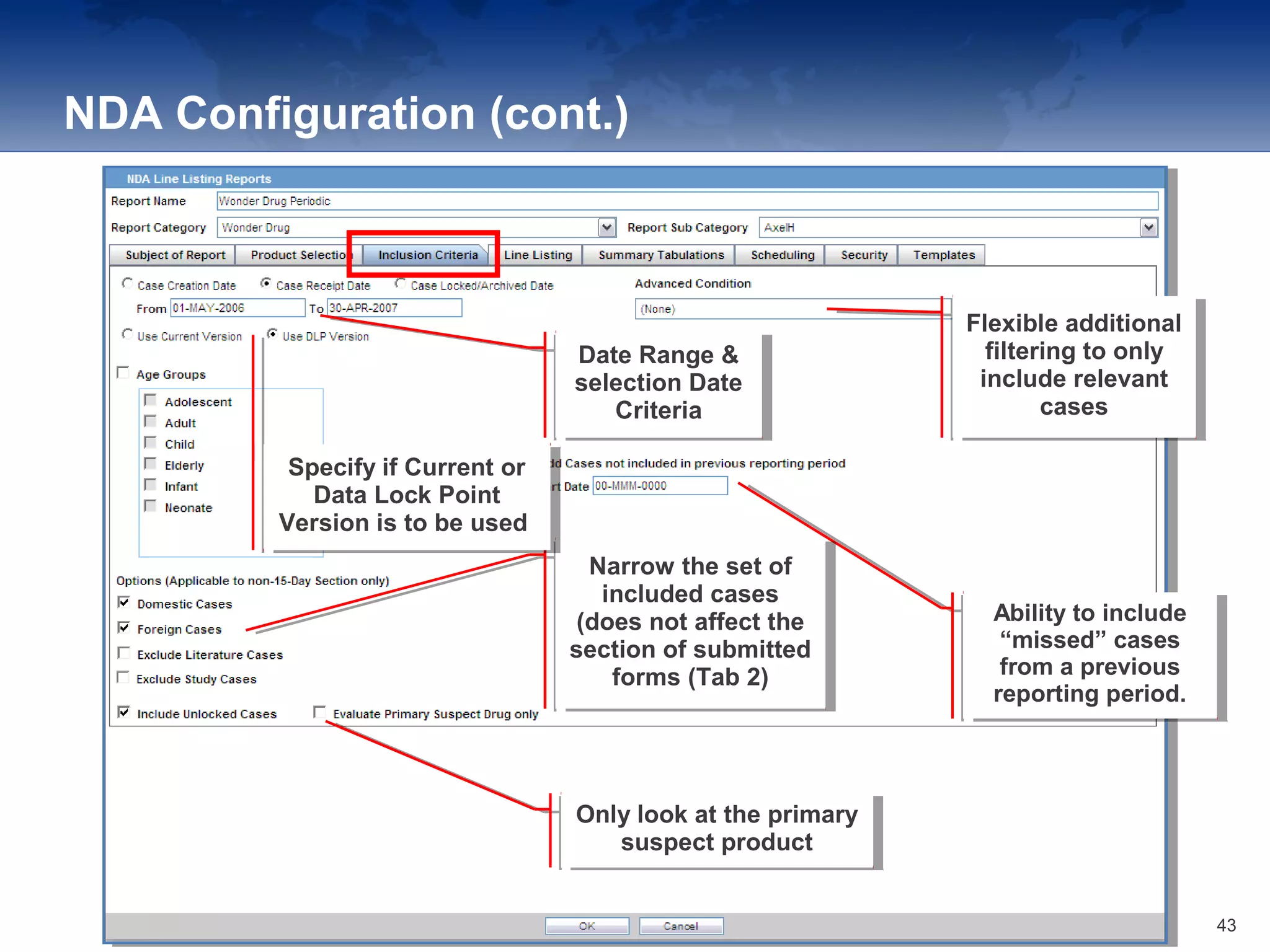
NDA Configuration (cont.)
Date Range &
selection Date
Criteria
Date Range &
selection Date
Criteria
Flexible additional
filtering to only
include relevant
cases
Flexible additional
filtering to only
include relevant
cases
Ability to include
“missed” cases
from a previous
reporting period.
Ability to include
“missed” cases
from a previous
reporting period.
Only look at the primary
suspect product
Only look at the primary
suspect product
Narrow the set of
included cases
(does not affect the
section of submitted
forms (Tab 2)
Narrow the set of
included cases
(does not affect the
section of submitted
forms (Tab 2)
Specify if Current or
Data Lock Point
Version is to be used.
Specify if Current or
Data Lock Point
Version is to be used.
43
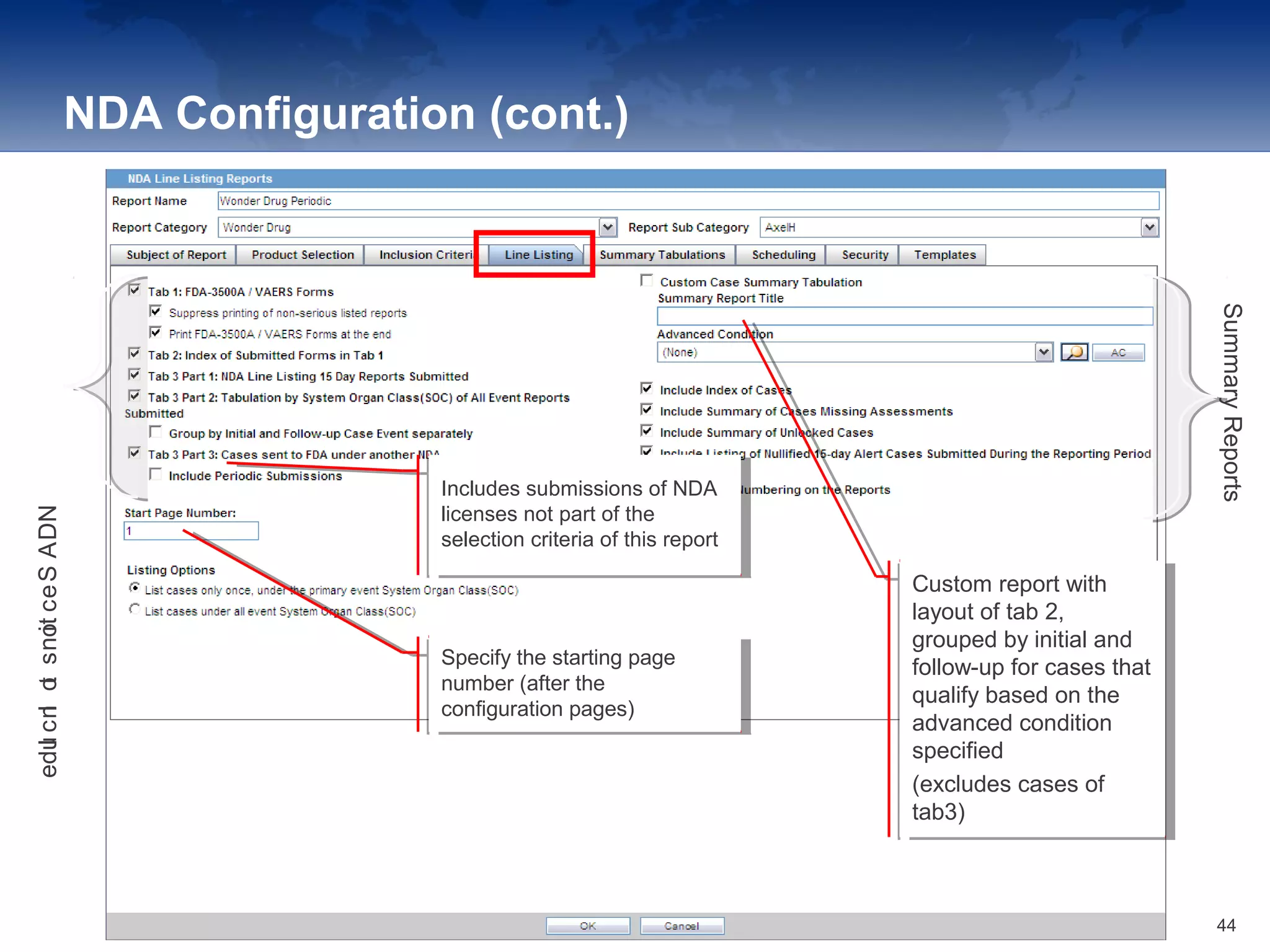
NDA Configuration (cont.)
Specify the starting page
number (after the
configuration pages)
Specify the starting page
number (after the
configuration pages)
Includes submissions of NDA
licenses not part of the
selection criteria of this report
Includes submissions of NDA
licenses not part of the
selection criteria of this report
Custom report with
layout of tab 2,
grouped by initial and
follow-up for cases that
qualify based on the
advanced condition
specified
(excludes cases of
tab3)
Custom report with
layout of tab 2,
grouped by initial and
follow-up for cases that
qualify based on the
advanced condition
specified
(excludes cases of
tab3)
NDASectionstoInclude
SummaryReports
44
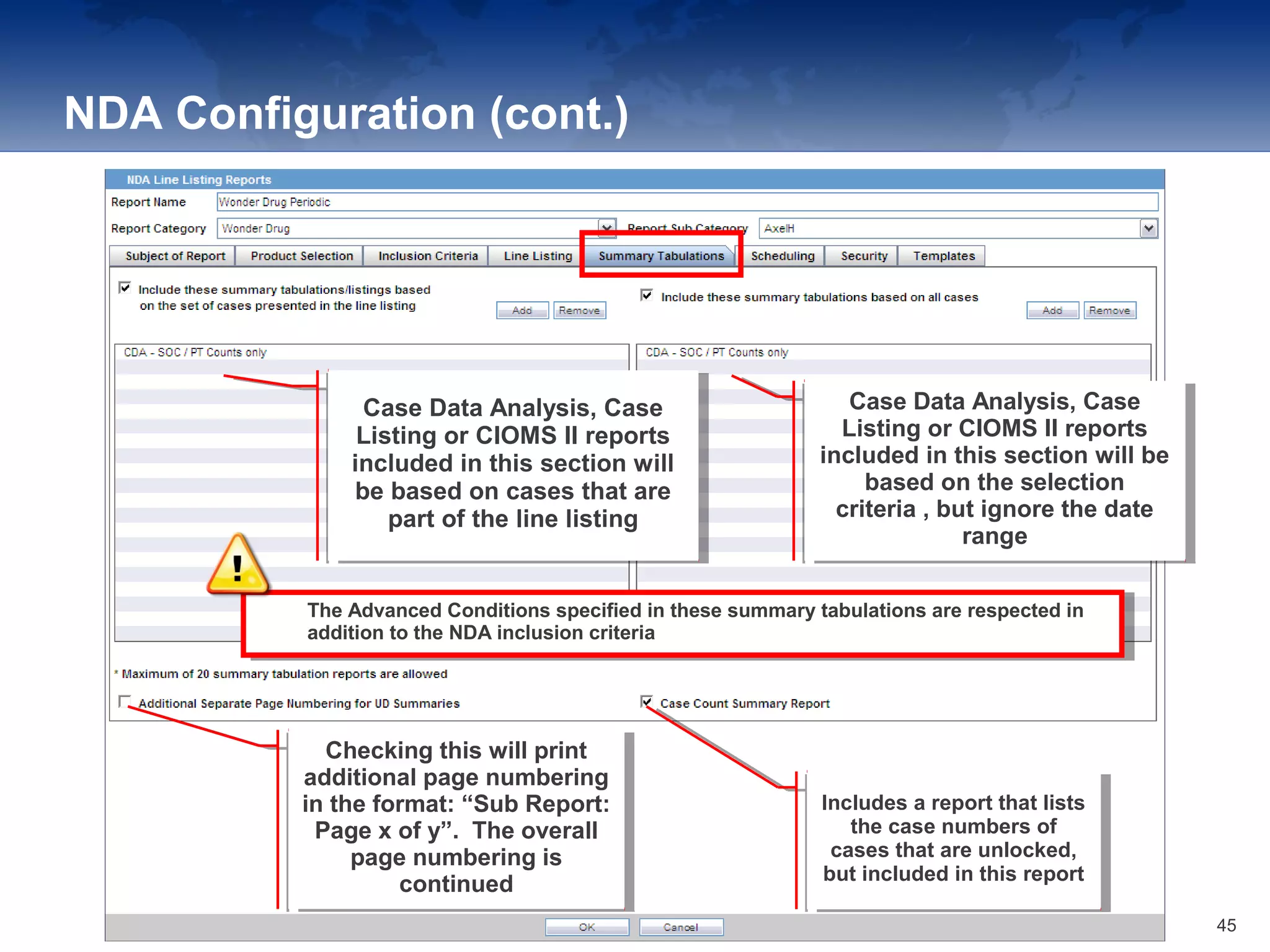
NDA Configuration (cont.)
Case Data Analysis, Case
Listing or CIOMS II reports
included in this section will
be based on cases that are
part of the line listing
Case Data Analysis, Case
Listing or CIOMS II reports
included in this section will
be based on cases that are
part of the line listing
Case Data Analysis, Case
Listing or CIOMS II reports
included in this section will be
based on the selection
criteria , but ignore the date
range
Case Data Analysis, Case
Listing or CIOMS II reports
included in this section will be
based on the selection
criteria , but ignore the date
range
The Advanced Conditions specified in these summary tabulations are respected in
addition to the NDA inclusion criteria
The Advanced Conditions specified in these summary tabulations are respected in
addition to the NDA inclusion criteria
Checking this will print
additional page numbering
in the format: “Sub Report:
Page x of y”. The overall
page numbering is
continued
Checking this will print
additional page numbering
in the format: “Sub Report:
Page x of y”. The overall
page numbering is
continued
Includes a report that lists
the case numbers of
cases that are unlocked,
but included in this report
Includes a report that lists
the case numbers of
cases that are unlocked,
but included in this report
45
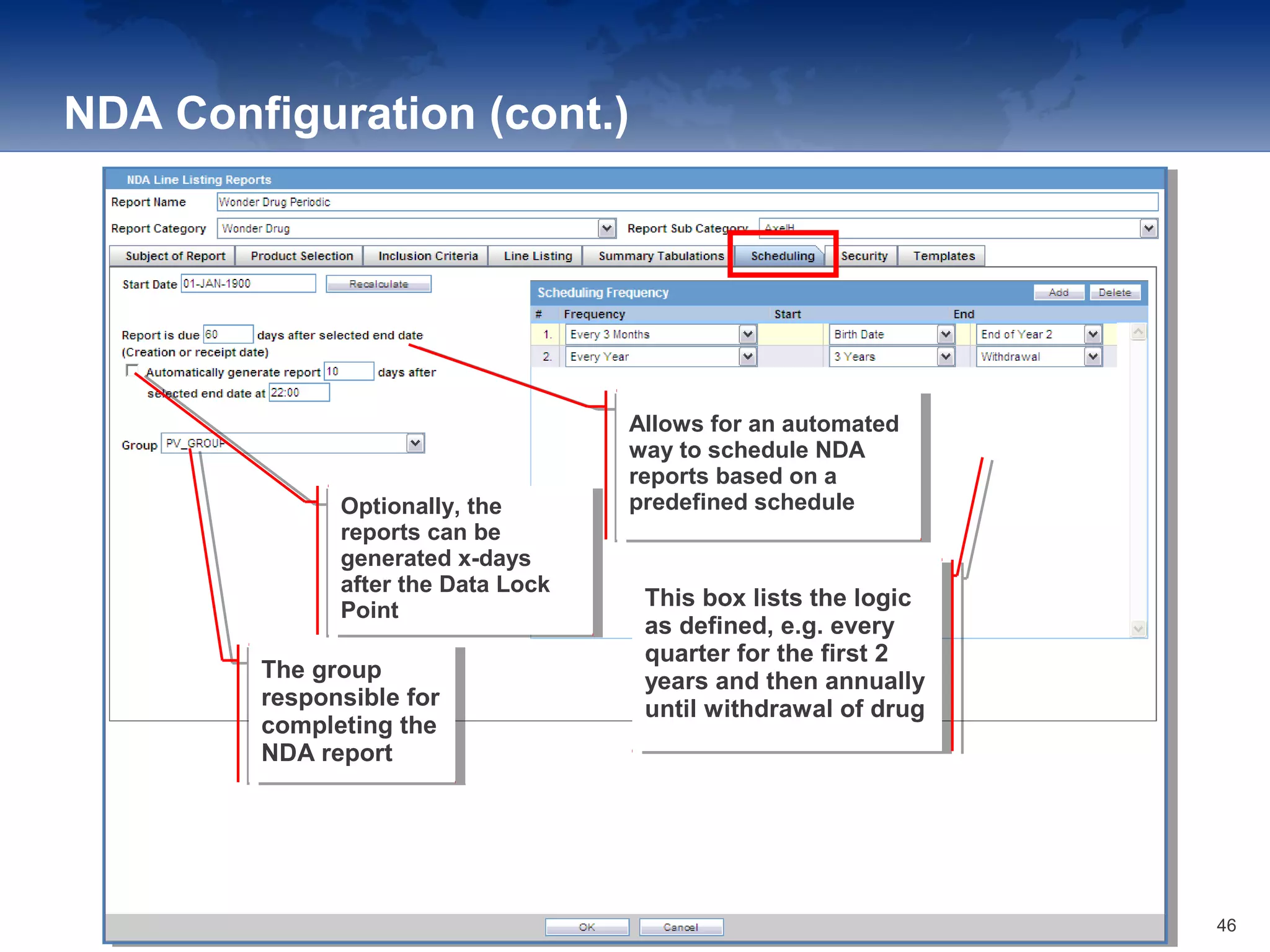
NDA Configuration (cont.)
Allows for an automated
way to schedule NDA
reports based on a
predefined schedule
Allows for an automated
way to schedule NDA
reports based on a
predefined scheduleOptionally, the
reports can be
generated x-days
after the Data Lock
Point
Optionally, the
reports can be
generated x-days
after the Data Lock
Point
The group
responsible for
completing the
NDA report
The group
responsible for
completing the
NDA report
This box lists the logic
as defined, e.g. every
quarter for the first 2
years and then annually
until withdrawal of drug
This box lists the logic
as defined, e.g. every
quarter for the first 2
years and then annually
until withdrawal of drug
46
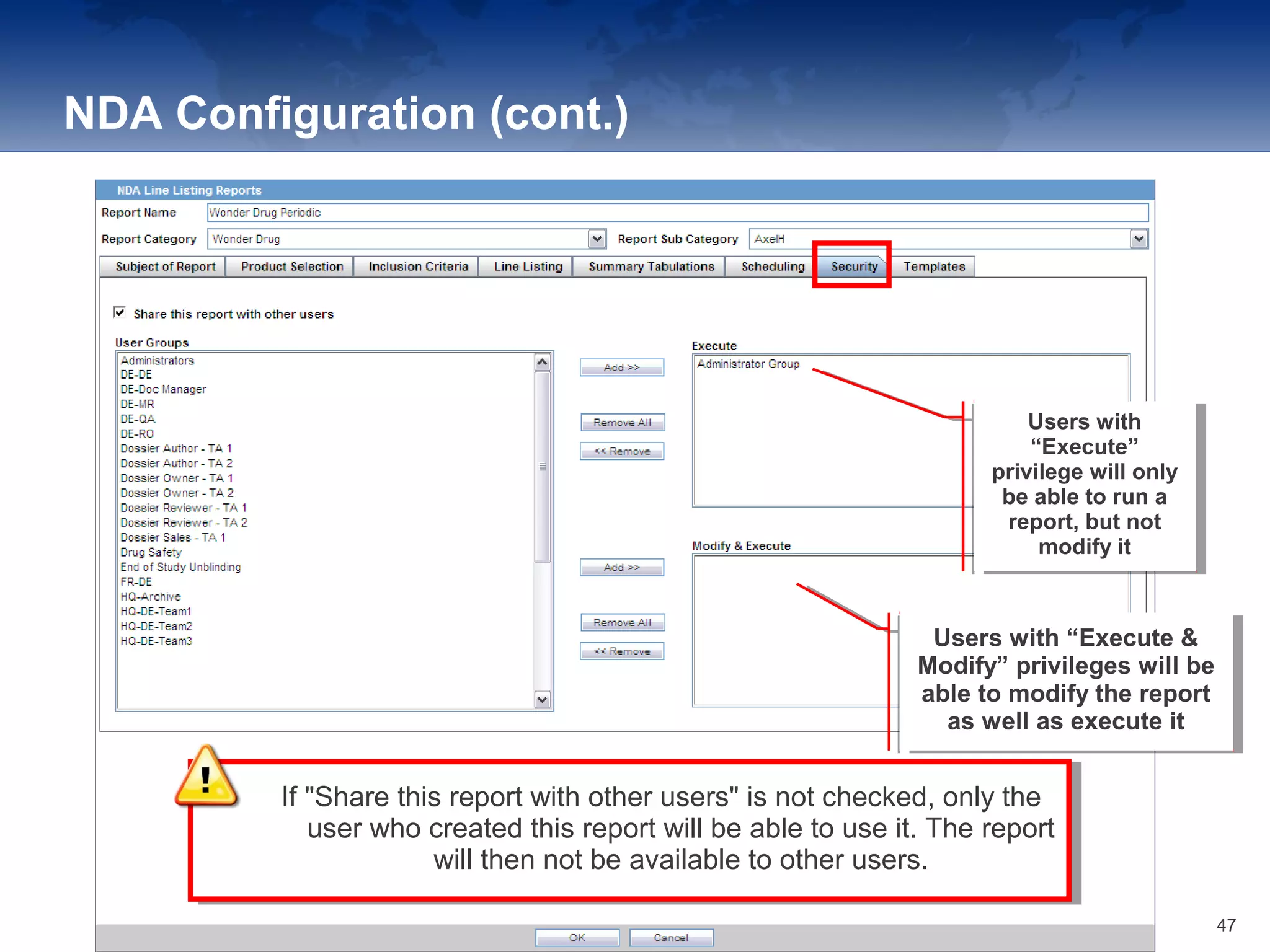
NDA Configuration (cont.)
Users with
“Execute”
privilege will only
be able to run a
report, but not
modify it
Users with
“Execute”
privilege will only
be able to run a
report, but not
modify it
Users with “Execute &
Modify” privileges will be
able to modify the report
as well as execute it
Users with “Execute &
Modify” privileges will be
able to modify the report
as well as execute it
If "Share this report with other users" is not checked, only the
user who created this report will be able to use it. The report
will then not be available to other users.
If "Share this report with other users" is not checked, only the
user who created this report will be able to use it. The report
will then not be available to other users.
47
NDA Configuration (cont.)
The “Templates” tab is for use with
Argus Dossier, an additional module
which will not be used during this
phase of Argus roll-out) to allow the
complete publishing of any periodic
report
The “Templates” tab is for use with
Argus Dossier, an additional module
which will not be used during this
phase of Argus roll-out) to allow the
complete publishing of any periodic
report
48
Summary
After completing this course you are now able to:
• Successfully demonstrate all tasks relating to Aggregate Reports
• Successfully perform all tasks relating to Periodic Reports
50Katalyst Healthcares & Life Sciences 01-02-2017
5151
Thank You
5101-02-2017Katalyst Healthcares & Life Sciences

Argus Aggregrate Reporting_Katalyst HLS

  • 1.
    Argus Safety Aggregate Reporting– Awareness 1Katalyst Healthcares & Life Sciences 01-02-2017
  • 2.
    Reports Argus Safety haspowerful system reporting capabilities that enable you to monitor product safety profiles, case progress, and company productivity during the case handling process. There are several different kinds of reports available in Argus. In this section, we will review: • Aggregate Reports • Periodic Reports 2Katalyst Healthcares & Life Sciences 01-02-2017
  • 3.
    Aggregate Reports: Topics •Working in the Library • Running Case Data Analysis Reports • Running CIOMS II Line Listings • Working with Case Listings 3Katalyst Healthcares & Life Sciences 01-02-2017
  • 4.
    Aggregate Reporting To accessthe available Aggregate Report types, go to the Reports menu bar of Argus Safety and select one of the three types of Aggregate Reports: • Case Data Analysis • CIOMS II Line Listing • Case Listing 4Katalyst Healthcares & Life Sciences 01-02-2017
  • 5.
    System Reports Library Saved(memorized) reports may be accessed from the System Reports Library. 5Katalyst Healthcares & Life Sciences 01-02-2017
  • 6.
    Case Data Analysis TheCase Data Analysis report enables the User to tabulate events or cases over time in Cross Tabular Fashion.‐ There are many reporting field options and filter criteria to build your Case Data Analysis report, including Advanced Conditions. 6
  • 7.
  • 8.
  • 9.
    CIOMS II LineListing 9
  • 10.
  • 11.
    1111 Argus: Periodic Reports 11KatalystHealthcares & Life Sciences 01-02-2017
  • 12.
    Periodic Reporting In Argus,the user has the ability to create various periodic reports. Argus contains a searchable library for enhanced organization, structured templates, the ability to add cases not included in previous reporting period, and comprehensive output options. In order to access the reports, go to the Reports menu bar of Argus Safety and select from the four types of Periodic Reports available: • ICH PSUR Line Listing Reports • US NDA Periodic Reports • Clinical Trial Periodic (CTPR) Reports • US IND Periodic Reports 12Katalyst Healthcares & Life Sciences 01-02-2017
  • 13.
    Report Definitions CTPR ClinicalTrial Periodic Report PSUR Periodic Safety Update Report IND Investigational New Drug NDA New Drug Application 13Katalyst Healthcares & Life Sciences 01-02-2017
  • 14.
  • 15.
    Periodic Reporting -PSUR: Topics • Working with PSUR Submission Records • Library configuration • Running a PSUR Report • PSUR Report Configuration • Working with Advanced Conditions 15Katalyst Healthcares & Life Sciences 01-02-2017
  • 16.
    ICH Periodic SafetyUpdate Report The Periodic Safety Update Reports (PSURs) are created on a periodic basis to enable regulatory authorities to monitor the safety of a marketed product. Requirements on the due date of periodic reports may differ for different regulatory authorities. • The following are PSUR reporting outputs: • Report Configuration • Line Listing • Index of Cases • Cases missing Assessment (Useful during draft review) • FDA Supporting Reports • Line Listing Tabulation • Cumulative Summary • User Defined Summary Tabulations • Supporting CIOMS or MedWatch Report 16Katalyst Healthcares & Life Sciences 01-02-2017
  • 17.
    PSUR Submission Record FolderStructure to locate desired Report(s) Folder Structure to locate desired Report(s) Report(s) are displayed based on selected Folder Report(s) are displayed based on selected Folder 17
  • 18.
    Periodic Reports LibraryConfiguration 18
  • 19.
    PSUR – Runninga Report 19
  • 20.
  • 21.
    PSUR Configuration (cont.) FilteringOptions Basedon selected ingredients, indications and formulations, the available products are displayed Based on selected ingredients, indications and formulations, the available products are displayed These products will be included in the Periodic Report These products will be included in the Periodic Report 21
  • 22.
    PSUR Configuration (cont.) DateRange & Date Criteria Current or Data Lock Point Version Date Range & Date Criteria Current or Data Lock Point Version Date Range & Date Criteria Current or Data Lock Point Version Date Range & Date Criteria Current or Data Lock Point Version Specify which cases to include in the PSUR by: 1. Case Type 2. Seriousness 3. Expectedness 4. Relatedness 5. Health Care Practitioner Specify which cases to include in the PSUR by: 1. Case Type 2. Seriousness 3. Expectedness 4. Relatedness 5. Health Care Practitioner Flexible additional filtering to only include relevant cases Flexible additional filtering to only include relevant cases Ability to include “missed” cases from a previous reporting period Ability to include “missed” cases from a previous reporting period 22
  • 23.
    PSUR Configuration (cont.) Specifyif standard ICH Line Listing is to be included. Specify if standard ICH Line Listing is to be included. Additional data elements can be added to the line listing in a specified order Additional data elements can be added to the line listing in a specified order Additional line listing optionsAdditional line listing options Options for Line Listing: Source of MedDRA Hierarchy • Level of the term • Dose text instead of system computed regimen dose Options for Line Listing: Source of MedDRA Hierarchy • Level of the term • Dose text instead of system computed regimen dose 23
  • 24.
    PSUR Configuration (cont.) Availablefields for sortingAvailable fields for sorting Selected Line Listing groupings with sorting option and page break Selected Line Listing groupings with sorting option and page break Sort order for the inner most grouping Sort order for the inner most grouping 24
  • 25.
    PSUR Configuration (cont.) Comparisonof events tabulation against a previous period Comparison of events tabulation against a previous period Optional reports for submissions to the FDA Optional reports for submissions to the FDA Single Case submissions for electronic reporting with the “PSUR” header Single Case submissions for electronic reporting with the “PSUR” header 25
  • 26.
  • 27.
    PSUR Configuration (cont.) Allowsfor an automated way to schedule PSUR reports based on a predefined schedule Allows for an automated way to schedule PSUR reports based on a predefined schedule Optionally, the reports can be generated x-days after the Data Lock Point Optionally, the reports can be generated x-days after the Data Lock Point The group responsible for completing the PSUR report The group responsible for completing the PSUR report This box lists the logic as defined, e.g. every quarter for the first 2 years and then annually until withdrawal of drug This box lists the logic as defined, e.g. every quarter for the first 2 years and then annually until withdrawal of drug 27
  • 28.
    PSUR Configuration (cont.) If"Share this report with other users" is not checked, only the user who created this report will be able to use it. The report will then not be available to other users. If "Share this report with other users" is not checked, only the user who created this report will be able to use it. The report will then not be available to other users. Users with “Execute” privilege will only be able to run a report, but not modify it Users with “Execute” privilege will only be able to run a report, but not modify it Users with “Execute & Modify” privileges will be able to modify the report as well as execute it Users with “Execute & Modify” privileges will be able to modify the report as well as execute it 28
  • 29.
    PSUR Configuration (cont.) The“Templates” tab is for use with Argus Dossier, an add-on module (i.e. an additional module which will not be used in this phase of Argus roll-out) to allow the complete publishing of any periodic report. The “Templates” tab is for use with Argus Dossier, an add-on module (i.e. an additional module which will not be used in this phase of Argus roll-out) to allow the complete publishing of any periodic report. 29
  • 30.
    Printing the PSUR ProvidesProgress Update and indicates which tasks have been completed Provides Progress Update and indicates which tasks have been completed Options displayed to run the NDA as “Final” or “Draft” Options displayed to run the NDA as “Final” or “Draft” 30
  • 31.
    Printing the PSUR(2) PSUR now available for printing or saving PSUR now available for printing or saving 31
  • 32.
    Advanced Conditions • Usedto select a subset of cases throughout the Safety System, including Periodic Reports • Can include any and all case attributes • Graphical User Interface • Can be supplemented with SQL for more complex queries 32
  • 33.
    Advanced Conditions (cont.) •Multiple Advanced Conditions (AC) can be combined using Query Sets utilizing SET operators: • UNION • MINUS • INTERSECT Example Want to find all cases that are serious: AC1: ANALYSIS | Case Assessment | Case Seriousness? = Yes Now, exclude any cases for female patients: Build a new AC2: PATIENT | Patient Information | Patient Gender = Female Combine the two advanced conditions in a Query Set QS1: AC1 MINUS AC2 Example Want to find all cases that are serious: AC1: ANALYSIS | Case Assessment | Case Seriousness? = Yes Now, exclude any cases for female patients: Build a new AC2: PATIENT | Patient Information | Patient Gender = Female Combine the two advanced conditions in a Query Set QS1: AC1 MINUS AC2 33
  • 34.
    Advanced Condition Editor Comparator touse Comparator to use Advanced Condition criteria Advanced Condition criteria Available Case Fields grouped by tab and section Available Case Fields grouped by tab and section Current Condition selected Current Condition selected 34
  • 35.
    NDA Periodic( USOnly) • Report Configuration • Index of Cases • Index of MedWatch Forms • Line Listing of 15-day Reports • List of nullified 15-day Cases • Tabulation by SOC of submitted Events • Cases sent to FDA under a different NDA • UD Summaries • Summary of Cases missing Assessments • Summary of unlocked Cases • Case Count Summary • MedWatch Forms 36Katalyst Healthcares & Life Sciences 01-02-2017
  • 36.
    Periodic Reports –NDA: Topics • Accessing NDA Reports • Working with the Library • Running a NDA Report • NDA Configuration 37Katalyst Healthcares & Life Sciences 01-02-2017
  • 37.
  • 38.
  • 39.
    NDA – Runninga Report Run the NDA as “Final” or “Draft” Run the NDA as “Final” or “Draft” Provides Progress Update and indicates which tasks have been completed Provides Progress Update and indicates which tasks have been completed 40
  • 40.
    NDA Configuration Specify ifConfiguration and/or Page Numbers are to be included Specify if Configuration and/or Page Numbers are to be included Selected Reporting Destinations Selected Reporting Destinations Report Header Information (printed on every Page) Report Header Information (printed on every Page) 41
  • 41.
    NDA Configuration (cont.) TheseLicenses will be included in the Periodic Report These Licenses will be included in the Periodic Report Based on selected ingredients, indications and formulations, the available licenses are displayed Based on selected ingredients, indications and formulations, the available licenses are displayed FilteringOptions 42
  • 42.
    NDA Configuration (cont.) DateRange & selection Date Criteria Date Range & selection Date Criteria Flexible additional filtering to only include relevant cases Flexible additional filtering to only include relevant cases Ability to include “missed” cases from a previous reporting period. Ability to include “missed” cases from a previous reporting period. Only look at the primary suspect product Only look at the primary suspect product Narrow the set of included cases (does not affect the section of submitted forms (Tab 2) Narrow the set of included cases (does not affect the section of submitted forms (Tab 2) Specify if Current or Data Lock Point Version is to be used. Specify if Current or Data Lock Point Version is to be used. 43
  • 43.
    NDA Configuration (cont.) Specifythe starting page number (after the configuration pages) Specify the starting page number (after the configuration pages) Includes submissions of NDA licenses not part of the selection criteria of this report Includes submissions of NDA licenses not part of the selection criteria of this report Custom report with layout of tab 2, grouped by initial and follow-up for cases that qualify based on the advanced condition specified (excludes cases of tab3) Custom report with layout of tab 2, grouped by initial and follow-up for cases that qualify based on the advanced condition specified (excludes cases of tab3) NDASectionstoInclude SummaryReports 44
  • 44.
    NDA Configuration (cont.) CaseData Analysis, Case Listing or CIOMS II reports included in this section will be based on cases that are part of the line listing Case Data Analysis, Case Listing or CIOMS II reports included in this section will be based on cases that are part of the line listing Case Data Analysis, Case Listing or CIOMS II reports included in this section will be based on the selection criteria , but ignore the date range Case Data Analysis, Case Listing or CIOMS II reports included in this section will be based on the selection criteria , but ignore the date range The Advanced Conditions specified in these summary tabulations are respected in addition to the NDA inclusion criteria The Advanced Conditions specified in these summary tabulations are respected in addition to the NDA inclusion criteria Checking this will print additional page numbering in the format: “Sub Report: Page x of y”. The overall page numbering is continued Checking this will print additional page numbering in the format: “Sub Report: Page x of y”. The overall page numbering is continued Includes a report that lists the case numbers of cases that are unlocked, but included in this report Includes a report that lists the case numbers of cases that are unlocked, but included in this report 45
  • 45.
    NDA Configuration (cont.) Allowsfor an automated way to schedule NDA reports based on a predefined schedule Allows for an automated way to schedule NDA reports based on a predefined scheduleOptionally, the reports can be generated x-days after the Data Lock Point Optionally, the reports can be generated x-days after the Data Lock Point The group responsible for completing the NDA report The group responsible for completing the NDA report This box lists the logic as defined, e.g. every quarter for the first 2 years and then annually until withdrawal of drug This box lists the logic as defined, e.g. every quarter for the first 2 years and then annually until withdrawal of drug 46
  • 46.
    NDA Configuration (cont.) Userswith “Execute” privilege will only be able to run a report, but not modify it Users with “Execute” privilege will only be able to run a report, but not modify it Users with “Execute & Modify” privileges will be able to modify the report as well as execute it Users with “Execute & Modify” privileges will be able to modify the report as well as execute it If "Share this report with other users" is not checked, only the user who created this report will be able to use it. The report will then not be available to other users. If "Share this report with other users" is not checked, only the user who created this report will be able to use it. The report will then not be available to other users. 47
  • 47.
    NDA Configuration (cont.) The“Templates” tab is for use with Argus Dossier, an additional module which will not be used during this phase of Argus roll-out) to allow the complete publishing of any periodic report The “Templates” tab is for use with Argus Dossier, an additional module which will not be used during this phase of Argus roll-out) to allow the complete publishing of any periodic report 48
  • 48.
    Summary After completing thiscourse you are now able to: • Successfully demonstrate all tasks relating to Aggregate Reports • Successfully perform all tasks relating to Periodic Reports 50Katalyst Healthcares & Life Sciences 01-02-2017
  • 49.

Editor's Notes

  • #3 Review slide and add 1-2 details the PAREXEL workflow routing for Aggregate/Periodic Reporting: Sponsor Sends an Aggregate/Periodic Report Request to the MPM: The MPM (or other designee) would monitor and be aware of the Periodic lock date for an upcoming report. The MPM confirms the report requirements and communicates the requirements to team members (MITS) and to the client if information is needed from the client. The MPM tracks the report due dates, coordinates the receipt of the report components and reviews components for compliance. Include Client Information in Report: The client sends the requested information to the Medical Writer according to agreed timelines. If the information resides within the PAREXEL hosted database, MITS prepares the requested reports according to agreed upon timelines. MITS forwards the report to the DSS/SDSS for QC. If components of the report are acceptable, the Medical Writer (MW) will compile the report sections, analyze data, draft/revise medical summary and perform an internal QC of the report. If the report components are not acceptable, the DSS/SDDS resolves the issues and forwards the report to the MW for review until the components are deemed acceptable. PAREXEL is Contracted to Perform Medical Review of Report: The Medical Writer forwards the document to the MM or DSP for Medical Review prior to sending the report to the client. PAREXEL is NOT Contracted to Perform Medical Review of Report: The report is distributed to the client who would then review the document. If there are edits to the report following Medical Review, MM or DSP sends the document back to the MW for revision. If the document is acceptable, and PAREXEL is not responsible for submission, the PAREXEL process for this report ends here. PAREXEL is responsible for the submission of Medical Review: The Reporting Group prepares the cover letter and sends the report via courier, awaits acknowledgement, and updates the tracking status of the document.
  • #5 Read slide and then point the Aggregate Reporting Options.
  • #6 Select ‘Reports’, ‘Aggregate Reports’ and ‘System Reports Library’ and a list of memorized reports will be listed The user can query all memorize reports by any of the column names and clicking [Search] Click [Clear] to refresh the report library Select and highlight any single row to utilize one of the screen functions..copy, delete, open, execute, export and transmit Execute – generates the report in pdf format
  • #7 The Case Data Analysis Report enables you to view quantities of cases over time in a Cross-Tabular Fashion. You can define what you would like the analysis report to look like to find out the information that is pertinent to your enquiry. For example, if you want to find out how many unlisted SAEs with a causal relationship to a certain product family occurred in male patients in the adult age group during the past month, you can specify that – as well as the order in which you want the columns to be set up. Enter the name and description of the Case Data Analysis which will be used to display the report in the System Reports Library once it is saved Select the field from the code list in “Row 1” and/or “Row 2” to group cases by the row. If the field selected for “Row 1” is a list field, the field value options will be displayed in the “Selection for Row 1” field area. The user must also select a column to group cases by selecting “Column 1” and/or “Column 2” to display the report. The user can also utilize various options to configure the report for proper display such as reporting the number of cases or events, Advanced Condition, data range, etc. When selecting the Number of Events, the ability to select event types will be enabled. Select the output format in which to display the Case Data Analysis report: Data table (PDF text-format) Choose from several types of charts (graphical format)
  • #8 To generate the report, Select the “Report Display Type” = ‘Data’ for printing in text format Click [Print] and a PDF screen will be launched with a generated Case Data Analysis report ready to be printed or saved. Demonstrate how to generate the report using „data” in the Report Display Type.
  • #9 To generate graphic options: Select the ‘Chart’ report display type and click the appropriate chart option radio button for the type of chart you need. Click [Print] and a dialog appears of your Case Data Analysis report displaying a graphical view of the report data. Demonstrate how to generate the report using ‘chart option’ in the Report Display Type.
  • #10 The CIOMS II line listing report is a common format desired by Drug Safety professionals for reviewing cases. For example, for an Annual Safety Report, the line listing contains all drug related SAEs for the defined period of one year. A CIOMS II report contains information on the adverse reaction, information on the suspects drugs, concomitant drugs and history, the manufacturer and patient details. Select ‘Reports’, ‘Aggregate Reports’ and ‘CIOMS II Line Listing’ to display the report dialog In the ‘Criteria’ tab, enter the report “Title” and “Footer” information and select the remaining report criteria you require. The output is a standard CIOMS II Line Listing format Make appropriate selections regarding date range, product, advanced conditions and whether to include Initial Cases, Follow Up Cases, Unlocked Cases The ‘Line Listing’ tab provides the ability to add additional fields to the report The ‘Grouping’ tab allows the user to group cases by e.g. Report Type and/or Seriousness and select a desired sorting of cases. Click [Print] to view report in PDF format, or [Export] to Excel to save externally. Demonstrate how to generate the report using „CIOMS II Line Listing”.
  • #11 The Case Listing Report enables you to filter cases based on Case Initial Receipt Date and Case Creation Date. You can select multiple entities from the List of available fields using the CTRL+CLICK functionality Select ‘Reports’, ‘Aggregate Reports’ and ‘Case Listing’ to display the report dialog Enter the report criteria by: Selecting the field from the ‘Available Fields’ list which will be automatically added to the ‘Selected Fields’ section to the right upon selection. To remove a field, highlight the field in the ‘Selected Fields’ section and click [Remove]. Add Advanced Condition, Date Range, and Sorting Order to fulfill the remaining criteria. Select Sort order for report based on selected fields by using the Up and Down buttons as shown Select or create an Advanced Condition if applicable Check whether to Include AC criteria in the Header of the report Click [Print] to generate report in PDF or [Export] to Excel Red Frame: Selected Fields will print left to right on report – use Up/Down arrows to change order Demonstrate how to generate the report using „Case Listing”.
  • #14 Read the definitions. The Clinical Trial Periodic Reports (CTPR) are created to report the IND Annual reports and EU Clinical Trial Directive line listing reports to FDA. It may be used to create the ASR (Annual Safety Report) or DSUR (Developmental Safety Update Report). An ASR is a safety report submitted to the MHRA and the Ethics Committee, once a year throughout the clinical trial or on request. The annual safety report should take into account all new available safety information received during the reporting period. In a DSUR, sponsors are supposed to update the trial’s status, summarize their understanding and management of identified and potential risks, describe new safety concerns that could affect the protection of trial subjects and examine whether the information collected during the previous year fits with knowledge about the product’s safety. A Periodic Safety Update Report (PSUR) is intended to provide an update of the worldwide safety experience of a medicinal product (including traditional herbal products) to Competent Authorities at defined time points post-authorisation. Traditional Herbal Registration (THR) Holders are expected to provide succinct summary information together with a critical evaluation of the risk-benefit balance of the product in the light of new or changing information. This evaluation should ascertain whether further investigations need to be carried out and whether changes should be made to the registration and product information. The Periodic Safety Update Report is the global standard for marketed products. IND: A new drug, antibiotic drug, or biological drug application that is used in a clinical investigation. It also includes a biological product used in vitro for diagnostic purposes. The IND applies to the FDA only. An NDA is an application submitted by the manufacturer of a drug to the FDA - after clinical trials have been completed - for a license to market the drug for a specified indication.
  • #15 Demonstrate how to access Periodic Reports.
  • #18 Explain fields. Click on Regulatory Reports tab
  • #19 To navigate to ICH PSUR, select ‘Reports’, ‘Periodic’ and ‘ICH PSUR’ to open a list of PSUR Reports In this screen, you can: Create a PSUR from a Template Create a New Report Copy / Modify / Delete an Existing Report Print a PSUR Click > PSUR Reports can be organized by Category and Sub-Category Click > Previously generated reports can be accessed quickly Click > Previous generated reports can be accessed quickly and do not need to be re-run Click > Filter Criteria to limit list of Reports Displayed Selected Report is highlighted in Yellow „Modify” button change the PSUR configuration Periodic Reports Library: Button Usage New Report: Creates a new report blank from an empty template. Copy: Creates a copy of the selected report. The Copy Feature is available in all periodic report libraries. Modify: Displays the report screens to enable modifying the periodic report. Delete: Removes the report upon confirming you are sure you want to delete the report Print: Generates the selected report and creates a PDF file for printing and/or saving. Create from Template: The system will display the Create from Template dialog. Enter the CTPR Group Name in the Select CTPR Group Name field and the From and To dates in the Create from Template dialog and click [OK]. A new periodic report is created.
  • #20 Run the PSUR as “Final”, “Draft”, “Internal” or “Other” – Next window - Provides Progress Update and indicates which tasks have been completed. The “Final”, “Internal”, “Draft” and “Other” radio dials must be selected to indicate which of these must be printed on the report. Demonstrate Batch Printing.
  • #21 In the following slides you will see how the PSUR can be configured to match your needs. Click > Primary Agency: Primary destination for grouping and for which the report must be marked as submitted first Click > Selected Reporting Destinations – one report can be marked as submitted for multiple authorities Click > Header information for the PSUR Click > Specify if Configuration and/or Page Numbers are to be included Click > No [OK] button appears as this is a template of a PSUR for which a ”final” has been generated ICH PSUR Line Listing Reports: Available Reporting Destination: Displays the list of configured Regulatory Agencies and allows the selection of an agency from the list displayed. Primary Agency: Primary destination for grouping and for which the report must be marked as submitted first Selected Reporting Destination: Displays the list of agencies where the report is being sent. Header Information Report #: Allows entry of a report number for this report. Report Title: Allows entry of a Report Title. Report Footer: Allows entry of a footer for the report. Ingredient: Automatically displays the "Ingredient" as provided in the Subject of Report dialog. Trade Name: Automatically displays the "Trade Name(s)". Displays multiple trade names together, separated by commas. International Birth Date: Automatically displays the earliest license awarded date, when a User selects an Ingredient and a Product. Print all configuration criteria on separate cover page (PDF only) - Clicking the checkbox to print out the configuration of this report when the report is printed. Note: This is only available when PDF option is selected during printing. Print page numbers on reports: Click the checkbox to print page numbers on the report. Allow access to report cases through Hit List: Click the checkbox to report cases through the Hit List.
  • #22 Filters are available to select the product details Based on selected ingredients, indications and formulations, the available products are displayed. Select an ingredient and click [Add >>]. The ingredient will appear in the Selected Ingredients area Select Indication and Formulation as appropriate Click [Add >>] next to Available Products. The product will move to the Selected Products area to be included in the Periodic Report Hold the CTRL key and select to add multiple items at once. To remove any of your selections, click [<< Remove]. ICH PSUR Periodic Reports are typically created per product. ICH PSUR Line Listing Reports: Product Selection Tab Available Ingredients: Displays the list containing the Ingredients used for the product configuration. Filter: Allows the entry of text and filtering the ingredients list to search for the entered text within the Available Ingredients list. Selected Ingredients: Displays the list of ingredients selected from the Available Ingredients list. Indication: Contains the Indication configured for the product containing the ingredients in the Available Ingredients section. Formulation: Displays a list of Formulations configured for the product containing the ingredients in the Available Ingredients section. Available Products: Automatically displays a list based on the selections made in the Indication section. Selected Products: Displays the products selected from the Available Products list. Demonstrate.
  • #23 Here you can define which cases should be in the listing, e.g. all cases that were received in a certain time period. Specify the Date Range, select Date Criteria and whether the Current or Data Lock Point Version is to be used Narrow the set of included cases by checking the appropriate Options Cases that were “missed” from a previous reporting period can be included by checking the box and specifying the start date ICH PSUR Line Listing Reports: Inclusion Criteria Case Creation Date: Allows user to specify a range by case creation date. Case Receipt Date: Allows user to specify a range by the initial receipt date. Case Locked/Archived Date: Allows user to specify a range by the case lock date. From – To Date: Allows entry of a date range for the report. Use Current Version: Allows selection of the latest version to populate the data within the report. Use DLP Version: Allows use of the case data of the version as of the specified DLP Version. Age Groups: Allows user to include or exclude cases based on the patient's age group. Use Assessment in Cases: Enables using the Case Event Assessment when performing datasheet listedness calculations. Re-assess cases against datasheet in effect at the beginning: Enables reassessment of the cases in the line listing based on the Active Datasheet on or before the Start Date of the PSUR Reporting period. Re-assess cases against datasheet in effect at end: Enables reassessment the cases in the line listing based on the Active Datasheets on or closest to the end date of the PSUR Reporting end date without exceeding that date. Expeditable Only: Enables user to include only those cases that have submitted expedited reports to the specified Primary Agency. Exclude Follow-up cases: Enables user to exclude follow-up cases from appearing on the PSUR. Include Unlocked Cases: Enables inclusion of cases that have not been locked for reporting to appear on the report. Advanced Condition: Allows user to specify an advanced condition that must be satisfied by each case that is included in the report. Use Datasheet Assessment for UD Tabulations: Allows selection of a datasheet for a PSUR to make listedness determination in UD tabulations. Add Cases not included in previous reporting period: Allows inclusion of cases not included in the previous PSUR. Start Date: Allows entry of a Start Date of the previous reporting period. Inclusion Criteria: Add / Delete: Allows adding or deleting report type criteria. Report Type list: Allows selection of the appropriate report type from the drop-down list. Datasheet list: Allows user to specify which datasheet is to be checked to determine the listedness of the case. Serious / Non-Serious: Allows selection of case type based on seriousness. Fatal / Non-Fatal: Allows selection of cases based on Fatal or Non-Fatal outcome. Listed / Unlisted: Allows selection of cases based on Listedness. Related / Non-Related: Allows selection of cases based on Relatedness. HCP / Non-HCP: Allows selection of cases based on Health Care Provider reporter type. Primary Reporter Only: Enables distinction of whether the Primary Reporter has been selected to determine the HCP status.
  • #24 Here you can define if additional fields should be populated or should appear on the listing e.g. if the client wants to have the narrative in. ICH PSUR Sections are included on the report by checking the appropriate selections highlighted above Select from the “Available Data Elements” to list case form fields on the report Fields are displayed in the “Selected Data Elements” section and can be reordered on the report with the [Up ^] or [Down V] buttons Specify the starting page number (after the configuration pages) ICH PSUR Line Listing Reports: Line Listing Tab MedDRA Hierarchy from Cases/Dictionary: Allows either :To populate the MedDRA hierarchy from the case data or, to populate the MedDRA hierarchy from the MedDRA dictionary. Print Only the Term (Preferred Term or Lower Level Term): Allows for printing only the PT and not the verbatim. Allows printing the PT or the Lower Level Term. Print Dose Text in place of regimen dose: Allows for printing the dosage and frequency information from Dose Description field instead of Regimen Dose. Indicate if case was expedited previously: Allows user to specify if the system shall indicate whether an expedited report was previously submitted to the selected agency by marking the case with an asterisk. English Language: Provides the option to print the descriptions in English Local Language: Allows user to specify which Local language for a multi-language field is to be printed i.e. the Abbreviated Narrative field. Print event info (Serious, Unlisted, Related) as Column: Allows the selection of the check box to print the Seriousness, Listedness and Causality under the Event Verbatim/PT/LLT column. The system shall display “-“for any serious, listed or related value that is unknown. Case Grouping: List cases only once, under the primary event: Allows the selection of the option to view the details of cases in the Main Line Listing only once under the Primary Event. Case Grouping: List cases under all events, details under the primary even: Allows the selection of the option to view the details of cases in the Main Line Listing under the Primary Event, and also list cases under the body system of the other events. Print Product Indication for the product selected in the report: Allows the selection of the option to print Product Indication for the product selected in the report.
  • #25 Here you can group cases. This means that you can define criteria that should be listed in the same section, for example all fatal cases on one page. Click [Add >>] to include the required groups in ascending order and/or page breaks To add multiple groups at once, hold the CTRL key and click [Add >>] to section areas. To remove any of your selections, click [<< Remove]. Utilize the same Add process for sorting ICH PSUR Reports: Grouping Tab Available Groupings: Displays a list of available grouping fields. Selected Groupings: Displays the groupings that were selected. Ascending: Select this check box to sort the selected groupings in ascending or descending order. Page Break: Select this check box to start a change in the grouping value on a new page. Available Sortings: Enables sorting cases from the given list. Selected Sortings: Displays the sorting selections.
  • #26 Various Summary tabulations are available to assist in case analysis such as Line Listing tabulation which summarizes cases by seriousness per report type. Optionally print CIOMS reports for SU cases; Periodic numbering is as follows: A-x y of z. x = the report number y = the current page of the report; z = the total number of pages Complete the remaining section areas noting the illustrations above. Complete the remaining ICH PSUR tabs and click [OK] to save the report information. CIOMS Reports section Print CIOMS reports for serious/unlisted cases: Prints the CIOMS I forms for all Serious/Unlisted (assessed at Case Level) cases appearing in the Report. Include Periodic Numbering on the CIOMS reports: Numbers the requested CIOMS I with a periodic format. (I.e. A-1-1 of 2, A-1-2 of 2, A-2-1 of 1, A-3-1 of 1 etc). Cumulative Summary section Include Cumulative Summary: Select the checkbox to create a sub-report count of events, grouped by Product and Body System (SOC) and sorted by Preferred Term. Comparative Date Range: Specify the previous date range as a comparison date for the events counted. Serious: Select this checkbox to include only serious events. Unlisted: Select this checkbox to include only unlisted events assessed against the Datasheet selected on the "Inclusion Criteria Tab." Related: Select this checkbox to include only those events that are assessed as Related or Causal. Diagnosis: Select this radio button to include only those events that are marked as diagnosis "Yes". Diagnosis & Symptoms: Select this option to include diagnosis and symptoms together in the sub-report. Separate Diagnosis & Symptoms: Select this option to include diagnosis and symptoms separately in the sub-report. FDA PSUR Support section Include Adverse Event Summary: Select this option to generate a sub-report of events from the line listing which is grouped by Body System and Preferred Term. Causality: Select the desired causality from the list. Only Cases with HCP Reporter: Select this check box to include events for only those cases that feature an HCP reporter Diagnosis: Select this option to ensure that only events marked as diagnosis are counted. Diagnosis & Symptoms: Select this option to ensure that all events are counted in the sub-report. Separate Diagnosis & Symptoms: Select this option to include diagnosis and symptoms separately in the sub-report. Domestic Consumer Report: Enables selection of the domestic consumer report section. Print Unsubmitted: Select whether the system is to print MedWatch or Vaccine AE Reporting System (VAERS) forms for U.S. cases not already submitted. Exclude Reports that are Non-Serious and Listed: Suppress MedWatch or VAERS forms from printing for Non-Serious listed cases where all events are non-serious and listed for the datasheet specified. Use Periodic numbering on the Reports: Number the requested forms with a periodic format. (i.e. Periodic Page 1 - 1, Periodic Page 1 - 2, Periodic Page 2 - 1, Periodic Page 2 - 2, etc) An index with the Case Number is also included. Single Case Submission Support section Generate Periodic Individual Case Safety Report (ICSR) Submissions for cases that do not have at least one ICSR report scheduled during the reporting period to any one of the following Reporting Destination(s): Select this check box to generate the E2B Reports only for the cases, where a Periodic E2B Report for the message type chosen, does not exist. Select one or more trading partners from the list box. Any case that does not have an expedited or single case periodic submission to a trading partner shall have an E2b report scheduled as a part of the Periodic submission. Generate Periodic ICSR submissions to the following Reporting Destination: Select a single-destination trading partner for Periodic Reports from the drop-down list box. Using the Message Type: Select the required message type from the drop-down list box.
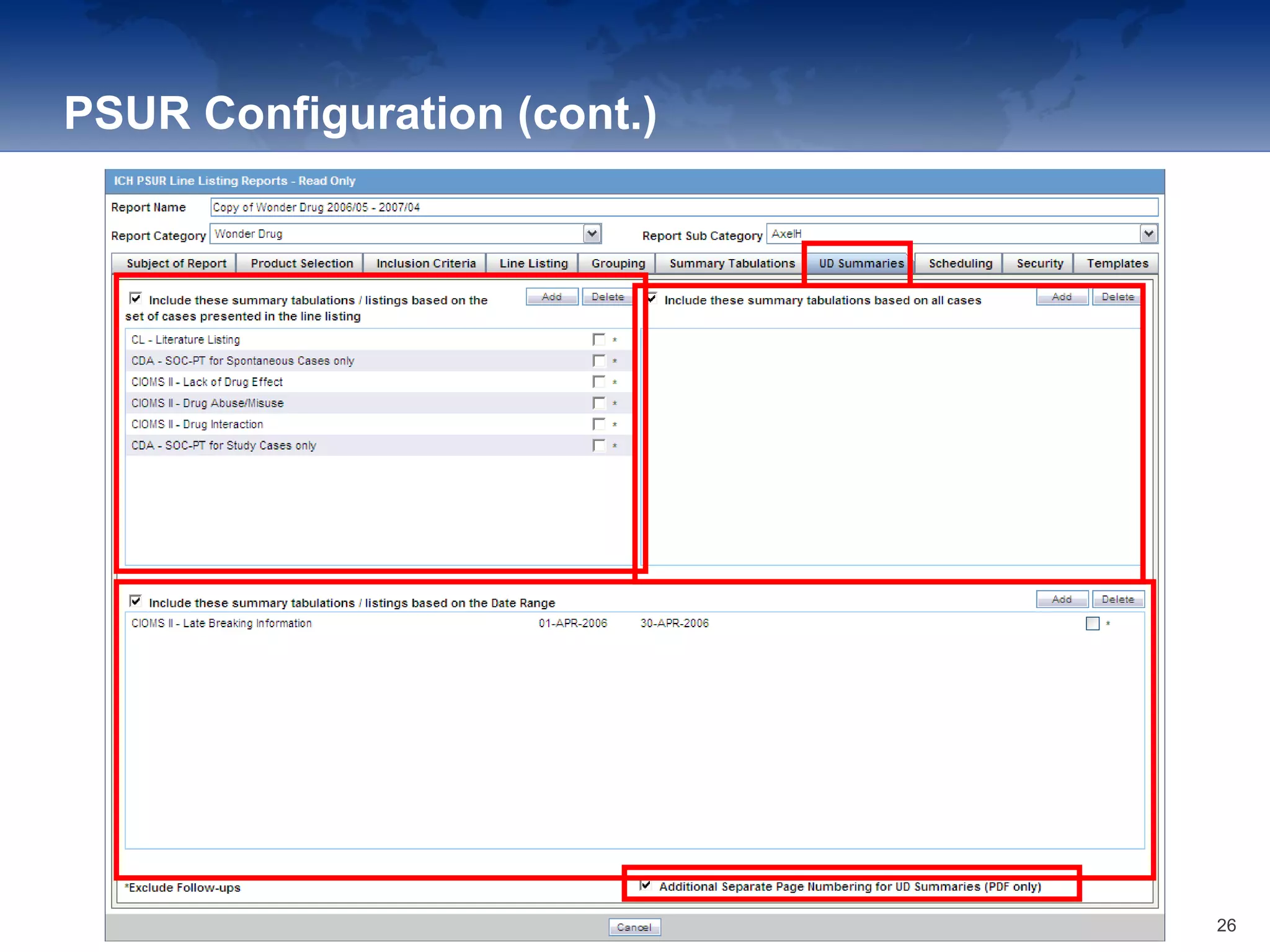
  • #27 UD = User Defined Select summary tabulations/listings reports (previously created and memorized) to be included in the report. ICH PSUR Line Listing Reports: Summary Tabulations Tab Include these summary tabulations/listings based on the set of cases presented in the line listing: Allows the user to select from pre-configured summary tabulations/listings based on Case Data Analysis, Case listing or CIOMS II line listing reports. These tabulations shall be based only on the data included in the line listing. Follow up cases may be filtered out. Include these summary tabulations based on all cases: Allows for additional sub-reports based on the ‘Case Data Analysis’ template, to be included as an output for the all cases in the database that meet the Report inclusion criterion for all dates. Include these summary tabulations/listings based on the Date Range: Allows for additional sub-reports based on Case Data Analysis, Case listing or CIOMS II line listing reports to be included as an output for the cases meeting the PSUR inclusion criterion for the Date Range specified when adding the sub-report. Additional Separate Page Numbering for Summaries: Enables inclusion of an additional separate page numbering for summaries.
  • #28 The scheduling tab provides the ability to schedule a PSUR at appropriate time intervals and assign the report to a group. The use of this tab is not required. The advantage of this tab is that it enables an automated generation of a report e.g. monthly SAE listings for the client.
  • #29 Select “Share this report with other users” to share the report. Click [Add >>] to include the required groups for each permission. To add multiple groups at once, hold the CTRL key and click [Add >>] to either “Execute” or “Execute & Modify” section areas. To remove any of your selections, click [<< Remove]. Click [OK] to save the report changes. ICH PSUR Line Listing Reports: Security Tab Share this Report with Other Users: Allow sharing this report with other Users. User Groups: Allow granting access to the User Groups listed. Execute: The groups listed here shall have read and execute access to the shared PSUR report template. Modify & Execute: The groups listed here shall have read, execute and modify access to the shared PSUR report template.
  • #30 The “Templates” tab is for use with Argus Dossier, another module to allow the complete publishing of any periodic report. Argus Dossier will not be used in this version of Argus. Demonstrate all and print the PSUR
  • #31 Click [Print] to generate PSUR report. A pop-up box will let you run the report as final or draft. The second box will show the progress
  • #32 The PSUR is now available for printing or saving
  • #33 Advanced Condition is a sophisticated search tool for authorized users to create and run queries In the Case Open screen, Select an advanced condition from the drop-down or use the magnifying glass icon to search for saved advanced conditions Select the [AC] button or “(New)” from the drop-down to create a new advanced condition
  • #34 Read the slide. To create an Advanced Condition Query Set, click the [Add] button and select an Advanced Condition from the drop down Select a “Set Operator” Intersect - Cases meet all conditions Minus – Cases are result of first condition excluding cases that meets 2nd or additional conditions Union – Cases meet any of the conditions Click [Add] to select another Advanced Condition and select the Set Operator To modify the selected condition, click [AC] to open for the single condition. Modifying the AC will change the original AC as well. Enter a “Name” and “Description” Click [Save] to store the query set Demonstrate working with ACs.
  • #35 Explain fields and demonstrate working in the AC Editor.
  • #36 Explain the exercise to participants and ask if they are clear on the instructions. Allow them 30 minutes to do the exercise, followed by a debrief.
  • #37 The US New Drug Application (NDA) Periodic Reports enable you to define an NDA Periodic report for the FDA. The following are NDA Periodic reporting outputs: Report Configuration Index of Cases Index of MedWatch Forms Line Listing of 15-day Reports List of nullified 15-day Cases Tabulation by SOC of submitted Events Cases sent to FDA under a different NDA Summary Tabulations MedWatch Forms
  • #39 To navigate to NDA, select ‘Reports’, ‘Periodic’ and ‘NDA’ to open a list of NDA Reports General usage information: When using NDA Reports be aware of the following: You can print an Index of Cases included in the NDA report. If you select this option, the system lists the cases from the following sections once at the end of the configuration pages: Sequential List of cases Serious Listed Initial/Follow up Non Serious Listed Initial/Follow up Non Serious Unlisted Initial/Follow up 15 Day Submission The page numbering for this sub-report continues from the configuration pages. You can separate initial case events from follow-up case events in the Summary Tabulation tab of the NDA Report. If you select this option, the system counts events in the Initial section if the case is in the Serious Listed, Non-Serious Listed, or Non-Serious Listed/Unlisted sections. If you select this option, the system counts events in the Follow-up section if the case is in the Serious Listed or Non-Serious Listed/Unlisted follow-up sections of the NDA report. For 15 Day events, if the case has not been previously reported in a NDA, the system counts it in the Initial section then in the Follow-up section. If you select List cases once under the Primary Event System Organ Class (SOC), the system displays a footnote with an asterisk ( * ) printed across all the System Organ Classes on the report and the following statement: Primary Event System Organ Class. If you select the Print FDA-3500A/VAERS form at the end option, the system prints the report sections in the following order: Configuration (Including Case Indices (e.g. Sequential Case Listing, Listing by Seriousness/Listedness, Listing of Cases Missing Analysis) Line Listing Summary Tabulations MedWatch/VAERS reports at the end of the report Page numbering for the MedWatches reports continue from the last page of the NDA report. The configuration pages have been updated to reflect the updates made to the NDA Reports The configuration pages are printed at the beginning of the NDA report. By default, these are unchecked on all the existing configured reports.
  • #40 In this screen, you can: Create a New Report Copy / Modify / Delete an Existing Report Print an NDA Periodic Report NDA Reports can be organized by Category and Sub-Category Filter Criteria to limit list of Reports Displayed (select X to collapse filer) Selected Report is highlighted in Yellow
  • #41 Demonstrate how to perform batch printing and take participants through pages in the Report after it has been generated.
  • #42 In the next few slides you will see how an NDA report can be configured. On the Subject of Report tab you can select multiple Ingredients for a configured NDA Report per allowable variations of product and license configuration and periodic reporting requirements for the FDA. Select multiple ingredients to view the multiple licenses to be selected for the report. Field Descriptions Primary Agency: Select the Primary Agency. Remember that the NDA is only submitted to the FDA. Available Reporting Destination: Displays the list of configured Regulatory Agencies. Select an agency from the list displayed in Reporting Destination and click Add to add the report to the Selected Destination list. Select multiple agencies by holding the CTRL key when you click them. Selected Reporting Destination: Displays the list of agencies where the report is being sent. Select an agency from the list displayed in Reporting Destination and click Add to add the report to the Selected Reporting Destination list. Select multiple agencies by holding the CTRL key when you click them. Likewise, select an agency from the Selected Reporting Destination list and click Remove to prevent it from being sent to the selected destination. Company Name: If a regulatory agency is selected, the company name associated with the regulatory agency (this association is created by the Administrator) is automatically entered in this field. Ingredient: This field is populated with ingredient selected in the Subject of Report tab. Note: Click the checkbox corresponding to this field to choose whether you want this field to appear on the report. Approval: This field is automatically filled with License numbers, separated by commas. This is an editable field. Trade Name: Automatically displays the Trade Name. Multiple trade names are also populated from license trade name (formulation, concentration) of selected licenses, separated by commas. Note: Click the checkbox corresponding to this field to choose whether you want this field to appear on the report. The name of the drug needs to be entered here. Award Date: Automatically displays the earliest license awarded date, when a user selects an Ingredient and a Product. Note: Click the checkbox corresponding to this field to choose whether you want this field to appear on the report. Print all configuration criteria on separate cover page. Click this checkbox to print out the configuration of this report when the report is printed. This is only available when the PDF option is selected during printing. Allow access to report cases through Hit List: When the report is run as final, it creates a Hit List, which can be retrieved from other areas of the application where advanced conditions can be selected. Click this checkbox to report cases through the Hit List.
  • #43 NDA usually refers to new drugs but this may also included drugs already marketed and now in testing for a new indication. Field Descriptions: Available Ingredients: Displays the list containing the Ingredients used for the product configuration. Select an ingredient from the list displayed in Available Ingredients and click Add/Remove to add/remove the ingredient. You can select multiple ingredients at a time. Filter: Enter an Ingredient name and click Filter to search for the entered ingredient within the Available list of Ingredients. Selected Ingredients: Displays the list of ingredients selected from the Available Ingredients list. Indication: This list contains a list of all the indications for the products containing the selected ingredient. The selections made from this list are displayed in the Available Products section. Note: You can select multiple Indications from the list at a time by pressing the CTRL key and clicking the different Indication entities. Formulation: This list contains the Formulations configured for the product containing the selected ingredient and indication. The selections made from this list get displayed in the Selected Products section. Note: You can select multiple Formulations from the list at a time by pressing the CTRL key and clicking the different Indication entities. Available Licenses: This list is automatically populated with the licenses from the Indication section. Selected Licenses: This list contains licenses selected by the user from the Available Licenses list. When a product is selected, the Trade Name and Award Date fields are auto-populated with the license trade name ("formulation", "concentration") and earliest License Award Date for the product.
  • #44 DLP = Data Lock Point Here you can define which cases should be in the listing, e.g. all cases that were received in a certain time period. Field Descriptions: Case Creation Date: Allows you to specify a range of cases by the date when the case was created. Case Receipt Date: Allows you to specify a range of cases by the initial receipt date. Use Current Version: Allows you to use the latest revision to populate the data within the selected reports. Use DLP Version: Allows you to use the case data of the version as of the specified DLP Version. Age Groups: Allows you to include or exclude cases based on the patient's age group. Select the Age Groups checkbox to activate the age groups and select all the age group categories that apply. Option (Applicable to Non-15-Day Selection Only)- Domestic/Foreign Cases: This option allows the user to include domestic and foreign cases within the periodic report. Select Domestic if Country of Incidence is USA and Foreign if Country of Incidence is not USA. Option (Applicable to Non-15-Day Selection Only)-Exclude Literature Cases/Study Cases: This option allows the user to exclude Literature and Study Cases from being considered for the NDA Report. Select Exclude Literature Cases to exclude literature cases and select Exclude Study Cases to exclude study cases. Advanced Condition: Allows you to specify an advanced condition that must be satisfied by each case that is included in the report. Ensure that the advanced condition or the advanced condition query set that is specified here does not contradict any other criteria specified in the dialog. Add Cases not Included in a previous reporting period - Start Date: Enter the start date. This adds cases not included in a previous reporting period with the specified start date. Include Unlocked Cases: Allows you to include unlocked cases in the periodic report. Evaluate Primary Suspect Drug Only: Allows you to select only the Primary Suspect Drug.
  • #45 Here you can define if additional fields should be populated or should appear on the listing e.g. if the client wants to have the narrative in. NDA Sections are included on the report by checking the appropriate selections highlighted above Specify the starting page number (after the configuration pages) Tab 1: FDA - 3500/VAERS Forms: Select this checkbox to generate the MedWatch 3500A (Drug) or VAERS reports which are serious listed or non-serious. Suppress printing of non-serious listed reports: Select this checkbox to prevent printing the non-serious listed reports but print their case numbers in the main NDA report indices Note: Tab 1 of the NDA Line Listing report cannot be generated without Tab 2. However, Tab 2 can be generated without Tab 1 Tab 2: Index of Submitted Forms in Tab 1: Select this checkbox to generate an index of the forms from Tab 1 It prints all MedWatch/VAERS forms for the following cases:  Serious Listed Non-Serious Unlisted Non-Serious Listed  Note: Previously expedited 15-day reports that are Serious and Unlisted that have already been submitted to the FDA do not need to be re-submitted with this periodic report. Tab 3 Part 1: NDA Line Listing of 15 Day Reports Submitted: Select this checkbox to generate a list of all serious unlisted expedited reports within the specified time period.  Note: The dates in these reports are in GMT.  TAB 3 Part 2: Tabulation by System Organ Class (SOC) of All Event Reports Submitted: Select this checkbox to generate a tabulation by System Organ Class (SOC) of all events reported during the specified time period. This includes the cases for which expedited reports were previously generated, as well as the cases that are submitted as part of the current report. TAB 3 Part 3: Cases sent to FDA under another NDA: Select this checkbox to print a list of all the serious unlisted events for which reports were submitted to the FDA previously Note: If you select to print out the Tab 3 Part 3 section, the NDA report looks for other submissions (E2B, MW, MW Drug, or VAERS) to the same agency for the same case against other (not included in selection criteria for this report) marketed licenses. Any submission matching this criterion is listed on the Tab 3 Part 3 section of the NDA report. If there are multiple submissions against different licenses, then each one is listed. Each license is listed only once. Include Periodic Submissions: Select this checkbox to include all cases that have been sent under another NDA Start Page Number: Select the page number for the first page of the report Listing Options: These options for "List cases only once, under the primary event body system" and "List cases under all events body systems" only apply to the NDA Line Listing of Expedited Reports Submitted report List cases only once, under the primary event System Organ Class: Select this option to list cases only once List cases under all events System Organ Classes: Select this option to list cases under each SOC for each event Include Summary of Cases Missing Assessments: Select this checkbox to include a Summary of Cases missing Assessments at the end of the report Include Summary of Unlocked Cases: Select this option to include a summary of unlocked cases. Include Listing of Nullified 15-day Alert Cases Submitted During the Reporting Period: Select this option to include cancelled 15-day alert cases during the reporting period Note: The dates in these reports are in GMT.Use Periodic numbering on the Reports: Select this option to use periodic numbering on reports. Custom Case Summary Tabulation: Enter the Summary Report Title Advanced Condition: Select the Advanced Condition from the drop-down list
  • #46 CDA: Centre for Drug Administration CL The Summary Tabulations tab allows you to specify which summary tabulations will appear along with the line listing. Field Descriptions: Include these summary tabulations/listings based on the set of cases presented in the line listing: Allows you to select from pre-configured summary tabulations/listings. These tabulations are based only on the data included in the line listing. Select the Exclude Follow-up Cases check box to filter out follow-up cases from the attached report. Note: If the Exclude Follow-up Cases option is selected on the Inclusion criteria tab, this option is ignored and follow-up cases are always filtered out. Include these summary tabulations based on all cases: Allows for additional sub-reports based on the ’Case Data Analysis’ template, to be included as an output for the all cases in the database that meet the NDA Report inclusion criterion for all dates. Add: Displays a list of memorized Case Data Analysis Reports that have been marked for availability in a periodic report. Remove: Click this button to remove a selected report. Additional Separate Page Numbering for Summaries: Enables you to include additional separate page numbering for summaries. Case Count Summary Report: Enables you to print the list of Case Numbers that are included in the Periodic Reports but are not locked.
  • #47 The Scheduling tab allows you to specify details of how often the periodic report will be scheduled. Field Descriptions: Start Date: This is the International Birth Date for the NDA Report product. This date is computed as the earliest Awarded date for any license of any type. Recalculate: Allows a user to recompute the International Birth Date of the NDA Report Product. This date can be overwritten/manually entered, if needed. Report is due xx days after selected end date (creation or receipt date): Enter the number of days when the report will be due after the end date specified for the scheduling period. Automatically generate report xx days before/after selected end date at xx:xx: Allows a user to specify the timing of the automatic report generation, by specifying the number of days before/after the selected end date of the report. Group: Allows the user to select the group to which the automatically generated report is to be assigned. Scheduling Frequency Frequency: Allows a user to specify the interval required for this scheduling period. Start: Allows the user to specify when the scheduling period starts. End: Allows the user to specify when the scheduling period starts. Add: Allows a user to add another scheduling interval. Delete: Allows a user to delete a scheduling interval.
  • #48 The Security tab is used to configure the security level for the NDA Reports. Field Descriptions: Share this Report with Other Users: Click this checkbox to share this report with other users. Specify the privileges to be granted to groups by adding the group name from the Users Groups list to either the ’Execute’ or ’Modify and Execute’ list.   A user group can exist in only one of these access lists. User Groups: The groups listed here have no access to the NDA Report template. Click Add or Remove: to move them to another access list. Execute: The groups listed here have read and execute access to the shared NDA Report template. Modify & Execute: The groups listed here have read, execute and modify access to the shared NDA Report template.
  • #49 The “Templates” tab is for use with Argus Dossier, an add-on module to allow the complete publishing of any periodic report.
  • #50 Explain the exercise to participants and ask if they are clear on the instructions. Allow them 30 minutes to do the exercise, followed by a debrief.
  • #51 Read the slide.
  • #52 Thank the participants.