Android - Lesson 2


                             Daniela da Cruz

                        Universidade Lusófona do Porto


                            September, 2012


1 of 35
Android Application Overview

Activity Lifecycle

Basic Android User Interface components
   Activity
   Fragments
   View and ViewGroup

Layouts

XML Layout Attributes

Dimensions

Exercise

2 of 35
Layout

Android Application Overview
Activity Lifecycle
Basic Android User Interface components
   Activity
   Fragments
   View and ViewGroup
Layouts
XML Layout Attributes
Dimensions
Exercise
3 of 35
Android Application Overview


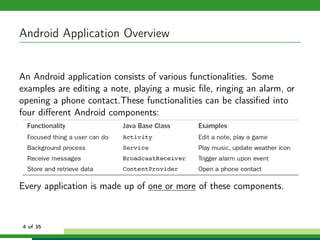
An Android application consists of various functionalities. Some
examples are editing a note, playing a music file, ringing an alarm, or
opening a phone contact.These functionalities can be classified into
four different Android components:


Every application is made up of one or more of these components.


4 of 35
Layout

Android Application Overview
Activity Lifecycle
Basic Android User Interface components
   Activity
   Fragments
   View and ViewGroup
Layouts
XML Layout Attributes
Dimensions
Exercise
5 of 35
Activity Lifecycle


6 of 35
Activity Lifecycle

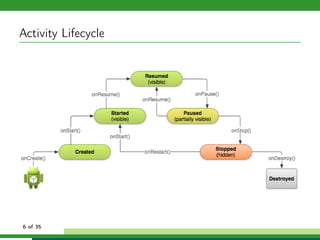
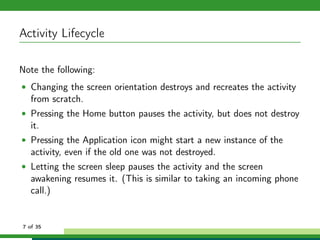
Note the following:
• Changing the screen orientation destroys and recreates the activity
   from scratch.
• Pressing the Home button pauses the activity, but does not destroy
   it.
• Pressing the Application icon might start a new instance of the
   activity, even if the old one was not destroyed.
• Letting the screen sleep pauses the activity and the screen
   awakening resumes it. (This is similar to taking an incoming phone
   call.)


7 of 35
Layout

Android Application Overview
Activity Lifecycle
Basic Android User Interface components
   Activity
   Fragments
   View and ViewGroup
Layouts
XML Layout Attributes
Dimensions
Exercise
8 of 35
Activity


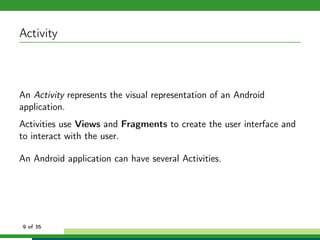
An Activity represents the visual representation of an Android
application.
Activities use Views and Fragments to create the user interface and
to interact with the user.

An Android application can have several Activities.


9 of 35
Fragments


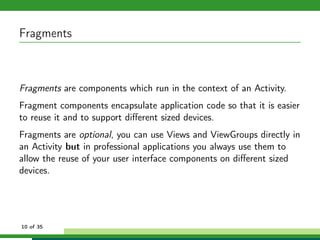
Fragments are components which run in the context of an Activity.
Fragment components encapsulate application code so that it is easier
to reuse it and to support different sized devices.
Fragments are optional, you can use Views and ViewGroups directly in
an Activity but in professional applications you always use them to
allow the reuse of your user interface components on different sized
devices.


10 of 35
View and ViewGroup


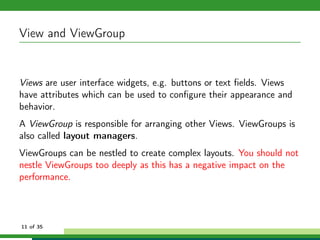
Views are user interface widgets, e.g. buttons or text fields. Views
have attributes which can be used to configure their appearance and
behavior.
A ViewGroup is responsible for arranging other Views. ViewGroups is
also called layout managers.
ViewGroups can be nestled to create complex layouts. You should not
nestle ViewGroups too deeply as this has a negative impact on the
performance.


11 of 35
View and ViewGroup

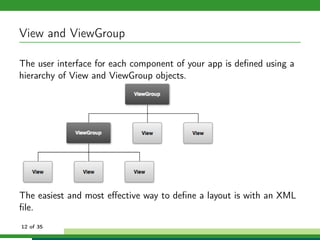
The user interface for each component of your app is defined using a
hierarchy of View and ViewGroup objects.


The easiest and most effective way to define a layout is with an XML
file.
12 of 35
Layout

Android Application Overview
Activity Lifecycle
Basic Android User Interface components
   Activity
   Fragments
   View and ViewGroup
Layouts
XML Layout Attributes
Dimensions
Exercise
13 of 35
Layouts

An Android layout is a class that handles arranging the way its
children appear on the screen. Anything that is a View (or inherits
from View) can be a child of a layout. All of the layouts inherit from
ViewGroup (which inherits from View) so you can nest layouts.
The standard Layouts are:
• AbsoluteLayout
• FrameLayout
• LinearLayout
• RelativeLayout
• TableLayout


14 of 35
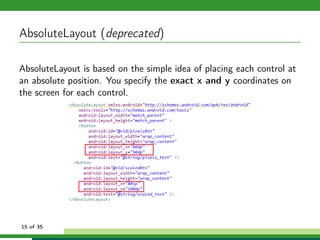
AbsoluteLayout (deprecated)

AbsoluteLayout is based on the simple idea of placing each control at
an absolute position. You specify the exact x and y coordinates on
the screen for each control.


15 of 35
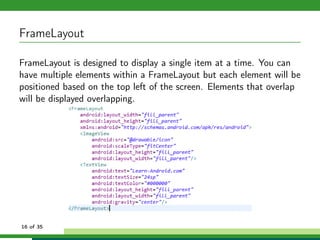
FrameLayout

FrameLayout is designed to display a single item at a time. You can
have multiple elements within a FrameLayout but each element will be
positioned based on the top left of the screen. Elements that overlap
will be displayed overlapping.


16 of 35
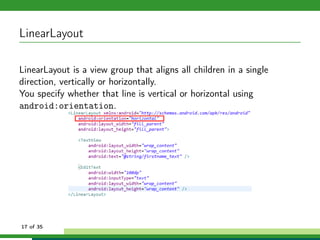
LinearLayout

LinearLayout is a view group that aligns all children in a single
direction, vertically or horizontally.
You specify whether that line is vertical or horizontal using
android:orientation.


17 of 35
RelativeLayout (1)


RelativeLayout lays out elements based on their relationships with one
another, and with the parent container. RelativeLayout is very
powerful but the most complicated one, and we need several
properties to actually get the layout we want.


18 of 35
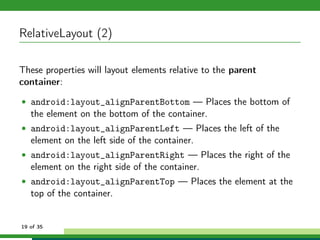
RelativeLayout (2)

These properties will layout elements relative to the parent
container:
• android:layout_alignParentBottom — Places the bottom of
   the element on the bottom of the container.
• android:layout_alignParentLeft — Places the left of the
   element on the left side of the container.
• android:layout_alignParentRight — Places the right of the
   element on the right side of the container.
• android:layout_alignParentTop — Places the element at the
   top of the container.


19 of 35
RelativeLayout (3)


(cont.)
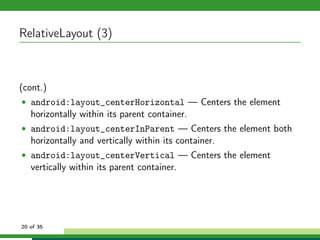
• android:layout_centerHorizontal — Centers the element
   horizontally within its parent container.
• android:layout_centerInParent — Centers the element both
   horizontally and vertically within its container.
• android:layout_centerVertical — Centers the element
   vertically within its parent container.


20 of 35
RelativeLayout (4)


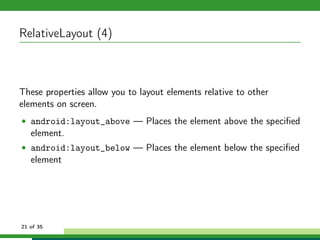
These properties allow you to layout elements relative to other
elements on screen.
• android:layout_above — Places the element above the specified
   element.
• android:layout_below — Places the element below the specified
   element


21 of 35
RelativeLayout (5)


(cont.)
• android:layout_toLeftOf — Places the element to the left of
   the specified element.
• android:layout_toRightOf — Places the element to the right of
   the specified element.

The value for each of these elements must be a reference to another
resource, in the form “@[+][package:]type:name”.


22 of 35
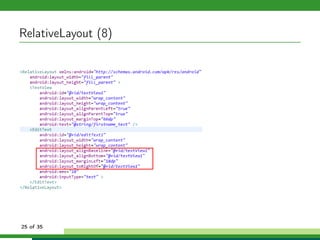
RelativeLayout (6)


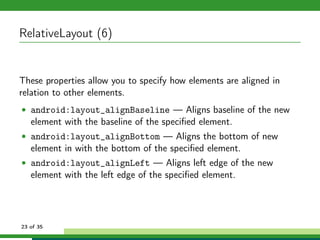
These properties allow you to specify how elements are aligned in
relation to other elements.
• android:layout_alignBaseline — Aligns baseline of the new
   element with the baseline of the specified element.
• android:layout_alignBottom — Aligns the bottom of new
   element in with the bottom of the specified element.
• android:layout_alignLeft — Aligns left edge of the new
   element with the left edge of the specified element.


23 of 35
RelativeLayout (7)


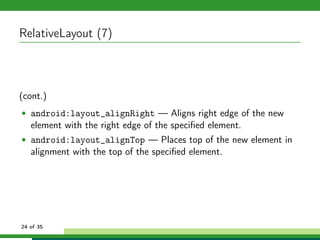
(cont.)
• android:layout_alignRight — Aligns right edge of the new
   element with the right edge of the specified element.
• android:layout_alignTop — Places top of the new element in
   alignment with the top of the specified element.


24 of 35
RelativeLayout (8)


25 of 35
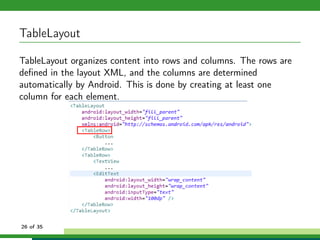
TableLayout

TableLayout organizes content into rows and columns. The rows are
defined in the layout XML, and the columns are determined
automatically by Android. This is done by creating at least one
column for each element.


26 of 35
Layout

Android Application Overview
Activity Lifecycle
Basic Android User Interface components
   Activity
   Fragments
   View and ViewGroup
Layouts
XML Layout Attributes
Dimensions
Exercise
27 of 35
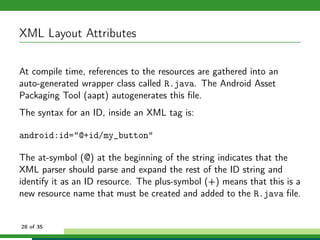
XML Layout Attributes

At compile time, references to the resources are gathered into an
auto-generated wrapper class called R.java. The Android Asset
Packaging Tool (aapt) autogenerates this file.
The syntax for an ID, inside an XML tag is:

android:id="@+id/my_button"

The at-symbol (@) at the beginning of the string indicates that the
XML parser should parse and expand the rest of the ID string and
identify it as an ID resource. The plus-symbol (+) means that this is a
new resource name that must be created and added to the R.java file.


28 of 35
XML Layout Attributes


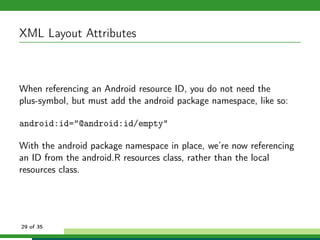
When referencing an Android resource ID, you do not need the
plus-symbol, but must add the android package namespace, like so:

android:id="@android:id/empty"

With the android package namespace in place, we’re now referencing
an ID from the android.R resources class, rather than the local
resources class.


29 of 35
Layout

Android Application Overview
Activity Lifecycle
Basic Android User Interface components
   Activity
   Fragments
   View and ViewGroup
Layouts
XML Layout Attributes
Dimensions
Exercise
30 of 35
Dimensions

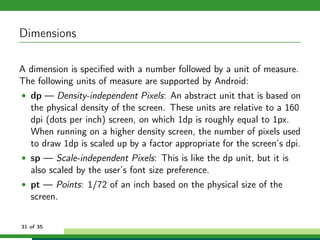
A dimension is specified with a number followed by a unit of measure.
The following units of measure are supported by Android:
• dp — Density-independent Pixels: An abstract unit that is based on
   the physical density of the screen. These units are relative to a 160
   dpi (dots per inch) screen, on which 1dp is roughly equal to 1px.
   When running on a higher density screen, the number of pixels used
   to draw 1dp is scaled up by a factor appropriate for the screen’s dpi.
• sp — Scale-independent Pixels: This is like the dp unit, but it is
   also scaled by the user’s font size preference.
• pt — Points: 1/72 of an inch based on the physical size of the
   screen.


31 of 35
Dimensions


(cont.)
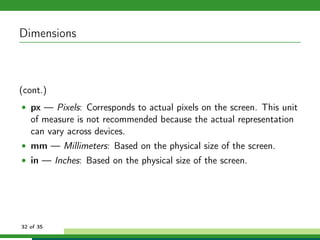
• px — Pixels: Corresponds to actual pixels on the screen. This unit
   of measure is not recommended because the actual representation
   can vary across devices.
• mm — Millimeters: Based on the physical size of the screen.
• in — Inches: Based on the physical size of the screen.


32 of 35
Layout

Android Application Overview
Activity Lifecycle
Basic Android User Interface components
   Activity
   Fragments
   View and ViewGroup
Layouts
XML Layout Attributes
Dimensions
Exercise
33 of 35
Exercise


Create your first Android application to understand the activity
lifecycle.
You should display a message as soon as an event (onCreate,
onStart, etc) is fired.

To display messages use the class android.widget.Toast.


34 of 35
Slides made using the help of:
• http://developer.android.com/
• Programming Android. Zigurd Mednieks, Laird Dornin, G. Blake
   Meike, Masumi Nakamura. O’Reilly Media. July 2011.
• The Android Developer’s Cookbook: Building Applications with the
   Android SDK. James Steele, Nelson To.
• http://www.learn-android.com


35 of 35

Android Lesson 2

  • 1.
    Android - Lesson2 Daniela da Cruz Universidade Lusófona do Porto September, 2012 1 of 35
  • 2.
    Android Application Overview ActivityLifecycle Basic Android User Interface components Activity Fragments View and ViewGroup Layouts XML Layout Attributes Dimensions Exercise 2 of 35
  • 3.
    Layout Android Application Overview ActivityLifecycle Basic Android User Interface components Activity Fragments View and ViewGroup Layouts XML Layout Attributes Dimensions Exercise 3 of 35
  • 4.
    Android Application Overview AnAndroid application consists of various functionalities. Some examples are editing a note, playing a music file, ringing an alarm, or opening a phone contact.These functionalities can be classified into four different Android components: Every application is made up of one or more of these components. 4 of 35
  • 5.
    Layout Android Application Overview ActivityLifecycle Basic Android User Interface components Activity Fragments View and ViewGroup Layouts XML Layout Attributes Dimensions Exercise 5 of 35
  • 6.
  • 7.
    Activity Lifecycle Note thefollowing: • Changing the screen orientation destroys and recreates the activity from scratch. • Pressing the Home button pauses the activity, but does not destroy it. • Pressing the Application icon might start a new instance of the activity, even if the old one was not destroyed. • Letting the screen sleep pauses the activity and the screen awakening resumes it. (This is similar to taking an incoming phone call.) 7 of 35
  • 8.
    Layout Android Application Overview ActivityLifecycle Basic Android User Interface components Activity Fragments View and ViewGroup Layouts XML Layout Attributes Dimensions Exercise 8 of 35
  • 9.
    Activity An Activity representsthe visual representation of an Android application. Activities use Views and Fragments to create the user interface and to interact with the user. An Android application can have several Activities. 9 of 35
  • 10.
    Fragments Fragments are componentswhich run in the context of an Activity. Fragment components encapsulate application code so that it is easier to reuse it and to support different sized devices. Fragments are optional, you can use Views and ViewGroups directly in an Activity but in professional applications you always use them to allow the reuse of your user interface components on different sized devices. 10 of 35
  • 11.
    View and ViewGroup Viewsare user interface widgets, e.g. buttons or text fields. Views have attributes which can be used to configure their appearance and behavior. A ViewGroup is responsible for arranging other Views. ViewGroups is also called layout managers. ViewGroups can be nestled to create complex layouts. You should not nestle ViewGroups too deeply as this has a negative impact on the performance. 11 of 35
  • 12.
    View and ViewGroup Theuser interface for each component of your app is defined using a hierarchy of View and ViewGroup objects. The easiest and most effective way to define a layout is with an XML file. 12 of 35
  • 13.
    Layout Android Application Overview ActivityLifecycle Basic Android User Interface components Activity Fragments View and ViewGroup Layouts XML Layout Attributes Dimensions Exercise 13 of 35
  • 14.
    Layouts An Android layoutis a class that handles arranging the way its children appear on the screen. Anything that is a View (or inherits from View) can be a child of a layout. All of the layouts inherit from ViewGroup (which inherits from View) so you can nest layouts. The standard Layouts are: • AbsoluteLayout • FrameLayout • LinearLayout • RelativeLayout • TableLayout 14 of 35
  • 15.
    AbsoluteLayout (deprecated) AbsoluteLayout isbased on the simple idea of placing each control at an absolute position. You specify the exact x and y coordinates on the screen for each control. 15 of 35
  • 16.
    FrameLayout FrameLayout is designedto display a single item at a time. You can have multiple elements within a FrameLayout but each element will be positioned based on the top left of the screen. Elements that overlap will be displayed overlapping. 16 of 35
  • 17.
    LinearLayout LinearLayout is aview group that aligns all children in a single direction, vertically or horizontally. You specify whether that line is vertical or horizontal using android:orientation. 17 of 35
  • 18.
    RelativeLayout (1) RelativeLayout laysout elements based on their relationships with one another, and with the parent container. RelativeLayout is very powerful but the most complicated one, and we need several properties to actually get the layout we want. 18 of 35
  • 19.
    RelativeLayout (2) These propertieswill layout elements relative to the parent container: • android:layout_alignParentBottom — Places the bottom of the element on the bottom of the container. • android:layout_alignParentLeft — Places the left of the element on the left side of the container. • android:layout_alignParentRight — Places the right of the element on the right side of the container. • android:layout_alignParentTop — Places the element at the top of the container. 19 of 35
  • 20.
    RelativeLayout (3) (cont.) • android:layout_centerHorizontal— Centers the element horizontally within its parent container. • android:layout_centerInParent — Centers the element both horizontally and vertically within its container. • android:layout_centerVertical — Centers the element vertically within its parent container. 20 of 35
  • 21.
    RelativeLayout (4) These propertiesallow you to layout elements relative to other elements on screen. • android:layout_above — Places the element above the specified element. • android:layout_below — Places the element below the specified element 21 of 35
  • 22.
    RelativeLayout (5) (cont.) • android:layout_toLeftOf— Places the element to the left of the specified element. • android:layout_toRightOf — Places the element to the right of the specified element. The value for each of these elements must be a reference to another resource, in the form “@[+][package:]type:name”. 22 of 35
  • 23.
    RelativeLayout (6) These propertiesallow you to specify how elements are aligned in relation to other elements. • android:layout_alignBaseline — Aligns baseline of the new element with the baseline of the specified element. • android:layout_alignBottom — Aligns the bottom of new element in with the bottom of the specified element. • android:layout_alignLeft — Aligns left edge of the new element with the left edge of the specified element. 23 of 35
  • 24.
    RelativeLayout (7) (cont.) • android:layout_alignRight— Aligns right edge of the new element with the right edge of the specified element. • android:layout_alignTop — Places top of the new element in alignment with the top of the specified element. 24 of 35
  • 25.
  • 26.
    TableLayout TableLayout organizes contentinto rows and columns. The rows are defined in the layout XML, and the columns are determined automatically by Android. This is done by creating at least one column for each element. 26 of 35
  • 27.
    Layout Android Application Overview ActivityLifecycle Basic Android User Interface components Activity Fragments View and ViewGroup Layouts XML Layout Attributes Dimensions Exercise 27 of 35
  • 28.
    XML Layout Attributes Atcompile time, references to the resources are gathered into an auto-generated wrapper class called R.java. The Android Asset Packaging Tool (aapt) autogenerates this file. The syntax for an ID, inside an XML tag is: android:id="@+id/my_button" The at-symbol (@) at the beginning of the string indicates that the XML parser should parse and expand the rest of the ID string and identify it as an ID resource. The plus-symbol (+) means that this is a new resource name that must be created and added to the R.java file. 28 of 35
  • 29.
    XML Layout Attributes Whenreferencing an Android resource ID, you do not need the plus-symbol, but must add the android package namespace, like so: android:id="@android:id/empty" With the android package namespace in place, we’re now referencing an ID from the android.R resources class, rather than the local resources class. 29 of 35
  • 30.
    Layout Android Application Overview ActivityLifecycle Basic Android User Interface components Activity Fragments View and ViewGroup Layouts XML Layout Attributes Dimensions Exercise 30 of 35
  • 31.
    Dimensions A dimension isspecified with a number followed by a unit of measure. The following units of measure are supported by Android: • dp — Density-independent Pixels: An abstract unit that is based on the physical density of the screen. These units are relative to a 160 dpi (dots per inch) screen, on which 1dp is roughly equal to 1px. When running on a higher density screen, the number of pixels used to draw 1dp is scaled up by a factor appropriate for the screen’s dpi. • sp — Scale-independent Pixels: This is like the dp unit, but it is also scaled by the user’s font size preference. • pt — Points: 1/72 of an inch based on the physical size of the screen. 31 of 35
  • 32.
    Dimensions (cont.) • px —Pixels: Corresponds to actual pixels on the screen. This unit of measure is not recommended because the actual representation can vary across devices. • mm — Millimeters: Based on the physical size of the screen. • in — Inches: Based on the physical size of the screen. 32 of 35
  • 33.
    Layout Android Application Overview ActivityLifecycle Basic Android User Interface components Activity Fragments View and ViewGroup Layouts XML Layout Attributes Dimensions Exercise 33 of 35
  • 34.
    Exercise Create your firstAndroid application to understand the activity lifecycle. You should display a message as soon as an event (onCreate, onStart, etc) is fired. To display messages use the class android.widget.Toast. 34 of 35
  • 35.
    Slides made usingthe help of: • http://developer.android.com/ • Programming Android. Zigurd Mednieks, Laird Dornin, G. Blake Meike, Masumi Nakamura. O’Reilly Media. July 2011. • The Android Developer’s Cookbook: Building Applications with the Android SDK. James Steele, Nelson To. • http://www.learn-android.com 35 of 35