Mobile Application Development
(ITEC-303)
Fahim Abid
fahim.abid@uettaxila.edu.pk
fahim.abid@uoc.edu.pk
Credits Hours 3(3,0)
Recommended Books
1. Professional Android application development, Reto Meier, Wrox Programmer to
Programmer, 2015.
2. Android Programming: The Big Nerd Ranch Guides, Phillips, B. & Hardy, B., 2nd
Edition, 2014.
3. iOS Programming: The Big Nerd Ranch Guide, Conway, J., Hillegass, A., & Keur, C.,
5th Edition, 2014.
Fundamental Android UI Design
User interface (UI) design, user experience (UX), human computer interaction (HCI),
and usability are huge topics in designing and development of apps.
Android introduces some new terminology for familiar programming metaphors that
will be explored in detail and Android provides several common UI controls, widgets,
and layout managers.
 Views: Views are the basic User Interface class for visual interface elements
(commonly known as controls or widgets). They are the base class for all visual
interface elements (commonly known as controls or widgets). All User Interface
controls and the layout classes are derived from Views.
A View is an object that draws something on the screen that the user can
interact with (such as buttons and text fields).
 View Groups: View Groups are extensions of the View class that can contain
multiple child Views. By extending the View Group class, you can create
compound controls that are made up of interconnected child Views.
The View Group class is also extended to provide the layout managers, such as
Linear Layout, that help you compose User Interfaces.
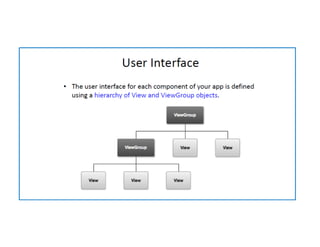
A ViewGroup is an object that holds other View (and ViewGroup) objects in order
to define the layout of the interface (such as a linear or relative layout).
 Activities: Activities represent the window or screen being displayed to the user.
Activities are the Android equivalent of a Form. To display a User Interface, you
assign a View or layout to an Activity.
 Fragments: Fragments, introduced in Android 3.0 (API level 11), are used to
encapsulate portions of your UI. This encapsulation makes Fragments
particularly useful when optimizing your UI layouts for different screen sizes and
creating reusable UI elements. Each Fragment includes its own UI layout and
receives the related input events but is tightly bound to the Activity into which
each must be embedded. Fragments are similar to UI View Controllers in iPhone
development.
Introducing Views
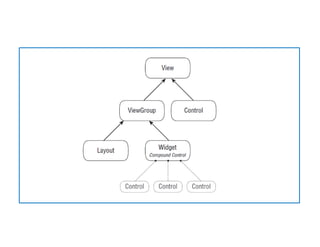
All visual components in Android descend from the View class and are referred to
generically as Views.
The ViewGroup class is an extension of View designed to contain multiple Views.
Generally, View Groups are either used to construct atomic reusable components
(widgets) or to manage the layout of child Views. View Groups that perform the
latter function are generally referred to as layouts.
Because all visual elements derive from Views, many of the terms above are
interchangeable. By convention, a control usually refers to an extension of Views
that implements relatively simple functionality, while a widget generally refers to
both compound controls and more complex extensions of Views.
Creating Activity User Interfaces with Views
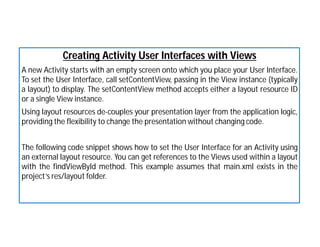
A new Activity starts with an empty screen onto which you place your User Interface.
To set the User Interface, call setContentView, passing in the View instance (typically
a layout) to display. The setContentView method accepts either a layout resource ID
or a single View instance.
Using layout resources de-couples your presentation layer from the application logic,
providing the flexibility to change the presentation without changing code.
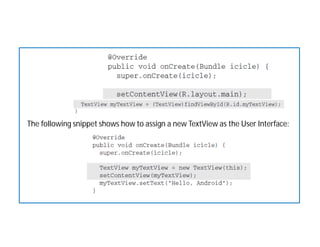
The following code snippet shows how to set the User Interface for an Activity using
an external layout resource. You can get references to the Views used within a layout
with the findViewById method. This example assumes that main.xml exists in the
project’s res/layout folder.
The following snippet shows how to assign a new TextView as the User Interface:
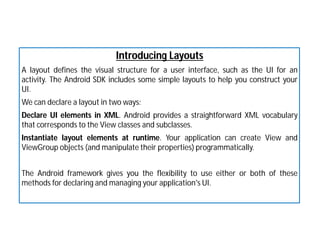
Introducing Layouts
A layout defines the visual structure for a user interface, such as the UI for an
activity. The Android SDK includes some simple layouts to help you construct your
UI.
We can declare a layout in two ways:
Declare UI elements in XML. Android provides a straightforward XML vocabulary
that corresponds to the View classes and subclasses.
Instantiate layout elements at runtime. Your application can create View and
ViewGroup objects (and manipulate their properties) programmatically.
The Android framework gives you the flexibility to use either or both of these
methods for declaring and managing your application's UI.
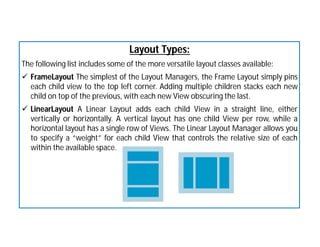
Layout Types:
The following list includes some of the more versatile layout classes available:
 FrameLayout The simplest of the Layout Managers, the Frame Layout simply pins
each child view to the top left corner. Adding multiple children stacks each new
child on top of the previous, with each new View obscuring the last.
 LinearLayout A Linear Layout adds each child View in a straight line, either
vertically or horizontally. A vertical layout has one child View per row, while a
horizontal layout has a single row of Views. The Linear Layout Manager allows you
to specify a “weight” for each child View that controls the relative size of each
within the available space.
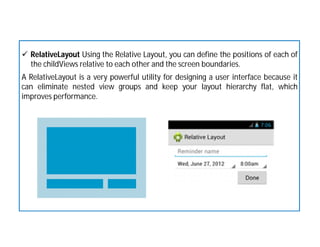
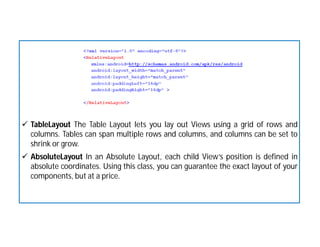
 RelativeLayout Using the Relative Layout, you can define the positions of each of
the childViews relative to each other and the screen boundaries.
A RelativeLayout is a very powerful utility for designing a user interface because it
can eliminate nested view groups and keep your layout hierarchy flat, which
improves performance.
 TableLayout The Table Layout lets you lay out Views using a grid of rows and
columns. Tables can span multiple rows and columns, and columns can be set to
shrink or grow.
 AbsoluteLayout In an Absolute Layout, each child View’s position is defined in
absolute coordinates. Using this class, you can guarantee the exact layout of your
components, but at a price.
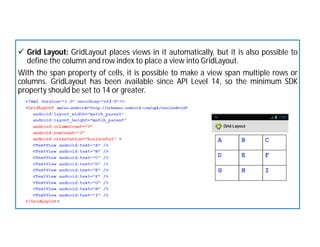
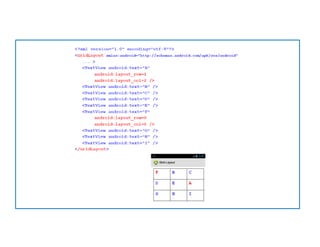
 Grid Layout: GridLayout places views in it automatically, but it is also possible to
define the column and row index to place a view into GridLayout.
With the span property of cells, it is possible to make a view span multiple rows or
columns. GridLayout has been available since API Level 14, so the minimum SDK
property should be set to 14 or greater.
Defining Layouts
The preferred way to define a layout is by using XML external resources.
Each layout XML must contain a single root element. This root node can contain as
many nested layouts and Views as necessary to construct an arbitrarily complex UI.
For each of the layout elements, the constants wrap_content and match_parent are
used rather than an exact height or width in pixels. These constants, combined with
layouts that scale (such as the Linear Layout, Relative Layout, and Grid Layout) offer
the simplest, and most powerful, technique for ensuring your layouts are screen-size
and resolution independent.
The wrap_content constant sets the size of a View to the minimum required to
contain the contents it displays (such as the height required to display a wrapped
text string). The match_parent constant expands the View to match the available
space within the parent View, Fragment, or Activity.
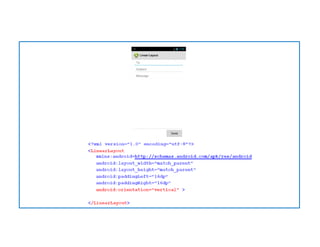
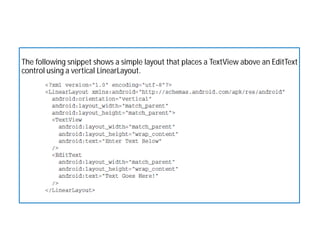
The following snippet shows a simple layout that places a TextView above an EditText
control using a vertical LinearLayout.

Mobile Application Development -Lecture 07 & 08.pdf

  • 1.
    Mobile Application Development (ITEC-303) FahimAbid fahim.abid@uettaxila.edu.pk fahim.abid@uoc.edu.pk
  • 2.
    Credits Hours 3(3,0) RecommendedBooks 1. Professional Android application development, Reto Meier, Wrox Programmer to Programmer, 2015. 2. Android Programming: The Big Nerd Ranch Guides, Phillips, B. & Hardy, B., 2nd Edition, 2014. 3. iOS Programming: The Big Nerd Ranch Guide, Conway, J., Hillegass, A., & Keur, C., 5th Edition, 2014.
  • 3.
    Fundamental Android UIDesign User interface (UI) design, user experience (UX), human computer interaction (HCI), and usability are huge topics in designing and development of apps. Android introduces some new terminology for familiar programming metaphors that will be explored in detail and Android provides several common UI controls, widgets, and layout managers.  Views: Views are the basic User Interface class for visual interface elements (commonly known as controls or widgets). They are the base class for all visual interface elements (commonly known as controls or widgets). All User Interface controls and the layout classes are derived from Views. A View is an object that draws something on the screen that the user can interact with (such as buttons and text fields).  View Groups: View Groups are extensions of the View class that can contain multiple child Views. By extending the View Group class, you can create compound controls that are made up of interconnected child Views.
  • 4.
    The View Groupclass is also extended to provide the layout managers, such as Linear Layout, that help you compose User Interfaces. A ViewGroup is an object that holds other View (and ViewGroup) objects in order to define the layout of the interface (such as a linear or relative layout).  Activities: Activities represent the window or screen being displayed to the user. Activities are the Android equivalent of a Form. To display a User Interface, you assign a View or layout to an Activity.  Fragments: Fragments, introduced in Android 3.0 (API level 11), are used to encapsulate portions of your UI. This encapsulation makes Fragments particularly useful when optimizing your UI layouts for different screen sizes and creating reusable UI elements. Each Fragment includes its own UI layout and receives the related input events but is tightly bound to the Activity into which each must be embedded. Fragments are similar to UI View Controllers in iPhone development.
  • 6.
    Introducing Views All visualcomponents in Android descend from the View class and are referred to generically as Views. The ViewGroup class is an extension of View designed to contain multiple Views. Generally, View Groups are either used to construct atomic reusable components (widgets) or to manage the layout of child Views. View Groups that perform the latter function are generally referred to as layouts. Because all visual elements derive from Views, many of the terms above are interchangeable. By convention, a control usually refers to an extension of Views that implements relatively simple functionality, while a widget generally refers to both compound controls and more complex extensions of Views.
  • 8.
    Creating Activity UserInterfaces with Views A new Activity starts with an empty screen onto which you place your User Interface. To set the User Interface, call setContentView, passing in the View instance (typically a layout) to display. The setContentView method accepts either a layout resource ID or a single View instance. Using layout resources de-couples your presentation layer from the application logic, providing the flexibility to change the presentation without changing code. The following code snippet shows how to set the User Interface for an Activity using an external layout resource. You can get references to the Views used within a layout with the findViewById method. This example assumes that main.xml exists in the project’s res/layout folder.
  • 9.
    The following snippetshows how to assign a new TextView as the User Interface:
  • 10.
    Introducing Layouts A layoutdefines the visual structure for a user interface, such as the UI for an activity. The Android SDK includes some simple layouts to help you construct your UI. We can declare a layout in two ways: Declare UI elements in XML. Android provides a straightforward XML vocabulary that corresponds to the View classes and subclasses. Instantiate layout elements at runtime. Your application can create View and ViewGroup objects (and manipulate their properties) programmatically. The Android framework gives you the flexibility to use either or both of these methods for declaring and managing your application's UI.
  • 11.
    Layout Types: The followinglist includes some of the more versatile layout classes available:  FrameLayout The simplest of the Layout Managers, the Frame Layout simply pins each child view to the top left corner. Adding multiple children stacks each new child on top of the previous, with each new View obscuring the last.  LinearLayout A Linear Layout adds each child View in a straight line, either vertically or horizontally. A vertical layout has one child View per row, while a horizontal layout has a single row of Views. The Linear Layout Manager allows you to specify a “weight” for each child View that controls the relative size of each within the available space.
  • 13.
     RelativeLayout Usingthe Relative Layout, you can define the positions of each of the childViews relative to each other and the screen boundaries. A RelativeLayout is a very powerful utility for designing a user interface because it can eliminate nested view groups and keep your layout hierarchy flat, which improves performance.
  • 14.
     TableLayout TheTable Layout lets you lay out Views using a grid of rows and columns. Tables can span multiple rows and columns, and columns can be set to shrink or grow.  AbsoluteLayout In an Absolute Layout, each child View’s position is defined in absolute coordinates. Using this class, you can guarantee the exact layout of your components, but at a price.
  • 15.
     Grid Layout:GridLayout places views in it automatically, but it is also possible to define the column and row index to place a view into GridLayout. With the span property of cells, it is possible to make a view span multiple rows or columns. GridLayout has been available since API Level 14, so the minimum SDK property should be set to 14 or greater.
  • 17.
    Defining Layouts The preferredway to define a layout is by using XML external resources. Each layout XML must contain a single root element. This root node can contain as many nested layouts and Views as necessary to construct an arbitrarily complex UI. For each of the layout elements, the constants wrap_content and match_parent are used rather than an exact height or width in pixels. These constants, combined with layouts that scale (such as the Linear Layout, Relative Layout, and Grid Layout) offer the simplest, and most powerful, technique for ensuring your layouts are screen-size and resolution independent. The wrap_content constant sets the size of a View to the minimum required to contain the contents it displays (such as the height required to display a wrapped text string). The match_parent constant expands the View to match the available space within the parent View, Fragment, or Activity.
  • 18.
    The following snippetshows a simple layout that places a TextView above an EditText control using a vertical LinearLayout.